Summary
- Native SQL Server 2022 BACKUP TO URL – best for DBAs who need direct .bak backups in Amazon S3 for disaster recovery rather than analytics.
- Skyvia – best for teams that want a no-code way to export, load, or regularly sync SQL Server data with Amazon S3 as structured CSV or JSON files.
- AWS Glue – best for AWS-focused data engineering teams that need Spark-based transformations and large-scale Parquet pipelines in Amazon S3.
- Qlik Talend – best for complex enterprise pipelines that require advanced transformations, governance, and hybrid deployment.
- Airbyte – best for developer-heavy teams that want an open-source or managed data pipeline and are comfortable configuring connectors and infrastructure.
Moving data from SQL Server to Amazon S3 can mean two very different things. A DBA may simply need an offsite backup that can restore the database after a failure. A data engineer may need something else entirely: a steady flow of SQL Server tables into S3 for reporting, Amazon Athena queries, AWS Glue jobs, or loading into platforms such as Snowflake.
The tools for those jobs are not interchangeable.
A native SQL Server backup creates a .bak file that preserves the database state, including its schema, transactions, and recovery information. That is useful for disaster recovery, but the file cannot be queried directly as an analytics dataset. An ETL or replication pipeline works at the table level instead. It extracts records, converts them into formats such as CSV, JSON, or Parquet, and writes them to S3 where other services can use them.
This is where the choice becomes less obvious. Native Microsoft tools may be enough for a straightforward backup, but they come with version and configuration requirements. AWS Glue gives engineers a powerful way to build large data lake pipelines, although the setup can involve JDBC configuration, IAM roles, networking, and Spark code. Airbyte and Talend provide more control, but that control usually brings more infrastructure or platform management. Skyvia takes a simpler route with a cloud-managed, no-code setup, though it will not fit every security or deployment model.
Full transparency: we are the Skyvia team. We built a cloud-managed data integration platform, so we naturally prefer automated workflows that do not require custom scripts or infrastructure maintenance. Still, Skyvia is not the right answer for every SQL Server S3 project. A DBA who only needs restorable .bak files may be better served by SQL Server 2022 BACKUP TO URL. A data engineering team building a multi-terabyte Spark pipeline may prefer AWS Glue or Talend. An engineering team that wants an open-source stack may choose Airbyte.
In this guide, we compare these options based on practical criteria such as setup time, sync frequency, schema changes, server load, error handling, security, and cost. We also keep two goals separate throughout the article: database backup and disaster recovery, where the output must restore the database, and data integration, where SQL Server data must arrive in Amazon S3 in a format that analytics and data processing tools can read.
How Did We Test and Benchmark These SQL Server to S3 Solutions?
Our engineering team spent more than 35 hours setting up and testing the different ways to move data from SQL Server to Amazon S3.
We did not treat every option as if it solved the same problem. A native SQL Server backup produces a restorable .bak file, while Skyvia, AWS Glue, Talend, and Airbyte move table data into formats that other systems can process. Comparing them only by transfer speed would have hidden that difference.
The test environment included:
- SQL Server 2022 Enterprise running on an AWS EC2 m5.xlarge instance.
- An Amazon S3 bucket in the us-east-1 region.
- Approximately 1 million operational records totaling around 2.5 GB.
- Transactional tables with primary and foreign keys.
- Columns using DATETIME2, VARCHAR(MAX), VARBINARY, numeric values, and nullable fields.
For the pipeline tools, we moved SQL Server records into S3 and checked whether the resulting files could be used outside the source database. Depending on the solution, the output included CSV, JSON, or Parquet files.
For native BACKUP TO URL, we tested a different outcome. The goal was to create a valid SQL Server backup in S3 and confirm that the file could be used for database recovery. We did not expect that .bak file to be queryable through Athena or usable as a table-level analytics source.
What did we measure?
Setup time
We counted the time from opening the product or service to completing the first successful transfer. That included credentials, IAM permissions, network access, SQL Server settings, connector configuration, and destination setup.
Ingestion latency
We timed each run from the moment the job started until the files were available in S3. We also noted whether the transfer could run on a schedule or had to be started manually.
For the native backup method, we measured backup completion time rather than record-level latency.
Load on SQL Server
We watched CPU and memory usage during extraction. This mattered most when the tool read large tables or attempted to process wide columns such as VARCHAR(MAX) and VARBINARY.
A pipeline that finishes quickly is not necessarily a good result if it puts too much pressure on the production database.
Schema-change behavior
After the first successful run, we added a column to one of the SQL Server tables and checked what happened next.
We looked for three things:
- Whether the tool noticed the new field.
- Whether it added the field to the S3 output.
- Whether the pipeline continued normally or required changes to its configuration.
This test applied to table-level pipelines. It did not apply to the native .bak backup in the same way because a full database backup already preserves the database schema as part of the backup file.
Credential-expiration handling
We also forced an authentication failure by using expired or invalid credentials.
The important part was not only whether the job failed. We checked whether the error message showed what had happened, whether partial output was left in the bucket, and how much work was required to restart the job safely.
These tests gave us a more useful picture than a connector list alone. They showed how each option behaved after the initial setup, when schema changes, expired credentials, and source-system load started to matter.
What Are the Key Evaluation Criteria for SQL Server to S3 Tools?
The first question is not which product has the longest feature list. It is what you expect to find in S3 when the job finishes.
A restorable SQL Server backup, a folder of CSV files, and a partitioned Parquet dataset may all contain the same source data, but they solve different problems. We used the following criteria to keep those use cases separate.
Primary architectural objective
Some teams need Amazon S3 for disaster recovery. In that case, the output should be a SQL Server backup file that preserves the database state and can be restored later.
Other teams need table data that can be queried or processed outside SQL Server. That usually means extracting records into CSV, JSON, or Parquet files for Amazon Athena, AWS Glue, Snowflake, or another analytics platform.
A .bak file is useful for recovery, but Athena cannot query it. CSV or Parquet files work well for analytics, but they do not replace a proper database backup.
Before comparing tools, decide what the job actually is. You may only need a restorable backup or a one-time export. In other cases, the transfer has to keep running during a migration or continue sending updates to S3 afterward.
Setup and deployment overhead
Native SQL Server backup is built in, but the S3 part still takes some work. The DBA has to create the credentials, point SQL Server to the bucket, check that the server can reach S3, and then decide how the backup job will run. In most cases, that means a T-SQL script scheduled through SQL Server Agent.
AWS Glue removes the need to manage Spark infrastructure, but the pipeline still needs JDBC connectivity, IAM roles, VPC settings, crawlers, jobs, and transformation logic.
Self-managed Airbyte adds another layer. Someone has to deploy the containers, maintain the environment, update connectors, and inspect the logs when a sync fails.
A cloud-managed platform reduces much of that work, although it may still require IP allowlisting or a lightweight local component when SQL Server is behind a firewall.
We looked at how much had to be installed, scripted, configured, and maintained before the first successful run.
Transfer schedule and latency
For a one-time backup or export, the main concern is whether the job can finish within the maintenance window.
It gets more complicated when users are still changing data in SQL Server. Those updates may need to reach S3 before cutover, or the same process may stay in place afterward for reporting.
In those cases, we checked whether each solution supported:
- Manual full loads.
- Scheduled batch exports.
- Incremental extraction.
- Short-interval micro-batches.
- CDC-based movement where supported.
We did not treat the shortest advertised interval as the automatic winner. A five-minute schedule may be useful for operational reporting, while a nightly export may be enough for finance or archival work. The right cadence depends on how much lag the business can accept.
Schema drift resilience
SQL Server schemas rarely stay untouched forever. A DBA adds a column, changes a data type, increases a field length, or removes something that downstream users still expect.
We checked what happened when the source table changed.
Did the next run continue? Did the new column appear in the S3 output? Did the tool report the change clearly? Could the mapping be updated without rebuilding the whole pipeline?
This criterion applies mainly to table-level extraction. A native database backup already includes the schema inside the backup file, so column changes do not create the same mapping problem. They matter later when the database is restored, not while the .bak file is being written.
Security and outbound access
Moving data from SQL Server to Amazon S3 creates a path between the database environment and AWS. That path needs to be understood before the pipeline goes into production.
Depending on the method, the setup may require:
- Outbound HTTPS access to an S3 endpoint.
- Static IP allowlisting.
- AWS access keys or delegated IAM roles.
- VPC routing and security groups.
- Private endpoints.
- A local runtime inside the company network.
We also looked at where credentials were stored, whether permissions could be limited to one bucket or prefix, and whether the connection required inbound access to SQL Server.
This matters even more when the database contains financial, customer, or regulated data. A technically working pipeline is not enough if its network path or permissions do not meet the company’s security rules.
Total cost of ownership
The cheapest-looking option is not always the cheapest one to operate.
Native backup functionality may already be included with SQL Server, but the team still pays for S3 storage, requests, data transfer, monitoring, and DBA time.
AWS Glue charges for the compute used by jobs and related services. Self-managed tools move part of the cost into virtual machines, containers, storage, upgrades, and engineering support. Commercial platforms may charge by records, capacity, connectors, or plan limits.
We compared more than the published price. We also considered:
- Initial setup time.
- Infrastructure costs.
- Ongoing maintenance.
- Failed-job investigation.
- Schema-change work.
- The cost of running the job more frequently.
- S3 storage and request charges.
The useful number is not just the license price. It is what the team will spend to keep the SQL Server-to-S3 process reliable after the first successful run.
How Do the Best SQL Server to S3 Solutions Compare Side by Side?
These tools are not solving exactly the same problem. SQL Server’s native method creates a restorable database backup. The other options extract table data and write it to S3 for analytics, migration, or ongoing processing.
The setup times below come from our test environment, so treat them as rough estimates rather than vendor guarantees. An existing AWS setup or a SQL Server instance behind a tightly controlled network can change them quickly.
| Solution | Primary use case | Setup time | Run frequency | Schema changes | Pricing model | Deployment | Network requirements |
|---|---|---|---|---|---|---|---|
| Native SQL Server 2022 BACKUP TO URL | Restorable .bak backups for disaster recovery | 20–30 minutes | Manual or scheduled through T-SQL and SQL Server Agent | Not applicable in the same way. The schema is stored inside the backup. | No separate connector fee. SQL Server licensing and Amazon S3 charges still apply. | Runs from the SQL Server 2022 host, whether on-premises or on EC2 | The SQL Server host needs outbound HTTPS access to the S3 endpoint. |
| Skyvia | No-code SQL Server exports to S3 and scheduled CSV data transfers | 5–10 minutes | Manual or scheduled; Professional and Enterprise plans support intervals of up to once per minute | New SQL Server fields must be added to the task before they appear in later files. Mapping changes are handled through the visual editor. | Plan-based pricing with monthly record limits | Cloud-managed SaaS | A publicly accessible database can use IP allowlisting. Private SQL Server instances can connect through a lightweight local component. |
| AWS Glue | Large Spark-based ETL jobs that write CSV, JSON, or Parquet datasets to S3 | 1–2 hours | On demand, scheduled, or streaming | Crawlers and the Data Catalog can detect schema changes, but transformations may still need to be updated. | Usage-based pricing, mainly by DPU-hour, with possible charges for related AWS services | AWS-managed serverless service | Private SQL Server sources usually require VPC connectivity and an elastic network interface. |
| Talend Data Integration | Complex enterprise transformations across cloud and on-premises systems | 3–5 days | Batch, scheduled, or streaming jobs | Schema changes can be handled through mappings and job logic, but breaking changes usually require review. | Custom enterprise pricing | Cloud, hybrid, or client-managed runtime | The runtime needs access to SQL Server and outbound connectivity to Amazon S3. |
| Airbyte | Developer-managed ingestion from SQL Server to S3, including CDC where supported | 30–45 minutes for our self-managed test | Manual or scheduled; Airbyte Cloud supports hourly or 15-minute schedules depending on the plan | Airbyte can detect and propagate many changes, but new fields in CDC streams may need approval, CDC configuration, and a stream refresh. | Airbyte Core is free and self-managed. Cloud plans use volume- or capacity-based pricing. | Fully managed cloud or self-managed deployment | The Airbyte runtime needs access to SQL Server and S3. Cloud deployments may require IP allowlisting for a private source. |
Native S3-compatible backup support starts with SQL Server 2022 and uses the S3 REST API. Skyvia supports schedules as often as once per minute on Professional and Enterprise plans, but source metadata changes can still require task updates. AWS Glue connects to relational sources over JDBC, runs serverless ETL jobs, and charges primarily for the compute those jobs use. Airbyte Cloud currently allows hourly scheduling on Standard and 15-minute scheduling on Plus, while its SQL Server connector supports full refresh, incremental loading, and CDC.
What Are the Best SQL Server to S3 Tools for Specific Use Cases?
When Should You Use Native SQL Server 2022 BACKUP TO URL for Direct S3 Backups?
SQL Server 2022 can write database backups straight to Amazon S3 through its built-in connector for S3-compatible object storage. There is no separate integration platform in the middle. SQL Server creates the backup, sends it over HTTPS, and can restore it from the same location later.
This method makes sense when the goal is recovery. It does not extract individual tables for Athena, Glue, or BI tools. What lands in the bucket is a SQL Server backup file.
Best for
Database administrators who already run SQL Server 2022 or later and need offsite .bak backups in Amazon S3 without adding a third-party backup connector.
I would use this route when the recovery plan matters more than access to individual rows in S3. It keeps the process inside SQL Server and works with the backup and restore commands DBAs already know.
Rating
These ratings cover Microsoft SQL Server as a product, not the S3 backup feature by itself.
G2: 4.4/5 from 2,267 reviews
Capterra: 4.6/5 from 1,978 reviews
Pricing
BACKUP TO URL does not have a separate connector fee. It is part of supported SQL Server editions, but you still pay for the SQL Server license, Amazon S3 storage, requests, and any data-transfer charges that apply.
Microsoft lists SQL Server 2022 Enterprise at $15,123 per two-core pack and Standard at $3,945 per two-core pack, with other licensing options available. Actual pricing depends on the agreement and reseller. See official SQL Server pricing.
SQL Server Express does not support backups to S3-compatible object storage.
How it works
The DBA first creates a server-level credential containing the S3 access key and secret key. The credential name must match the S3 bucket path used by the backup command.
The backup itself runs through T-SQL:
BACKUP DATABASE [SalesDB]

TO URL = 's3://company-backups.s3.us-east-1.amazonaws.com/sql/SalesDB.bak'

WITH COMPRESSION, FORMAT, STATS = 10;
The s3:// prefix tells SQL Server to use its S3 connector. Traffic is sent through HTTPS, and the SQL Server host must trust the certificate used by the endpoint. The S3 permissions normally include ListBucket and PutObject for backup, with GetObject added when restore access is required.
The same backup can later be restored with RESTORE DATABASE … FROM URL.
Pros
- No additional integration platform. The backup runs from SQL Server through standard T-SQL and can be scheduled with SQL Server Agent.
- Restorable database state. The output is a real SQL Server backup rather than a collection of exported tables.
- Useful backup controls. The S3 connector supports compression, encryption, checksums, differential backups, and striping across several URLs.
Cons
- SQL Server 2022 or later is required. SQL Server 2019 and earlier cannot use this native S3-compatible BACKUP TO URL path. Older versions need an indirect workflow, such as writing the backup locally and uploading it to S3 afterward.
- The files are not analytics-ready. Athena, AWS Glue, and BI tools cannot query the contents of a .bak file. The database has to be restored before its tables can be used.
- S3 Object Lock is not supported by this feature. This is important because the original brief describes direct Object Lock compatibility, but Microsoft lists Object Lock, also called Delete Retention, as unsupported for S3-compatible backups.
- Credentials need careful handling. The connector uses an S3 access key and secret key stored in a SQL Server credential, so rotation and permissions need to be managed by the DBA.
Why Is Skyvia the Best Choice for No-Code Data Integration and Automated ETL?
Skyvia is aimed at a different job than SQL Server’s native backup feature. It does not create a restorable .bak file. Instead, it takes table data from SQL Server and places it in Amazon S3 as files that can be opened, processed, or passed to another analytics system.
That makes it a better fit when the data itself needs to be available in S3, not simply stored there for disaster recovery.
Best for
BI teams, data analysts, and IT teams that need scheduled SQL Server exports without writing and maintaining T-SQL or Python scripts.
I would also consider it when the direction may change later. SQL Server data can be exported to S3, while CSV files stored in S3 can be loaded back into SQL Server through a separate integration.
Rating
Capterra: 4.9/5 from 116 reviews
Pricing
Skyvia Data Integration has a free plan with 10,000 processed records per month. Paid plans start at $99 per month, or $79 per month with annual billing. The price also depends on record volume, schedule frequency, and the integration features required. Standard supports hourly scheduling, while Professional supports schedules as often as once per minute. See Skyvia Data Integration pricing.
How it works
You first connect Skyvia to SQL Server and Amazon S3. If SQL Server is publicly accessible, Skyvia connects with the database credentials you provide. If it sits behind a firewall, you can use a small local component instead of opening an inbound port.
For Amazon S3, you specify the bucket, region, and AWS credentials with access to the folder where the files will be stored.
For a standard CSV export, you select SQL Server as the source, Amazon S3 as the storage target, choose the tables or query results, and set the file and schedule options. Skyvia then writes the resulting CSV files to the selected S3 folder.
JSON output uses Data Flow rather than the standard Export tool. A JSON Target component defines the file structure and uploads the result to the connected S3 storage.
Pros
- Visual setup. Our first SQL Server-to-S3 pipeline took around 5–10 minutes to configure, without a custom extraction script. The AWS bucket and permissions still had to be prepared first.
- Works in both directions. Export sends SQL Server data to S3, while Import or Data Flow can read files from S3 and load their contents into SQL Server.
- CSV and JSON output. Export handles scheduled CSV files, while Data Flow can create JSON with a defined output structure.
- No infrastructure to maintain. The integrations run in Skyvia’s cloud, so the team does not have to deploy and update its own ETL runtime.
Cons
- It is not a SQL Server backup tool. Files exported to S3 contain table data, but they cannot restore the full database state, transaction log, users, or server configuration.
- A fully air-gapped environment is not supported. The local component avoids inbound access, but it still needs an outbound HTTPS connection to Skyvia.
- AWS permissions are still required. Skyvia removes the pipeline code, but someone must create or provide AWS credentials with suitable access to the S3 bucket.
- CSV and JSON are the relevant outputs here. Teams building partitioned Parquet datasets or large Spark transformations will usually find AWS Glue better suited to that workload.

When Should You Choose AWS Glue or Talend for Enterprise Big Data Pipelines?
AWS Glue and Talend make more sense when SQL Server to S3 is part of a larger data engineering setup rather than a simple export job.
AWS Glue is the more natural fit when the rest of the stack already runs in AWS, and the data needs to be transformed before it reaches S3. Talend is broader. It fits projects where SQL Server and Amazon S3 are only two systems among many cloud and on-premises sources.
Best for
Data engineering teams working with large datasets, complex transformations, or several connected systems.
I would look at AWS Glue when the target is an S3 data lake that also uses Athena, Redshift, or the Glue Data Catalog. Talend is more suitable when the same integration layer has to cover AWS, other clouds, databases, SaaS applications, and on-premises systems.
Rating
For AWS Glue:
G2: 4.3/5 from around 199 reviews
Capterra: No reviews yet
For Talend Data Fabric:
G2: 4.6/5 from around 13 reviews
Capterra: 3/75 from around 3 reviews
Pricing
AWS Glue uses usage-based pricing. ETL jobs are charged mainly for the compute they consume, measured in DPU-hours. Storage, requests, Data Catalog usage, and other AWS services may add separate costs. See AWS Glue pricing.
Talend pricing is quote-based. Current Qlik Talend offerings use capacity-based subscriptions rather than the old simple per-developer licensing model. See Qlik Talend pricing.
How it works
With AWS Glue, SQL Server is connected as a JDBC source. A Glue job reads the selected tables, runs the required transformations in Spark, and writes the result to Amazon S3. Parquet is a common choice when the files will later be queried through Athena or another analytics engine.
The Glue Data Catalog can keep metadata about those datasets, which makes the same S3 data easier to use across other AWS analytics services.
Talend takes a more traditional integration-job approach. You connect SQL Server and S3, build the transformation flow visually, and run it through the selected Talend runtime. That gives teams more room for custom mappings, data quality rules, and pipelines that span several systems.
Pros
- Strong transformation capabilities. Both are better suited to joins, cleansing, enrichment, validation, and other heavier processing than a basic SQL Server export.
- AWS Glue fits naturally into an AWS data lake. It works closely with S3, Athena, Redshift, and the Glue Data Catalog.
- AWS Glue supports analytics-friendly formats. Parquet and Delta Lake are available when CSV is not enough.
- Talend works across mixed environments. It is useful when the SQL Server to S3 flow is only one part of a larger hybrid integration architecture.
Cons
AWS Glue takes more setup than a straightforward export tool. JDBC connectivity, IAM roles, VPC access, Glue jobs, worker sizing, and the S3 layout all need attention. Spark also adds another layer to troubleshoot when a job slows down or fails.
Talend has a different kind of overhead. It covers much broader integration requirements, but that also means more configuration, administration, and platform knowledge.
For a nightly SQL Server CSV export to S3, either option may be more than the project needs. They become much more interesting when the transfer includes substantial transformation logic, large datasets, or several systems that have to be managed together.
Why Might Airbyte or Custom AWS SDK Scripts Suit Developer-Heavy Teams?
Airbyte and custom AWS SDK scripts make sense when the team wants more control over the SQL Server-to-S3 pipeline than a managed no-code tool provides.
Airbyte gives you a ready-made replication platform with SQL Server and S3 connectors, but you can still self-host it and work close to the infrastructure. Custom scripts go further: the team owns the extraction logic, retries, file creation, scheduling, and S3 uploads itself.
Best for
Engineering teams that are comfortable owning pipeline code or infrastructure and need more control over how SQL Server data reaches Amazon S3.
I would look at Airbyte when the team wants an existing connector framework but still needs flexibility around deployment and CDC. Custom AWS SDK scripts fit better when the workflow is unusual enough that maintaining your own code is acceptable.
Rating
For Airbyte:
Capterra: No user reviews yet
Custom AWS SDK scripts are not a standalone software product, so G2 or Capterra ratings do not apply.
Pricing
Airbyte Core is open-source and self-managed with no platform license fee. The team still pays for the compute, storage, monitoring, and engineering time needed to run it. Airbyte Standard is fully managed and starts at $10 per month with volume-based pricing, while Pro uses capacity-based pricing. See Airbyte pricing.
With custom AWS SDK scripts, there is no separate pipeline-platform subscription. Costs come from the AWS services the code uses, such as S3, EC2, Lambda, CloudWatch, or data transfer, plus the development and maintenance work. See AWS pricing.
How it works
Airbyte has a certified SQL Server connector and an Amazon S3 destination. You configure SQL Server as the source, choose the tables and sync mode, and send the resulting data to the S3 bucket.
For incremental replication, Airbyte can use SQL Server’s native Change Data Capture feature. It reads row-level inserts, updates, and deletes from CDC-enabled tables through the transaction log. CDC has to be enabled on the database and on each table you want to replicate.
This is worth correcting from the original brief: SQL Server Logical Replication / Change Tracking is not the right description here. Airbyte’s connector uses SQL Server CDC, not PostgreSQL-style logical replication.
A custom script takes a more direct route. For example, Python code can query SQL Server in batches, convert the results into CSV or Parquet, and use the AWS SDK to upload each file to S3. From there, your team decides how checkpoints, retries, schema changes, and scheduling should work.
Pros
- More control over deployment. Airbyte Core can run in your own environment, while custom scripts can be deployed wherever the team chooses.
- CDC support in Airbyte. The SQL Server connector supports full refresh, cursor-based incremental loads, and CDC for inserts, updates, and deletes.
- Custom connectors and code are possible. Airbyte can be extended when the standard connector is not enough, while an SDK-based pipeline gives the team control over every step.
- No need to build the whole Airbyte pipeline from scratch. Compared with a custom script, Airbyte already provides connectors, state management, scheduling, and replication logic.
Cons
The main drawback of self-managed Airbyte is the operational work around it. Someone has to deploy the platform, keep it updated, size the environment, watch failed syncs, and deal with connector problems. That does not apply in the same way to Airbyte’s fully managed plans.
CDC also needs preparation on SQL Server. Airbyte requires SQL Server CDC to be enabled, additional permissions, snapshot isolation for the initial sync, and a working SQL Server Agent. Airbyte recommends increasing the default CDC retention period so a delayed sync does not lose its place.
Custom scripts remove the platform but not the work. The team becomes responsible for pagination, retries, duplicate prevention, checkpoints, schema changes, credential rotation, logging, monitoring, and safe recovery after a failed run.
For a simple scheduled SQL Server export, that can be a lot to own. It becomes more reasonable when the team has unusual requirements or already prefers to manage its data pipelines as code.
How Do You Build a No-Code SQL Server to S3 Pipeline in Skyvia in 10 Minutes?
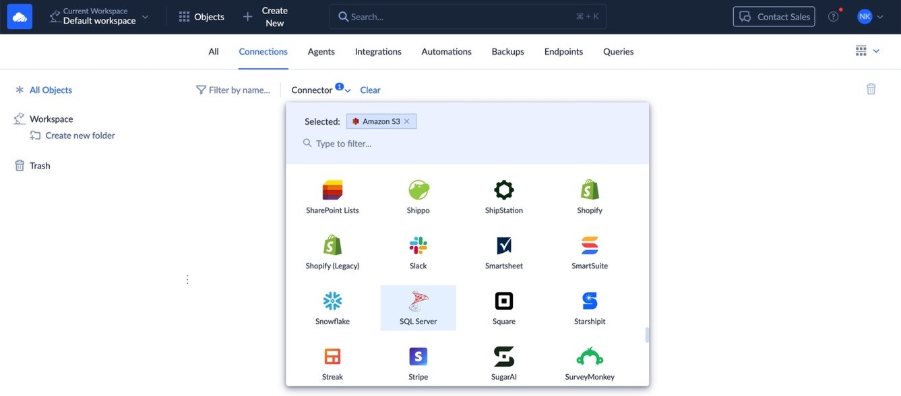
Step 1: Create the SQL Server and Amazon S3 Connections
Start by creating connections to both systems in Skyvia.
For SQL Server, enter the server, database, authentication details, and any other connection settings required by your environment. If your database is available for external connections, use a direct connection. Use the Agent connection if your server is located on the local computer or network. Agent is an application that acts as a secure layer between Skyvia and your database.
For Amazon S3, create a separate connection with access to the bucket where the exported files will be stored.
Step 2: Choose Export
For SQL Server to Amazon S3, choose Data Integration → Export.
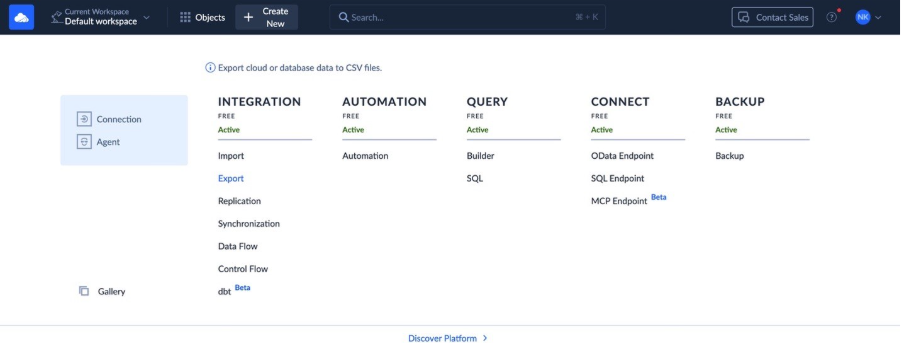
This is worth keeping specific. Export is the Skyvia scenario designed to take data from a relational database and write it to CSV files in cloud storage. If you need to go in the opposite direction and load data from S3 to SQL Server, use Import instead.
For more complex pipelines, such as combining several sources or creating JSON output, Data Flow is another option.
Step 3: Choose the SQL Server Data and Configure the CSV Output
Add an export task and select the SQL Server table you want to send to S3. You can choose individual fields, rename columns, sort the output, and add filters so the export does not pull records you do not need.
For more control, the advanced task editor supports SQL statements and a visual Query Builder. That is useful when the S3 file needs data from several tables or a more specific dataset than a simple table export.
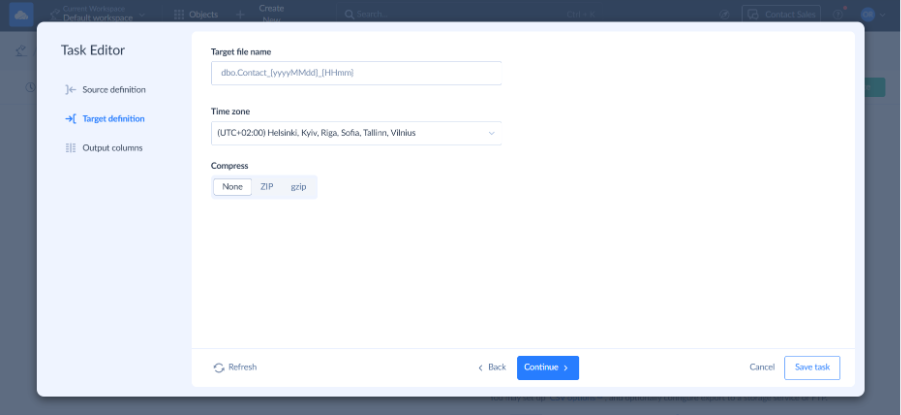
Then configure the output file. Skyvia can upload the CSV directly to Amazon S3 and supports ZIP or GZIP compression.
Step 4: Run It Once, Then Add the Schedule
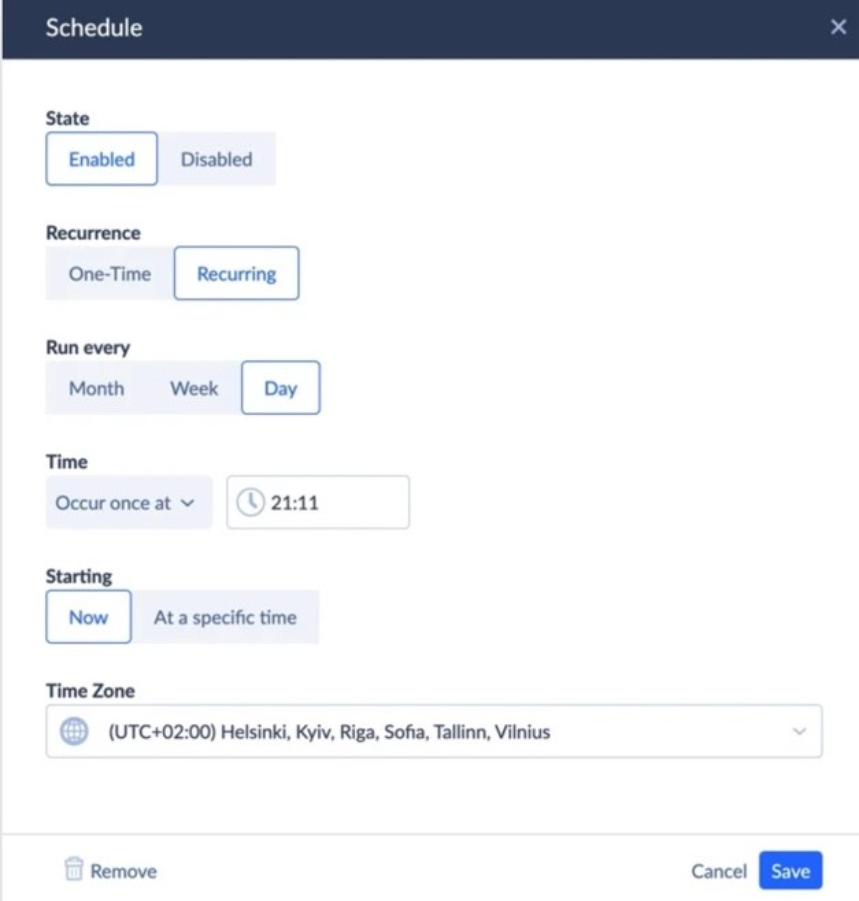
I would run the integration manually the first time and check the resulting file in S3 before turning on a schedule.
Once the output looks right, add the schedule you actually need. That might be a nightly export for reporting or a shorter interval when S3 needs fresher SQL Server data. Skyvia supports recurring runs as often as once per minute on plans that include that schedule frequency.
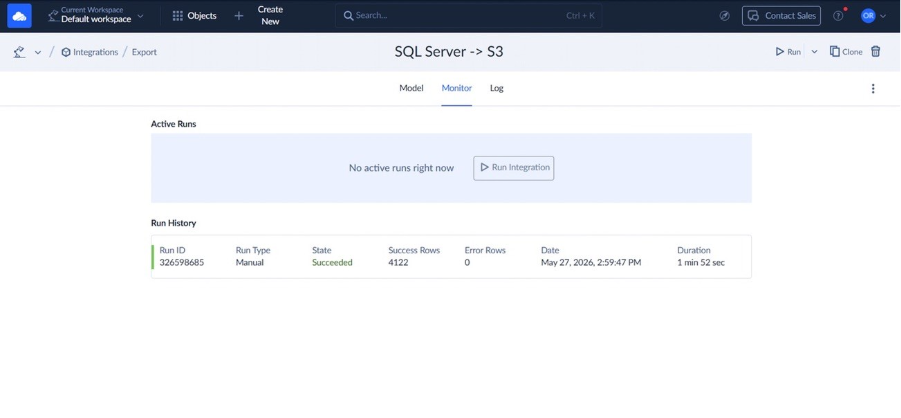
After each run, you can check the execution history and per-record errors. Email notifications are also available if you want to be alerted about failed runs.

What Common Technical Errors Occur During SQL Server to S3 Workflows and How Do You Fix Them?
1. How Do You Resolve SQL Server 2022 Msg 3201: S3 REST API Signature Does Not Match?
Start with the SQL Server credential. SQL Server 2022 expects the S3 access key and secret in a specific credential format, and a bad credential can stop the request before the backup begins.
If the credential looks right, check the clock on the SQL Server host. S3 signs requests with a timestamp, so enough clock drift between the server and the S3 endpoint can cause the signature check to fail.
On Windows, I would resync the clock with:
w32tm /resync Then try the backup again. If Msg 3201 is still there, check the credential name, S3 URL, and access permissions before changing anything else.
2. How Do You Prevent Out-of-Memory Errors on SQL Server During Large Data Exports?
Large exports can put much more pressure on SQL Server than the test run suggests. Queries with big joins, sorts, or aggregations may ask for large memory grants, especially when millions of rows are involved.
I would avoid exporting the whole table in one shot when there is no reason to. Split the work by a primary key or date range, or use incremental extraction so later runs only pick up new and changed rows.
With Skyvia, SQL Server changes can also be tracked for incremental or log-based ingestion. That reduces the amount of data SQL Server has to read again on every run.
If the export still hits memory problems, look at the query plan before simply adding more RAM. The expensive part may be a sort, hash join, or poorly indexed filter rather than the export itself.
3. How Do You Handle Schema Drift When Columns Change in SQL Server?
Schema drift usually appears after someone changes the source table without checking what is reading it downstream. A renamed column, different data type, or removed field can leave an S3 job running with a schema that no longer matches the files it receives.
Skyvia Replication can update the target schema when fields are added to a replication, without recreating the whole table. I would still review larger schema changes instead of assuming every alteration can be applied automatically.
For S3 datasets managed through AWS Glue, a crawler can detect schema changes and either update the Data Catalog or log the change for review. That gives you a controlled place to catch the difference before a CSV or Parquet consumer starts failing.
For important pipelines, I would also keep schema changes versioned. Dropping or changing a column in place is much harder to recover from once older and newer files are sitting in the same S3 path.
What Is the Final Verdict on Connecting SQL Server to Amazon S3?
There is no single best way to connect SQL Server to S3. The right choice depends on what you are moving, who will maintain it, and how much infrastructure you want to own.
Choose native SQL Server 2022 BACKUP TO URL if you are a DBA, and the goal is straightforward disaster recovery. It is the simplest fit when you need .bak backups in S3, already run SQL Server 2022 or later, and do not need the data transformed into analytics-ready files.
Choose Skyvia if analysts or IT staff need SQL Server data in S3 without building and maintaining a custom pipeline. It is a better fit for scheduled, no-code exports to formats such as CSV or JSON and for teams that would rather manage the workflow through a SaaS interface.
Choose AWS Glue or Talend if the migration is part of a larger enterprise data platform. These tools make more sense when a data engineering team is working with multi-terabyte datasets, Spark workloads, and transformations that go well beyond copying rows from one system to another.
Choose Airbyte if your team is comfortable running its own infrastructure and wants an open-source approach to replication. It is especially attractive when self-hosting, containers, and CDC are already part of the engineering stack.
A .bak backup doesn’t need a full ETL stack behind it. Native SQL Server is usually enough for that job.
The same goes in the other direction. If the goal is simply to land SQL Server tables in S3 on a schedule, bringing in Spark may be more infrastructure than the team needs. Pick the option that matches the actual workload and the people who will have to maintain it.
FAQ for SQL Server to Amazon S3

Can You Back Up SQL Server to Amazon S3 Without Upgrading to SQL Server 2022?
Not with the native S3 BACKUP TO URL connector. Microsoft added that in SQL Server 2022. On older versions, you can back up to local or network storage first, then upload the file to S3 with an AWS tool or script.
Which File Format Should You Use When Transferring SQL Server Tables to S3 for Analytics?
For analytics, Parquet is usually the best default. It is columnar, compressed, and lets engines such as Athena scan less data. Use CSV when simplicity and portability matter more than query performance.
How Can You Enable Continuous or Near-Real-Time Data Sync from SQL Server to S3?
Use change data capture or another incremental method so the pipeline moves only inserts, updates, and deletes after the first load. A CDC-capable replication tool can then push those changes to S3 on a short schedule or near real time.
What Minimum AWS IAM Permissions Are Required to Connect SQL Server to Amazon S3?
For native SQL Server backups to S3, AWS access needs s3:ListBucket and s3:PutObject. Restores also need s3:GetObject. Add KMS permissions only if the bucket or objects use a customer-managed KMS key.