Summary
- See a file without leaving HubSpot → CloudFiles
- Turn OneDrive spreadsheets into real HubSpot data → Skyvia
- Build it yourself, exactly how you want it → n8n / Airbyte
- One simple trigger, nothing fancy → Zapier
Your CRM is only as smart as what it can see. And right now, it can’t see your OneDrive.
Contracts, proposals, lead spreadsheets – all sitting in Microsoft Cloud, all invisible to HubSpot unless someone manually drags a file across the gap. Multiply that by every deal, every rep, every week, and “manual” becomes a full-time job for someone.
Connecting OneDrive to HubSpot can close that gap. But be careful because the word “integration” has two meanings in our case:
- A file preview living inside a deal record – glance, click, done.
- A real pipeline that watches a folder, reads new or updated files, and writes structured rows into HubSpot objects on autopilot.
They are cousins, not twins. Grab the wrong one, and you’ll be stuck explaining to your VP why the “integration” you bought still can’t populate a single contact field.
Terms and conditions of reading this article: it’s coming from Skyvia, which tends to be the moment trust quietly leaves a comparison article. Fair enough. I know the product well enough to be genuinely proud of it, and well enough to admit it isn’t right for every use case on Earth. So everything below is graded the same way, no exceptions – throughput, failure handling, architecture – Skyvia included.
How Did We Test and Evaluate These OneDrive to HubSpot Integration Tools?
Five platforms walked into a OneDrive folder. Only some of them walked out with the data intact. We spent 30-plus hours finding out which ones did.
The setup
Would it actually work, or just look like it worked? That’s what the two test datasets were built to answer.
For the data side, we used 5,000 CSV rows of contacts and custom metadata sitting in OneDrive Business – enough volume to expose a platform that only performs well in small, tidy imports.
For the document side, we used 500 PDF and Word proposals, each needing to land on the correct Deal and Company without a human manually linking them.
What we actually paid attention to
Not whether it worked in the sandbox – everything works in the sandbox. What mattered was whether it held up once things got messy.
- Schema mapping. Could it handle our custom objects, or only HubSpot’s out-of-the-box fields? A tool that’s flexible right up until you ask for something specific isn’t flexible. It’s just agreeable.
- Latency. Some syncs fired in real time; others ran on a schedule and made everyone wait – and “slow” only counts against you if you needed fast.
- Failure handling. Something always breaks eventually – that’s the fate we have to accept. What’s not fixed is what happens after. A tool can tell you exactly what went wrong, or it can turn every failure into a guessing game.
- Pricing. Per row, per task, per user – three different ways to charge you, and only one of them won’t punish you for growing. We worked out which was which before the invoice had to teach us.
What Are the Detailed Comparison Criteria for Evaluating OneDrive to HubSpot Integrations?
One word, five different products. Before comparing any of them, it’s worth pinning down what’s being measured – four questions, and each one is sharp enough to knock half the market out on its own.
Integration Type
Are you trying to see something or move something? That’s the whole question.
Want to glance at a proposal without leaving the deal record? You’re after a file viewer – a window into OneDrive, propped open inside HubSpot. Want the numbers inside that proposal to actually land in HubSpot fields, searchable and reportable? That’s ETL, and no amount of polish on a preview pane will get you there.
Sync Directionality & Automation Logic
Some integrations are like a one-way street with no U-turns along the way, pushing only from OneDrive to HubSpot. Others let data flow in both directions, which is more powerful and more dangerous. At some point, two systems might reach for the same field at the same time.
Then there’s what kicks things off. Event-driven syncs start the instant a file moves, changes, or gets renamed. Scheduled syncs politely wait for their assigned hour and batch it all at once.
Handling of File Storage vs. Relational Data
OneDrive is a filing cabinet that organizes by folders. HubSpot is a family tree that organizes by relationships – a file belongs to a Deal, which rolls up to a Company, which ties to a Contact. Somebody has to translate between them because things might get lost. Copied file or just a link? Rename it in OneDrive – does the link follow, or quietly die? Delete the Deal – does the file just sit there, orphaned, in a folder nobody’s opened in months?
Compliance, Security, and Governance
Boring, unphotogenic, and usually the real reason a deal lives or dies in procurement – long after the demo’s been forgotten.
Nobody demos this part, which is exactly why it’s worth asking about before you sign anything, not after.
- Authentication. OAuth 2.0 and tokens that quietly renew themselves without anyone’s help. The alternative is a token expiring mid-sync, and the whole pipeline goes down with it.
- Deployment. Some IT teams are fine handing out API access and calling it a day. Others want an on-premises gateway standing guard, because “just give it cloud access” is not a sentence their security team enjoys hearing.
- SOC 2. A harmless-looking set of characters that is the actual gatekeeper. In a regulated industry, this is the line procurement stops at – everything before it was just conversation.
None of it looks good on a slide. All of it decides whether your integration survives an audit or becomes the reason for one.
How Do the Top OneDrive-to-HubSpot Integration Solutions Compare Side-by-Side?
| Comparison Metric | CloudFiles | Skyvia | Zapier | n8n/Airbyte (Self‑Hosted) |
|---|---|---|---|---|
| Primary focus | Show & manage OneDrive/SharePoint files inside HubSpot records | Scheduled import/export of CSV data from OneDrive into HubSpot (Contacts, Companies, Deals) | Event‑driven automations: “When file appears/changes in OneDrive, update HubSpot” | Custom workflows (n8n) or large-scale data replication (Airbyte); you build the logic either way |
| Pricing model | Per user/month (add‑on to HubSpot) | Volume-based (Free → Basic → Standard → Professional → Enterprise) | Per task/month (Free → Pro → Team → Enterprise) | Free software; you pay for infrastructure (VPS) or a cloud plan |
| Data types handled | Files, folders, links, permissions (document management) | Structured rows from CSV → HubSpot objects | File events + metadata → HubSpot records (contacts, deals, etc.) | n8n: files, CSV, API calls, custom code. Airbyte: structured data replicated at scale, often via a warehouse |
| Sync latency | Near real‑time for file visibility in HubSpot | Scheduled (daily to per‑minute, depending on plan) | Near real‑time (seconds to a few minutes) | n8n: as fast as you design it. Airbyte: typically scheduled/CDC-based, not real-time |
| Schema mapping | Map libraries/folders to HubSpot objects; minimal field transforms | Visual CSV column → HubSpot field mapping with basic transforms | Visual trigger field → action field mapping; simple transforms | Full control via code/expressions (n8n) or connector-defined schemas at scale (Airbyte) |
| Setup complexity | Low–moderate (connect app, choose libraries) | Low (no‑code Import wizard) | Low (create a Zap, map fields) | Moderate–high either way – deploy, configure, maintain |
Which OneDrive to HubSpot Tool Fits Your Specific Use Case?
Every tool in this article is excellent at something and mediocre at everything else, which is just what specialization looks like. So, let’s find the one that’s excellent at your specific problem, and only your specific problem.
Why Is CloudFiles Best for Direct Document Management Inside HubSpot CRM Records?
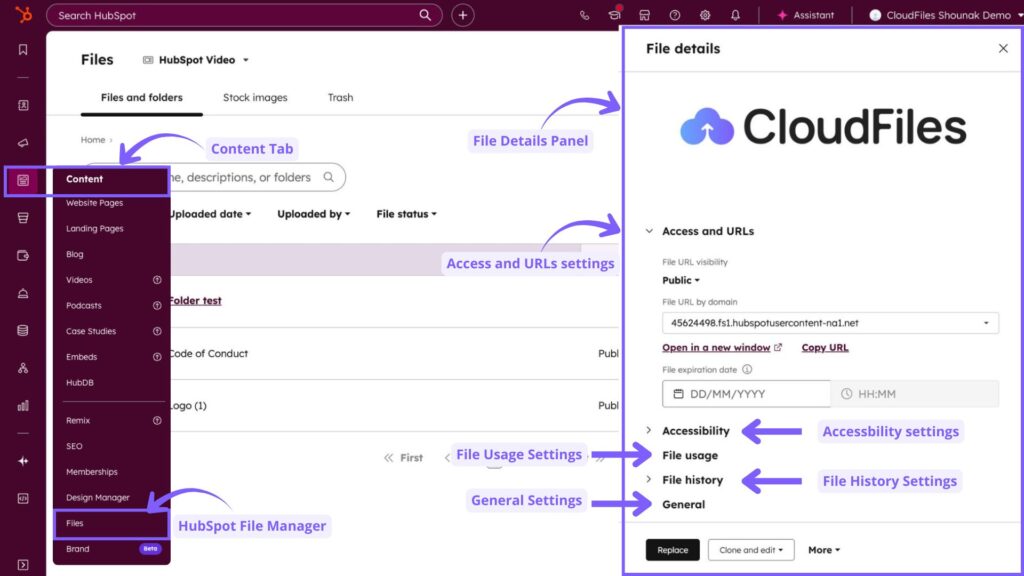
Some tools sync data between two systems. CloudFiles does something quieter – it moves the wall. OneDrive stops being a separate place reps have to travel to and starts being a tab that’s already open inside the record they’re already looking at.
Best for
Sales and support teams who spend their day inside the HubSpot sidebar and want their OneDrive files to just be there – viewable, editable, shareable – without a single new browser tab spawning in the process. If your team’s document system of record is already OneDrive (or SharePoint, Google Drive, Dropbox, Box, S3), CloudFiles is built to sit on top of it rather than replace it.
Key Strengths
This is the technical case – what CloudFiles actually does under the hood, before we get to how it feels to use.
- Full folder mounting, not file-by-file linking. CloudFiles doesn’t cherry-pick individual files onto a record. It mounts the entire OneDrive folder hierarchy directly onto the Contact or Deal card – nested subfolders intact, exactly as they exist in OneDrive, so nothing has to be manually re-organized just to make it CRM-friendly.
- Files stay where they are. CloudFiles doesn’t re-host or duplicate anything into HubSpot’s storage. The file stays in OneDrive, under OneDrive’s own permissions, and CloudFiles just reflects that live. Which means whatever governance and access rules your IT team already set up in OneDrive keep applying – nobody has to rebuild permissions in a second system.
- Real-time access tracking and datarooms. Every open, every view gets logged as it happens, and secure datarooms handle the moment a file actually needs to leave the building – sent to a client, tracked the whole way, without anyone chasing down whether it was ever opened.
- One document layer across multiple clouds. Because CloudFiles also supports SharePoint, Google Drive, Dropbox, Box, and S3 alongside OneDrive, teams running on more than one storage system can standardize the CRM-side experience instead of stitching together separate connectors for each.
Rating
G2: 4.5/5 based on 228 reviews | Capterra: 4.8/5 based on 6 reviews.
Pricing
CloudFiles runs on modular, per-license pricing, split into three separate products rather than one flat plan:
- Document Management – roughly $5/license/month on the Business tier, $15/license/month on Enterprise. This is the core product for a OneDrive-to-HubSpot use case.
- Document Sharing – roughly $15/license/month (Business) to $25/license/month (Enterprise), for secure external sharing and tracking.
- Document Generation – roughly $15/license/month (Business) to $25/license/month (Enterprise), for automated document creation.
There’s a discount for paying annually, and a free trial if you want to kick the tires first. For most teams, Document Management does the whole job – Sharing and Generation only earn their keep once you actually need tracked external sharing or automated document creation, not as a default add-on. Treat the numbers here as a snapshot, though; pricing pages get updated more often than blog posts do, so check CloudFiles’ current pricing before it’s time to sign anything.
Pros
- No tab-switching, ever. A rep opens a Deal, the proposal’s already sitting right there — the fifteen seconds that used to vanish into “which OneDrive folder was that in again” simply stop happening.
- Governance comes along for free. Because files never leave OneDrive, existing permissions and compliance rules keep working exactly as they were set up – nothing to reconfigure, nothing new to audit.
- Scales with a growing document workflow. Sharing, analytics, generation, and document AI all sit on the same platform, so teams aren’t bolting on separate tools as their needs grow past basic viewing.
Cons
- Document-only, by design. CloudFiles won’t run bulk data transformations or feed raw spreadsheet rows into a custom HubSpot object – that’s simply outside its job description.
- Another vendor to manage. It’s a third-party app layered on top of Microsoft and HubSpot, which means one more tool in security reviews, renewals, and support conversations.
- Governance still needs a human. CloudFiles simplifies access, but someone still has to design the folder structure, set the sharing policy, and decide what belongs where.
Why Is Skyvia Ideal for No-Code Data Sync and Multi-Source CRM Pipelines?
Skyvia is a no-code, cloud-based data integration platform that connects 200+ sources (including OneDrive and HubSpot) through visual ETL pipelines, without requiring anyone to write a line of code.
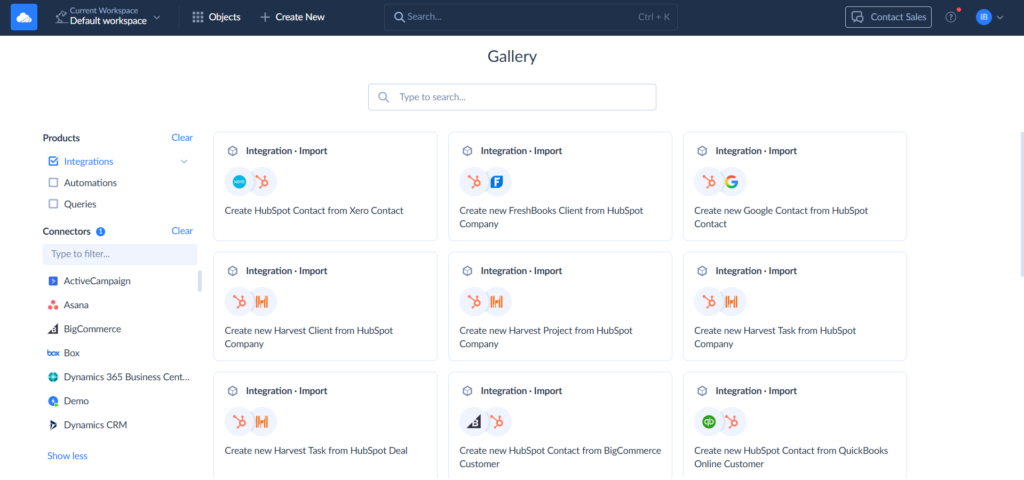
We configured a scheduled integration on a specific OneDrive folder and let it run the way it would for any real team – waiting on a lead export to just show up.
It did, and Skyvia caught it without anyone touching a button. The file got read, the custom email properties mapped to their HubSpot fields, and every record upserted – existing contacts updated, new ones created, no duplicate pile-up waiting to be sorted out later. 5,000 rows, under 4 minutes, start to finish. No rate-limit errors. No partial syncs. Nothing missing that needed explaining afterward.
(The exact step-by-step setup for you to replicate yourself is below.)
That upsert logic matters more than it sounds like it should. A lot of “integrations” will happily create a fresh contact every time a file re-runs, and six months later, RevOps is staring at three versions of the same lead wondering which one’s real.
Best for
RevOps teams, analytics leads, and anyone whose job involves turning OneDrive’s file sprawl – CSVs, XLSX exports, the usual pile of spreadsheets that accumulate faster than anyone organizes them – into structured HubSpot records rather than just visible attachments. Also a fit for teams that need genuinely bidirectional, relational data pipelines running on autopilot, without a developer writing a line of code to make it happen. If the job is “get the spreadsheet’s data into CRM fields I can filter and report on,” this is the shape of a tool built for that job specifically.
Rating
G2: 4.8/5 based on 321 reviews | Capterra: 4.8/5 based on 116 reviews.
Pricing
Skyvia charges by records processed monthly, and for a OneDrive-to-HubSpot pipeline, that maps cleanly onto reality, since every CSV row counts toward the quota. Free plan covers 10,000 records, which a single leads export can blow past fast, but it’s more than enough to test whether Skyvia can satisfy your expectations.
Basic jumps to 5 million records for around $79-$99/month – enough headroom for most monthly syncs, though there’s no buying past the ceiling. Standard and Professional add overage purchases, faster sync intervals, and more room to grow.
For current numbers, check Skyvia’s pricing page (pricing pages get updated more often than articles about them do).

Pros
- A no-code ETL wizard that doesn’t feel like a watered-down version of the real thing. Field mapping, lookup relationships, and data filtering are all handled visually – the kind of configuration that would normally need a developer and a Tuesday afternoon, minus both.
- Filtering before data ever hits HubSpot. You’re not obligated to import everything a file throws at you; filters let you decide what qualifies as a real record before it becomes one.
- 200+ sources on one platform. OneDrive-to-HubSpot is one pipeline among many Skyvia can run, which means the same skill and the same interface carry over the moment the stack grows to include Salesforce, a database, another storage provider – whatever’s next.
- The security basics are covered. SOC 2 certification, GDPR compliance, encryption in transit and at rest, and audit logs — table stakes for any team moving customer or deal data, and non-negotiable in regulated industries.
Cons
- Skyvia’s OneDrive-to-HubSpot integration runs on a schedule and works from CSV files. It doesn’t watch for live document changes. That’s fine if you need records current at regular intervals; less so if you need a file to sync the instant it changes.
When Should Developer-Heavy Teams Choose n8n or Airbyte?
Some teams want the engine block open on the table, in full view, so they can build exactly the automation they need instead of the automation a UI happened to make possible. That’s the territory n8n and Airbyte occupy – two open-source platforms built for teams who’d rather write a bit of code than work around a tool that can’t.
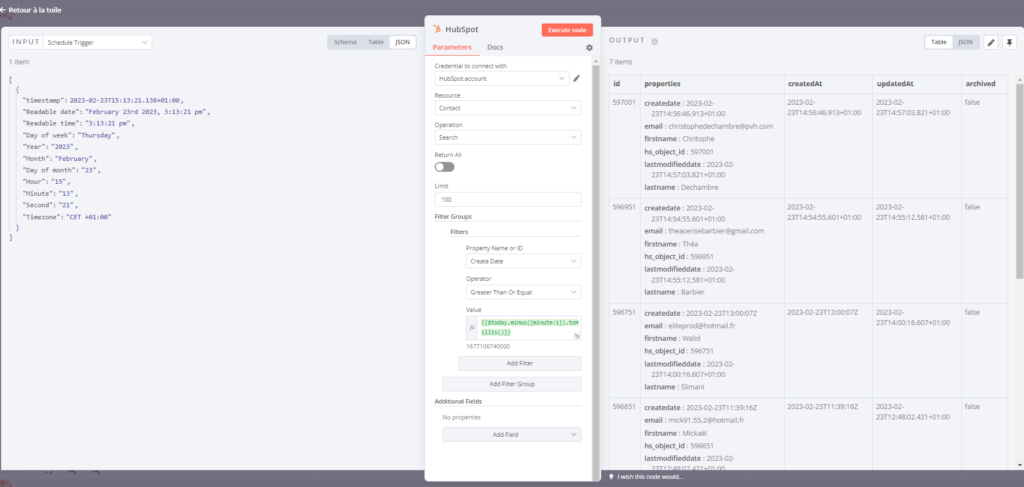
n8n is a fair-code workflow-automation platform: a visual node editor with real code underneath it, dedicated nodes for both OneDrive and HubSpot, and the option to self-host or run it managed in the cloud. Airbyte takes a different angle – it’s an open-source ELT platform built around data replication, less concerned with multi-step business logic and more focused on moving structured data at scale, often into a warehouse before it ever reaches HubSpot.
Best for
Engineering teams that want custom logic, self-hosted infrastructure, and full control over what happens to an API payload – not just what a pre-built connector decided should happen to it. If “we’ll just write the edge case ourselves” is a normal sentence on your team, this is the right neighborhood.
Key Strengths
- n8n adapts instead of dictating. The visual editor covers most of it; JavaScript covers the rest, and an HTTP Request node covers whatever nobody’s built yet. OneDrive triggers fire in real time, and HubSpot’s OAuth tokens refresh themselves – one less thing to worry about.
- Airbyte’s strength is scale, not flexibility. Over 600 connectors, strong CDC-style replication for tracking exactly what changed and when, and HubSpot Agent Connectors that let automated agents read and write contacts, companies, deals, and tickets directly – built for data-engineering teams who think in pipelines, not workflows.
- Both avoid per-task SaaS licensing entirely. Self-hosted, the software itself is free – what you’re paying for is infrastructure and the engineering hours to run it, which is a very different cost curve than a platform charging per sync.
Rating
n8n – G2: 4.7/5 based on 301 reviews | Capterra: 4.6/5 based on 48 reviews
Airbyte – G2: 4.4/5 based on 78 reviews | Capterra: n/a
Pricing
n8n’s Community Edition costs nothing but a VPS – usually $5-$20/month in infrastructure. n8n Cloud runs €20-€24/month for Starter, €50-€60/month for Pro, and jumps hard to €667-€800/month for Business, with Enterprise negotiated separately.
Airbyte’s structured the same way: free to self-host, minus the engineering hours. Cloud gives you a free tier, $200-$299/month Starter and Team plans, and capacity pricing that lands in the mid-five figures annually once volume gets real.
Current rates: n8n pricing and Airbyte pricing.
Pros
- Granular control over custom logic. JavaScript nodes in n8n, Python-friendly transformations in Airbyte’s ecosystem – either way, the logic isn’t limited to whatever a vendor’s UI happened to anticipate.
- No per-sync licensing tax. Self-hosted, the software is free; costs scale with actual infrastructure and engineering time instead of climbing every time a pipeline runs.
- Genuine architectural fit for complex needs. n8n handles event-driven, multi-app workflows most no-code tools can’t touch; Airbyte handles CDC-style replication and warehouse-scale data movement that a simple sync tool was never built for.
Cons
- High maintenance overhead, indefinitely. If HubSpot changes its API or a token authentication flow breaks, there’s no vendor support ticket to file — your own engineering team debugs it, fixes it, and redeploys it, on your own timeline.
- Self-hosting is a second job, not a checkbox. Infrastructure, monitoring, uptime – all of it becomes something your team owns, not something a SaaS vendor quietly handles in the background.
- The wrong tool if you need something simpler. Neither platform hands you a file-preview widget in the HubSpot sidebar, and neither one is really an ELT-first, no-code-first choice at the same time – you’re choosing a lane, and both lanes assume someone on the team can write code.
Is Zapier Best for Simple Event-Driven Automations?
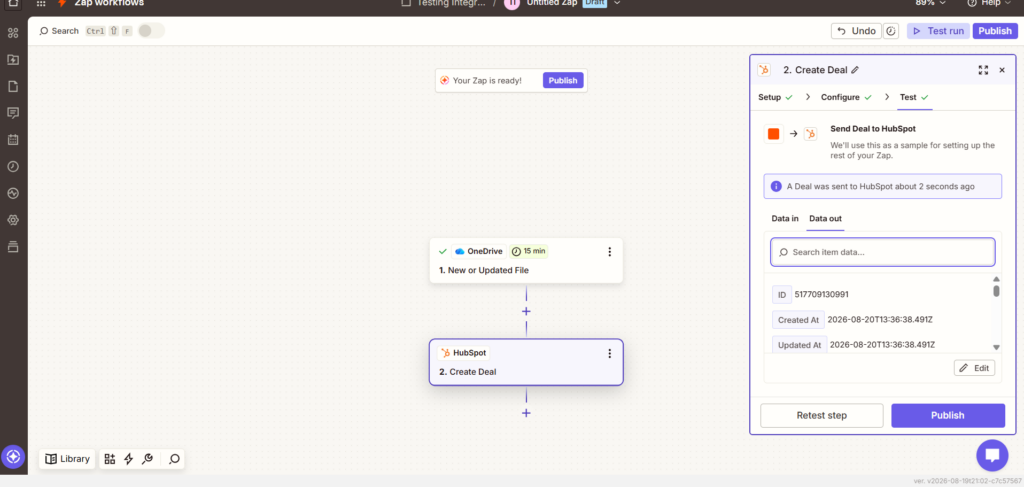
Zapier works as an event router: a trigger fires in OneDrive, a new file appears, an existing one gets updated, and one or more actions fire back in HubSpot in response. Create or update a contact, company, or deal. Attach a note with the file link. Enroll someone in a sequence. Ping the account owner. Under the hood, Zapier polls OneDrive or listens for webhook-style triggers where they’re available, then calls the HubSpot API to make the update happen. Cause, effect, done – and built to go live in minutes, not get architected over a sprint.
Best for
If your automation need can be said in one breath, Zapier’s built for that breath. This is SMB and sales-ops country – where “running in twenty minutes” beats “perfect in three weeks,” every time.
Key Strengths
- Hundreds of pre-built templates, already solving this exact problem. OneDrive-to-HubSpot patterns exist as starting points, so most setups involve picking one and nudging a few fields, not building logic from a blank screen.
- A guided visual builder that goes past basic triggers. Filters and branching logic (Zapier calls them Paths) are configurable without touching code, so “notify the account owner, but only if the deal’s above $10k” is still something a non-technical person can build alone.
- Fully managed infrastructure, invisibly. Authentication, polling, retries, scaling – Zapier owns all of it. Nobody’s monitoring a server or debugging a broken webhook at ungodly hours; that’s the trade being made for giving up some flexibility.
- A connector library big enough to grow into. 8,000+ apps means a OneDrive-to-HubSpot Zap can pick up a Slack notification or a logging step later, without switching platforms to add it. And for teams that want to push further without hiring a developer, Zapier’s newer AI layer – Copilot, AI Steps, Agents, Tables, Interfaces – extends what’s possible no-code, though each of those tends to eat more task budget than a standard step.
Rating
G2: 4.5/5 based on 2,101 reviews | Capterra: 4.7/5 based on 3,069 reviews
Pricing
Zapier charges per task, so every trigger, action, and step adds to the cost. It has a free plan with 100 tasks included, so you can try it out and evaluate how much your setup costs in Zapier tasks. Then Professional is $19.99/month for multi-step workflows and 750-2,000+ tasks. The team plan goes higher – $69/month for 2,000+ tasks and 25 seats. At the top, Enterprise – custom everything, priced in a sales call.
Zapier’s pricing page has the current breakdown.
Pros
- Fastest time-to-value of anything in this comparison. Pre-built templates mean a OneDrive-to-HubSpot Zap can go from idea to live automation in minutes.
- Nothing to install, patch, or monitor. Fully managed, with retries and error handling built in – infrastructure is Zapier’s problem, not yours.
- Genuinely built for non-technical teams. Visual builder, templates, guided setup – a marketing ops person can do this solo, no engineering ticket required.
Cons
- Task accounting isn’t always transparent. Because certain apps and AI steps consume multiple tasks per execution, actual monthly cost can run well past what the plan price implied – often not obvious until the invoice arrives.
- Complex logic starts to strain the model. Standard trigger-action patterns are Zapier’s strength; heavy data transformation or intricate branching logic tends to be easier to build in a code-first tool like n8n.
- Not built for large-scale data replication. High-volume, structured syncs are better served by dedicated data-integration platforms – something like Airbyte or Skyvia – where pricing and architecture are built around volume instead of task count.
How Do You Set Up a OneDrive-to-HubSpot Data Pipeline Step-by-Step?
Worth saying upfront: this walkthrough is Skyvia’s, not CloudFiles’ or Zapier’s. That’s not favoritism sneaking back in – it’s that CloudFiles and Zapier take a few clicks to set up, full stop, while Skyvia is the one actually doing the harder job this section cares about: turning a CSV into real HubSpot fields. That’s the setup worth showing in detail. If you’re on n8n or Airbyte, you’re doing the same steps, just building them yourself instead of clicking through a wizard.
Step 1: Get Skyvia Talking to Both Platforms
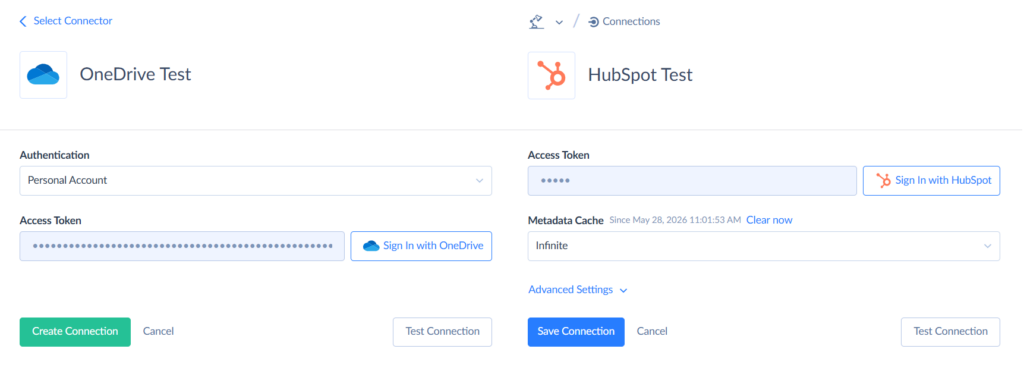
First things first, Skyvia needs permission to reach into both OneDrive and HubSpot before it can shuttle anything between them.
- Log in to your Skyvia account, or create one if this is your first visit.
- Head to +Create New and select Connection. You’ll need to set this up twice: once for OneDrive, once for HubSpot.
Step 2: Set Up the Integration Package
With both connections live, it’s time to tell Skyvia what kind of job this is.
- Go to +Create New again, but this time pick Import.
- Under Source Type, select CSV: From storage service. Set OneDrive as where the data’s coming from and HubSpot as where it’s headed.
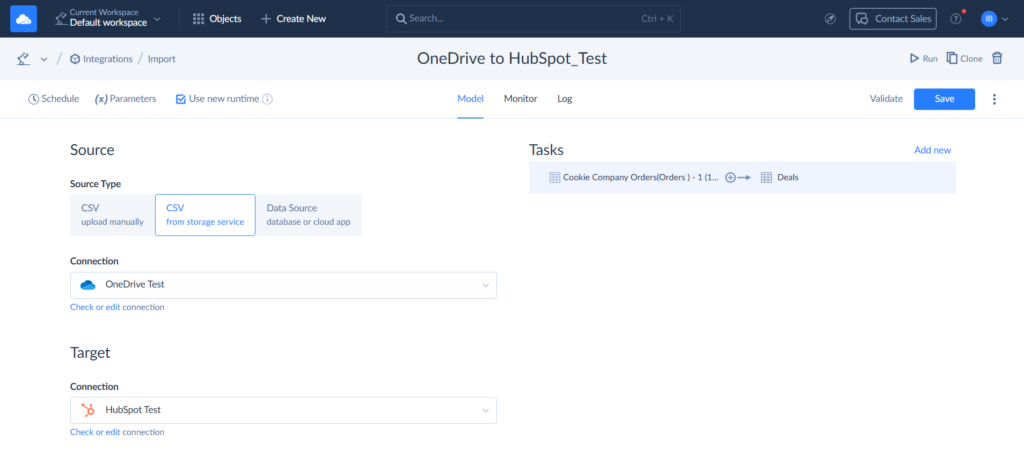
- You’re now inside the integration package itself. Click Add new in the top-right corner to build your first task.
Step 3: Tell Skyvia How to Read and Route Your Data
This is the step where precision matters – get the parsing settings wrong and your data will land in HubSpot looking like alphabet soup.
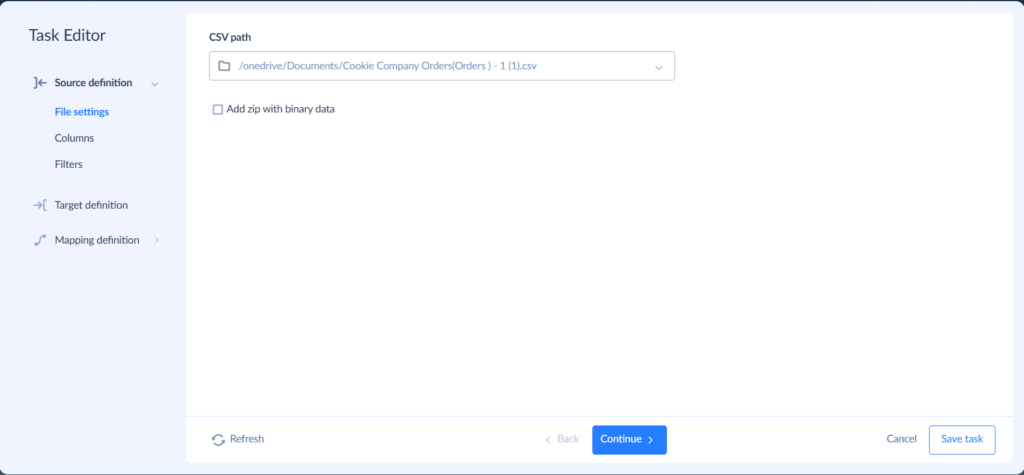
- Select the CSV file holding the records you want in HubSpot.
- Next, help Skyvia make sense of the file’s structure:
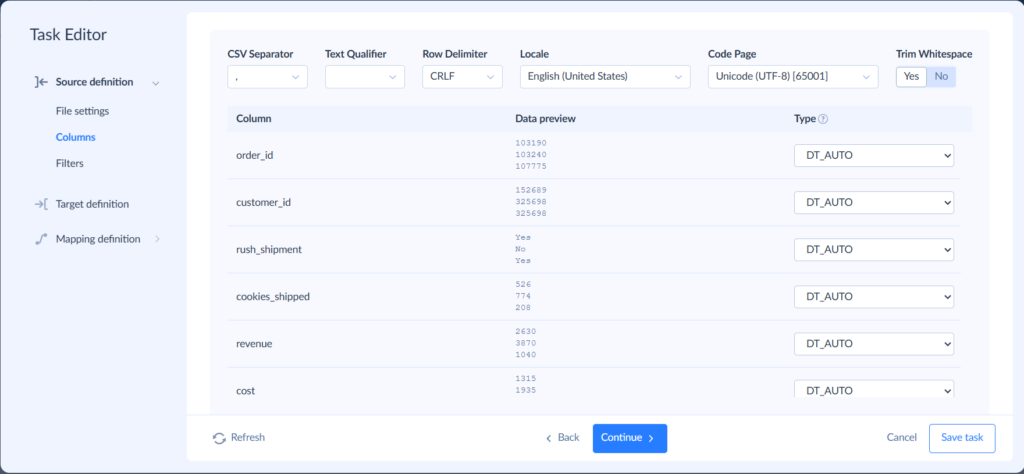
- CSV Separator – pick whatever character actually splits your fields. Mine was a comma, but plenty of exports default to semicolons instead. Skyvia will help you find out what your separator is – if you choose the wrong option, you will see a set of gibberish data instead of neat columns and rows on this screen.
- Text qualifier – this is the wrapper character (usually quotation marks) that tells the importer “treat everything inside me as one field,” even if there’s a comma or line break hiding in there.
- Row delimiter – the marker that says “this record’s done, start the next one.”
- Locale – governs how Skyvia interprets regional formatting quirks, like whether “03/04” means March 4th or April 3rd, or whether a comma is a decimal point.
- Trim whitespace – toggle this on if you want Skyvia to strip stray spaces, tabs, or line breaks hanging off the edges of your values before they load.
- Decide how strict your filters should be – do records need to satisfy every condition (AND), or is clearing just one (OR) good enough? Add a row limit here too, if you’re testing with a subset first.
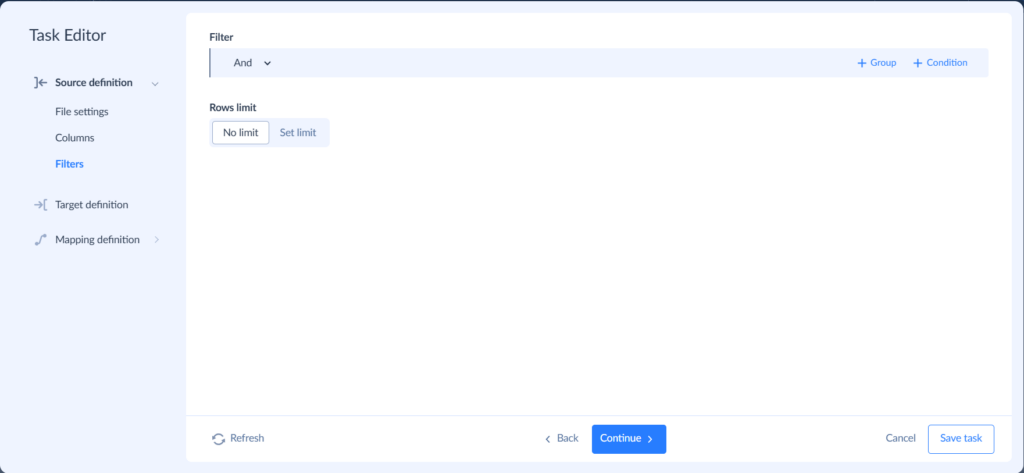
- Point Skyvia to the right destination inside HubSpot. In this walkthrough, we’re feeding data into Company Deals, but your target will depend on what you’re importing.
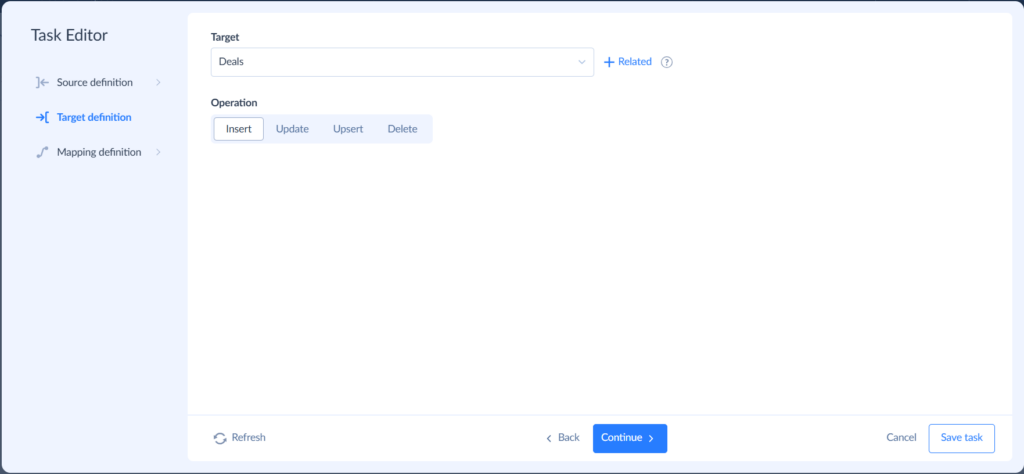
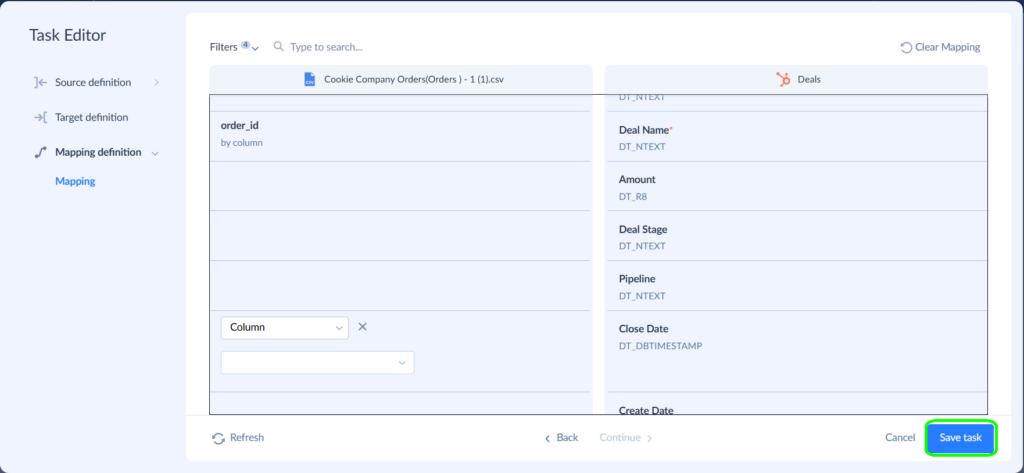
- Match up your source columns with their HubSpot counterparts, then hit Save task to lock it in.
Step 4: Put It on Autopilot and Keep an Eye on It
The setup work is done – now you decide how often it runs and how you’ll know if something breaks.
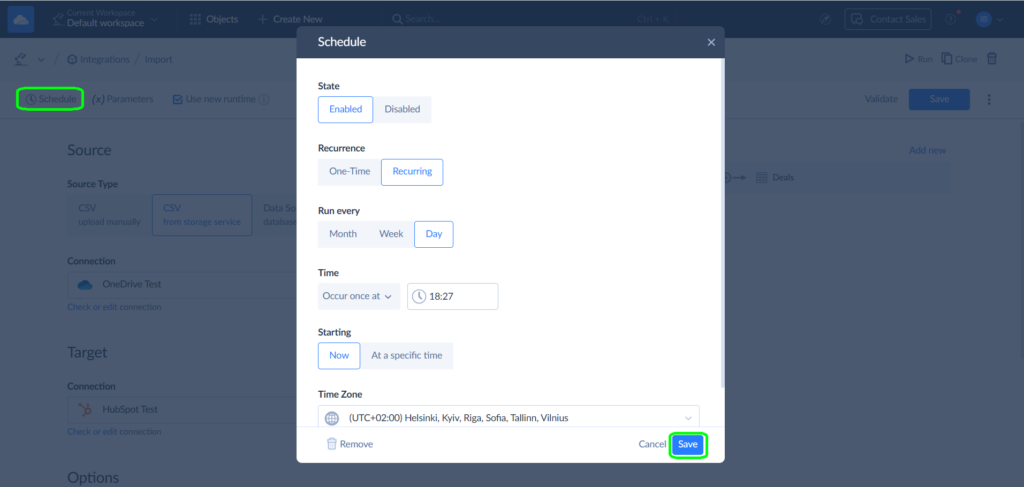
- Choose a sync frequency. Hourly, daily, weekly – whatever cadence matches how fast your OneDrive data actually changes.
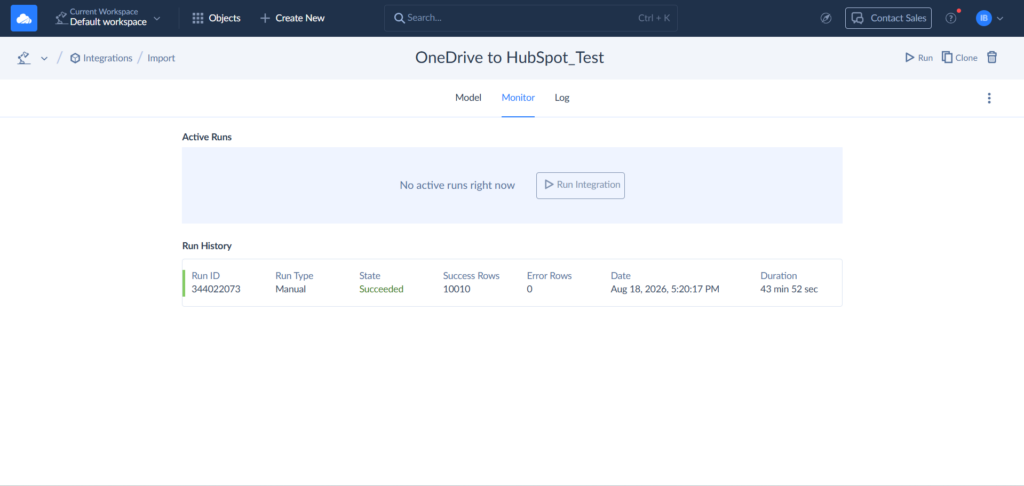
- After every run, check the monitor log. It’ll flag failures and show you how long each sync took, so you’re never guessing whether the pipeline’s actually working.
What Inputs and Outputs Should You Expect During Data Transformation?
A CSV doesn’t walk into HubSpot and become a contact on its own. Something in the middle has to decide that Corporate_Email means the same thing as HubSpot’s email field, and that decision – small as it sounds – is where most import headaches actually start.
What goes in
First_Name,Last_Name,Corporate_Email,Lead_Score,Deal_Value
Alexander,Wright,a.wright@techcorp.com,85,12000
Olena,Markes,o.markes@innovate.io,92,45000
The kind of export that any CRM spits out without being asked twice. (Delimiters, encoding, whether row one counts as headers – that’s all covered in the step-by-step setup above in this piece.)
What comes out
{

"properties": {

    "firstname": "Alexander",

    "lastname": "Wright",

    "email": "a.wright@techcorp.com",

    "lead_score": "85",

    "deal_value": "12000"

  }

}
One thing worth knowing before this ever runs for real. Lead_score and deal_value aren’t fields HubSpot ships with – they’re custom properties, which means someone has to create them on the Contact object before the import, or the mapping step will be pointing at nothing. Takes five minutes in HubSpot’s property settings.
What Real-World Errors Might You Encounter During Sync?
Two failures show up more than any others in a OneDrive-to-HubSpot sync, and they don’t look alike at all. One’s a wall of rejected requests. The other’s a connection that’s simply stopped responding. Here’s what each one is, and how to close it out.
Error Example 1: HubSpot API Rate Limit Exceeded (429 Too Many Requests)
Cause. The math here is blunt. Send enough concurrent requests without any throttle in place, and HubSpot’s burst limits get crossed quickly. Bulk imports cross this line often. So does a sync that fires a fresh API call for every single file event instead of grouping them. HubSpot’s response is a 429 error – too many requests.
The easiest possible fix is to use a tool that sidesteps this failure mode structurally rather than patching it after the fact. For example, Skyvia’s batch processing groups up to 100 records into one call, so what would have been hundreds of individual requests collapses into a handful. Retry logic with backoff handles the rare 429 that still gets through – a brief pause, an automatic retry, nothing for a person to manually resolve. The daily ceiling stays comfortably out of reach instead of becoming a wall you keep running into.
Error Example 2: OneDrive OAuth Refresh Token Expired
Cause. This failure looks nothing like the first. Microsoft Graph returns invalid_grant, or something close to “refresh token expired,” and no amount of retrying will fix it – a changed password, ninety days of inactivity, a revoked session, a tweaked consent policy in the tenant, any one of these is enough to invalidate the token pair keeping OneDrive connected, and once that happens, the sync can’t read or write a single file until someone re-establishes the connection by hand.
Fix. The better move is preventing the expiration from turning into a problem at all – silent token re-authentication, configured directly at the connector level. Rather than letting a refresh token sit unused until it looks abandoned to Microsoft’s auth server, the connector refreshes it proactively and uses it consistently, well ahead of any expiration window. And on the rare occasion reconnection is genuinely required, it’s a single “Reconnect account” click – not a support ticket, not a lost afternoon chasing down what broke.
What Are the Critical Limitations and Risks to Consider Before Integrating?
This is the part where we talk about the three ways a OneDrive-to-HubSpot pipeline goes from “set it and forget it” to a mystery worthy of its own true-crime podcast.
API Throttling & Payload Size Limits
Both HubSpot and Microsoft Graph have firm ideas about how much traffic they’ll tolerate, and those ideas are usually tighter than people expect – right up until a sync grinds to a halt mid-run.
HubSpot’s rate limits scale with your plan:
- Free/Starter: ~100 requests/10 sec.
- Pro/Enterprise: roughly double, 250K–1M calls/day.
- Search endpoints: fixed at ~4 requests/sec, regardless of plan.
Microsoft Graph (OneDrive): uploads over 4 MB need a resumable session, but can scale up to 250 GB. If you overload it, requests get throttled, queued, or, even worse, rejected.
Relational data and file attachments don’t behave the same way under load – treating them the same is what breaks syncs. Contacts and deals batch well (up to 100 records/call), turning thousands of rows into a handful of requests. Attachments don’t; a folder of large PDFs will burn through Graph’s limits fast.
The fix is to lean on batch APIs whenever they’re available, and schedule the heaviest jobs for quiet hours. Also, build in exponential backoff with jitter – retries that wait a little longer each time, with some randomness mixed in so a wave of failed requests doesn’t all retry at the same instant and trigger a second collapse.
Data Security & Privacy Compliance
Data can move between two systems, and data being permitted to move – those are different questions, and confusing them gets expensive.
HubSpot holds SOC 2 Type II and ISO 27001 certifications and supports GDPR-compliant transfers. HIPAA support exists too, but it’s opt-in, Enterprise-only, and requires Sensitive Data settings, a Health/Medical Data classification, and a signed BAA. Enabling HIPAA somewhere in the account doesn’t make everything HIPAA-eligible.
Microsoft 365 and OneDrive carry similar badges, but those describe the platform’s ceiling, not your setup. Real compliance depends on the retention rules, sharing permissions, and DLP policies you configure yourself.
A few specific traps that might wait for you along the way:
- Cross-border data. Different regions for your HubSpot and OneDrive tenants may mean personal data crossing a boundary that needs legal justification – SCCs, the EU-US Data Privacy Framework, etc.
- Over-syncing. Pulling every field “just in case” creates unwanted duplicate data – HubSpot won’t clean it up automatically. Retention and deletion need to be deliberate.
- Over-permissioned access. Broad OAuth read/write rights are a bigger liability if credentials leak. Scope tightly – it’s proportional, not paranoid.
- Sensitive categories. Health, financial, or PCI/HIPAA-adjacent data means extra rules need to be applied. No PHI in HubSpot without a proper BAA-backed setup.
The fix: map what moves before syncing, pull only what’s needed, scope OAuth to the minimum, and keep audit logging on both platforms.
Bi-directional Conflict Resolution
A one-way sync stays in its lane. Bi-directional sync is different: two systems can each claim authority over the same fact at once, and someone needs to be a judge to settle these situations.
Say a revised contract lands in OneDrive with a new dollar amount, while someone updates the matching HubSpot deal by hand without seeing it. Nothing coordinates the two, so the records start to contradict each other, and nobody notices until an audit or an awkward client call.
The fix is deciding ownership before this happens:
- Assign ownership field by field. HubSpot might govern lifecycle stage; OneDrive the contract file. Deal amount could belong exclusively to the CRM – outside updates get ignored, or only accepted if the field’s empty.
- Skip the blanket rule. Email might be fine as last-write-wins. Deal amount isn’t – letting “whoever typed it last” define financial truth is a bad bet.
- Route risky changes to a human. Large deal-value shifts or contract mismatches deserve a person’s eyes, not an automated guess.
Often the cleanest fix is skipping bi-directional sync unless there’s a real need – two clean one-way flows usually beat one clever two-way one.
What Is the Final Verdict on Choosing the Best OneDrive-to-HubSpot Solution?
Four tools walked into this article. Only one of them will go home with you. So consider this less a ranking and more a diagnosis, delivered without the waiting room.
Choose CloudFiles if the goal is seeing, not moving. If your reps just want a proposal to appear the moment they open a Deal, CloudFiles is built for that exact moment and nothing beyond it.
Choose Skyvia if the goal is moving, not seeing. CSVs, custom objects, scheduled syncs that run on their own – Skyvia is for the RevOps person who needs OneDrive’s spreadsheets to become actual, searchable, reportable HubSpot data, without a developer on standby and without a bill that climbs every time volume does. It’s the pick for anyone who’s ever muttered “I just need this to happen automatically” under their breath.
Choose n8n or Airbyte if your team already speaks code and would rather keep doing that than learn someone else’s UI. Self-hosted. Endlessly bendable. Not remotely interested in holding anyone’s hand. You’ll own the logic instead of renting it, and you’ll own the maintenance too, which is the actual price of that control.
Choose Zapier if the whole job fits in one sentence. “When a file lands here, do this over there.” That’s it, that’s the requirement, and Zapier will have it running before lunch. Ask it to handle real volume and the bill will remind you, politely but firmly, that this was never its job.

FAQ for OneDrive to HubSpot

How Does CloudFiles Differ from Skyvia when Connecting OneDrive to HubSpot?
CloudFiles lets you look at a file. Skyvia turns that file into actual HubSpot data. One’s a window into OneDrive from inside HubSpot; the other pipes spreadsheet contents into actual CRM fields. Different jobs, often confused for the same one.
What Happens if You Exceed HubSpot API Rate Limits During a OneDrive Data Sync?
HubSpot returns a 429 and stops accepting requests temporarily. A well-built sync retries with backoff and batches records; a poorly built one just fails silently, leaving you to discover the gap later.
Is Bi-Directional Data Synchronization Supported Between OneDrive and HubSpot?
It can be, but two systems both trying to be “right” at once is asking for trouble. You need a rule for who wins ties, or a field will quietly flip back and forth until someone notices.
Can You Attach OneDrive Files to HubSpot Records Automatically Without Manual Downloads?
Yes. CloudFiles pins OneDrive folders straight onto Deal and Contact cards – no downloading a file just to re-upload it somewhere else five seconds later.
How Do You Maintain Security and Compliance When Syncing OneDrive Data to HubSpot?
OAuth with tight, minimal permissions. Retention rules that someone configured. Audit logs turned on, not just available. Compliance is more than a certification badge; it’s what you actually set up.