Summary
- dataloader.io is a browser-based Salesforce loader from MuleSoft for CSV imports, exports and deletes, with a free plan of 10,000 records a month.
- Paid plans are $99 and $299 per user a month, billed monthly, and production and sandbox count as two users.
- Tasks stop after 2 hours, SFTP needs Enterprise, and scheduled imports need the same file name every time.
Once the Data Import Wizard runs out of road, plenty of Salesforce admins open dataloader.io next. There’s nothing to install. You log in with your Salesforce account, hand it a CSV, and records come out the other side, all inside a browser tab.
The catch? It stays that simple only while the job does. In this dataloader.io review, we look at what the tool gets right, how an import runs from start to finish, what you’ll actually pay once a team, a sandbox, or an SFTP drop shows up and which limits its own docs admit to. We took every price and limit from dataloader.io’s pricing page and documentation on November 3, 2026.
dataloader.io review: the short verdict
It’s easy to like dataloader.io when you’re a Salesforce admin with one org to manage who just needs their CSV imports done. Its field mapping usually gets the assignments right, while the free plan is perfectly adequate for small jobs.
When another system joins in, things tend to get trickier on many levels. For example, even a harmless sandbox can double your user count. Once a partner starts delivering files over SFTP, a simple CSV loader may no longer cut it. And growing data volumes do the same, especially if every batch needs reworking before Salesforce will let it in.
- Pros: nothing to install; auto-mapping and lookups by name or external ID; related objects exported in one pull; schedules on every plan, Free included.
- Cons: Salesforce only and CSV only; priced per user, billed monthly; tasks stop after 2 hours; SFTP only on Enterprise.
What is dataloader.io?
It’s a cloud app made by MuleSoft (a Salesforce company) that imports, exports and deletes Salesforce data. No installation, just the browser. Sign-in goes through OAuth with your Salesforce credentials, and dataloader.io never stores your password.
Every task runs on CSV files. Any file extension works, as long as the content is CSV. You can upload them from your machine or have dataloader.io grab them from Box, Dropbox or FTP, with SFTP reserved for Enterprise. Big data sets go through the Bulk API; smaller ones can use the Batch (SOAP) API, and you choose per task. Bulk API is the faster one for large loads and uses fewer API calls once batches pass 1,000 records, but it doesn’t support related queries. One naming quirk worth knowing: the docs have moved to developer.salesforce.com as “Dataloader from MuleSoft”, though the pricing page and AppExchange listing still call it dataloader.io.
dataloader.io vs Salesforce Data Loader vs Data Import Wizard
| dataloader.io | Salesforce Data Loader | Data Import Wizard | |
|---|---|---|---|
| Runs in | The browser (cloud) | A desktop app (Windows, macOS), with Java 17+ | The browser, inside Salesforce Setup |
| Operations | Insert, update, upsert, delete, export | Insert, update, upsert, delete, export | Import only |
| Volume | 10,000 records a month on Free, 100,000 on Professional, unlimited on Enterprise | Up to 150 million records with Bulk API 2.0 | Up to 50,000 records at a time |
| Scheduling | Built in (daily on Free; hourly, daily, weekly or monthly on paid plans) | Command line only, Windows only | None described |
| Price | Free, then $99 or $299 per user a month, billed monthly | No price published by Salesforce | Part of Salesforce |
People often ask whether dataloader.io is part of Salesforce. Sort of. MuleSoft builds it, Salesforce owns MuleSoft, and Salesforce’s own help page on picking an import tool puts it right beside Data Loader and the Data Import Wizard. Still, it’s its own app, with its own plans and its own bill. For more tools side by side, see our comparison of Salesforce data loaders.
What dataloader.io does well
- It’s native to the Salesforce ecosystem. MuleSoft’s AppExchange listing has been up since 2012 and sits at 4.53 out of 5 from 614 reviews (as of November 2026).
- The mapping is smart. CSV headers that match field names map on their own. For whatever’s left, quick-find filters (Required, Unmapped, IDs, Custom) narrow the list down.
- Lookups save Excel work. With “Lookup via”, the import finds a parent ID from a name or an external ID as it goes. You also decide what happens on duplicates and misses: take the first match, flag the row as an error, or insert null.
- Related objects come out in one pull. One query can bring related objects along in an export, so there’s no stitching datasets back together in Excel afterward. Attachments go in as a CSV plus a ZIP of the files.
- Scheduling is on every plan. Imports, exports and deletes can all run on a timer. Free gets daily; Professional and Enterprise get hourly, daily, weekly or monthly. Email notifications on results cover one task on Free and every task on paid plans.
How a dataloader.io import works
- Sign in with Salesforce. It’s OAuth, so you skip a separate registration entirely.
- Create a task and pick the operation: an import means Insert, Update or Upsert, while deleting records is its own Delete task.
- Choose the Salesforce object, which can be standard or custom.
- Add the file. That’s either a CSV you upload or one sitting in a Box, Dropbox or FTP connection (SFTP needs Enterprise). The docs suggest you keep files under 50 MB.
- Map the fields. Headers that match will map themselves, and this is also where you set lookups for parent records and choose an external ID if you’re upserting.
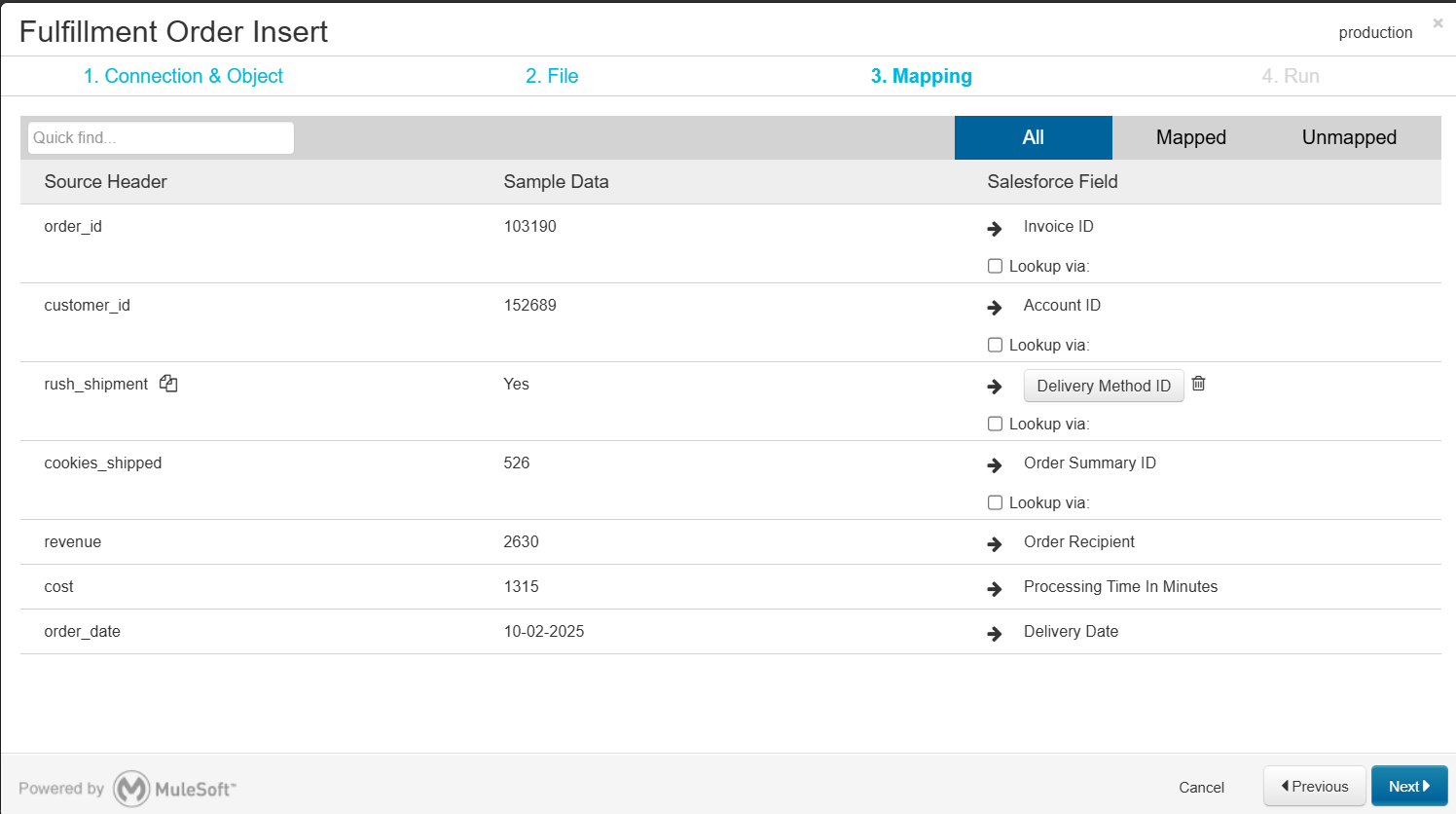
- Check the advanced settings: the API (Bulk or Batch), batch size, date format, and a timeout of 120 minutes. You can set it lower, not higher: when we typed 180 on a free account, the field answered “The timeout limit is 120 minutes”.
- Run it now or schedule it, and after each run you’ll find success and error files saved with the task.
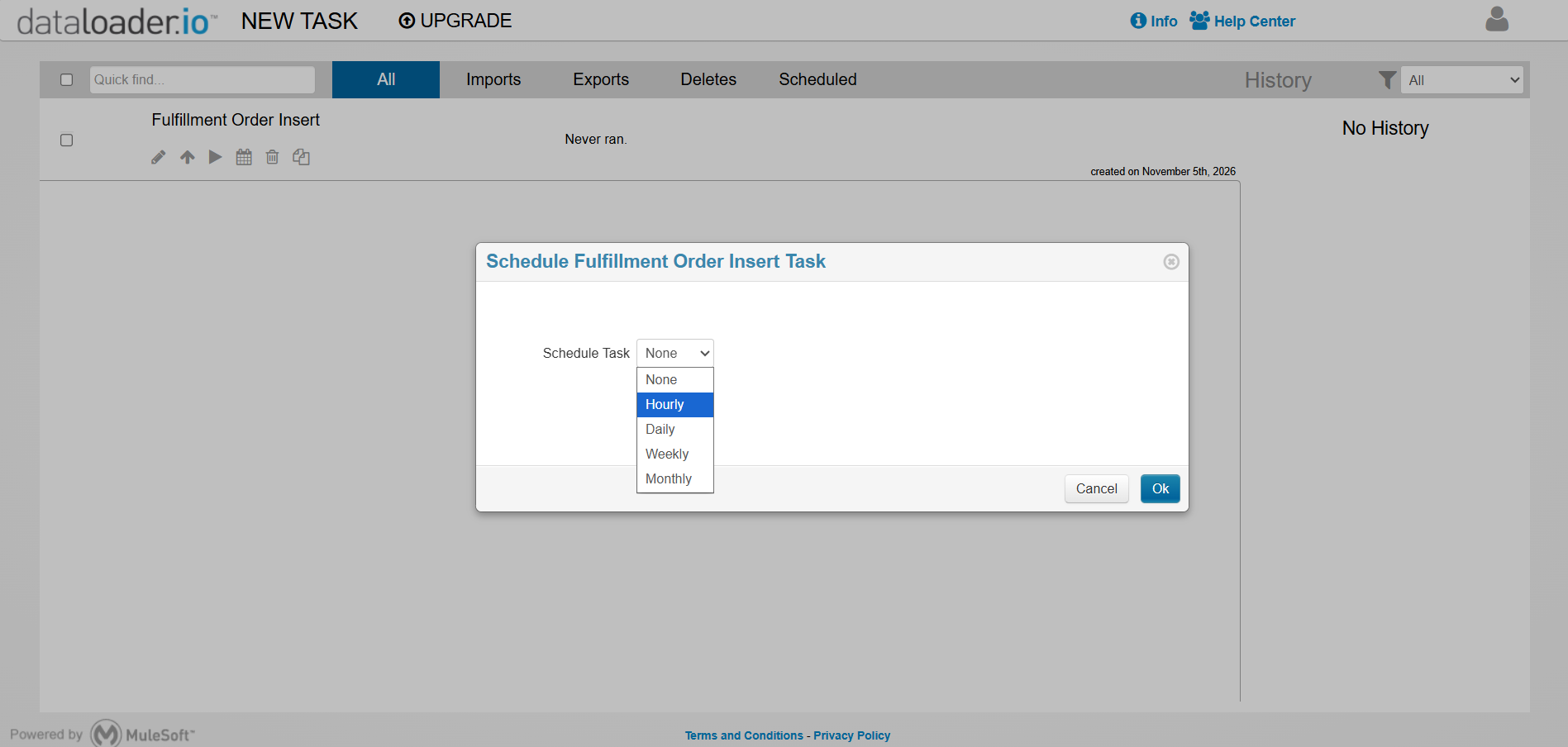
Two details trip people up. First, a scheduled import looks for the same file name in the same folder path every single time, since dataloader.io has no wildcard support; a partner’s dated file like orders_2026-11-03.csv simply won’t get picked up, whatever plan you’re on. Second, saved tasks on Free expire after 30 days.
Exports and deletes
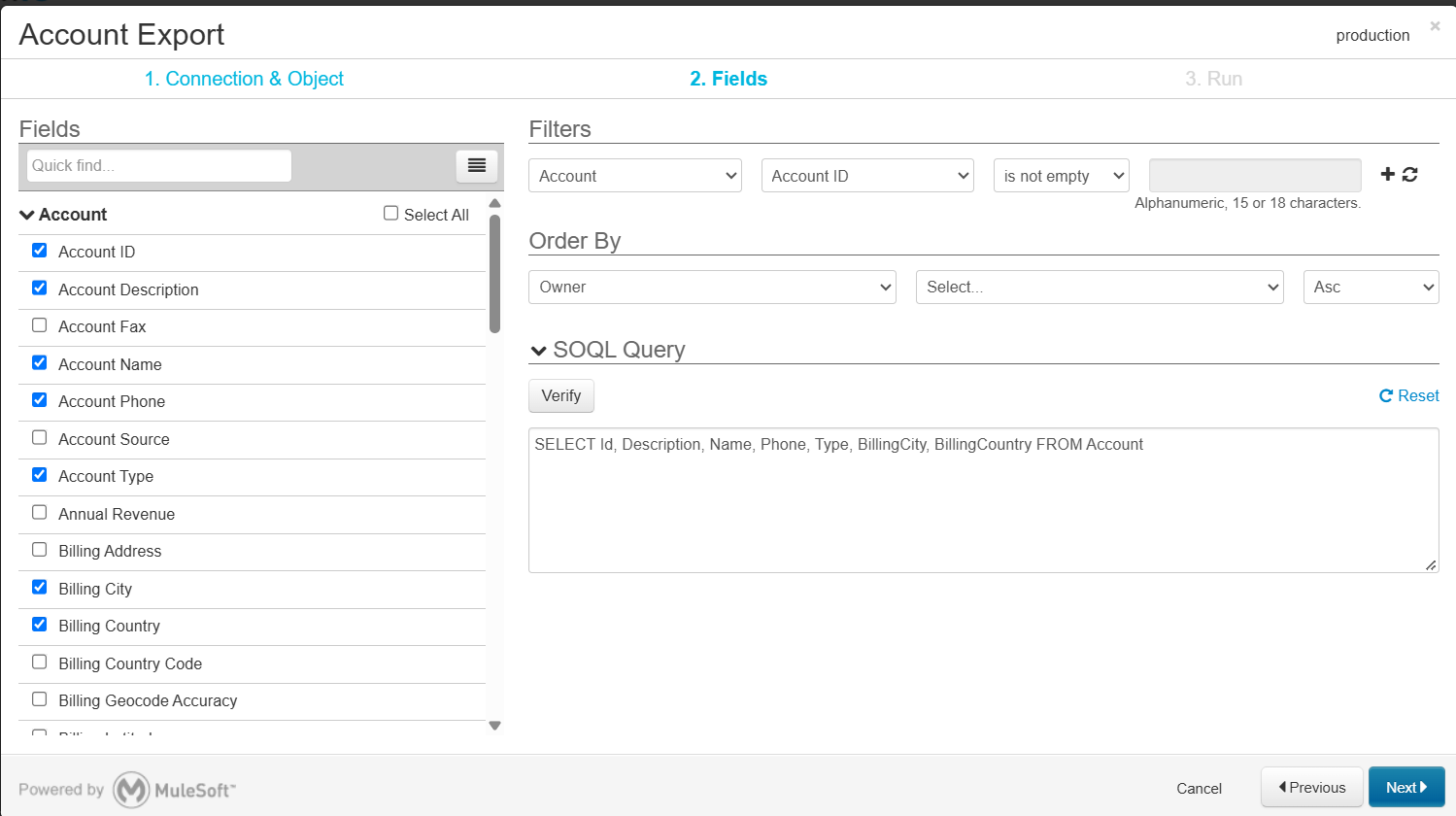
Exporting follows the same pattern. Build the query in the point-and-click builder or write SOQL yourself if you’d rather, then add related objects, filters and sorting and send the CSV to a download or to a Box, Dropbox or FTP folder. A scheduled export can stamp the file name with a timestamp. Note that related-object exports and “Export Deleted Rows” only run on the Batch API.
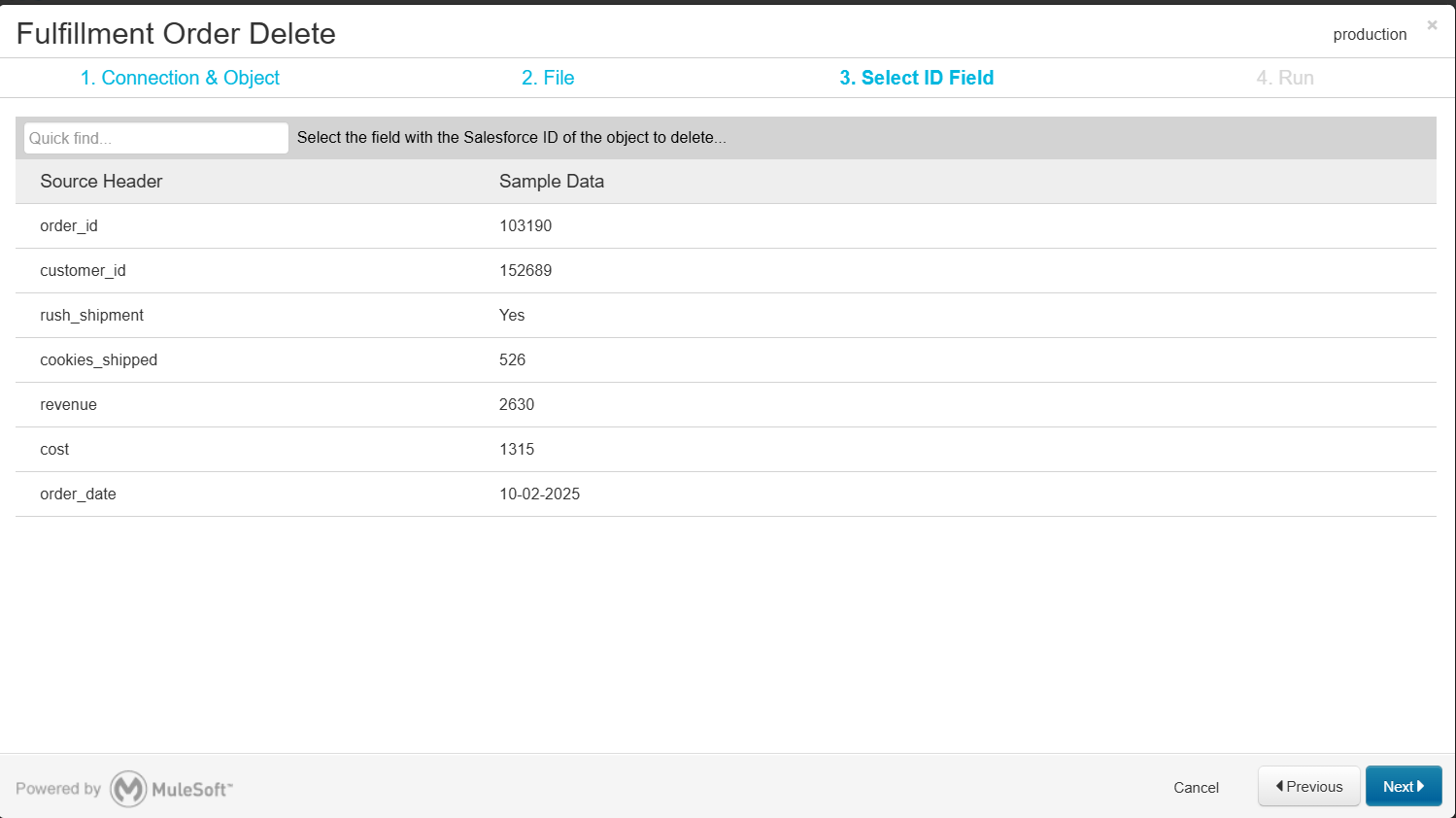
Deleting is its own task, fed by a CSV of record IDs. Pick the Bulk API, and you get a Hard Delete option, which skips the Recycle Bin and wipes the records for good. That’s why we’d export a backup of those same IDs before you touch it.
Professional and Enterprise users can also add a Salesforce Canvas app that opens dataloader.io in a Salesforce tab. There’s no cap on saved tasks on any plan. On paid plans, they don’t expire either, so last month’s import is still sitting there when you want to rerun it.
dataloader.io pricing in 2026
You pay per user, per month, and each plan caps how many records you can move in that month. Only monthly prices appear on the pricing page, and the license renews month to month.
| Plan | Price | Records a month | What’s included |
|---|---|---|---|
| Free | $0 | 10,000 | 1 scheduled task (daily), 1 Salesforce connection, tasks expire after 30 days, community support |
| Professional | $99 per user a month, billed monthly | 100,000 | Hourly, weekly and monthly schedules (50 scheduled tasks), 1 Salesforce connection, email support |
| Enterprise | $299 per user a month, billed monthly | Unlimited | SFTP, unlimited scheduled tasks, up to 10 Salesforce connections, email support |
The bill hinges on two rules. A user in production and the same user in a sandbox count as two separate users. And every row you import, export or delete counts toward the record limit, so it’s more than just the rows you add.
Tired of paying twice for the same person? With Skyvia, users are unlimited and you pay only for data volume.

What dataloader.io costs for real teams
- One admin, a daily CSV, up to 100,000 records a month: that’s Professional, at $99 a month.
- One admin working in production and a sandbox: you’re paying for two Professional users, so $198 a month. The other route is one Enterprise account with several connections, at $299 per user a month.
- A team of three that needs hourly schedules: 3 × $99 = $297 a month.
- A partner’s file on SFTP, same name every time: Enterprise is the only plan with SFTP, so it’s $299 per user a month.
- The same file, but with the date in its name: no plan can do it, because a scheduled import needs a fixed file name.
dataloader.io limitations to know before you commit
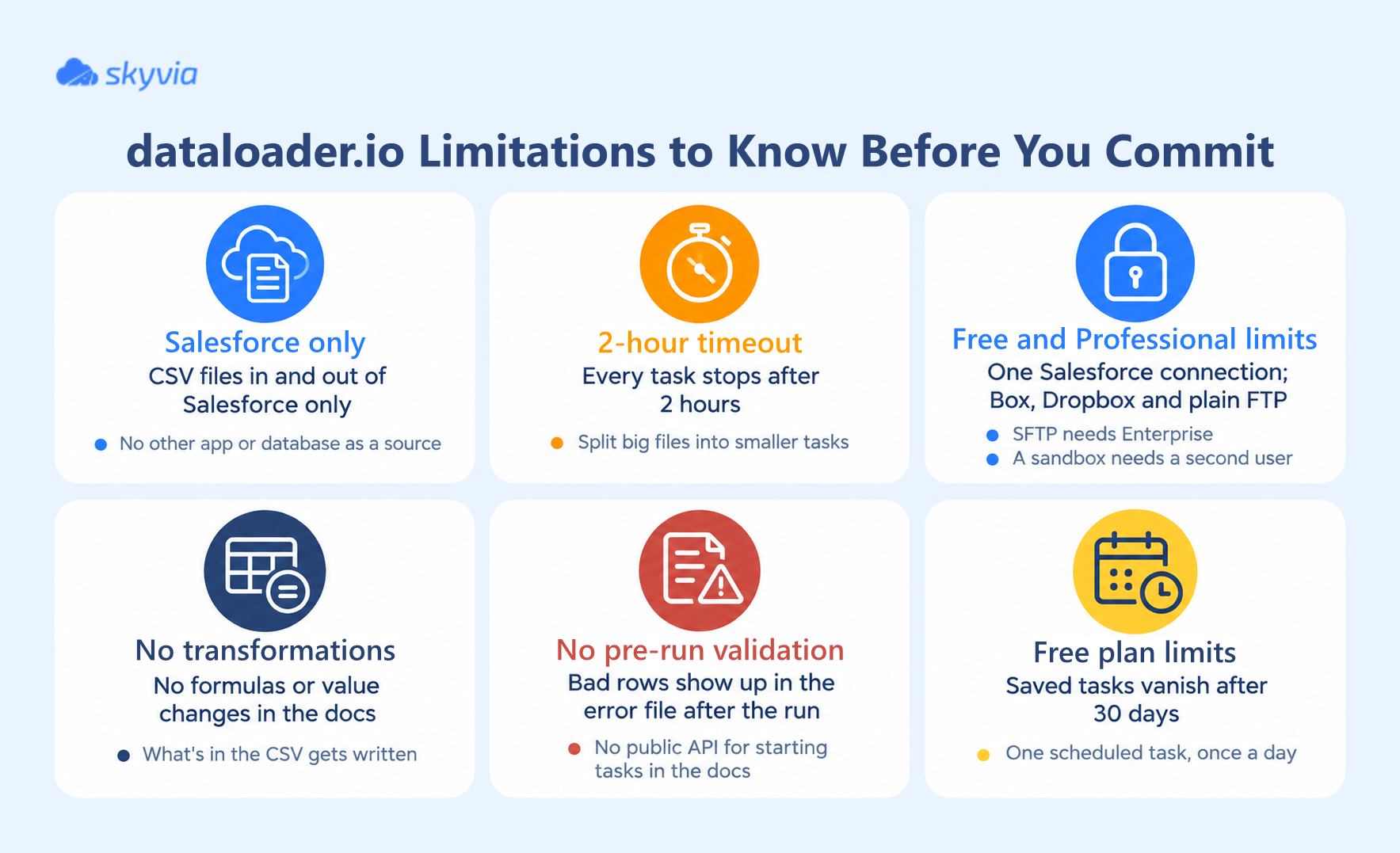
- Salesforce only, CSV only. Data goes into Salesforce and comes out of it. Another app or a database can’t act as the source.
- Tasks stop after 2 hours. The help center calls this “the timeout for any dataloader.io task”, and its advice is to break the file into smaller tasks.
- SFTP needs Enterprise. On Free and Professional, you’re limited to Box, Dropbox and plain FTP (and plain FTP isn’t encrypted).
- A sandbox is a second user. That’s because Free and Professional give each account just one Salesforce connection.
- No transformations are described. You’ll find mapping, lookups, date formats and an “Insert Null Values” option in the docs, but nothing on formulas or changing values. Whatever sits in the CSV is what gets written.
- No validation step before writing. The docs don’t describe one, and they don’t describe a public API for kicking off tasks either. You find bad rows in the error file once the run is over. It’s a bigger deal than it sounds: in Validity’s State of CRM Data Management in 2025, 76% of respondents said less than half of their organization’s CRM data is accurate and complete.
- Free has short memory. Saved tasks vanish after 30 days, and you get one scheduled task that runs once a day.
What users say about dataloader.io
The Salesforce AppExchange rating stands at 4.53/5 from 614 reviews (November 2026). Users particularly appreciate how quickly they can map fields and get bulk updates out of the way. The mood changes when jobs get more complicated. People without technical experience can struggle with less familiar workflows, while occasional users aren’t always convinced a paid subscription is worth keeping. And if you regularly switch between two Salesforce orgs, be prepared for a somewhat awkward experience.
How much support you get also depends on what you pay. Free users rely on the community, while the customer service portal opens up on Professional and Enterprise. In one Trailblazer Community thread, an admin found the support portal looping back to the home page, and a reply explained that the case portal is for paid subscribers only.
Who should use dataloader.io, and when to look elsewhere
Stay with dataloader.io if:
- A single person is loading clean CSV files into one Salesforce org.
- Daily or hourly schedules cover you, and loads wrap up comfortably inside 2 hours.
- Your files come in by upload, Box, Dropbox or FTP, and the name never changes.
Look at an alternative if:
- The same data also has to reach a second system (HubSpot, a database, an ERP).
- Every new sandbox and teammate adds to a per-user bill that keeps climbing.
- A partner drops files on SFTP, and even more so if those file names carry dates.
- You need to reshape data on the way in, or it comes from an app and not a file.
The first case is more common than it looks: in MuleSoft’s own 2026 Connectivity Benchmark Report, only 27% of an organization’s applications are connected, on average. This is the gap we built Skyvia to fill. Skyvia’s Import pulls files and data from other apps and databases into Salesforce, with expression mapping and lookups. It reads SFTP on every plan, catches dated files through a file mask (Standard and up), and there’s no per-user pricing. For a team of three on hourly schedules, Skyvia Standard is $99 a month billed monthly ($79 billed annually) for 500K records a month. The same team pays $297 a month on dataloader.io. Our short video shows how to schedule a CSV import into Salesforce with Skyvia.
Replays, added in October 2026, retry just the failed records so you don’t rerun the whole import. Our dataloader.io alternatives guide puts it next to nine other tools, each one matched to the limit it fixes.
If you’ve hit those limits, Skyvia’s Salesforce data loader runs scheduled imports from files and other systems into Salesforce with unlimited users and SFTP on every plan, and the free plan lets you try it on your own data.

FAQ for dataloader.io Review

Is dataloader.io safe?
Sign-in runs through Salesforce OAuth, and your Salesforce credentials aren’t stored. The CSVs you upload do stay in dataloader.io so tasks can run again, unless you send result files to your own Box, Dropbox or FTP instead. dataloader.io says only you can access those files and that the data is encrypted. Paid plans let admins decide who gets to use it and which objects each user can reach.
Is dataloader.io part of Salesforce?
MuleSoft, a Salesforce company, builds it, and Salesforce’s help pages include it in their list of import tools. Your license and billing for it are separate from the Salesforce subscription, though.
What are the limitations of dataloader.io Free?
On Free, you get 10,000 records a month, and that count covers imports, exports and deletes together. You’re also limited to one Salesforce connection and one scheduled task that runs daily, with email notifications on only one task. Support comes from the community, SFTP isn’t available, files can be up to 10 MB, and saved tasks expire after 30 days.
Does dataloader.io work with a sandbox?
It does, though production and sandbox users count as two separate users. If you’re on Free or Professional, you’ll need a second account (or a second paid user) for that. Enterprise is different: one account can hold up to 10 Salesforce connections.
How many records can dataloader.io handle?
Monthly volume depends on the plan, from 10,000 records on Free to 100,000 on Professional, with no limit on Enterprise. Per run, the real ceiling is time. Any task stops after 2 hours, which is why large loads get split into smaller tasks.