Summary
- Skyvia is a good fit when you want scheduled BigCommerce backups or CSV/JSON exports to Dropbox without building the pipeline in code.
- Make works better when the workflow starts with an event and needs several steps, branches, or file-handling actions afterward.
- Zapier is the simplest option for small BigCommerce-to-Dropbox automations where you just need one trigger and a straightforward action.
- Ikaroa makes sense when you would rather hand the integration to a service provider than build and maintain it yourself.
- Custom Python gives developers the most control over APIs, files, retries, and business logic, but it also leaves them responsible for keeping everything running.
The annoying part is not exporting one BigCommerce report to Dropbox. It is having to remember to do it again next week. Then again when finance needs another copy, operations asks for the latest product list, or someone realizes last month’s backup is missing.
That is where a BigCommerce to Dropbox integration starts to make sense. Instead of treating every export as a small manual job, you can move orders, products, customers, or inventory files into Dropbox automatically and leave them somewhere the rest of the team can actually find them.
The interesting part is that there is more than one way to do it. A scheduled CSV backup is a very different job from sending a digital file the moment an order comes in. One team may want a simple no-code setup. Another may need webhooks, custom API logic, or someone else to manage the whole thing.
For this guide, we set up the workflows ourselves, pushed larger datasets through them, looked at how they handled files and errors, and noted where each approach started to feel inconvenient.
One bit of transparency before we go further: we are the team behind Skyvia. We know the product well, and obviously that gives us a point of view. But Skyvia is not the best answer for every job. Make and Zapier suit some event-driven workflows better; Ikaroa takes the implementation off your hands, and custom code gives developers a level of control a no-code platform simply cannot.
So the useful question isn’t which tool wins on paper. It is which one makes your particular BigCommerce and Dropbox workflow easier to live with.
Why Should You Integrate BigCommerce with Dropbox?
Most of the value here is pretty practical. You are not trying to build some huge data platform. You are usually trying to make sure files show up where people expect them, without someone remembering to export them by hand.
Automated Data Backups & Archiving
A regular export gives you a second copy of the store data outside BigCommerce.
Orders, customers, products, and inventory can be written to CSV or JSON and dropped into Dropbox on a schedule. That is useful for backups, month-end snapshots, audits, or simply keeping a history of what the store looked like at a certain point in time.
It also saves the usual “did anyone export this last Friday?” conversation.
Digital Product Fulfillment
This is a different kind of workflow.
If the store sells downloadable files, Dropbox can hold the actual assets while BigCommerce handles the order. Once the purchase is completed, an automation can pick up the right file or link and pass it along to the customer.
For this kind of job, speed matters more than batch size. A tool that reacts to a new order event can make more sense than one built mainly around scheduled exports.
Cross-Departmental Reporting
Not everyone who needs sales data needs access to the BigCommerce admin.
Finance may just want a weekly order file. Operations may need the latest inventory snapshot. Someone else may only care about returns or completed orders.
Putting those exports into a shared Dropbox folder gives each team a familiar place to find them, without asking for dashboard access or waiting for someone to pull the report manually.
How Did We Test These BigCommerce to Dropbox Solutions?
We used the same basic workflow for each option so the comparison would not turn into a list of vendor claims.
The test data included 50,000 BigCommerce order records and 10,000 product variants. We pushed that data toward Dropbox in different ways and watched what happened during setup, larger runs, retries, and failures.
We were mainly looking at three things: how long it took to get the first working pipeline, how well each approach handled the larger dataset, and how much information we got back when something went wrong.
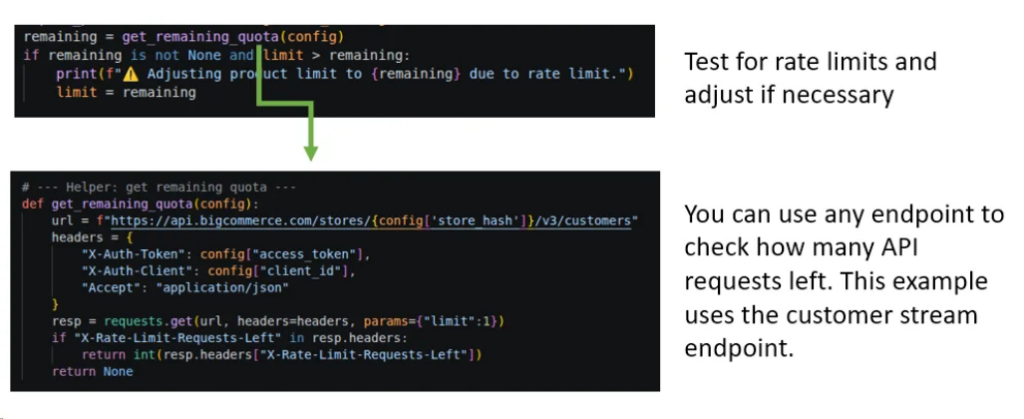
That last part mattered more than I expected. Sometimes the useful signal came before an actual failure. With the custom script, for example, we could check the remaining BigCommerce API quota and reduce the request volume before the service started rejecting calls.
What We Used as Visual Proof
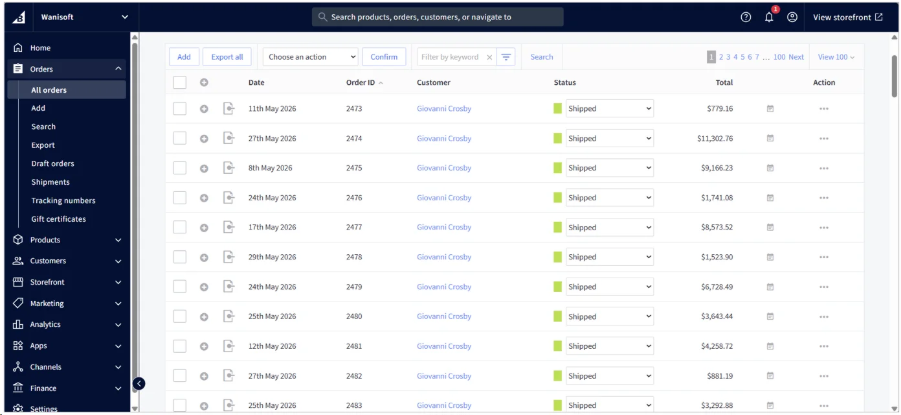
The first screen shows the BigCommerce admin area with the test orders or products we used as the source.
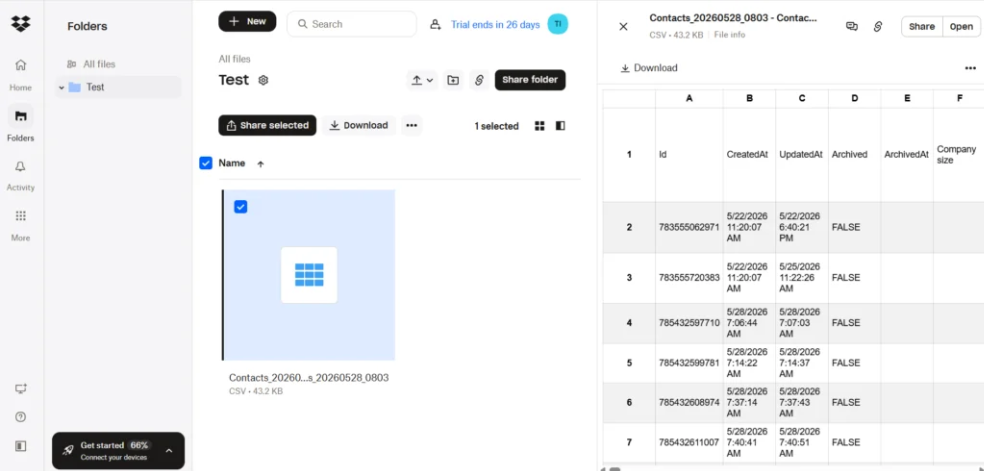
For the destination, we checked the generated files directly in Dropbox, including exports such as orders_2026_08_13.csv, rather than relying only on a “success” message inside the integration tool.
We also checked how each approach behaved before it actually hit a rate limit. In the custom script, that meant reading the remaining BigCommerce API quota and reducing the request volume before the service started rejecting calls.
What Criteria Should You Use to Evaluate BigCommerce to Dropbox Integrations?
This is where the tools start to separate pretty quickly. A workflow that looks simple at first can behave very differently once you care about timing, file types, cost, and what happens when something breaks.
Sync Architecture & Frequency
First, decide whether you need a schedule or an event.
If finance just needs a fresh CSV every morning, a batch export is enough. If a file has to move the second a customer places an order, you are looking at a webhook-style workflow instead.
That one choice already narrows the list quite a bit.
Data Type & Schema Handling
Orders and customer records are one thing. Product images, PDFs, and other binary files are another.
Some tools are better at structured data that fits neatly into CSV or JSON. Others are more comfortable moving individual files and media assets between apps.
It is worth checking this early, because a tool that is great at tabular exports may still be awkward for file-routing jobs.
Pricing Model & Scalability
The pricing model matters more once the store gets busy.
One platform may charge by task, another by operation or row volume, while custom code mostly costs you engineering time and infrastructure.
A small workflow can look cheap in almost any tool. The useful question is what happens when the number of orders, files, or scheduled runs doubles.
Maintenance & Setup Effort
Some teams want to open a visual builder, connect two apps, and be done.
Others are fine owning scripts, credentials, servers, and API changes because they want more control.
Neither approach is automatically better. It depends on who is going to fix the workflow six months from now when something changes.
Error Handling & Monitoring
This is the part I would not skip.
A successful setup does not tell you much about how the tool behaves after an API timeout, expired token, or partial run. I would check whether you can see failed records, retry a job, and understand what actually went wrong without digging through several systems.
The easier that is, the less painful the workflow becomes later.
What Are the Top BigCommerce to Dropbox Integration Tools Compared?
This is probably the quickest way to see why there is no single winner. A scheduled backup, an instant file trigger, and a custom API pipeline may all connect the same two apps, but they are very different jobs.
| Feature / Criteria | Skyvia | Make | Zapier | Ikaroa | Custom Python Script |
|---|---|---|---|---|---|
| Best use case | Scheduled CSV/JSON backups and batch data exports | Multi-step event workflows and file routing | Small, straightforward trigger/action workflows | Fully managed custom integration | High-volume custom logic with developer ownership |
| Architecture | Scheduled batch ETL/export | Event-driven scenarios and webhooks | Event-driven Zaps and webhooks | Custom API, webhook, or scheduled pipeline | REST APIs, webhooks, and scheduled jobs |
| Pricing model | Record-volume tiers | Credit-based usage | Task-based plans | Custom integration with a fixed quote | Hosting/infrastructure plus developer time |
| Sync frequency | Scheduled; paid plans can run as often as every minute | Webhooks can react immediately; scheduled scenarios are also available | Instant with supported webhook triggers; polling depends on plan | Real-time or scheduled, depending on the custom build | Whatever the team implements: webhook, on-demand, or cron |
| File / data handling | Structured exports such as CSV, JSON, and TSV | Strong for individual files, media, and multi-step routing | Good for simple file actions and links | Can be built around custom schemas and file logic | Essentially unrestricted, provided you write the handling code |
| Setup effort | Low — visual configuration | Medium — visual scenario builder can become complex | Low for simple Zaps | Low internally because Ikaroa builds and maintains it | High — authentication, pagination, retries, hosting, and monitoring are yours |
| Who maintains it? | Mostly the platform | Your team maintains the scenario | Your team maintains the Zap | Ikaroa | Your developers |
Note: “Instant” usually means a supported webhook trigger. Polling-based workflows may still run on a schedule, and the interval can depend on the plan.
Which Integration Tool Best Matches Your Business Needs?
This is where the use case matters more than the feature list. Moving 50,000 orders into a CSV every night is not the same job as reacting to one new order and sending a file five seconds later.
Best for Scheduled Data Backups & Tabular CSV/JSON Sync: How Does Skyvia Perform?
Skyvia makes the most sense here when the data itself is the thing you care about.
If you want Orders, Products, or Customers exported from BigCommerce and dropped into a Dropbox folder on a schedule, that is a fairly natural Skyvia job. You pick the fields, add a filter if you need one, choose the file output, and leave the schedule to run.
I also like that you can clean up the export before it reaches Dropbox. Maybe finance only wants completed orders. Maybe the product team needs five columns instead of fifty. That can be handled in the task rather than fixed in the CSV afterward.
Best for
Recurring BigCommerce backups and structured exports where CSV, JSON, or TSV files need to land in Dropbox without someone running the job manually.
Rating
Pricing
Skyvia has a free tier, with paid plans scaling mainly by record volume and scheduling requirements.
Pros
- Built around scheduled batch data rather than one-record-at-a-time automation.
- BigCommerce objects can be filtered before export.
- Visual mapping helps when the output needs to look different from the source.
- Dropbox is supported directly as a file-storage destination.
- Run history and logs make recurring jobs easier to check when something goes wrong.
Cons
Skyvia is not really trying to be a millisecond event router.
If the requirement is “a customer placed an order, grab one image immediately and send it somewhere else,” I would probably use Make or Zapier instead. That is simply a different kind of automation.

Best for Immediate Event-Based File Triggers: How Do Make and Zapier Compare?
Make and Zapier are much more at home when the workflow starts with something happening.
A new order arrives. A digital product was purchased. A customer hits a certain status. From there, you want to copy a file, create a folder, send a link, notify somebody, or branch into three other apps.
Zapier is usually the easier one to explain to someone seeing automation for the first time. Make gives you more room to build branching logic and shape the workflow once it starts getting complicated.
Best for
Small, event-driven workflows where one BigCommerce action should immediately cause something to happen in Dropbox or another app.
Rating
Zapier
Make
Pricing
Zapier uses task-based pricing. Make uses credits, with standard module actions generally consuming credits as the scenario runs.
Pros
- Both are good at trigger-based automation.
- Zapier is particularly easy to get running for simple workflows.
- Make gives you more freedom with branches, filters, and multi-step scenarios.
- Both have large connector ecosystems, so it is easy to add email, Slack, CRM, or other steps around BigCommerce and Dropbox.
Cons
Volume changes the picture.
If you push tens of thousands of historical orders through a workflow built around individual actions, the task or credit count can climb quickly. That is very different from a batch ETL job that treats the same records as one scheduled data load.
I would use these tools for “this happened, now do that,” not as my first choice for dumping an entire BigCommerce dataset into Dropbox every night.
Best for Fully Managed Custom API Integration: Is Ikaroa Worth It?
Ikaroa is the odd one out here because you are not really buying another dashboard to configure yourself.
You tell them what needs to move between BigCommerce and Dropbox, and their team scopes, builds, tests, and maintains the integration. That can be appealing when the workflow is custom enough to need code, but nobody internally wants to own that code.
Best for
Companies that need custom API logic but do not have the engineering time or people to build and maintain it themselves.
Rating
- G2: no verified user reviews yet
- Capterra: no verified user reviews yet
Pricing
Custom integration work is quoted based on the project rather than sold as a standard self-service SaaS plan.
Pros
- Very little implementation work stays with your internal team.
- Custom logic can be built around the actual workflow instead of the limits of a visual builder.
- Ikaroa handles testing, monitoring, and ongoing maintenance.
- Useful when the integration is important but does not justify hiring another developer.
Cons
You give up some independence.
Changes may need to go back through the service provider, and a custom managed integration is harder to pick up and modify yourself than a workflow sitting in your own Zapier, Make, or Skyvia account.
It can also cost more than a self-service tool, especially when the workflow keeps changing.
Best for Developers & Self-Hosted Pipelines: How Does Custom Python or Airbyte Fit?
This is the route I would take when the answer to “who is going to maintain this?” is already “our developers.”
A custom Python script gives you control over almost everything: BigCommerce pagination, API quotas, Dropbox uploads, filenames, caching, transformations, retries, and whatever strange business rule appears six months later.
Airbyte gives you some structure around that approach. Airbyte Core can be self-hosted, and developers can build or modify connectors when the standard ones do not quite fit.
That freedom is useful. It also means the pipeline never really stops being your problem.
Best for
Teams with developers who want control over the runtime, APIs, custom transformations, and where the integration is hosted.
Rating
A custom Python script obviously does not have a product rating.
For Airbyte:
- G2: 4.4/5
- Capterra: no verified user reviews yet
Pricing
Airbyte Core is open source and self-managed. Airbyte also offers paid cloud plans.
A Python script has no platform subscription, but “free” gets a little fuzzy once you count servers, monitoring, deployment, debugging, and the engineer who gets called when it stops at 2 a.m.
Pros
- Full control over rate-limit handling and retries.
- You decide exactly how BigCommerce data is parsed and written to Dropbox.
- Custom file formats or binary-processing rules are possible.
- Self-hosting keeps the runtime inside infrastructure your team controls.
- Airbyte gives developers connector tooling without forcing them to build the whole platform from scratch.
Cons
There is no one else to blame when it breaks.
BigCommerce changes an endpoint, Dropbox authentication changes, a connector falls behind, or a server runs out of resources — somebody on your team has to investigate it.
That is a perfectly reasonable trade if you already have the engineering resources. It’s much harder to justify if the original job was simply “put yesterday’s orders in Dropbox.”
Step-by-Step Guide: How to Sync BigCommerce Orders and Products to Dropbox with Skyvia?
Once both accounts are ready, the setup is fairly short. For a regular backup job, I would use Skyvia Export rather than build a more complicated Data Flow.
Step 1: Connect BigCommerce in Skyvia
Create a new connection and choose BigCommerce. For an API v3 connection, select Store Credentials and enter the Store ID, Client ID, and access token from the API account you created in BigCommerce.
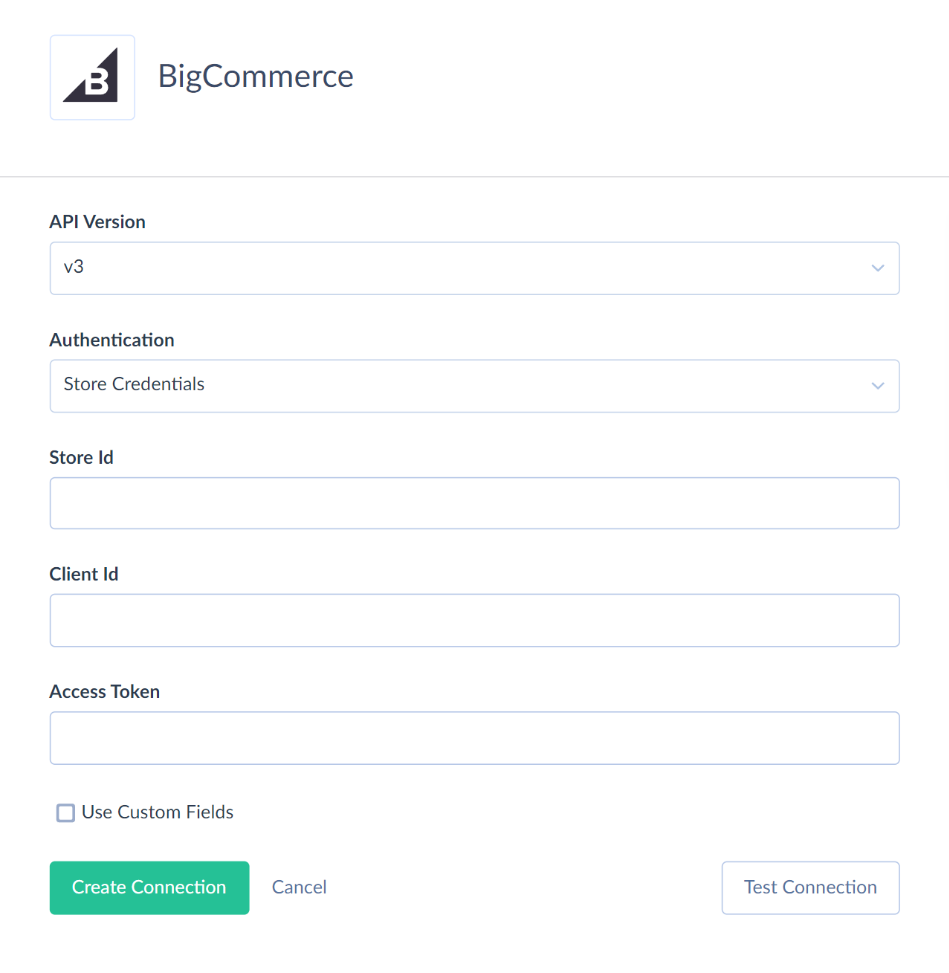
I would also check the scopes before moving on. If the pipeline only needs to read Orders and Products, there is no reason to give it more access than that.
Step 2: Connect Dropbox
Create another connection, this time for Dropbox.
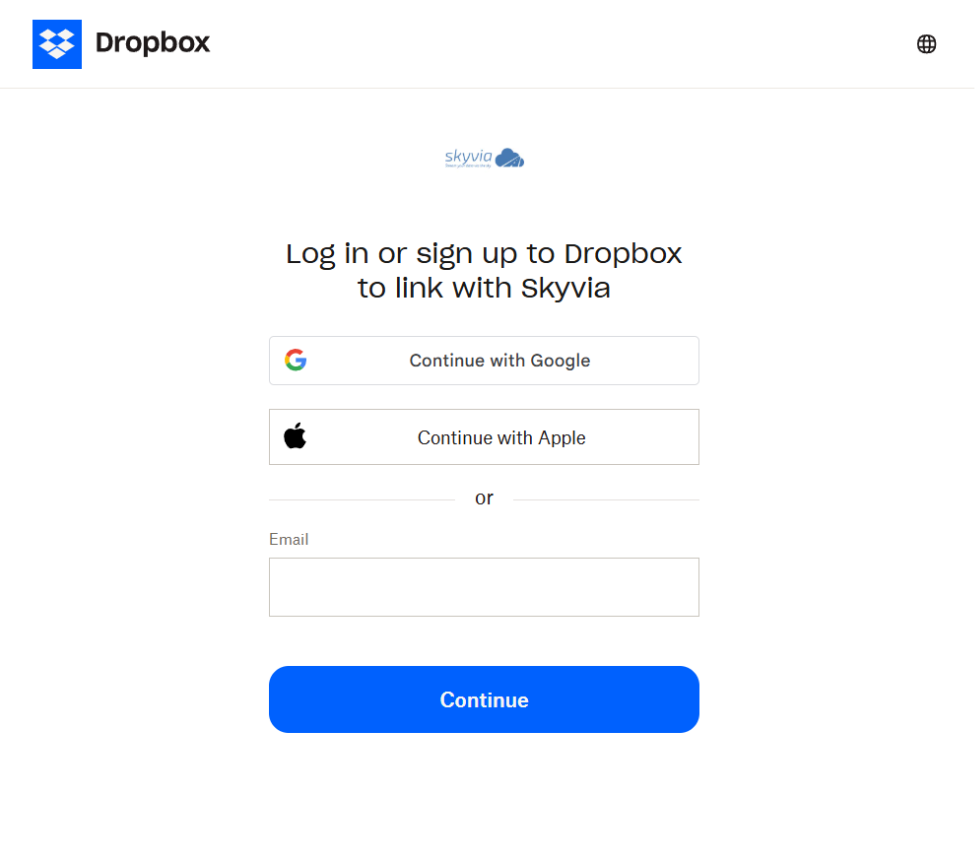
This part is easier: click Sign In with Dropbox, log in to the Dropbox account you want to use, and approve Skyvia’s access. Dropbox can then be selected as the target storage for Export integrations.
Step 3: Create the Export Integration
Go to + Create New → Export.
Choose the BigCommerce connection as the source. Under Target Type, select CSV to storage service, choose the Dropbox connection, and select the folder where the files should land.
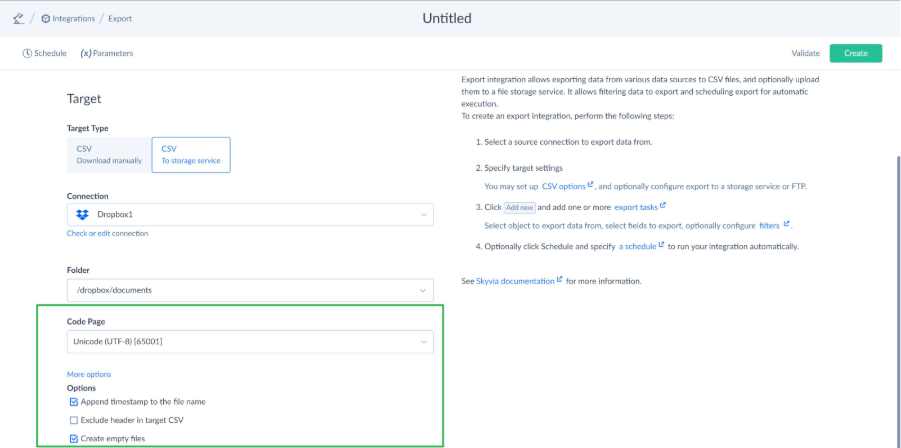
For example:
BigCommerce_Backups/2026/ Skyvia’s dedicated BigCommerce–Dropbox page documents this exact direction: BigCommerce objects such as Orders, Products, and Customers can be exported as CSV files and uploaded to Dropbox.
Step 4: Choose the Data and Shape the CSV
Add an export task for the object you want to move — Orders, Products, or Customers.
From there, choose the fields that should appear in the file. You can leave out columns nobody needs, change their order, rename output columns, add filters, and set the target file name.
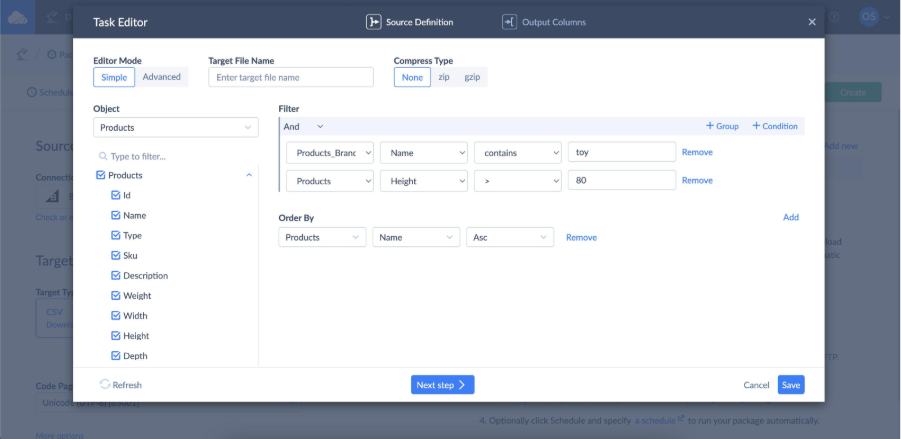
This is also where I would deal with something like:
Status = Completed if the Dropbox folder only needs completed orders.
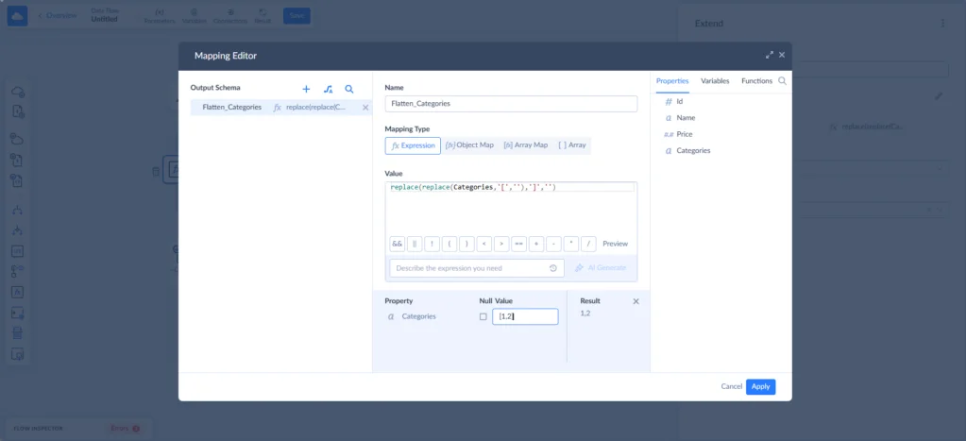
One useful detail with BigCommerce is that some fields contain nested JSON structures. If the export needs those values flattened into a different shape, a simple Export may not be enough, and Data Flow becomes the better option.
Step 5: Schedule the Export
Run the integration once manually before putting it on autopilot. It is much nicer to discover a bad filter while you are still watching the first run than the next morning when somebody opens an empty Dropbox folder.
Once the output looks right, open Schedule and choose when the export should run — nightly, hourly, weekly, or whatever makes sense for the backup.
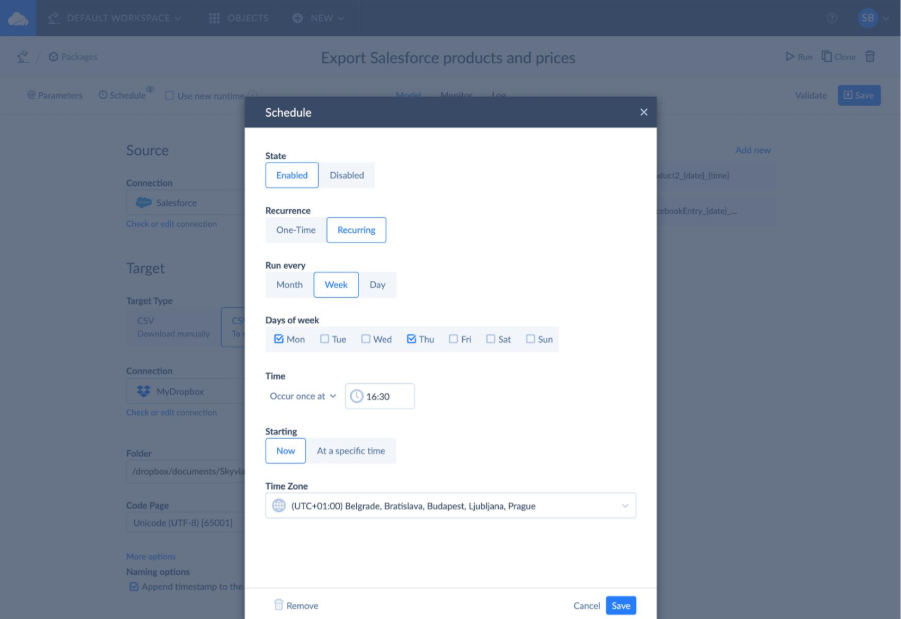
For a daily job, for example, you could set it to run every night at midnight in the timezone the team actually uses.
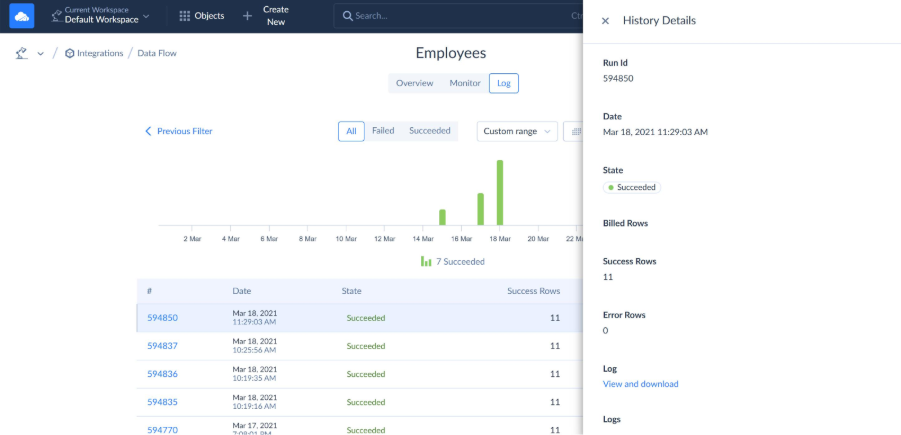
After the run, check Monitor rather than stopping at the green success message. Skyvia shows recent integration runs there, while Log gives you a longer execution history. Opening a run also shows successful and failed records.
What Are the Most Common Pitfalls When Syncing BigCommerce to Dropbox?
Most of these problems are not dramatic. They show up when the job gets larger, runs more often, or has to keep working without anyone watching.
BigCommerce API Rate Limits (429 Too Many Requests)
This usually appears when the integration makes too many API calls in a short window.
BigCommerce returns 429 Too Many Requests when a client exceeds its current quota. The useful part is that the response also includes rate-limit headers telling you how long to wait before trying again.
If you are writing the integration yourself, read those headers and slow the requests down instead of retrying immediately. For a managed tool, I would still check how retries and throttling are handled rather than assume the connector will just keep going.
Handling Paginated API Responses
Large BigCommerce datasets rarely arrive in one response.
For example, the Products API can return up to 250 products per page, so a store with thousands of products has to be read across multiple requests. Other objects have their own pagination rules, which is why I would not hard-code “250” for every endpoint.
This is one of those things that is easy to miss in a quick custom script. The first page looks fine, the CSV is created, and nobody notices that the rest of the records never arrived.
With an ETL platform, I would check that pagination is handled automatically. With custom code, keep following the pages until the API says there is nothing left.
Dropbox Token Expiration and Authentication Failures
Dropbox uses short-lived OAuth access tokens. For background jobs, applications can use refresh tokens to obtain new access tokens without asking the user to sign in every time. Access can also stop working if authorization is revoked.
That means authentication is something worth monitoring even after the first successful connection.
In Skyvia, an OAuth connection can become invalid if its token expires or is revoked, and the connection may need to be authorized again. Skyvia also supports email notifications for failed integrations, although those notifications are disabled by default.
I would turn those alerts on for any backup job that is supposed to run unattended. Finding out from an email is much better than discovering three weeks later that the Dropbox folder stopped receiving files.
What Is the Final Verdict on Choosing a BigCommerce to Dropbox Solution?
By now, the choice is mostly about what kind of job you are actually trying to automate.
If you need regular BigCommerce backups, scheduled CSV exports, or a structured data pipeline into Dropbox, Skyvia is the one I would look at first. It keeps the setup visual and works better for larger batch jobs than tools that charge around every individual action.
If the workflow starts with one event — a new order comes in, a file needs to move, or a customer needs a download link right away — Make or Zapier will usually feel more natural. That is the kind of work they are built around.
Then there are the cases where the standard tools simply do not fit. If the business logic is very specific and you have developers to own it, custom code gives you the most freedom. If you need that same flexibility but do not want to build or maintain it internally, Ikaroa takes the managed-service route instead.
I would not make this decision from the longest feature list. Think about whether the workflow is mostly a batch export, an event trigger, or a custom integration. Once you answer that, the shortlist gets much smaller.

FAQ for Connect BigCommerce to Dropbox

How do you prevent BigCommerce API rate limit errors during large Dropbox data syncs?
Respect BigCommerce rate-limit headers, avoid sending too many requests at once, and retry after the recommended delay. A managed ETL tool can also handle throttling and retries for you.
Can you trigger an immediate Dropbox file upload when a new order occurs in BigCommerce?
Yes. Event-driven tools such as Make or Zapier can react to a new BigCommerce order and start a Dropbox action right away. This is usually a better fit than a scheduled batch export.
How do you attach digital product download files from Dropbox to BigCommerce store items?
Store the file in Dropbox, generate a shareable or controlled-access link, and use automation or custom logic to send that link after the related BigCommerce order is completed.
Is custom coding required to integrate BigCommerce with Dropbox?
No. Skyvia, Make, and Zapier can handle common BigCommerce-to-Dropbox workflows without code. Custom scripts are mainly useful when you need unusual business logic or more control over the APIs.
How secure is moving sensitive BigCommerce customer and sales data into Dropbox?
It can be secure if you use OAuth, limit account permissions, protect Dropbox folders, and control who can access exported files. For sensitive data, also check your company’s retention and compliance rules.