
Summary
- The native Box for Salesforce Managed Package is a free AppExchange solution that embeds Box folders directly into Salesforce records — no coding required, but limited to basic UI embedding.
- Skyvia is a no-code cloud platform that automates backend file routing and metadata syncing between Salesforce and Box without writing a single line of Apex code.
- Zapier and Make are visual automation tools that handle event-driven micro-automations between Salesforce and Box, ideal for smaller workflows that trigger on specific actions.
- MuleSoft and the Box SDK give enterprise engineering teams complete control over the integration at the cost of significant development time, ongoing maintenance, and a steep learning curve.
Every Salesforce admin knows the moment. A sales rep needs to attach a contract to an Account record — except Salesforce file storage costs $5 per GB per month. So they download it locally, upload it to Box manually, paste the link into a note, and hope the next person can find it three months from now.
That workaround has a name. It’s called Tuesday.
Connecting Box and Salesforce properly kills that habit — and cuts storage costs that quietly compound every time your team closes a deal, signs a contract, or generates a report nobody deletes.
The catch is that “connecting” them means something different depending on what you actually need. A sales rep who wants a Box folder tab inside Salesforce needs something completely different from an engineer automating bulk file migrations across 50,000 records. This guide covers both and everything in between.
Full transparency: we’re the team behind Skyvia. We’ll tell you when our tool fits and when the free AppExchange app is honestly the better answer.
How Did We Test These Integration Methods?
We didn’t set up a clean demo environment with ten perfectly formatted Salesforce records and a single PDF. That’s not what real Salesforce orgs look like.
Real orgs have 10,000 Account records with inconsistently named fields, PDF contracts of wildly different sizes, and API limits that start feeling very real once the sync volume picks up. So that’s what we tested against — 10,000 Salesforce Account records and their associated PDF contracts, pushed through each integration method into Box.
For every tool, we measured the same three things:
- How long the initial setup actually took, from zero to first successful file sync
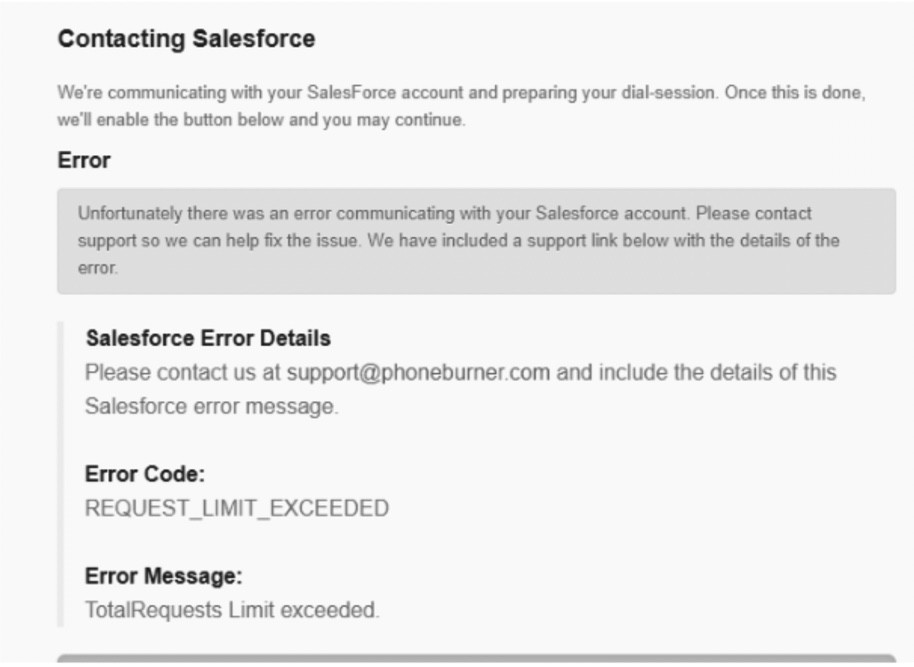
- How efficiently each method used Salesforce API calls — because hitting
REQUEST_LIMIT_EXCEEDEDat 2pm on a Tuesday is a different kind of pain - How each tool handled bulk data, and what happened when something went wrong mid-migration
The results shaped everything that follows. Some tools that look simple on the AppExchange listing page revealed real limitations once the file volume got heavy. Others surprised us in the opposite direction.
Which Integration Setup Fits Your Specific Scenario?
The Native Box Managed Package — Best for Basic UI Embedding (Free)
If your sales team just wants to see a Box folder tab sitting inside a Salesforce Account record without anyone writing a single line of code, this is your answer. Install it from AppExchange, drag the Box component onto your page layout in the Object Manager, and you’re done. Twenty minutes, zero cost.
Our Experience
The installation took about fifteen minutes. Dragged the component onto the Account layout, saved, refreshed. Box folder was right there. No errors, no missing permissions, no Stack Overflow. We actually double-checked we’d done it right because it felt too easy.
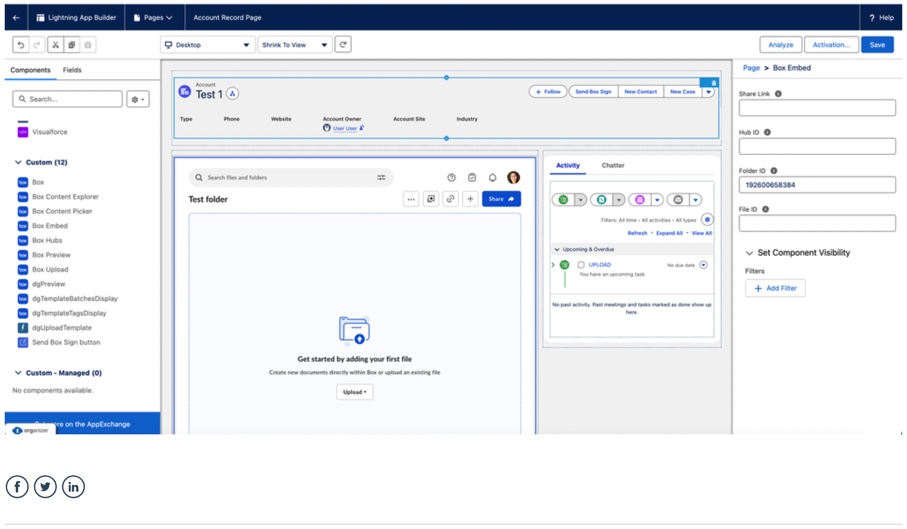
Where it started showing cracks was volume. The managed package runs on real-time Salesforce API calls — which means every file interaction a user makes inside the Box tab counts against your daily API limit. At 10,000 records with active file movement, that adds up faster than the AppExchange listing suggests.
Pros
- Free. No licensing conversation with procurement, no approval chain, no surprise invoice
- Looks and feels native — sales reps see a Box folder inside Salesforce, not a third-party widget they have to learn
- Any Salesforce admin can install it. No developer needed, no deployment window required
Cons
- Folder structure is what it is. If your business logic needs files routed across multiple objects based on record type or status, this won’t bend that far
- Every file interaction burns Salesforce API calls. At low volume that’s fine. At 10,000 active records, it becomes a problem you notice on a Monday morning
- Nothing moves on its own. A human still has to touch every file, every time
Skyvia — Best for No-Code Automated Pipelines
Some teams don’t want to write complex Apex scripts just to archive data.
Skyvia moves Salesforce record data automatically into Box storage in the background, on a schedule, without anyone clicking anything.
Our Experience
The starting point is two connections — one to Salesforce, one to Box. Both authenticate through a straightforward credential flow with no configuration files and no infrastructure to set up.
For testing, we created a scheduled export workflow from Salesforce into Box storage. You select Salesforce as the source, choose the object you want to export — Leads, Contacts, Accounts — configure your filters, and point the output at your Box destination.
The exported data lands in Box automatically as scheduled files organized around the workflow you configure.
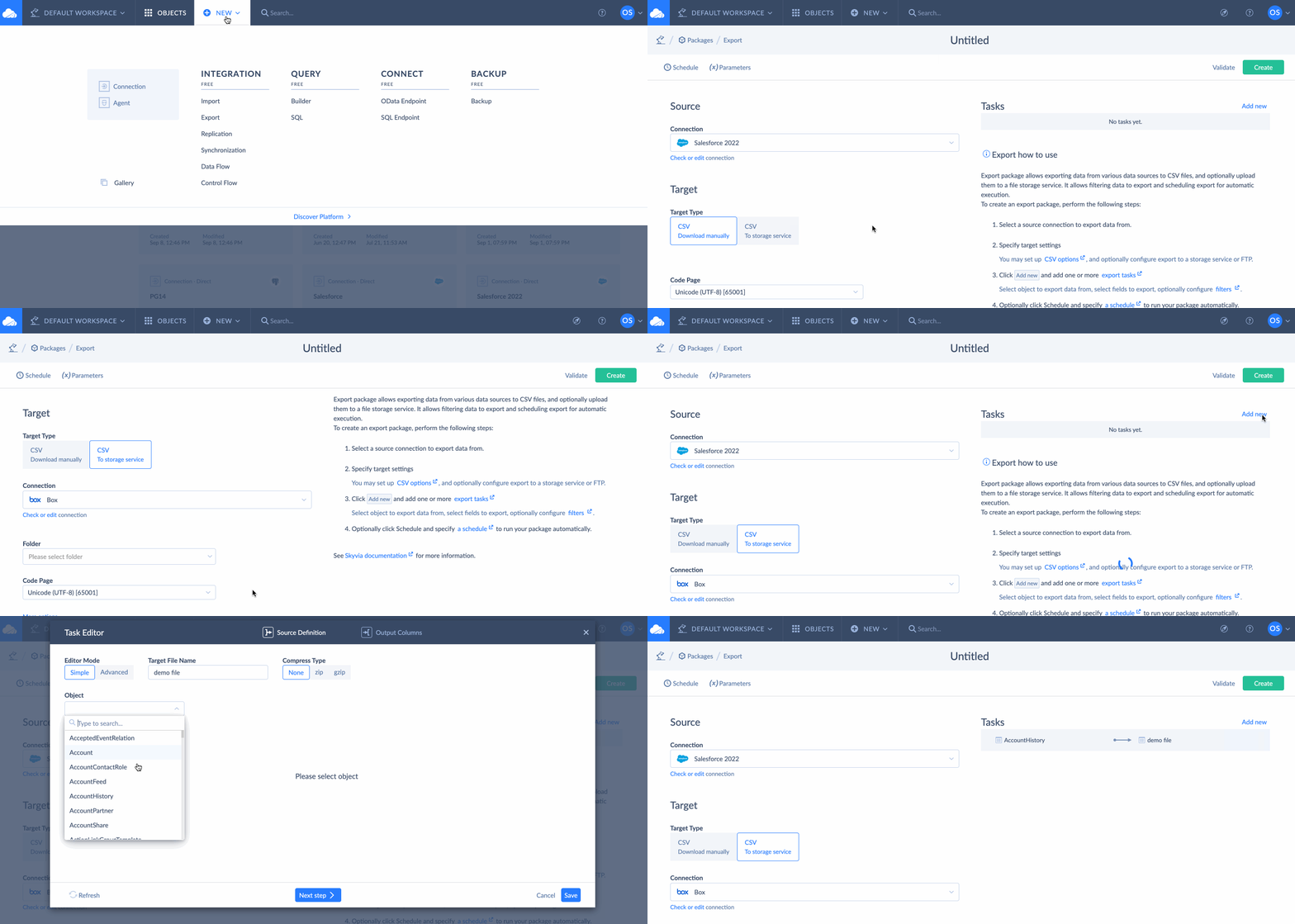
Once the schedule is configured, the pipeline will run itself in the background.
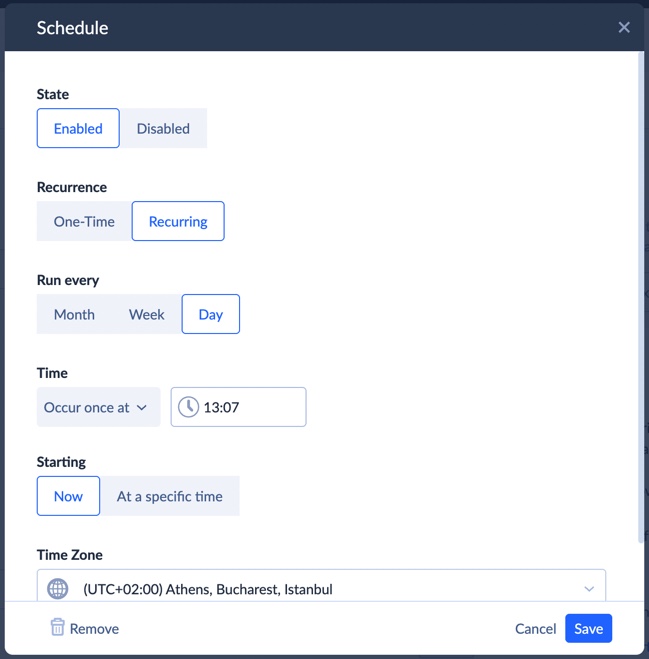
Skyvia relies on Salesforce bulk operations where possible, which helps large syncs avoid draining API limits as aggressively as real-time trigger-based approaches.
Pros
- No Apex coding required — a data analyst can own this without filing a developer ticket
- Uses Salesforce Bulk API, so large file migrations don’t drain your daily API limits
- Flattens complex relational data tables into formatted cloud storage files automatically
Cons
- Skyvia is built for backend data movement, not UI embedding. If your only goal is to display a Box folder iframe directly inside Salesforce, so reps can manually drag and drop files, this isn’t the right tool for that. The free managed package handles the UI experience better. Skyvia handles what happens to the data after it moves — not what it looks like on screen.

Zapier / Make — Best for Event-Driven Micro-Automations
Zapier and Make sit in a different category from everything else in this guide. They’re not data pipeline tools, and they’re not UI embedding solutions. They’re automation builders — and for specific, trigger-based workflows between Salesforce and Box, they’re genuinely hard to beat.
Think: when a Salesforce Opportunity moves to Closed Won, automatically create a named Box folder and notify the account manager. That’s exactly the kind of event-driven micro-automation these tools were built for.
Our Experience
We had a working Salesforce-to-Box trigger in Zapier before we finished our coffee. Pick the trigger, connect the apps, tell it what to do in Box — done. Make took longer. The logic builder is more powerful, but it hands you a blank canvas and expects you to already know what you want to build. Great if you do. Frustrating if you don’t.
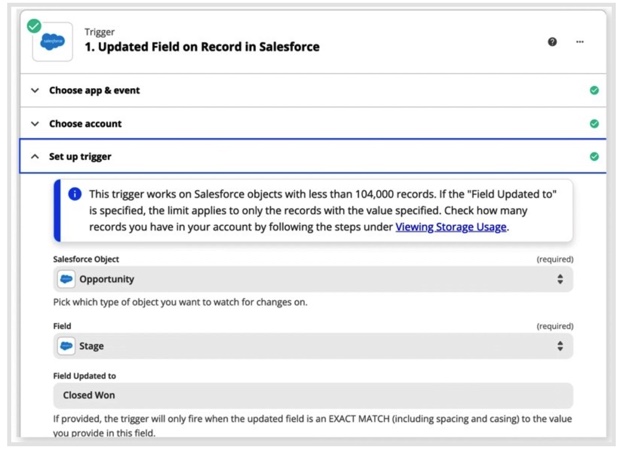
Where it gets complicated is scale. Every time the automation fires, it consumes a task. At low volume that’s fine. At high volume — say, hundreds of Salesforce records updating daily — the per-task pricing compounds fast and quietly.
Pros
- Fastest setup of any tool in this guide for simple trigger-based workflows
- No coding required — visual builder that most non-technical users can figure out in an afternoon
- Huge library of pre-built Salesforce and Box templates to start from
Cons
- Per-task sounds harmless. Then your sales team has a good quarter, Salesforce activity doubles, and the bill doubles with it.
- It’s an automation tool, not a pipeline. Bulk migrations and complex multi-object flows will push it past what it was designed for pretty quickly.
- The more conditions you add, the harder it gets to understand what’s actually running. Two months later, nobody remembers why that step is there.
MuleSoft / Box SDK (Apex) — Best for High-Code Enterprise Orgs
Some integrations are genuinely too complex for visual tools. Custom business logic, real-time event-driven triggers, deeply nested Salesforce objects that need transformation before they touch Box — that’s where MuleSoft and custom Apex code earn their place. If your enterprise has a dedicated integration team and an architectural reason to build from scratch, this is your category.
Our Experience
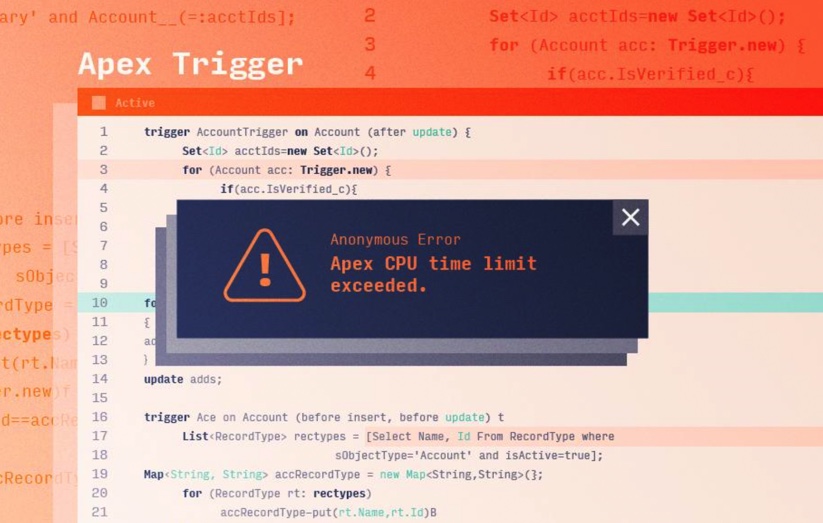
Setting up a custom Apex trigger was a different experience from everything else in this guide. Within the first hour we ran into Salesforce’s governor limits — the hard caps on CPU time, heap size, and API calls per transaction that exist to protect the platform but make complex integrations genuinely painful to architect around.
MuleSoft’s Anypoint Studio gives you more breathing room — event-driven flows, streaming data, enterprise-grade error handling. But it assumes you have developers who know it well, and the learning curve is steep enough that “we’ll figure it out as we go” is an expensive strategy.
Once it’s built and stable, it’s genuinely powerful. The problem is everything that happens between “let’s build this” and “it’s stable.”
Pros
- 100% customizable — no visual tool limitation will ever be your ceiling
- Handles massive enterprise edge cases that managed platforms can’t accommodate
- MuleSoft integrates deeply into existing enterprise architecture and governance frameworks
Cons
- Requires a full-time developer to build and maintain — this isn’t a one-time project, it’s ongoing ownership
- Apex triggers break during Salesforce seasonal updates, and somebody has to fix them every time
- The total cost of ownership is rarely what it looks like on the initial estimate
How Do the Pricing Models and Sync Frequencies Actually Compare?
Feature tables lie by omission. A green checkmark next to “supports real-time sync” looks the same whether the tool does it elegantly or only under very specific conditions. So instead of checkmarks, here’s what the numbers actually look like side by side.
| Tool / Method | Setup Complexity | Sync Frequency | Pricing Model | Main Limitation |
|---|---|---|---|---|
| Box Managed Package | Drag-and-drop | Real-time (iframe) | Free | Eats into Salesforce API limits |
| Skyvia | Visual Wizard | 1 min | Volume-based | No native UI widget |
| Zapier / Make | Visual Builder | 1 to 15 minutes | Per task | Expensive at scale |
| MuleSoft / Apex | High (Requires devs) | Streaming / Event-driven | Enterprise license | Steep learning curve |
A few things to note while checking:
- The Box Managed Package’s “Free” pricing is real — but free doesn’t mean zero cost. Every file interaction burns a Salesforce API call, and once you’re running a large org with active file movement, that daily API limit starts feeling very finite very fast.
- Skyvia’s “No native UI widget” limitation is worth being direct about. If your sales reps need to see and interact with Box folders inside Salesforce, Skyvia doesn’t solve that. It moves data in the background — which is exactly what some teams need and completely wrong for others.
- Zapier’s per-task pricing works until it doesn’t. At low volume it’s the cheapest option in this table. At high volume it’s quietly the most expensive.
- MuleSoft’s enterprise license cost depends entirely on your contract. It means the engineering time required to build and maintain it — that cost shows up in salaries, not invoices.
How Do You Handle Common Integration Errors?
Every Salesforce-to-Box integration breaks eventually. The question isn’t whether you’ll hit errors — it’s whether you’ll know what caused them and how to fix them without losing a day to it. Here are the two most common ones we ran into during testing.
Error 1: REQUEST_LIMIT_EXCEEDED in Salesforce
Think of Salesforce’s API limit as a daily fuel tank. The native Box managed package and real-time Apex triggers both burn through it faster than they should — every file interaction is a separate call, running in the background whether anyone notices or not. Hit the limit and everything stops until midnight.
The fix isn’t to increase the limit — you can’t. The fix is to move file syncs out of real-time triggers and into batch processes that run on a schedule. Skyvia handles this automatically by using Salesforce Bulk API where possible, which batches operations together instead of firing individual API calls for every record. If you’re running custom Apex triggers, the same logic applies — batch your callouts rather than triggering them per record.
Error 2: OAuth Token Expiration Between Box and Salesforce
OAuth tokens don’t last forever, and when they expire quietly in the background, your pipeline stops moving data without any obvious error message. Here’s a three-step checklist to handle it cleanly:
- Set a token refresh reminder — most OAuth implementations expire after 60 days. Calendar it before it becomes a problem.
- Check your integration logs first — before assuming the pipeline is broken, look for a 401 Unauthorized response. That’s almost always an expired token, not a data issue.
- Re-authenticate through the platform — in Skyvia, this is a single click on the connection settings page. In custom Apex or MuleSoft, you’ll need to update the stored credentials manually and redeploy.
Conclusion
No single tool wins this comparison outright — the right answer depends entirely on what your team actually needs the integration to do.
- If you just need a Box folder tab visible inside Salesforce so your sales reps can access files without leaving the CRM, grab the free AppExchange app. It takes twenty minutes and costs nothing. Don’t overthink it.
- If you need event-driven micro-automations — a Box folder created automatically when an Opportunity closes, a file moved when a Lead status changes — Zapier or Make gets you there without writing code, as long as the volume stays manageable.
- If your enterprise has dedicated integration developers, complex business logic that no visual tool can accommodate, and a budget to match, MuleSoft or custom Apex gives you complete control. Just go in with realistic expectations about what “complete control” costs to maintain.
- And if you need automated, scheduled data movement between Salesforce and Box without managing infrastructure, writing Apex, or filing a developer ticket every time something changes — that’s what Skyvia is built for. Try it free and set up your first Salesforce-to-Box sync in under ten minutes.

FAQ for Box Integration with Salesforce:

Can I automatically create a Box folder when a new Salesforce record is created?
Yes, but they handle it differently. Zapier and Make create folders automatically via event-driven triggers. The native Box managed package creates record-specific folders seamlessly when a user interacts with the record UI, while Skyvia focuses on exporting batch data tables rather than managing individual folder creation.
Will integrating Box save my company money on Salesforce storage?
Almost certainly yes. Salesforce storage costs $5 per GB per month. Moving file attachments into Box and linking them to Salesforce records instead of storing them natively adds up to real savings at scale.
How do I migrate years of historical Salesforce files into Box?
This is a bulk migration job, not a trigger-based automation. Skyvia handles this well through scheduled export pipelines. Zapier is the wrong tool for this — per-task pricing at that volume would be expensive.
Do Box folders retain Salesforce user permissions and hierarchies?
Not automatically. Box and Salesforce manage permissions independently. You’ll need to configure Box folder access separately to mirror your Salesforce permission structure.
Will syncing Box and Salesforce drain my daily Salesforce API limits?
It depends on the tool. The native managed package and real-time Apex triggers consume API calls with every file interaction. Skyvia uses Salesforce Bulk API where possible, which is significantly more efficient at volume.