Summary
- Skyvia is a no-code cloud ETL platform that connects Salesforce to Amazon S3 through a visual mapping wizard — no API knowledge required, up and running in under fifteen minutes.
- Amazon AppFlow is AWS's native integration service for teams already living inside the AWS ecosystem, offering a low-code setup with built-in security and direct S3 output.
- MuleSoft is the enterprise-grade option for Fortune 500 teams that need complex data routing, real-time event-driven flows, and deep ecosystem integration — at a price and implementation timeline to match.
- Custom Apex and AWS Lambda give developer-heavy teams complete, granular control over every byte of data moving between Salesforce and S3, at the cost of significant technical debt and ongoing maintenance.
When I first started working closely with CRM data, one thing became obvious pretty fast: Salesforce storage gets expensive. And if your team is paying premium CRM storage prices for old PDF contracts, archived records, or historical lead data, we’re in the same boat.
Here, Amazon S3 is a good solution. Moving Salesforce records and files to S3 gives you scalable, low-cost storage without locking valuable historical data away. You can still keep it available for analytics, compliance, backups, and disaster recovery. Plus, once the data is in S3, it can easily flow into tools like Tableau, Power BI, AWS Athena, or whichever analytics stack your team already uses.
The frustrating part is finding a straightforward path to get there. Search for “Salesforce to S3 integration” and you’ll land in one of two places — either a deep developer tutorial involving Apex triggers, AWS Lambda functions, and a week of implementation time, or an enterprise tool with pricing that requires a procurement conversation. Neither is especially helpful if you just need the data to move reliably.
This guide cuts through that. We cover four distinct methods — from a no-code setup that takes fifteen minutes to a fully custom Apex implementation — matched to your team’s technical capacity and budget.
We are the engineering team at Skyvia. We developed a no-code ETL tool that handles this exact integration, so yes, we are biased. However, in this review, we will honestly compare our product with other market leaders and native AWS methods, relying strictly on technical characteristics and real-world use cases.
Why Are Companies Moving Data from Salesforce to S3?
The short answer is cost. But the longer answer is more interesting.
Bypassing Salesforce Storage Limits
Salesforce’s default storage allocation runs out faster than most teams expect — especially once attachments, contracts, and historical records start accumulating. Additional storage costs $5 per GB per month, which sounds manageable until you’re dealing with thousands of Account records each carrying multiple file attachments. Moving files to S3 doesn’t delete them — it just moves them somewhere significantly cheaper to keep.
Feeding Data Lakes for Analytics
Salesforce is a CRM, not an analytics platform. Once your data lands in S3, it becomes the foundation for something more powerful — queryable through AWS Athena without loading it into a database, connectable to Tableau or PowerBI directly, or ingestible into Redshift for deeper warehouse analytics. Teams that make this move usually find their reporting capabilities expand considerably once the data isn’t locked inside Salesforce’s reporting layer.
Compliance and Data Retention
Regulated industries often have data retention requirements that Salesforce’s native tools handle awkwardly — keeping records for seven years while staying within storage limits requires either paying for a lot of storage or building a manual archiving process. S3 handles long-term retention cleanly, with lifecycle policies that automatically move older data to cheaper storage tiers like Glacier without anyone managing it manually.
Backup and Disaster Recovery
Salesforce has its own backup options, but they’re limited and expensive at scale. S3 gives you a durable, versioned copy of your Salesforce data that lives outside the platform entirely — which matters if you ever need to recover from a bulk delete, a bad data migration, or a contract dispute that requires proving what a record looked like eighteen months ago.
How Did We Test These Integration Methods?
For the test, we moved 1 million Salesforce Account records and 5,000 attachment files into S3. The Account export was mostly straightforward. The attachments took more attention.
A file export has more moving parts than a record export. Salesforce has to return the file body, not just the metadata. The job then has to keep the file linked to the right Account, write it to the right S3 path, and report clearly if one file fails while the rest continue.
That is why we checked more than the final “success” message. We looked at setup time, API usage, batch retries, log details, and the actual output in S3. Could we open the exported files? Were the names and paths usable? Could we rerun only the failed part?
This changed the ranking more than expected. Some methods were fine for records but awkward for files. Others needed a bit more setup, but were easier to monitor once the job was running.
What Are the Core Comparison Criteria?
When we started testing, the question was not “can this connect Salesforce to S3?” Most tools can do that in a demo. The better question was: would we still want to use this after the third run, when the export is bigger, the schedule has changed, and someone needs to understand why one file did not land in the bucket?
So we looked at the things that usually matter after the first successful test.
The first was ownership. Skyvia and AppFlow felt closer to admin work: connect Salesforce, choose the object, map the fields, send the result to S3. MuleSoft and custom Apex/Lambda setups were a different kind of project. They give you more control, but they also need people who are comfortable owning the logic behind the export.
Pricing also needed a closer look. A small Account export does not tell you much. The numbers change once you add attachments, more objects, shorter schedules, retries, and long-term storage routines. Depending on the method, the cost may come from data volume, flow runs, AWS compute, license level, or developer hours.
Then there was timing. For backup or compliance, a nightly copy may be completely fine. For Tableau, Power BI, Athena, or internal reporting, “updated yesterday” may already be too old.
Finally, we checked setup time in the only way that really counts: did the data land in S3 in a usable form? If the bucket was correct, the fields looked right, files opened, and the logs made sense, we counted it. Before that, the setup was still not finished.
Here is how the methods compared:
| Tool / Approach | Best For | Pricing Model | Sync Frequency | API Complexity | Setup Time |
|---|---|---|---|---|---|
| Skyvia | Data teams that need a no-code Salesforce to S3 pipeline | Per row / data volume | Up to 1 minute | Visual wizard | Under 15 minutes |
| Amazon AppFlow | AWS-native teams that prefer staying inside AWS | Per flow run + data processed | Up to 1 minute | Low code UI | 1-2 hours |
| MuleSoft | Enterprises with high-volume, multi-system integration needs | Enterprise license | Real-time / event-driven | High, via Anypoint Studio | Days or weeks |
| Custom Apex + Lambda | Developer-heavy teams with specific architecture requirements | AWS compute + developer time | Real-time / event-driven | Code-heavy | Weeks |
Which Salesforce to S3 Integration Method Fits Your Needs?
Most guides at this point hand you a numbered list and call it a comparison. This one doesn’t — because the method that makes sense for a two-person data team running weekly exports looks nothing like what a Fortune 500 engineering department needs for real-time event-driven pipelines.
The four methods below are organized around one question that most comparison articles skip: who’s going to own this six months from now? Not who sets it up on day one — who fixes it when something breaks on a Tuesday afternoon, and who explains what happened to the person asking.
Skyvia — Best for No-Code Data Teams
A data engineer who wants to set up a Salesforce-to-S3 pipeline before their morning coffee runs out. That’s the use case Skyvia is built for.
You connect Salesforce, connect S3, pick the object you want to export — Accounts, Contacts, Leads, Opportunities — map the fields visually, set a schedule, and walk away. No API documentation open in another tab, no Apex syntax to remember, no Lambda functions to configure. The whole setup takes under fifteen minutes for a first run.
Skyvia handles Salesforce API rate limits automatically, queuing retries rather than failing the entire job when the limit is hit. The output lands in your S3 bucket as a structured CSV, on whatever schedule makes sense — every minute, hourly, or daily.
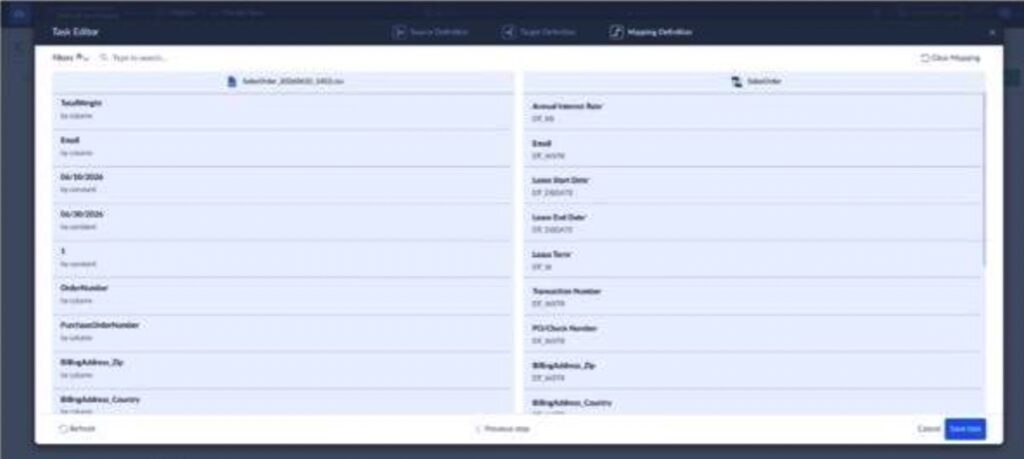
Works best for data teams and Salesforce admins who need a reliable, recurring export without building infrastructure around it.
Rating
Capterra: 4.9 / 5 (116 reviews)
Pricing
Subscription-based with a free tier available. See full pricing details on the Skyvia pricing page.

Pros
- Visual mapping wizard — no API knowledge required
- Handles Salesforce API rate limits and retries automatically
- Built-in scheduling, filtering, and file compression options
- Supports multiple Salesforce objects in a single export
Cons
- Skyvia is a cloud-native SaaS solution. If you’re building an integration for a highly regulated environment — banking infrastructure or defense contractors that require a strictly on-premise, air-gapped gateway with zero external internet access — Skyvia won’t fit your security architecture. In that case, look toward heavy on-premise enterprise solutions.

Amazon AppFlow — Best for AWS-Native Teams
AppFlow is the option that makes the most sense when your team is already living inside AWS. The console is familiar, the IAM permissions are already set up, the S3 buckets exist for other reasons — adding a Salesforce connection through AppFlow feels like extending something that’s already there rather than building something new.
It’s low-code rather than no-code. You’ll make decisions about encryption, PrivateLink, and flow triggers that assume AWS familiarity. Not deep expertise, but enough to know what you’re configuring and why.
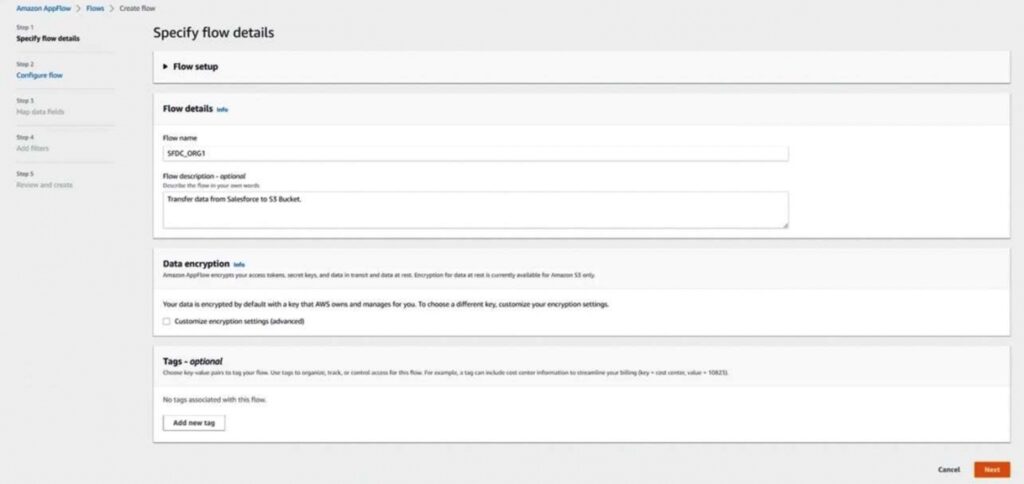
Works best for teams whose data infrastructure already runs on AWS and want to keep it that way.
Rating
Capterra: No reviews available
Pricing
Per flow run plus data processed. See full pricing details on the AWS AppFlow pricing page.
Pros
- Native to AWS — no third-party tools or external credentials required
- Highly secure through AWS PrivateLink and IAM-based access controls
- Connects directly to other AWS services for downstream processing
Cons
- Output format is specific JSON lines by default — flattening it for analytics usually requires AWS Glue as an additional step
- Complex data transformations before the S3 drop are limited compared to dedicated ETL tools
- Less flexible for teams outside the AWS ecosystem
MuleSoft — Best for Enterprise and Complex Routing
Fortune 500 teams don’t just need a data dump. They need event-driven flows, complex routing logic, multi-system orchestration, and the kind of enterprise governance that a visual wizard simply can’t accommodate. That’s where MuleSoft earns its place.
MuleSoft’s Anypoint Studio gives engineering teams complete control over every step of the data flow — real-time Salesforce event processing, transformation logic, conditional routing, and parallel processing at scale. Once it’s built and stable, it handles volumes and complexity that would overwhelm every other tool in this comparison.
The honest version of this: getting to “built and stable” takes time, specialized developers, and a budget that reflects both.
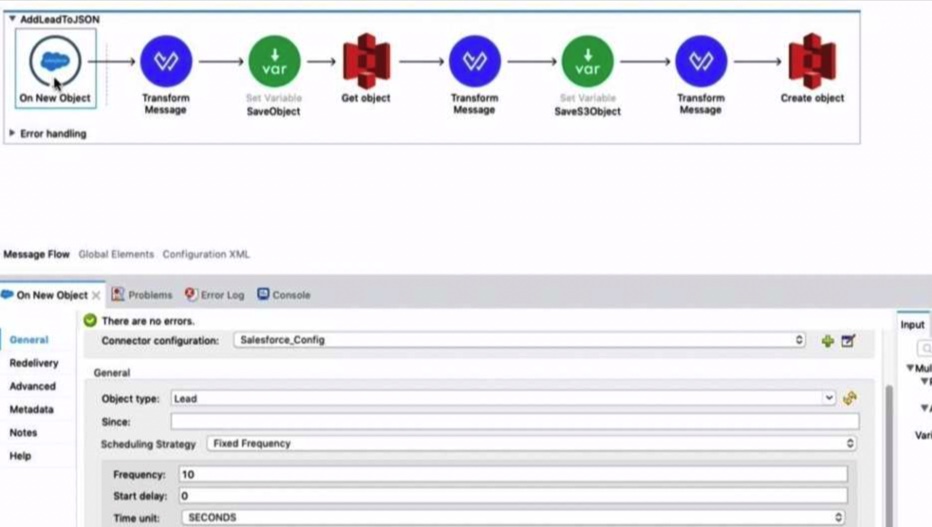
Works best for enterprise engineering teams with dedicated MuleSoft developers, complex multi-system integration requirements, and an appropriate budget.
Rating
Capterra: 4.4 / 5 (93 reviews)
Pricing
Enterprise custom pricing. See full pricing details on the MuleSoft pricing page.
Pros
- Unlimited customization — no visual tool limitation will ever be your ceiling
- Handles massive parallel processing and high-volume real-time event streams
- Deep integration with the broader Salesforce and AWS ecosystems
Cons
- Requires MuleSoft-certified developers — not something a Salesforce admin picks up over a weekend
- Implementation timelines run days to weeks, not hours
- Pricing is enterprise-grade in every sense of the phrase
Custom Apex and AWS Lambda — Best for Developer-Heavy Teams
Writing custom Apex triggers to fire AWS Lambda functions gives you 100% control over every byte of data moving between Salesforce and S3. Our experience shows it also becomes a maintenance nightmare faster than most teams anticipate.
The setup requires Salesforce Apex development, AWS Lambda configuration, IAM permissions, and error handling logic that accounts for Salesforce’s governor limits. When it works, it’s genuinely powerful — real-time file streaming, granular control over exactly what moves and when. When Salesforce updates its API or introduces a new governor limit, your code might break quietly and without warning.
System.CalloutException: Unauthorized endpoint That’s the error you’ll see when your Apex callout hits an endpoint that isn’t whitelisted in Salesforce’s Remote Site Settings. It’s one of several governor limit exceptions that tend to surface after deployment rather than during development.
Works best for engineering teams with Apex and AWS Lambda experience, specific architecture requirements that no off-the-shelf tool can accommodate, and the resources to maintain custom code long-term.
Rating
Capterra: 4.6 / 5 (95 reviews)
Pricing
AWS compute costs plus developer time. No licensing fees, but the total cost of ownership is rarely what it looks like on the initial estimate.
Pros
- You decide exactly what moves to S3 and when
- There is no third-party platform sitting between Salesforce and AWS
- Unusual requirements can be handled in code
Cons
- Apex, Lambda, IAM, retries, and monitoring all need to be built and maintained
- Salesforce governor and callout limits complicate higher-volume workflows
- Authentication failures, API changes, and edge cases require developer investigation and ongoing fixes
How to Sync Data from Salesforce to S3 Using Skyvia?
Skyvia can export Salesforce records as CSV files and deliver them directly to an Amazon S3 bucket. Once the package is configured, you can run it manually or put it on a schedule.
Step 1. Connect Salesforce
Sign in to Skyvia and select + Create New > Connection. Choose Salesforce, select the required environment, and use OAuth 2.0 to sign in. Review the metadata cache settings, then click Create Connection.
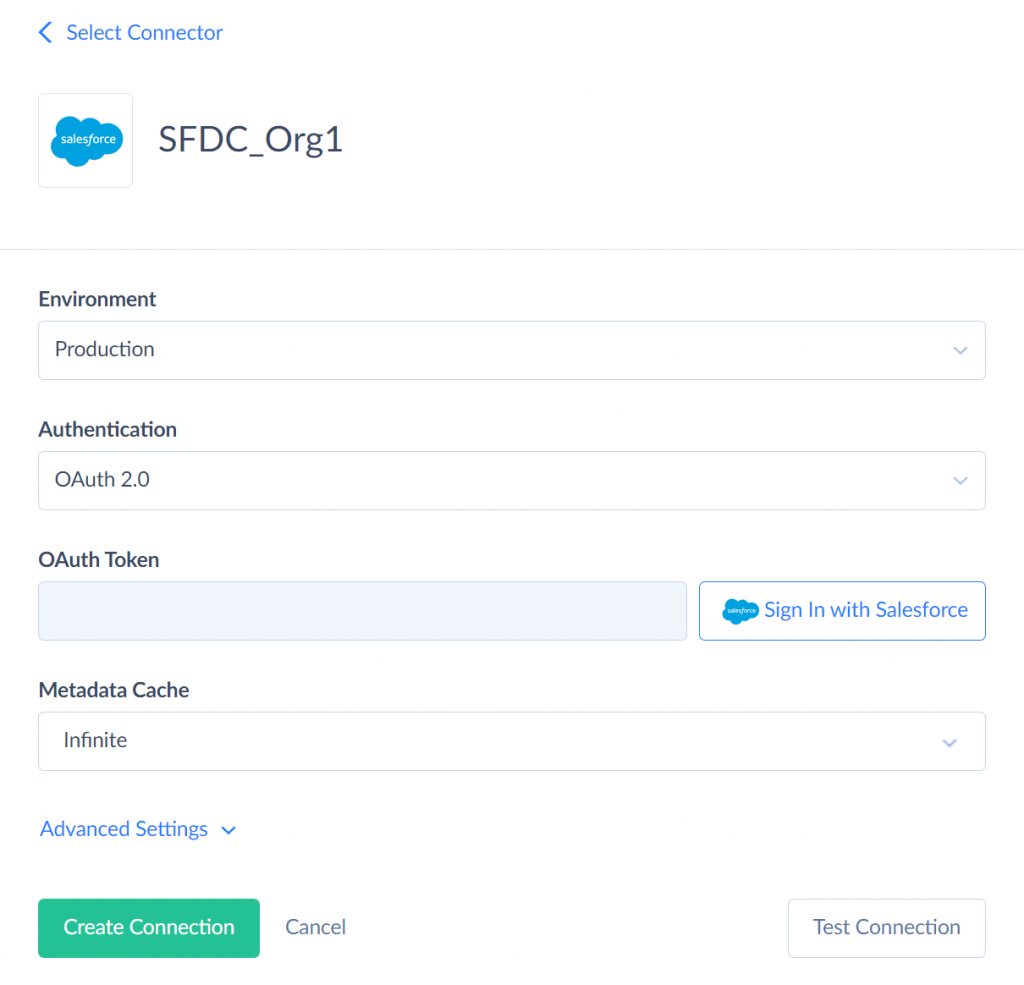
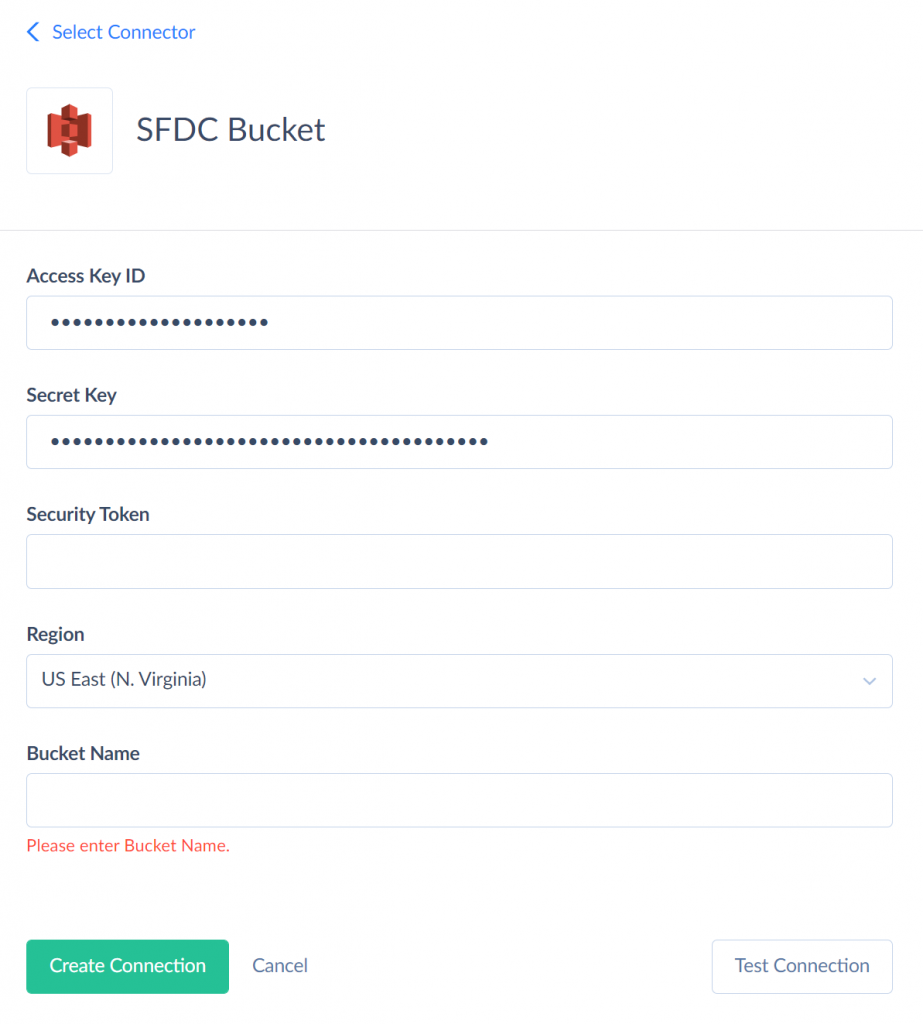
Step 2. Connect Amazon S3
Create a new Amazon S3 connection providing your IAM Access keys, which can be found under the IAM Management Console within the AWS Console.
Choose the correct region, type in the name of the destination bucket, and click Create Connection again.
Step 3. Create an Export Scenario
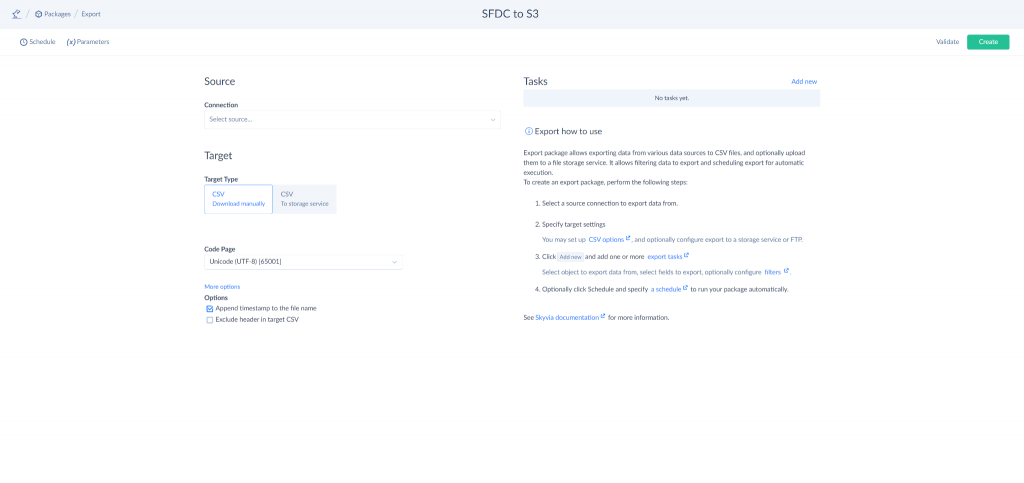
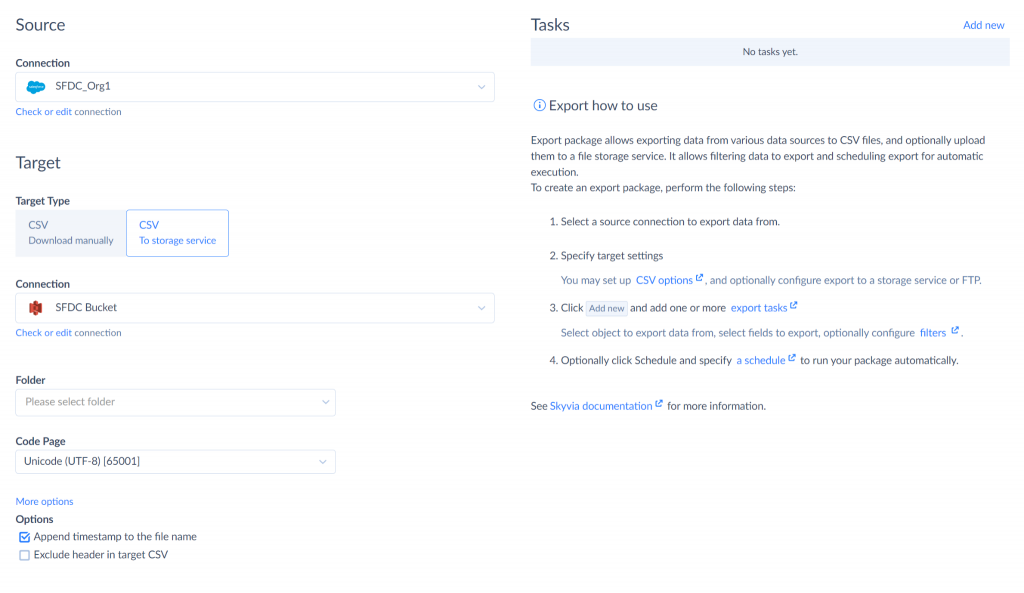
Select + Create New > Integration > Export. Give it a clear name, such as Salesforce to S3, and choose your Salesforce connection as the source.
For the target, select CSV to storage service and choose the Amazon S3 connection created in the previous step.
Step 4. Configure the CSV Output
Choose the S3 folder where Skyvia should place the exported files. You can also configure the code page, delimiter, file format, and other CSV options.
Click Add New to create an export task.
Step 5. Select and Map the Salesforce Data
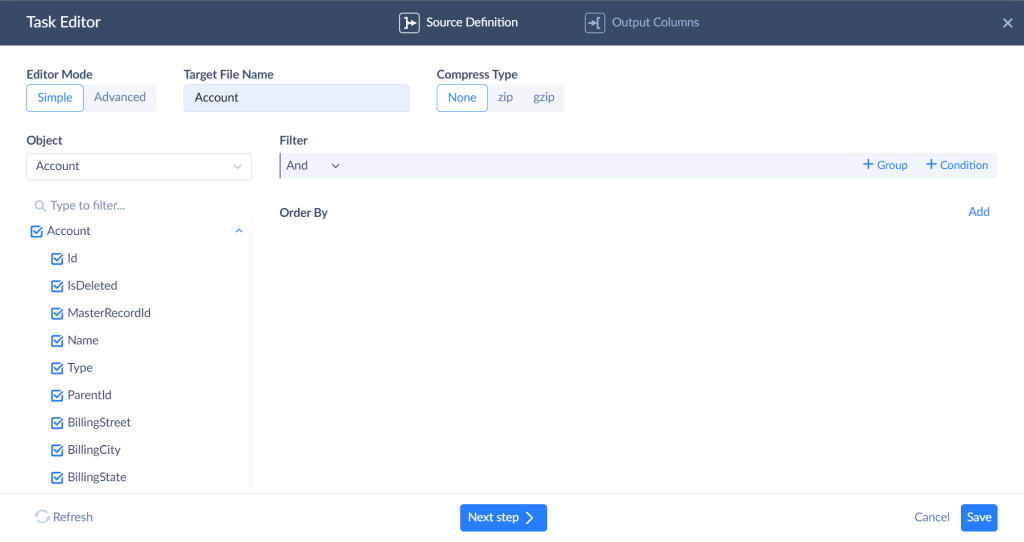
Go to the Task Editor, and select the Salesforce object you want to export, such as Leads, Contacts, Accounts, or Opportunities. Choose the fields that should appear in the CSV file and arrange them in the required order.
You can also give the file a custom name, apply filters, sort the records, or enable compression. Save the task when the configuration is ready.
Step 6. Run or Schedule the Export
Save the package and click Run Integration for an immediate export. To automate future transfers, open the scheduling settings and choose how often the package should run.

After each run, the Monitor tab shows its status, processed rows, errors, and execution time.
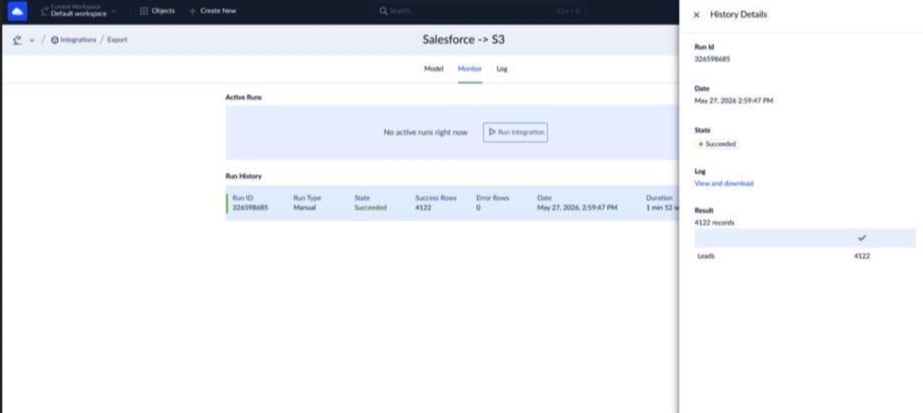
Skyvia successfully exported 4,122 Salesforce Lead records with no errors.
Step 7. Verify the CSV File in Amazon S3
Open the destination bucket in the Amazon S3 console and navigate to the folder selected in Skyvia. The generated CSV file should appear there with its size and last-modified timestamp.
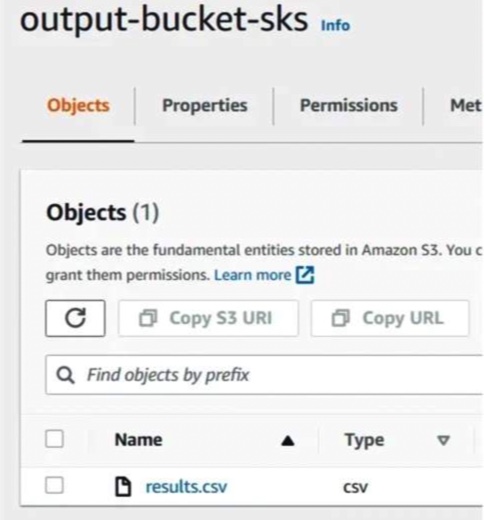
At this point, the Salesforce-to-S3 workflow is complete. New exports can now run on the selected schedule without someone downloading and uploading CSV files by hand.
How to Set Up Salesforce to S3 using Amazon AppFlow? (Step-by-Step)
Amazon Web Services’ native method of transferring data from Salesforce to S3 is Amazon AppFlow. It offers users an integration platform to transfer data from 3rd party applications to Amazon S3.
Note: To perform a transfer using AppFlow, create a Salesforce developer account connected to the organization in which you want to transfer the data.
Then, perform the following steps.
- Create an S3 bucket to hold the data from Salesforce.
- Open the Amazon AppFlow from the AWS console and create a new flow.
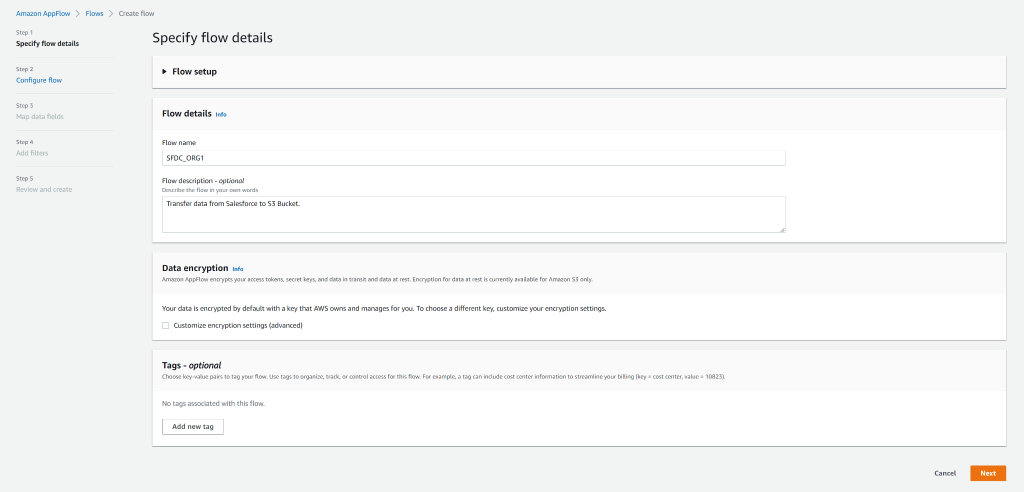
- Provide the flow details and select the data encryption options and flow tags.
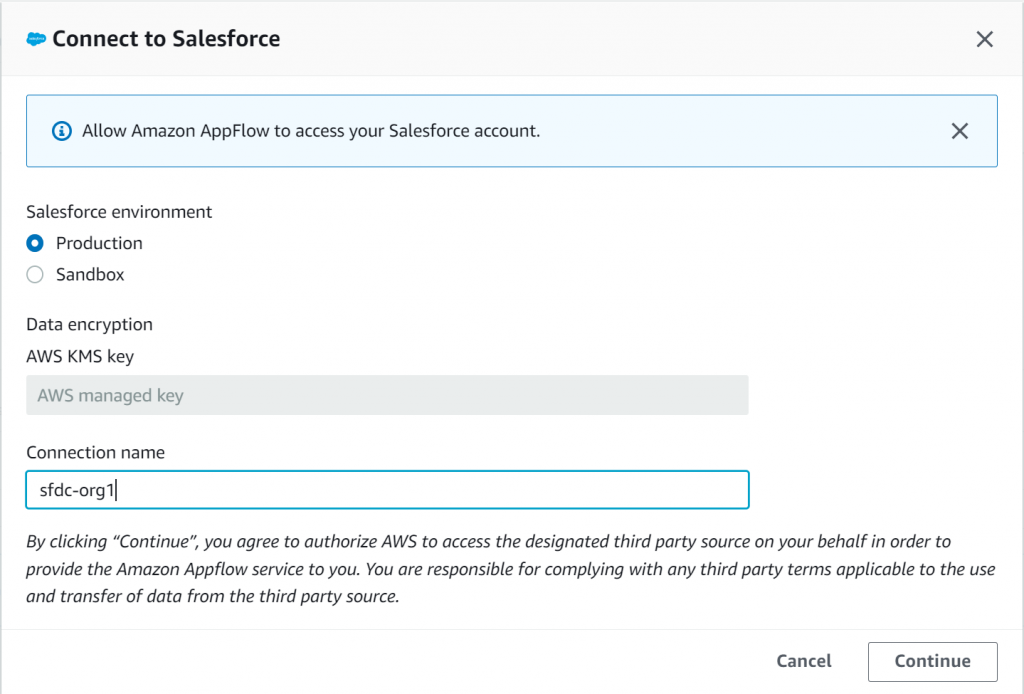
- Select Salesforce as the data source, click Connect, specify the Salesforce environment type and connection name, and log into the Salesforce developer account.

- Choose either Salesforce objects or events and select the desired option from the list.
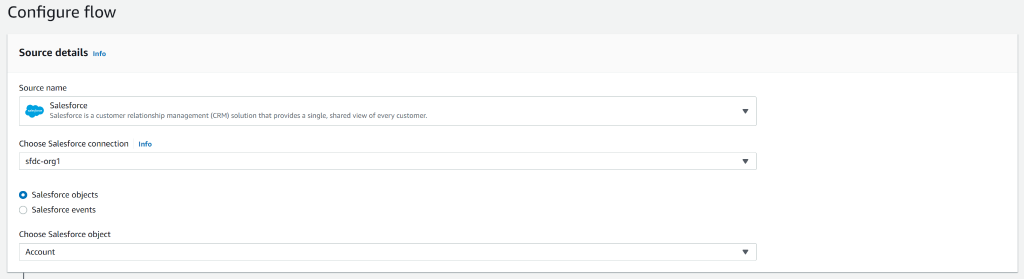
- Select the destination as Amazon S3, specify the destination bucket, and configure additional settings as required.
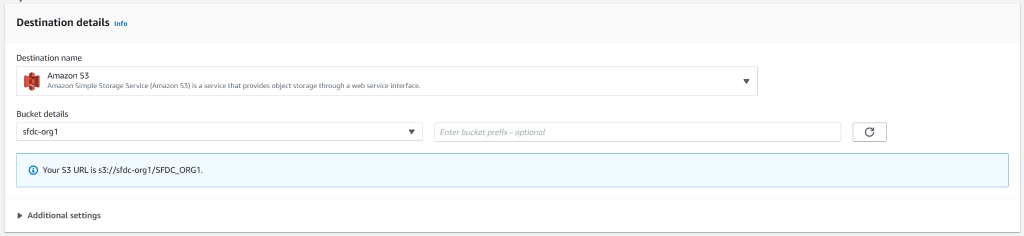
- Choose the flow trigger, either manual or based on a schedule, then go to the next page.

- Configure the mapped data fields by selecting Map all fields directly or by choosing source fields manually in the Choose source fields drop-down menu.
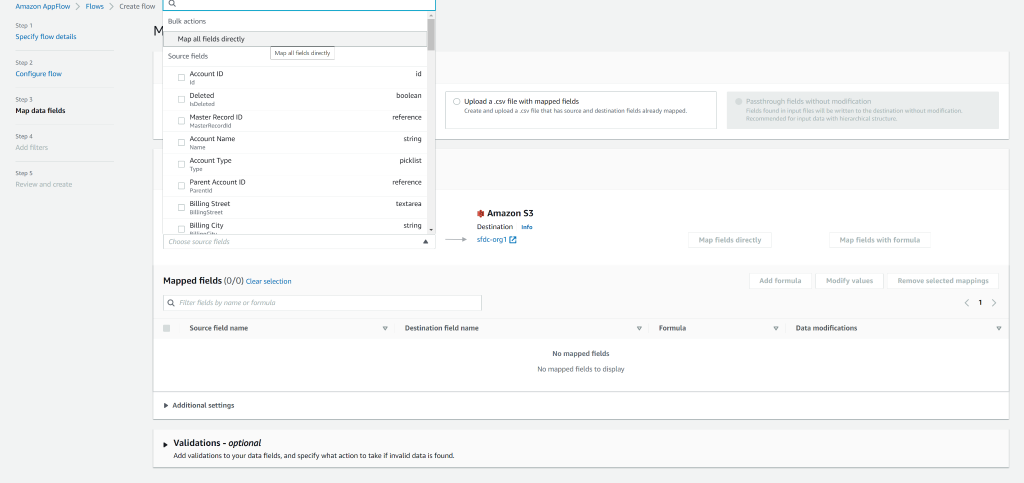
- Specify any data validations and then continue to the next page.
- Finally, create any necessary filters, then continue to review and create the flow.
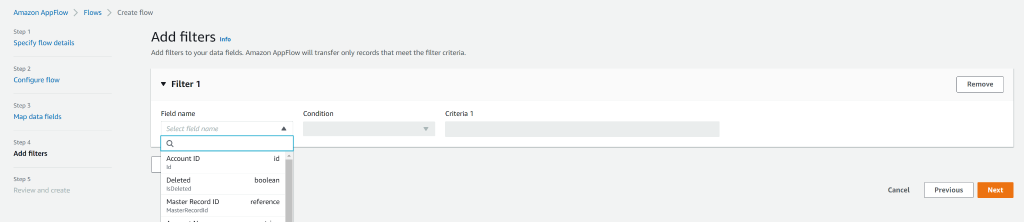
Note: Read more in the AWS documentation on transferring data from Salesforce to Amazon S3 using Amazon AppFlow.
What Are the Common Business Use Cases?
The “why” is already covered. Here’s what it actually looks like in practice.
Replacing Salesforce as your file storage layer
Sales teams accumulate contracts, proposals, and signed agreements at a rate Salesforce storage was never really designed for. The practical move is keeping the record in Salesforce and the file in S3, linked by a URL. Reps still find what they need. The storage bill stops climbing.
Building a cross-platform data hub
Salesforce is rarely the only system in the room. SAP needs the customer data. HubSpot needs the contact history. The finance team built something custom that needs both. Instead of building five separate connections between five separate systems, a lot of teams end up routing everything through S3 — one landing zone, one place to pull from, one less argument about which system has the authoritative version.
Powering real-time and historical reporting
Salesforce’s native reporting is fine for pipeline reviews. It’s not built for the kind of historical trend analysis, cohort modeling, or predictive work that data teams actually want to do. Once Salesforce data is in S3, Athena can query it directly, Redshift can warehouse it, and QuickSight or Tableau can sit on top without touching the live CRM.
Audit trails and regulatory evidence
There’s a version of the compliance conversation that goes smoothly and a version that doesn’t. The difference is usually whether someone can pull up exactly what a customer record looked like on a specific date eighteen months ago. Salesforce keeps the current state well. S3 with versioning keeps the history — every snapshot, automatically, without anyone remembering to archive it manually before the audit request arrives.
Conclusion: What Should You Choose?
The right answer here depends entirely on what your team looks like and how much complexity you’re actually signing up for.
If your infrastructure already lives in AWS and the integration is relatively straightforward — scheduled exports, basic field mapping, no complex transformation logic — Amazon AppFlow gets you there without adding a third-party tool to your stack. It’s the natural choice for teams that are already comfortable in the AWS console.
If your organization is running multi-system enterprise pipelines, needs real-time event-driven data flows, and has MuleSoft-certified developers on staff — MuleSoft gives you the control and scale that nothing else in this comparison can match. Just go in with realistic expectations about what the implementation timeline and budget actually look like.
If your engineering team wants complete ownership over every byte of data moving between Salesforce and S3, and has the Apex and Lambda experience to build and maintain it — Custom Apex and AWS Lambda gives you that. The trade-off is technical debt that compounds every time Salesforce updates its API.
And if you need a reliable, recurring Salesforce-to-S3 export running by the end of the morning without writing a single line of code — Skyvia is what that looks like in practice. Connect, map, schedule, done.
Most teams already know which category they’re in before they finish reading this. The tools just need to match the reality of who’s going to own it.

FAQ for How to Connect Salesforce to AWS S3

My Salesforce storage is exploding due to attachments. How can I offload them to S3 but keep them accessible?
Export the attachment files to S3 and store the S3 URL as a custom field on the related Salesforce record. Reps can still access the file through the link without it counting against your Salesforce storage allocation.
Is there a native Salesforce Data Cloud to Amazon S3 connector?
Yes. Salesforce Data Cloud supports direct S3 output through its data sharing and export features. For more granular control over scheduling and field mapping, third-party tools like Skyvia give you more flexibility.
Does Salesforce run on AWS?
Yes. Salesforce infrastructure runs on AWS in most regions, which is part of why AppFlow integrates so cleanly — both platforms share the same underlying cloud environment.
What is the best method for a Salesforce AWS integration example?
For most teams, Skyvia or AppFlow covers the majority of real-world use cases. Skyvia fits better when you need flexible scheduling and visual field mapping. AppFlow fits better when you’re already working inside AWS and want to keep everything in one ecosystem.