

Summary
- HubSpot Native App – document linking directly within the HubSpot UI, without data export or automated sync capabilities.
- Zapier / Make – single-action, trigger-based automations suited for simple workflows instead of bulk data transfers.
- Fivetran – enterprise-grade pipelines designed to move high-volume CRM data into centralized data warehouses.
- Airbyte (Self-hosted) – open-source, customizable data integration for technical teams willing to manage their own infrastructure.
- Skyvia – scheduled, no-code, bidirectional data sync and automated CSV exports between HubSpot and Google Drive.
The whole point of the HubSpot-to-Google Drive integration is to make data movement a background process – the kind that happens while your team focuses on work that requires a human brain.
Here’s where it gets complicated: the market for HubSpot Google Drive integration tools ranges from native connectors that do just enough to seem useful to full-blown ETL pipelines that require a developer, a whiteboard, and several planning sessions. Choose the wrong one, and you may end up with broken syncs, duplicate records, or an unexpected API rate-limit bill.
In this article, we’ll break down every real method to connect Google Drive to HubSpot – what each one actually does and where each one might quietly fail you.
Before we start, we should mention: we’re Skyvia. We make the thing we’re going to recommend. You spotted it coming from the first paragraph, we’re sure, but stick with us, because “vendor writes an honest comparison that includes their own weak spots” is a rarer genre than it should be.
How Did We Test and Evaluate These Integration Tools?
We ran hands-on tests of the main methods to integrate Google Drive with HubSpot: the native connector, Zapier, Make, and Skyvia itself. We tested these tools the way most teams actually encounter them – under time pressure, with imperfect data, and against HubSpot’s actual API constraints:
- Rate limits: 100 API requests per 10-second window on Free and Starter plans, 190 on Professional and Enterprise. Sounds generous until your integration decides to be ambitious.
- Batch size: A maximum of 100 records per request on batch endpoints. Bulk data movement lives and dies by how well a tool handles pagination and whether it does that quietly in the background or hands you the problem to solve yourself.
- Search API: Capped at four requests per second, which is the wall you hit first when querying and exporting data at the same time.
We fed malformed CSV files into every pipeline on purpose. We watched which tools told us what went wrong and which ones just stopped talking. The results are below.
What Are the Key Criteria for Comparing Data Integration Tools?
Here’s what actually separates these data integration tools once the demo is over.
Pricing Model
The two dominant models are per-row and per-connector. Per-row pricing is where you pay based on how many records get synced. Very reasonable up till the moment you need to move 200,000 contacts and the invoice arrives. Flat or per-connector pricing is more predictable, which matters when you’re building a process that runs on a schedule indefinitely.
Sync Frequency
Depending on your use case, the gap between “near real-time” and “daily batch” can be seen from outer space. A sales team that needs closed deals reflected in Drive within minutes has completely different requirements from a marketing analyst pulling a weekly report.
We had both use cases in mind, so we tested everything from 1-minute intervals to manual triggers and paid close attention to what happens when a scheduled sync fails at the worst possible moment.
API Complexity
Some tools give you a visual wizard. Other tools hand you a JSON config file and wish you luck. Neither is objectively wrong, but one of them requires a developer on standby every time an API schema changes, and that is the type of cost that rarely shows up in the pricing page.
Bulk Processing Capability
This is where most tools reveal their actual limits. Trigger-based automation tools are built for “one thing happens, one thing follows.” Ask them to process 50,000 historical records, and they’ll do it – one record at a time, burning through your quota with impressive efficiency. True bulk processing means batching, incremental syncing, and not treating your API limit like renewable resources.
How Do the Top HubSpot Google Drive Integrations Compare?
| Tool / Platform | Primary Use Case | Pricing Model | Sync Frequency | API Complexity | Handling 1M+ Records |
|---|---|---|---|---|---|
| HubSpot Native App | Document linking in UI | Free | Manual | None (UI only) | Fails / Unsupported |
| Skyvia | Bidirectional Bulk Sync | Flat / Data Volume | Up to 1 min | Visual Wizard | Excellent (Batched) |
| Fivetran | Enterprise Data Warehousing | Monthly Active Rows (MAR) | 5 min | Low (Pre-built) | Excellent |
| Zapier / Make | Single Action Triggers | Per Task / Action | Instant (Webhooks) | Visual Wizard | Poor (Quota Drain) |
| Airbyte (OSS) | Developer-heavy setups | Compute / Hosting costs | Configurable | Code / CLI | Good (Requires setup) |
Which Integration Tool is Best for Your Specific Use Case?
No universal winner here, as usual. Instead, we invite you to take a case-specific approach based on what you actually need and let the rest wait its turn.
Best for Point-to-Point Triggers & Simple Automations: Zapier or Make
Zapier and Make are the golden retrievers of the integration world – enthusiastic, easy to love, and slightly chaotic when the stakes get high.
Best for
You need something to happen in Google Drive when something else happens in HubSpot. A deal closes → a proposal folder gets created. A new contact is added → a welcome document lands in the right place.
If you’re choosing between the two: Zapier wins on simplicity and integration breadth; Make wins on affordability and flexibility for users who want deeper customization. Neither is wrong for simple automations. They just tend to attract slightly different kinds of users.
Rating
Zapier: G2 – 4.5/5 (based on 2,063 reviews) | Capterra – 4.7/5 (based on 3,050 reviews)
Make: G2 – 4.6/5 (based on 304 reviews) | Capterra – 4.8/5 (based on 407 reviews)
Pricing
Zapier’s Professional plan starts at $29.99/month for 750 tasks (or $19.99/month billed annually), with the Team plan jumping to $103.50/month for 2,000 tasks.
Make’s pricing starts at $10.59/month for 10,000 operations, which sounds dramatically cheaper until you understand that “operations” and “tasks” aren’t the same thing, and multi-step scenarios multiply your count faster than you’d expect.
Pros
- Both tools are genuinely intuitive for single-action workflows.
- No technical knowledge required, setup takes minutes, and the visual builders are clean enough that your least technical colleague could figure them out without filing a support ticket.
Cons
- Zapier and Make price by the action, which is elegant until you try to use them for anything involving volume.
- In our testing, syncing 1,000 HubSpot records to Google Drive triggered 1,000 individual tasks, burning through a month’s worth of quota.
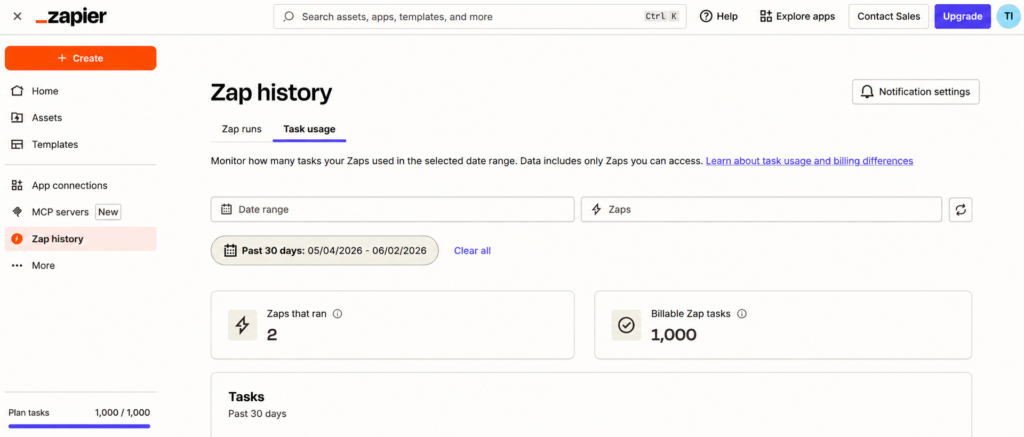
Zapier is fundamentally event-driven, so it’s great at “when a new contact is created, do X,” but it’s not designed for a one-time bulk export of all existing contacts. That’s why you can automate new contacts, but not the initial export.
Best for Enterprise & High-Volume Data Warehousing: Fivetran
If “we have serious data volume” and “we have a serious data budget” are about you, keep reading. For the rest of us, Fivetran is a fascinating thing to admire from a safe financial distance.
Best for
Fivetran is built for a very specific job: moving enormous volumes of data from sources such as HubSpot into enterprise destinations like BigQuery, Snowflake, or Redshift. If your team is running a proper data warehouse and needs HubSpot piped into it via Google Cloud Storage, Fivetran does this extremely well.
Rating
G2 – 4.3/5 (based on 795 reviews) | Capterra – 4.4/5 (based on 25 reviews)
Pricing
In March 2026, Fivetran shifted from account-level to connection-level MAR billing, which means teams running several integrations in parallel can see costs climb. If you’re planning a multi-source architecture, run your numbers against Fivetran’s current pricing page and its price estimator before committing.
Pros
- 700+ pre-built connectors.
- Automatic schema drift handling.
- Rock-solid pipeline reliability that requires human intervention only in rare cases.
- Connectors rarely break compared to other tools in the market, and setup is consistently described as effortless even for less technical profiles.
Cons
- If your business experiences seasonal changes, prepare that data volumes can spike unevenly, which makes budget planning even harder.
- And if all you need is to export HubSpot contacts to a Google Drive CSV on a schedule, Fivetran might be more tool than this job requires.
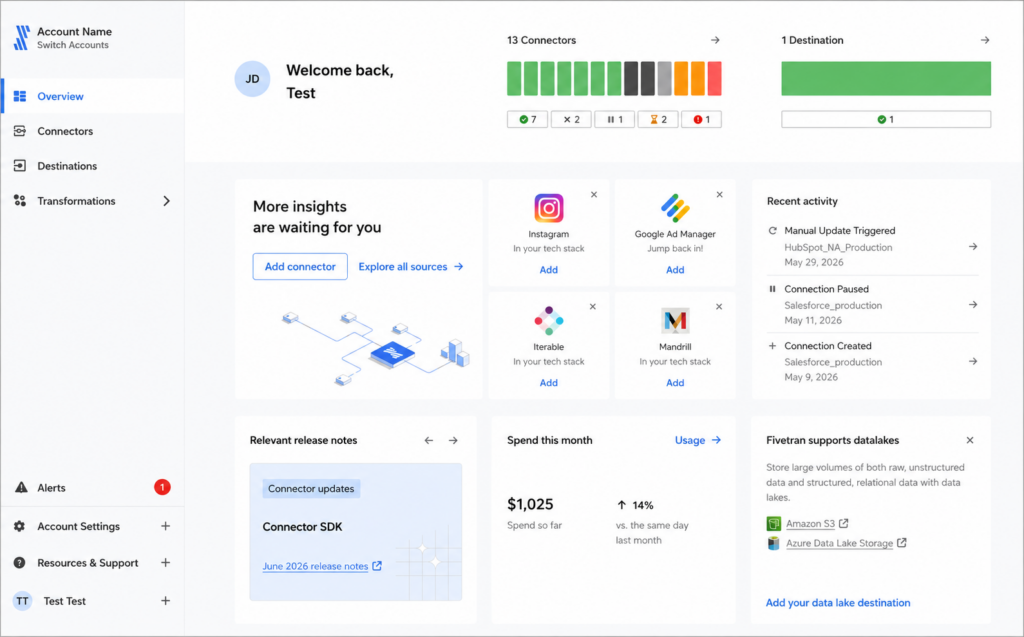
While it’s the gold standard for high-volume warehouses, notice the cost tracking; this level of infrastructure may be overkill for smaller teams, as you can see.
Best for Developer-Heavy Teams: Airbyte (Self-hosted)
Airbyte hands you the keys, the engine, and the responsibility for everything that happens next. If you find that liberating, keep reading.
Best for
If you need a fully customizable pipeline, want to build your own connectors, and are comfortable running things on your own servers, Airbyte’s open-source version gives you complete control over how your HubSpot data moves, transforms, and lands wherever you need it. The trade is straightforward: freedom in exchange for ownership of everything that can go wrong.
Rating
G2 – 4.4/5 (based on 76 reviews) | Capterra – no reviews yet
Pricing
The open-source version is free and self-hosted, ideal for developers who want full control without governance overhead. However, “free” in open-source language means the software license costs nothing, but the infrastructure does. Self-hosting requires servers, storage, and compute, plus ongoing engineering time for deployment, monitoring, and maintenance.
Pros
- 500+ connectors.
- Full source code access.
- The ability to build and modify connectors when the pre-built ones don’t cover your edge cases.
- When a connector breaks, you can read the source code, diagnose the issue, and submit a fix, which is either a pro or a con depending on how much your team enjoys debugging at scale.
Cons
- Airbyte self-hosted is a platform that requires a platform team.
- Schema drift happens – when HubSpot updates its API, someone on your end needs to catch it, fix it, and redeploy.
- For a team that just needs scheduled HubSpot exports landing cleanly in Google Drive, this is a significant amount of infrastructure to justify.
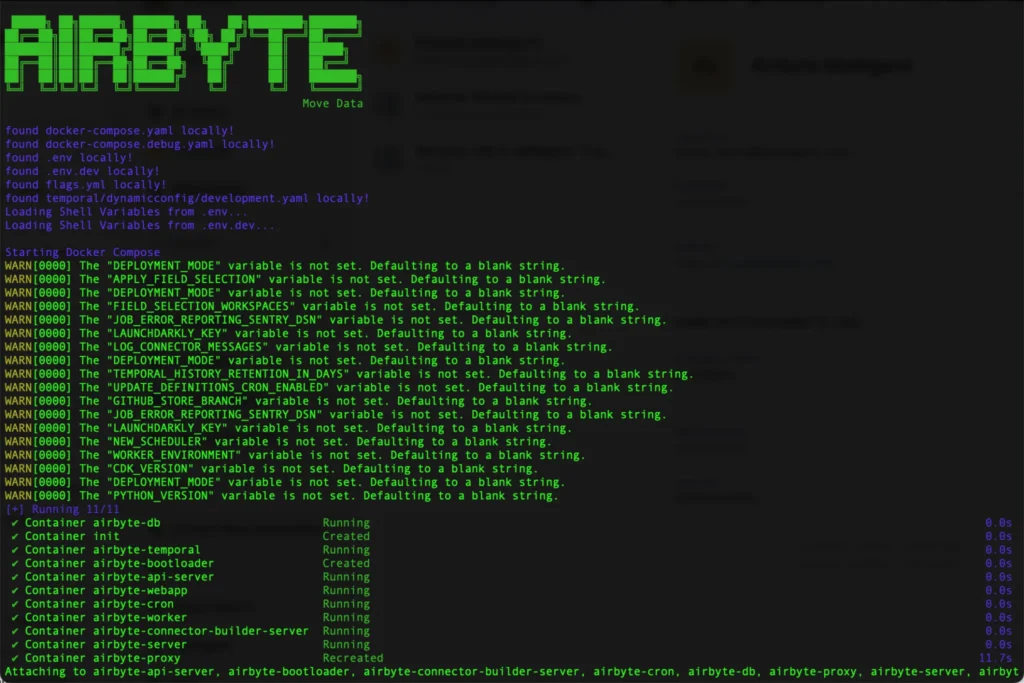
That Docker terminal you see above isn’t just atmosphere – it’s the actual entry point to running Airbyte. Lots of containers spinning up, a wall of WARN messages about unset variables, and that’s before we started moving HubSpot records anywhere. For teams that speak Docker fluently, this is as regular a day as possible. For everyone else, it’s a reason to keep reading.
Best for No-Code Bidirectional Data Sync: Skyvia
No-code is sometimes dismissed as something suited only to smaller companies with modest data ambitions. In reality, it’s more about getting fast answers for teams that don’t want to spend extra time or human resources when they don’t have to. That’s exactly the profile Skyvia was built for.
Best for
If your job involves moving data between HubSpot and Google Drive regularly – exporting CRM records for reporting, importing enriched CSVs back into HubSpot, keeping Drive folders current without touching them manually – Skyvia handles all of it, bidirectionally, on whatever schedule makes sense for your team.
Rating
G2 – 4.8/5 based on 311 reviews | Capterra – 4.8/5 based on 116 reviews
Pricing
Skyvia offers different pricing plans for different solutions, so you only pay for what you need. For example, data integration, the reason we all gathered here today, has a free tier with 10,000 records per month – enough to run a real workflow and decide if it fits before spending anything. Paid plans start at $79/month on annual billing and scale with data volume rather than connector count.
Pros
- The Export Wizard is the whole point. Choose your HubSpot objects, pick your fields, set conditions, rename columns, define record order, and end up with a CSV that looks exactly the way your stakeholders need it to look. Below, you will see the whole process illustrated.
- Data moves in both directions. You can move records both ways.
- Scheduling you can set and forget. Hourly, daily, weekly – set it once and your HubSpot data starts appearing in Google Drive.
- SQL for when the wizard hits its ceiling. Combining data from multiple HubSpot objects and filtering by conditions the visual builder can’t quite articulate – this is where you either write the query yourself or let Skyvia’s visual query builder help you write it.
- Error logs with a point of view. Per-record reporting, email notifications on failed runs, full integration history across any period.
Cons
One honest limitation: Skyvia is cloud-hosted. If your security policy requires zero cloud touchpoints at any point in the pipeline, our data integration platform won’t meet compliance. Talend handles that scenario better, or a custom on-premise pipeline if you have the engineering resources for it.

Why the Native HubSpot-Google Drive Integration is Often Not Enough
In October 2025, HubSpot launched a native Google Drive integration (still in beta, by the way) that lets you attach Drive files and folders directly to HubSpot records (contacts, companies, deals, tickets) without downloading or re-uploading anything. That’s a genuine quality-of-life improvement for some people, but not especially useful for others, especially those with more advanced needs.
Best for
Sales reps and account managers who need quick access to contracts, proposals, or briefs directly inside a HubSpot record. If your use case is “I want this Google Doc one click away from this Deal,” the native integration handles it cleanly. No extra tools, no setup overhead, no cost.
Pros
Free, native, and requires zero setup beyond a one-time authorization. It works directly inside the HubSpot interface, with Breeze AI summaries available for attached documents, which is a nice touch if your team reviews contracts or briefs inside HubSpot regularly.
Cons
The moment you ask it to do anything beyond file attachment, the native integration has nothing to offer. It cannot export CRM data to CSV. It cannot sync changes from Google Sheets back into HubSpot objects. Its automation is limited to file and folder actions within workflows – there is no data export, no batch sync of CRM records, and no scheduling for data operations.
The distinction worth internalizing: attaching a file to a record is document management. Moving, transforming, and syncing data between two platforms on a schedule is data integration. These are different problems, and the native connector only solves one of them.
How Can You Easily Sync HubSpot and Google Drive Using Skyvia?
You’ve survived the comparison section. Here’s your reward – a step-by-step guide that actually gets your HubSpot data moving to Google Drive.
Step 1: Connect Your Accounts
- Sign in to Skyvia. If you still don’t have an account, it takes a minute to create.
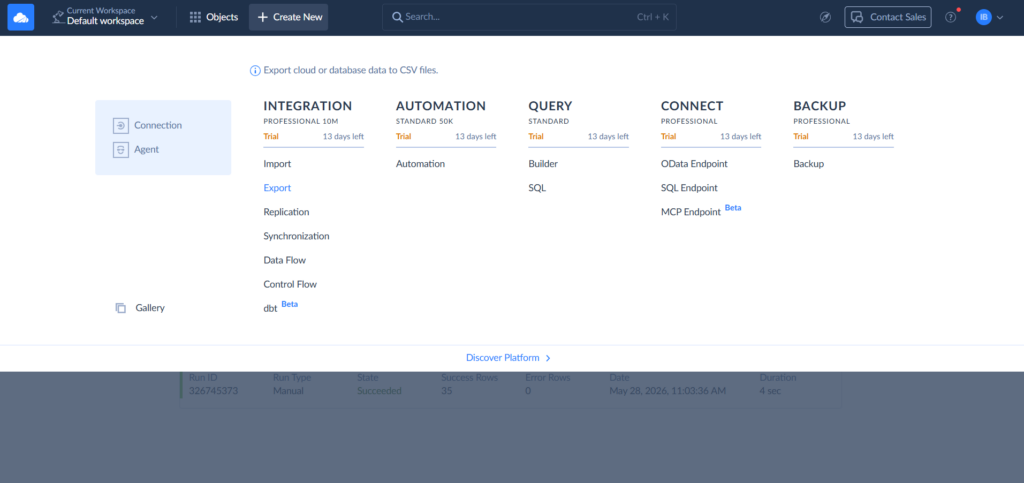
- Click on +Create New and choose Connection.
- Find HubSpot among Skyvia’s connectors, sign in, and save your new connection.
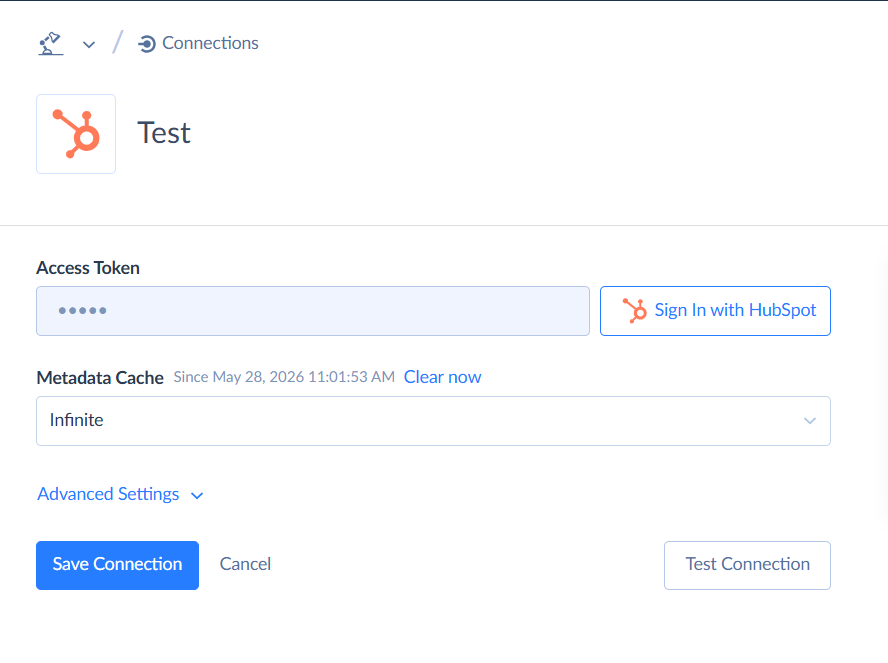
- Now, create a Google Drive connection by following the same steps.

Step 2: Choose Your Objects and Direction
- Click +Create New and choose Export.
Note: If you ever want multi‑stage transformations or orchestration (e.g., HubSpot → Skyvia transformations → multiple destinations), you’d move to Data Flow or Control Flow.
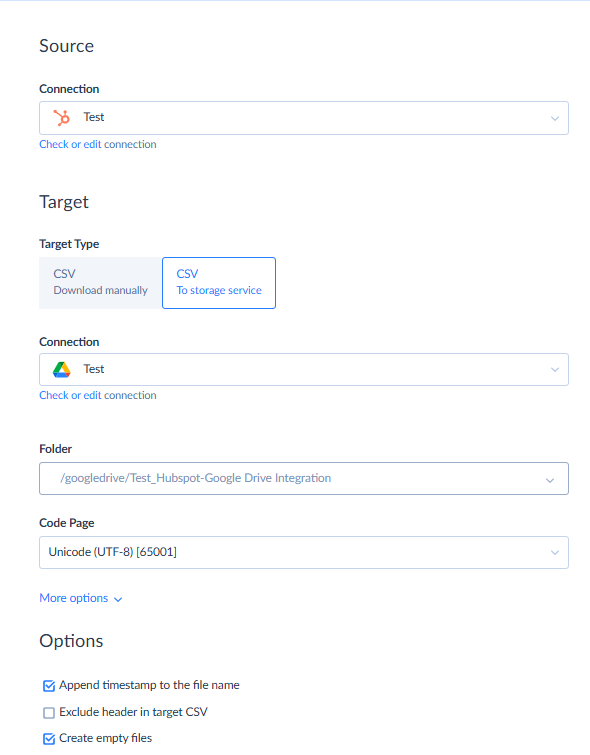
- Establish the source – HubSpot and the destination – Google Drive.
- In the Target Type section, choose CSV: to storage service.
Note: If you need to download a CSV without using a storage service, choose CSV: download manually.
- Choose a folder where the CSV will land.
Step 3: Configure Visual Mapping
- On the right side of the page, where the integration tasks will live, click Add new.
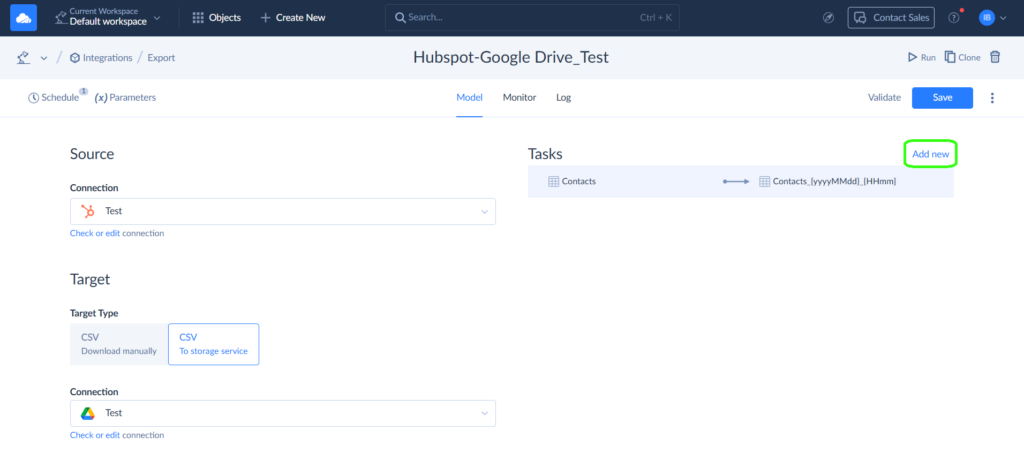
- Open the Task Editor and pick your source object. We’re starting with HubSpot contacts, but the logic works the same for deals, companies, or tickets.
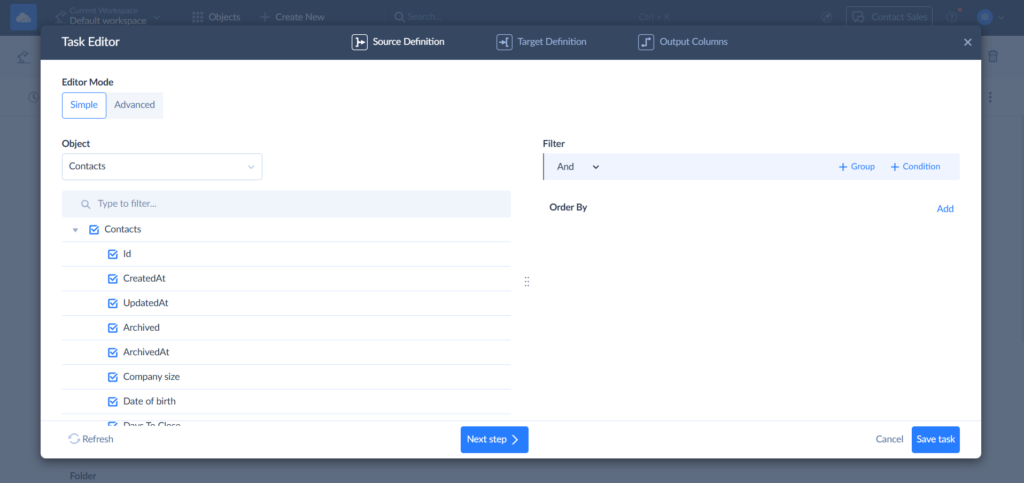
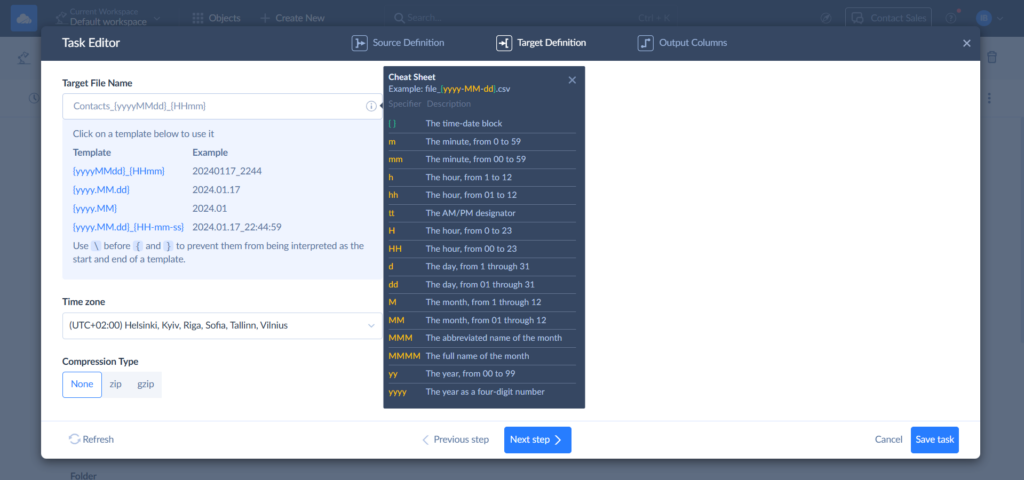
- Head to the Target definition tab to name your CSV file and choose whether it comes out zipped or flat.
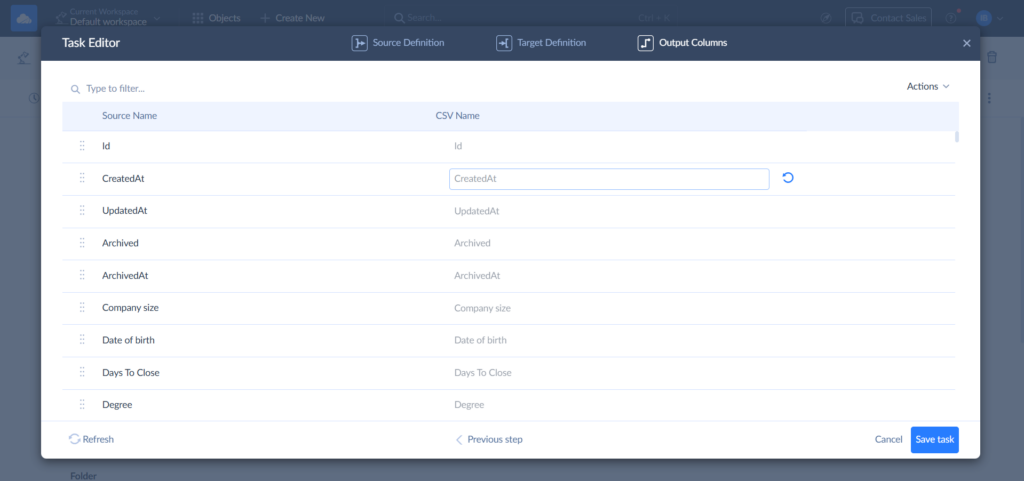
- Output Columns is where you decide what your CSV headers will be called. The people opening that spreadsheet will appreciate the effort.
- When done, click Save task.
Step 4: Schedule and Automate
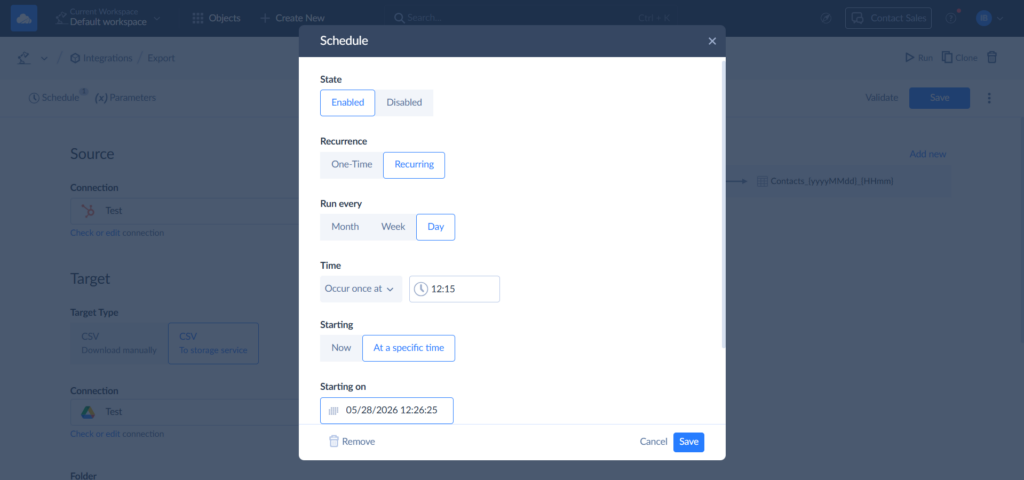
- On the Integration page, click on Schedule.
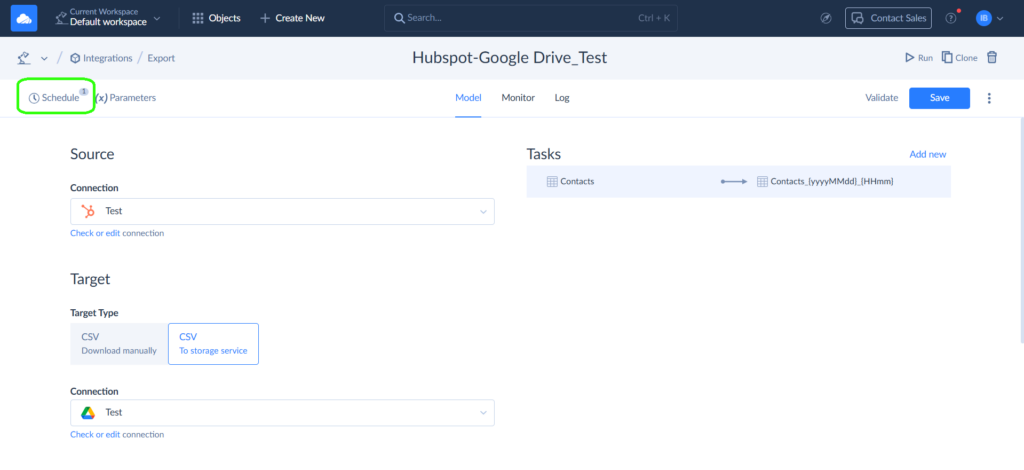
- Set your preferred frequency and start time and hit Save. This might be the last time you’ll think about it.
- If you ever need to take the wheel manually, the same menu lets you disable scheduled runs and trigger syncs yourself.
Step 5: Verify the Data
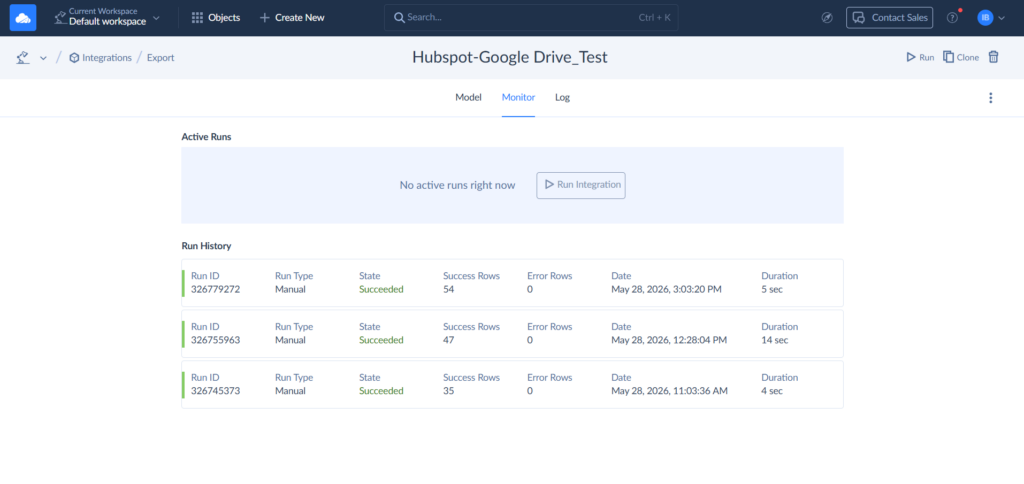
You can check how successful the sync was on the Monitor or Log tab. Here’s what we got after syncing 1,000 contact records between HubSpot and Drive.
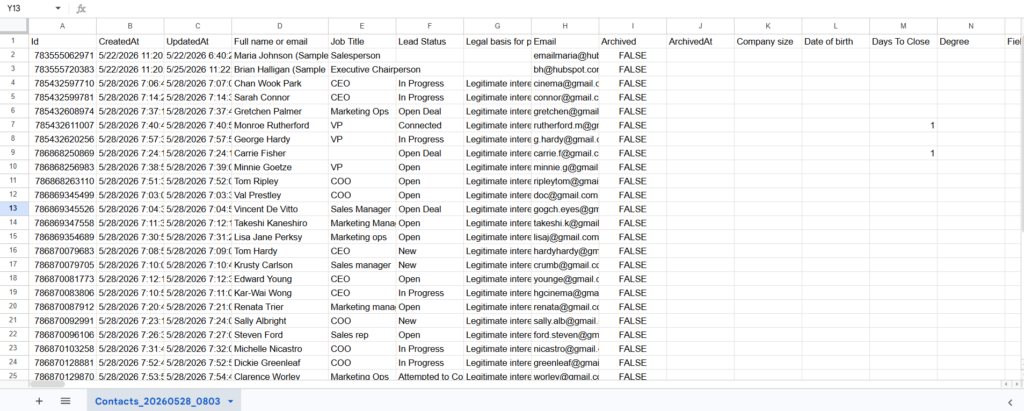
And here’s what our CSV file looks like:
Conclusion
Every tool we covered has its lane, and the wrong choice isn’t always obvious until you’re three months in and wondering why your API quota disappears every Tuesday.
Here’s the short version:
- The native HubSpot-Google Drive integration is a solid document management feature that got mistaken for a data integration tool. Use it to link files to records. Don’t ask it to do anything else.
- Zapier and Make are the right call when simplicity is the whole point – one trigger, one action, done. The moment your ambitions grow beyond that, so does your invoice.
- Fivetran is enterprise infrastructure in tool form. If your data team has a dedicated Slack channel and your storage destination is measured in terabytes, this is your pick. Everyone else can admire it from a distance.
- Airbyte is for engineers who consider “full control over the pipeline” a feature, not a warning label. Powerful, flexible, and entirely your problem to maintain.
- Skyvia sits in the space where most real business data work happens – scheduled exports, bidirectional syncs, bulk imports, no code, no surprises on the pricing page.
The HubSpot Google Drive integration you set up today should still be running quietly in six months without anyone remembering it exists. Start your free Skyvia pipeline today and let automation handle the rest.

FAQ for HubSpot Google Drive integration

Is there a way to sync HubSpot data to Google Drive without writing code?
Yes. For example, Skyvia visual wizard walks you through the whole setup – objects, fields, schedule – without a single line of code.
Which integration tool is best for developers who need custom logic?
Airbyte. Open-source, self-hosted, fully customizable. Your engineers get complete control over the pipeline: connectors, transformations, architecture, all of it. Just make sure they’re ready to own the maintenance too.
Will frequent syncing to Google Drive exhaust my HubSpot API limits?
Depends entirely on the tool. Skyvia batches requests and handles pagination automatically, staying within HubSpot’s limits without any manual configuration. Tools that fire one API call per record are a different story.
How do I choose between Zapier and an ETL tool like Skyvia?
Zapier wins when the logic is “this happens, then that happens.” Skyvia wins when you need bulk data moving on a schedule, in both directions, repeatedly. The use cases rarely overlap as much as people think.