Summary
- If you want automated, low-maintenance EL pipelines and can absorb usage-based pricing, Fivetran is a solid choice.
- If your engineering team wants open-source control, custom connectors, and self-hosted infrastructure, Airbyte offers maximum flexibility.
- If you are an enterprise needing advanced data governance, complex transformations, and on-premises support, Talend fits best.
- If you only need straightforward cloud data replication without deep in-pipeline transformations, Stitch Data is a simple option.
- If you need a no-code visual builder, predictable pricing, and fast setup without server maintenance, Skyvia is the practical choice.
Moving GA to BigQuery usually starts with a simple frustration: the Google Analytics report is close, but not quite what your team needs.
Maybe the numbers are thresholded. Maybe the event detail is buried inside event_params. Maybe someone from marketing asks, “Can we compare this with Salesforce leads or Shopify orders?” and suddenly the GA interface feels too small for the question.
That is where BigQuery helps. Once GA data is available, analysts can query raw events, join them with CRM or e-commerce data, and build reporting logic that does not depend solely on the GA UI.
The native GA BigQuery link is the obvious first option. It is free to set up and works well for many teams. But it has limits, including the 1 million events per day export cap for standard properties, and the data lands in a nested structure that usually needs UNNEST before it becomes analyst-friendly.
A quick note before we compare tools: we are writing this from inside Skyvia. We build ETL software, so of course we have a point of view. But we are not going to pretend Skyvia is the only answer here. Native export, Fivetran, Airbyte, and Skyvia all fit different teams.
In this guide, we will show how the native setup works, where it gets painful, and which ETL option makes sense depending on your data volume, budget, and technical resources.
How Did We Test These Integration Methods?
For this guide, we built the pipelines and watched what happened when real GA-style data was loaded into BigQuery.
The test dataset included 2.5 million Google Analytics events loaded into a fresh BigQuery sandbox. We used a mix of standard events, custom events, traffic source fields, ecommerce-style events, and nested parameters similar to what teams usually see in GA exports.
The main thing we wanted to check was not just whether each method could move the data. Most of them can. We wanted to see how usable the result was after the load finished.
We looked at three areas:
- Nested GA data handling
GA exports are event-based and nested. Fields like event_params and user_properties can be painful if the tool leaves all the cleanup to SQL. We checked whether each method helped flatten, map, or normalize the data before analysts had to touch it. - Initial load behavior
A small daily sync is one thing. A larger historical load is another. We tested how each method handled the first bulk transfer into BigQuery, how long it took to get usable tables, and whether the output needed cleanup afterward. - Setup complexity and error handling
We paid attention to the parts that usually decide who can own the pipeline later: OAuth setup, API permissions, retry behavior, logs, failed runs, and how clear the error messages were when something went wrong.
What we saw was pretty simple: the native link is a good first step, but it doesn’t make the data friendly. It sends GA data to BigQuery, then your team has to deal with the nested structure. ETL tools are not free and add another layer, but they can save time when analysts need cleaner tables or when GA data needs to sit next to CRM, ads, or e-commerce data.
Why Should You Export Google Analytics Data to BigQuery?
Google Analytics is good for checking what happened. BigQuery is better when you need to understand why it happened, track trends over time, and build forecasts from raw historical data.
Inside GA, reports can get uncomfortable fast. A conversion path looks incomplete. A custom event is hard to break down. A report is affected by thresholding. Or someone asks a very normal business question:
“Can we compare this traffic with Salesforce leads, Shopify orders, and ad spend?”
That is usually the moment when GA stops being enough on its own.
Exporting Google Analytics to BigQuery gives your team the raw event data behind the reports. Once it is there, analysts can write SQL, build their own attribution logic, keep historical reporting outside the GA interface, and join analytics data with the rest of the business stack.
The biggest reasons teams move GA data into BigQuery are pretty practical:
Cleaner Analysis Outside the GA Interface
GA reports are useful, but they are still prebuilt reports. In BigQuery, your team can query the exact events, parameters, and user properties they need.
Joining GA Data with Revenue Data
Traffic and conversions are only part of the story. BigQuery lets you combine GA events with Salesforce opportunities, HubSpot contacts, Shopify orders, Stripe payments, or ad platform spend.
More Control over Reporting Logic
Instead of relying only on GA’s attribution and reporting rules, analysts can define their own models in SQL and keep them consistent across BI tools.
A Better Warehouse Foundation
For teams building a data warehouse, GA is usually only one source. The real value comes when web behaviour data sits next to CRM, e-commerce, finance, and product data in the same place.
How Do You Set Up the Native Google Analytics to BigQuery Link?
The native Google Analytics to BigQuery link is the simplest place to start. You do not need an ETL tool, a script, or a separate connector. You just need the right Google permissions, a Google Cloud project, and a GA property that you can edit.
Google’s setup flow has three main parts: create or choose a Google Cloud project, enable BigQuery, then link that project from Google Analytics Admin. Google’s official setup guide also notes that you need Editor or higher access in Analytics and the right access to the BigQuery project.
Step-by-Step Native Setup
First, open Google Cloud Console and create a new project, or choose an existing one. If you are creating a fresh project, give it a name that will still make sense later, for example, ga4-bigquery-export or marketing-analytics-bq.
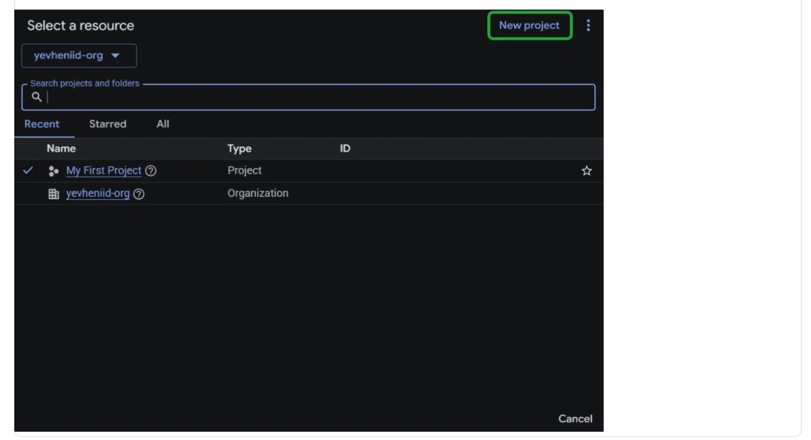
After the project is created, enable BigQuery for it. In Google Cloud, open APIs & Services, go to Library, search for BigQuery API, and click Enable. Google lists this as the first setup step before linking Analytics to BigQuery.
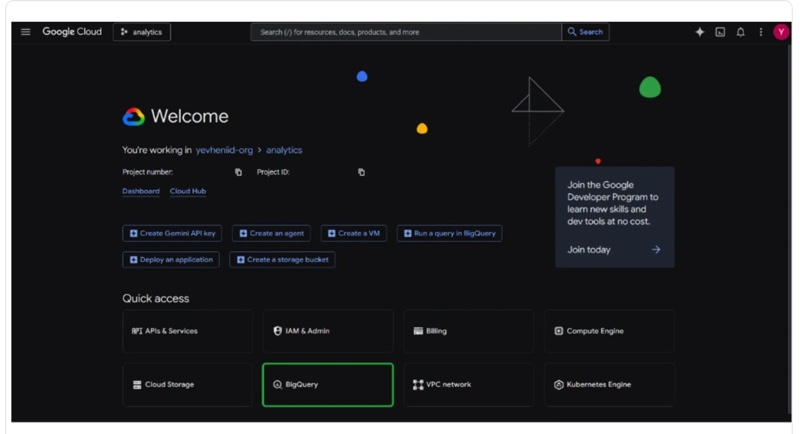
Then go back to Google Analytics. Open Admin, find Product Links, and choose BigQuery Links. Click Link.
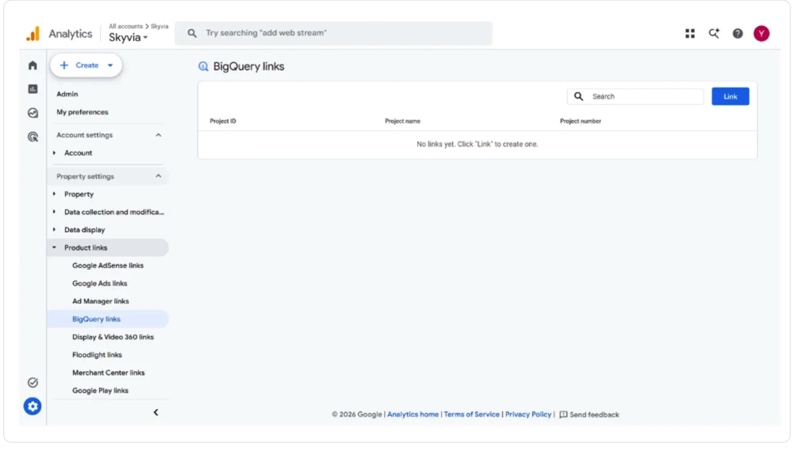
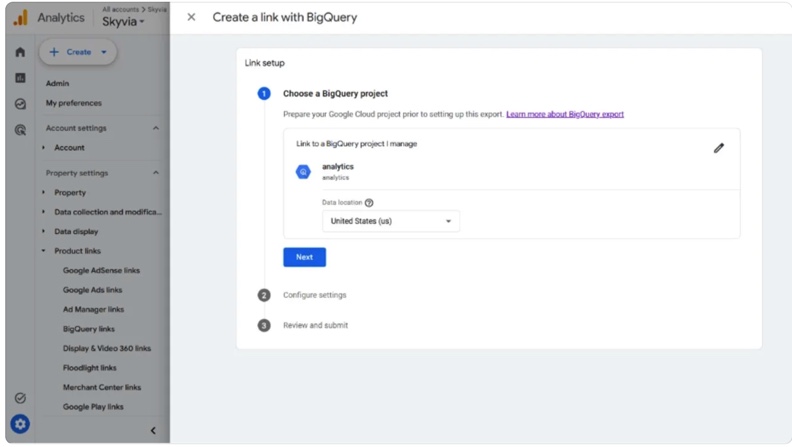
In the setup window, choose the BigQuery project you just created. After that, select the data location. This part is easy to rush, but do not treat it like a random dropdown. If your company has regional data requirements, choose the region carefully because changing it later is not a clean switch.
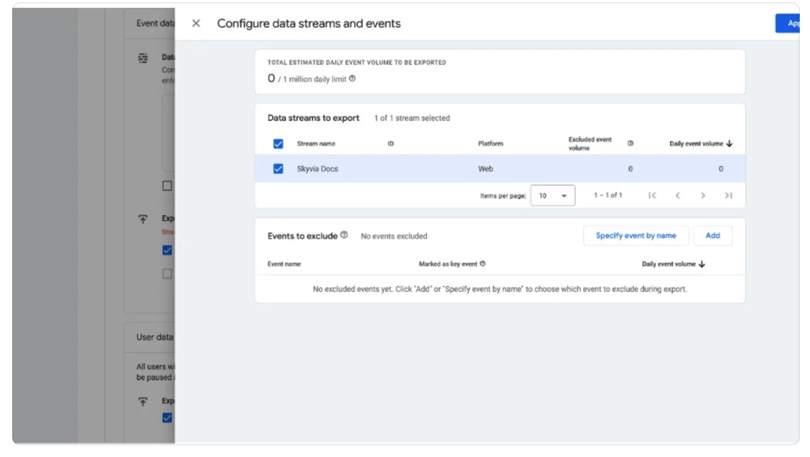
Next, choose which data streams to export. You can also exclude specific events if you do not want everything going into BigQuery.
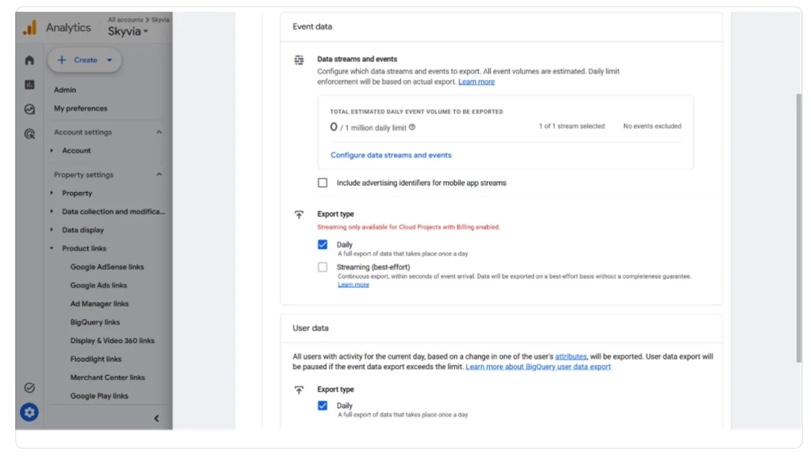
Finally, choose the export frequency. GA supports Daily export and Streaming export, and Google Analytics 360 properties also have the Fresh Daily option. Daily export sends the previous day’s data once per day. Streaming export sends data continuously into intraday tables.
After you review and submit the link, Google Analytics creates the connection. You can also verify the service account in Google Cloud IAM. Google’s docs name the service account as firebase-measurement@system.gserviceaccount.com.
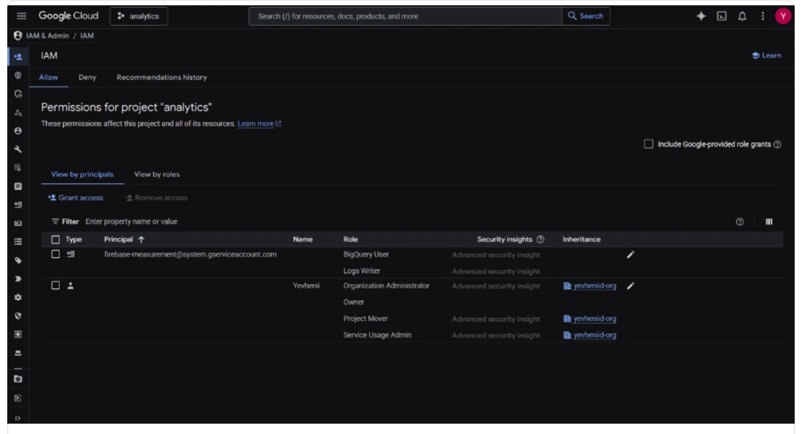
Once the link is complete, data should start appearing in BigQuery within 24 hours. Daily exports create events_YYYYMMDD tables, while streaming exports create events_intraday_YYYYMMDD tables that are populated during the day.
The Problem with Native
The native link is good, but it is not a complete data pipeline.
The first limitation is volume. Standard GA properties have a BigQuery daily export limit of 1 million events for batch exports. Google says there is no event-count limit for streaming export, but if the daily export limit is repeatedly exceeded, daily export can be paused, and previous days are not reprocessed.
The second limitation is structure. GA data lands in BigQuery as raw event-level tables. That sounds great until you open the schema and realize how much useful data sits inside repeated records like event_params, user_properties, and items. Google’s schema documentation shows that event_params is a repeated record, with each parameter stored as a key-value pair.
So instead of a simple table where every campaign, page, session, and e-commerce field is ready to query, analysts often need SQL like this:
SELECT

 event_date,

 event_name,

 (

   SELECT value.string_value

   FROM UNNEST(event_params)

   WHERE key = 'page_location'

 ) AS page_location

FROM `project.dataset.events_*`

WHERE event_name = 'page_view';
That is fine if your team is comfortable with BigQuery SQL. It is less fine if marketing or RevOps just wants clean reporting tables without asking someone to untangle nested GA fields every week.
Pros
It is free to set up.
You do not pay for the native connector itself. Your costs come from BigQuery storage and query processing, plus the usual Google Cloud billing rules.
It stays inside Google’s ecosystem.
For teams already using GA, Google Cloud, and BigQuery, the setup feels natural.
Streaming export is available.
If you need fresher data, GA can send streaming data into BigQuery intraday tables instead of waiting only for the daily batch.
Cons
The standard daily export limit is 1 million events.
That is enough for many sites, but high-traffic properties can hit the ceiling faster than expected.
The data is not analyst-friendly by default.
GA exports raw nested event data. To get useful fields out of event_params, user_properties, or ecommerce items, analysts often need UNNEST queries.
It only solves the GA-to-BigQuery part.
The native link does not help you bring in Salesforce, Shopify, Stripe, HubSpot, or ad platform data. If the goal is a broader warehouse setup, GA is only one piece of the pipeline.
Which Tools Are Best for Different Use Cases?
Best for Enterprise & Massive Data Volumes: Fivetran
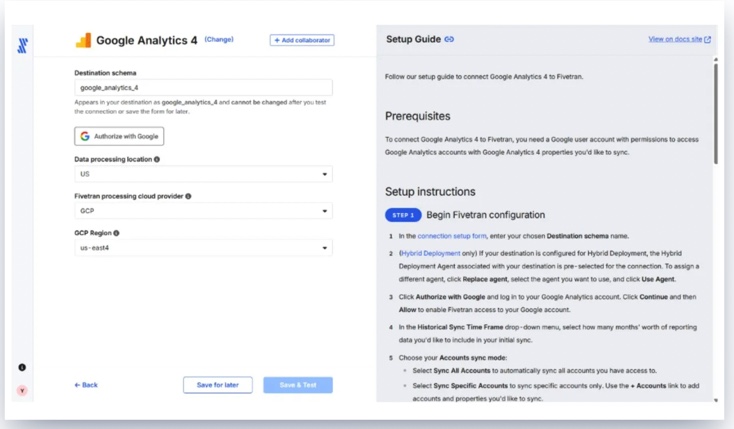
Fivetran is the “we have a data team and a serious budget” option in this group. It is built for managed data movement at scale, with a large connector catalog, strong automation, and less day-to-day pipeline maintenance than a homegrown setup.
For Google Analytics to BigQuery, that means Fivetran can take care of the connector, schema updates, loading behavior, and sync monitoring without your team writing API scripts. That is useful when GA data is only one part of a bigger enterprise warehouse setup with CRM, ads, product, finance, and support data flowing into BigQuery.
The price is the part I would watch closely. Fivetran bills around Monthly Active Rows, so traffic volume is not the only thing that matters. Updates, changes, and high activity can all affect the bill. For a smaller GA setup, that may be fine. For a busy website, it is worth modeling the cost before calling the pipeline “hands-off.”
Best for
Enterprise data teams that need managed SaaS-to-warehouse replication, already use Fivetran for other sources and have the budget to support MAR-based pricing at scale.
Rating
G2: 4.3/5 (800 reviews)
Capterra: 4.4/5 (25 reviews)
Pricing
Fivetran‘s pricing is usage-based and centered around Monthly Active Rows. There is a free plan for low-volume use, but the paid cost depends on volume, plan, connector usage, and how often rows become active.
Pros
- The pipeline is mostly managed for you, which matters when a data team owns dozens of sources.
- Chema changes are handled automatically, so small GA changes are less likely to turn into manual cleanup.
- The connector catalog is broad enough for teams pulling from SaaS apps, databases, files, event tools, and warehouses.
- It makes the most sense when Google Analytics is just one source in a much larger BigQuery setup.
Cons
- MAR-based pricing can get expensive for high-traffic websites.
- Teams need to model costs against real GA activity, not just row counts.
- It may be more platform than a lean team needs for a simple GA-to-BigQuery pipeline.
Best for Developer-Heavy Teams: Airbyte
Airbyte is the option for teams that prefer more control over having everything managed for them.
For Google Analytics to BigQuery, Airbyte is useful when your team wants more control than a fully managed tool gives you. You can self-host it, see more of what the connector is doing, and adjust the setup around your own infrastructure. The catch is that someone has to be ready to own that control when a sync fails or a container needs attention.
The open-source version is free to start with, but somebody still has to own it. In our self-hosted test, getting Airbyte running was manageable. Keeping it healthy was the bigger question. Containers need a place to run, updates need attention, failed syncs need review, and logs need a person who knows what they are looking at.
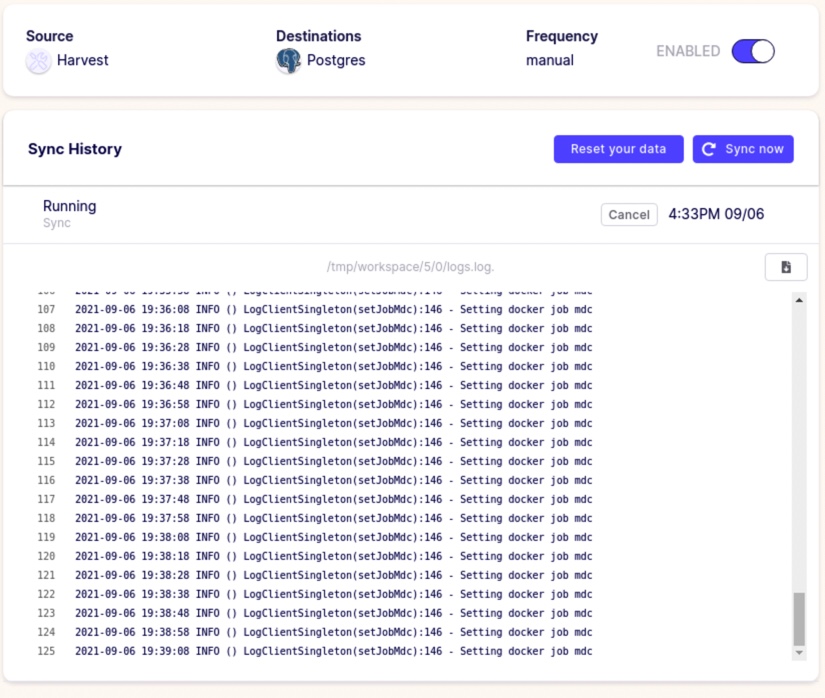
Airbyte Open Source is free to self-host. The paid options depend on whether you use Airbyte Cloud or an enterprise/self-managed plan. The catch with self-hosting is that you still pay for infrastructure, monitoring, updates, and the engineering time behind it.
Pros
- You can start with the open-source version without paying for a managed platform.
- Engineers have room to inspect and change how connectors behave.
- It is useful when the source is unusual, internal, or not well covered by managed ETL tools.
Cons
- Self-hosting still needs someone to manage the infrastructure behind it.
- Failed syncs are not always simple to debug, especially when the issue sits inside a connector.
- Connector quality can vary once you move beyond the most popular sources.
- For a simple Google Analytics-to-BigQuery pipeline, it may be more setup than the team really needs.
Best for No-Code Teams: Skyvia
Skyvia sits in the middle of this list. It is easier to run than Airbyte, less engineering-heavy than a custom setup, and much easier to budget than enterprise tools built around active-row pricing.
That matters because the person who needs GA data in BigQuery is not always a data engineer. It may be a marketing analyst cleaning up campaign reports, a RevOps manager matching web activity with Salesforce leads, or a BI lead who just needs the data to arrive without turning the whole thing into a coding task.
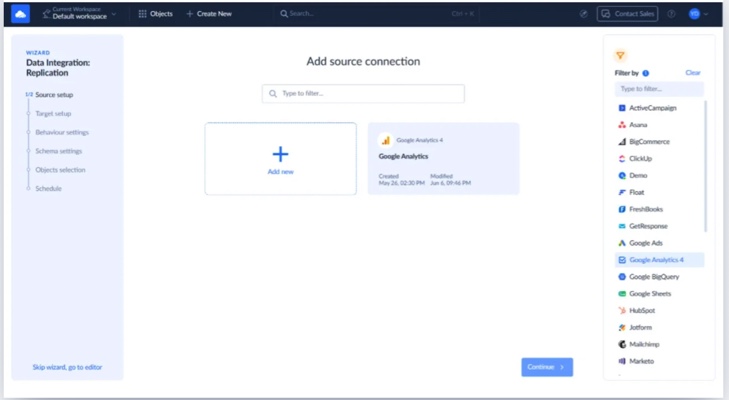
In Skyvia, the setup is closer to filling out a clear workflow than building a pipeline from scratch. You connect Google Analytics and BigQuery, choose the data to move, set the schedule, and then watch the run from the dashboard. It works well for teams that need GA data in BigQuery but do not want the export process to become its own engineering project.
Rating
Capterra: 4.9 / 5 (116 reviews)
Pricing
Skyvia uses transparent, volume-based pricing. There is a free plan, and paid plans scale by data volume rather than charging per connector or per user.
Pros
- Teams can set up a GA-to-BigQuery pipeline without writing API scripts.
- It is strong enough for real analytics work without feeling like an enterprise-only tool.
- Scheduling, run history, monitoring, and error details are part of the product.
- Pricing is easier to forecast because it is based on data volume, not connector count or user seats.
- It works well when GA data needs to land beside Salesforce, Shopify, ads, or finance data in BigQuery.
Cons
- Skyvia is cloud-native, so it will not fit companies that require a fully air-gapped, no-internet deployment.
- It is not the right tool for sub-second streaming or highly custom event-routing architectures.
- Very engineering-heavy teams that want full infrastructure control may prefer Airbyte or a custom pipeline.

How Do These Integration Solutions Compare?
There is no single “best” way to move Google Analytics to BigQuery. The right option depends on what hurts your team more: cost, SQL complexity, infrastructure ownership, or setup time.
| Metric | Native GA BigQuery Link | Skyvia | Fivetran | Airbyte |
|---|---|---|---|---|
| Pricing model | Free connector. You pay for BigQuery storage and query processing. | Predictable volume-based tiers with all connectors included. | MAR-based pricing, where active rows drive cost. | Free open-source version if self-hosted. Cloud uses credit-based pricing. |
| Historical backfill | No automatic backfill. Data starts exporting after the link is created. | Can load available historcal data depending on source API access and configuration. | Supports historical syncs depending on connector and plan. | Supports historical syncs, but behavior depends on connector maturity and setup. |
| Daily GA export limits | Standard properties have a 1M events/day limit for daily export. | Not tied to the native GA4 BigQuery export limit. | Not tied to the native GA4 BigQuery export limit. | Not tied to the native GA4 BigQuery export limit. |
| Schema handling | Raw nested GA4 schema with fields like event_params, user_properties, and items. | Visual setup with field selection, mapping, filtering, and load controls. | Automated normalization and schema drift handling. | Flexible, but complex modeling often moves to dbt or custom SQL. |
| Who owns the pipeline? | Analytics or data team using Google tools. | Analyst, BI, RevOps, or data team without custom scripts. | Enterprise data team. | Engineering or DevOps team. |
How Do You Build a Pipeline With Skyvia?
The native GA BigQuery export gives you raw event data, but it also gives you the raw GA schema. That means repeated records, nested fields, and plenty of UNNEST once analysts start asking normal reporting questions.
Skyvia does not send you straight into raw GA event tables. It pulls Google Analytics data via Google’s API, lets you choose the dimensions and metrics you need, and loads the results into BigQuery as easier-to-work-with tables.
Step-by-Step Guide
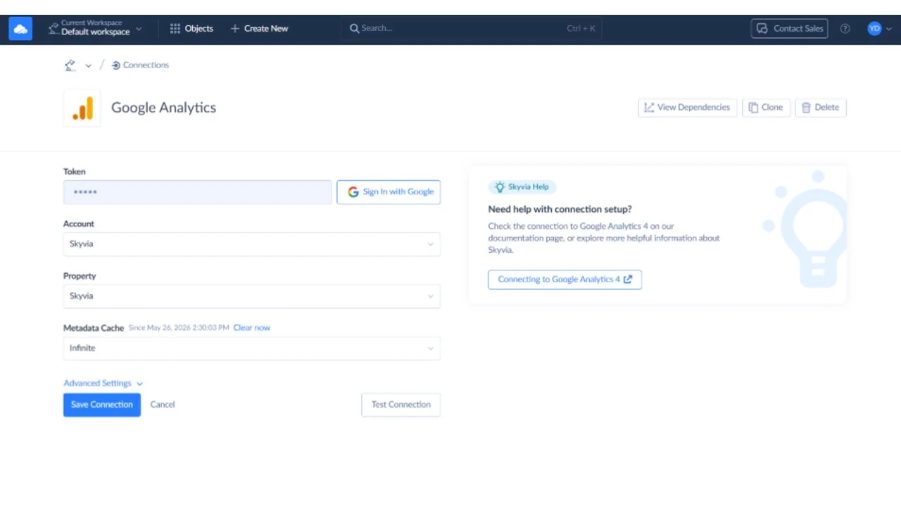
Step 1: Create your Google Analytics connection
In Skyvia, create a new connection and choose Google Analytics. Sign in with the Google account that has access to the GA property, then select the property you want to use.
Step 2: Connect BigQuery as the destination
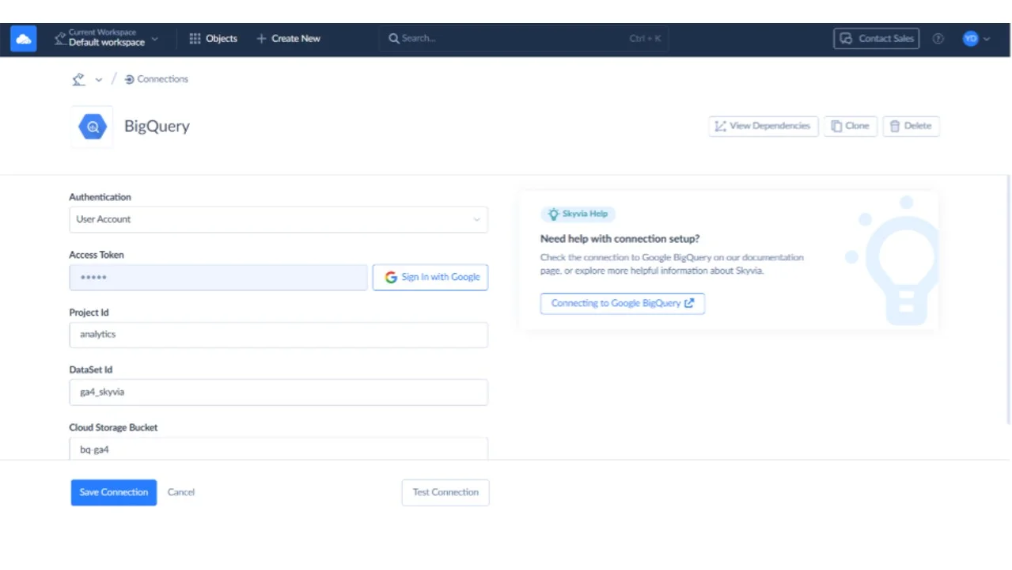
Next, create a Google BigQuery connection. Enter the project ID, dataset ID, and Google Cloud Storage bucket used for staging. The dataset and bucket should already exist in Google Cloud before you configure the connection.
Step 3: Create the replication scenario
Create a new Replicatiion. Select Google Analytics as the source and choose BigQuery as the destination. Then select the GA object you want to load, such as CompleteAnalytics, and choose the dimensions and metrics for the target table.
For example, a traffic acquisition table might include:
Dimensions: Date, SessionDefaultChannelGroup, SessionSource, SessionMedium, SessionCampaignName, DeviceCategory
Metrics: Sessions, EngagedSessions, TotalUsers, NewUsers, KeyEvents, TotalRevenue
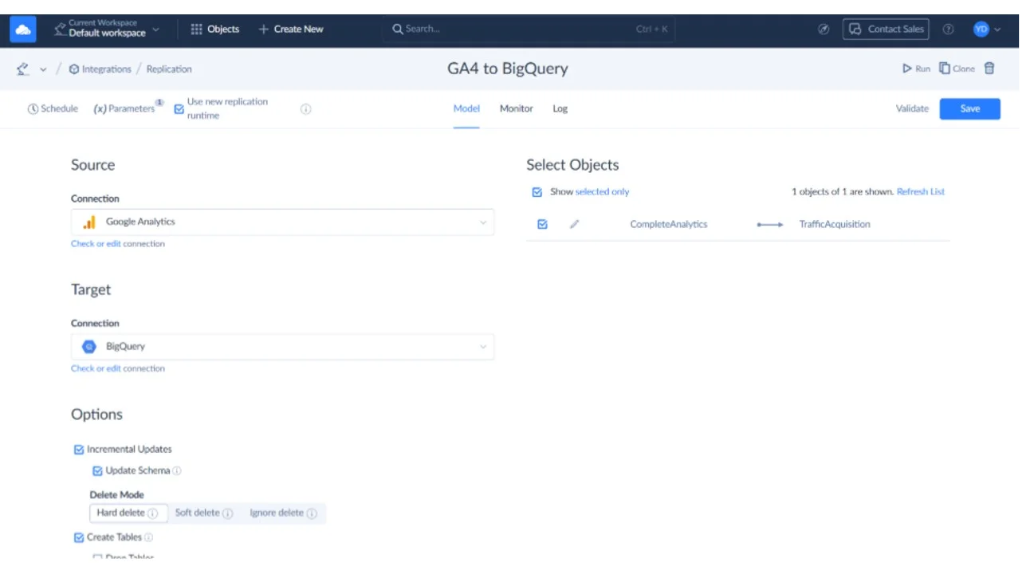
One practical GA limit shows up here. You can choose up to 9 dimensions in a Skyvia replication task, so it is better to build focused tables instead of one oversized “everything” table. For example, one task for traffic acquisition, another for landing pages, another for e-commerce. Metrics are less painful: if you select more than 10, Skyvia can make the extra API calls and load them for you.
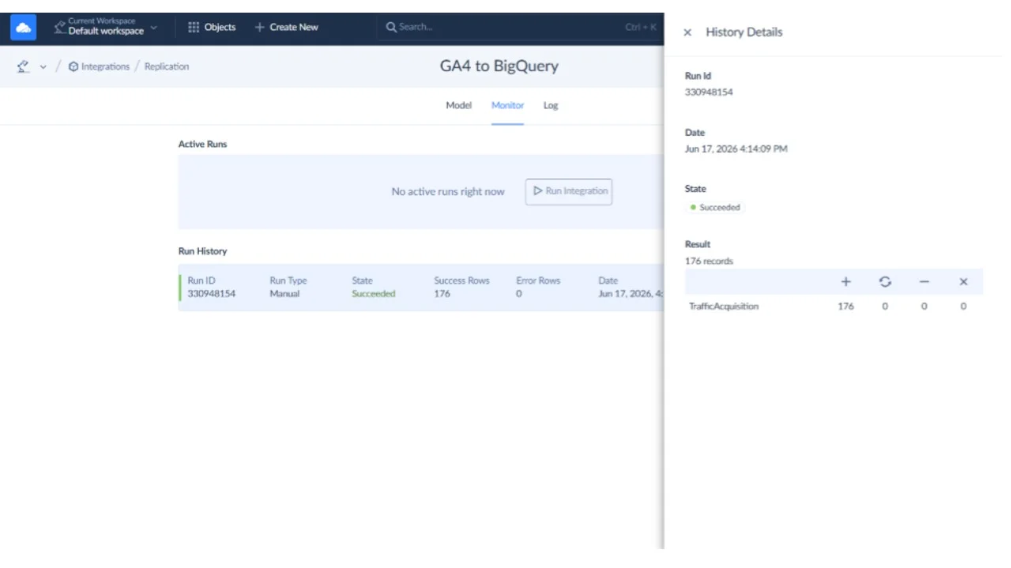
After that, click Save , run it, and check the result in BigQuery.
The “Aha!” Moment: Raw Native Export vs Clean Reporting Table
This is where the difference becomes easier to see.
The native GA export is useful, but it lands in BigQuery as raw event-level data. Important details often sit inside nested fields like event_params, so even a basic page or campaign report may require UNNEST queries.
With Skyvia, you define the reporting table during setup. The selected dimensions and metrics land as regular columns, so analysts can query them with a much simpler SQL statement.
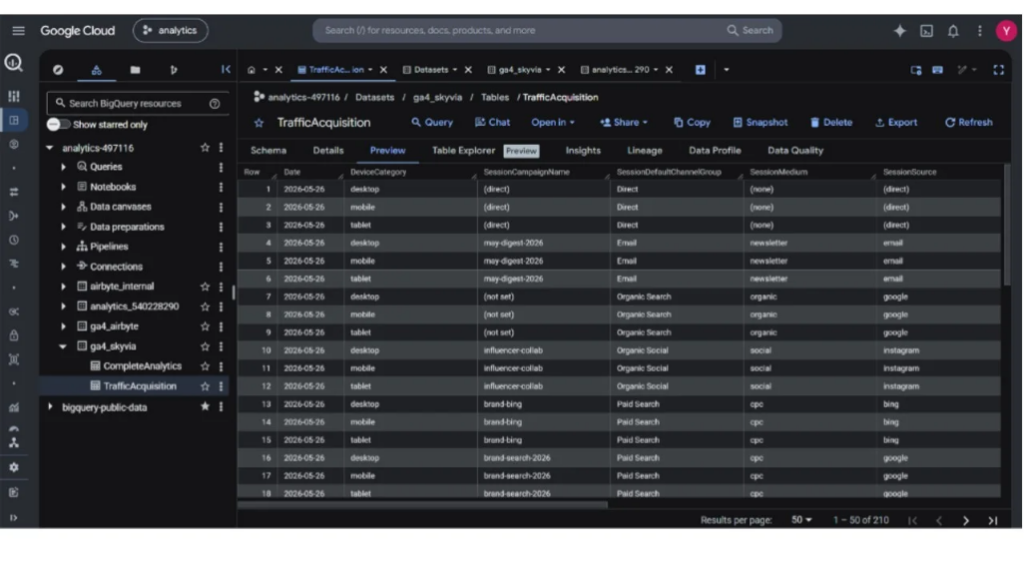
A native GA query may look like this:
SELECT

 event_date,

 event_name,

 (

   SELECT value.string_value

   FROM UNNEST(event_params)

   WHERE key = 'page_location'

 ) AS page_location

FROM `project.dataset.events_*`

WHERE event_name = 'page_view';

A Skyvia-loaded reporting table can be queried more directly:

SELECT

 Date,

 SessionDefaultChannelGroup,

 SessionSource,

 Sessions,

 EngagedSessions,

 TotalUsers

FROM `project.dataset.TrafficAcquisition`

ORDER BY Date DESC;
SELECT

 event_date,

 event_name,

 (

   SELECT value.string_value

   FROM UNNEST(event_params)

   WHERE key = 'page_location'

 ) AS page_location

FROM `project.dataset.events_*`

WHERE event_name = 'page_view';
A Skyvia-loaded reporting table can be queried more directly:
SELECT

 Date,

 SessionDefaultChannelGroup,

 SessionSource,

 Sessions,

 EngagedSessions,

 TotalUsers

FROM `project.dataset.TrafficAcquisition`

ORDER BY Date DESC;
That is the main reason to use Skyvia here. It is not trying to replace every raw-event use case. It is for teams that want Google Analytics data in BigQuery in a form people can actually work with, without turning every report into a nested SQL exercise.
Final Thoughts: Which Method Should You Choose?
The best way to move Google Analytics to BigQuery depends on what your team can live with after the first setup is done.
If you have a standard GA property, stay under the 1 million events per day export limit, and your team is comfortable with nested BigQuery SQL, the native GA BigQuery link is the cleanest starting point. It is free, direct, and already part of Google’s stack.
If you are an enterprise team with many sources, strict pipeline requirements, and enough budget to absorb MAR-based pricing, Fivetran is a strong managed option. It is built for scale, but the cost deserves a real look before you commit.
If your team wants open-source control and has someone ready to manage infrastructure, Airbyte makes sense. It is flexible, but that flexibility comes with logs, containers, updates, and failed syncs that need a technical owner.
If you want a no-code way to load Google Analytics data into BigQuery, keep tables easier to query, and avoid turning a reporting pipeline into a development project, Skyvia is the practical middle ground. It is built for teams that need the data moving, not another tool that waits for engineering time.
Try Skyvia for free and build your first Google Analytics to BigQuery pipeline without writing API scripts.

FAQ for Google Analytics to BigQuery

Do third-party ETL tools use the same export mechanism as the native GA4 BigQuery link?
No. The native link exports GA4 event data directly to BigQuery. ETL tools usually work through Google APIs, so they may load more report-friendly tables instead of the same raw nested event export.
Can I combine Google Analytics data with CRM or Shopify data once it is in BigQuery?
Yes. That is one of the main reasons teams export GA data to BigQuery. You can join traffic and conversion data with Salesforce leads, HubSpot contacts, Shopify orders, Stripe payments, or ad spend.
How do ETL platforms handle new custom dimensions added to GA?
It depends on the tool. Some detect schema changes and update tables automatically. Others require manual changes. In Skyvia, you can adjust selected GA dimensions and metrics visually when reporting needs change.
Do I need a data engineer to manage a BigQuery data pipeline?
Not always. Native GA4 export and tools like Skyvia can be managed by analysts or BI teams. You may still need SQL help for complex modeling, but the pipeline itself does not always need custom code.
Will using a third-party ETL tool consume GA4 API quotas?
Yes, if the tool pulls data through Google’s APIs. That is different from the native BigQuery export. API-based tools need to work within Google’s API limits, so pipeline design and report scope matter.