
Summary
- If you are short on time, our 45-hour hands-on testing of migrating 10,000 rows reveals that the top Azure ETL tools for 2026 are Azure Data Factory for native Microsoft enterprise integration, Skyvia for rapid no-code cloud setups, Fivetran for fully automated high-volume ELT, and Airbyte for complete open-source developer control.
Have you ended up spending hours setting up Azure data pipelines because of mistakes in setting up, issues with firewalls, and schema problems? Then you know exactly how it feels like to have the experience of working with Azure ETL tools.
In this guide, I will be sharing the results of my comparisons of Azure Data Factory (ADF), Skyvia, Fivetran, and Airbyte, based on my hands-on tests of each platform.
I am not trying to prove that Skyvia is “the best overall,” but rather help you understand which tools perform better in different situations. By the end of this article, you will transition from indecision to confidence and relief, depending on which solution is right for your particular situation.
To clarify: As part of the writing team at Skyvia, I work with our product management and engineering teams. But I’m also a developer who understands that there’s no one-size-fits-all when it comes to software tools.
How Did We Test These Azure ETL Tools?
This is actually the second time I’m going through a similar kind of process where we will move data from one platform to another. Before this, we did so for PostgreSQL and Snowflake. This time, I decided to use the same method for moving the data into Azure SQL. The source data in this case is Salesforce with more than 10,000 contacts. Note that all Contact data is fictitious and only serves as samples for this comparison.
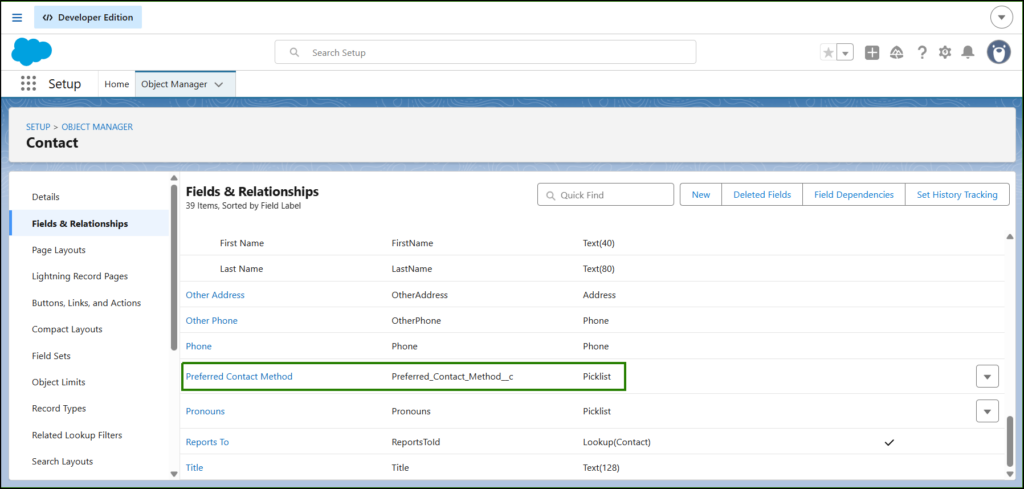
For each tool, I have created a pipeline where the source was connected to the target database (which is Azure SQL). It required me to configure both data sources, and once that was done, I had to set up the actual pipeline. The time it took me to successfully configure each connector, the ease of the configuration process, and finally the time taken by the initial sync process were noted down.I will also add a custom column in Salesforce Contact called Preferred Contact Method, which is either Email, Phone, or SMS. And we’ll see if our tools will catch the changes. Below is the Salesforce setup for that:
In summary, what I am trying to find out through this exercise is how fast and convenient the process has been for me using different tools.
How Do the Top Azure ETL Solutions Compare?
Once the pipelines have been created using each Azure ETL tool, it seemed useful to take a moment to outline the comparisons between the solutions. The following is not meant as an evaluation of which one is “the winner” but rather an attempt to highlight those places where each is strong on its own merit.
Here is the comparison:
| Tool Name | Pricing Model | Sync Frequency | Setup Complexity | Best For |
|---|---|---|---|---|
| Azure Data Factory | Pay-per-execution (activity runs, data movement) | Streaming & Batch | High (mix of setup/config + visual UI) | Enterprise teams already deep in Azure stack |
| Skyvia | Pay-per-data volume (tiers by rows transferred) | Down to 1 minute | Visual wizard, no-code | Cloud-to-cloud integrations |
| Airbyte | Infrastructure costs (self-hosted, open source) | Batch (CDC optional) | With setup and config, dev-oriented | Engineering teams with infra control |
| Fivetran | Monthly Active Rows (MAR) pricing | Near real-time (≈1 min) | Low setup, automated | High-budget teams needing turnkey ELT |
Based on this list, the strengths of each tool will be covered next.
Which Tool is Best for Native Azure Environments & Enterprise?
In case your company relies heavily on Microsoft’s ecosystem, then Azure Data Factory (ADF) is a natural choice. It is tightly integrated with other Azure services, designed for enterprise-scale workloads, and provides rich capabilities for the orchestration of jobs.
Azure Data Factory (ADF)
Azure Data Factory is a managed Microsoft service designed for building complex ETL and ELT pipelines in a hybrid environment. It’s a low-code platform, but first-time users like me often find setup challenging due to its emphasis on security, governance, and enterprise-grade configuration.
Creating the Pipeline
Having years of experience in SSIS, my first thought is that ADF would feel like SSIS in the cloud. Well, sort of not the case. ADF is far from SSIS, especially in security. It’s not just about IP whitelisting or giving permissions.
First, let me tell you the concepts I learned since it’s my first time in ADF.
ADF Data Pipeline Concepts
Datasets and Linked Services: In Azure Data Factory, a data source or target needs to have a dataset attached to a linked service, known as connectors in other cloud data platforms. The best practice would be to store database passwords, Salesforce Client ID/secret, and other secrets in Azure Key Vault (AKV) and use them in your linked service definition.
Pipelines: Once you get past the datasets, it’s time to connect them in data pipelines and map the columns of the source dataset and the sink (target) dataset.
That’s the short version.
Creating the Datasets and Linked Services
Let’s do the Azure SQL dataset first, as this is easier. Although simpler than Salesforce, still not a ~5-minute task. I would recommend storing your password in AKV to keep all secrets in one place, though you can also just paste your password, which will still be encrypted by Azure when stored in ADF. Nevertheless, the password remains exposed in the linked service definition.
Below is my setup:
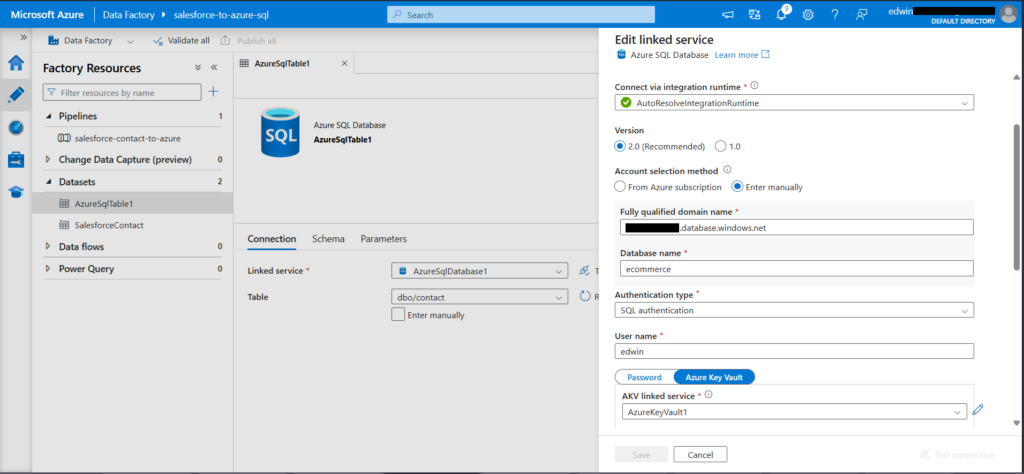
The dataset defines the target table, and the linked service is the connection credentials. It uses an AKV linked service with a secret name that Azure will reference when retrieving the secret from the vault, in this case, my database password. Note that you need to whitelist ADF IPs in your Azure database server.
Next, the Salesforce connection. This took me hours. I had to configure Salesforce’s External Client App correctly, make permission sets, and align OAuth settings. Here are the External Client App Policies that worked for me:
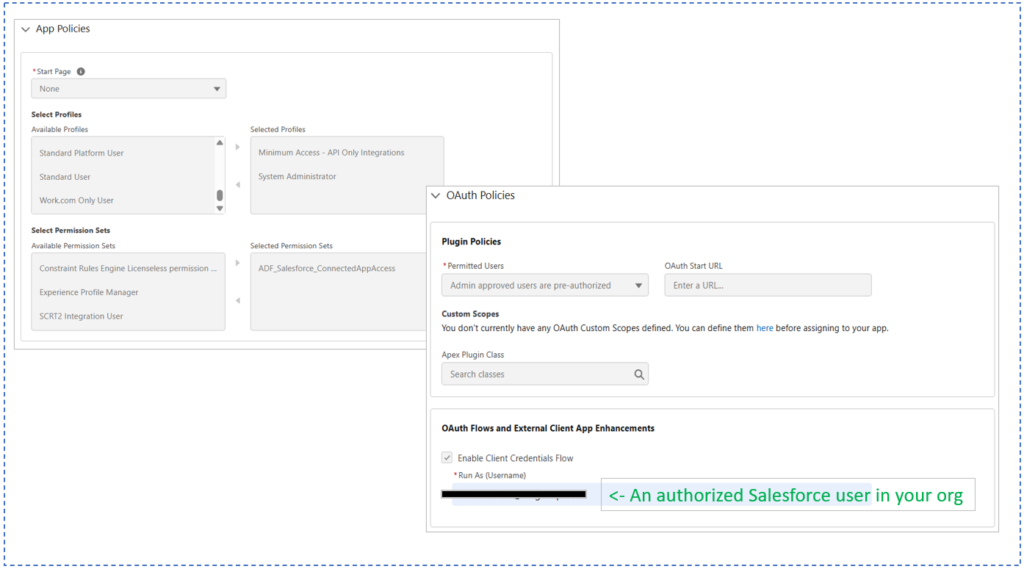
And below is the OAuth Settings. Note the Callback URL and OAuth Scopes:
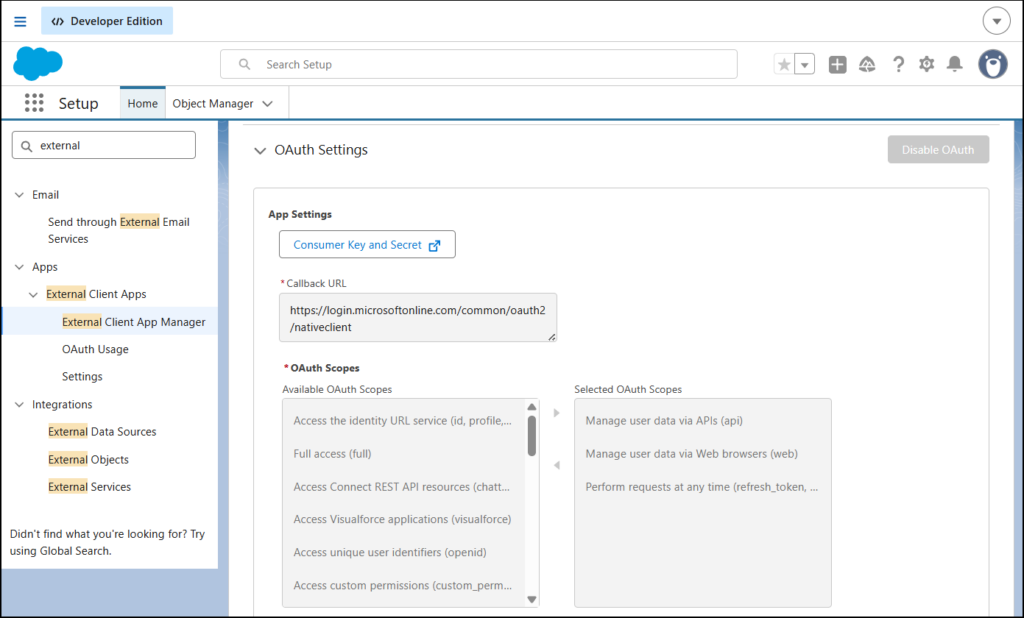
Do you see the Consumer Key and Secret button? Click that and it will give you the Client ID (Consumer Key) and Client Secret (Consumer Secret) you need in ADF.
Finally, here’s the Salesforce dataset and linked service:
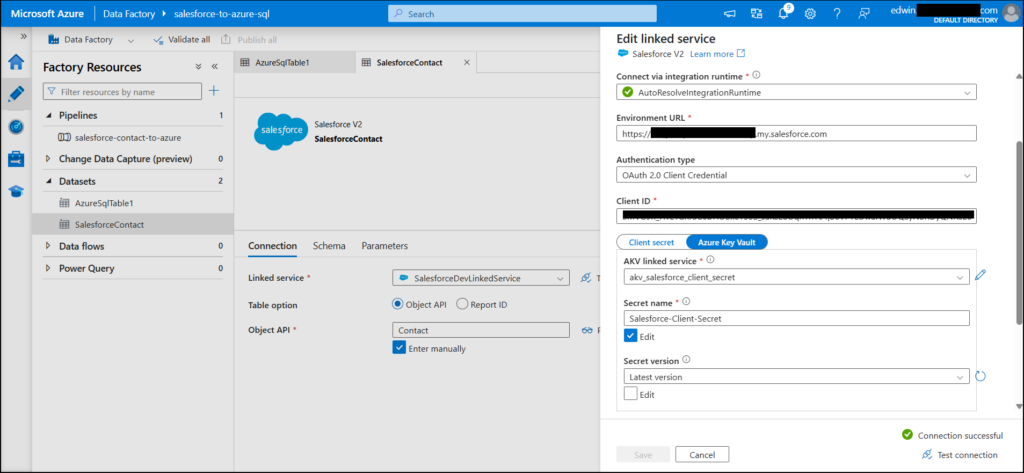
The table (Object API) is set to the Salesforce Contact. Environment URL is the Salesforce My Domain URL, and Client ID is the one given as Consumer Key in Salesforce External Client App. Lastly, the Client Secret is stored in AKV. Consult the ADF docs for more details on setting all these.
Creating the ADF Pipeline
As soon as you have prepared your datasets and linked services, creating your pipeline will become easier. A Copy Data activity contains your source and sink definitions with column mappings. Nested objects (like MailingAddress) can’t be replicated directly, but custom fields (like Preferred Contact Method) worked fine.
Here’s my ADF pipeline with the mappings shown:
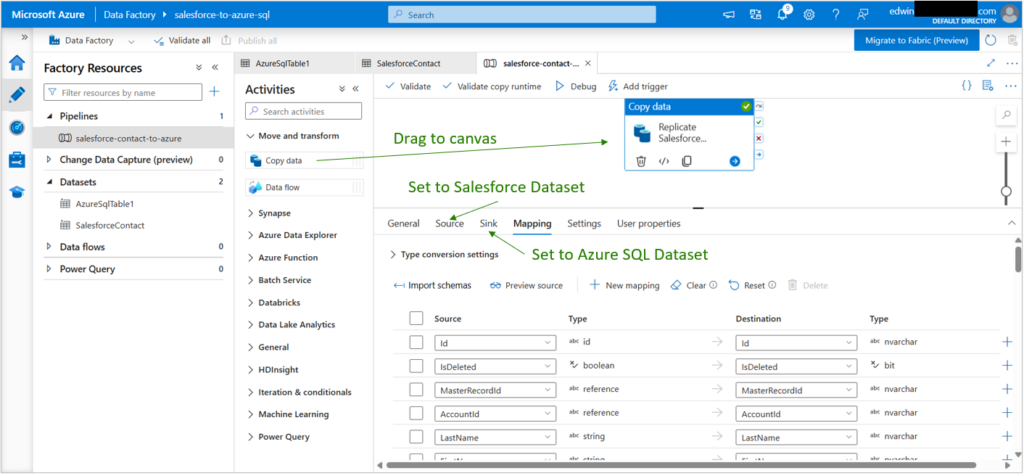
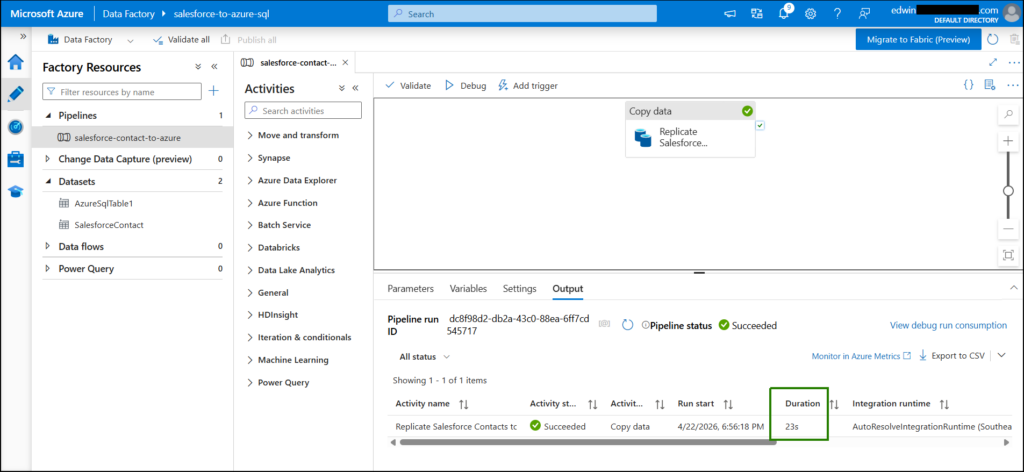
Replication from Salesforce to Azure SQL completed in just 23 seconds. See below:
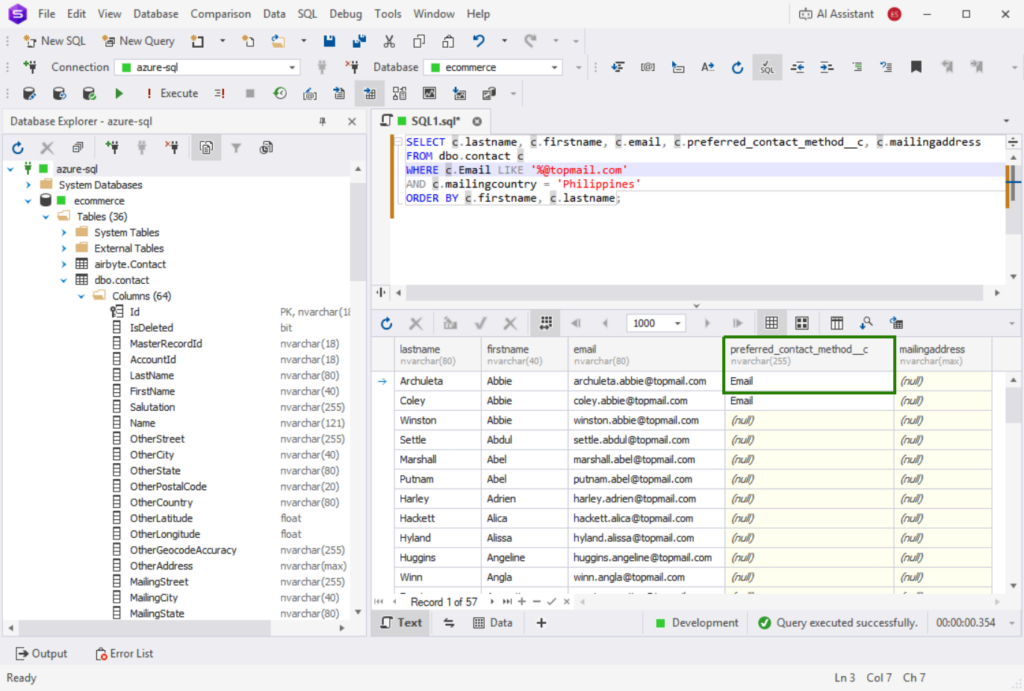
And I confirmed the data in dbForge Studio, including the custom column (boxed in green below):
Best For
Azure Data Factory is ideal for enterprises that are heavily dependent on the Microsoft stack, requiring tight integration, enterprise-level scalability, and governance.
Rating
- G2: 95 users rated 4.6/5
- Capterra: No ratings available
Pricing
Based on the Azure Data Factory pricing page:
Pricing for Data Pipeline is calculated based on:
- Pipeline orchestration and execution
- Data flow execution and debugging
- Number of Data Factory operations (creation of pipelines, monitoring, etc.)
Prices may differ depending on the region. Check out the Azure Pricing Calculator to estimate costs.
The Azure Data Factory service offers a monthly free tier, which I used in this review.
Pros
- High degree of integration with other Azure services
- Enterprise-level security with Azure Key Vault support
- Advanced orchestration for hybrid ETL and ELT
- Scalability to complex workloads
- Low-code interface with a visual pipeline designer
Cons
- Learning curve and complexity of setup compared to other SaaS ETL solutions
- Complex dataset and linked service setup
- Nested Salesforce fields cannot be replicated
- Predicting prices can be tricky
Which Tool is Best for Cloud Integration?
When teams seek fast wins, the right choice of the Azure ETL tool could play a crucial role. This is where Skyvia comes in handy.
Skyvia
Skyvia is a fully cloud-based data platform that provides a no-code solution for integration, replication, and other operations. It supports ETL, ELT and reverse ETL integrations. I personally used Skyvia in order to create data pipelines and for this analysis, I connected to Salesforce and Azure SQL databases, as well as created a Skyvia Replication.
Creating the Pipeline
Creating the Skyvia Replication is the fastest because I’ve been using it for longer than the other tools here.
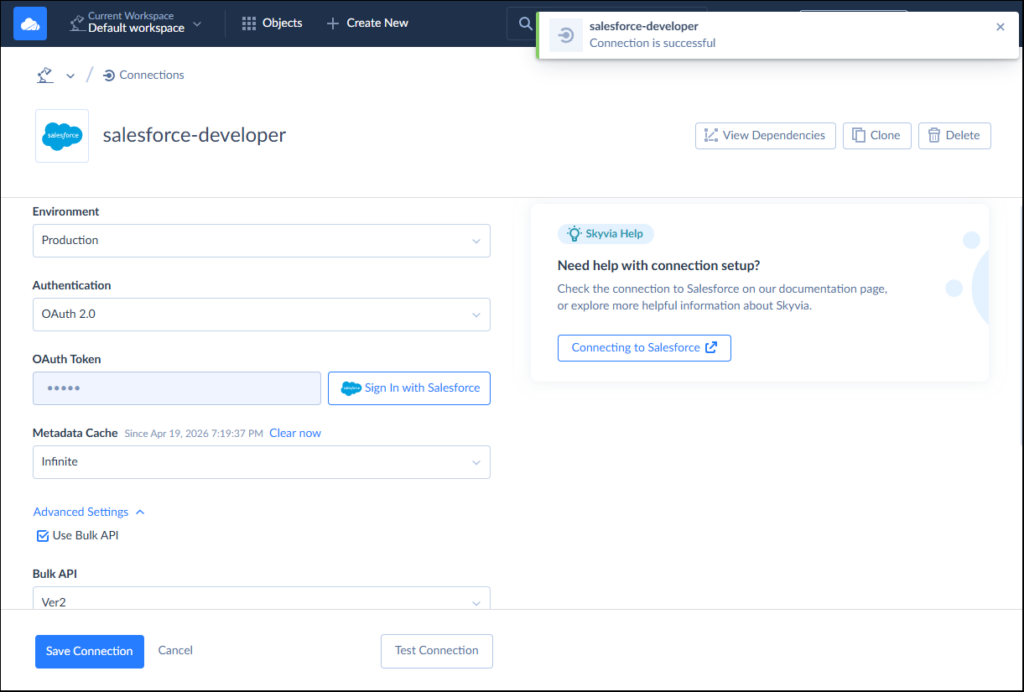
Below is the Salesforce connection. I needed to sign in to Salesforce to get my OAuth token.
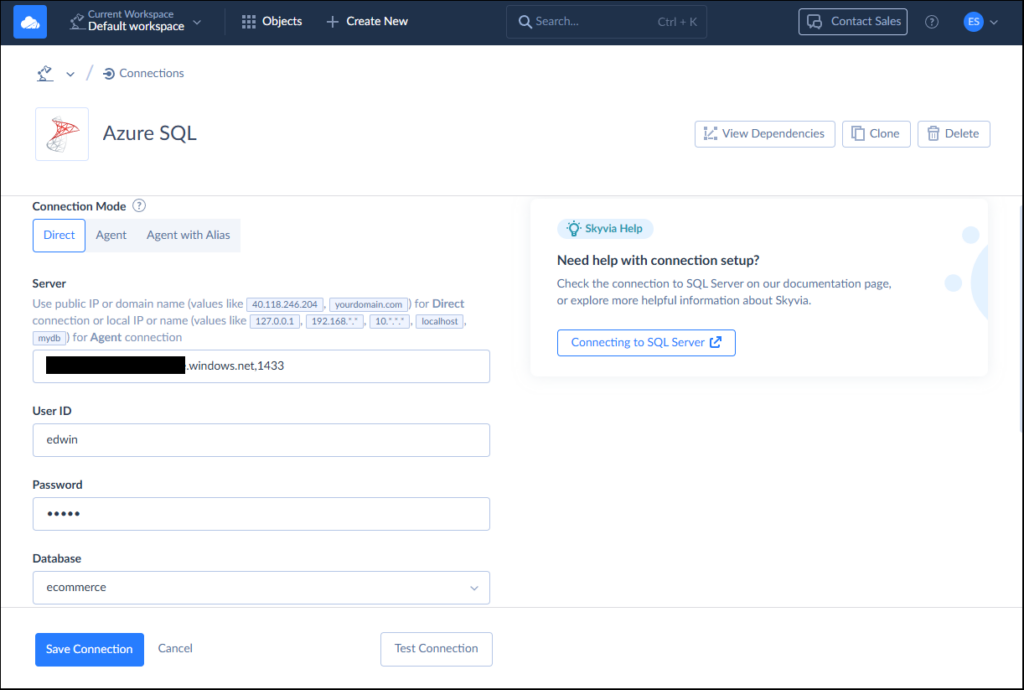
And below is the Azure SQL connection:
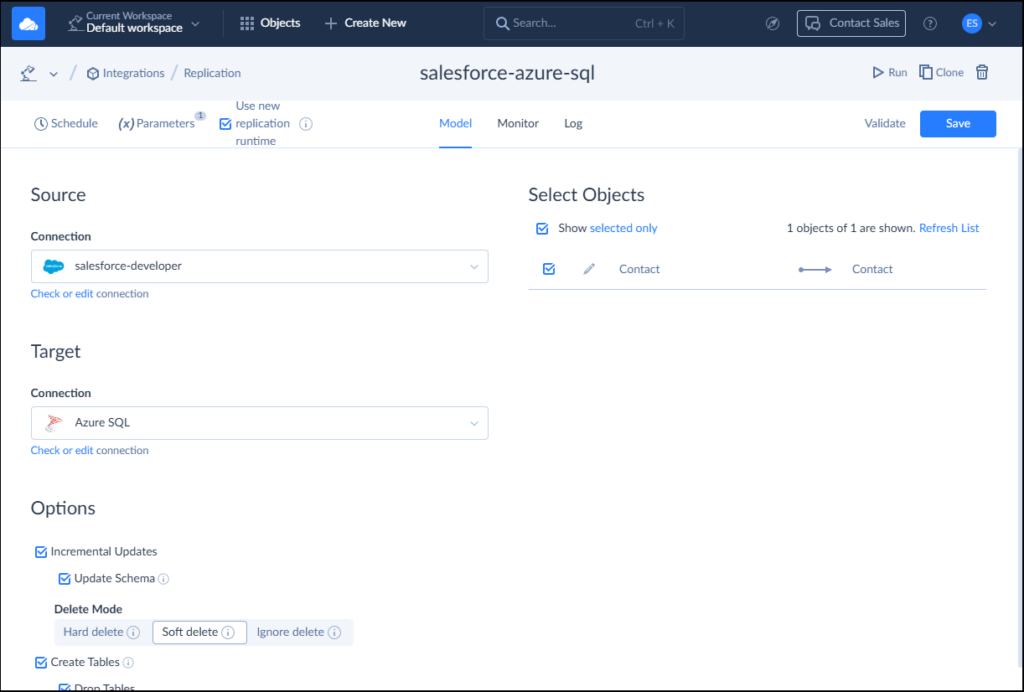
I created a Skyvia Replication that will allow incremental updates and capture soft deletes. Skyvia will also create the table during initial sync in the Azure SQL database. Check it below:
Setup Results and Initial Sync
Configuring connections took less than 5 minutes for each one. At first, I faced some difficulties since I wanted Skyvia to use the Skyvia schema of my Azure database, but that one did not exist. Once I created the schema, it started working seamlessly and returned success. The first run took less than 4 minutes to upload 18,131 rows. It’s boxed in green below:
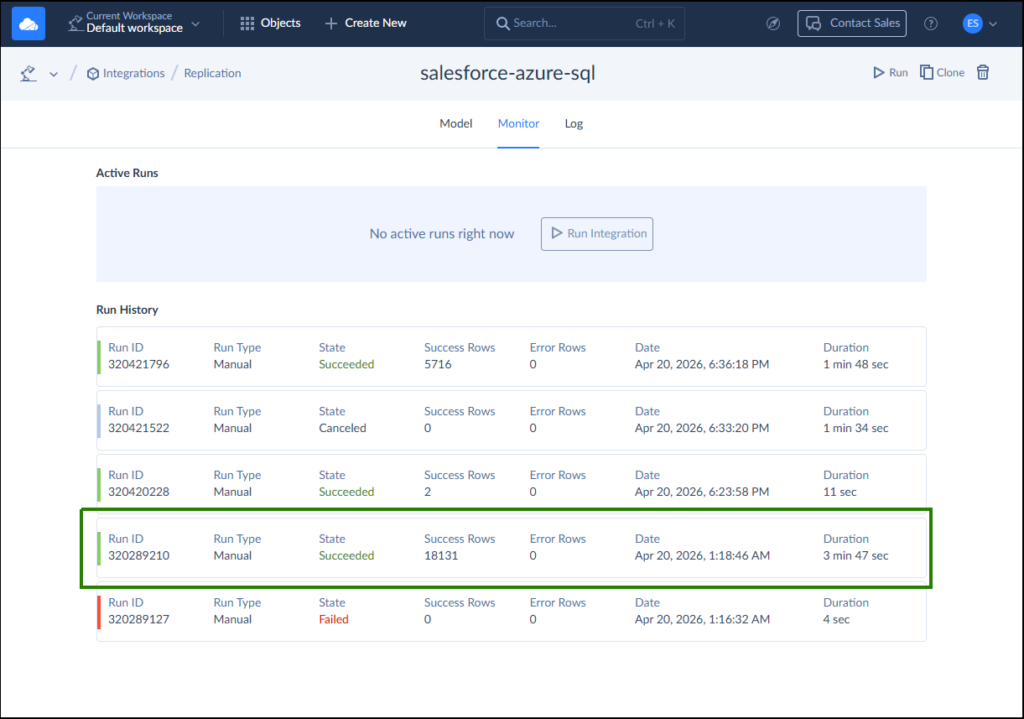
The failed item is the one where the skyvia schema did not exist in my Azure SQL. Then, Skyvia also captured the edited 2 rows in Salesforce in the next run. Finally, I added the Preferred Contact Method in Salesforce. Skyvia did not capture the changes in the schema as I set the pipeline with Incremental Updates. When I unchecked that, refreshed the schema, and re-run the replication, the new column appeared. But it did not capture the Soft Deletes. In the end, only 5716 was captured.
Note those pipeline settings. It needs the correct configuration depending on your purpose.
Below is the added column in Azure SQL as viewed in dbForge Studio for SQL Server:
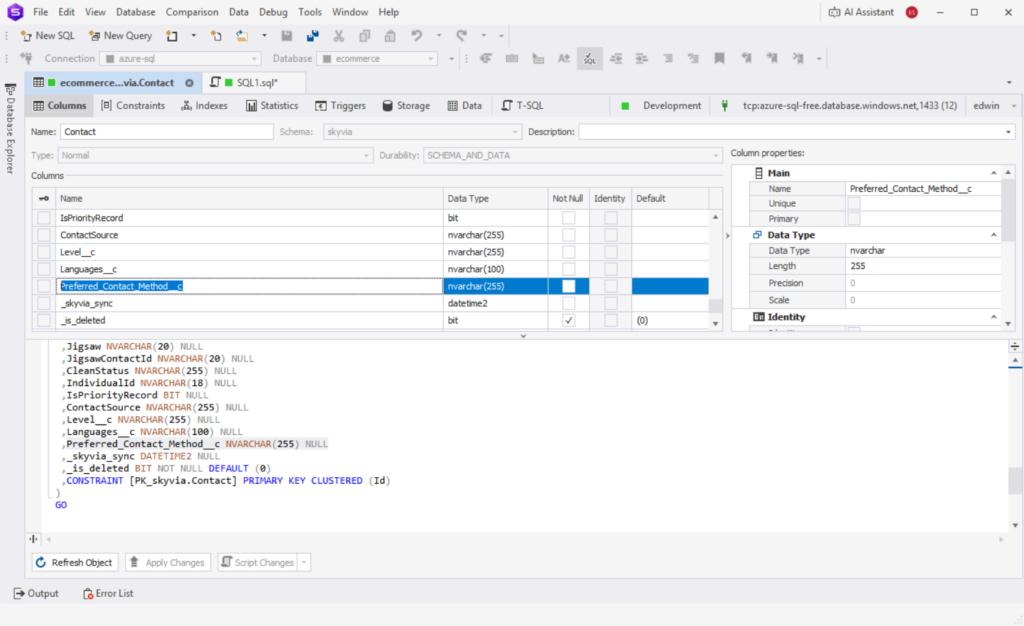
It was captured as an nvarchar or text column in Azure. See also one sample from Salesforce and the captured data in Azure below:
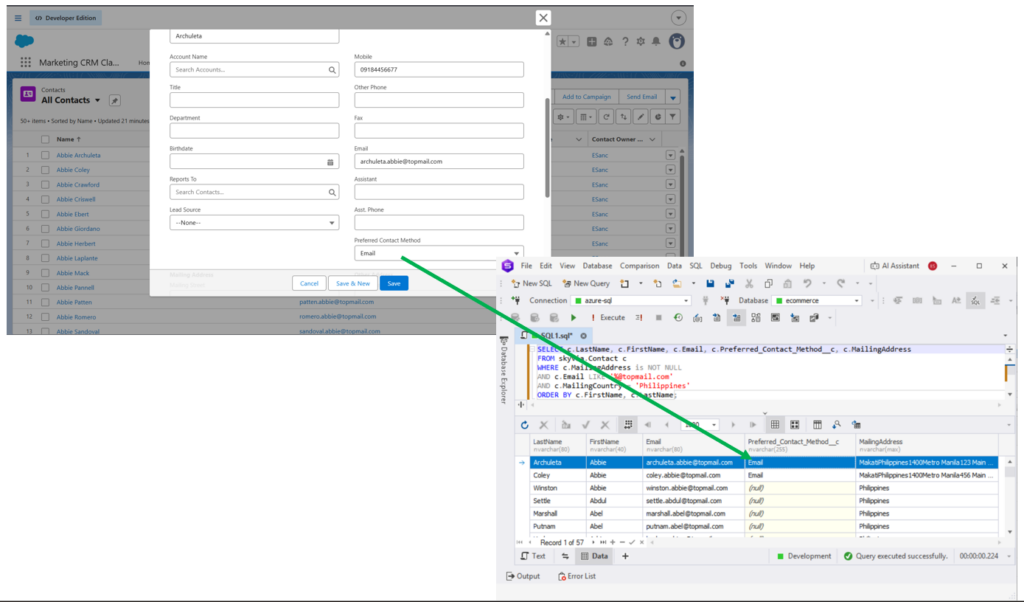
The MailingAddress column in Salesforce Contact is a nested object column. It was read by Skyvia as text, and it was captured in Azure as is. See below:
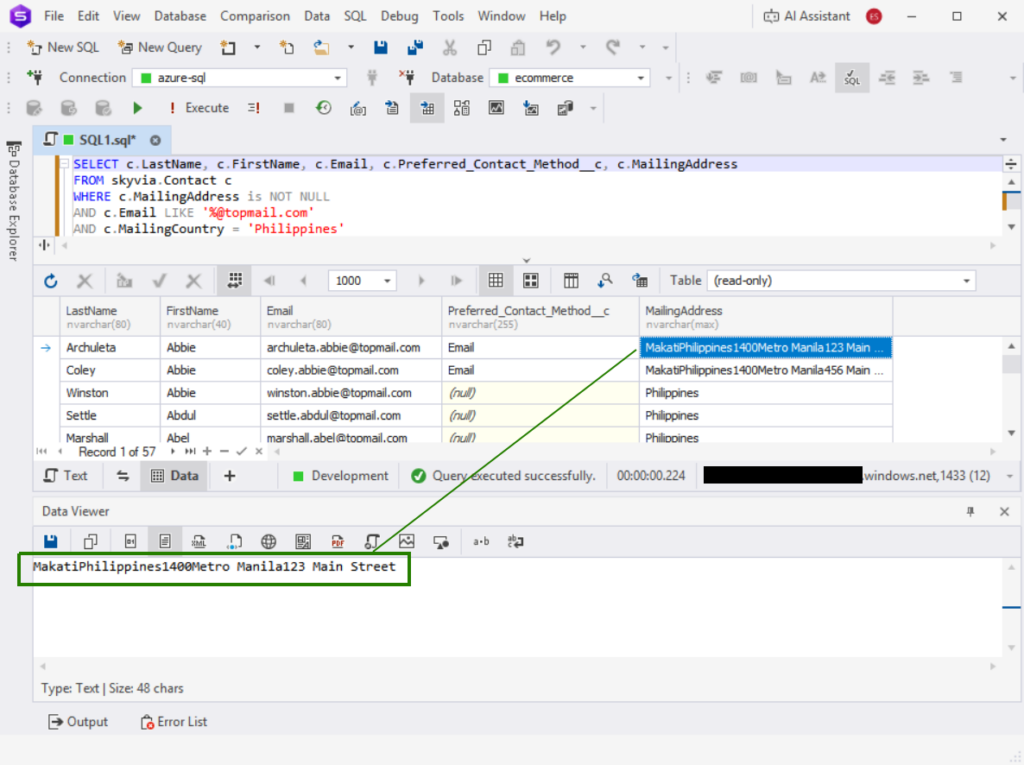
If you’re expecting JSON or some other format, you need to transform it.
Best for
For teams who want quick wins. Skyvia has a simple and clean interface and starts working fast.
Ratings
- G2 : 300 reviewers rated 4.8/5
- Capterra : 116 reviewers rated 4.9/5
Price
Skyvia has five pricing tiers starting from Free to Enterprise.
- Free: up to 10,000 rows/month
- Basic – starting from $79/month
- Standard and Professional – from $159 and $399/month respectively
- Contact sales for the Enterprise pricing.
More information is available here.
Pros
- Clean user interface with easy navigation
- 200 + pre-built connectors (Salesforce, Azure SQL, and others)
- Full data management suite (replication, sync, automation, API access)
- For me, documentation is enough
Cons
- Free tier is limited to only 10,000 records and 5 queries per source.
- Purely cloud-based solution, thus not suited for highly secure air-gapped on-premises deployments (banks, healthcare sector). Airbyte Core self-hosted is a better fit for this scenario.

Which Tool is Best for High-Volume, Fully Automated ELT?
For enterprises handling high-volume data, the focus should be on automation, scalability, and schema resilience. Enter Fivetran.
Fivetran
Fivetran is a platform for data movement, management, and transformation. It removes operational overhead by automating schema management, incremental updates, and connector maintenance.
Creating the Pipeline
Here is my experience using Fivetran to connect Salesforce data into Azure SQL.
For the Salesforce source, Fivetran needed Domain URL, Client ID, and Client Secret (same as in ADF). These can be obtained by creating an External Client App in Salesforce for authorizing Fivetran. Fivetran provides guided instructions. I had to follow it to the letter, then things went well. Note that this External Client App is another setting different from the one used for ADF. The Callback URL is different.
Below is the important part of the External Client App settings in Salesforce. Note the Callback URL and OAuth Scopes.
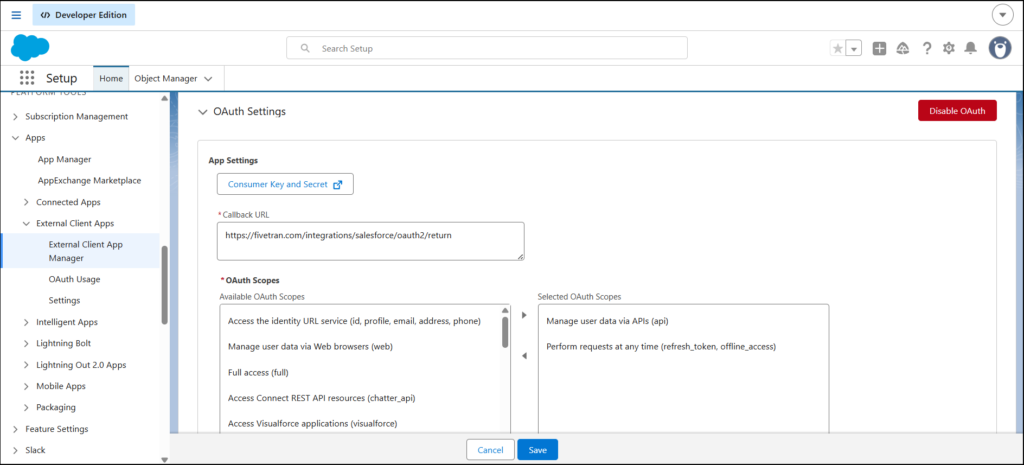
And below is my Salesforce source in Fivetran using the generated Consumer ID and Secret:
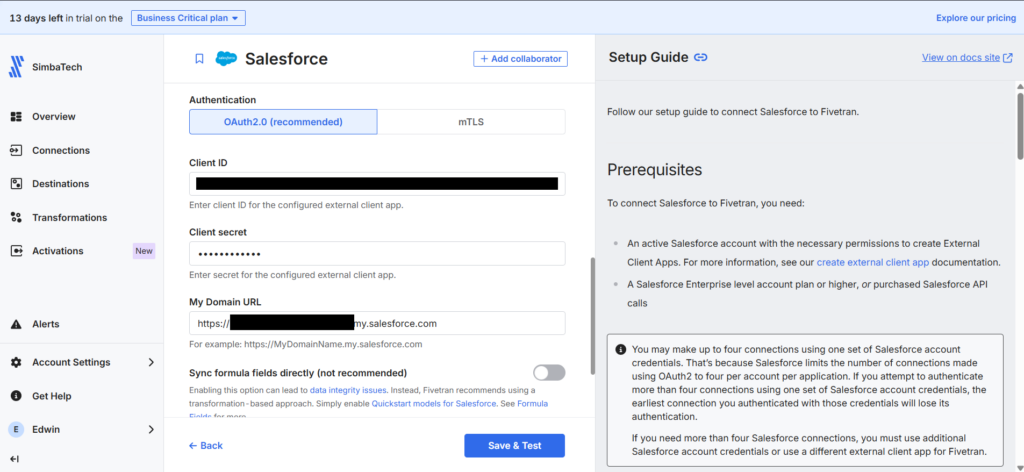
Note that there’s no ‘/’ at the end of the Domain URL. Put that, and the connection will fail.
For the Azure SQL target, Fivetran has a SQL Server connector and an Azure SQL Database connector. My first attempt at configuring was through the Azure SQL Database connector (the obvious choice), which failed. I can’t make it work. Switching to the SQL Server connector did the job.
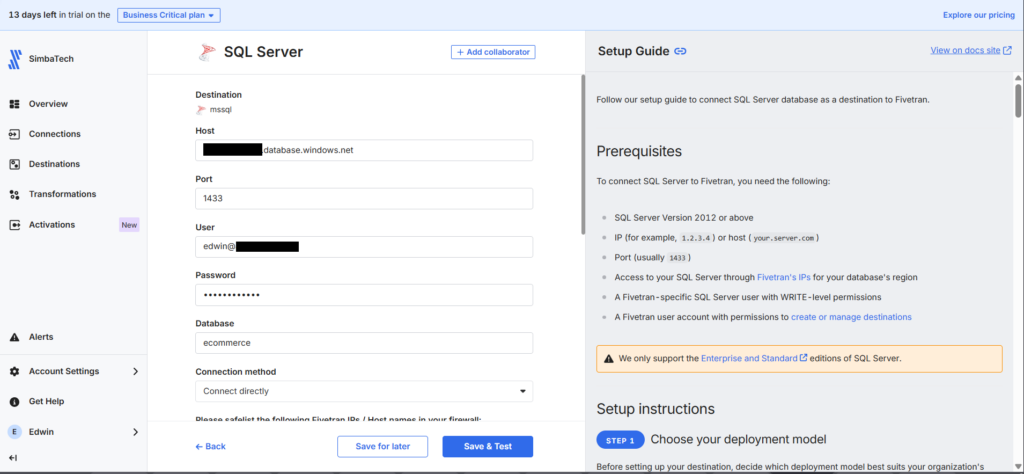
Note the format of the user. It should be azure-username@database-name. And don’t forget to whitelist Fivetran IPs for the region you used.
In Fivetran, it’s necessary to define your sources and destinations in advance using the wizard. I noticed that I can’t change the Azure SQL Database target. So, I had to delete the pipeline and recreate it to switch to the new connector (SQL Server).
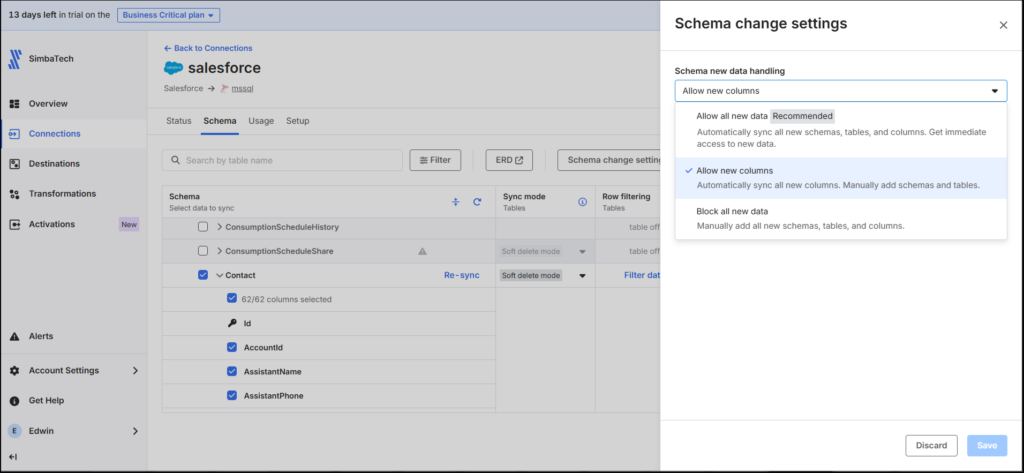
Fivetran offers the option “Allow new columns,” which is a feature I found convenient. This ensures any additional fields, like my custom “Preferred Contact Method” field, would not break the pipeline. Below is the schema setup that includes the Salesforce Contact and the Schema Change Settings:
Setup Results and Initial Sync
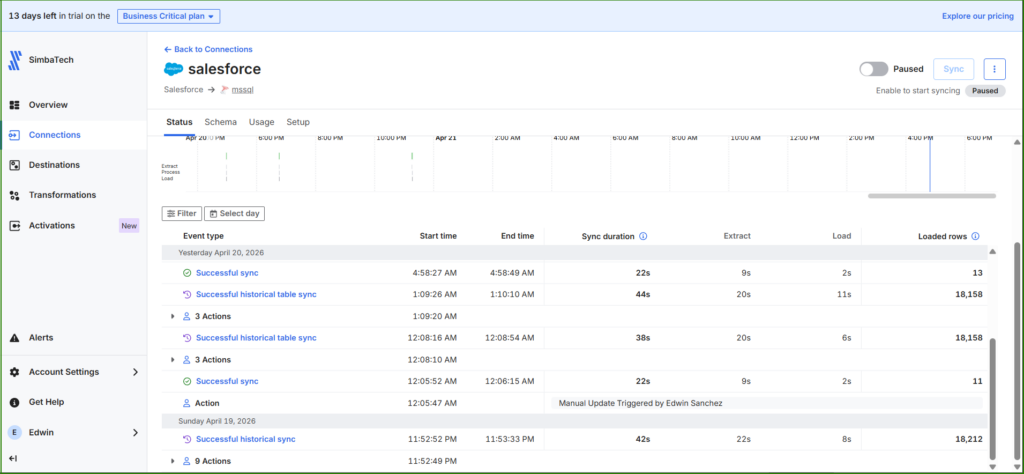
My setup took about 45 minutes, but I believe subsequent attempts will be quicker. The initial sync was fast, less than one minute. Additional loads were just as swift, taking less than a minute despite additional fields being added.
Observations: Fivetran has created an additional pipeline called fivetran_metadata, and some additional schema and tables within Azure SQL. I didn’t check how much storage it took from Azure or how much storage is needed if I moved all Salesforce objects, and if my data is bigger. Note that for your Azure billing.
Here’s an incomplete list:
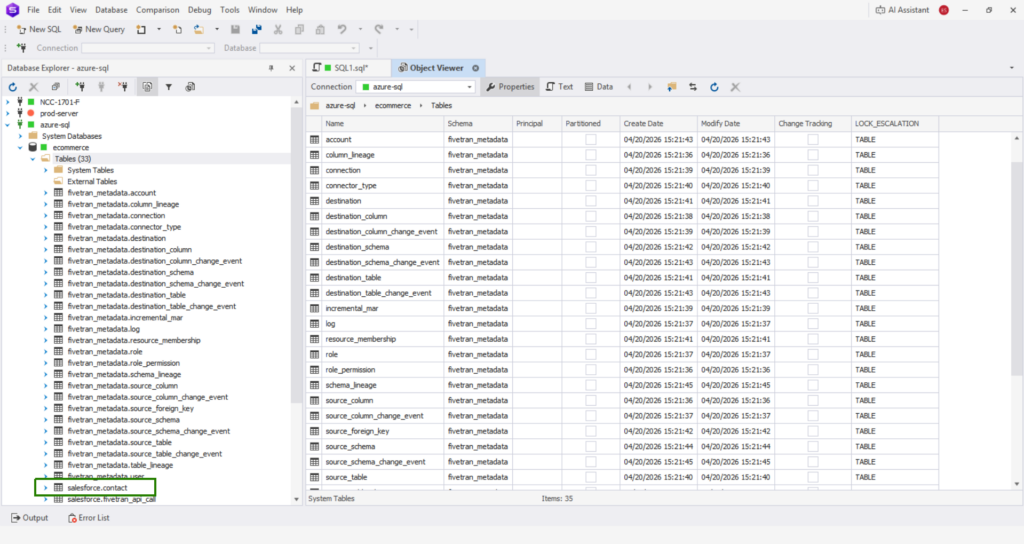
The table where the Salesforce Contact data went is in the salesforce.contact table (boxed in green above).
Below is the evidence that Fivetran moved the additional column in Salesforce and it’s data, similar to what Skyvia and ADF did:
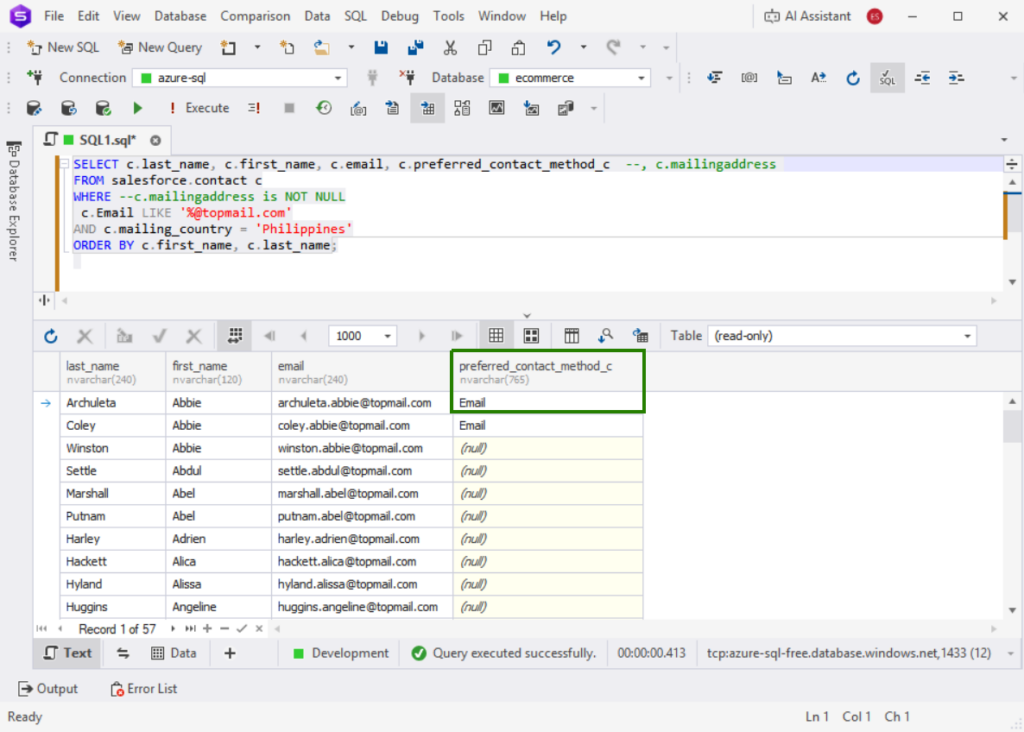
However, Fivetran did not move the nested object column (MailingAddress). If you need the data from that, Salesforce Contact has a separate column for each item in the nested object, like mailing_country or mailing_city. You just need to transform them.
Best For
Teams that need robust, automated ELT pipelines with minimal maintenance.
Ideal for data-intensive enterprises, especially teams focused on rapid scaling, diverse connector coverage, and seamless schema management without coding.
Rating
Below are the notable ratings of Fivetran reviewers for G2 and Capterra at the time of writing:
- G2 : 782 reviewers rated 4.3/5
- Capterra : 25 reviewers rated 4.4/5
Pricing
Fivetran uses a usage-based model billed on Monthly Active Rows (MAR).
- Free Tier: up to 500k MARs and 5k model runs/month
- Standard Plan: pay-as-you-go, unlimited users, faster syncs
- Enterprise & Business Critical: adds granular access controls, private networking, compliance (PCI DSS, etc.)
Costs rise with spikes in row volume, frequent schema changes, and real-time sync needs. Each connector tracks MAR separately, complicating budgeting. Based on my pipeline test, Fivetran recommended the Enterprise plan for me.
See the Fivetran pricing page for more details.
Pros
- Simple setup, few clicks
- Wide connector coverage
- Strong security and compliance
- Built-in dbt transformations
Cons
- Pricing unpredictability — MAR billing can spike with growth
- Not practical for startups or SMBs due to cost
Which Tool is Best for Developer-Heavy Teams & Open Source?
If developer-focused teams need to have full control over the data pipeline setup, they should look towards open-source ETL tools because they are flexible, transparent, and allow deep customization of integrations. We chose Airbyte for this comparison.
Airbyte
Airbyte is an open-source platform aimed at replicating hundreds of sources into your data warehouses, lakes, and databases. In addition, it supports reverse ETL, allowing for data movement from your warehouse to operational systems like CRMs or marketing tools.
Airbyte can be deployed by startups, enterprises, or even single analysts. The following versions of Airbyte exist:
- Airbyte Core: free, open-source, self-managed. You can run it in Docker.
- Airbyte Cloud: fully-managed, cloud-based, with pay-as-you-go pricing based on usage metrics.
Creating the Pipeline
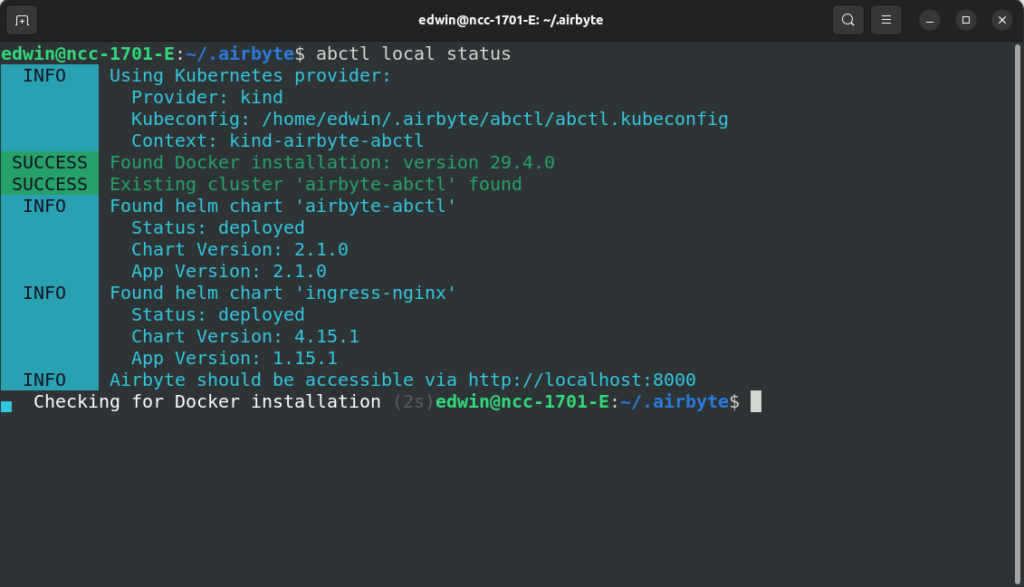
I needed Docker and Airbyte’s CLI tool called abctl. As Docker was already installed, I simply added abctl and did the installation. It took over an hour before I could access Airbyte on my Ubuntu Linux machine. Check out my verified installation below:
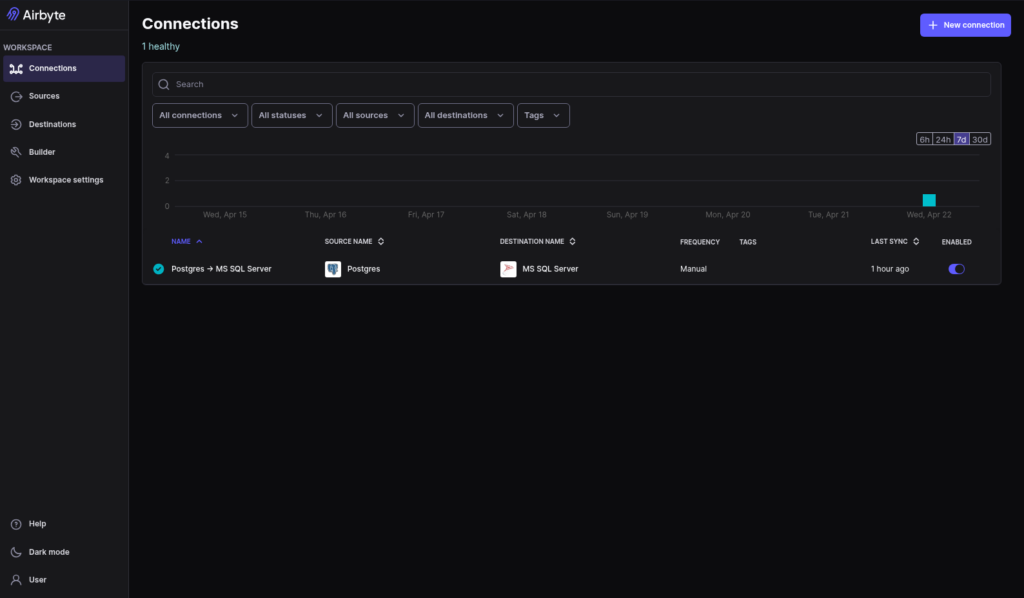
I did a quick test to verify if it’s working. I performed a migration from PostgreSQL to Azure SQL, moving 500 rows as a PoC. Setup took under 5 minutes, and the sync was successfully performed. Here’s the result of my quick test:
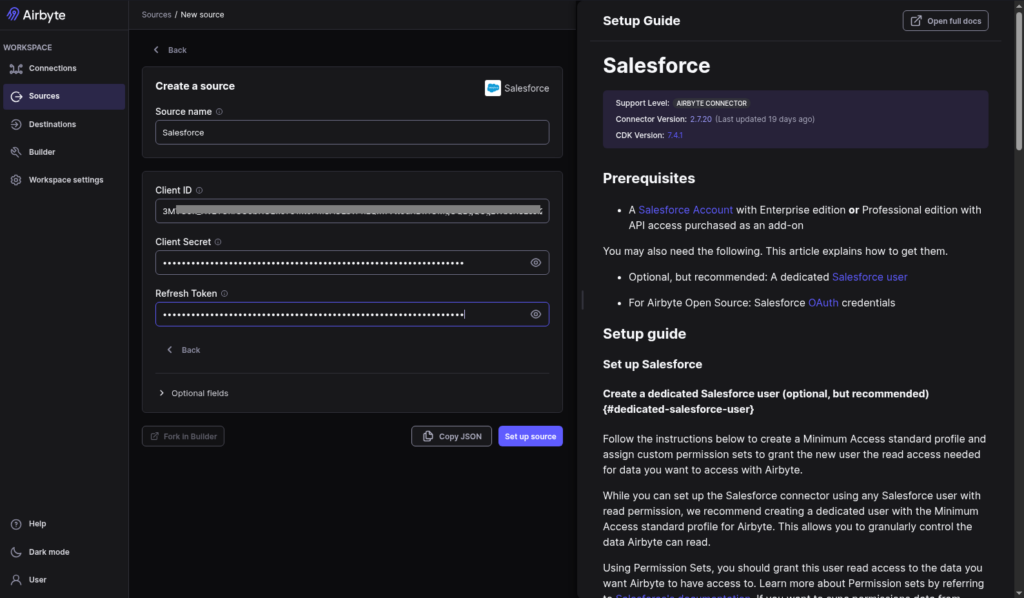
Then, I started creating the Salesforce source. In contrast to Airbyte Cloud, it required me to get the Client ID and Secret from Salesforce. I couldn’t reuse the keys from Fivetran, so I made a new External Client App in Salesforce for Airbyte. Only then can I provide them to Airbyte’s Salesforce source. Check out the setup below:
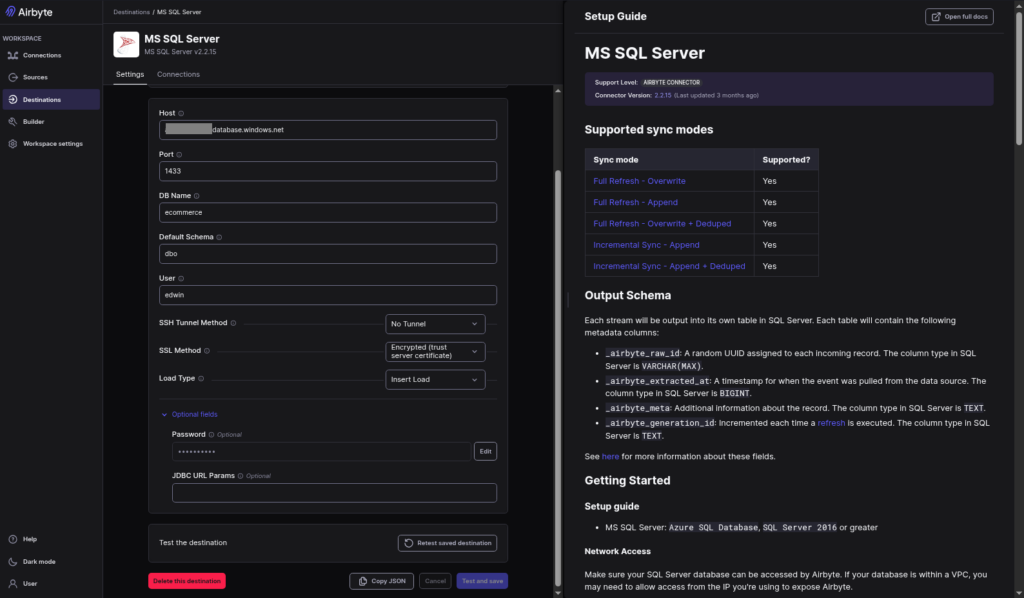
I just reused the Azure SQL Destination from my quick test. Here’s a screenshot:
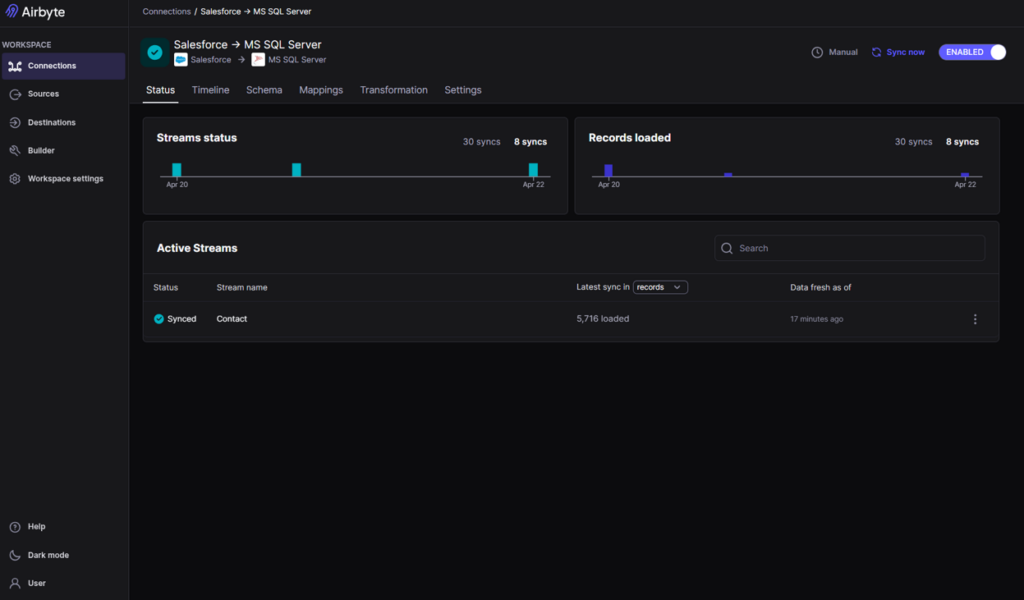
After having configured the Salesforce source and the Azure SQL target, I set up a connection replicating the Salesforce Contact object. Initial sync with ~18k records took under 3 minutes. Schema evolution worked fine, just like in Skyvia. New columns would appear after each sync, but required schema refreshing. Below is the result:
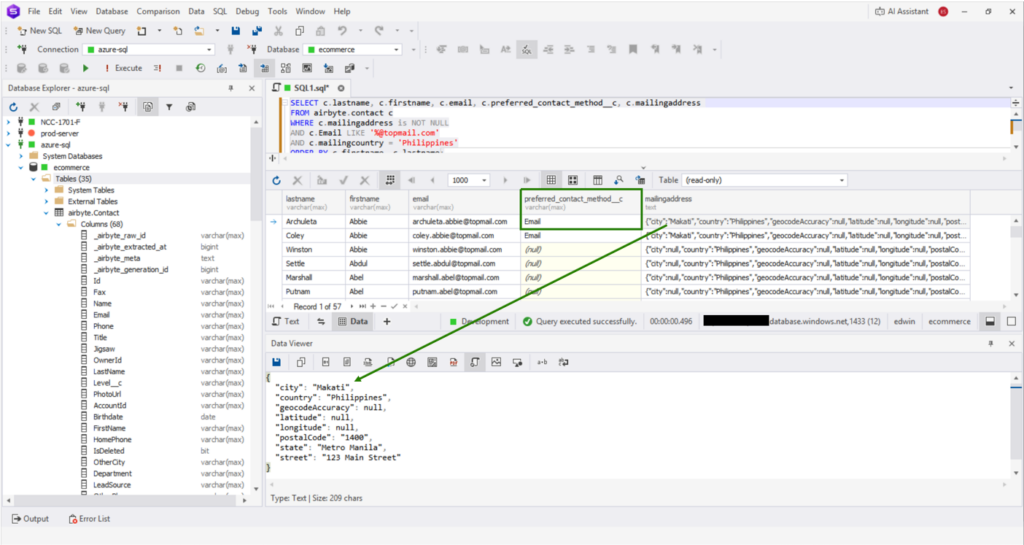
The custom column was replicated properly. However, in contrast to Fivetran, nested objects like MailingAddress came over as JSON. See below:
You can use the UI or API-based approaches (PyAirbyte or Airbyte API using Python) when working with sources, destinations, and connections. It is possible to define everything in the code or use the source and destination IDs in code generated via the web UI.
Best For
- Airbyte Cloud: best for SMB and enterprise companies wanting the flexibility of open-source products while preferring to go with a low-code/no-code platform.
- Airbyte Core: great for developer-focused teams needing maximum control, customization, and willing to take on self-management responsibilities.
Rating
- G2: Airbyte was given 4.4/5 rating by 76 reviewers.
- Capterra: no reviews were found at the time of this write-up.
Pricing
- Airbyte Core: free forever, open-source license.
- Airbyte Cloud: Standard, Plus, and Pro plans with tier-based pricing depending on capacity metrics. Sales team should provide you with personalized quote (see Airbyte pricing page for details).
Pros
- Open-source heritage, highly appealing to developers.
- Self-managed and fully-managed solutions are both offered.
- Replication with minimal coding effort for non-developers.
- Extremely large amount of connectors (both official and community) and building custom connectors.
Cons
- May have fragile connectors because of frequent changes in APIs; community connectors lag behind. The development team needs to fix/patch them.
- Infrastructure management responsibilities. Self-managing implies high costs and effort for maintaining scalability, monitoring, etc.
Conclusion
We used four Azure ETL tools in this comparison. Each tool shines in a different segment:
- ADF for Microsoft-centric enterprises with Azure architects
- Fivetran for high-budget teams wanting zero-touch ELT
- Skyvia for quick integration without coding,
- and Airbyte for developer-heavy teams embracing open source.
Actionable next step: Start a free trial of Skyvia — no credit card required or book a demo to see Azure integration live.

FAQ for Best Azure ETL Tools

How much does an Azure ETL pipeline actually cost?
Costs depend on data volume, frequency, and services used. You pay for compute, storage, and data movement. Even small pipelines incur charges per run and per operation.
Do I need to know Python or SQL to set up data integration with Azure?
No. Many ETL tools and ADF offer low-code interfaces. Knowing SQL or Python helps with customization, but basic integrations can be built without coding.
What happens to my Azure database if a column changes in the source app?
Schema changes may break pipelines. Some ETL tools auto-detect changes, but often you must update mappings or transformations to keep data flowing correctly.
Can I achieve real-time data replication into Azure?
Yes, but not with all tools. Some ETL platforms support near real-time sync, while ADF is batch-oriented. Choose a tool with streaming or CDC features for real-time.
Is a cloud ETL tool safe for highly regulated or banking data?
Yes, if the provider is compliant (e.g., SOC 2, GDPR, HIPAA). Security depends on encryption, access controls, and region choice. Always verify certifications.