Summary
- QuickBooks Online has two passes for CSVs. Lists and supported transactions enter through Import data. Bank statements have their own entrance.
- Don’t overpack either one. Import data handles fewer than 1,000 rows and expects lists first. Bank uploads stop at 1,000 lines or 350 KB, using three or four columns.
- On QuickBooks Desktop, Excel works for list imports. CSV files need Intuit’s import toolkit.
- There’s no bulk undo button. Back up your data and try a small batch before committing the whole file.
- Need recurring imports? Skyvia can schedule CSV loads into QuickBooks Online or Desktop, and there’s a free plan to test it.
Your customer data is conveniently gathered in a CSV file, and QuickBooks is expecting it by Friday. The file isn’t the hard part. QuickBooks can take it in more than one way, and that’s the hard part. Every way has its own rules, and picking the wrong one is the usual reason an upload doesn’t end successfully.
This QuickBooks Online import CSV guide covers both Online methods, then Desktop, the errors people hit most, and a scheduled import in Skyvia. Hopefully, by the end, both sides of this accounting equation will finally be on speaking terms.
Which QuickBooks Import CSV Method Suits Your Job?
Importing into QuickBooks is a bit like catching a train. Your data needs the right platform, or it’s not going anywhere useful. Bank transactions have their route, and customer lists have another. Check what you’re carrying before picking a platform.
| You want to load | Use | What the file looks like |
|---|---|---|
| Customers, vendors, products and services, a chart of accounts, or transactions such as invoices and journal entries into QuickBooks Online | Import data in QuickBooks Online | One data type per file, built from the sample file QuickBooks gives you |
| Bank or credit card transactions into QuickBooks Online | Bank transactions upload | Three columns (Date, Description, Amount) or four (Date, Description, Credit, Debit) |
| Lists into QuickBooks Desktop | The QuickBooks Import Excel and CSV toolkit, or the Excel import | A file from the toolkit’s samples |
| The same CSV, again and again, from a fixed place | A scheduled import with Skyvia | A CSV in a folder or storage service, mapped once |
QuickBooks Online or Desktop: What Matters for Importing
QuickBooks Online runs in your browser, while Desktop prefers a permanent spot on your computer. The real difference shows up when it’s time to import data. Online gives you an Import data screen and a separate bank upload. Desktop takes a different approach: Excel handles lists, CSV needs Intuit’s toolkit, and more complicated imports generally call for IIF files.
There’s a catch. Since September 30, 2024, Intuit has stopped selling new US subscriptions for Desktop Pro Plus and Premier Plus. The same applies to Mac Plus and Enhanced Payroll.
Method 1: Use Import Data in QuickBooks Online With a CSV
Use this for lists and for several transaction types. QuickBooks Online accepts CSV files, Google Sheets, and Excel files (XLS or XLSX). The CSV format itself is documented in IETF RFC 4180, published in 2005.
What You Can Import
According to Intuit, QuickBooks Online imports:
| Lists | Transactions |
|---|---|
| Chart of Accounts, Customers, Vendors, Employee, Class, Locations, Products and Services | Bank Data, Invoices, Bills, Checks, Deposits, Estimates, Expenses, Journal Entries, Purchase Orders, Sales Receipts, Time Activities |
CSV isn’t a full migration tool. QuickBooks Online imports certain data types, not every object and not every relationship between them. If you’re moving from another accounting system, CSV usually covers only part of the job. You still need to plan the import order, bring in opening balances, and handle anything CSV can’t reliably recreate. Think of it as a way to load lists and bulk transactions, not to copy a whole set of books.
Importing bills is limited to QuickBooks Online Advanced and higher in the US. On other plans, use Upload multiple bills on the Bills page.
Before You Start: What to Know
- The order of lists matters, and lists come first. Import lists first (Chart of Accounts, then Customers, Vendors, Employee, Class, Locations, and Products and Services). Transactions can go in any order after that.
- One data type per import. Pick the type, then download the sample file QuickBooks offers and shape your data like it.
- The first row is for mapping. That row isn’t imported, which makes it the right place for your header.
- Import invoices and bills in small batches. Intuit recommends no more than 100 transactions at a time for these two types. The limit of fewer than 1,000 rows applies to the file overall, so a file can be within the row limit and still be too big for a comfortable invoice import.
- Duplicates don’t behave the same way for every data type. A contact that already exists can’t be imported, so rename duplicates first. Intuit says invoices and bills can’t be imported as duplicates either, and the import can fail if the record is already there. Products and services work the other way: a row with the same name as an existing item can overwrite it.
- No bulk undo for contacts. Imported contacts can’t be bulk-undone or bulk-deleted, so run a few test rows before the whole file.
Steps
- First, sign in to QuickBooks Online.
- Next, open Settings (the gear icon) and pick Import data.
- Select the data type, download the sample file, and arrange your columns the same way.
- Upload the file and map each column to a QuickBooks field.
- Look over what QuickBooks plans to do and import.
Journal entries are more fragile than other imports because account names, account numbers, and journal-number settings all affect the result. Intuit’s file structure uses these columns: Journal No., Journal Date, Account Name, Description, Debits, and Credits. Before you upload, check the following:
- Turn off account numbers in QuickBooks.
- Use the parent account for journal-entry lines.
- For a subaccount, write it as Parent Account:Subaccount. Entering only the subaccount causes a “Line Account invalid” error.
- If “Warn if duplicate journal number is used” is on, entries with existing journal numbers may not upload.
- On macOS, the CSV separator may be a semicolon instead of a comma. Check this before you save.
Method 2: Upload Bank and Credit Card Transactions With a CSV
Use this route when you can’t connect a bank, or when older transactions need adding. QuickBooks accepts a statement (PDF or image), or a list of transactions as a QBO, QFX, or CSV file. Intuit suggests a QBO file when your bank offers one.
| Layout | Columns | How amounts work |
|---|---|---|
| Three columns | Date, Description, Amount | Payments are negative, deposits positive |
| Four columns | Date, Description, Credit, Debit | A payment goes in Credit, a deposit in Debit |
The file has to be in English, 350 KB or less, and up to 1,000 lines per upload. A line equals one transaction. Too big? Download the transactions in smaller date ranges.
Microsoft’s Excel documentation says that when you save a workbook as a .csv file, the default list separator is a comma. Before you upload, make these fixes in Excel. They are the ones Intuit lists for upload errors:
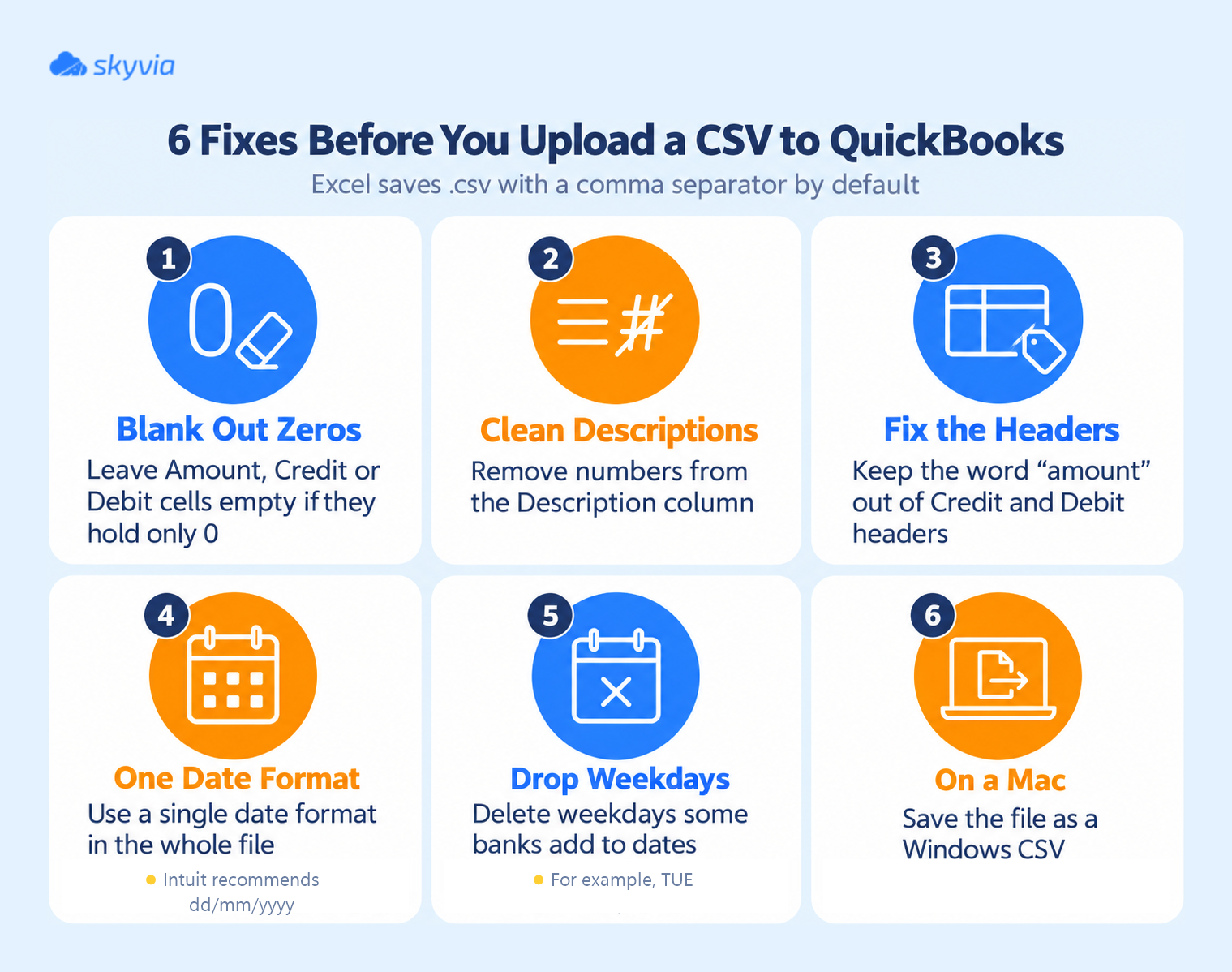
- Leave any Amount, Credit, or Debit cell that only holds zero blank.
- Format amount cells as General, not Currency, and leave out currency symbols and thousands separators, so $1,234.56 becomes 1234.56.
- Don’t let the word amount appear in the Credit and Debit headers.
- Take numbers out of the Description column.
- Use one date format only, and format the date column as Short Date before you save the CSV.
- Remove a weekday some banks add to the date, such as TUE.
- On a Mac, save the file as a Windows CSV.

Match the date format when you map. QuickBooks needs the date format in your file to match the one you select during mapping. This matters most outside the US, where Excel may export DD/MM/YYYY while QuickBooks expects MM/DD/YYYY, or the reverse. A date that looks fine in Excel can still land in the wrong month after the CSV export. On the mapping screen, check the dates first. Then check that payments and deposits show the right amounts before you finish.
Check the chart of accounts first. Before you upload, look at your chart of accounts. Intuit advises this to avoid duplicate transactions.
Two special cases:
- Bank accounts that are subaccounts. Importing bank transactions by CSV directly into a subaccount is a current limitation in QuickBooks Online. This isn’t a mapping mistake you can fix in the file. Intuit recommends connecting the subaccount to a bank feed or entering those transactions manually.
- Files with only debits or only credits. A file with separate Debit and Credit columns can return an error when it holds only money-out transactions. Intuit’s workaround is to add one extra line with a positive amount, upload the file, deselect that line on the review screen, and import the rest.
Method 3: Importing a CSV Into QuickBooks Desktop
In QuickBooks Desktop, Intuit documents two routes for lists.
- CSV with the toolkit. To import lists such as customers, vendors, and items from CSV, first install the QuickBooks Import Excel and CSV Toolkit. It contains a manual, sample CSV files for each type of list, and a reference of allowed fields.
- Excel import. Go to File, Utilities, Import, then Excel Files to import Customers, Vendors, and Items. For the chart of accounts, go to Lists, then Chart of Accounts, open the Account menu, and choose Import from Excel.
For complex data, Intuit points to IIF files. Back up your company file first, whichever route you take: Intuit says an import can’t be undone in QuickBooks Desktop.
Method 4: Schedule the Import in Skyvia
Each new file means repeating the steps in the methods above. If a CSV lands in the same place every week, Skyvia can import it on a schedule. Skyvia is a no-code cloud platform. Its Import reads CSV files from your computer or from 13 storage services, including SFTP, Amazon S3, Google Drive, and SharePoint. Insert, update, upsert, and delete are the supported operations in the target.

Before you begin: sign up at Skyvia. Your credit card can sit this one out. Every Skyvia product has a free plan, so registration won’t cost you anything. QuickBooks will want your login credentials, though. And those CSV files? Make sure they’re somewhere Skyvia can get its hands on them. Play it safe before the first run: Skyvia Backup lets you back up your QuickBooks Online data.
1. Connect QuickBooks
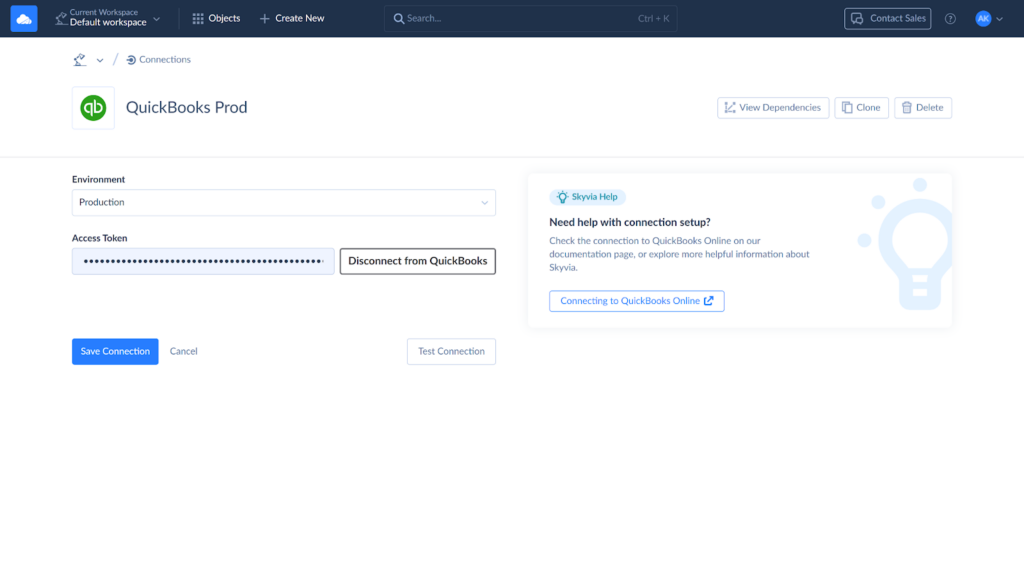
To connect QuickBooks Online, create a connection and sign in to QuickBooks. Skyvia stores the OAuth token only, never your QuickBooks login and password.
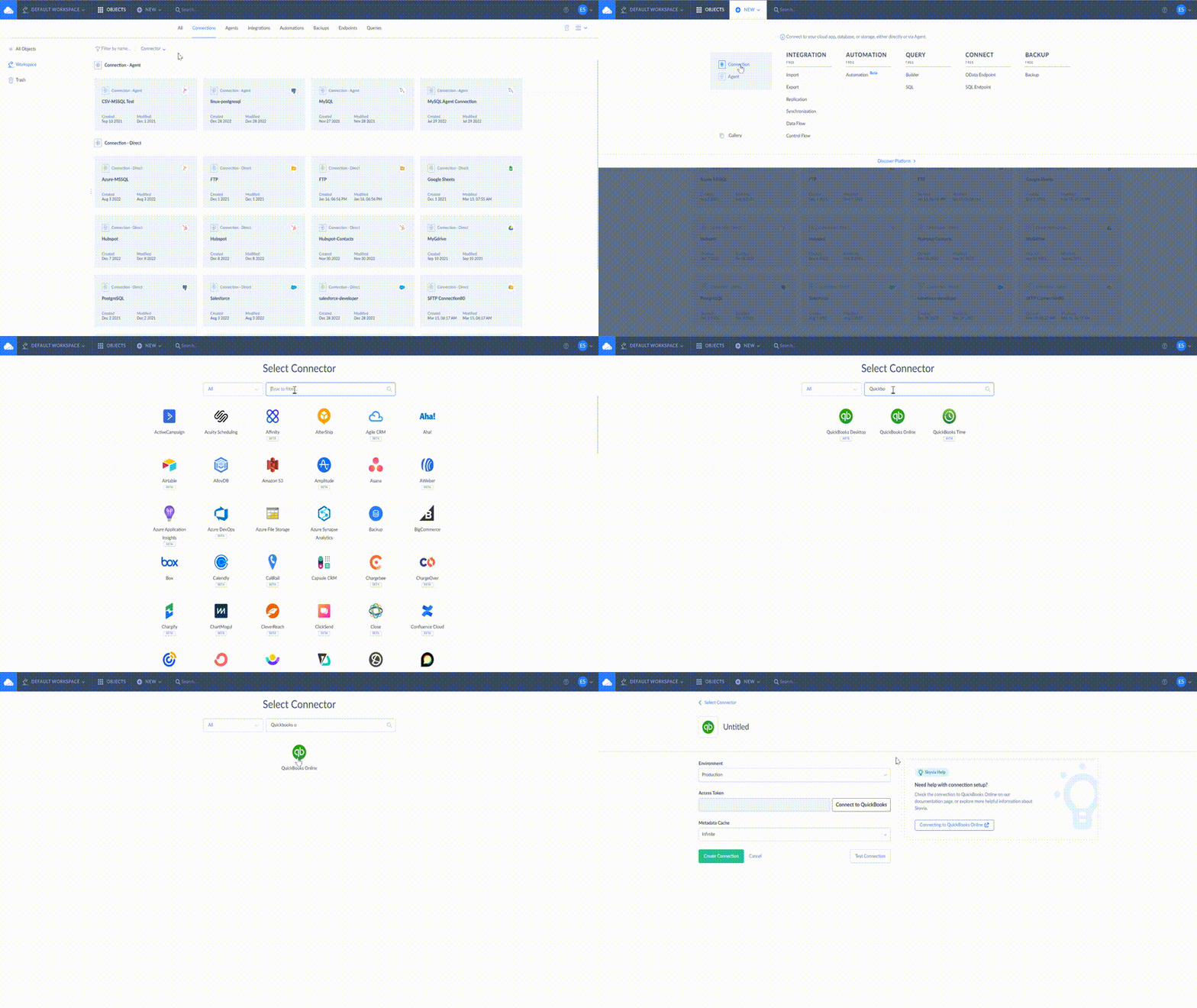
QuickBooks Desktop connects differently. Its connections work only through a Skyvia Agent, which must run on the same Windows computer as QuickBooks Desktop. The Agent’s bitness has to match the QuickBooks Desktop instance, and it must run as an application, not as a service, under the same Windows user as QuickBooks. See the QuickBooks Desktop connection guide for the steps.
2. Connect Your CSV Location
Create a connection to where the CSV files live. For Google Drive, choose Google Drive, sign in with Google, and let it hand Skyvia an access token, then test and save the connection.
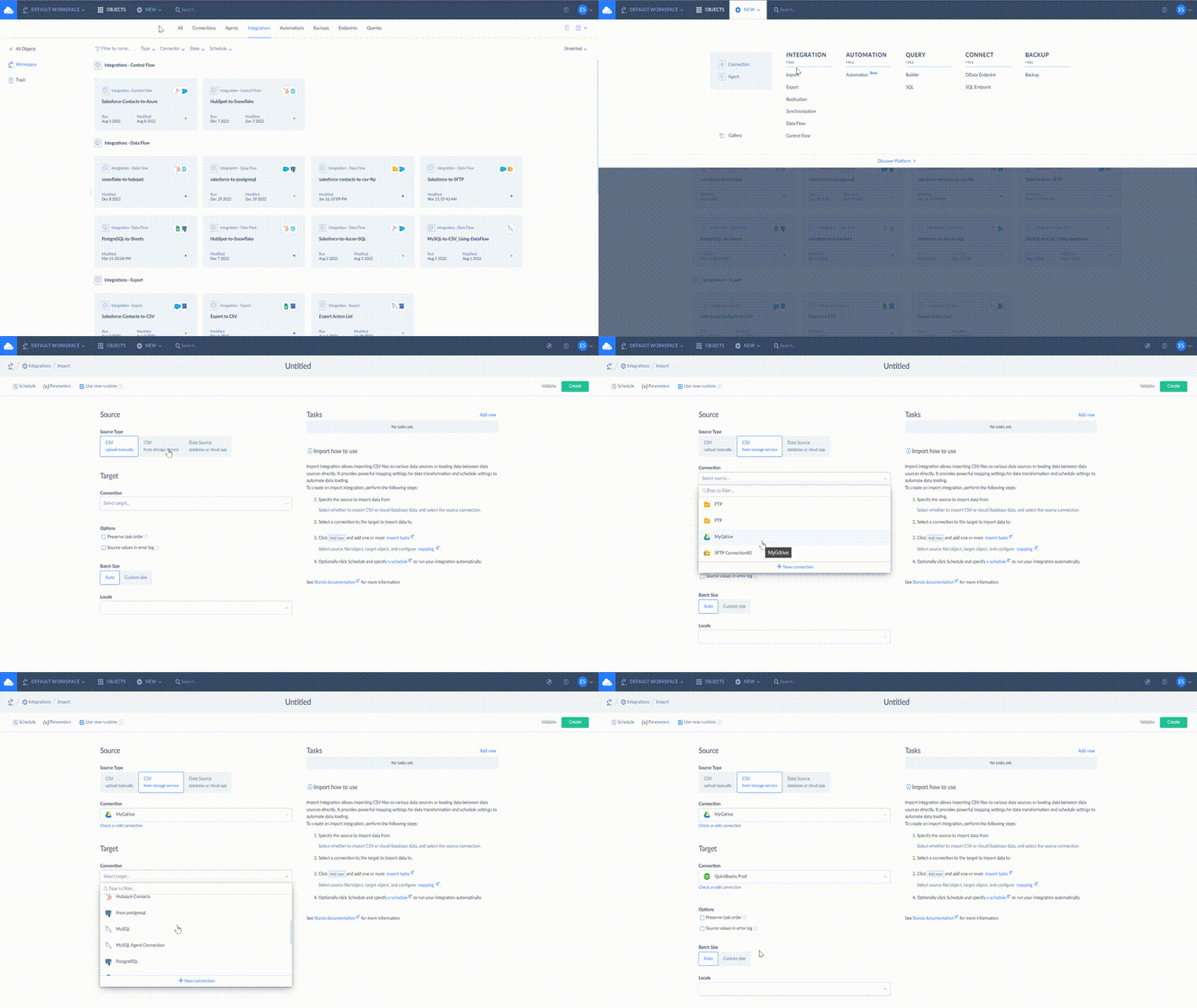
3. Create the Import
Set the source and target connections, then add a task.
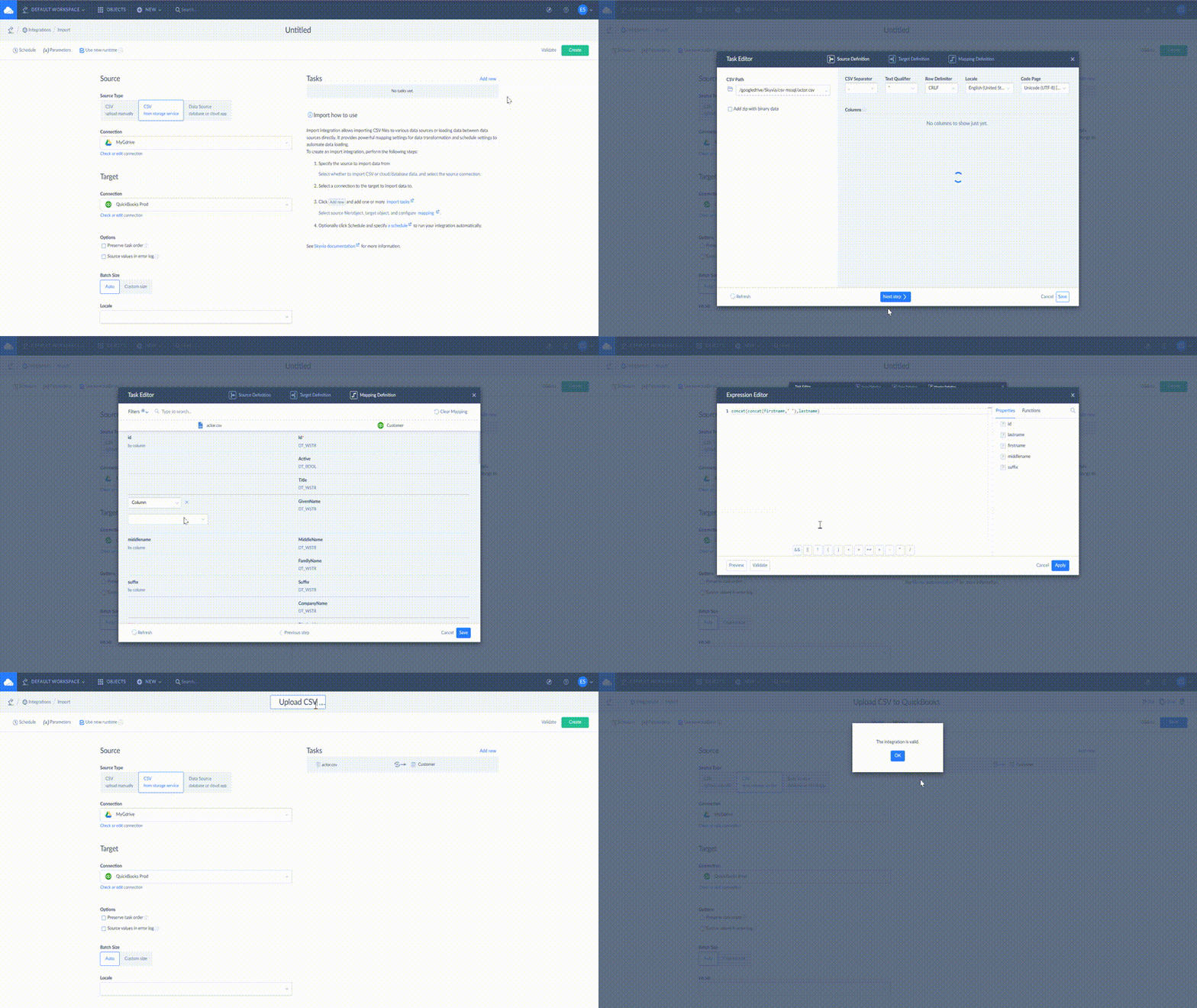
- On the Source Definition page, pick the CSV file from the CSV Path list.
- On the Target Definition page, pick the QuickBooks object, Customer, for example, and one of the operations: INSERT, UPDATE, UPSERT, or DELETE.
- Match the CSV columns to the QuickBooks fields. Use column mapping to match fields as they are, and expression mapping when a source value needs converting, for example, for a DisplayName field.
- Save the task and run the integration.
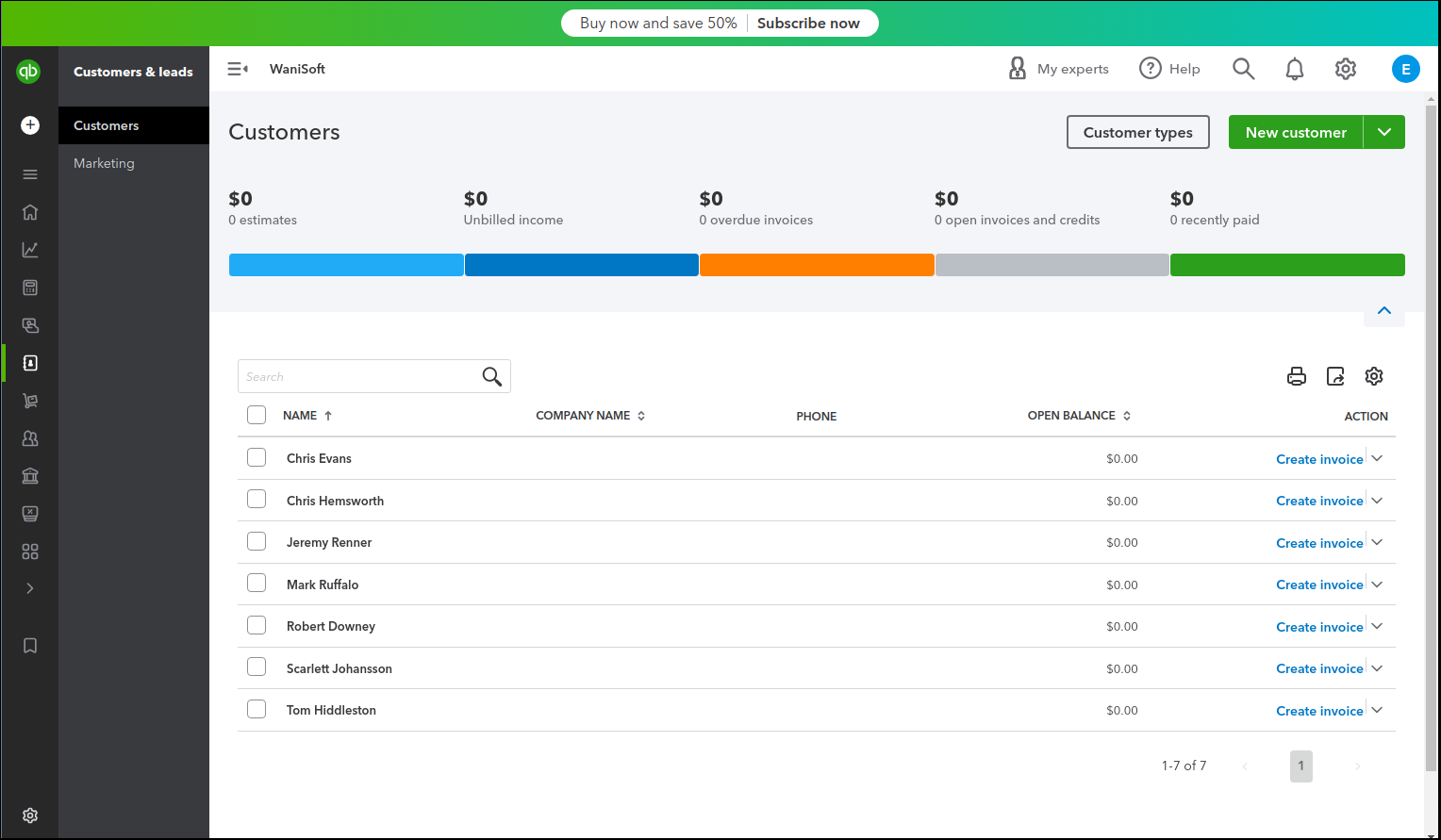
Check a few records, comparing what the source holds with what lands in QuickBooks, before you schedule anything.
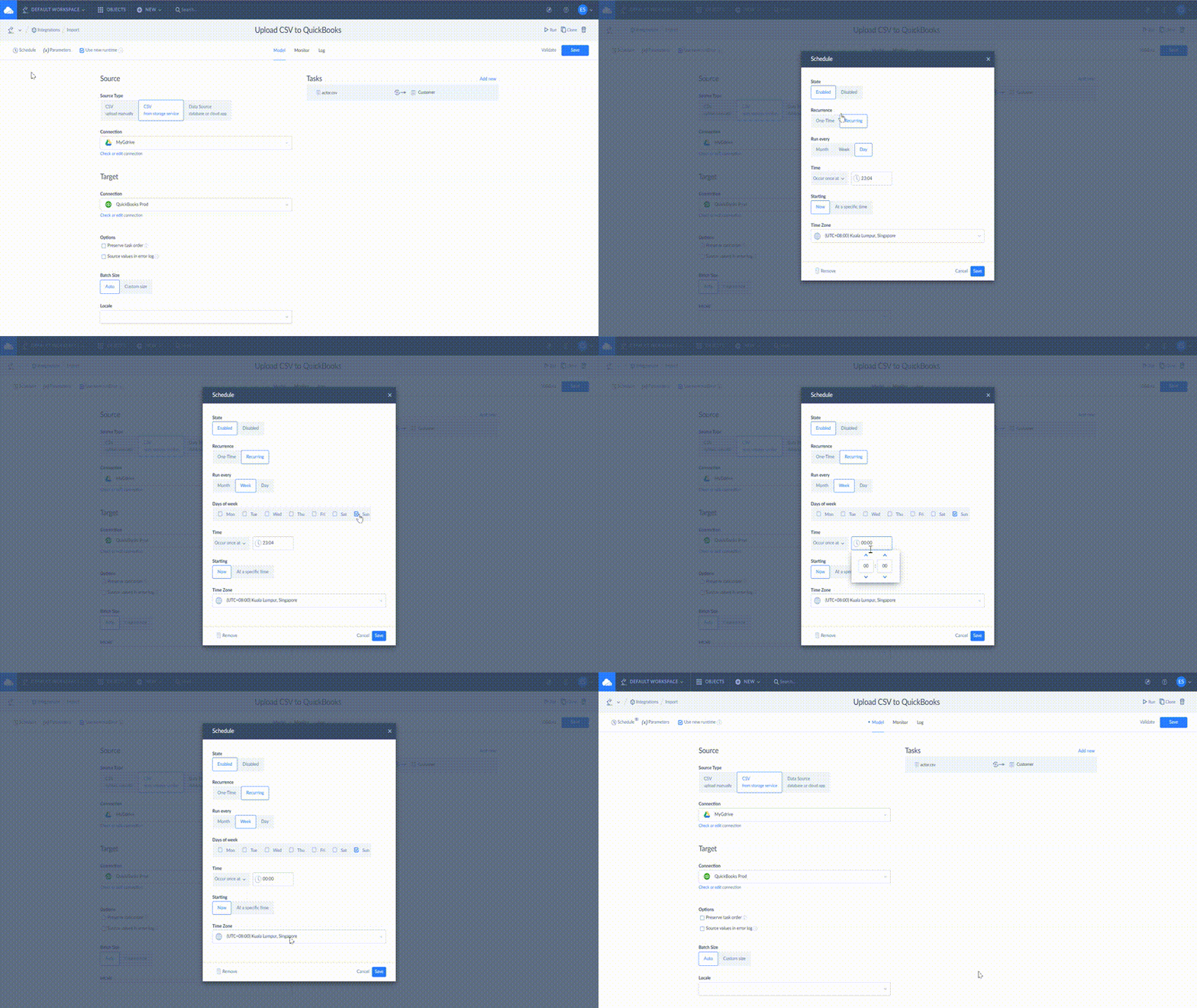
4. Schedule It
Open the Import’s schedule settings and pick when it should run. Your plan decides the options: every minute on Professional and Enterprise, hourly on Standard, daily on Free and Basic.
Mind the limits. QuickBooks Desktop works only through the Agent, so that Import needs a computer that has both QuickBooks Desktop and the Agent. Schedules also depend on your plan, as above.
Why Uploads Fail, and How to Fix Them
A few causes account for most failed uploads. This table pairs each symptom with the fix Intuit documents.
| Symptom | Likely cause | Fix |
|---|---|---|
| The first row of data is missing | QuickBooks Online uses the first row for mapping | Keep a header row in the file |
| A contact is skipped | It already exists in QuickBooks Online | Rename the duplicate before importing |
| The file is rejected as too big | 1,000 rows or more (Import data), or over 1,000 lines or 350 KB (bank upload) | Split the file or shorten the date range |
| Bank upload errors | Zeros, numbers in Description, “amount” in a Credit or Debit header, or mixed date formats | Apply the fixes listed under Method 2 |
| Imported data comes out wrong or incomplete | Lists were imported out of order | Import lists in Intuit’s order, starting with the chart of accounts |
| Some columns didn’t import | QuickBooks imports only specific fields for each data type | Download the sample file and match its columns |
| Bills can’t be imported | The plan is below Advanced in the US | Use Upload multiple bills on the Bills page |
| Amounts are rejected or read incorrectly | Currency symbols or thousands separators in the amount column | Change the cells from Currency to General and remove symbols and commas |
| Dates import into the wrong month | The file’s date format doesn’t match the one chosen during mapping | Format the column as Short Date and select the matching format when mapping |
| Upload fails with only Debit and Credit columns | The file holds only money-out (or only money-in) transactions | Add one positive-amount line, deselect it on the review screen, then import the rest |
| Can’t import into a bank account | The account is a subaccount | Connect it to a bank feed or enter the transactions manually |
| “Line Account invalid” on a journal entry | A subaccount was entered without its parent | Write it as Parent Account:Subaccount |
| Journal entries don’t upload | The duplicate journal number warning is on, or account numbers are on | Use unique journal numbers and turn off account numbers |
| Duplicate invoices or bills fail | The records already exist | Remove existing records from the file before importing |
If the data is already in, remember that imports can’t be undone in bulk for contacts, and in QuickBooks Desktop an import can’t be undone at all. Keep that backup.
Conclusion
A one-time load into QuickBooks Online comes down to importing data for lists and transactions, and the bank upload for statements. On Desktop, the toolkit and the Excel import are your options. When the same CSV keeps arriving, build the import once in Skyvia and put it on a schedule.
Need the same CSV in QuickBooks every week? Skyvia Data Integration imports it on a schedule into QuickBooks Online or Desktop, and you can start free with no credit card.

FAQ for QuickBooks Online Import CSV

Why is my CSV file rejected by QuickBooks?
Usual causes: a layout QuickBooks doesn’t expect, zeros in Amount, Credit, or Debit cells, numbers in the Description column, a Credit or Debit header containing the word amount, mixed date formats, or a file over the limits. The bank upload allows up to 1,000 lines and 350 KB, while Import data takes fewer than 1,000 rows.
What is the difference between Import data and the bank transactions upload?
Import data loads lists such as customers and vendors, and several transaction types, using a sample file for each data type. The bank transactions upload adds bank and credit card transactions from a QBO, QFX, or CSV file with three or four columns. They are separate features with separate rules.
How do I convert a CSV file to QBO?
You usually don’t need to. QuickBooks Online accepts a CSV in a three-column layout (Date, Description, Amount) or a four-column one (Date, Description, Credit, Debit). Intuit suggests using a QBO file when your bank offers one, because it avoids column mapping.
Which route brings a CSV into QuickBooks Desktop?
For lists such as customers, vendors, and items, install the QuickBooks Import Excel and CSV toolkit, which ships with sample files and a reference of allowed fields. You can also use File, Utilities, Import, Excel Files, and for the chart of accounts, the Import from Excel option. Back up the company file first, because an import can’t be undone.
Can I undo a QuickBooks import?
Not in bulk for contacts in QuickBooks Online, and not at all in QuickBooks Desktop. Back up first, and test with a few rows. Imported products and services can be overwritten by importing the same file again with the overwrite option, which can’t be undone either.
Can I import a CSV into QuickBooks on a schedule?
The built-in imports run when you start them. A tool like Skyvia can import a CSV from a fixed location on a schedule. The schedule follows your plan: every minute on Professional and Enterprise, hourly on Standard, daily on Free and Basic. In the QuickBooks Desktop case, Skyvia connects through an Agent installed on the same Windows computer.