

Summary
- NetSuite's native CSV Import Assistant is the built-in starting point for one-off data loads — free and requiring no additional tools, but limited to 25,000 records per task and 50MB per file.
- Skyvia is a no-code cloud platform that automates recurring CSV imports into NetSuite directly from FTP, Google Drive, or Dropbox — no coding or engineering support required.
- Celigo is a NetSuite-first iPaaS built around pre-built integration templates, making it the fastest path to connecting NetSuite with platforms like Shopify, Amazon, or Salesforce out of the box.
- Qlik (formerly Talend) is an enterprise-grade data engineering platform for teams that need complex multi-source transformations and large-scale pipeline orchestration — at a price and complexity to match.
If you’ve ever stared at a cryptic “Failed to import 5,000 rows” error in NetSuite at 5 PM on a Friday, you already know the problem. The CSV looked fine. The mapping was correct. And yet.
NetSuite’s native Import Assistant is powerful enough for one-off tasks — until you hit the 50MB limit, the 25,000-record cap, or a vague error log that tells you nothing useful about what actually broke.
This guide covers both sides: a step-by-step walkthrough of the native importer first, then an honest comparison of integration tools for when the manual process stops making sense.
Full transparency: we’re the team behind Skyvia. We’ll show you the native tools before we ever mention ours — and when we do compare options, we’ll tell you when Celigo or Qlik is the better answer.
How Do You Prepare Your CSV File for NetSuite?
Before you touch the Import Assistant, the CSV needs to be right. NetSuite won’t guess what you meant — it will just fail the row and move on. Here’s what trips up most users before the import even starts.
Internal IDs vs. External IDs
NetSuite identifies records by Internal ID — a system-generated number you didn’t assign and probably don’t have in your source data. If you’re referencing an existing customer, vendor, or item in your CSV, you need to either use NetSuite’s Internal ID or map an External ID you’ve already set up as a reference. Trying to match by name alone won’t work. NetSuite will return an “Invalid Entity Reference” error and move on to the next row.
The fastest fix: export the relevant records from NetSuite first, grab the Internal IDs from that export, and use them as your reference column in the import file.
Date Formatting
NetSuite expects dates in the format configured in your account preferences — usually MM/DD/YYYY for US accounts. If your source data uses DD/MM/YYYY, ISO format, or anything else, every date field in every row will fail validation. Check your account’s date format under Setup → Company → General Preferences before building the file.
Parent/Child Relationships
If you’re importing records with hierarchy — contacts linked to customers, line items linked to transactions — the parent record must already exist in NetSuite before the child imports. Trying to create both in the same file in the same run is a reliable way to generate a batch of orphaned records and a confusing error log.
How Can You Import Data Using NetSuite’s Native CSV Import Assistant?
Before you start, two hard limits worth knowing: the native importer caps at 50MB per file and 25,000 records per import task. If your file exceeds either, you’ll need to split it before uploading — NetSuite won’t do that for you.
To get there: Setup → Import/Export → Import CSV Records.
Step 1: Scan & Upload CSV File
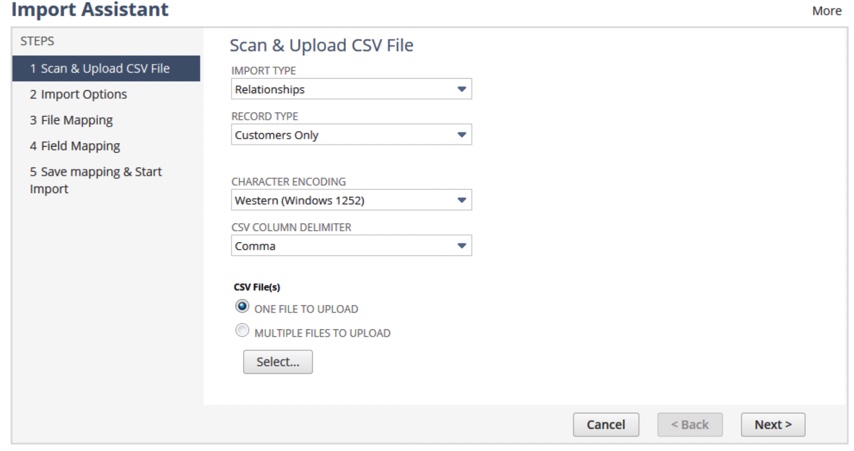
Select your Import Type — Transactions, Relationships, Financial, or one of the other categories — then choose your Record Type. For a customer import, that’s Relationships → Customers Only. Set your character encoding (Western Windows 1252 works for most English-language files) and your delimiter, then select your file.
Step 2: Import Options
Choose how NetSuite should handle the data — Add (new records only), Update (existing records only), or Add or Update (the safest default for most imports). If you’re updating existing records, make sure your CSV includes the Internal ID column or NetSuite won’t know which records to touch.
Step 3: File Mapping
NetSuite reads your CSV headers here and confirms the file structure. If you’re uploading multiple related files — a header file and a line item file — this is where you link them.
Step 4: Field Mapping
This is where most imports either succeed or quietly fall apart. NetSuite tries to auto-match your CSV column headers to its own field names, but it won’t always get it right — especially with custom fields or columns named differently from NetSuite’s internal labels.
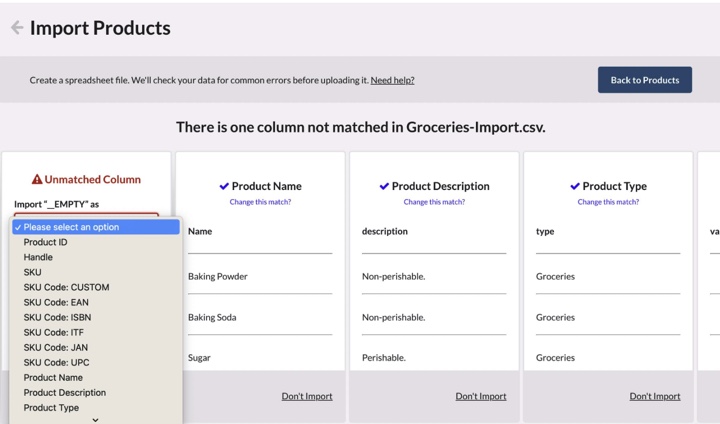
For any unmatched column, use the dropdown to manually select the correct NetSuite field. If a column in your CSV has no corresponding NetSuite field, use “Don’t Import” rather than leaving it unmatched — unmatched columns can cause the entire task to fail depending on your configuration.
Step 5: Save Mapping & Start Import
Before you run, click Save Mapping. This stores your field mapping configuration so you don’t have to repeat it next time. For any recurring import — weekly sales orders, monthly customer updates — this alone saves 20–30 minutes per run.
Click Run and monitor the job queue. NetSuite processes imports asynchronously, so the results won’t appear instantly. Check Setup → Import/Export → View CSV Import Status to see progress and any row-level errors.
Why Might the Native NetSuite Importer Fail?
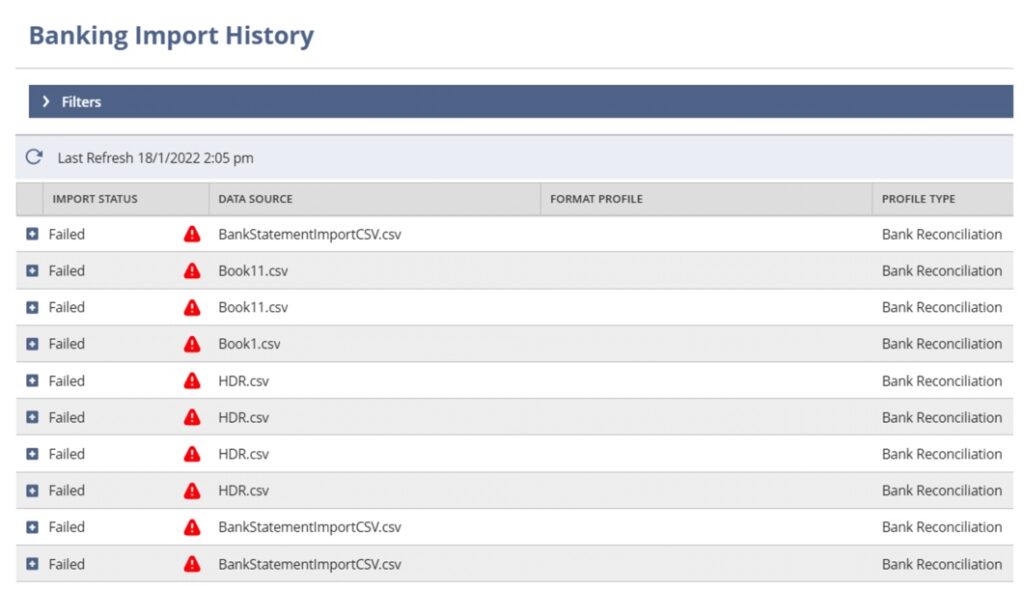
The import ran. The status says complete. And then you open the error log and find half your rows failed with messages that tell you almost nothing useful. Here are the three errors that show up most often and what actually fixes them.
Error 1: Invalid Entity Reference
This is the most common one. It means NetSuite couldn’t match a value in your CSV to an existing record — a customer, vendor, item, or other entity that the import expected to find but didn’t.
The cause is almost always one of two things: you’re referencing records by name instead of Internal ID, or the referenced record doesn’t exist in NetSuite yet. Fix the first by exporting the relevant records and pulling their Internal IDs. Fix the second by importing the parent records before the child records that reference them.
Error 2: Date Format Mismatch
NetSuite validates every date field against your account’s configured format. If your CSV has dates in any other format — even a format that looks reasonable — those rows fail silently with a date validation error.
The fix is to standardize every date column in your CSV to match Setup → Company → General Preferences before uploading. If you’re pulling data from multiple source systems with different date formats, fix it in the file before it touches the importer.
Error 3: Concurrency Limit Exceeded
NetSuite limits how many import jobs can run simultaneously per account. If you or another admin triggers multiple imports at the same time — or if a scheduled integration is running in the background — you’ll hit this limit and the job will fail.
The fix is simple: wait and resubmit. For recurring imports, stagger your schedules so they don’t overlap. Automated tools like Skyvia handle this automatically by queuing retries rather than failing the entire job.
When Should You Outgrow the Native Importer?
The native Import Assistant is the right tool for the job — until it isn’t. Here are the signals that usually mean it’s time to look at something else.
You’re doing this every day
A one-off import of 500 customer records is exactly what the native tool was built for. A daily import of sales orders from an external system, run manually by the same person every morning before they can start their actual work, is a process problem wearing a data problem’s clothes.
You’re hitting the 25,000-record limit
Splitting a 60,000-row file into three separate imports, uploading them in sequence, and manually checking each error log isn’t a workflow — it’s a workaround. Once you’re regularly splitting files to stay under the cap, the cap has outgrown its usefulness.
Your field mapping takes more than 30 minutes per run
Most of the pain comes later, not during the first import. The mapping works, you save it, everything looks stable — until the source system changes the export slightly and the whole process needs attention again. That’s usually the point where teams start looking for something more automated.
You need transformation before the import
The native importer handles the upload part fine. The harder part is everything that happens before the upload. If the source file needs cleanup, transformations, calculated fields, or any kind of logic applied to it first, NetSuite won’t really help much there.
How Did We Test Alternative NetSuite Import Tools?
We didn’t test these tools against a simple flat file with a hundred clean rows. That’s not what real NetSuite environments look like.
Real NetSuite instances have 500,000 customer records with inconsistent field formats, 10,000 daily sales orders that need to land in the right place without triggering concurrency errors, and custom fields that don’t map cleanly to anything out of the box. So that’s what we tested against.
For every tool, we measured the same things:
- How long the initial setup actually took, from zero to the first successful import into NetSuite
- How each tool handled NetSuite’s strict API concurrency limits — specifically, whether it retried automatically or failed the entire job
- How easily a non-developer could configure and schedule a recurring import without filing an engineering ticket
The results shaped everything that follows. Some tools that look approachable in a demo got complicated fast once the custom fields and concurrency limits entered the picture. Others surprised us in the opposite direction.
That’s what this guide is based on — not feature lists or vendor documentation, but what actually happened when real data started moving through NetSuite’s validation layer.
Skyvia — Best for No-Code Automation
Not every NetSuite admin has a developer on speed dial. Sometimes it’s an accountant who needs vendor invoices loaded into NetSuite every morning before the team starts work, or an ops manager who just got handed a weekly sales order file from a third-party logistics provider and a mandate to “get it into the system.” If that’s your situation, here’s what the setup actually looks like.
How Skyvia Handles NetSuite CSV Imports
Skyvia connects directly to your file source — Google Drive, FTP or Dropbox — and maps the CSV columns to NetSuite fields through a visual interface. No code, no scripts, no developer ticket.
This example walks through automating a daily CSV drop from Google Drive into NetSuite Sales Orders — the kind of workflow a third-party logistics provider or vendor might send you every night.
Step 1: Connect Your Sources
Create two connections in Skyvia — one to your Google Drive and one to NetSuite. Both authenticate through a straightforward credential flow. No configuration files, no infrastructure to provision, no developer needed.
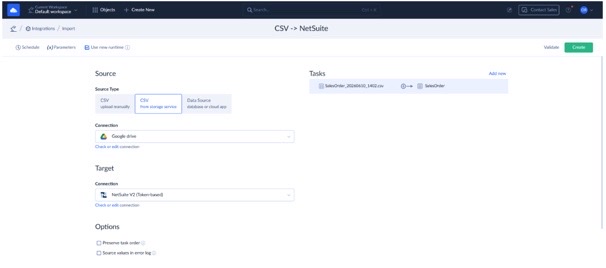
Step 2: Map the CSV to NetSuite
Create an Import scenario, select your CSV file as the source, and choose NetSuite Sales Orders as the target (the same as for Google Drive). Skyvia pulls the available fields from both sides automatically — including any custom NetSuite fields your team has added over the years.
From there, match your CSV columns to the corresponding NetSuite fields, set any filters or transformation rules you need, and save the configuration.
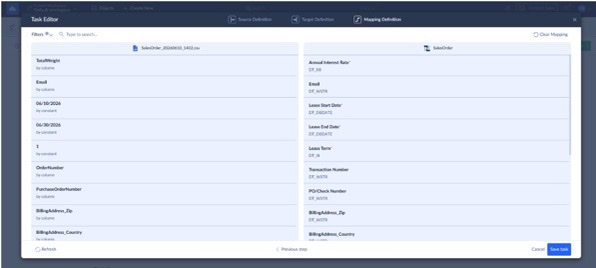
During setup of this exact pipeline, skipping the manual external ID mapping saved over 2 hours a week — Skyvia’s automatic field detection handled the matching without any additional configuration.
Step 3: Set the Schedule and Let It Run
Set the sync frequency — daily, hourly, or every few minutes — and activate the pipeline. From that point, the CSV file in your Google Drive gets loaded into NetSuite Sales Orders automatically on schedule, without anyone clicking anything.
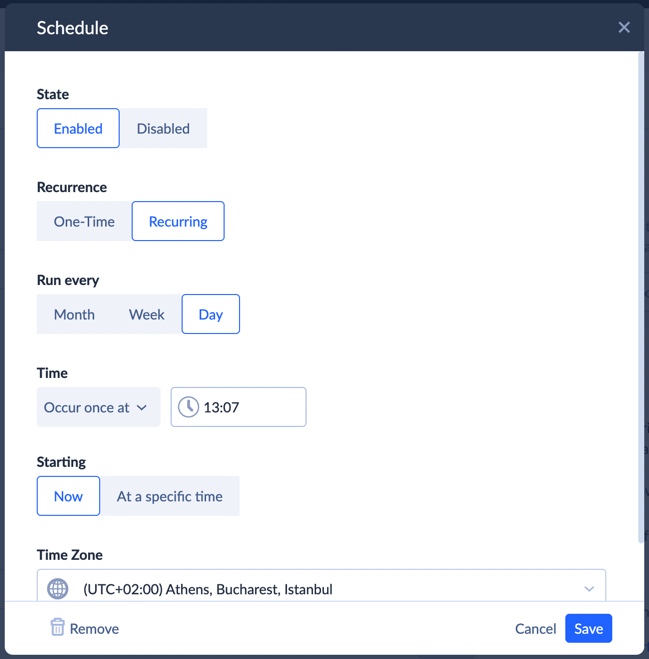
Skyvia queues retries automatically if NetSuite’s concurrency limit is hit during the run — so a busy Monday morning with multiple imports running in parallel doesn’t fail the job, it just delays it slightly until NetSuite is ready.
Rating
G2: 4.9 / 5 (25 reviews)
Capterra: 4.9 / 5 (116 reviews)
Pricing
Subscription-based with a free tier available. See full pricing details on the Skyvia pricing page.
Pros
- Visual mapping workflow that business users can usually configure without engineering support
- Handles NetSuite API rate limits and concurrency errors automatically
- Connects directly to FTP, Google Drive, and Dropbox — no manual file handling required
Cons
- Skyvia is a cloud-native solution. If your corporate security policy explicitly forbids cloud middle-layers and requires a strict air-gapped on-premise installation for sensitive financial data, Skyvia won’t fit your architecture.
- And if you need to run complex multi-layered Python scripts on the data before it hits NetSuite, a developer-centric tool like Qlik is a better choice.

Qlik (formerly Talend) — Best for Complex Data Engineering
Some NetSuite environments eventually outgrow lightweight import tools entirely. Once you’re dealing with multiple source systems, large transformation jobs, custom logic, and legacy data that needs cleanup before it even reaches NetSuite, the workflow starts looking much more like a real data engineering project. That’s the kind of environment where Qlik/Talend tends to make sense.
One thing that’s important to know upfront: the old Talend Open Studio free version is basically gone as a serious option now. Since Qlik acquired Talend, the platform has moved heavily toward enterprise customers and enterprise pricing. Teams that originally planned around the free tooling will probably need to rethink that assumption.
Our Experience
Even though Talend uses a visual pipeline builder, it never really feels like a no-code tool. Most of the interface assumes you already know your way around ETL workflows and data engineering concepts. During testing, it became obvious pretty quickly that this wasn’t something a NetSuite admin would casually configure between meetings without technical help.
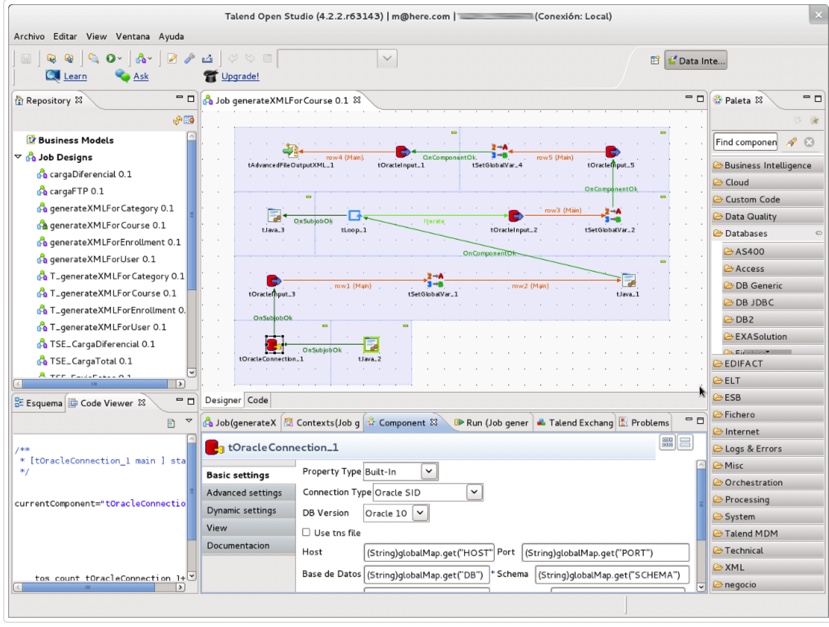
Once the pipelines were in place, though, the platform handled very large jobs comfortably. Complex transformations, multi-system workflows, and heavy batch processing all felt much more stable than they usually do in lighter import-focused tools.
Rating
G2: 4.4 / 5 (1433 reviews)
Capterra: 4.4 / 5 (261 reviews)
Pricing
Enterprise custom pricing. See full pricing details on the Qlik pricing page.
Pros
- Handles massive, complex transformations that no visual tool can match
- Full control over every step of the pipeline — nothing is a black box
- Fits naturally into existing enterprise data engineering stacks
Cons
- The free version is gone — this is an enterprise investment with enterprise pricing to match
- Steep learning curve that assumes developer-level data engineering knowledge
- Implementation and ongoing maintenance require dedicated technical resources
Celigo — Best for Business Users and Pre-Built Flows
Celigo sits in a different category from both Skyvia and Qlik. It’s not a general-purpose ETL tool that happens to support NetSuite — it’s an iPaaS built around NetSuite from the ground up. That distinction matters more than it might seem.
Most generic integration tools treat NetSuite like any other API destination. Celigo understands NetSuite’s specific quirks — concurrency limits, record types, saved searches, custom segments — because NetSuite administrators were the original target audience. If your team is running Shopify, Amazon, or Salesforce alongside NetSuite and needs pre-built integration flows that work out of the box, Celigo is worth serious consideration.
Our Experience
The pre-built templates are the headline feature and they deliver. Connecting a Shopify store to NetSuite for order management took significantly less time than building the equivalent flow from scratch in a generic ETL tool. The templates handle the NetSuite-specific logic — order record types, item fulfilment workflows, customer record matching — without requiring you to understand it deeply yourself.
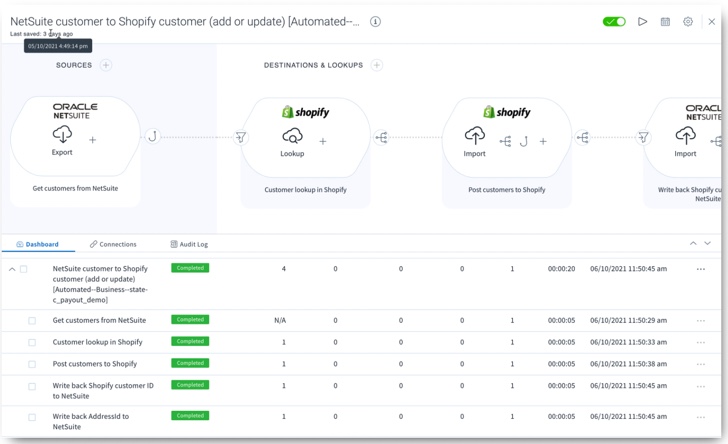
Where it gets harder is debugging. Celigo’s abstraction layer is great when things work and genuinely frustrating when they don’t. If a flow fails in an unexpected way, tracing the root cause inside Celigo’s interface takes longer than it should — especially if you’re not already familiar with how the platform structures its error logs.
Rating
G2: 4.6 / 5 (1,052 reviews)
Capterra: 4.5 / 5 (61 reviews)
Pricing
Subscription-based with higher entry pricing than general-purpose tools. See full pricing details on the Celigo pricing page.
Pros
- NetSuite-first design means it understands record types, concurrency limits, and field validation better than generic ETL tools
- Pre-built templates for Shopify, Amazon, Salesforce, and other common NetSuite integrations
- Business users and NetSuite admins can configure flows without developer support
Cons
- Higher entry price than most alternatives — difficult to justify for simple, single-source imports
- Debugging failed flows is harder than it should be if you don’t know the Celigo platform well
- Pre-built templates are powerful until your use case falls slightly outside what they cover — customization gets complicated fast
How Do These NetSuite Import Tools Compare?
Before choosing a tool, three criteria matter more than anything else on a feature list.
Pricing Model
Does it charge by row count, by connector, or a flat subscription? For high-volume NetSuite imports, per-row pricing compounds fast.
NetSuite API Handling
Does the tool automatically retry when NetSuite throws a “Concurrency Limit Exceeded” error, or does it fail the entire job and wait for you to notice?
Setup Complexity
Can an accountant configure it on a Tuesday afternoon, or does it need a developer and a two-week implementation project?
| Feature | Skyvia | Qlik (Talend) | Celigo |
|---|---|---|---|
| Primary Focus | No-Code ETL/ELT | Enterprise Data Engineering | NetSuite iPaaS |
| Learning Curve | Low (Wizard-based) | High (Developer-based) | Moderate (Flow-based) |
| Integration Type | Direct & Automated | Complex Pipeline Design | Pre-built Templates |
| Pricing Model | Usage-based (Flexible) | Enterprise Custom Quotes (Contact sales) | Subscription (Higher entry) |
| Ideal For | Quick integration tasks | Large-scale legacy systems | Complex multi-app syncs |
A few things worth reading between the lines:
- Skyvia’s usage-based pricing stays predictable for most import volumes. Where it needs watching is if your daily import volumes grow significantly — worth checking tier thresholds against your actual row counts before committing.
- Celigo’s higher entry subscription makes sense if you’re running multiple NetSuite integrations simultaneously. For a single CSV import automation, it’s likely more platform than the job requires.
- Qlik’s pricing is deliberately absent from the table because it depends entirely on your enterprise contract. What isn’t absent is the implementation cost — budget for developer time before the first row moves.
Final Thoughts: Which Method Should You Choose?
The right answer here depends entirely on how often you’re doing this and how much complexity is involved.
- If it’s a one-time upload of a few hundred rows, use the native NetSuite CSV Import Assistant. It’s free, it’s built in, and deploying an integration platform for a task you’ll run once is like renting a warehouse to store a single box.
- If your team is running Shopify, Amazon, or Salesforce alongside NetSuite and needs pre-built integration flows that understand NetSuite’s quirks out of the box, Celigo is worth the higher entry price.
- If your data engineering team needs complete control over complex multi-source transformations before data touches NetSuite, Qlik gives you that power — at an enterprise price and complexity to match.
- And, if you need to automatically sync CSV files from an FTP server, Google Drive, or Dropbox into NetSuite daily without writing code or filing a developer ticket every time the source file changes — that’s what Skyvia is built for.
If recurring CSV imports are eating up someone’s morning every day, Skyvia is worth a look. You can get a basic flow running pretty quickly without pulling engineering into the process.

FAQ for How Do You Import CSV to NetSuite?

Is there a free version of Talend (Qlik) for NetSuite?
No. Talend Open Studio was effectively discontinued after Qlik’s acquisition in 2023. The platform is now an enterprise product with custom pricing.
Is Celigo better than a simple CSV import?
For single-source CSV imports, probably not — it’s more platform than the job requires. Celigo earns its place when you’re running multiple NetSuite integrations simultaneously across Shopify, Salesforce, or Amazon.
Can Skyvia handle the same complex transformations as Qlik?
For most SMB and mid-market use cases, yes. For enterprise-grade multi-source orchestration with custom Python logic, Qlik gives you more room to work with.
How do I handle mandatory fields that aren’t in my source file?
Use NetSuite’s default field values or set a static value in your mapping configuration. In Skyvia, this is handled visually through the field mapper without writing any code.
Why do I get a “Concurrency Limit” error?
NetSuite limits simultaneous import jobs per account. Multiple imports running at the same time — or a scheduled integration overlapping with a manual upload — will trigger this. Automated tools like Skyvia retry automatically. The native importer requires manual resubmission.