Summary
- Salesforce's Recycle Bin keeps deleted records for 15 days, and the Data Export Service runs weekly at best, with no restore tool.
- OwnBackup is now Salesforce Backup & Recover, a paid add-on with no public price.
- Spanning, Cloudally, Druva, Veeam and Gearset back up data and metadata; Veeam and Gearset publish per-user prices.
- Skyvia Backup charges by storage and covers 36 cloud apps, but backs up records only and runs at most once a day.
- Whatever you choose, test a restore of parent and child records in a sandbox before you need it.
Someone runs a Data Loader update with the wrong column mapped, and 20,000 account phone numbers now hold postal codes. The Recycle Bin can’t help, because nothing was deleted. Salesforce keeps its platform running, but getting your own records and configuration back after a mistake like that is your job, and it takes one of the Salesforce backup solutions below.
Salesforce’s free options have hard limits: the Recycle Bin keeps deleted records for 15 days, and the Data Export Service runs weekly at best. The market has also shifted. OwnBackup is now Salesforce Backup & Recover, and one tool that used to appear on these lists no longer backs up Salesforce at all.
We checked Salesforce Help and each vendor’s own product and pricing pages in October 2026. Below, we compare seven tools on what they back up, how they restore and what they cost, then show how to set up a backup and test a restore.
Salesforce backup solutions at a glance
Salesforce backup solutions fall into four camps. Salesforce’s own add-on suits teams that want a first-party tool and already buy add-ons from Salesforce. Vendors built around Salesforce, like Spanning and OpenText Cloudally, go further on restores and sandbox work. Druva and Veeam back up lots of platforms, so they suit IT teams that already protect other systems with them. And if you push metadata changes every week, a DevOps platform such as Gearset keeps backup right next to your deployments.
Skyvia Backup doesn’t fit any of those boxes: you pay for storage rather than per Salesforce user, and one plan also covers 35 other cloud apps. Records get backed up; metadata doesn’t.
| Tool | Type | Backs up metadata | Backup schedule | Restore highlights | Published price |
|---|---|---|---|---|---|
| Salesforce Backup & Recover | Salesforce add-on | Yes | Daily, plus on demand | Compares backups and restores only the changed records and fields | Not published |
| Spanning Backup for Salesforce | Salesforce-specific product from a multi-app vendor | Yes | Daily at a set time, plus unlimited on-demand | Point-in-time and cross-org restore inside the Salesforce UI | On request |
| OpenText Cloudally Backup for Salesforce | Multi-app SaaS backup | Yes | Automated daily or on demand | Point-in-time, granular and cross-org restore, sandbox seeding | On request |
| Druva for Salesforce | Multi-platform SaaS backup | Yes | Daily incrementals plus high-frequency full backups | Point-in-time restore of an org, object, record or field | Not listed on its Salesforce page |
| Veeam (self-hosted or Veeam Data Cloud) | Multi-platform backup | Yes | Custom schedules; near-continuous for chosen objects (self-hosted) | Restores object hierarchies and parent-child links | Veeam Data Cloud: $4.17 per Salesforce user per month, billed annually |
| Gearset Backup | Salesforce DevOps platform | Yes | Daily; high-frequency jobs on the Teams plan | Data and metadata restore and compare | From $2.75 per Salesforce user per month, $275 minimum |
| Skyvia Backup | Multi-app cloud backup | No, records only | Up to once a day on paid plans; manual on Free | Restore records, objects or field values; undo changes; insert into another org | Free for 1 GB; paid from $7 a month billed annually |
The first thing to check is what you need back after a bad day: records only, or records plus the layouts, flows and Apex that make them usable. That one answer narrows the list fast. mentioned in the previous section.
What Salesforce backs up for you, and where it stops
Salesforce gives every org a few free safety nets against data loss. None of them is a backup you can restore from in a few clicks, which is why paid and third-party Salesforce backup solutions exist.
The Recycle Bin holds deleted records, and you can restore them up to 15 days after deletion. It doesn’t help with overwritten values, such as a Data Loader update that wiped a field across 20,000 accounts.
The Data Export Service writes your org’s data to CSV files in a zip archive. Weekly exports are available in Enterprise, Performance and Unlimited Editions; every other edition except Database.com gets monthly exports. You can run an export manually once every 7 days (weekly) or every 29 days (monthly), and Professional and Developer Editions are limited to the 29-day cycle. Salesforce deletes the zip files 48 hours after it emails you (weekends don’t count), exports don’t run in sandboxes, and formula and roll-up summary fields are left out. Restoring from those CSVs means loading them back yourself, in the right order, with a tool like Data Loader. Our guide to exporting data from Salesforce covers the export side.
The paid option is Salesforce Backup & Recover, which used to be Own Recover. Salesforce bought Own, and Own’s products are now sold as part of the Salesforce Platform. Backup & Recover comes in two forms, shown in the last two rows of the table below:
| Native option | What it covers | How often | Edition and cost | The catch |
|---|---|---|---|---|
| Recycle Bin | Deleted records | Continuous | All editions except Database.com, free | 15 days; no help with overwritten values |
| Data Export Service | Data as CSV, optionally with files and attachments | Weekly or monthly | Weekly: Enterprise, Performance, Unlimited; monthly: all except Database.com | Files deleted 48 hours after the email, not counting weekends; no sandboxes; no restore tool |
| Salesforce Backup & Recover | Data, files, metadata, managed packages, sandboxes | Daily, plus on demand and Continuous Data Protection | Add-on for Enterprise, Unlimited and Developer Editions | No public price |
| Salesforce Backup & Recover Next | Data and files | Full backup first, then daily incrementals, full backup every Sunday | Add-on licenses for Professional, Enterprise, Performance and Unlimited Editions | No public price |
Backup & Recover adds alerts on unusual data changes, data and metadata compare, and a default retention of 99 years that you can shorten per org. Backup & Recover Next runs inside Lightning Experience, restores records together with their deleted child records, and keeps an audit log of backup events for up to a year.
Data, metadata and files: decide what you’re protecting
Records are the obvious part: accounts, contacts, opportunities, cases and your custom objects. Metadata is the configuration around them: custom fields, page layouts, flows, Apex classes and triggers, reports, dashboards, profiles and permission sets. Files and attachments are a third category, and some tools price or schedule them separately.
Losing a batch of opportunities hurts for a day. A deleted custom field takes its data with it, and a broken flow can corrupt data across a whole object before anyone notices. Teams that change their org every week need metadata in the backup.
Relationships matter on restore too. When a deleted account comes back, it gets a new record ID, so its contacts and opportunities have to be restored in the same operation or relinked by hand. Ask every vendor how it handles that.
Of the seven tools here, six back up metadata. Skyvia Backup doesn’t: it covers records in the objects you select, which suits teams whose risk is bad imports, mass updates and deletions rather than broken deployments.
How to choose a Salesforce backup tool
Use these criteria to compare Salesforce backup solutions, and their quotes, on equal terms:
- Backup frequency. Daily is the norm. Got thousands of records changing every hour? Then you want Druva’s high-frequency full backups, Veeam’s near-continuous object backups, Gearset’s high-frequency jobs or Salesforce’s Continuous Data Protection.
- Metadata coverage. Needed if you deploy changes often or have a lot of Apex and flows.
- Restore granularity. Single field, single record, object or whole org; restoring parents and children together; restoring into another org or a sandbox.
- Sandbox seeding. Spanning, Cloudally, Druva, Veeam Data Cloud and Gearset’s platform offer it; useful if you test with production-like data.
- Retention. Spanning, Cloudally and Gearset advertise unlimited or 99-year retention; Skyvia’s Free plan keeps snapshots for 3 months, and paid plans set no time limit on them.
- Where the data lives, and security. Spanning and Cloudally both sit on AWS and let you pick a region, while Skyvia keeps backups in Azure geo-redundant storage in West US data centers, and self-hosted Veeam puts the data wherever you install it. Your compliance team will usually have a list of must-haves, so hold each vendor’s certifications up against it (a HIPAA BAA, say, which Gearset includes on its Enterprise plan and Skyvia also offers).
- API usage. Backups read through the Salesforce API. Cloudally fetches only daily changes and pauses at the API limit; Druva uses Bulk API for full backups. Check how a tool behaves when your integrations already use most of the daily allowance.
- Pricing unit. Per Salesforce user, per GB stored or a custom quote. The cost section below shows why this decides more than the list price.
7 Salesforce backup tools compared
One is Salesforce’s own add-on and six are third-party tools. Backupify used to appear on lists like this one. It now protects Google Workspace, Microsoft 365 and Azure only, so it’s out.
Salesforce Backup & Recover
Salesforce’s own backup, formerly Own Recover. Its daily job grabs data, attached files, metadata, managed packages and sandboxes. You’ll get a warning when data activity looks off, and any two backups can be lined up to show what was added, changed or deleted in between. Restores target only the records and fields that changed.
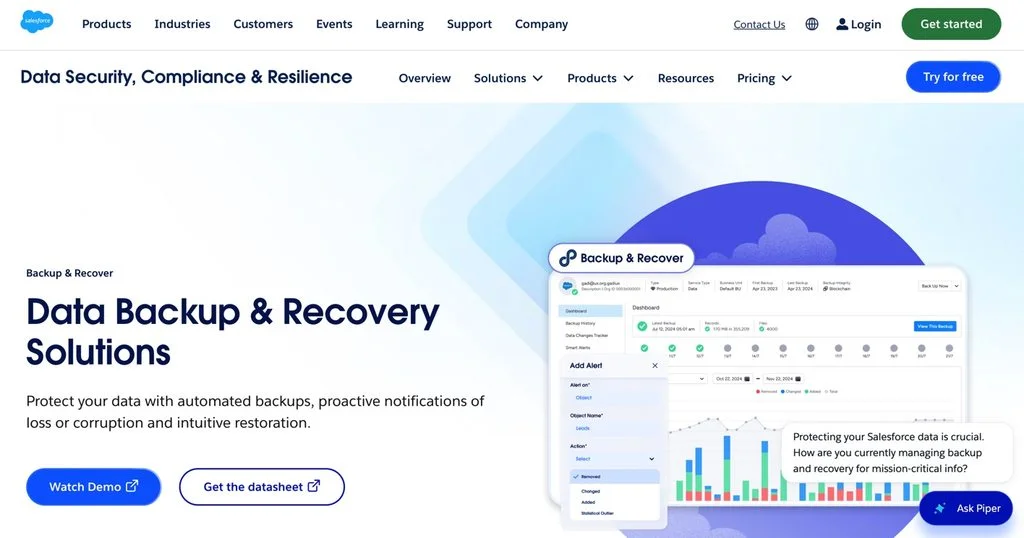
The catch: it’s an add-on with no public price, and the classic edition requires Enterprise, Unlimited or Developer Edition. Backup & Recover Next extends coverage to Professional Edition.
Best for: orgs that would rather deal with one vendor and already buy add-ons through their Salesforce account team.
Spanning Backup for Salesforce
Spanning, a Kaseya company, backs up records, standard and custom objects, metadata, files, attachments, reports, dashboards and Chatter posts every day at a time you choose. On-demand backups are unlimited, retention is unlimited at no extra cost, and restores run inside the Salesforce interface, including point-in-time and cross-org restores. Sandbox seeding is included. Among Spanning’s listed certifications are HIPAA, GDPR, ISO 27001 and SOC 2 Type II, and its AWS regions cover the US, Canada, EU, UK and APAC.
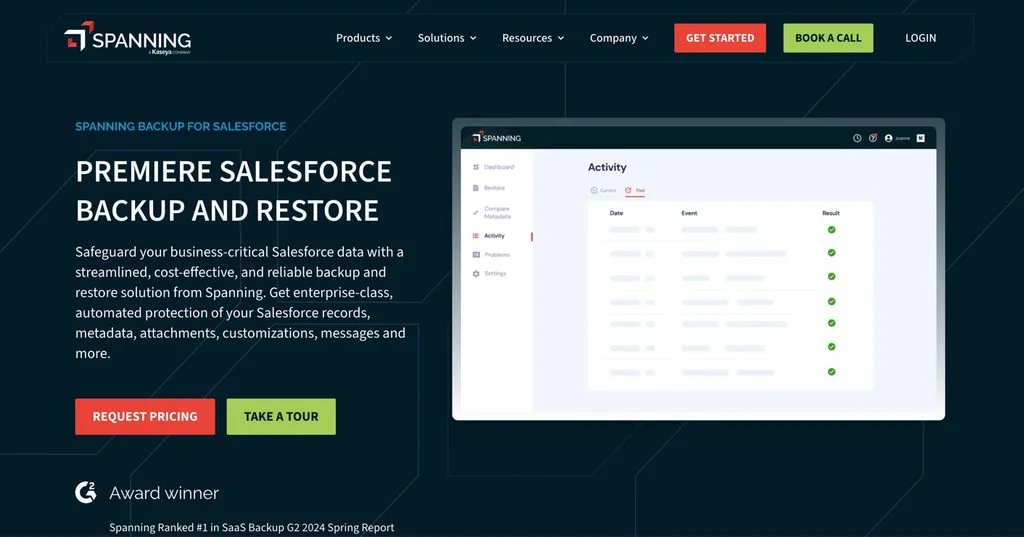
The catch: you have to ask sales for a price.
Best for: admins who’d rather never leave Salesforce to restore anything.
OpenText Cloudally Backup for Salesforce
Cloudally is now an OpenText product. Its backups cover data and Chatter feeds plus metadata such as workflows, reports, Apex triggers and classes, and object schemas, on a schedule or whenever you trigger it, and retention is unlimited so nothing ages out. Since it pulls only each day’s changes, it goes easy on API calls, and hitting the limit pauses the job rather than breaking it. Restores work at the level you need, be that a point in time, a handful of items or a copy into another org. Sandbox seeding comes with data anonymization, and backups can go to your own storage. It also works with every Salesforce edition, from Contact Manager through Unlimited and Developer.
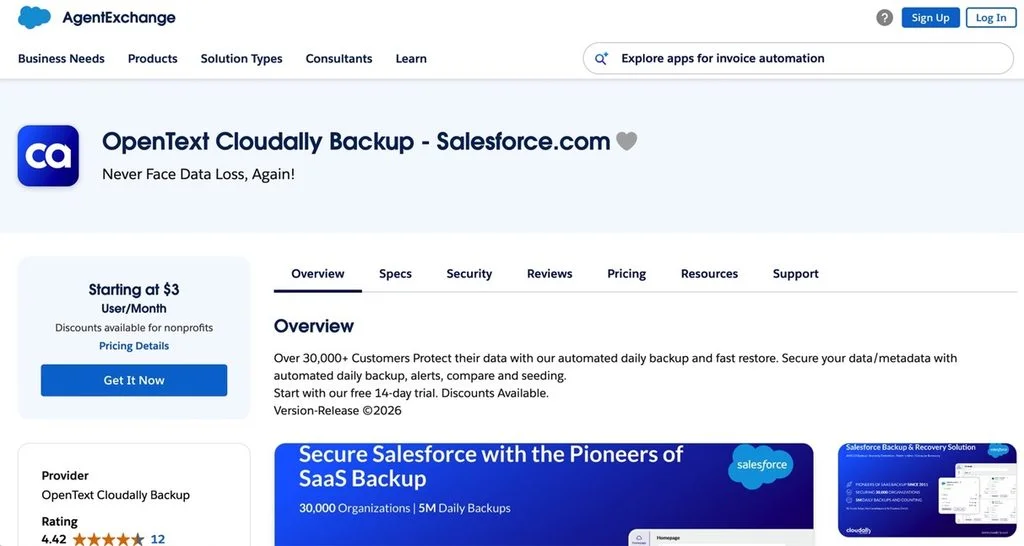
The catch: you’ll need a quote to learn the price, and the product is one small piece of a huge OpenText catalog.
Best for: orgs on Group or Contact Manager Edition (neither native add-on lists them), plus teams that need data kept in one country, since Cloudally runs data centers in the US, Canada, UK, Ireland, Germany, Japan and Australia.
Druva for Salesforce
Druva is offered purely as a service (100% SaaS), so there’s no server for you to look after. It pairs daily incremental backups with high-frequency full backups over Bulk API, keeps the copies air-gapped, and can take an org, an object, a record or even one field back to an earlier point in time. Parent-child links survive a restore. Druva also compares backups, seeds sandboxes and archives old records.
The catch: the Salesforce page doesn’t list a price.
Best for: companies already using Druva for endpoints or other SaaS apps.
Veeam Backup for Salesforce and Veeam Data Cloud for Salesforce
You get two flavors from Veeam. If you want to host it, Veeam Backup for Salesforce installs on-premises or in AWS or Azure. One installation can protect several orgs, schedules are set per object, and the objects that change most can get near-continuous backups. If you’d rather not host anything, Veeam Data Cloud for Salesforce costs $4.17 per Salesforce user per month billed annually, and that price includes unlimited storage.
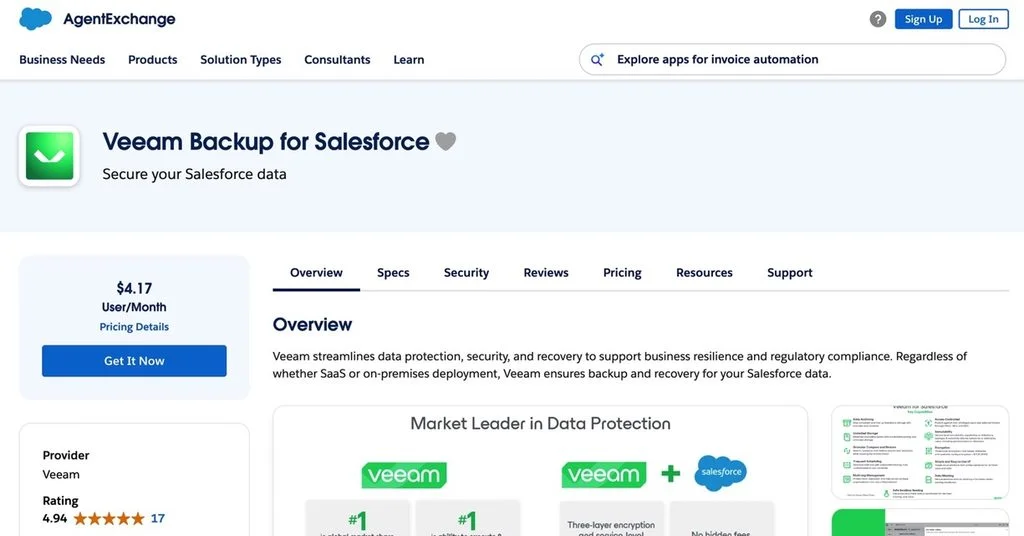
The catch: with the self-hosted edition, keeping the backup server running and patched becomes your team’s job.
Best for: IT departments that are required to hold backup data in their own environment, or that already use Veeam for most of their infrastructure.
Gearset Backup
Gearset is a Salesforce DevOps platform, and its backup can be bought on its own. The Starter plan costs $2.75 per Salesforce user per month with a $275 monthly minimum and includes two daily backup jobs, data and metadata restore and compare, unlimited storage and up to 99 years of retention. Step up to Teams at $3.50 per user (with a $350 minimum) and you also get two high-frequency jobs, metadata change monitoring and backup search. Bring-your-own-key encryption and a HIPAA BAA sit on the Enterprise tier, which you’ll need a quote for.
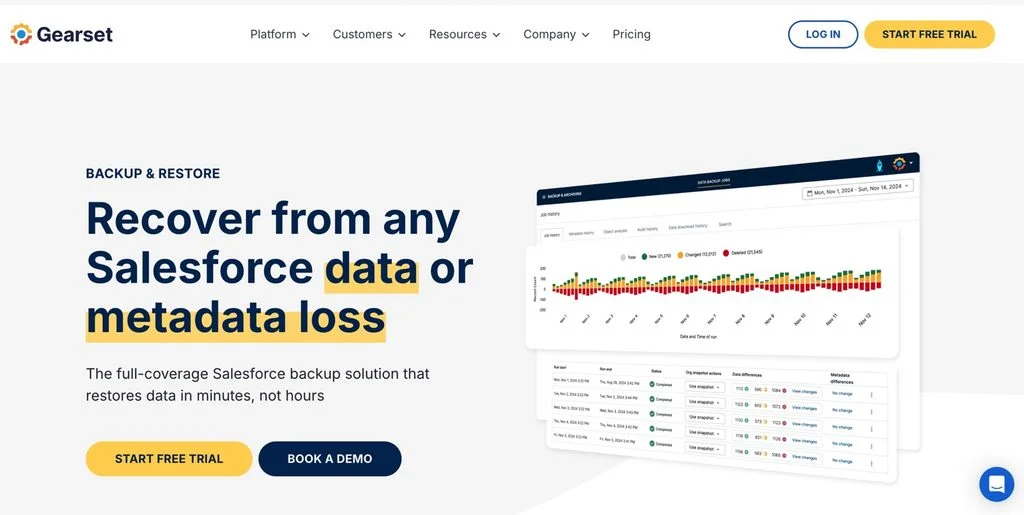
The catch: under 100 users you’re paying the monthly minimum anyway, so the per-user rate undersells what a small org spends.
Best for: teams that release changes all the time and like having backups sit right next to their pipeline.
Skyvia Backup
Skyvia Backup backs up 36 cloud apps, Salesforce and Salesforce Marketing Cloud among them, on one storage-based plan. You pick the objects, exclude fields, filter records and run backups manually or on a schedule up to once a day. Every run is a full snapshot. Snapshots can be browsed, searched, compared and exported to CSV, and you can restore records, whole objects or single field values, or undo the changes between two snapshots. Related records restored in one operation get their relationships rebuilt with the new IDs, and you can insert data into another Salesforce org. ith the tools in Skyvia’s Data Integration product. Meanwhile, Backup is a separate product of Skyvia dedicated to creating and managing backups. Therefore, it provides many useful data backup and recovery features, allowing users to quickly and seamlessly implement their backup strategy.
Data is protected with AES 256-bit encryption, using unique keys per user that Skyvia’s engineers can’t access, and stored in Azure geo-redundant storage. Skyvia lists SOC 2, GDPR and HIPAA compliance.
The catch: no metadata backup, no schedule more often than daily, and some objects can’t be restored (read-only objects such as Salesforce’s Feed and History objects back up but don’t restore).
Best for: small and mid-size orgs that need record-level protection at a low fixed cost, and teams that back up several SaaS apps, not just Salesforce.
How much does Salesforce backup cost?
Three pricing models are in play, and they diverge fast as headcount grows.
| Pricing model | Tools | What you pay |
|---|---|---|
| Per Salesforce user | Veeam Data Cloud, Gearset | Veeam: $4.17 per user per month, billed annually. Gearset: $2.75 (Starter) or $3.50 (Teams) per user per month, with $275 and $350 monthly minimums |
| Per GB stored | Skyvia Backup | Free: 1 GB. Standard: $7 a month billed annually, $9 billed monthly, 20 GB. Professional: $79 / $99, 200 GB. Enterprise: $399 / $499, 1 TB |
| Quote | Salesforce Backup & Recover, Spanning, Cloudally, Druva | Contact sales |
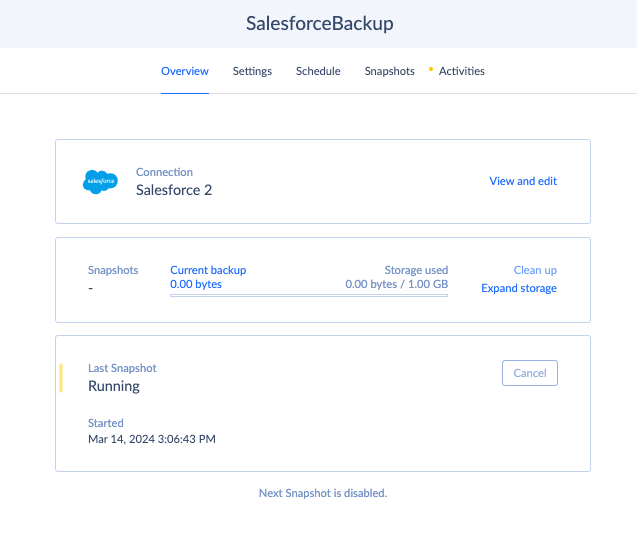
A 200-user org would pay $834 a month for Veeam Data Cloud at the published rate (200 × $4.17) and $550 a month on Gearset Starter (200 × $2.75). On Skyvia the user count doesn’t matter: the bill depends on how much backup storage the snapshots take, so check the “Storage used” figure on the backup’s Overview tab after the first week.
Skyvia’s paid Backup plans include data search, backup comparison, automatic cleaning of old snapshots and scheduled backups. The Free plan runs manual backups only and keeps snapshots for 3 months. See Skyvia pricing for the current plans.

How to back up Salesforce data with Skyvia
Setup is quick. You need a Salesforce connection that can read the objects you plan to protect.
- Start by signing in to Skyvia and creating a new backup. The Backup Wizard opens on Select Connection: pick your Salesforce connection or create one.
- Next comes Select Objects, where you tick what goes into the backup. Fields you don’t need can stay out, and every object can carry its own filter.
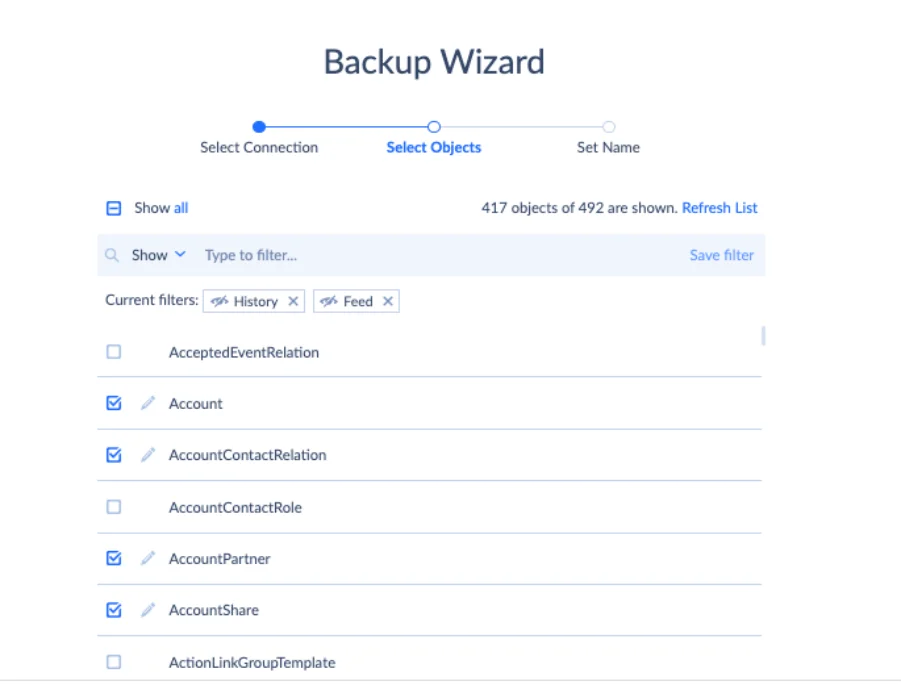
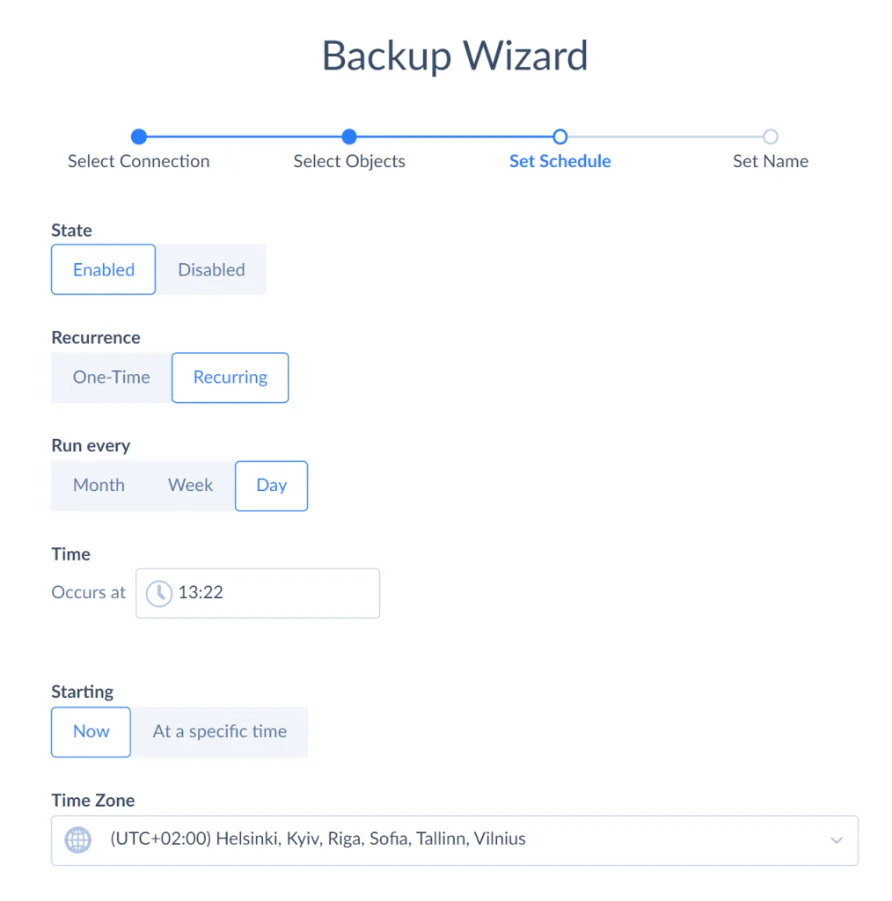
- After that you reach Set Schedule and decide between a single run and a recurring one, along with the time and the time zone it should use. Keep in mind that scheduling only comes with a paid plan, so on Free every backup is one you start yourself.
- On Set Name, name the backup and save it.
- While it runs, the Overview tab is the place to look, since status, snapshot count and storage used all appear there.
Data comes back from the Snapshots tab. Open the snapshot you need, tick records or whole objects and click Restore, and Skyvia will ask if it should insert, update or delete them. Cleaning up after a bad import is quicker in the changed view between two snapshots, because Skyvia figures out how to reverse each change on its own (what was inserted gets deleted, what was deleted comes back, and old values return). Some restores call for an upsert or a filter. For those, point Skyvia’s Data Integration at the backup as a read-only source and load the data back with an import. The Skyvia Backup documentation covers each step.
Some teams want their own copy. Skyvia’s Export covers that case, writing Salesforce data to CSV on a schedule and sending the files either to you as a download or to cloud storage like Amazon S3, Google Drive, Dropbox or SFTP. Replication takes another route and keeps a copy in a database or data warehouse, kept current with incremental updates, where deleted records can be flagged instead of having their rows dropped. Neither one has one-click restore. What you get instead is data sitting somewhere you own and control.
Salesforce backup and restore checklist for your team
People say recovery and restore as if they meant the same thing. They don’t. Restore is the narrow job: a deleted account goes back where it was, or a field that a bad import overwrote gets its old values again. Recovery is far bigger, since you’re rebuilding large parts of the org after something serious (an object gets corrupted, or someone takes over an admin account). Each of them needs its own plan, and you’ll want to have tested both well before a bad day comes.
Here’s a list you can drop straight into your team’s runbook:
SALESFORCE BACKUP RUNBOOK
[ ] Objects in scope listed (standard, custom, files and attachments)
[ ] Metadata in scope? (layouts, flows, Apex, reports, permission sets)
[ ] Backup frequency matches how fast records change (daily minimum)
[ ] On-demand backup taken before every mass import, update or delete
[ ] Retention meets your legal and audit requirements
[ ] Backup storage location and encryption documented
[ ] API usage of backups checked against integrations’ usage
[ ] Restore owner named; restore permissions granted in advance
[ ] Test restore run in a sandbox: parent and child records together
[ ] Restored records checked: IDs, lookups, owners, record types
[ ] Test restore repeated every quarter and after major releases
The on-demand backup before a mass change is the cheapest line on the list. Got one coming up? We’ve written guides to mass updating Salesforce records and mass deleting records that walk through doing it safely.
Every Skyvia Backup plan includes manual snapshots, which means starting the habit is free, so take a snapshot before your next mass update and treat it as your rollback point.

FAQ for Salesforce Backup Solutions

Did Salesforce buy OwnBackup?
Yes. Own’s products are now part of the Salesforce Platform, and Own Recover is sold as Salesforce Backup & Recover. It’s a paid add-on that backs up data, files, metadata, managed packages and sandboxes every day.
Does Salesforce back up my data automatically?
Not unless you pay for Backup & Recover. Without it, you get the Recycle Bin and the Data Export Service, which produces CSV files weekly or monthly depending on your edition and deletes them 48 hours after the notification email, not counting weekends. Neither gives you a click-to-restore backup.
How long are deleted records kept in Salesforce?
The Recycle Bin holds them for 15 days. After that, only a backup can bring them back. The Recycle Bin also can’t undo updates, so a mass update that overwrote a field needs a backup taken before the change.
Is the Data Export Service enough as a Salesforce backup?
It can work as a first step for a small org whose data doesn’t change much, although it leaves some gaps. The fastest it runs is once every 7 days, and only Enterprise, Performance and Unlimited Editions get that weekly option, while the other editions (Database.com aside) are limited to one export every 29 days. The files skip formula and roll-up summary fields, and restoring means loading the CSVs back yourself in the right order.
Should I back up Salesforce metadata as well as data?
If your team changes layouts, flows or Apex often, yes. Deleting a custom field also deletes the data in it, and a faulty flow can damage data across thousands of records before you spot it. Metadata is covered by Salesforce Backup & Recover, Spanning, Cloudally, Druva, Veeam and Gearset, whereas Skyvia Backup sticks to records only.
Why do restored child records lose their links to parent records?
When a parent record comes back it gets a new Salesforce ID, which means any children you restore separately are still pointing at the old one. So restore the parents and children together in one operation: Skyvia Backup rebuilds the relationships when related records are restored as a group, and Backup & Recover Next brings records back along with their deleted child records.
What’s the first step before a mass update or delete in Salesforce?
Back up the objects you’re about to touch, on demand, right before you start. Manual runs are possible in Salesforce Backup & Recover, Spanning, Cloudally and Skyvia Backup (on Skyvia, the free plan included). What happens if the update goes sideways anyway? Grab a new snapshot and compare it with the earlier one; the changed records show up, and you undo only those.
Looking for a restore plan you can trust with your Salesforce data? Skyvia Backup compares your snapshots and restores just what changed, while one storage-based plan also looks after your other cloud apps. The free 1 GB plan is enough to start with manual backups; when daily schedules matter, a paid plan adds them.