
Summary
- Skyvia is the most straightforward path to Databricks for no-code SMBs
- Fivetran excels in high-volume enterprise automation
- Airbyte offers unmatched open-source flexibility for developers
- Estuary is the top choice for near-real-time CDC streaming.
In this 40-hour test for Databricks ETL Tools, we found Skyvia is best for SMBs and no-code teams, Fivetran for high-volume Enterprise data, Airbyte for developer-heavy teams, and Estuary for streaming CDC requirements.
It seems easy to design an effective data pipeline towards Databricks Delta Lake, but when you find yourself swamped by malfunctioning Python code, rate limiting your APIs, and coping with problematic schema alterations, there is no denying that some of the leading Databricks ETL tools must be chosen.
Just to make this point clear: I work with the team at Skyvia, where we have developed a no-code data integration platform, so we definitely have our bias. But here I’m going to do something different: we won’t try to claim that we are your perfect fit. Rather, I will give an honest comparison with competitors such as Fivetran and Airbyte with regard to technical limitations, pricing, and real-life experience.
Let’s begin.
How Did We Actually Test These Databricks Integration Tools?
I replicated Salesforce Contacts and related transactional tables in PostgreSQL using the 4 Databricks ETL tools with a total of 40 hours. With this, I used my own Salesforce Developer account and a PostgreSQL database hosted in Supabase. I also replicated the same PostgreSQL into Neon hosting because of a problem encountered in one of the tools. You’ll see the details later. Overall, the total rows replicated are 20K+ for a quick test case.
You will see how long it takes each tool to replicate the rows, and share with you my experience in creating the pipeline in each tool. I either use a free tier or a trial in each tool, so limitations exist. As a developer evaluating a Databricks ETL tool, you will encounter the same thing using the free tier or trial accounts.
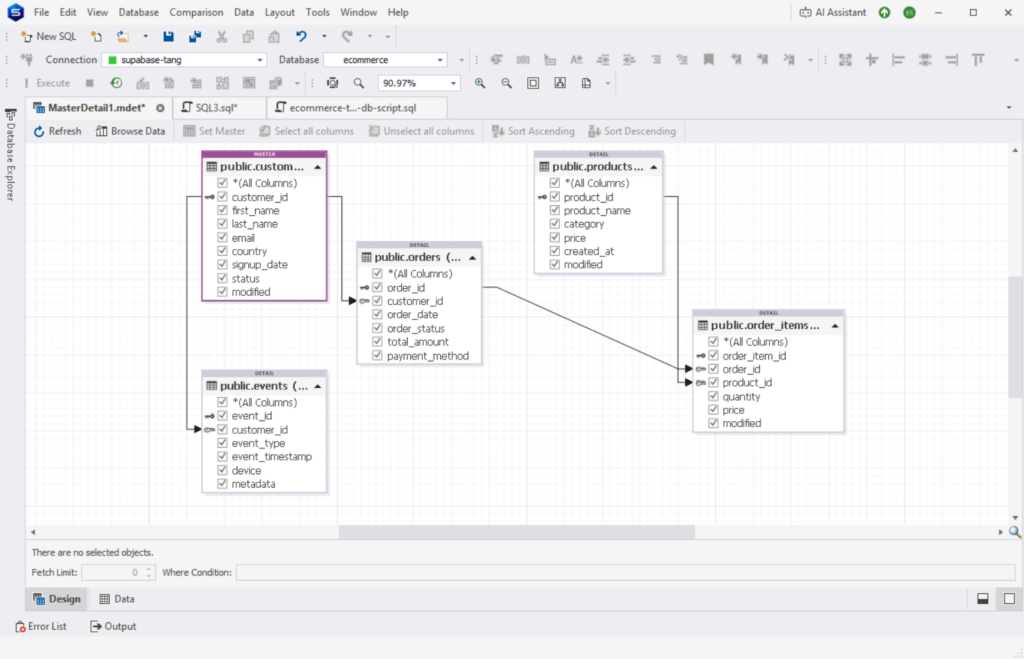
Below is the structure of the PostgreSQL database:
Also, I deliberately used a separate schema in Databricks for each tool, so I will see the differences in how they handled the data. Here’s a sample output structure for 2 of the tools I used in Databricks:
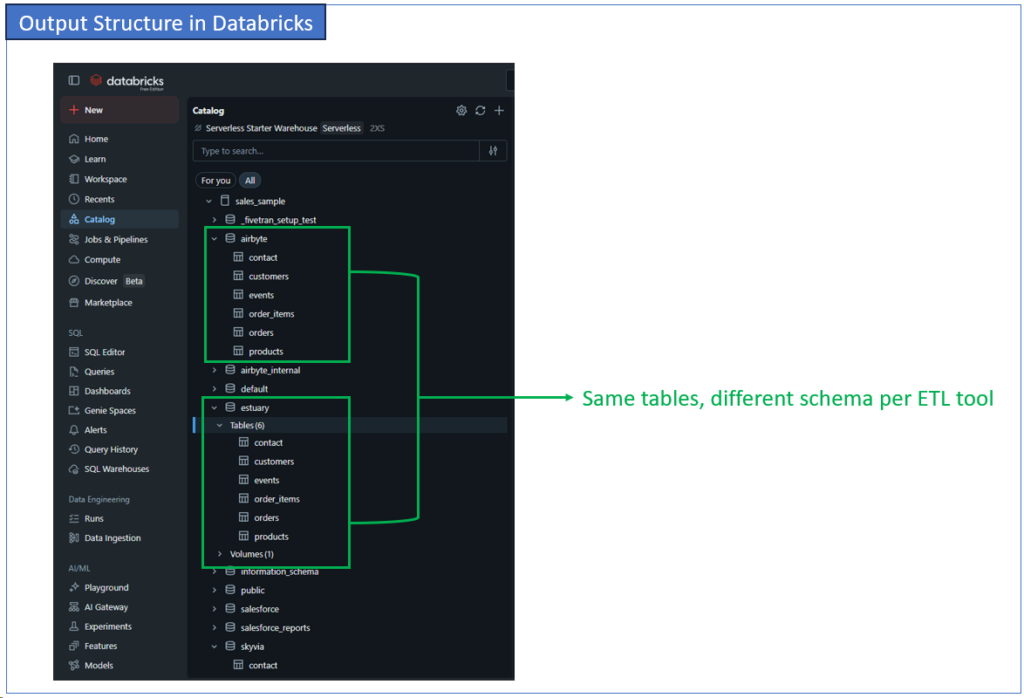
From the structure alone, you will see that Estuary and Airbyte had differences. Estuary used a volume to stage the data before finalizing it into the tables.
Databricks Connection Requirements
Let’s start with Databricks. Each ETL tool may ask for a hostname, an HTTP path, and/or access tokens. For Databricks CE, you can find the hostname and path in SQL Warehouses -> <your warehouse server>. Here’s mine:
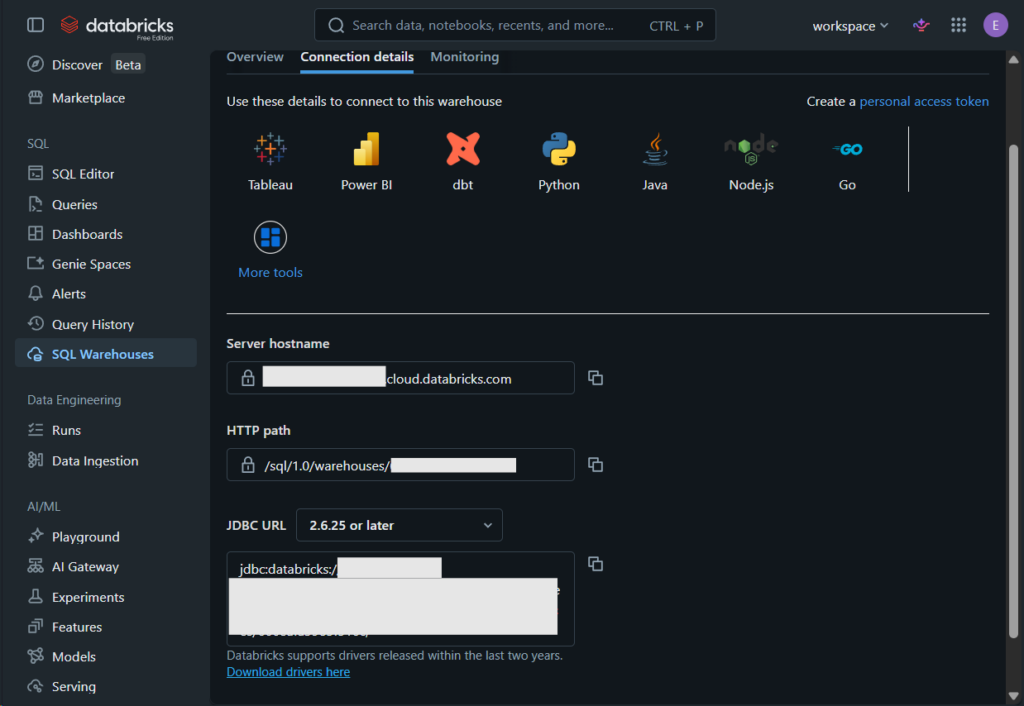
And the Access Tokens are found in my Settings -> Developer. I made access tokens for each tool I used here. See it below:
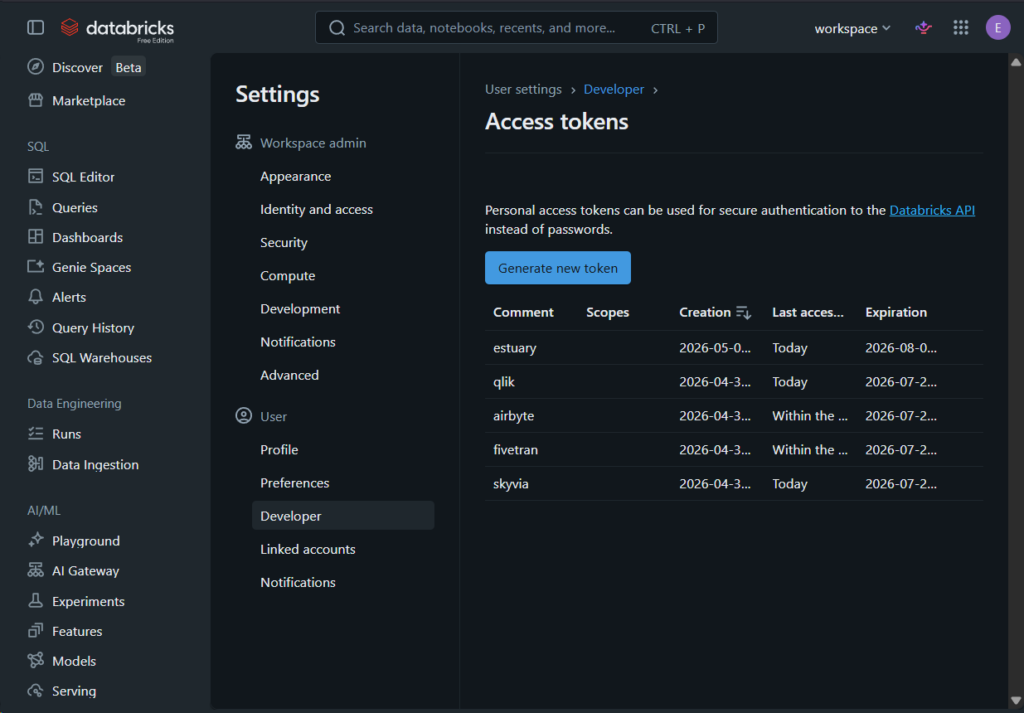
There’s another way of connecting the tools using Client ID and Secret. But I used a Personal Access Token for the samples.
Then, tools will ask for a Catalog name (we will use sales_sample) and schema. That will be equivalent to a database and schema names if it were a data warehouse or relational database.
Salesforce Connection Requirements
Except for Fivetran, each tool will ask you to log in to Salesforce to get an OAuth token, and that’s it. If you change your password, make sure to re-authenticate each tool.
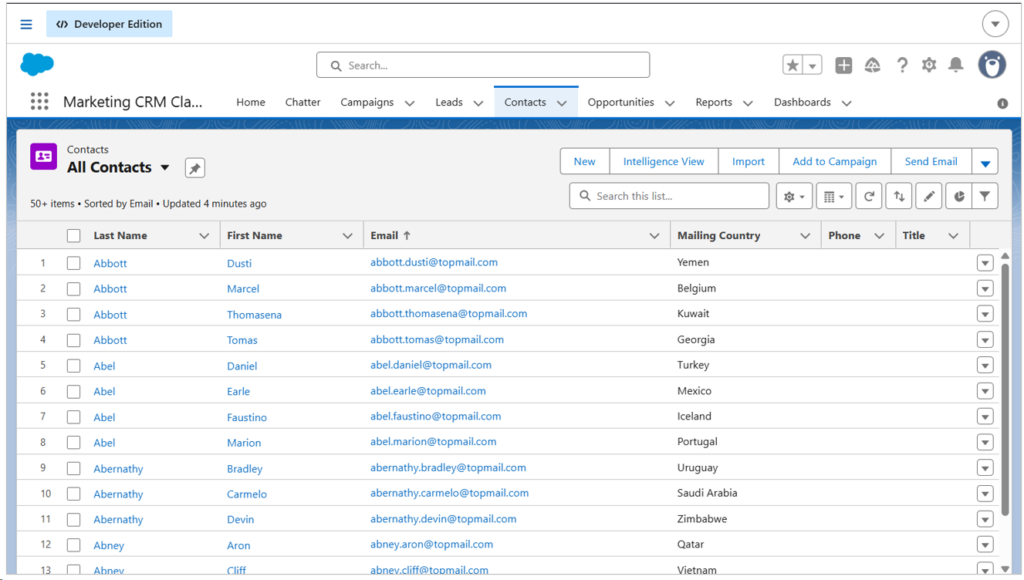
Here are some of the fictitious Contact data in my Salesforce developer account:
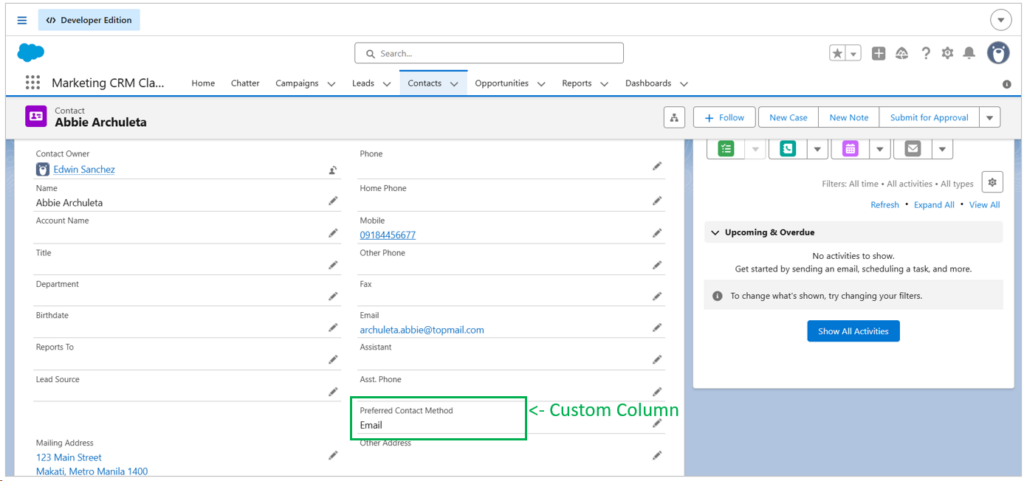
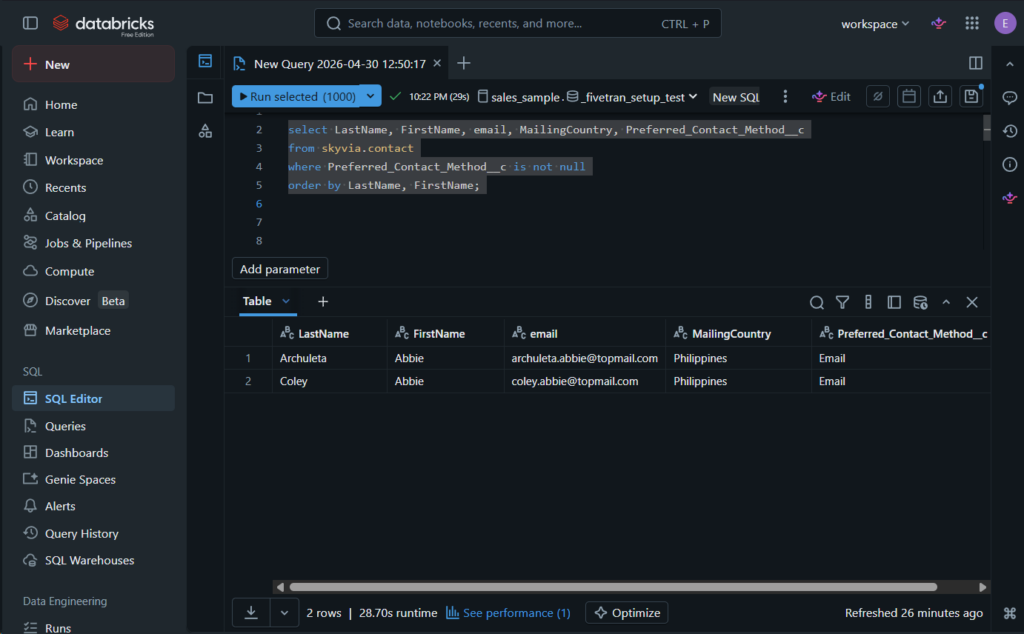
We will also see if custom columns can be captured. I added the Preferred_Contact_Method_c custom column in the Salesforce Contact object. See below:
PostgreSQL Connection Requirements
At least, you need the host, database name, username, password, and schema. If you have a different port other than 5432, then you need that too.
Let me first give you a comparison summary of the four best Databricks ETL tools in 2026.

How Do the Top Databricks ETL Tools Compare?
We initially chose the following Databricks ETL tools:
- Fivetran,
- Airbyte,
- Talend, and
- Skyvia
However, because I can’t use Databricks Community Edition with Talend, we have to replace it. Talend requires a staging area in either GCS, S3, or Azure. Although I have set a GCS bucket (the one I can only use), I can’t make it work. It seems that Databricks CE can’t work with GCS as a staging area. Talend performs a COPY command from the staging area into my Databricks CE, and my GCS is not fit for it.
So, we replaced Talend with Estuary. Below is the comparison of the four tools:
| Feature / Metric | Skyvia | Fivetran | Airbyte | Estuary |
|---|---|---|---|---|
| Ideal Use Case | SMBs, No-code teams, SaaS integrations | Enterprise, High-volume automated ELT | Developer-heavy teams, Self-hosting | Batch and streaming in one platform |
| Pricing Model | Usage-based (Per record/data volume) | Monthly Active Rows (MAR) | Compute-based (Cloud) / Free (Open-source) | Per Gigabyte + Per Connector |
| Minimum Sync Frequency | 1 minute | 1 minute | 5 minutes (varies by connector) | Real-time / Batch configurable |
| Setup Complexity | Visual Wizard (Zero code) | Visual UI (Low code) | Requires CLI/Docker knowledge (Self-hosted) | Visual Wizard |
| Databricks Target | Delta Lake (Direct load) | Databricks SQL / Delta | Databricks Destination Connector | Databricks Destination Connector |
What Is the Best Databricks ETL Tool for SMBs and No-Code Teams?
It will be too much for startups and small teams to adapt to full-scale enterprise Databricks ETL tools in 2026. So, a no-code gizmo could be the best fit. Enter Skyvia.
Skyvia
Skyvia is a cloud-first data platform that offers several data management services, including data integration, backup, and replication. During our testing, I found that if your team lacks dedicated data engineers to write code, Skyvia is the most straightforward path to Databricks.
Of the four tools, I can set up a Skyvia pipeline the fastest because I’ve been using it for quite some time now. I can set up the three connections in less than 5 minutes. Those are the connections for PostgreSQL, Salesforce, and Databricks.
I use Skyvia’s free tier, so after I set up the replication for PostgreSQL, my limits are reached. So, I have a second account for replicating Salesforce Contacts to Databricks.
Setting Up the Salesforce to Databricks Data Pipeline
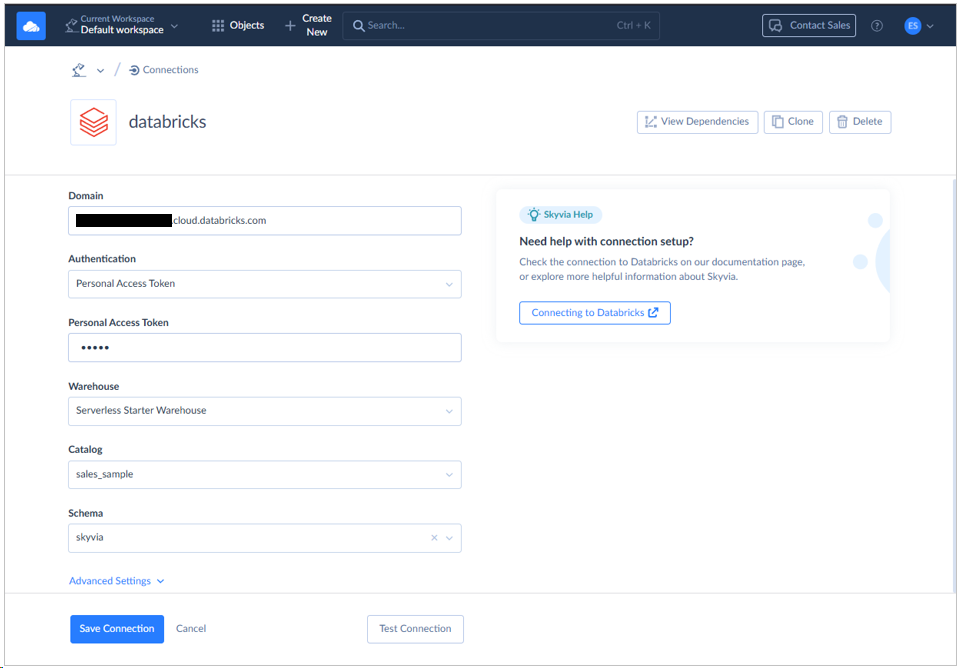
Setting up connections means filling out forms for credentials in Skyvia. I’m only reusing my PostgreSQL connection I made in this article, and the Salesforce Skyvia Connections that I made for my other article. But let me show you my setup for Databricks.
The domain should be the hostname. This got me confused at first, but it went well. The Personal Access token given by Databricks should go in the corresponding box.
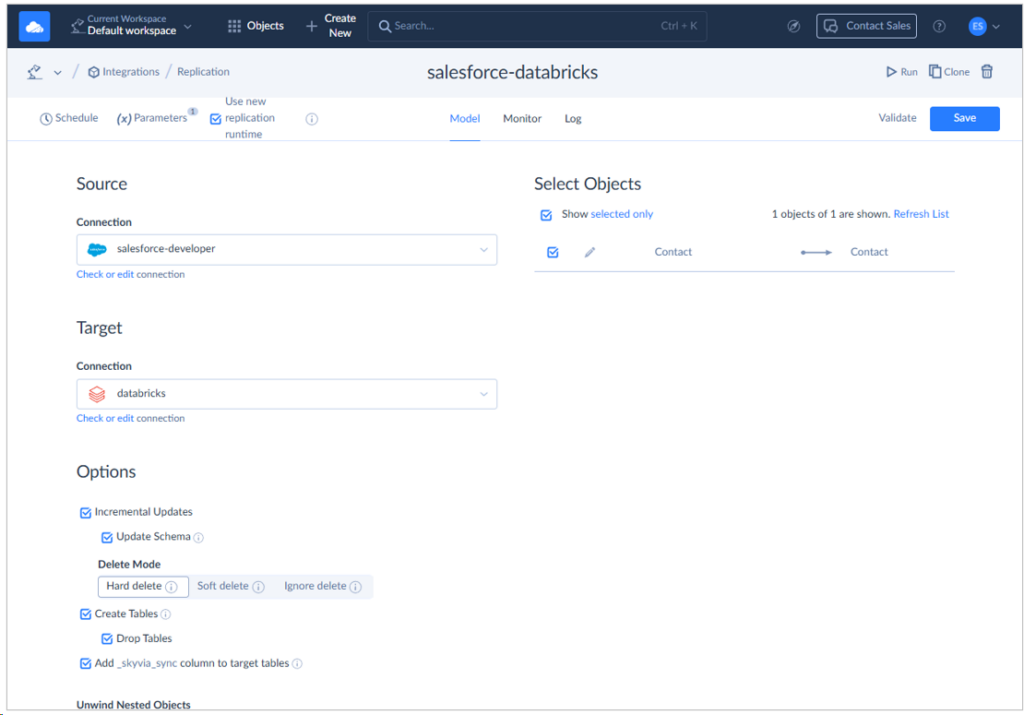
And below is my data pipeline for Salesforce to Databricks replication of the Contact object.
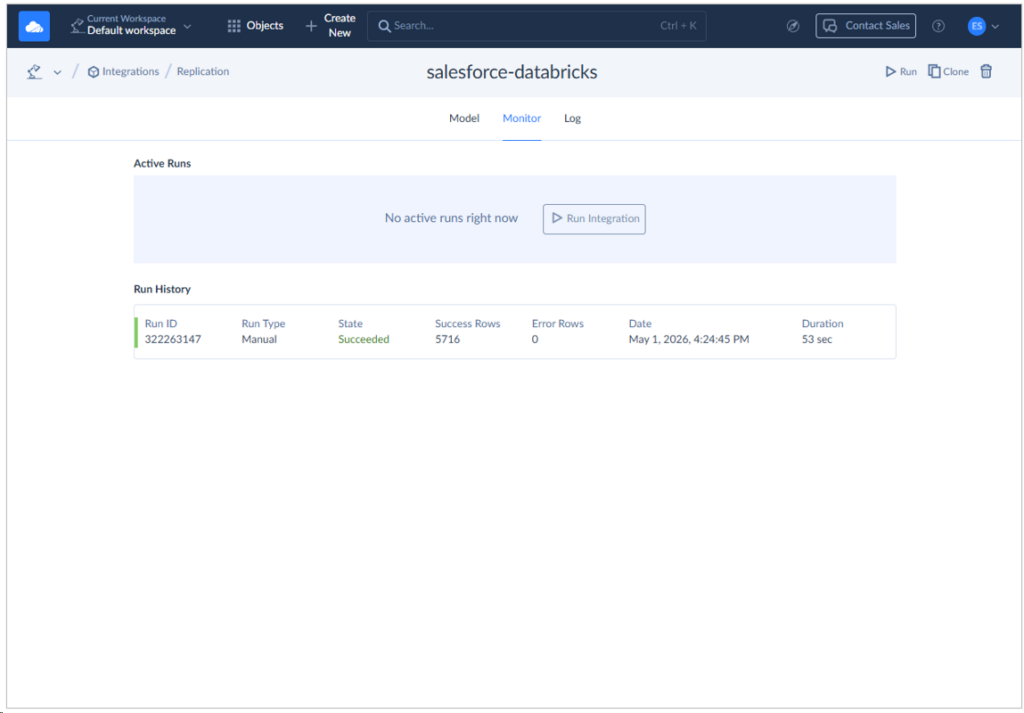
Running it took 53 seconds for more than 5,000 rows. Skyvia created the table for the first time in Databricks. Here’s a screenshot:
After the run, here’s the query result from Databricks’ end:
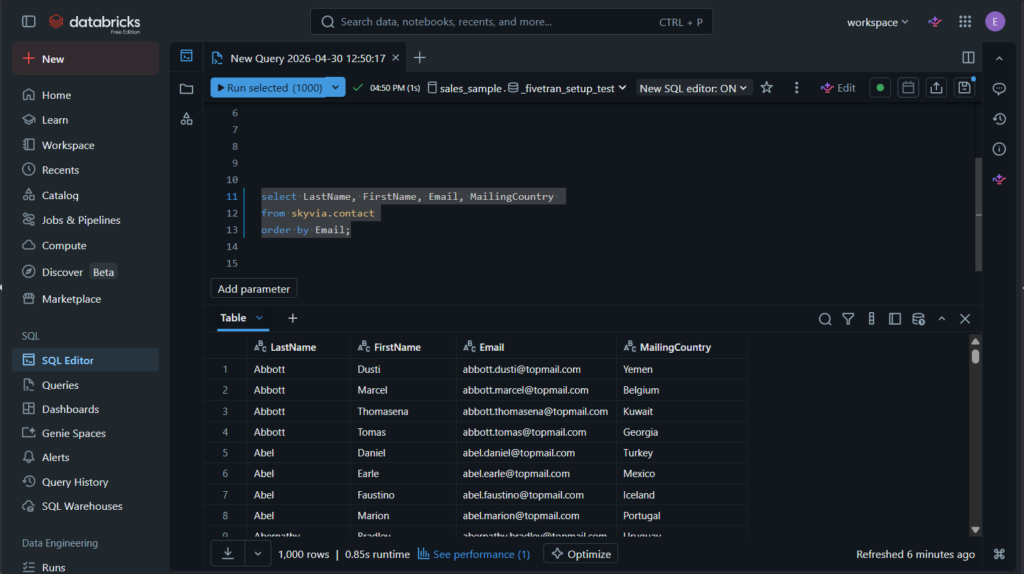
You can compare it to the Salesforce screenshot earlier and see that it’s the same.
Setting Up the PostgreSQL to Databricks Data Pipeline
We’re going to use the same Databricks connection in Skyvia. Let me show you the setup for the PostgreSQL to Databricks replication:
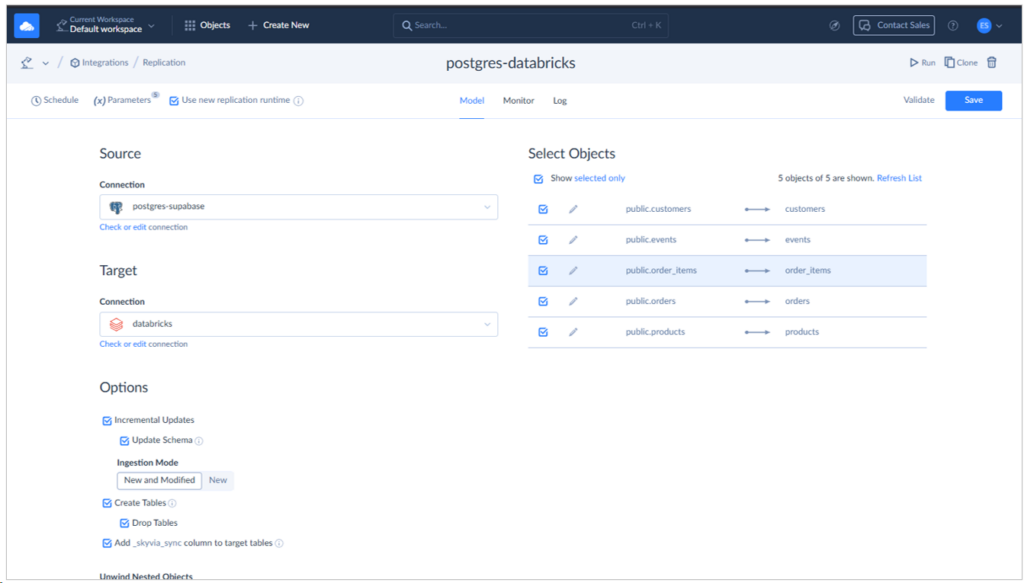
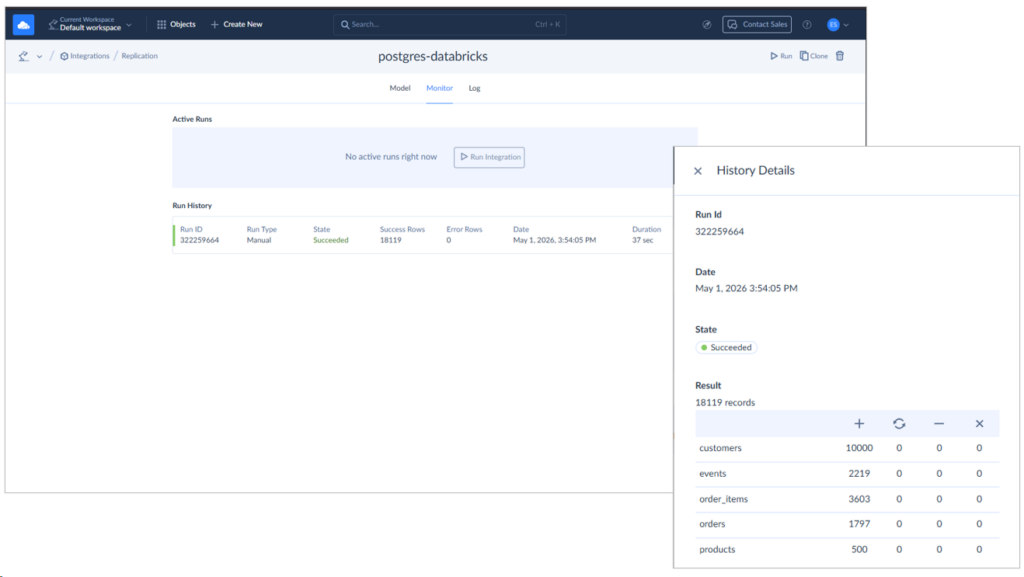
All the 5 tables are there, and it took 37 seconds to replicate more than 18,000 rows. Check it out below:
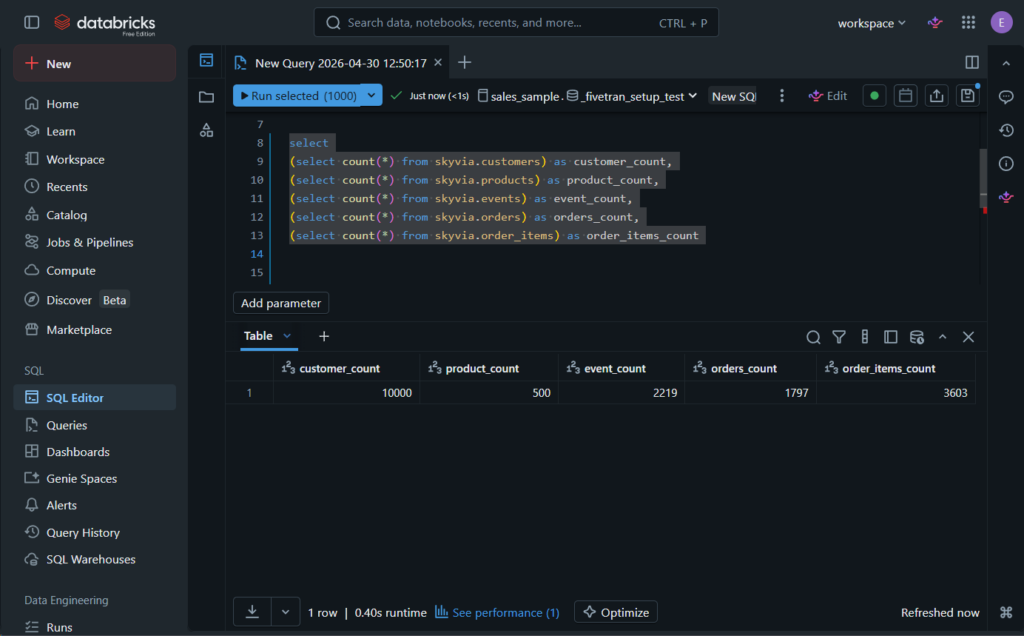
I compared the row counts above from Databricks end:
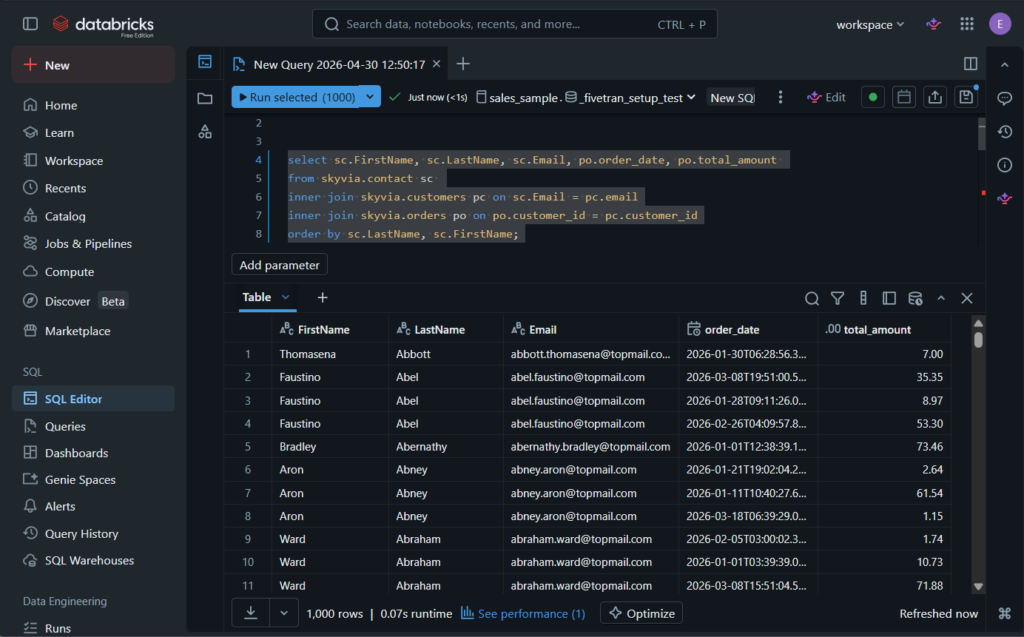
Check out also some of the replicated Salesforce Contact joined with the PostgreSQL transaction tables below:
Lastly, I checked the data from our custom column, and it’s all good. See below:
It took me around 5 minutes to set up the two pipelines. I’ve used it a lot so the setup is fast.
Best for
Skyvia is perfect for SMBs or companies that require a flexible no-code data integration tool that supports not only ELT or ETL but also reverse ETL. Skyvia will be helpful for anyone wishing to immediately proceed with building data pipelines and gain initial success right away.
Rating
At the time of writing, below are notable reviews of Skyvia from G2 and Capterra:
- G2 : 300 reviewers rated 4.8/5
- Capterra : 116 reviewers rated 4.9/5
Pricing
Skyvia’s price plan options include Free, Basic, Standard, Professional, and Enterprise plans. As you move up to the higher level, you will have more rows allowed monthly, more scheduled integrations, better integration scenarios, and improved mapping functionality.
The number of rows starts from 10,000 in the Free version (which was used for this Skyvia evaluation), and the Basic plan comes with a cost of $79/month.
Refer to the Skyvia pricing page for additional information.
Pros
- Learning curve is minimal with a clean, intuitive user interface.
- The sources and targets I need are supported by their broad connector library
- Supports ETL, ELT, reverse ETL, backups, replications, import/export, syncs, automation, and API support.
- Documentation is sufficient for me.
Cons
- 10,000 rows only for the Free tier. I can only run 5 queries to a data source, though there are workarounds for this. And I can’t use an API Endpoint.
- Not suitable for a bank or healthcare provider requiring a strictly air-gapped, on-premise installation with no internet access because of its cloud-first nature. You should look at Estuary private hosting or Airbyte Self-Hosted for these needs.

Which Databricks Integration Works Best for Enterprise & High-Volume Data?
Large Enterprises operate on huge datasets, deal with complicated, changing schemas, and need reliable tools that ensure high levels of automation and security. So, Fivetran is our choice for such use cases, as it is designed to handle vast amounts of data and can be safely used by big companies due to its compliance features.
Fivetran
Fivetran is a managed ELT platform that focuses on security and compliance. The interface is not too sophisticated—source and destination connections are configured via fill-in-the-blank forms.
The only issue I have with it is that pipeline names cannot be renamed after test connections because it will break the name of the destination schema in Databricks.
Unlike other tools we used here that distinguish between sources, destinations, and connections, Fivetran relies only on destinations and connections—sources have to be set up inside the connection. Source configurations are not reusable, so credentials should be retyped, although destination schemas can be reused.
Fivetran creates an additional pipeline (fivetran_metadata) as well as some additional tables for sources like Salesforce.
Setting Up the Salesforce to Databricks Data Pipeline
In order to set up Salesforce as the source, I had to create a connected app and get Client ID/Secret as well as Salesforce Domain URL. This is unlike the other tools we used here. See my configuration below:
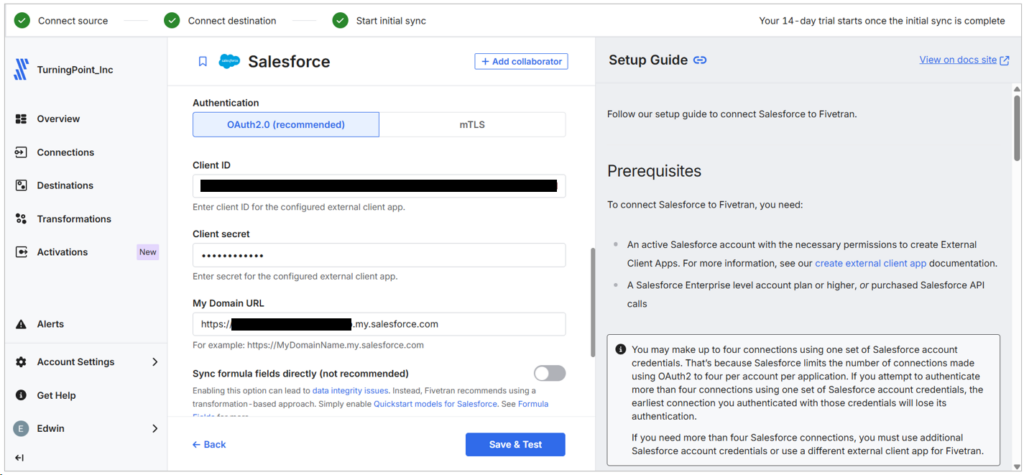
Check how to create these Client ID and Secret in Salesforce from my previous post.
Then, I chose the Contact table for the data pipeline.
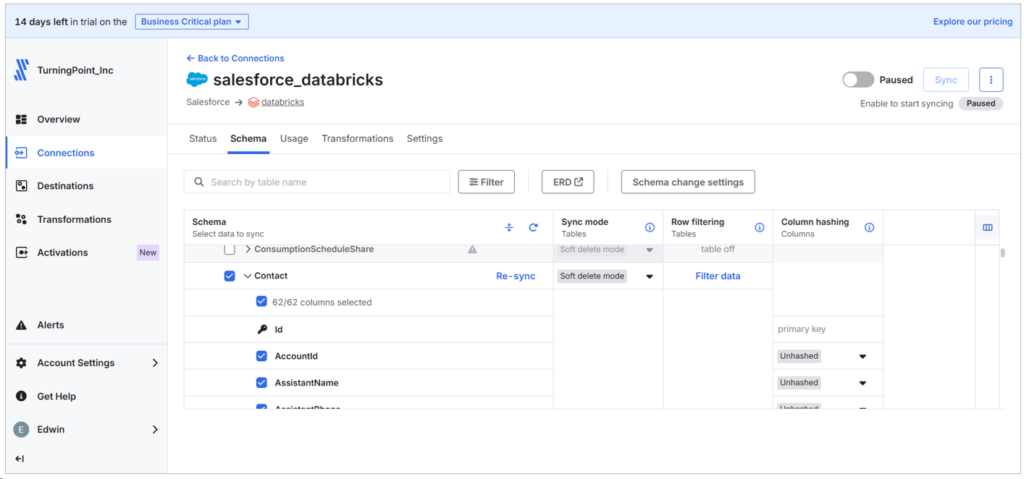
I also set up the Databricks destination for this pipeline. See it below:
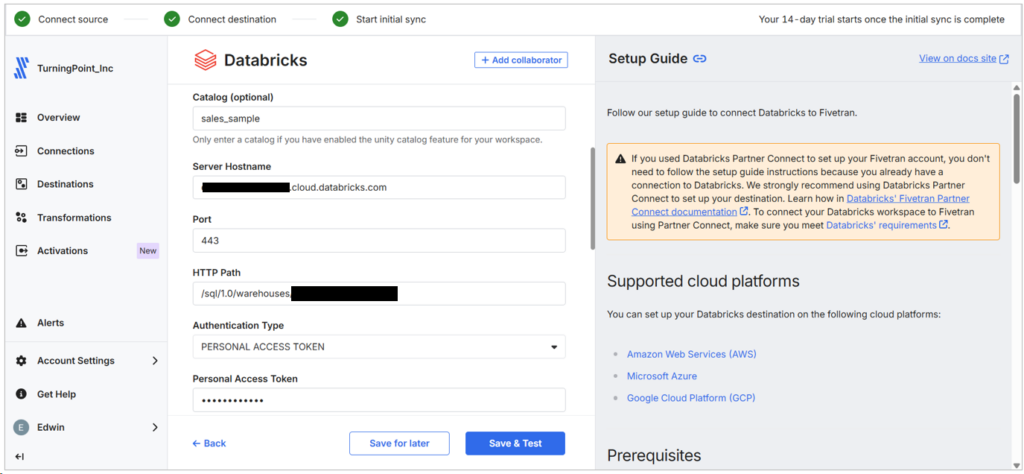
I notice that Fivetran does not include nested objects from Salesforce. When configuring Salesforce to Databricks pipeline, note also that the first sync report will include some additional tables. See below:
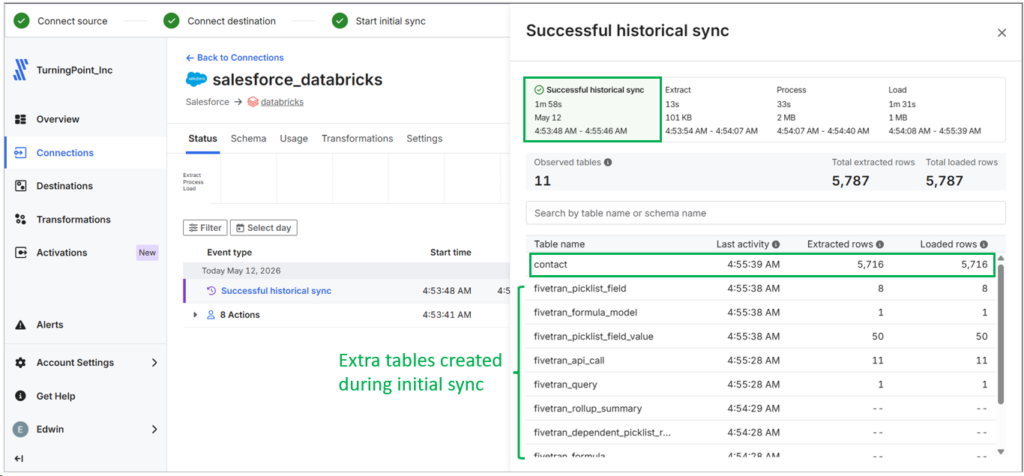
It took 1 minute and 58 seconds to sync the Contact table.
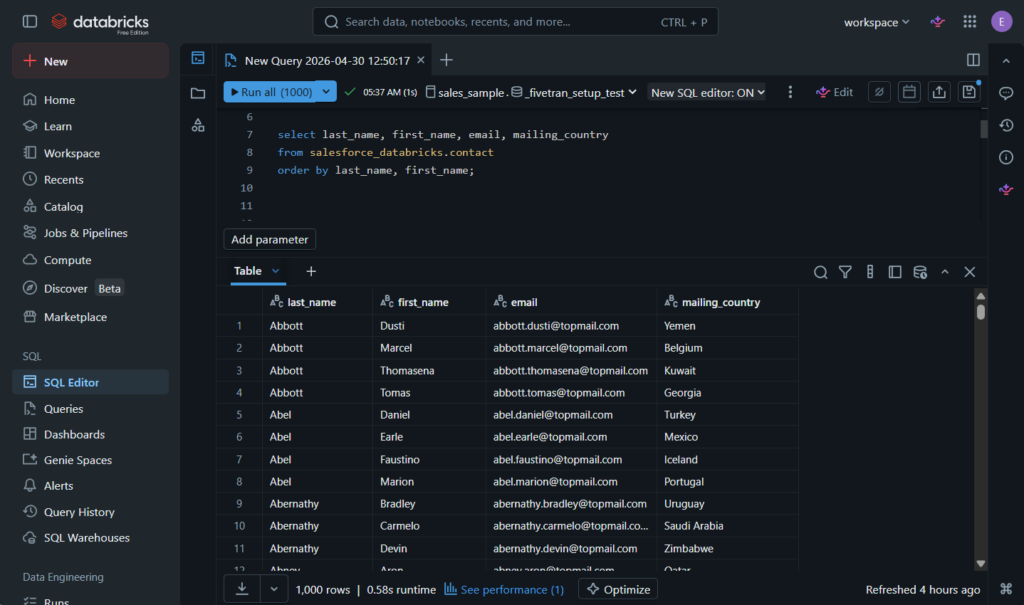
Anyway, Salesforce Contact row counts matched the other tools’ reports:
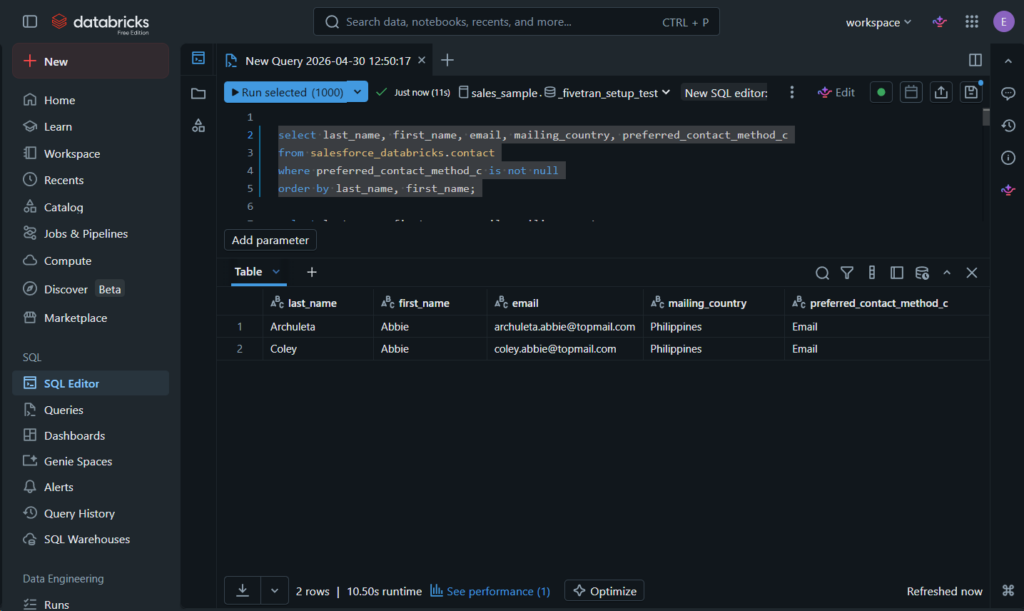
It also successfully replicated the data from the custom column:
Setting Up the PostgreSQL to Databricks Data Pipeline
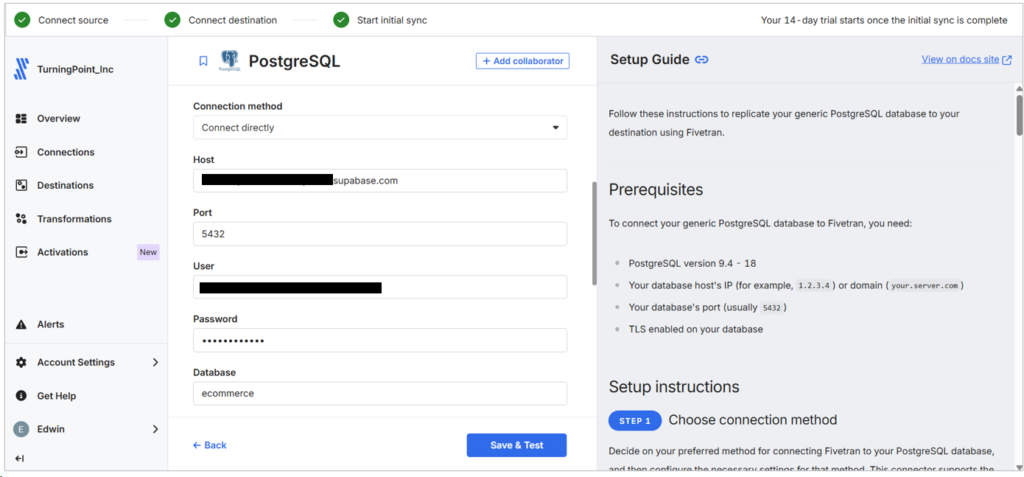
I made another Fivetran Connection, and this time for PostgreSQL. I used my Supabase credentials and specified the 5 transactional tables that had to be imported to the Databricks destination.
Below is my PostgreSQL connection:
I just reused the previous Databricks Destination. After running the first sync, no extra tables were created in the process, and row counts were calculated per table:
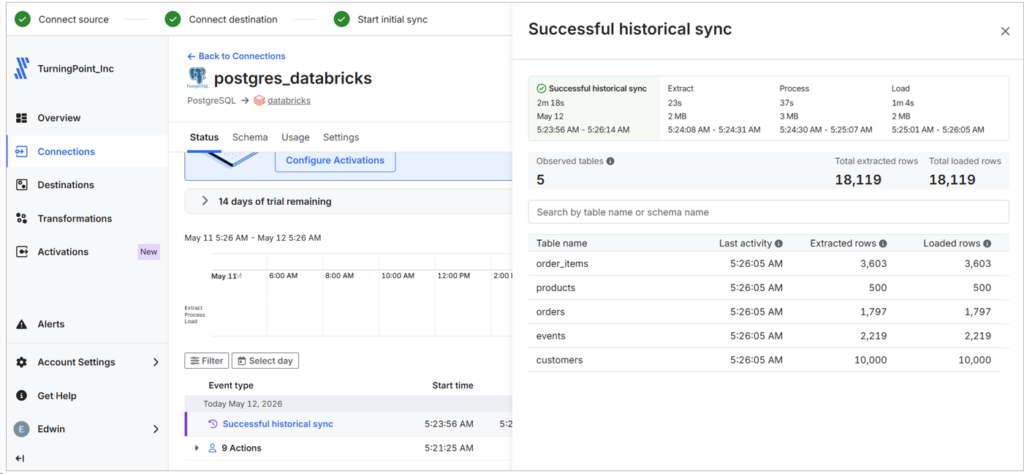
It took 2 minutes and 18 seconds to sync this one.
Please check the row counts below on the Databricks side:
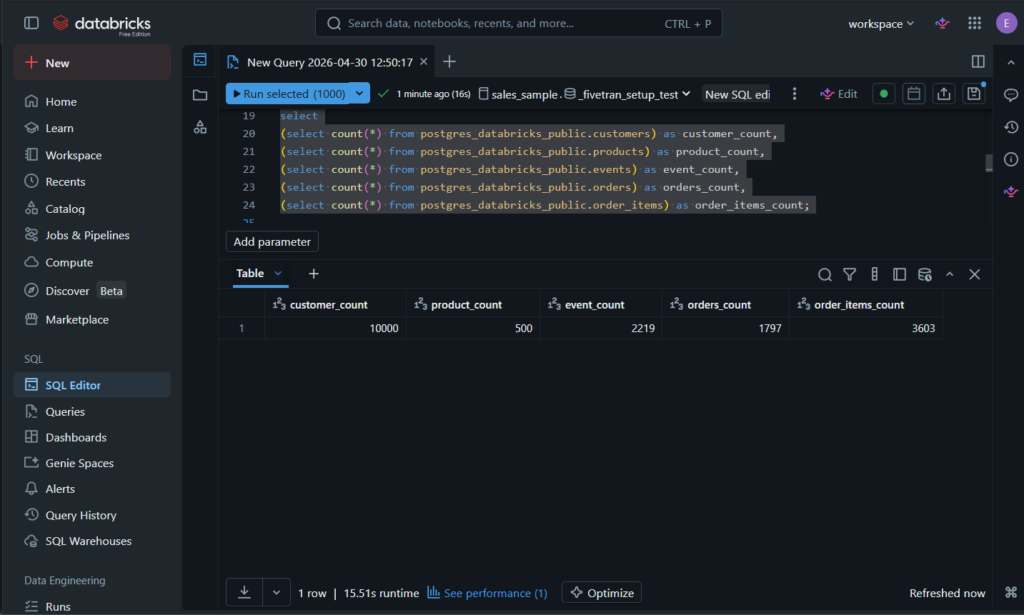
And also the joins for both Salesforce and PostgreSQL datasets:
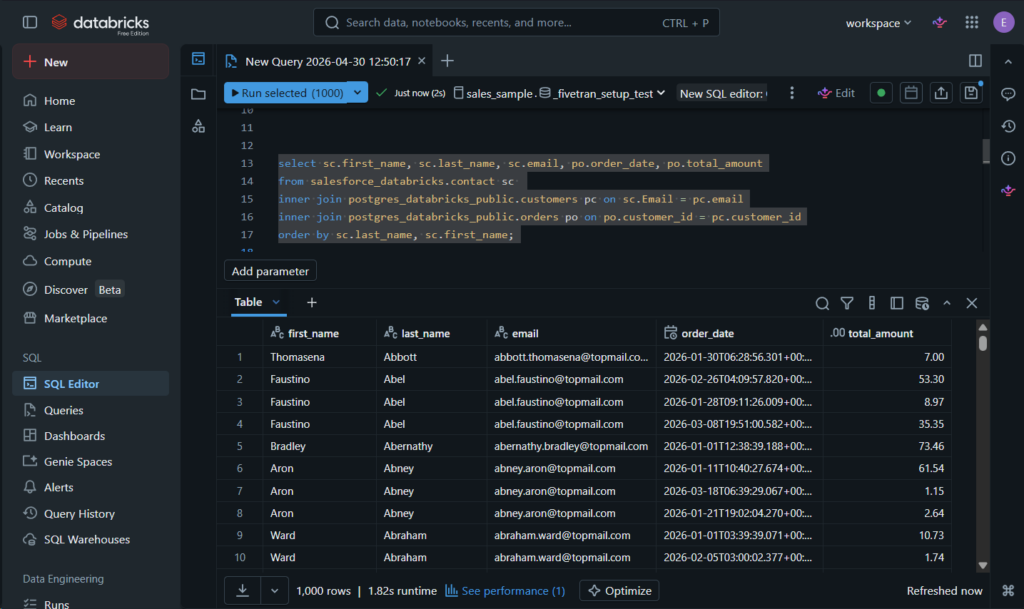
All things considered, setting up Fivetran integration did not take me more than 10 minutes.
Best For
Teams that require strong, automated ELT pipelines with low maintenance costs, particularly on schema modifications.
Perfect for big data companies, particularly those that prioritize fast scaling, broad connectivity options, and hassle-free schema management without programming.
Rating
Below are the Fivetran reviews for G2 and Capterra at the time of writing:
- G2 : 782 reviewers rated 4.3/5
- Capterra : 25 reviewers rated 4.4/5
Pricing
Fivetran uses a usage-based model based on Monthly Active Rows (MAR).
- Free Tier. Up to 500k MARs and 5k model runs per month.
- Standard Plan. “Pay as you go” includes unlimited users and faster sync intervals.
- Enterprise & Business Critical Tiers. Adds granular access controls, private networking, and compliance certifications (e.g., PCI DSS).
Cost spikes with growing row volume, frequently changing schemas, and real-time sync needs. Multiple connectors, each tracking MAR separately, can complicate budgeting.
Pros
- Setup is simple with a few clicks and no coding
- Supports a wider range of connectors
- Heavy on security and compliance
- dbt transformations
Cons
- Pricing unpredictability. MAR-based billing can spike unexpectedly with growing data volumes.
- Not practical for startups and medium-sized businesses
What Is the Top Choice for Developer-Heavy Teams and Custom Connectors?
If your team consists mostly of developers who appreciate flexibility and customization, go for Airbyte. This platform is open-source, extremely configurable, and allows building and customizing connectors if the ready-to-use ones are not sufficient.
Airbyte
Airbyte is an open-source data integration tool that moves data from hundreds of sources into databases, warehouses, and lakehouses. You can install it on-premises for free. But they also offer an Airbyte Cloud, where you don’t need to set up the infrastructure.
I already have Airbyte Core installed on my Ubuntu system. I did this in the previous post, where I wrote using Airbyte with Azure. The installation requires Docker and the abctl command line tool; therefore, I used the Terminal window rather than the graphical user interface. After a successful installation, I launched the local UI by opening http://localhost:8000 in my browser, which looked similar to the Airbyte Cloud version.
Airbyte’s Source and Destination setups are reusable, so I will only reuse the PostgreSQL and Salesforce connections I made from my previous articles.
Setting Up the Salesforce to Databricks Data Pipeline
I will go straight to setting up the pipeline and reusing Salesforce. The wizard starts by choosing an existing connection, like this one:
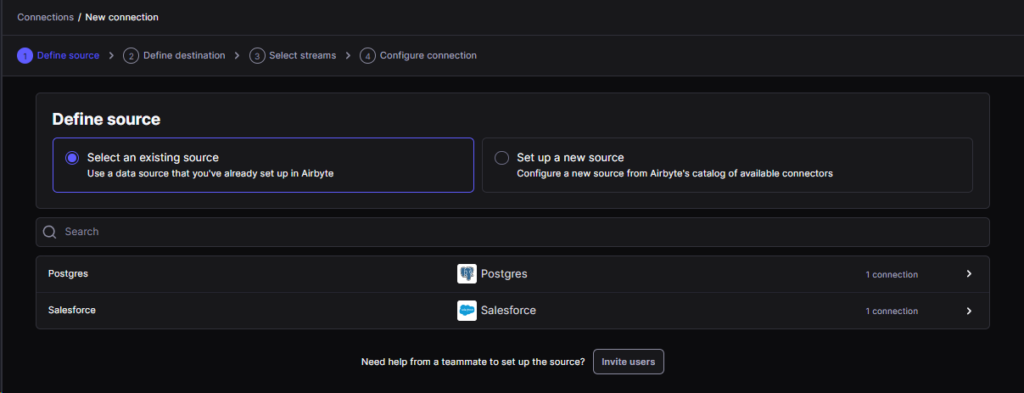
I will choose Salesforce in this case. Then, the wizard will ask for a destination.
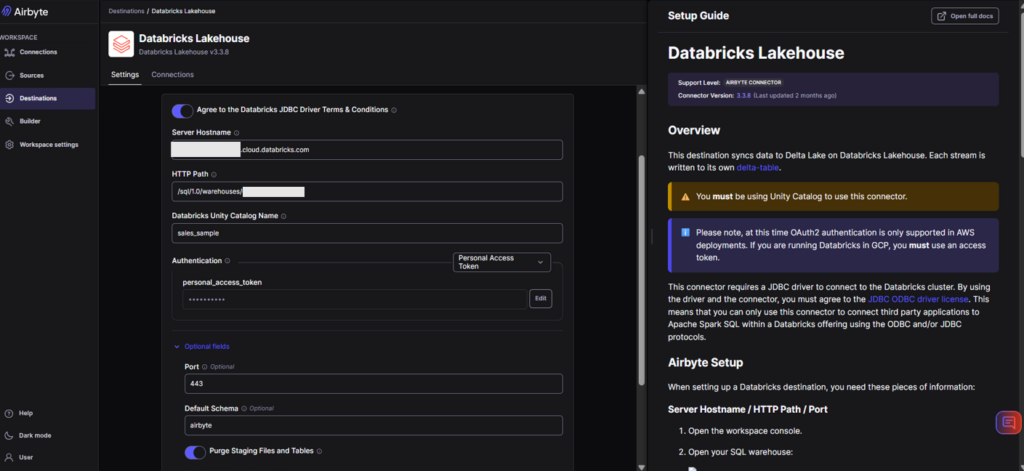
My Databricks destination was specified with the same credentials I have used across various tools. Check out my Databricks destination below:
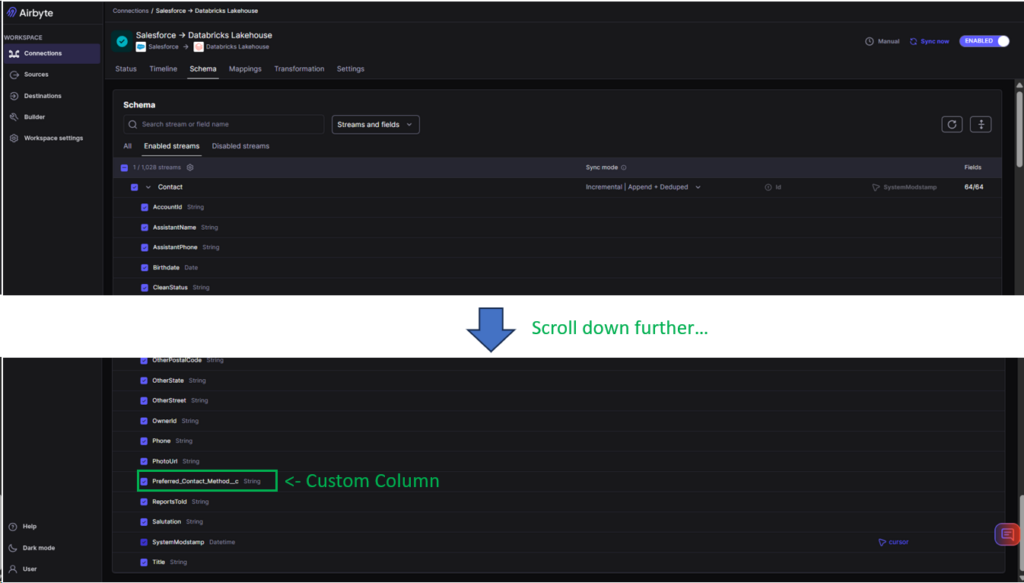
Then, I choose from the Salesforce objects (called streams in Airbyte). I choose Contact, and the custom column is available. See below:
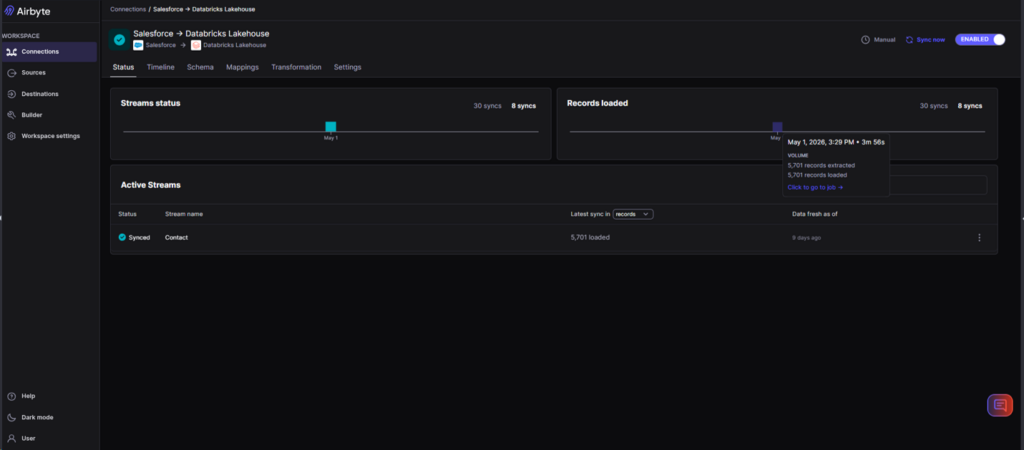
Running the sync to Databricks took 3 mins and 56 secs. See below:
Finally, I ran a SELECT statement using the Airbyte schema in Databricks to verify the copy:
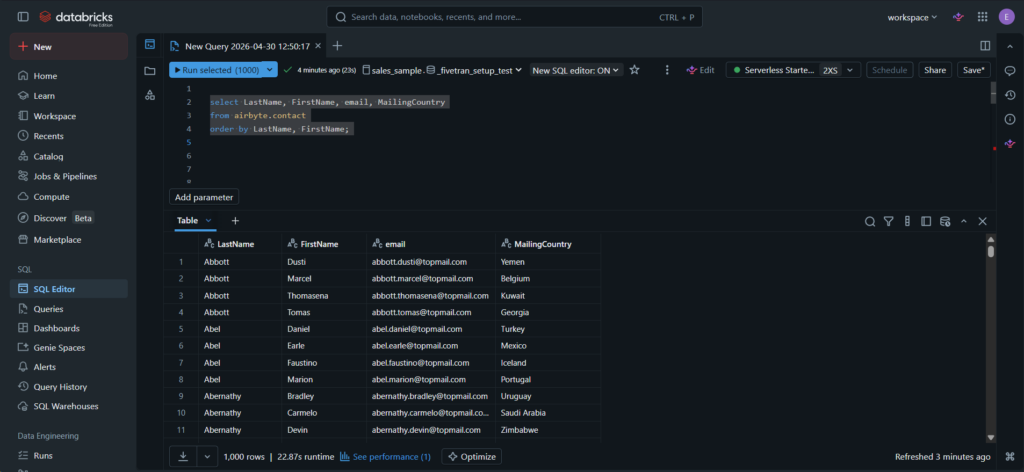
The result is an exact copy. There are 2 rows where I put values for the custom column, and it was captured in Databricks. See below:
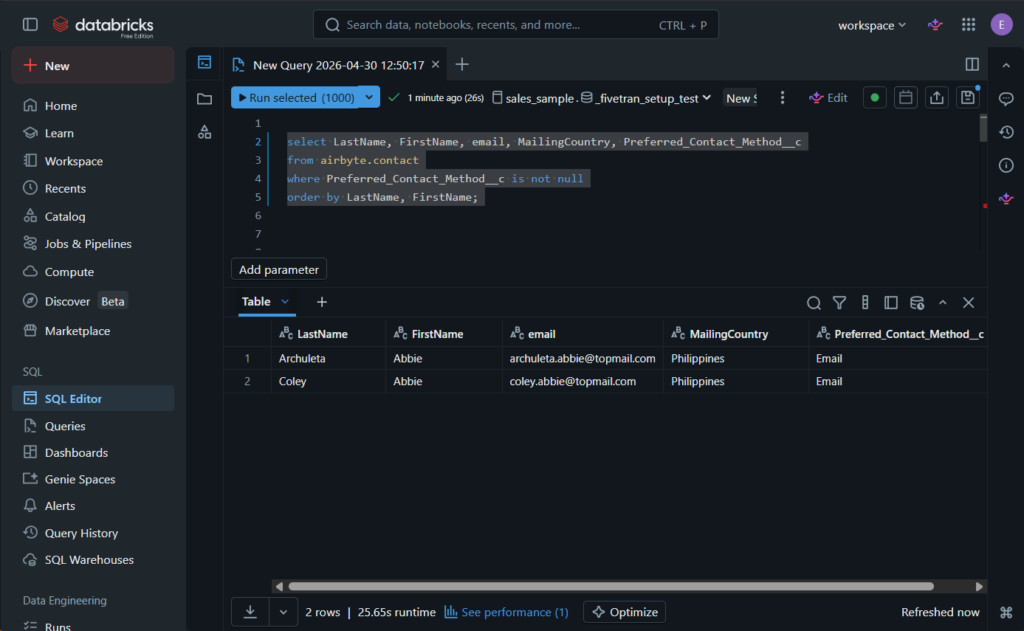
Airbyte’s difference from other tools is the way it captures nested objects in Salesforce. It becomes a column with JSON data.
Setting Up the PostgreSQL to Databricks Data Pipeline
I also reused the PostgreSQL connection to Supabase, then chose the tables for replication:
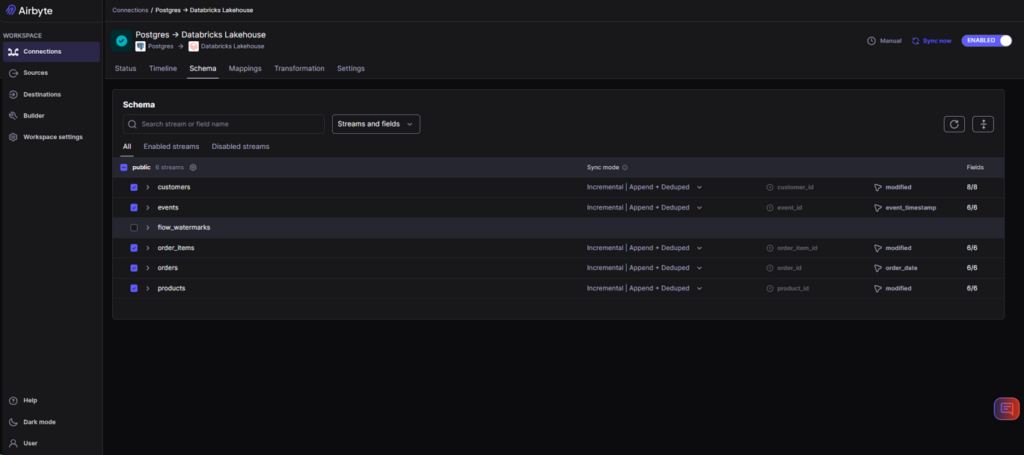
Then, I also reused the Databricks pipeline I made earlier. The result of the first sync displays on the pipeline status below:
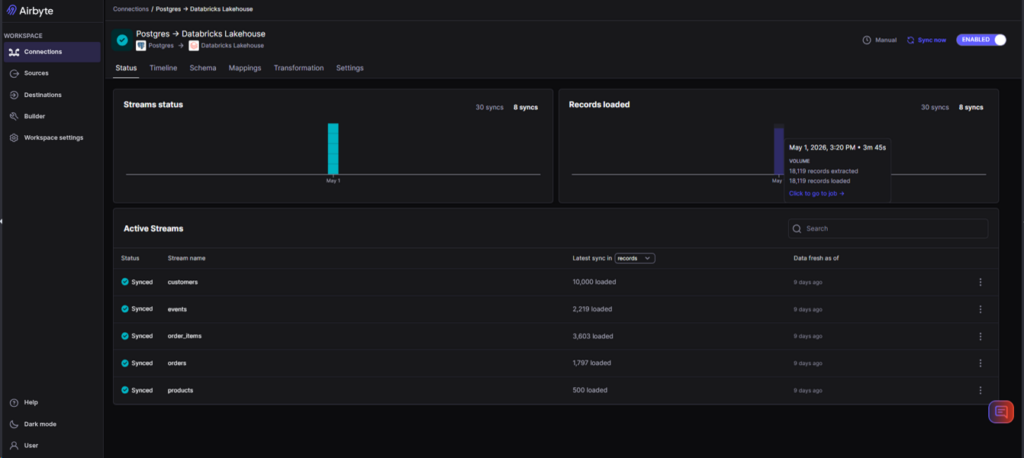
It took only 3 minutes 45 seconds to sync.
The overall setup of the 2 pipelines is around 5 minutes.
Finally, I ran a COUNT(*) to see whether my PostgreSQL tables are imported correctly in Databricks:
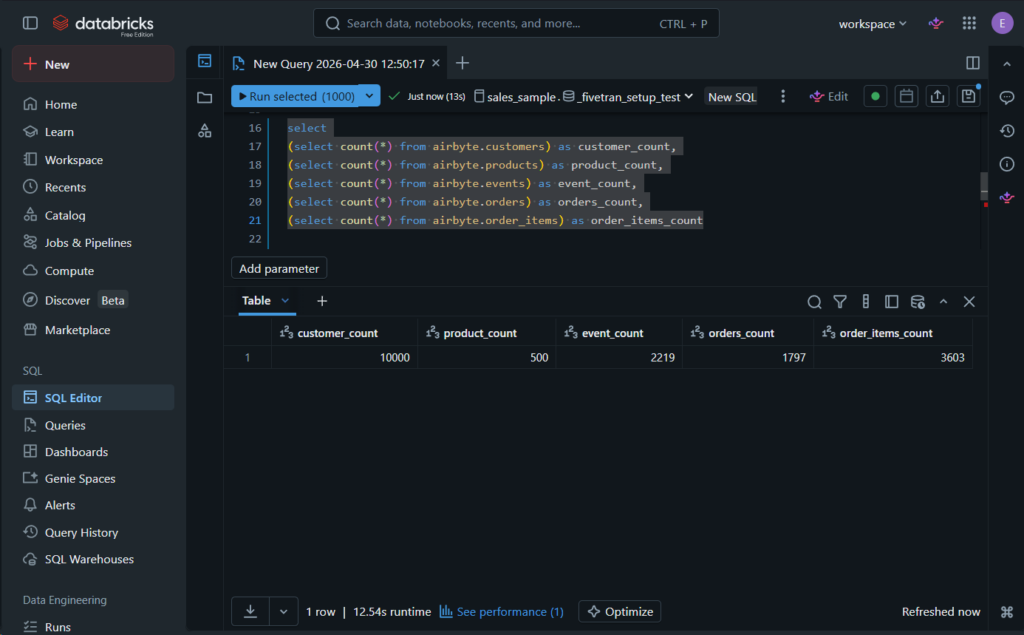
The result is consistent with the source.I also made a query with joins against the data in the airbyte schema:
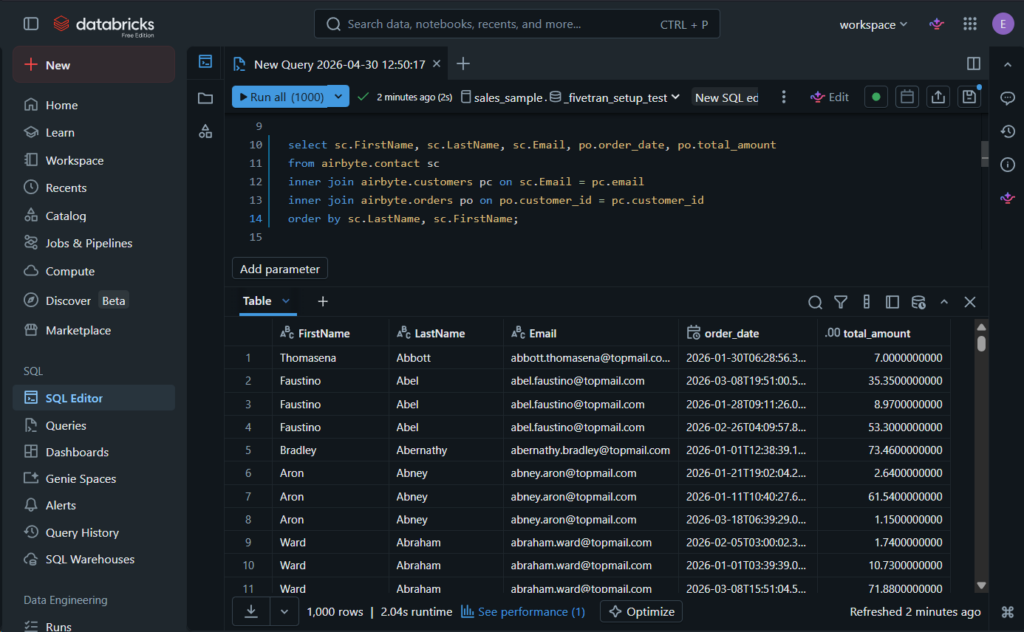
Again, it’s consistent with the other tools.
Apart from the graphical user interface, developers may use the official PyAirbyte library and Airbyte API to programmatically define sources, destinations, and connections. This makes Airbyte suitable for automated setup, reproducibility, or other customizations.
Best For
Airbyte Cloud is more suited to SMB and enterprise-level organizations that require an open-source solution that is either low-code or no-code.
Airbyte Core, however, would be preferable to businesses with professional development teams capable of configuring Airbyte on their preferred infrastructure.
Rating
Below are the reviews at the time of writing:
- G2 : 76 reviewers rated 4.4/5
- Capterra: no reviews
Pricing
Airbyte Core is always free and open source.
Airbyte Cloud pricing plans include Standard, Plus, and Pro, using capacity-based pricing. You need to contact sales for a tailored quote. For mode details, visit the Airbyte pricing page.
Pros
- Open source and developer-friendly.
- Offers both self-managed and fully-managed solutions.
- Easy, no-code replication for non-developers.
- Custom connectors (build your own)
Cons
- Connector fragility: APIs change often; community connectors may lag. If you’re a developer, you will fix this yourself.
- Infra burden: If you self-host, expect to manage scaling, monitoring, and upgrades. Costs can escalate.
What Is the Best Solution for Near Real-Time CDC to Databricks?
With the rise of real-time analytics, streaming and Change Data Capture (CDC) are becoming a necessity in many businesses. While you traditionally use batch jobs to update your databases, CDC replicates changes as they occur.
In this scenario, we found Estuary a good choice.
Estuary
Estuary is a managed data pipeline platform supporting both batch and streaming processing. However, Estuary has its strengths in CDC. You get a fully-managed server, private deployment, or even BYOC option (Bring Your Own Cloud).
As part of the evaluation process, I’ve decided to try the fully-managed platform by creating a trial account. Its sidebar reminded me of Airbyte because it also features Sources and Destinations. However, Estuary uses some confusing terminology, like New Capture and Materializations, when you’re inside Sources and Destinations.
I find that Sources and Destinations are not reusable unlike in Skyvia and Airbyte.
Setting Up the Salesforce to Databricks Data Pipeline
This one was easier – I just logged in to my Salesforce org, and it provided a security token for the new Estuary Capture. Below is the Endpoint Config:
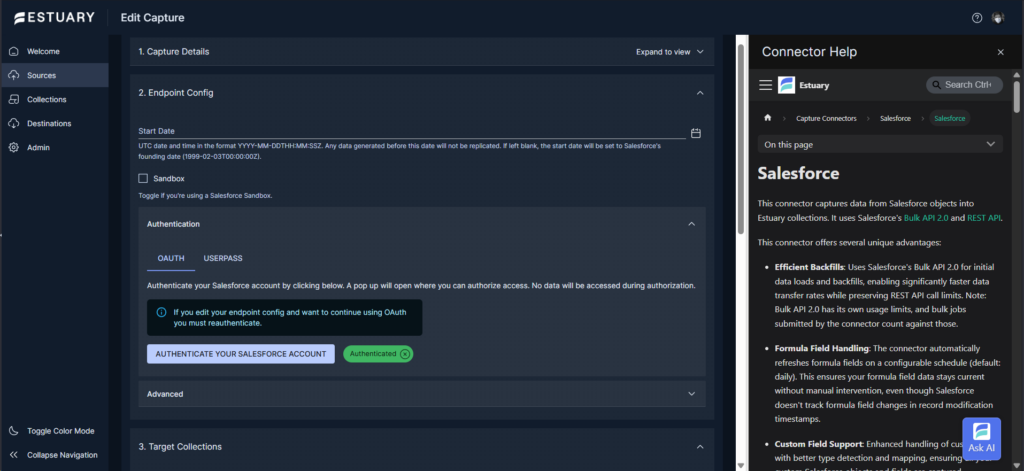
The Authenticate Your Salesforce Account button will trigger the login to Salesforce. The above is marked Authenticated, meaning Estuary got my Salesforce security token. And below are the bindings for this capture:
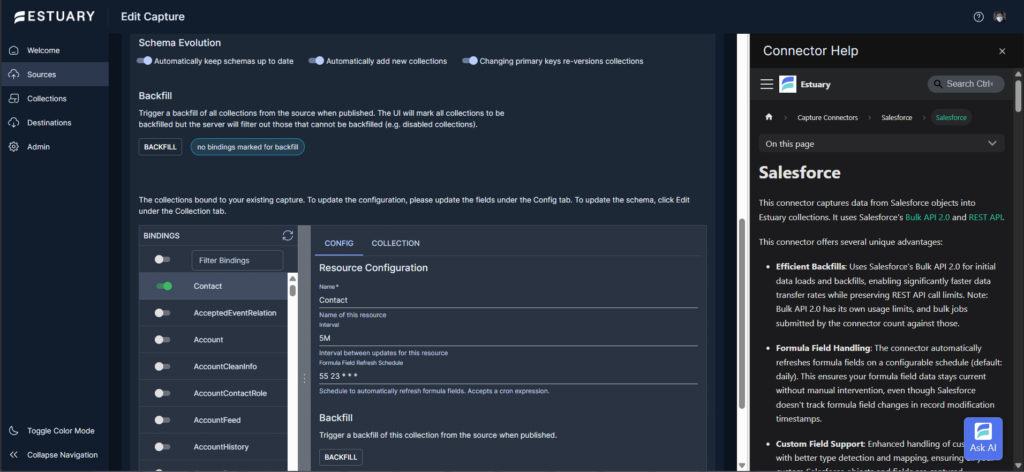
Since you have to create bindings to include the tables needed for the capture, you can’t reuse this capture unless there’s another requirement with the exact capture needed.
Then, I made a Materialization (or destination) to Databricks and chose a frequency between 0 seconds and 4 hours. Defaults to 30 minutes if you don’t supply a frequency. Below is the result of the first sync:
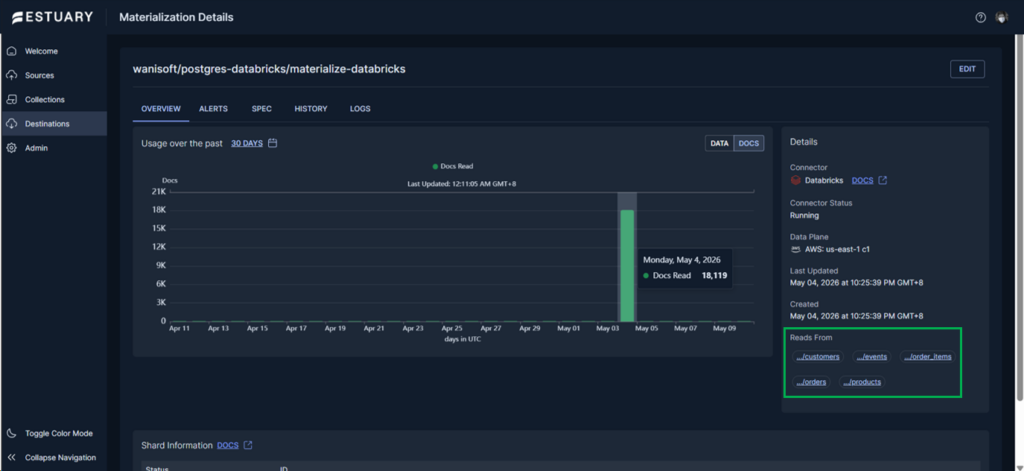
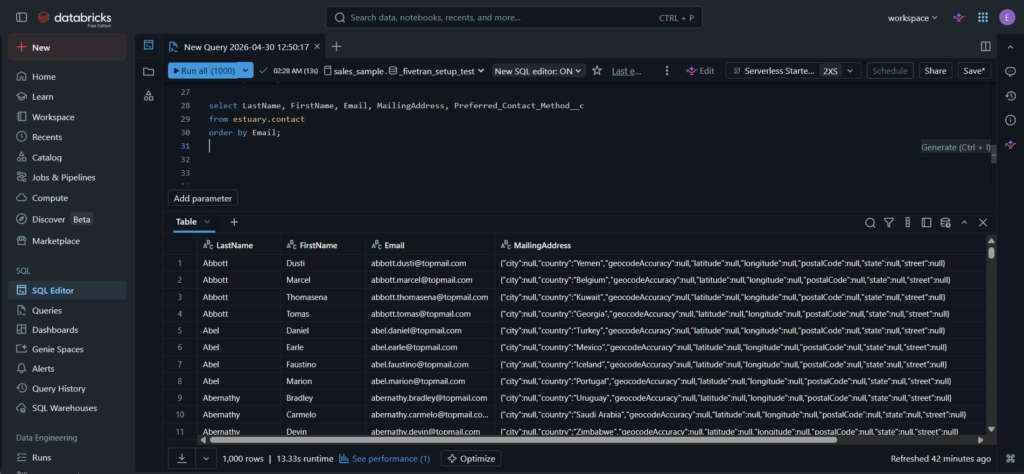
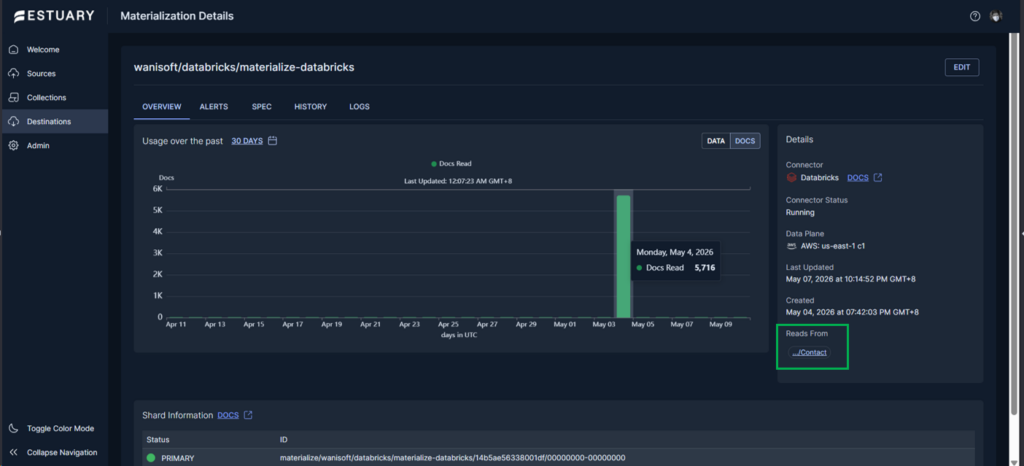
The 5,716 rows are consistent with the source. Sample below. Also, nested fields were serialized to JSON objects similar to Airbyte.
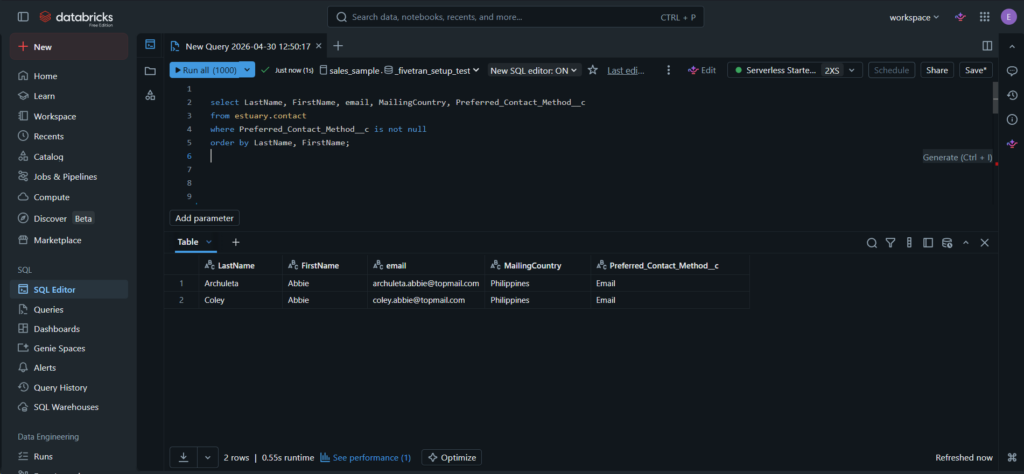
And below are the rows captured for the custom column:
Sadly, I wasn’t able to find a log for the duration. The logs are a very long list of detailed processes happening along the way.
Setting Up the PostgreSQL to Databricks Data Pipeline
For my purposes, I had to create a New Capture using the PostgreSQL connector. However, this capture required a database with wal_level=logical, and supports PostgreSQL publications, something that Supabase does not allow. Thus, I found and used Neon, where I replicated my Supabase DB using dbForge Studio for PostgreSQL and activated the necessary options.
Check out the PostgreSQL Capture Endpoint Config below:
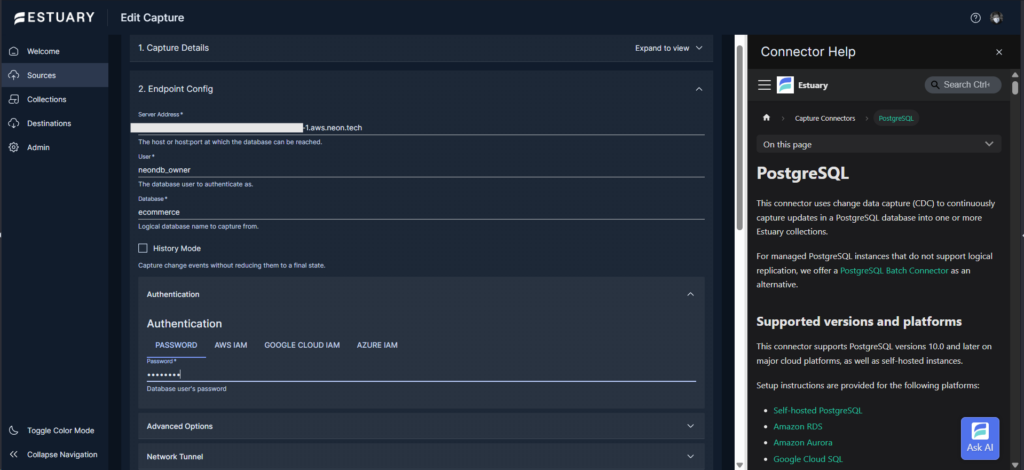
Below is the Advanced config required by Estuary for this database:
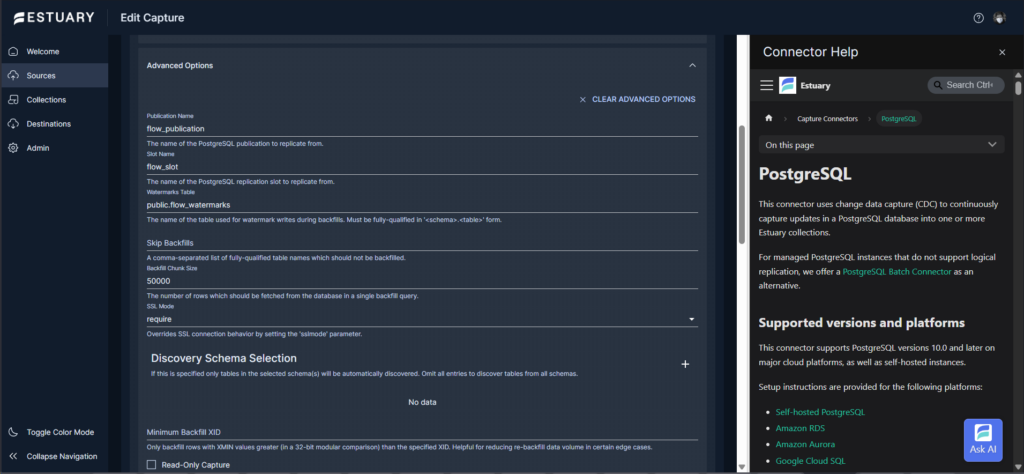
Estuary automatically created the flow_watermarks table in my PostgreSQL database.
Below are my bindings for this capture. It includes the 5 tables we’re using for the test.
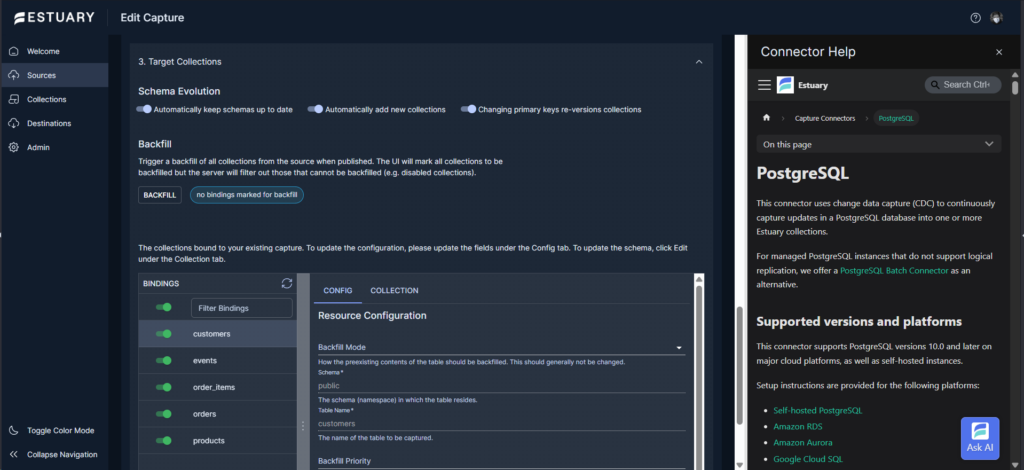
Then I went to create a new materialization (or destination), where I had to point it again to Databricks. Then, link it to the above PostgreSQL capture.
Below is my Databricks Endpoint config:
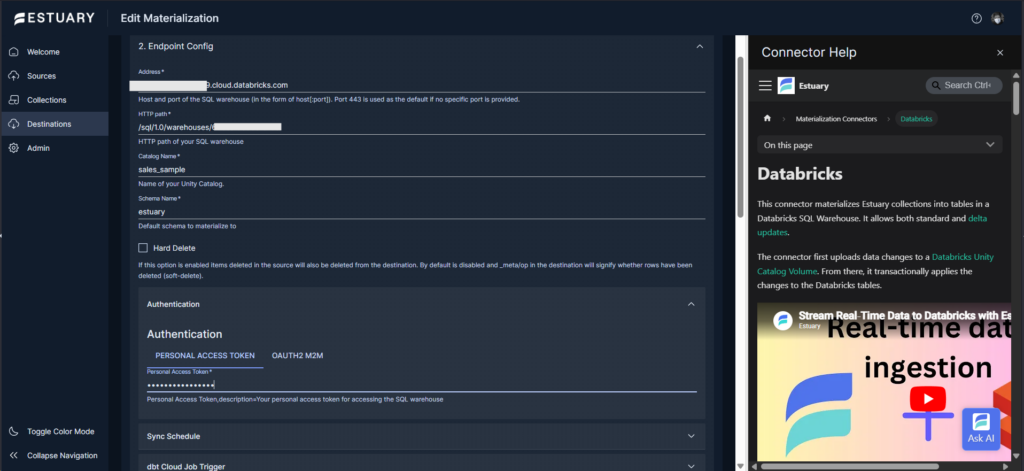
Below is the result of the first sync. Note that the number of rows processed are summed no matter how many tables you capture.
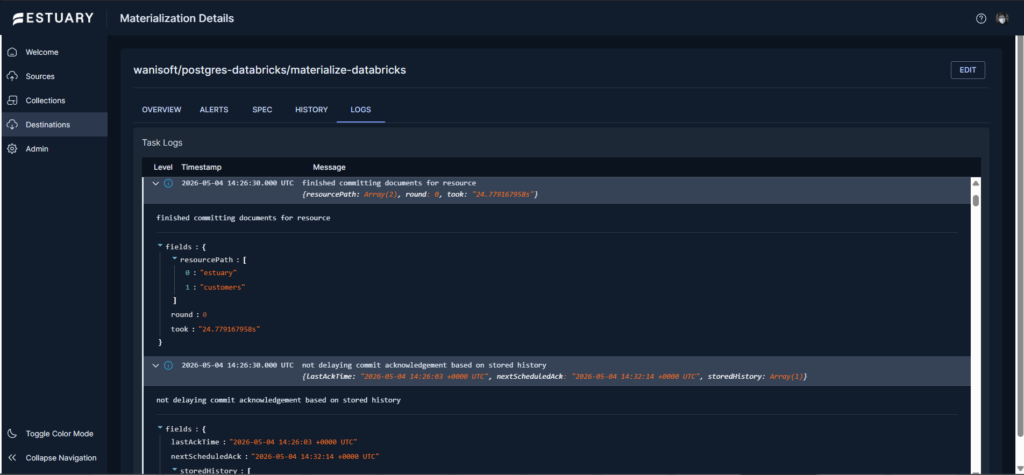
You have to dig into the long list of logs to see how long it took to run the sync and how many rows per table. Below is what I think is the duration for the customers table sync at around 24.8 sec.:
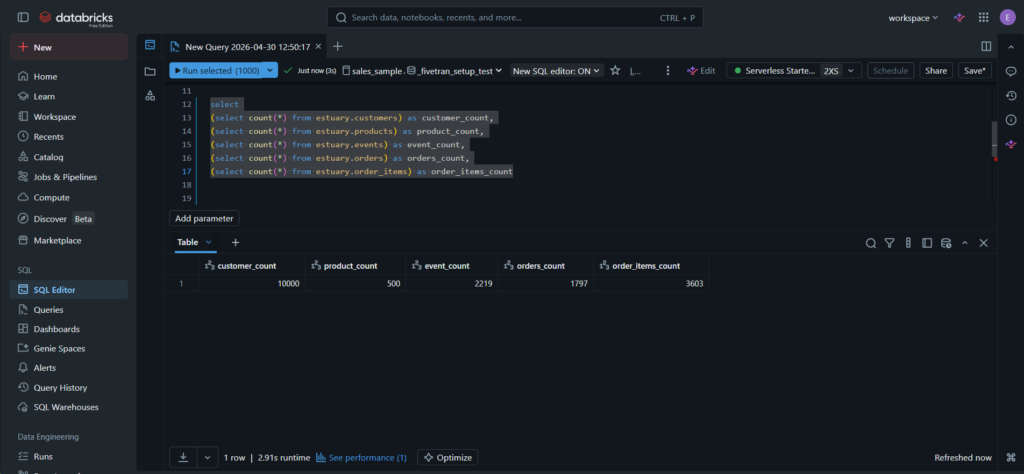
Once materialized, the tables appeared under the estuary schema in Databricks. By querying the tables, I saw that everything was working well. See the row counts below:
Joining both the Salesforce and PostgreSQL tables results in the following:
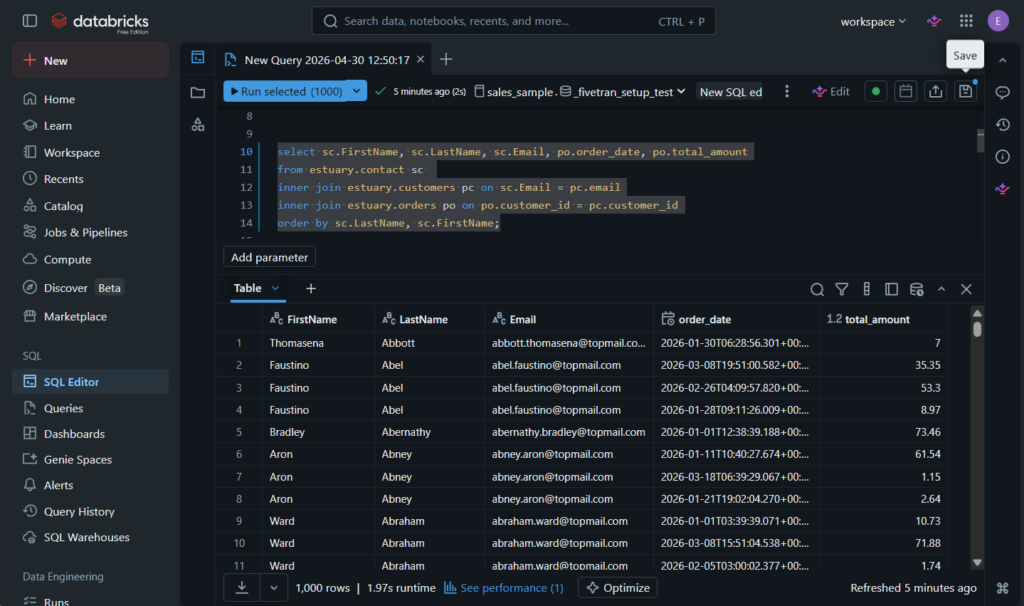
This is also consistent with the other tools.
In general, the setup process required 15-20 minutes since I had no experience using Estuary. Next time, I could save half of the time.
Anyway, it became clear to me that Estuary is perfect for near-real-time CDC pipelines into Databricks.
Best For
Estuary is best for teams looking for real-time CDC for BI dashboards and AI models to ensure fresh, reliable data streams for training or inference.
Rating
Reviewers have good ratings for Estuary:
- G2: 31 reviewers rated 4.8/5
- Capterra: none
Pricing
Estuary offers a free developer account with limits (10GB/month and 2 concurrent connectors). For production systems, there’s a 30-day free trial then you start paying for $0.50/GB + $100/connector.
In their billing page, connectors are indicated as tasks in hours. Here’s the computation for the data pipeline I made with 3 connectors. The trial credits are deducted:
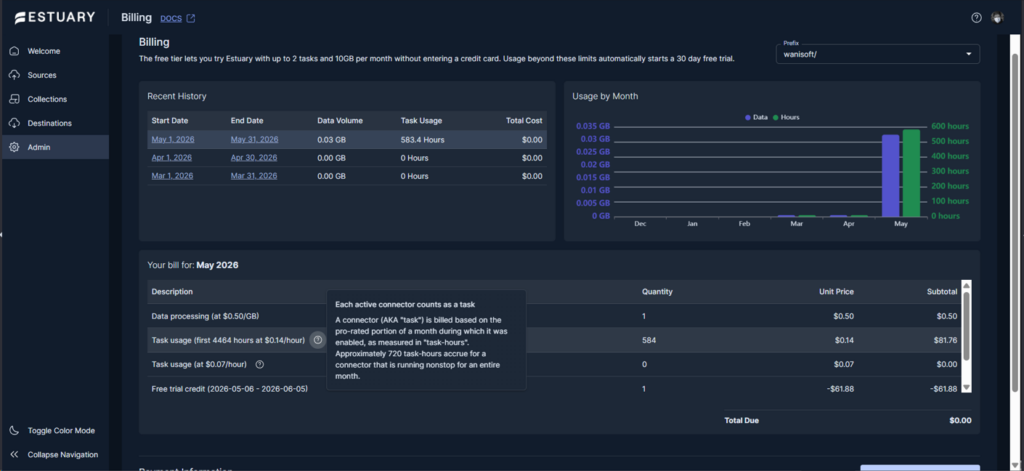
For more details, visit the Estuary pricing page.
Pros
- Applicable for both batch and streaming data processing
- Offers fully-managed, private deployment, and Bring Your Own Cloud (BYOC)
- Connect to 200+ systems, including Salesforce, PostgreSQL, and Databricks
- Easy to use, no-code web interface
- Free developer account
Cons
- Niche Focus: Estuary excels at CDC and real-time streaming, but if you only need batch ETL (e.g., nightly loads), simpler tools like Skyvia or Fivetran may suffice.
- Selective PostgreSQL hosting (good for Neon, not for Supabase)
- Learning Curve: While UI is simple, understanding CDC concepts (like log-based replication) may require some upfront learning.
Conclusion
Every one of the Databricks ETL tools excels in its own way.
Airbyte will suit you if you have a team of Python developers who need full control inside tight facilities. But if you are looking for automation in your enterprise, regardless of costs, get Fivetran. On the other hand, go with Estuary if you prefer real-time data processing for always up-to-date AI models and dashboards.
But if you are an agile development team that needs to integrate Hubspot, Stripe, and Postgres into Databricks by Friday afternoon without having to write any lines of code, go with Skyvia.
It all comes down to what type of team you are. If you are interested in exploring no-code integration tools, try Skyvia’s Databricks connector today with a free trial.

FAQ for ETL Tools for Databricks

Why pay for a third-party ETL tool if Databricks already has Auto Loader?
Auto Loader ingests files, but ETL tools add CDC, SaaS connectors, monitoring, and easier setup for complex pipelines.
How do these integration tools handle schema drift?
They auto-detect schema changes and adjust pipelines, preventing breaks when source tables evolve.
Can a data analyst load data into Databricks without knowing Python or Spark?
Yes—analysts can use no-code UIs in ETL tools to load data without writing Python or Spark.
Which Databricks ETL tool has the most predictable pricing?
Skyvia offers fixed plans with predictable pricing, while Fivetran and others often charge by usage.
Do I need real-time streaming to Databricks, or is batch processing enough?
Batch is fine for reporting, but real-time streaming is needed for live dashboards, fraud detection, or AI-driven apps.