Summary
- A flat file database keeps all records in one plain file, such as a CSV, with no links, keys or indexes.
- Flat files still fit data exchange, exports, archives, logs and small single-owner lists.
- In our test on 1 million orders, a CSV lookup took about 1.5 seconds and SQLite about 0.03 milliseconds.
- The CSV was smaller on disk, but it accepted a duplicate order ID that SQLite's primary key rejected
- Move to a database when several people edit the data, rows get updated, or the file outgrows a spreadsheet.
The customer list lives in a CSV. So does last quarter’s order history, and the export somebody pulls from the CRM every Monday. It works until two people edit the same file, a report counts one order twice, or a single lookup takes longer than the meeting it was for.
A flat file database is the simplest way to keep records: one file, one row per record, no links between them. That simplicity is why it’s everywhere, and also why it breaks once the data grows or more people touch it.
We put a number on that by loading the same 1 million orders into CSV files and into SQLite on one laptop. Below you’ll find what a flat file database is, how it compares with a relational one, what our test showed, and a checklist for knowing when to move your data out of files.
What Is a Flat File Database?
A flat file database stores all its records in one plain text file, usually one record per line, with fields split by a delimiter such as a comma or a tab. Each line holds the same fields in the same columns, and there are no relationships between records: no linked tables, no indexes and no rules that stop bad data. Whatever reads the file has to know its layout.
The most common format is CSV. RFC 4180 documents it: each record sits on its own line, fields are separated by commas, and an optional first line holds the column names. Here’s a small orders file:
order_id,customer_email,customer_name,country,order_date,amount,status
1001,ana@example.com,Ana Lee,US,2026-09-02,120.00,paid
1002,ana@example.com,Ana Lee,US,2026-09-15,45.50,shipped
1003,raj@example.com,Raj Patel,UK,2026-09-20,300.00,pending
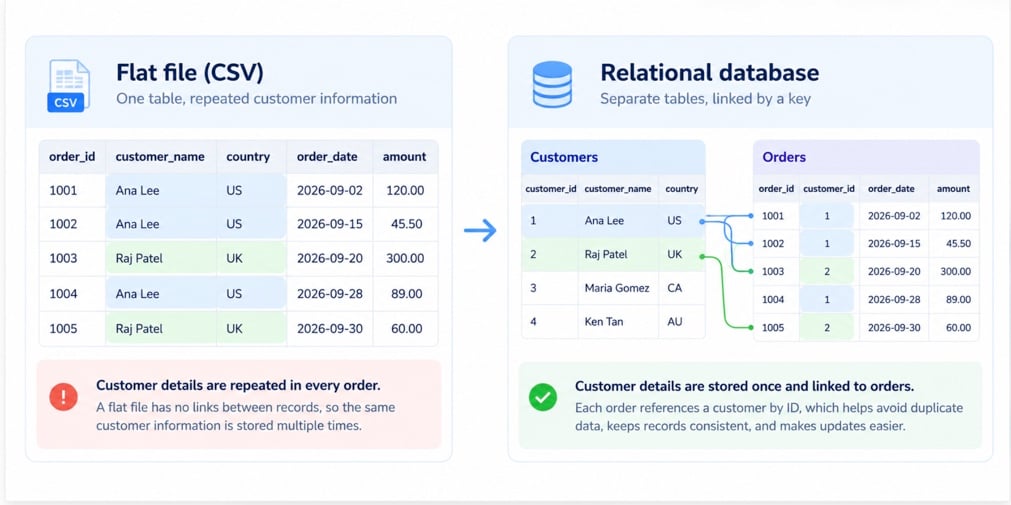
Notice that Ana’s name and country appear twice. A flat file can’t point one order at one customer record, so it repeats the customer on every order. That repetition is the root of most flat file problems. Microsoft’s guide to database normalization makes the same point: data that exists in more than one place must be changed in exactly the same way in all locations.
CSV isn’t the only format. Tab-separated files and JSON files with one object per line work the same way. Other everyday examples include a spreadsheet tab used as a customer list, a log file, an export from a CRM, and the Linux file /etc/passwd, which holds one line per user account with seven fields separated by colons.
Flat File Database vs Relational Database
| Aspect | Flat file (CSV, spreadsheet) | Relational database (SQLite, PostgreSQL, SQL Server) |
|---|---|---|
| Structure | One table in one file | Several tables linked by keys |
| Repeated data | The same customer copied onto every order | Stored once, referenced by ID |
| Duplicate IDs | Accepted silently | Rejected by a primary key |
| Finding one record | Read the file from the top | Jump to it through an index |
| Changing one record | Rewrite the whole file | Update the row in place |
| Several people editing | Last save wins | Transactions and locking |
| Access control | Whoever can open the file sees everything | Server databases add users, roles and permissions; SQLite relies on file access |
| Size on disk | Smaller | Larger, because of indexes |
| Tools needed | A text editor or a spreadsheet | A database engine and SQL |
Most comparison tables stop there. We wanted to see what those rows mean in seconds, so we measured them.
We Tested It: 1 Million Orders as a CSV File and in SQLite
The setup. We generated 1,000,000 synthetic orders and 50,000 customers (random values, fixed seed, no real data). The same rows went into two CSV files and into one SQLite database with primary keys and an index on customer_id. Everything ran on one Windows 11 laptop with Python 3.14.7 and SQLite 3.50.4, standard library only. Each timing is the median of five runs (three for the update and the join).
| Task | CSV file | SQLite |
|---|---|---|
| Size on disk | 37.1 MB orders + 1.2 MB customers | 49.4 MB for both tables and the index |
| Write all rows | 1.23 s | 1.43 s, keys and index included |
| Find one order by ID | 1.47 s | 0.03 ms |
| Find all orders of one customer (26 orders) | 1.40 s | 0.03 ms |
| Change one order’s status | 1.60 s | 0.1 ms |
| Add an order with an existing ID | Accepted: two rows now share the ID | Rejected: “UNIQUE constraint failed” |
| Revenue by country (orders joined to customers) | 1.94 s | 0.53 s |
The write times cover different operations: the CSV figure measures writing the orders file, while SQLite’s load includes both tables, primary keys and the customer index. They show the setup cost in this test, rather than a like-for-like comparison of writing identical files.
What the numbers say. Every lookup in the CSV meant reading the file from the top, so one order took about as long as one customer’s 26 orders: roughly a second and a half either way. SQLite answered both through its primary key and index in a fraction of a millisecond. Updating a single status was worse for the CSV, because a text file has no in-place update: the script read a million rows and wrote them all back to change one word.
The duplicate test is the one that bites in real life. The CSV accepted a second order with ID 999,993 without complaint, and any report built on it would count that order twice. SQLite refused it.
Where the CSV won. It was about a fifth smaller on disk and slightly faster to write, because there are no indexes to build. For a file you write once and read once, such as an export, those are real advantages.
Synthetic data on one laptop isn’t a benchmark of your system, so treat the ratios as the lesson rather than the exact times.
One detail about the join test: it ran after we tried adding a duplicate order. CSV accepted the extra row, while SQLite rejected it, so the two datasets differed by one order at that point.
Where Flat Files Still Make Sense
Flat files aren’t going anywhere, and they shouldn’t. They fit jobs where data is written in one place and read in another, or appended and rarely changed, or kept by one person.
- Moving data between systems. CSV is a format most apps, databases and spreadsheets can read and write, which is why exports and imports run on it. Bakewell Cookshop is one example. The retailer uses CSV files stored in Dropbox to transfer inventory updates into BigCommerce. Skyvia picks up the files and imports the data automatically every hour, removing the need for manual uploads. The customer case study shows how CSV can remain useful as an exchange format without becoming the system where the data is managed.
- Exports, snapshots and archives. A dated CSV of last month’s orders is easy to keep and opens in any spreadsheet.
- Configuration and logs. Files like /etc/passwd and application logs are flat by design.
- Small, single-owner lists. A few hundred rows that one person maintains don’t need a database server.
- Staging before a load. Many pipelines land data as files first and load them into a database or warehouse after.
Flat files and relational databases also work well together: the file carries the data in, the database stores and serves it. The trouble starts when a flat file becomes the system of record: the one place the business trusts for current data that several people change.
When to Move Beyond a Flat File: A Checklist
| Signal | What it means | What to do |
|---|---|---|
| The data no longer fits a spreadsheet | Excel stops at 1,048,576 rows per worksheet; Google Sheets at 20 million cells | Move it to a database before rows get cut off |
| More than one person edits it | Saves overwrite each other | Use a database with transactions |
| You change existing rows, not just add new ones | Every change rewrites the file | Use a table you can update in place |
| The same entity repeats on many rows | Customer, product or account data drifts out of sync | Split it into related tables |
| Duplicate IDs would break a report | Nothing in the file stops them | Add a primary key |
| Lookups take seconds | Every search reads the whole file | Add an index |
| Reports combine several files | Joins happen in scripts or formulas | Query with SQL, or load into a warehouse |
Two or more of these signals usually mean the flat file has become a liability.
What to Move To
The next step doesn’t have to be a big one.
- An embedded database such as SQLite for one application or one analyst. SQLite’s own documentation says it doesn’t compete with client/server databases at all: it “competes with fopen()”. It’s still a single file, but with keys, indexes and SQL.
- A server database (PostgreSQL, MySQL, SQL Server) when several people or applications read and write the same data at once.
- A data warehouse (BigQuery, Snowflake, Redshift) when the goal is reporting across sources, such as CRM, billing and marketing data together.
How to Move a Flat File Into a Database
- Clean the header row. One name per column, no spaces or special characters, no merged cells if the file came from a spreadsheet.
- Decide the types and the keys. Which column is unique (order_id), which ones are dates and amounts, which repeating group becomes its own table (customers).
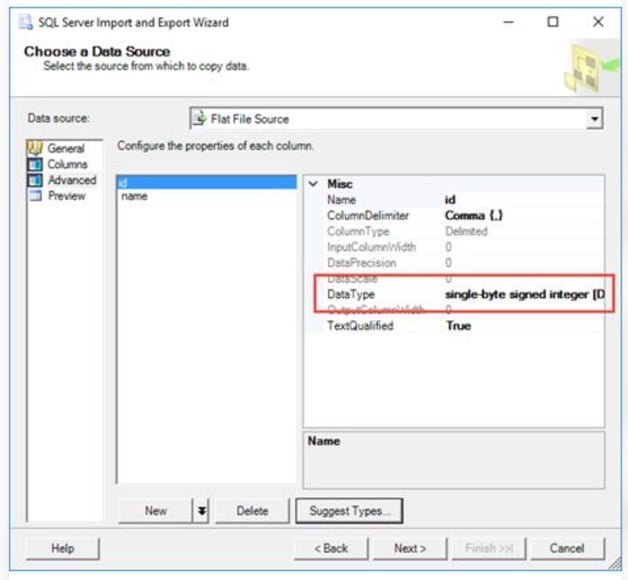
- Create a staging table and load the file into it as it is. Make a table that mirrors the file’s columns (orders_flat below) and load every row, so nothing is lost before you split it. In SQL Server’s Import and Export Wizard, for example, you set each column’s type before the load.
- Split the staging table into related tables.
This SQL splits the orders file above into two related tables after it has been loaded as orders_flat. We ran it on the three sample rows: it created two customers and three orders, and when we then tried to insert order 1002 a second time, the primary key rejected it.
CREATE TABLE customers (
  customer_id INTEGER PRIMARY KEY,
  email       TEXT NOT NULL UNIQUE,
  name        TEXT,
  country     TEXT
);

CREATE TABLE orders (
  order_id    INTEGER PRIMARY KEY,
  customer_id INTEGER NOT NULL REFERENCES customers(customer_id),
  order_date  TEXT NOT NULL,
  amount      REAL NOT NULL,
  status      TEXT NOT NULL
);

INSERT INTO customers (email, name, country)
SELECT DISTINCT customer_email, customer_name, country FROM orders_flat;

INSERT INTO orders (order_id, customer_id, order_date, amount, status)
SELECT f.order_id, c.customer_id, f.order_date, f.amount, f.status
FROM orders_flat AS f JOIN customers AS c ON c.email = f.customer_email;
If the same email appears with two spellings of a name, the insert into customers fails on the UNIQUE constraint on email. That failure is useful: it shows the inconsistency the flat file was hiding.
- Check the counts. Rows in, rows out, and the duplicates the keys rejected.
When the File Keeps Arriving: the Same Load in Skyvia Import
For a one-off move, a database’s own import tool is enough; see our guides to importing CSV into MySQL, PostgreSQL and SQL Server. When the CSV keeps arriving every day or week, Skyvia Import can pick it up from your computer or from storage such as SFTP, Amazon S3, Google Drive or SharePoint, match files by a date-based mask, and insert, update, upsert or delete records in the target database on a schedule.
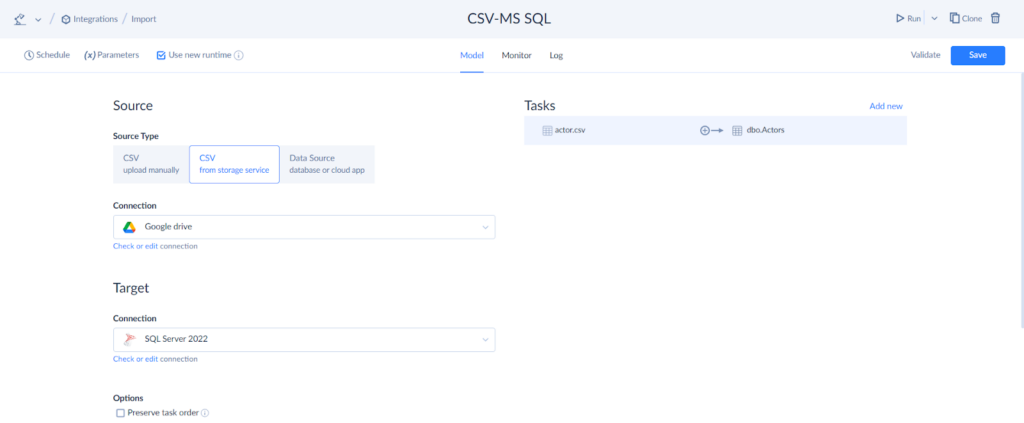
- Create an Import integration. As the source type, choose “CSV from storage service” (or “CSV upload manually” for a file on your computer), then pick the storage connection and the target database connection.
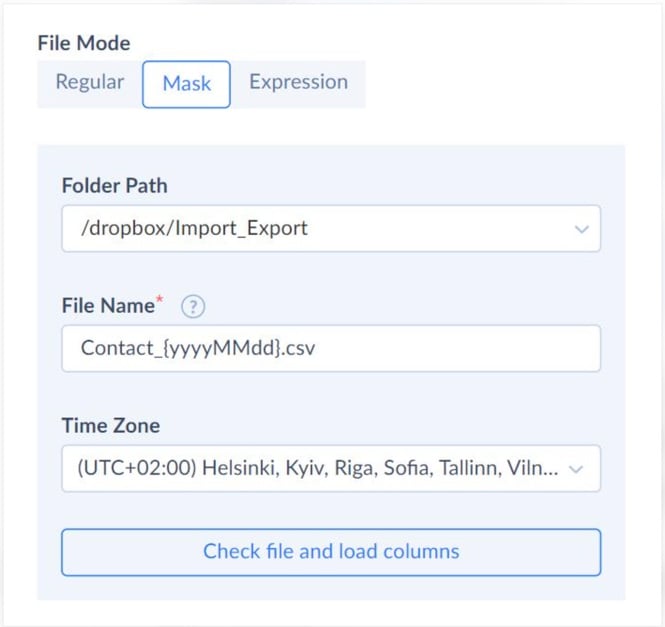
- Add a task and pick the file. Choose the file in the storage folder, or set a date-based mask such as Contact_{yyyyMMdd}.csv so that each run takes that day’s file (masks need the Standard plan or higher). Click “Check file and load columns”, check the column types Skyvia detected, and choose orders_flat as the target table.
- Run it and check the counts. The Monitor tab lists the last five runs with Success rows and Error rows for each table. Click an error count to download a CSV with every rejected record and the reason it failed; older runs are on the Log tab.
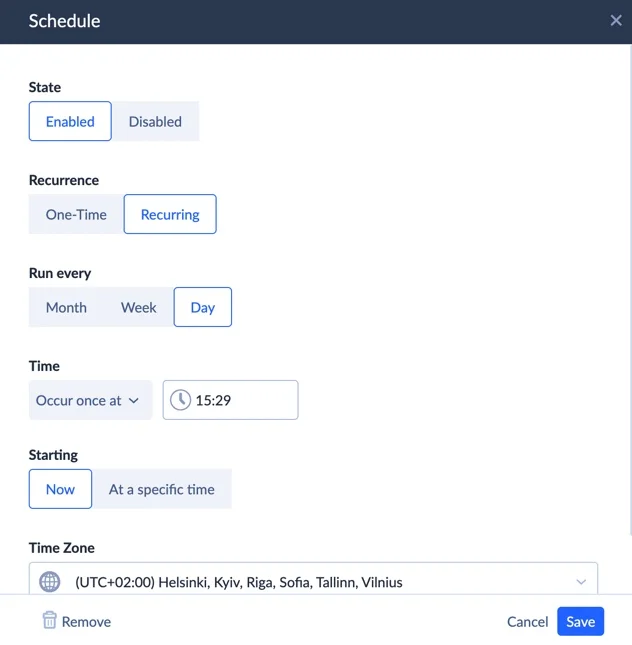
- Schedule it. Click Schedule, choose Recurring and set how often it runs.
Note: you can start on the Free plan, and signing up needs no credit card.

FAQ for Flat File Databases

What is a flat file in SQL?
In SQL work, a flat file usually means a CSV or other delimited text file that you import into a table or export from one. The file has no keys or indexes of its own, so the database adds them once the data is loaded.
What is an example of a flat file?
A CSV export of orders is the classic one: one order per line, fields separated by commas, a header row with column names. The Linux file /etc/passwd is another, with one line per user account and seven fields separated by colons.
Is Excel a flat file database?
A single worksheet used as a list behaves like one: one table, rows of records, no enforced keys. Excel also has a hard ceiling of 1,048,576 rows per worksheet, which is one of the signals that data has outgrown it.
Is a CSV file a database?
A CSV file stores data, but it isn’t a database engine. It can’t index records, reject duplicate IDs or let several people update it safely. In our test, a CSV accepted a duplicate order ID that SQLite rejected.
How big can a flat file get before it slows down?
There’s no fixed threshold. Every search reads the file from the top, so search time grows with file size. With 1 million orders, finding one order took about 1.5 seconds in our CSV test and 0.03 milliseconds in SQLite.
Ready to stop rewriting CSV files by hand? Sign up for Skyvia free and set up a scheduled import that loads each new file into a database table whose keys catch duplicates.