


Summary
- Method 1: The Manual Approach (CSV Export) — Export your Airtable data as a CSV and load it into BigQuery by hand; straightforward and free, but not something you'd want to repeat every week.
- Method 2: The "Do-It-Yourself" Approach (Airtable API & Python) — Pull data programmatically via Airtable's REST API and push it into BigQuery with a Python script; flexible and automatable, but requires solid coding chops to set up and maintain.
- Method 3: Automating Airtable to BigQuery with Skyvia — Connect both platforms in a few clicks and let scheduled replication handle everything from schema creation to incremental updates; no code needed.
Airtable earns its place on the stack fast. That spreadsheet-database hybrid that actually makes sense to non-technical users — flexible enough to track projects, manage pipelines, run content calendars, all without writing a single line of code.
But growth eventually catches up with it. Record limits start biting, reports slow down, and the moment you try to join Airtable data with what’s sitting in your CRM or payment system, you hit a wall. What started as a flexible workspace quietly turns into a data silo.
That’s where Google BigQuery becomes your best friend — virtually unlimited scalable storage, full SQL capabilities, and the ability to run complex analytics across your entire stack, not just what lives in Airtable.
There’s more than one way to make that connection, depending on how much control you want and how much time you’re willing to spend:
- The Manual Approach: quick CSV export, no tools required.
- The DIY Approach: Airtable API and Python for those who prefer to build their own.
- The Automated Approach: fully hands-off setup using Skyvia.
Let’s walk through all three.
Table of Contents
- Why Export Data from Airtable to BigQuery?
- Method 1: The Manual Approach (CSV Export)
- Method 2: The “Do-It-Yourself” Approach (Airtable API & Python)
- Method 3: Automating Airtable to BigQuery with Skyvia
- Bonus: Reverse ETL
- Comparison: Manual vs. Script vs. Skyvia
- Conclusion
Why Export Data from Airtable to BigQuery?
Overcoming Limits
Airtable is generous up to a point — then the hard caps kick in. Depending on your plan, you’re looking at a 50,000 to 100,000 record ceiling per base, and once you’re bumping against it, there’s no elegant way around it inside Airtable itself. Pushing data into BigQuery removes that ceiling entirely. Your warehouse scales with you, not against you.
Advanced Analytics
Airtable’s built-in reporting is fine for day-to-day visibility, but it doesn’t hold up when you need to run complex SQL queries or join your project data with data from Google Analytics, Salesforce, or your payment system. BigQuery makes that kind of cross-source analysis straightforward — and fast, even at serious data volumes.
Visualization
Airtable Interfaces cover the basics, but they’re not built for professional BI work. Once your data lands in BigQuery, tools like Looker Studio, Tableau, and Power BI can connect directly and deliver dashboards that keep up with the questions the business is asking.
Data Historization
Airtable doesn’t natively track how records change over time — when a field was updated, what it looked like last month, what changed between two points. BigQuery lets you build proper snapshotting workflows, so you always have a historical log to go back to. For compliance, auditing, or just understanding trends, that’s harder to live without than most teams expect.
Method 1: The Manual Approach (CSV Export)
No native connection exists between the two platforms, so the simplest way to get data across is the old-fashioned way — export a CSV from Airtable and load it straight into BigQuery. No additional tools, no code, no setup. Just a few clicks and some patience.
In Airtable
- Log in to Airtable and open the base you want to export.
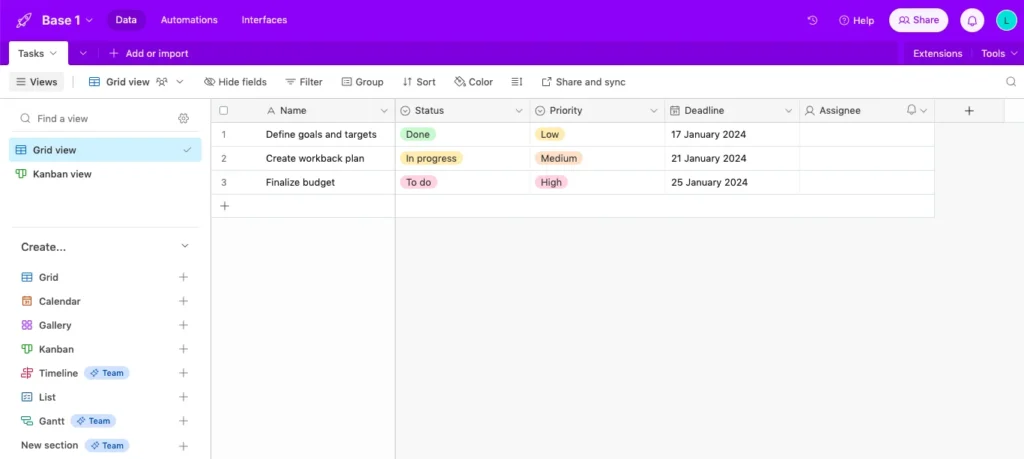
- Click Grid View and select Download CSV from the menu.
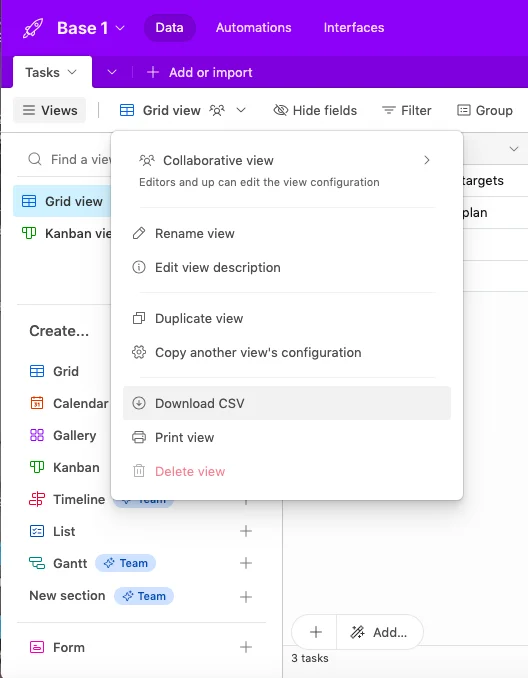
- Save the file somewhere you’ll find it in the next thirty seconds.
In BigQuery
- Log in to BigQuery with your Google account and head to BigQuery Studio.
- Under Add your own data, click Load file.
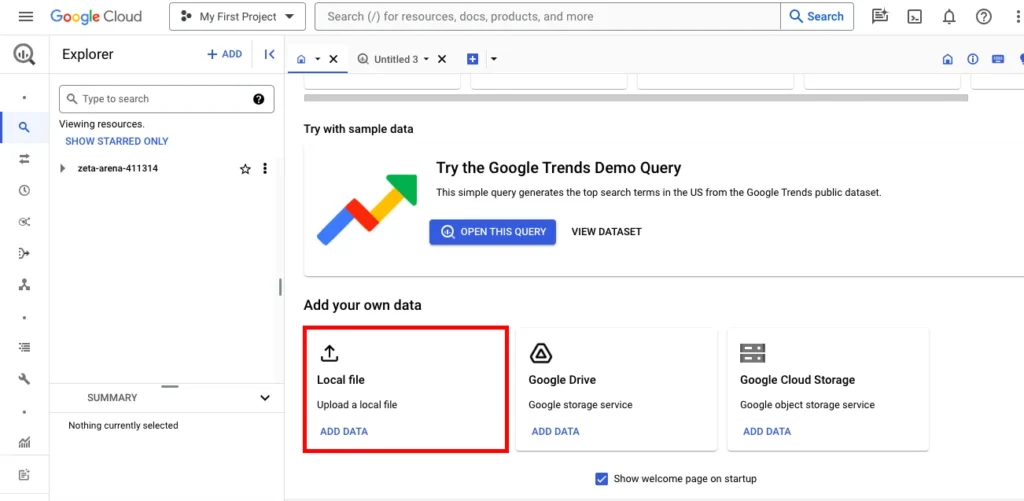
- Select your CSV, fill in the required fields in the Create table window, and hit Create table.
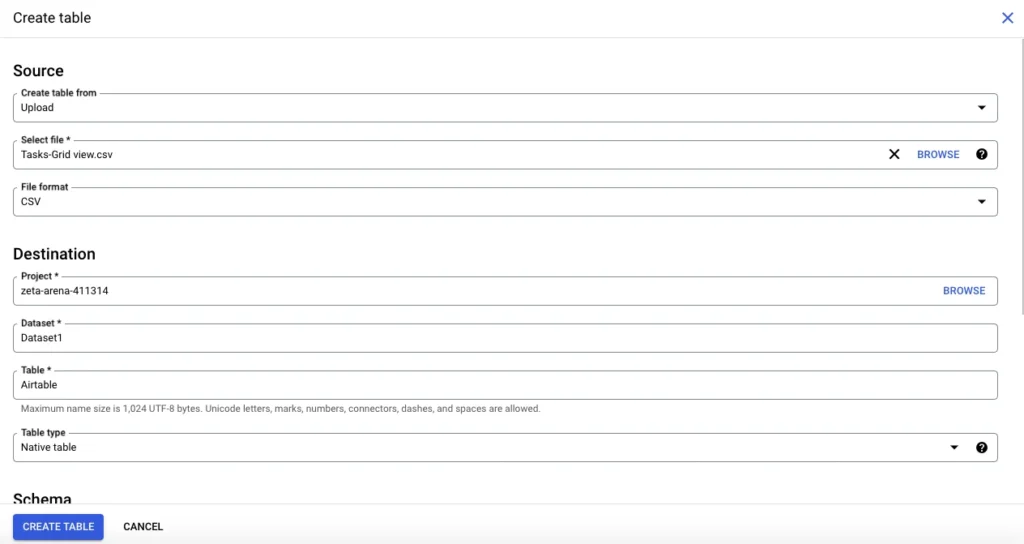
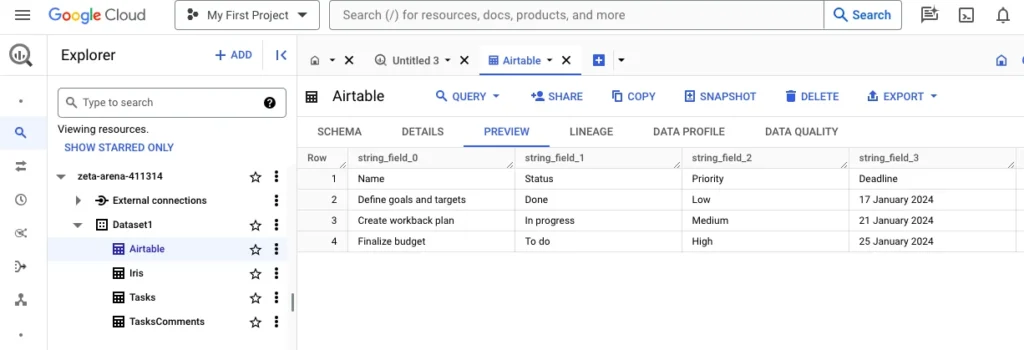
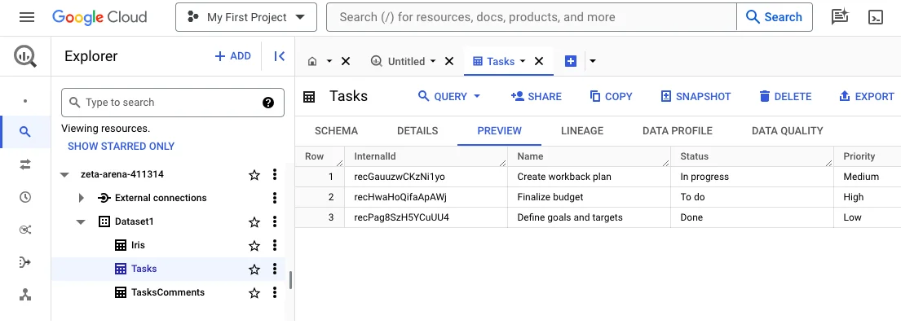
- Navigate to the dataset where the table was created and click Preview to confirm the data landed correctly.
Best for
One-time exports and quick ad-hoc analysis where freshness doesn’t matter and you’re not planning to repeat the process.
Pros
- Completely free — no tools or accounts needed beyond what you already have.
- Zero setup time, works for any team regardless of technical ability.
Cons
- No automation whatsoever — every update means repeating the whole process by hand.
- Data types frequently break on export: dates come through as plain text, integers lose their formatting, and linked records turn into a messy comma-separated string that needs cleaning before it’s usable.
Method 2: The “Do-It-Yourself” Approach (Airtable API & Python)
If the CSV approach feels too manual but you’re comfortable with Python, pulling data directly from Airtable’s REST API and pushing it into BigQuery with Google’s client library is a solid middle ground. You get automation, scheduling control, and full flexibility over what gets moved and how. The trade-off is that you’re also owning every edge case that comes with it.
Best for
Engineering teams that want tight control over their pipeline logic and have the bandwidth to build and maintain custom scripts. Less ideal for teams that need something that just runs without babysitting.
Step-by-Step Guide
You’ll need two libraries to get started:
pip install requests google-cloud-bigquery Here’s a basic script that pulls records from an Airtable table and loads them into BigQuery:
import requests

import time

from google.cloud import bigquery

# Airtable config

AIRTABLE_TOKEN = "your_personal_access_token"

BASE_ID = "your_base_id"

TABLE_NAME = "your_table_name"

AIRTABLE_URL = f"https://api.airtable.com/v0/{BASE_ID}/{TABLE_NAME}"

# BigQuery config

BQ_PROJECT = "your_project_id"

BQ_DATASET = "your_dataset"

BQ_TABLE = "your_table"

headers = {"Authorization": f"Bearer {AIRTABLE_TOKEN}"}

records = []

params = {}

# Paginate through all records

while True:

    response = requests.get(AIRTABLE_URL, headers=headers, params=params)

    data = response.json()

    records.extend(data.get("records", []))

    offset = data.get("offset")

    if not offset:

        break

    params["offset"] = offset

    time.sleep(0.2) # Stay within rate limits

# Flatten records for BigQuery

rows = [{"id": r["id"], **r["fields"]} for r in records]

# Load into BigQuery

client = bigquery.Client(project=BQ_PROJECT)

table_ref = f"{BQ_PROJECT}.{BQ_DATASET}.{BQ_TABLE}"

errors = client.insert_rows_json(table_ref, rows)

if errors:

    print("Errors:", errors)

else:

    print(f"Loaded {len(rows)} rows successfully.")
The Hidden Challenges
This is where things get interesting and not always in a good way.
Pagination. Airtable returns a maximum of 100 records per API call. For any reasonably sized base, you’ll need to loop through offset tokens until there are no more pages left. The script above handles this, but it’s easy to miss if you’re prototyping quickly and testing on a small dataset.
Rate limits. Airtable caps you at 5 requests per second. Hit that ceiling without handling it properly, and your script starts throwing errors mid-run. The right fix is exponential backoff. Wait a bit, retry, wait a bit longer if it fails again. Without it, your pipeline becomes unreliable the moment data volumes grow.
Schema evolution. This one tends to sneak up on teams. The moment a marketing manager adds a new column in Airtable, which takes them about three seconds. Your static BigQuery schema breaks. Every new field needs to be reflected in your table definition, and if nobody’s watching for that, you’ll lose data silently until someone notices a report looking odd.
Pros
- Full control over transformation logic, filtering, and scheduling.
- Free to run beyond standard cloud compute costs.
- Can be extended and customized to fit specific pipeline requirements.
Cons
- Significant upfront build time and ongoing maintenance overhead.
- Schema changes in Airtable require manual updates to keep the pipeline running.
- Retry logic, pagination, and error handling all need to be built from scratch, and getting them right takes longer than most teams budget for.
Method 3: Automating Airtable to BigQuery with Skyvia
Skyvia is a cloud data platform that covers integration, replication, backup, automation, and API management from one place. It supports 200+ connectors and is code-free.
Where the CSV approach breaks down on scale, and the Python route demands ongoing engineering attention, Skyvia handles the pipeline for you:
- Connections.
- Scheduling.
- Schema creation.
- Incremental updates.
For the Airtable–BigQuery connection specifically, the right tool inside Skyvia is Replication: an ELT scenario that bulk-loads and incrementally syncs data from Airtable directly into your warehouse.
Best for
Teams that want a reliable, automated pipeline without the overhead of building and maintaining one. Works just as well for a solo analyst as it does for a data engineering team that has better things to do than babysit a sync script.
Prerequisites
- Active Skyvia account
- Airtable account with the base you want to replicate
- BigQuery project and dataset
- Connectors configured in Skyvia: Airtable connector setup · BigQuery connector setup
Step-by-Step: Replicating Airtable to BigQuery
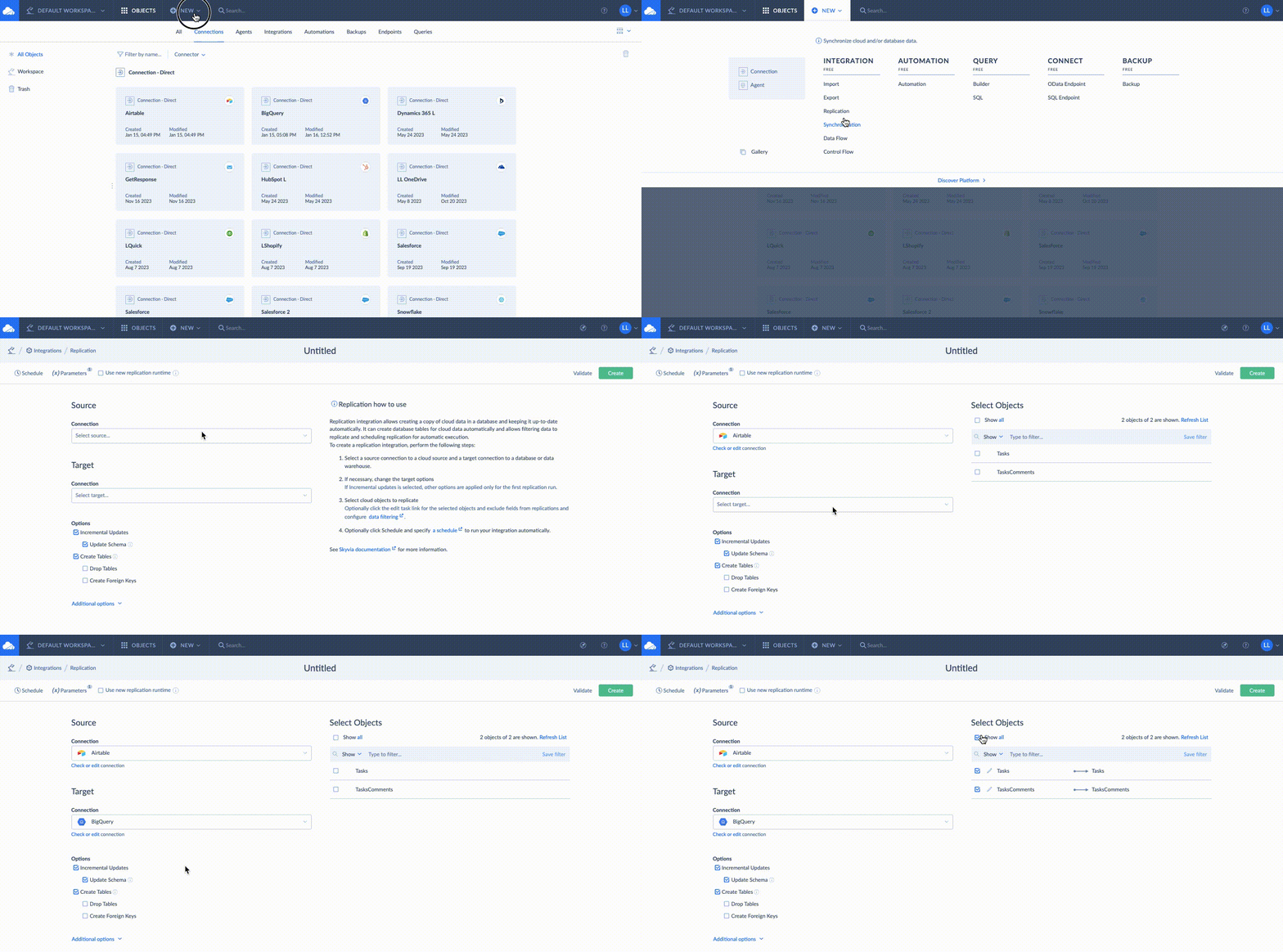
- Log in to your Skyvia account.
- Click +Create New → Replication in the upper menu.
- Select Airtable as the source and BigQuery as the target.
- Choose the tables you want to replicate.
- Select Incremental Updates to sync only new or modified records going forward.
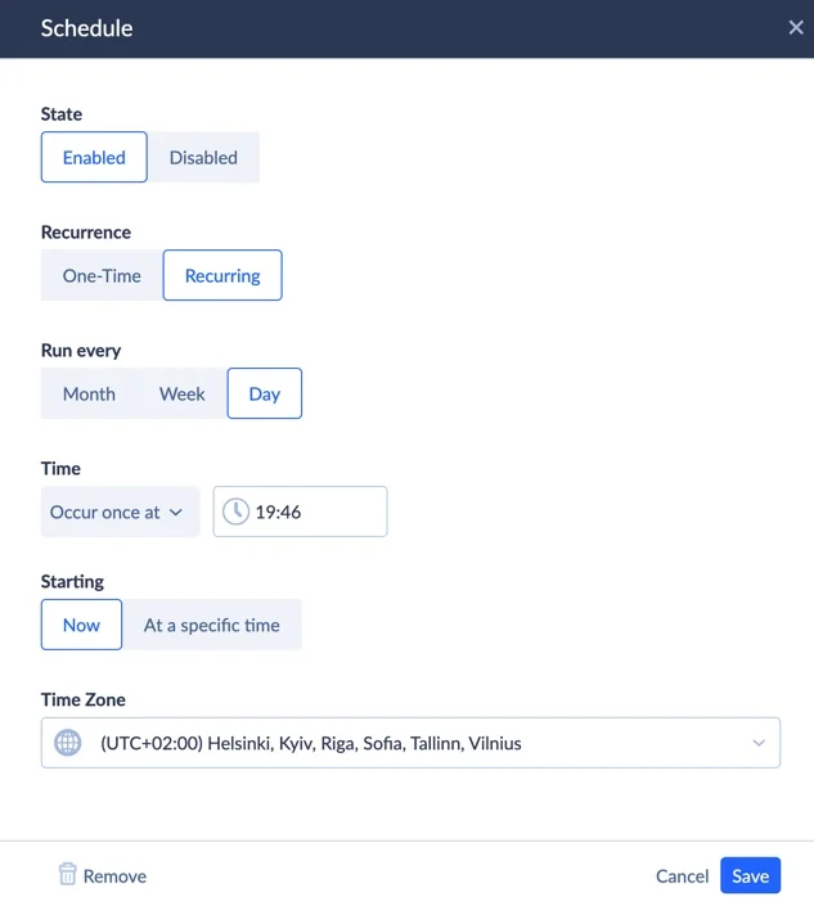
- Click Schedule, set your preferred update frequency, and hit Save.
- Click Create, then Run to kick off the first replication.
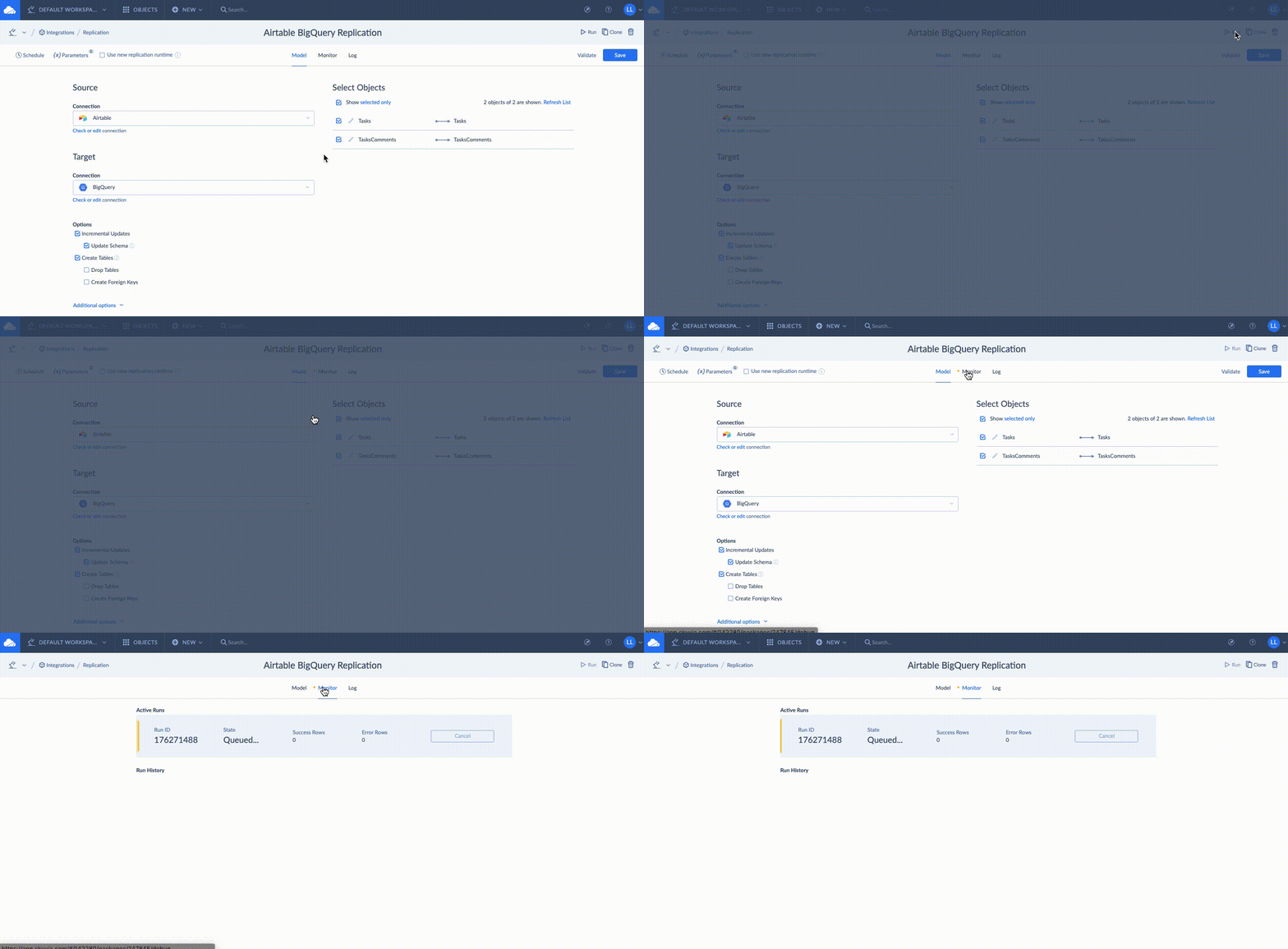
- Monitor progress in the Monitor tab. Once it’s done, open BigQuery and confirm the data landed correctly.
Note: The free plan supports one sync per day. If you need near-real-time updates, paid plans offer significantly higher frequencies.

Two Features Worth Calling Out
Incremental Updates. Rather than dumping the entire Airtable base into BigQuery on every run, Skyvia tracks LastModifiedTime on each record and only moves what’s actually changed since the last sync. For large bases that update frequently, this makes a meaningful difference in BigQuery query costs because you’re not reprocessing data that hasn’t changed.
Automatic Schema Creation. On the first replication run, Skyvia inspects your Airtable structure and builds the corresponding BigQuery table automatically. No manual DDL, no writing CREATE TABLE statements, no worrying about whether your field types match up. If your schema changes in Airtable, Skyvia handles the adjustment — which is the exact problem that makes the Python approach so brittle over time.
Pros
- No code required. The entire setup takes minutes, not hours.
- Incremental sync keeps BigQuery costs in check by moving only changed records.
- Automatic schema creation and evolution mean Airtable field changes don’t break anything.
- Flexible scheduling from daily to near-real-time depending on your plan.
- Detailed run logs and monitoring built in.
Cons
- The free plan is limited to one sync per day. Fine for non-urgent use cases, but teams needing frequent updates will need a paid plan.
- As a managed cloud service, you’re working within Skyvia’s connector coverage rather than building fully custom transformation logic.
Deep Dive: Handling Linked Records and Arrays
This is where Skyvia genuinely pulls ahead of a flat CSV export, and it’s worth understanding why.
In Airtable, Linked Record fields don’t store the actual values of the linked records. They store an array of record IDs — something like [‘rec123’, ‘rec456’]. When you export to CSV, those IDs come through as a messy concatenated string with no structure, and you lose the relationship entirely.
Skyvia handles this properly. Linked Record fields can be stored in BigQuery as REPEATED fields (native BigQuery arrays), which preserves the original data structure. Instead of a mangled string, you get a proper array that can be queried, unnested, and joined against other tables — the relationship information that exists in Airtable actually survives the move to BigQuery in a usable form. Something that simply isn’t possible with a CSV export and requires significant custom handling if you’re rolling your own script.
Bonus: Reverse ETL
Once data is enriched in BigQuery, joined with other sources, scored, transformed, you’ll often want to push those results back into Airtable so the teams working there can actually use them. That’s exactly what Skyvia’s Import scenario handles.
Enriching Airtable from BigQuery
Say your data team has added a Task Score column to the BigQuery table based on an analysis that isn’t possible inside Airtable. Here’s how to get it back:
- Log in to your Skyvia account.
- Click +Create New → Import in the upper menu.
- Select BigQuery as the source and Airtable as the target.
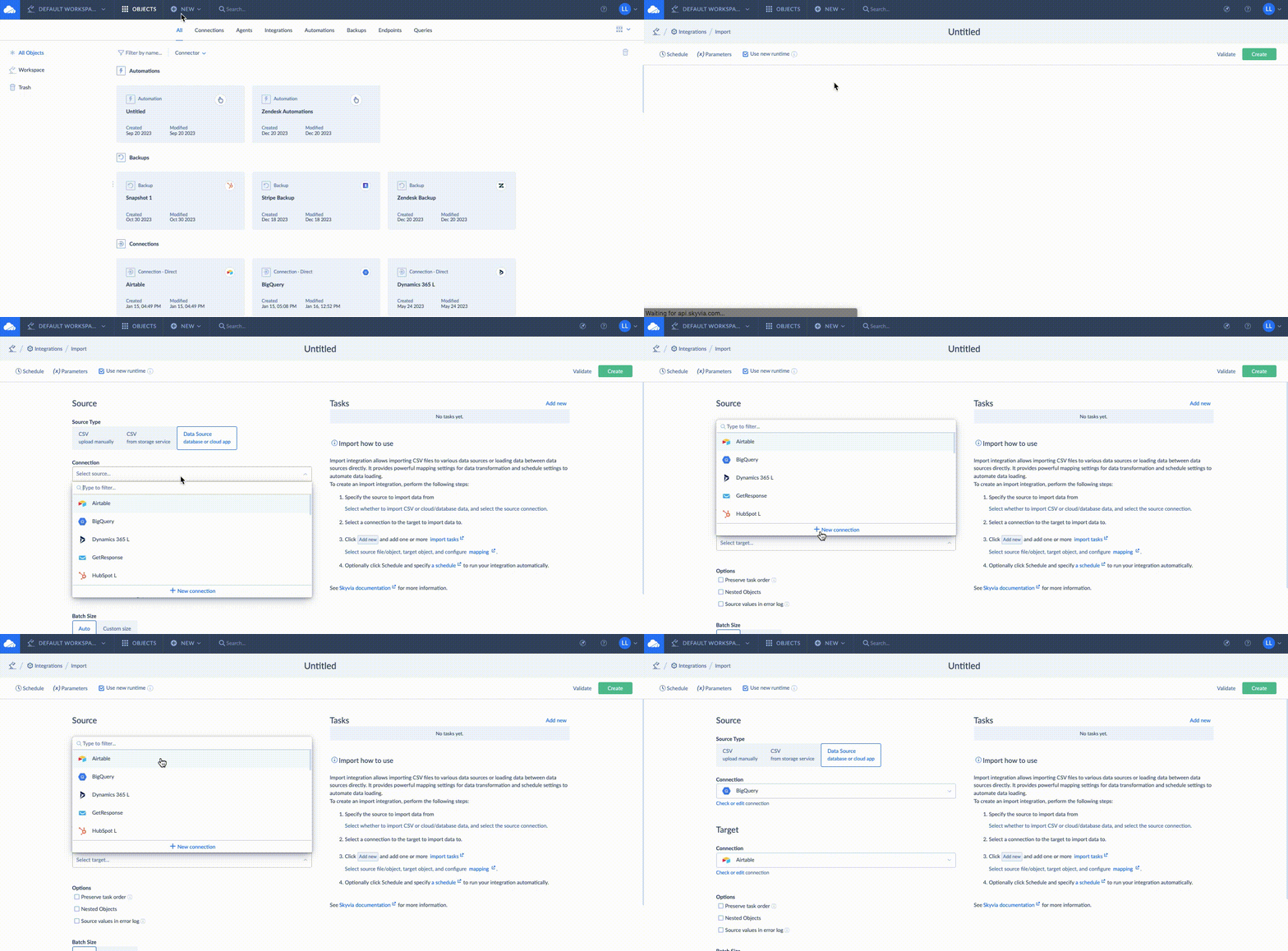
- Click Add task, select the object to import, and choose your DML operation:
- INSERT: copies records from BigQuery to Airtable as new entries.
- UPDATE: updates existing Airtable records with enriched values from BigQuery.
- DELETE: removes records in Airtable based on the primary key.
- Map source and target columns to align the data structures.
- Click Schedule to set up regular syncs, then Save.
- Click Run and monitor progress in the Monitor tab.
- Once the process is complete, see the results in Airtable.
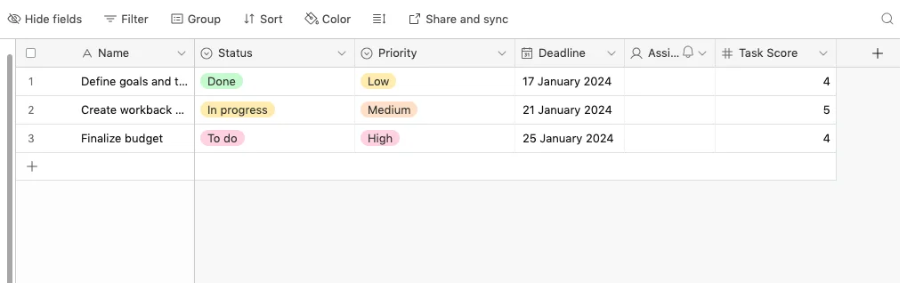
Note: When syncing data back to Airtable, Skyvia automatically checks whether a record already exists before writing. If it does, it updates it. If it doesn’t, it inserts it. No manual deduplication logic, no MERGE statements to write. The platform takes care of it under the hood, so Airtable data stays clean regardless of how many times the sync runs.
Comparison: Manual vs. Script vs. Skyvia
Every approach gets the job done under the right conditions. Here’s how they actually stack up across the things that matter once you’re past the initial setup:
| Criterion | Manual (CSV Export) | Script (Python & API) | Automated (Skyvia) |
|---|---|---|---|
| Setup Time | Minutes | Hours to days | Minutes |
| Technical Skill Required | None | Python, APIs, BigQuery SDK | None |
| Automation | None | Custom CRON/scheduler | Built-in scheduler |
| Maintenance Effort | Low (but repetitive) | High | Low |
| Incremental Updates | No | Manual | Automated |
| Array / JSON Handling | Poor — linked records become flat strings | Complex — requires custom parsing logic | Automated — preserves REPEATED fields natively |
| Historical Data | No | Manual snapshotting | Automated |
| Real-time Latency | None | Depends on CRON frequency | Near real-time on paid plans |
| Cost | Free | Free + engineering time | Free tier; paid from $79/mo |
Conclusion
The manual route works once. The Python script works until something breaks. Skyvia just works: incremental updates, automatic schema handling, linked records preserved, pipeline running on schedule without anyone babysitting it.
Ready to centralize your Airtable data? Start your free Skyvia trial today and have your BigQuery pipeline up and running in under 5 minutes.

F.A.Q. for Connect Airtable to BigQuery

Can I sync data from Airtable to BigQuery in real-time?
Not with CSV or basic scripts. Skyvia supports near real-time sync on paid plans, with scheduling flexible enough to cover most use cases. The free tier allows one sync per day.
Does this integration support BigQuery nested and repeated fields?
Skyvia preserves Airtable’s array-type fields as native BigQuery REPEATED fields. CSV exports don’t support this at all, and Python requires significant custom handling to get there.
What happens if I add a new column in Airtable?
With a Python script, your BigQuery schema breaks until you update it manually. Skyvia automatically detects schema changes and adjusts the destination table without any intervention.
How do I avoid hitting Airtable API rate limits during large exports?
Airtable allows 5 requests per second. In a Python script, you need to build in exponential backoff and pagination handling yourself. Skyvia manages rate limiting and pagination under the hood.
Is it possible to send data from BigQuery back to Airtable?
Yes, that’s reverse ETL. Skyvia’s Import scenario handles it directly, syncing enriched BigQuery data back into Airtable on a schedule, with automatic deduplication so records stay clean.