

Summary
- HubSpot Native Export – manual, one-off download path that is limited to current screen views and requires formatting fixes for Excel. HubSpot API (Python) – developer-controlled script approach offering total pipeline flexibility at the cost of custom coding and maintenance.
- Coefficient – spreadsheet add-on enabling two-way syncs to update HubSpot records directly from Google Sheets or Excel.
- Coupler.io – reporting tool with built-in templates to quickly blend and transform HubSpot data with other marketing sources.
- Supermetrics – agency-focused connector built to aggregate multi-portal HubSpot data and marketing platforms into visualization layers.
- Skyvia – scheduled, no-code pipeline to automate and map HubSpot CSV exports directly to secure storage or SFTP targets.
Exporting data from HubSpot sounds like the kind of task that takes five minutes. Then you open the CSV, and half of your custom fields aren’t there. Field mapping fails when your file lacks UTF-8 encoding, has missing unique identifiers, or has header mismatches that HubSpot doesn’t recognize, and none of that is obvious until you’re already staring at a broken spreadsheet.
The frustrating part isn’t that it happens. It’s that it keeps happening because manual exports don’t come with guardrails.
We’re the Skyvia team – we’ve built an ETL/ELT platform used by thousands of teams who moved past the manual export stage and never looked back. We’re biased, and we’ll say so upfront. What we can also say is that everything in this guide comes from hands-on testing, not from reading the documentation (the next section covers exactly how we did it).
This guide will show you how to get the data you need out of HubSpot in the format you need it, without spending your afternoon finding out what went missing.
How did we test these HubSpot export methods for accuracy and speed?
Reading HubSpot’s documentation tells you what should happen. Stress-testing it tells you what it does.
Our engineering team built a controlled environment designed to replicate the conditions where standard exports typically break down, not to make the tools look bad, but to find the exact point where each one stops being sufficient.
Our testing environment:
- Dataset: A HubSpot Sandbox account with 10,000 Contact records.
- Complexity: Each record included 50 properties – 20 default HubSpot fields and 30 custom ones, covering multi-line text, picklists, and date/time stamps.
- The chaos factor: We deliberately planted internal line breaks and commas inside “Notes” fields – a classic CSV-breaking move where data spills into the wrong columns, and nobody notices until someone opens the file in Excel.
- Infrastructure: Three methods went head to head – HubSpot’s native manual export, a custom Python script using the HubSpot API, and a Skyvia automation pipeline.
What we measured:
- Latency: Time from initiating the export to the file being available.
- Formatting accuracy: Whether the CSV opened in Excel cleanly or required manual fixing before it was usable.
- Relational integrity: How straightforward it was to link exported Contacts back to their associated Deals.
Here’s a short summary of what we found across all three methods:
| Native Export | Python + API | Skyvia | |
|---|---|---|---|
| Latency | ~3-5 min (email delay) | ~1-2 min | ~2-3 min (scheduled) |
| Formatting accuracy | Line breaks split rows in Excel without UTF-8 import | Clean with proper encoding | Clean, handled pre-export |
| Relational integrity | Manual merge required | Manual merge required | Single operation with related objects |
What criteria should you use to evaluate the best HubSpot export method for your team?
1. Data Integrity & Formatting
HubSpot’s CSV export has a particular weakness for multi-line text fields, and it’s the kind of weakness that doesn’t announce itself until someone opens the spreadsheet and notices that one contact record has quietly become four rows.
Line breaks inside Notes fields get read as new records. Column headers are formatted for human readability rather than machine processing, which is charming right up until that file needs to feed into another system automatically and every header becomes an obstacle instead of an identifier.
The Goal
A method that treats messy field content as an input problem to solve before export, not a formatting surprise to discover after.
2. Automation & “Freshness”
A one-off export for a board presentation is fine as a manual process. A Power BI dashboard or a secondary CRM that needs current data is not. The difference between “good enough” and “really useful” is whether your export method can run on a schedule and pull only records modified since the last run, rather than re-exporting your entire database every time and burning through API quota in the process.
The Goal
A scheduled, incremental sync that keeps your data current without treating every run like the first one.
3. Security and Delivery Path
HubSpot’s native CSV export delivers your file via an emailed download link. For teams handling sensitive PII, contact details, deal values, and personal notes, routing that data through an inbox introduces a security risk that most compliance frameworks would have opinions about.
HubSpot caps API-based exports at 30 per rolling 24-hour window (applies to paid accounts using the CRM Exports API), and the in-app export tool tops out at 300 per day across all methods. For teams running multiple scheduled pipelines, that ceiling arrives faster than expected, which makes the email delivery model even less reliable at scale.
The Goal
Encrypted, direct delivery to a secure destination – Google Drive, an SFTP server, or a SQL database – with no human inbox involved at any point in the journey.
4. Technical Scale (Column & Row Limits)
HubSpot’s native export limits are reasonable in isolation and inconvenient in combination.
- Files cross the 2MB threshold and get zipped automatically.
- Datasets over 1,000,000 rows arrive fragmented across multiple files inside a ZIP archive.
Free plan accounts are limited to 10 exports per rolling 24-hour window – a separate constraint on top of the file size and row fragmentation limits above. Hit two or three of these at once with a sufficiently complex dataset, and a single export turns into a manual reconstruction project, the kind where someone ends up concatenating files in Excel and hoping the row counts match.
The Goal
A method that handles the fragmentation automatically, so the only thing that grows with your dataset is the record count.
Which HubSpot objects can you actually export to CSV?
Most people discover the answer to this question by accident – usually while looking for something specific and finding out HubSpot holds considerably more exportable data than the button they’ve been clicking suggests.
- Contacts
Names, emails, phone numbers, lifecycle stages, custom properties, list memberships – the full picture of everyone in your CRM. Filters let you narrow the output to a specific segment rather than exporting your entire contact universe and sorting it out in Excel afterward.
- Companies
Company name, domain, industry, revenue figures, and whatever custom fields your team has accumulated. Clean B2B data, ready for reporting, territory planning, or syncing with any external tool that needs to know who your customers are.
- Deals
Every deal in your pipeline, flattened into rows – names, stages, close dates, amounts, owners. Filter by pipeline or outcome and you’ve got a revenue snapshot that your spreadsheet-preferring stakeholders will appreciate.
- Tickets
Support records with status, stage, owner, and contact associations. The export your CS team needs when HubSpot’s built-in reporting isn’t granular enough, and someone senior wants answers in a spreadsheet.
- Products
Names, prices, SKUs – everything in your product library is exportable for pricing audits, inventory syncing, or connecting to e-commerce tools that don’t speak HubSpot natively.
- Custom Properties
Not records, but field definitions – a full inventory of your custom properties and their configurations. Underused, genuinely valuable before a data migration or CRM restructure, and easy to forget it exists until you need it urgently.
- Reports
Table-format data from dashboard exports cleanly. Charts don’t – HubSpot keeps those to itself. For anything requiring analysis beyond what the dashboard offers, the raw data export is where that work starts.
⚠️ The one thing worth pausing for: Always include the HubSpot Record ID in any export you might re-import later. It’s the unique identifier HubSpot uses to match incoming rows to existing records. Without it, a re-import doesn’t update your records; it duplicates them. In a way that takes considerably longer to fix than it took to cause.
How do you manually export data for different HubSpot objects?
Good news: Whoever designed HubSpot’s export flow made one decision that saves everyone time: it works identically across every object.
Contacts, Deals, Companies, and Tickets all follow the same path:
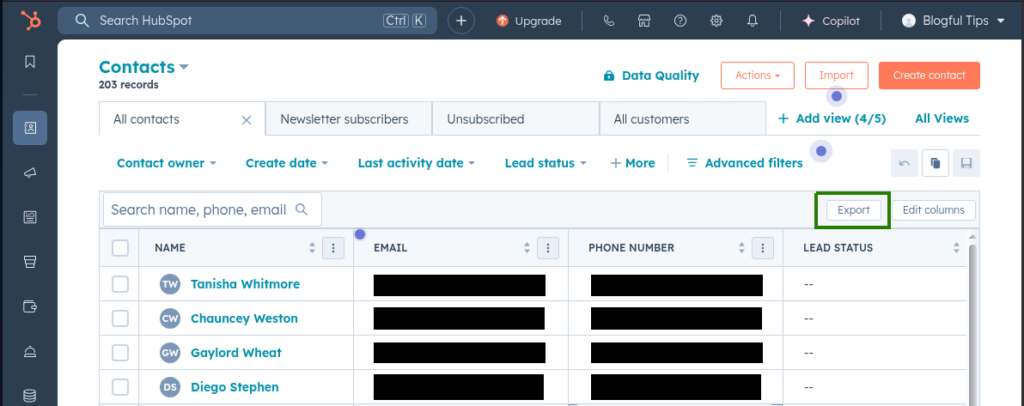
- Navigate to the object – CRM > Contacts, Deals, Companies, or Tickets – and take a moment with your filters. The export captures exactly what’s on screen, nothing more, nothing less.
- Click Export, pick CSV, and confirm.
- Go check your email – HubSpot doesn’t hand you the file directly; it sends a download link.
Lists work the same way, with one distinction worth keeping in mind:
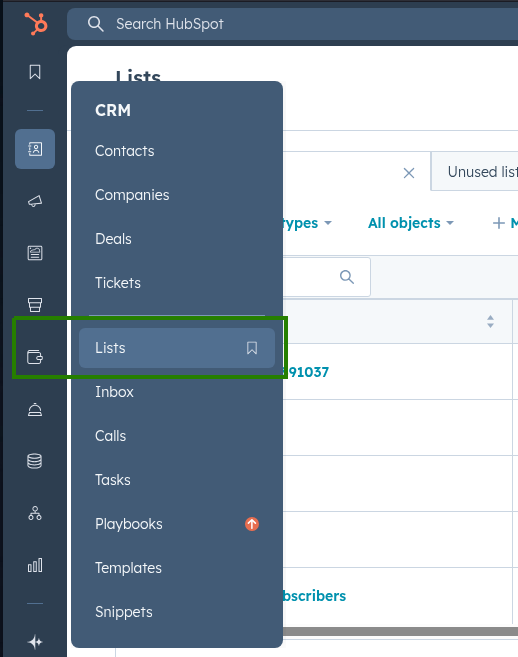
- CRM > Lists, open the list, click Export, pick CSV, and check your email.
- Note: Active lists export your data as it stands right now. Static lists export a frozen snapshot – one that won’t reflect anything that changed after the list was created.
Reports have one quirk:
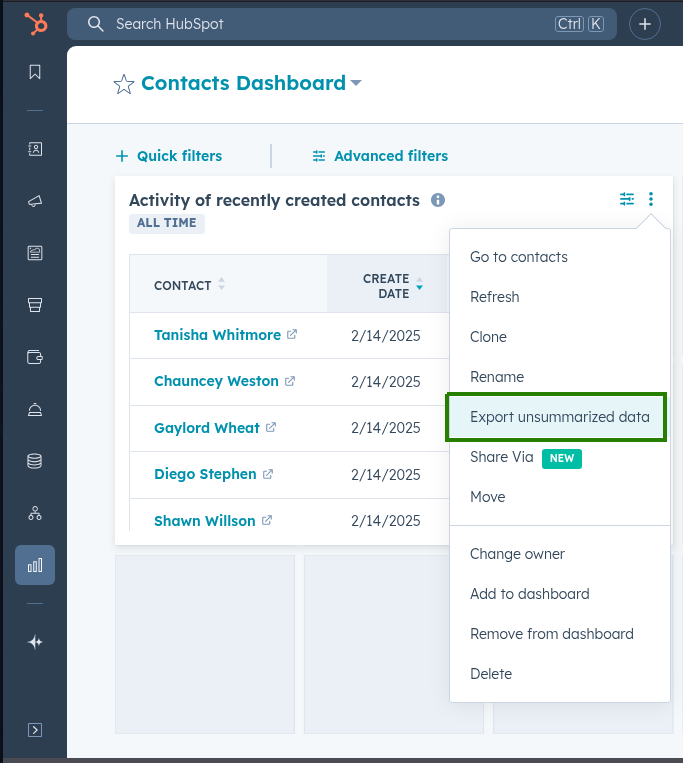
- Open your Dashboard, find the report, click the menu in the top-right corner, and select Export unsummarized data.
- CSV, confirm, and check email.
- Note: charts and visual summaries don’t export – only table-format data makes it out.
Custom Properties are the export most people forget exists until they desperately need it:
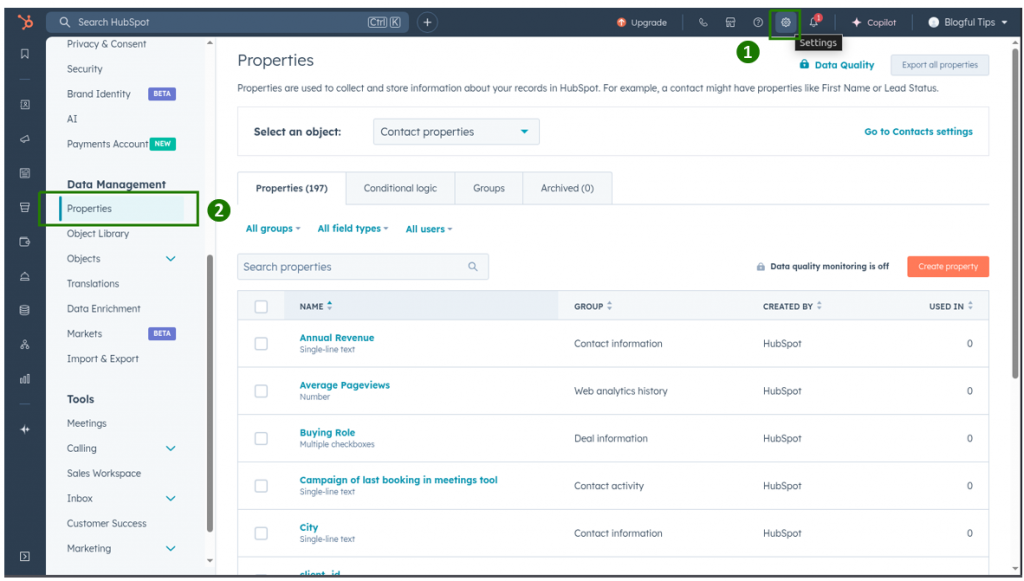
- Settings > Properties > Export all properties.
- Choose CSV – you get a complete inventory of every field definition, internal name, and configuration in your account.
💡 Before you export anything: your current view is your export. Filters, visible columns, applied segments – all of it. Spend ten seconds confirming the view looks right before clicking Export, and save yourself the re-export.
What are the technical limits of HubSpot’s native CSV export?
HubSpot’s native export is capable enough when stars are in the right position. Here’s what happens when they aren’t, and what to do about that.
The 250-Column Ceiling
HubSpot’s CSV export has a practical limit of around 250 columns per export. For most teams, that’s fine. For teams with years of accumulated custom properties, it’s the moment they discover that some of their fields simply didn’t make the trip. No warning, no error, just a CSV that’s missing columns you were counting on.
The fix is straightforward if slightly annoying: split your exports into logical groups, run them separately, and merge the results afterward. Core contact properties in one pass, extended custom fields in another. Not elegant, but it works.
💡 Always export as CSV rather than XLS or XLSX for large column sets – Excel’s format caps out earlier and will silently truncate anything beyond its own column limit before you even notice.
The Multi-Line Text Problem
This one has caused more spreadsheet chaos than it deserves. When a sales rep writes a Note that spans multiple lines, which they will, because that’s what Notes fields are for, HubSpot’s CSV export wraps that content in quotes per standard CSV formatting.
The problem starts when you open the file in Excel without specifying UTF-8 encoding and proper delimiter settings. Excel reads the line breaks as new rows, and suddenly one contact record has become four, with data scattered across columns that have no idea what happened.
The fix: The fix has two parts, and the order matters.
The first and most important step is quote and delimiter handling, and the second one is encoding. HubSpot wraps multi-line field content in double quotes – that’s standard CSV behavior, but Excel’s double-click open bypasses the parsing step entirely and treats every line break as a new row, quotes or not. A detailed guide with illustrations on how to fix that can be found below in the chapter dedicated to HubSpot CSV export missing fields.
Associated Records Stay Separate
Contacts don’t bring their Deals along for the ride. Deals don’t come with their associated Companies. Every object exports independently, which means anyone hoping for a single unified spreadsheet is going to need to do some post-export merging.
HubSpot’s reports can create joined views that partially solve this, but only if the report is in table format and exportable.
File Size and Fragmentation
Large exports don’t fail neatly; they arrive as ZIP files containing multiple CSVs that need reassembling. CSV files over 2MB get zipped automatically. Datasets over a million rows get split. Neither of these is a disaster, but both are conversations you don’t want to have when someone is waiting on the data.
Charts Stay in HubSpot
Visual reports (graphs, pie charts, dashboards) don’t export to CSV. Only the raw table data behind them does. If a stakeholder wants the chart, they’re getting a screenshot. If they want the data, they’re getting a spreadsheet. Rarely, both in one step.
💡 The pattern worth recognizing: most HubSpot export limitations are the natural ceiling of a feature designed for occasional use, bumping up against teams that need it to work like a pipeline. When that gap becomes a weekly frustration, it’s usually a sign that automation is the more honest solution.
Is there a way to automate HubSpot CSV exports to Google Drive or SFTP?
Manually exporting the same data every week? That gets old fast.
That’s where Skyvia steps in – a no-code platform that lets you schedule automatic HubSpot exports to destinations like Google Drive, Dropbox, or FTP. No scripts. No stress.
Skyvia supports filters, custom field selection, and even lets you map HubSpot fields to match your target file layout. So you can keep your reports up to date without lifting a finger.
Step-by-Step: Set Up HubSpot Export CSV Integration in Skyvia
Here’s how to get it done in a few simple steps:
1. Create a HubSpot Connection
- Log in to your Skyvia account.
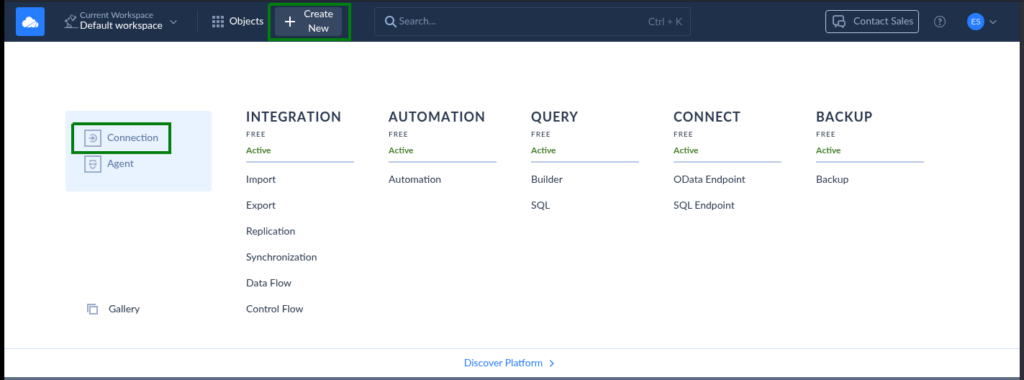
- Click +Create New > Connection.
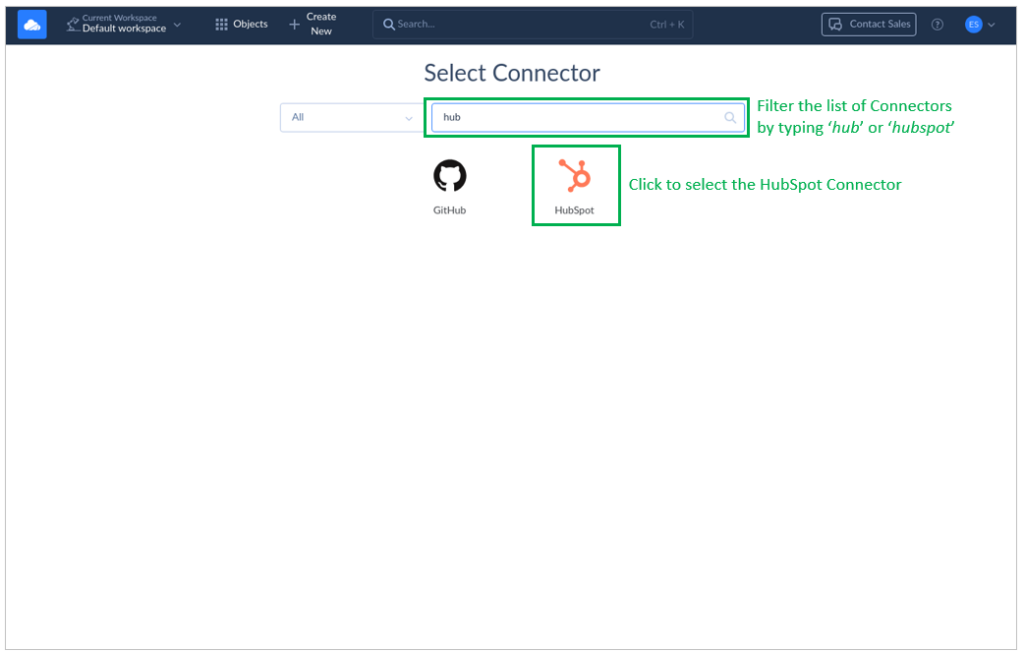
- Search for and choose HubSpot from the list.
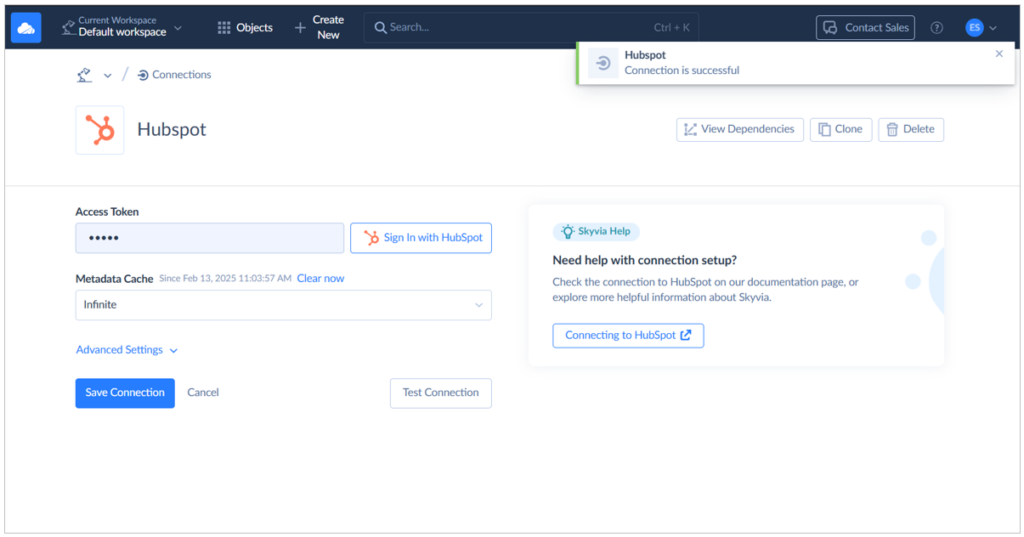
- Sign in with your HubSpot account and authorize access.
- Name your HubSpot connection, and save it.
Skyvia can now access your CRM data. Check out what it looks like from below:
2. Set Up Your Target (CSV Destination)
Decide where you want to send your exported CSV files:
- Google Drive
- Dropbox
- FTP/SFTP server
- Or other cloud storage.
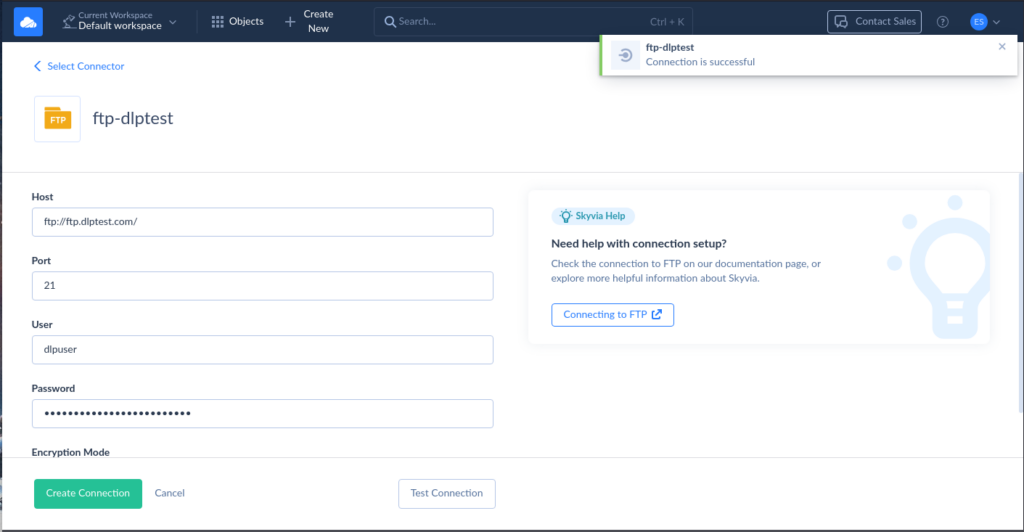
Create a connection to your target platform just like you did with HubSpot. Below is a successful connection to an FTP location:
3. Create a New Export Integration
- Go to + Create New > Export.
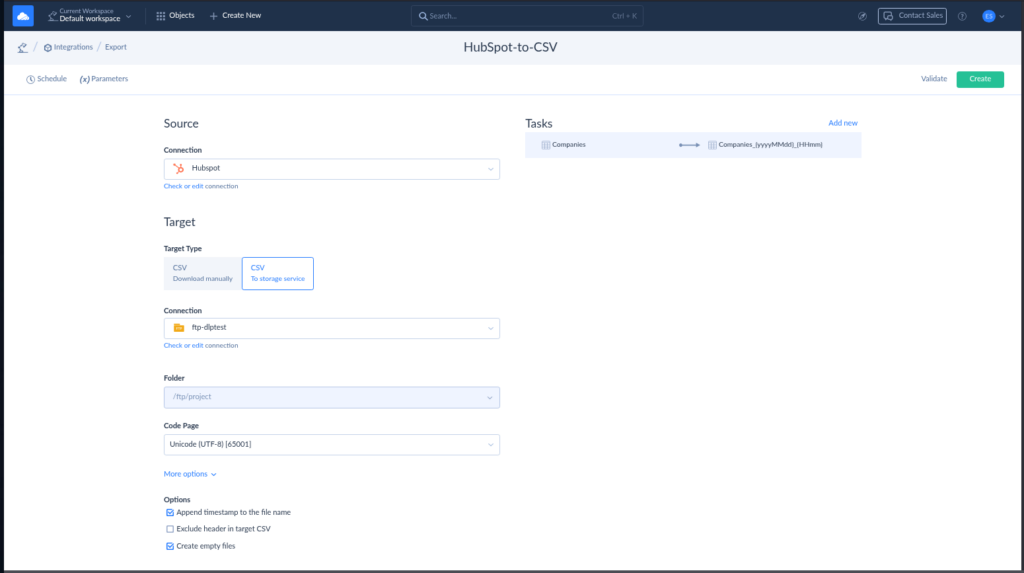
- Choose your HubSpot connection as the source. Use the one you created earlier.
- Pick the object to export (like Contacts, Deals, or Companies)
- Apply filters (e.g., export only closed-won deals or contacts added last 30 days)
- Select your CSV target (like Dropbox or FTP). Use the storage connection you created earlier.
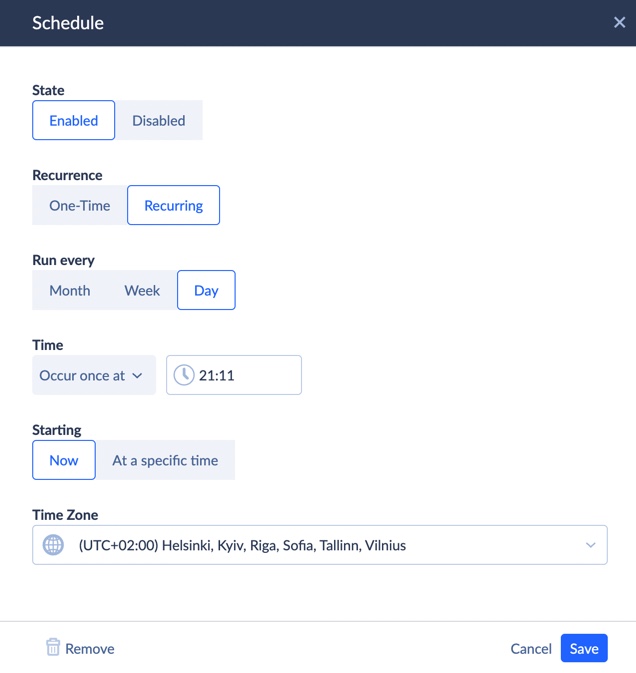
- Click Save and set up a schedule – daily, weekly, hourly… you choose.
Check out a sample HubSpot export to CSV using Skyvia. It uses the same HubSpot and FTP location created earlier.
And here’s the recurring schedule so it’s automatic:
💡 From our testing: scheduling exports during off-peak hours – early morning UTC works well – consistently reduced API rate-limit interference compared to running them during business hours when HubSpot’s servers are handling significantly more concurrent traffic.
And that’s it – you’re now exporting CSVs from HubSpot on autopilot.
💡 Quick Tip: Need multiple exports for different teams? Set up separate Skyvia tasks for each one – marketing gets contacts, sales gets deals, support gets tickets. Prefer to handle things with scripts or want even more control?
Let’s check out other ways to export HubSpot data to CSV, including full CRM export and using the HubSpot API.
Best Way to Export CSV from HubSpot: Side-by-Side Comparison
| Feature | Skyvia | Coefficient | Coupler.io | Supermetrics |
|---|---|---|---|---|
| Primary Audience | Teams consolidating SaaS and database data | Sales & RevOps (Spreadsheet-heavy teams) | Small/Medium Sales & Marketing Teams | Marketing Agencies & Enterprises |
| Primary Destinations | SFTP/FTP, Google Drive, DBs, CSV | Google Sheets, MS Excel | Google Sheets, Excel, CSV, BI tools | Google Sheets, Excel, Google Data Studio (ex. Looker Studio) |
| Pricing Model | Flat monthly subscription | Per-user/Tiered pricing | Tiered by runs & source rows | Per-connector/source pricing |
| Setup Time | ~5 mins (Wizard-based) | ~3 mins (Google Sheets Add-on) | ~5 mins (No-code setup) | ~10 mins (Add-on/Extension) |
| Automation Schedule | Detailed scheduler (down to minutes) | Dynamic auto-refresh (hourly/daily) | Scheduled refresh (from 15 mins to monthly) | Automated refreshes (weekly to daily depending on plan) |
| Schema Control | Visual Mapper & SQL capabilities | Straight spreadsheet import | Basic transformation & filtering | Fixed data schemas for reporting |
Which tool fits your specific business scenario?
We divided tools by the use cases they serve best. So, choose what you’re dealing with and go on.
The “Spreadsheet Power User” (Coefficient)
The average analyst doesn’t want a new tool. They want their existing spreadsheet to have better data in it. Coefficient is the shortest path between that want and reality.
Best for
If your team’s idea of a report is a Google Sheet with formulas, filters, and color-coded pipelines, and you’re tired of that sheet going stale between manual exports, Coefficient is built for exactly that workflow.
Rating
G2: 4.7/5 based on 186 reviews | Capterra: n/a
Pricing
Coefficient offers a free plan with 3 imports – enough to connect HubSpot and get a feel for how the live sync behaves before committing to anything. Paid plans run from $49/month for Professional, $99/month for Team, and $249/month for Business, with Enterprise pricing on request.
Pros
- Two-way sync means the spreadsheet isn’t just a destination; it’s an interface. Update a field in Sheets, push it back to HubSpot. Useful for bulk CRM updates without touching the import wizard.
- Scheduled refresh runs automatically on whatever interval makes sense, so reports stay current.
- Slack and email alerts fire when key fields change, deal thresholds are hit, or data conditions you defined are triggered.
Cons
- During our testing, we found out that it doesn’t work if you’re signed into multiple Google accounts in a browser. It’s the kind of thing Google Workspace add-ons sometimes struggle with.
- Coefficient’s world is Google Sheets and Excel, which is also its limit. SFTP delivery, SQL database destinations, or anything outside a spreadsheet isn’t on the menu.
- Large datasets slow things down. Spreadsheet performance degrades with complex, high-volume HubSpot data pulls – a ceiling that tends to arrive sooner than expected.
The “No-Code Marketing Analyst” (Skyvia)
Yes, this one is ours. We’ll try to be objective anyway.
Best for
Operations and data teams who need HubSpot exports to land somewhere specific – an SFTP server, a cloud database, Google Drive – on a schedule, without writing code or filing an engineering ticket every time the destination or filter logic changes.
Rating
G2: 4.8/5 based on 321 reviews | Capterra: 4.9/5 based on 116 reviews
Pricing
Free tier covers 10,000 records per month – real records, real exports, no credit card required to find out if it works for your use case. Paid plans start at $79/month on annual billing and scale with data volume rather than connector count.
Pros
- No-code export wizard that lets a marketing analyst configure, filter, and schedule HubSpot exports without involving engineering once.
- Scheduled automation – set the cadence, and the CSV lands where it needs to land without anyone deciding to make it happen.
- Granular field control that goes well beyond what HubSpot’s native export UI offers, including incremental pulls that only move what changed.
- Fixed, volume-based pricing – the bill reflects how much data you move, not how many times you touched the export button.
Cons
- For a one-off export, the native HubSpot UI is faster, simpler, and already sitting there waiting. Come back to Skyvia when “one-off” is no longer accurate.

The “Quick Marketing Reporter” (Coupler.io)
Coupler.io doesn’t try to be everything. That focus is both its strength and its limit.
Best for
The marketing analyst who needs HubSpot data blended with ad spend, cleaned up, and sitting in a dashboard, waiting to be acted on. Coupler.io is built around that specific urgency – fast setup, scheduled refresh, transformation included, no engineering ticket required.
Rating
G2: 4.8/5 based on 102 reviews | Capterra: 4.9/5 based on 110 reviews
Pricing
Coupler.io offers a free plan, and paid plans start at around $132/month for Professional (25 connections, 5 users). The pricing structure scales with connections and refresh frequency rather than raw record volume.
Pros
- Four-step setup – Source, Transform, Destination, Schedule. Reviewers consistently describe building a data pipeline as straightforward enough for teams with no dedicated data engineering resources.
- Built-in transformation before the data lands anywhere – filter, rename columns, blend sources so the output is analysis-ready rather than raw.
- Scheduled refresh keeps reports current without anyone triggering a manual export.
- Ready-to-use report templates for Google Data Studio and Google Sheets that cut setup time when speed matters more than customization.
Cons
- Pricing scales with connections in ways that add up fast. One reviewer noted that a single YouTube channel requires six data connections, which gives you a sense of how quickly the bill can grow when data sources multiply.
- Optimized for reporting, not engineering. Complex pipeline logic, database-first architectures, or anything requiring deep governance will hit the limit quickly.
- Like Coefficient, it’s one more platform to configure and maintain. Worth weighing if your stack is already crowded.
The “Enterprise Marketing Analyst” (Supermetrics)
Supermetrics is the tool that agencies and large marketing departments have been quietly building their reporting infrastructure on for years. It’s not trying to be simple. It’s trying to be comprehensive, and for teams that need both, that’s a meaningful distinction.
Best for
If your reporting question involves HubSpot and at least three other marketing platforms, Supermetrics handles the connective tissue so the analyst can focus on the actual analysis. For anything simpler than that, it’s more tool than the job requires.
Rating
G2: 4.4/5 based on 823 reviews | Capterra: 4.4/5 based on 109 reviews
Pricing
Plans start around €29/month and scale steeply from there. Agencies running multiple destinations or high-frequency syncs often find themselves pushed into enterprise tiers, and that’s rarely where pricing stays predictable. Factor in the cost of a separate visualization tool, which Supermetrics doesn’t include, and the total cost of ownership conversation gets more interesting.
Pros
- Breadth of connectors that covers virtually every major marketing platform – Google Ads, Meta, LinkedIn, TikTok – pulling into Sheets, Excel, Data Studio, BigQuery, or Snowflake in a single reporting layer.
- Multi-portal HubSpot reporting, comparing data across accounts or brands without manually merging exports.
- Scheduled refreshes that keep enterprise dashboards current without anyone managing the pipeline manually.
- Fast, reliable connector performance for HubSpot-to-Looker workflows specifically, with a query builder that handles custom data pulls without requiring SQL knowledge.
Cons
- Pricing is the recurring complaint. A third of recent G2 reviewers specifically flag cost as their biggest frustration, with one describing the fees for additional output tools as “crazy high.” For teams that only need HubSpot CSV exports, it’s a lot of invoice for a narrow use case.
- Reliability at scale has rough edges. Large queries in Google Sheets fail more often than they should, and incremental refresh issues surface regularly in verified reviews.
- No visualization layer included. Supermetrics moves data but doesn’t display it, which means another tool in the stack and another line in the budget.
When should you use the HubSpot API for CSV exports?
Everything the native export can’t do, a Python script and the HubSpot API can. Any object, any field, any destination, including FTP servers that have never heard of a download link. Here’s a working example for contacts:
import requests

import csv

from ftplib import FTP


# Replace with your actual HubSpot private app token

HUBSPOT_TOKEN = 'your_private_app_token'


# Step 1: Get contacts from HubSpot

headers = {

    'Authorization': f'Bearer {HUBSPOT_TOKEN}',

    'Content-Type': 'application/json'

}

response = requests.get('https://api.hubapi.com/crm/v3/objects/contacts', headers=headers)

contacts = response.json().get('results', [])


# Step 2: Write contacts to CSV

csv_file = 'contacts_export.csv'

with open(csv_file, 'w', newline='', encoding='utf-8') as f:

    writer = csv.writer(f)

    writer.writerow(['First Name', 'Last Name', 'Email'])  # Add more if needed

    for c in contacts:

        props = c['properties']

        writer.writerow([props.get('firstname'), props.get('lastname'), props.get('email')])


# Step 3: Upload CSV to FTP

ftp = FTP('your.ftp.server')

ftp.login('ftp_user', 'ftp_password')

with open(csv_file, 'rb') as f:

    ftp.storbinary(f'STOR {csv_file}', f)

ftp.quit()
Note: This example is intentionally simplified for readability. It fetches only the first page of results (up to 100 records). For production use with datasets larger than 100 contacts, you’ll need to add pagination using HubSpot’s after cursor parameter. See HubSpot’s CRM API reference for the full implementation.
This is a flexible way to automate complex exports, especially for enterprise needs.
Why is your HubSpot CSV export missing fields or looking like gibberish?
HubSpot exports in UTF-8 – the encoding standard that keeps accented characters, special symbols, and non-ASCII text intact. Excel has a different habit: open a CSV by double-clicking it, and Excel skips the encoding conversation entirely, makes its own assumptions, and presents you with whatever those assumptions produce. They are frequently wrong.
The fix requires one extra step that most people never take:
- Open a blank Excel workbook first.
- Go to Data > Get Data > From Text/CSV and select your file from there.
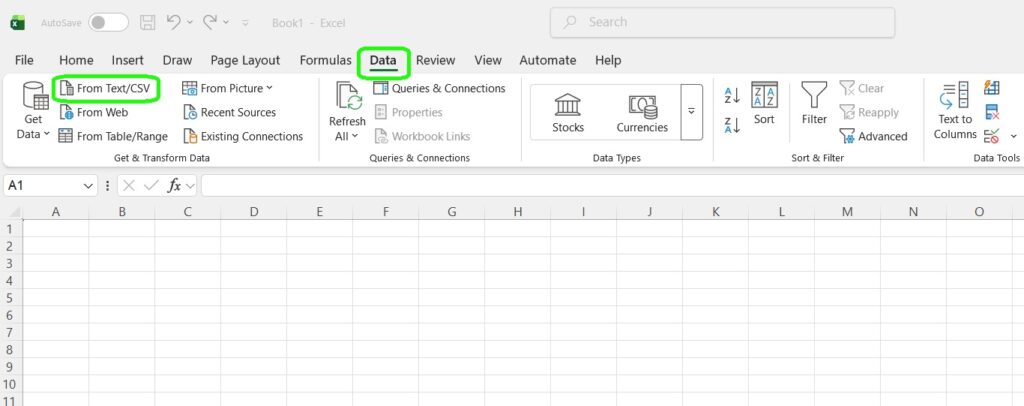
Note: If From Text/CSV is nowhere to be found, the most likely explanation is that you’re in Excel for the web, which has its own ideas about CSV handling and fewer tools to correct them. Switch to the desktop app, and the options reappear.
Also, Excel has a habit of hiding this option depending on the version and ribbon configuration. Head to File > Options > Data and enable the legacy text import wizard – it resurfaces under Data > Get Data > Legacy Wizards > From Text.
- When the import wizard appears, set encoding to UTF-8 and confirm the delimiter is comma.
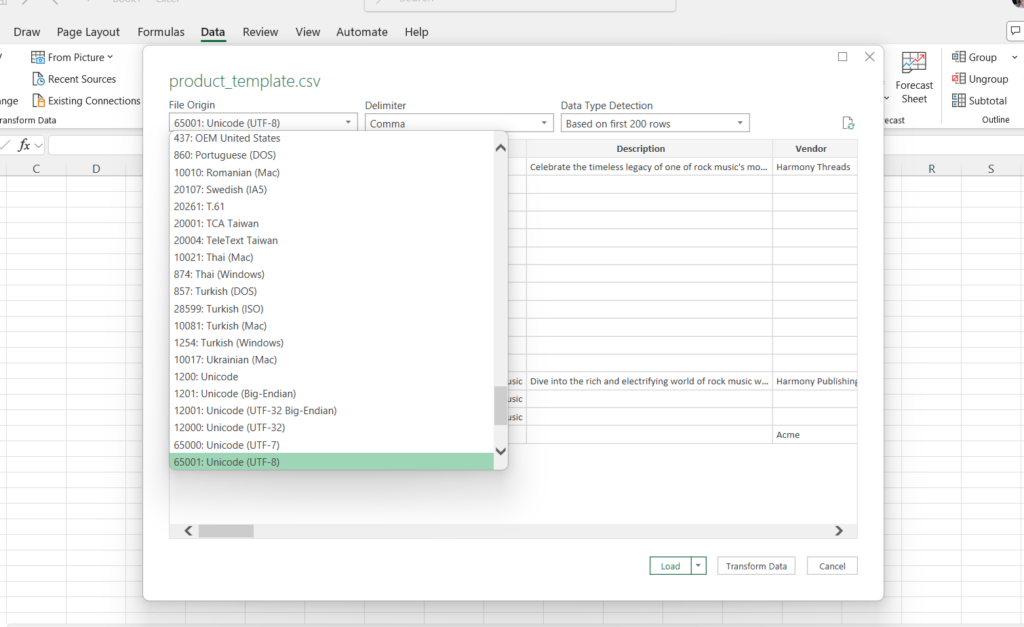
- Click Load. Now, everything should land exactly as HubSpot intended it to.
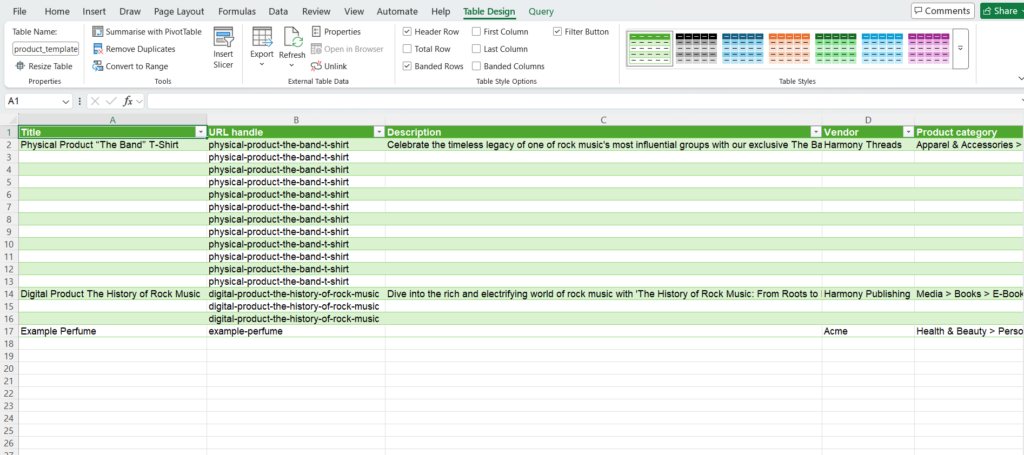
The missing fields problem has a simpler explanation than most people expect: HubSpot exports what it sees, and it only sees what’s in the current view. Custom properties that aren’t added as columns in that view don’t make it into the export.
Before hitting export, open the column settings and verify every field you actually need is visible. The properties are there; they just need to be invited to the view before they’ll show up in the file.
💡 Worth keeping nearby: if you regularly share HubSpot exports with colleagues opening them in Excel, re-saving the file as CSV UTF-8 after your first clean import creates a version that opens correctly for everyone else, no import wizard required on their end.
Conclusion
Every tool covered in this guide solves a real problem, but not the same one. The right choice has less to do with which tool is objectively best and more to do with where your data needs to end up, how often, and who’s responsible for making sure it gets there.
If your workflow lives in spreadsheets and has no plans to move out, Coefficient is what will keep HubSpot data current inside Google Sheets. Coupler.io covers the same territory with a faster setup and a stronger focus on blending marketing data before it lands anywhere.
When the reporting question outgrows a single platform, Supermetrics is where that kind of multi-source ambition finds its footing. The pricing reflects the ambition accordingly.
For everything in between: scheduled exports, secure delivery to an SFTP server or cloud storage, SQL-level control over what gets pulled and how it’s shaped, transparent, volume-based pricing – that’s the space Skyvia was built for.
Try Skyvia for free and export your last manual CSV for the last time.

FAQ for HubSpot Export CSV

How do you export companies and deals from HubSpot instead of just contacts?
Navigate to the object you need, set your filters, and click Export. Deals, Companies, Tickets – they all follow the same path. The one thing worth checking before you click: your current view determines which columns appear.
Is it possible to export property history from HubSpot to CSV?
Not through the native UI – it only captures where values stand right now, not how they got there. Full property history requires the API or a tool built for historical data pulls, like Skyvia.
How do I perform a full HubSpot data backup for contacts, deals, and activities?
HubSpot doesn’t have a single “back everything up” button. Each object (contacts, companies, deals, tickets) is exported separately. Activities need the API. If that sounds tedious, Skyvia automates the whole thing on a schedule.
Why do special characters look broken in my CSV export?
The file itself is fine; the way Excel reads it is the problem. The CSV files are typically UTF‑8, but when you double‑click them, Excel may open using your system’s legacy encoding instead of UTF‑8.