

Summary
- Method 1: Automated No-Code Integration (Skyvia): Connect Salesforce and BigQuery in a few clicks, set a schedule, and let Skyvia handle incremental updates, schema creation, and data sync automatically — no code needed.
- Method 2: Google BigQuery Data Transfer Service (Native Method): Google's built-in connector moves Salesforce data directly into BigQuery with minimal setup, but comes with limitations on flexibility and supported objects.
- Method 3: Custom Python ETL (The Manual Way): Pull Salesforce data via API and push it into BigQuery with a Python script; gives you full control over logic and scheduling, but requires solid coding skills and ongoing maintenance.
Salesforce knows the customers inside out — deal stages, activity history, pipeline health, all of it. BigQuery, on the other hand, is where serious analytical work happens: joins across data sources, long-running queries, dashboards that don’t fall over when you add another year of data. The problem is these two live in completely separate worlds. And as long as they do, you’re making decisions with half the picture.
Getting them to talk to each other is the difference between a CRM that sits in a corner and one that actually feeds your reporting, forecasting, and cross-source analysis.
There’s more than one way to bridge that gap, depending on how much control users want and how much time they’re willing to spend on setup and maintenance.
We’ll walk through three of them:
- The automated no-code route with Skyvia;
- Google’s native BigQuery Data Transfer Service;
- A custom Python ETL for teams that prefer to build their own.
Table of Contents
- Why Integrate Salesforce with Google BigQuery?
- Prerequisites for Integration
- Available Methods to Connect Salesforce to BigQuery
- Method 1: Automated No-Code Integration (Skyvia)
- Method 2: Google BigQuery Data Transfer Service (Native Method)
- Method 3: Custom Python ETL (The Manual Way)
- Advanced Considerations: Deletions & Security
- Conclusion
Why Integrate Salesforce with Google BigQuery?
Connecting the two is a no-brainer if you’re running Salesforce for CRM and BigQuery for analytics. But the real value goes deeper than just “having your data in one place.”
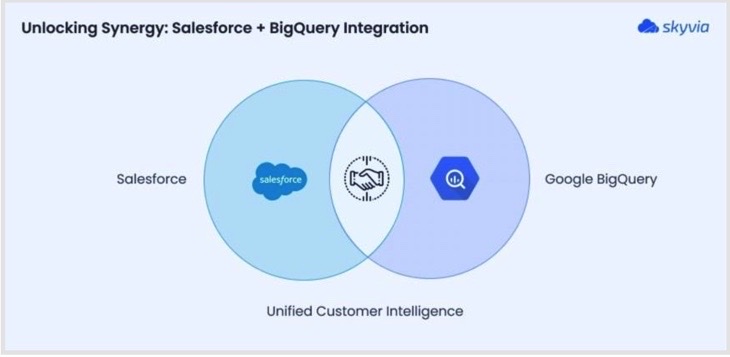
Here’s what actually becomes possible once the pipeline is running:
360-degree customer view. Join Salesforce Leads and Contacts with GA4 session data in BigQuery, and you finally get the full picture — from the first ad click to the closed deal, without stitching spreadsheets together at 11 pm before a board meeting.
Smarter lead scoring with BigQuery ML. Feed historical Salesforce data into Vertex AI or BigQuery ML and let the model do the heavy lifting. Predicting which leads are worth chasing based on actual conversion patterns beats gut feel every time.
Salesforce storage cost reduction. Old Task and Event records pile up fast, and Salesforce storage isn’t cheap. Offloading historical records to BigQuery keeps your org clean, your storage bills manageable, and the data still queryable when you need it.
Prerequisites for Integration
Salesforce
Before anything else, ensure your Salesforce edition actually supports API access — that’s Enterprise and above. You’ll also need a Security Token, which Salesforce generates per user and is required for any external connection. Before starting, If you’ve recently reset the password, the token resets too, so worth double-checking.
Google Cloud
Go to BigQuery, set up a Google Cloud project with the BigQuery API enabled. From there, create a Service Account and assign it the appropriate roles — at a minimum, BigQuery Data Editor and BigQuery Job User. Download the JSON key file for that account; you’ll need it regardless of which integration method you go with.
Available Methods to Connect Salesforce to BigQuery
There are multiple ways to get Salesforce data flowing into BigQuery. Here are the three main options, each with its trade-offs depending on your team’s skillset, goals, and how hands-on you want to be.
Method 1: Automated No-Code Integration (Skyvia). If you’d rather skip the code and let a tool do the heavy lifting, Skyvia is a solid pick. It’s a no-code cloud integration platform that connects Salesforce and BigQuery in a few clicks. Incremental updates, automatic schema creation, scheduling, and monitoring all included, straight from the browser.
Method 2: Google BigQuery Data Transfer Service (Native Method). Google’s native connector moves Salesforce data directly into BigQuery with minimal setup. It’s a reasonable option for straightforward use cases but comes with limitations on supported objects and flexibility that might become a bottleneck as your needs grow.
Method 3: Custom Python ETL (The Manual Way). Pull Salesforce data via API and push it into BigQuery with a Python script. Full control over transformation logic and scheduling — but you’re also on the hook for building and maintaining everything:
- Pagination.
- Error handling.
- Schema evolution.
Great for engineering teams that want to fine-tune every step.
Which Salesforce to BigQuery Method Should You Choose?
Let’s briefly compare these approaches.
| Criteria | Skyvia (No-Code) | Google Data Transfer (Native) | Python/Airflow (Custom) |
|---|---|---|---|
| Setup Time | Minutes | Minutes | Hours to days |
| Maintenance Cost | Low — managed platform | Low — but limited flexibility | High — you own everything |
| Handling Deletions | Supported | Not supported | Manual implementation required |
| Transformation Capability | Built-in, user-friendly mapping | Minimal — loads raw data only | Total flexibility, custom logic |
Method 1: Automated No-Code Integration (Skyvia)
If coding isn’t your strong suit, or you simply want to get things moving without spinning up a dev environment, Skyvia is the way to go. It handles ETL, ELT, reverse ETL, workflow automation, backup, and connectivity from a single platform. You focus on what data to move and when. Skyvia takes care of the rest.
What makes it stand out against a hand-rolled solution isn’t just the lack of code. It’s what you get out of the box that would otherwise take days to build properly:
Automatic Schema Mapping. On the first run, Skyvia reads your Salesforce object structure and creates the corresponding BigQuery tables automatically. No manual DDL, no guessing field types, no broken pipelines when someone adds a custom field in Salesforce.
Incremental Updates. Rather than reloading the entire dataset on every sync, Skyvia tracks what’s changed since the last run and moves only those records. Keeps your BigQuery costs in check and the pipeline fast.
Change Data Capture (CDC). Skyvia detects inserts, updates, and deletions at the source level — so your BigQuery tables stay in sync with what’s actually happening in Salesforce, not just a snapshot of what was there last Tuesday.
Best For
- Business analysts, marketers, and non-developers who need reliable data flowing without engineering support.
- Teams that want a quick setup, predictable maintenance, and a clear UI for mapping fields and monitoring runs.
Pros
- No coding required. Configure visually, run on schedule.
- Automatic schema creation and evolution handle Salesforce changes without breaking anything.
- Incremental updates and CDC keep data fresh without reprocessing everything from scratch.
- Built-in monitoring and run history so you always know what happened and when.
Cons
- Less flexibility for highly custom transformation logic.
- Some edge cases may need manual tweaking outside the platform.
- Free plan is limited to one sync per day; higher frequency requires a paid plan.
Step-by-step Guide
Before starting your integration journey, register in Skyvia to create connections to Salesforce and Google BigQuery.
It takes a few steps to implement different Salesforce and Google BigQuery integration scenarios here. You can:
- Replicate Salesforce objects and data to BigQuery.
- Enrich Salesforce data with data from BigQuery.
- Build complicated flows involving other cloud apps or databases.
Step 1: Create Salesforce Connection
- Log in to Skyvia.
- Click + Create New > Connection.
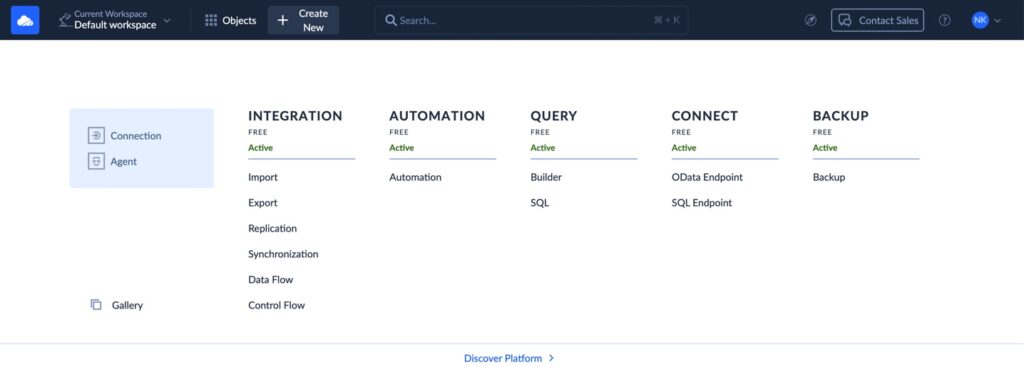
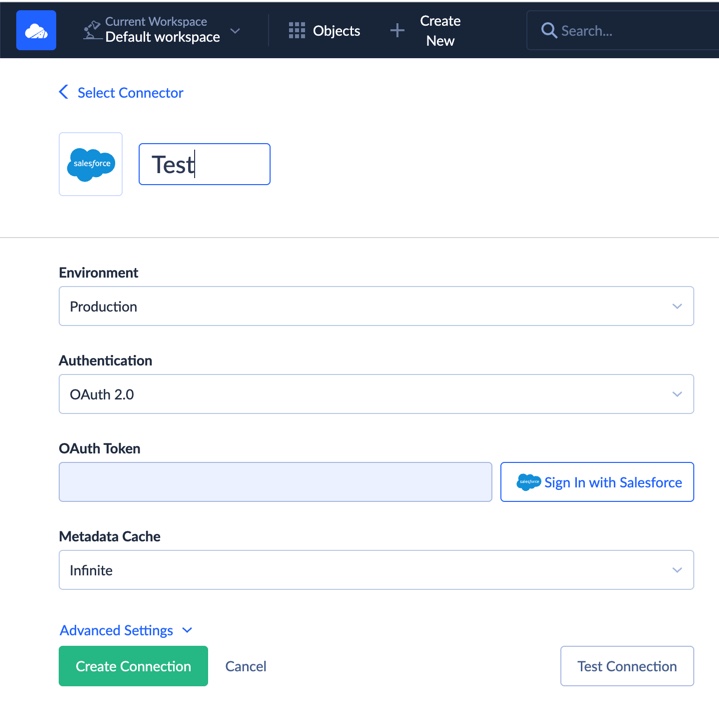
- Select Salesforce as the connector, enter appropriate credentials, and authorize access. Note that Salesforce supports two authentication methods: OAuth and Username & Password.
Step 2: Create BigQuery Connection
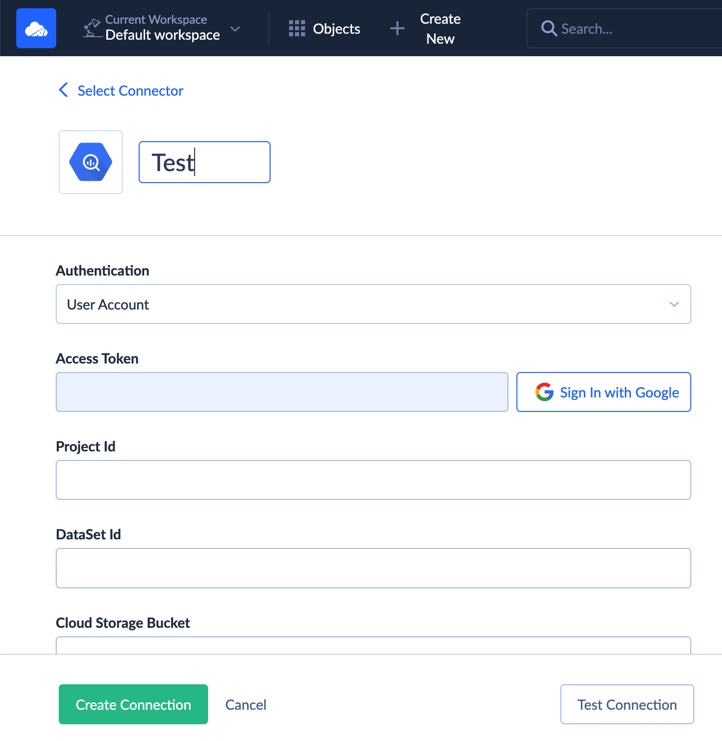
Similarly, create a new BigQuery connection. You’ll upload your Google service account JSON key and select the target dataset.
Note that there are also two authentication methods for Google BigQuery: user account or JSON key. Also, the information about the Project Id and the DataSet Id can be found in the Google API Console.
Step 3: Use Skyvia Import or Replication
Create a new import or replication task. Choose Salesforce as the source and BigQuery as the destination.
Skyvia Import
With Skyvia Import, you can enrich Salesforce data with BigQuery data. This scenario allows loading CSV files manually (when needed) and automatically on a schedule.
To set up the Import integration in Skyvia:
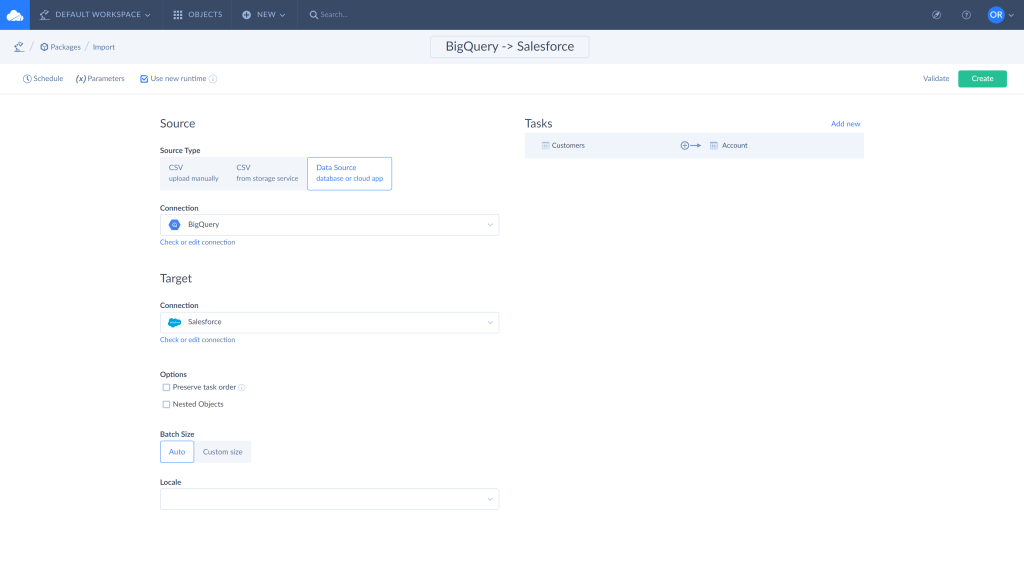
- Log in to Skyvia, click +Create NEW in the top menu, and select Import in the Integration section.
- Click on the Data Source database or cloud app Source type and select BigQuery connection.
- Select the Salesforce connection as a Target.
- Click Add new to create an integration task. You can add multiple tasks in one integration.
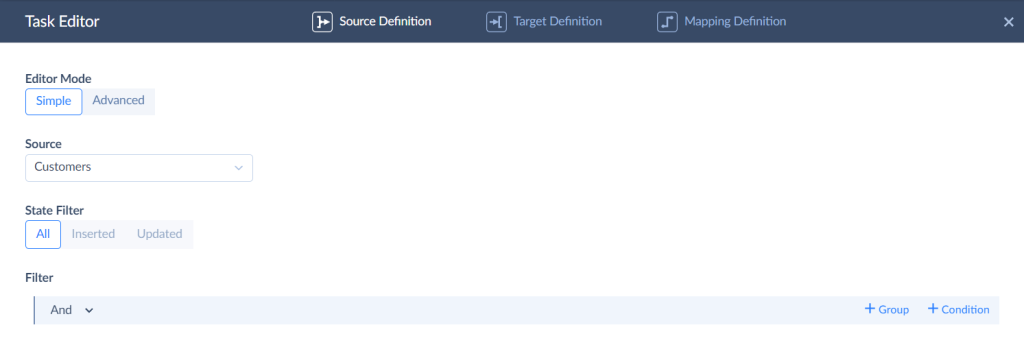
- Select the object to import data from and use filters to limit the number of records if needed.
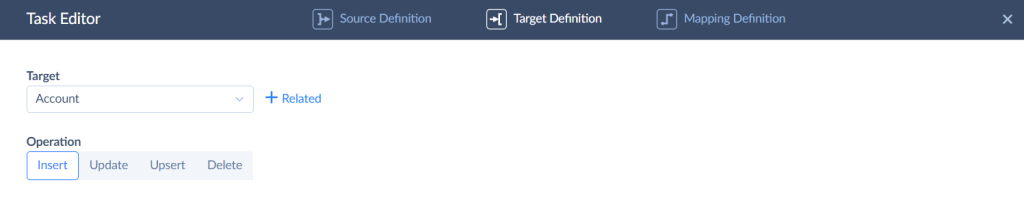
- Specify the object to import data to and select the action to perform.
- Assign field mapping. Skyvia maps the fields with the same names automatically.
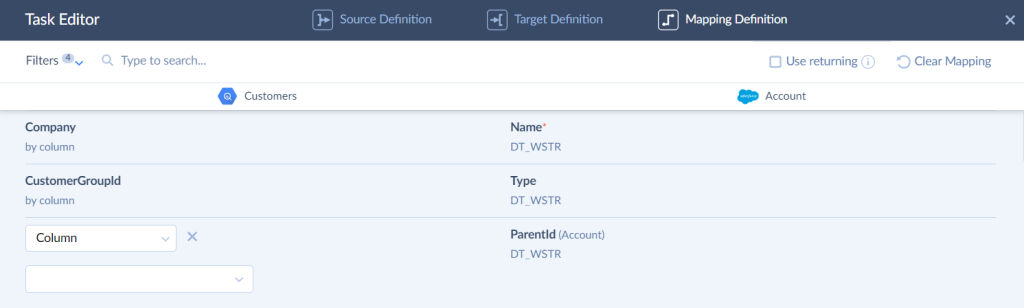
- Run the integration and monitor the results, the same as described above.
Skyvia Replication
Replication copies the Salesforce data structure and the data itself and then creates the same data structure in BigQuery and keeps it updated if needed. The example below shows how to replicate available Salesforce objects and data to BigQuery.
To create replication integration:
- Log in to Skyvia, click +Create NEW in the top menu, go to the Integration section, and select Replication.
- Select the Salesforce connection as a Source and BigQuery connection as a Target.
- Choose the objects and fields to replicate. You can set filters to limit the copied records if needed.
- Enable or disable the available integration options.
- The Incremental Updates option is enabled by default. It allows replicating only changes made to the source records.
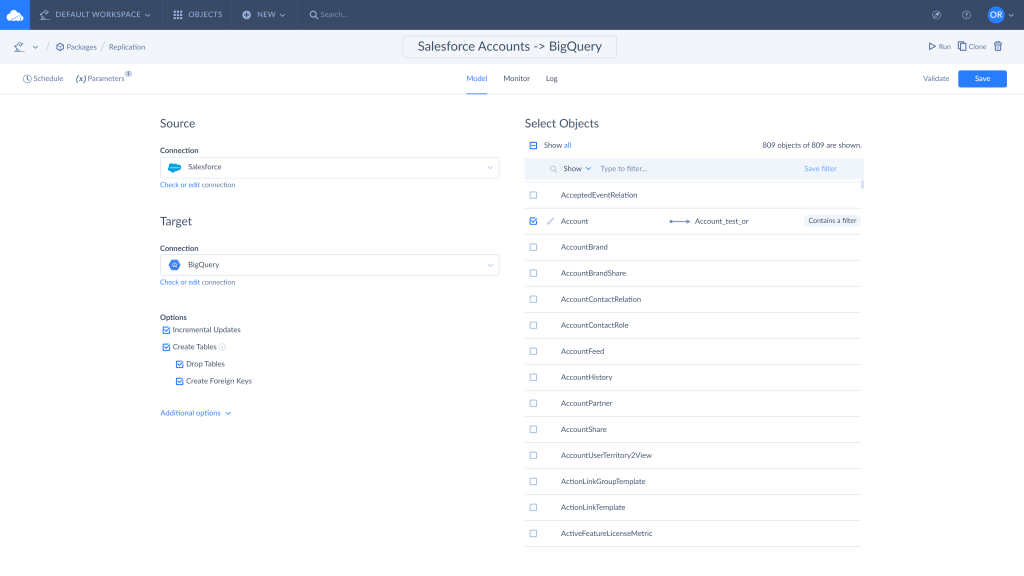
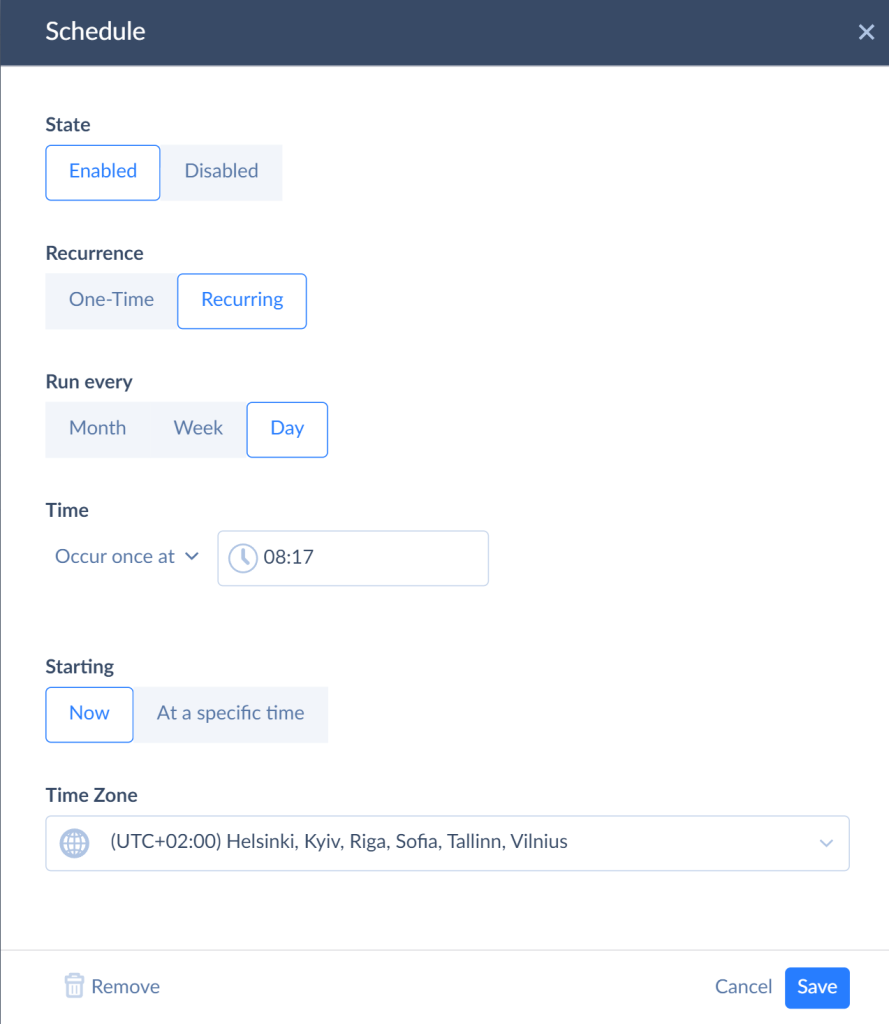
- Click Schedule to set the integration schedule for the automatic run if needed.
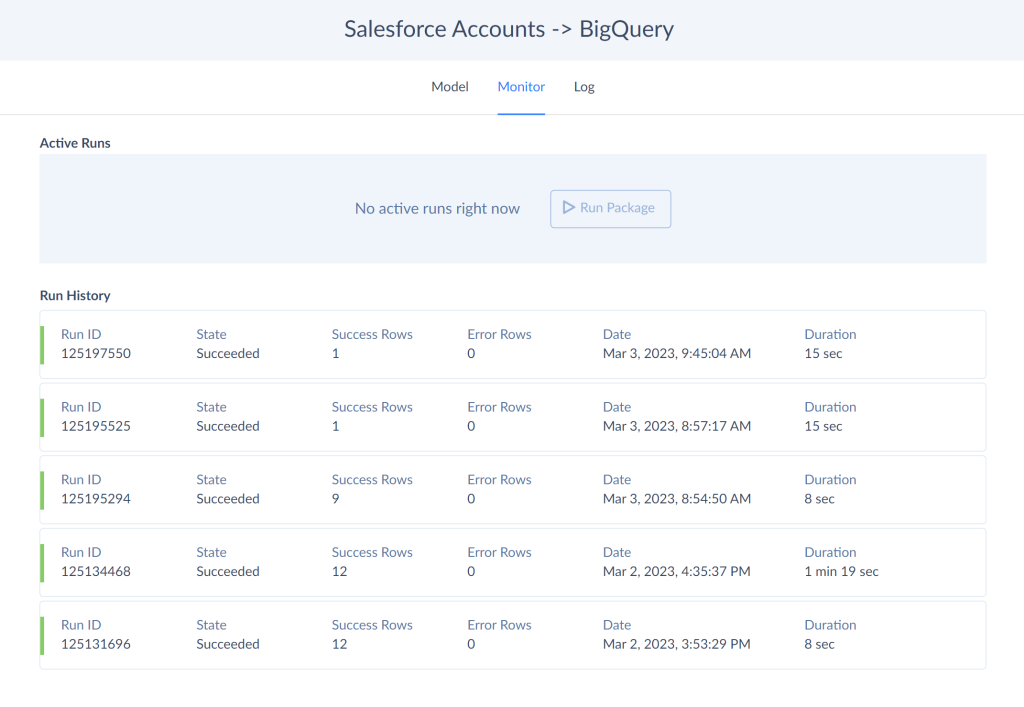
- Run the integration and monitor the results. Skyvia keeps the results of each integration run and allows checking the number of successful and failed records using the integration run history. Use the Monitor and Log tabs to capture the run results. Click on the specific run to see the details.
- As a result, you have a copy of Salesforce data in the BigQuery warehouse.
Method 2: Google BigQuery Data Transfer Service (Native Method)
If your stack is already built around Google Cloud and you want to keep third-party tools out of the picture, the BigQuery Data Transfer Service is a good solution. It’s Google’s native connector, which means no additional platforms, no extra credentials to manage, just a few clicks inside the Cloud Console, and your Salesforce data starts flowing into BigQuery.
That said, “native” doesn’t always mean “better.” It means convenient — and there’s a difference.
Best For
Teams already invested in Google Cloud that need a straightforward, low-maintenance pipeline for standard Salesforce objects. When transformation logic is minimal and near-real-time sync isn’t a hard requirement, it works well.
Pros
- Native to Google Cloud. No third-party platform required, fits naturally into existing GCP workflows.
- Minimal setup. Configured entirely within the Google Cloud Console.
- Managed service. Google handles the infrastructure, scheduling, and availability.
Cons
- Usage-based pricing adds up quickly at scale. Worth modeling your data volumes before committing.
- Limited transformation logic — data lands raw in BigQuery, so any shaping or enrichment needs to happen downstream.
- Higher latency — minimum sync interval is 15 minutes, which rules it out for anything approaching real-time use cases.
- Limited object support — not every Salesforce object is available, which can become a bottleneck for more complex pipelines.
Step-by-Step Guide
Step 1: Enable the BigQuery Data Transfer API
- In the Google Cloud Console, navigate to APIs & Services and enable the BigQuery Data Transfer API for your project if it isn’t already active.
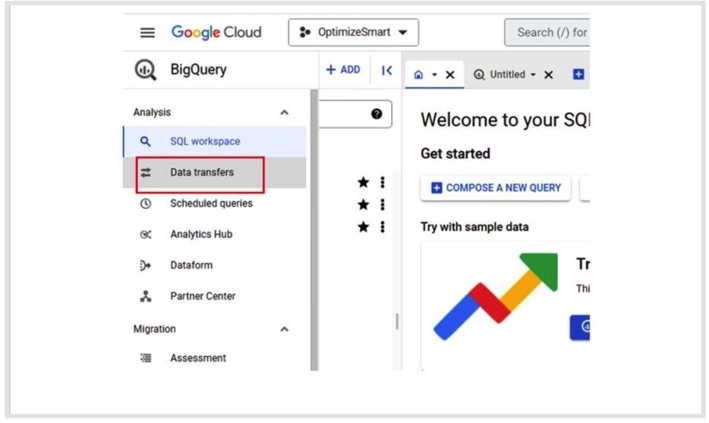
Step 2: Create a New Transfer
- Go to BigQuery → Data Transfers and click +Create Transfer.
- In the Source field, select Salesforce from the connector list.
Step 3: Configure the Transfer
- Set your destination dataset where Salesforce data will land in BigQuery.
- Give the transfer a display name.
- Configure the schedule.
- Select the Salesforce objects to be synchronized.
Step 4: Authorize Salesforce Access
- Click Save and follow the OAuth prompt to authorize BigQuery to access your Salesforce org.
Note: You need appropriate permissions on the Salesforce side. For example, the access to read the objects for transfer.
Step 5: Run and Monitor
- Once configured, the transfer runs according to your schedule. Monitor run history and error logs directly in the Data Transfers section of the BigQuery console.
Method 3: Custom Python ETL (The Manual Way)
Building your own pipeline gives you total control — extraction logic, transformation rules, scheduling, error handling, all of it. If your use case involves complex business logic that off-the-shelf tools can’t handle, or your team simply prefers to own every moving part, this is the route. Just go in with eyes open: what starts as a weekend script has a way of becoming a full-time maintenance job.
Best For
Engineering teams with solid Python skills and a clear picture of both Salesforce internals and BigQuery. Organizations ready to invest in building and maintaining a bespoke pipeline — and keeping it running as both platforms evolve.
Pros
- Full control over extraction, transformation, and loading logic.
- No dependency on third-party tools or vendor pricing.
- Can be optimized for performance, custom business rules, and niche edge cases.
- Flexible scheduling — CRON, Airflow, whatever fits your stack.
Cons
- You need to know your way around the Salesforce REST API and BigQuery SDK — this isn’t a beginner project.
- Pagination, OAuth token refresh, and API version changes are all yours to deal with. None of it is hard once you’ve done it, but all of it will bite you if you haven’t.
- Salesforce schema changes don’t announce themselves. Someone adds a custom field, your pipeline keeps running, and three weeks later a report looks off. By then, good luck tracing it back.
You’ll need two libraries to get started. If you don’t have them yet:
Step-by-Step Guide
You’ll need two libraries to get started. If you don’t have them yet:
pip install simple-salesforce pandas-gbq simple-salesforce takes care of the Salesforce side — authentication, querying, pagination. pandas-gbq handles pushing the result straight into BigQuery without having to stage anything in GCS first.
Step 1: Connect to Salesforce and Pull Your Data
from simple_salesforce import Salesforce
import pandas as pd

sf = Salesforce(
    username='your@email.com',
    password='your_password',
    security_token='your_token',
    domain='login'  # swap to 'test' if you're working in a sandbox
)

result = sf.query_all("SELECT Id, Name, Amount, CloseDate, StageName FROM Opportunity")

df = pd.DataFrame(result['records']).drop(columns=['attributes'])
print(f"Fetched {len(df)} records")
query_all() handles pagination automatically — it keeps following nextRecordsUrl tokens until there’s nothing left to fetch. If you ever switch to raw REST calls, don’t skip that part. Salesforce won’t warn you when it’s only returned half your data.
API Version Management: Salesforce ships three major API versions a year. If you’ve hardcoded something like v58.0 anywhere in your setup, put a reminder in your calendar to check it. Deprecated endpoints don’t fail loudly — they just stop working, usually at the worst possible time.
Step 2: Clean Up the Data Before It Goes Anywhere
Raw Salesforce output needs a bit of tidying before BigQuery will be happy with it — dates come through as strings, amounts sometimes arrive as None, nested objects need flattening.
df['CloseDate'] = pd.to_datetime(df['CloseDate'])
df['Amount'] = df['Amount'].astype(float)
This is also the right moment to apply any business logic:
- Renaming fields.
- Filtering out unnessesary records.
- Mapping Salesforce stage names to whatever your reporting layer expects.
- Keep it here, not scattered across downstream queries.
Step 3: Load into BigQuery
import pandas_gbq

pandas_gbq.to_gbq(
    df,
    destination_table='your_dataset.opportunities',
    project_id='your-project-id',
    if_exists='append'  # switch to 'replace' if you're doing a full reload
)

print(f"Loaded {len(df)} rows into BigQuery.")
OAuth Token Refresh: Salesforce access tokens expire. For a quick manual run, that’s fine, but any scheduled job running overnight needs a refresh token flow built in. A pipeline that loads 200 records in testing can silently die halfway through a 50,000-record nightly sync — and you won’t know until someone asks why the dashboard looks stale.
Advanced Considerations: Deletions & Security
The integration works great until it doesn’t. Two things tend to catch teams off guard once the pipeline is up and running: deleted records that quietly linger in BigQuery long after they’re gone from Salesforce, and compliance requirements that nobody thought about until legal asked.
Handling Hard Deletes
Here’s something that doesn’t get mentioned enough: when a record gets deleted in Salesforce, your Python script almost certainly doesn’t know about it.
Standard SOQL queries only return records that exist. Deleted records disappear from the regular API response the moment they’re gone, which means your BigQuery table keeps holding onto them indefinitely. For reporting, that’s a problem — you’re running analysis on data that no longer reflects reality in your CRM.
The workaround on the custom side is Salesforce’s queryAll() endpoint, which includes soft-deleted records still sitting in the recycle bin, or polling the DeletedRecords API on a schedule. Both approaches work, but neither is trivial to implement reliably, and they add another layer of maintenance to an already hands-on setup.
Skyvia handles this automatically. Deletions in Salesforce are detected and reflected in BigQuery on the next sync — no extra endpoints to call, no custom logic to write, no reports quietly lying to you for three weeks.
Security
If your Salesforce data includes anything touching personal information like customer records, contact details, transaction history, compliance isn’t optional, and it’s worth thinking about before the pipeline is live rather than after.
Skyvia is SOC 2 certified and runs on Microsoft Azure with encrypted data transfer and storage. For teams operating under GDPR or HIPAA requirements, it fits cleanly into a compliant data architecture: no credentials stored on your end, controlled access, and audit logs that hold up to scrutiny.
Rolling your own Python pipeline puts security fully in your hands — which is fine if your team has the expertise and processes to back it up, but it’s a non-trivial responsibility. OAuth tokens, encrypted storage, access controls, logging — all of it needs to be built and maintained deliberately, not bolted on later.
Conclusion
Three methods, three very different bets.
Scripts break. Native tools hit walls. And somewhere between full control and zero maintenance, most teams find that the overhead of a hand-rolled pipeline quietly outgrows the value of owning every line of it.
Skyvia cuts through that trade-off: incremental updates, automatic schema handling, and SOC 2 compliance. All running on a schedule while your team focuses on what the data is actually saying.
Ready to stop duct-taping it together? Try Skyvia for free and have your Salesforce data flowing into BigQuery in minutes, not months.

F.A.Q. for Salesforce to Google BigQuery

What types of data can I extract from Salesforce?
You can extract standard and custom objects, including Leads, Contacts, Accounts, Opportunities, Cases, Activities, and custom fields. API access lets you query almost any structured CRM data stored in Salesforce.
Can I automate the Salesforce–BigQuery integration?
Yes. Tools like Skyvia, Fivetran, and Airbyte support scheduled, incremental syncs to keep BigQuery up to date with Salesforce data – without manual exports. Automation can run daily, hourly, or in near real time, depending on the tool and plan.
Do I need coding skills to set up the integration?
Not necessarily. No-code platforms like Skyvia allow full setup via a browser-based UI. However, manual integrations using the Salesforce API or Google Cloud SDK require familiarity with Python, REST, and SQL.
What are the common challenges when syncing Salesforce to BigQuery?
Some common hurdles include API rate limits, data type mismatches, and flattening nested fields from Salesforce. Using a managed ETL tool helps address these with built-in mapping and error handling.