
Summary
- Dropbox Files App – the no-fuss way to attach files to HubSpot contact and deal cards.
- Dropbox Dash – AI-powered search across HubSpot and every other tool your team uses.
- Dropbox Sign – contract signing, tracking, and reminders built into the HubSpot sidebar.
- Skyvia – scheduled, filtered, no-code data pipelines from HubSpot to Dropbox CSV.
- Make / Zapier – event-driven automation across multiple apps when one trigger needs to do five things.
Manually dragging-and-dropping PDFs into contact records and hoping your file structure somehow mirrors your sales pipeline is a recipe for operational chaos – and a very avoidable one. The fix exists, but it comes in more shapes than most people expect.
Dropbox offers three native HubSpot integrations: a file browser built into your CRM sidebar, an e-signature tool that kills the contract-chasing loop, and an AI-powered search layer that finds deals and documents together regardless of which app they live in. Each one is genuinely good at the specific thing it does. None of them move data without a human in the loop, and that’s the gap most teams eventually fall into.
When the job gets bigger than clicking and attaching – bulk exports, nightly backups, multi-step workflows that fire without anyone lifting a finger – you need a pipeline tool.
Let’s address the obvious: we’re the Skyvia team. We have a horse in this race, but we’ll walk you through exactly where native apps win and where pipeline tools like ours (or Make) are required.
How Did We Test These Integration Methods?
We didn’t just read the docs and call it research (though our data engineering team probably would’ve appreciated that). Instead, we spent 30 hours in trenches:
- Synced 3,000 HubSpot Company records with their Dropbox counterparts.
- Automated daily backups of newly won Deal metadata into structured CSVs.
- And stress-tested sales pipelines under real working conditions.
We evaluated each method against the kinds of problems teams actually deal with: API rate limits, sync latency, broken mappings, and the very practical challenge of locating the right file quickly when someone (maybe even you) needs an answer immediately. Only after that did we decide which method deserves which use case.
What Are the Key Comparison Criteria for Integration?
Before we get into the tools themselves, let’s agree on what “better” means because a hammer isn’t worse than a screwdriver; it’s just being held by someone who needed a screwdriver.
Integration level is the first thing to nail down. Some integrations are interactive UI layers – files and records surface inside HubSpot cards or Dash panels, and a human clicks around to find what they need. Others are automated backend pipelines: data moves quietly in the background, no human required, no clicking involved. Neither is superior. They solve fundamentally different problems, and confusing one for the other is where most integration headaches begin.
The pricing model is where things get sneaky. Native Dropbox apps typically run on a license-based model – you pay per user or per app, and the cost is predictable. Each third-party pipeline tool will have its own pricing system. Usually they charge either volume-based (you pay per row of data synced) or task-based (you pay per file action triggered).
For when there are low data volumes, pipelines can be surprisingly cheap. For teams moving millions of records, those per-row costs have a way of compounding faster than anyone’d like to admit.
Sync frequency is the gap between “good enough” and “actually useful.” Near real-time integrations run incremental syncs every few minutes – close enough to live for most sales teams. Scheduled batch runs are a different philosophy entirely: execute once an hour, once a day, and move on. Perfect for nightly backups or weekly reporting. Less perfect when a client is on the phone and the file they’re asking about was updated six hours ago.
Which Dropbox HubSpot Integration Matches Your Specific Use Case?
Enough theory. Somewhere below is a straight answer to the question most people come here with: which tool do I use for my specific situation? Pick your scenario.
Best for Basic Document Attachment
You need a proposal on a contact card. Right now. The Dropbox Files App is exactly that – a browser for your Dropbox storage built directly into HubSpot’s sidebar. No pipelines, no setup ceremonies, no engineer on speed dial. Click, find, attach, move on. It’s not trying to be smart. It’s trying to get out of your way, and it succeeds.
Best for AI-Powered Universal Search
Dropbox Dash is what happens when someone finally asks the obvious question: why do I have to remember where I saved something? Connect your HubSpot account to Dash, and its AI-powered universal search starts surfacing deals, companies, and files together – regardless of which app they live in. Incremental syncs run every eight minutes, so results stay fresh. It won’t move your data anywhere, but it will absolutely help you find it.
Best for High-Volume CRM Data Backups (CSV) & ETL
That is where native apps tap out, and pipelines take over. If you need to automatically export HubSpot contact or deal modifications into structured CSV files in Dropbox every night, or build multi-stage transformation logic across more than two data sources – Skyvia handles it without a single line of code.
The moment your data needs start outgrowing manual exports, Skyvia is where the conversation shifts. A dedicated ETL tool means scheduled pipelines, flexible field mapping, transformation logic, error handling – all configured without code, all running on their own. And don’t worry; no-code doesn’t mean no power. Dropbox and HubSpot happen to be two of 200+ connectors, which matters when your architecture eventually grows beyond just these two.
Best for Complex Multi-Step Workflows (Slack, Email, SMS alerts)
Close a deal in HubSpot, and ideally the rest should just… happen. Folder in Dropbox, Slack ping to the rep, welcome email to the client – one event, four outcomes, no fingers lifted. That’s the specific problem Make and Zapier were designed around.
Neither is trying to move bulk data; they’re trying to orchestrate it across apps in real time. Worth knowing before you commit: both charge per operation, and complex workflows with frequent triggers have a way of making that cost line more interesting than you planned for.
Best for Sales Teams Sending Contracts
Dropbox Sign for HubSpot is the closest thing to removing “chasing signatures” from your vocabulary entirely:
- Send contracts directly from any Contact, Company, or Deal record.
- Track exactly what’s been viewed, signed, or suspiciously ignored.
- Set auto-reminders for the serial non-signers.
Once a document is signed, it saves automatically back to the HubSpot record it came from – no manual filing, no lost attachments, no awkward “did you get my email?” follow-ups.
Note: this works per-contract, not at scale. Bulk sending, template sharing across your team, and attachment requests from signers all require a trip back to hellosign.com. If individual contract sending is your primary use case, that’s rarely a problem. If it isn’t, read the next section before committing.
How Do the Three Native Dropbox Apps Compare in HubSpot?
Analysis of Scenario 1: The Files App
Think of the Dropbox Files App as a very well-behaved filing cabinet that someone bolted directly onto your HubSpot sidebar. Open a contact record, browse your Dropbox, attach the right file – done. No context switching, no copy-pasting links, no “where did I save that?” spirals. For sales reps who live in CRM records and need quick access to proposals, one-pagers, or case studies, it genuinely delivers.
What it won’t do: think for you. The Files App doesn’t create folders dynamically when a new deal is created. It doesn’t reorganize your file structure to mirror your pipeline stages. It doesn’t move, rename, or automate anything. It’s a window into your Dropbox – not a brain. If you were hoping for a HubSpot Dropbox sync that runs without human input, this isn’t it. But for daily manual file lookup, it’s hard to beat its simplicity.
Analysis of Scenario 2: Dropbox Sign
Nobody got into sales to chase signatures. And yet. Dropbox Sign exists specifically to fix that. For example, you send signature requests, build templates, and check what’s been signed, declined, or suspiciously ignored, all from within the HubSpot sidebar. The contract goes out. The reminder goes out automatically if nothing comes back. The signed document saves itself to the record. You move on.
A few things still live outside the HubSpot sidebar: bulk sending, template editing, requesting attachments from signers, sharing templates with teammates, creating template links, and tracking any requests originally sent from hellosign.com. The integration doesn’t transplant Dropbox Sign – it surfaces the part of it that individual sales reps use daily.
So the integration isn’t a full transplant of the Dropbox Sign experience. What it is, though, is enough: for a sales team sending individual contracts from deal records, removing that context-switching alone is worth more than it looks on paper.
Analysis of Scenario 3: Dropbox Dash
Dash has a slightly different premise than the other two. It doesn’t attach files or send contracts – it just answers the question your team is constantly asking: where is that thing? Connect via OAuth, and Dash gets read access to your HubSpot deals, companies, and contacts – nothing it shouldn’t see, nothing it doesn’t need. From that point on, your Dropbox folders and your CRM records live in the same search bar.
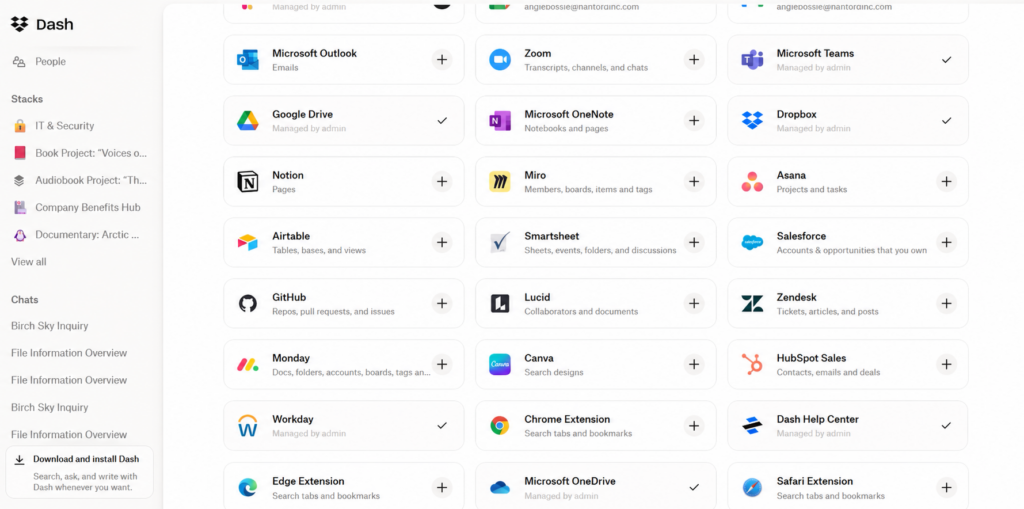
Note: The first sync takes several hours, but after that, incremental syncs fire every two hours. The wait felt longer than it was, probably because it was my only task at the moment. So, I recommend having coffee, scheduling a meeting, a long lunch, whatever fills time well.
Once it settled in, that two hours between updates is close enough to live for most sales conversations.
How Does Skyvia Handle Automated CRM-to-Dropbox Data Syncs?
The native apps covered above are, at heart, tools for humans – someone opens a record, finds a file, clicks a button. Skyvia operates on a different premise entirely: what if nobody had to do anything at all?
To test the data backup problem, I built a pipeline that pulls newly updated HubSpot contacts on a schedule and writes them as structured CSV output to a designated Dropbox folder. Just data, moving quietly from one place to the other while I was working on this article.
The mechanics are worth understanding clearly because “sync” can set the wrong expectations. Skyvia doesn’t sit in the background watching Dropbox for changes. It executes on a schedule: connect to HubSpot, pull the records that matter, apply your field mapping and filters, write a CSV, deposit it in Dropbox, done. Dropbox is the endpoint – a delivery address, not a collaborator. The pipeline runs the same way every time it fires, which is exactly the point.
Mapping is handled visually. Filters mean only changed records make the trip, so a night with twelve updates doesn’t generate the same file as a night with twelve thousand. Set it up once, and the rest is just calendar math.
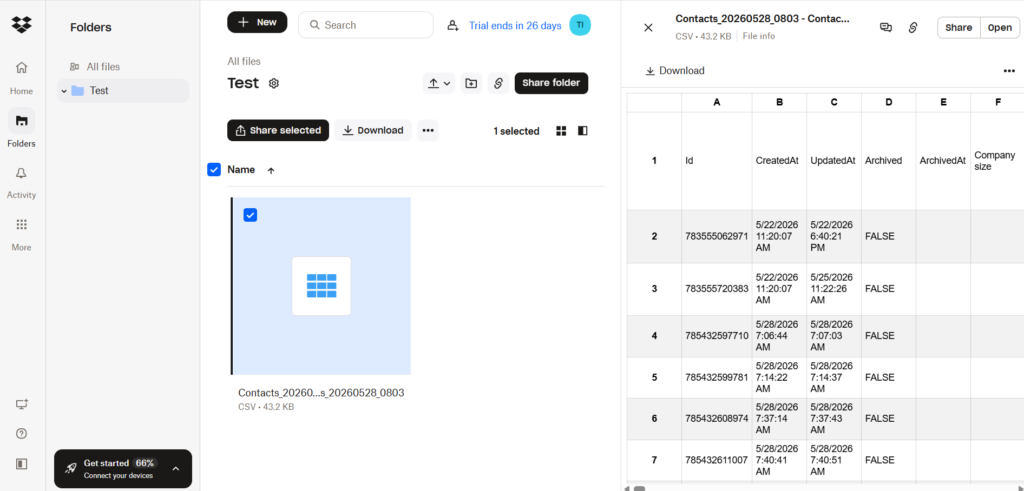
Here’s what a CSV with HubSpot contacts looks like in Dropbox after Skyvia:
Pros
Some work is too important to depend on someone remembering to do it. Nightly exports, weekly deal summaries, long-running archival flows keeping downstream dashboards honest – Skyvia runs all of it on a schedule, at whatever volume, for a flat cost.
You don’t have to write a single line of code if you don’t want to; everything is visual (though you can switch to Data Flow for advanced scenarios).
Also, Skyvia doesn’t just move data; it moves the right data. Field mapping and export filters mean you can target only changed records, only relevant fields (a bit more on that below), and deliver a CSV that’s already shaped for whatever’s receiving it.
Cons
If you need a one-time export, HubSpot’s native export gets it done faster with zero setup – Skyvia starts making sense when the job is recurring and scheduled, not when it’s a one-off.
If your goal is to automatically deduplicate, merge, and maintain clean CRM records as a standalone process, that’s a different category of tool entirely. You can work around this in Skyvia with the right mapping logic and transformation settings, but it won’t happen in one click.

Why Choose Make or Zapier for Multi-Step Automations?
Some workflows aren’t really about moving data – they’re about choreography. A new HubSpot contact lands in your CRM. A custom-named Dropbox folder appears for them automatically. A Slack message fires to the account rep. A welcome email goes out. One event, four things happen, zero humans involved. That’s not a sync problem or a backup problem. That’s an iPaaS problem, and Make and Zapier are where you go to solve it.
The choice between them is real, but it maps cleanly onto a single question: how complicated is the thing I am trying to build? Zapier is the answer when the answer is “not very.” Its 8,000+ app catalog dwarfs Make’s ~3,000 connectors and remains the widest in the category. The interface requires no technical hand-holding, and a simple “new HubSpot contact → create Dropbox folder” flow can be live almost immediately.
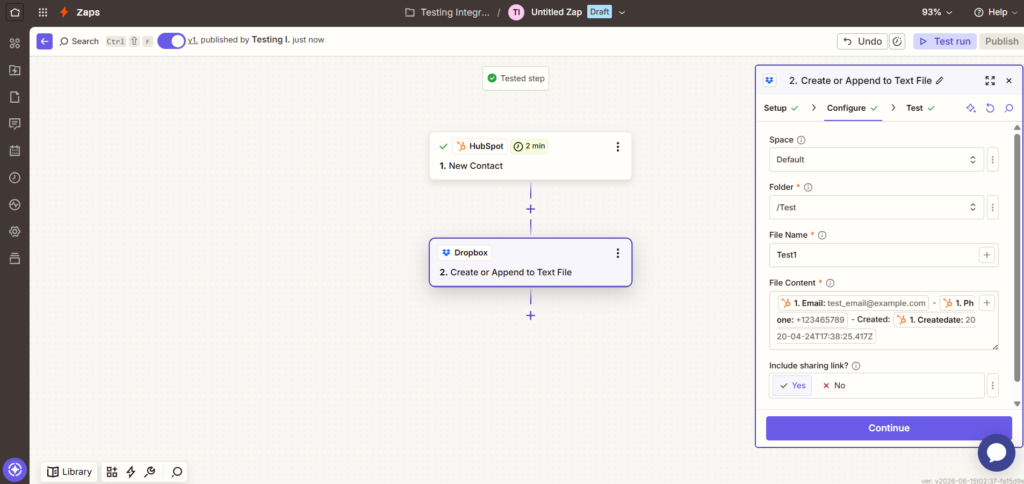
When “simple” stopped describing your workflow somewhere around the third conditional branch, Make is ready to enter the game. The scenario builder holds routers, iterators, error handlers, and multi-step transformations without collapsing into chaos.
Make’s entry point is $9 for 10,000 operations, and Zapier is $19.99 for 750 tasks. At high volume, it registers on the finance team’s radar before it registers on yours.
Pros
The connector coverage is almost beside the point at this level – both platforms reach far enough that gaps are rare exceptions. What actually matters is how gracefully they handle complexity.
What really separates them is what happens between the trigger and the final action. Make, in particular, handles the messy middle well: branching logic that branches, errors that get caught rather than silently swallowed, and workflows that can touch HubSpot, Dropbox, Slack, email, and SMS in a single chain.
Cons
Operation-based pricing counts everything. Each action in a multi-step workflow is a separate billable event. It will be invisible at low volume and suddenly very visible after an unplanned bulk update. So, before committing, run the numbers on the scenario that would hurt, not the typical one.
How Do the Native Tools and Integration Platforms Compare?
| Integration Method | Best Use Case | Pricing Model | Sync Frequency | Native HubSpot UI Widget? | Bulk Data/CSV Support? |
|---|---|---|---|---|---|
| Native Dropbox Files App | Manually attaching files to contacts | Included with Dropbox | Manual / On-Demand | Yes | No |
| Dropbox Dash | AI-powered unified search across tools | Per-user license | Incremental (every 8 min) | Yes (Via Dash UI) | No |
| Dropbox Sign | Electronic signature tracking | Per-user license | Real-time | Yes (Sidebar Card) | No |
| Skyvia | Automatic CRM data backups & ETL | Volume-based (Data Rows) | Scheduled (up to 1 min) | No (Data-only) | Yes (CSV/DB) |
| Make / Zapier | Workflow logic & custom triggers | Task-based (Per Action) | Real-time (Webhooks) | No | Limited (Gets costly) |
How Do You Actually Set Up an Automated Data Pipeline?
- Sign in to Skyvia or create an account – it probably takes 2 seconds more than logging in.
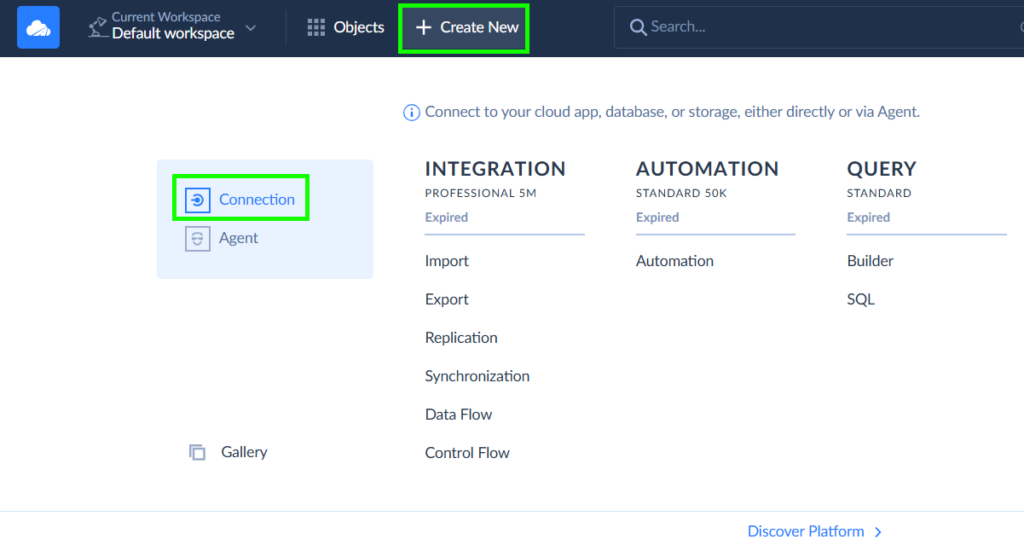
- Click on +Create New and choose Connection. From here, we need to create HubSpot and Dropbox connections.
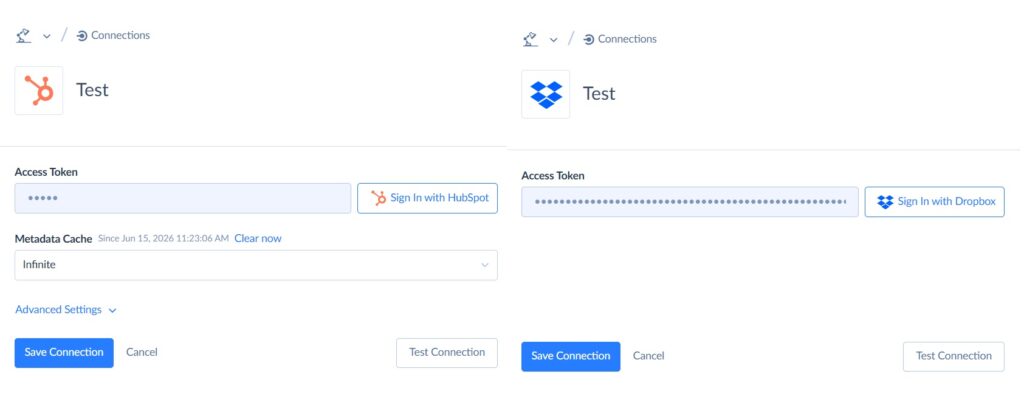
- Find the needed tools in Skyvia’s list of connectors and follow the procedure.
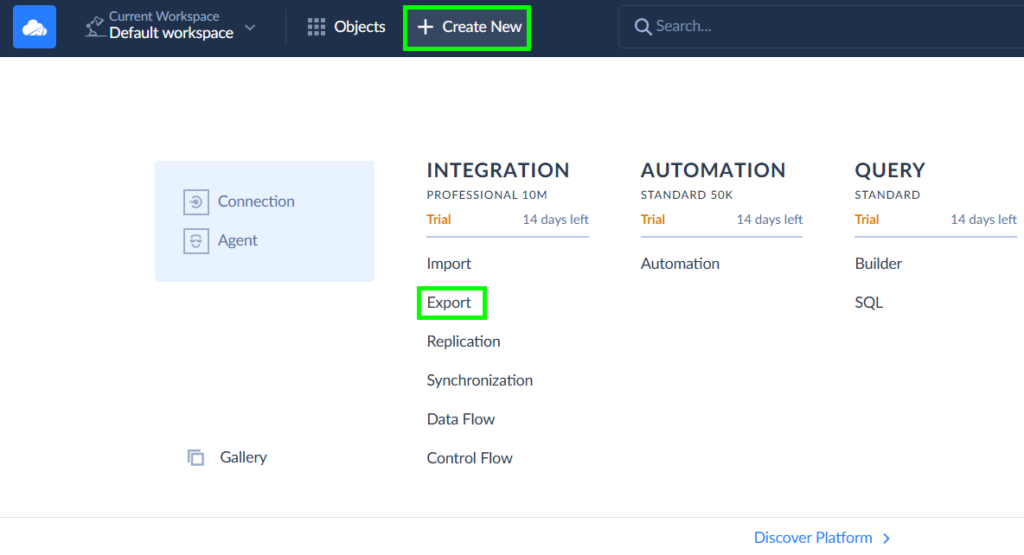
- Now, click +Create New one more time and choose Export.
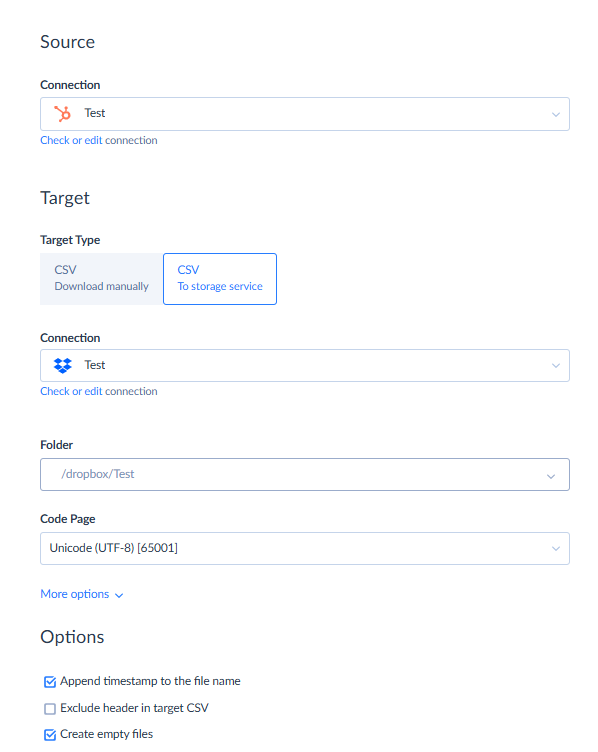
- Choose your source – HubSpot, and the target – Dropbox. Select the CSV to storage service option.
- Also, define the Dropbox folder where the CSV will land.
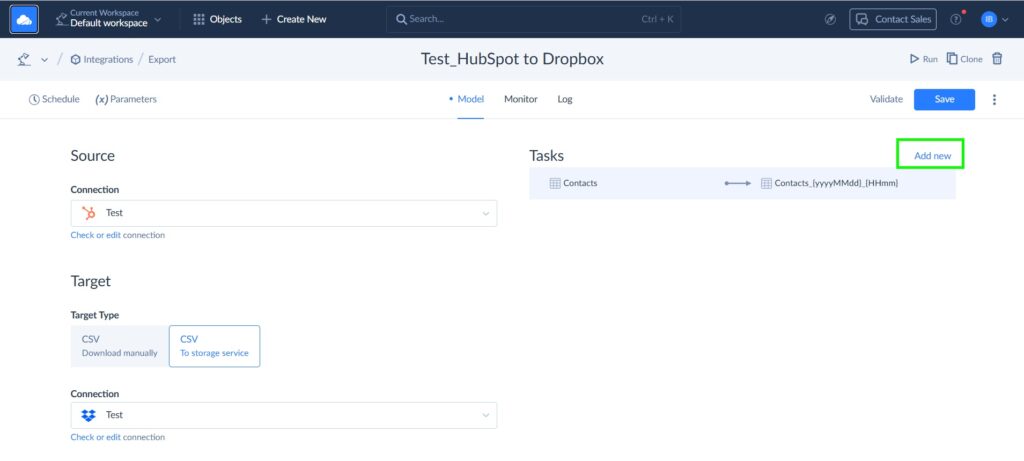
- It’s time to create a task – define what will move to the target and what it will look like there. Click on Add new on the Integration Model tab.
Note: A new object to move – a new task in Skyvia.
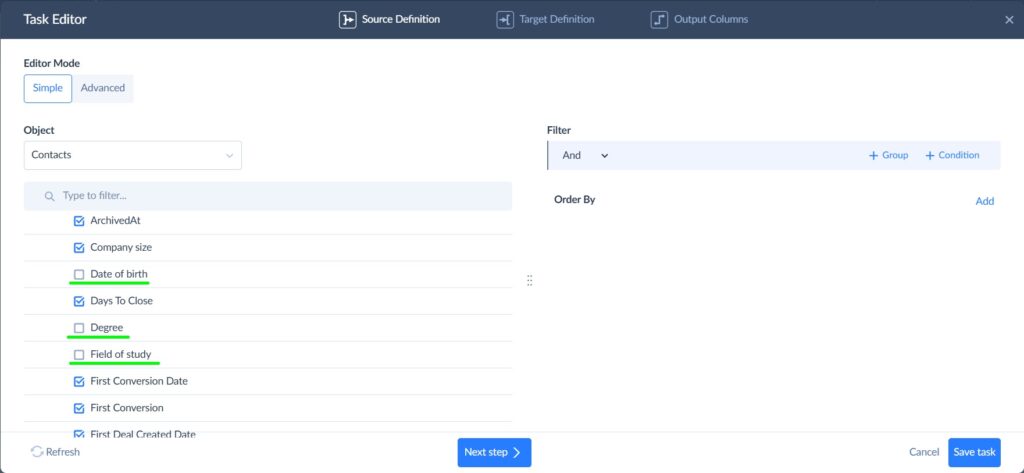
- The first step is to define which rows from the source will make it all the way to the target. For this specific scenario, we don’t need dates of birth, degrees, or fields of study.
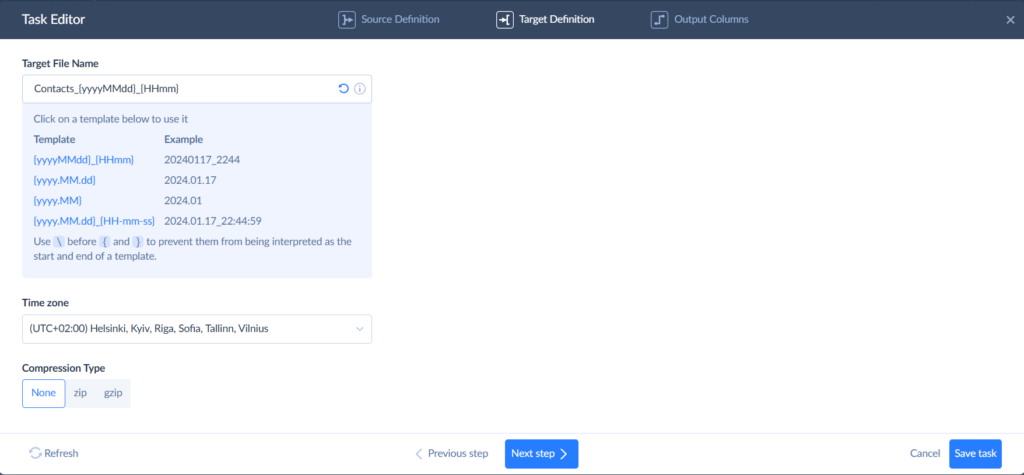
- Decide on the target file name and whether you want it zipped or not.
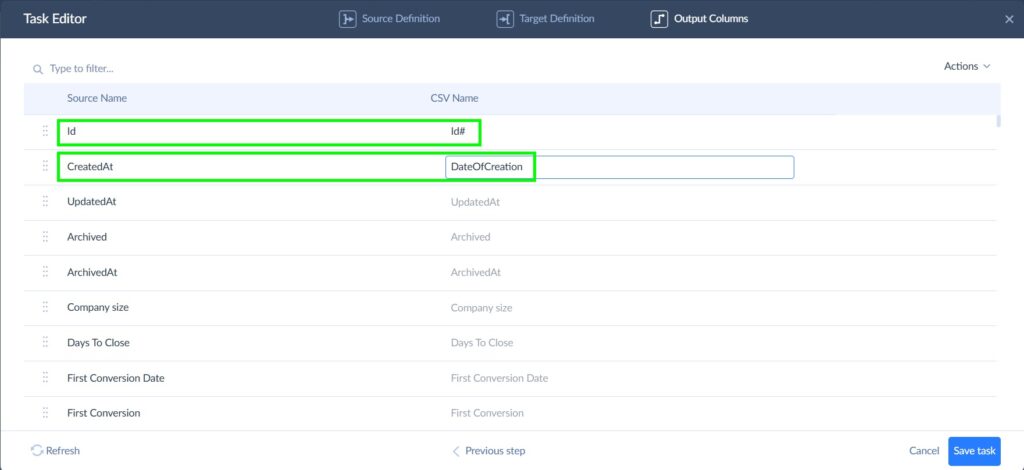
- Finally, you need to decide whether the target columns have the same name as their source cousins. When done, hit Save task.
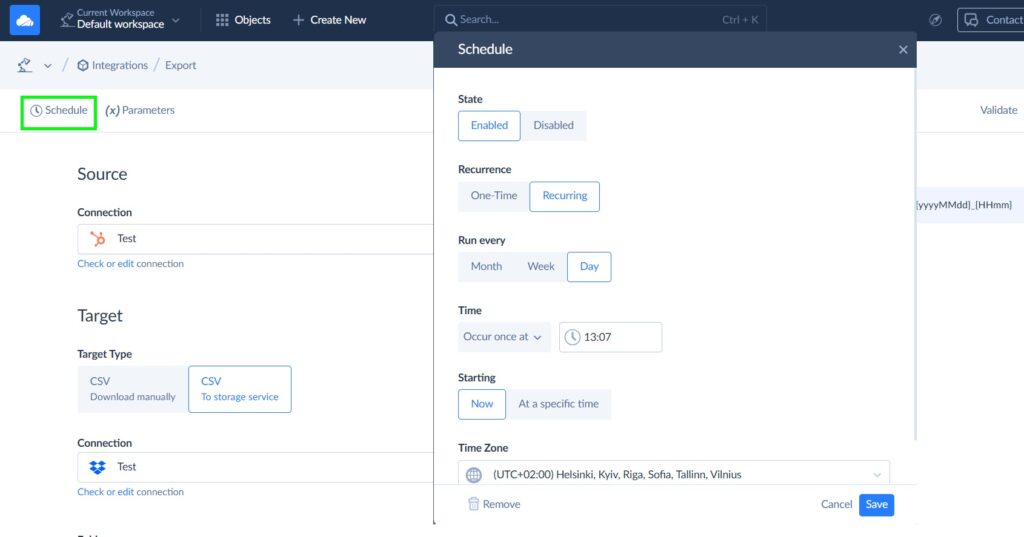
- Time to schedule the run. Choose how often you need updates on the target and click Save.
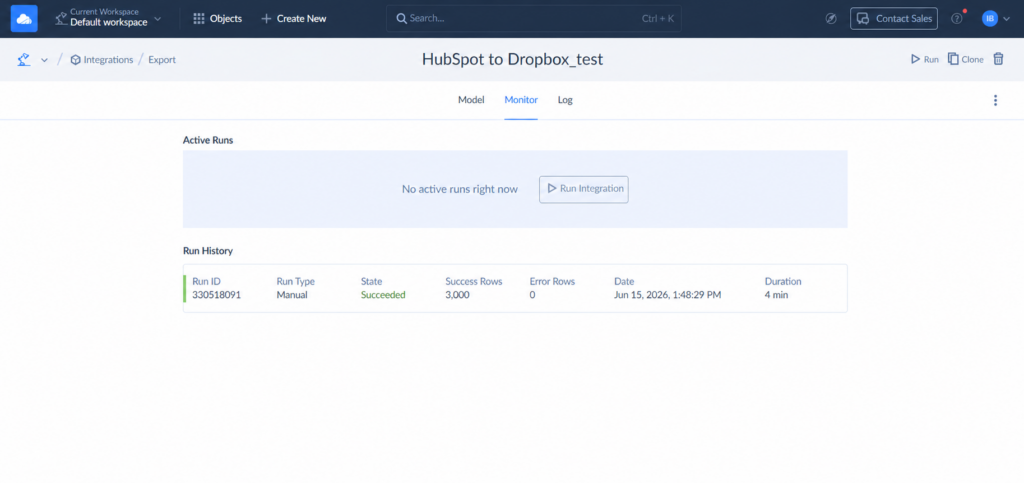
- You can track the integration progress and whether it succeeded in the Monitor tab.
Conclusion
Yes, there is no single best HubSpot Dropbox integration. There’s only the right tool for the specific problem your team is actually trying to solve, which, it turns out, is a more useful answer than a universal recommendation would be.
- Need to find a file before the awkward pause on a client call gets worse? Dropbox Dash.
- Need a proposal on a contact card without leaving HubSpot? The native Files App. Simple, reliable, doesn’t try to be more than it is.
- Need to stop chasing signatures that were promised “by the end of the day” three days ago? Dropbox Sign handles the nudging so you don’t have to.
- Need one event in HubSpot to trigger a cascade across Dropbox, Slack, email, and SMS? Make or Zapier. Bring your conditional logic.
- Need bulk exports, nightly backups, and structured CSV pipelines that run while everyone’s asleep? That’s a data problem, not a file problem, and native apps were never built to solve it, but Skyvia was.
If somewhere, a CSV is waiting to be automated, try Skyvia for free.

FAQ for HubSpot with Dropbox

What is the difference between Dropbox Dash and the standard Dropbox integration in HubSpot?
The Files App puts Dropbox files on your HubSpot records. Dash helps you find things – across HubSpot, Dropbox, and other connected work apps at once, via AI-powered search. One is a filing cabinet. The other is the person who always knows where everything is.
Can I schedule a daily automatic CSV backup of my HubSpot CRM data directly to Dropbox?
Yes, that’s Skyvia’s home turf. Set up a pipeline, map your HubSpot fields, pick a schedule, and a fresh CSV lands in your Dropbox folder every day without anyone lifting a finger.
Why did my Zapier/Make Dropbox HubSpot pipeline suddenly stop running?
Usually one of three: an expired OAuth token, a HubSpot API rate limit hit, or a plan change that quietly adjusted your operation limits.
Is my client data secure when using third-party tools to move files between Dropbox and HubSpot?
Reputable tools like Skyvia, Make, and Zapier use OAuth and encrypted connections, meaning they never store your credentials. That said, always review each platform’s data processing agreements before moving sensitive client data through them.
Which integration method saves the most money for high-volume document pipelines?
Native apps are license-based and don’t scale with volume. Make and Zapier charge per operation, which compounds fast once automation runs frequently. For high-volume scheduled exports, a dedicated pipeline tool tends to be the more predictable choice.