Summary
- Skyvia automatically imports structured CSV data from SharePoint into HubSpot on a set schedule, with no code required – file links and metadata included, if that’s what the CSV holds.
- CloudFiles turns HubSpot into the room the document actually lives in, complete with a window into who opened it and how long they stayed.
- Power Automate paired with a custom API is the construction kit for teams who’ve decided the packaged version of this integration will never quite fit, so they’re building their own.
- Layer2 Cloud Connector is the option for SharePoint that never made it to the cloud – running on a server your team owns, syncing on your terms, and answering to nobody’s uptime but yours.
SharePoint answers to IT. HubSpot answers to sales. Nobody’s job description includes “make sure these two agree with each other,” which is exactly why the agreement between them tends to happen by accident, if it happens at all.
Here’s the part that trips people up before they even pick a vendor: “connect SharePoint to HubSpot” isn’t one request; it’s four.
- A live preview inside a CRM record.
- A scheduled sync of file metadata.
- A custom pipeline reacting to changes as they happen.
- An on-premises connector built for infrastructure that never made it to the cloud.
Each shape solves a different problem, and the tool that wins for one solves nothing for the other three.
Before we rush to the tools, a quick confession: I work at Skyvia, so if this article started sounding like a Skyvia commercial, that would be the least surprising plot twist in content marketing history. I’ve tried to write about the other three tools the way I’d want a competitor to write about mine, which is to say, honestly and without putting a thumb on the scale. If Skyvia can’t do something, this article says so. Bias disclosed; hopefully not indulged.
How Did We Test These SharePoint-to-HubSpot Integration Methods?
While planning this article, we decided to go for an actual shakedown instead of a list of features lifted straight from marketing pages. The kind of testing you’d do before putting your name on a production rollout.
Testing Methodology
Thirty-plus hours went into this – installing, configuring, and running Skyvia, CloudFiles, Power Automate with a custom API, and Layer2 Cloud Connector against the exact same conditions, back to back. Same source data for all four. Same target HubSpot portal. Same failure scenarios thrown at each one (on purpose) to see who flinched.
Test Dataset
We loaded SharePoint Online with the disorganized mix of formats of 10,000 document records. Then we mapped that pile against 2,500 real HubSpot Deals and Support Tickets, because a file moving from one system to another means nothing on its own – what matters is whether it lands on the right deal, the right ticket, every single time, not just the first time.
Evaluation Framework
Five criteria, applied identically across all four tools:
- Setup velocity – how long from “nothing configured” to “first successful sync.”
- Sync latency – the real gap between a change happening in SharePoint and that change showing up in HubSpot.
- Rate-limit handling – what each tool does the moment HubSpot’s API says no.
- Error recovery – whether a failed sync heals itself or needs a human to notice and intervene.
- Ongoing maintenance burden – what breaks on its own and what needs someone to keep watching it.
Why Should You Connect SharePoint Files to HubSpot Records?
Somewhere in your SharePoint tenant is the proposal template that closed your biggest deal last quarter. And somewhere in HubSpot, a rep is about to build a new proposal from scratch because they didn’t know it existed. That’s the gap this integration closes.
Gartner’s research indicates that 47% of digital workers struggle to find the data needed to perform their job. Imagine hiring two people, but only one of them is working those 8 hours on the assigned tasks, while the second one constantly goes through emails, attachments, renamed copies, folders, etc.
Centralized Sales & Support Collateral
When SharePoint is the library, and HubSpot is the front desk, reps stop asking “does this exist?” and start asking “which version is current?” – a much better question to be asking.
- Sales reps access proposal templates directly on Deal timelines. No tab-switching, no messaging the enablement team, no digging through a shared drive. The template lives where the deal lives.
Automated Support Workflows
Think back to the last ten tickets that landed in your queue. How many came with the right file already attached, named correctly, in the right place? This integration exists for the other nine.
- Support teams receive files uploaded via external web forms, stored automatically in SharePoint, and linked directly to HubSpot Tickets via API/ETL. The customer uploads once. The file lands in the right folder, tagged with the right metadata, and shows up on the ticket without anyone copying, renaming, or re-uploading it by hand.
Compliance & Version Control
Every regulated industry runs on the same anxious question: which version did the customer see: the current one, or the one that got replaced three weeks ago? This connection makes sure nobody has to guess.
- Files remain governed under SharePoint’s enterprise retention policies. HubSpot points to the authoritative file in SharePoint instead of holding a copy of its own, so when legal marks a contract as superseded, that status is reflected everywhere it’s referenced, not just in the one place someone remembered to update it.
What Criteria Should You Use to Select an Integration Tool?
Many tools claim to “connect” SharePoint and HubSpot. What that word actually means gets revealed when you have to fix something in an ungodly hour. Here’s what to check before you commit.
Integration Architecture
The first decision isn’t which vendor to pick; it’s which shape of connection you want, because that shape determines everything downstream.
- A widget or iFrame embeds a SharePoint view inside HubSpot – you’re looking through a window, not actually moving data.
- An iPaaS sync copies or mirrors records between the two systems on a schedule or trigger, so both platforms hold usable, queryable data.
- A custom API webhook skips the middleman entirely and fires events directly between systems in near real time.
None of these is objectively better – an embedded widget is plenty for a five-person team; a webhook setup makes more sense once support tickets are stacking up by the hundreds.
In-CRM Document Previewing
If reps have to leave HubSpot to open a file, you haven’t really connected anything – you’ve just added a shortcut.
- Ability to view, annotate, or track document engagement directly inside HubSpot CRM records without navigating away. This is the difference between “the file is linked here” and “the file lives here.” Some tools stop at a clickable link. Others let a rep preview a contract, see if the customer opened it, or leave a comment on it – all without a second tab. Ask a vendor to show you this live, not describe it in a slide.
API & Technical Complexity
This criterion is really a question about who on your team will be responsible for the thing running.
- A no-code builder means your ops team can configure and adjust the connection without asking IT guys to show mercy.
- Low-code splits the difference – drag-and-drop for the basics, a bit of scripting for edge cases.
- Full REST API work gives you the most control and the fewest guardrails, which is exactly the kind of trade-off worth having in writing before a developer starts billing hours.
Sync Latency & Frequency
How fast does a change in one system need to show up in the other? The honest answer is usually “faster than what we currently have,” but the real number matters.
- Real-time, event-driven webhooks are for when a support ticket needs an attached contract within seconds.
- Scheduled batch sync (e.g., 1 min to 1 hour) is when a marketing asset library only needs to refresh once an hour.
Match the sync speed to the use case, not the other way around – paying for real-time sync on a document library nobody touches urgently is money spent solving a problem you don’t have.
Pricing Model
The sticker price often is the first thing teams look at. However, in the long run, it rarely resembles what you’ll actually pay once usage climbs, so look past the homepage number.
- Per-seat pricing is predictable but can penalize you for adding users.
- Volume-based pricing scales with activity, which is great when stability is your team’s second name, but a busy quarter can quickly destroy your expectations.
- Custom API licensing tends to front-load costs into setup and development instead of a recurring fee.
As you can see, every model has its pros and cons. So, model your actual document and record volume against each pricing structure before you sign anything – the cheapest-looking option on day one isn’t always the cheapest at scale.
Maintenance & Error Management
The real crash test of an integration comes when a field gets renamed, or a permission gets revoked without warning. That’s the moment worth asking about before you buy, because it’s the one no demo will show you.
- Automated retry mechanisms notice a failed sync, retry it a few times, and log it only if it genuinely can’t recover.
- Manual script debugging becomes a new reality when a tool fails until someone notices a ticket sitting without its attachment. Let’s pray it’s you, not the customer.
How Do the Leading SharePoint-to-HubSpot Integration Methods Compare?
“Connects SharePoint to HubSpot” is the one sentence every tool mentioned on this page can honestly claim, and the one sentence that tells you the least about which tool you should pick. The real differences show up in the details: what gets synced, how fast, at what price, and what might break first.
| Feature / Criteria | Skyvia | CloudFiles | Power Automate + API | Layer2 Cloud Connector |
|---|---|---|---|---|
| Primary approach | No-code CSV import/export | In-CRM document management | Custom workflow automation | Enterprise data synchronization |
| Best for | Scheduled structured-data transfers | File preview, sharing, and sales tracking | Custom business logic and API workflows | High-volume hybrid deployments |
| Pricing model | Free tier plus usage-based plans | Per-user plans plus automation add-ons | Microsoft Premium licensing and API costs | Installation-based annual license |
| Sync frequency | Scheduled; up to near-minute intervals on higher plans | Workflow/event-driven | Event-driven or scheduled | Scheduled/background sync |
| API complexity | Low | Low | High | Medium to high |
| In-CRM file preview | No | Yes | Custom development required | No dedicated preview |
| Setup time | Short to moderate | Short | Moderate to long | Moderate to long |
| Maintenance burden | Low to moderate | Low to moderate | High | Moderate to high |
So, let’s see what Skyvia, CloudFiles, Power Automate with a custom API, and Layer2 Cloud Connector have to offer.
Which Integration Solution Best Fits Your Specific Use Case?
If there were one tool to rule them all, this article would be a paragraph long. There isn’t, because HubSpot-to-SharePoint files integration means something different to a five-person sales team than it does to an enterprise IT department. Context is always king.
Why Choose Skyvia for No-Code Data Sync and Workflow Automation?
Skyvia is a no-code, cloud-based data integration platform. It connects SharePoint and HubSpot (and 200+ other sources and destinations) without requiring the user to write scripts, code, or custom API calls.
Best for
RevOps teams and no-code data integration, and anyone who wants a working sync without opening a code editor.
Important scope clarification: Skyvia’s dedicated SharePoint Files integration is primarily a scheduled CSV-based data-movement tool. It can import structured CSV records from SharePoint into HubSpot Contacts, Deals, Campaigns, and other objects, or export HubSpot data to CSV files in SharePoint. Skyvia is the right call when what you need is HubSpot always pointing at the correct, current file in SharePoint, not when you need that file rendered inside the CRM – that’s the job for Cloud Files.
Rating
Skyvia holds a 4.8 out of 5 rating on G2, based on more than 320 reviews, and a 4.9 out of 5 rating on Capterra, based on 116 reviews.
Pricing
Skyvia uses a tiered, usage-based pricing model with a free plan for low-volume use (up to 10,000 records per month). Paid plans increase record volume limits, scheduling frequency, and the number of simultaneous integrations. The current, authoritative numbers are always on Skyvia’s official pricing page.
How It Works
Below, we will go through the SharePoint-to-HubSpot integration step by step, but here’s a short overview.
Skyvia connects to SharePoint Online and HubSpot CRM using OAuth2 authentication – the same secure handshake protocol used to log into a website with a Google or Microsoft account.
After authentication, an administrator must configure the integration, select the CSV source and HubSpot target object, and manually map source columns to HubSpot properties.
If the CSV contains document URLs, file metadata, timestamps, or owner information, those values can be loaded into appropriate HubSpot fields (provided the fields and mappings are configured). Once scheduled, the process can update HubSpot automatically without repetitive manual entry by sales or support users.
Pros
- No coding required. Mapping fields between systems happens by dragging boxes around a canvas, not writing scripts, which means the person configuring it can be in ops, not in engineering.
- Cost-effective, usage-based pricing. You pay based on rows processed, not a flat fee that charges the same whether you’re syncing 500 records or 500,000.
- Handles more than just this one pairing. The same interface can sync SharePoint, Salesforce, HubSpot, Google Drive, and more simultaneously – useful if this integration is one piece of a bigger data-consolidation project rather than a standalone task.
- Mapping issues surface early. Skyvia flags missing or mismatched columns before a scheduled run goes out, so a renamed SharePoint field shows up as an alert to fix, not a sync that fails downstream in HubSpot.
- Security credentials that hold up under scrutiny. SOC 2 certification, GDPR compliance, encryption in transit and at rest, and audit logs – relevant baseline coverage for any team syncing customer or deal data between systems, especially in regulated industries.
Cons
- Skyvia’s SharePoint-to-HubSpot integration is designed around CSV workflows running on a schedule, rather than watching for live document changes. It’s a great fit for keeping records current at regular intervals. Just worth knowing upfront if your use case needs files to sync the moment they change.

Why Choose CloudFiles for In-CRM Document Previewing & Sales Tracking?
If Skyvia is the tool for people who never want to touch code, CloudFiles is the tool for people who never want to leave HubSpot. It isn’t trying to be a data pipeline – it’s trying to be the layer that makes SharePoint, Google Drive, OneDrive, Dropbox, Box, or S3 feel like they live inside the CRM, without ever actually moving the files there.
Think of it less as a connector and more as a window: the documents stay exactly where they are, and CloudFiles just makes sure HubSpot can see through the glass.
Best for
Sales enablement, PDF tracking, and live document widgets – teams that live inside deal records and want documents, previews, and engagement data to show up there too, rather than in a separate app.
It’s a particularly strong fit for organizations that already treat SharePoint as their document system of record and simply want that authority respected inside HubSpot, rather than duplicated.
One thing worth knowing before you set this up: if all you need is HubSpot pointing reliably at the current file in SharePoint (no in-CRM preview, no engagement tracking, no per-seat pricing), Skyvia’s scheduled metadata sync gets you there for less, and without touching a document-management product at all.
Rating
CloudFiles reports a 4.8 out of 5 rating on the HubSpot Marketplace (36 reviews) and a 4.5 out of 5 on G2 based on 228 reviews.
Pricing
CloudFiles doesn’t price as one flat subscription – it’s modular, split across three products, each licensed per user and priced differently at the Business and Enterprise tiers:
| Product | Business | Enterprise |
|---|---|---|
| Document Management | $5/user/month | $15/user/month |
| Document Sharing | $15/user/month | $25/user/month |
| Document Generation | $15/user/month | $25/user/month |
For a SharePoint-to-HubSpot use case specifically:
- Document Management is the core product – it’s what lets you browse and preview SharePoint files inside HubSpot.
- Document Sharing is what you add for external sharing, engagement analytics, and link security.
- Document Generation is optional, useful mainly if you also want to auto-generate personalized proposals or quotes from HubSpot data.
On top of that, Cloud Files automation costs extra – packs currently start around $10/month for 100 automations and scale up to roughly $500/month for 10,000. Annual billing knocks the price down, and a 14-day free trial is available to test before committing.
How It Works
- Setup starts with an admin installing CloudFiles from the HubSpot Marketplace and authorizing the account – after that, a CloudFiles widget appears on contact, company, deal, and ticket records.
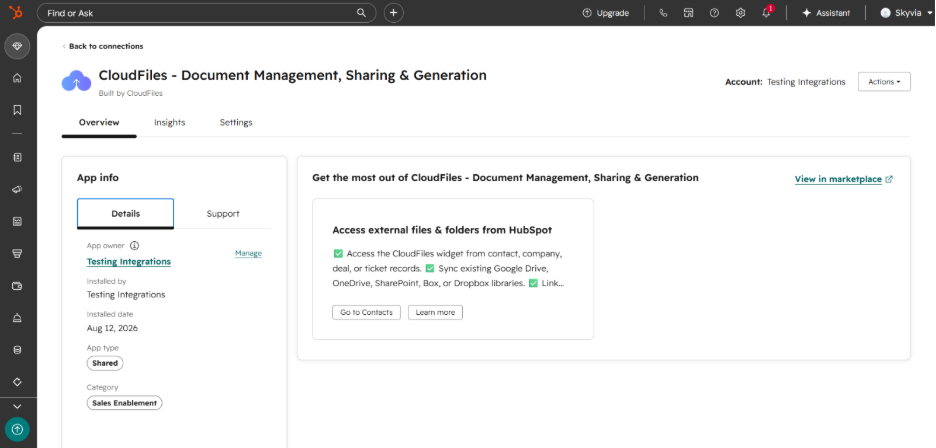
- Next, the admin connects SharePoint; critically, files stay in SharePoint the entire time, which means your existing permissions, folder structure, naming conventions, and version history keep working exactly as they did before CloudFiles ever entered the picture.
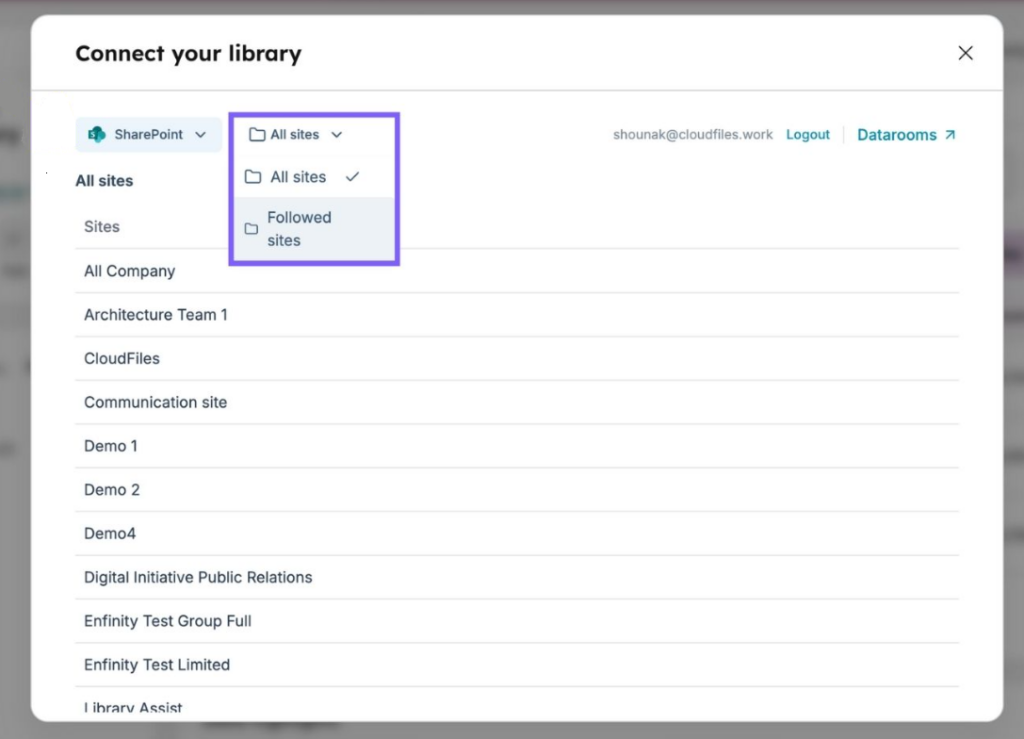
- From there, users associate specific files or folders with the relevant HubSpot record and can browse, preview, rename, download, or open them without switching applications. Previews render right in the browser, so a prospect can review a document without downloading it – and CloudFiles’ sharing layer supports branded viewing pages, custom domains, and even secured data rooms for more sensitive materials.
- Once a document goes out, CloudFiles tracks what happens to it: views, time spent, tracked email opens, and other engagement signals show up back on the HubSpot record.
- It also plugs into HubSpot workflows directly. A typical example: when a deal hits the “Proposal Sent” stage, a workflow can automatically trigger CloudFiles to create or associate a deal folder, share the latest version of the proposal, and start logging engagement – no rep has to remember to do any of it manually.
Pros
- Excellent UI integration. The document card sits natively inside the CRM record – previewing a file feels like a built-in HubSpot feature.
- Files stay in their system of record. CloudFiles connects to the existing repository, which limits duplication and keeps SharePoint’s governance intact.
- Live analytics on buyer engagement. Reps can see whether a prospect opened a proposal, how long they spent on it, and whether they returned to it later.
- Native e-signature support. Contracts and proposals can be tracked and signed without routing through a separate e-signature tool (though some of these capabilities may depend on which product tier or add-on is active).
- Broad storage support. SharePoint, OneDrive, Google Drive, Dropbox, Box, and S3 can all be managed through the same interface, which helps if your organization’s documents aren’t tidily consolidated into one system.
Cons
- Cost climbs with seats and usage. A larger sales org will pay meaningfully more than a small one because pricing is split across per-user products plus automation add-ons.
- More capability than some teams actually need. If the goal is genuinely just “put a SharePoint link on a HubSpot record,” CloudFiles brings a lot more than that – previews, permissions, analytics, branded sharing – and the cost follows the capability. It earns its price once you need that depth; it’s overkill if you don’t.
- Still depends on SharePoint permissions underneath. CloudFiles doesn’t replace the need to design SharePoint access carefully – if a user loses permission to a folder, the CRM preview stops working too. The tool simplifies access for your convenience, but doesn’t get rid of the governance work.
- Adds a third-party layer between HubSpot and SharePoint. That means an additional dependency for uptime, authentication, and API compatibility. Regulated teams in particular should review CloudFiles’ security documentation and data-handling terms before deploying it.
Why Choose Power Automate & Custom APIs for Developer Workflows?
Everything covered so far – Skyvia, CloudFiles – is a product you configure. Power Automate paired with HubSpot’s API is different: it’s not a product so much as a construction kit. Nobody ships you a finished SharePoint-to-HubSpot integration; you build one, action by action, decision by decision, and what comes out the other end is exactly as good as the person who built it.
Best for
Developer-heavy teams already working inside the Microsoft Power Platform ecosystem – organizations running Entra ID, SharePoint, Teams, and Azure who want the integration to follow the same governance and tooling as everything else they run.
Rating
Power Automate holds a 4.4 out of 5 rating on G2 (based on over 1,000 reviews) and a 4.4 out of 5 on Capterra (based on roughly 230 reviews).
Pricing
There’s no single number here – cost is assembled from several moving parts, depending on how the flow is licensed and run:
| Cost Component | Price | When It Applies |
|---|---|---|
| Power Automate Premium | $15/user/month (billed yearly) | Required for HTTP actions, custom connectors, and most API-based automation |
| Per-flow/process licensing | ~$100/flow/month | For flows shared across a team rather than tied to one person’s account |
| Cloud flow runs (pay-as-you-go) | $0.60/run | Metered usage instead of a flat license |
| Unattended desktop automation | $3/run | Only relevant if the flow includes desktop-level automation |
| HubSpot private app / subscription | Varies | Required for API access; tier depends on which objects, webhooks, or permissions the flow uses |
| Azure infrastructure (optional) | Varies | Added only if the solution grows beyond a simple flow – Functions, Key Vault, API Management, monitoring |
That table is the exact reason why this option needs a real cost model before implementation.
How It Works
A typical build looks like this:
- Power Automate watches a SharePoint document library using a trigger such as “when a file is created” or “when a file is created or modified.”
- When that trigger fires, the flow reads the file’s metadata – name, path, content type, and any custom SharePoint columns you’ve set up, things like a HubSpot record ID, deal number, or document type.
- From there, the flow has to figure out which HubSpot record the file actually belongs to. The safest approach uses a stable ID – a HubSpot record ID stored directly on the SharePoint item – rather than matching on a name or email address, both of which can change or turn out not to be unique. If no matching record exists, the flow can create one on the spot.
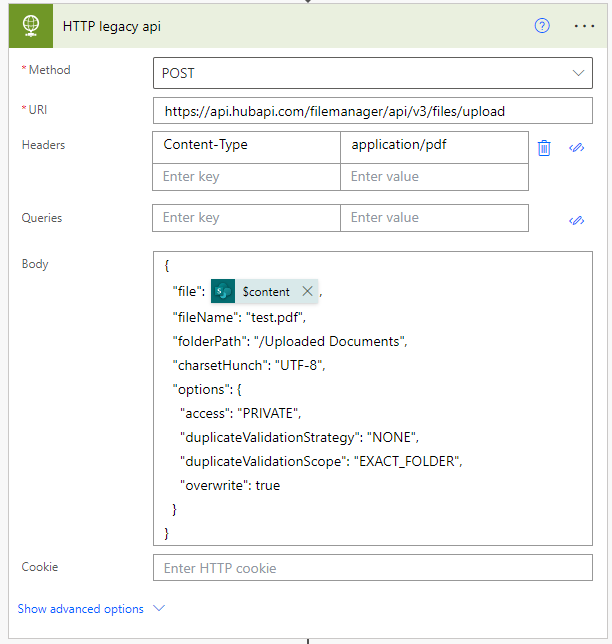
- Once the target record is resolved, Power Automate calls HubSpot’s API – through a custom connector, an independent-publisher connector, or a direct HTTP action authenticated with a private-app token – and posts the result back as a formatted note.
- In the pattern described here, that means parsing the JSON payload from SharePoint and pushing a formatted HTML note link straight into a HubSpot Ticket via the CRM v3 Notes REST API. The file itself typically stays in SharePoint; what lands in HubSpot is a link and the metadata around it, which keeps SharePoint as the actual system of record instead of creating a second copy of the file to maintain.
Pros
- Highly customizable logic. Branching, validation, multi-step conditions, transformations – if HubSpot’s API supports it, a custom flow can implement it, which is more than most packaged connectors can promise.
- Builds on Microsoft 365 licensing you likely already own. Teams already paying for Microsoft 365 and the Power Platform are extending infrastructure they’ve already invested in, rather than adopting a new platform from zero.
- Native, first-class SharePoint integration. Because SharePoint is a first-party part of the Power Platform, triggering flows off files, folders, approvals, and list changes is genuinely well-supported – this is Power Automate on its home turf.
- Event-driven, not just scheduled. Flows can react to a SharePoint file change or a HubSpot webhook the moment it happens, instead of waiting for the next scheduled batch run.
Cons
- High technical complexity. A production-grade version of this needs OAuth setup, private-app token management, JSON parsing, and real error handling – this isn’t a weekend project for someone without development experience, and it isn’t meant to be.
- Brittle when API endpoints change. Because the logic is hand-built by you, a change to HubSpot’s API – a renamed field, a deprecated endpoint – can break the flow until someone notices and patches it.
- The integration is only as reliable as its error handling. Retry logic, duplicate prevention, and monitoring have to be designed deliberately, and skipping them is how a single failed API call turns into duplicate CRM records.
Why Choose Layer2 or Enterprise Tools for High-Volume Hybrid Deployments?
Every tool so far assumes your data lives in the cloud and stays there. Layer2 exists for the organizations where that assumption falls apart – the ones still running SharePoint Server on a rack somewhere, syncing against an on-prem SQL database, or operating under a security policy. If your infrastructure looks like a blend of decades rather than a single clean cloud stack, this is the option built for that reality.
Best for
Enterprise on-premises compliance and large document repositories – organizations running legacy or hybrid SharePoint environments, high-volume recurring sync jobs, and IT teams that need to own the integration infrastructure rather than hand it to a SaaS vendor.
Rating
Layer2 Cloud Connector holds a 4.5 out of 5 rating on Capterra, based on 50 reviews, with particularly strong marks for customer support and functionality. Its G2 presence is comparatively thin so far.
Pricing
Layer2 breaks from the per-seat or per-record models used elsewhere on this list. It’s licensed per installation, which changes the economics considerably depending on your scale:
| Edition | Approximate Annual Price |
|---|---|
| Trial | Free |
| Standard | ~€1,399/year (+VAT), or roughly $1,539/year via third-party listings |
| Enterprise | ~€2,590/year (+VAT), or roughly $2,999/year via third-party listings |
That Layer2’s license fee is rarely the whole bill, though. Because the tool runs on infrastructure you control, expect to also account for a Windows server or virtual machine, database or integration runtime resources, and – for anything beyond a simple mapping – implementation and consulting support.
At high volume, that installation-based pricing can work in your favor, since cost isn’t tied directly to every record moved or API call made the way it is with usage-based tools. At low volume, it’s a much harder number to justify.
How It Works
Layer2 Cloud Connector doesn’t live in the cloud the way everything else on this list does – it installs directly on a Windows workstation or server that your organization controls, and runs there as a background service. That one choice shifts real responsibility onto your team: availability, patching, service accounts, firewall rules, and scheduled execution are all yours to manage.
- Setup starts with an administrator creating connections to both systems – HubSpot is configured as a data provider, and SharePoint is connected using its URL along with Microsoft authentication.
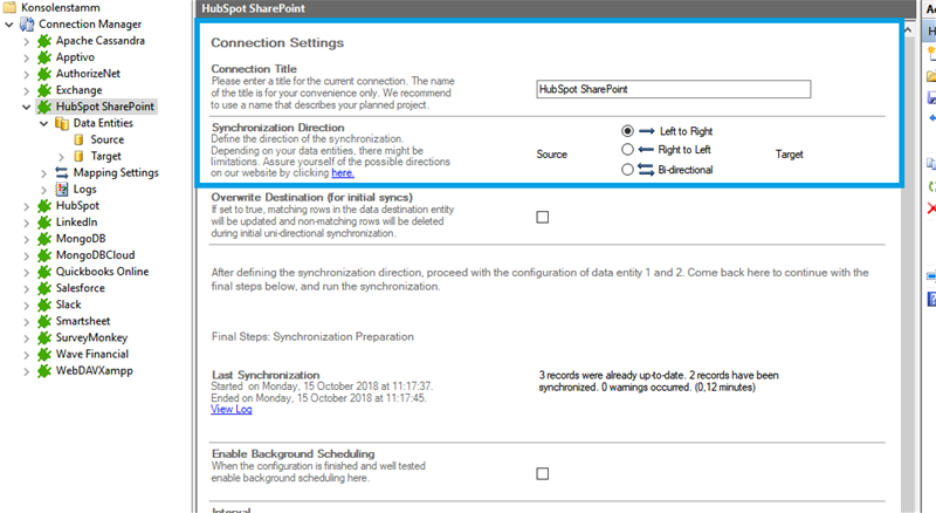
- From there, the real work is defining “entities”: the specific pairs of data you actually want kept in sync. That could be HubSpot Contacts mapped to SharePoint list items, HubSpot Companies mapped to customer records, or HubSpot Deals tracking SharePoint project or opportunity data.
- For document-heavy scenarios, it’s worth being clear-eyed about what’s syncing – Layer2 typically moves file metadata or links, not a full in-CRM document-preview experience.
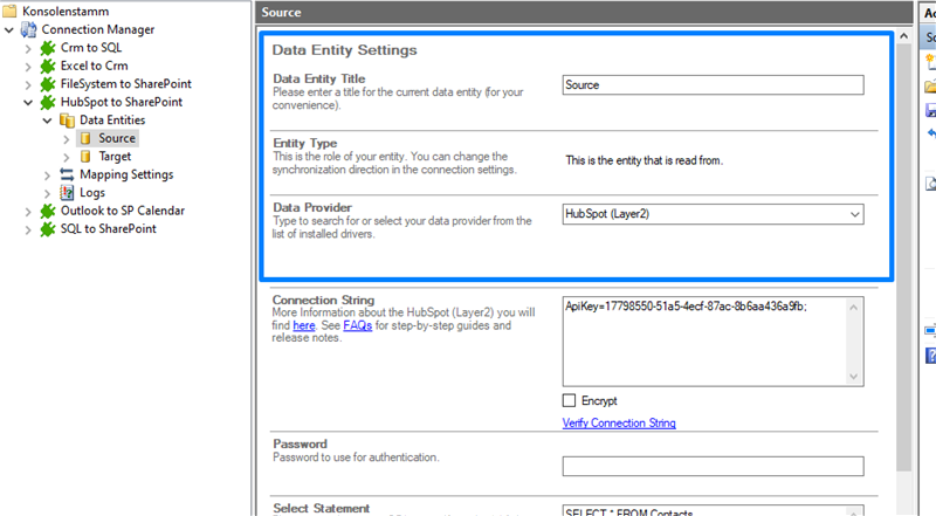
- Field mapping comes next, and Layer2 handles some of it automatically wherever source and target field names already match, leaving manual mapping for anything that doesn’t line up on its own.
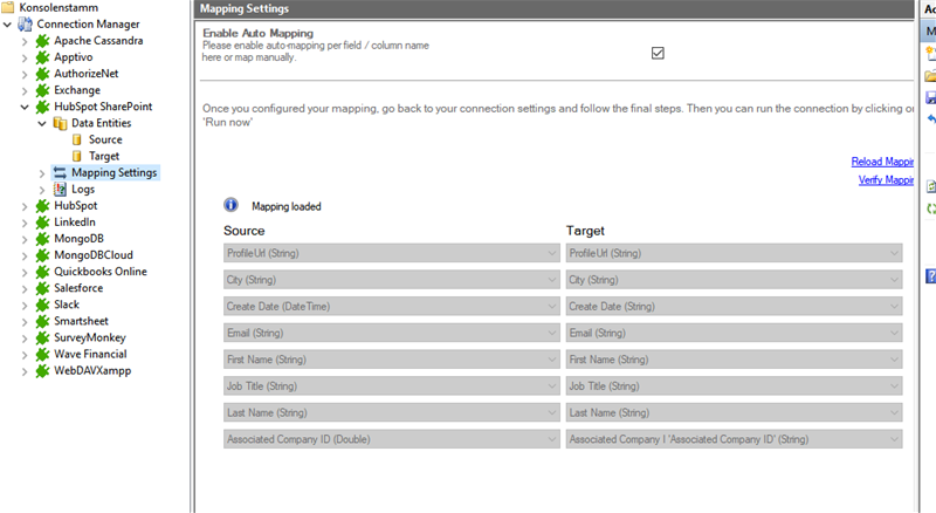
- Direction is a real decision here too: SharePoint → HubSpot, HubSpot → SharePoint, or full bidirectional sync. We recommend starting one-way, validating that records, IDs, field mappings, and conflict behavior all check out, before ever turning on two-way synchronization.
- Once it’s running, syncs can be triggered manually or scheduled to run automatically, and Layer2 provides a synchronization toolbox to monitor what’s actually happening underneath: records read and written, inserts versus updates versus skips versus outright failures, API throttling, authentication failures, and how conflicts get resolved when the same record changes in both systems.
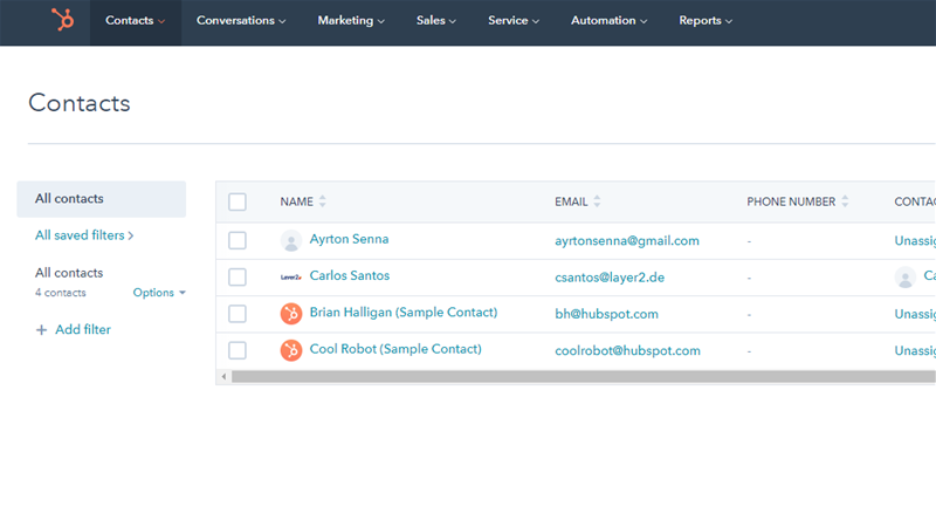
One detail worth checking before you commit: some of Layer2’s own SharePoint-HubSpot documentation still references older HubSpot API key authentication, which HubSpot has since moved away from, so it’s worth confirming directly whether the current version supports private-app tokens or OAuth before building anything on top of it.
Pros
- Strong security and compliance fit. Because the integration runs entirely inside infrastructure your organization controls, it fits naturally into environments with strict data-residency, network-isolation, or audit requirements that a pure SaaS tool can struggle to satisfy.
- Supports legacy, on-premises SharePoint Server. Layer2 isn’t limited to SharePoint Online – it works with older, self-hosted SharePoint deployments too, which matters for organizations that haven’t fully migrated to the cloud.
- No coding required for standard mappings. Despite the infrastructure overhead, the actual field mapping and entity configuration are handled through Layer2’s interface rather than custom scripts.
- Installation-based pricing can favor high volume. Since the license isn’t metered per record or API call, an organization moving large amounts of data can end up with meaningfully better unit economics than a usage-based tool would offer.
Cons
- Manual server setup and configuration. Getting Layer2 running means provisioning a Windows server or VM, managing service accounts and firewall rules, and (depending on the connection type) working through XML connection-string configuration by hand. This is a genuine IT project, not a same-afternoon setup.
- Infrastructure ownership becomes your responsibility. Patching, backups, high availability, and monitoring all fall on your team once Layer2 is running, rather than on a vendor’s cloud infrastructure.
- Not a document-preview or sales-enablement tool. Layer2 synchronizes data and file metadata reliably, but it won’t give reps an in-CRM PDF viewer or engagement analytics the way CloudFiles does – if that’s the actual requirement, Layer2 solves a different problem than the one you have.
How Do You Set Up Skyvia’s SharePoint-to-HubSpot CSV Sync?
Step 1: Authenticate Connections
- Log in to Skyvia or sign up if you don’t have an account yet.
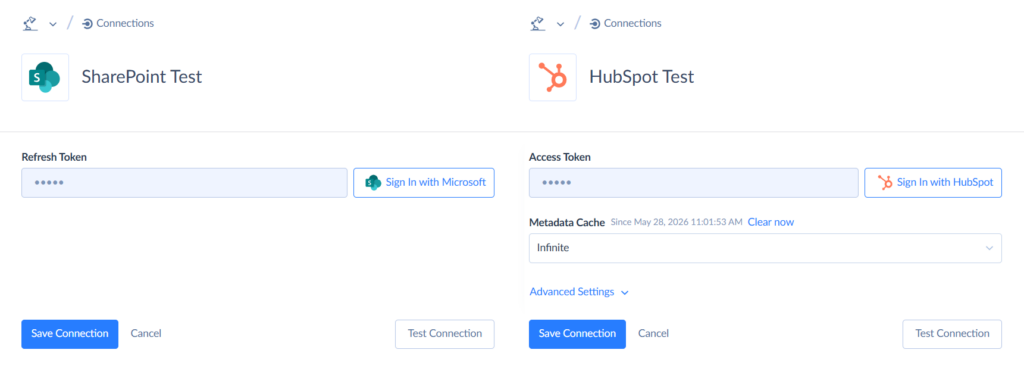
- Click +Create New and choose Connection. From there, create SharePoint and HubSpot connections and authenticate via Microsoft OAuth2.
Step 2: Create a Data Integration Package
- Click +Create New and choose Import.
- In the Source Type section, choose CSV: From storage service, and then set SharePoint as your source and HubSpot as your target.
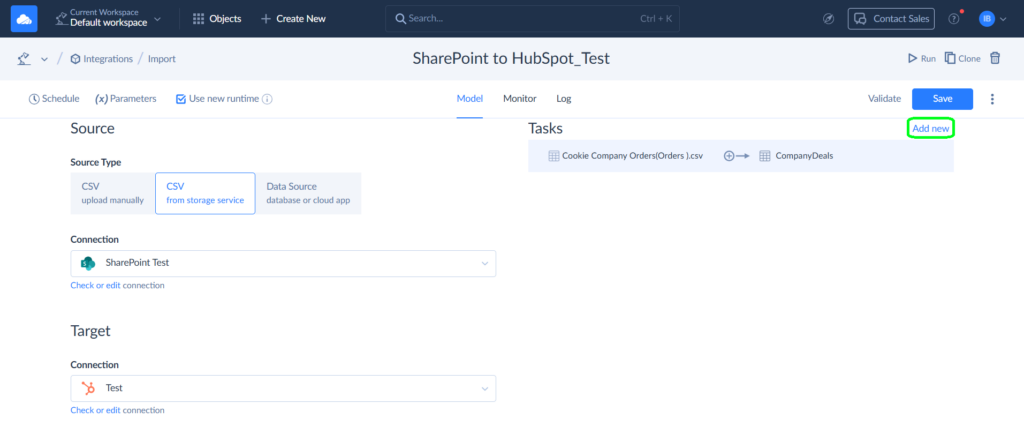
- Then, we can proceed with creating the first task within this integration. Click on Add new in the upper-right corner.
Step 3: Define Source & Target Mapping
- Choose the CSV file with the data that needs to land in HubSpot.
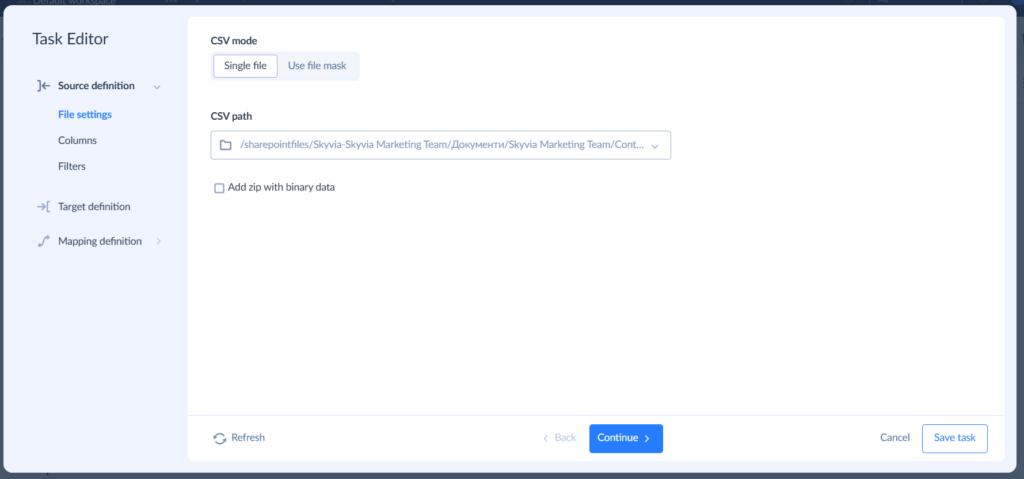
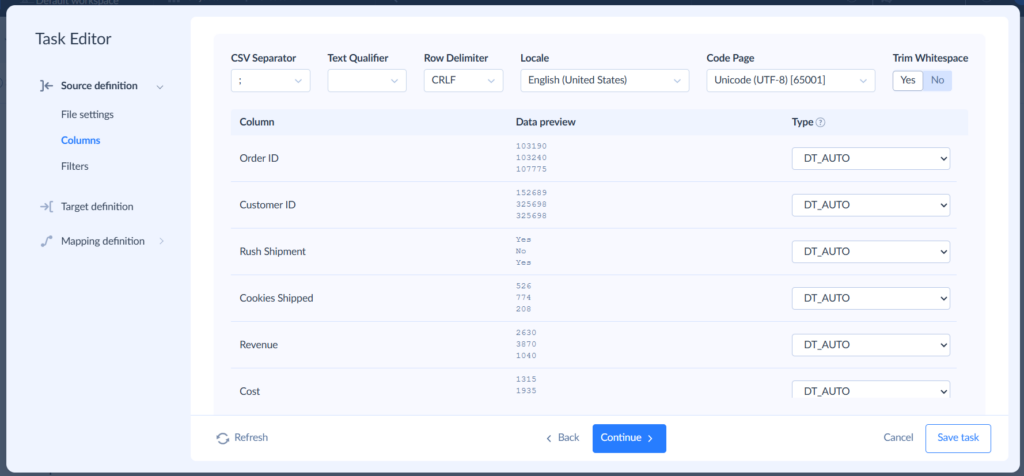
- Now, ensure Skyvia can parse the source with the correct delimiter.
- Choose your option in the CSV Separator dropdown list. For example, the file may use semicolons while the importer expects commas.
- Next, a text qualifier is the character placed around a field to show that its contents should be treated as one value, even if it contains commas, semicolons, or line breaks.
- A row delimiter (also called a record separator) marks the end of one row and the beginning of the next.
- A locale is a set of regional rules that tell software how to interpret values such as dates, decimal numbers, etc.
- Finally, decide whether you want Skyvia to trim whitespace – remove unnecessary spaces, tabs, or line breaks from the beginning and end of values before loading them.
- Set your filter logic – match every condition (AND) or any single condition (OR) – then apply a row limit if you need one.
- If required, set the row limits.

- Now, choose the target – where you want the data to end up. We’re working with deals, so ours go to Company Deals.
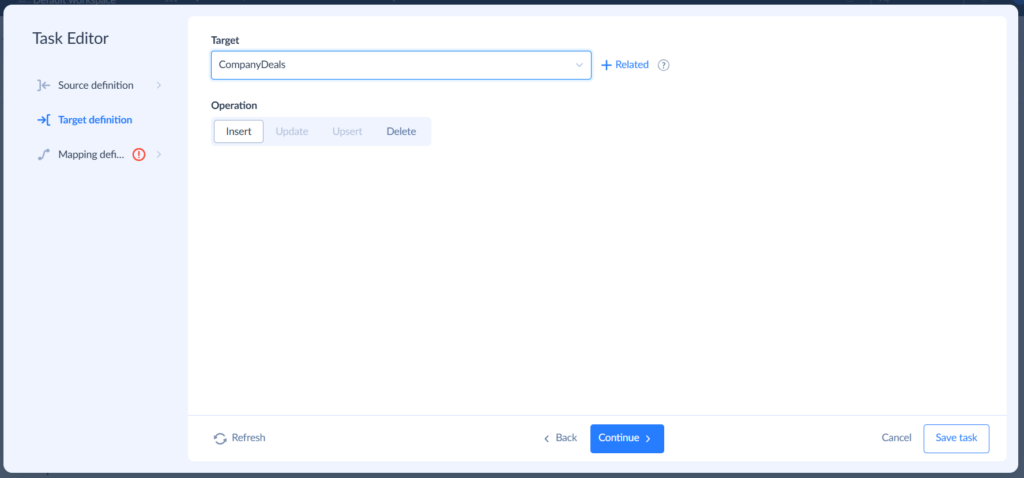
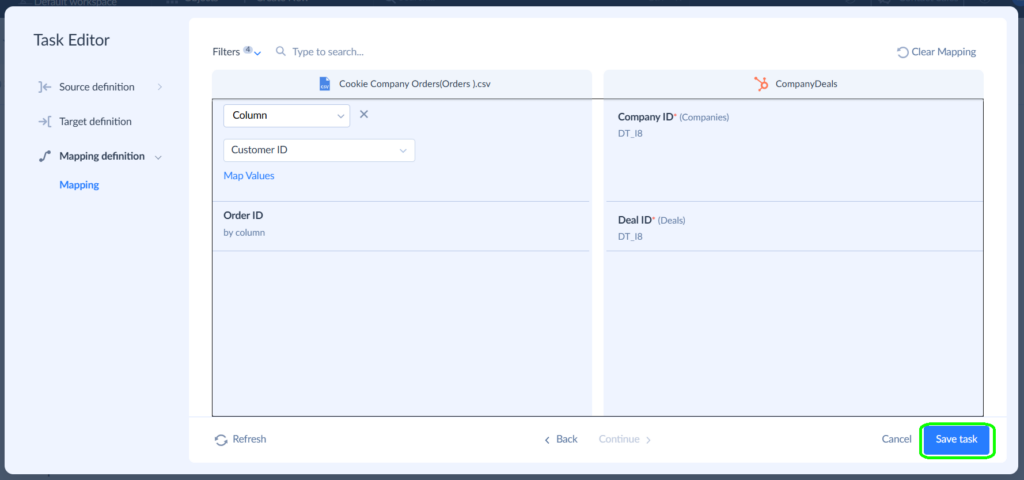
- Define which of the source and target columns should match, and click Save task.
Step 4: Configure Sync Schedules & Monitor Errors
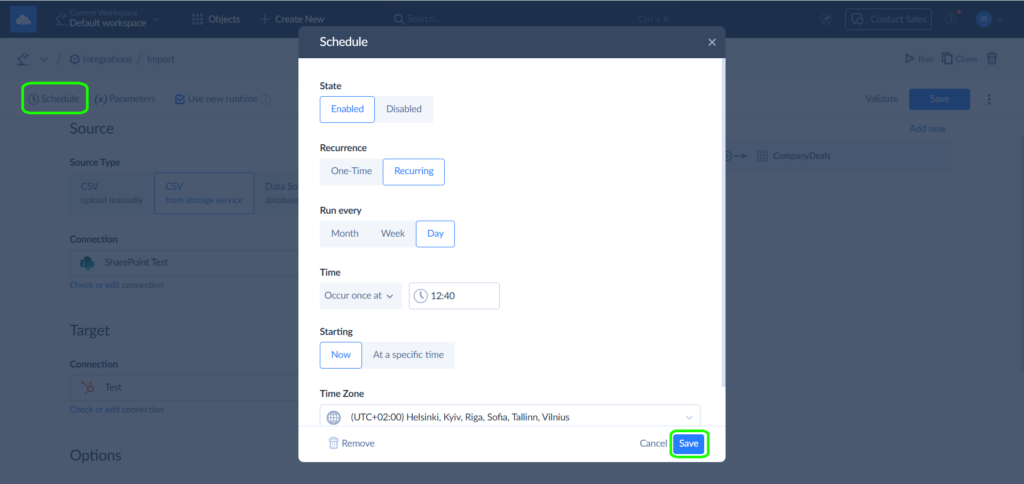
- We’re almost there. Now, let’s set a schedule – how often do you want your SharePoint-to-HubSpot integration to run?
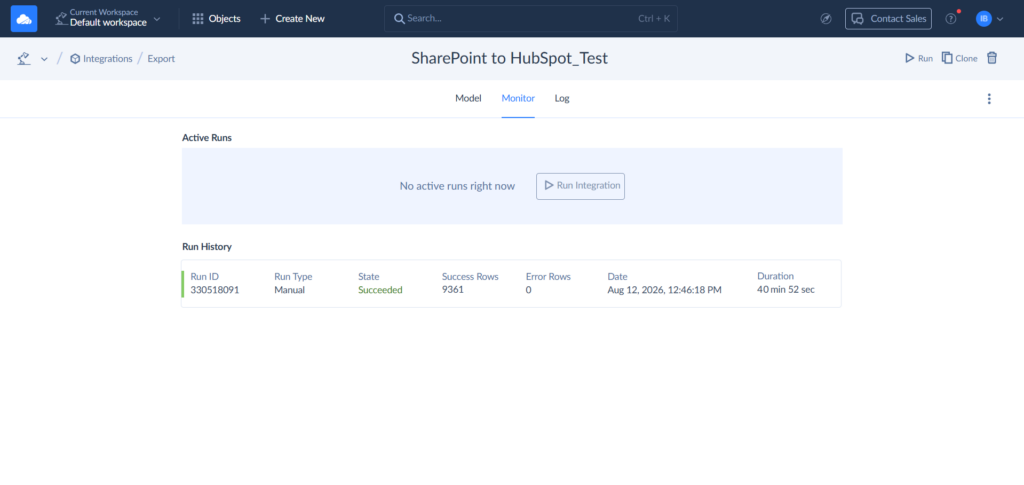
- After each run, you can check the monitor log to see if something went wrong or how long it took.
What Are the Most Common Pitfalls When Linking SharePoint Files to HubSpot?
A demo has one file, one user, one deal, and a token still young enough not to have expired. That’s not what production looks like. Production is three thousand files and forty different permission levels and an API that eventually just stops picking up the phone.
Permission & Access Token Expirations
A link opens fine for the person who made it. That’s the whole trap.
- If SharePoint document sharing links are private, sales reps in HubSpot who lack M365 permissions won’t be able to open the files. Everything about the link looks normal – until a customer clicks it and hits “Access Denied” instead of the contract they were promised.
The risk just moves when you widen the permissions to fix that. Now it’s a file that was never meant to leave the building, sitting open to anyone who has the URL.
Tokens have the same problem. OAuth access gets revoked. HubSpot rotates private-app tokens on schedule. Guest access to a SharePoint site expires on its own timeline, whether or not anyone remembers setting it. Nothing announces this in advance – yesterday’s flow just throws a 401 today.
A dedicated service identity instead of a personal login is what can actually help. Only the access that’s needed, nothing extra. Token expiry watched before it becomes a fire, not after. And one habit that catches almost everything else – test the link as three different people: internal employee, external guest, the person it was actually meant for.
HubSpot API Rate Limits
Do the math first. A file rarely costs HubSpot’s API just one call – it’s closer to five or six: find the record, fetch it, write the note, register the file, build the association, flip a status flag. Now multiply that by three thousand files moving through a single batch migration.
- Exceeding API request thresholds during batch migrations when posting thousands of deal notes sequentially is usually the first wall this hits. Cross it, and HubSpot answers with a 429.
A careless flow doesn’t handle that answer well. It either freezes or it retries blindly, and a blind retry is exactly how one note becomes three.
Watch for this pattern specifically: a flow that sails through a small test batch, then buckles when the second real volume shows up. Sync delays that quietly compound over the course of a day. Duplicate notes that exist only because nothing checked whether the first attempt landed.
There’s no outrunning the rate limit at real scale, so work with it instead. Batch wherever HubSpot allows batching. Queue files rather than firing them all at once. Add some randomness to retry timing, so failed calls don’t all slam the API again in the same instant. Cache a record ID the first time you resolve it, instead of asking HubSpot to find the same contact five times in an hour.
Unstructured File Link Management
SharePoint thinks in documents and folders. HubSpot thinks in deals and contacts. They were never going to agree on how to organize the same information, and the seam between them is exactly where things fray.
- Simply dumping raw URLs into CRM text fields creates messy UI clutter on contact records.
Six links piled into one text box. No version numbers. Nothing marking which one is actually current. And because a plain URL doesn’t carry a SharePoint item ID with it, renaming the file kills the link – silently, with no warning, until a rep clicks it live in front of a customer.
The deeper issue: a filename was never built to answer “which deal does this belong to?” Two proposals with nearly identical names. A file copied instead of updated. A deal that later merges into another one. Any single one of these can leave a CRM record pointing at the wrong document, or at a version that quietly stopped being correct weeks ago.
Stop treating the URL as the whole story to fix that. Carry structured metadata alongside it instead: the SharePoint item ID, the current version or eTag, the HubSpot object ID, an approval flag. That way the integration always knows not just where a file lives, but whether it’s still the one worth pointing to.
Which SharePoint to HubSpot Integration Method Is Right for You?
Four tools, six criteria, thirty-plus hours of testing – and the honest answer is that there’s no single winner here, just a better and worse fit depending on what you’re actually trying to do. Here’s the short version.
If your reps live and die by deal engagement – did they open it, how long did they stay, did they come back – choose CloudFiles. It’s the only tool on this list built around watching what happens after a document gets shared, not just moving it from one place to another.
Got developers on staff and a Microsoft 365 environment that already runs like clockwork? Build a custom Power Automate API pipeline. This path hands you nothing finished – you’re constructing it yourself, one action, one condition, one API call at a time. That’s the trade being made here: convenience, given up in exchange for control. And for workflows too particular, too specific to your business to ever fit inside someone else’s packaged connector, that trade is exactly the right one.
Still running SharePoint Server on-prem, or bound by a data-residency policy that rules cloud sync out entirely? Layer2 Cloud Connector is built for exactly that reality. It installs on infrastructure your team already controls, syncs on your schedule, and never asks a cloud vendor to hold your data in transit. The trade-off is that you’re also signing up to patch, monitor, and look after a server nobody else is responsible for.
And if what you want is your SharePoint file metadata showing up reliably across HubSpot and every other cloud app your business runs on, without writing a line of code or paying enterprise prices to get there, try Skyvia for free today.

FAQ for SharePoint to HubSpot

How does connecting SharePoint to HubSpot prevent hitting CRM storage limits?
HubSpot stores a link and metadata, not the file itself. SharePoint stays the actual storage, so your CRM’s storage cap never even enters the conversation.
Can you automatically map SharePoint file metadata to custom HubSpot properties?
Yes, with most of these tools. File name, upload date, owner, and status can all land in HubSpot custom fields automatically, no manual data entry required.
What is the difference between an ETL data sync tool and an in-CRM document widget?
One moves and matches data on a schedule (Skyvia). The other lets you preview and track a file live inside a HubSpot record (CloudFiles). Different jobs entirely.
Why do custom Power Automate workflows fail when syncing files to HubSpot
Usually API rate limits, an expired token, or a renamed field breaking the mapping. Custom-built flows don’t self-heal the way packaged tools do – someone has to catch it.
Is a no-code integration platform better than custom API scripting for SharePoint file sync?
Better for speed and upkeep, yes. Better for highly specific logic, no. It’s a trade-off of control for convenience – pick based on which one your team has time for.