Want to connect Power BI to PostgreSQL? In Power BI Desktop you go to Get Data, pick PostgreSQL database, and fill in the server and the database name. You won't hunt for a driver either, since Npgsql has come bundled with Power BI Desktop since December 2019.
Building reports on a PostgreSQL data warehouse? Then connecting in Desktop is only the first half. The second half comes after you publish, when the Power BI Service has to reach a database that may sit behind a firewall.
So we cover three routes in this guide: the built-in connector, a PostgreSQL ODBC driver, and Skyvia's ODBC driver with its Agent for databases you'd rather not expose. After them comes the piece the Desktop steps leave out, which is how refresh works once the report lives in the Power BI Service.
About PostgreSQL
PostgreSQL is a powerful open-source object-relational database. It sits at the top of Stack Overflow’s 2025 database rankings, leading the “admired” and “desired” lists yet again, with 47% of devs wanting to use it next year and 66% planning to keep using it.
That makes Postgres a safe bet for durable analytics and BI. It has earned a high reputation for reliability, performance, and robust features. That’s why it has been known as the world’s most advanced open-source relational database.
It supports a large part of the SQL standard. And it has the modern features of a relational database that includes:
- more data types
- table inheritance
- multi-version concurrency control
- and more
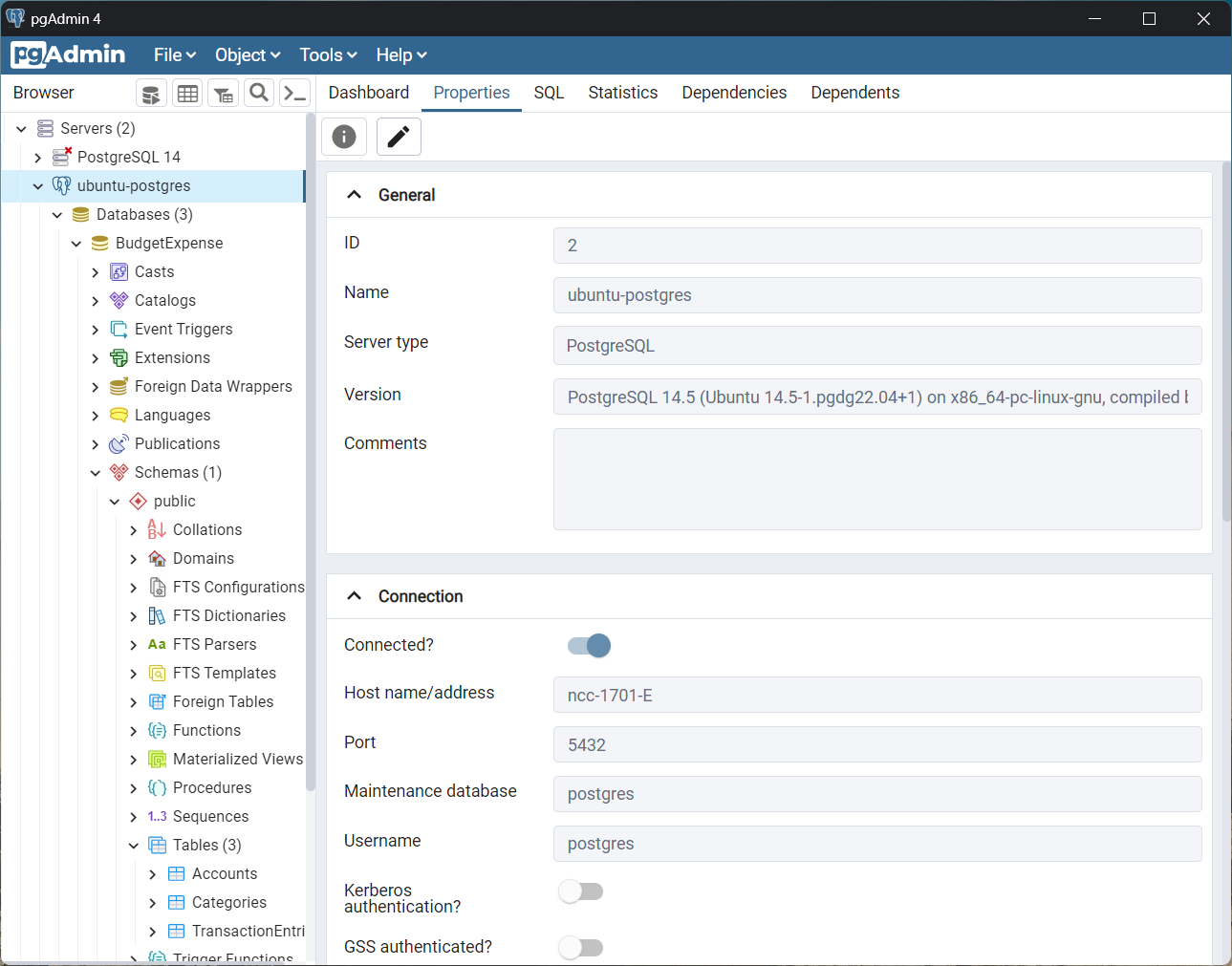
The image below shows the PostgreSQL version, credentials, and database used in this article.
About Power BI
According to Microsoft, Power BI is “a collection of software services, apps, and connectors.” This collection works together to visualize your data interactively. It has three working parts:
- Power BI Desktop, where you can design your interactive reports
- Power BI Service, where you can deploy your reports and share them with your stakeholders
- And Power BI Mobile, where you can take your reports wherever you go. It works on iOS, Android, and Windows devices.
PostgreSQL is one of the many data sources where Power BI can connect and work on your data.
In short, Power BI helps you visualize your data in PostgreSQL. Then, view it on your favorite device.
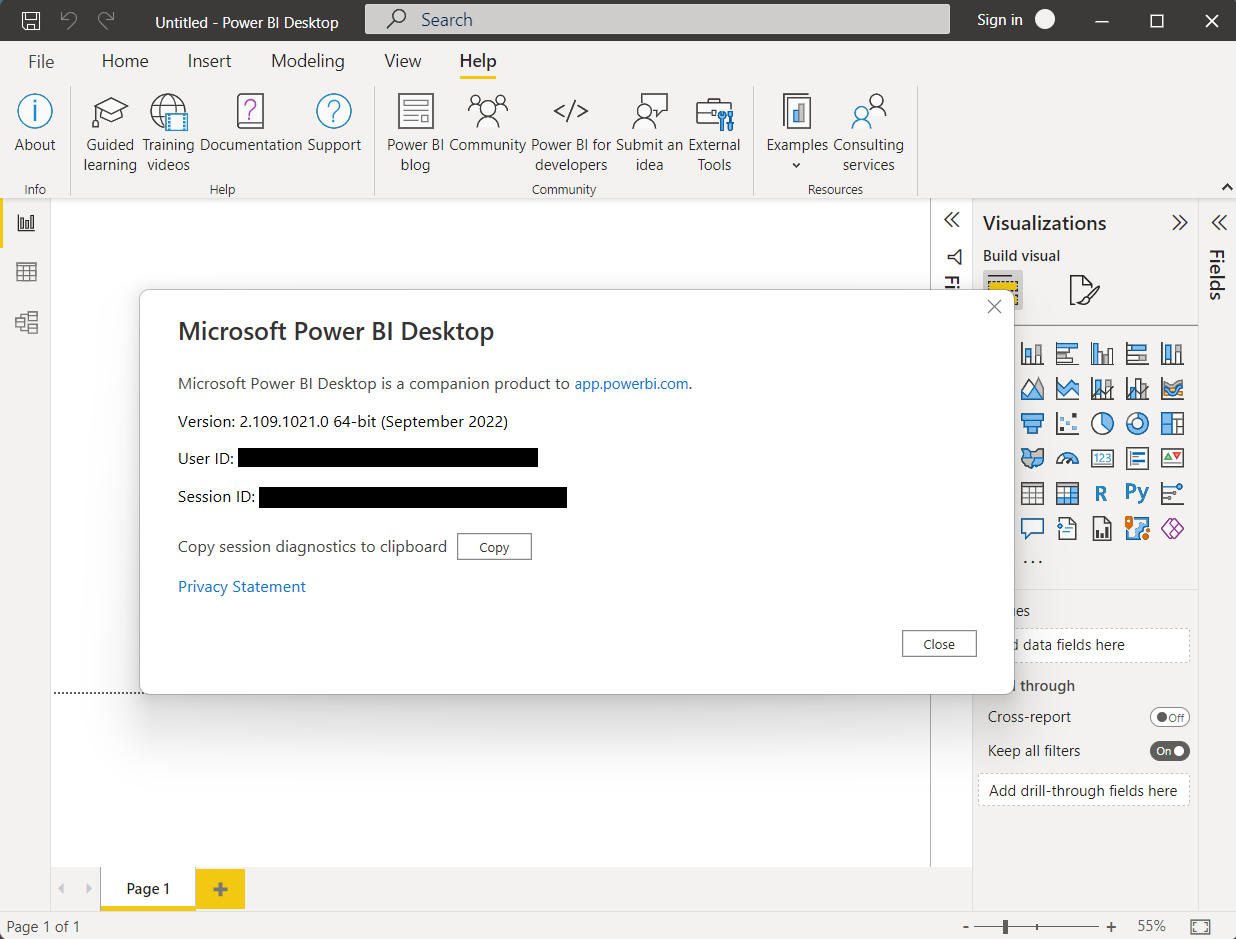
In this article, the Power BI Desktop version used is shown below.
Benefits of PostgreSQL and Power BI Connection
Visually interacting with your data to get business insights will help you make sound business decisions. So, what makes a combination of Power BI and PostgreSQL a good fit for this scenario?
First, PostgreSQL is a top-of-the-line database that is:
- fast and scalable
- easy to learn
- reliable and fault-tolerant
- free and open-source
- supported by a large community of experts
- with robust features
PostgreSQL is a good candidate for a large data warehouse deployed in the cloud or on-premise.
Meanwhile, Power BI is a good data visualization tool that:
- has easy integration with PostgreSQL via default connector or ODBC
- includes a free visualization and report designer (Power BI Desktop)
- you can easily publish to the cloud through the Power BI Service
- you can extend through formulas and queries
Power BI is also rated 4.4 in Gartner Peer Insights under Analytics and Business Intelligent Platforms.
In short, connecting Power BI to PostgreSQL is a good combination for data analysis.
Connection via Power BI and PostgreSQL Configuration
It’s easy to connect Power BI to PostgreSQL using the default connector. See the following steps.
Step 1. Open Power BI and Click Get Data
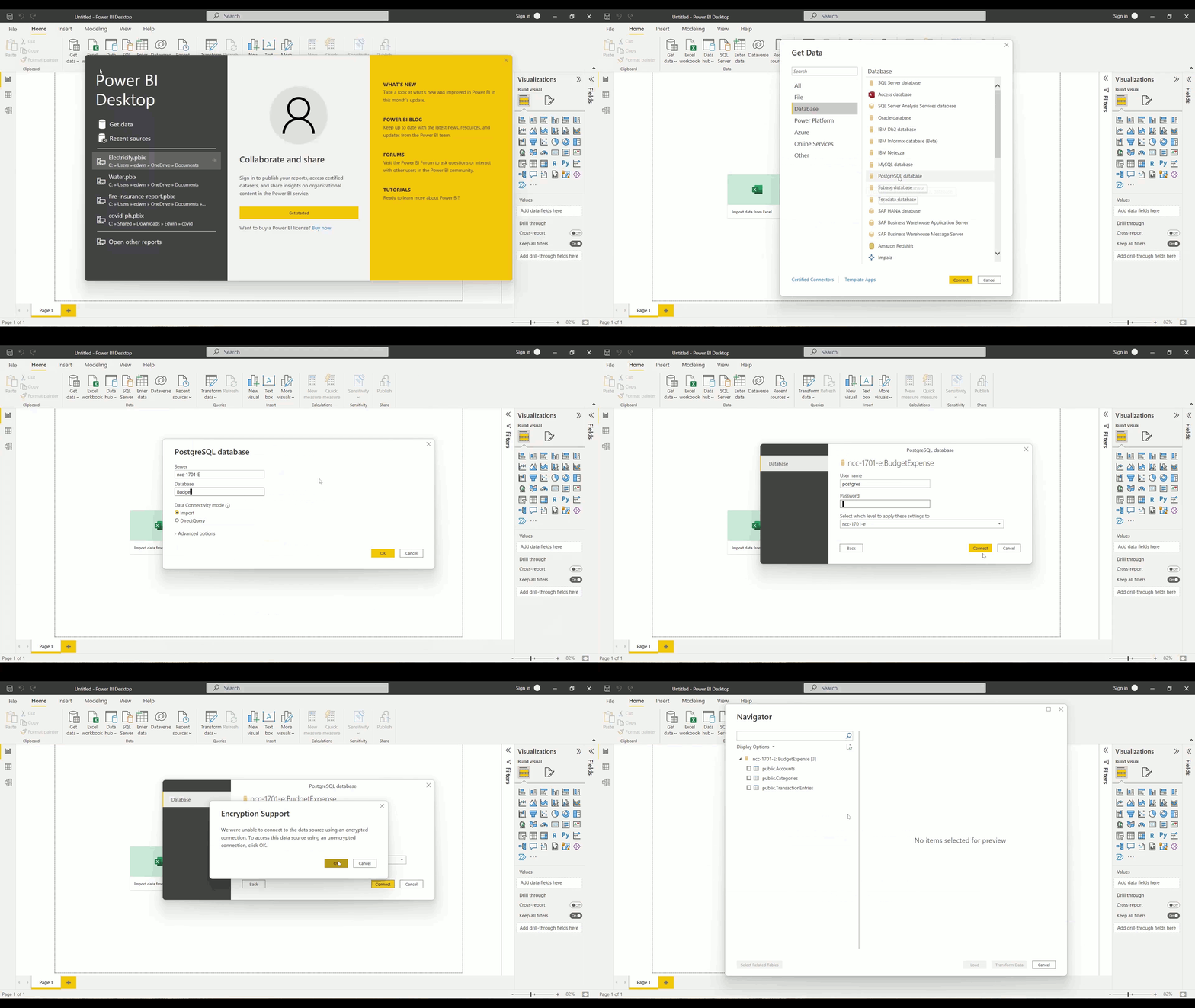
Run Power BI Desktop on your Windows computer through the Start menu or Search. Then, the Power BI splash screen will open. So, click Get Data. Then, a new window will appear.
Step 2. Click Database and Select PostgreSQL Database
First, click Database in the left pane. Then, select PostgreSQL database.
Finally, click Connect.
Step 3. Enter the Server and Database Name
First, you need to get this information from your administrator:
- Server name or IP address
- Port number if it’s different from the default 5432
- Database name
- Username and password
Then, in Power BI, enter the server name or IP address. And the port number if it’s not 5432 in the Server box. Use the format <server name or IP address>:<port>. Then, enter the database name.
Finally, click OK. Enter the Username and Password if required. If your PostgreSQL server has SSL disabled, a prompt will appear. Just click OK to continue.
Check how it is done from steps 1 to 3 below.
Connection via default ODBC Drive
Another easy way to connect Power BI to PostgreSQL is to use Open Database Connectivity (ODBC). You need the same server, port, database name, username, and password. But the steps are a bit different.
Before you continue, you need an ODBC driver for PostgreSQL. Your best choice is to download the default ODBC driver for PostgreSQL or Devart’s ODBC driver for PostgreSQL. In this article, we will use the default ODBC driver for PostgreSQL.
Step 1. Create an ODBC Data Source Name or Connection String
You have two choices for the first step: an ODBC Data Source Name or a Connection String.
Creating a Data Source Name (DSN)
In this option, you need to have a PostgreSQL ODBC driver installed. So, here are the steps:
1. In Windows, open the ODBC Data Sources (64-bit).
2. Click the System DSN tab.
3. Click Add and select the PostgreSQL ANSI(x64) or PostgreSQL Unicode(x64). Which of these fits depends on your database. Your administrator should know if the database uses Unicode or not. Or you can also use the Devart ODBC Driver for PostgreSQL if this is the one you installed.
4. Enter your desired Data Source Name and connection details (server, port, database name, username, and password).
5. Click Test to test the connection.
6. If the test connection is successful, click Save.
Check how to do it from steps 1 to 6 below.

Forming the Connection String
This section will discuss the connection string to connect to PostgreSQL using ODBC. The Username and password are not included in the following connection string. Power BI will prompt you for these credentials if required.
For ANSI:
Driver={PostgreSQL ANSI(x64)};Server=<IP address or server name>;Port=<port number>;Database=<database name>;And here’s an example:
Driver={PostgreSQL ANSI(x64)};Server=ncc-1701-E;Port=5432;Database=BudgetExpense;For Unicode:
Driver={PostgreSQL Unicode(x64)};Server=<IP address or server name>;Port=<port number>;Database=<database name>;And here’s an example:
Driver={PostgreSQL Unicode(x64)};Server=DBSERVER1;Port=5432;Database=HumanResources;Step 2. Open Power BI and Click Get Data
This is the same as Step 1 of the default connector.
Step 3. Click Other and Select ODBC
In the left pane, click Other. Then, select ODBC.
Finally, click Connect.
Step 4. Select the Data Source Name or Type the Connection String
This depends on what you did in Step 1.
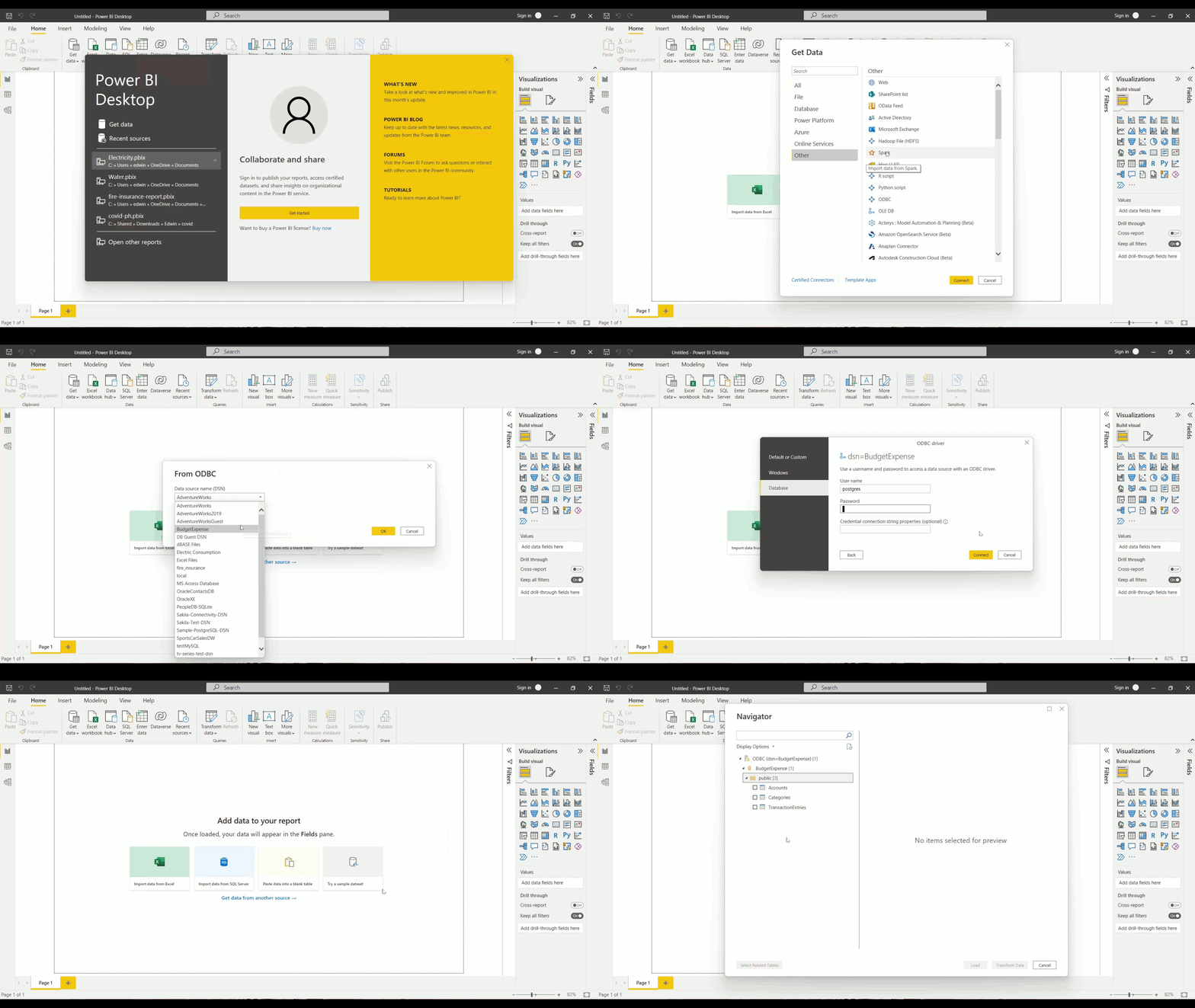
If you created a Data Source Name (DSN), select the DSN from the dropdown list of DSNs. We used BudgetExpense DSN as our example. Then, click OK.
Here’s how to do it from steps 1 to 4.
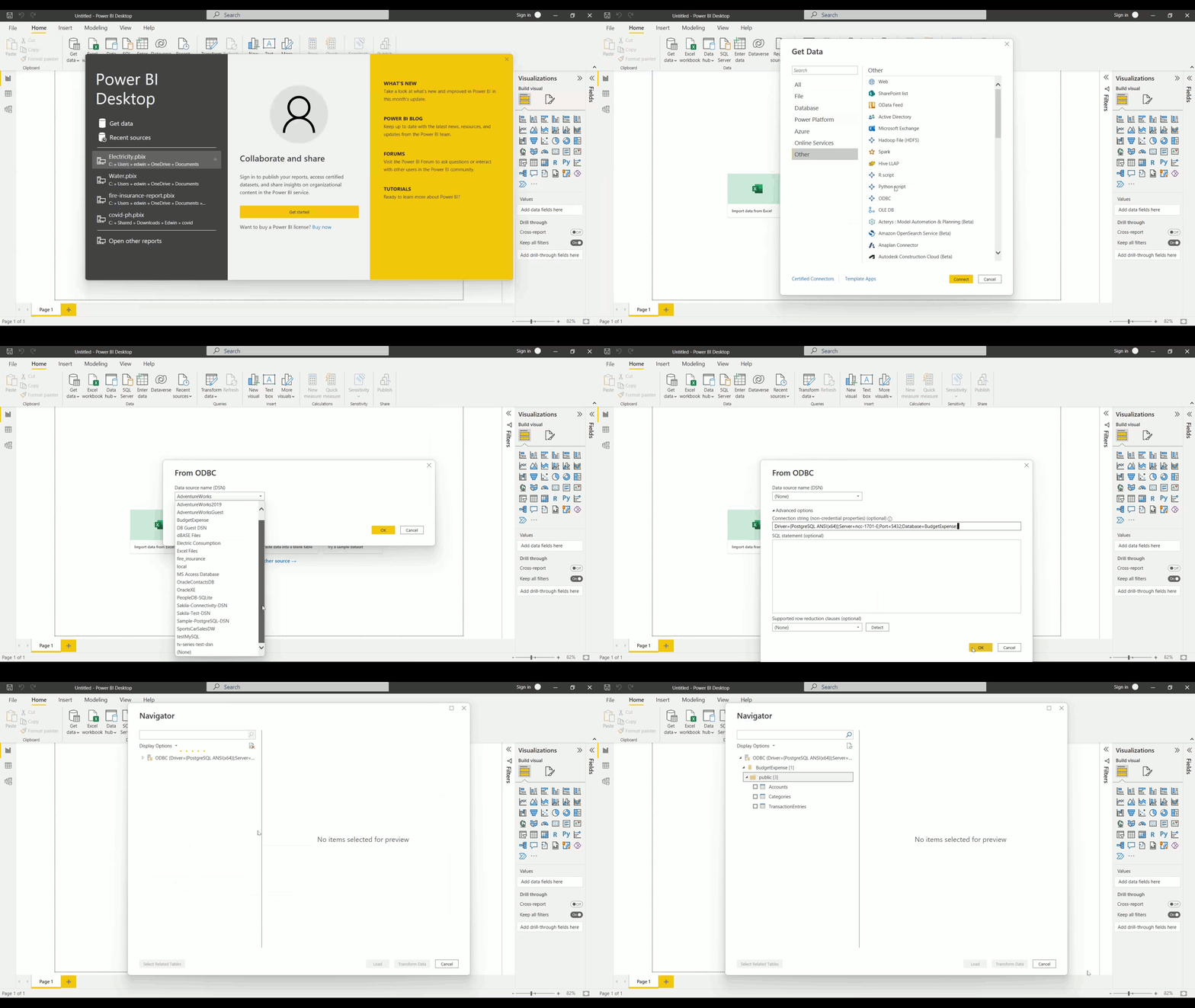
If you created a connection string, select (None) in the list of DSNs. Then, click Advanced Options. Paste your connection string in the Connection String textbox. Finally, click OK.
Here’s how to do it from steps 1 to 4 using a Connection String.
Connection via Skyvia Universal ODBC Driver
Skyvia is a no-code cloud data integration platform for ETL, ELT, Reverse ETL, and automation. With 200+ connectors spanning SaaS apps, databases, and file storage, you can pull data from tools like Salesforce, HubSpot, Shopify, or Google Ads into PostgreSQL fast, then point Power BI at that single, trustworthy source for reporting.
The platform also ships a universal ODBC driver that lets BI tools read from any Skyvia connection, not just Postgres. In practice, you get one consistent way to plug Power BI into many sources, with a cleaner setup and a tidy path to scale later.
Why pick Skyvia’s ODBC over the default Postgres/Npgsql driver:
- Keep ports closed. Pair it with Skyvia Agent so the DB stays off the public internet (outbound-only tunnel, no inbound firewall rules).
- Centralized creds. Store DB credentials in Skyvia’s vault instead of sprinkling them across desktops and gateways.
- One driver, many sources. The same DSN pattern works not only for PostgreSQL but also for other databases and cloud applications you may integrate with Power BI later.
- Schema-friendly mapping. Skyvia normalizes metadata, so column types and nulls tend to behave the way BI tools expect without a lot of fiddling.
- Governance & visibility. Runs go through Skyvia, providing you with logs and a single point of control to audit, throttle, or revoke access quickly.
- Network sanity. Handy when VPNs/proxies are strict. The Agent’s outbound connection usually plays nicer than exposing Postgres directly.
Oleksandr Khirnyi, Chief Product Officer at Skyvia said: “The launch of the Automation product represents a significant advancement in our mission to optimize data-related processes and help businesses achieve greater results with minimal effort. With a user-friendly visual designer, intuitive logic creation, and automatic error detection, we empower organizations to automate complex operations while reducing manual involvement.”
Let’s see what steps we should perform to establish the connection between the PostgreSQL database and PowerBI using Skyvia:
Important! First, you should register in Skyvia.
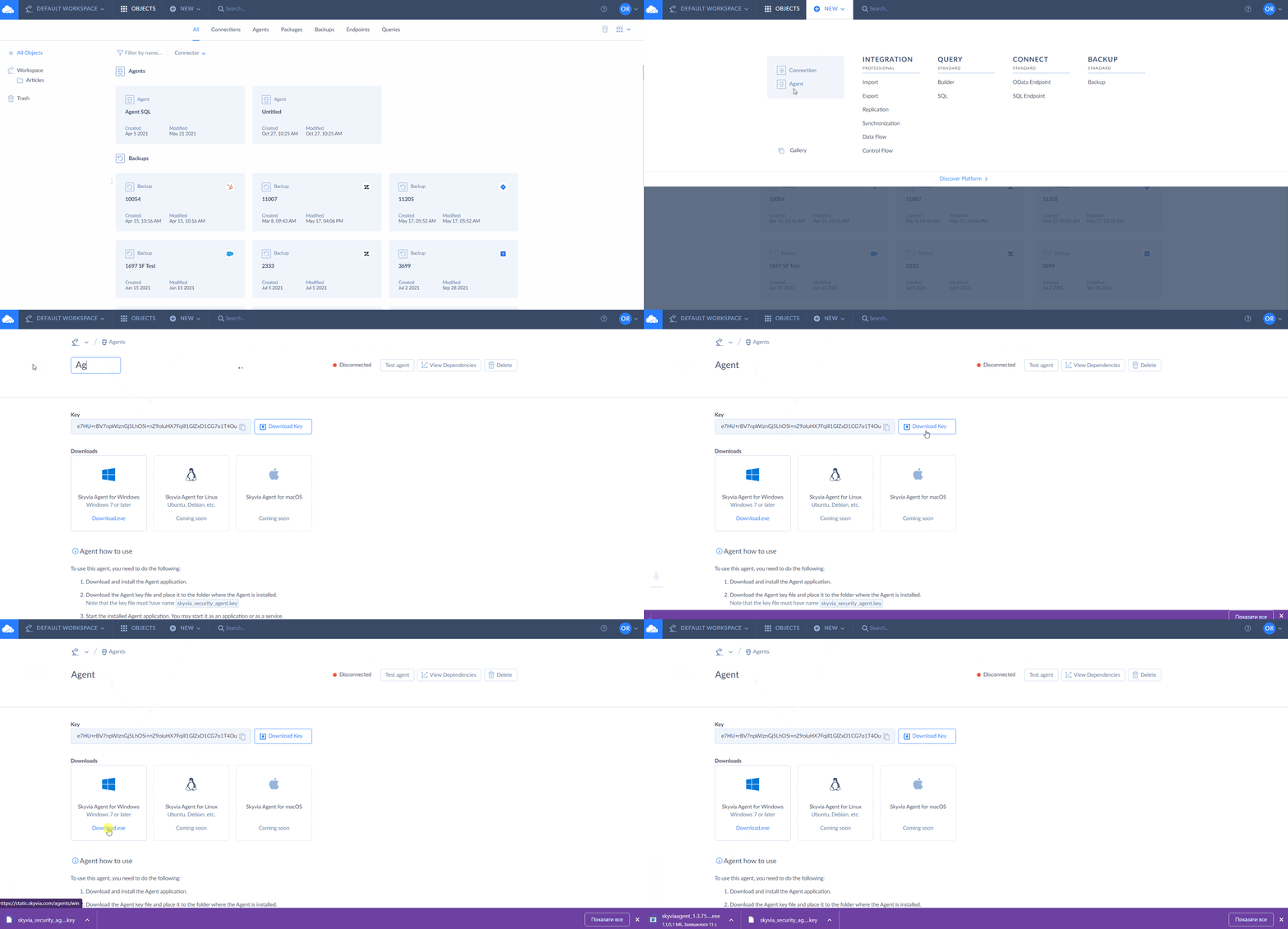
Step 1. Create Agent
- Sign in to your Skyvia account and create a new Agent; follow the instructions on the page.
- Download the Agent key file.
- Install the Agent application on the local server, where your PostgreSQL database is located.
Note! Find more details on how to use Agent in the documentation.
Step 2. Create the Agent Connection
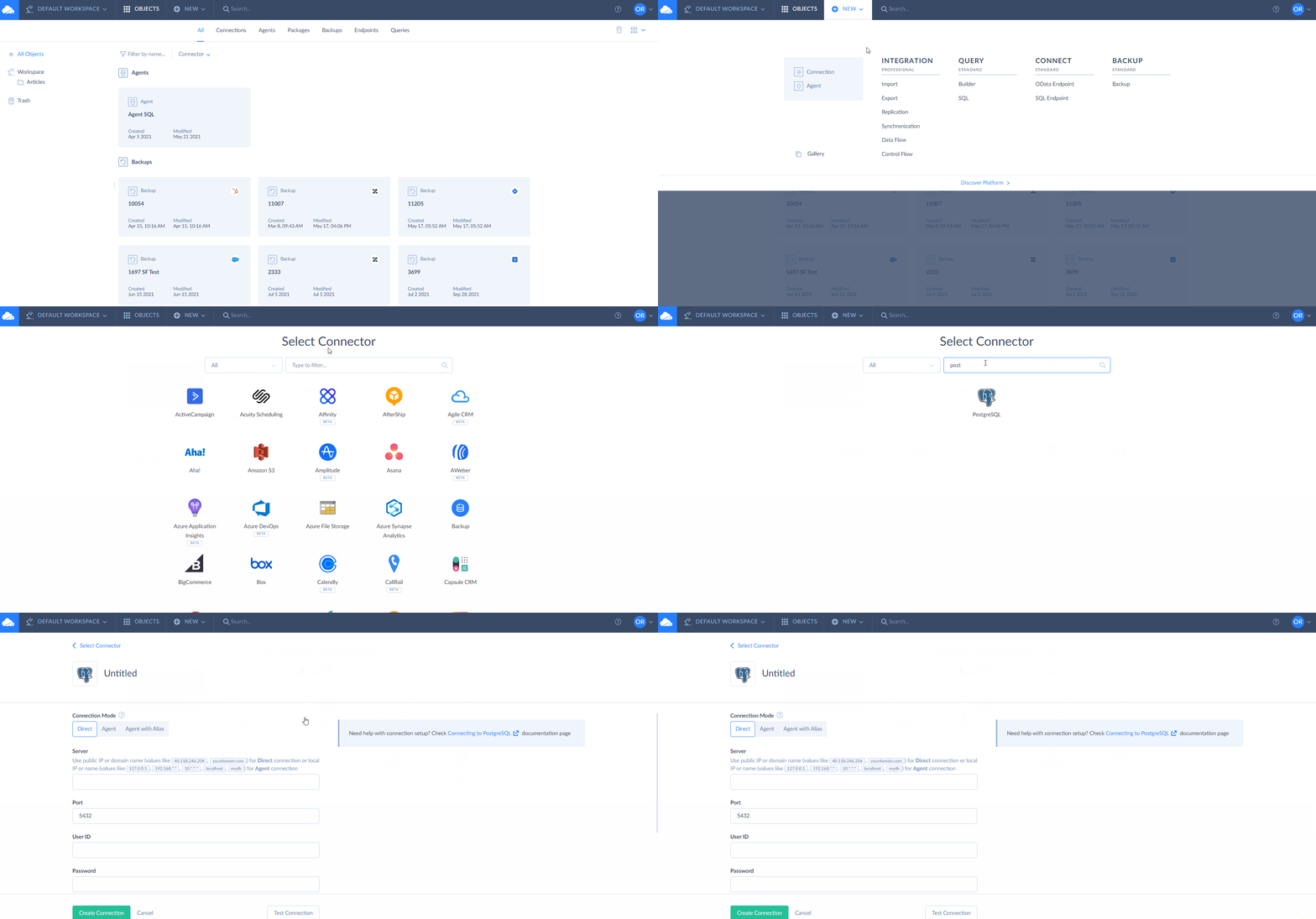
After creating and installing the Agent application on the server, you should create the Agent connection in Skyvia.
- In the connection editor, create an Agent connection: select the Agent connection mode, select the Agent from the drop-down list, and specify the required connection parameters like hostname or IP address, user Id, password, database name, and schema.
Note! You can also optionally specify the additional connection parameters, such as protocol and timeout values.
Step 3. Create SQL Endpoint
- Download the ODBC Driver for the Skyvia Connect installer.
- Launch the ODBC Driver installer and follow the setup instructions.
- Register your SQL endpoint as an ODBC data source.
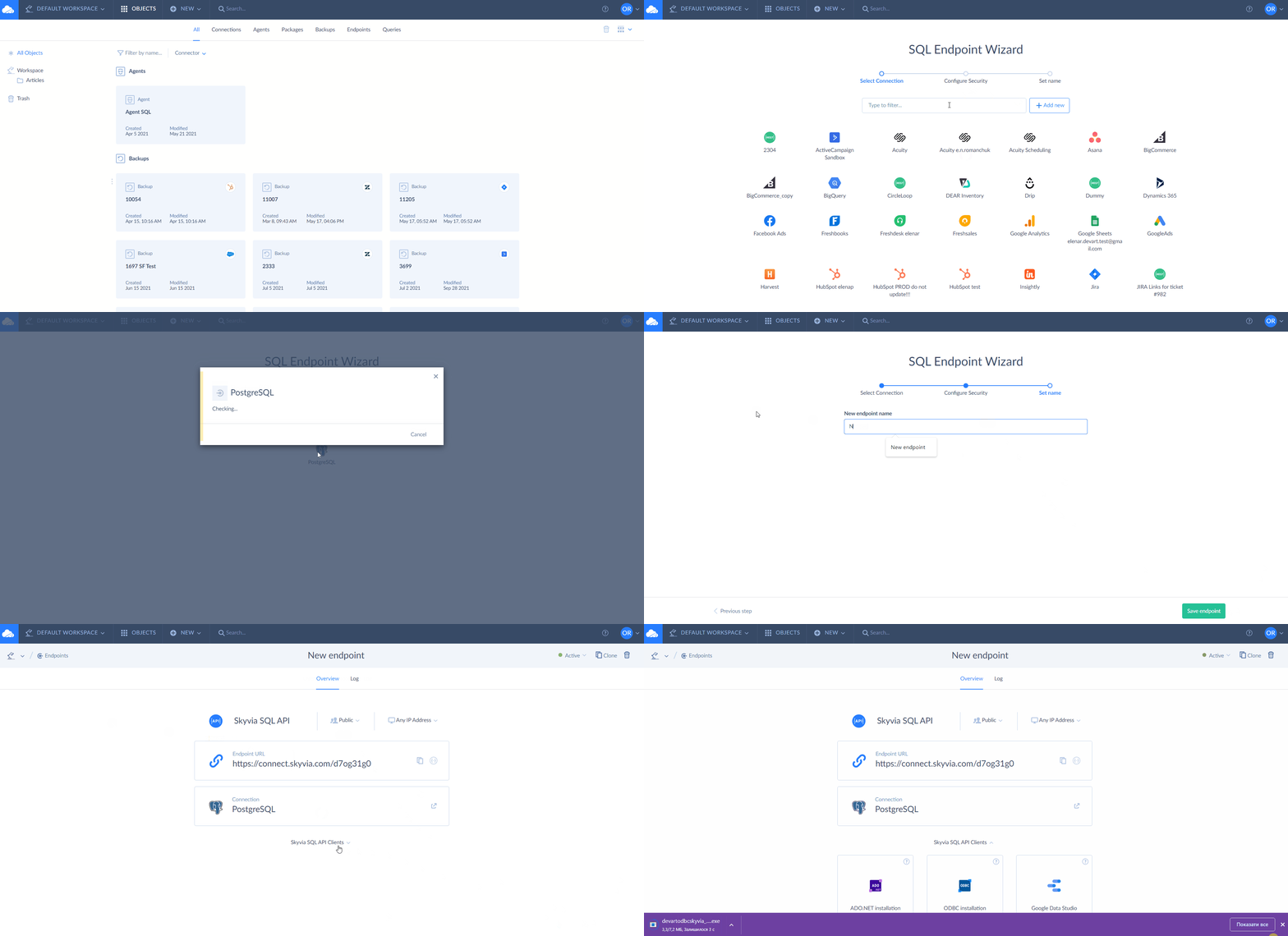
Step 4. Connect the database to Power BI
- In Power BI, select the ODBC data source type in the Get Data window.
- Select the data source added to the ODBC Driver in the previous step.
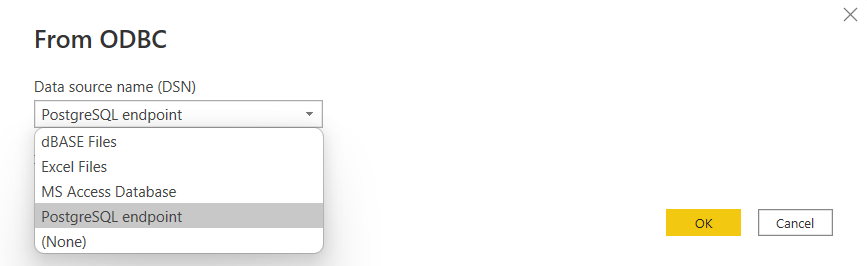
Now you have a secure integration between Power BI and PostgreSQL! Once it’s ready, Power BI can connect to it, and you can start visualizing your data. Why not try Skyvia today with your PostgreSQL database? You’ll find it easy to use with its drag-and-drop designer, scheduler, and more.

Refreshing PostgreSQL Data in the Power BI Service
Everything above happens in Power BI Desktop, on a machine that can already see your database. Once you publish, refresh moves to the Power BI Service, which runs in Microsoft's cloud. How it gets to PostgreSQL from there comes down to where your database is hosted.
| Where PostgreSQL runs | What the Power BI Service uses |
|---|---|
| A server with an endpoint the service can reach over the internet | A cloud connection, no gateway |
| Azure or another cloud, inside a virtual network or behind Private Link | A virtual network data gateway |
| Your office network, a private server or your own laptop | An on-premises data gateway on a Windows machine that can reach the database |
The on-premises data gateway is plain Windows software. Its connections all go outward, which means your network team never opens an inbound port for it. It can't run in a Windows container or on a domain controller, though. Personal mode serves one user and works only with Power BI, while standard mode can be shared, and that's the one Microsoft recommends. Gateways released since June 2025 include Npgsql; older ones need it installed.
Then there's the schedule. Power BI Pro allows up to 8 scheduled refreshes a day, and Premium per user, Premium and Fabric capacity allow up to 48. On shared capacity each refresh has two hours to finish, and on Premium it has five. Need numbers closer to live? DirectQuery skips the import and queries PostgreSQL each time someone uses the report, but it still goes through the same cloud connection or gateway.
SSL is the other thing to plan for. If the server uses SSL, the machine that connects may need the server's certificate in Trusted Root Certification Authorities. And in Power Query Online, clear Use Encrypted Connection only when the server is unencrypted.
Conclusion
This article shows three ways to connect Power BI to PostgreSQL: the built-in connector, a PostgreSQL ODBC driver and Skyvia. Each one is easy to set up if you follow the steps outlined here. Choose the native connector for a quick start, or Skyvia with its Agent when the database sits behind a firewall.
Moreover, as well as integrating databases with Power BI, Skyvia allows getting data for Power BI from the data sources, which are not supported directly by integrating cloud sources with Power BI. If you want to discover what other integrations Skyvia can offer, sign up for a demo!

FAQ for Power BI to PostgreSQL

Should I use Import or DirectQuery with PostgreSQL in Power BI?
Import is the simpler place to start. With Import, Power BI copies the PostgreSQL tables into the model’s memory; visuals feel quick, though what you see is the data from the last refresh. DirectQuery works the other way round. The data stays in PostgreSQL, a query goes out on every click, and your database does the work while the numbers stay current.
What stops the Power BI Service from refreshing my PostgreSQL data?
Your laptop may share a network with the server, but the Power BI Service runs in Microsoft’s cloud and simply can’t see a PostgreSQL box on a private network. The fix is an on-premises data gateway, installed on a Windows machine with a route to the database, with the semantic model pointed at that gateway. A gateway older than June 2025 also needs Npgsql.
How do I fix SSL errors between Power BI and PostgreSQL?
Power BI Desktop warns you when a PostgreSQL connection isn’t encrypted, and you can accept that to carry on. For an encrypted connection the server has to be set up for SSL, and the machine running Power BI may need the server’s certificate in Trusted Root Certification Authorities before the error goes away.
How often can Power BI refresh data from PostgreSQL?
That depends on the license. A semantic model on Power BI Pro gets up to 8 scheduled refreshes a day, and one on Premium per user, Premium or Fabric capacity gets up to 48. Clicking Refresh now by hand doesn’t count against the 8. For fresher numbers than that, DirectQuery queries PostgreSQL directly.
Can Power BI sign in to PostgreSQL with Microsoft Entra ID?
Yes. Two sign-in types work with the PostgreSQL connector in Power BI, a database user name with its password or a Microsoft account through Microsoft Entra ID. Power BI Desktop asks which one you want the first time it connects to a given PostgreSQL server.
Is it possible for Power BI to reach a PostgreSQL database behind a firewall without opening ports?
Yes, and there are two ways to do it. One is the on-premises data gateway, whose connections to the Power BI Service are all outbound. The other is Skyvia. Its Agent talks to the database over outbound HTTPS on port 443, while Power BI reads the data from a Skyvia SQL endpoint through the Skyvia ODBC driver.