
Say marketing books a webinar in HubSpot. Sales, meanwhile, phones the attendees out of Dynamics 365. So what happens when one of them changes jobs? Usually just one system finds out, and a rep is left calling a dead line while marketing keeps writing to an inbox nobody checks. Copying fields across by hand helps until Thursday.
Keeping the two apps honest with each other is what a HubSpot Dynamics 365 integration does. Once it's running, a change to a contact or company in either app reaches the other one, new leads appear in Dynamics without a CSV export, and there's no more debate about which copy is current.
We'll look at three ways to set it up, namely HubSpot's own Microsoft Dynamics 365 app, an integration platform (our examples use Skyvia), and code written against both APIs. You'll get requirements, weak spots and the team each one suits. Which Dynamics do you have, by the way? Business Central and Finance and Operations are ERPs, and that changes things compared with Dynamics 365 Sales. Running one of those ERPs? Then begin with the section on connecting HubSpot to Dynamics 365 ERP, as the native app won't cover it.
What Is Microsoft Dynamics 365?
Microsoft Dynamics 365 is a collection of intelligent CRM and ERP business applications offered by Microsoft to help organizations manage various operations like sales, finance, customer service, and supply chain activities.

Key Features
- AI-Driven Sales Insights: It involves artificial intelligence to analyze sales data, helping organizations forecast trends and identify potential opportunities. This predictive capability supports informed decision-making and strategic planning.
- Microsoft Ecosystem Cooperation: The platform is integrated with familiar Microsoft Office applications, such as Excel, Word, and Outlook, by default. Users can extract, edit, import, or export data directly within the Microsoft environment.
- Business Event Notifications: It offers a feature that notifies external systems, Power Automate, and Azure messaging services about specific business events. This functionality enables organizations to react fast to critical activities and maintain efficient operations.
Dynamics 365’s compatibility with other Microsoft products ensures a smooth workflow for users already within the Microsoft environment. Additionally, the platform supports integration with various third-party solutions, allowing businesses to tailor the platform to their needs.
What Is HubSpot?
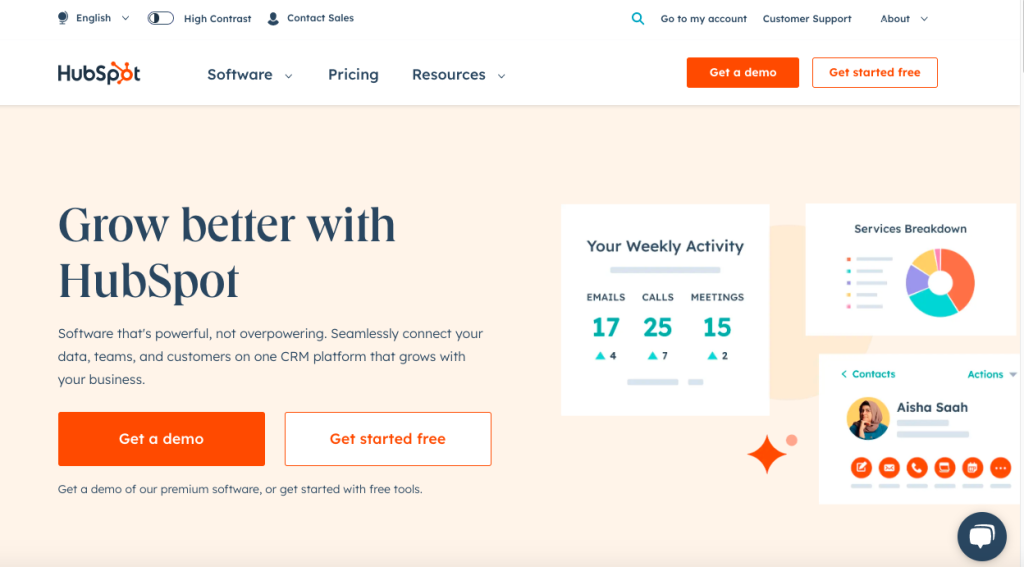
HubSpot is a universal platform that encompasses marketing, sales, customer service, operations, and content management tools upon a unified CRM system. This centralized approach ensures that all team members have access to consistent and up-to-date information for better collaboration and more personalized customer interactions. More than 311,000 customers (as of September 30, 2026) use HubSpot as a great helper in automating marketing processes and managing client data.
Key Features
- Marketing Automation: The platform provides tools to create, manage, and analyze marketing data across various channels. Users can create email campaigns, manage social media accounts, and track website interactions.
- Sales Pipeline Management: It allows users to track deals, monitor sales activities, and manage contacts.
- Customer Service Tools: It can manage customer inquiries, feedback, and support tickets.
- AI-Driven Insights: In 2024, HubSpot introduced Breeze, an AI engine designed to automate tasks and enhance customer engagement.
HubSpot has a marketplace of integrations, connecting with over 1800 services and applications like e-commerce platforms, event management systems, analytics tools, and others.

Why Integrate HubSpot and Microsoft Dynamics 365
Businesses implementing both platforms need HubSpot Dynamics integration to eliminate data inconsistency and obtain a holistic view of the customer base. Data integration between these tools also provides opportunities for revenue growth, aligning sales and marketing strategies, and creating customer engagement programs.

Let’s look at the benefits in more detail:
- Data Accuracy. No more common mistakes when transferring information manually. You get more accurate and reliable customer records.
- Advanced Reporting. Companies assess marketing performance and adjust marketing strategies.
- Lead Conversion Rates Improvement. Better tracking and visibility of lead behavior helps sales teams identify high-priority leads and personalize interactions, increasing conversion chances.
- Two-way Data Synchronization. Data exchange provides consistent customer information, clearing misunderstandings or miscommunications between teams.
- Marketing Campaigns Personalization. Marketers have a complete overview of the customer’s activity and preferred means of communication.
- Faster Customer Service Resolutions. With synchronized information timely available, support agents can resolve issues quickly.
Integration Methods: Choosing the Right Approach
Making a decision about what method to choose is a big deal. It depends on a bunch of factors, like business industry, size, infrastructure, processes, and data architecture. The size and composition of the team also matter. Even businesses operating in the same industry have different requirements and data integration needs, and there are several ways to do that.
Native HubSpot Connector
HubSpot provides a built-in connector specifically for Dynamics 365. It helps to synchronize the standard objects like Contacts, Leads, Accounts, and Deals without external software.
Method Pros
- Easy to set up and configure.
- Directly supported by HubSpot.
- Regular updates from HubSpot directly.
Method Cons
- Allows syncing one object at a time.
- Limited flexibility for customizations.
- Does not support complex or custom integrations.
- Basic synchronization features (primarily standard objects).
Best suited for
Small-to-medium businesses with basic data synchronization requirements and standard workflows.
Third-Party Integration Tools
Cloud-based integration platforms like Skyvia offer pre-built connectors that enable data synchronization, migration, and workflow automation.
Method Pros
- Easy-to-use interface for non-technical users.
- Supports advanced features (custom objects, complex workflows).
- Offers automatic scheduling, error handling, and detailed logging.
- No coding is required.
Method Cons
- Skyvia supports Dynamics 365 CRM, Dynamics 365 Business Central and Dynamics 365 Finance & Ops, but not every app in the Dynamics 365 suite.
- Capabilities depend on the subscription.
Best Suited for
Small-to-large businesses that prefer ease of use and functionality and need to implement advanced integration use cases without coding or extensive IT resources.
Custom API Integration
This method involves building an integration for a company’s specific requirements, using custom-developed code and APIs provided by Dynamics 365 and HubSpot.
Method Pros
- Flexible for individual business requirements.
- Gives full control over data flows and integration logic.
- Real-time sync.
Method Cons
- High initial cost and significant ongoing maintenance.
- Requires experienced developers and IT support.
- Longer setup time and complexity.
- API rate limits.
Best suited for
Large enterprises or businesses with development teams in regulated industries who want to implement highly customized integration solutions with specific workflows or compliance demands.
Let’s compare the methods by several criteria.
| Criteria\ Method | Native HubSpot Connector | Third-Party Tools (Skyvia) | Custom API Integration |
|---|---|---|---|
| Complexity | Low | Moderate | High |
| Setup Time | Quick | Quick | Long |
| Customization | Limited | High | High |
| Scalability | Limited | High | High |
| Technical Expertise | Minimal | Minimal | Extensive |
| Support | Direct from HubSpot | Third-party vendor | In-house / contracted |
Now, let’s look at each method in detail.
Method 1: Native HubSpot Connector
You can download it from HubSpot App Marketplace and install it in several steps.

STEP 1. Connect HubSpot and Dynamics 365
- Find the Dynamics 365 Integration on the HubSpot marketplace and click Install App.
- Enter your Microsoft Dynamics 365 subdomain and credentials.
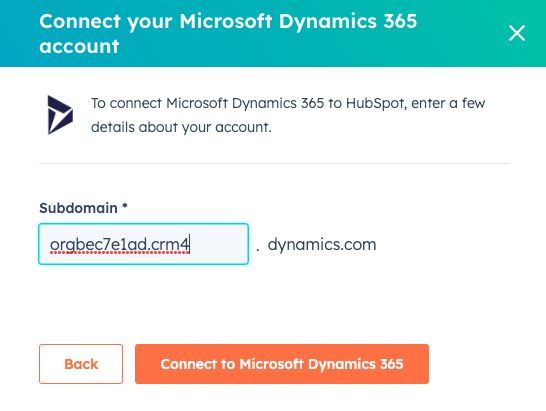
- If two apps are connected successfully, you’ll get the corresponding message.
STEP 2. Synchronize HubSpot and Dynamics
- Click Set up Sync.
- Choose the object to be synchronized: Company, Contact, Deal, Product, Invoice, Order, custom objects, or an activity type (meetings, notes, tasks, emails, calls). The corresponding field in Microsoft Dynamics 365 will be shown as well.
NOTE: You’ll be able to select only one object at a time.
STEP 3. Configure HubSpot Dynamics integration
- Select the synchronization direction. In case two-way sync is selected, you’ll also need to indicate which app will obtain the priority to overwrite data.
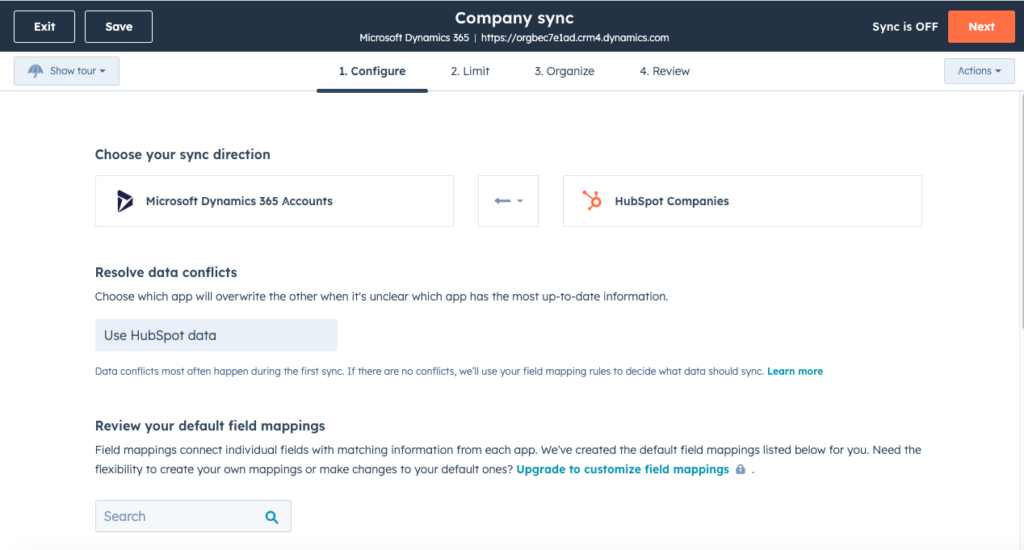
- Review data field mappings. To set custom field mappings or override the existing ones, you need a HubSpot Data Hub Starter or higher subscription.
- Review other synchronization settings and edit them if needed.
- Click Save and Sync.
- To synchronize other data between HubSpot and Dynamics 365, click Sync more data as shown below.

- To stop or pause data synchronization between CRMs, select the needed option under the Actions menu of the sync object.

Method 2: Microsoft Dynamics Hubspot Integration with Skyvia
Dynamics 365 and HubSpot integration with Skyvia addresses the above-mentioned issues present in the native integration application. Skyvia enables the synchronization of several data objects simultaneously without limitations. Also, it offers flexible customization options for data field mapping.
Skyvia is a universal cloud-based platform capable of building up ELT, ETL, and reverse ETL solutions. In the case of HubSpot Dynamics 365 integration, this platform allows you to get data from HubSpot, transform it, and import it to the Microsoft Dynamics 365 CRM or vice versa.
Skyvia is a completely user-friendly tool that requires no coding. No desktop installations are needed, only a web browser. Skyvia supports complex data integration scenarios with the help of designer tools: Data Flow and Control Flow for compound data pipelines.
To start integrating HubSpot and Dynamics, you need an active Skyvia account.
STEP 1. Connect to HubSpot
- Click +Create New -> Connection.

- Select HubSpot from the connectors list.
- Sign In with HubSpot and save the connection.

STEP 2. Connect to Dynamics
- Create a new connection from the menu.
- Select Dynamics 365 from the list.

STEP 3. Create a New Import
- Create a new Import from the menu.
- Set HubSpot as a Source and Dynamics as a Target.

- Create an integration task by clicking Add New.
STEP 4. Define an Integration Task
- Select the source object or specify the custom command.

- Select the Target object and choose the action: Insert, Update, Upsert, or Delete.

- Map the fields. HubSpot and Dynamics have different data structures. Mapping helps to adjust source data to fit the target data structure. Skyvia maps the fields with the same name automatically. It offers various mapping types, enabling complex transformations.

- Save the task and the integration.
- Run the integration manually or set the schedule to run the integration regularly.
- Check the integration results on the Monitor or Logs tabs.
Data Flow
More complicated data integration scenarios are also available with Skyvia’s help. Data Flow and Control Flow tools help design sophisticated data pipelines from HubSpot to Dynamics 365 and specify complex data transformations involving multiple targets. And all that is done with no coding in a visual designer.

Say hello to more intelligent workflows! Sign up for Skyvia now, and let’s start the data integration journey together!

Check how to implement other data integration scenarios in our video:
Method 3: Custom API-Based Integration
If the above-mentioned approaches don’t meet your business needs, there is one more way. You can build a custom API-based integration between HubSpot and Microsoft Dynamics 365.
This method is helpful when building unique workflows, implementing business-specific goals, and solving very special data integration problems. The custom integration method wipes out all the limitations present in other methods. It is perfect for large organizations with complex workflows and multi-departmental demands.
To build API-based integration, set up authentication on both platforms: an access token or OAuth for HubSpot (HubSpot retired API keys on November 30, 2022), and OAuth 2.0 with an app registered in Microsoft Entra ID for Dynamics 365. See how to do it for HubSpot on the HubSpot developer site. For Microsoft Dynamics 365, use the Microsoft developer guide. Then, you can concoct your custom application that will perform API calls.
You can also use Microsoft Power Automate, a low-code platform that simplifies API calls into manageable workflows. Set up a new flow, connect it to HubSpot and Dynamics using their API connectors, and configure your logic. Check out Microsoft’s Power Automate docs for more details.
Can HubSpot Connect to Dynamics 365 Business Central or Finance and Operations?
Not by using HubSpot's own Dynamics 365 app on its own. Its marketplace listing says you need Dynamics 365 Sales, Professional, Enterprise or Premium. Look at what it syncs, too: leads, contacts, accounts, opportunities, products and sales orders are all Sales records. Those live in Sales. Business Central and the Finance and Operations apps keep customers, items and invoices of their own, and the app has no connection to them.
That doesn't leave you stuck. There are three routes, and which one makes sense comes down to the Dynamics licenses you're already paying for.
| Your Dynamics setup | Route | What to know |
|---|---|---|
| Business Central plus Dynamics 365 Sales | HubSpot app to Sales, then Business Central to Sales through Dataverse | Microsoft's built-in integration syncs in near-real time, one way or both. Users of the integrated apps need Dataverse licenses, and setup needs the System Administrator role in Dataverse and Business Central |
| Finance and Operations apps plus Dynamics 365 Sales | HubSpot app to Sales, then dual-write between Finance and Operations and Dataverse | Dual-write is Microsoft's out-of-box, near-real-time, two-way link between finance and operations apps and Dataverse |
| Business Central or Finance and Operations without Sales | A third-party integration platform or custom code, straight from HubSpot to the ERP | Skyvia has connectors for HubSpot, Dynamics 365 Business Central and Dynamics 365 Finance & Ops, so Import, Synchronization or Data Flow can move records between them on a schedule |
The first two routes chain two syncs together. Take a phone number someone edits in HubSpot. It lands in Business Central only after the HubSpot app writes it to Sales and the Dataverse sync carries it further, and those two hops each keep their own field mapping and their own rule about who wins a clash. Because of that, we'd pick one system as the owner of the customer record before building anything, and keep the mapping down to fields the ERP actually reads.
And what tends to travel between the two? Out of HubSpot come won deals, new customers and their billing details, enough for finance to raise the order or invoice. Back from the ERP come invoice and payment status, credit holds and order history, and that's how a rep learns an account is overdue before pitching it a renewal.
Best Practices for HubSpot and Dynamics 365 Integration

We collected several ideas that can make the implementation of your integration easier.
- Perform the initial assessment and planning.
Benjamin Franklin once said, “By failing to prepare, you are preparing to fail.” Don’t neglect proper planning when it comes to data integration. List all the tasks it must solve. Identify the process flow and forecast the expected and unexpected behaviors. Think about what may go wrong and how to fix it. Develop a roadmap with clear steps, timelines, and responsibilities. Ensure the plan is aligned with company strategic goals. - Choose the right data integration method.
Carefully evaluate the available methods and check if the method aligns with resources and goals. The chosen method must meet the integration goals and scope.
- Define the mapping.
Data structure differences are the main pain point when you integrate data. Check the data structure peculiarities and define the specifics of your business case. Think about how the data structures can be adjusted to fit. Define unique identifiers, align custom fields in both platforms and configure data transformation rules to match formatting (e.g., date formats, phone numbers).
- Perform Testing.
When you have planned everything carefully, chosen the method, and completed data preparation, you can start implementing the integration. Take your time to test every scenario, each object, and all the possible workflows.
For more insights, look at our Integration Strategies article.
Conclusion
Data integration fills the gap between marketing and sales. It ensures data consistency, improves lead conversion, and provides a unified customer view. By exchanging key information across platforms, businesses eliminate manual errors, improve reporting, and create more personalized marketing and sales strategies. Each of the listed methods has its advantages and disadvantages and solves different problems for various businesses. A successful integration requires proper planning and careful testing to ensure stable performance. Choose the right method, and don’t hesitate to start your integration discovery.
Can’t wait to take advantage of all those opportunities? Try Skyvia now!

FAQ for HubSpot and Dynamics 365

Why didn’t a HubSpot task sync to Dynamics 365?
Most likely it isn't associated with any record. A loose task with no contact or lead attached? It stays in HubSpot, and Dynamics 365 never sees it. There's also the lead case, since a task sitting on a Dynamics lead only syncs from Dynamics into HubSpot, so a rep's change made in HubSpot doesn't travel back.
How are existing companies matched by the HubSpot Dynamics 365 sync?
Say your setup pairs companies or products by name, not by a unique field. In that case, the names get normalized before HubSpot compares them. That means 'Acme, Inc.' and 'ACME Inc' come out as one business, because capitals, commas and special characters are ignored. We'd look at branches sharing one name, because those can get paired up too.
Does the HubSpot app support Dynamics 365 hosted on our own servers?
No. HubSpot requires a Microsoft Dynamics 365 environment that's cloud-hosted on an official dynamics.com domain, so a Dynamics CRM running on your own servers can't connect to the app. For that setup you'd need a different route, such as a custom integration built on the HubSpot and Dynamics APIs.
Will a price change on the HubSpot deal update the Dynamics sales order?
No. Once the sales order exists, a line item price changed on the HubSpot deal doesn't sync to it. A rep can raise the order from the Sales Orders card on the deal, or a deal-based workflow can (that part takes HubSpot Professional or Enterprise), and HubSpot adds its own matching order once the order sync is running.
Is there a limit on Dynamics 365 instances per HubSpot account?
Two, in fact: HubSpot's Microsoft Dynamics 365 app takes a second Dynamics 365 instance (Connected Apps, then Account actions, then Manage accounts), and that second one syncs the same way the first does. A third environment means an integration platform or custom code.
Can Skyvia sync HubSpot and Dynamics 365 every hour?
That depends on the Skyvia Data Integration plan. The Free and Basic plans run scheduled integrations once a day, Standard once an hour and Professional once a minute. The free plan covers 10,000 records a month, and paid plans start at $79 a month billed annually, or $99 billed monthly.