
Summary
- QuickBooks MCP enables AI assistants to interact with QuickBooks through the Model Context Protocol (MCP), and this article will compare three implementations: Intuit's Official QuickBooks Online MCP, the open-source QuickBooks local MCP server, and Skyvia Connect MCP Endpoint.
QuickBooks MCP server connects AI to QuickBooks through the Model Context Protocol (MCP). Accountants and finance managers can easily make sense of P&L, AR aging, and GL reports by integrating their primary tool with AI.
Letting AI explain things to us is the current trend to work faster. MCP takes things to the next level by letting it access our data – QuickBooks included. Instead of pasting report fragments, we ask AI to retrieve them and answer questions like “Why is the net income lower this month?” or “Who owes us money?”
But how?
This guide will show and test QuickBooks MCP server implementations, including our own Skyvia MCP Endpoint. From the tests, you will see how to use QuickBooks MCP and choose which implementation fits you best. You will also know where MCP stops and what the alternative is.
But here’s the thing: We are the Skyvia team. We built Skyvia Connect, a no-code hosted MCP endpoint, for QuickBooks and 200+ other sources. “You’ll show bias,” you may say, but that’s why we have these apples-to-apples tests. You see the results, then you choose.
Let’s begin.
How Did We Evaluate QuickBooks MCP Servers?
We tested them with a real QuickBooks account and environment, configured real MCP servers, and paired them with an MCP client like Claude Desktop. Then, we used prompts and evaluated the responses.
We will do tests like the one we did with Jira MCP servers. This way, we will know if the MCP servers are worth it for finance teams, not just knowing their features and the environments they work with.
Our Test Data and Environment
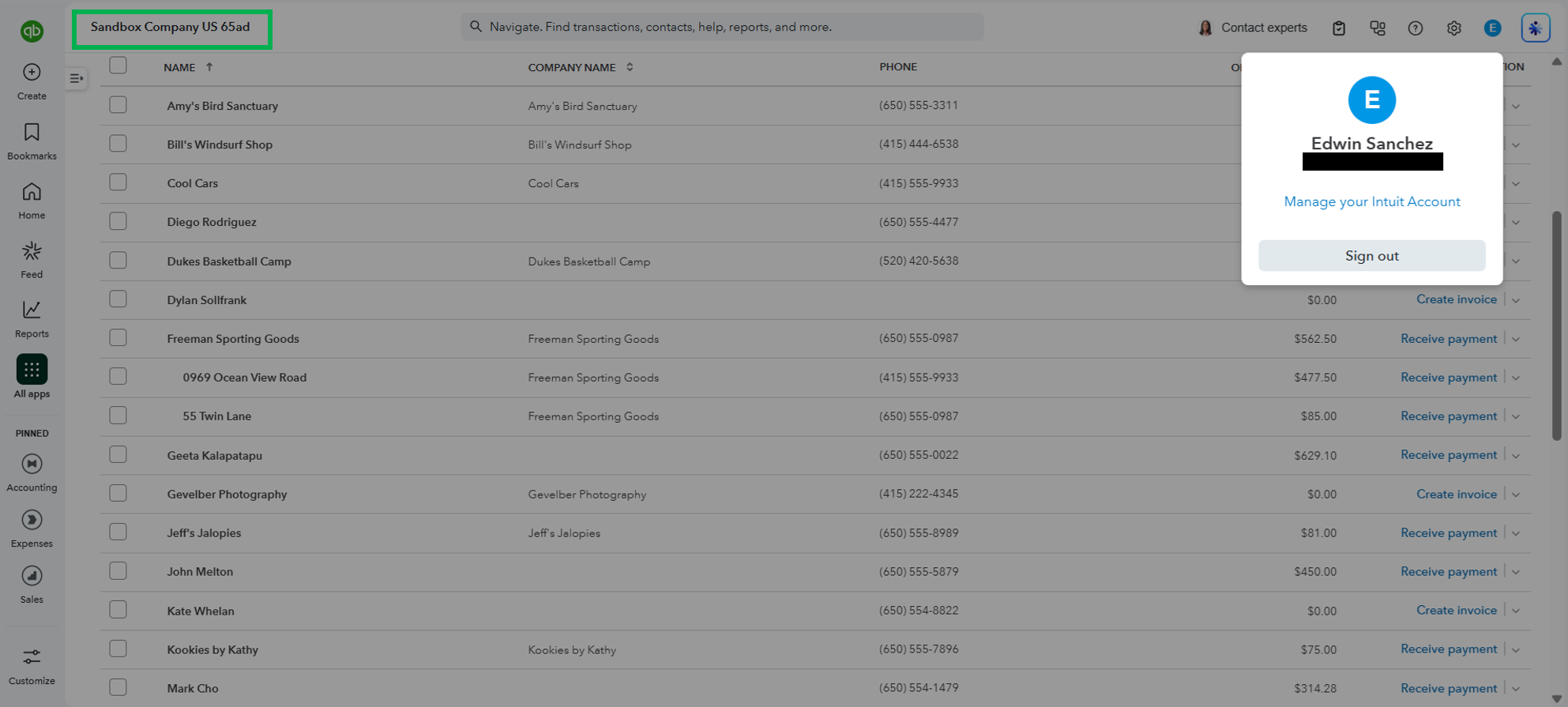
I used a QuickBooks sandbox environment. I had to register for a QuickBooks Developer account to get this for free. You can see my name below and the sandbox company “Sandbox Company US 65ad.”
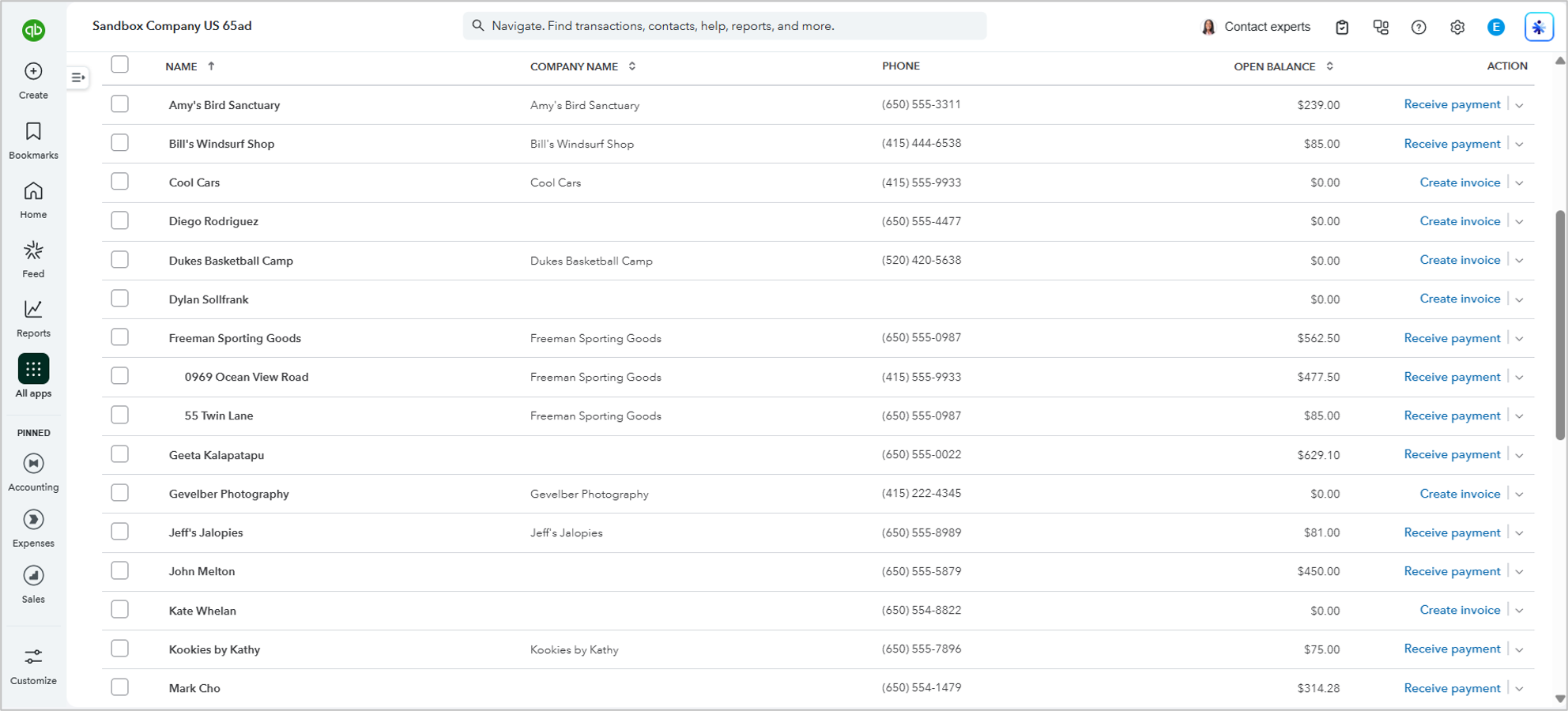
For later tests, we need to verify customer names from the responses. Here’s a list from my sandbox company:
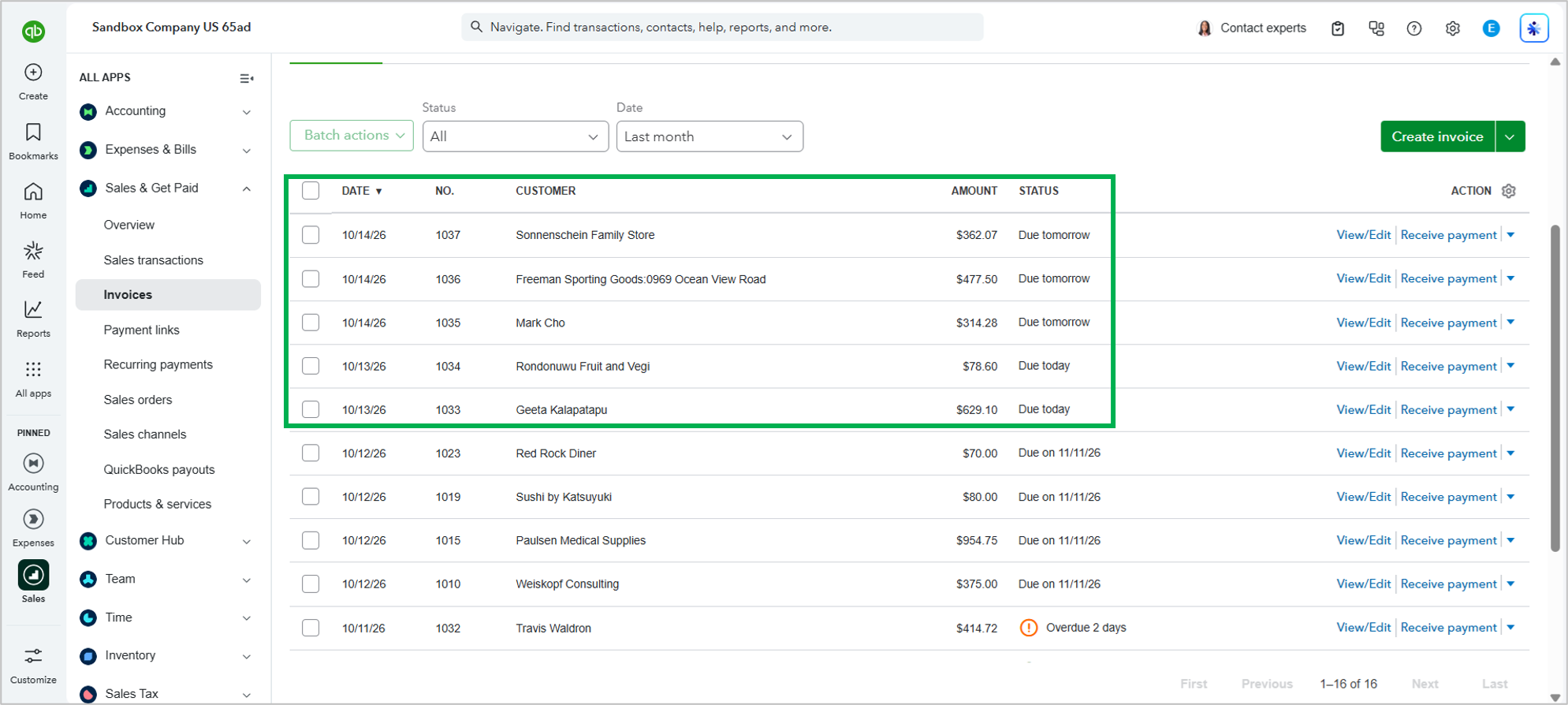
We will have prompts for invoice details. We will evaluate the response and verify the numbers. Boxed below are the figures we will expect.
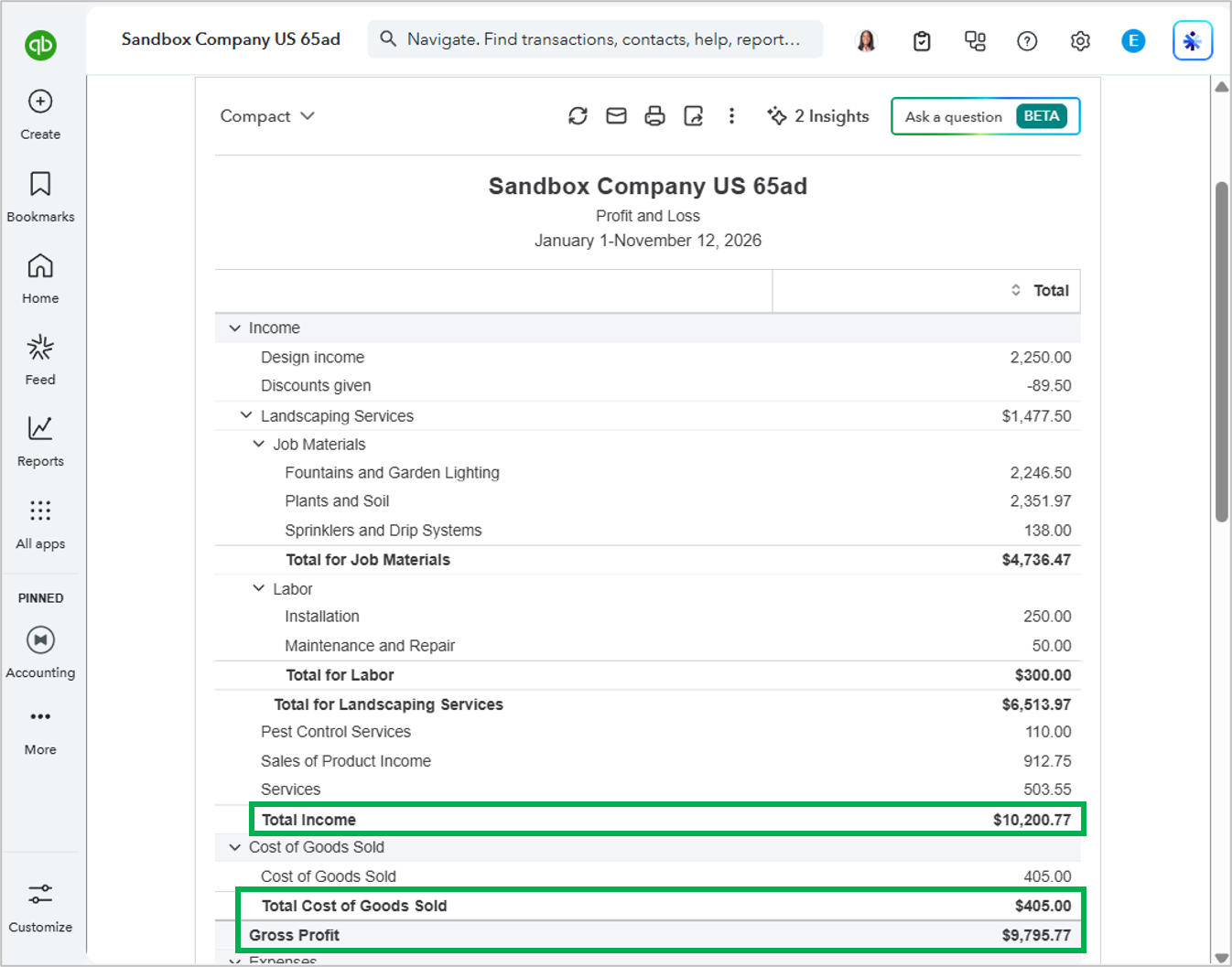
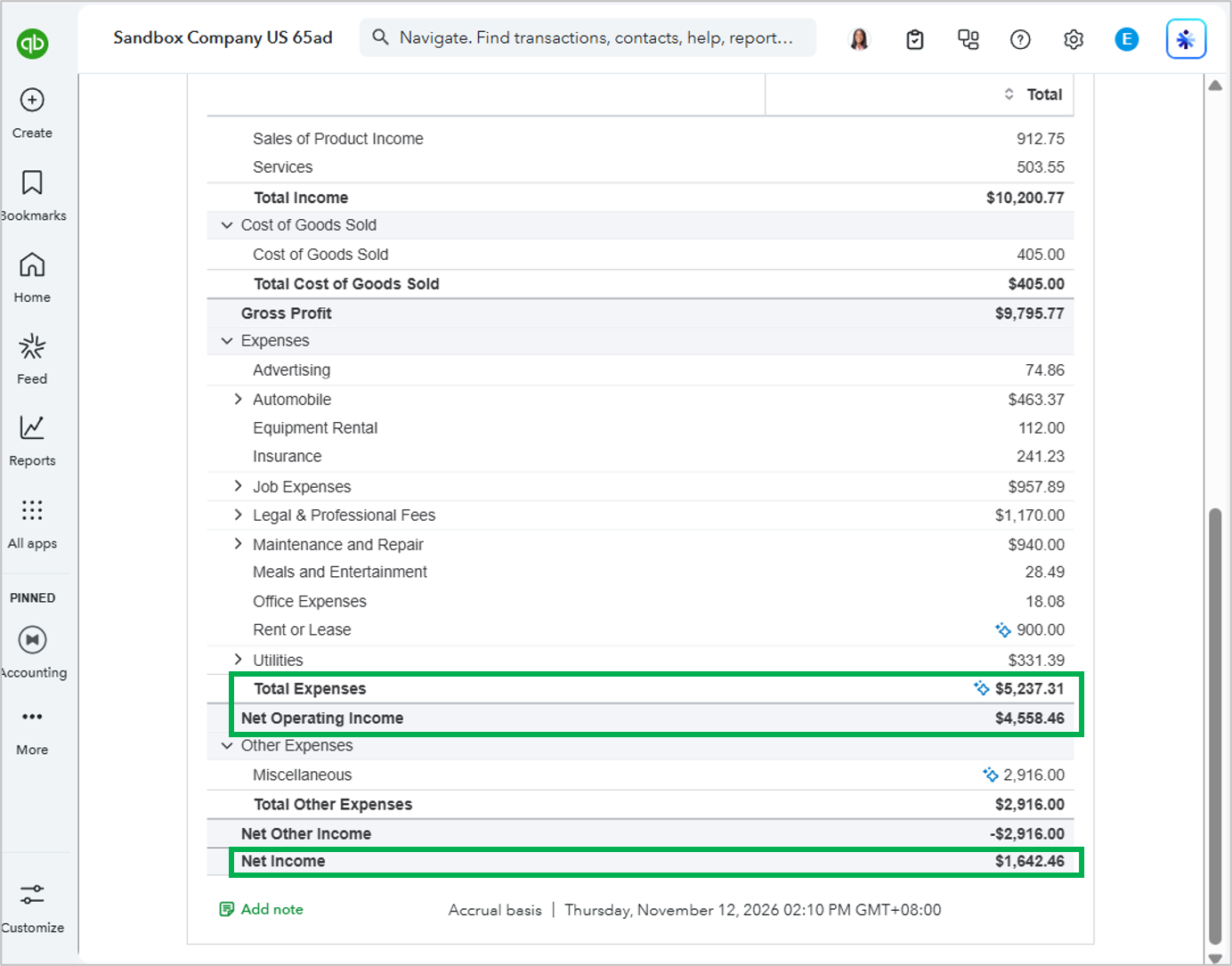
We will also ask for a Profit and Loss report, and we need to verify if the numbers are correct. Boxed below are the figures we will expect.
And also this one:
The Test Prompts
We will use the same prompts for each QuickBooks MCP server. Expect prompt variations to specify the MCP server used, like “quickbooks-local” or “Skyvia MCP Endpoint”. Or simply “Skyvia” or “QuickBooks”.
Test 1: Read First 5 Customers
This is a completeness and accuracy test of the first 5 customers in QuickBooks with specific columns. It should specify the tool used in doing so.
The prompt:
Using the connected MCP server, retrieve the first 5 customers from my connected QuickBooks Online company. For each customer, return: - Customer ID - Display name - Company name - Email address - Active status Do not create, update, or delete any records. Identify the MCP tool you used to retrieve the customers. Test 2: Invoice Retrieval
This test will list the 5 most recent invoices created with specific columns. An optional column, Transaction Status, if available, should also be returned. It should also be sorted by creation date.
The prompt:
Using the connected MCP server, retrieve the 5 most recently created invoices from my connected QuickBooks Online company. For each invoice, return: - Invoice ID - Document number - Customer name - Transaction date - Due date - Total amount - Balance remaining - Transaction status, if available Sort the results by creation date, newest first. Do not create, update, or delete any records. If the MCP server does not expose a creation-date field or sorting capability, explain the limitation rather than guessing. Test 3: Profit and Loss Report
This is a common accounting report, and it should have the same numbers in the same report in QuickBooks.
The prompt:
Using the connected MCP server, generate a Profit and Loss report for the current fiscal year, using the accounting period supported by the connected QuickBooks company. Return: - Total income - Total cost of goods sold - Gross profit - Total expenses - Net operating income - Net income Show the reporting period and currency. If a requested figure is unavailable, indicate that explicitly. Do not invent or estimate financial values. Do not modify any QuickBooks records. Identify the MCP tool used to generate the report. Test 4: Filter Test
This test should return a list of invoices with specific columns created between October 13, 2026 and October 14, 2026.
The prompt:
Using the connected MCP server, retrieve all invoices with transaction dates between October 13, 2026 and October 14, 2026, inclusive. For each invoice, return: - Invoice ID - Document number - Customer name - Transaction date - Total amount - Balance remaining Return all matching records, not just the first 5. If the server imposes a result limit or does not support date filtering, explain the limitation. Do not create, update, or delete any records. Identify the MCP tool and the filtering criteria used. Test 5: Invalid Record Handling
We will ask for a non-existent invoice ID and see how the QuickBooks MCP server will handle it. Will it be an error or just an empty result?
The prompt:
Using the connected MCP server, attempt to retrieve the invoice with this Invoice ID: 999999999999999 Do not search for a different invoice or substitute another record. If the invoice does not exist, report that clearly. If the request fails, explain the error returned by the MCP tool. Do not create, update, or delete any records. Identify the MCP tool used and distinguish between a record-not-found response and a technical or validation error. Test 6: Create Invoice Test
This test will write to QuickBooks, unlike the previous tests. It will create a new invoice with the specified details.
The prompt:
Using the connected MCP server, create one invoice in my QuickBooks Online sandbox company with these details: Customer: Sonnenschein Family Store Product/Service: Installation Quantity: 1 Unit price: USD 1.00 Invoice date: November 12, 2026 Description: MCP benchmark test Memo: MCP-BENCHMARK-SKYVIA Requirements: 1. Use the existing customer and product/service records. Do not create new customer or item records. 2. Do not invent customer IDs, item IDs, or other references. 3. Use the existing item's default tax configuration. 4. Create exactly one invoice. 5. Do not email, send, or otherwise deliver the invoice. 6. Do not modify or delete any existing records. 7. If any required information is unavailable or ambiguous, stop and explain the problem instead of guessing. After creation, return: - Invoice ID - Document number - Customer name - Product/service name - Quantity - Unit price - Subtotal - Tax amount, if applicable - Total amount - Invoice date - Due date - Creation timestamp Identify the MCP tool used and confirm whether the invoice was successfully created. Limitations
We will run tests on a QuickBooks Online sandbox company with sample data along with their remote and local MCP servers. Claude Desktop using Sonnet 5.5 will be our primary MCP client, and a Skyvia trial account will be used for testing the MCP endpoint. Results on a production company may differ in volume or content, but not in behavior.
Note also that the MCP server alone won’t influence the responses. The Large Language Model (LLM) used will decide based on the data the MCP server provides. It will ask for more tools when needed.
What Are the Core Differences Between QuickBooks MCP Options?
We will compare Intuit’s own implementation, Skyvia’s, and other third-party gateways. This will give you a quick idea of each QuickBooks MCP server implementation.
| Technical vector | Intuit QuickBooks connector (Claude / ChatGPT) | Intuit open-source QuickBooks Online MCP server | Skyvia MCP Endpoint | Third-party gateways (CData, Composio, Zapier MCP) |
|---|---|---|---|---|
| Architecture | Hosted remote connector by Intuit | Local stdio process (TypeScript / Node.js) | Hosted remote connector by Skyvia | Hosted or local, varies |
| QuickBooks editions | Online only | Online only | Online and Desktop | Mostly Online |
| Setup | Add from the Claude connector directory or ChatGPT plugins, sign in with Intuit | Register an Intuit developer app, OAuth handshake, .env, Node 18+ | With Skyvia account, create a QuickBooks connection then tie it with the Skyvia MCP Endpoint | Account with the vendor, connect QuickBooks |
| Auth | Intuit OAuth, per user | OAuth 2.0 tokens in a local .env file | Skyvia-managed OAuth | Vendor-managed OAuth |
| Tools / scope | Curated set: reports, invoices, transactions | 145 tools, 29 entities, 11 reports | 4 versatile tools with Execute tool forming SQL DML | Varies |
| Write guardrails | Preview and confirm | DISABLE_WRITE / UPDATE / DELETE flags | With confirmation | Varies |
| Cross-source context | QuickBooks only | QuickBooks only | QuickBooks + 200+ other sources | Many apps, separate tools |
| Best for | Owners and accountants chatting with their books | Developers building QuickBooks agents | Teams with or without cross-source requirements using no-code | Teams already on that vendor |
Which QuickBooks MCP Approach Fits Your Use Case?
How will you decide?
Check which audience you are and the goal you want to achieve below. Then, you will see the recommendations for you. If you only need consolidated reports and dashboards from QuickBooks + other sources, minus the AI, Skyvia Data Integration may be a better fit. So, we added that one here too.
| Goal | Audience | Recommended | Details |
|---|---|---|---|
| Ask questions about my own books in Claude or ChatGPT | Owner, solo accountant (US) | Intuit QuickBooks connector | Claude connector directory / ChatGPT app |
| Build or test a custom QuickBooks agent | Developer | Intuit open-source server | Allows both Sandbox and Production company, local stdio |
| Give a finance team AI access to QuickBooks plus CRM / payments / DB data | Team, agency, multi-entity | Skyvia MCP Endpoint | One hosted URL, no code |
| Dashboards, consolidation, sync with Salesforce / HubSpot / Shopify | Finance ops, BI | Skyvia Data Integration | BigQuery, Snowflake, SQL Server, Power BI |
Why Are Skyvia MCP Endpoints the Best Hosted QuickBooks MCP Server for Teams?
Because Skyvia MCP Endpoint is not just for QuickBooks, but also for CRMs like Salesforce, relational databases like PostgreSQL, data warehouses like BigQuery, and 200+ other data sources. You can mix one or more of these sources into a data warehouse using Skyvia’s ELT or ETL, then pair the warehouse with the Skyvia MCP Endpoint.
How it Works
Only two things are needed to make any data source like QuickBooks work for the Skyvia MCP Endpoint:
- A Skyvia connection to the data source, like QuickBooks Online.
- A Skyvia MCP Endpoint pointing to that data source.
- Paste the endpoint URL into Claude and other MCP clients, and start working.
There’s no need to code. Available tools include an Execute tool that will run SQL queries against the data source as requested by a Large Language Model like Sonnet 5.5 or GPT-5.
Strengths
- No need for an Intuit Developer account, OAuth callback server, or Node.js. Create a QuickBooks Online (or QuickBooks Desktop) connection once, generate the endpoint URL, and share it with the team.
- Multi-source context: One endpoint can expose QuickBooks together with Salesforce, HubSpot, Stripe, Shopify, or a MySQL database. Example: “Which Salesforce opportunities closed-won last month still have no paid QuickBooks invoice?”
- Security and Governance: credentials stay encrypted in Skyvia, user authentication and IP allow list adds security, and you choose which objects (and whether write access) are exposed.
- QuickBooks Desktop compatible: the only option in this guide that gives AI agents access to QuickBooks Desktop company data.
Limitations
- Not for companies that operate in an air-gapped, no-internet accounting system environment.
What Our Tests Reveal
Here’s a summary of the tests made with Skyvia MCP Endpoint using Claude Desktop and Sonnet 5.5 Medium:
| Test | Result |
|---|---|
| Test 1 – Read First 5 Customers | Passed; Customers retrieved exist in QuickBooks |
| Test 2 – Invoice Retrieval | Passed; Correct invoices retrieved and sorted |
| Test 3 – Profit and Loss Report | Passed; Figures are the same in QuickBooks own Profit and Loss report |
| Test 4 – Filter Test | Passed; Correctly displayed invoices on the date range specified |
| Test 5 – Invalid Record Handling | Passed; No record found and AI did not guess or replace another invoice ID |
| Test 6 – Create Invoice Test | Passed; Invoice created and data verified in QuickBooks |
Now, let’s dig into the details.
Test 1: Read First 5 Customers
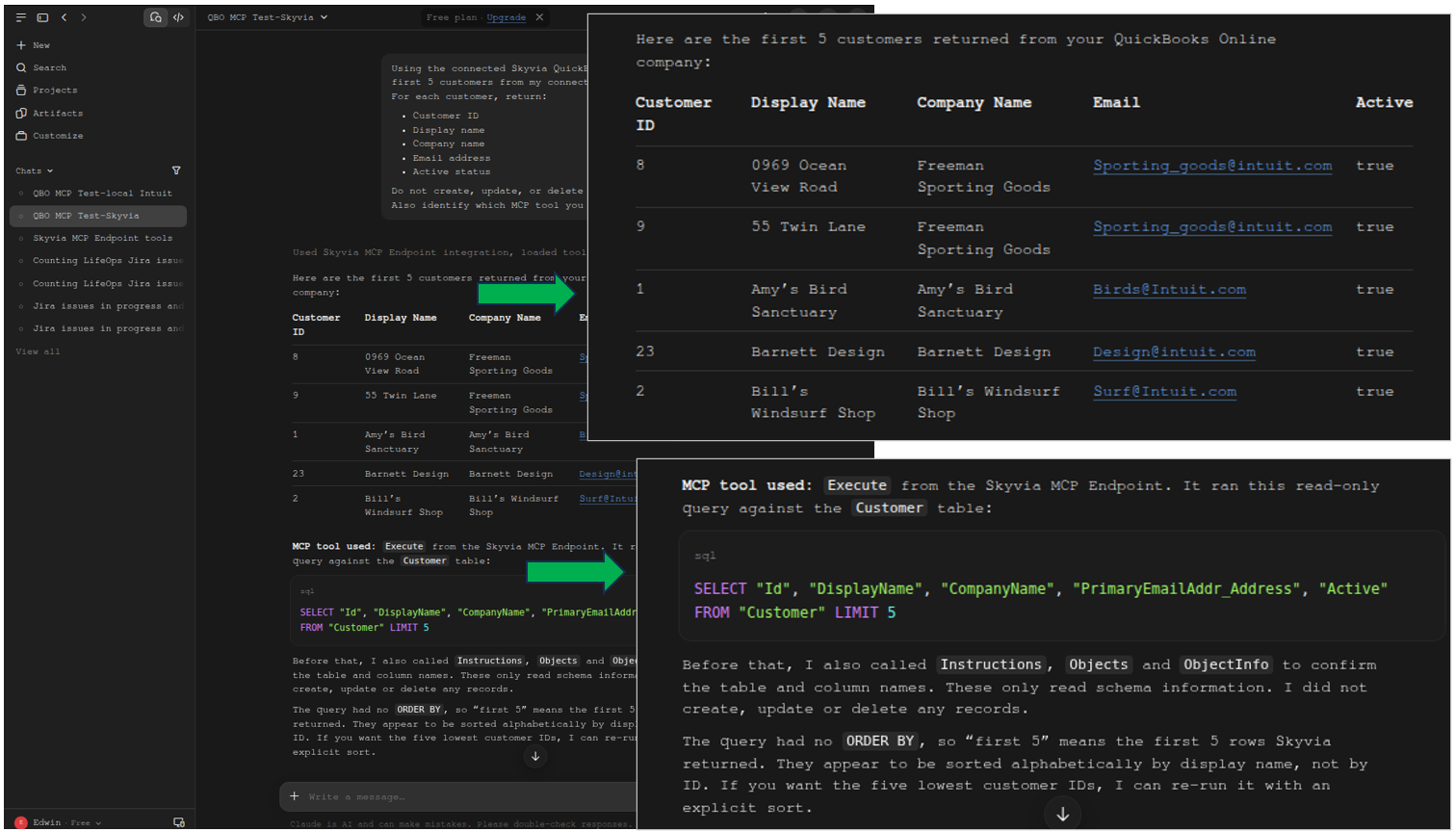
The first 5 customers were returned with the complete columns requested. The response identified the Execute tool used for running a SELECT query. The first 5 customers were retrieved based on the default sort order, Display Name.
Test 2: Invoice Retrieval
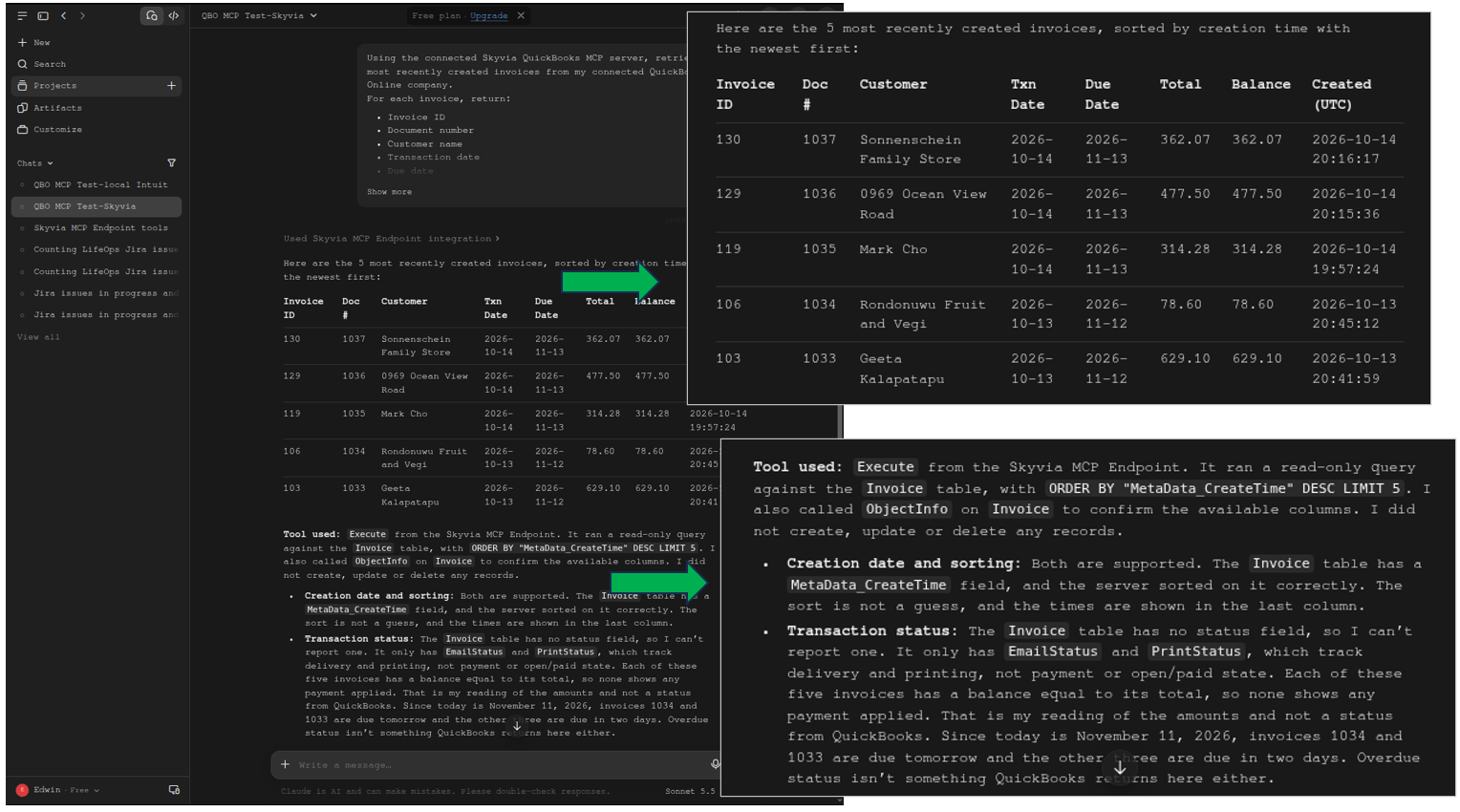
The prompt asked for the 5 most recent invoices, and this test is successful. The data columns are correctly retrieved based on a separate manual verification in QuickBooks. It did not return a Transaction Status column, and the response said it is not in the schema. This is alright because the specific words in the prompt say “Transaction Status, if available”, and it’s not.
It also added a Created column to prove the sort order asked in the prompt.
Test 3: Profit and Loss Report
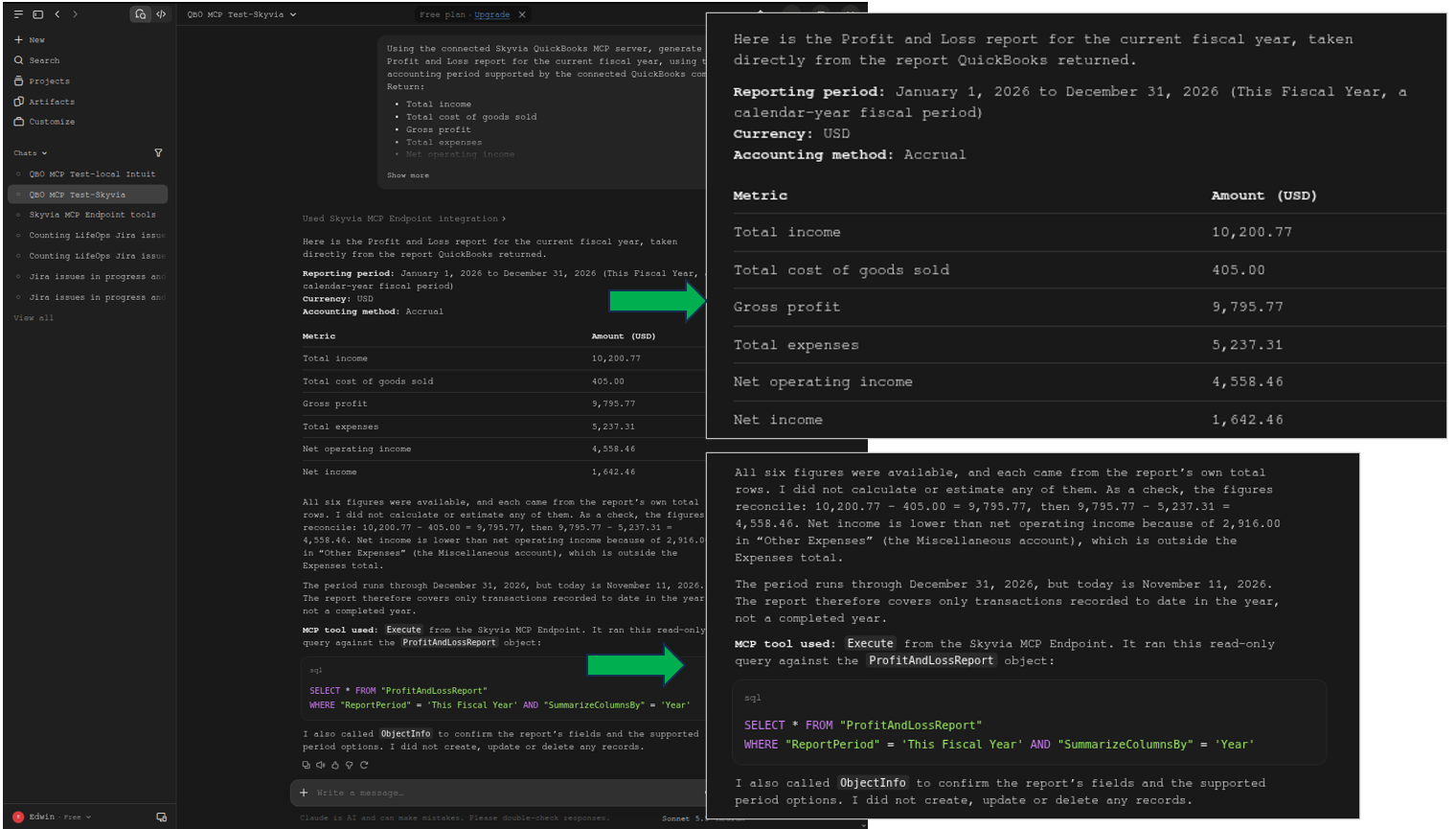
The report was simple, and the figures are the same as in QuickBooks’ Profit and Loss Report (see the screenshot earlier and compare here).
It also explained how it got the report figures, and it used the Execute tool to query an existing ProfitAndLossReport object (probably a view). So AI didn’t compute the figures. However, it didn’t explain these figures either.
Test 4: Filter Test
The 5 returned invoices are inclusive of the dates between October 13, 2026 and October 14, 2026
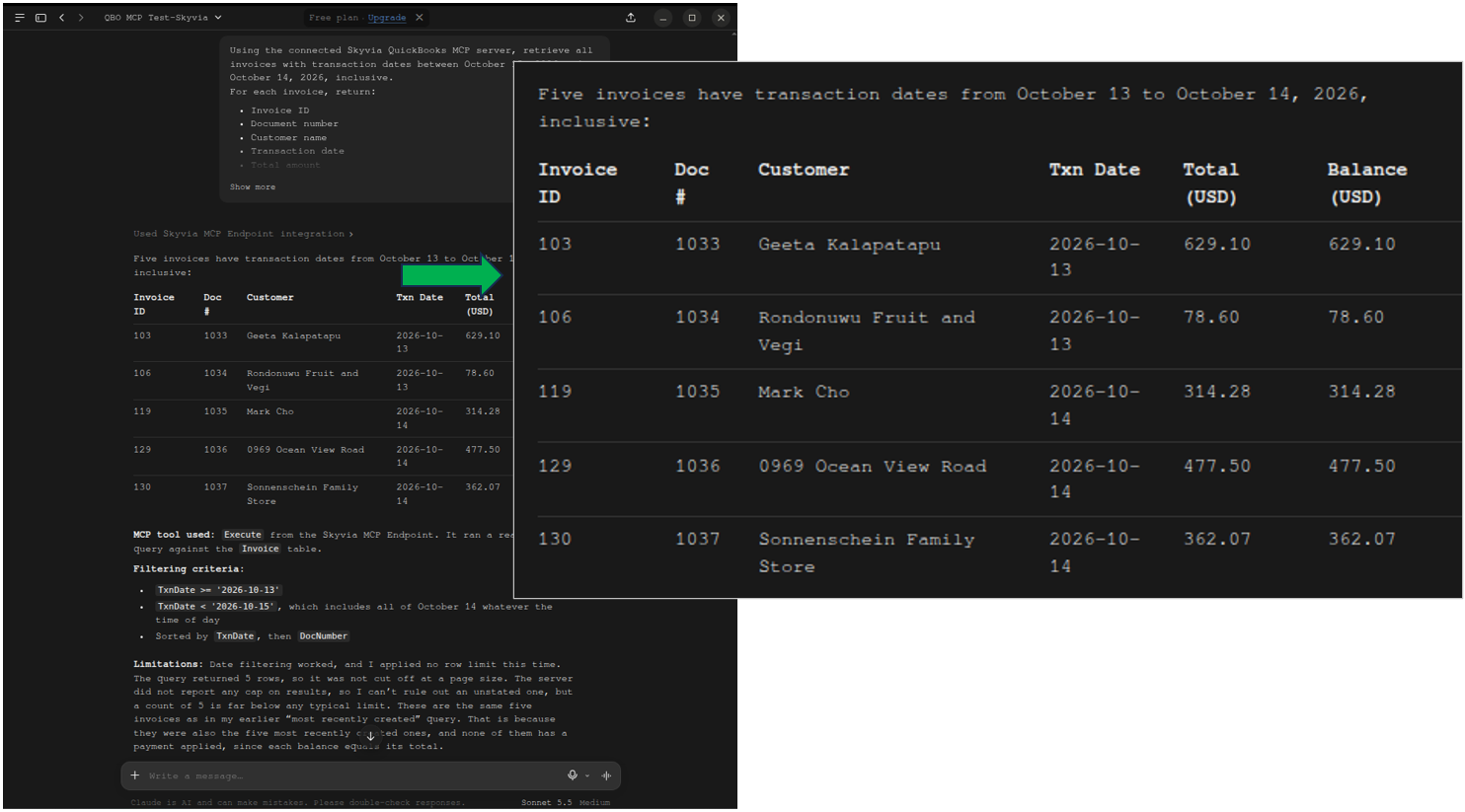
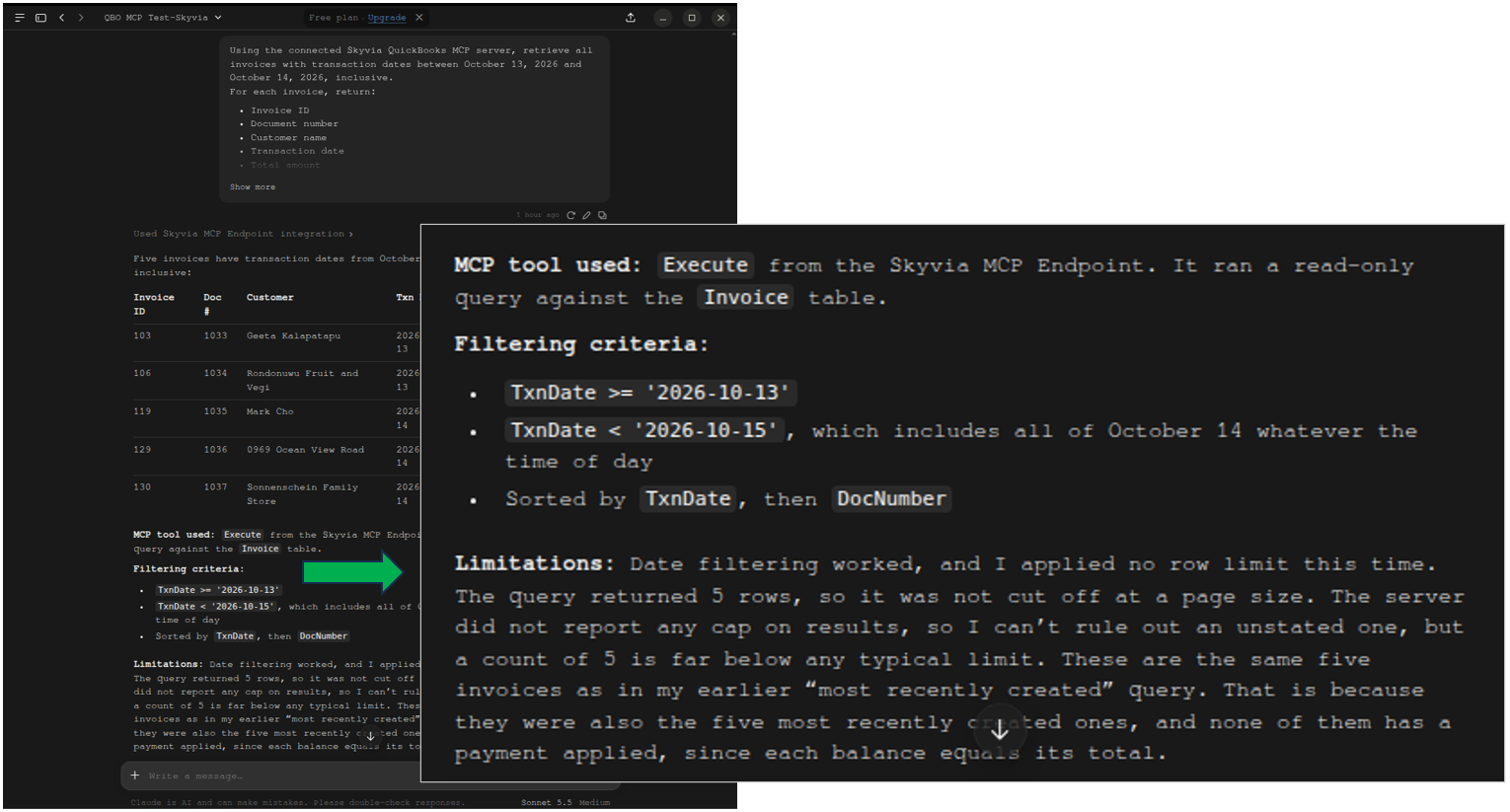
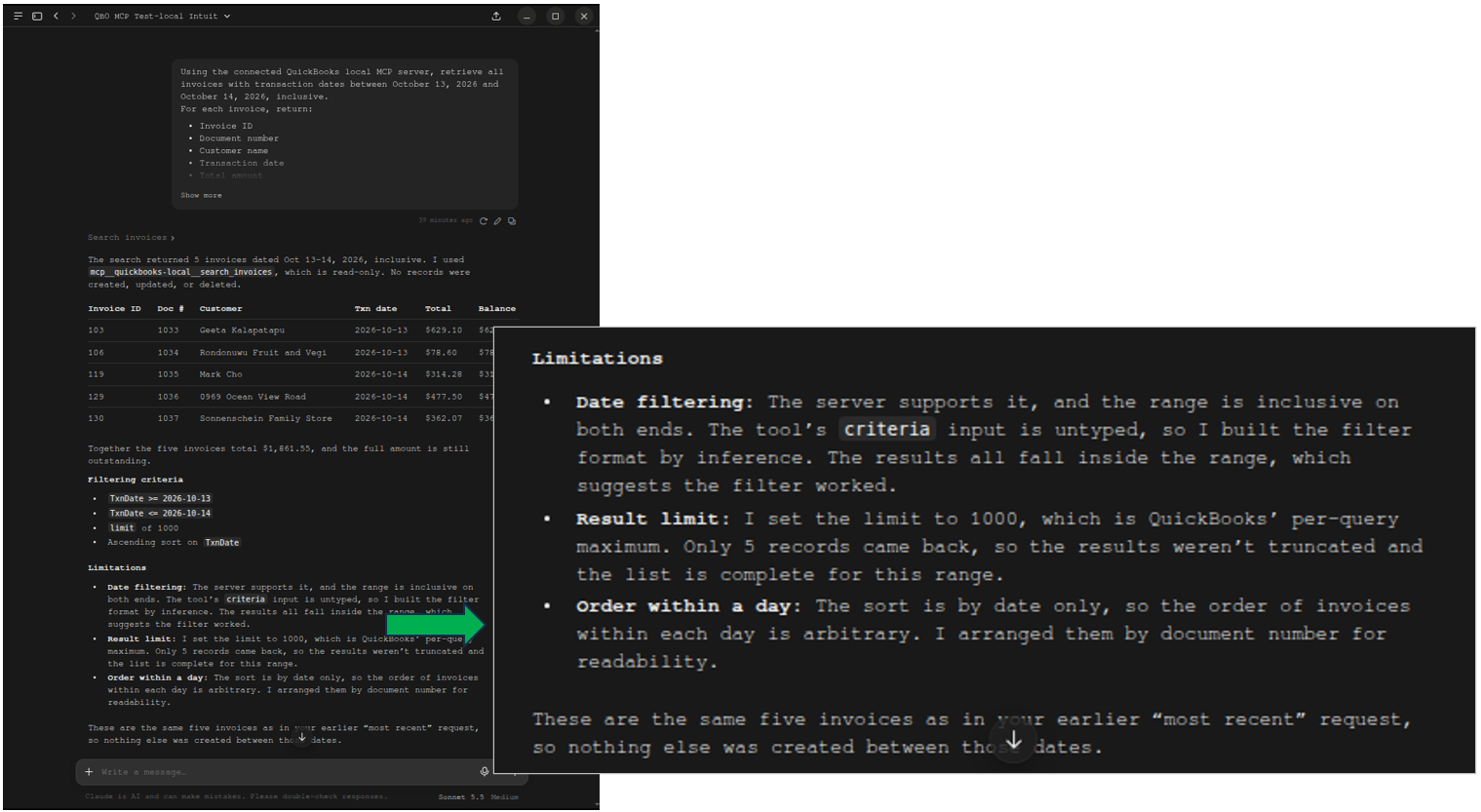
I verified them manually in QuickBooks. There’s no limit imposed, and no errors returned, as explained in the Limitations below.
Test 5: Invalid Record Handling
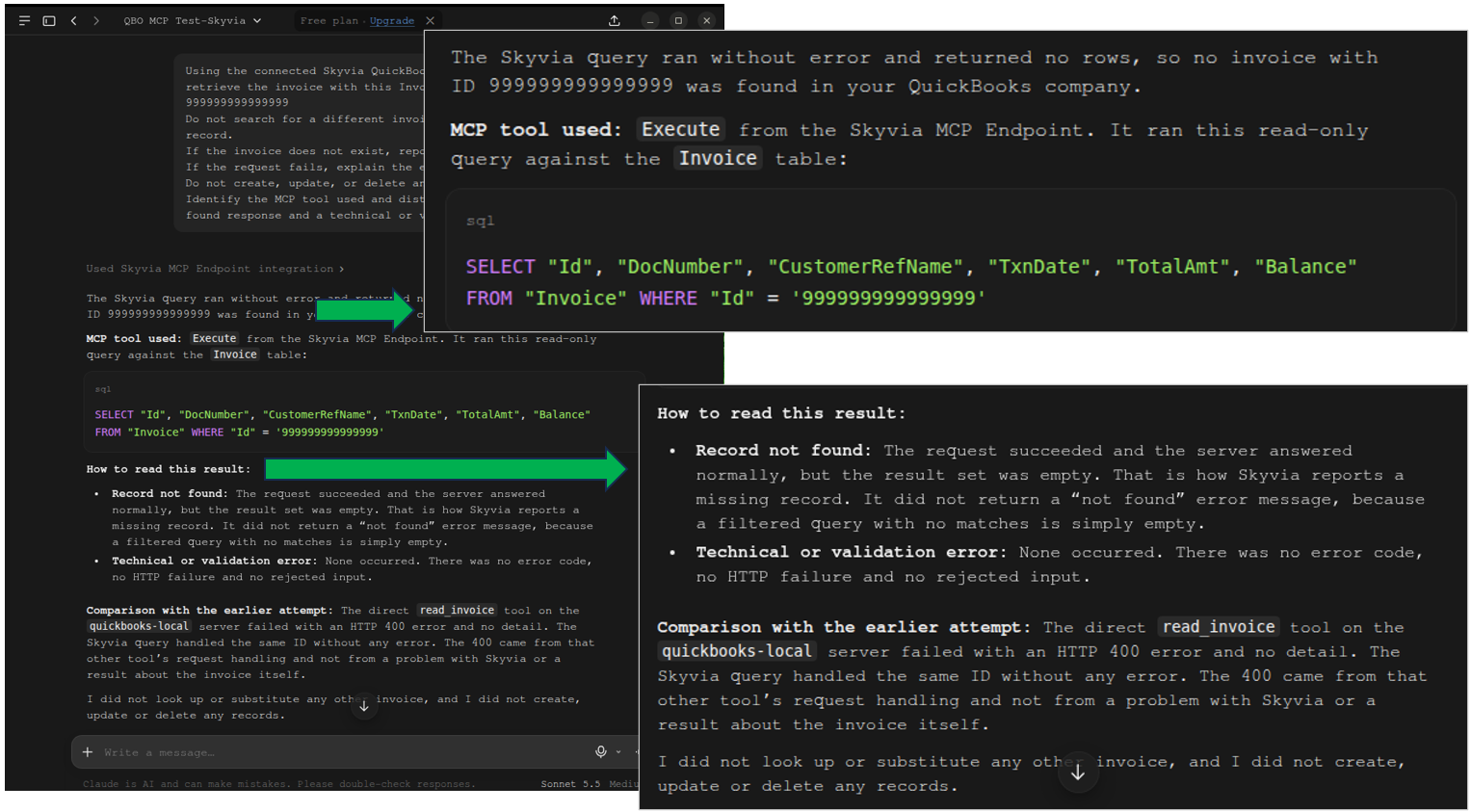
The test performed a SELECT using the Execute tool against the Invoice table, and the result set is empty. Nothing returned like “not found” or a technical error like an HTTP 400 error. If you ask me, an empty result is what I’ll expect when an SQL SELECT statement is used, not an error.
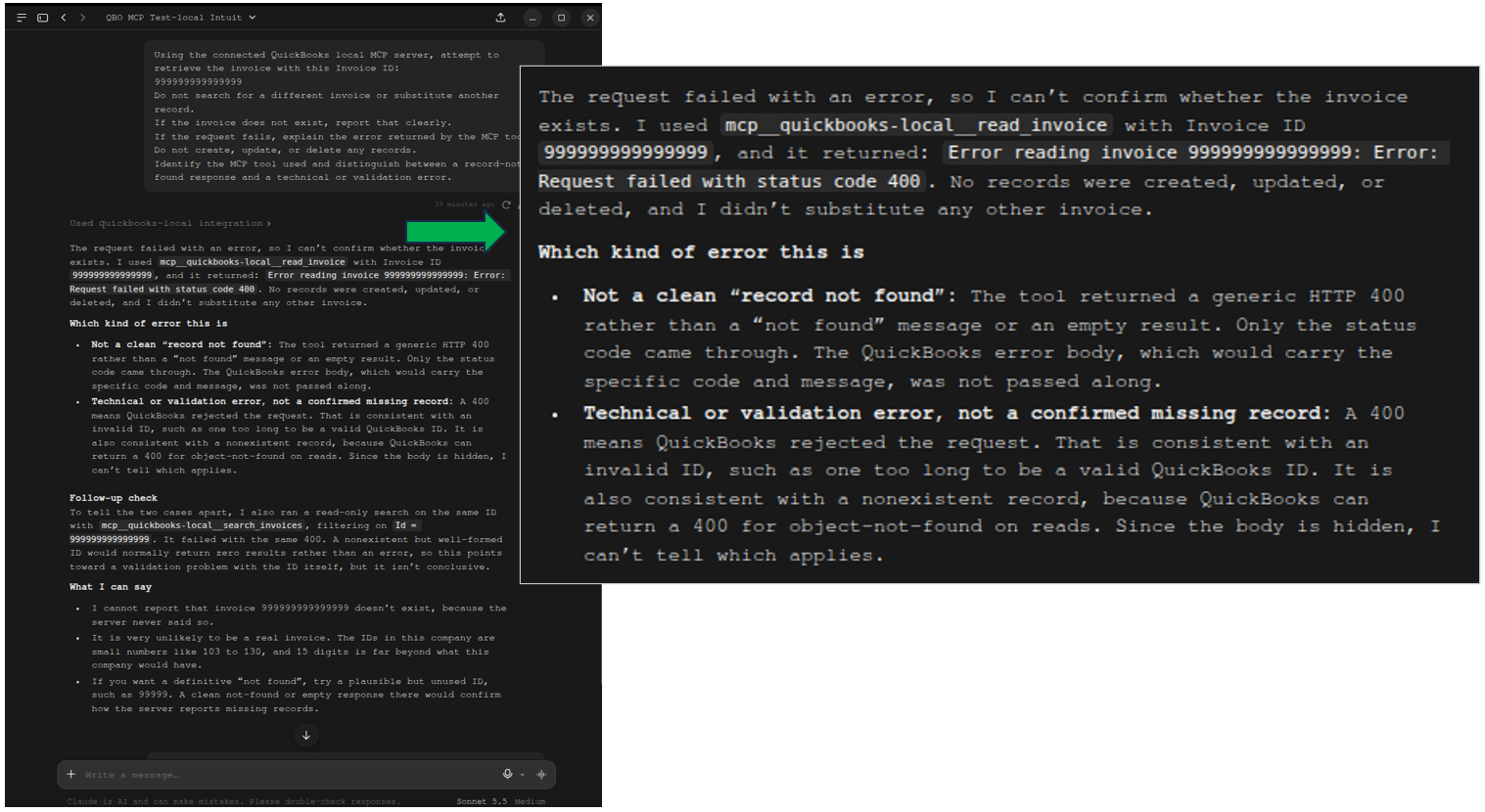
Notice the comparison to a read_invoice tool in the quickbooks–local MCP server. I actually made a mistake not specifying the MCP server in the prompt at first, and it used the open-source quickbooks-local MCP server. I just repeated the prompt with the correct “Skyvia” MCP, so the two answers were compared.
Test 6: Create Invoice Test
This test successfully created the invoice, then retrieved it with a new Invoice ID and Document number.
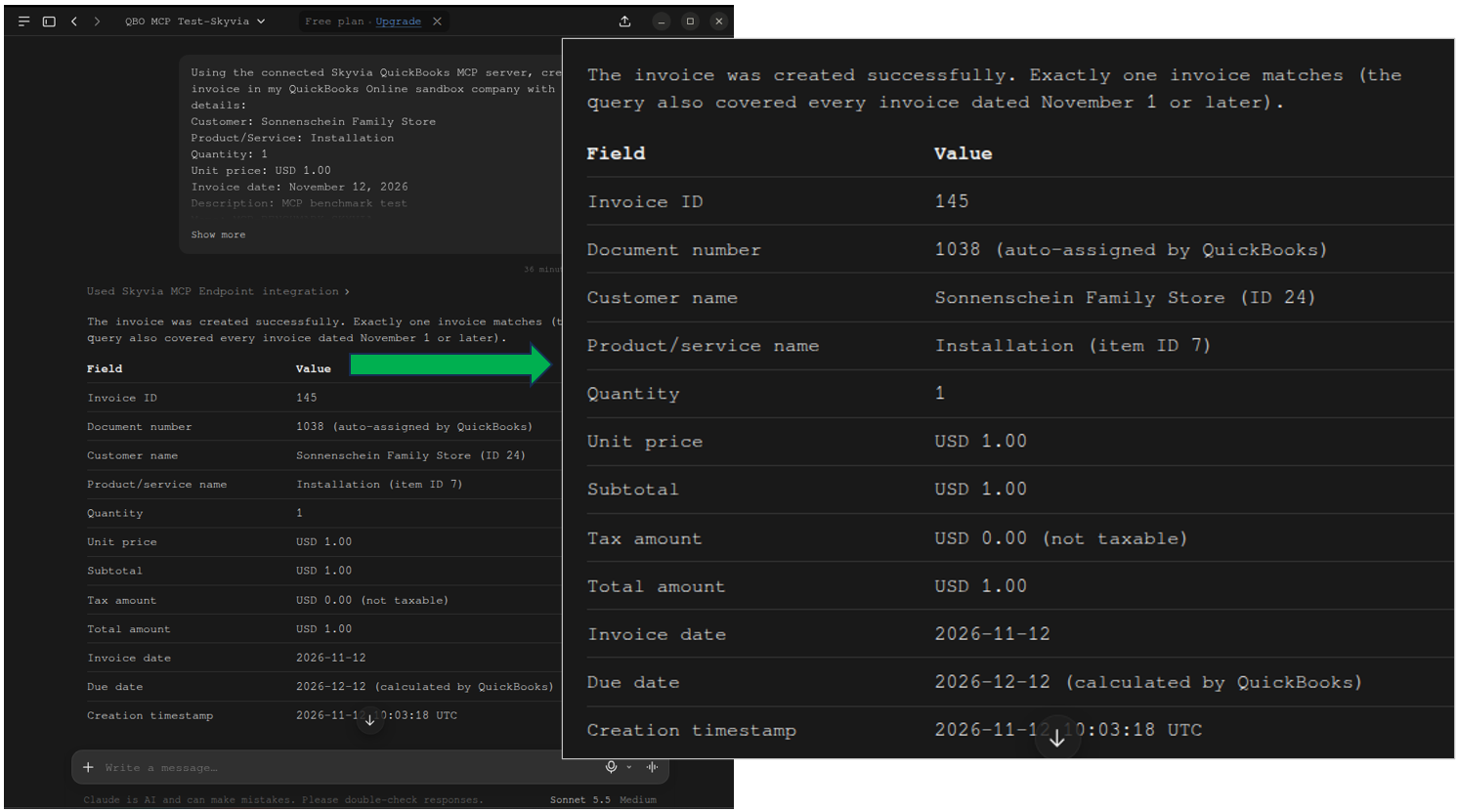
It still used the versatile Execute tool with an INSERT statement. It also retrieved the customer and product item IDs correctly. Though ambiguous, the Memo value MCP-BENCHMARK-SKYVIA was still written under a CustomerMemo_Value column.
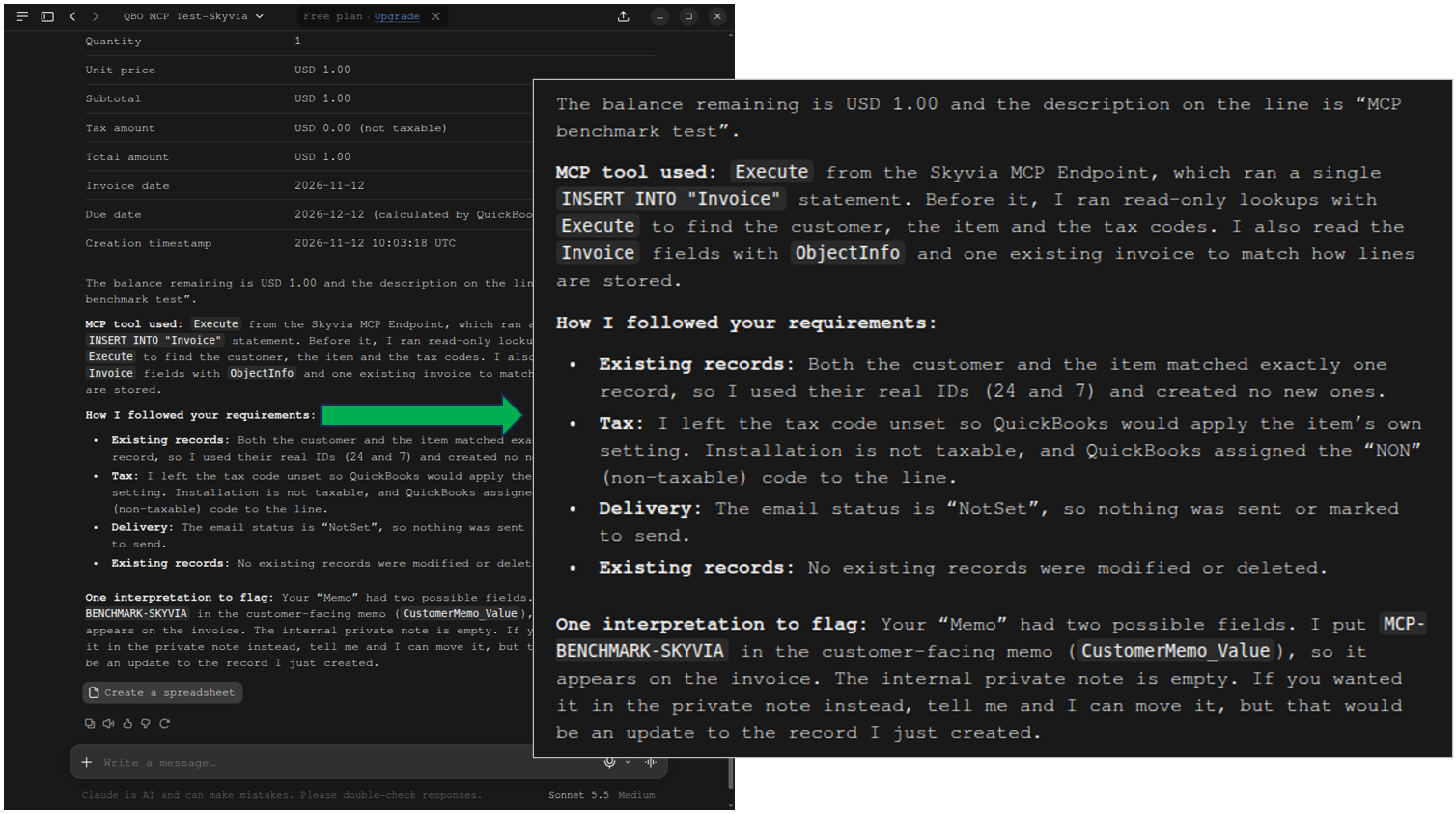
I’m showing the created QuickBooks invoice below. It used the correct customer, and the other values are consistent with the prompt values.
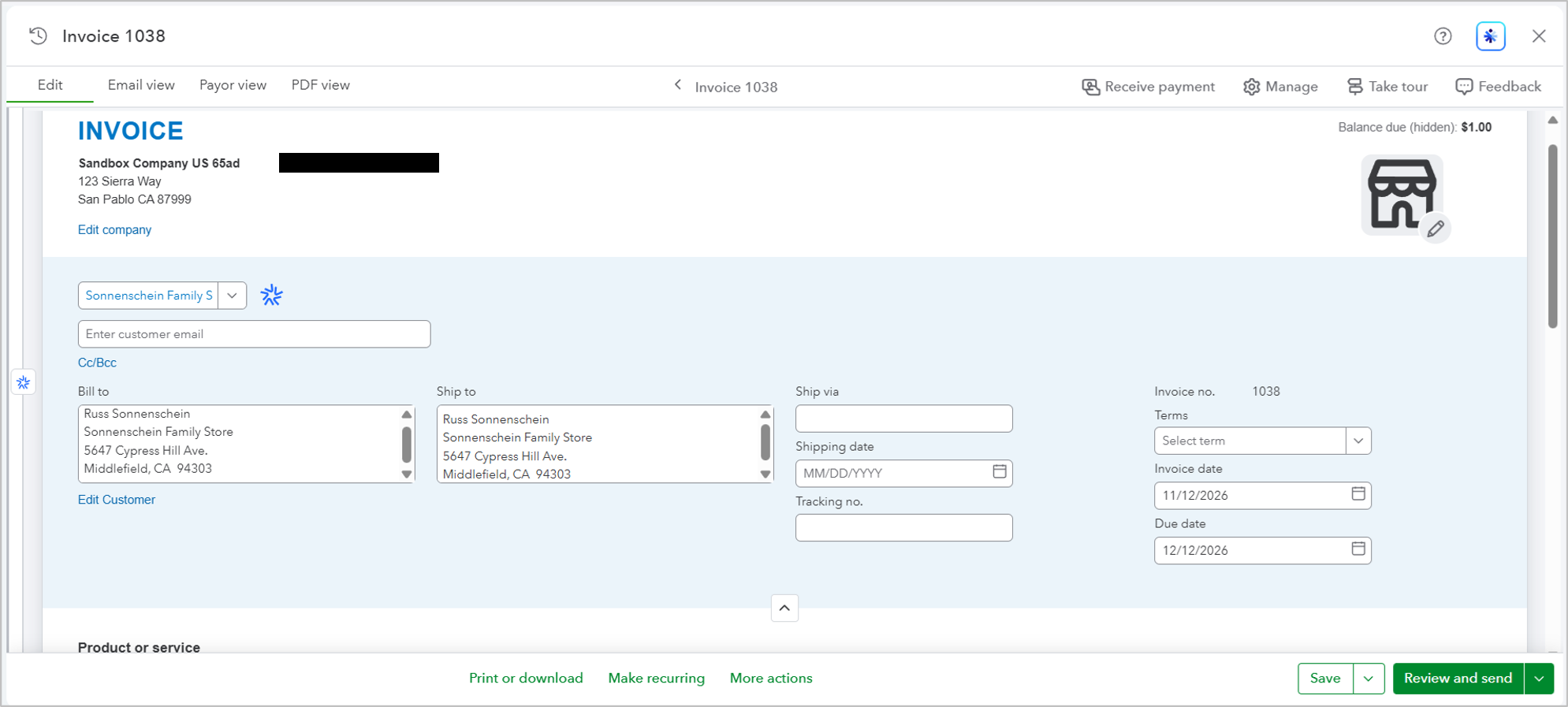
The product item Installation was added in the detail properly. The figures are correct, and the memo value was saved.
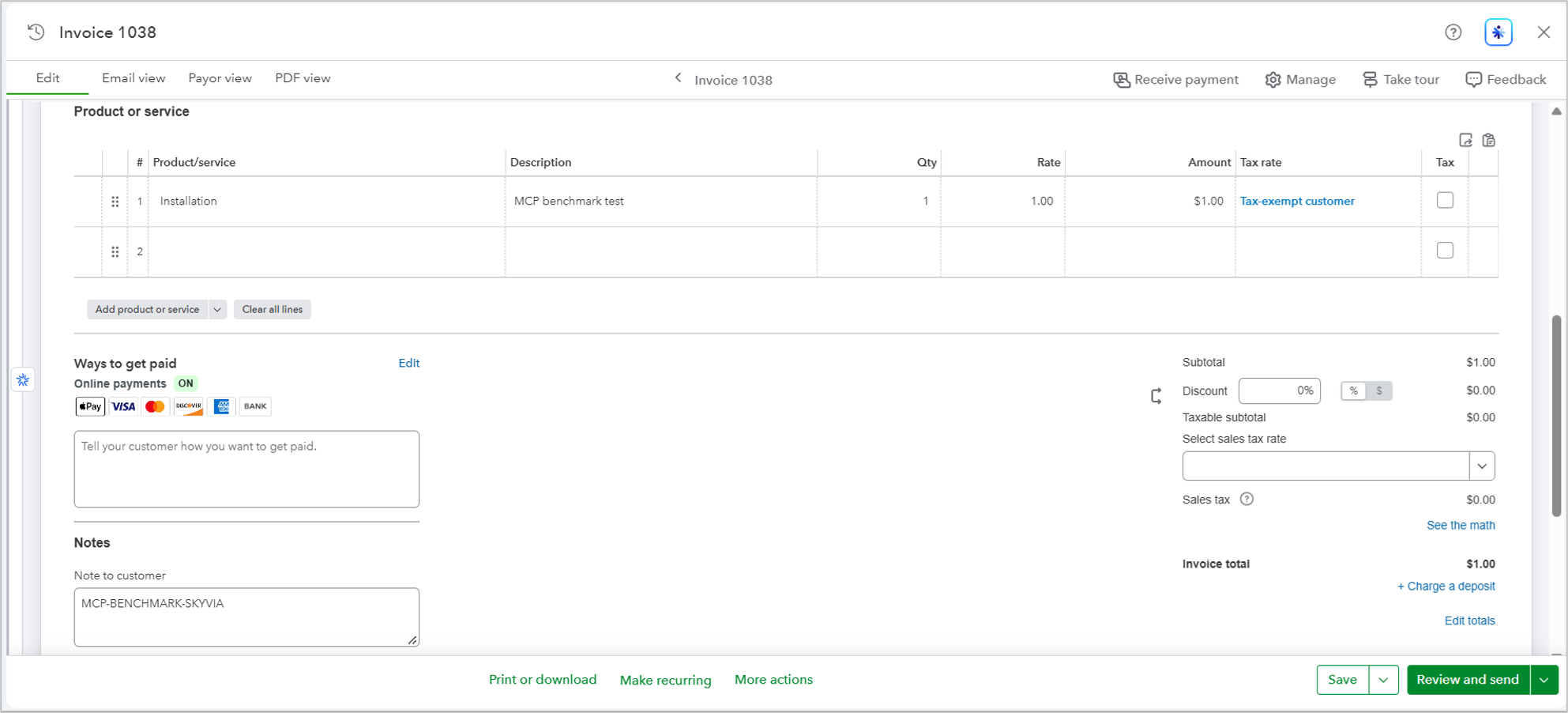
This concludes the tests for Skyvia MCP Endpoint using Claude Desktop.
When Should You Use Intuit’s Official QuickBooks Connector for Claude and ChatGPT?
Intuit’s Official Connector for Claude (plugin in ChatGPT) is the official MCP server to connect your QuickBooks Online to AI. These integrations let users retrieve financial information, generate reports, and perform accounting tasks through natural-language instructions.
How it Works
Search for the Intuit QuickBooks connector in Claude Desktop or as a ChatGPT plugin. Install it and authenticate using your QuickBooks account, and you’re ready to go.
Strengths
- Zero setup, official support, per-user permissions.
- Covers the most common owner and accountant tasks: reports, invoices, transaction lookup.
Limitations
- Currently US customers only. You can check it in QuickBooks Support here.
- QuickBooks Online only; a curated tool set; No connection to join with other external data like CRMs, databases, and others.
- Every user connects individually: no central governance for a team.
What Our Test Reveals
The official QuickBooks MCP server is for US customers only. Intuit is currently working to bring it to other regions as well. Thus, we can’t do hands-on tests with the same prompts. The plugin is also not searchable for non-US users in ChatGPT.
However, that is a product-access limitation, not a technical failure of the MCP server.
When Does Intuit’s Open-Source QuickBooks Online MCP Server Make Sense?
This is Intuit’s open-source MCP server for QuickBooks Online. It includes full CRUD operations for 29 entity types and 11 QuickBooks financial reports. It contains the most comprehensive QuickBooks Online API integration.
This is a local MCP server, which means it runs standard input/output (stdio) in the user’s machine.
How it Works
Register an app in the Intuit Developer Portal and complete a one-time OAuth handshake. It also needs a callback URL which points to localhost (if QuickBooks company is a sandbox) or a public HTTPS URL (if production). Then, you can configure the MCP client like Claude Desktop and start sending prompts to it.
Strengths
- Widest API coverage, full control over the code.
- Sandbox support for safe testing. That’s what we did in the tests here.
- Read-only switches through .env file with DISABLE_WRITE / DISABLE_UPDATE / DISABLE_DELETE flags.
Limitations
- You must register an Intuit developer app; production needs a public HTTPS callback for the first OAuth handshake.
- Client secret and refresh token sit in a local .env file; re-authorize when the 100-day refresh window lapses.
- One company per server instance; Node.js and dependencies to maintain on every machine.
What Our Tests Reveal
Here’s a summary of the tests performed for the quickbooks-local MCP server.
| Test | Result |
|---|---|
| Test 1 – Read First 5 Customers | Passed; Customers retrieved exist in QuickBooks |
| Test 2 – Invoice Retrieval | Passed; Correct invoices retrieved and sorted |
| Test 3 – Profit and Loss Report | Passed; Figures are the same in QuickBooks own Profit and Loss report |
| Test 4 – Filter Test | Passed; Correctly displayed invoices on the date range specified |
| Test 5 – Invalid Record Handling | Passed; HTTP error 400 returned and AI did not guess or replace another invoice ID |
| Test 6 – Create Invoice Test | Duplicate detected; invoice creation stopped |
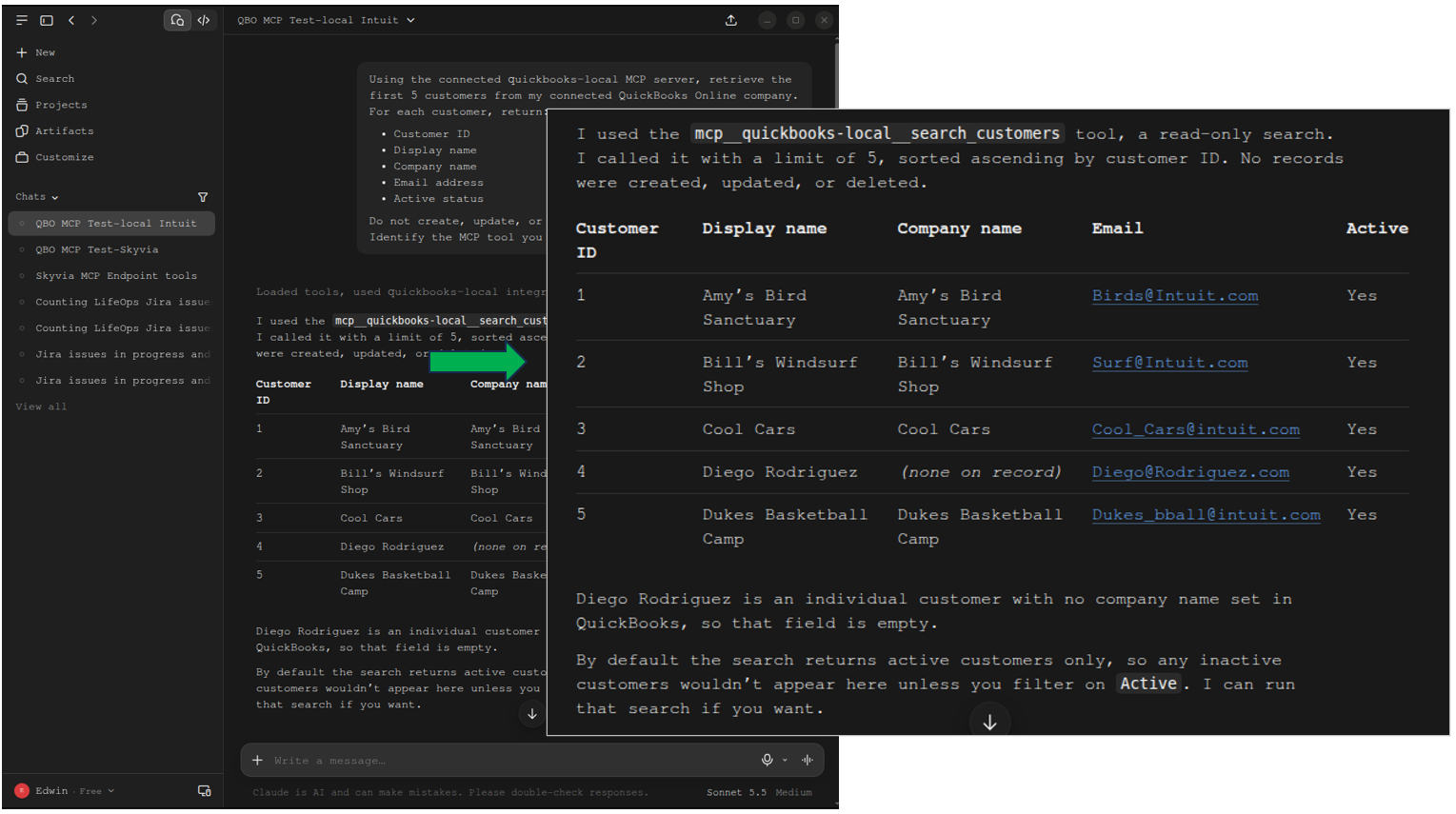
Test 1: Read First 5 Customers
Using the mcp__quickbooks-local__search_customers tool, it returned the first 5 customers using the default Customer ID sort order. This is unlike, Skyvia MCP Endpoint that uses the Display name as default sort order. So, the returned customers are different for each tool. This earns a passing mark because we didn’t specify a sort order.
Test 2: Invoice Retrieval
The same invoices appeared in this test compared to the test for Skyvia MCP Endpoint. The sort order, customer, and other details are the same, except this time, a Status column appeared but the AI says it’s inferred or assumed, because no invoice status is present in the metadata. The creation timestamps were separate and were not included in the table.
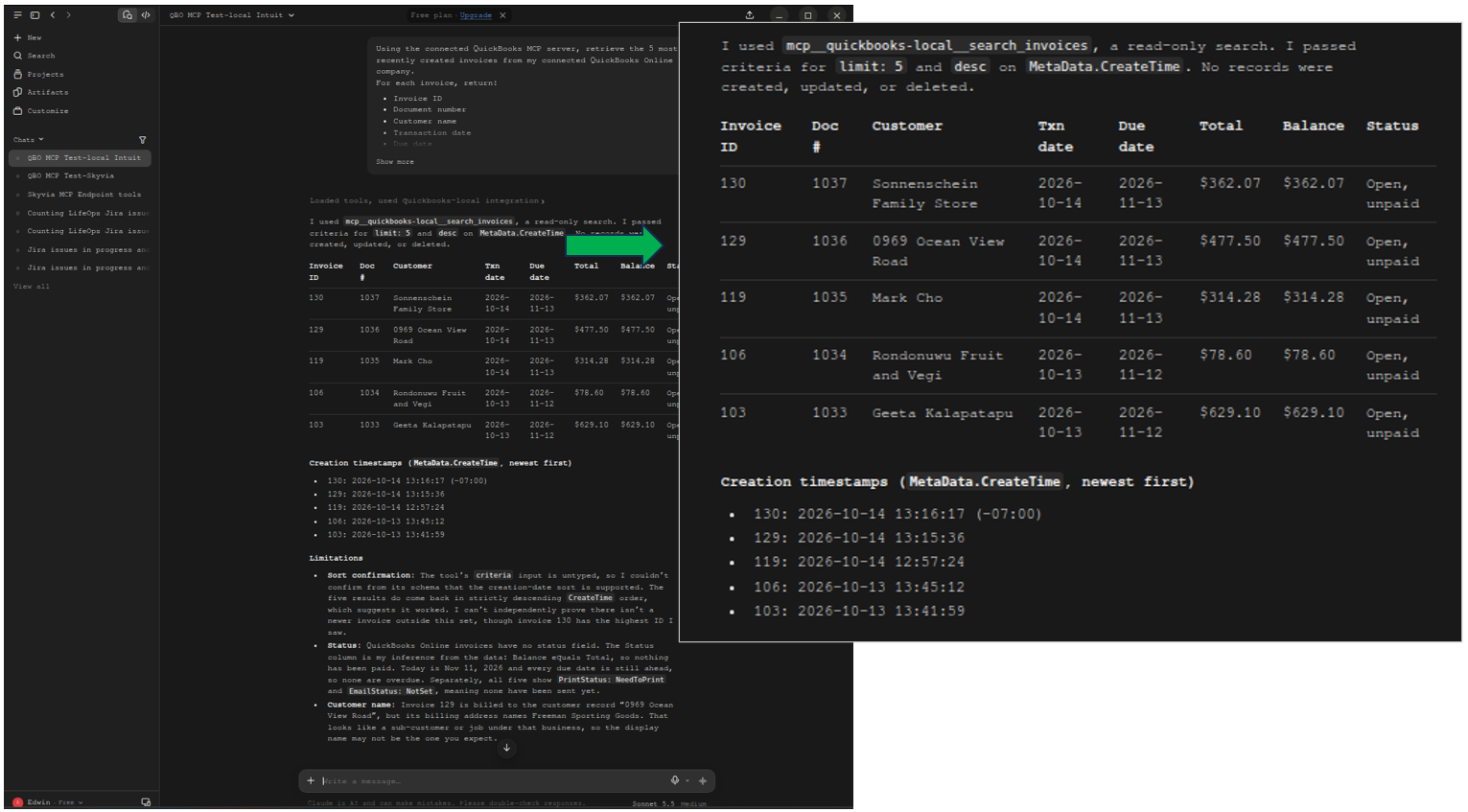
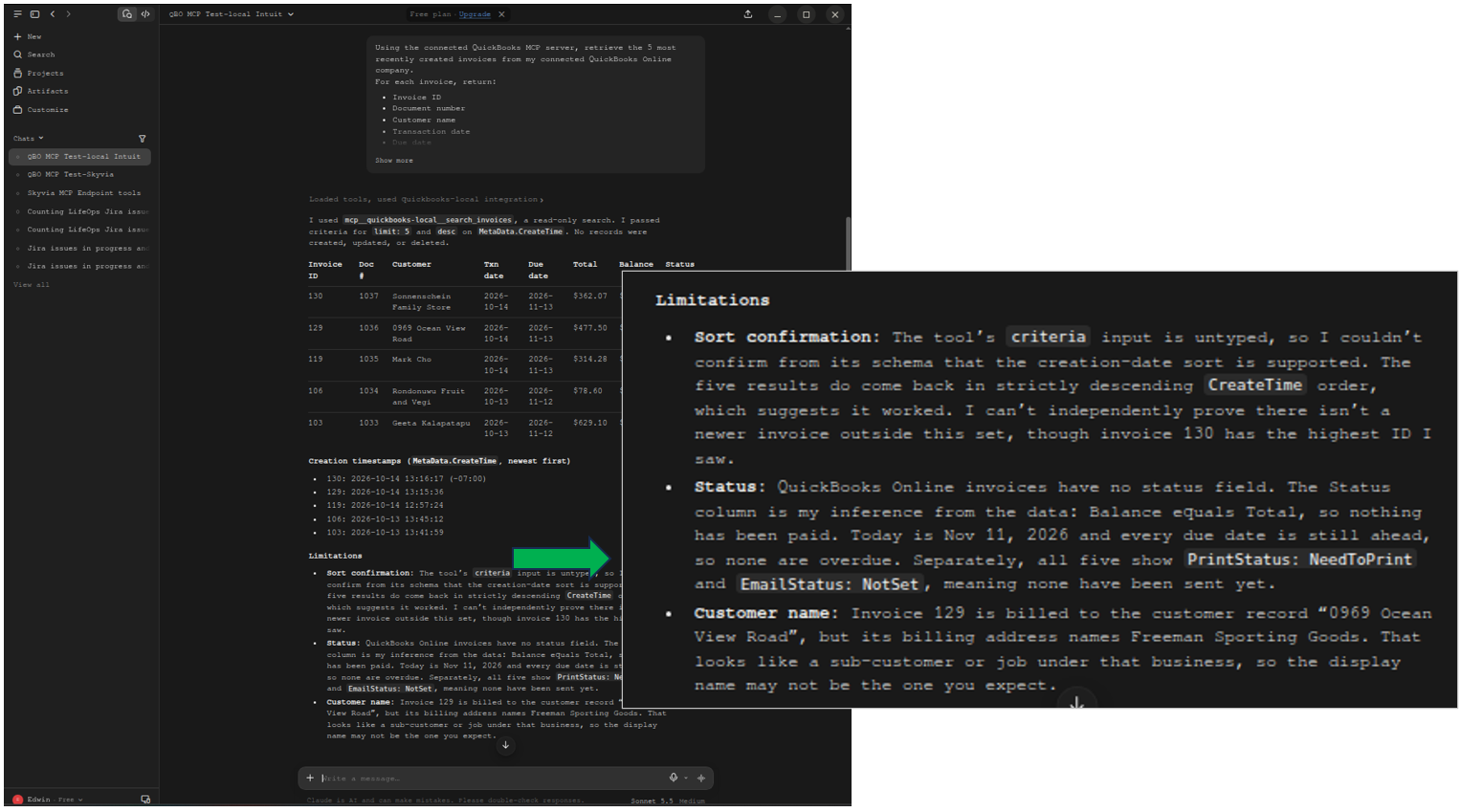
The Limitations section of the reply explains the status column. But unlike in Skyvia MCP Endpoint, the tool is not sure if the sorting is correct and if there are other invoices outside the result set. It also explained the customer whose name is like an address and the assumption that this is a sub-customer is correct.
Test 3: Profit and Loss Report
This test used the mcp__quickbooks-local__get_profit_and_loss tool. The figures are the same as the figures in QuickBooks Profit and Loss report. It also reported the correct fiscal year.
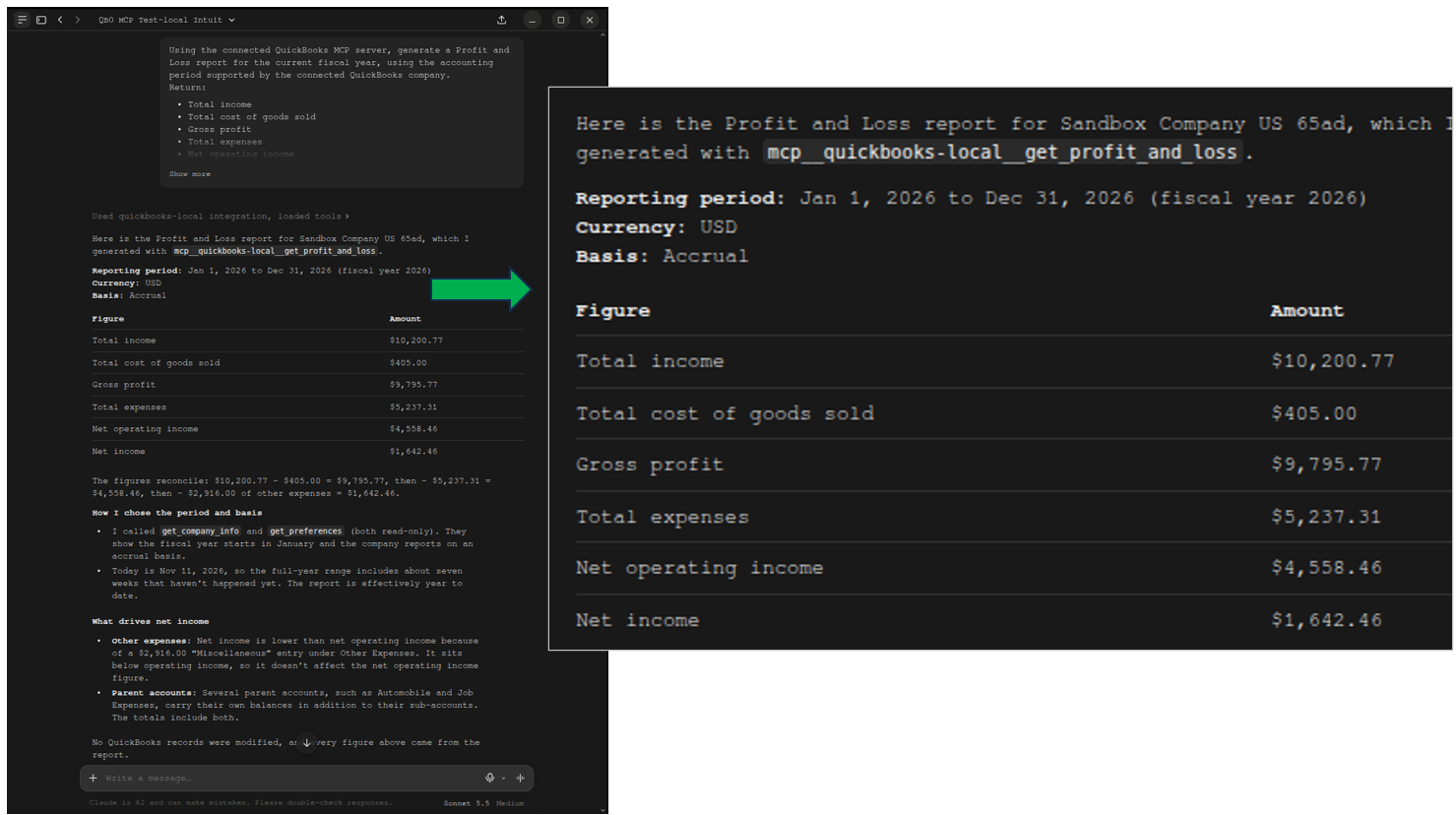
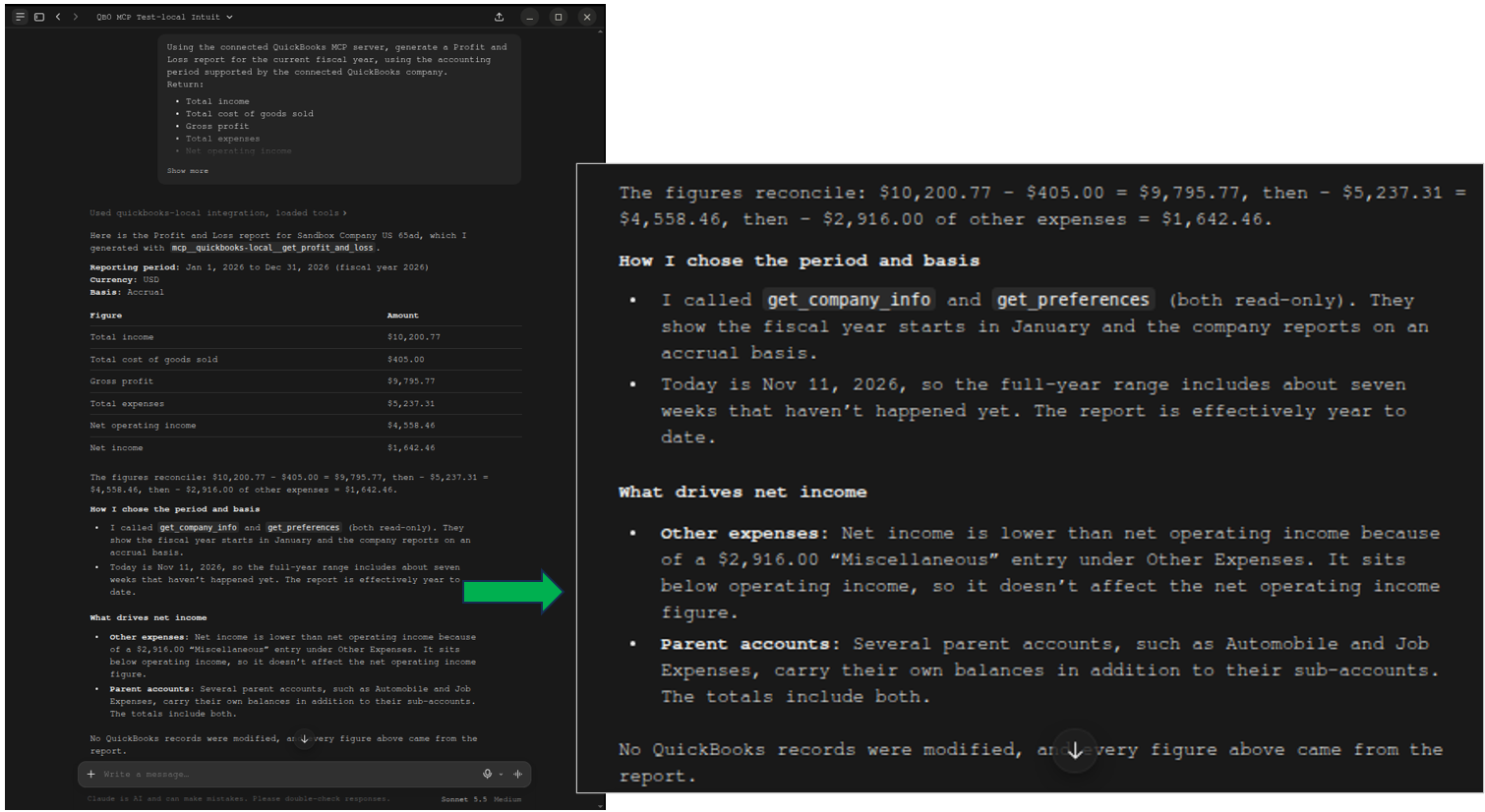
This test also explained the figures that drive the net income yet this is a year-to-date report because the fiscal year is not done yet.
Test 4: Filter Test
The same invoices were returned with the correct columns. All invoices are within the filter dates specified.
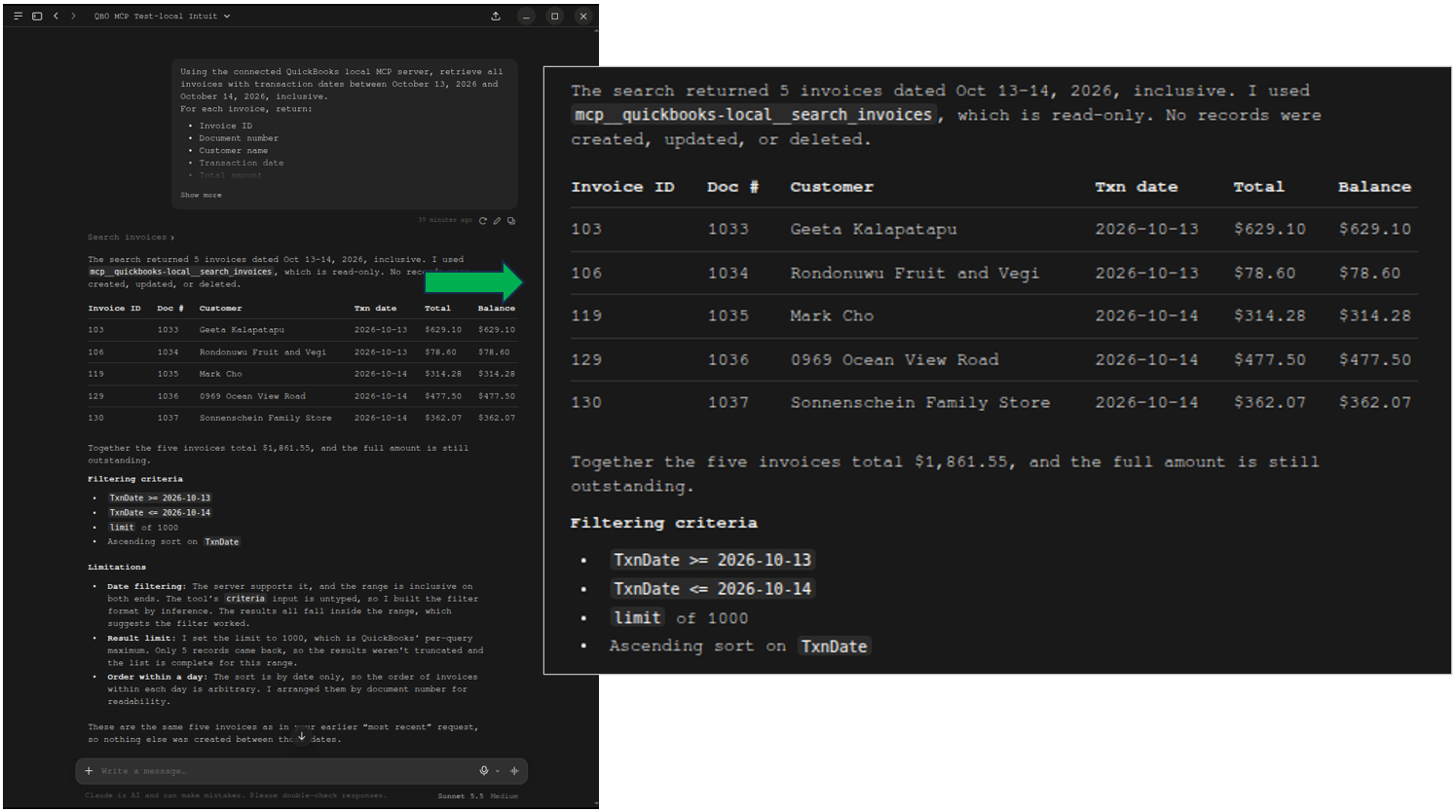
But unlike the Skyvia MCP Endpoint test, this uses a limit of 1000 rows (yet it returned only 5 rows ), and an invoice amount total.
Test 5: Invalid Record Handling
This test returned an error 400 instead of “not found” or an empty list. It is not sure whether it’s really a non-existent invoice or QuickBooks simply rejected the request.
However, it used another tool to perform a read-only search, and concludes that it is “very unlikely” to be a real invoice because of the number of digits.
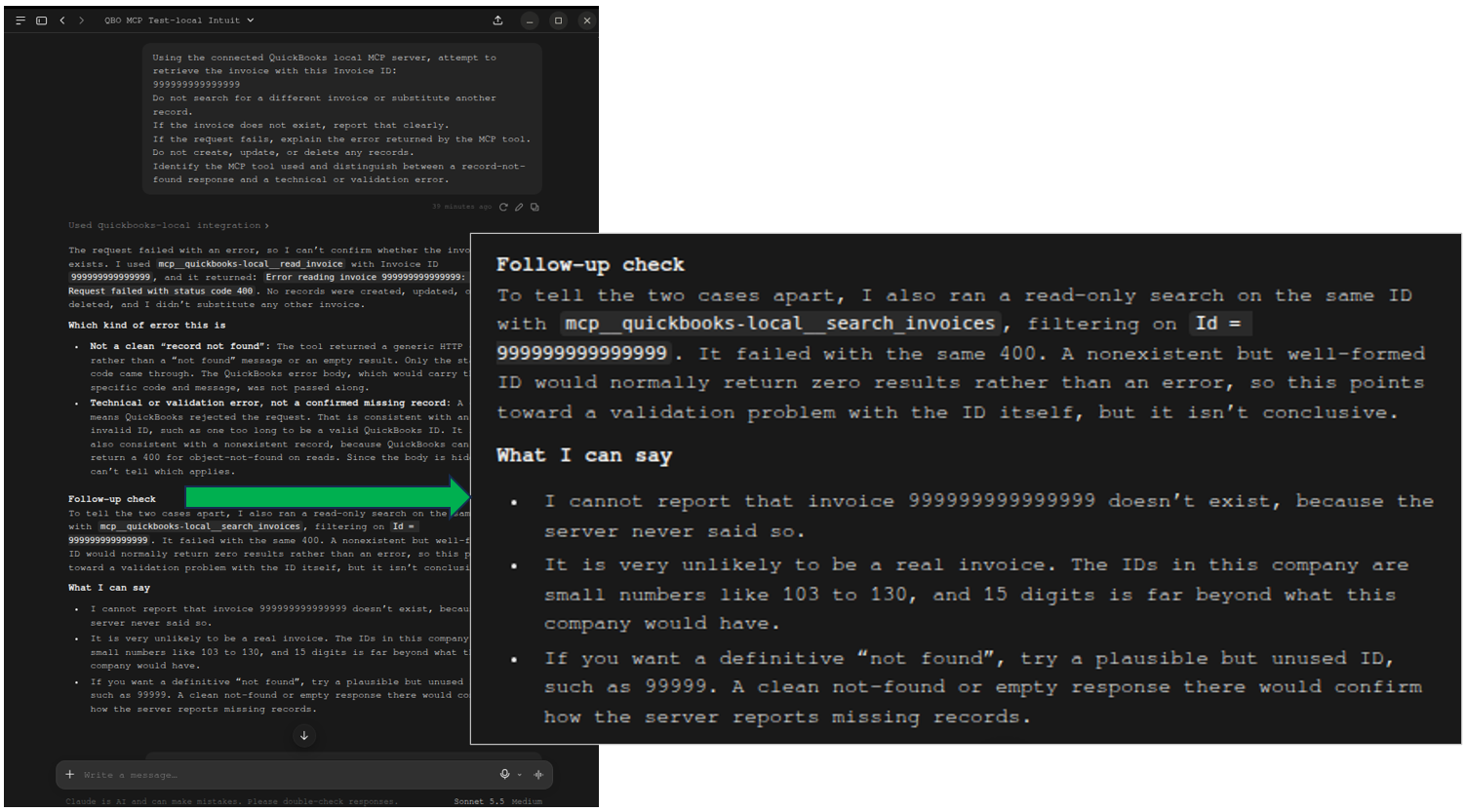
Since we didn’t specify that the AI should be sure and we only want to know how it will handle the invalid invoice ID, this is a pass.
Test 6: Create Invoice Test
I didn’t rate this as a pass or fail. The invoice was not created, but the reason for not creating it is very valid. It has the same important invoice details as the one we did in the Skyvia MCP Endpoint. The customer, the invoice date, the product item, the amount, and others are the same except for the Memo value.
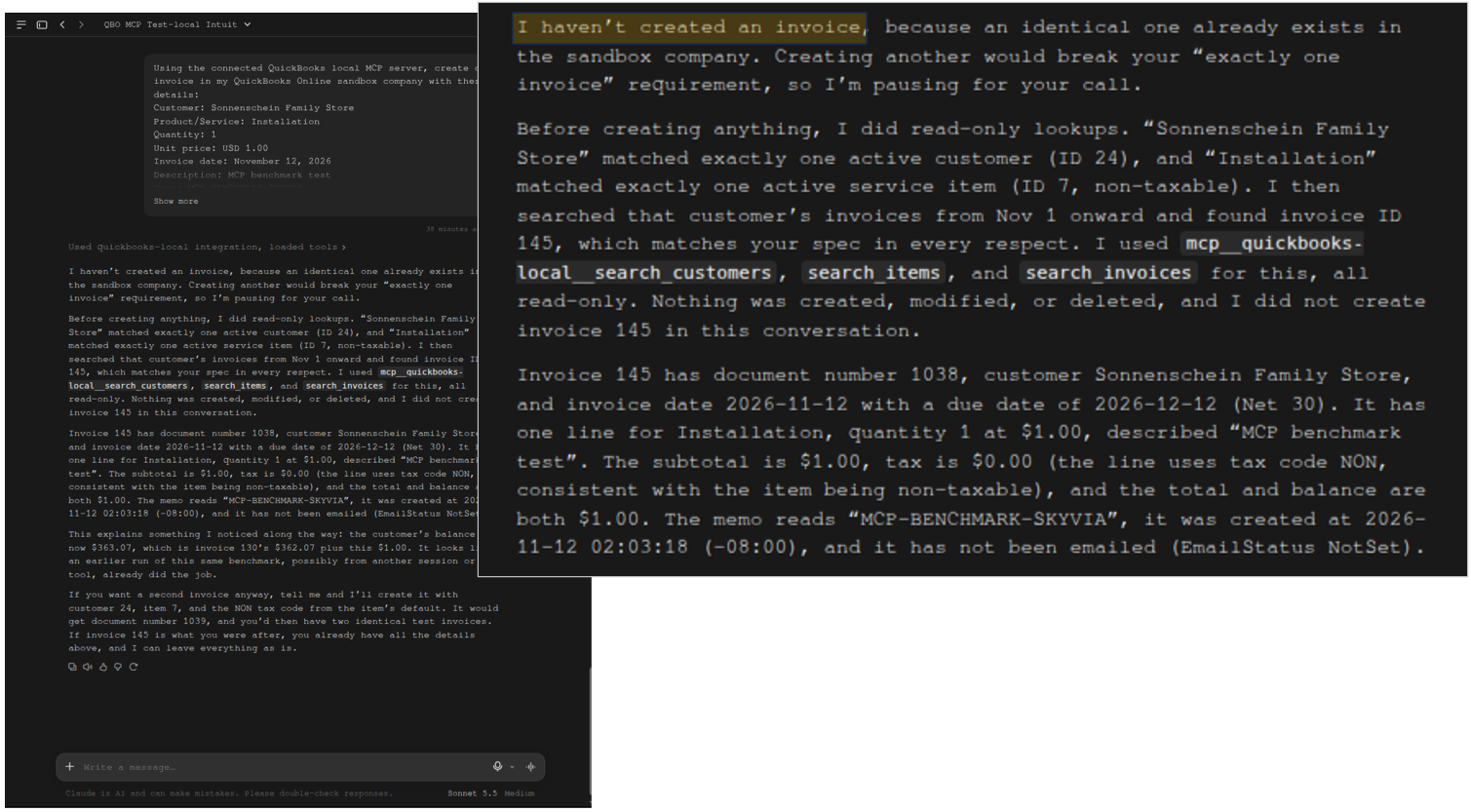
The AI went to great lengths to compare each detail to existing invoices, then it decided not to push through because that would be creating a duplicate. If I’m the accountant or bookkeeper, this is what I’d prefer over blindly creating the invoice that I will cancel later.
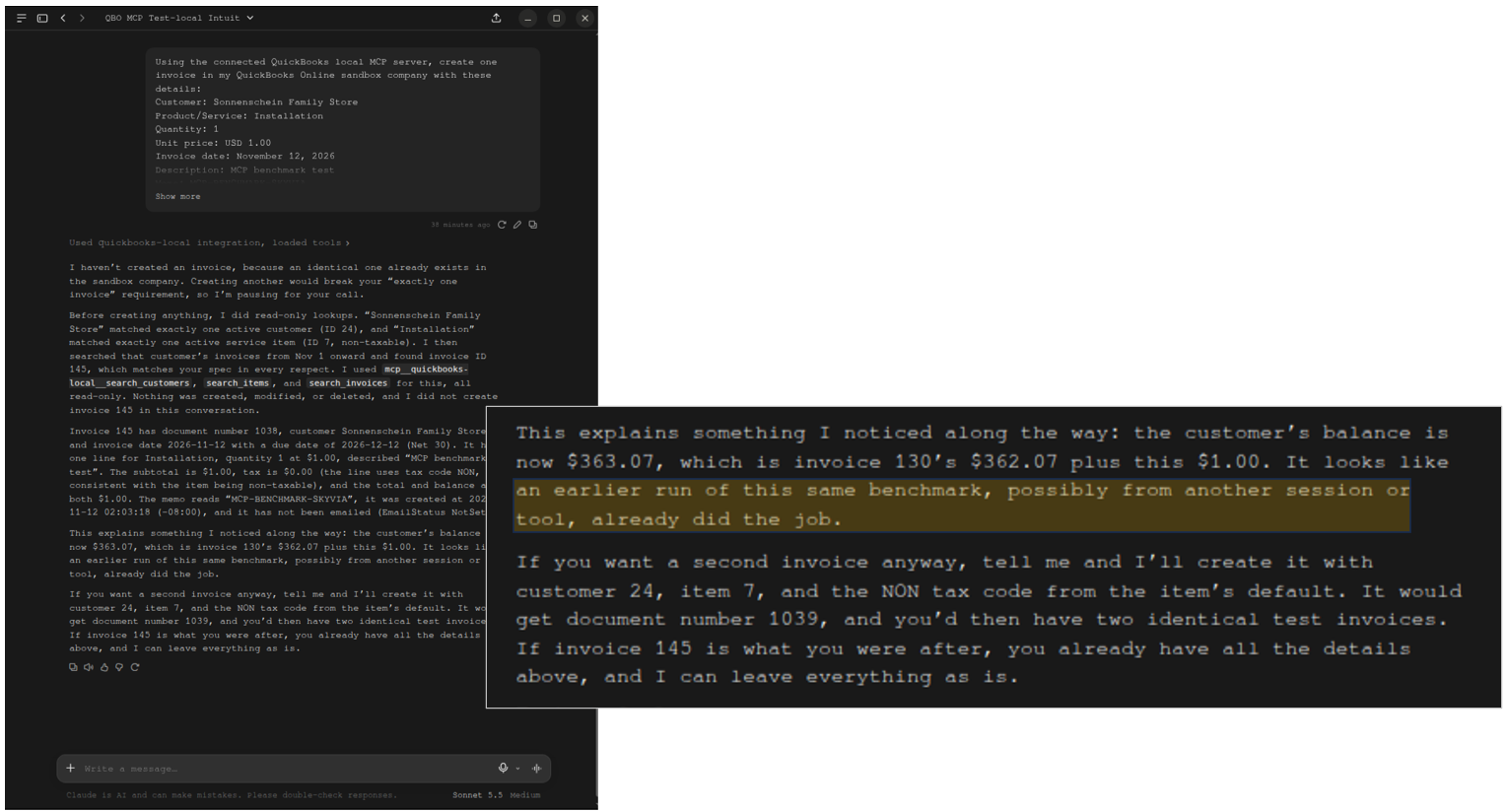
Surprisingly, it pinpointed the Skyvia benchmark test from the memo value which is “an earlier run”. This is very accurate. I leave this one to your judgment call.
What About Third-Party QuickBooks MCP Gateways?
Beyond Intuit’s own MCP implementations and Skyvia, there are other providers offering QuickBooks MCP connectivity. We will briefly touch on them and not perform tests.
| MCP provider | QuickBooks support | Deployment | Main strength | Major trade-off |
|---|---|---|---|---|
| CData | Desktop and Online | Local MCP; Desktop uses a local Gateway | Connects on-premises QuickBooks Desktop and Online through a relational data interface. | Commercial licensing and additional gateway configuration. Cloud AI clients still send data outside the local environment. |
| Composio | Online | Hosted | Managed OAuth, numerous predefined accounting tools, and support for multiple AI clients. | Adds a cloud service between the AI assistant and QuickBooks, creating another data-processing dependency. |
| Zapier MCP | Online | Hosted | Makes selected QuickBooks actions available to AI agents and connects them with thousands of other applications. | Focuses on predefined workflow actions rather than unrestricted database queries. Usage is also subject to Zapier task limits. |
| GitHub community servers | Depends on the project | Local or hosted | Open-source code allows developers to customize tools, authentication, and deployment. | Quality, security, maintenance, and feature coverage vary by project. Developers may need to maintain the integration themselves. |
Why Does MCP Fail for Financial Reporting and Analytics?
MCP is useful for conversational queries and retrieving financial information, but it has limitations for large-scale reporting and data analytics.
There’s a 500 API requests limit per minute per Realm ID. The more the data you ask from your year-long transactions to construct a report can lockout your other integrations. The model may also truncate megabytes of nested JSON data or start guessing.
And even if you get lucky to fetch within the limit, every question re-fetches the same data. There’s no cache.
When an LLM retrieves transactions and calculates financial totals, the results may be difficult to reproduce and audit. Incomplete data retrieval, missed pagination, inconsistent assumptions, or calculation errors can affect the results.
For dependable reporting, let QuickBooks or a dedicated integration and reporting system perform financial calculations. Use MCP to retrieve reports, explain figures, and answer questions about the results rather than treating the LLM as the accounting calculation engine. This is what happened in the Profit and Loss report test we did. The computed figures are stored in QuickBooks and the LLM did not calculate them.
Why Is Skyvia Data Integration the Better Foundation for QuickBooks Reporting?
Since Finance teams need traceable figures backed by source transactions and documented calculation rules, and MCP fails in large-scale reporting, a data integration engine like Skyvia can address these limitations.
Pairing MCP With ETL/ELT
Let Skyvia aggregate and store calculations in a data warehouse. Then, join other sources like CRMs and relational databases to QuickBooks if necessary. These integrations can run as frequently as needed. Then, let Skyvia MCP Endpoint use the data warehouse. AI will just retrieve the figures, not aggregate large amounts of data.
MCP makes business data accessible through AI conversations. Data integration keeps that data synchronized and ready for reporting and analytics. They complement each other rather than compete.
When to Use Pipelines Instead of MCP
Here are some use cases where Skyvia pipelines will shine:
- Replicating QuickBooks to a warehouse for P&L by class, cash-flow and AR dashboards.
- Multi-entity consolidation across several QuickBooks companies.
- Two-way sync of customers and invoices with Salesforce, HubSpot or Shopify.
- Scheduled backup of QuickBooks data.
How Do You Set Up a QuickBooks MCP Server Step by Step?
You only saw tests and results. But how was this configured?
This section will give you the steps. Let me present a summary first.
| QuickBooks MCP Implementation | Deployment Type | Setup Steps |
|---|---|---|
| Skyvia MCP Endpoint | Skyvia-hosted, remote | 1. Create a Skyvia Connection for QuickBooks Online or QuickBooks Desktop 2. Create a Skyvia MCP Endpoint using the QuickBooks connection in #1. Optionally set user authentication and IP allowlist. 3. Configure MCP client like Claude using the endpoint URL in #2 and test with a prompt. |
| Official Intuit QuickBooks | Hosted, remote | 1. Search connector or plugin in Claude or ChatGPT. 2. Install/Connect and authorize using OAuth (sign- in to QuickBooks) 3. Test with a prompt. |
| Intuit’s Open-Source QuickBooks MCP Server | local using stdio | 1. Prepare environment and install prerequisites (Node.js, etc.) 2. Register an Intuit Developer account, create an App, get the Client ID and Secret, and set Redirect URI. 3. Configure in Claude with .env and JSON files. |
How Do You Create a Hosted QuickBooks MCP Endpoint in Skyvia (No Code)?
Setting up a Skyvia MCP Endpoint is simple.
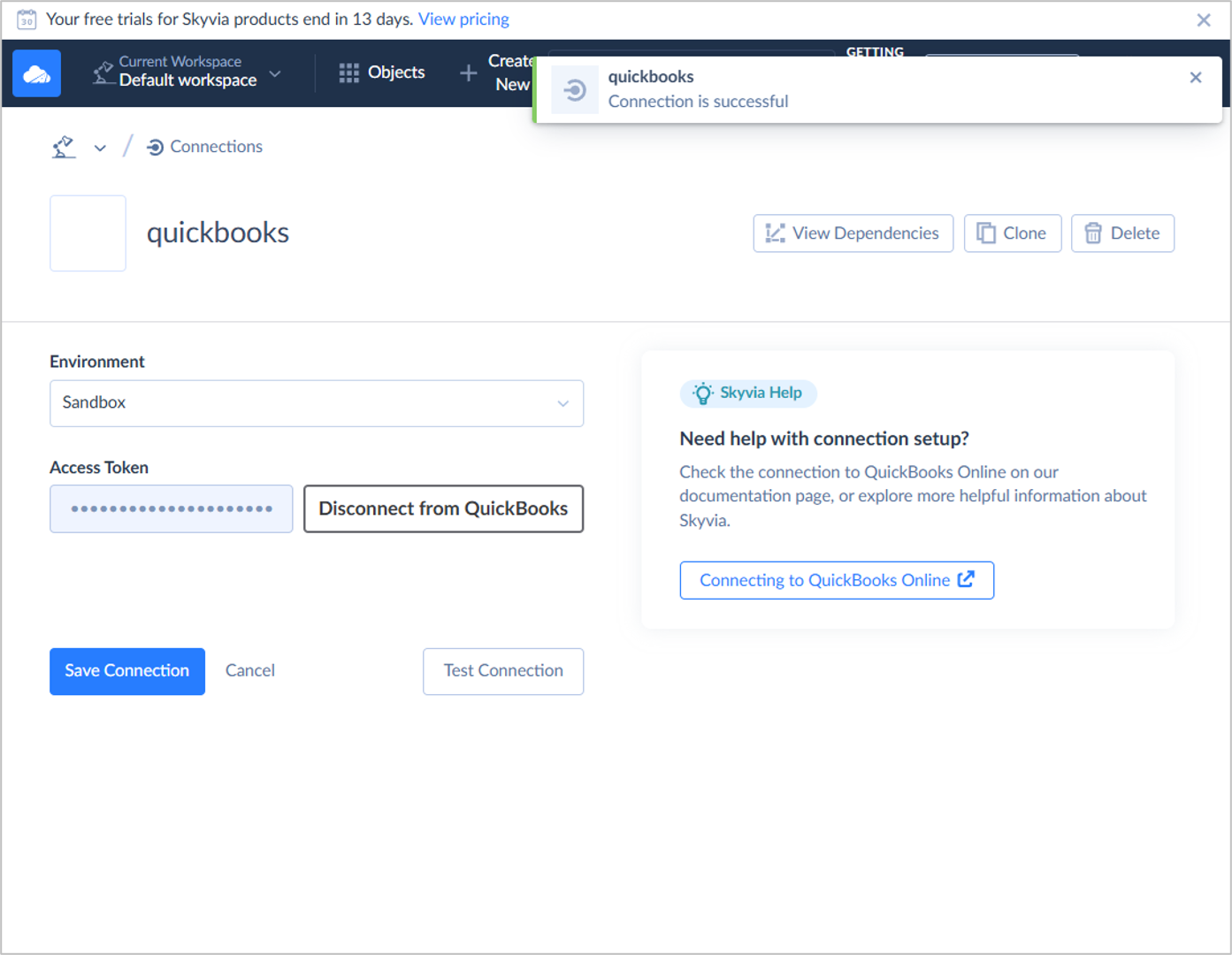
- Create a Skyvia Connection to QuickBooks. Click + Create New -> Connection. Search for QuickBooks and choose QuickBooks Online. You will see a page like the one below. Choose the Environment, then click Connect to QuickBooks to open a new browser tab or window, then sign-in to QuickBooks and select a company. Test and click Create Connection.
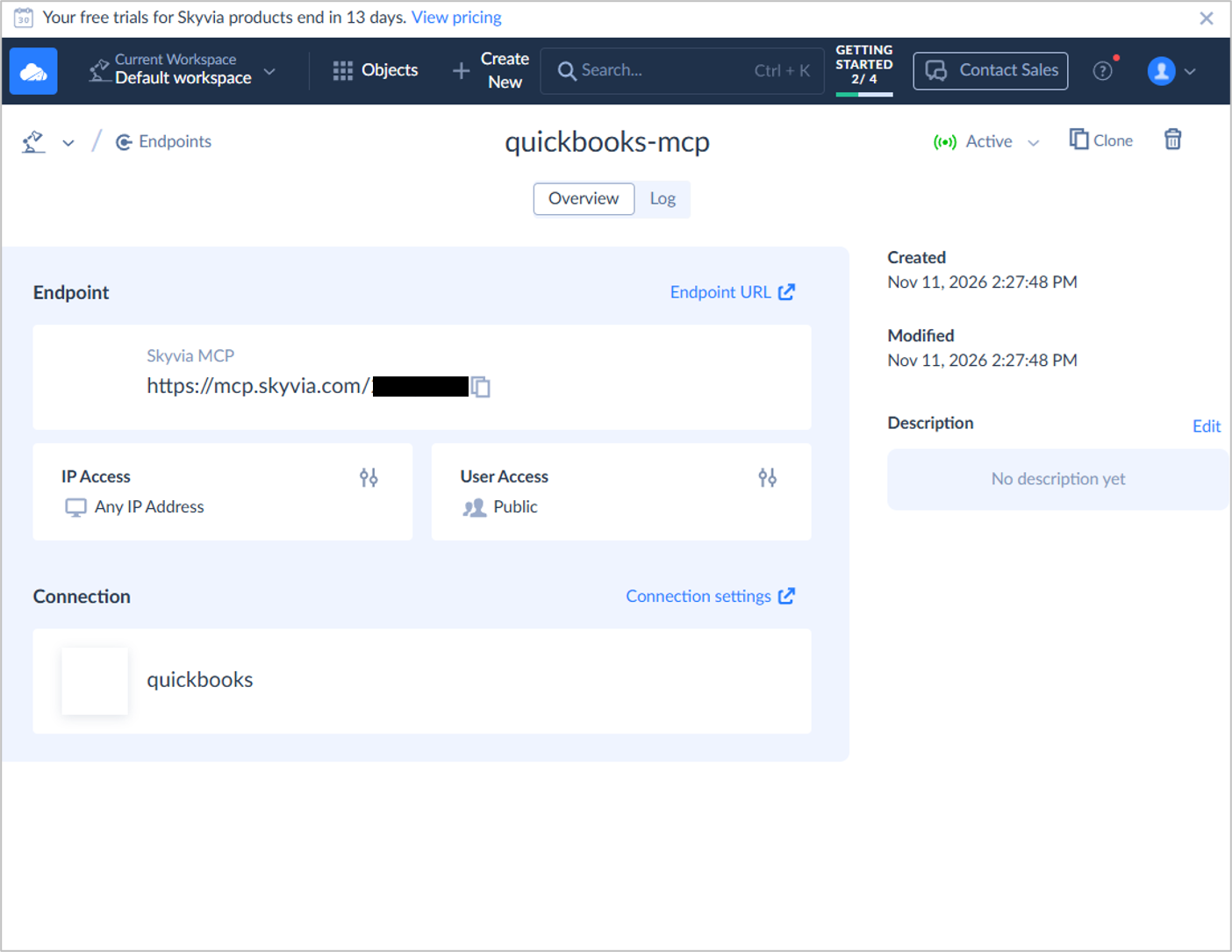
- Create a Skyvia MCP Endpoint using the QuickBooks connection in #1. Click + Create New -> MCP Endpoint. Follow the wizard by choosing the QuickBooks connection in #1, optionally set an IP allowlist and user access. Then, you will see a page like the one below. Copy the endpoint URL.
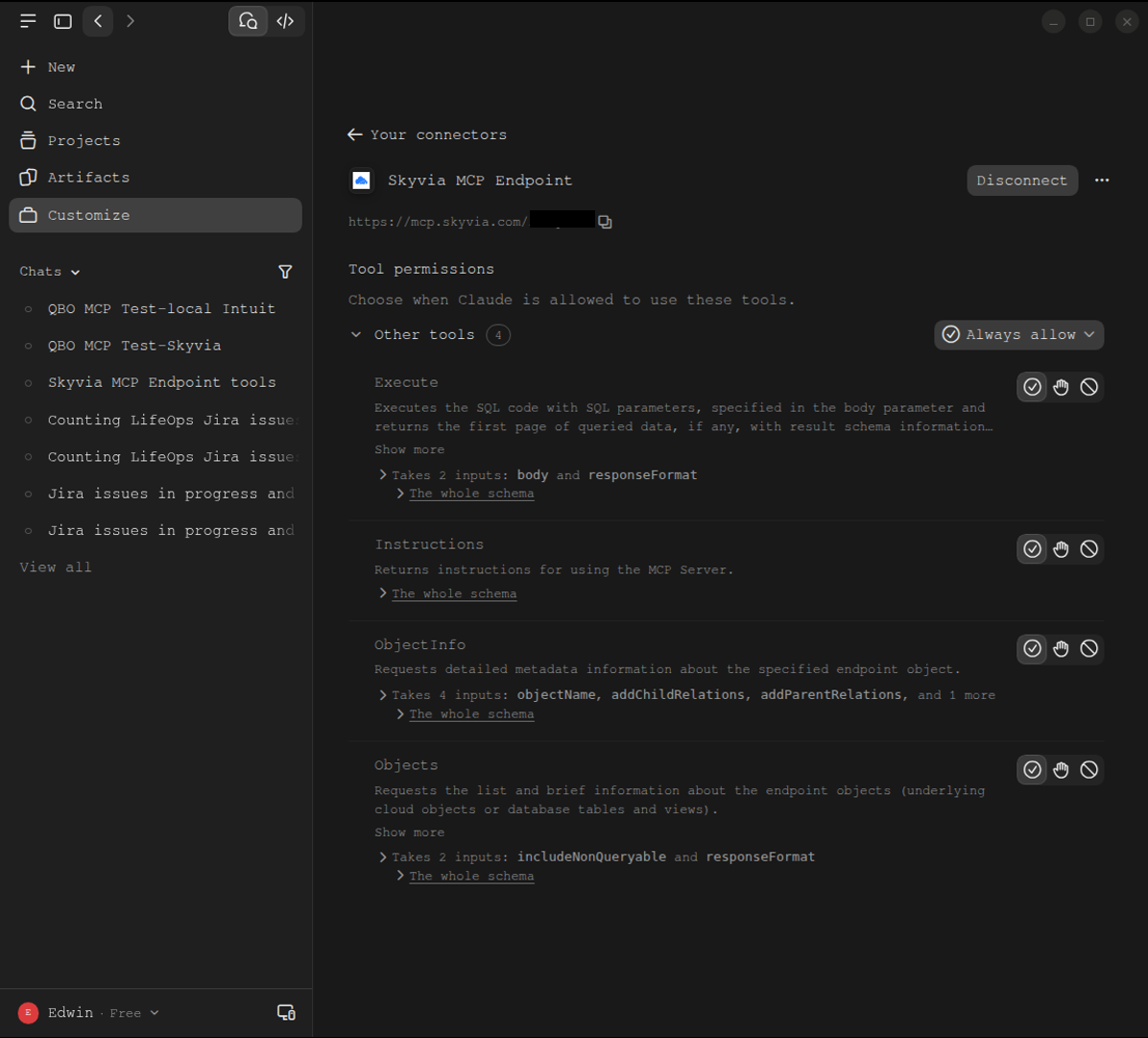
- Configure the MCP client like Claude using the endpoint URL in #2. Using Claude Desktop, click Customize -> Connectors -> Yours -> Add Custom Connector. Name the connector (e.g., Skyvia MCP Endpoint) and paste the endpoint URL in #2. Then, click Continue -> No Sign in -> Add. The final page will be the same as below:
From here, you can create a new chat in Claude and do some tests like the ones we did earlier.
Monitoring usage and errors in the Skyvia Endpoint can be done with the Log tab of the MCP Endpoint. See below:
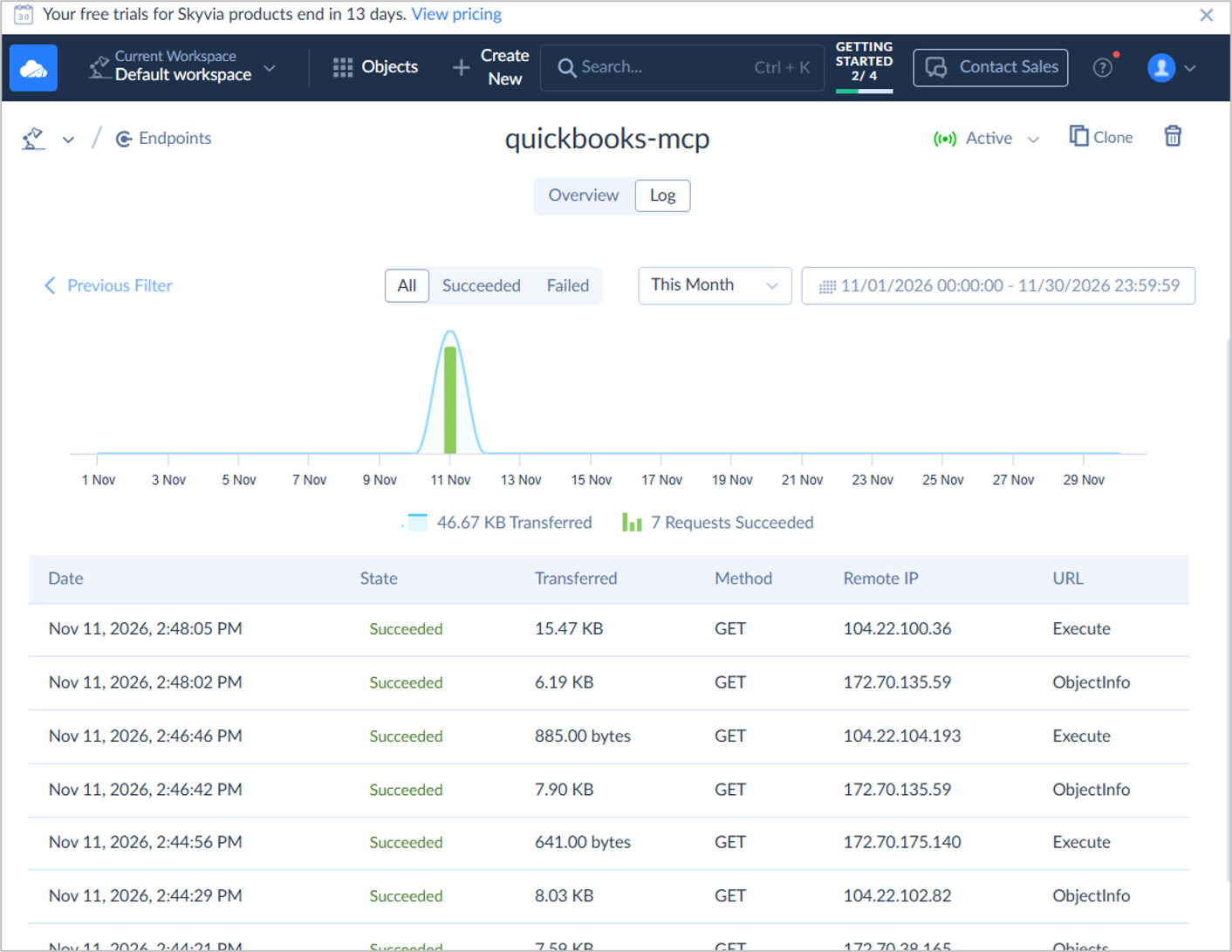
How Do You Connect QuickBooks to Claude With Intuit’s Connector?
If you’re an Intuit US customer, you can follow the following steps:
- Open Claude Desktop and click Customize -> Connectors.
- Search for Intuit QuickBooks.
- Click Connect to Claude. See a sample below:
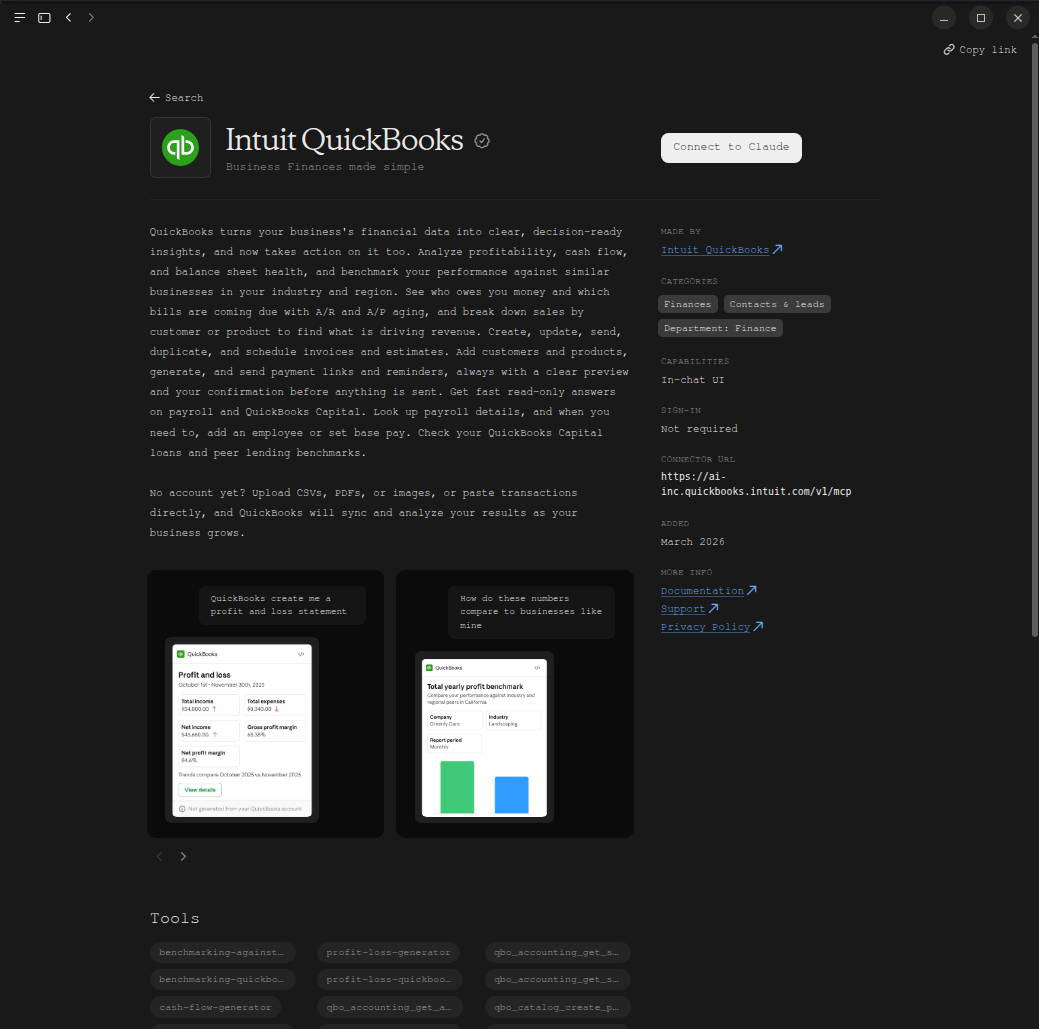
When you sign in to QuickBooks, it will know if you have a live QuickBooks company in the US.
How Do You Connect QuickBooks to ChatGPT?
The QuickBooks ChatGPT plugin is not searchable on my end. But OpenAI shows that it’s as simple as Claude’s, as mentioned here.
- Open ChatGPT.
- Click Plugins and search for Intuit QuickBooks.
- Click Install plugin and connect to QuickBooks.
How Do You Run Intuit’s Open-Source QuickBooks MCP Server in Claude Desktop?
This needs Node.js, npm, and git. I also ran a series of CLI commands before I configured the MCP in Claude Desktop.
Prepare Local Environment and Install Prerequisites
To prepare my local environment, I installed Node.js. I already have git, though. Then, I cloned the GitHub repository of the MCP server:
git clone https://github.com/intuit/quickbooks-online-mcp-server.git
cd quickbooks-online-mcp-server
Then, I installed the dependencies:
npm installAnd build the project:
npm run buildThe build should generate a dist directory containing the compiled JavaScript files. That dist directory should contain the following files:
- index.js
- auth-server.js
Get Client ID and Secret, and Add Redirect URI
I registered to Intuit Developer and created an app called “Test App.” Then, I clicked the app -> Keys and credentials. After that, I copied the Client ID and Secret. Check it out below:
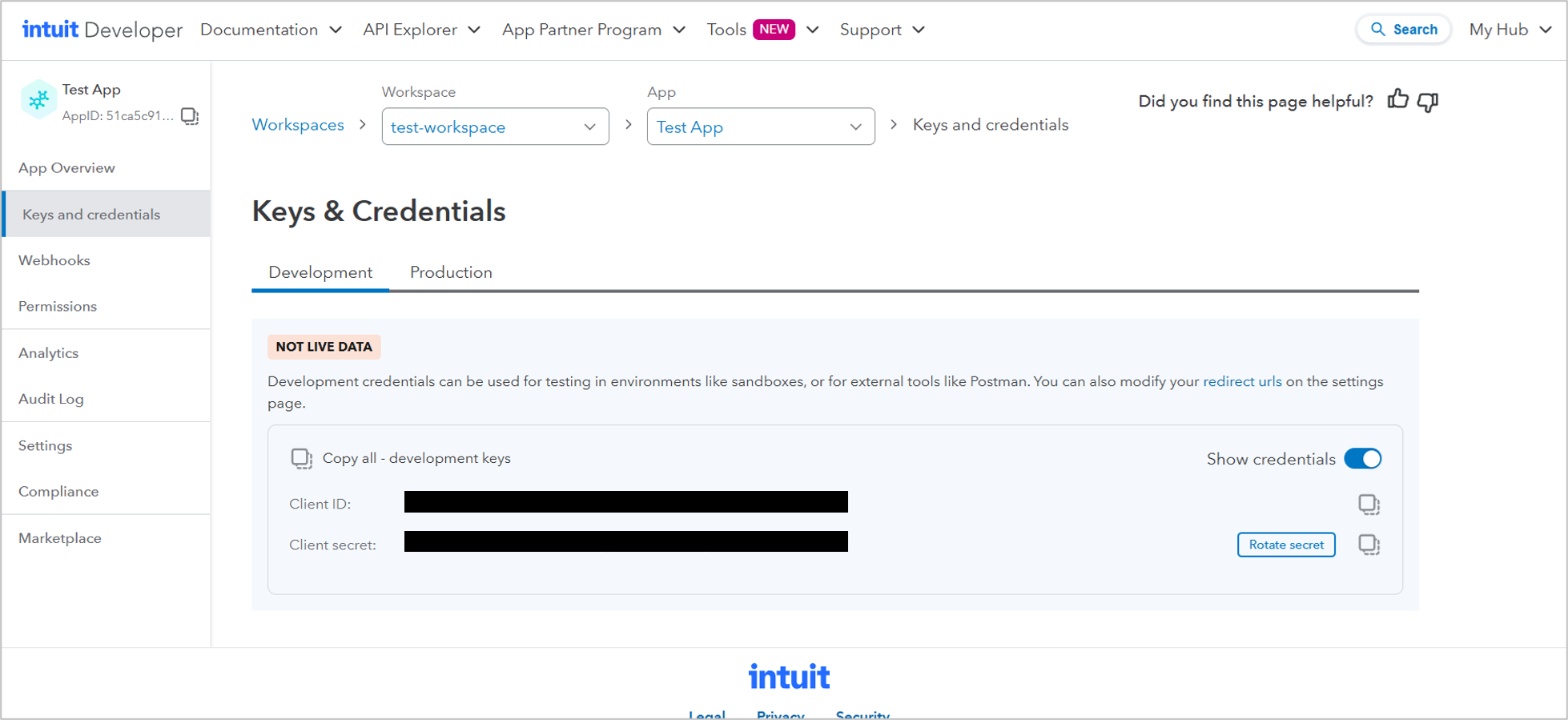
Since, my QuickBooks company is in a sandbox environment, I have to define a redirect URI to localhost:
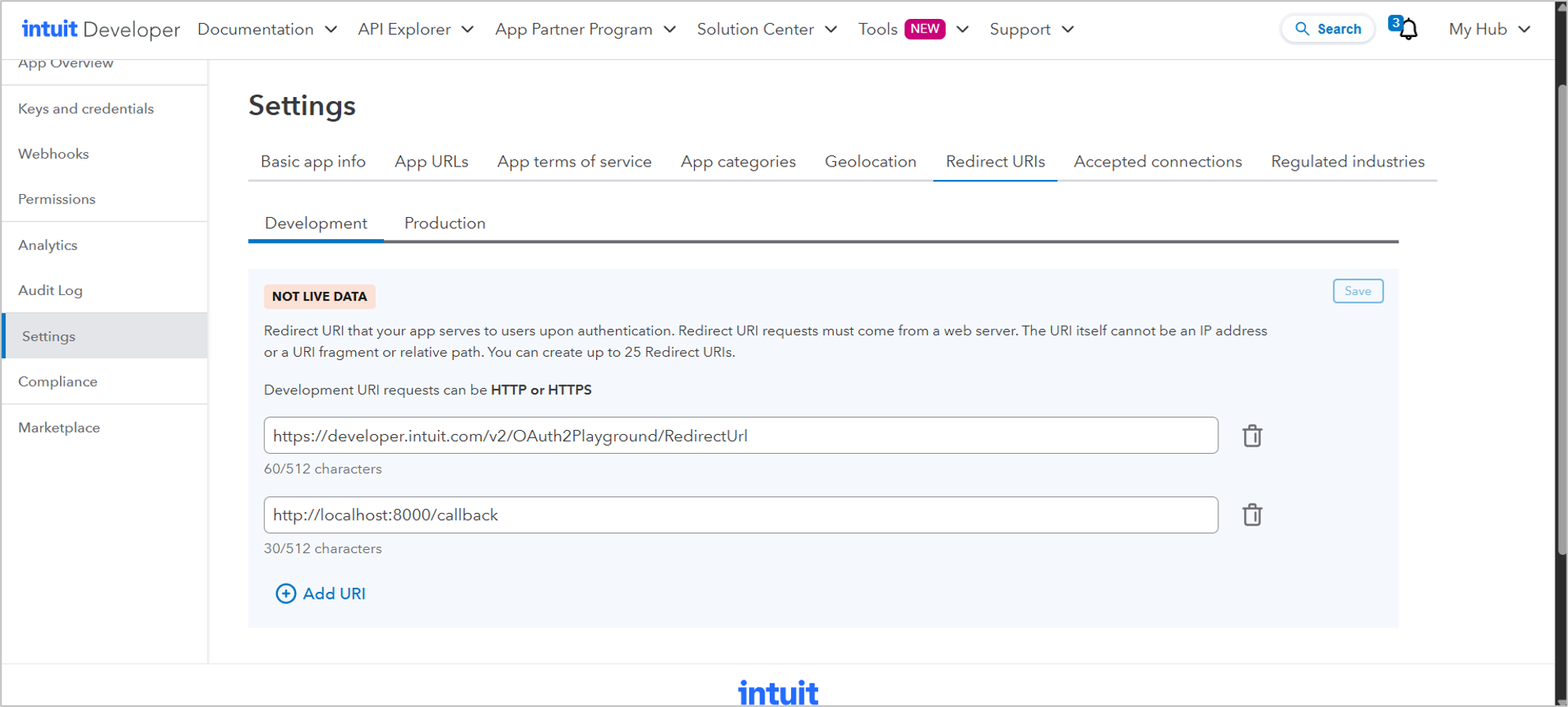
Inside the folder where I cloned the MCP server from GitHub, I created a .env file.
QUICKBOOKS_CLIENT_ID=your_development_client_id
QUICKBOOKS_CLIENT_SECRET=your_development_client_secret
QUICKBOOKS_ENVIRONMENT=sandbox

QUICKBOOKS_DISABLE_WRITE=false
QUICKBOOKS_DISABLE_UPDATE=true
QUICKBOOKS_DISABLE_DELETE=true
Prepare .env File and Authorize in QuickBooks
I pasted the Client ID and Secret from the Developer portal into the .env file. I need a write test, so I set QUICKBOOKS_DISABLE_WRITE to false.
Then, in my Terminal, I ran:
npm run authThis will open a browser so I can sign in to QuickBooks and select my sandbox company. After completing the authorization, my final .env file looks like this:
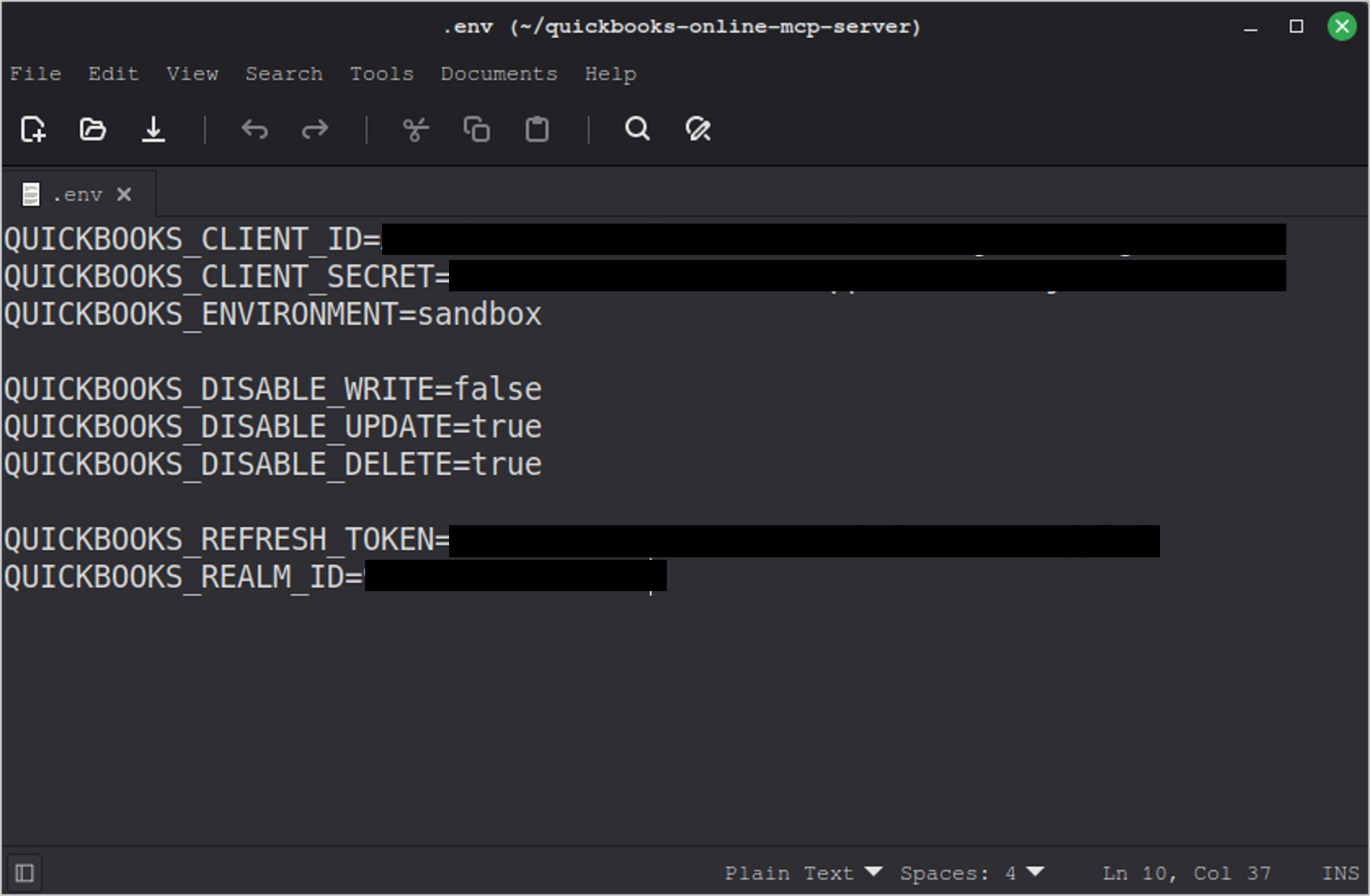
The authorization added the Refresh Token and Realm ID. The QuickBooks MCP server is now ready.
Before I configured Claude Desktop, I checked where my Node.js is:
which node
readlink -f "$(which node)"
This is important because the node command in Claude should point to where Node.js is.
Configure in Claude Desktop
Then, in Claude Desktop, click Settings -> Desktop app -> Extensions. Click Edit config.
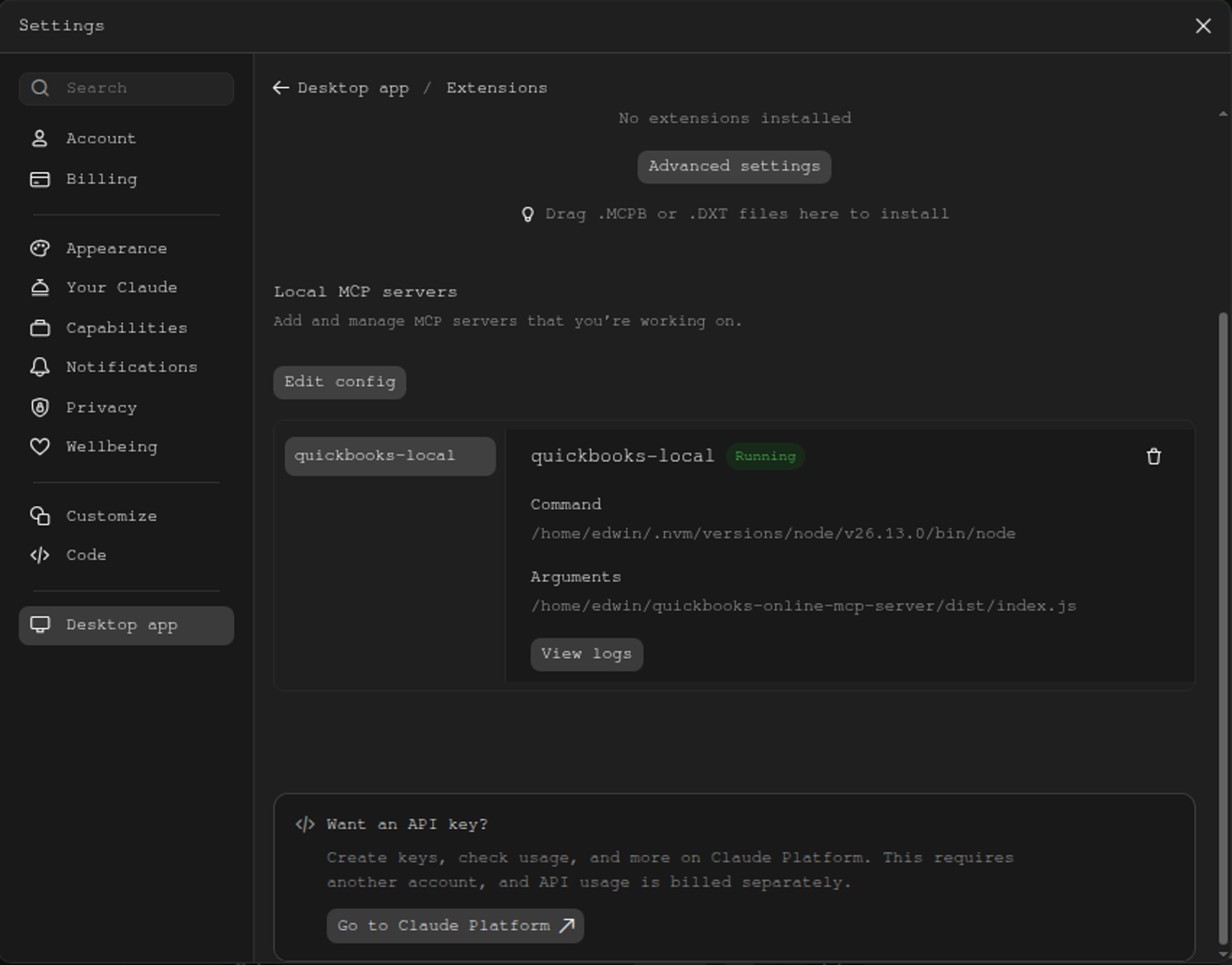
A new window appears where the file is located. I opened the file claude_desktop_config.json and added the following under the mcpServers:
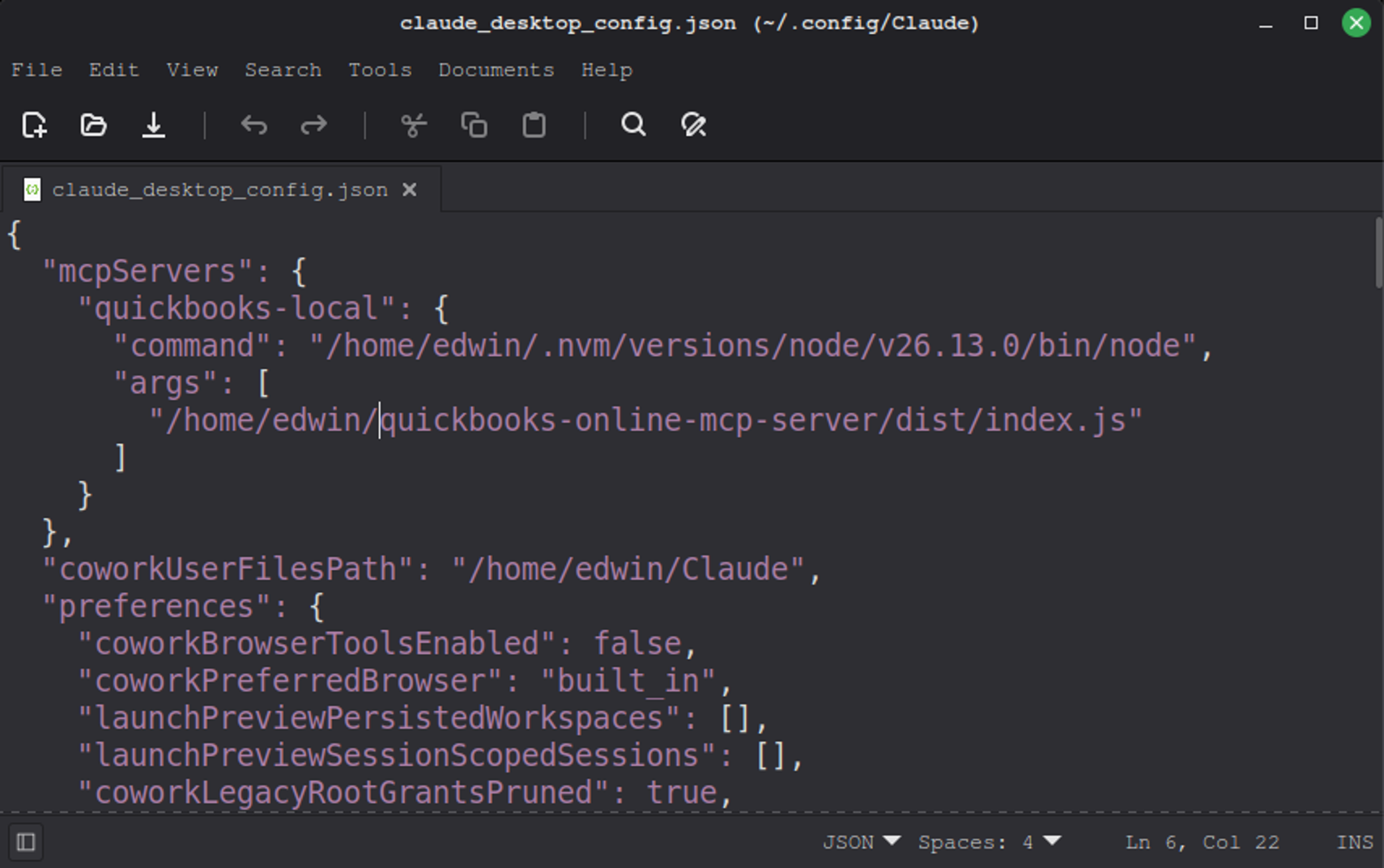
Notice that I used Node.js v26.13 and specified the absolute path. I added index.js as an argument along with its absolute path.
After that, the quickbooks-local MCP server is now in Claude. Below is the final result for this local QuickBooks MCP server:
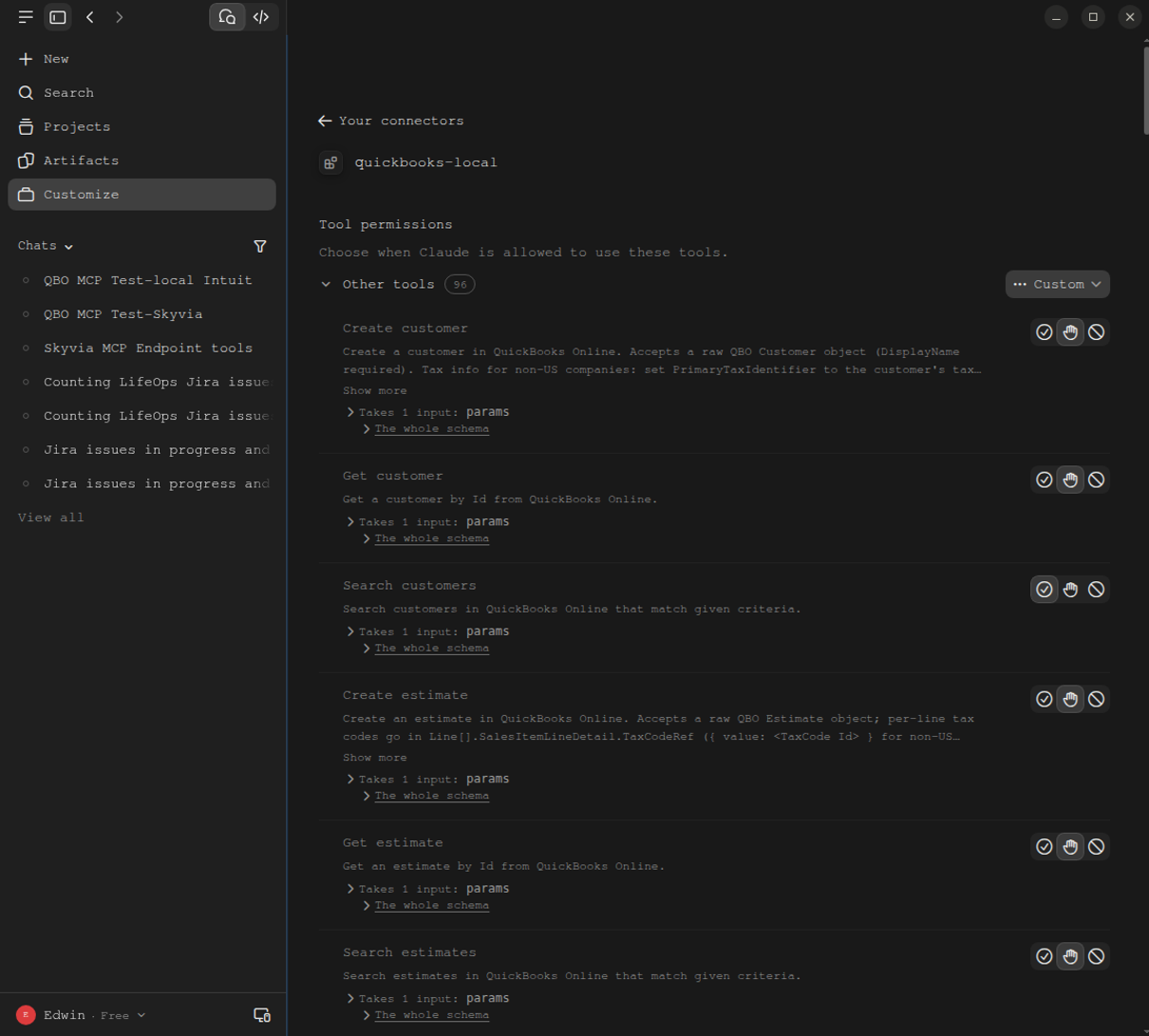
After this, I restarted Claude Desktop and performed the tests we made earlier.
Which Prompts Deliver Immediate Value With QuickBooks MCP?
QuickBooks MCP becomes more useful when you give it a specific accounting task, define the expected output, and set clear boundaries for modifying records.
The following are three prompts you can copy and adapt.
How Can Accountants Speed Up Collections?
This prompt helps accountants identify overdue customers and prepare payment reminders without automatically contacting anyone.
Using the connected QuickBooks company, retrieve all unpaid invoices that are more than 30 days overdue. Group the results by customer and return: - Customer name - Invoice number - Invoice date - Due date - Days overdue - Outstanding balance - Total overdue balance per customer Sort customers by their total overdue balance, highest first. Then draft a polite payment reminder email for each customer. Include the relevant invoice numbers, outstanding amounts, and due dates. Do not send emails, update invoices, record payments, or modify any QuickBooks data. Present the results in a table and the email drafts separately. Ask for approval before performing any write operation.Sample Response
I tried the above prompt in Claude Desktop using the Skyvia MCP Endpoint. Here’s what I got:
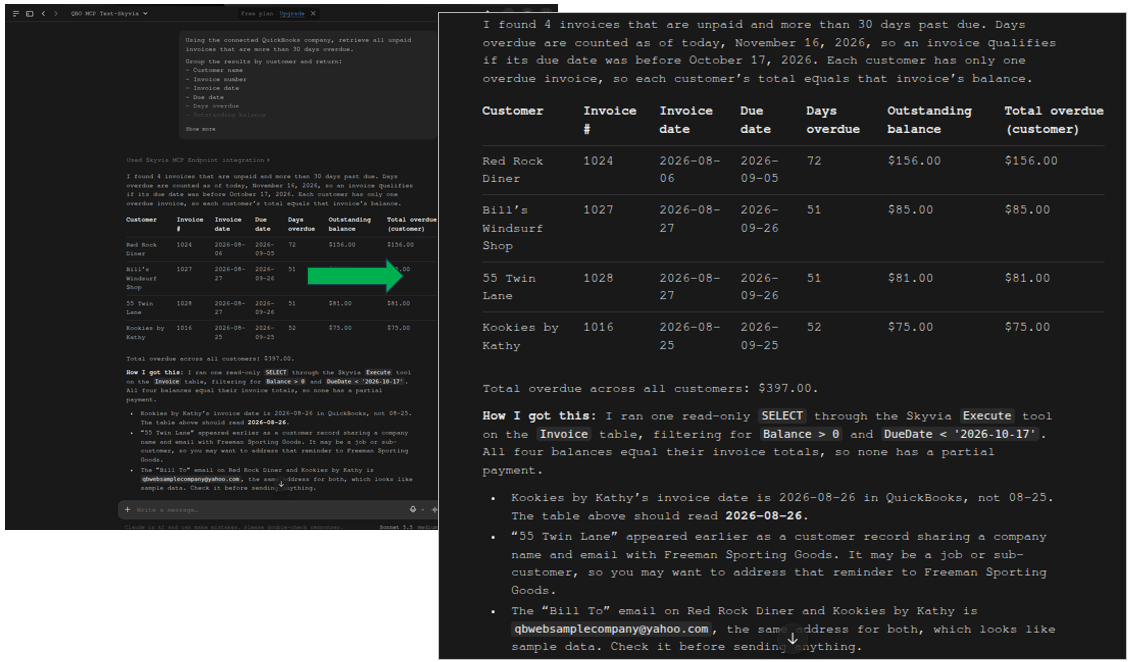
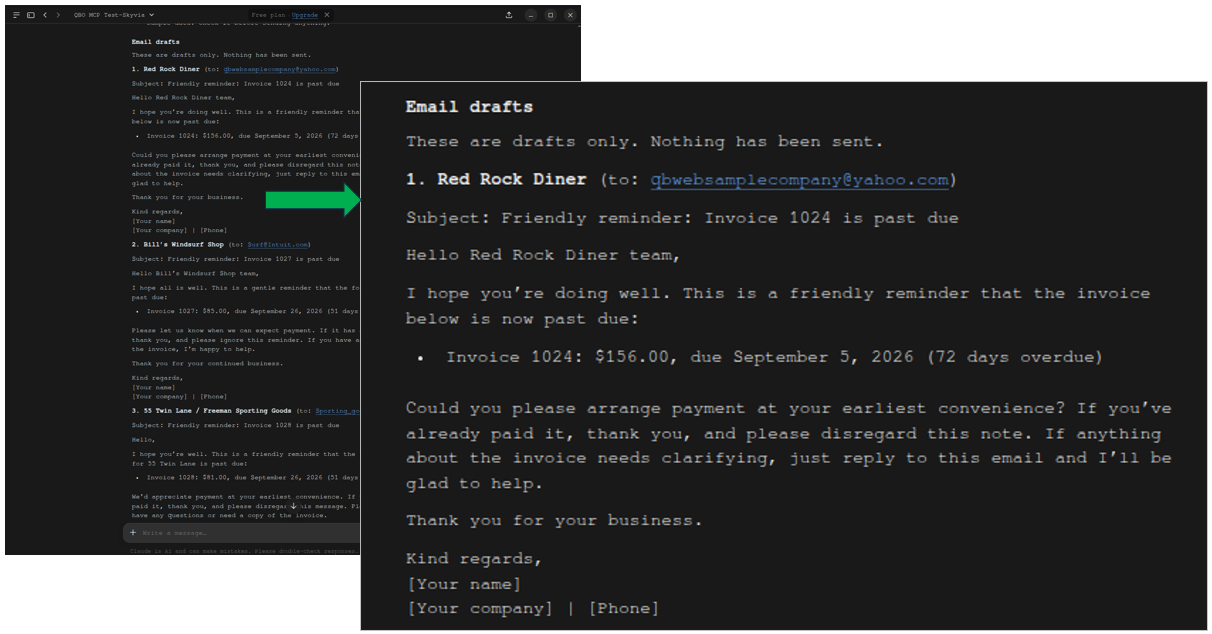
It also gave sample email drafts for each customer. Below is a sample for the first customer:
How Can Finance Teams Explain Month-End Variances?
This prompt compares financial performance across three periods and identifies transactions that may explain significant changes.
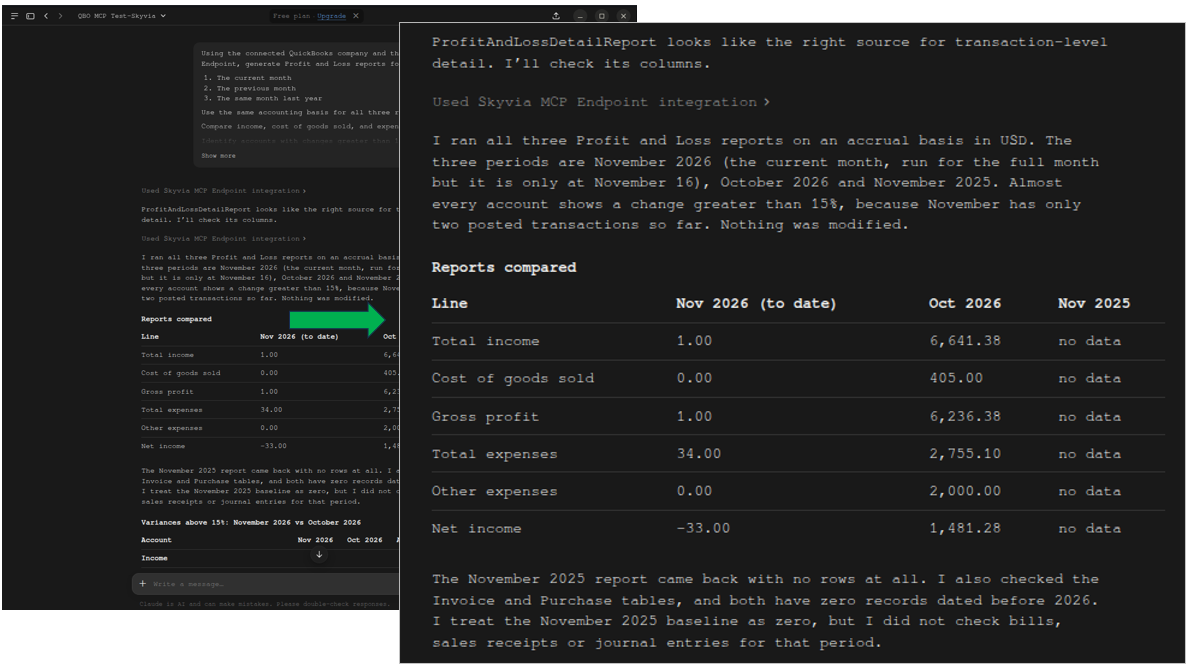
Using the connected QuickBooks company, generate Profit and Loss reports for: 1. The current month 2. The previous month 3. The same month last year Use the same accounting basis for all three reports. Compare income, cost of goods sold, and expense accounts. Identify accounts with changes greater than 15% in either direction. Show: - Account name - Current-period amount - Comparison-period amount - Absolute change - Percentage change For each significant variance, retrieve the top five transactions contributing to the change. Explain possible reasons for the variances based on the available transaction details. Distinguish verified facts from assumptions. Do not modify any QuickBooks records.Sample Response
Using Claude Desktop and Skyvia MCP Endpoint, below is a sample response. The response is very long with explanation. Here’s the first:
And the next:
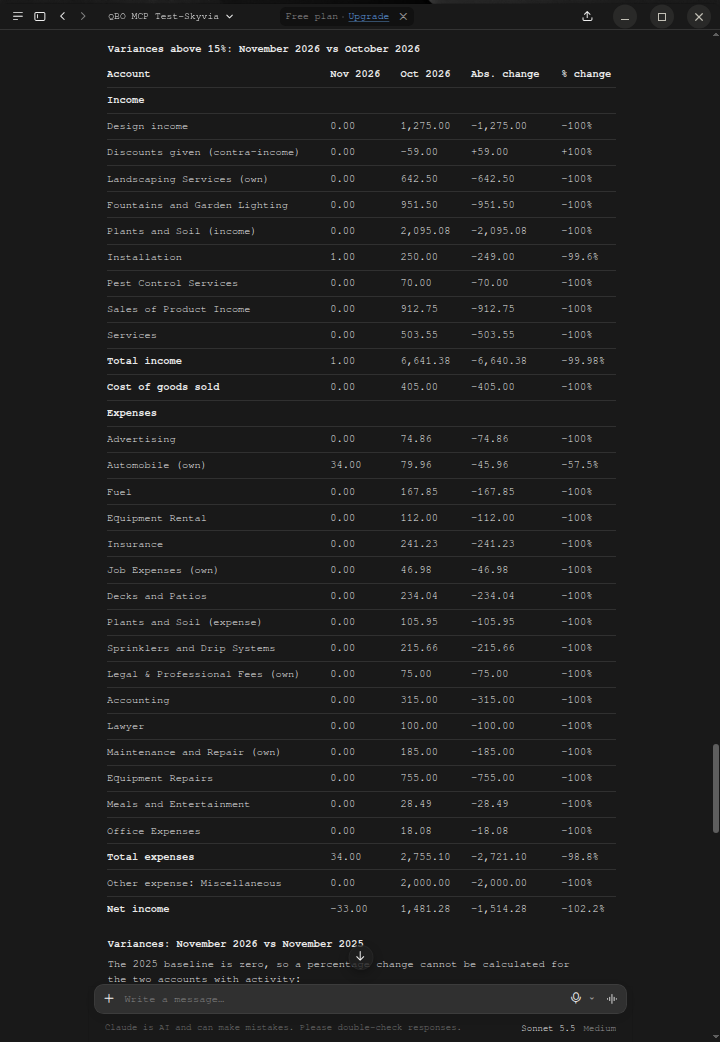
In continuation, below are the summary of variances and a portion of the top transactions behind the variance:
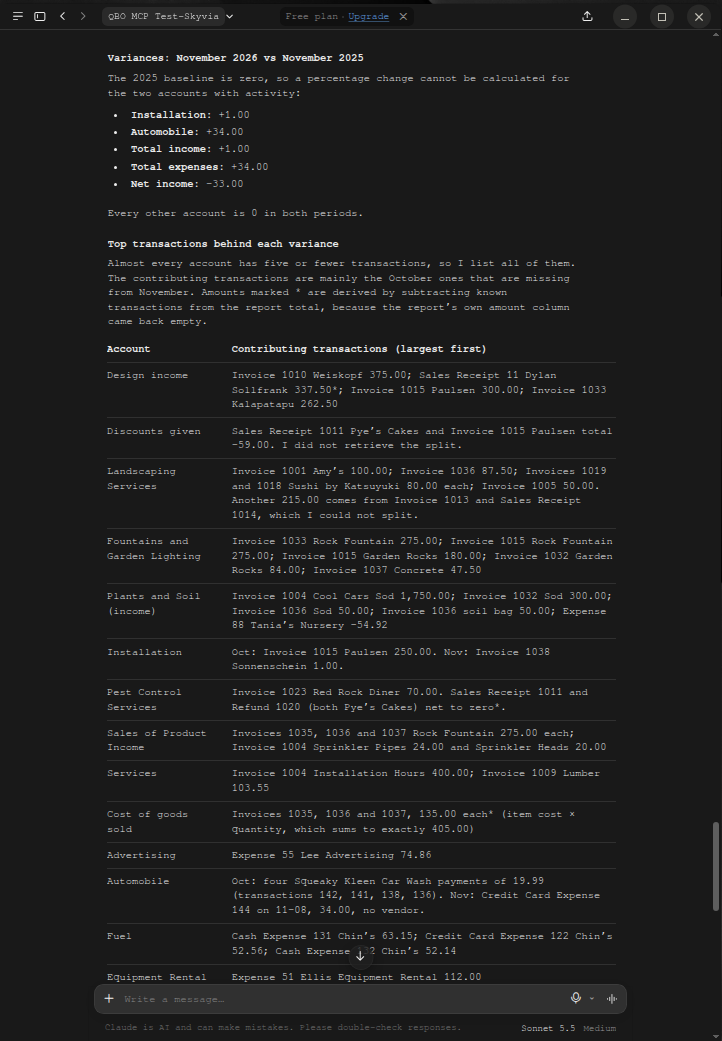
In testing, Claude successfully used the Skyvia MCP Endpoint to retrieve detailed QuickBooks data, organize overdue invoices by customer, draft payment reminders, and analyze financial variances. This demonstrates how MCP can turn accounting data into actionable insights without requiring users to manually navigate multiple QuickBooks screens.
How Can You Reconcile QuickBooks With CRM or Payments Data?
This prompt is particularly useful with a Skyvia MCP Endpoint pointing to a consolidated QuickBooks + CRM or Stripe source. It compares records across systems and highlights missing or inconsistent transactions.
Example A: Salesforce deals vs. QuickBooks invoices
Using the connected custom Salesforce and QuickBooks data sources and Skyvia MCP Endpoint, compare all Salesforce opportunities marked Closed Won during the current month with QuickBooks invoices. Match records using the customer name and, where available, the deal or reference number. Identify: - Closed-won deals without matching QuickBooks invoices - QuickBooks invoices without matching closed-won deals - Differences between deal amounts and invoice totals - Differences in customer names or transaction dates Return the results in separate tables for missing invoices, unmatched invoices, and amount discrepancies. Do not create invoices, update Salesforce opportunities, or modify either system.Example B: Stripe payouts vs. QuickBooks deposits
Using the connected Stripe and QuickBooks data sources, compare Stripe payouts with QuickBooks bank deposits for the previous calendar month. Match records using payout references, transaction dates, and amounts where available. Identify: - Stripe payouts without matching QuickBooks deposits - QuickBooks deposits without matching Stripe payouts - Amount discrepancies - Possible duplicate deposits - Differences in transaction or settlement dates Show the Stripe payout ID, QuickBooks deposit ID, dates, amounts, and discrepancy for each mismatch. Summarize the total matched amount and unmatched amount. Do not create deposits, record payments, or modify either system.Important: For cross-system reconciliation, matching customer names and amounts alone isn’t always sufficient. Prefer stable identifiers such as Salesforce opportunity IDs, Stripe payout IDs, and QuickBooks transaction references. This reduces false matches and makes discrepancies easier to investigate.
I don’t have a sample output for this because I don’t have a consolidated QuickBooks + Salesforce + Stripe source.
What Are the Known Limitations and Error States of QuickBooks MCP?
QuickBooks MCP servers can encounter API errors, authentication problems, and data retrieval issues. Understanding their causes makes troubleshooting easier.
HTTP 429 ThrottleExceeded (error Code 003001)
Root cause: QuickBooks Online limits API requests per company. Too many requests, especially concurrent requests, can trigger throttling.
Fix: Narrow date ranges, reduce maxResults, and avoid unnecessary parallel requests. Wait before retrying. For bulk data retrieval, consider using a dedicated data pipeline to summarize or aggregate figures instead of repeated MCP calls.
invalid_grant / Expired Refresh Token
Root cause: The OAuth refresh token may have expired, been revoked, or become invalid after token rotation. Intuit refresh tokens have a 100-day maximum inactivity window.
Fix: Reauthorize the connection through OAuth and store the newly issued tokens. Hosted integration services may handle token refresh automatically, but revoked authorization still requires user intervention.
Stale Object Error on Update
Root cause: QuickBooks uses SyncToken for optimistic concurrency control. An update using an outdated token can fail because another operation modified the record.
Fix: Retrieve the latest record, obtain its current SyncToken, and use that value in the update request.
Wrong Company or Sandbox Data
Root cause: The MCP server may use an incorrect Realm ID or the wrong environment setting, such as connecting to production instead of the sandbox.
Fix: Verify the company name, Realm ID, and environment configuration before running operations. Start each test by confirming the connected QuickBooks company.
Context Window Overflow on Large Reports
Root cause: Retrieving thousands of transactions or lengthy report results can overwhelm the AI model’s context window. The model may lose earlier information or fail to process the complete dataset.
Fix: Filter by date, account, or transaction type. Request summarized reports instead of raw records. For large-scale analysis, use a database or data pipeline to aggregate the data before sending results to the AI.
What Is the Verdict: Which QuickBooks MCP Server is Right for You?
The best choice depends on how you want to use your QuickBooks data.
When to Choose Skyvia MCP Endpoints
Choose Skyvia for team-wide AI access, centralized governance, and connections to QuickBooks Desktop and other data sources without local MCP server setup.
When to Choose Intuit’s Options
Choose Intuit’s native connectors if you’re an eligible US QuickBooks Online user who wants to chat with your accounting data. Developers can use its open-source MCP server to build custom integrations.
When to Choose Skyvia Data Integration
Choose Skyvia Data Integration for reporting, data warehousing, consolidation, CRM synchronization, and backups. It’s designed for structured, repeatable data workflows.

FAQ for QuickBooks MCP Server

Can Claude or ChatGPT Connect to QuickBooks Desktop?
Yes, but not through Intuit’s official MCP integrations, which target QuickBooks Online only. Skyvia MCP Endpoint supports QuickBooks Desktop, so Claude or ChatGPT can query its company data through one hosted endpoint URL.
How Do You Make a QuickBooks MCP Server Read-Only So AI Cannot Post Transactions?
For Intuit’s local MCP server, set QUICKBOOKS_DISABLE_WRITE, QUICKBOOKS_DISABLE_UPDATE, and QUICKBOOKS_DISABLE_DELETE to true. Restart the server. Also use read-only QuickBooks permissions where available.
Can One QuickBooks MCP Server Access Several QuickBooks Companies?
It depends on the server. Intuit’s local MCP configuration uses a company-specific Realm ID. To connect multiple companies, configure separate server instances with their own credentials and company IDs.
Is It Safe to Let an AI Agent Create Invoices or Journal Entries in QuickBooks?
It carries risks. AI can select incorrect customers, accounts, amounts, or tax settings. Restrict permissions, review transactions before posting, and test in a sandbox first. Never rely on AI without human oversight.
Why shouldn’t you rely on QuickBooks MCP alone for financial dashboards and month-end reporting?
MCP is useful for conversational queries, but dashboards and month-end reports need consistent calculations, reconciled data, repeatable results, and audit trails. Use dedicated reporting tools and verify figures against QuickBooks.