Summary
- The best ways to connect Xero to BigQuery include Skyvia for no-code integration, Fivetran for managed enterprise pipelines, Airbyte for self-hosted data control, custom Python for flexible workflows, and G-Accon for spreadsheet-based reporting.
Finance teams need on-time cash flow, MRR, AR aging, and cross-departmental P&L dashboards, but Xero’s native reporting cannot easily combine financial data with Salesforce, Stripe payments, or Google Ads spend. Building a Xero to BigQuery pipeline enables unified analytics.
However, there are challenges in integrating Xero and other sources into BigQuery.
Here’s the thing: We are the Skyvia team, and we naturally favor our no-code platform. Still, Airbyte may suit engineering-heavy teams, while Fivetran serves enterprise needs. This guide compares them and more using the same technical evaluation.
Let’s dive in.
How Did We Test and Benchmark These Xero to BigQuery Integration Methods?
We’re going to need test data in Xero that we can edit to test for incremental syncs. I registered in Xero using the Demo Company (Global) and uploaded draft invoices for the test. Meanwhile, I have BigQuery access to create datasets to store the source data.
Test Dataset
I’m limited to trial accounts and free tiers to do the tests. But these should be enough to prove the tools we chose here will work as expected. So, I uploaded 10,000 draft invoices. Xero’s Demo Company has existing draft invoices, so we have a total of 10,004 records. I’ve used existing Xero contacts plus I entered my own for these invoices. You can preview some of them below:
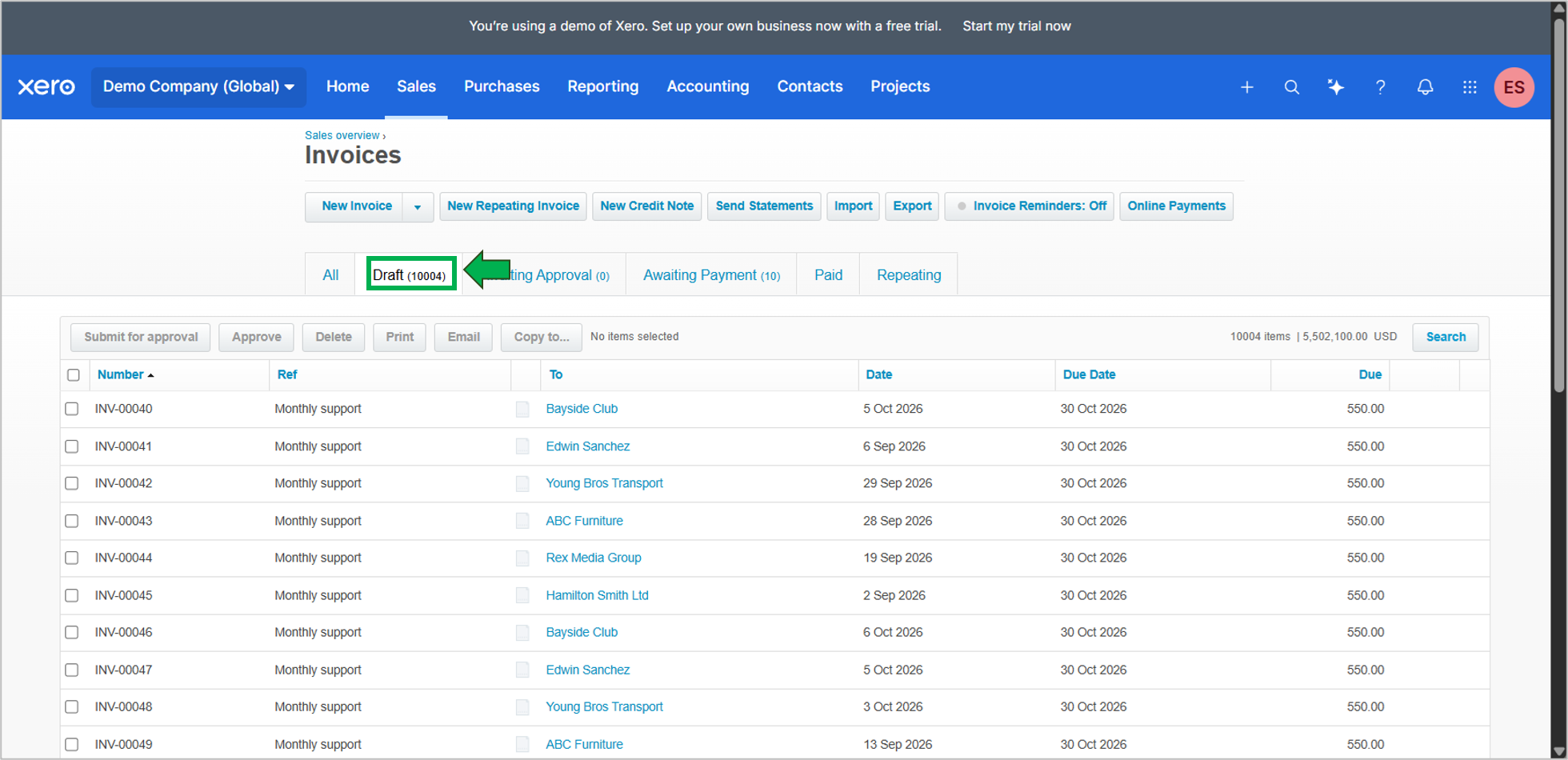
We will focus on the draft invoices because the number (boxed in green above) is visible in the Xero UI. We will use this to compare and prove the rows made it to BigQuery. The total row count and other criteria are not straightforward to compare.
Then, we will also have 52 contacts to replicate. My name was also included when I registered for Xero. See a preview of the contacts and their number below:
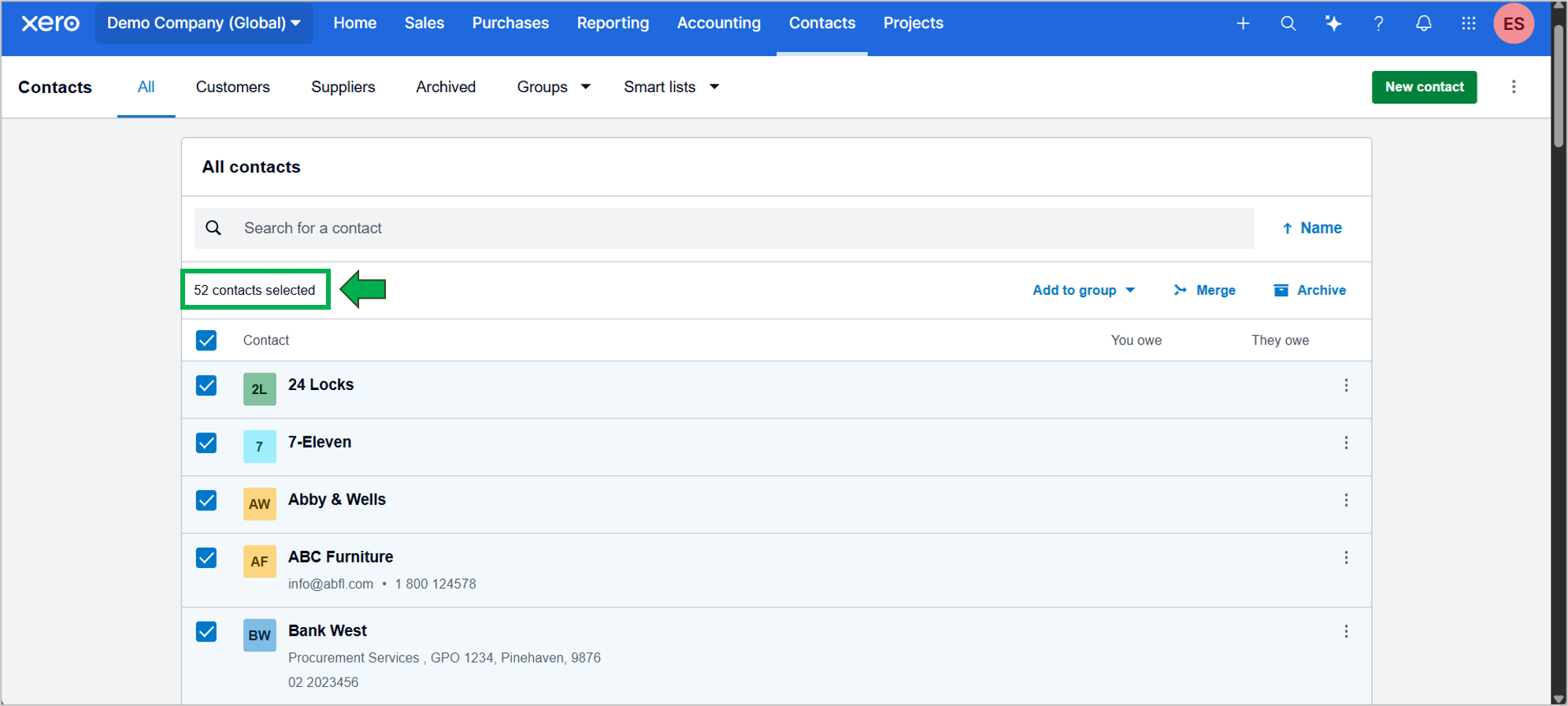
We need a consistent set of rows with uniform data for the test. Each draft contains the following information:
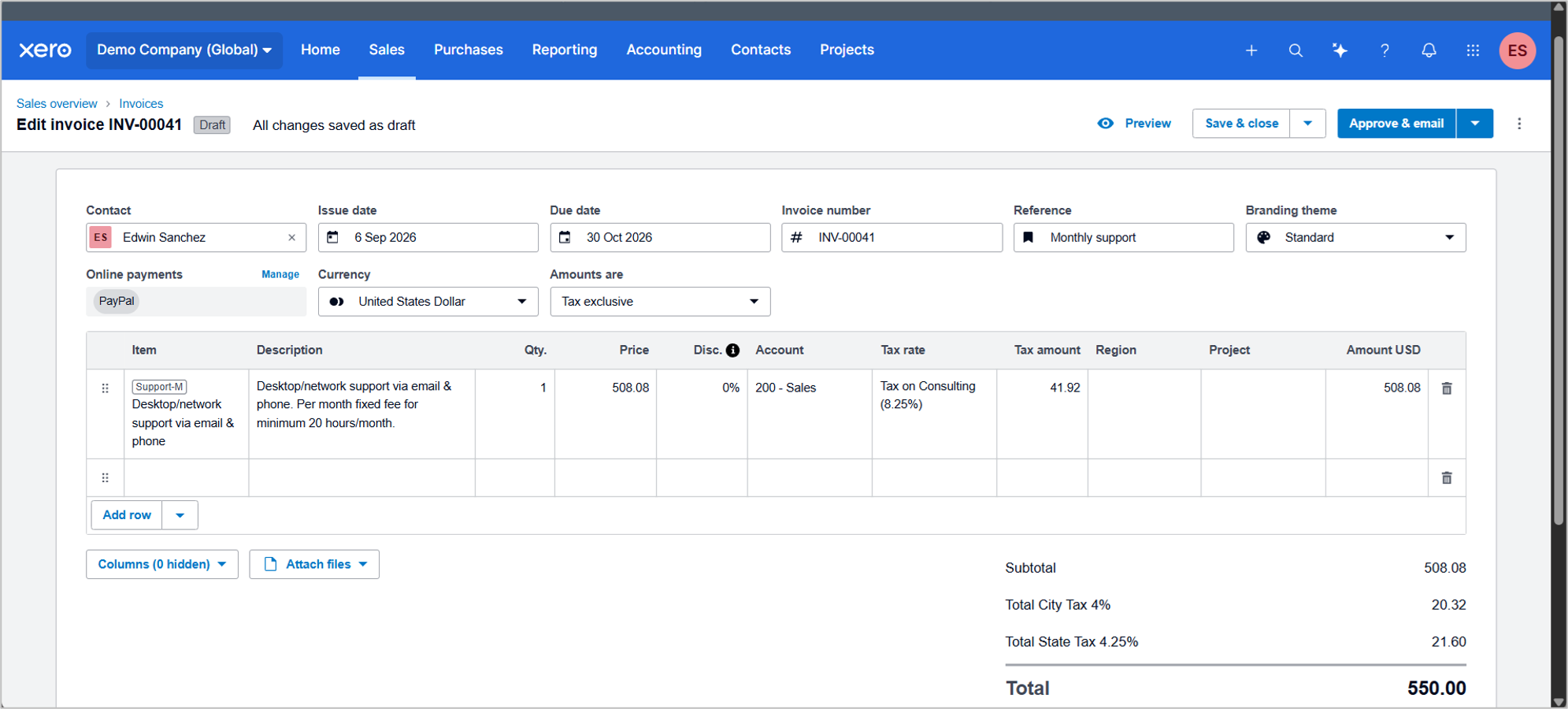
The only difference is the contact. When we edit the invoice to test for incremental sync, we will add the following:
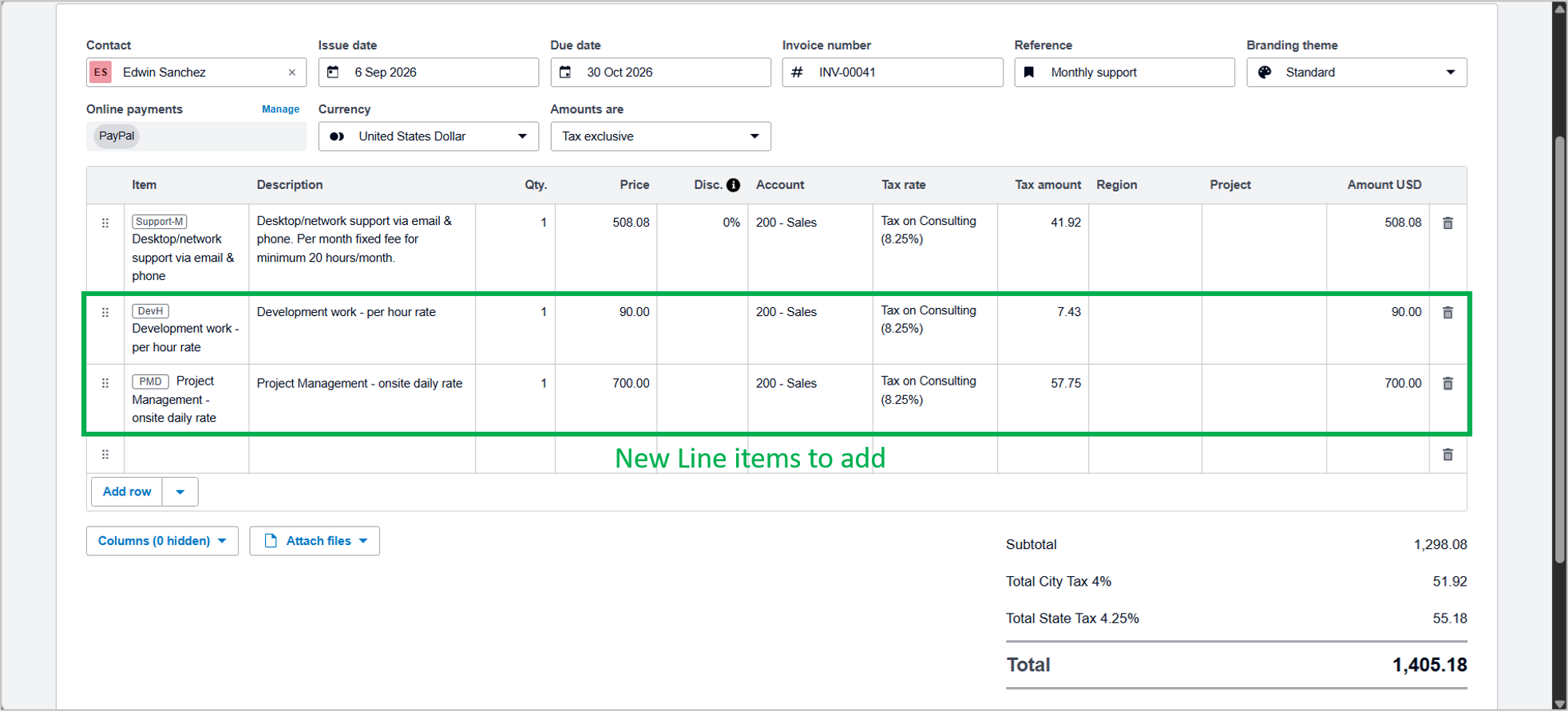
I will edit 2 invoices with the above data to test for incremental syncs. If you want to test your own, you can always add Line items, Journal entries, and others. The result will only add those datasets to BigQuery.
Destination
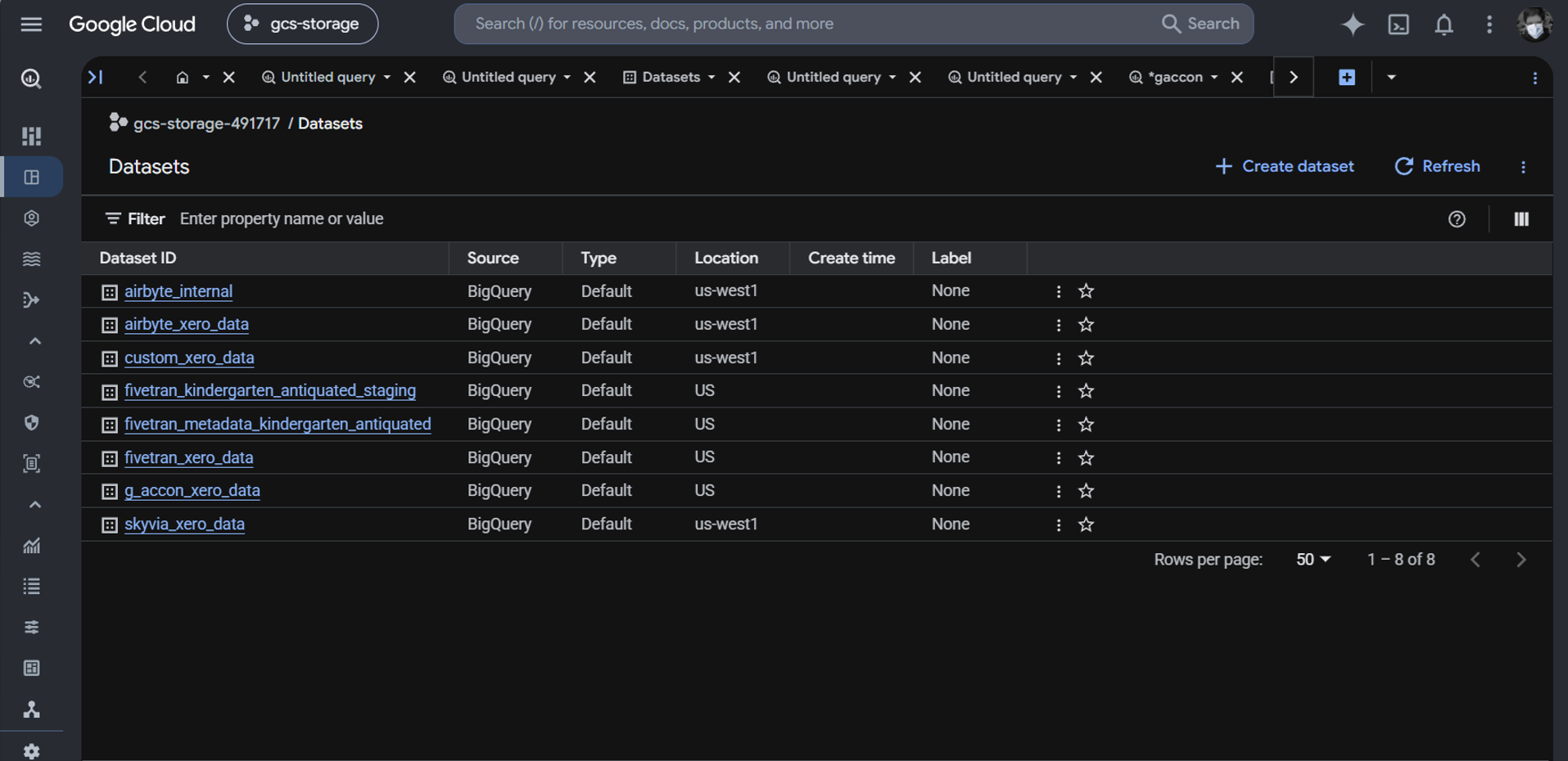
Like my previous tests, there will be one BigQuery dataset that each tool will use to replicate invoices and contacts. You can check them below. Airbyte and Fivetran will use an extra dataset for staging. This is controlled by them and not by any configuration that I can specify.
Evaluation Benchmarks
I’m going to monitor the following during the test:
- Setup time: How long will it take to connect to Xero up to the time the data finishes loading to BigQuery?
- API Throttling Handling: Behavior when hitting Xero’s 60-calls-per-minute rate limit and other limiters. The 10,000 rows we have are enough to trigger Xero API limits during replication runtime.
- Nested Schema Parsing: Will the tool flatten complex JSON data to relational tables or not?
- Incremental loading and CDC: We will do 2 tests: Initial and incremental syncs. This should capture newly changed data without triggering expensive full table re-syncs.
- Cost Predictability: Total Cost of Ownership (TCO) across 12 months at scaling volume.
What Key Criteria Should You Use to Evaluate a Xero to BigQuery ETL Solution?
Choosing between a no-code or a 100% coding solution needs the same criteria. The only difference is that the no-code solution should handle some complexities for you, while a script or app requires you to build them.
The following are the 6 things you need to consider:
| Evaluation Criterion | Technical Impact on BigQuery Financial Pipelines |
|---|---|
| 1. Xero API & Rate Limit Handling | Must automatically handle 429 Too Many Requests with exponential backoff & token refresh. |
| 2. Nested Data Normalization | Ability to unpack Contacts, Invoice Line Items, and Tax Rates into relational schemas. |
| 3. Incremental Loading Logic | Tracking UpdatedDateUTC to sync only modified accounting records without full resyncs. |
| 4. In-Warehouse Modeling Support | Compatibility with SQL transformations or warehouse-side dbt Core for P&L data models. |
| 5. Reverse ETL & Activation | Ability to push unified warehouse metrics back into CRMs (HubSpot, Salesforce). |
| 6. Cost Predictability | Transparent billing model (Record volume vs. Per-Connector MAR vs. Infra DevOps hours). |
For #2, one option is to store the raw JSON and unpack or flatten it in your queries in BigQuery. Or, for a more query-friendly approach, the JSON data are flattened during integration and stored in relational tables. The first approach is more resilient to structural changes in Xero, and your pipeline won’t break that easily. The other approach will need modifying your pipeline when Xero changes the structure, but the ease of querying after it’s unpacked can be better suited for your team.
No approach is better than the other. It’s an architectural decision you have to make. Some tools will have a balanced approach – they will flatten the JSON to relational tables AND still store some of the JSON raw data.
Each tool we will use in the following tests will help you decide.
Which Xero to BigQuery Integration Approach Best Fits Your Data Stack?
In our tests, we will use Skyvia, Fivetran, Airbyte, G-Accon for Xero, and a custom Python script. Each tool will excel over the other in some areas, as you will see next.
Let’s start with Skyvia.
Why Is Skyvia the Best Fit for No-Code Pipelines, Lean Data Teams, and Predictable Pricing?
Skyvia is a data integration platform designed to keep simplicity and ease of use in mind. While Skyvia has several ways to integrate data, we will use Skyvia Replication in this test.
Pipeline Setup
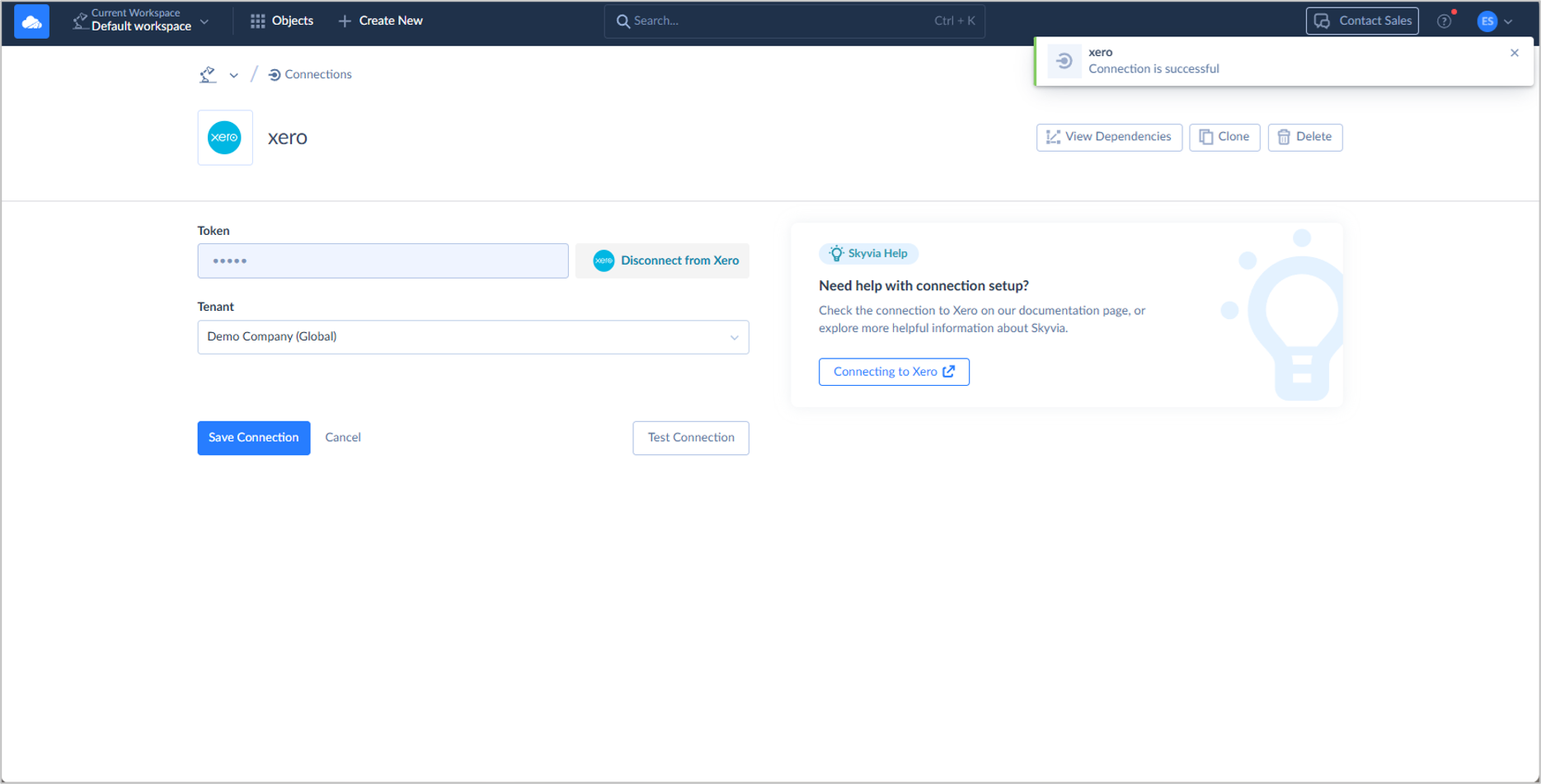
We need two Skyvia connections: one for Xero and another for BigQuery. Here’s a successful connection to my Xero Demo Company:
And here’s the one for BigQuery:
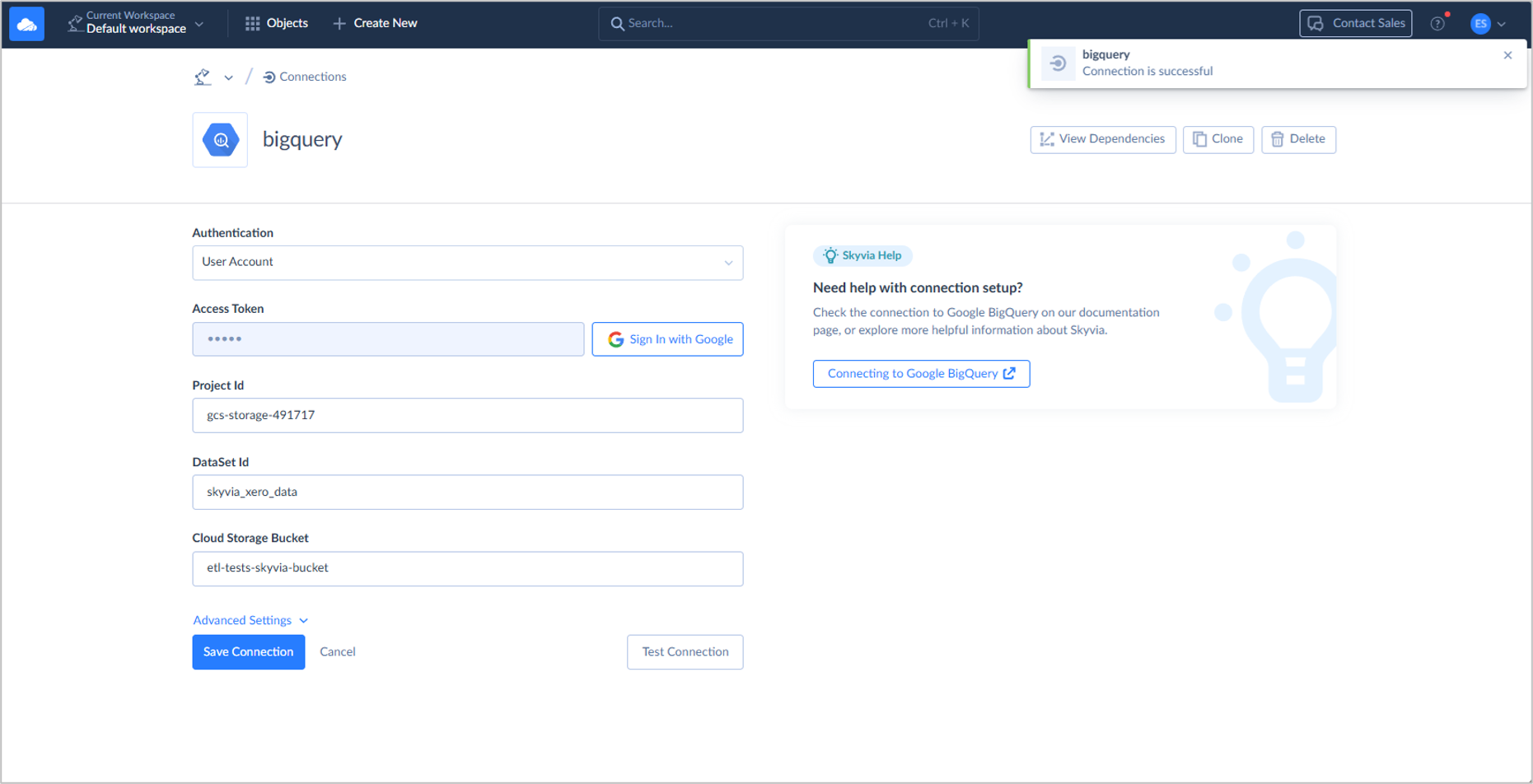
The above two connections will be used as source and destination, respectively, in the following Skyvia Replication:
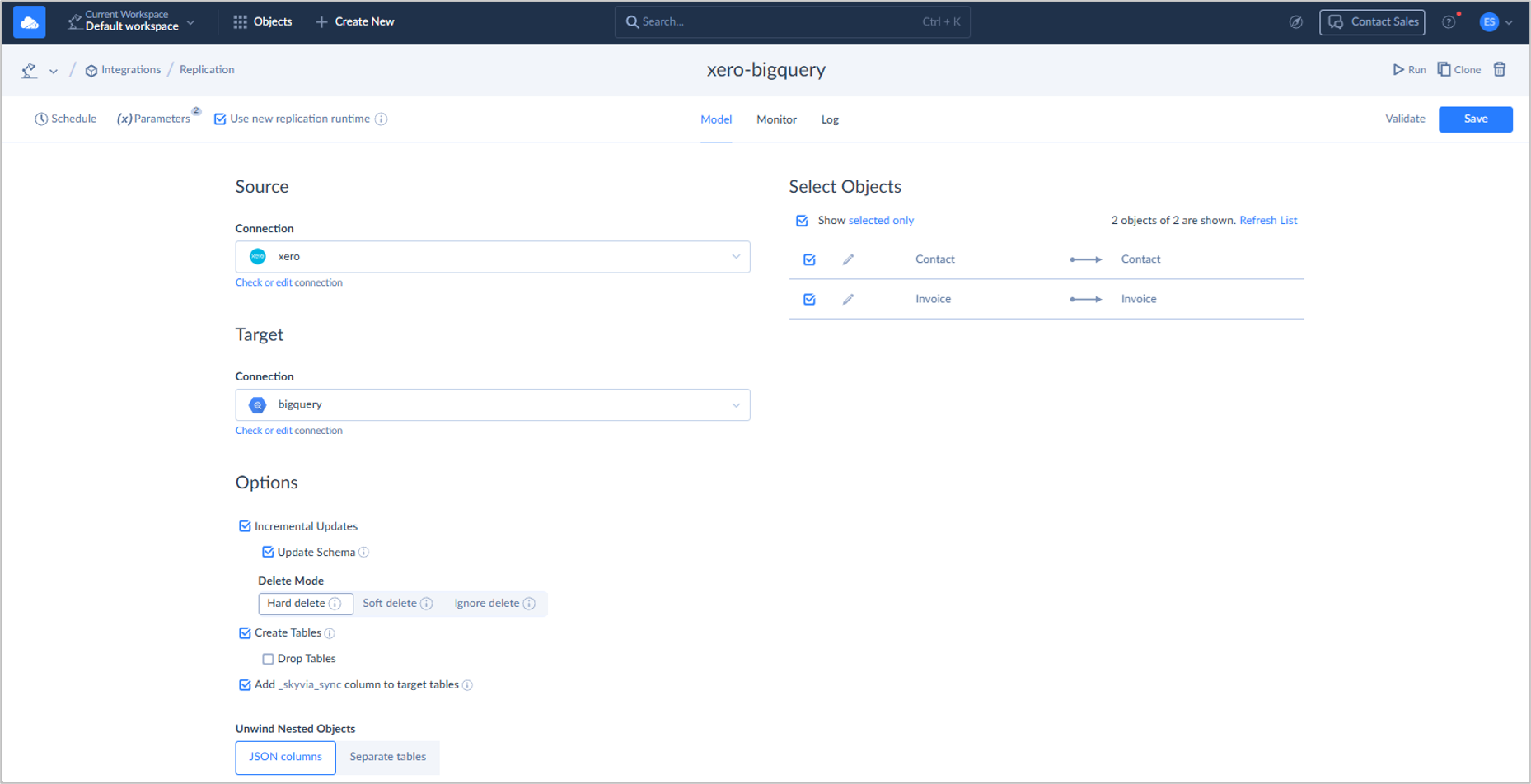
This replication is set for Incremental Updates with the Invoice and Contact tables.
This is an easy 5-minute setup because I’m used to Skyvia. Newbies can do the same in 5 to 10 minutes.
Initial Sync Test
The initial sync using Skyvia took 1 minute, as shown below:
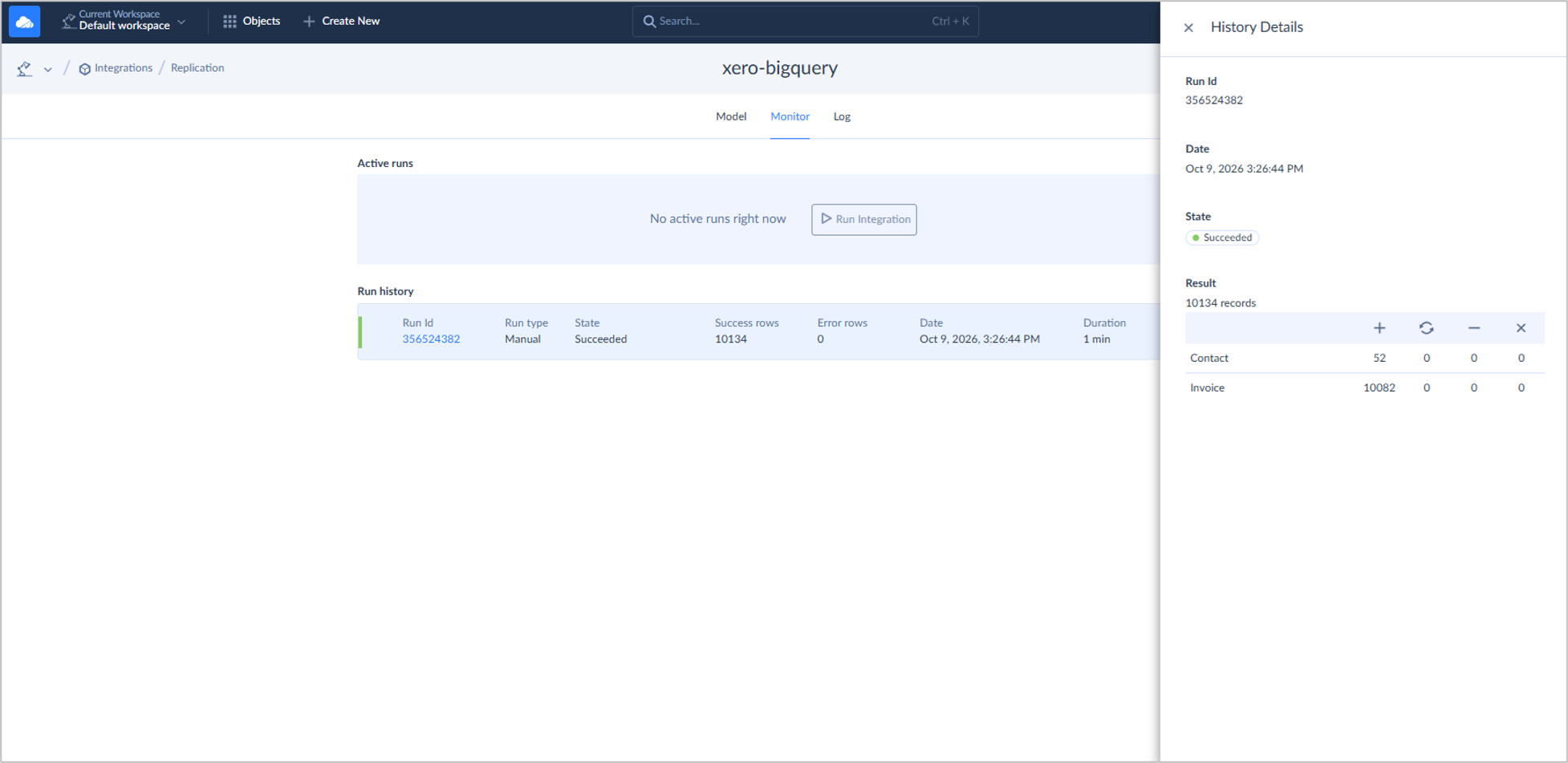
It moved 52 contacts and 10,082 invoices. That includes the predefined invoices and the additional 10,000 ones I uploaded.
Let’s check it against BigQuery:
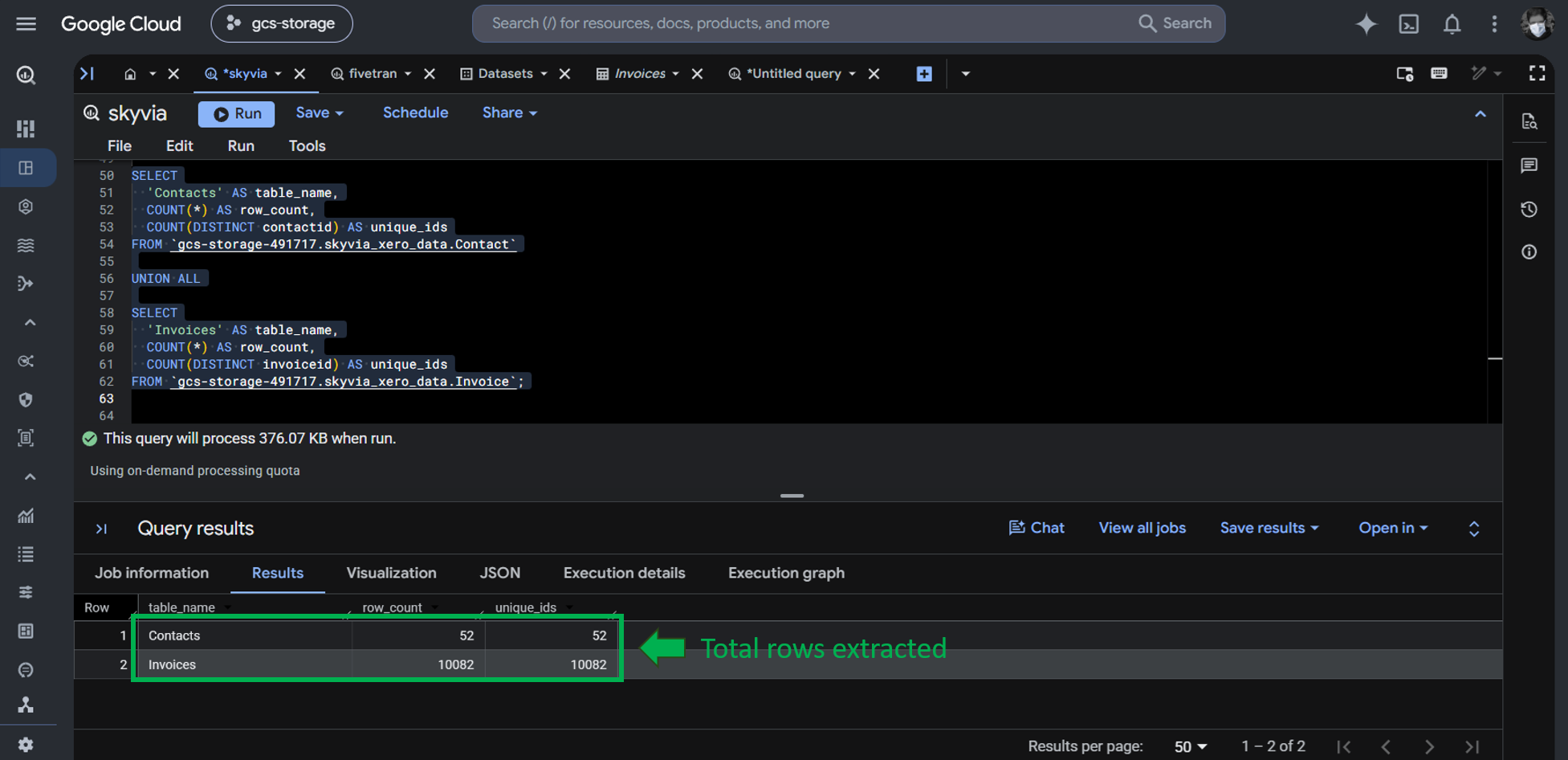
Running a row count check in BigQuery shows the rows have been replicated with the numbers as Skyvia reported.
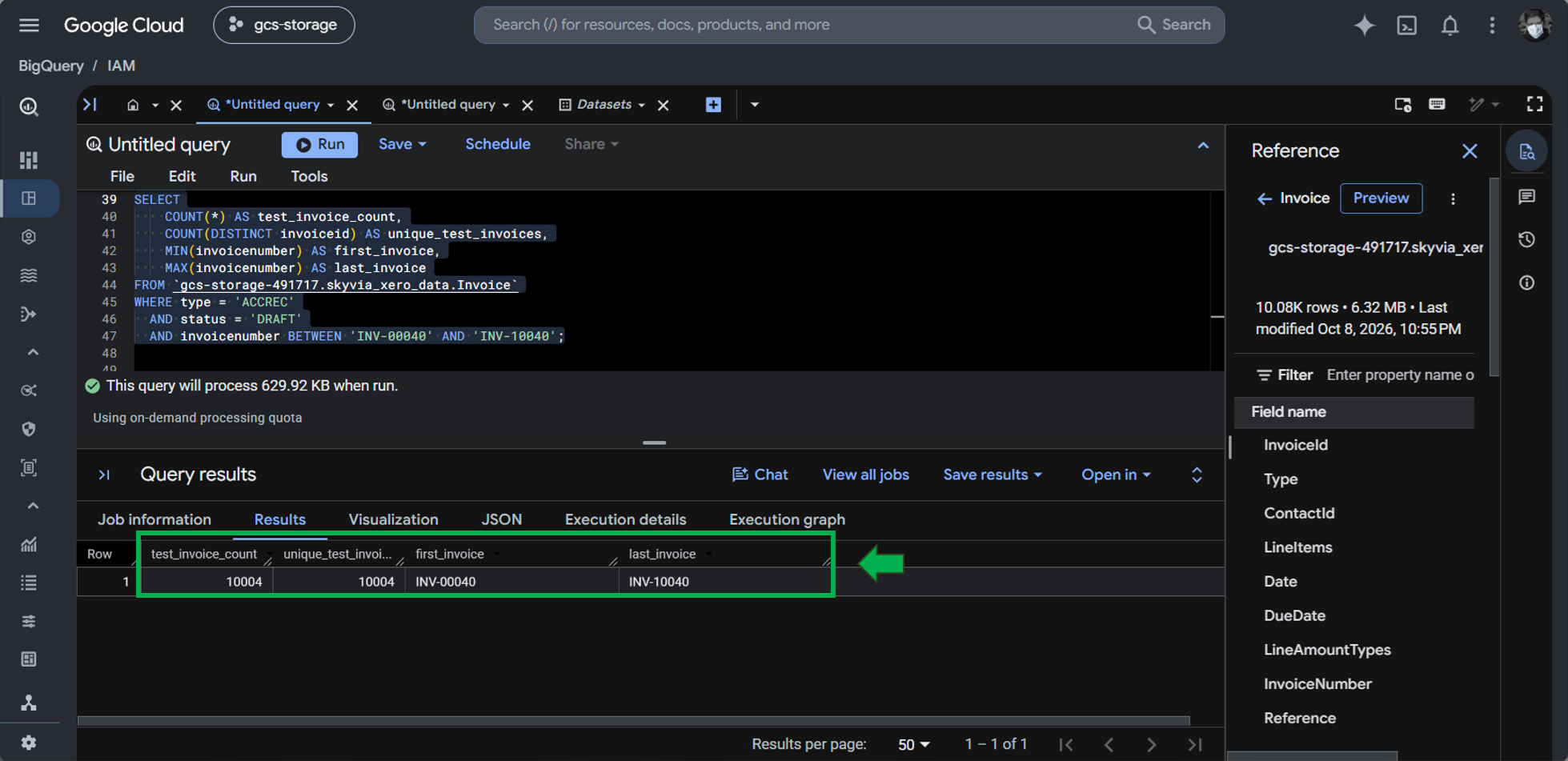
The 10,000 rows from INV-00040 to INV-10040 have also been verified using a query:
Meanwhile, INV-00041 and INV-00045 are our chosen invoices for editing. I edited them in Xero using the information shown in the previous section about test data. First, below are their initial values after the initial sync. Those Totals should change in the next test.
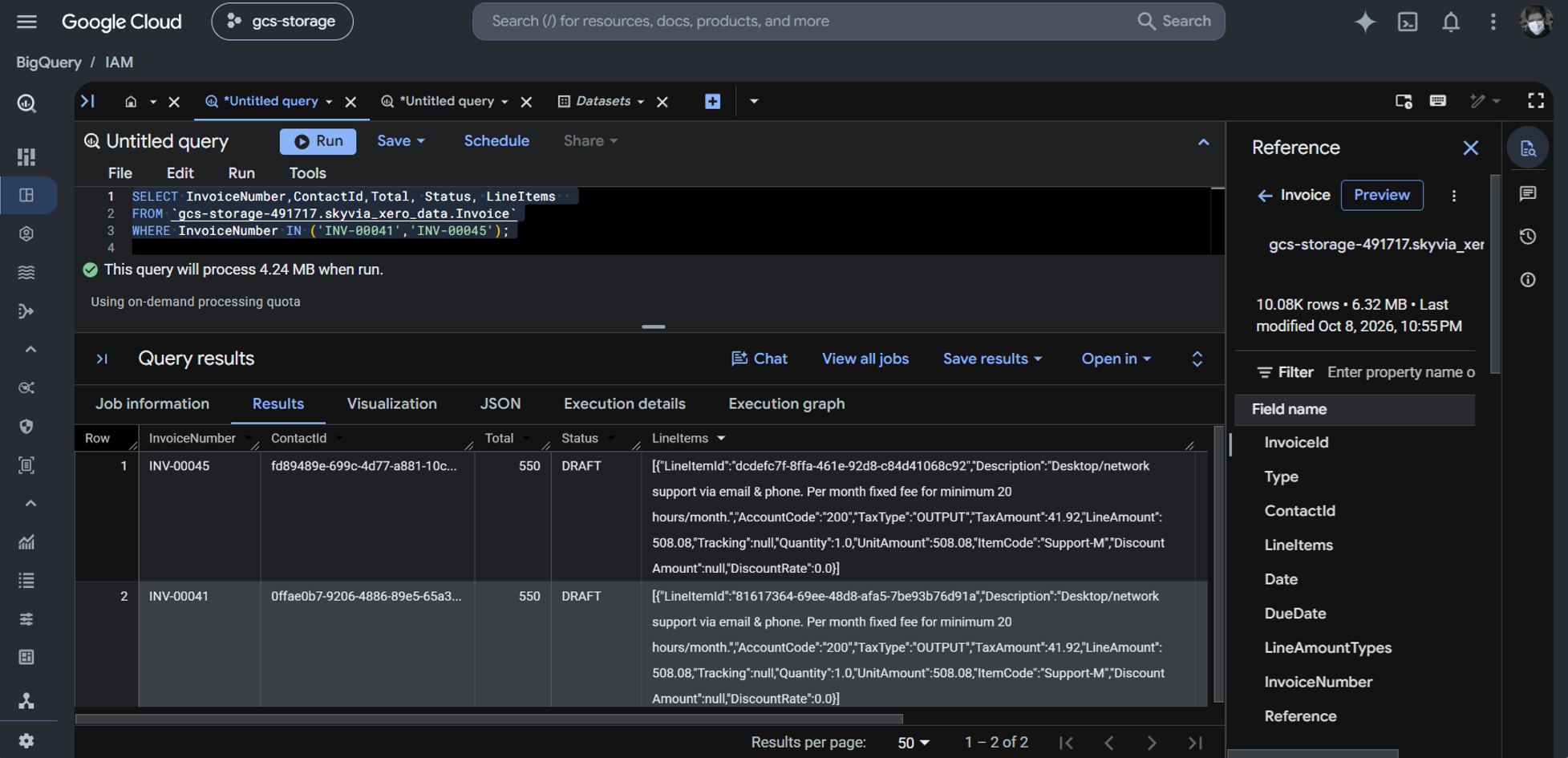
Notice also that LineItems are in JSON format. Skyvia can flatten them into another table, but I chose JSON columns in the replication options. So, Skyvia lets you choose which is best for your requirements.
Incremental Sync Test
After editing 2 invoices, I ran the replication again. This time, it took 22 seconds, and only the changes in the 2 invoices were loaded.
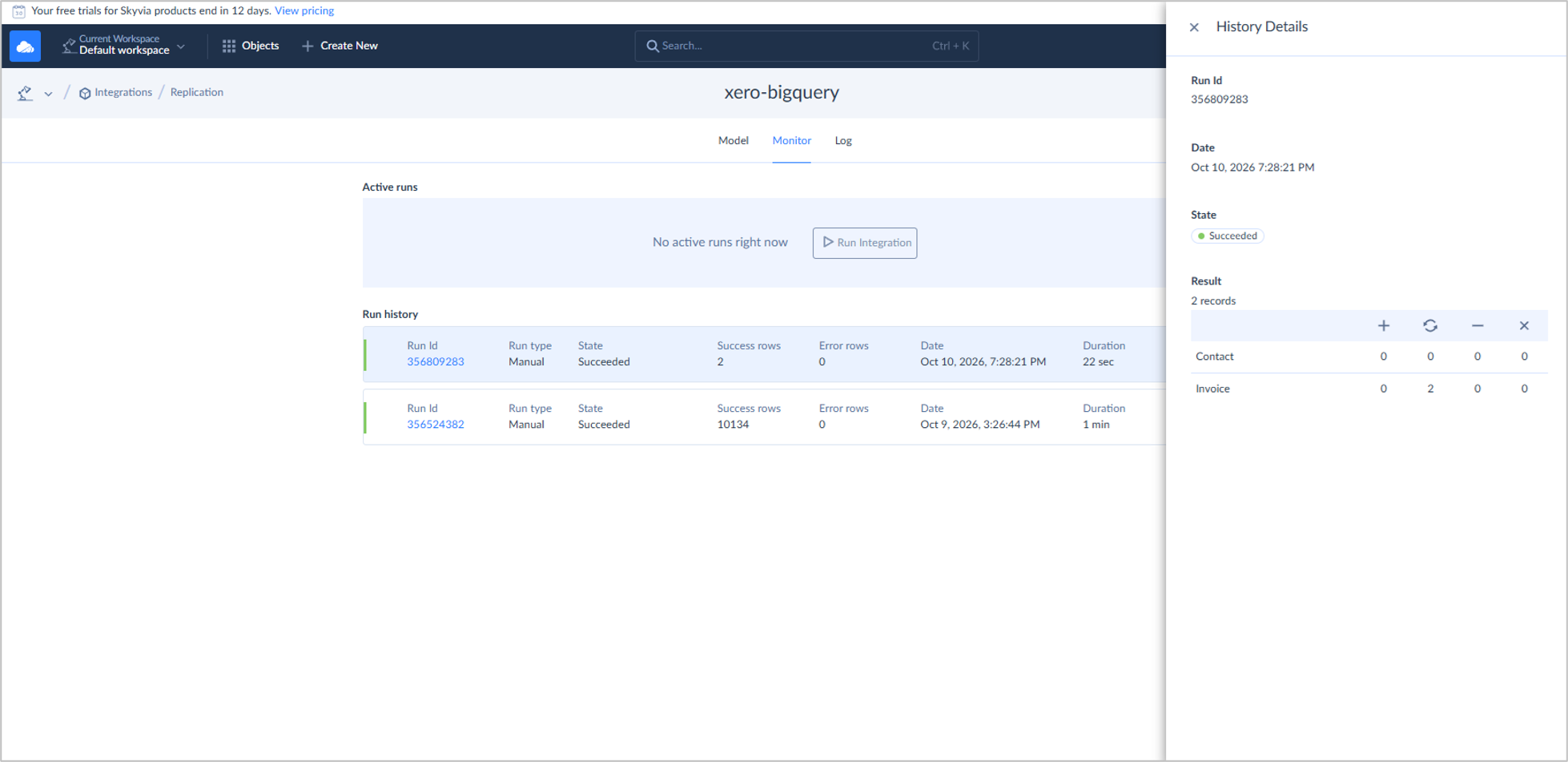
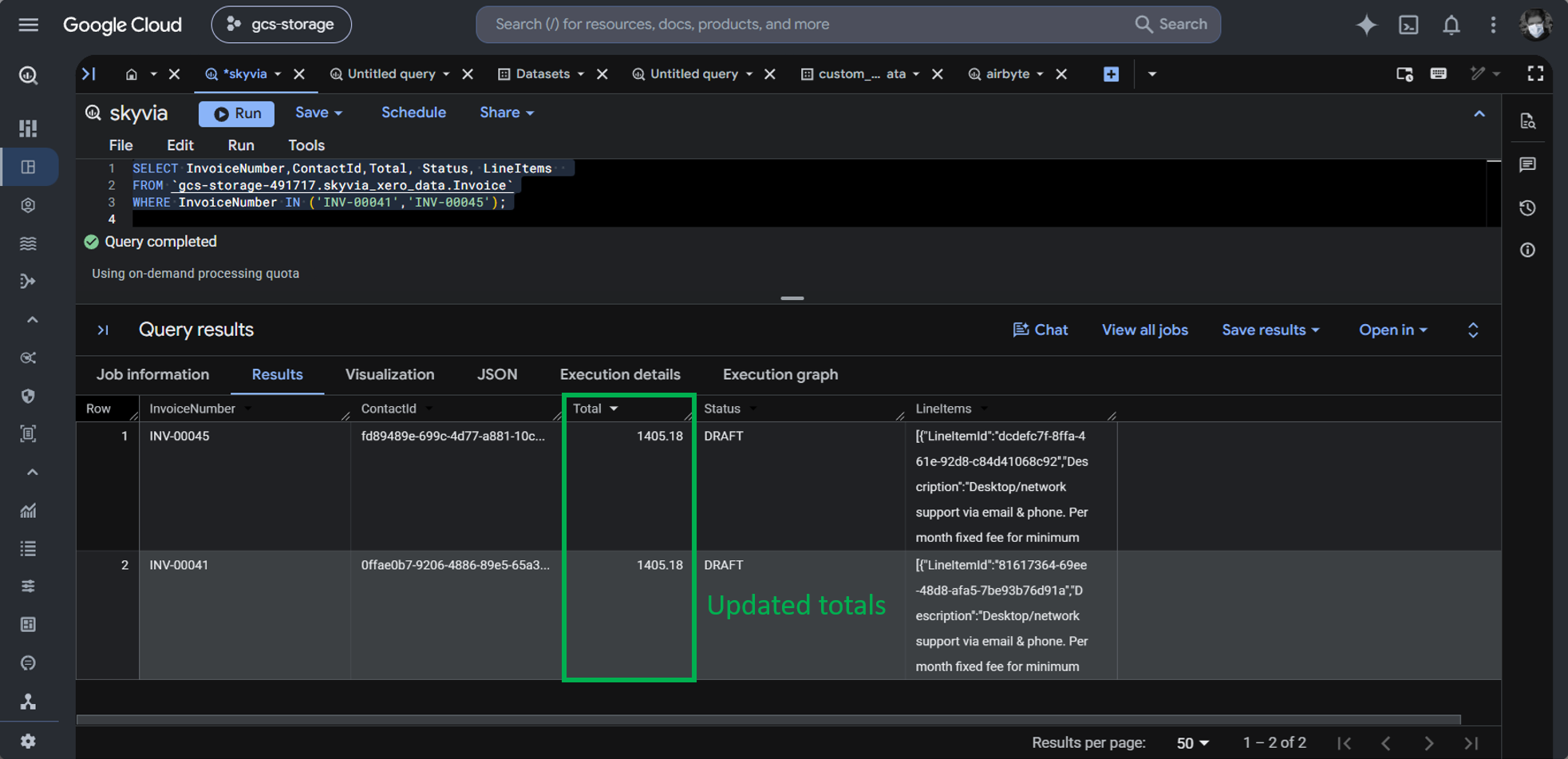
Upon checking the invoices in BigQuery, the Totals changed from 550 to 1405.18. This is the expected total if you check again in the Test Data section above.
At first, I couldn’t reconcile the row counts between what Skyvia did and what I can see in Xero. So, I did 2 more repeat tests with modified data in Xero. That’s before I decided to focus only on the draft invoices.
Best For
Solo Data Analysts, BI Engineers, RevOps, and Data Teams who want an end-to-end, zero-maintenance pipeline without engineering bottlenecks. That said, Skyvia is also good for developers who want to cross out pipeline projects quickly and focus on other important matters. This means more rollouts and less debugging.
Rating
Pricing
Skyvia pricing includes Free, Basic, Standard, Professional, and Enterprise, and includes free trials for the paid tiers. The paid tier starts at $79/month for Basic.
Let me share my usage for the tests I did, including repeat tests for reconciling row counts in Xero:
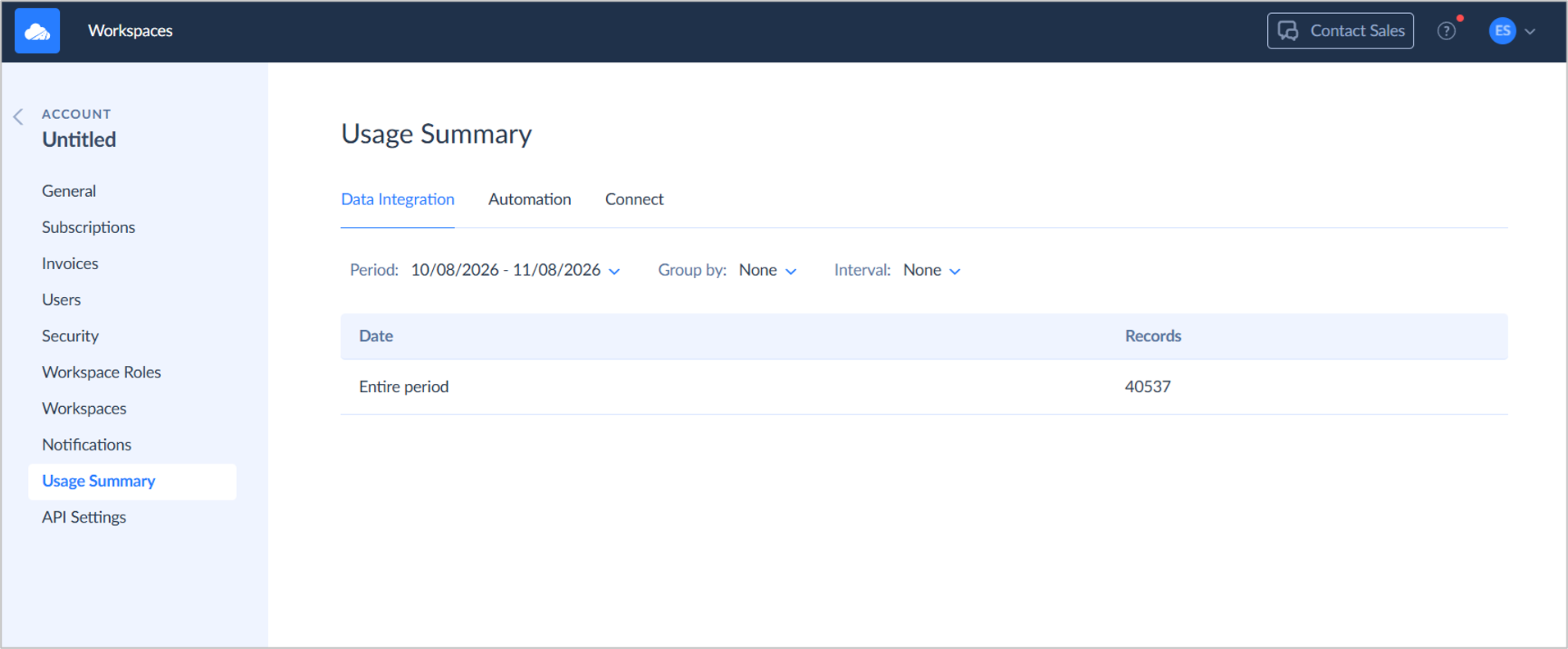
I processed 40,537 records, and if this will be consistent monthly, a Basic tier of $79/month is the most appropriate plan. At $79/month, my annual cost will be $948. That’s how predictable it is every month. You can safely set an operational expense with this in your budget planning.
For more details about pricing, visit the Skyvia pricing page.

Key Technical Capabilities
- Zero-Code Setup: Connect to Xero and Google BigQuery in under 10 minutes with native OAuth authentication. I did it in 5 minutes without code.
- Automated Nested Schema Management: Automatically normalizes nested Xero arrays (e.g., LineItems, TrackingCategories) or preserves raw JSON based on pipeline configuration. As we have seen in the test, Skyvia preserves raw JSON for LineItems.
- Incremental Replication: Built-in incremental sync tracking modified accounting records to reduce transfer times and warehouse compute costs. We proved this in the incremental test: we edited 2 invoices, and 2 were processed to BigQuery.
- Warehouse-Side Transformation: Ingest raw ELT data into BigQuery and orchestrate warehouse-side SQL or hosted dbt Core transformations for balance sheets and P&L modeling. We’re going to have warehouse-side SQL against the replicated data later.
- Reverse ETL Activation: Write enriched customer financial metrics (e.g., Lifetime Value, Payment Status, Overdue Balance) from BigQuery directly into CRM tools like Salesforce or HubSpot.
Pros
- Volume-based pricing with unlimited users and no per-connector fees.
- Vendor-managed connector maintenance—zero API breaking change disruptions.
- Real freemium tier and affordable entry tiers (e.g., $79/mo vs. competitors’ $1,000+/mo).
- Built-in orchestration (Control Flow) and Reverse ETL in one interface.
Cons
- Minimum Sync Interval: Lowest sync interval is 1 minute (polling-based); not designed for sub-second streaming workloads.
- Cloud Native: Not suitable for closed-gapped, on-premises requirements.
- Complex on-premises legacy systems require installing the lightweight Skyvia Agent.
Why Is Fivetran the Best Choice for Large Enterprise Stacks with Dedicated Engineering Budgets?
Fivetran is a data platform for reliably moving high volumes of data. Schema drift handling and incremental sync is also automatic. I have tried Fivetran for a few tests before, though we can’t test for big data replication here.
Pipeline Setup
To replicate data in Fivetran, you need a destination and a connection tied to that destination. In our case, Xero connects and replicates data to BigQuery.
To connect to Xero in Fivetran, you will need a Client ID and secret. You need to create a connected Web App in Xero to get those Client ID and secret. Then, you need to authorize and test the connector. The instructions are clear on the right side of the page.
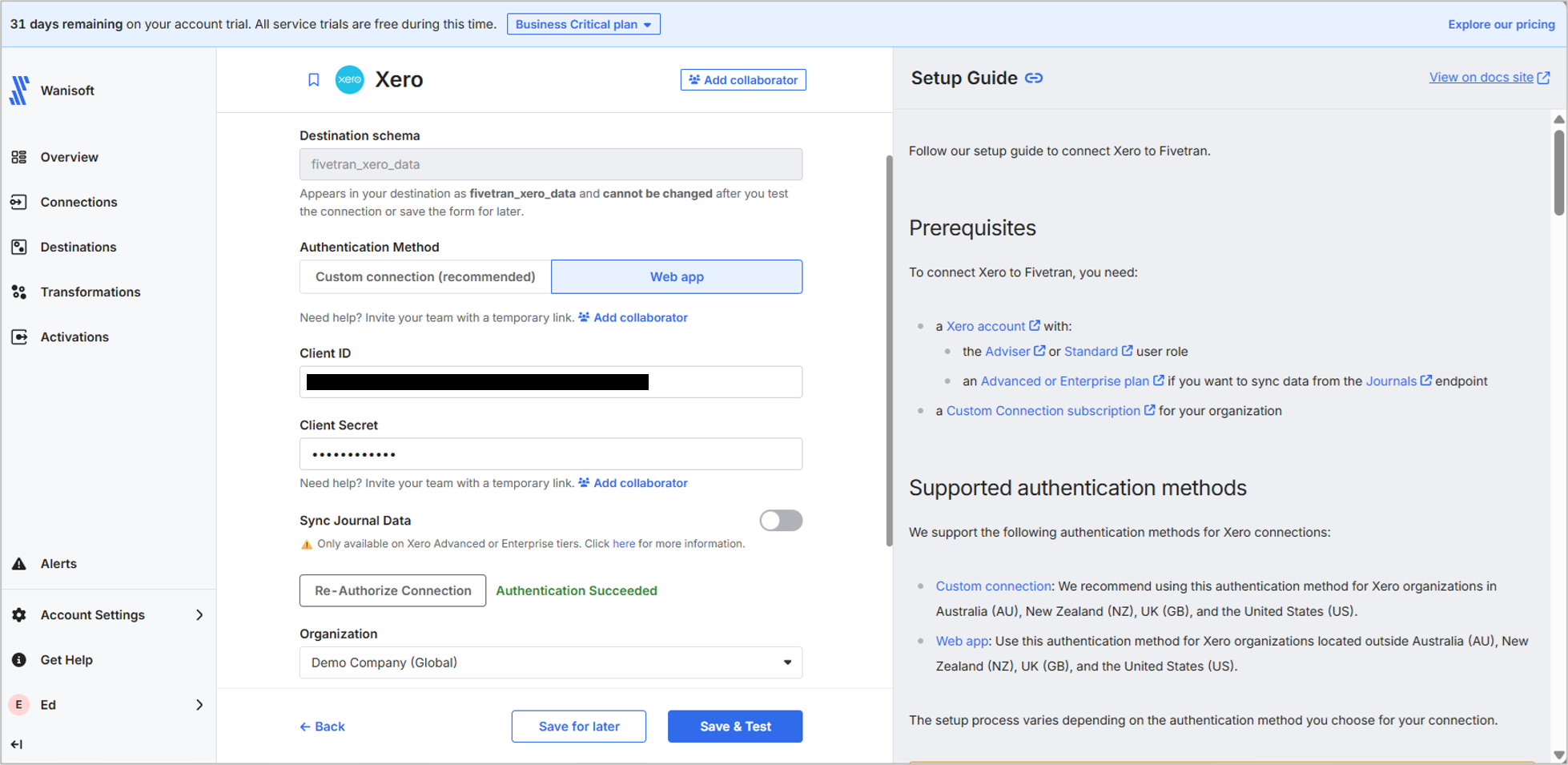
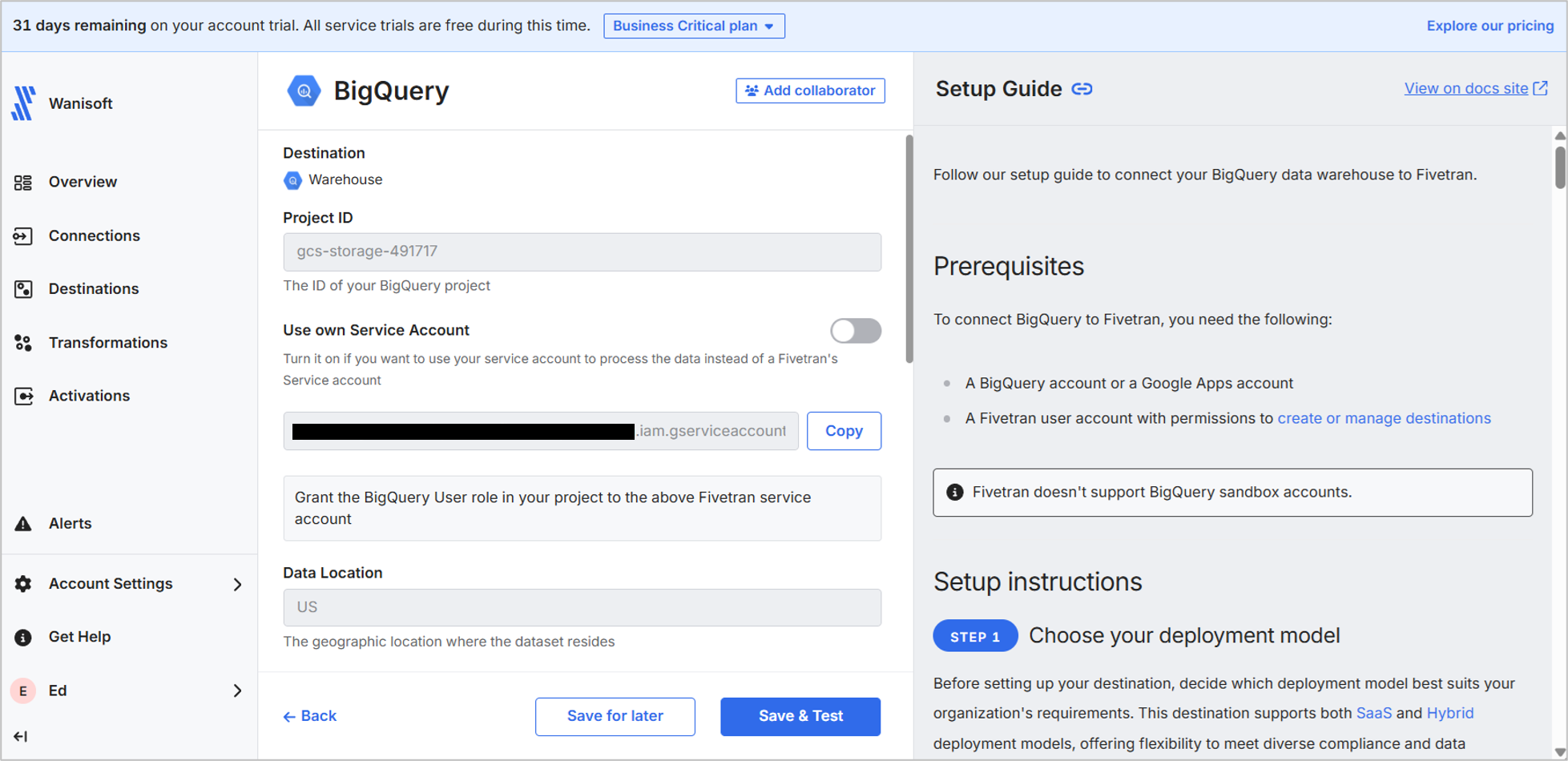
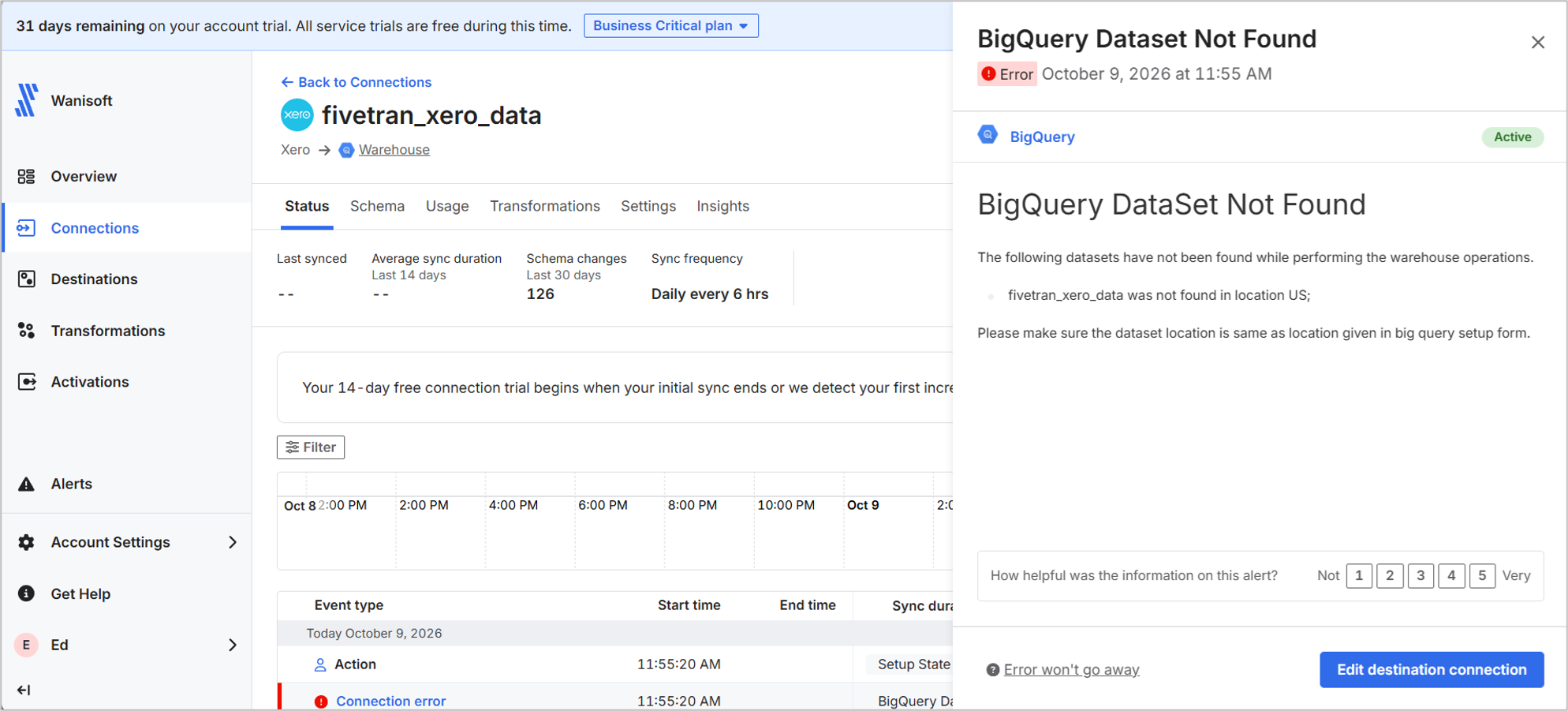
And below is my BigQuery destination. I used the provided service account and gave it permission to my Google Cloud Project and BigQuery. Note that the data location should be US, including the BigQuery target dataset. You’ll find out why in a few moments.
Then, I chose the same Xero tables: contact and invoice. By default, all tables are selected, but to be uniform with the rest of the tools, I limited it to 2 tables.
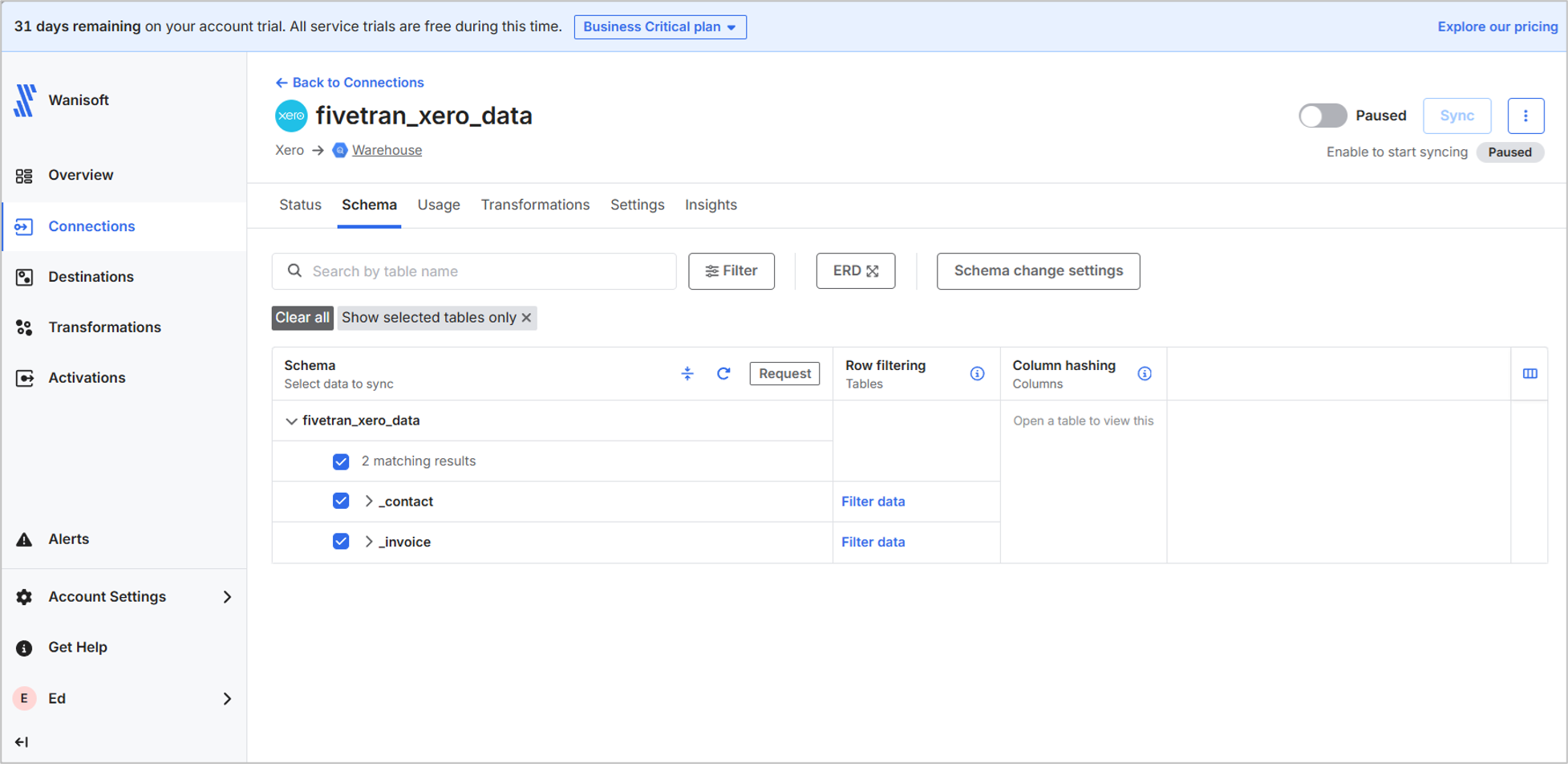
This should be ready for the initial sync. It took me 20 minutes this time to set up the above, including creating the Xero Web App and giving permission for the service account.
Initial Sync Test
I got an error because my BigQuery dataset is not in the US. I have to recreate it in BigQuery and reprocess the initial sync.
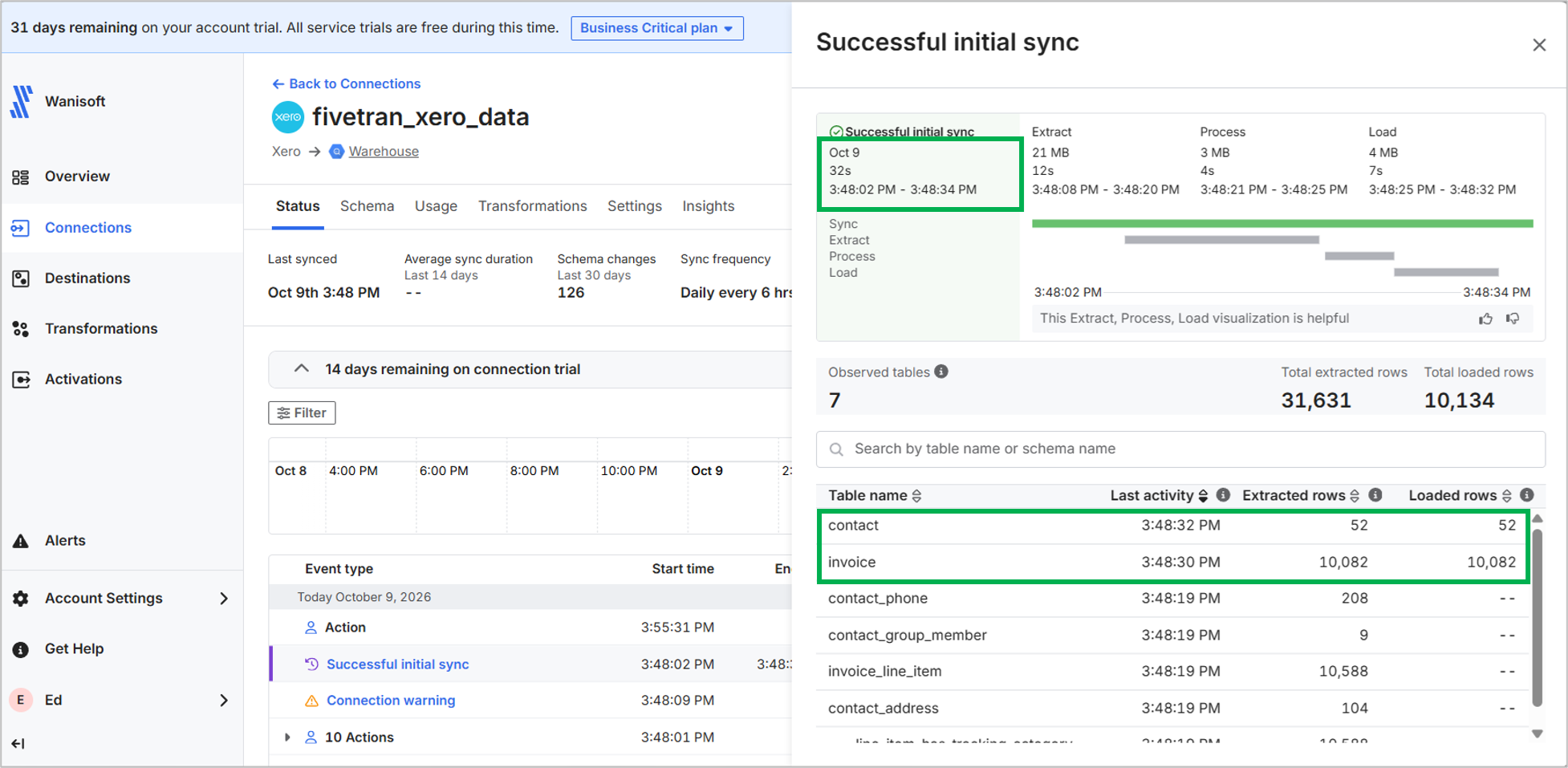
After reprocessing, it was a success, and it took 32 seconds. The same number of invoices and contacts were loaded to BigQuery as in Skyvia. What’s odd is the extraction of other tables that were not selected, like contact_phone and invoice_line_item. They were not loaded to BigQuery, though. I can’t check why and how those tables were extracted in the first place. It could be the relation to contacts and invoices, but I’m not sure.
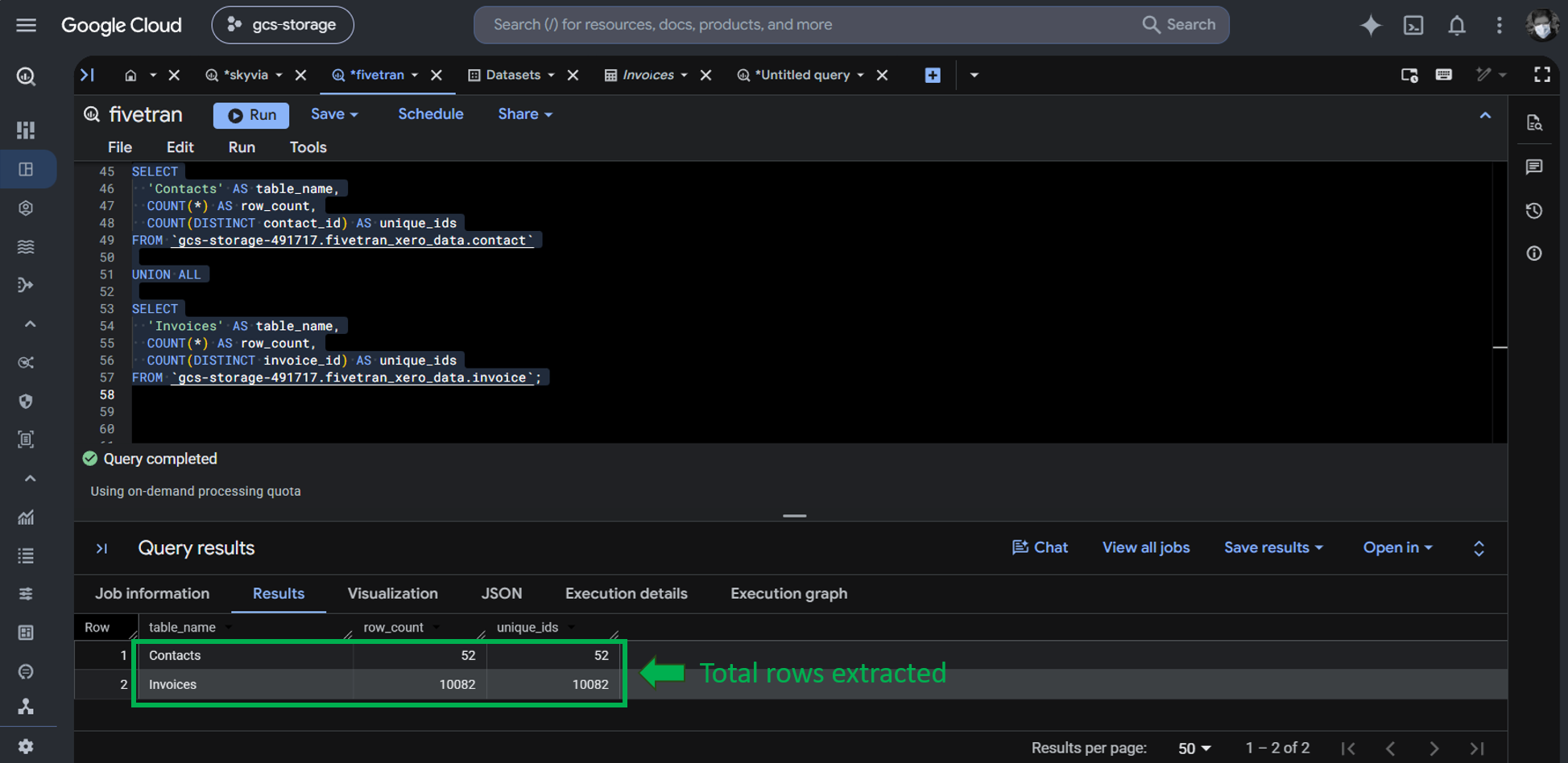
Upon checking in BigQuery using a row count test, it loaded 52 contacts and 10,082 invoices. This result is consistent with what Skyvia got too.
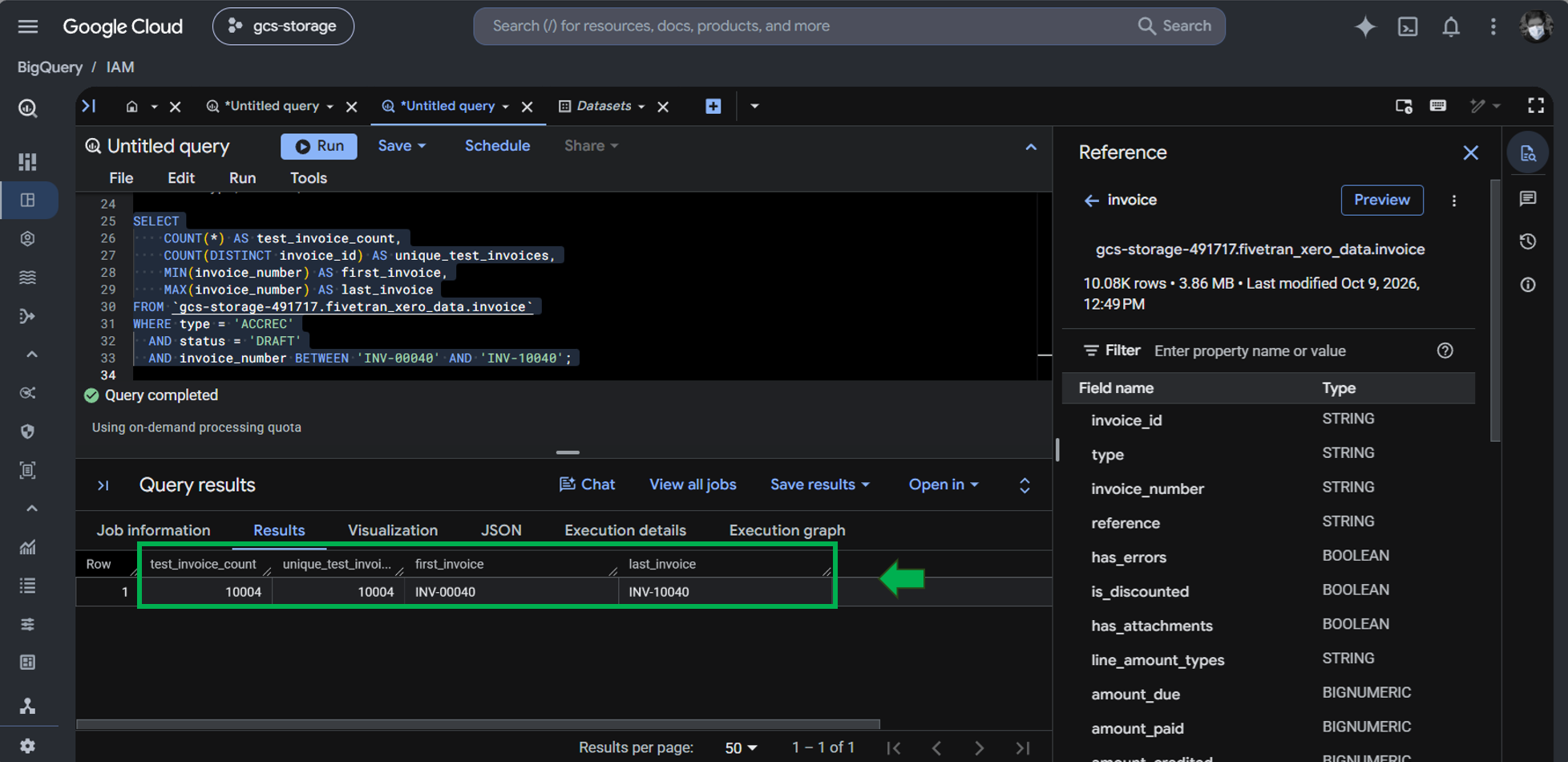
Then, I checked for our 10,004 draft invoices, and they’re also in BigQuery.
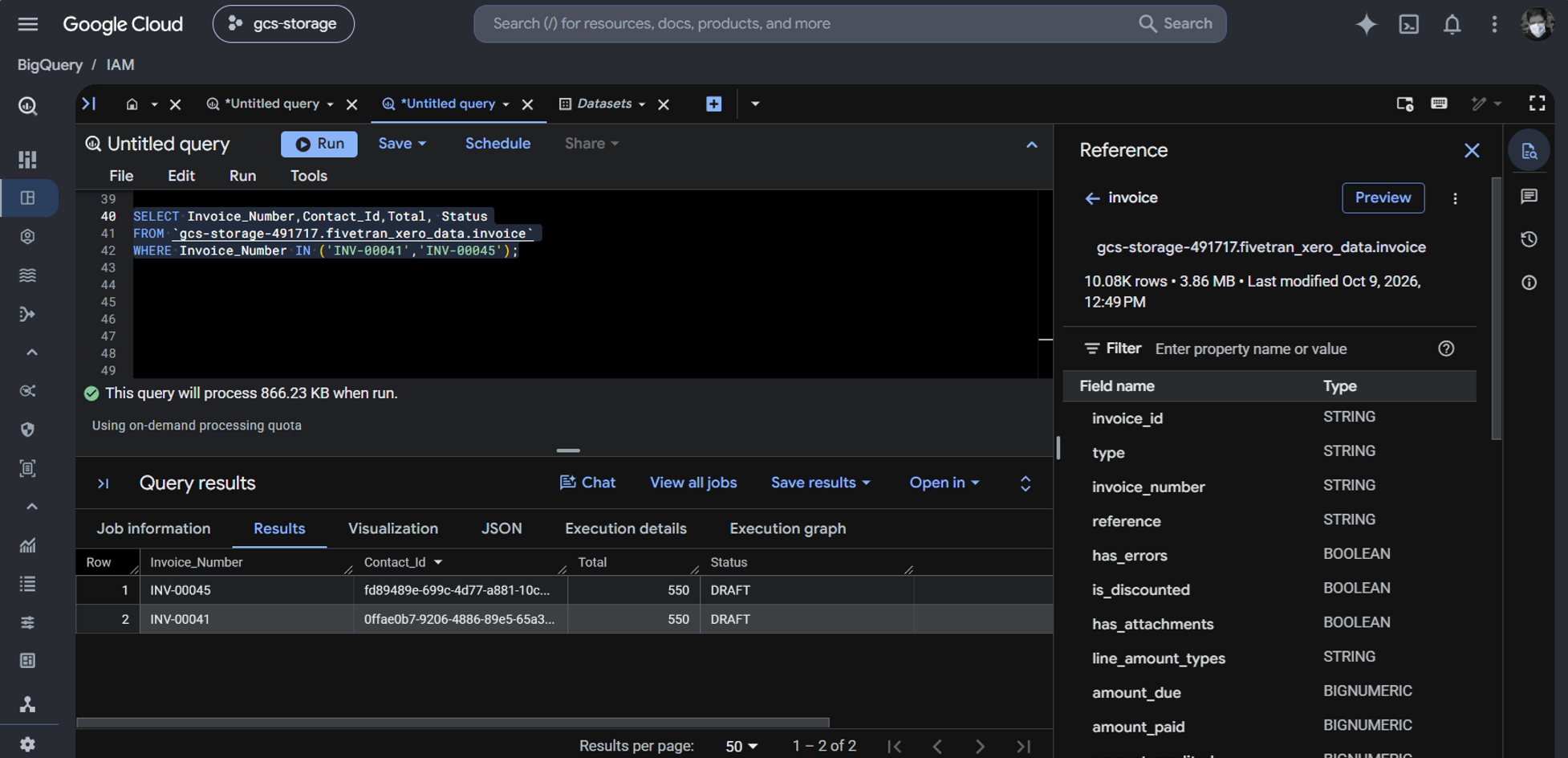
Finally, the same invoices (INV-00045 and INV-00041) have the initial totals we expect.
Incremental Sync Test
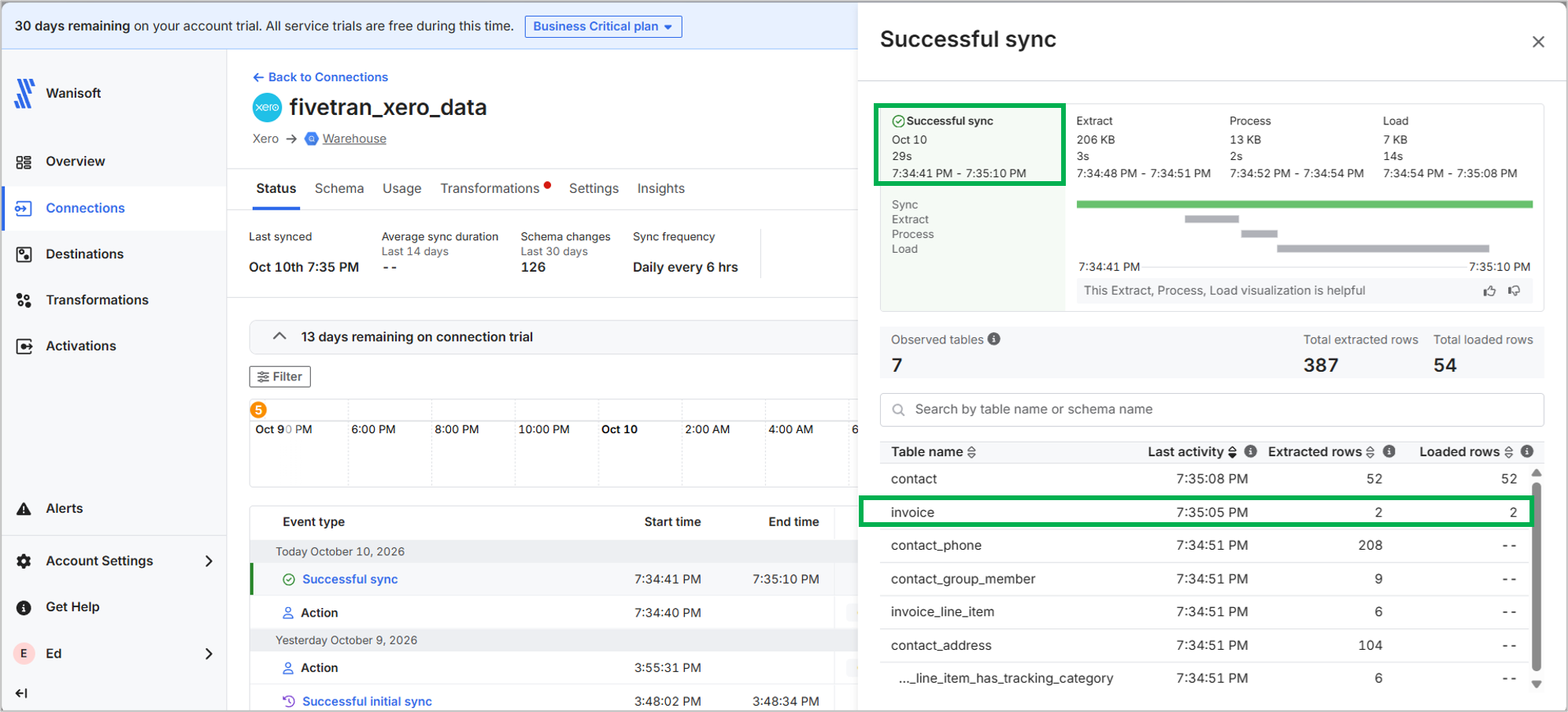
After editing invoice numbers INV-00045 and INV-00041 by adding line items, I reprocessed the pipeline to test what will happen. It took 29 seconds to get the 2 edited invoices. The logs are correct to extract 2 rows and load them. However, the 52 contacts were extracted and loaded too, as seen below. There were no changes to them. Again, related tables were extracted.
Upon checking, Fivetran successfully updated the 2 edited invoices in BigQuery with the new totals.
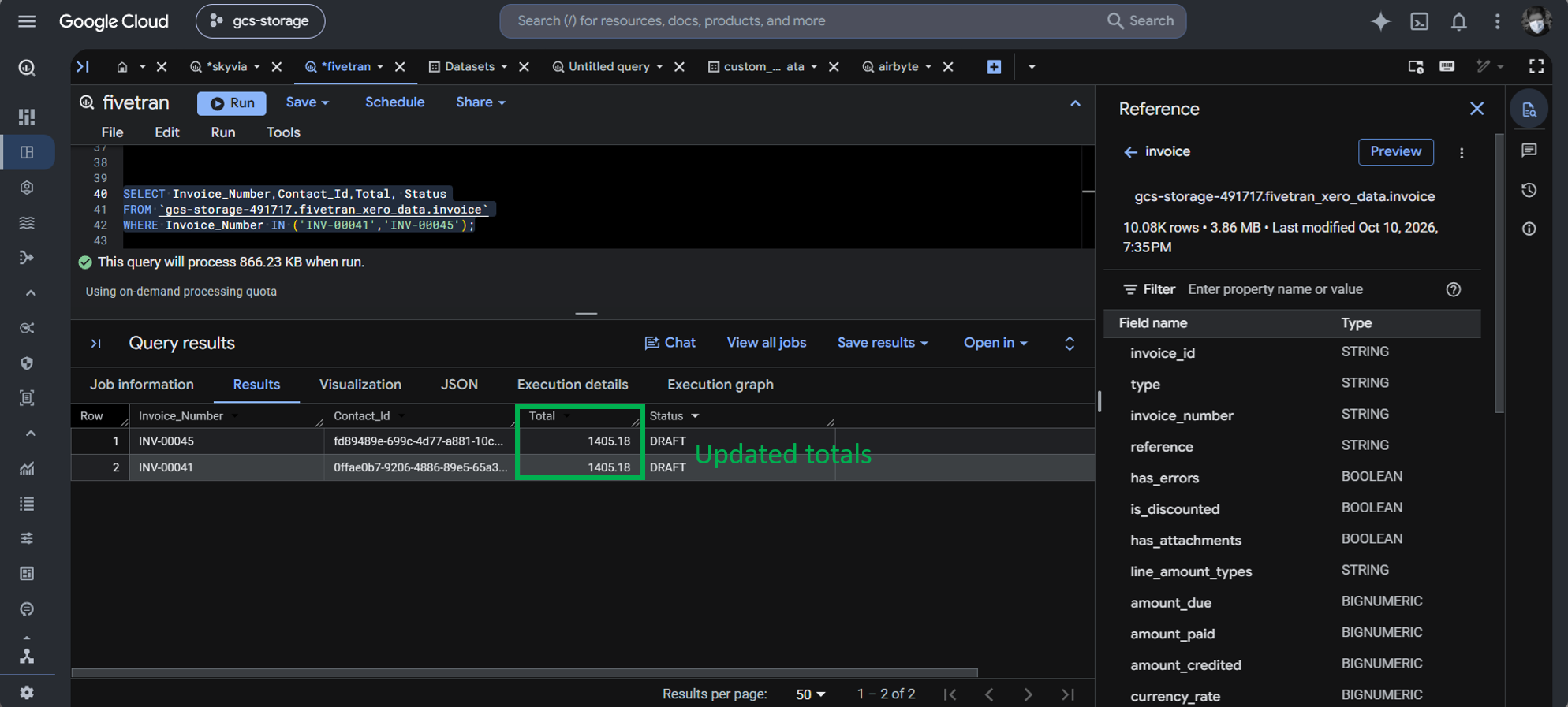
Notice that there are no JSON columns. I didn’t find any, so Fivetran chose to flatten everything into relational tables.
Best For
Enterprise data teams managing hundreds of data sources and/or volumes of data across multiple cloud warehouses with massive compliance budgets.
Rating
Pricing
Fivetran is pay-as-you-go. Pricing includes free and paid tiers (Standard, Enterprise, and Business Critical). There’s a pricing calculator where you can compute your possible Monthly Active Rows (MAR). According to Fivetran, MAR is “the number of distinct primary keys synced from the source system to your destination in a given calendar month.” Below is a sample pricing estimate using their calculator:
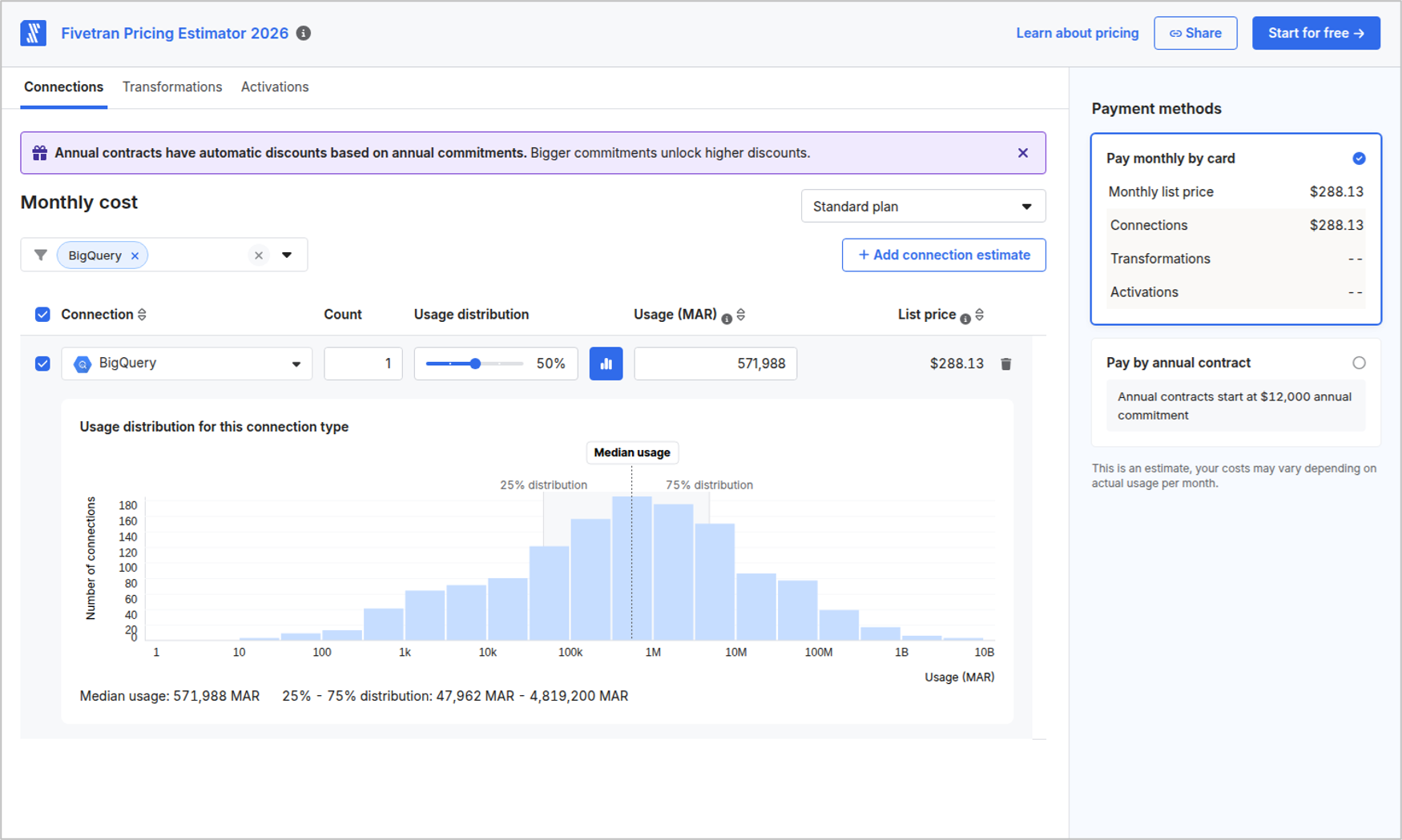
Fivetran also offers annual Contract pricing that starts at $12,000 (also indicated above).
My Fivetran usage are below based on what I did in the tests:
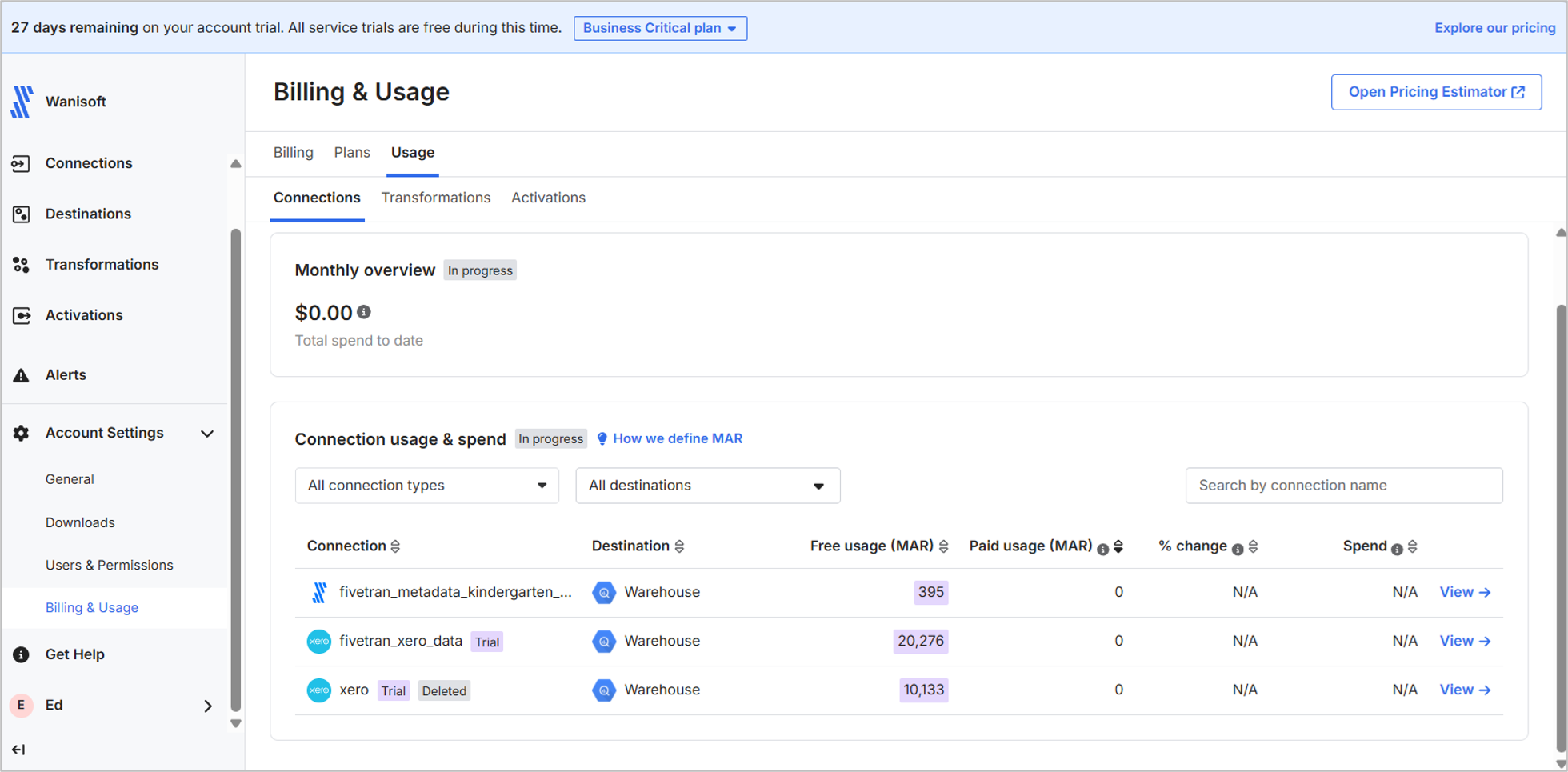
It’s free for now because I’m on trial.
Fivetran has no posted price for their plans. For more information, visit the Fivetran pricing page.
Key Technical Capabilities
- Fully automated ELT pipeline with normalized Xero schemas.
- dbt package integration managed through Fivetran Transformations.
- Enterprise security certifications (HIPAA, PCI DSS, SOC 2).
- Automatic schema-change handling.
Pros
- Robust, hands-off connector maintenance.
- Broad source catalog (900+ connectors).
Cons
- Complex and unpredictable pricing: 2025 MAR-based per-connector billing increases multi-connector costs by 40–70% with a contract price of $12K/year minimum.
- Expensive for solo analysts or lean teams needing only 2–5 connectors.
- Configured connectors are not reusable across different pipelines.
- The user interface may be okay for developers, but quite intimidating for non-technical users.
Why Is Self-Hosted Airbyte the Preferred Method for DevOps-Heavy and Self-Managed Environments?
Airbyte is our open-source option to replicate data from Xero to BigQuery. It offers no-code, managed pipelines in Airbyte Cloud, or you can install and experience the same no-code tool in your own infrastructure. Installing it on your own server requires Docker. Like my previous test, I wasn’t able to make it work in my Linux Mint VM. It looks like it needs a straight-to-the-metal setup and no virtual machines.
On the other hand, you can still use Airbyte through PyAirbyte, and with this you don’t need a registered account. Just Python, the Airbyte Python libraries, and Visual Studio Code.
The Pipeline Code
Airbyte has Xero and BigQuery connectors. BigQuery is Airbyte-supported, while Xero is marketplace-supported. Docker should also be installed and running for this to work.
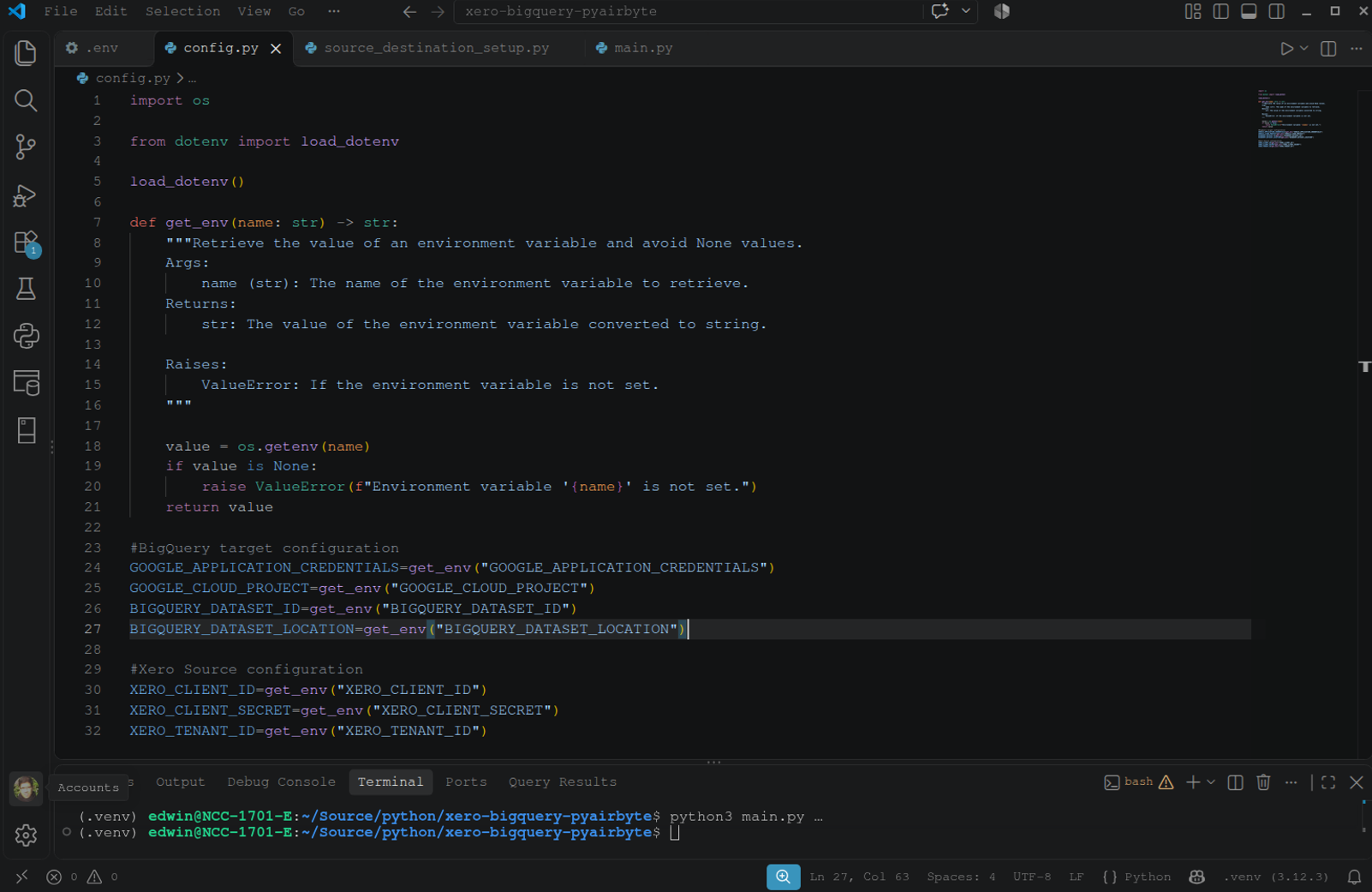
I designed my PyAirbyte into 3 .py files. Below is the code for retrieving credentials and such from my .env file. It includes both BigQuery and Xero credentials. See it below:
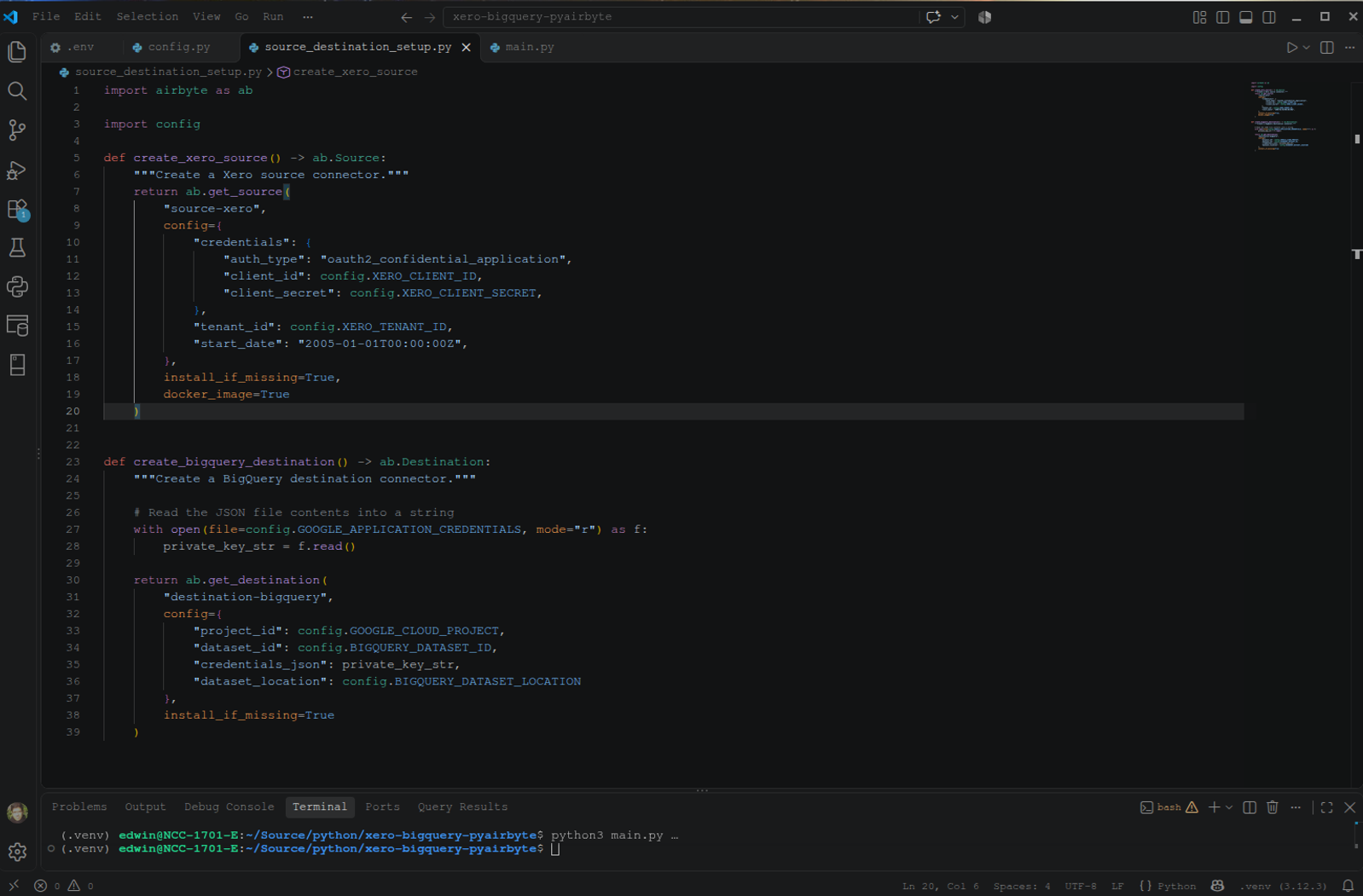
Then, I need to configure the Xero and BigQuery connectors. It is set to auto-install if not found on my machine and use Docker. Configuration variables from earlier were used here. Check them out below:
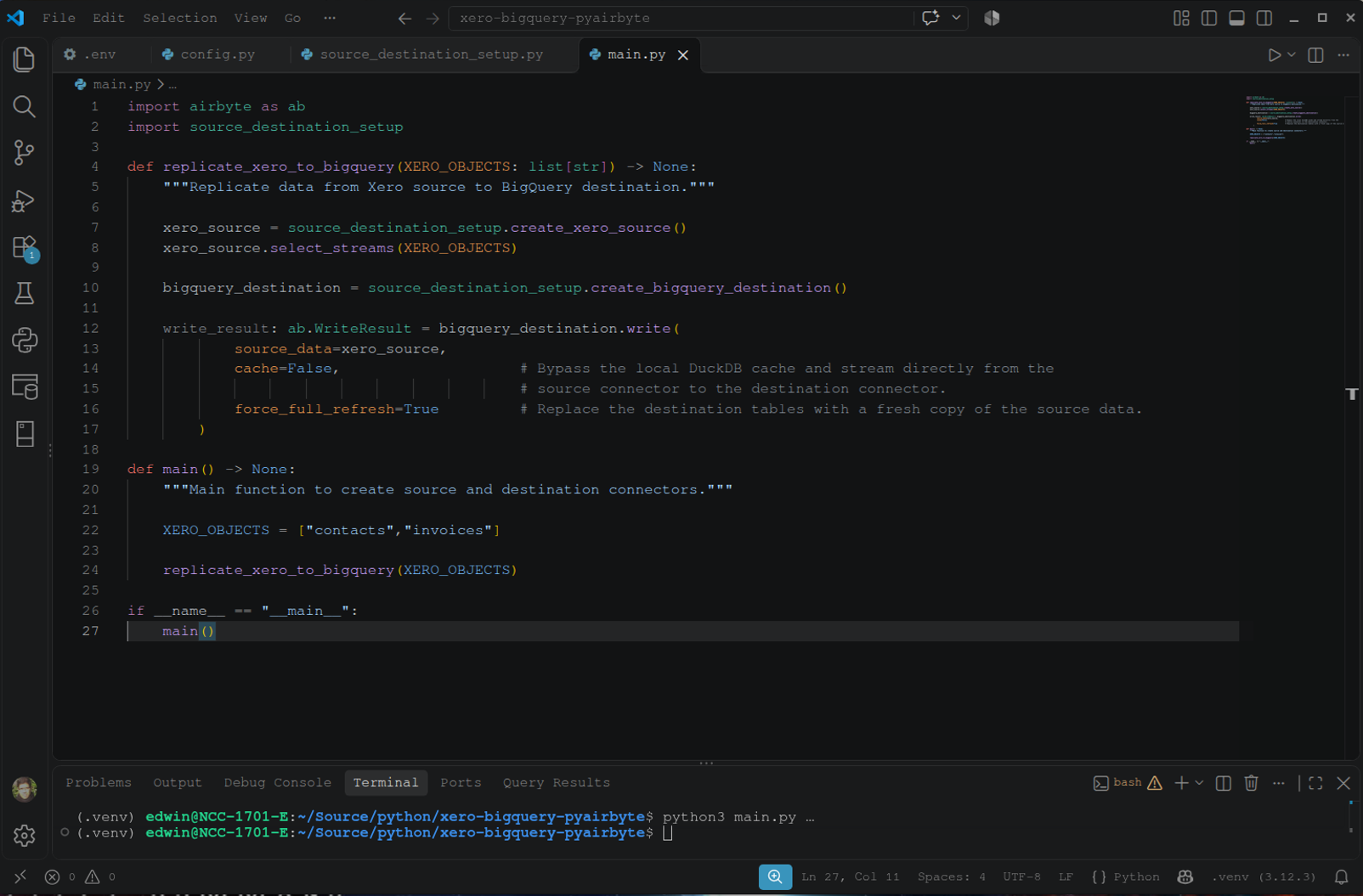
Finally, below is the code for the orchestration. Note that it is set to full refresh all the time, whether initial sync or not. I can’t make it work with incremental sync with Xero as the source without leaving the dataset with only the changed rows (2 rows).
It took me 2 working days to code, debug, test, and fix. For more details, you can get this working PyAirbyte code in this GitHub repository.
Initial Sync Test
It took PyAirbyte 9 minutes and 7 seconds to do the initial sync.
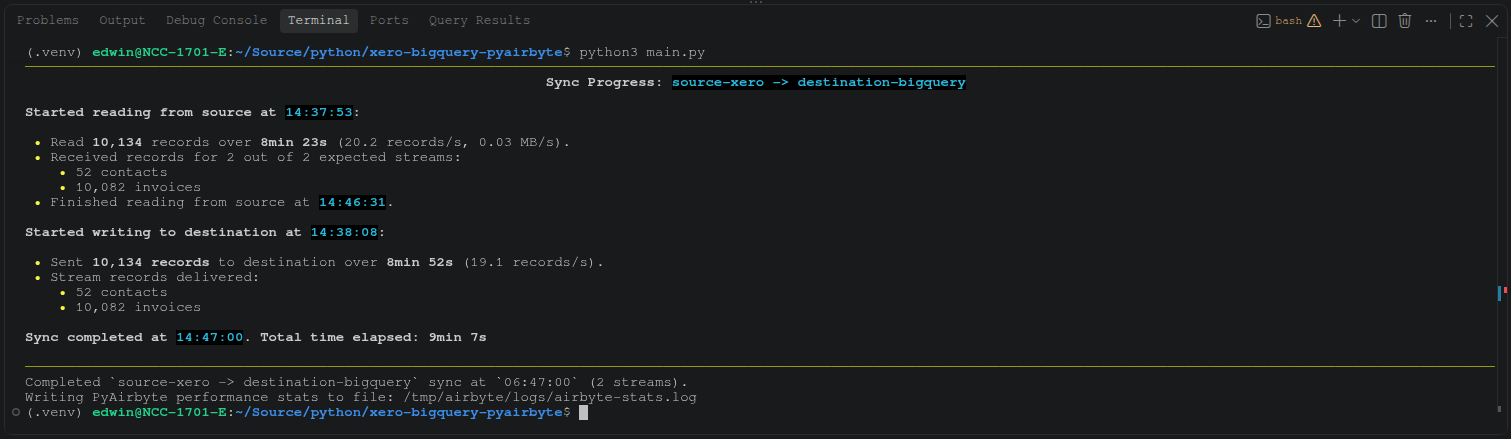
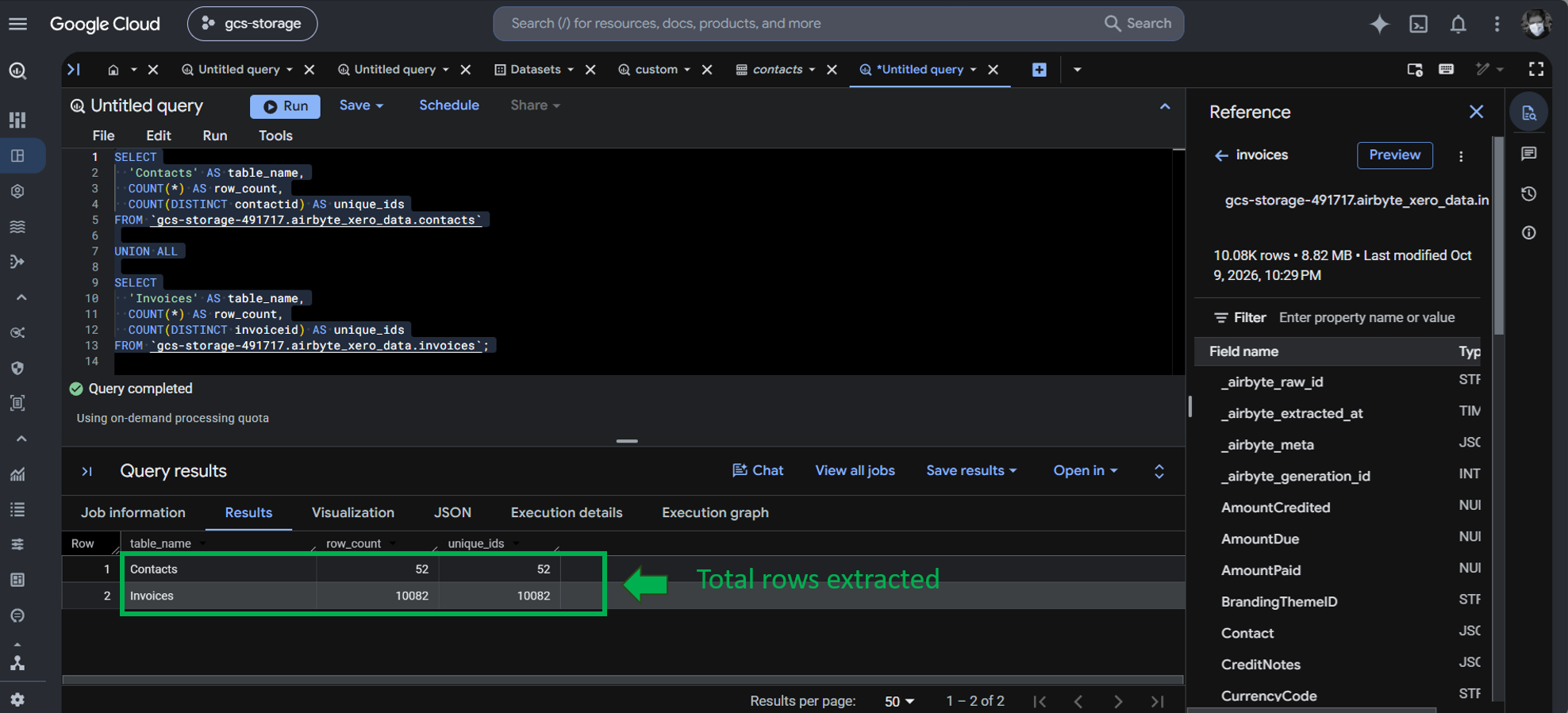
The extracted and loaded rows to BigQuery for contacts and invoices are correct as seen below:
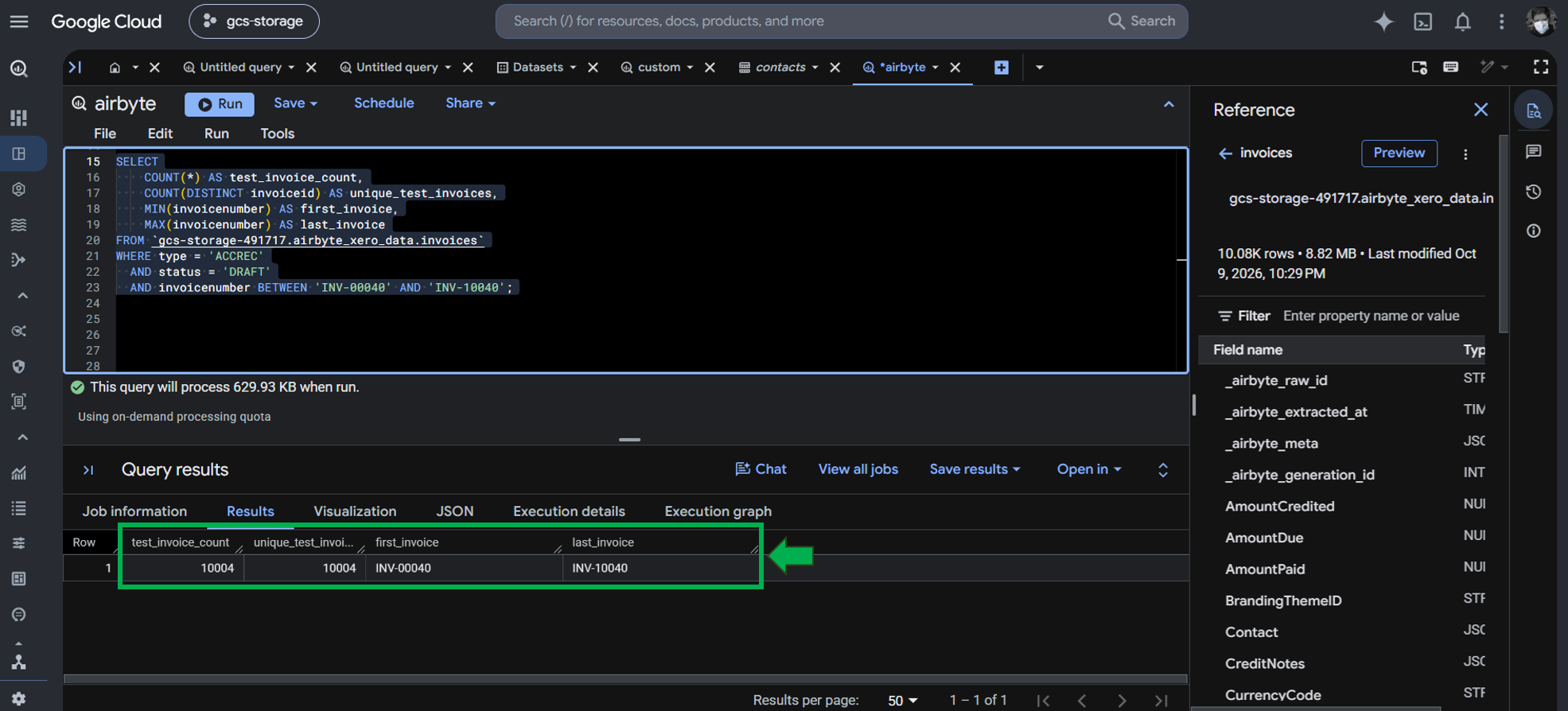
The 10,004 invoices in BigQuery are also intact.
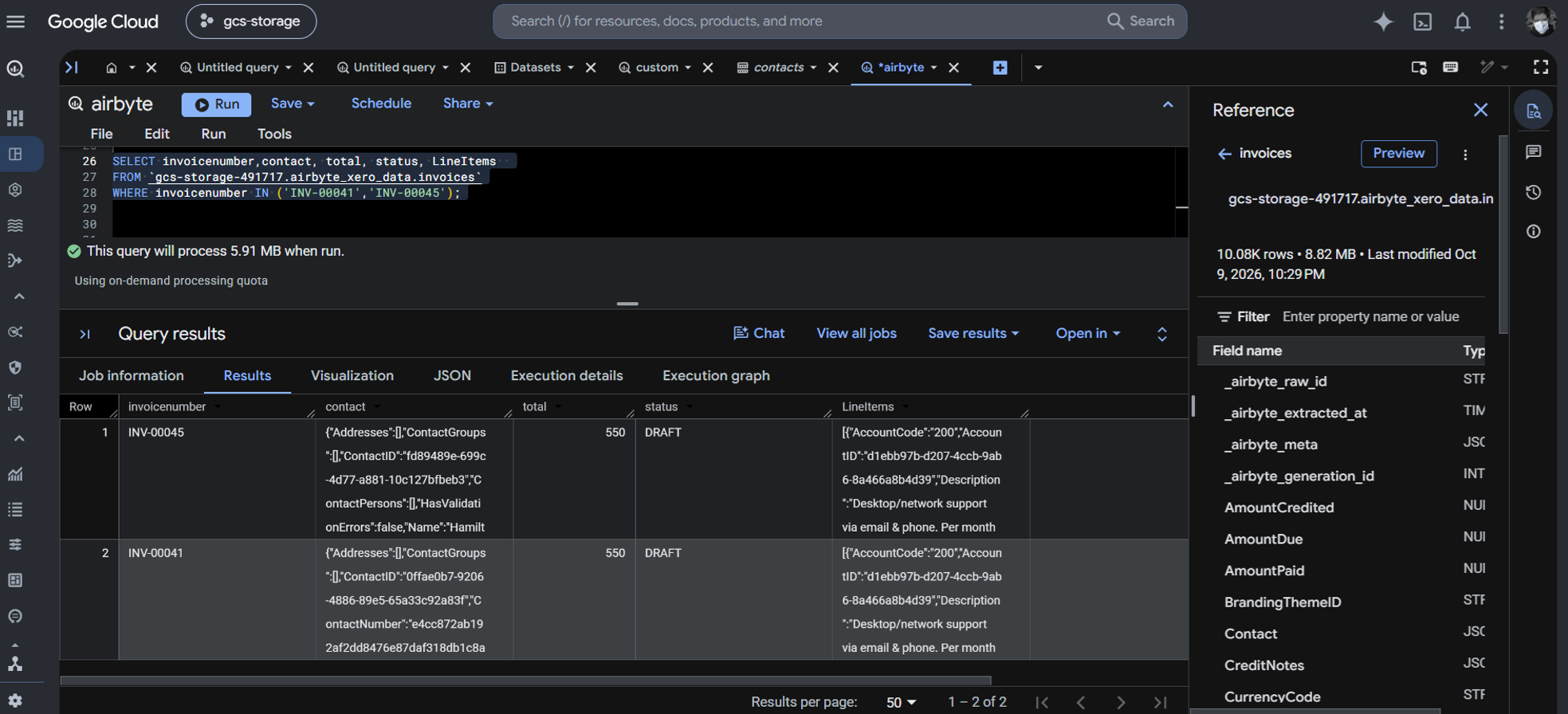
Airbyte chooses nested JSON columns to replicate as is. It preserves the JSON LineItems and Contact as seen below:
Incremental Sync Test
After editing the same two invoices, I ran the pipeline again, and the totals were updated.
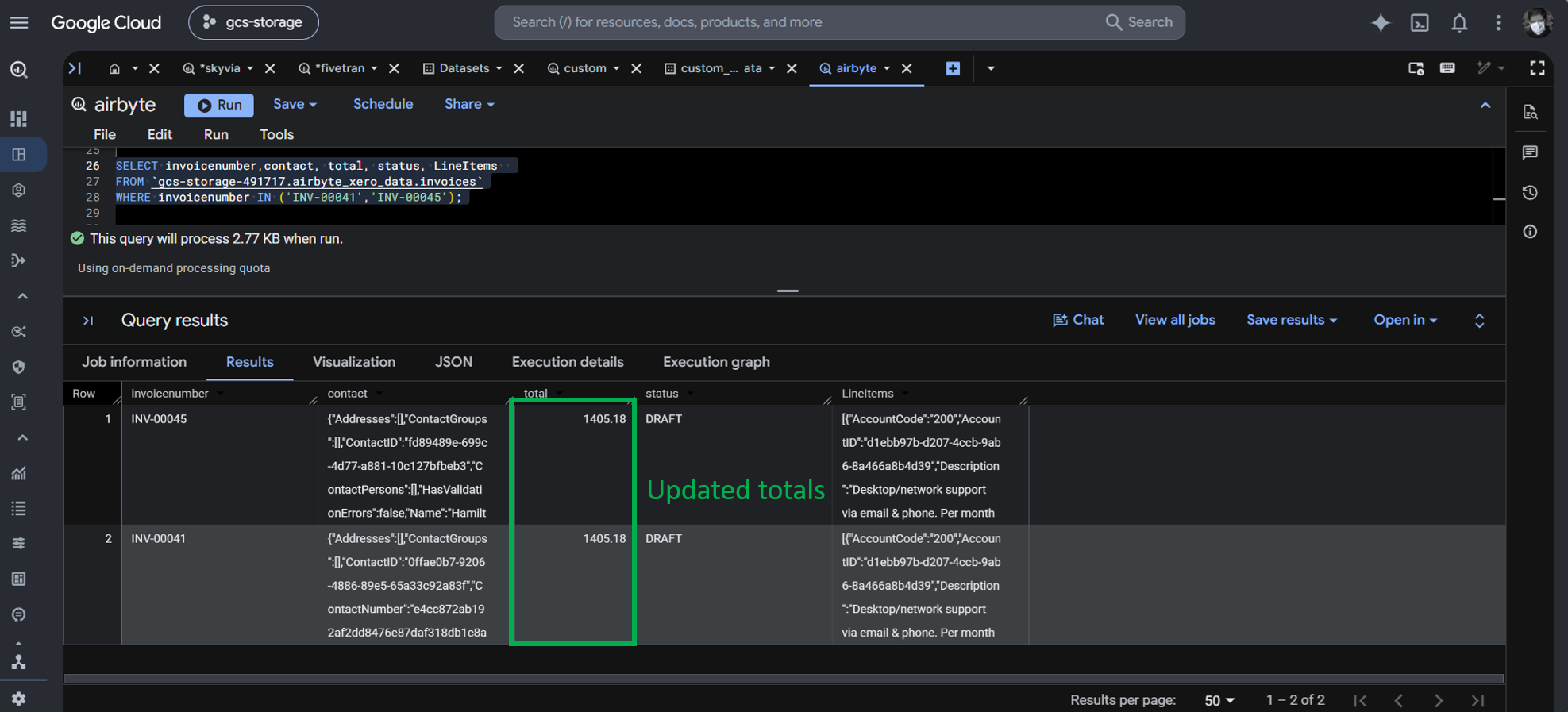
Notice that for Skyvia, Fivetran, and PyAirbyte, we didn’t have to manage API rate limits. It’s built-in and abstracted from us.
Best For
Engineering teams that require 100% on-premises data isolation, custom connector code modifications, and have in-house Kubernetes / Docker resources.
Rating
Pricing
Pricing in Airbyte depends on the Airbyte option you choose.
- Free: for PyAirbyte and Airbyte Core/OSS. Only the software is free. Infrastructure and developer costs are not included.
- Paid: for Airbyte Cloud. Pricing plans include Standard, Plus, and Pro, using capacity-based pricing. You need to contact sales for a tailored quote. For more details, visit the Airbyte pricing page.
For this test, I just downloaded the Python libraries, used free Docker, and free Visual Studio Code.
Key Technical Capabilities
- Open-source Connector Development Kit (CDK) allowing developers to fork and edit the Xero connector and others as well.
- Local orchestration inside private VPCs with no external data egress.
Pros
- Free software license (Open Source Edition).
- Complete control over raw data pipelines and networking.
- Offers various options: a paid Airbyte Cloud, a self-hosted Airbyte OSS, and PyAirbyte.
Cons
- Hidden infrastructure and DevOps overhead (500– 3,000+/month in server compute and engineering triage).
- Community-maintained connectors frequently experience breakage when Xero updates its API schemas.
Why Is the G-Accon + Google Sheets Route Only Suitable for Basic, Lightweight Reporting?
G-Accon provides Google Sheets extensions for Xero and QuickBooks. We will use the one for Xero. Unlike the other tools, this is already made for spreadsheets, and there’s a clear limit on what we can do with it. That said, it can still connect to Xero tables and provides 2-way sync updates.
With G-Accon + Google Sheets, we can make an external table pointing to Google Sheets in BigQuery.
Setting Up G-Accon for Xero in Google Sheets
It starts by getting the G-Accon for Xero Add-on in Google Sheets, as seen below:
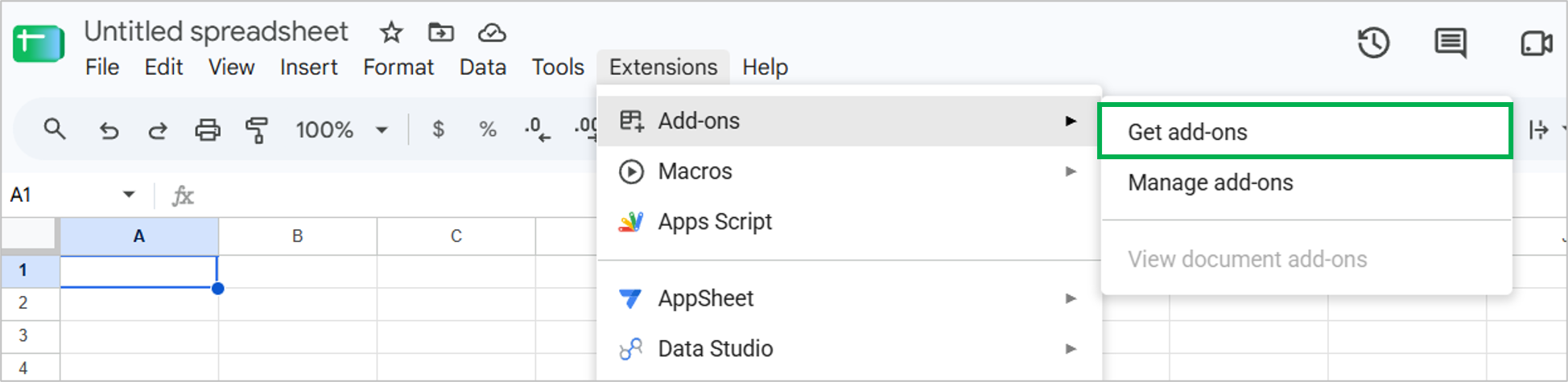
Then, I searched for G-Accon for XERO and installed it.
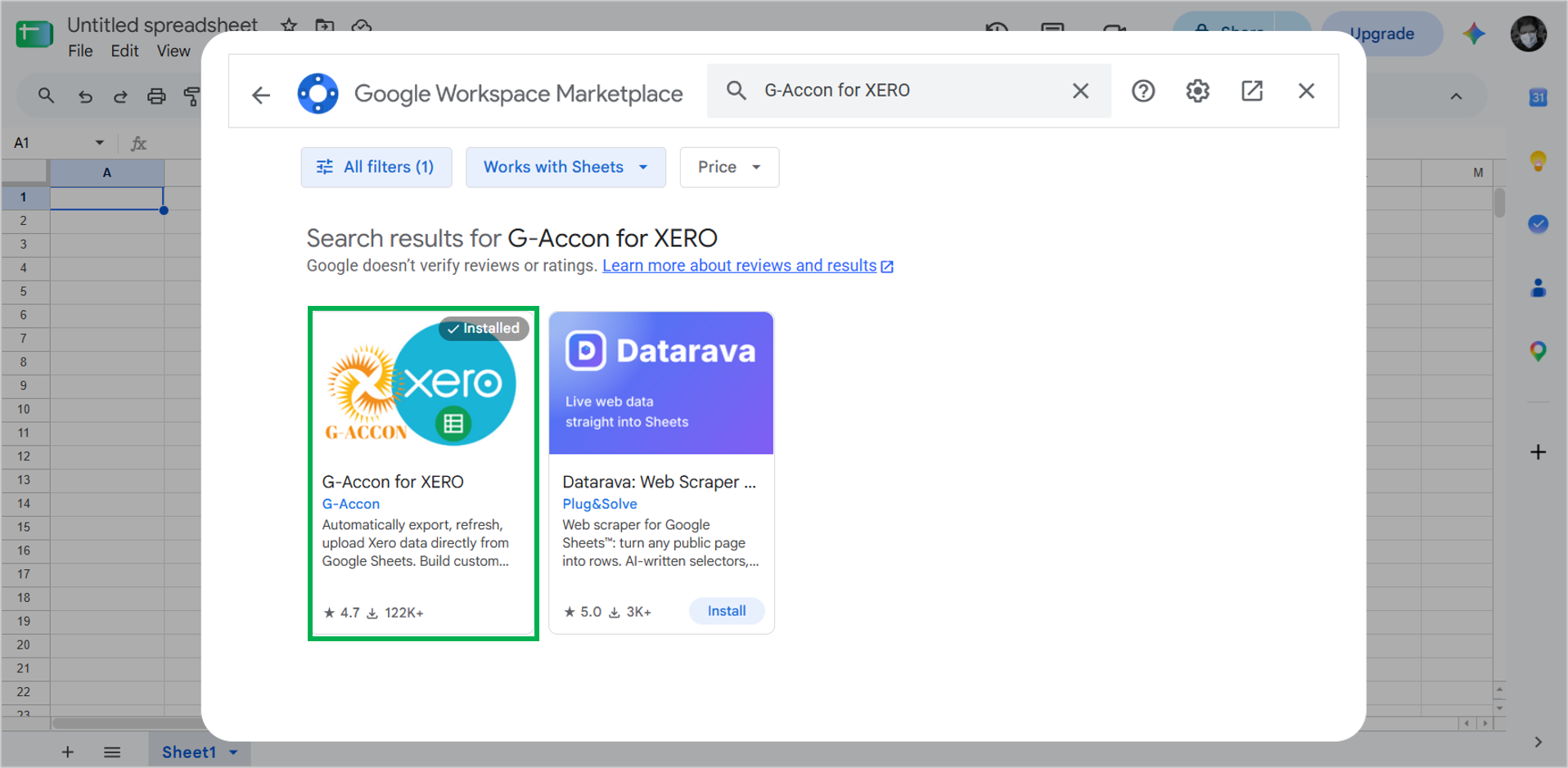
Once it’s installed, I signed in to Xero. Then, I selected Get Accounting Data/Reports -> Get Data -> Get Accounting Data.
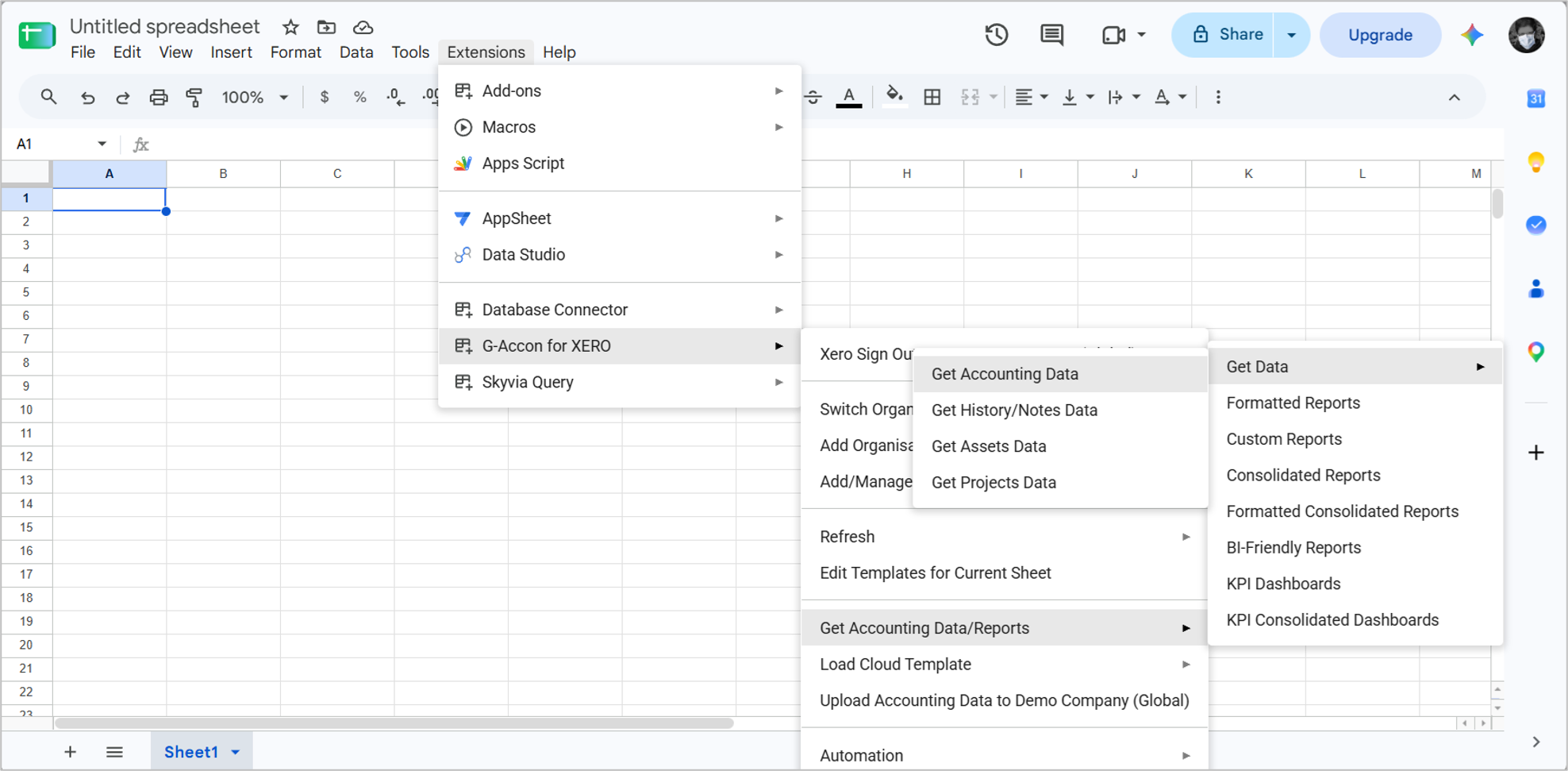
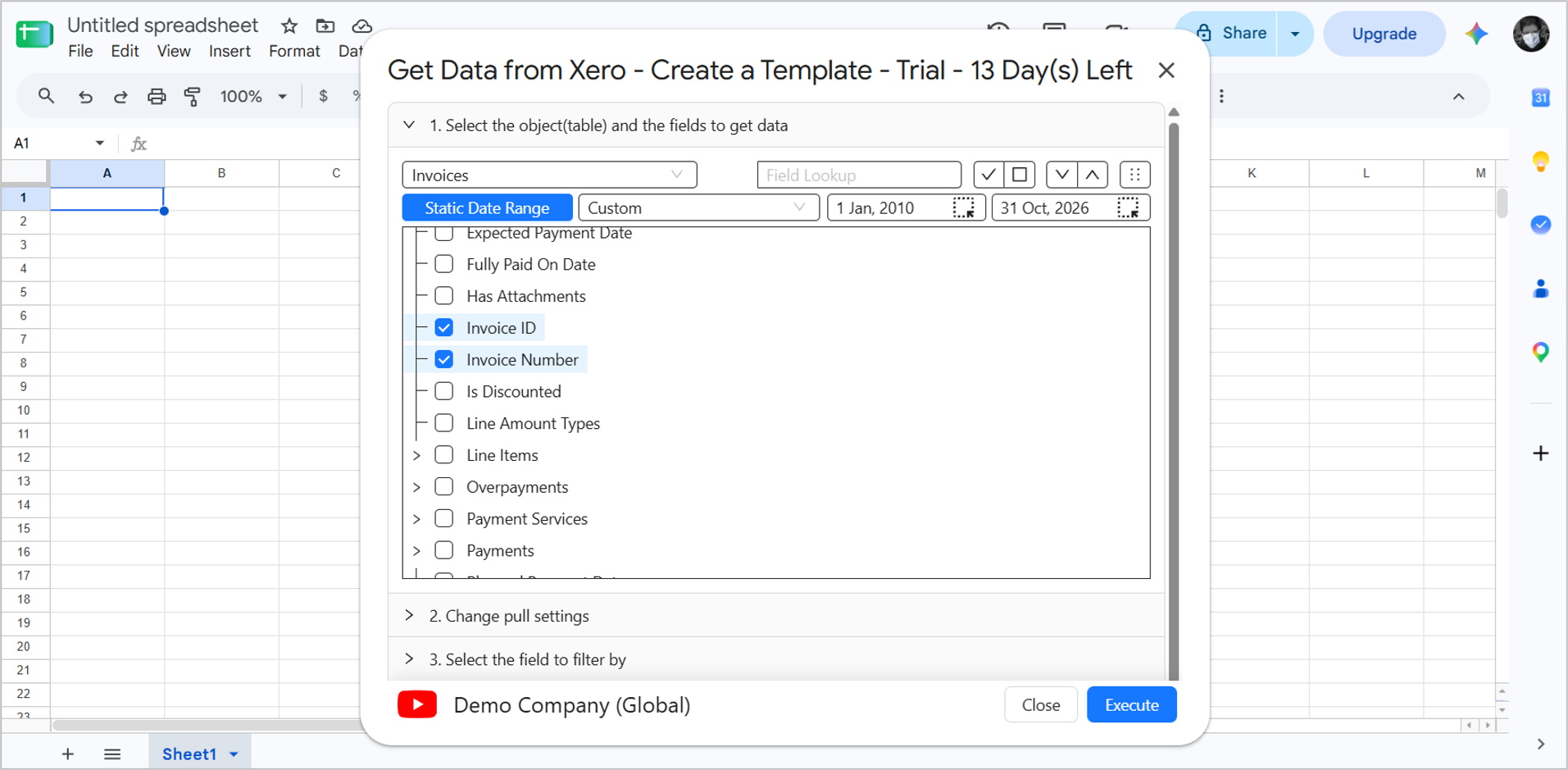
A window opened, and I picked the Invoices table and specified a date range. Then, I marked the columns to include. For testing purposes, we are not choosing all columns. Instead, a few important ones like Invoice Number, Totals, Date, etc. Finally, I clicked Execute to get the data.
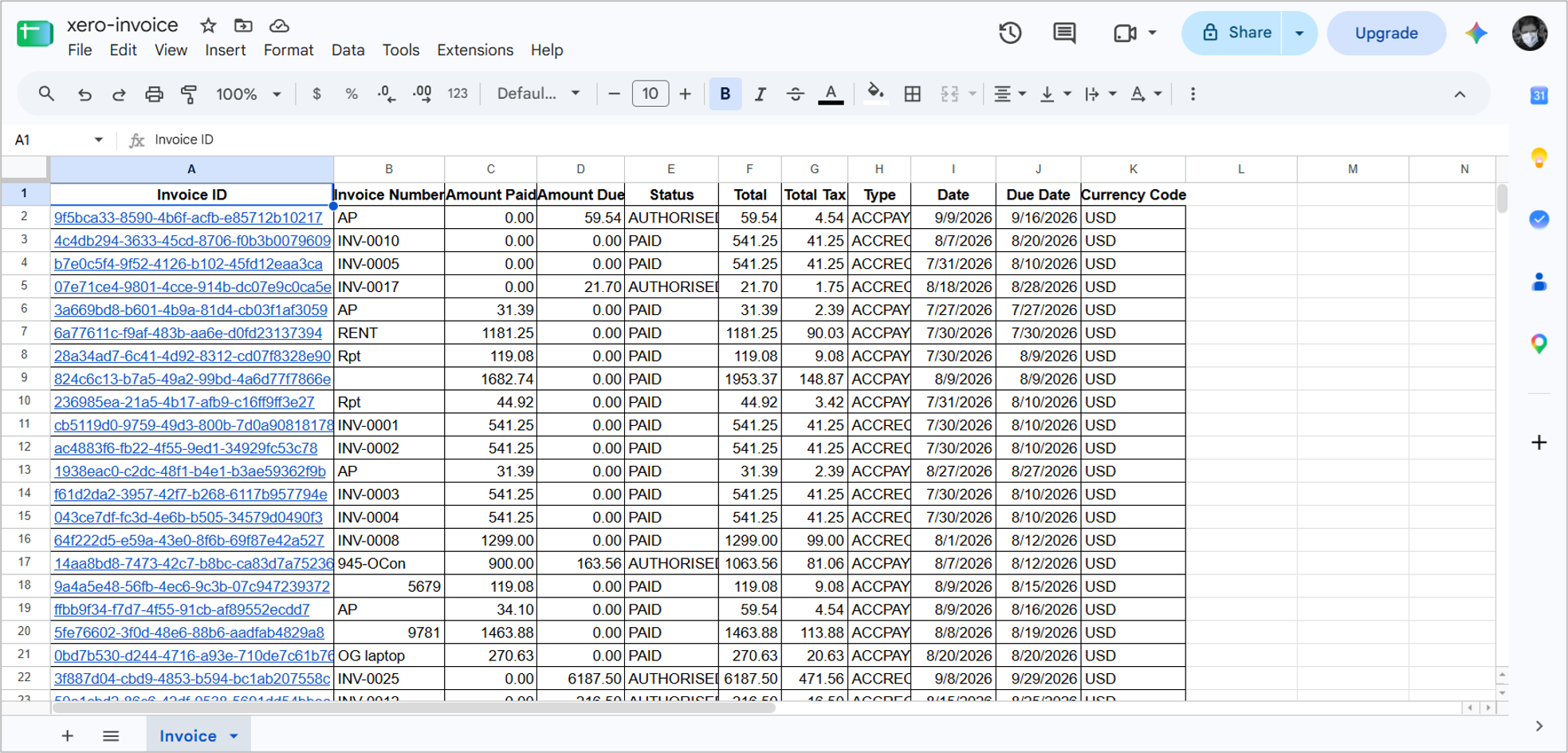
Then, it will populate the sheet with invoice data. Notice that there will be a header that mentions the data range. I removed that, and the final output should be below:
Once it’s saved and ready, I opened the Google Cloud Console and chose BigQuery. I linked the above spreadsheet to BigQuery as an external table. I provided the URL link of the sheet as a source. Below is the command for that:
CREATE OR REPLACE EXTERNAL TABLE
  `gcs-storage-491717.g_accon_xero_data.invoices_external` (
    InvoiceID STRING,
    Invoice_Number STRING,
    Amount_Paid NUMERIC,
    Amount_Due NUMERIC,
    Status STRING,
    Total NUMERIC,
    Total_Tax NUMERIC,
    Type STRING,
    Date STRING,
    Due_Date STRING,
    Currency_Code STRING
  )
OPTIONS (
  format = 'GOOGLE_SHEETS',
  uris = [
    'https://docs.google.com/spreadsheets/d/<spreadsheet ID>'
  ],
  skip_leading_rows = 1
);
Note that the table columns should be mapped to the spreadsheet columns. It won’t autodetect the columns in my case. It should skip leading rows so the column names in the sheet will not be included as data in BigQuery.
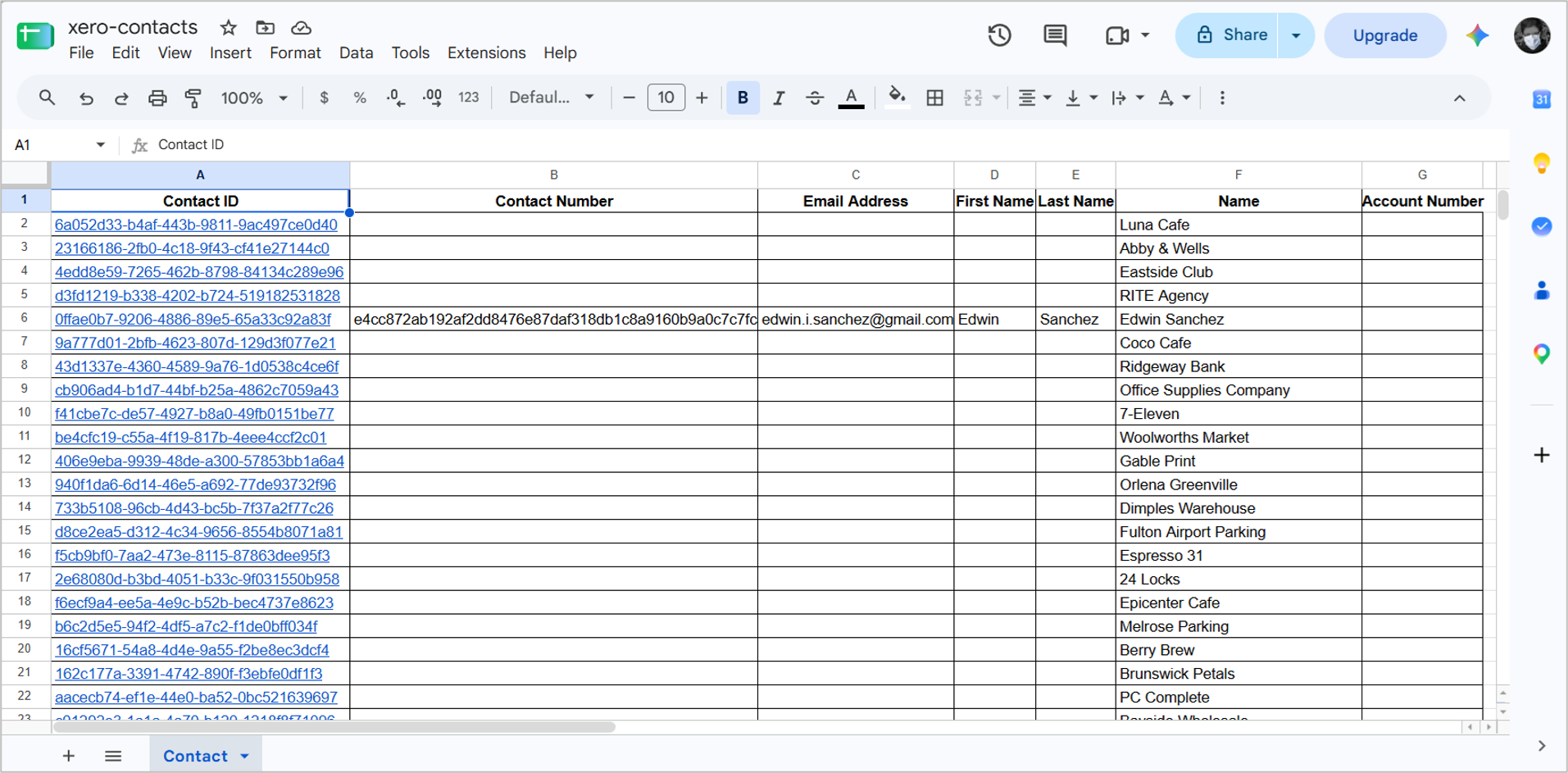
I repeated the process for the Xero contacts, and I got this spreadsheet from that:
I also created an external table to link to the above spreadsheet.
CREATE OR REPLACE EXTERNAL TABLE
  `gcs-storage-491717.g_accon_xero_data.contacts_external` (
     Contact_ID STRING,
     Contact_Number STRING,
     Email_Address STRING,
     First_Name STRING,
     Last_Name STRING,
     Name STRING,
     Account_Number STRING
  )
OPTIONS (
  format = 'GOOGLE_SHEETS',
  uris = [
    'https://docs.google.com/spreadsheets/d/<spreadsheet ID>'
  ],
  skip_leading_rows = 1
);
Querying the External Tables
After the external tables are ready, I can run the same row count query:
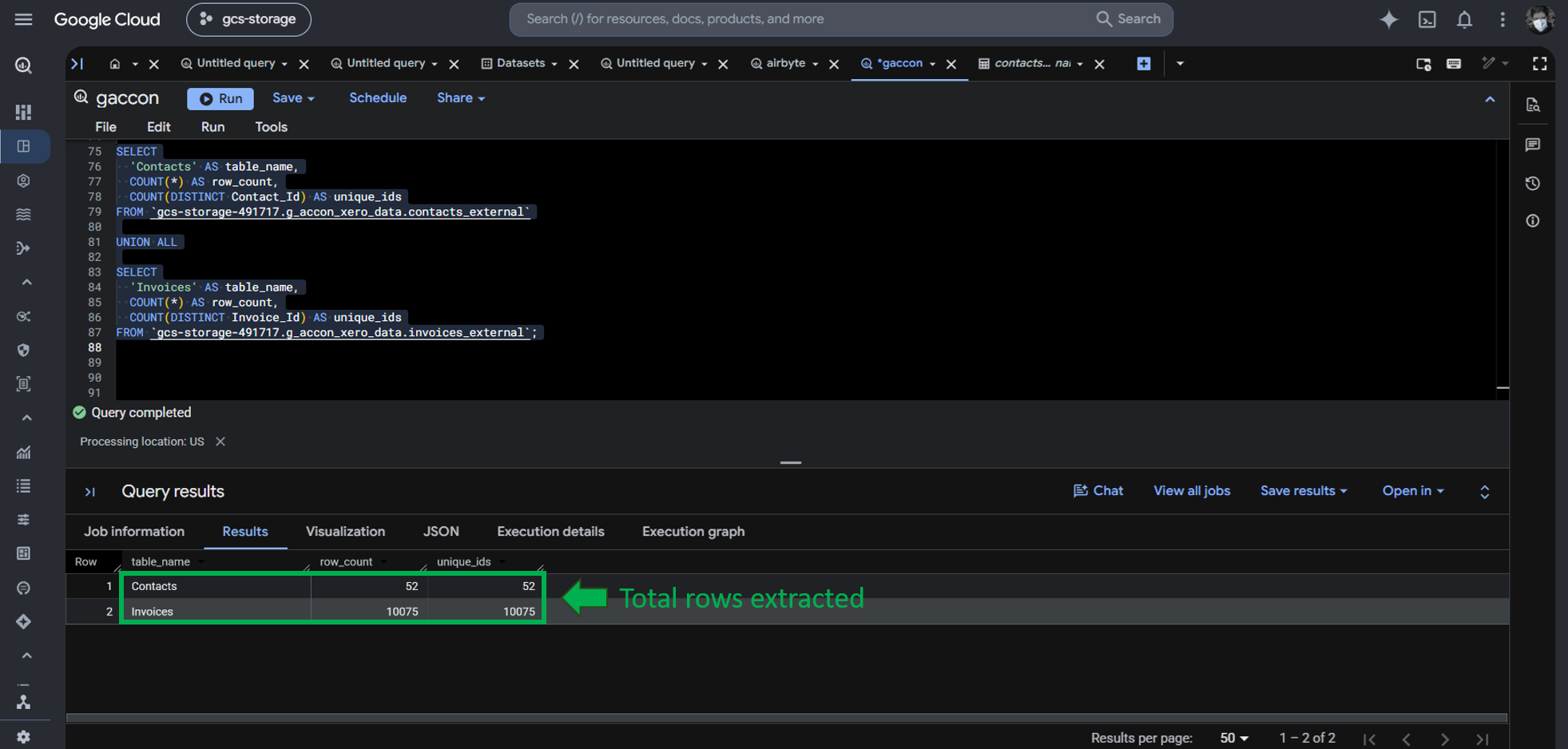
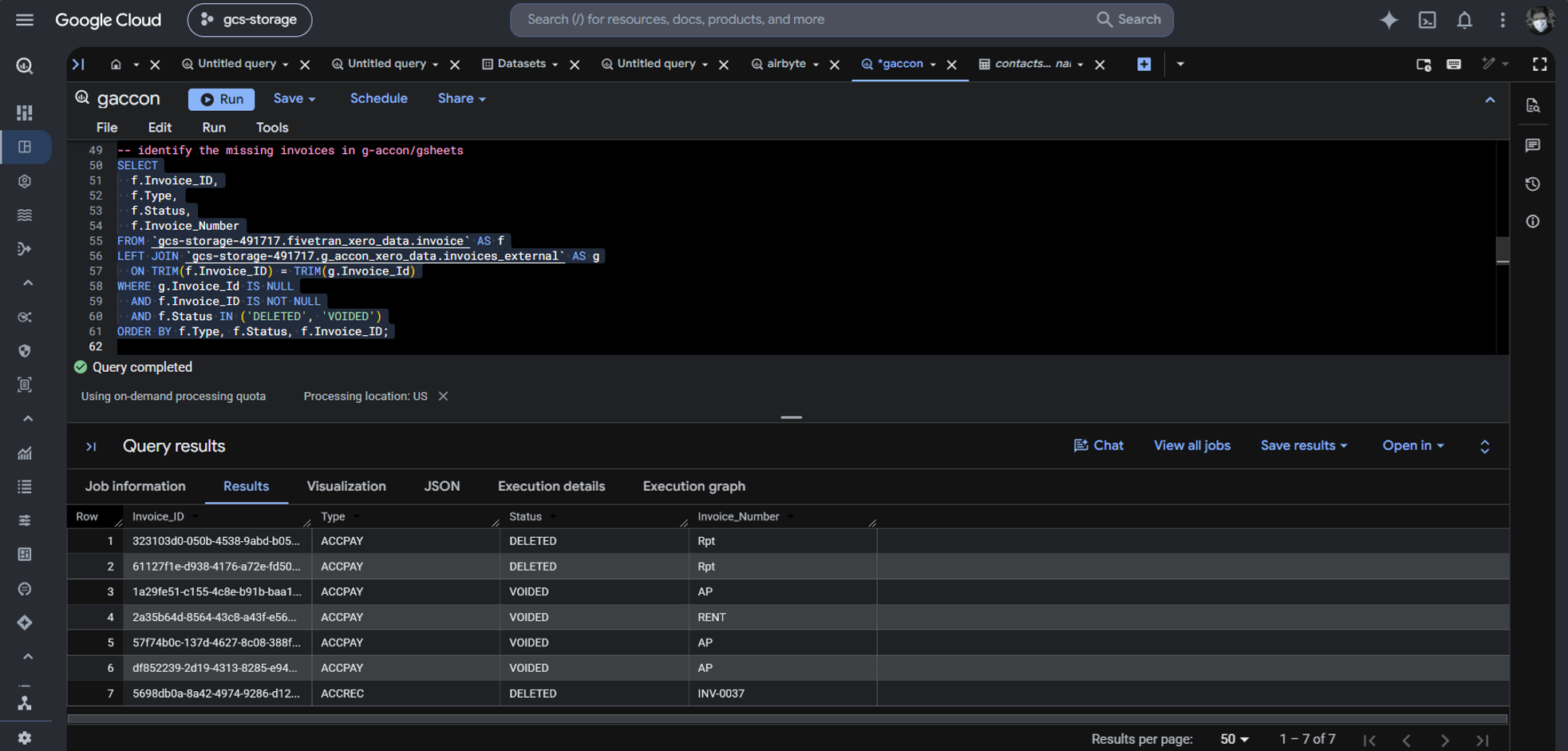
G-Accon only included 10,075 invoices. Other tools loaded 10,082, so it’s short by 7 invoices. G-Accon did not include voided and deleted rows. I found them with the following query:
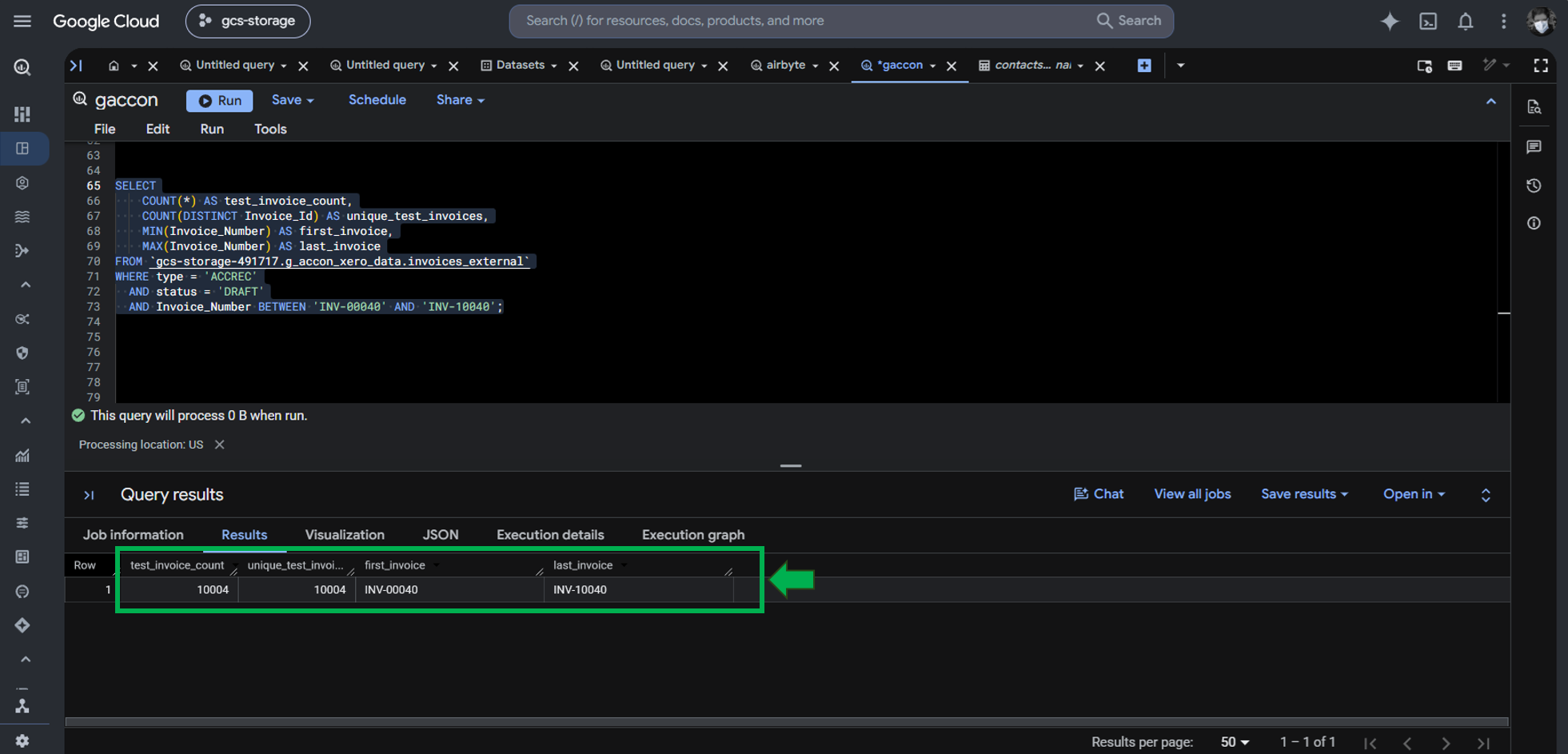
However, the 10,004 draft invoices that I uploaded are accounted for, as seen below:
Let’s note the initial value of the same 2 invoices earlier from the external table:
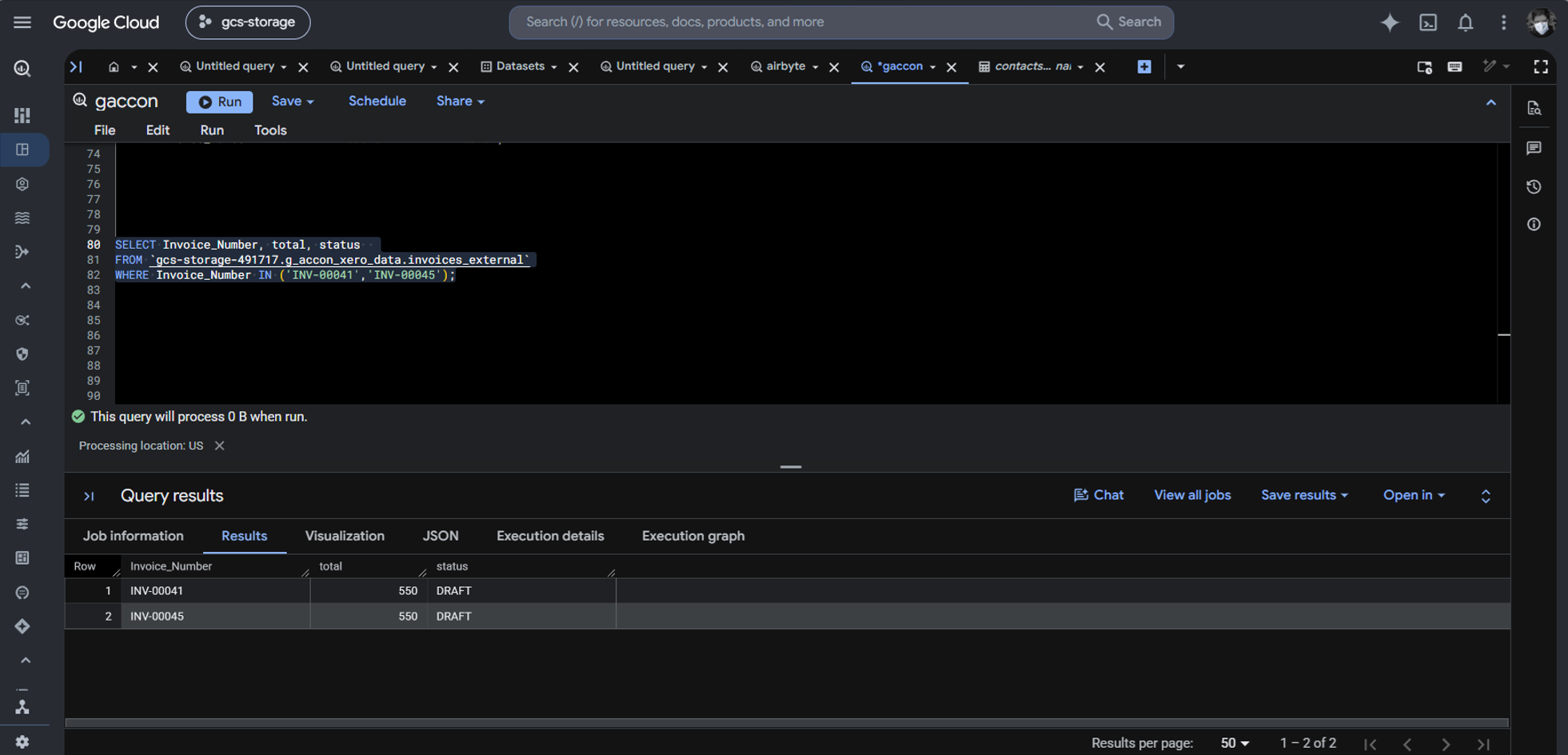
The totals are as expected.
Refreshing the Data from Xero to Google Sheets
After editing the invoices for additional line items, I refreshed the spreadsheet with G-Accon.
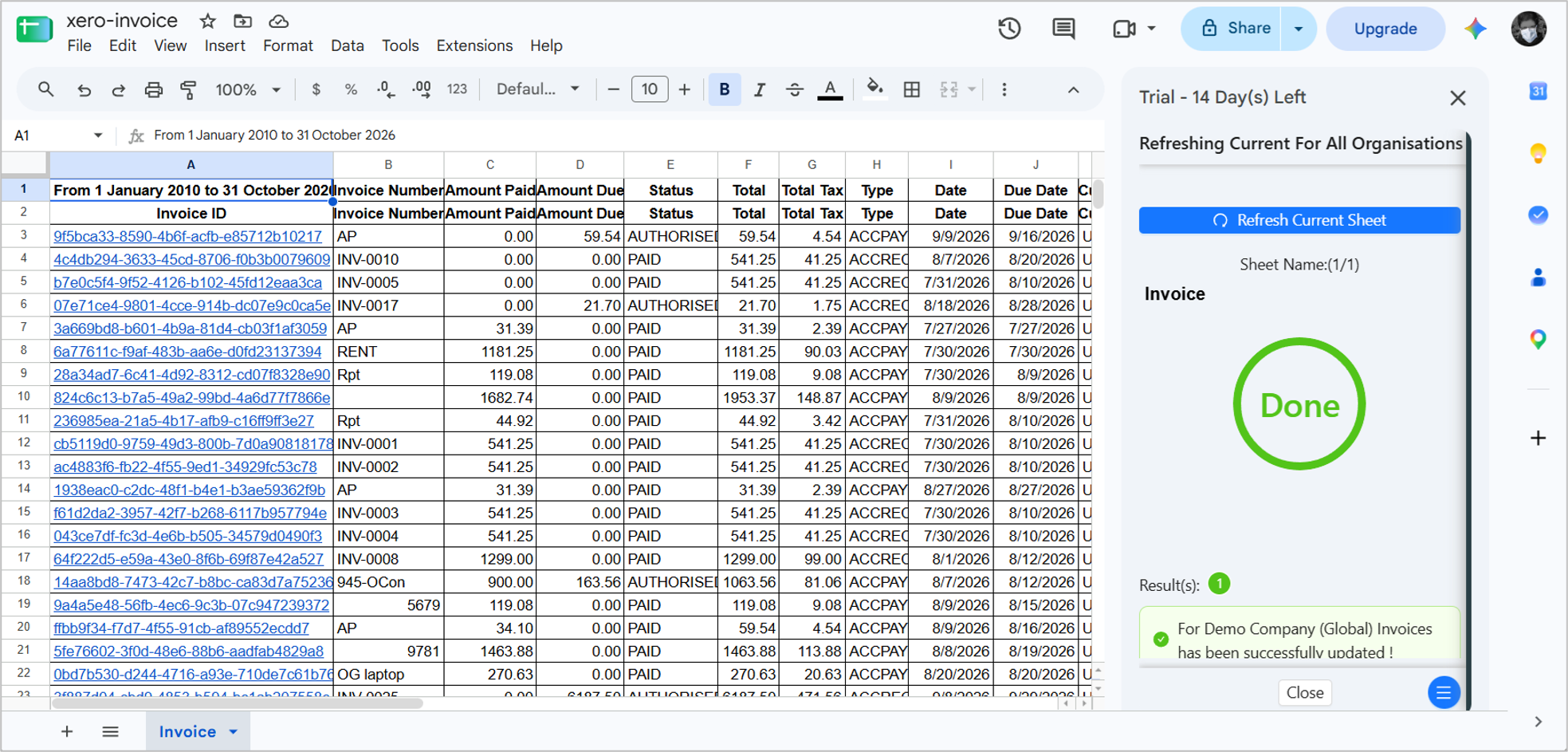
When it’s done, I query the 2 invoices again, and the totals changed as expected:
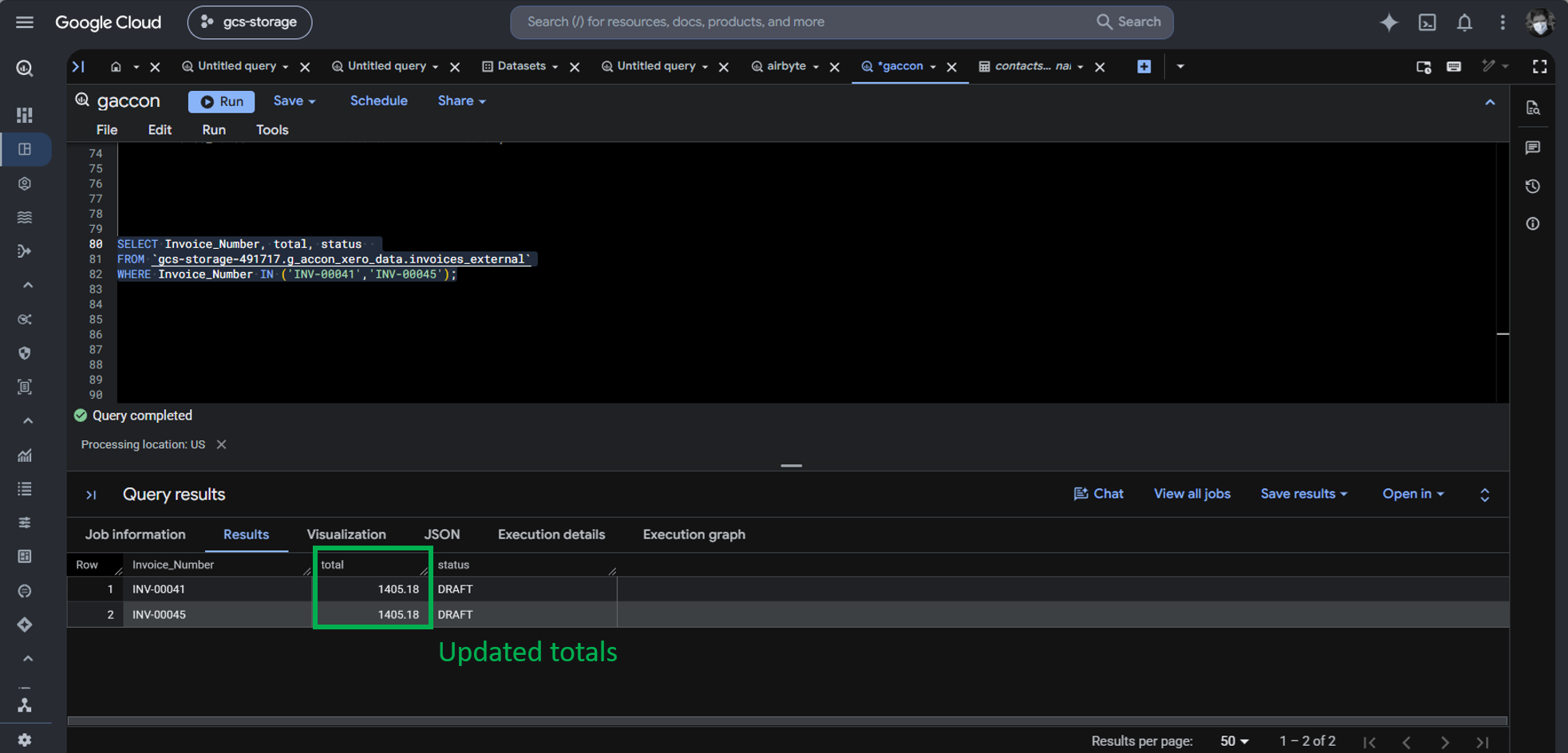
This is an easy solution for a not-so-technical person to integrate Xero to BigQuery.
Best For
Small accounting firms and solo bookkeepers who only work within Google Sheets and want a basic Looker Studio connection.
Rating
Pricing
G-Accon for Xero pricing includes Business, Accountant, Advisor, and Enterprise Plans. Pricing starts at $40 for the Business tier. I used the 14-day free trial in this test.
For more details on pricing, check out the G-Accon pricing page.
Key Technical Capabilities
- Pulls Xero data into Google Sheets tabs using a third-party add-on (G-Accon), which is then queried by BigQuery as an external table or federated source.
Pros
- Low technical barrier for non-technical accountants.
- Native Looker Studio connectivity without full ETL configuration.
Cons
- Highly fragile: Google Sheets has a 10-million cell limit; schema changes corrupt downstream BigQuery queries.
- Multi-step latency and security vulnerabilities when handling sensitive financial logs in shared spreadsheets.
Why Build Custom Python Scripts Using the Xero API and BigQuery Client Libraries?
A DIY Python script is the most flexible way to build a pipeline. Aside from the vast Python libraries you can use to connect to any data source, you can trigger other scripts that interact with servers, operating systems, APIs, and other technical requirements.
But this will consume the most time. If there’s nothing so special in the technical requirements, a no-code solution may be a better solution, even if AI can assist you to finish faster.
The script I made here will handle API limits, pagination, refresh tokens, and watermarks. It works by running the script with a parameter:
- authorize – is to get a fresh refresh token by signing in to Xero with a browser. This token will be stored locally for the next run.
- full-refresh – to trigger the pipeline for initial sync.
- incremental – to trigger the pipeline to fetch and replicate changes only.
Handling Xero API Limits in the Custom Python Code
One of the factors affecting your choice of tool to deal with Xero to Google BigQuery integration is handling Xero API limits. My sample Python script can handle these. I didn’t show you how Skyvia, Fivetran, and Airbyte handled these limits because there’s nothing to show. They handled it internally for us.
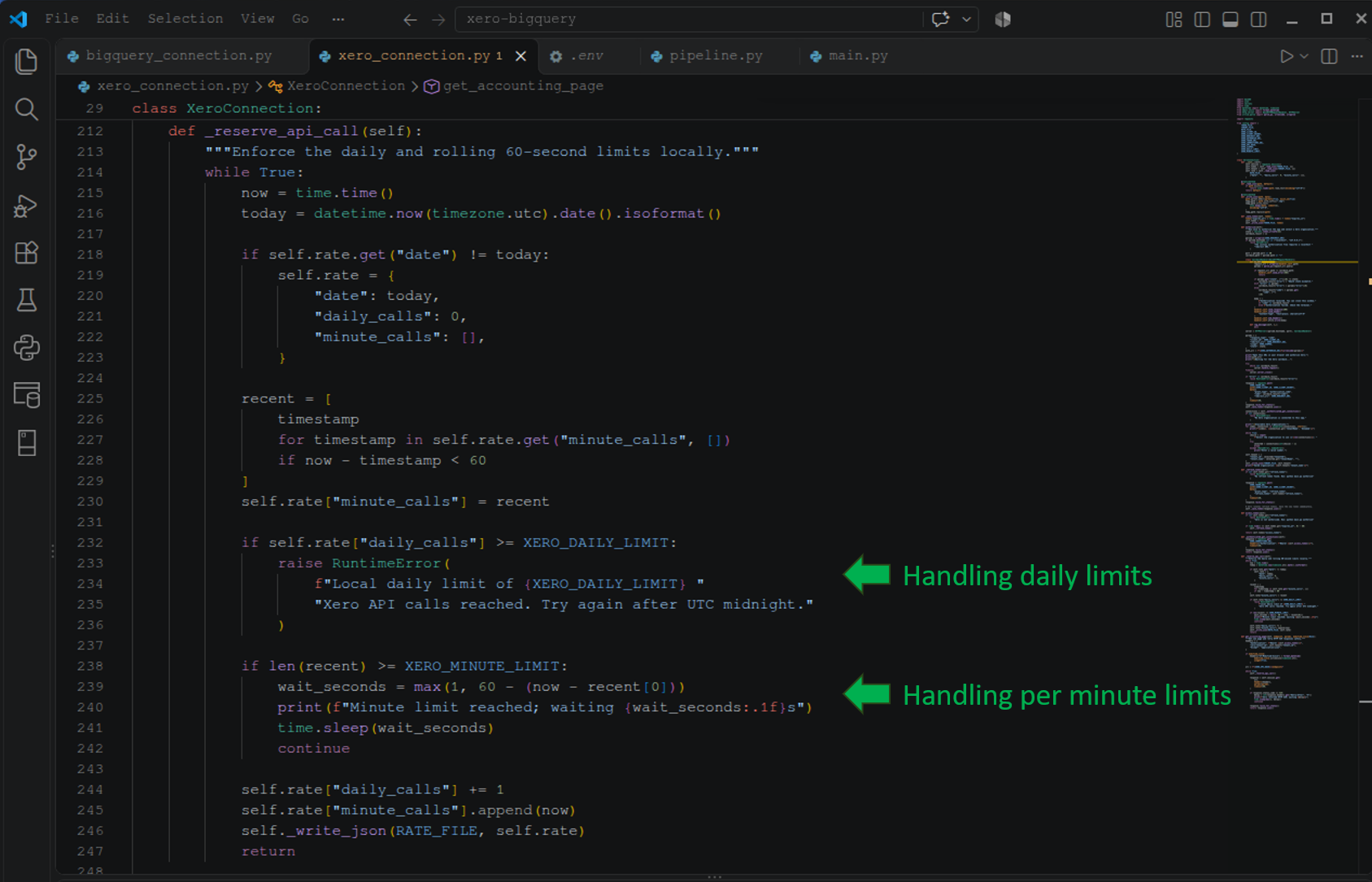
Daily and Per Minute Limits
At the time of writing, Xero includes a 1000 calls daily limit and a 60 calls per minute limit. If these numbers change, the script is configurable to increase or decrease the numbers in the .env file. Below is that part of the handling:
Handling Error 429
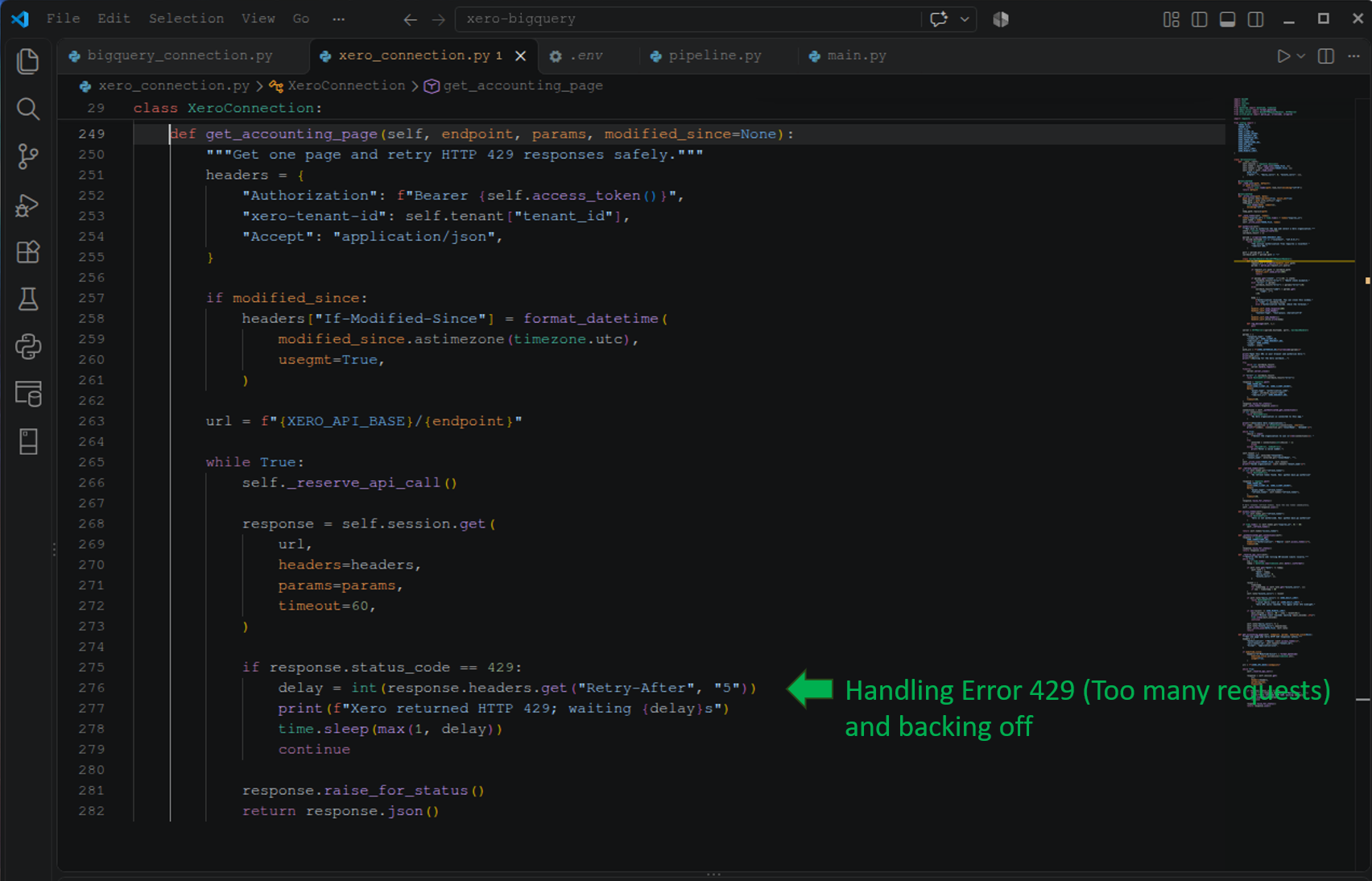
Another problem addressed here is when your pipeline hits the dreaded error 429 (Too many requests). When that happens, the script will back off for a computed number of seconds based on the Retry-After response in the API. Check that out below:
API Pagination
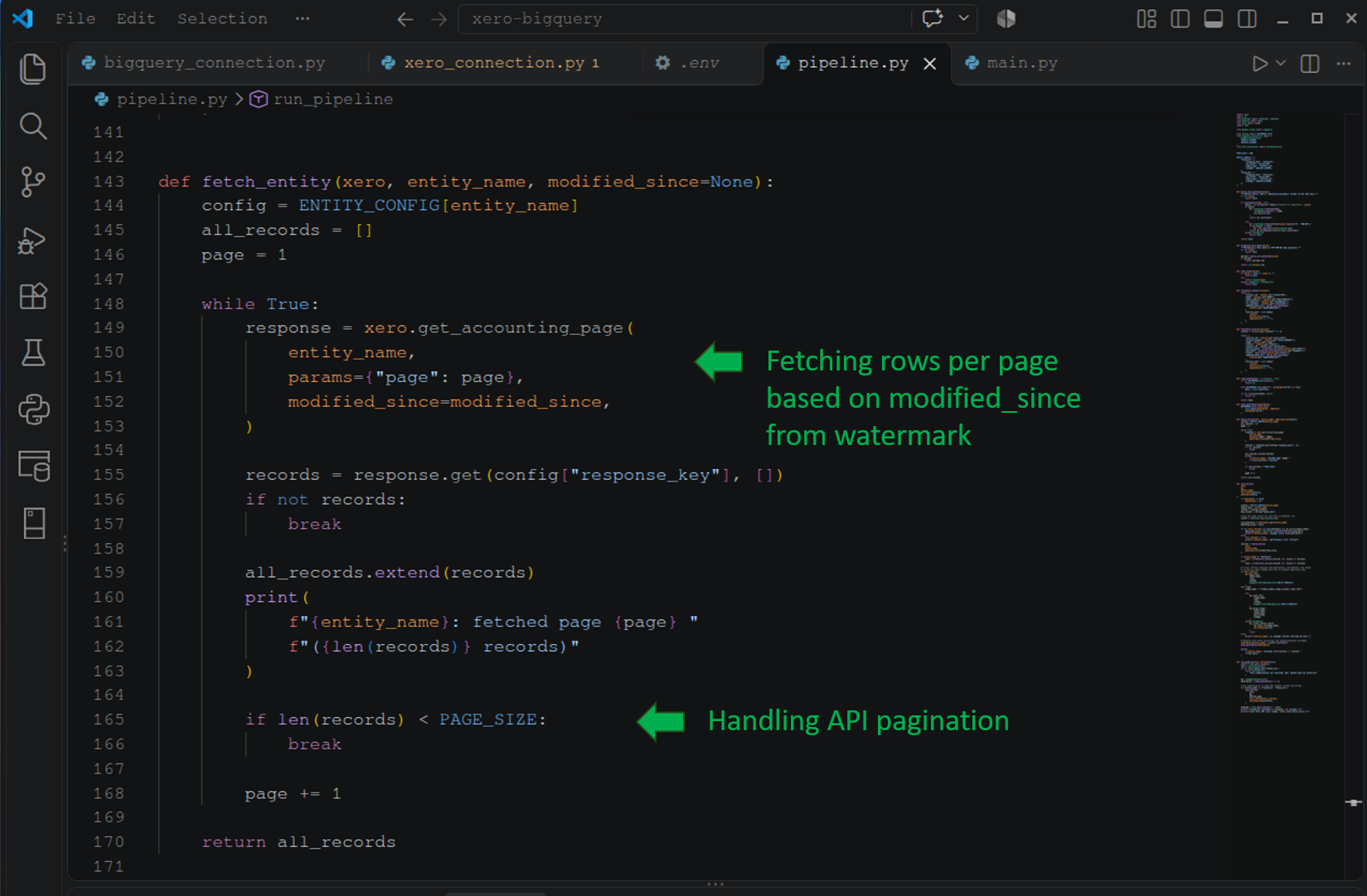
Another requirement is API pagination. We have more than 10,000 rows, and we can’t fetch them all at once. The current page size is 100 rows per page. Again, this can be increased or decreased in the script.
Pagination is handled below, along with using a watermark for incremental sync. I’ll tell you more about watermarks in a few moments.
Refresh Tokens
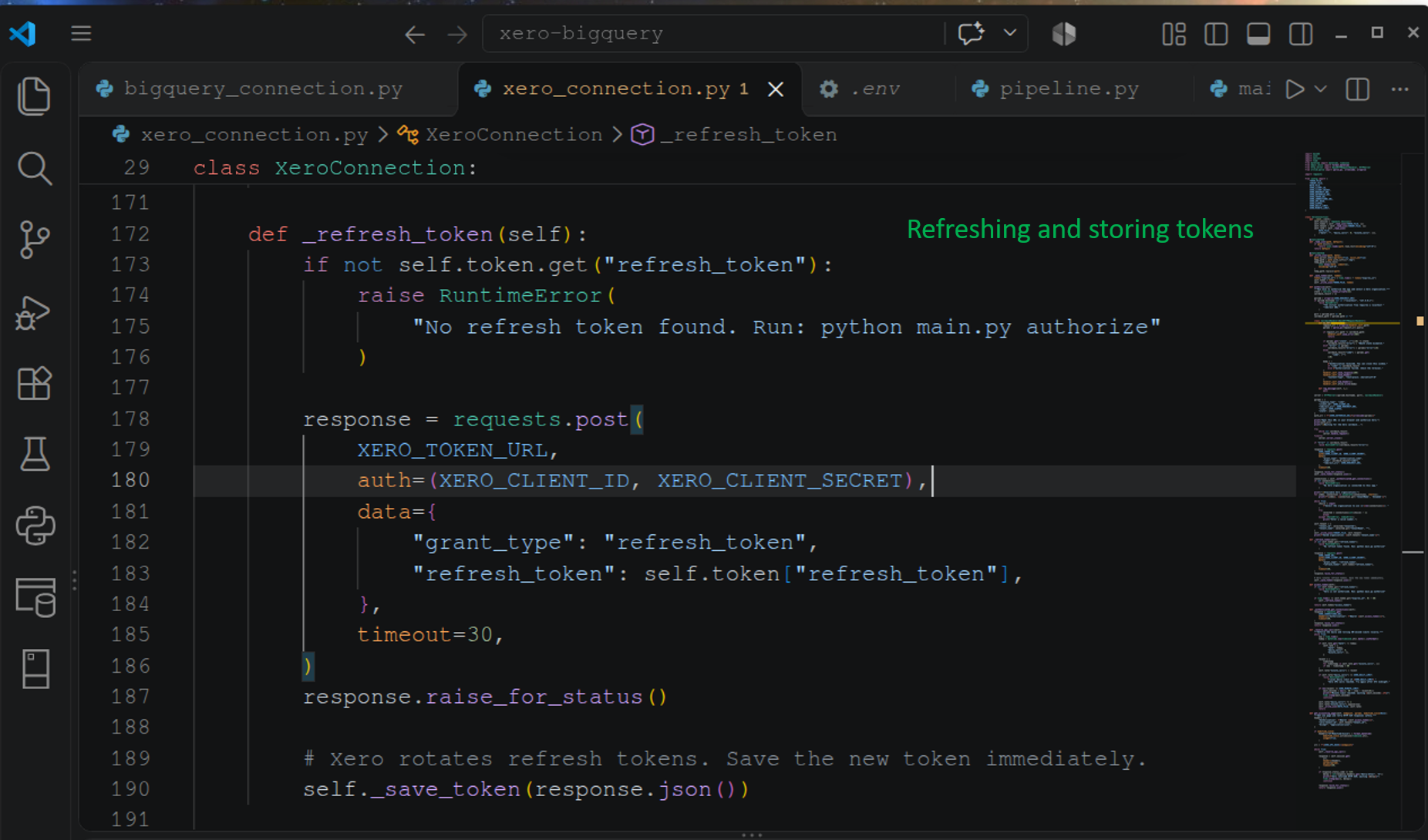
Then, the code also handles request tokens – getting a new one, storing, and retrieving in the next run. If one is not found, the pipeline terminates with an error.
Watermarks
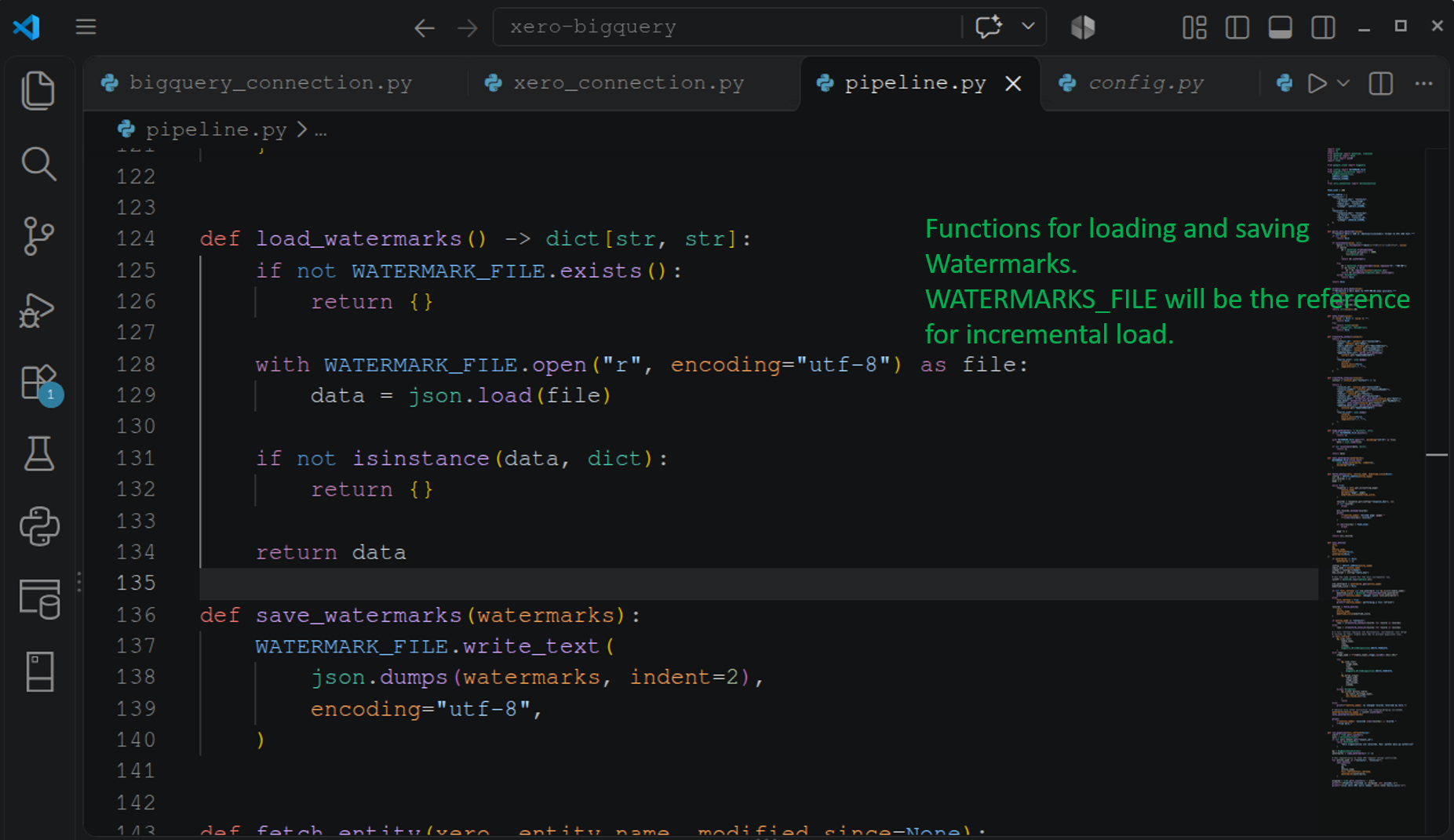
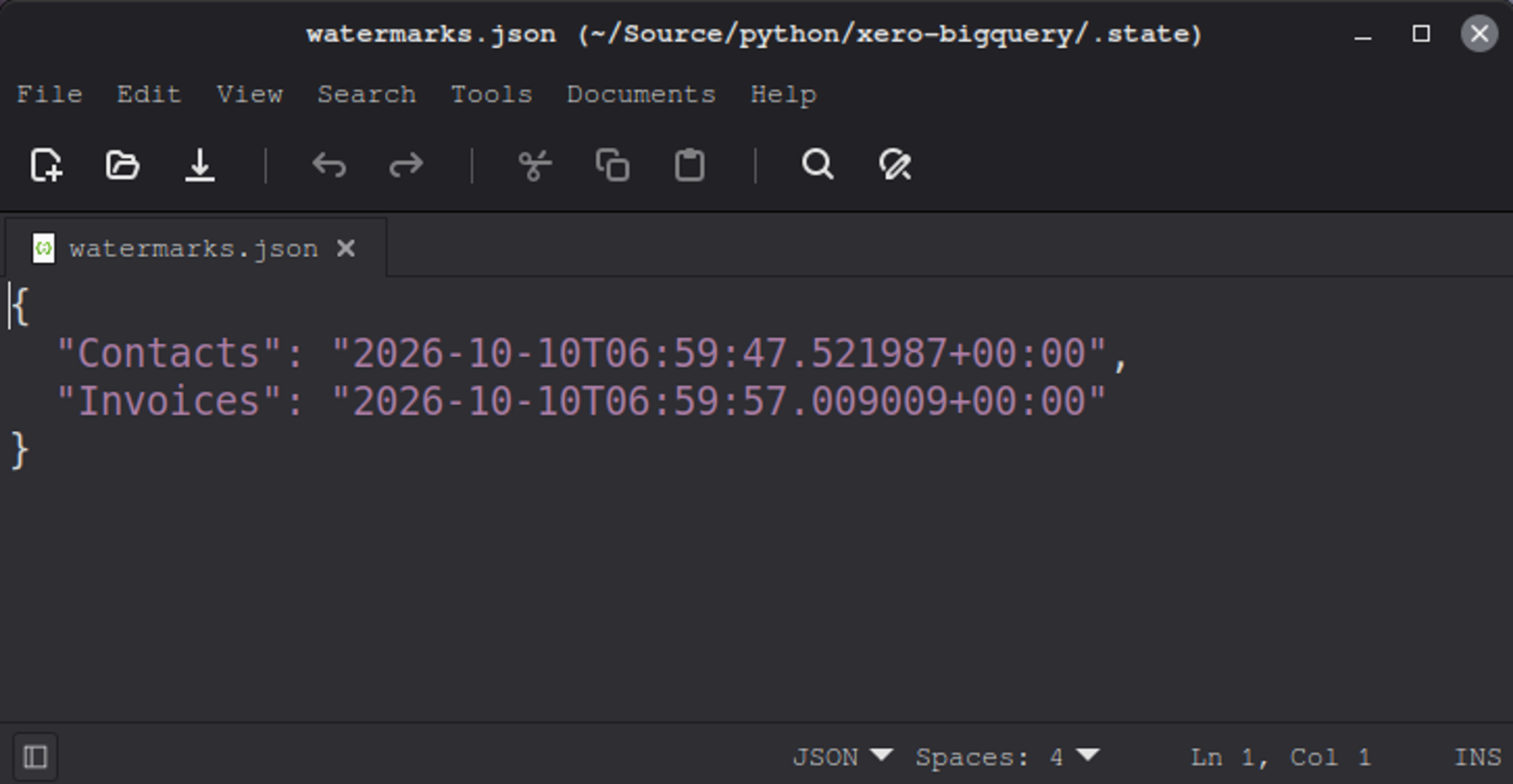
Now for the watermarks. We need to load and store the date and time the last sync was made for contacts and invoices. Below are the functions for loading and storing:
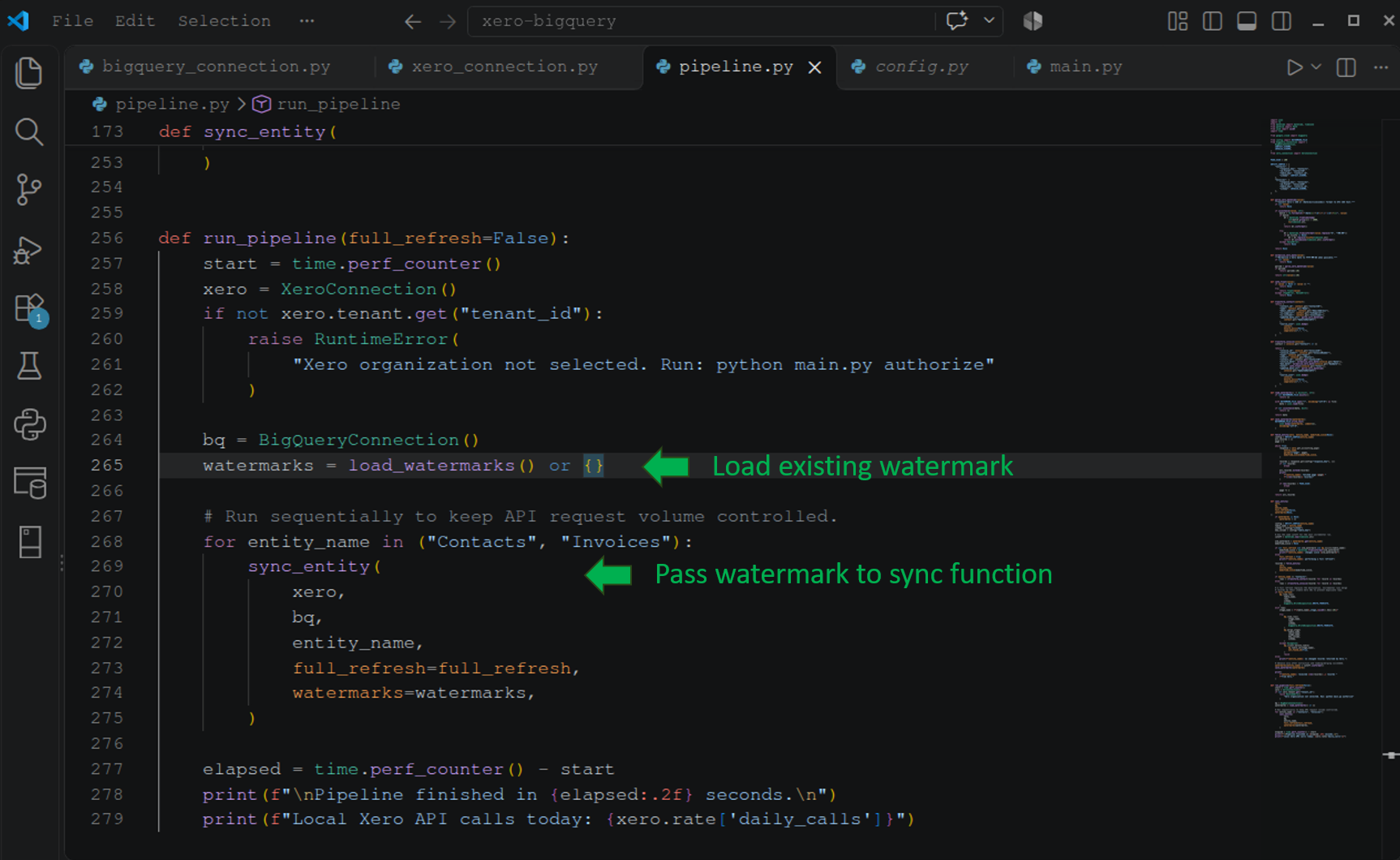
During runtime, the script loaded the watermarks and passed it to the sync orchestration. See that part below:
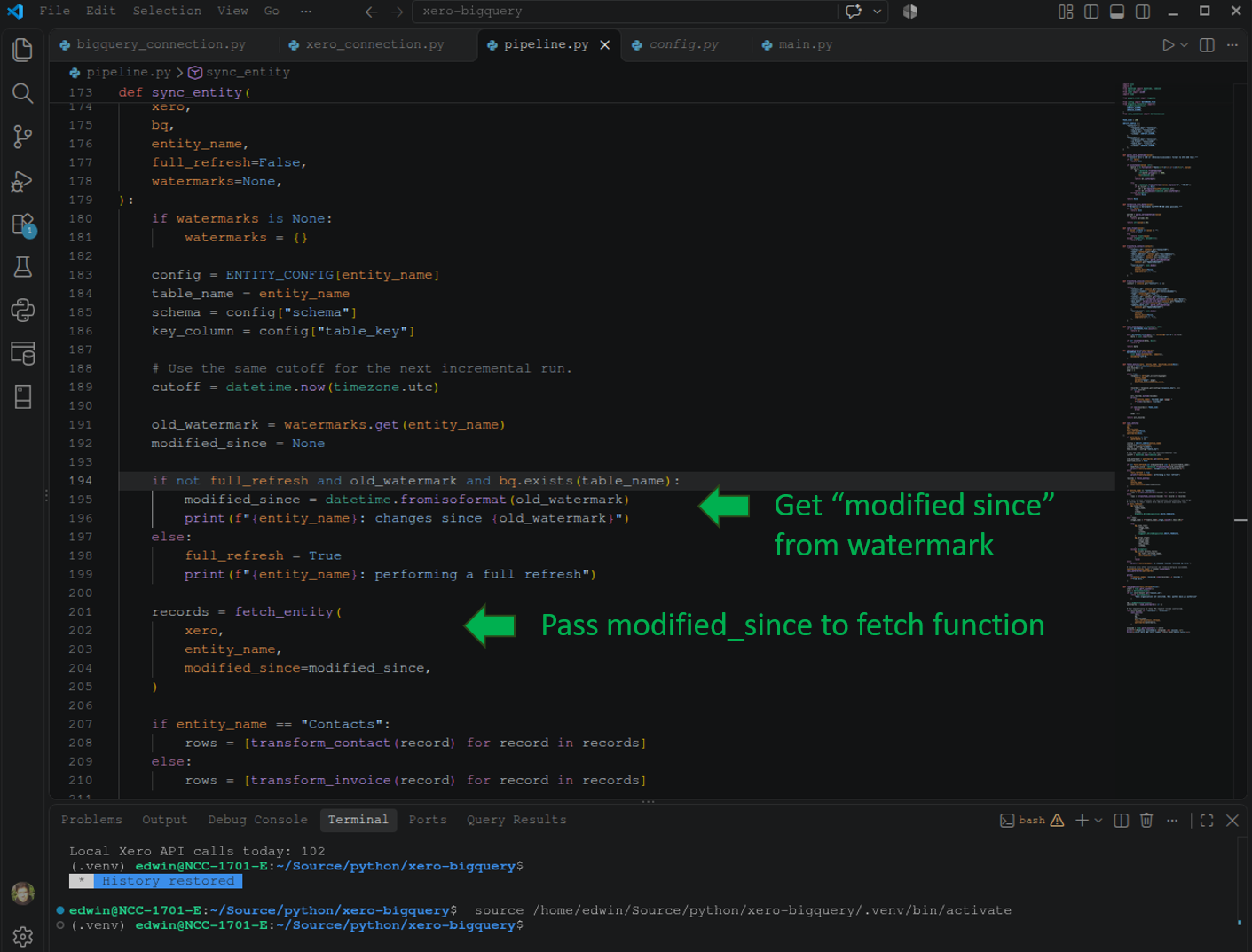
And when the watermark reaches the sync part, it will transform the date/time info to ISO format and pass that to the fetch function to get the rows per page in Xero.
Here is a sample watermarks.json created by the script:
And after extracting everything needed from Xero, it’s time to load it into BigQuery using a MERGE command:
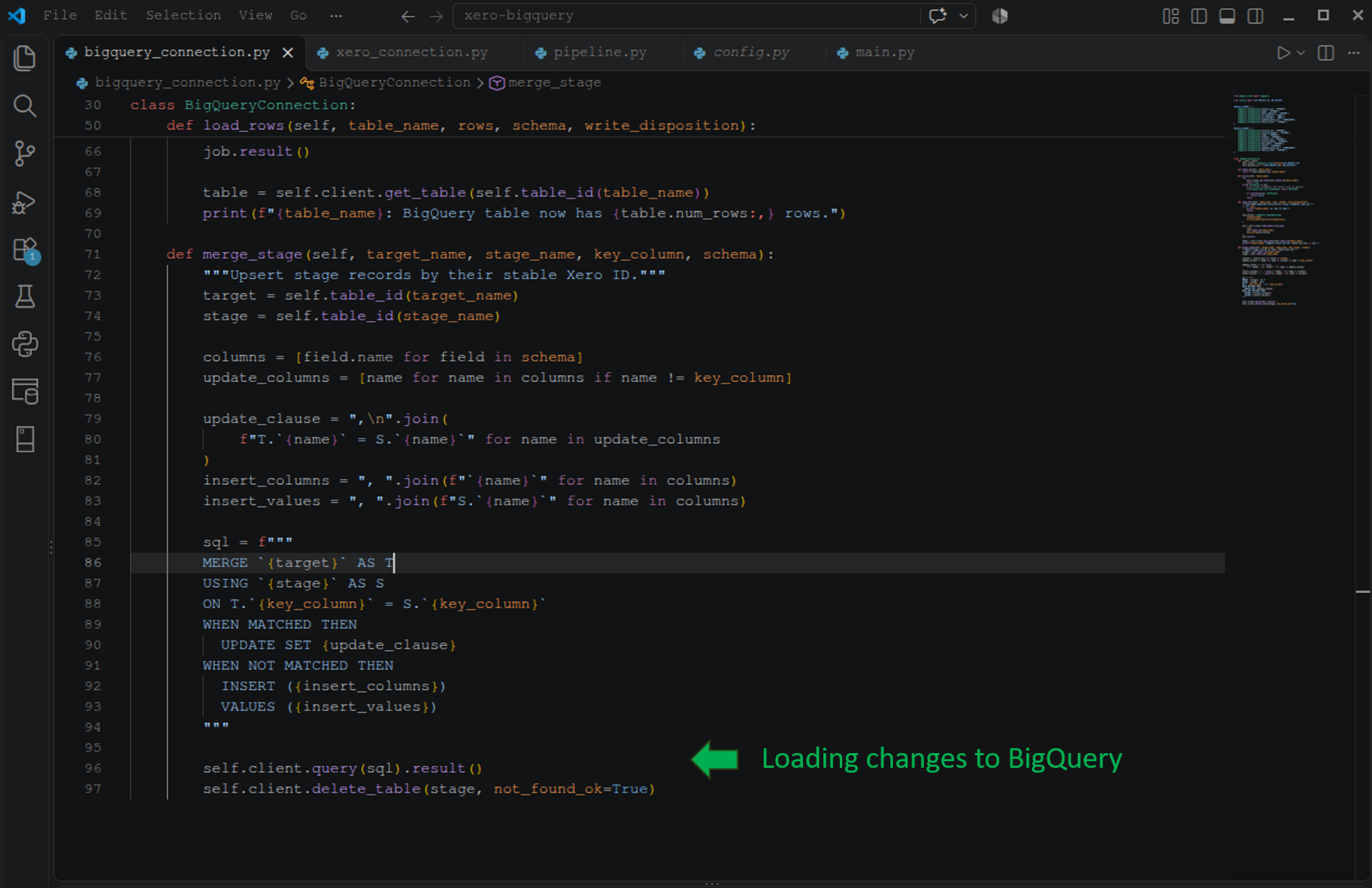
It’s quite long, and you only see the parts needed to help you decide. For the full working code, you can check it out in my GitHub repository.
Initial Sync Test
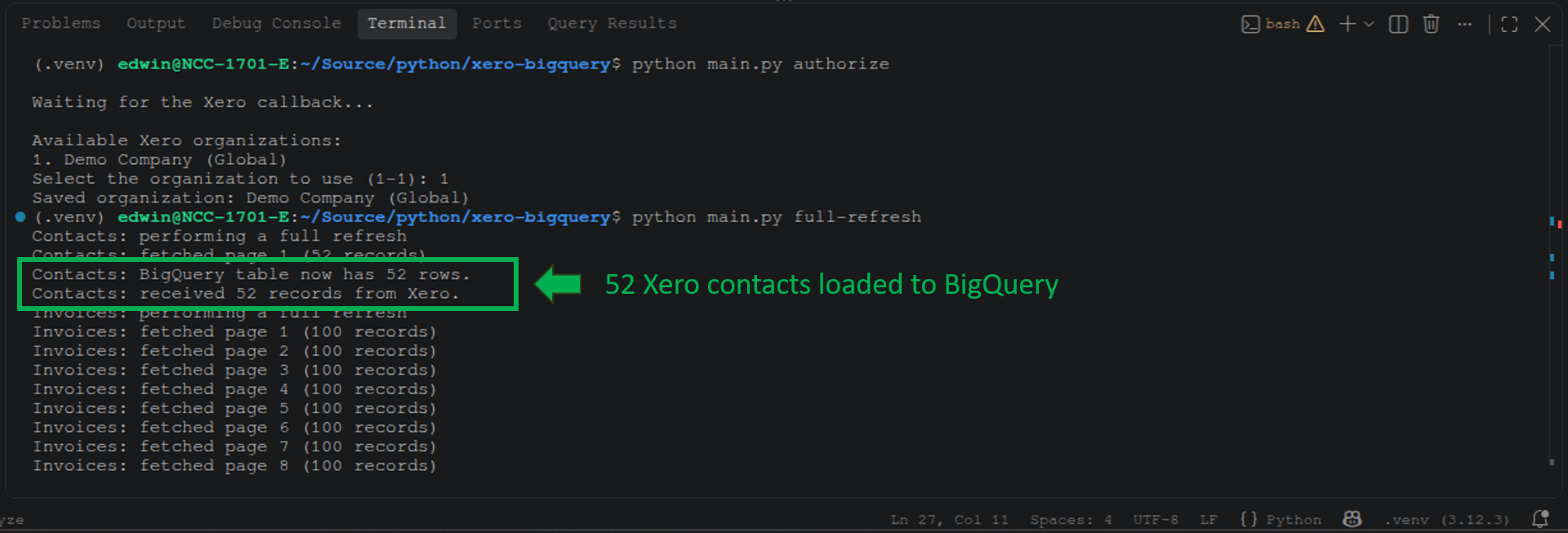
First, I had to get refresh tokens, so I ran the script with the authorize parameter. You can see it below, and it waited for a response from Xero. Then, I chose the Demo Company (Global).
After that, I ran the script with a full-refresh parameter value.
The first visible action in the script output is extracting the 52 Xero contacts, followed by extracting invoices 100 rows per page at a time:
Notice below that the per-minute limits are reached, but the script didn’t crash because of the back off:
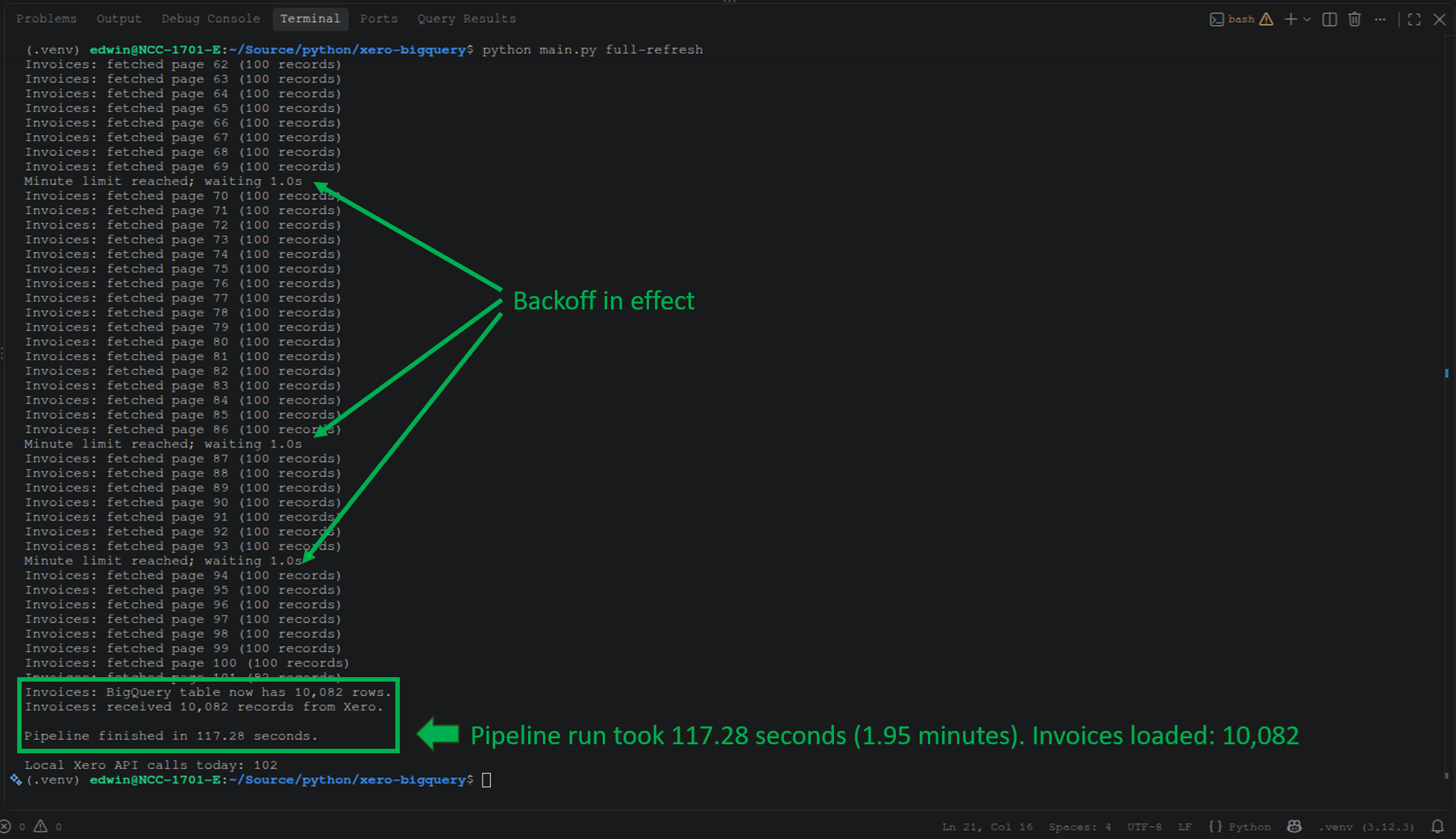
It took 1.95 minutes to load all 10,082 invoices and 52 contacts to BigQuery.
Let’s do the same tests we did with the other tools. Below are the row counts in BigQuery:
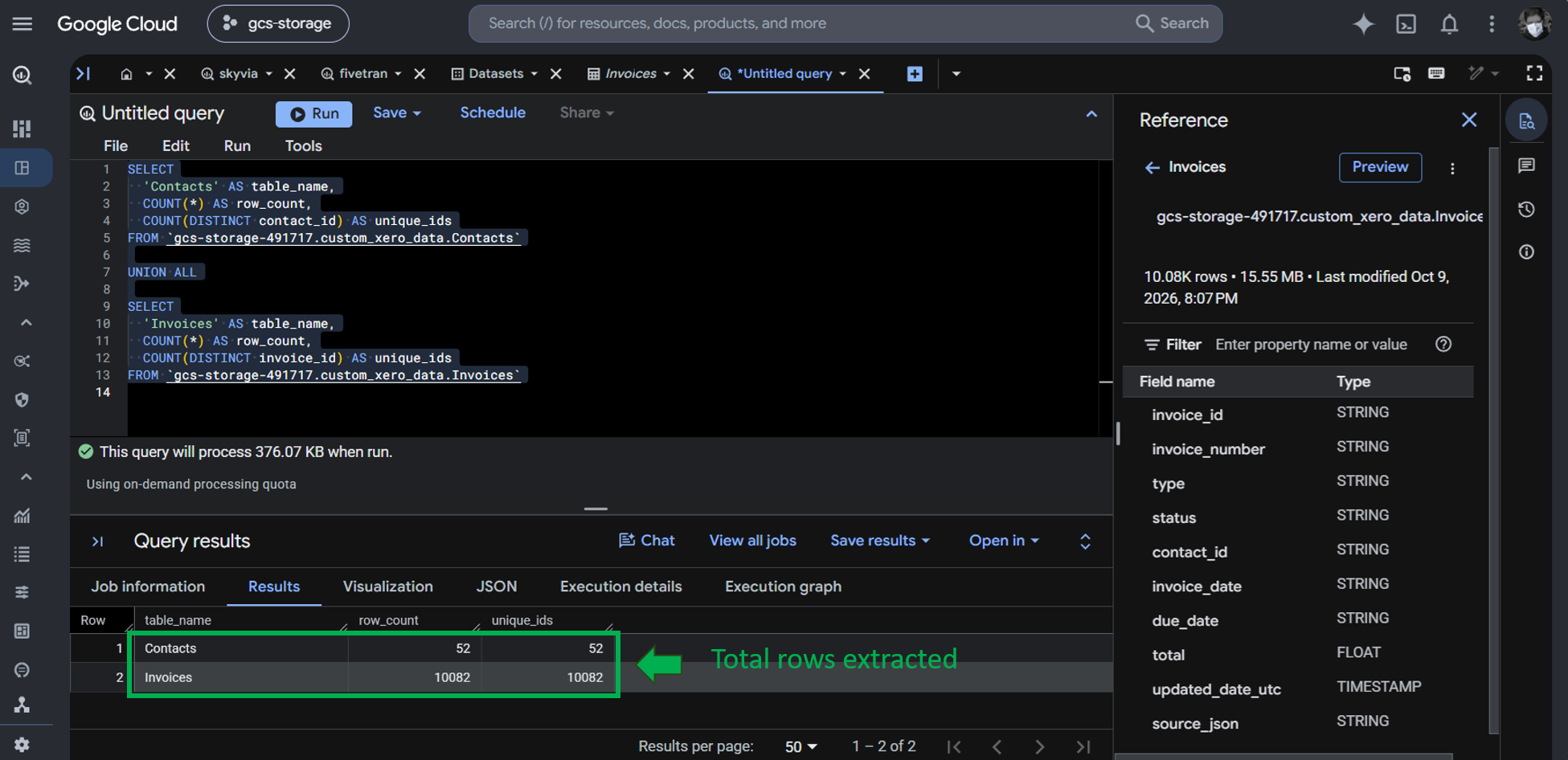
It’s the same as the result from the other tools.
The 10,000 draft invoices are also replicated:
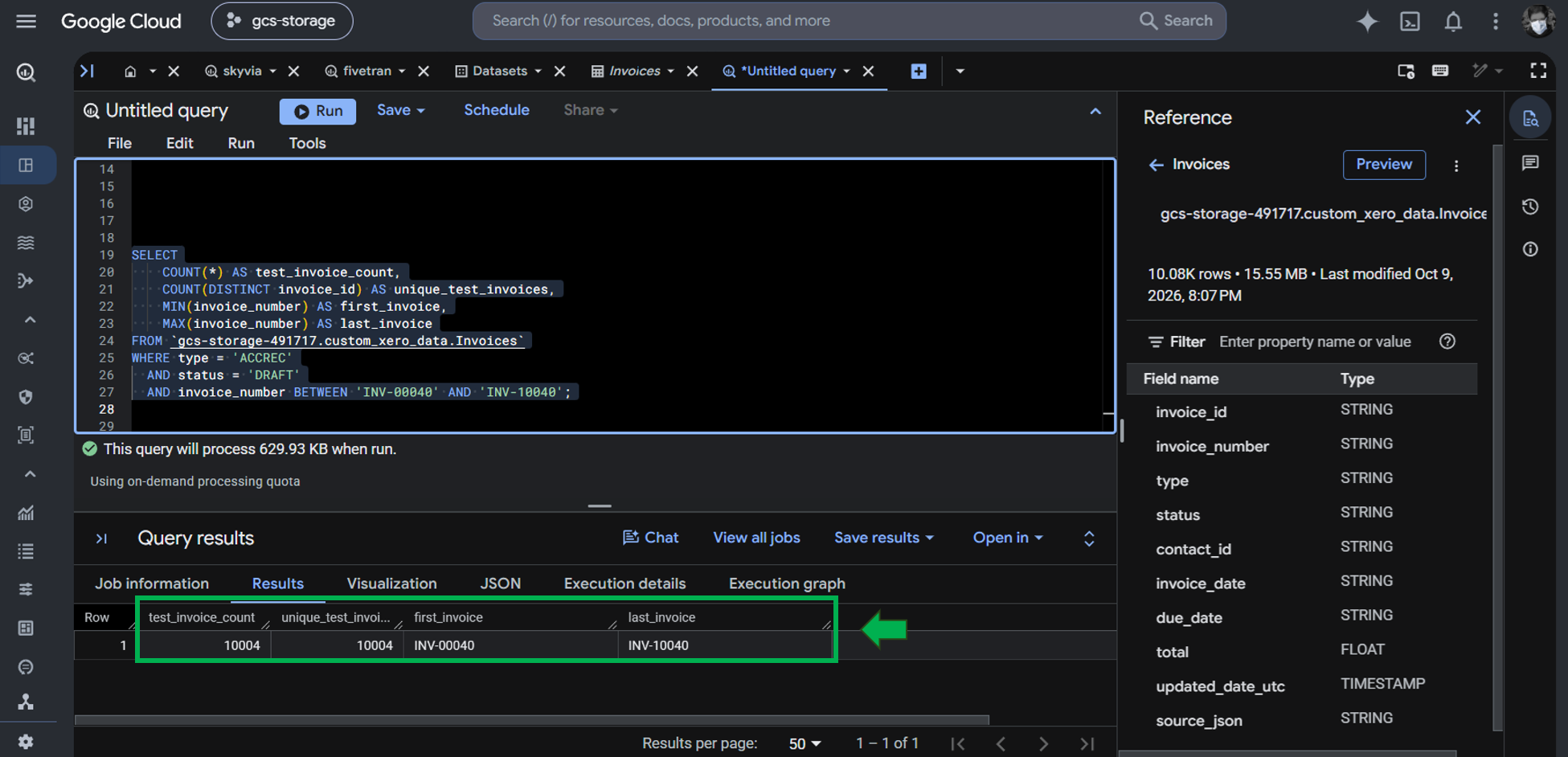
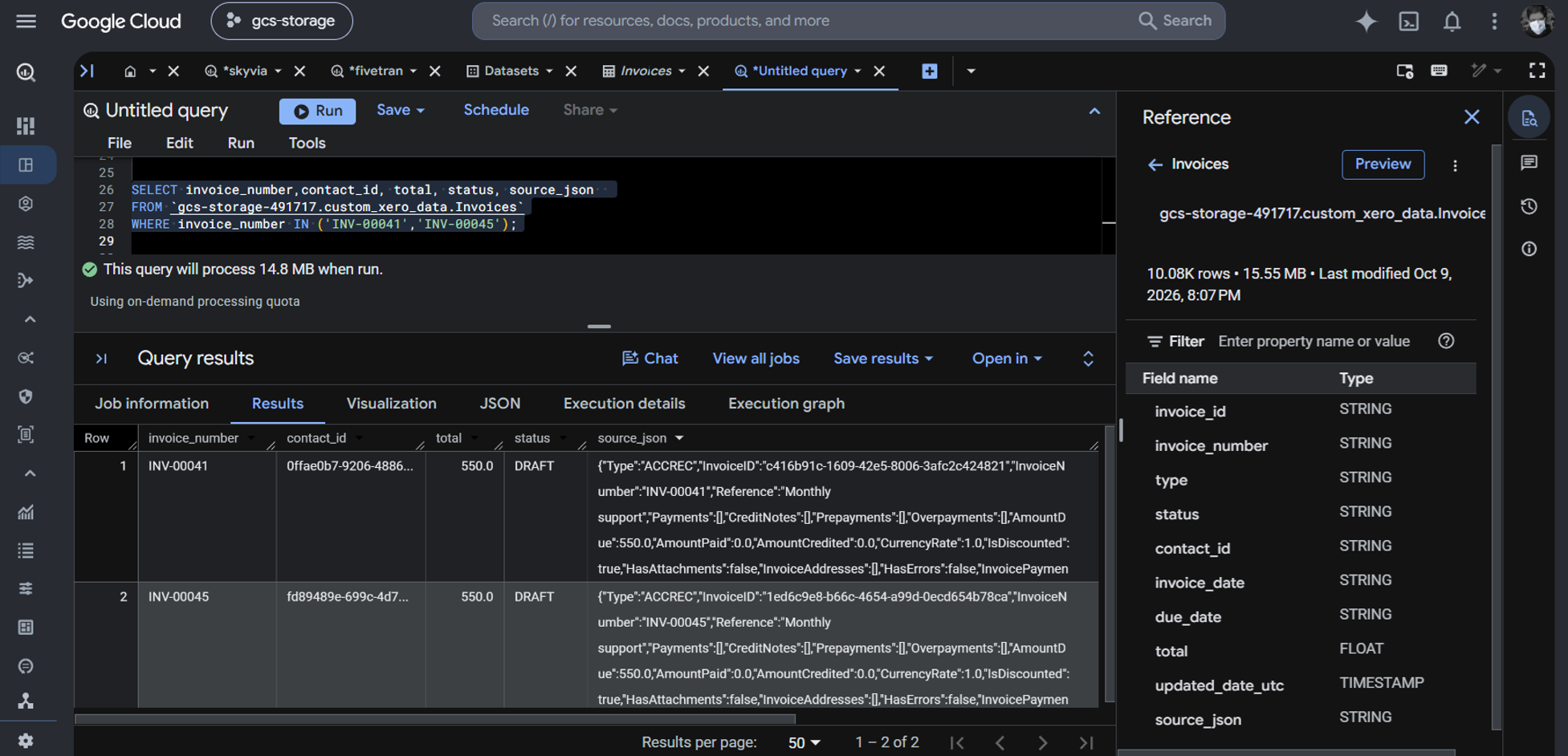
You can also see below the totals of the same invoices after the initial sync. In this code, I decided to store the full JSON row, and it can be unflattened with a query using UNNEST. See the source_json column below:
That concludes the initial sync.
Incremental Sync Test
After editing the 2 invoices, I ran the script with the incremental parameter value to trigger incremental sync. The script found 2 changed invoices to sync. See it below:
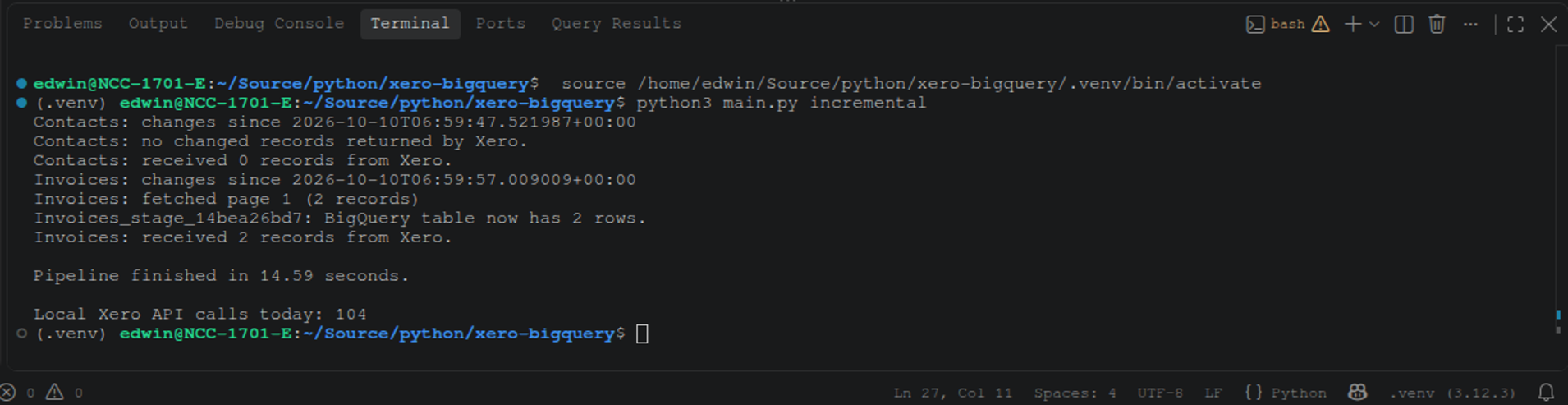
Upon checking in BigQuery, updated invoice totals appear:
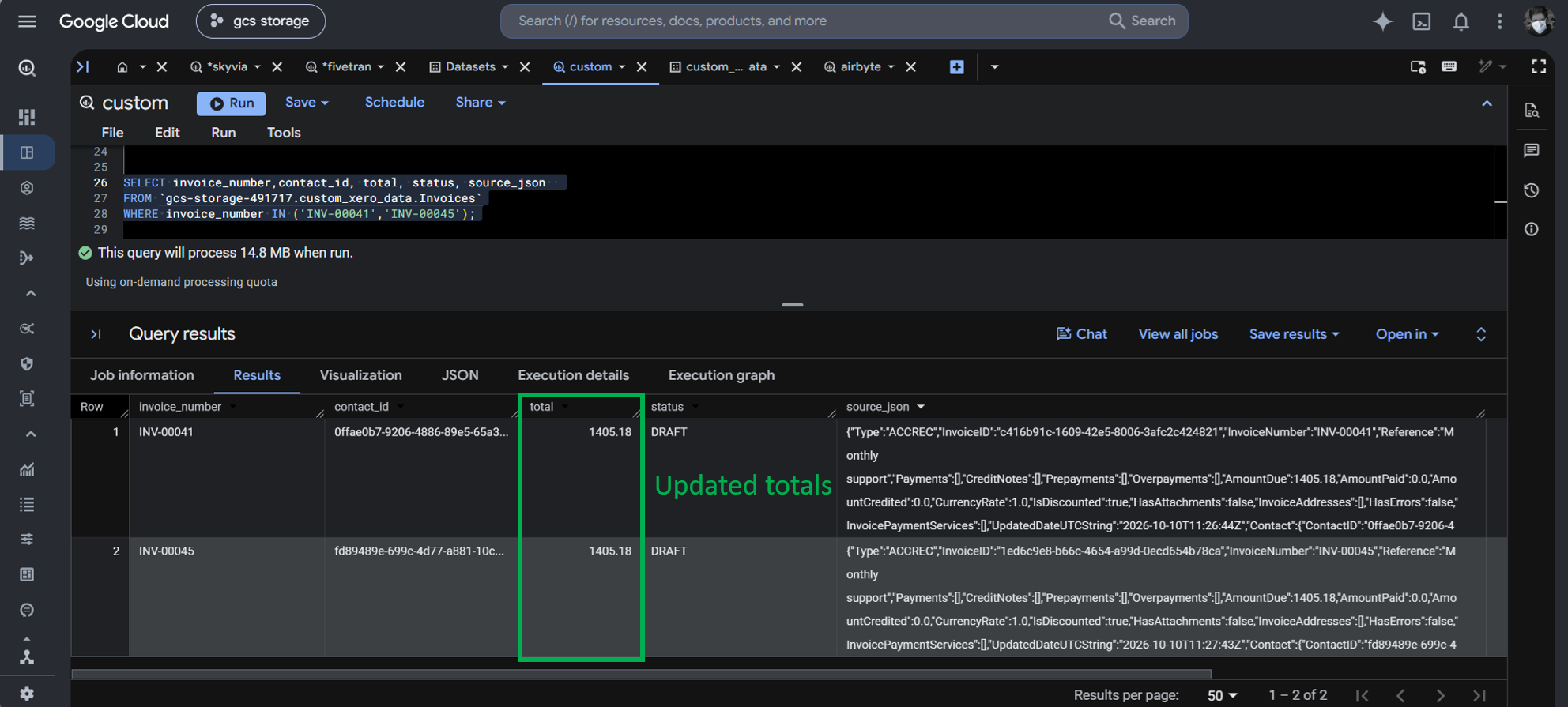
The script yields the same result as Skyvia, Fivetran, Airbyte, and G-Accon.
Best For
One-off integration projects or specialized teams with dedicated Python engineers who refuse third-party vendors.
Rating
There are no ratings. It’s a DIY Python project.
Pricing
Tools and libraries used are free. But development and testing took 4 days.
Key Technical Capabilities
- Custom Python script using the xero-python SDK and google-cloud-bigquery library, deployed on Google Cloud Run or Cloud Functions, triggered via Cloud Scheduler.
Pros
- Maximum architectural flexibility with zero SaaS platform subscriptions.
Cons
- Massive ongoing maintenance burden (handling token expiration, rate limits, schema drift, logging, retry queues).
- High opportunity cost: engineering hours diverted from high-value analytics to pipeline plumbing.
How Do the Leading Xero to BigQuery Tools Compare Head-to-Head?
Let’s summarize what each tool can do with the stuff you need to consider for a Xero to BigQuery integration in the following table:
| Feature / Metric | Skyvia | Fivetran | Airbyte/PyAirbyte (Open Source) | G-Accon + Sheets Bridge | Custom Python Script |
|---|---|---|---|---|---|
| Primary Deployment | Cloud (No-Code SaaS) | Cloud (Enterprise) | Self-Hosted (K8s/Docker) | Cloud / Add-on | Serverless (GCP Cloud) or Self-hosted |
| Setup Complexity | < 10 mins (Visual) | < 15 mins (Visual) | 2–5 days (DevOps setup or code) | 30 mins (Spreadsheet) | 1–4 weeks (Code) |
| Pricing Architecture | Volume (Record count) | MAR + Per-connector | Free license + Infra cost | Subscription per org | Cloud compute or infra costs |
| Free Tier Available? | Yes (Production Free) | 30-day trial only | Free, Open source | 14-day trial only | Free (DIY) |
| Sync Frequency Interval | 1 min to 1 day | 1 min to 24 hrs | Custom cron / 1 hr or min | Hourly / Daily triggers | Custom cron |
| Nested JSON Handling | Balanced (Auto-flatten + JSON) | Auto-normalized | Raw JSON / Basic unnest | Tabular sheet mapping | Manual script parsing |
| In-Warehouse Modeling | SQL / dbt Core hosted | Integrated dbt models | External dbt runner | Looker Studio / Views | BigQuery SQL views |
| Reverse ETL Capability | Yes (Built-in) | Yes (Fivetran Activ.) | Requires separate tool/script | No | Manual scripting |
| Connectors for sources to join with Xero (Stripe, Google Ads, etc.) | Yes | Yes | Yes | No | Requires additional script/code |
| G2 Usability Score | #1 Easiest to Use 4.8/5 | 4.3 / 5 | 4.4 / 5 | 4.7 / 5 (Workspace) | N/A |
How to Connect Xero to Google BigQuery in 4 Steps Without Code
Skyvia lets you replicate Xero data to BigQuery without writing integration code. You configure the source and destination, select the data to transfer, and schedule the pipeline.
Step 1: How Do You Connect Your Xero Organization to the Pipeline?
Create a Xero connection in Skyvia and authorize it through OAuth 2.0. Sign in to Xero, grant the requested permissions, and select the organization to replicate. Skyvia then uses the connection to retrieve the accounting data you authorize.
We have a screenshot of the Skyvia Xero connector configuration earlier in the test.
Step 2: How Do You Configure Google BigQuery as the Target Data Warehouse?
Create a BigQuery connection in Skyvia and choose your authentication method. For this test, I used User Account authentication rather than a service account. Complete Google’s authorization flow, then specify the target project and dataset. Make sure the destination dataset uses the intended location.
We also have a BigQuery connector configuration earlier, so you’ll see what it looks like.
Step 3: How Do You Select Financial Objects and Map Schemas?
Create a Skyvia Replication and select the Xero objects your reporting requires, such as invoices, contacts, and payments. Review the selected columns and destination tables, and configure any available filters or mapping options. Consider how nested data, such as invoice line items, will be represented in BigQuery.
The test we had earlier shows a screenshot of the Skyvia replication pipeline.
Step 4: How Do You Configure Incremental Sync and Failure Alerts?
Set the synchronization schedule and choose the appropriate loading mode. Use incremental loading when supported to capture changes without repeatedly performing a full refresh. Configure failure notifications if available, and verify the initial results in BigQuery before relying on the pipeline for financial reporting.

How Should You Model Xero Data Inside BigQuery for Executive Financial Dashboards?
Raw Xero data needs some transformation before it can support reliable executive dashboards. Start by flattening invoice line items so you can analyze revenue by product, customer, or invoice rather than treating each invoice as a single record.
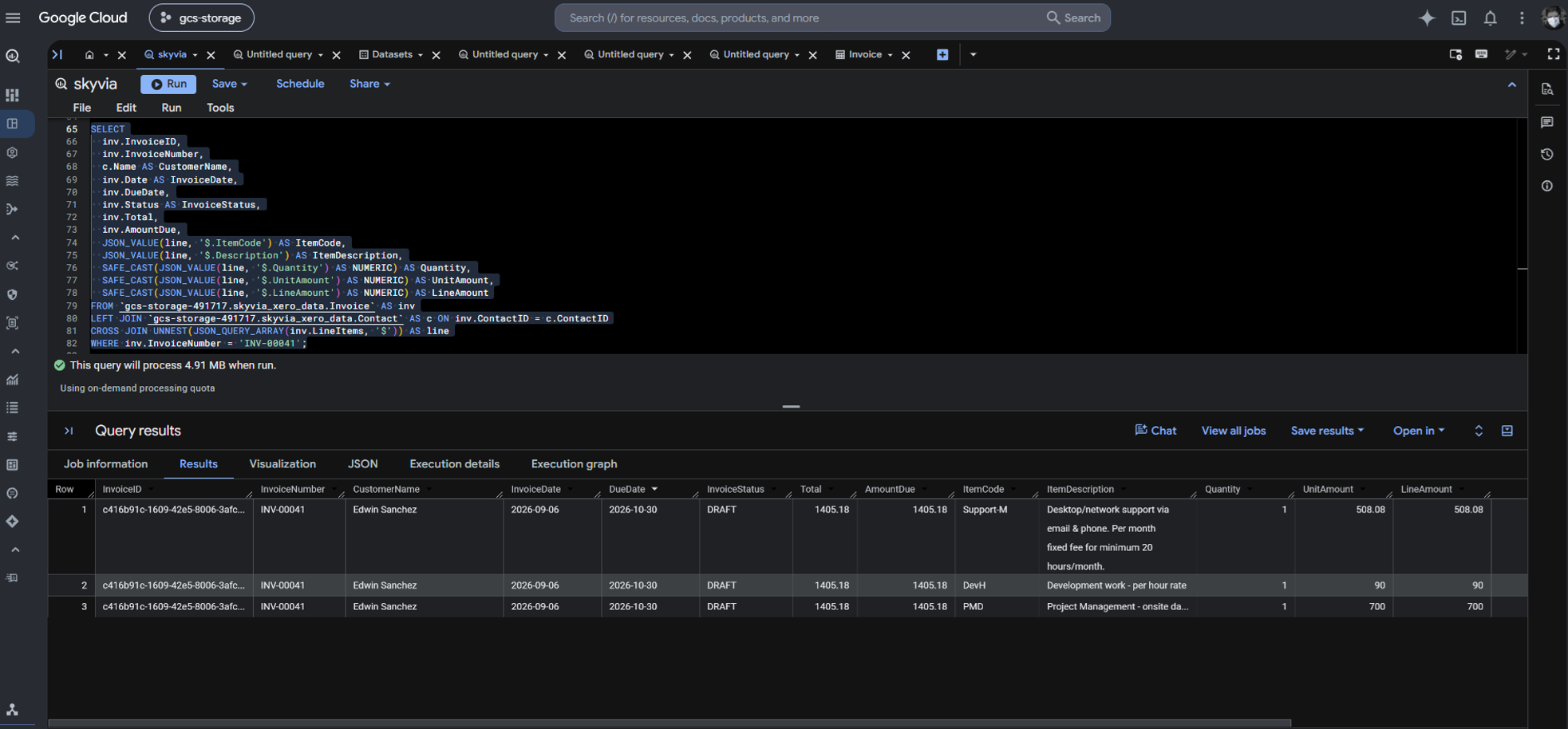
For example, this BigQuery query joins invoices to contacts and uses JSON_QUERY_ARRAY() and UNNEST() to extract individual line items from JSON stored as strings. JSON_VALUE() retrieves item details, while SAFE_CAST() converts quantities and amounts to numeric types. Check out a sample query below based on the replicated data by Skyvia:
SELECT
  inv.InvoiceID,
  inv.InvoiceNumber,
  c.Name AS CustomerName,
  inv.Date AS InvoiceDate,
  inv.DueDate,
  inv.Status AS InvoiceStatus,
  inv.Total,
  inv.AmountDue,
  JSON_VALUE(line, '$.ItemCode') AS ItemCode,
  JSON_VALUE(line, '$.Description') AS ItemDescription,
  SAFE_CAST(JSON_VALUE(line, '$.Quantity') AS NUMERIC) AS Quantity,
  SAFE_CAST(JSON_VALUE(line, '$.UnitAmount') AS NUMERIC) AS UnitAmount,
  SAFE_CAST(JSON_VALUE(line, '$.LineAmount') AS NUMERIC) AS LineAmount
FROM `gcs-storage-491717.skyvia_xero_data.Invoice` AS inv
LEFT JOIN `gcs-storage-491717.skyvia_xero_data.Contact` AS c ON inv.ContactID = c.ContactID
CROSS JOIN UNNEST(JSON_QUERY_ARRAY(inv.LineItems, '$')) AS line
WHERE inv.InvoiceNumber = 'INV-00041';
The result is a row per invoice line, ready for item-level analysis. You can change the WHERE clause as you see fit. See the output below:
For multi-currency reporting, preserve the original currency and amount, then join invoices to an exchange-rate table using the appropriate currency pair and transaction date. This lets dashboards report in a consistent currency without losing the original values.
Finally, use dbt Core to organize these transformations into reusable analytical models, such as fct_monthly_revenue and dim_customers. These models provide a cleaner, consistent foundation for Looker Studio dashboards and executive reporting.
What Are the Most Common Pitfalls When Syncing Xero to BigQuery, and How Do You Solve Them?
A successful Xero-to-BigQuery integration must handle more than transferring records. API limits, changes to existing invoices, and time zone differences can all affect data accuracy and synchronization reliability.
Xero API Rate Limiting (429 Errors)
Large initial loads can trigger Xero’s API rate limits, interrupting data extraction. Use request queues, rate-limit-aware delays, and retries with exponential backoff. This helps the pipeline resume safely without overwhelming the API. We have shown this in our custom Python code, in case you chose that route.
Deleted and Voided Invoices
Append-only pipelines can retain outdated invoice records after they are deleted or voided, overstating revenue. Use incremental synchronization that detects updates and deletions, or change data capture (CDC) where supported. History Mode can also preserve changes for auditing, depending on the integration’s capabilities.
Most of the tools we used have incremental synchronization. In G-Accon, we also found out in the test that voided and deleted rows are not included in the spreadsheet.
Time Zone Alignment
Xero timestamps and BigQuery reporting dates may use different time zones. Convert timestamps to the company’s reporting time zone before grouping transactions by day, month, or fiscal period. This avoids assigning transactions to the wrong reporting date.
Which Xero to BigQuery Method Should You Choose for Your Data Stack?
The best Xero-to-BigQuery method depends on your team’s technical skills, data governance requirements, and need for automation.
- G-Accon: Best for solo bookkeepers and small accounting practices that use Google Sheets as a bridge to basic reporting without complex warehouse modeling.
- Custom Python: Suits teams with software engineers who can maintain OAuth authentication, API rate limits, retries, and cloud orchestration in exchange for full control over data processing.
- Skyvia: A practical choice for analysts and lean data teams that want a no-code integration with minimal setup and less pipeline maintenance.
- Fivetran: Fits enterprises that need a centrally managed integration platform, broad connector coverage, and contractual or compliance requirements that justify its cost.
- Self-hosted Airbyte/PyAirbyte: Works for organizations that need greater control over where pipelines run and have the DevOps resources to maintain their infrastructure and connectors.
The bottom line: Choose the simplest method that meets your reporting, security, and reliability requirements. A spreadsheet bridge may be enough for basic reports, while a managed connector or custom pipeline may be better for larger, more complex data operations. Consider not only the initial setup, but also the ongoing cost of keeping the data accurate and up to date.

FAQ for Xero to Google BigQuery

How do automated data pipelines prevent Xero OAuth 2.0 token expiration from breaking scheduled syncs?
Pipelines securely store refresh tokens and use them to obtain new access tokens before expiration. They must handle token rotation, persist updated refresh tokens, and retry recoverable authentication failures.
What is the best table partitioning and clustering strategy for Xero data in BigQuery?
Partition large transaction tables by invoice or transaction date and cluster by commonly filtered fields, such as contact ID, status, or currency. Choose keys based on query patterns and data volume.
How do you ensure voided invoices and manual credit notes don’t skew BigQuery financial reports?
Filter or separately classify voided and deleted invoices, and account for credit notes as adjustments to revenue. Define consistent status rules and avoid double-counting credits against invoices.
How should you handle multi-currency conversions when analyzing Xero revenue in BigQuery?
Preserve original amounts and currencies, then convert using documented exchange rates appropriate to the transaction date and reporting policy. Keep the base currency and converted amounts separate.
Can you use Reverse ETL to push BigQuery financial metrics back to operational apps?
Yes. Reverse ETL can send aggregated metrics from BigQuery to supported CRM or business apps. Define sync keys, refresh frequency, permissions, and validation rules to avoid stale or incorrect updates.