


Summary
- Power BI is many things, but an ETL tool isn’t one of them.
- Power Query and Dataflows offer basic data preparation functionality for analysis prep, not building production pipelines.
- When real ETL requirements surface, teams deploy dedicated integration tools to handle that workload rather than forcing Power BI into roles it wasn’t built for.
Power BI rarely fails with visuals. It fails long before that. In my experience, troubleshooting data pipelines, most broken dashboards come down to the same issue – data that arrives half-prepared, inconsistent, or stitched together just enough to look right at first glance. ETL is what turns that into something worthy of your trust.
Inside Power BI, ETL is the difference between a dataset that exists and one that holds up under scrutiny. Skip that layer, and you’re fixing more than analyzing.
Yes, we’re the team behind Skyvia, a dedicated ETL platform, and we definitely have a perspective here. However, we’re not delusional; we know we can’t offer a solution for every ETL task. Pretending otherwise is a great way to sell software, but the worst way to keep clients. So, instead, we will focus on how Power BI handles ETL on its own, where it works, where it starts to stutter, and when a dedicated tool makes sense.
Table of contents
- Is Power BI an ETL Tool?
- How to Perform ETL Natively in Power BI
- Summary Comparison Table: Native Tools
- The Breaking Point: ETL Challenges in Power BI
- Skyvia ETL Tool for Power BI
- Evaluating Dedicated ETL Alternatives
- Best Practices for Power BI ETL Pipelines
- Conclusion
Is Power BI an ETL Tool?
Power BI isn’t an ETL tool. It offers self-service data prep with Power Query and dataflows, which help shape data on the way to a report. ETL handles something broader – moving, standardizing, and maintaining data across systems before Power BI ever sees it.
How to Perform ETL Natively in Power BI
One of the great things about Power BI is that you can run ETL within it, without having to migrate out. Though not in the “enterprise pipeline” sense, just enough to get data shaped, cleaned, and ready for reporting.
Power Query handles this inside Power BI Desktop, while dataflows extend it into the cloud for reuse across reports. It’s a practical setup when the goal is to prepare data close to where it gets consumed, not to build a full data infrastructure.
Using Power Query for Local ETL
Power Query is where most ETL work in Power BI actually happens. You connect to a source, reshape the data’s life choices through a visual editor, and load it into the model.
You can connect to sources like Salesforce, SQL Server, or CSV files – the distinguished, the reliable, and the immortal. Filtering, sorting, splitting columns, and removing duplicates happen before Power BI even starts rendering visuals.
Best for
- Analysts shaping data directly in Power BI Desktop.
- Transformations that stay within a single report or dataset.
The Reality of Power Query Transformations
On the surface, Power Query might feel forgiving. It removes duplicates, fixes data types, and trims down columns for you. That’s where it shines quite bright.
But once the data grows, the tone changes. In practice, Power Query’s mashup engine pulls everything into local memory first – stack enough joins and calculated columns on top of that, and refresh times stretch from seconds into minutes, or the report stops responding entirely.
That’s when teams start looking beyond local transformations.
M Formula Language: The Engine Behind the UI
Power Query provides a visual editor that handles polite requests well, but advanced transformations eventually demand a conversation in M, its formula language, working behind the curtain. The M code representing all those actions from above looks like this:
let
    Source = Contact,
    #"Removed Other Columns" = Table.SelectColumns(Source,{"Id", "IsDeleted", "AccountId", "LastName", "FirstName", "MiddleName", "Name", "Phone", "MobilePhone", "Email", "Title", "Department", "CreatedDate", "LastModifiedDate"}),
    #"Sorted Rows" = Table.Sort(#"Removed Other Columns",{{"Name", Order.Ascending}}),
    #"Removed Duplicates" = Table.Distinct(#"Sorted Rows", {"Id"})
in
    #"Removed Duplicates"
You can access and modify this logic directly in the Advanced Editor, which is either reassuring or alarming depending on what you find there.
Using Power BI Dataflows for Cloud ETL
Repeating the same transformations across reports is the data equivalent of reintroducing yourself to someone you’ve met six times. Dataflows exist to end that. ETL moves out of the report, gets its own address, and becomes something the rest of the stack can rely on.
Best For & Cloud Architecture
When local ETL starts to feel too small for the job, Dataflows come to save the day. In Desktop, every cleanup step, merge, and workaround stays trapped inside the report that created it. Useful for one file, frustrating by the second. Dataflows pull that logic out of the report and give it a life of its own.
That shift actually means a lot for the process in general. The transformations run in the Power BI Service, not on your machine, and Azure Data Lake Storage Gen2 stores the results. So instead of rebuilding the same prep work across multiple reports, you shape the data once and let the rest of the stack read from the same, already-prepared layer.
Best for
- Teams that want reusable, centralized data prep.
- Shared datasets that multiple reports use.
- Scenarios where local Power Query starts to feel limiting.
Advanced Capabilities: Linked & Computed Entities
Where Dataflows become interesting is how they handle reuse.
Linked Tables let you reference an existing dataset instead of rebuilding the same logic again. One definition, multiple uses.
Computed Tables go a step further. They allow you to perform transformations inside the dataflow storage itself, not at the source. That means joins, aggregations, and reshaping are computed once and cached for downstream use.
In practice, you’d use a Linked Table to pull in a shared dataset, then a Computed Table to transform it further – all without going back to the source.
Computed Tables require Premium capacity or PPU – on a standard Pro license, you’re working in shared capacity, where this feature simply isn’t available. You won’t get far before Power BI tells you so.

CDM Folders Integration
Dataflows also carry CDM support – the Common Data Model – which gives other Microsoft services direct access to the lake. That matters in ecosystems like Dynamics 365, where instead of moving data between tools, everything points to the same layer.
Power BI Dataflows for cloud ETL are a meaningful step forward from local Power Query. But it’s still not a full enterprise pipeline. The usual culprits that will eventually push you beyond this later are scaling, orchestration, and cross-platform integration.
Enterprise-Grade ETL in Microsoft Fabric: Dataflow Gen2 + Pipelines – Update
Microsoft Fabric is where Power BI stops being just a reporting layer and starts behaving like part of a full data platform. In actuality, the stack begins to simplify at Fabric. Everything is located in one environment rather than keeping up with storage here, computation there, and reporting someplace else.
OneLake is the reason behind that. There is only one layer where data resides, and Spark, SQL, and Power BI all operate without duplication. Data flows through familiar stages: raw ingestion, cleaned datasets, and curated outputs ready for reporting. The difference is that all of this happens inside a single environment, with shared governance and lineage built in.
Dataflow Gen2 in Microsoft Fabric
Dataflows focus on shaping the data. Pipelines make sure the whole process doesn’t depend on someone pressing “run.” They connect the steps and keep them moving.
That usually means pulling data in, running transformations, and loading it into storage –over and over, on a schedule that matches the business.
Best for
- Preparing shared datasets for multiple reports.
- Structuring data into lakehouse layers (raw → cleaned → curated).
- Low-code transformations that still scale beyond Desktop limits.
How to create a Dataflow Gen2
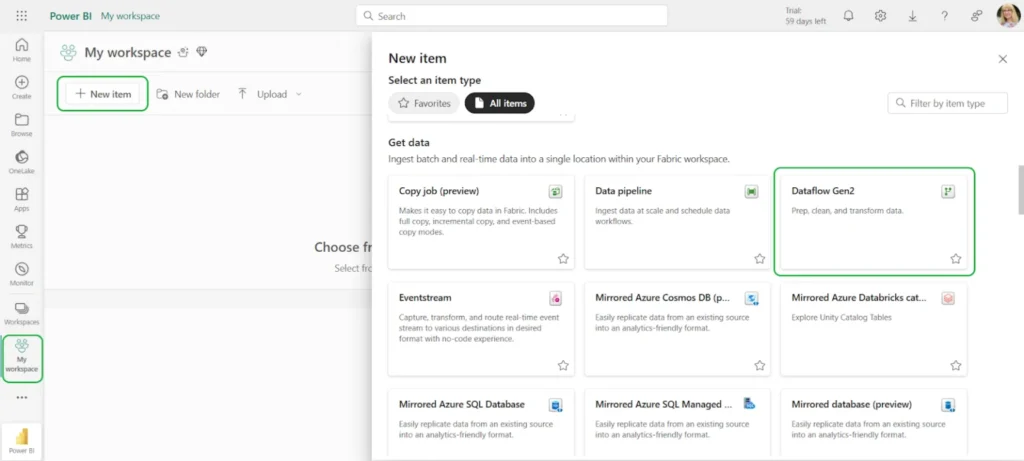
- Go to your Fabric workspace and select Dataflow Gen2 → New Item.
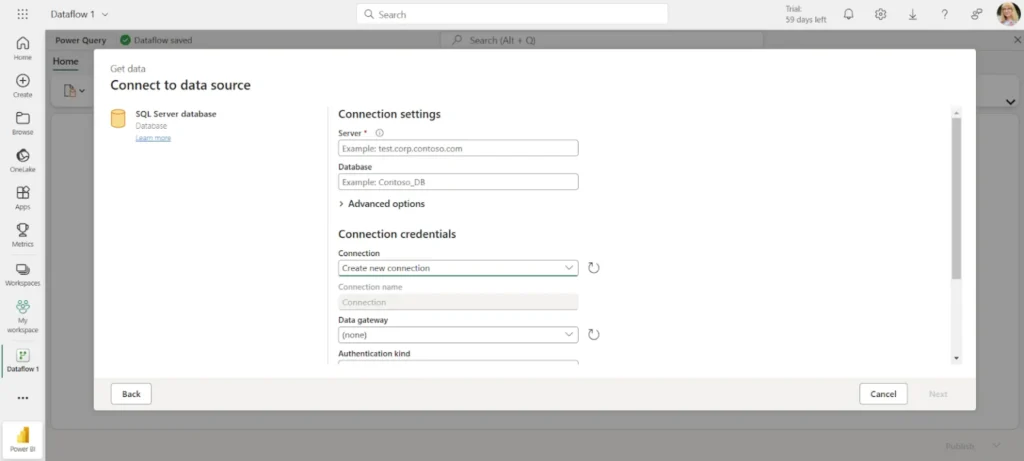
- Click Get Data and choose your source (for example, SQL Server).
- Configure the connection and make sure the source is accessible from the cloud.
Note: Before you connect, check that your database isn’t hiding behind a private network. It needs to be reachable online.
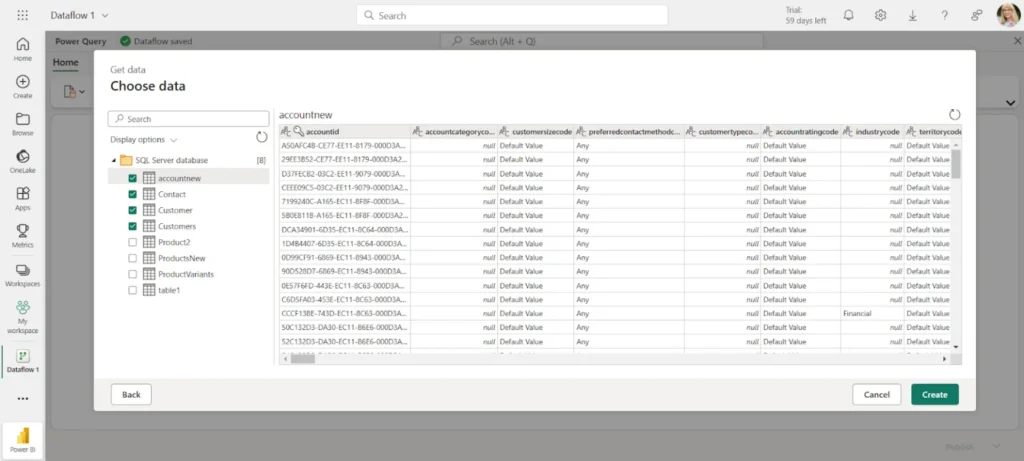
- Select the tables you want to include.
- Apply transformations in the editor (same logic as Power Query, but now running in Fabric).
- Publish the dataflow so the output lands in your lakehouse.
Microsoft Fabric Data Pipelines for ETL
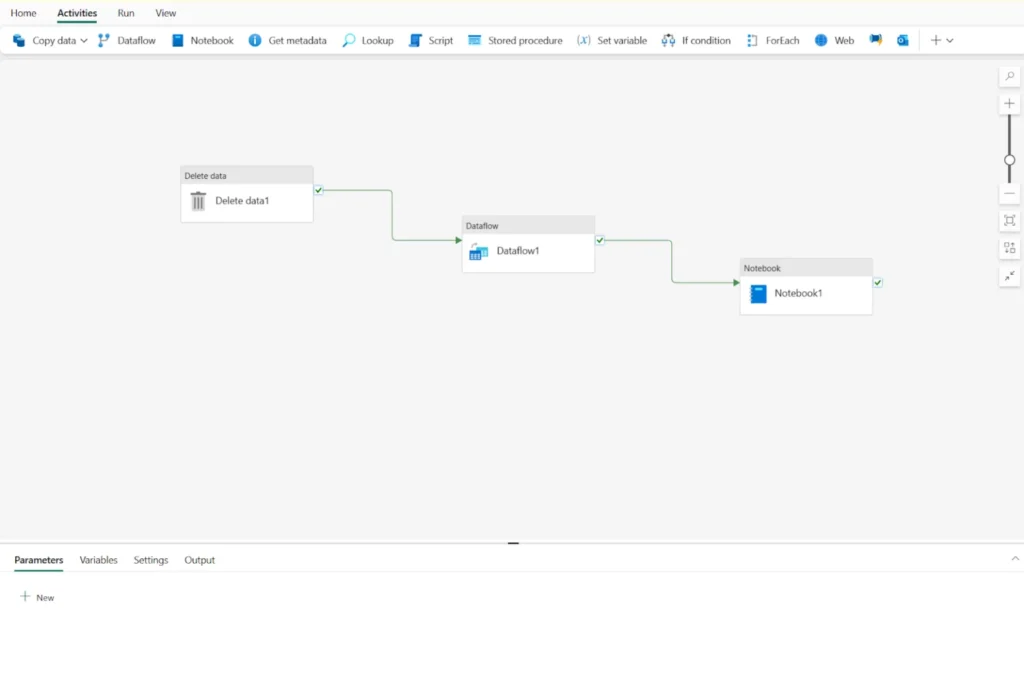
Dataflows handle the “what happens to the data” part. Pipelines manage the “how does it all move.” They are the part nobody sees, and everybody depends on. They pull raw data from wherever it’s hiding, prod it through transformations it didn’t ask for, and deposit the results somewhere a dashboard can finally do something useful with it. Batch jobs, near-real-time flows – same infrastructure, no separate tooling required, no drama visible from the outside.
Best for
- Coordinating multi-step ETL/ELT workflows.
- Moving data across multiple cloud systems.
- Loading into Fabric Warehouse or lakehouse tables.
- Scheduling and automating ingestion.
Where Fabric Fits
Fabric ends the bouncing. Data lands once, moves through a transformation step by step, and stays available for reporting, analytics, or anything else that comes looking. Shared storage and governance take over the coordination, and most of the usual movement between systems retires quietly.
That said, it fits best inside a Microsoft setup. Beyond that, it often becomes part of a larger stack.
Note: Although pipelines greatly improve the Power BI ETL experience, they are exclusively intended for business intelligence. They cannot serve as a standalone automation or data integration solution. The same issues that affect other Power BI ETL tools also affect pipelines.
Summary Comparison Table: Native Tools
| Tool | Max Data Volume | Target Destinations | Skill Level Required | Cost |
|---|---|---|---|---|
| Power Query (Desktop) | No hard limit – constrained by available RAM and transformation complexity | Power BI model only | Low (visual; M optional) | Included in Power BI (Pro ~$10/user/month) |
| Dataflows (Gen1 / Gen2) | Moderate (Gen1 limits per table; Gen2 scales better but still capacity-bound) | OneLake / ADLS, Power BI datasets, Lakehouse / Warehouse (Gen2) | Low to Medium (Power Query + cloud setup) | Pro for basic use; Premium / Fabric capacity required for advanced features |
| Fabric Pipelines | High (scales with capacity, designed for TB-level workloads) | OneLake, Lakehouse, Warehouse, Notebooks, external APIs | Medium (orchestration, dependencies, expressions) | Fabric capacity-based (starts ~F2 tier, scales with usage) |
The Breaking Point: ETL Challenges in Power BI
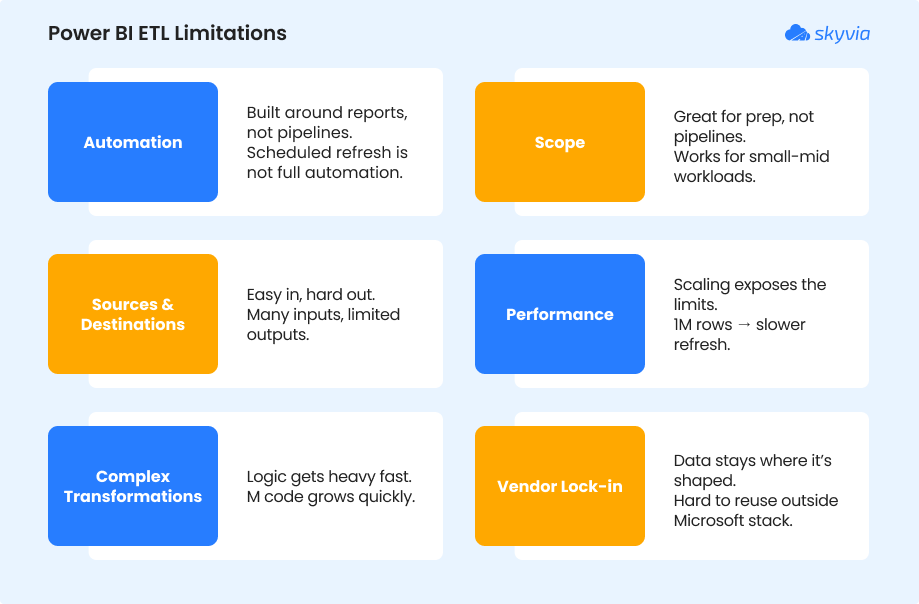
Most of the issues regarding applying ETL in Power BI don’t show up at the start. They appear later, when datasets get larger, refreshes take longer, and teams need to reuse the same transformations.
Automation
ETL inside Power BI remains connected to analytics workflows even with Microsoft Fabric. Refreshes can be scheduled, but independent pipelines are not being built. Reports continue to be the main focus of the process rather than data flow as a standalone system.
Scope
Think three sources – a CRM, a flat file, and a SQL database – feeding one report, with dependencies between queries. In Power Query, that’s three separate connection logic blocks, no shared orchestration, and refresh failures that are painful to trace.
Sources and Destinations
Power BI pulls from many places, but it doesn’t send data back out in the same way. Most flows end inside Power BI or Azure storage. If you need to push transformed data into systems like Salesforce or HubSpot, you’re outside its comfort zone.
Performance
That’s when things start to stand out. It feels good to have a dataset with a few hundred thousand rows. Refresh times begin to rise, push over the million mark, and add joins or computed columns. Long refresh cycles or reports that seem stalled mid-load are common in actual situations. The logic is handled by Power Query, yet it has trouble processing high quantities locally without compromising.
Complex Transformations
Basic cleaning is uncomplicated. However, things get more difficult to handle as transformations become layered, including many joins, conditional logic, and dependencies between processes. Debugging becomes manual as the M code increases, and minor adjustments might affect the query as a whole.
Vendor Lock-in (The Quiet Constraint)
Data shaped inside Power BI tends to stay there. Once transformations live in Power Query or Dataflows, moving that logic elsewhere isn’t simple. There’s no clean way to take that prepared dataset and push it into non-Microsoft systems. Over time, that creates a subtle dependency on the platform.
You can work around some of this. Better data modeling, incremental refresh, and pushing transformations upstream all help. But at some point, the effort shifts from analysis to maintenance.
Usually, that’s the indication.
This gap is filled by specialized ETL tools that can manage massive volumes, coordinate multi-step pipelines, and transfer data between systems without relying on a single BI layer. By extending that layer outside, tools like Skyvia make Power BI a consumer of clean data rather than a location where it is fixed.
Skyvia ETL Tool for Power BI
By the time ETL starts getting pushed inside Power BI, the pattern is usually the same. It works at first, then the edges show up – refreshes slow down, transformations get repeated across reports, and the setup becomes harder to maintain than the analysis itself.
That’s where moving ETL out of Power BI starts to make sense.
A Real Example of ETL Pipeline: Salesforce → Snowflake → Power BI
In this setup, I used Skyvia Replication to move data from Salesforce into Snowflake. The idea is simple: let Power BI read from a database that’s already been shaped for analysis, rather than pulling raw data from Salesforce every time.
STEP 1: Connect to the Source
- Log in to Skyvia or create an account. If you still don’t have one, signing up takes less time than it took to read this sentence.
- Go to +Create New->Connection and select the source from the list.
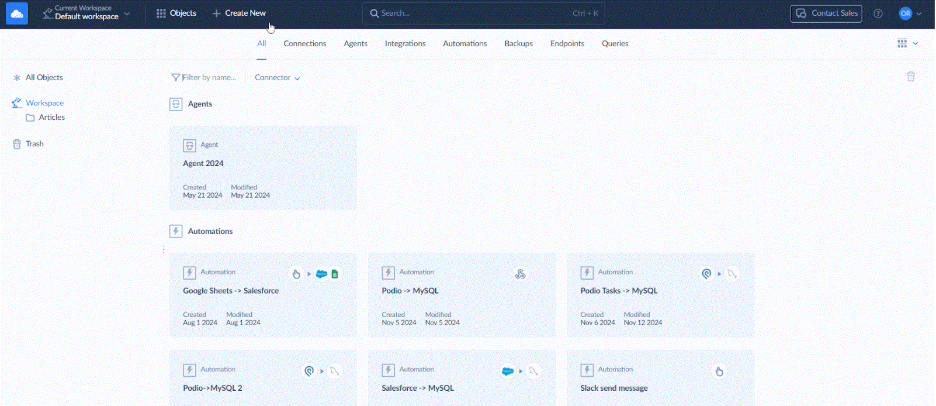
- Specify your credentials.
STEP 2: Load Cloud Data to Data Warehouse
- Go to +Create New->Replication in the top menu.
- Select the app of your choice as a source.
- Select a preferred data warehouse as a destination. Skyvia supports Amazon RedShift, Google BigQuery, Azure Synapse Analytics, Snowflake, and other popular data warehouse platforms.
- Select the objects for replication.
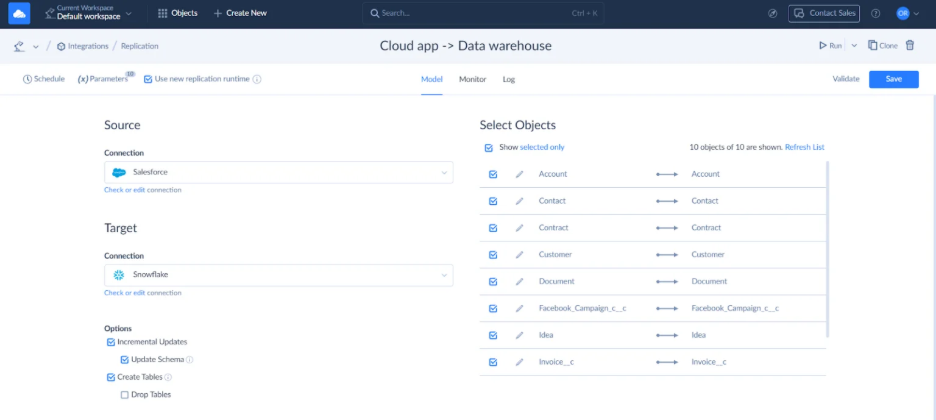
- Configure objects for replication on the right. Click Edit to open the task editor for an object. Here, you can select specific fields to replicate, set the target table name, and specify replication settings.
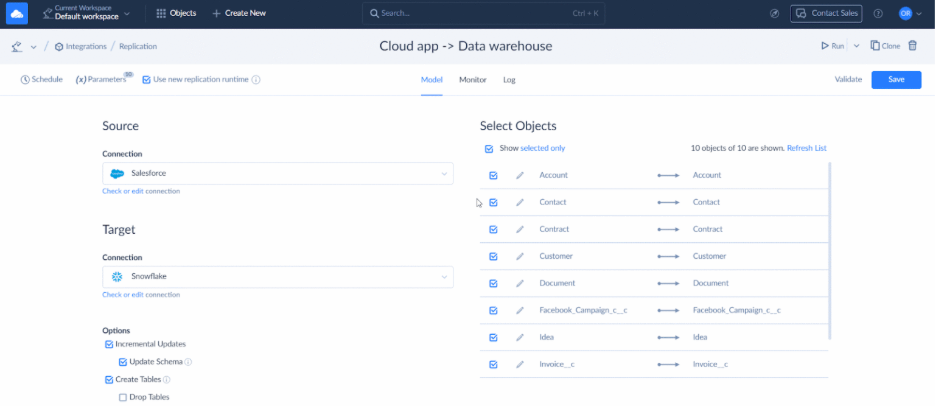
Note: Skyvia also allows you to address compliance requirements with hashing. Select specific object fields to hash, ensuring the secure transfer of sensitive data.
- Set filters, if needed, and save the task. Name the replication and save it. You can run the replication manually or schedule it.
STEP 3: Load Data into Power BI
Power BI offers native integration with central data warehouses. You can transfer the recently uploaded information from the data warehouse (in this example, Snowflake) to Power BI.
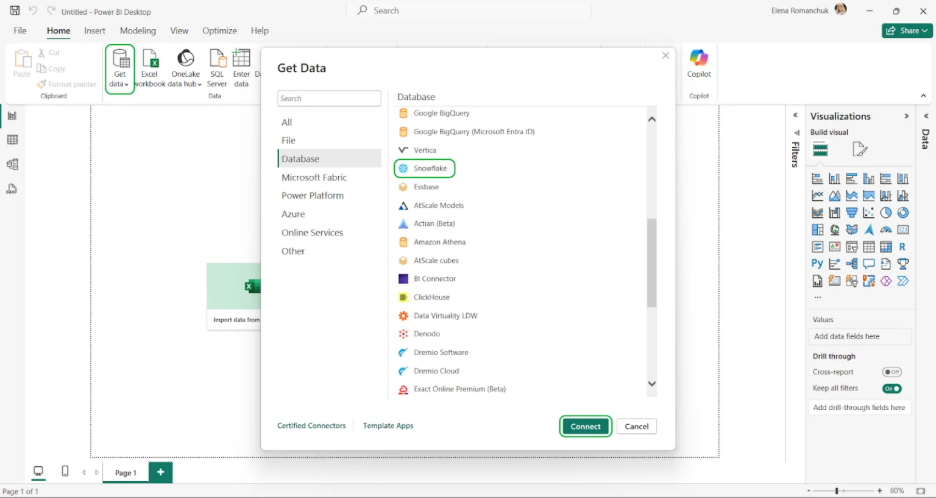
- In Power BI, select Get Data and type Snowflake in the search bar.
- Select Snowflake from the list, then click Connect.
- Enter your Snowflake credentials.
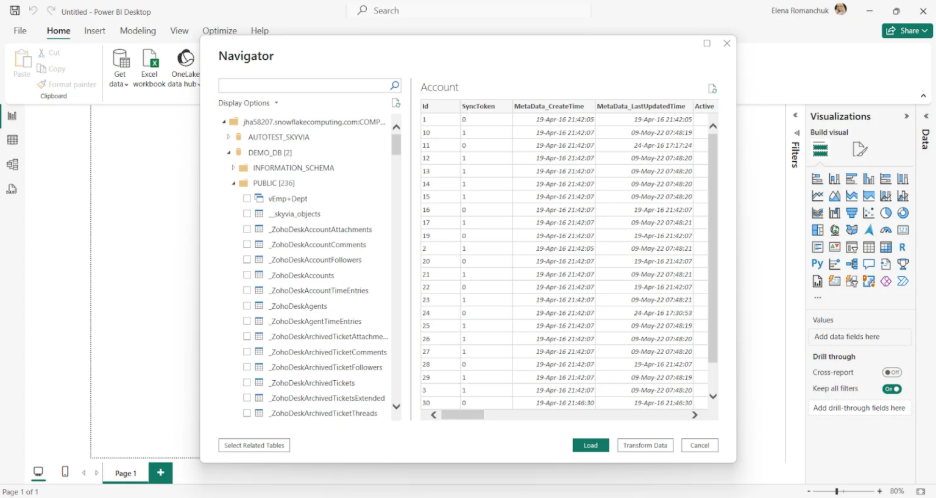
- Once you establish the connection, the Navigator window with available objects on the server appears. Select the required source objects, then click Load to import them into Power BI Desktop.
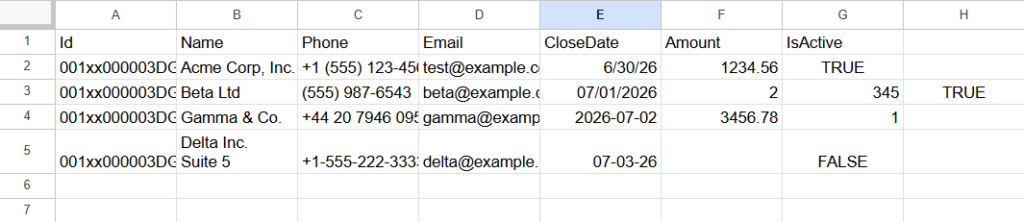
As we’ve just observed, Skyvia perfectly carries out data warehousing scenarios with ELT. Before transformation, the data looks like this:
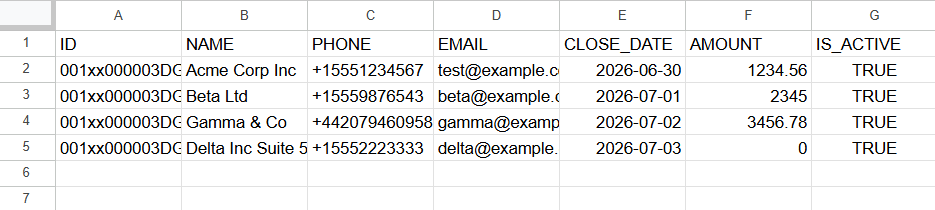
After the pipeline runs, the same dataset lands in Snowflake in a stable format:
Live Access Without Pipelines: Skyvia Connect
If replication feels like too much, there’s a lighter option. With Skyvia Connect, you publish Salesforce data as an OData endpoint and connect Power BI to it directly.
Quick setup:
- Click +Create New in the menu, then create a Salesforce connection in Skyvia.
- Create a new OData endpoint.
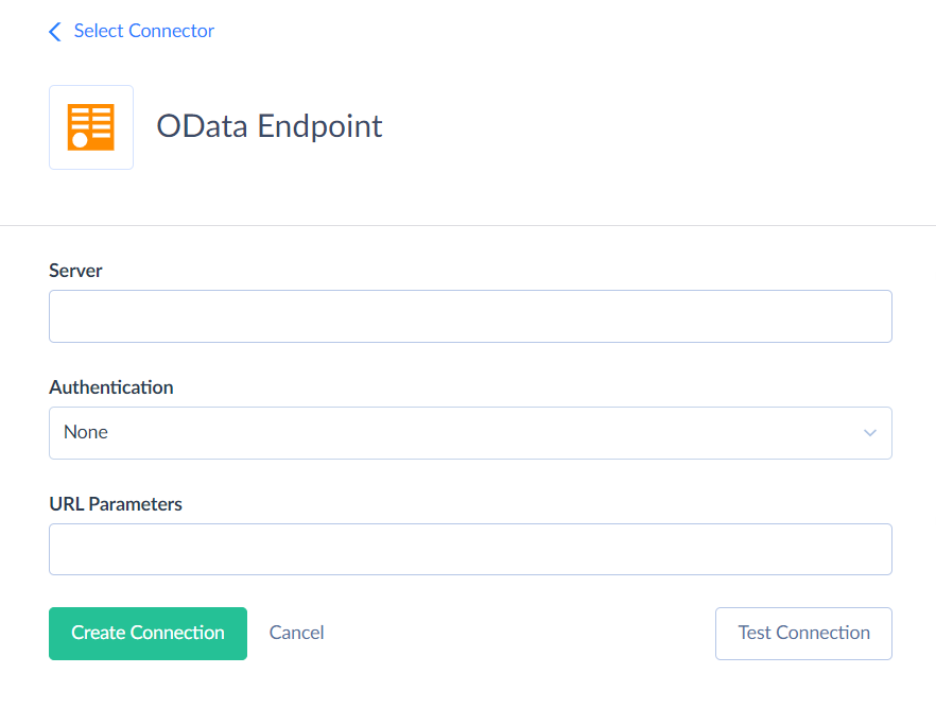
- Select objects and fields to expose.
- Copy the endpoint URL.
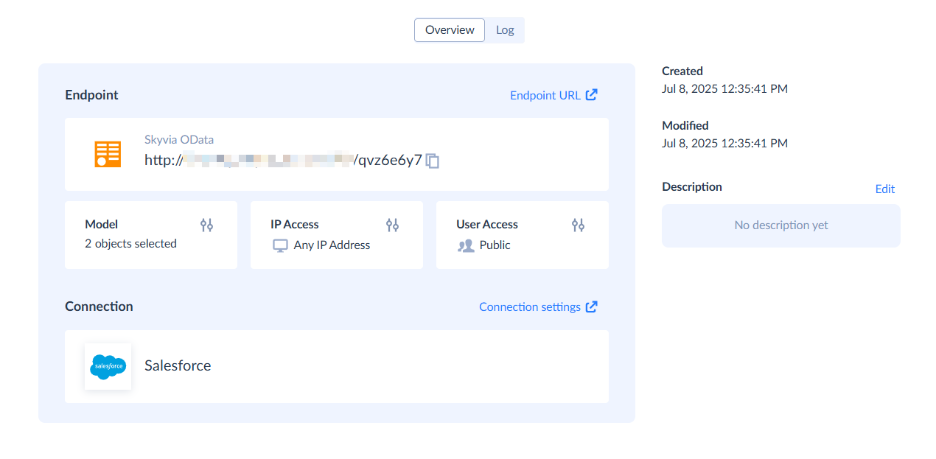
- Use Get Data → OData Feed in Power BI.
Evaluating Dedicated ETL Alternatives
We didn’t want to rely on feature lists here. Our engineering team spent time testing several tools in practice – moving 1 million rows, watching how they behaved under load, and seeing how much effort it actually takes to get a pipeline running.
The differences are immediately apparent. While in the documentation, everyone is quick, scalable, and pleasantly simple to use. In practice, you may sense that API limitations have feelings, data volume has opinions, and even refresh cycles may have a dark side.
Use Case Segmentation
Not every ETL tool is trying to solve the same problem. Grouping them hides more than it explains.
Best for Enterprise & High Volume
Tools like Informatica and Talend are built for scale first. They handle large, complex pipelines across multiple systems with strict governance. The trade-off is setup time, cost, and the expectation that you have people who know how to operate them.
Best for SMBs & No-Code Agility
Skyvia is located there. The goal is to have dependable data flows that operate without technical overhead and without the need to design the most complicated pipeline feasible. Most use cases don’t need creating or maintaining code, setup is quicker, and the price is simpler to calculate.
Best for Developer-Heavy Teams
Tools like Airbyte and Fivetran lean in the opposite direction. More control, more flexibility, and more responsibility. They work well when teams are comfortable owning pipelines as code.
Original Metrics Comparison Table
| Tool | Pricing Model | Sync Frequency | API Complexity |
|---|---|---|---|
| Skyvia | Volume + feature-based (freemium available) | From ~1-5 minutes (scheduled) | Visual (no-code, optional SQL) |
| Informatica | Consumption-based (enterprise licensing) | Near real-time to batch | Low-code / enterprise configuration |
| Stitch | Per row (volume-based) | Typically 5-60 minutes | Low-code |
| Hevo Data | Event-based (per record/event) | Near real-time (minutes) | No-code / low-code |
| Fivetran | Usage-based (monthly active rows) | From ~5 minutes | Low-code (managed connectors) |
| Airbyte | Open-source (infra cost) / Cloud usage-based | Configurable (minutes to hours) | Code-first / configurable UI |
Enterprise tools optimize for scale. Developer tools optimize for control. Tools like Skyvia optimize for getting the pipeline running without turning it into a project. Not better or worse, just different ways to carry the same workload.

Best Practices for Power BI ETL Pipelines
Most Power BI pipelines don’t break because of missing features. When the incorrect work is done in the wrong location, they break. Whether the setup lasts or gradually devolves into maintenance depends on a few early decisions, such as where transformations execute, how you structure your data, and who owns what.
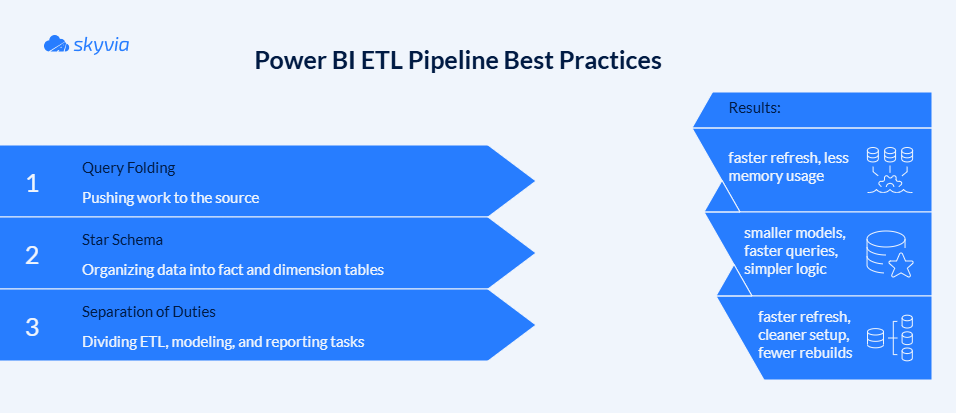
Utilizing Query Folding
One of those things you don’t notice until it stops functioning is query folding.
Power BI pushes transforms back to the source when it succeeds. Wherever the data resides, filters, joins, and aggregations operate. Refreshes are consistent, less memory is consumed, and less data is sent.
When it doesn’t, everything gets pulled into Power BI first and processed locally. That’s when refresh times start stretching.
The pattern is simple:
- Apply filters and joins early.
- Keep foldable steps (select, filter, group) near the top.
- Leave non-foldable steps (custom logic, complex text operations) for later.
A quick check in View Native Query usually tells you what’s happening. If that option disappears, folding already broke somewhere upstream.
Building a Star Schema
Flat tables feel convenient until you try to use them.
A star schema separates what happened from the context around it. One fact table holds measurable events – revenue, quantity, transactions. Dimension tables hold everything else – dates, customers, products.
Instead of one wide table, you get a structure:
- Fact table → metrics.
- Dimension tables → descriptive attributes.
- Relationships → how everything connects.
The result is smaller models, faster queries, and measures that don’t turn into puzzles. Power BI works better when it doesn’t have to guess how you organized your data
Separation of Duties
Most setups subtly go off course at that point.
Power BI makes transformation inside the report feel like the obvious choice, and obvious choices have a way of compounding. Before long, the .pbix file is doing extraction, transformation, modeling, and visuals – a one-file empire that nobody planned and everyone depends on. It works. Until it reaches 400MB, even the bravest won’t touch it.
Large files slow down. Refreshes get heavier. Logic becomes harder to track. And every report starts solving the same problem again.
A more stable pattern is to move heavy ETL upstream:
- Dataflows or pipelines handle cleaning and shaping.
- The model stays focused on relationships and measures.
- Reports stay lightweight.
In practice, that also splits responsibilities. Data engineers define the pipeline. Analysts build on top of it. The result is less overlap, fewer surprises, and a setup that doesn’t need rebuilding every time something changes.
Power BI has a deal it implicitly offers: you handle the data, it handles the story. Honor that division, and it holds up its end beautifully. Try to renegotiate mid-pipeline – pushing transformations Power Query wasn’t built for, chaining queries across sources without folding – and the errors you get back are rarely honest about what actually broke.
Conclusion
Somewhere in your organization, there’s a .pbix file that has seen things. It started small. Now, nobody knows what half the queries do, and there’s an unspoken agreement across the team to never click “refresh” closer to their clock-out time.
That is not a Power BI problem. That is what happens when a reporting tool slowly gets promoted beyond its job description and is too polite to refuse.
The architectural fix isn’t glamorous: move the transformation logic upstream, let dedicated pipelines do the ETL lifting before the data ever reaches Power BI, and restore the natural order of things – clean data in, good reports out.
So, stop negotiating with refresh times and rewriting the same M code. Try Skyvia for free and let your pipelines run quietly in the background while you focus on the part that actually matters.

F.A.Q. for Power BI ETL

How can I automate data flows between external platforms and BI tools?
Move the flow outside the report. Use scheduled pipelines (Dataflows, Fabric Pipelines, or tools like Skyvia) to pull, transform, and load data automatically, so Power BI just reads the result.
How do I fix refresh errors when combining data from multiple sources in Dataflows?
Check privacy levels and credentials first. Then look at joins – cross-source merges often break folding and slow everything down. Splitting logic or staging data usually stabilizes refresh.
How can I automate data flows between external platforms and BI tools?
Move the flow outside the report. Use scheduled pipelines (Dataflows, Fabric Pipelines, or tools like Skyvia) to pull, transform, and load data automatically, so Power BI just reads the result.
How do I fix refresh errors when combining data from multiple sources in Dataflows?
Check privacy levels and credentials first. Then look at joins – cross-source merges often break folding and slow everything down. Splitting logic or staging data usually stabilizes refresh.
What is a low-code way to join internal warehouse data with external partner files for Power BI?
Bring both sources together before Power BI touches them. Dataflows or a no-code ETL layer can join warehouse tables with partner files once, so you’re not rebuilding that logic every time the report refreshes.
Are there alternatives with data pipeline orchestration and ETL capabilities similar to Microsoft Fabric?
Yes, but they feel different in use. Fivetran leans toward managed pipelines, Airbyte gives you more control, and Talend sits firmly in enterprise territory.
What are the typical ETL patterns for feeding complex data, like session replays, into a BI warehouse?
Raw events land first, untouched. Then they’re reshaped into structured tables and aggregated only after that for reporting. Skipping those steps usually ends with dashboards trying to interpret data that doesn’t belong there.