
Summary
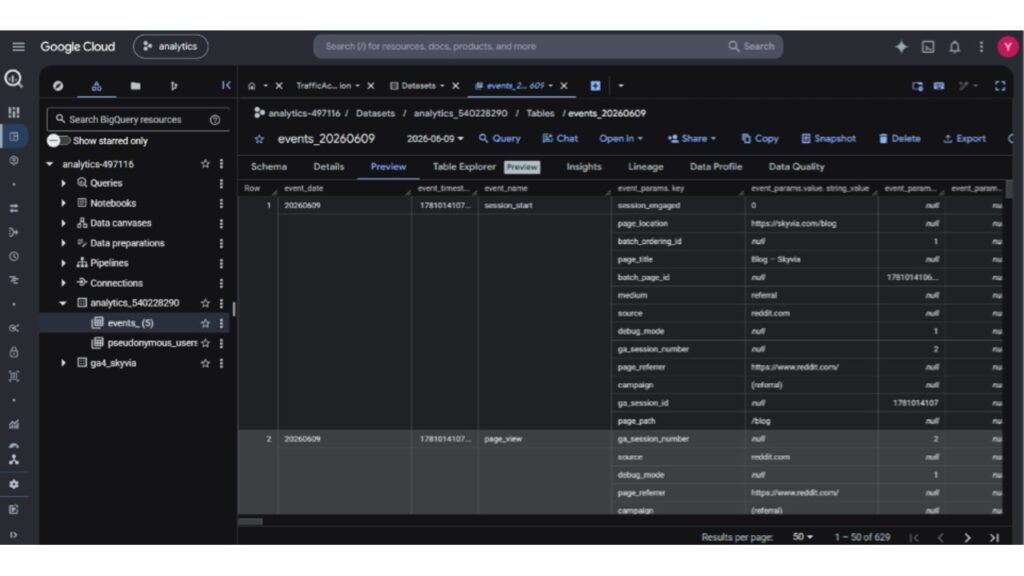
- Native GA4 Export – Free, real-time raw event backup that requires advanced SQL to unnest complex JSON schemas.
- Skyvia – No-code cloud replication that flattens GA4 schemas into query-ready tables and bypasses nested SQL.
- Fivetran – Fast, enterprise-grade ELT platform built for high-volume streaming with automated schema drift handling.
- Airbyte – Open-source and highly customizable integration framework for engineering teams comfortable managing self-hosted pipelines.
Are you tired of dealing with Google Analytics 4’s 14-month data retention limit or struggling to unnest complex JSON arrays in BigQuery? You’re not alone. Once you start looking for ways to escape the limitations of standard reporting, the data engineering landscape can get messy fast.
Moving your data from GA4 to BigQuery has become the gold standard for marketing analytics. Establishing a robust data warehouse integration is the only reliable way to bypass the standard UI’s data sampling, implement custom marketing attribution models, and truly take ownership of your historical data.
Full transparency: We are the engineering team at Skyvia. We build a no-code ETL tool that moves data, so we are naturally biased. However, in this guide, we won’t pretend we are the only solution. We will honestly evaluate the native Google Analytics 4 integration alongside market leaders like Fivetran and Airbyte based on real technical tests, so you can choose the right path for your architecture.
Why Should You Move GA4 Data into BigQuery?
The default Google Analytics 4 reporting interface is designed for high-level monitoring, not deep-dive analytical execution. For teams attempting to build comprehensive reporting models, three core limitations in the standard GA4 interface make external data warehousing necessary.
- Overcoming the 14-Month Data Expiration: The standard analytics interface strictly caps user-level and event-level data retention at a maximum of 14 months. If you are trying to build year-over-year performance reports or analyze long-term customer buying cycles, your historical data simply vanishes. Exporting to a data warehouse lets you own your records indefinitely.
- Bypassing UI Data Sampling and Thresholding: When you run custom reports, apply secondary dimensions, or look at large datasets, the standard UI frequently applies data sampling and thresholding (hiding specific rows to protect user privacy or speed up loading times). This results in inaccurate reports where the numbers do not add up. BigQuery grants you access to the raw data.
- Breaking Down Data Silos: Inside the standard interface, your web analytics are completely isolated from your backend business operations. By exporting to a warehouse, you can finally combine web analytics with offline CRM data, for example, matching a Google Analytics 4 client_id with a Salesforce Lead ID. This can help you track exactly which ad campaign or website click ultimately led to a closed-won deal.
“In our experience helping hundreds of e-commerce clients, the moment they hit the Google Analytics 4 data thresholding limit is usually when they realize they need a data warehouse.”
How Does the Native GA4 to BigQuery Export Works?
Native GA4 to BigQuery export sends raw event-level data from a GA4 property to a BigQuery dataset. Before linking these two, we will need to create a new project in Google Cloud Platform and grant the necessary permissions.
Creating New GCP Project
Visit Google Cloud Platform and sign in using the same Google account that has Editor or Administrator permissions on your GA4 property.
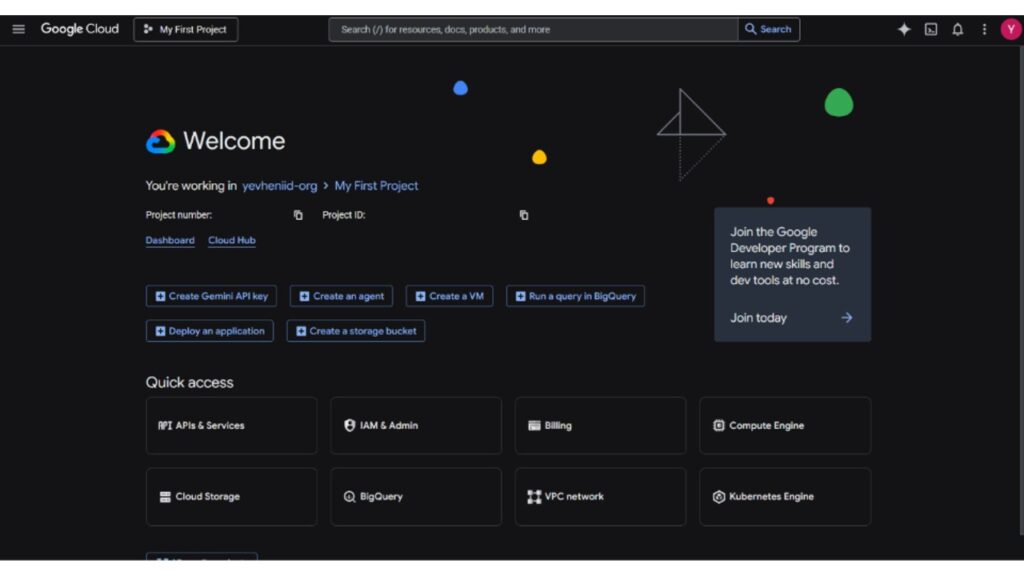
Open Project picker and then click New project.
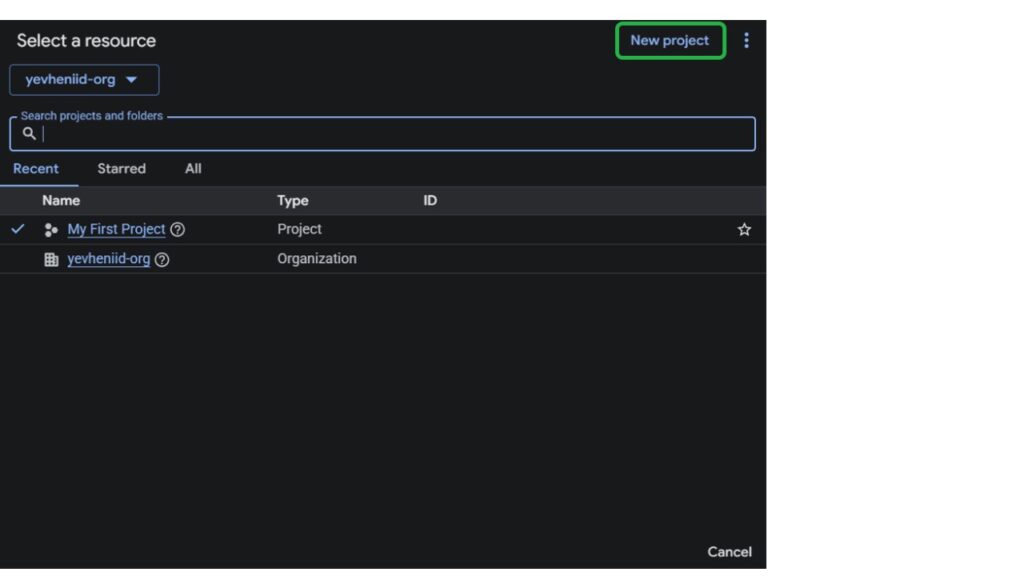
Give your project a clear name and select the organization, if needed. Click Create.
Under Quick Access, select BigQuery.
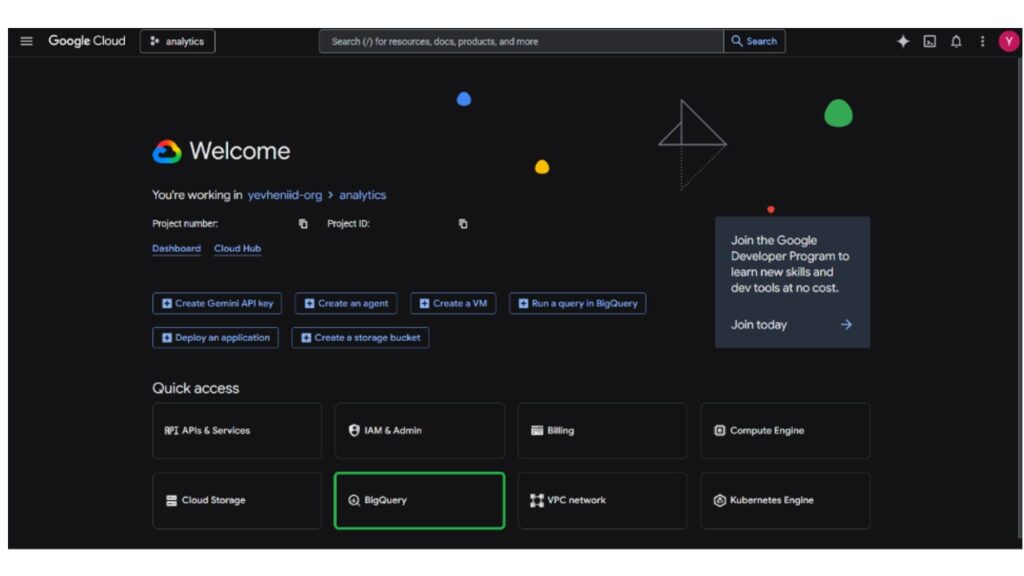
BigQuery should be enabled for this project now.
Linking GA4 and BigQuery
The cloud environment is ready, so now we need to connect GA4 to BigQuery. Head back to the Google Analytics and open the Admin panel. Under Property settings, select Product links > BigQuery links. Click the blue Link button.
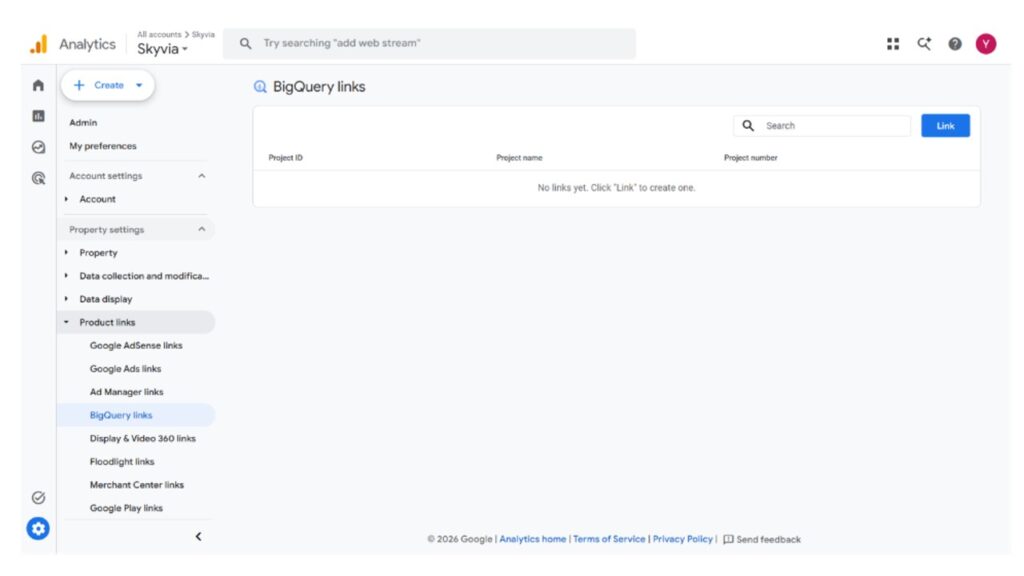
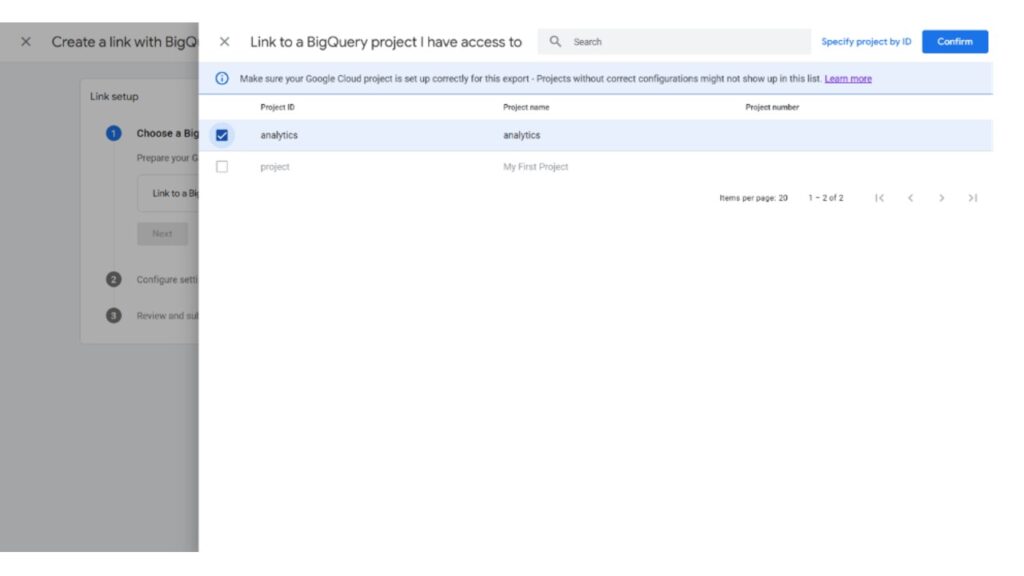
In the opened window, click Choose a BigQuery project, select the GCP project you just created, and click Confirm.
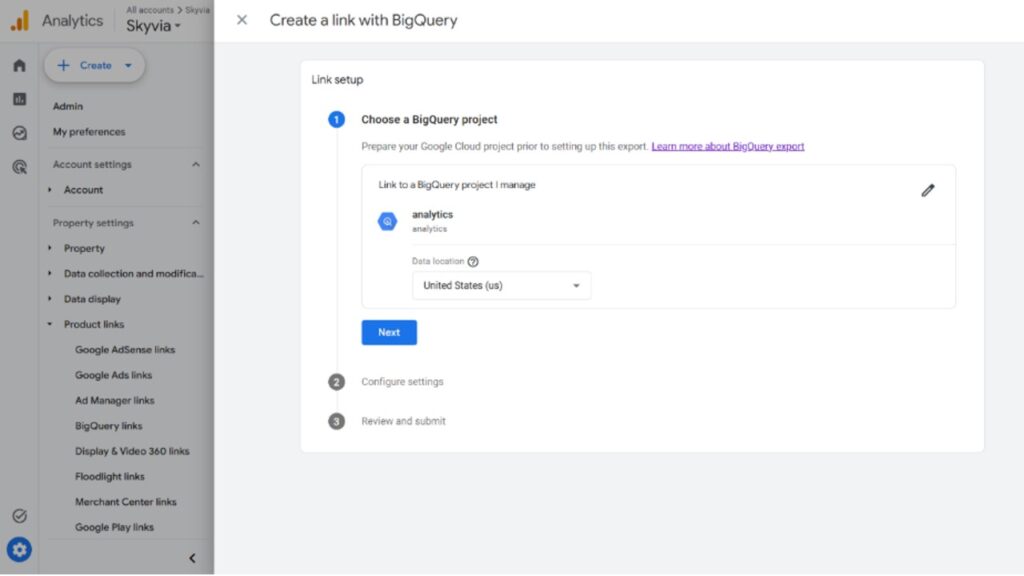
One thing to watch with the region: pick the one closest to your main user base, like EU (Frankfurt) or US (Iowa). You can’t change it later without deleting the link, and deleting it wipes out your intraday tables. If GDPR applies to you, choose an EU region. Confirm your selection and click Next.
Under Data Streams, click Configure data streams and events. Select streams you’d like to include in your export.
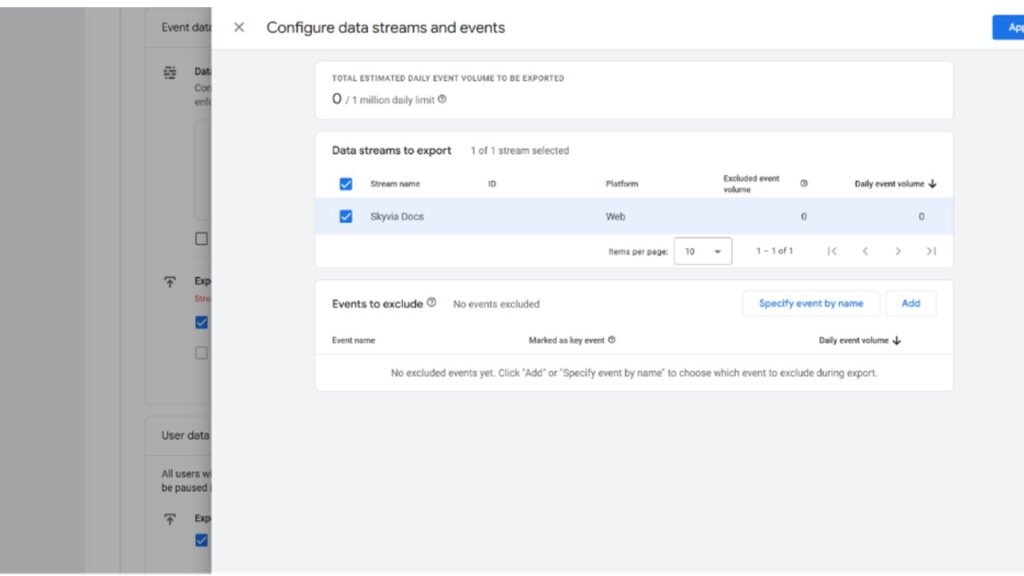
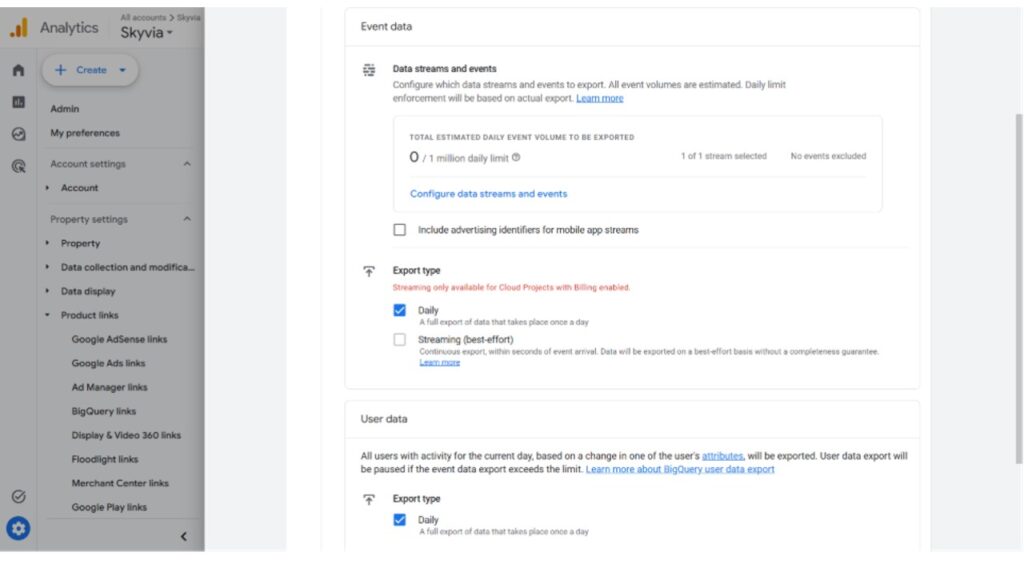
Under Frequency, check either option or both. Daily sends one full batch of raw events once a day. Streaming sends events continuously, usually within minutes of the user action, and it needs the active GCP billing account you turned on earlier.
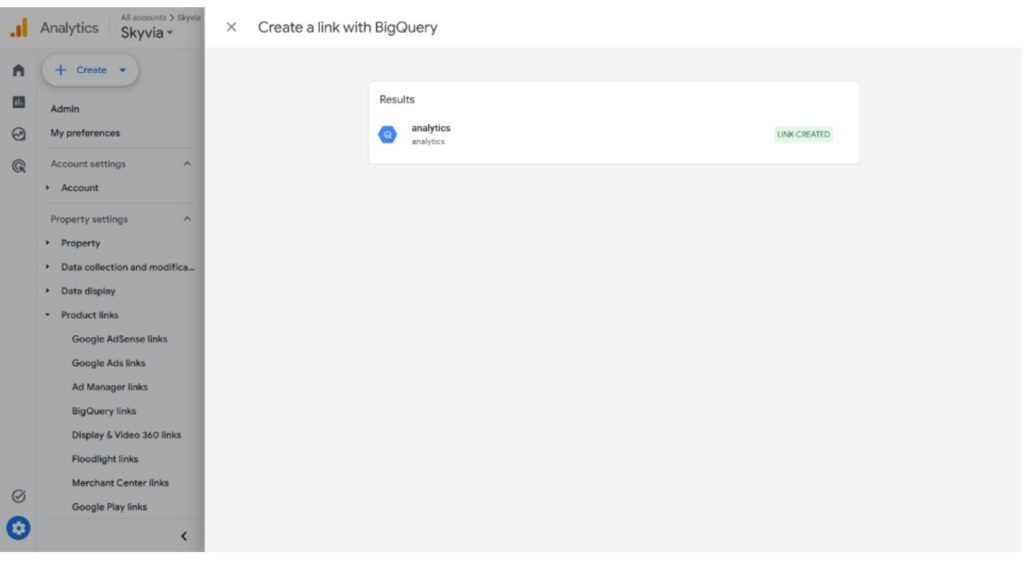
Review and submit the link. After these steps, you should see confirmation that the link is created.
After linking, we need to verify that the service account used by Google Analytics was automatically created in GCP. To do that, in Google Console, navigate to IAM & Admin > IAM using the left sidebar.
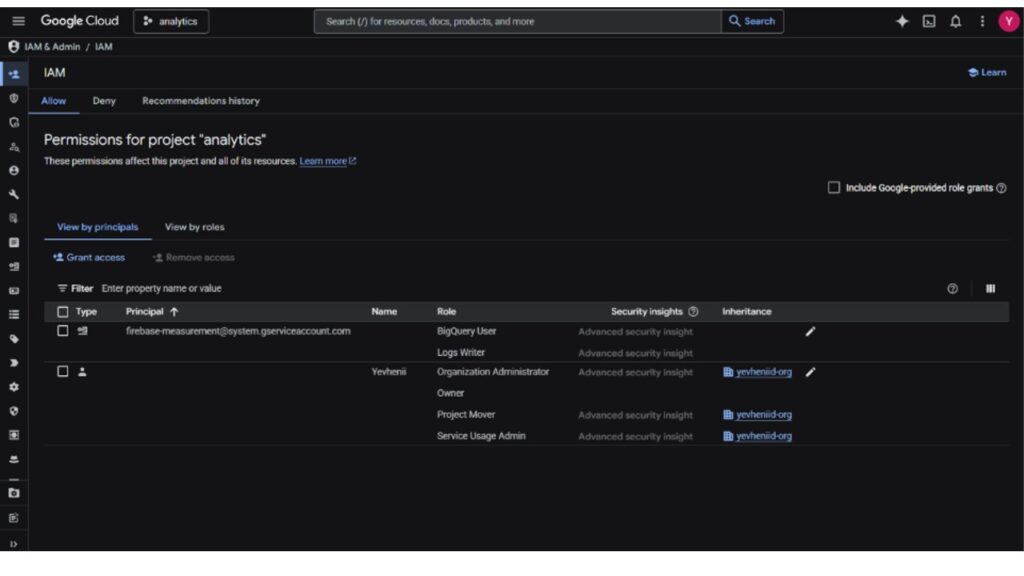
If you see a firebase-measurement@system.gserviceaccount.com, that means everything was set up correctly. Your data will start appearing in your BigQuery project soon. The native connection is a good start, but it won’t backfill anything. You only get data from the day you create the link onward. So if you need your past analytics in BigQuery now, you’ll have to pull that history in with an external ETL tool.
How Did We Test and Evaluate the Integration Methods?
To compare the native export against external ETL tools, our data engineering team spent 30 hours building pipelines. We tested migrating a sample of GA4 events into BigQuery, and judged each tool on three things: how it handles nested JSON flattening, how fast it loads data, and how easily it merges with a secondary source like HubSpot.
Which ETL Tools Are Best for Exporting GA4 to BigQuery?
Depending on your engineering resources, data volume, and budget, different tools will suit different infrastructure needs. Let’s look at the four main methods for moving your data.
Which Solution is Best for Free, Raw Data Backups?
Native GA4 Export
The native connection between GA4 and Google Cloud remains the best option for teams that want an unaltered backup of their event records without incurring extra tool subscriptions.
Pros
- It is 100% free (within BigQuery Sandbox limits), natively supported by Google, and requires no third-party software.
- Supports real-time streaming to capture visitor activity with sub-minute latency.
- Delivers raw, unmanipulated event logs directly to your warehouse.
Cons
- The strict 1-million daily event limit, inability to export historical data, and the deeply nested JSON schema that requires advanced SQL to read.
- Streaming export requires an active GCP billing account and is not available under the free BigQuery Sandbox tier.
Which Solution is Best for Enterprise & High-Volume Streaming?
Fivetran
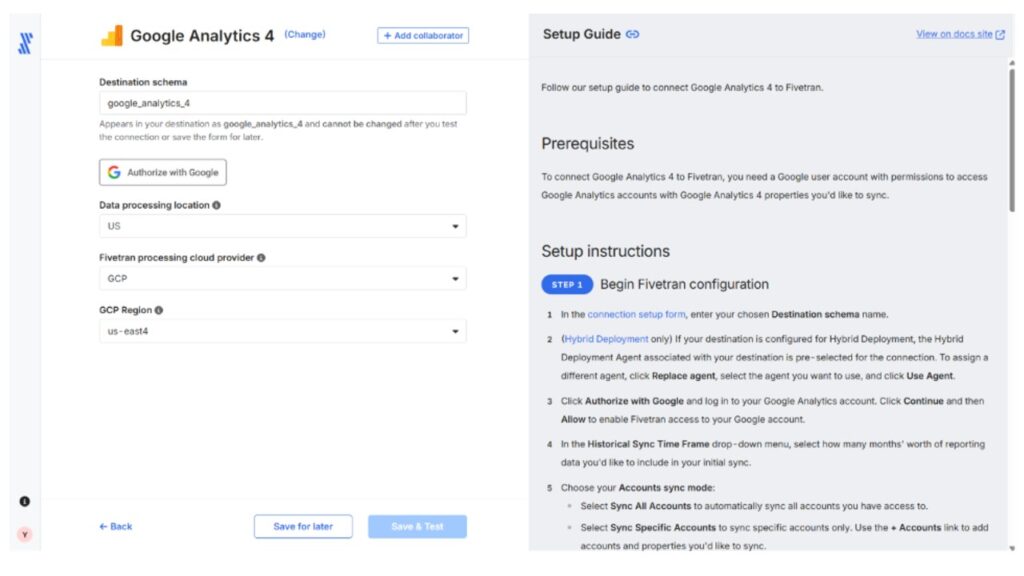
Fivetran is an enterprise-grade SaaS ELT platform designed for large-scale operations with dedicated data engineering budgets. It handles massive throughput and provides automated management features.
Pros
- Incredible speed, massive enterprise compliance, automated schema drift handling.
- Highly reliable for syncing hundreds of tables across various data sources.
Cons
- Expensive volume-based pricing (Monthly Active Rows). For high-traffic applications with millions of daily event parameters, costs can escalate rapidly.
Which Solution is Best for Developer-Heavy Teams?
Airbyte
Airbyte is a popular open-source data integration platform. It is appealing to teams that prefer hosting their own pipelines to avoid vendor lock-in.
Pros
- Open-source, highly customizable, great for dbt integration.
- No platform licensing fees for the self-hosted Community Edition.
Cons
- Requires significant infrastructure maintenance and DevOps hours if self-hosted. Your team must manage Docker containers, sync states, and local server scaling on platforms like AWS or GCP.
Which Solution is Best for No-Code Integration?
Skyvia
Skyvia is a cloud-first, completely no-code data integration platform. It is built to make it easy for business users and analytics teams to import, duplicate, and map data without managing infrastructure.
Pros
- Visual pipeline builder, predictable pricing (not punishing for high-event volume like MAR), native flattening of complex GA4 data schemas.
- Enables non-technical users to build and run pipelines in a matter of minutes.
Cons
- Skyvia is a cloud-first platform. If you represent a highly regulated banking institution that requires a completely air-gapped, on-premise data pipeline without any internet access, we are not the right fit for you.

How Do These Methods Compare in Real-World Metrics?
To help you choose, here is a detailed breakdown comparing each method across key operational criteria:
| Integration Method | Schema Handling | Pricing Model | Setup Complexity | Best For |
|---|---|---|---|---|
| Native GA4 Export | Nested JSON (requires advanced SQL to unnest) | Free / Pay per stream | Medium | Teams with strong SQL skills |
| Skyvia | Automated Flattening, Visual Mapping | Subscription | Low | Marketing teams and data analysts |
| Fivetran | Standardized Schema | Monthly Active Rows (MAR) | Low | Enterprise budgets |
| Airbyte | Customizable | Free (if self-hosted) | High | Engineering teams |
How Do I Set Up the GA4 to BigQuery Connection Using Skyvia?
The native export gets your raw events into BigQuery, but it leaves you with nested JSON and no simple way to blend in CRM data. Skyvia works differently. It pulls GA4 report data through the Data API and lands it in BigQuery as flat tables you can query with a plain SELECT, no UNNEST gymnastics. The trade-off is real and worth stating up front: you work within Google’s API limits, choosing up to 9 dimensions per table, so wide reporting gets split across a few replication tasks rather than dumped into one. Here is the setup we used, start to finish, including the run that failed on purpose so you can see where the limit bites.
Before You Start: Prepare BigQuery
Skyvia loads data into a dataset, but it can’t create one for you. A fresh project has zero datasets, and, unless you tried native GA4 to BigQuery export before, you will have zero of them in your project. So do this first:
- In BigQuery, open your project and click Create dataset.
- Give it a dedicated name (we went with ga4_skyvia) and select a region that works for you.
- In menu, select Cloud Storage > Buckets. Then, click Create.
- Create a bucket in that same region. Skyvia will stage CSV files there on each replication run.
Step 1: Connect to Your Google Analytics 4 Account
In Skyvia, click + Create new, then Connectors, and pick Google Analytics 4. Click Sign In with Google, choose the account that has access to required GA4 property, and select that property in the dropdown.
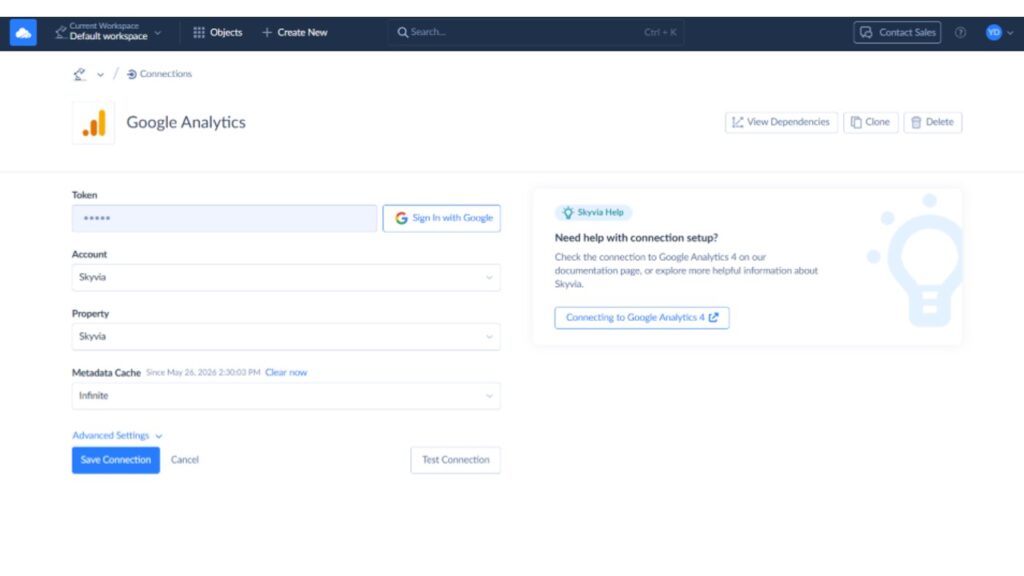
Save the connection.
Step 2: Connect Your BigQuery Warehouse
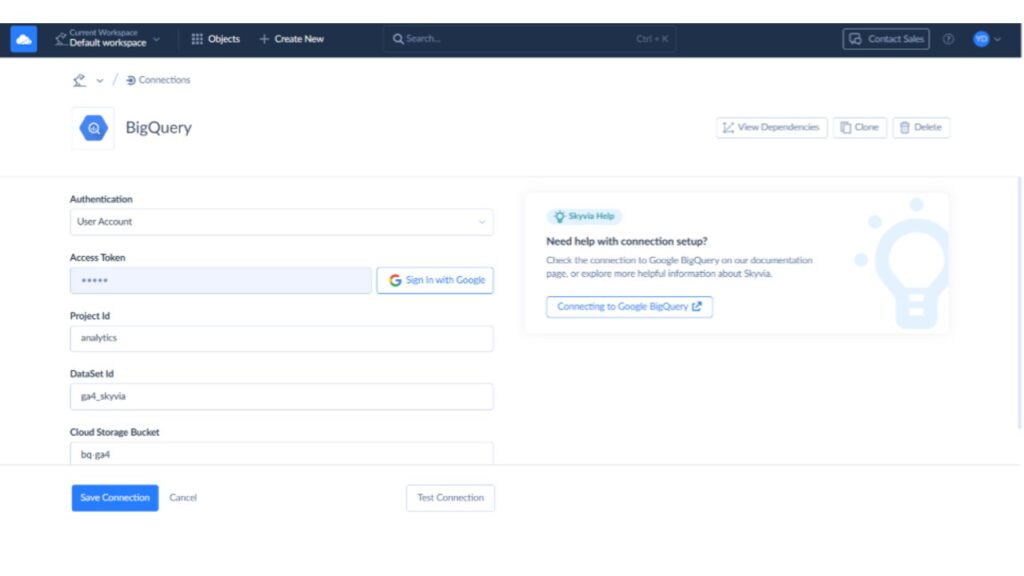
Create a second connection and pick Google BigQuery. Authenticate via user or service account, fill in Project ID, Dataset ID and Cloud Storage Bucket name.
- Project ID is your project name, visible in the top header of Google Cloud platform.
- Dataset ID is the name of the dataset you created above.
- Cloud Storage Bucket is the name of the staging bucket you created above.
Step 3: Build the Replication
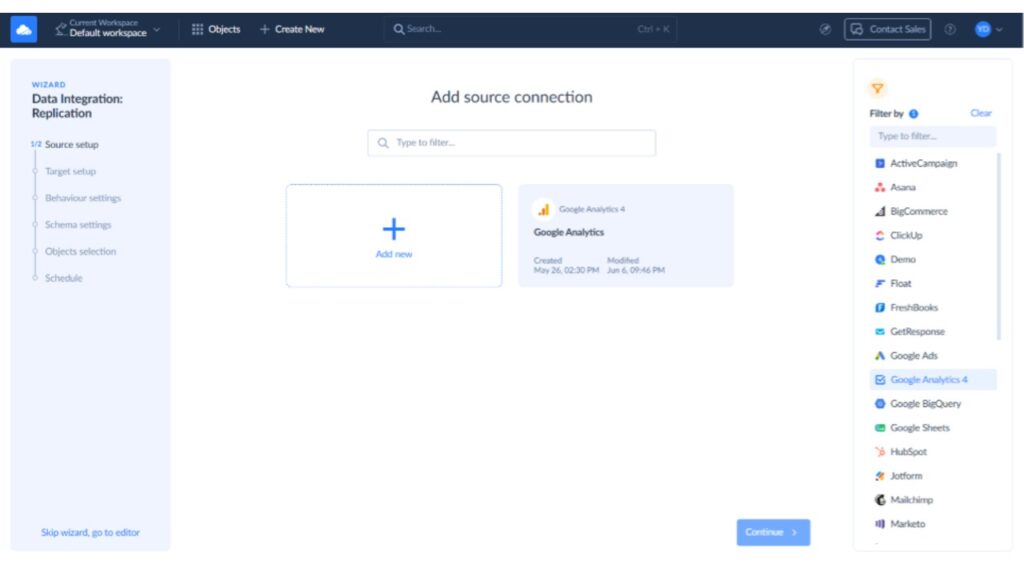
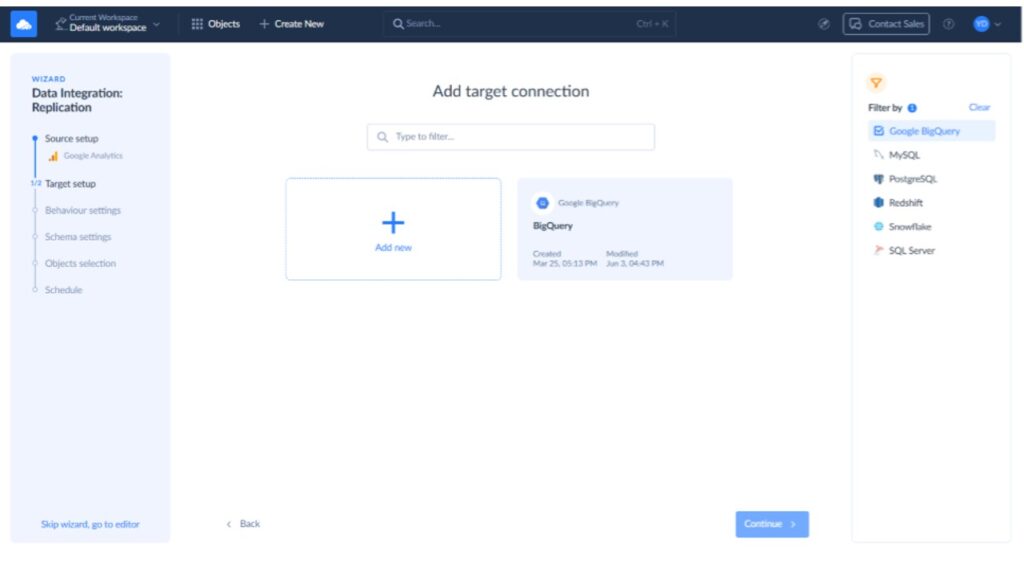
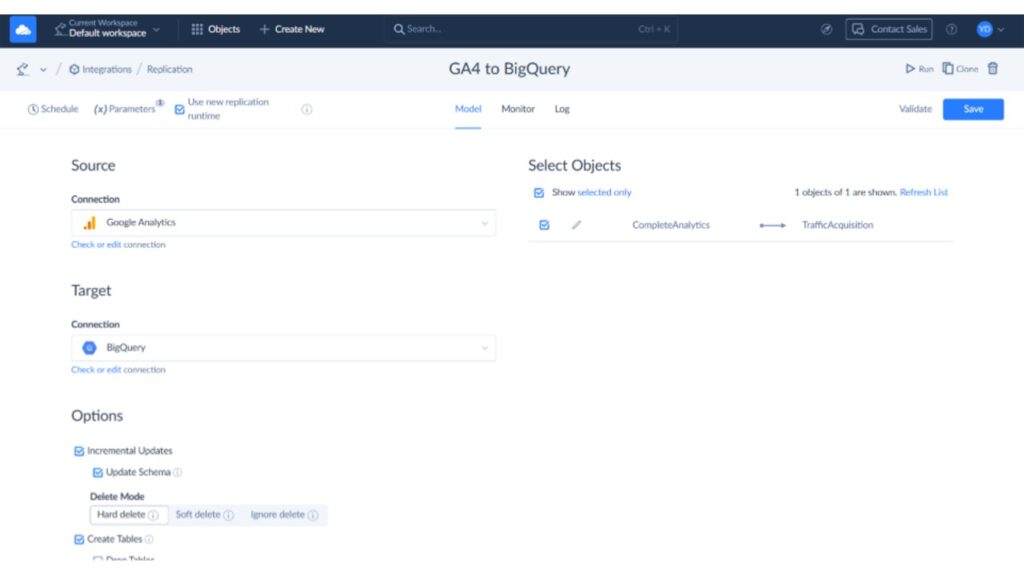
Click + Create New, then Replication. Replication is the right fit here because it builds the BigQuery tables for you and then keeps them current with incremental loads. The wizard has six steps:
- Select your Google Analytics 4 connection.
- Select your BigQuery connection.
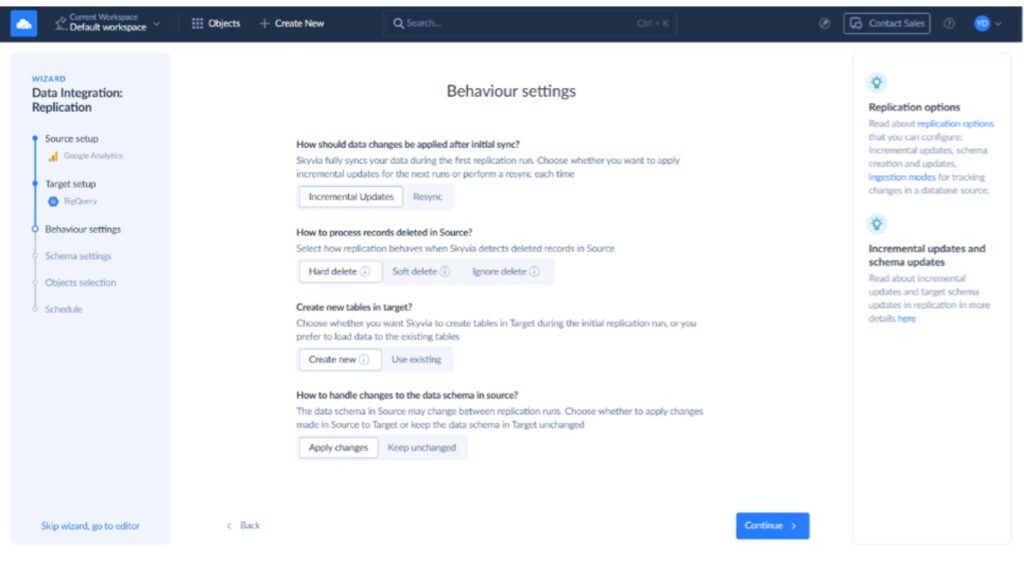
- Pick Incremental Updates so that after the first full sync, only new and changed rows load. Pick Create new so Skyvia builds the schema in BigQuery for you. And select Apply changes for schema drift, which means that when GA4’s fields change, Skyvia updates the BigQuery tables to match instead of breaking the pipeline.
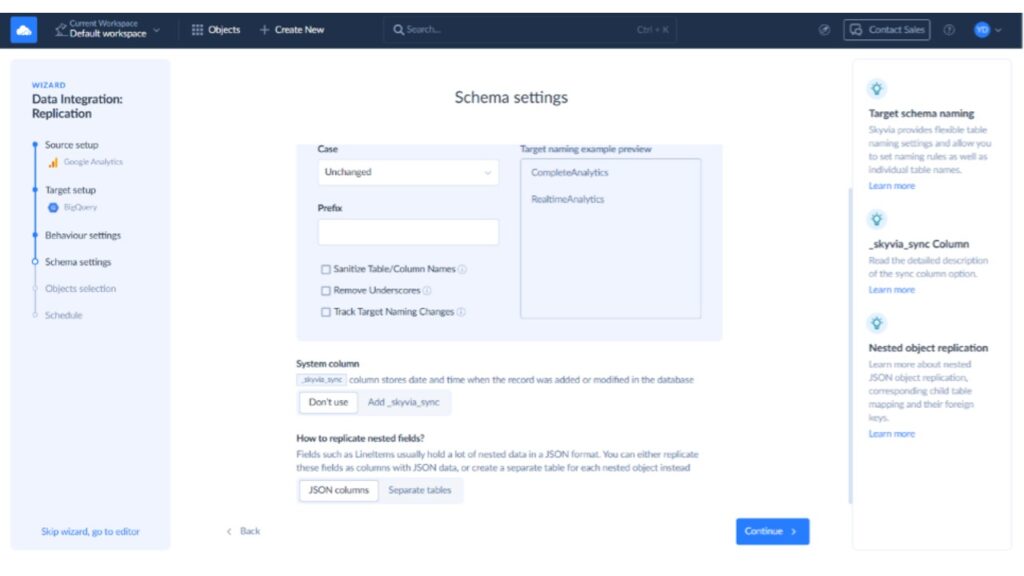
- Set your table naming rules (case, prefix) and, if you want a load timestamp on every row, add the _skyvia_sync column.
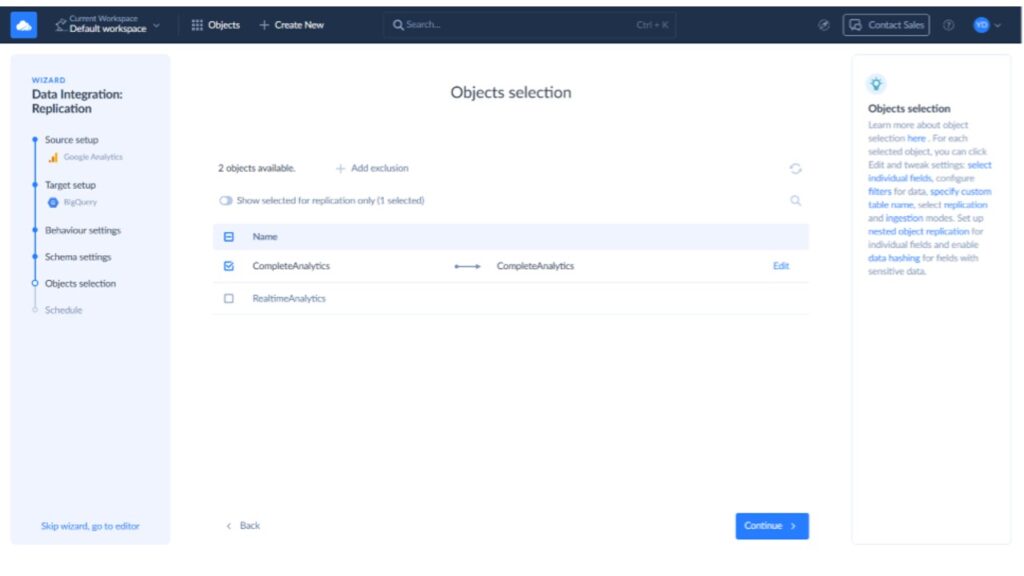
- The GA4 connector exposes two objects: CompleteAnalytics (standard reporting dimensions and metrics) and RealtimeAnalytics. Select CompleteAnalytics and click Edit.
Step 4: Choose Your Dimensions and Metrics
After clicking Edit, the Task Editor window should show up. This is where Skyvia trades SQL for checkboxes: tick the GA4 dimensions and metrics you want, name the target table, and save.
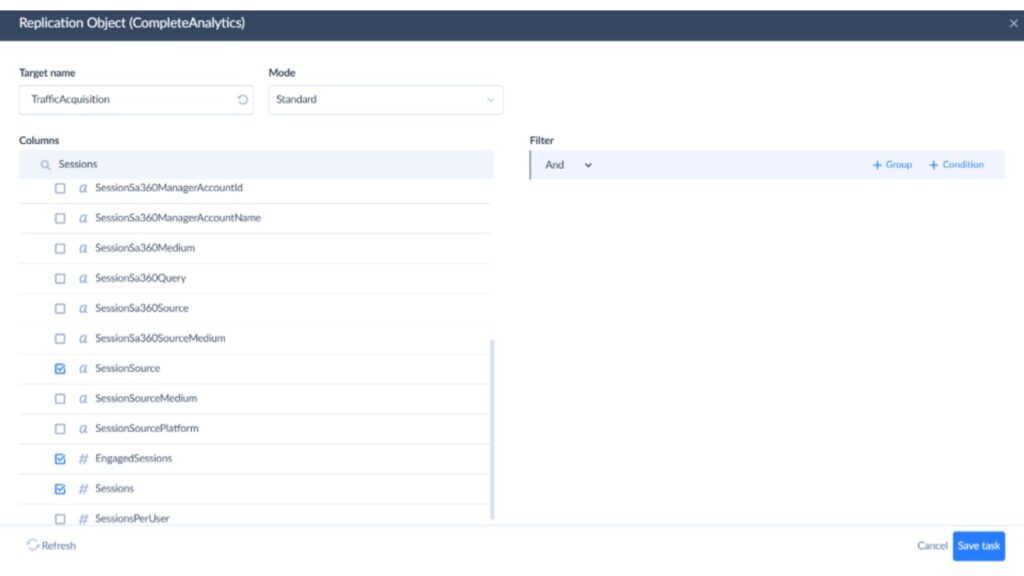
We picked 6 dimensions and 6 metrics and named the table TrafficAcquisition:
- Dimensions: Date, SessionDefaultChannelGroup, SessionSource, SessionMedium, SessionCampaignName, DeviceCategory
- Metrics: Sessions, EngagedSessions, TotalUsers, NewUsers, KeyEvents, TotalRevenue
Due to Google’s GA4 API restrictions, you can only pick up to 9 dimensions. If you need more breakdowns, add a second replication task. Metrics are easier: ask for more than ten and Skyvia will make the extra API calls for you.
Step 5: Run It and Check BigQuery
Click Save, then Run. You can see the progress using Monitor or Log tabs.
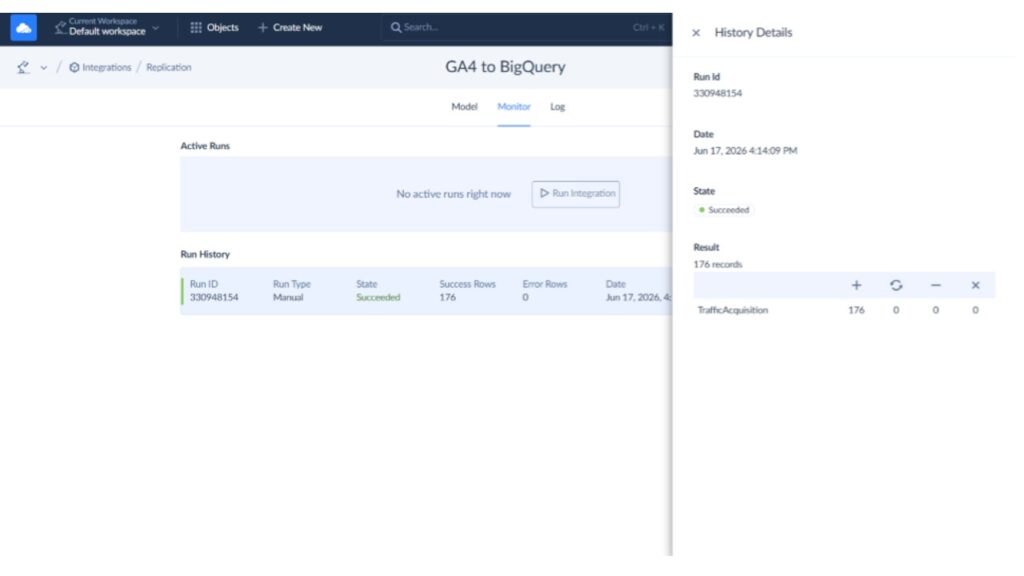
Run has succeeded, so it’s time to check BigQuery:
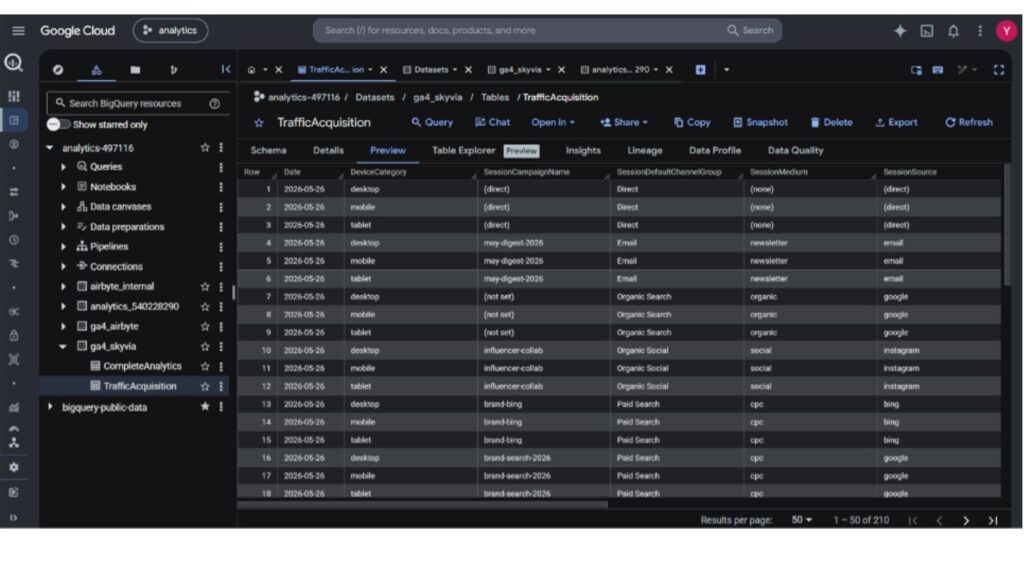
You can now query your data.
What Are the Most Common Errors When Loading GA4 to BigQuery?
Most failures fall into three buckets. Here is what each one looks like and how to clear it.
Error 1: Exceeded rate limits (“too many table update operations for this table”)
BigQuery limits each table to 1,500 load jobs per day, and that ceiling cannot be raised. If your pipeline writes row by row or fires a fresh load every few minutes, you burn through those 1,500 fast and the job throws “Exceeded rate limits: too many table update operations for this table.”
The fix is to batch. Instead of streaming individual rows or running constant small loads, collect changes and load them in fewer, larger jobs. This is why a tool like Skyvia stages data as CSV files in Cloud Storage and runs one bulk load per task instead of hammering the table. If you are writing your own pipeline, group your inserts and slow the cadence to stay under the limit.
Error 2: Difficulties unnesting arrays
The native export stores event parameters as a repeated (nested) field called event_params, so a plain SELECT event_params gives you an array instead of a value. To read a single parameter you have to UNNEST it inside a subquery:
SELECT

  event_date,

  event_name,

  (SELECT value.string_value FROM UNNEST(event_params) WHERE key = ’page_location’) AS page_location,

  (SELECT value.int_value    FROM UNNEST(event_params) WHERE key = ’ga_session_id’) AS session_id

FROM `your-project.analytics_XXXXXX.events_*`

WHERE event_name = ’page_view’
Inline UNNEST like this keeps one row per event. The alternative, FROM … , UNNEST(event_params), explodes each event into one row per parameter, which is fine for exploring but rarely what you want in a report.
Error 3: “Requests are limited to 9 dimensions”
If you pull GA4 through the Data API (the route ETL tools use) you will eventually hit “Requests are limited to 9 dimensions within a nested request.” Google caps a single report request at 9 dimensions. Tools surface every available field, so it is easy to over-select and only discover the limit when the job runs. Keep each table to 9 compatible dimensions and split wider reporting across separate tasks. Metrics are more forgiving; a good tool will batch extra metric requests for you.
Is the Native Integration Enough, or Do You Need an ETL?
It comes down to what you do with the data after it lands.
Stick with the native export if you want a free, raw, event-level archive and your team is comfortable writing UNNEST SQL. It is the best option for fine-grained, event-by-event analysis or feeding a machine-learning pipeline that needs every hit.
Reach for an ETL like Skyvia if you want flat, query-ready tables, or you need to blend GA4 with offline data such as Salesforce leads or Facebook Ads spend without writing nested SQL. A no-code, scheduled pipeline that hands marketing teams clean tables is usually worth more than raw events nobody on the team can query.
Plenty of teams run both: the native export for the raw archive, Skyvia for the curated, joinable reporting tables.
You can try this on Skyvia’s free tier. Connect GA4 and BigQuery, build the replication from the steps above, and you will have a flat channel-performance table in BigQuery in about ten minutes.

FAQ for Google Analytics 4 to BigQuery

Can I export historical GA4 data into BigQuery?
The native export is forward-only on standard properties: you only get data from the day the link is switched on, with no backfill of older events. An ETL tool can pull historical report data through the Data API, but only within GA4’s data-retention window (up to 14 months).
Is exporting GA4 data to BigQuery completely free?
The native daily export is free. Streaming export costs about $0.05 per GB and needs billing enabled. BigQuery itself is free up to 10 GB storage and 1 TB of queries per month, then pay-as-you-go. At single-property volume most teams pay little or nothing.
Why is my GA4 data in BigQuery so hard to read, and what are “nested arrays”?
The native export stores event parameters in a repeated field, event_params, rather than plain columns. That nested array is why a simple query returns structures instead of values. You either UNNEST it in SQL or use an ETL tool that flattens the data for you.
Should I choose the “Daily” or “Streaming” export option in GA4?
Daily sends one free batch per day and covers most reporting needs. Streaming pushes events within minutes but costs $0.05 per GB and requires a billing account. Pick Daily unless you genuinely need intraday data, such as live dashboards or fraud checks.
When should I stop using the native export and switch to an ETL tool?
Switch when you are tired of writing UNNEST, need flat tables your whole team can query, or want to join GA4 with CRM and ad-platform data. If you only need a raw event archive and live in SQL, the native export is still fine.