For a Jira export to CSV, run a search, open the More actions menu (the three dots), pick Export and choose a CSV with all fields or only the current ones. That's the whole built-in route, and in Jira Cloud it now takes up to 10,000 work items in one export.
The catches show up later. An all-fields file gets huge and slow, attachment files don't come along, and a weekly report means repeating the same clicks every week. That's where apps and integration tools come in.
So we cover three ways to get Jira data out: the built-in export, Marketplace apps such as Hierarchy for Jira or Exporter for Jira, and Skyvia for exports that run on a schedule. Before that, a quick look at which Jira data you can export, and after the methods, what to do when a search returns more work items than one export allows.
Understanding Jira Export Needs: What Data Can You Export?
Jira organizes complex project structures, which can be critical for reporting and decision-making, encompassing issues and epics, user information, and detailed time logs. Depending on your goals, you might need to extract different types of data.
Jira Issues
The most frequently exported data type. Jira issues (also called work items) include tasks, bugs, user stories, epics, and sub-tasks, along with standard and custom fields. This data is vital to reporting, backlog prioritization, and sprint planning.
Jira Project Data
In addition to individual issues, project-level data is also important. It includes details like project keys, workflows, and configurations that help put individual issues into a broader context.
Jira User Data
Data that stores information about users is another common need, especially for tracking workloads, permissions, or user-specific metrics. This can include who’s assigned to tasks, team roles, or time logs, helping you assess team productivity and allocation.
Jira Comments and Attachments
While Jira is great at storing issues and workflows, comments and attachments can often be a pain point when it comes to export. Jira Cloud’s Export CSV (all fields) does include comments, each in its own Comment column, but Jira doesn’t download attachment files in bulk, which makes them harder to share with stakeholders or in reports.
Jira Worklogs and Time Tracking Data
Time tracking is another aspect of Jira that requires more than just a basic issue export. Worklogs and time entries are key for reporting on team performance, understanding resource allocation, and even for billing purposes. But unlike issue extraction, worklog exports may not be easy with the built-in functionality.
Data from Jira Reports
Jira offers various built-in reports, like burndown charts and sprint reports. But extracting this data directly from Jira can be challenging. You may need to manually reconstruct these reports or use apps that can export them in a more accessible format.
Ultimately, understanding which data you need and which methods can deliver it to you in the desired format is crucial for project management and reporting.
Methods for Export Data Between Jira and CSV
Each method of getting Jira data has its strengths and suits different needs. Here’s an overview of the main approaches:
| Criteria | Jira’s Built-in CSV Export | Jira Marketplace Apps | Third-Party Tools (Skyvia) |
|---|---|---|---|
| Export Limit | Up to 10,000 work items per export in Jira Cloud; 1,000 by default in Data Center. | Varies by app; typically higher limits or no limits. | No limit; handles large datasets effectively. |
| Automation | Manual exports only; no automation. | Limited automation; depends on app capabilities. | Fully automated; supports scheduled and recurring exports. |
| Cost | Free; included in Jira. | Subscription-based; costs vary by app. | Subscription required for advanced features; free trial available. |
| Pros | – Quick and simple – No additional cost – Ideal for small datasets | – Supports hierarchies and metadata – Exports custom fields – Reduces post-export cleanup | – No-code and easy to use – No manual batches for large exports – Automates exports and integrates with other systems |
| Cons | – Flat data only – No attachment files; comments only with all fields – 10,000-work-item limit in Jira Cloud | – Subscription costs – Setup time – Varies by app features | – Subscription for advanced features – Less granular format control |
| Ideal Use Case | One-off reports for small teams. | Complex projects needing detailed exports. | Recurring exports, large datasets, or cross-platform integrations. |

Method 1: Using Jira’s Built-in CSV Export Functionality
Jira’s built-in CSV export feature allows you to get issue data into a CSV file directly from the Jira interface. It’s simple and convenient but limited in terms of flexibility and data depth.
Best For
- Quick, one-time exports of small datasets.
- Users who need basic reports or data sharing without additional tools.
Step-by-step instructions
- Set a basic filter or use Jira Query Language for advanced filtering to select the issues you want to get.
- Click the Export button in the top-right corner.
- Choose one of the available CSV options.
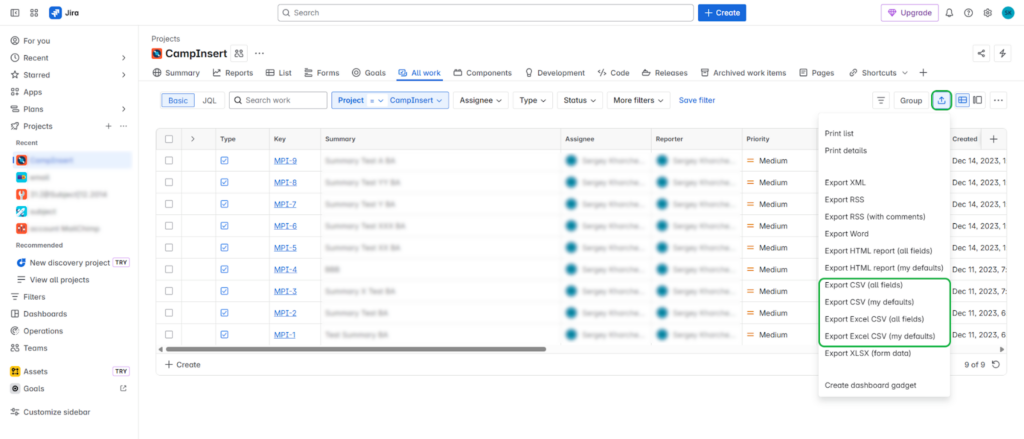
- Save the result file on your computer.
Pros
- Quick and easy to use, with no additional setup required.
- Ideal for small datasets and one-off exports.
Cons and Limitations
- Flat data only, with no preservation of work items hierarchy (e.g., parent-child relationships).
- Comments come only with the all-fields export, and attachment files and detailed worklogs aren’t included.
- A single export takes up to 10,000 work items in Jira Cloud and 1,000 by default in Data Center.
Method 2: Leveraging Jira Marketplace Apps for CSV Exports
Jira Marketplace apps provide more advanced features for extracting Jira data. For example, an app like Hierarchy for Jira helps to export multi-level hierarchies and custom fields. Exporter for Jira enables getting not only issues, but also their metadata (transitions, comments, attachments) to Excel and CSV. These and other marketplace apps can better handle the complexities of large projects or specific export needs that Jira’s native features can’t cover.
Best For
- Advanced export of hierarchical data, complex structures, and issue metadata.
- Users who need more control over the extracted data, including custom fields and richer data structures.
Step-by-step guide
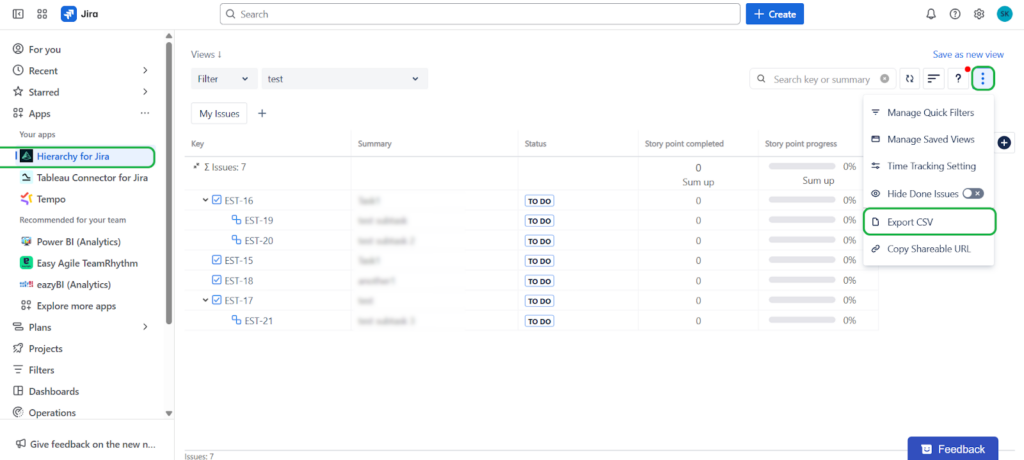
- Click Explore more apps in Jira to open the marketplace.
- Search for Hierarchy.
- Click Try it free on the right.
- Wait while Jira installs the app for you, and select the app on the left.
Pros
- Displays multi-level issue hierarchies (e.g., epics, stories, sub-tasks).
- Can export custom fields that Jira’s native feature doesn’t support.
- Reduces manual data cleanup after export.
Cons and Limitations
- Some apps may require additional subscription.
- Setup and configuration may take extra time.
- Each app has its own features and capabilities. You may need different apps for multiple purposes.
Method 3: Third-Party Tools
Third-party tools like Skyvia offer no-code, cloud-based integrations that allow for more flexible data exports. These tools are helpful for teams that require regular or automated data exports or those working with larger and more complex datasets.
Skyvia connects directly to your Jira instance and supports advanced data extraction without coding. It’s ideal for teams that need to regularly export large datasets, automate extract tasks, or integrate Jira with other platforms for seamless data workflows.
Best For
- Teams that need automated, recurring exports of Jira data.
- Users working with large datasets.
- For data migration or integration scenarios.
Step-by-step guide
To export data from Jira using Skyvia, you need an active Skyvia account.
STEP 1. Set up a new connection to Jira.
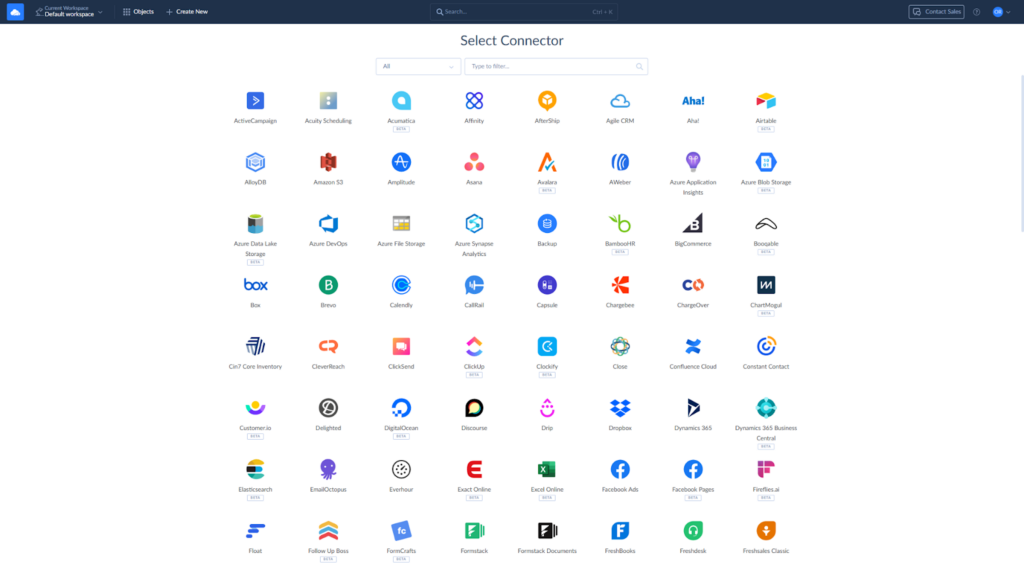
- Click + Create New connection.
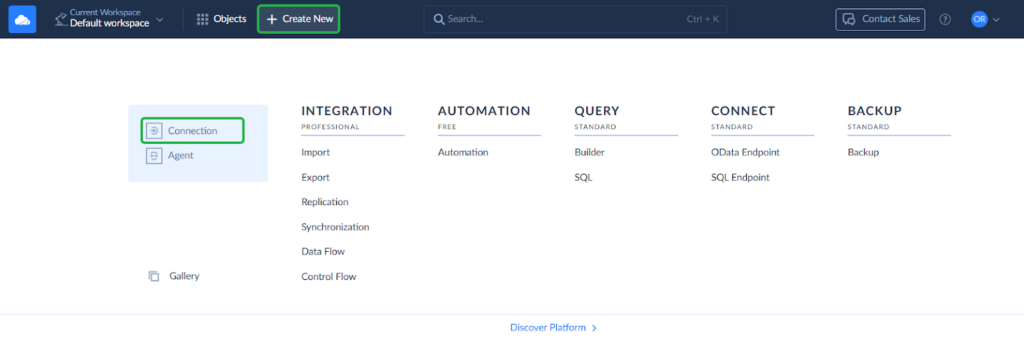
- Select Jira from the list of available connections.
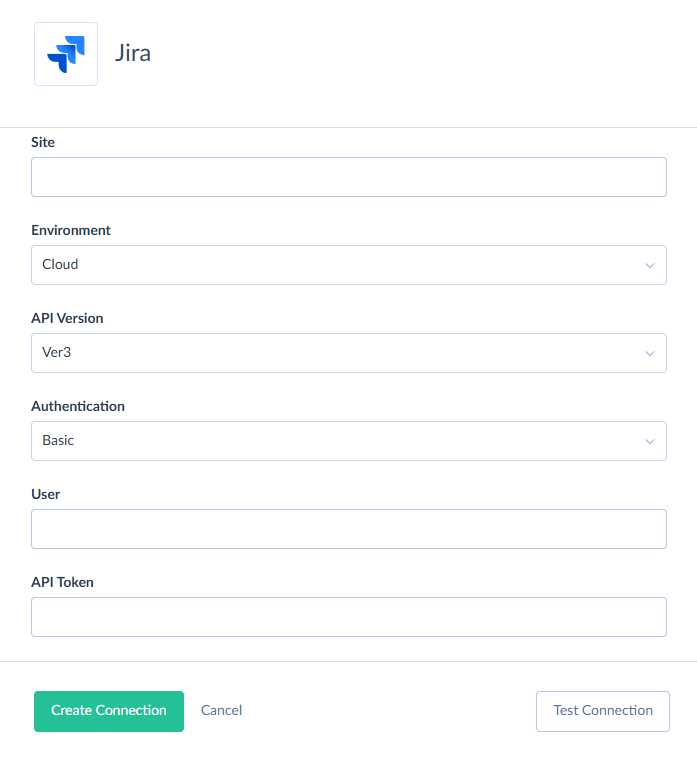
- Enter your Jira credentials and save the connection.
STEP 2. Configure Export.
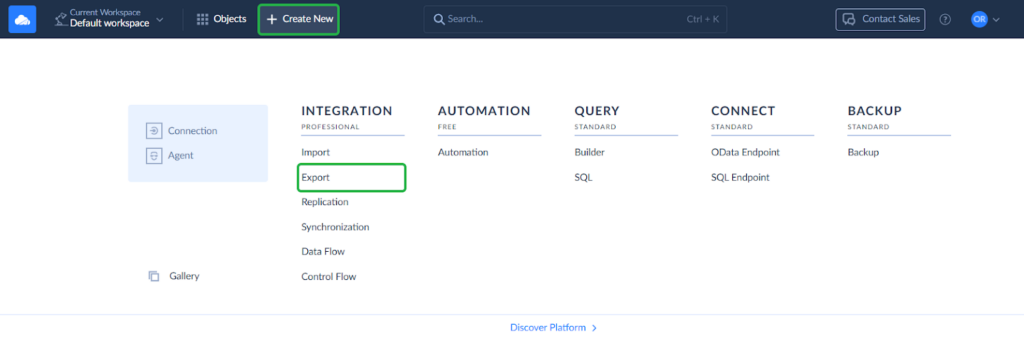
- Click + Create new and select Export.
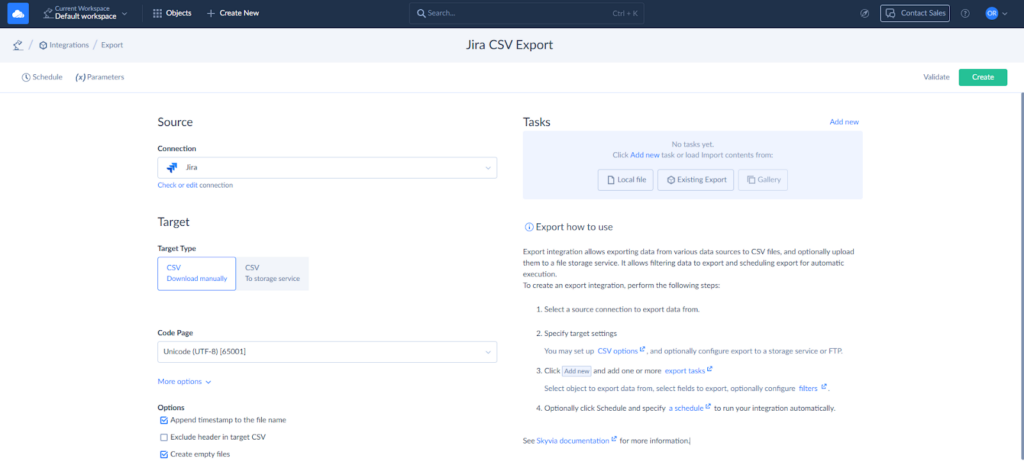
- Select your Jira connection as the Source and choose whether to save the result file on your computer or in your data storage.
STEP 3. Add an Export task.
- Click Add new to create a new export task.
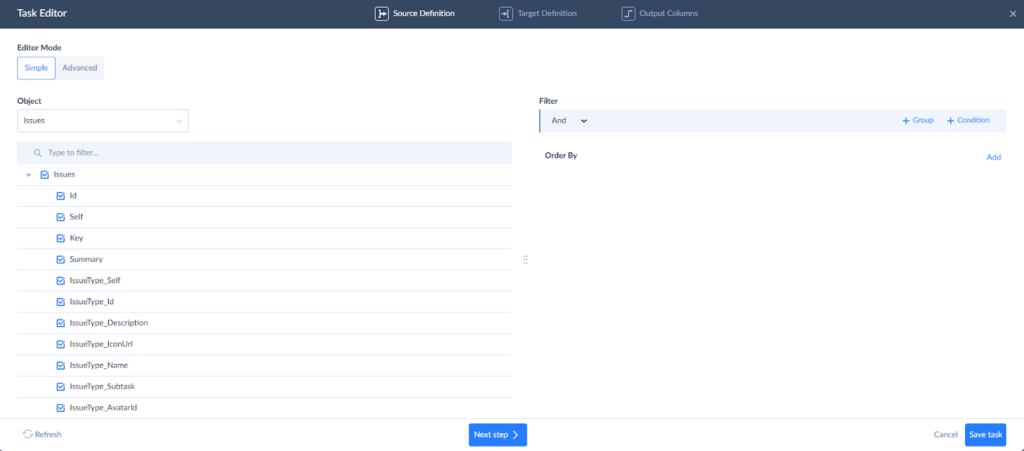
- Select a whole Jira object or switch to the Advanced mode to write a custom command for data selection. Here you can set filters and sorting.
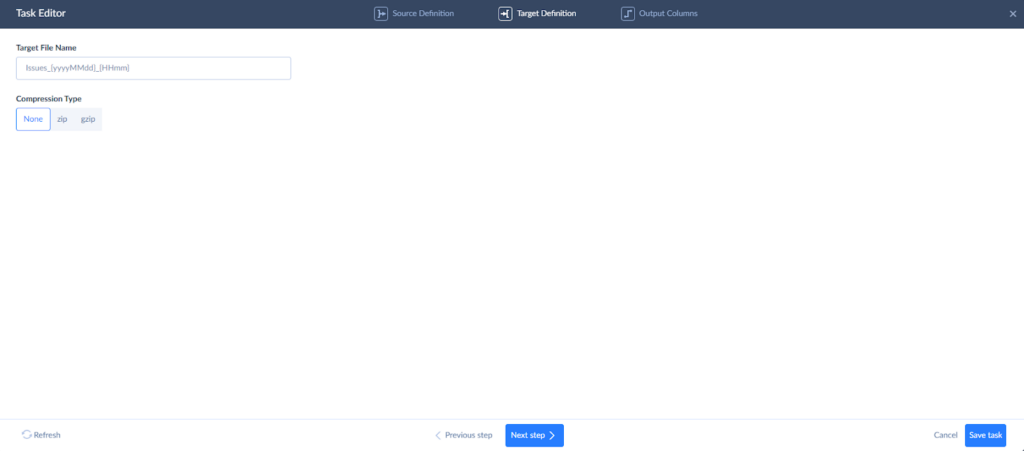
- Set the custom name for the target file, if needed.
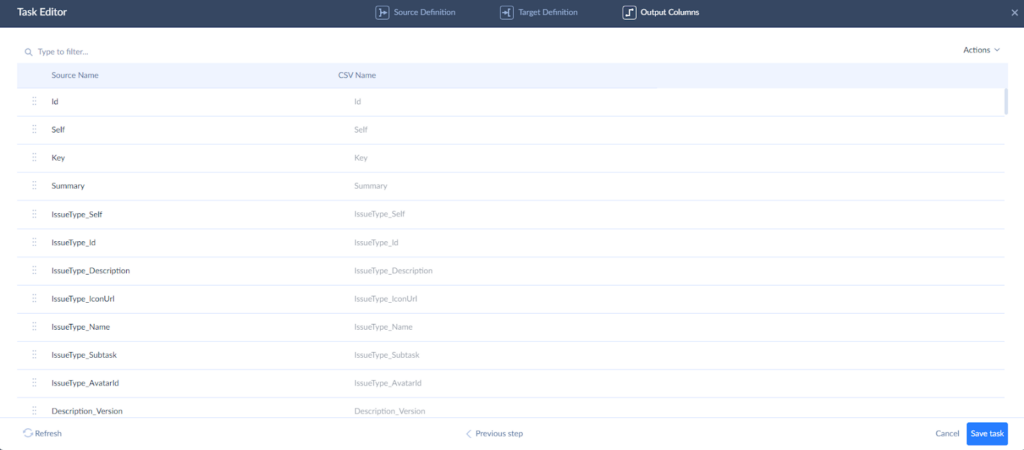
- Rearrange the columns for the export file, if needed, and save the task.
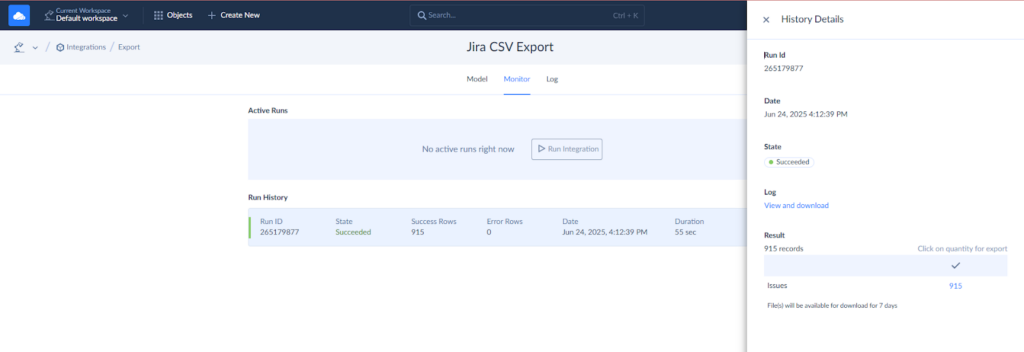
STEP 4. Run and monitor the integration.
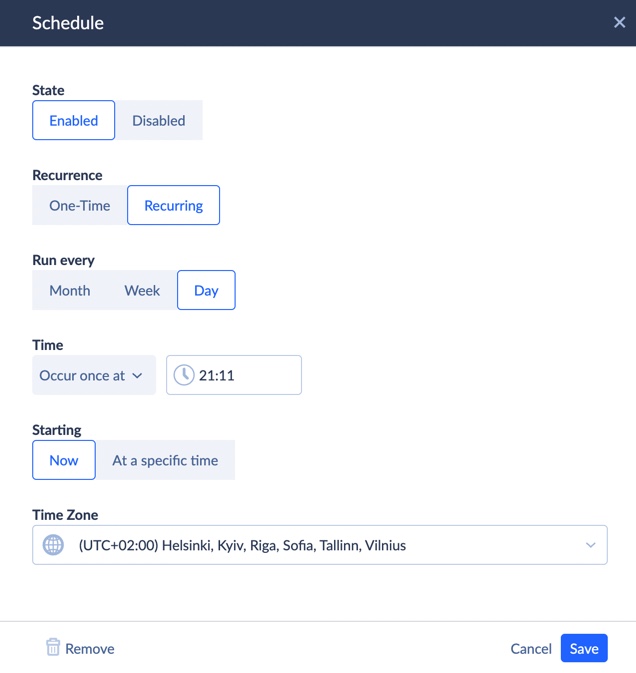
- Run the export manually or set the schedule if you need to get Jira data regularly.
- Check the export results on the Monitor or Logs tabs.
- To download the file on your computer, click the last export run on the Monitor tab.
Pros
- No-code solution that’s easy to set up.
- Supports large datasets without splitting the export into JQL batches.
- Automates data exports and integrates easily with other systems like Google Sheets, Excel, or databases.
Cons
- Requires a subscription to use advanced features.
- May not offer as granular control over the export format as Jira-specific apps.
How to Export More Than 10,000 Jira Work Items to CSV
A 1,000-row cap used to be the number to remember. For Jira Cloud it's out of date: Atlassian now supports up to 10,000 work items per CSV export from the issue navigator (Filters, then View all work items). Jira Data Center is different, since it still exports 1,000 by default unless an admin raises the limit.
| Your situation | What to do |
|---|---|
| Jira Cloud, fewer than 10,000 work items | One export. Pick current fields where you can, because all fields is slower and the file gets large |
| Jira Cloud, more than 10,000 work items | Split the search with JQL into batches under 10,000 each, export every batch and merge the files |
| Jira Cloud, data needed in a spreadsheet | Use Open in Google Sheets or Open in Microsoft Excel above the search results |
| Jira Data Center, export stops at 1,000 | An admin raises jira.search.views.default.max and jira.search.views.max.limit under Advanced Settings (no restart), or you export in batches |
The cleanest way to split is by date. If a project returns 25,000 work items, three queries like these can keep each batch under the limit:
project = MYPROJECT AND created >= "2026-01-01" ORDER BY created ASC
project = MYPROJECT AND created >= "2025-06-01" AND created < "2026-01-01" ORDER BY created ASC
project = MYPROJECT AND created < "2025-06-01" ORDER BY created ASC
Check the count the issue navigator shows before each export, and make sure no work item falls into two batches. Project, work type or status work as split fields too. You may also find an old trick that adds &pager/start=1000 to the export URL. Atlassian deprecated it in March 2026, so leave it alone.
Merging three files by hand is fine once. If the same export has to land every week, a scheduled Skyvia export writes the Jira data to a CSV file on each run, so nobody has to rebuild the batches.
Tips for Optimizing Your Jira CSV Exports
Here are some tips to help you optimize your Jira CSV exports and ensure you get the most relevant and clean data every time. By following these tips, you can guarantee that your Jira CSV exports are efficient, helping you make better decisions and reducing the need for further manual cleanup.
1. Clearly define what data you need.
Jira offers vast amounts of data, but getting it all may result in unnecessary clutter and a cumbersome file. JQL (Jira Query Language) is your friend here. It can help you filter out the irrelevant data and extract exactly what you need. Whether you’re looking for specific issues, sprints, or status updates, JQL enables you to target only the most relevant records.
2. Consider data accuracy.
Make sure that the data is up-to-date, accurate, and complete. Missing or inconsistent information can lead to incomplete reports or misleading conclusions. Review fields for proper formatting and correct date entries.
3. Think about the purpose.
It’s important to consider what the recipient of your CSV file is expecting. Different tools or systems may require different formats or field structures. Before you start, ask yourself:
- What kind of report or analysis will this data feed into?
- Does the receiving system require specific fields or formats?
Aligning your export with these needs can save time and reduce the need for subsequent data manipulation.
4. Reduce unnecessary fields.
If your export tool allows you to select specific fields, choose only the necessary ones for your analysis or reporting. You can exclude empty or unnecessary values to improve the export performance.
5. Check your automated export jobs regularly.
If you’ve automated the recurring data extraction, you should review and adjust the tasks from time to time. Data needs may change, and your original export setup may no longer be relevant. Regularly check your automated jobs to ensure they align with your project goals and objectives.
Conclusion
Getting data from Jira looks like a simple task at first sight, but the challenges are real. Limitations of Jira’s native export functionality, the complexity of keeping issue hierarchy, or the need for clean, relevant fields can create some problems. However, the right approach can help you easily overcome these obstacles.
There are several methods for exporting data from Jira:
- Jira native CSV export feature
- Advanced marketplace apps
- Third-party integration tools like Skyvia.
The best approach depends on your use case, whether it’s a simple one-time task, handling large datasets, or automating recurring exports.
Solutions like Skyvia provide a no-code approach to handling exports and integrating with other platforms. If you’re ready to optimize your Jira data extraction and unlock automated, efficient workflows, explore Skyvia integration solutions. Empower your team with better data management today.

FAQ for Jira Export to CSV

How many issues can Jira export to CSV at once?
On Jira Cloud the answer is up to 10,000 work items per CSV export from the issue navigator. Jira Data Center stops at 1,000 by default to spare server memory, though an admin can lift that with the jira.search.views.default.max and jira.search.views.max.limit settings. Anything bigger than that, in either version, gets split into JQL batches.
Can a Jira CSV export include comments?
It can, if you choose all fields. Jira Cloud’s Export CSV (all fields) brings the Comments field along, putting every comment in a Comment column of its own, oldest first. Comments also come through in a Word export, although Atlassian suggests keeping that to around 150 work items per file.
Do Jira attachments come along in a CSV export?
Not the files themselves. A Jira CSV holds work item data, and Jira Cloud doesn’t natively support downloading attachment files in bulk. The closest thing is a site backup, which a Jira Cloud admin creates in Backup manager with attachments, avatars and logos ticked, though that covers the whole site rather than one project’s CSV.
How can I export over 10,000 Jira issues to CSV?
We’d cut the search into JQL batches of fewer than 10,000 work items each, for example by created date, although project, work type or status work as well. Then export the batches one by one from the Jira issue navigator and combine the CSV files once they’re all downloaded. Check each batch’s count before exporting, and keep the ranges from overlapping.
Why are special characters broken when I open a Jira CSV in Excel?
Jira saves CSV files as UTF-8, while older Microsoft Excel versions sometimes read them as ANSI, so letters outside plain English come out wrong. Opening the file in a program that supports UTF-8 fixes it, and so does the Open in Microsoft Excel option above the Jira search results, which Atlassian recommends over uploading the CSV by hand.
Can I schedule automatic Jira exports to CSV?
The built-in Jira export can’t do that, since it runs only when you click it. For a schedule we’d use Skyvia, which exports Jira data to CSV automatically and saves the file for download or to cloud storage. The Skyvia plan decides how often: daily on Free and Basic, hourly on Standard, and every minute on Professional.