Summary
- Google's official Sheets MCP server fits teams already in Google Cloud with Developer Preview access.
- Open-source servers give developers full control of the tools, and full responsibility for running them.
- Skyvia turns one spreadsheet into an MCP endpoint without code or a Google Cloud project.
- The safest setup gives the assistant one spreadsheet, write access only when needed, and a password-protected endpoint.
Picture the pipeline forecast living in a spreadsheet that someone pastes into Claude every Monday, asking what moved. By Tuesday that paste is stale. It skipped the renewals tab, too, and handing an AI tool the whole company Drive to fix this is a hard no.
A Google Sheets MCP server handles the first part, since the assistant opens the sheet through tools and stops relying on whatever got pasted. Access is the harder part, and that’s where the choices diverge: Google’s own Sheets MCP server sits in Developer Preview, open-source servers are yours to host, and Skyvia turns one spreadsheet into an MCP endpoint with no code.
Below we line up the four setups by effort, reach and cost. Then comes the no-code walkthrough, plus the security checks worth doing before real data goes anywhere near it.
Which Google Sheets MCP option fits your team?
You can get a Google Sheets MCP server in front of an AI assistant four ways right now. Google hosts one. Open-source projects run on your own machine, hosted MCP platforms keep one running for you, and Skyvia makes an MCP endpoint out of a Google Sheets connection without any code. Oddly enough, the AI gets roughly the same abilities in all four. The real gap is in setup work, in reach, and in who’s on the hook when something breaks later.
| Option | Who runs it | Google Cloud project | How the AI authenticates | What the AI reach | Best for |
|---|---|---|---|---|---|
| Google’s official Sheets MCP server | Google (remote) | Yes, plus Developer Preview access | OAuth 2.0 with your own OAuth client | Spreadsheets your Google account can open | Teams already in Google Cloud with preview access |
| Self-hosted open-source server | You (local or your server) | Yes | Service account or OAuth that you configure | Whatever those credentials can open | Developers who want to change the tools |
| Hosted MCP platform | The platform vendor | Depends on the vendor | Through the vendor’s own Google sign-in flow | Depends on the scopes you grant | Teams already using that vendor |
| Skyvia MCP endpoint | Skyvia (remote) | No | Endpoint users (password) and IP ranges, or public | One spreadsheet per connection | Business users who want no code and a narrow scope |
Three questions settle most of it. Will the assistant write to the sheet, or just read from it? Which client will you use (Claude on the web, Claude Desktop, Cursor, an agent framework)? And should the AI see one spreadsheet, or everything in someone’s Drive? The last answer usually decides it.
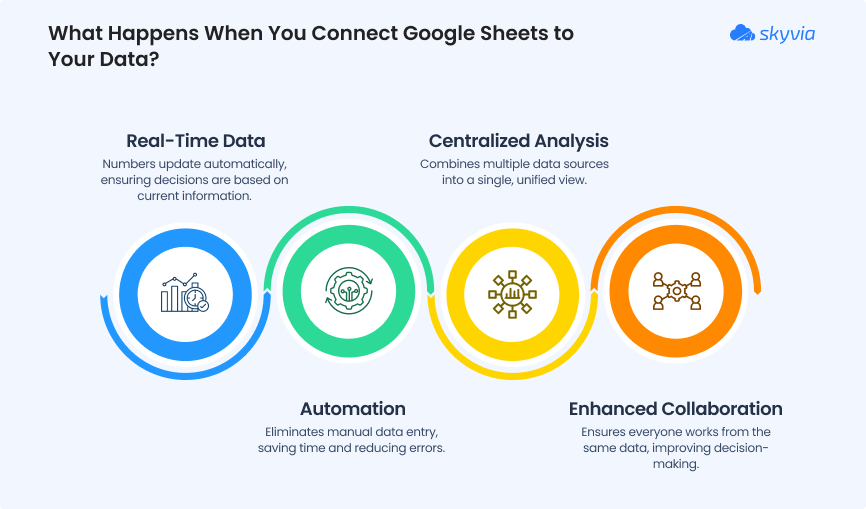
What is a Google Sheets MCP server?
Basically, the assistant gets a little kit of spreadsheet moves: reading a range, checking sheet names, writing values, adding rows. The model picks the moment to use one. The server then calls Google Sheets for it, and whatever comes back lands in your chat.
Model Context Protocol (MCP) is the open standard that makes this work across MCP clients: Claude, Claude Code, Cursor and AI agents built on agent frameworks. Anthropic created it, and the specification defines messages in JSON-RPC 2.0 over two standard transports: stdio for a server that runs as a local process, and Streamable HTTP for a remote server reached at a single URL. The older HTTP+SSE transport has been deprecated since the 2025-03-26 revision, so new remote servers use Streamable HTTP. For a broader primer, see our guide to MCP servers.
One thing a Google Sheets MCP server doesn’t do is keep a sheet filled with data from your database. Nothing gets pushed into the sheet on a schedule. The assistant reads and writes only when you ask it to. If the goal is a sheet that refreshes from Salesforce or PostgreSQL, that’s a data integration job: the Skyvia Query add-on for Google Sheets pulls query results into a sheet, and Skyvia Data Integration imports data into Google Sheets.
What an AI assistant can do with your sheet
Google’s own server shows what a typical tool set covers: reading cell values, sheet names and other metadata, updating values, setting formulas, inserting rows and columns, and running structural batch updates. Open-source and hosted servers name their tools differently, but the jobs are similar.
| You ask | What happens | Tool on Google’s server |
|---|---|---|
| “Read the Q3 tab and total the Revenue column.” | The assistant reads the range, then does the math in the chat | get_values |
| “Add a row for Acme Corp, renewal date 2026-12-01.” | The assistant writes values into the next empty row | update_values |
| “Insert a column after Status called Owner.” | The assistant changes the sheet’s structure | insert_dimension |
Each answer is only as current as the last tool call. If someone edits the sheet after the assistant has read it, ask again.
Google’s official Sheets MCP server
Google now offers a remote Google Sheets MCP server at https://sheetsmcp.googleapis.com/mcp/v1. It uses Streamable HTTP and OAuth 2.0, and it inherits the permissions of the Google user who signs in. It’s part of the Google Workspace Developer Preview Program, so you need to be accepted into that program before it works.
Google’s server exposes six tools: get_values, get_spreadsheet, update_spreadsheet, update_values, update_formulas and insert_dimension. It’s part of a wider push. At Cloud Next ’26, Google announced agent tools for Workspace, and its Workspace MCP server (Gmail, Drive, Calendar, Chat and People) opened to public developer preview with a gradual rollout starting May 1, 2026.
Setup is a Google Cloud task, done in the Google Cloud console or with the gcloud CLI. Google’s guide covers Google Antigravity and Claude, and gives the server URL, transport and auth type for other clients. To add it to Claude, plan for these steps:
- You’ll need a seat in the Google Workspace Developer Preview Program before anything else, plus a Google Cloud project, old or new.
- Both the Google Sheets API and the Google Sheets MCP API have to be on in that project, and gcloud services enable
sheets.googleapis.com sheetsmcp.googleapis.com --project=PROJECT_IDflips them in one go. - The OAuth consent screen comes next (Internal works, and so does External as long as you list test users).
- Four scopes go in: drive.readonly, drive.file, spreadsheets.readonly and spreadsheets.
- Create a Web application OAuth client with https://claude.ai/api/mcp/auth_callback as the redirect URI.
- In Claude’s connector settings (Customize, then Connectors, on a Pro or Max plan), click Add custom connector, and enter the server URL plus your OAuth client ID and secret in Advanced settings.
Google’s Claude instructions require a Claude Pro, Max, Team or Enterprise plan. Google also warns about indirect prompt injection: a host with these tools can read, modify and delete data in your Google account, so prompts and responses should be screened.
This is the most direct option if your team already lives in Google Cloud and has preview access. If you don’t, the preview gate and the OAuth setup are the first hurdles.
Self-hosting an open-source Google Sheets MCP server
Several open-source Google Sheets MCP servers exist, in Python and TypeScript. Install one, give it Google credentials and list it in your client’s config file. From then on the client launches it as a local process.
The order barely differs from one project to the next:
- You’ll want a Google Cloud project where the Google Sheets API is on, and if the server searches or lists files, the Google Drive API as well.
- Choose how it signs in. Service accounts skip the browser sign-in. The catch is that they only see spreadsheets shared with their email address. With OAuth the server works as you, so it gets whatever your account opens, inside the scopes you approved.
- Install the server, then register it in your MCP client’s config and pass the credential path through an environment variable.
- After a client restart, the tools should be listed.
From there on, running it is your job. There’s a ceiling, too: 300 reads a minute for each Cloud project and 60 a minute for each user in it, with the identical caps for writes. Hit the ceiling and you’ll get HTTP 429 back. Your server then backs off (exponentially, ideally) before it retries. Tool count matters too. Each tool description eats some of the model’s context before you’ve typed a word, which is why a server that lets you turn tools off earns the extra setup.
You get the whole tool set to shape as you like, and your credentials never leave your machine. What you pay in is upkeep (dependency updates, keys to rotate, and one config file for each teammate). And it only works on the machines where somebody installed it.
Setting up a Google Sheets MCP server in Skyvia
Skyvia is a no-code data platform with 200+ connectors, and its MCP endpoints turn any Skyvia connection into a remote MCP server. With Google Sheets that skips the Google Cloud project, the OAuth client and the code. You sign in with Google once, choose a spreadsheet, and walk away with an endpoint URL.
Assistants can talk to more than one endpoint, so on a paid Connect plan your Google Sheets endpoint can live beside a CRM or database endpoint (the Free plan stops at one endpoint). Ask it to compare this month’s sheet against the orders table, and it calls both. Our BigQuery MCP server walkthrough and PostgreSQL MCP server walkthrough cover the database side.
Step 1: Connect Google Sheets to Skyvia
- Sign in to Skyvia, click + Create New and choose Connection.
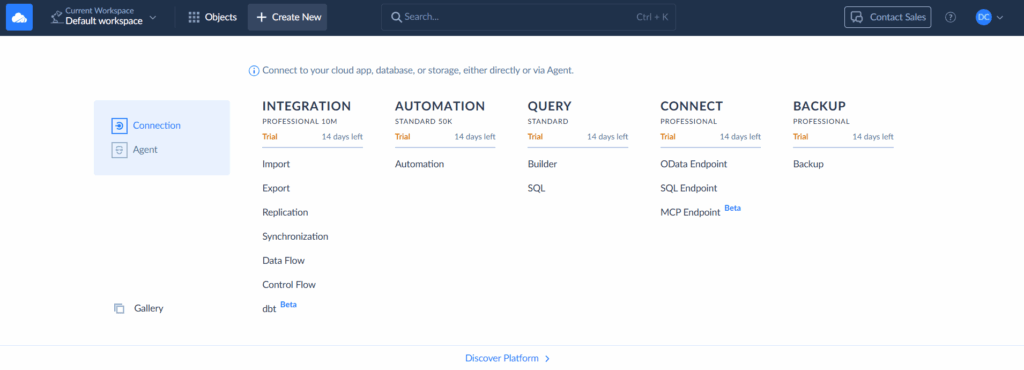
- In the connector list, find Google Sheets by searching for it, then click it.
- Click Sign In with Google, choose an account and press Allow when Google asks.
- Your file goes in the Spreadsheet field (it’s a dropdown).
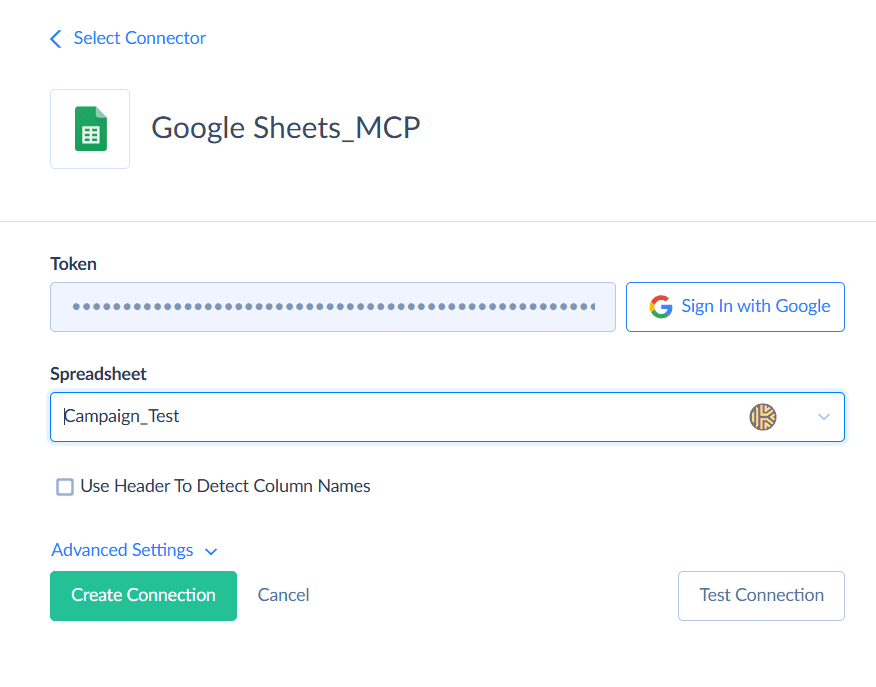
- Save it under a name that’ll make sense in three months.
One spreadsheet per Google Sheets connection, and inside it each sheet turns into a table. Got column names in row one? Tick Use Header To Detect Column Names, because otherwise the columns come through as A, B, C. There’s also a RowNo column Skyvia adds with row numbers, handy when the assistant needs to point at one row.
Step 2: Create the MCP endpoint
- Click + Create New and select MCP Endpoint.
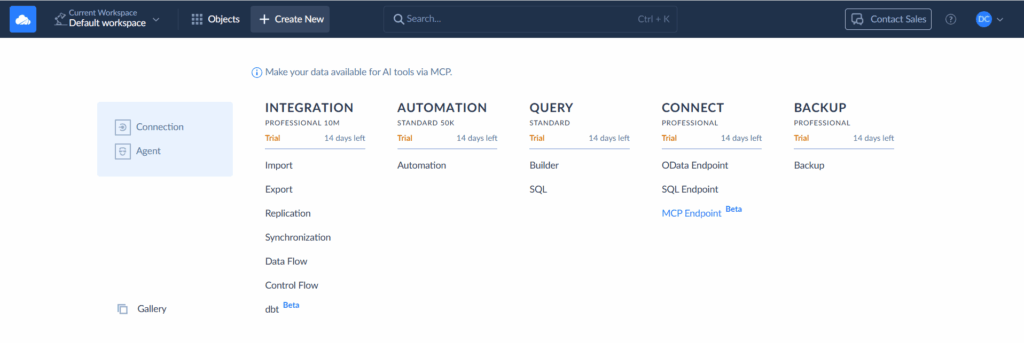
- Pick the Google Sheets connection you made in Step 1.
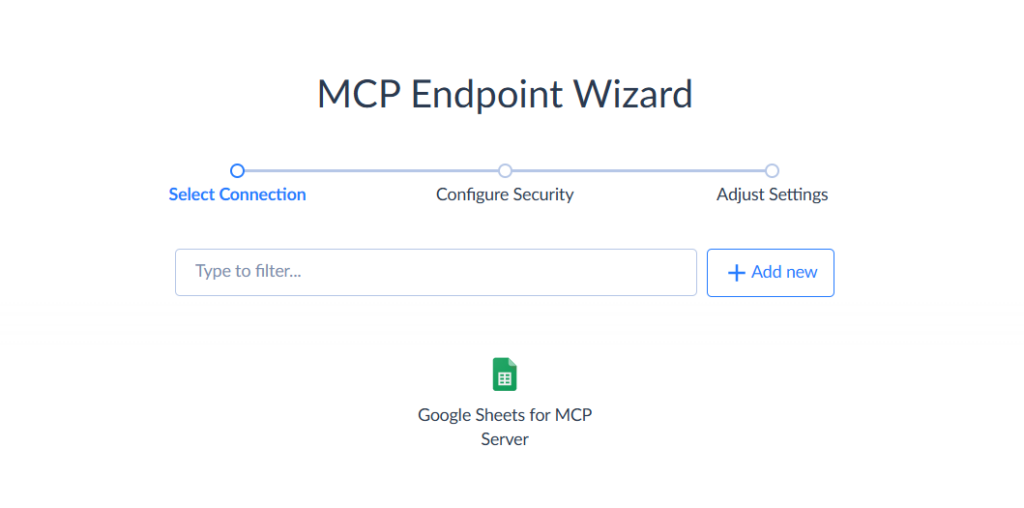
- Security comes next, and it’s optional. This is where user accounts (a username and password each) and allowed IP ranges go.
- Name the endpoint, then save.
On the Overview tab you’ll find the URL, the IP access and user access settings, and which connection feeds the endpoint. Look at the upper-right corner, where the endpoint should read Active.
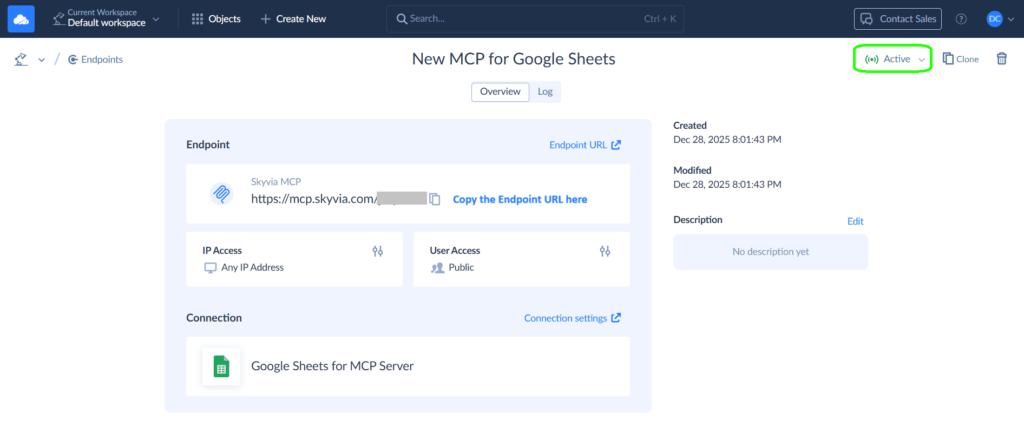
Whatever its connection can reach, the assistant can reach too. Here that’s every sheet in that one spreadsheet. Different people need different data? Make separate connections and endpoints for them.
Step 3: Add the endpoint to Claude
The path depends on whether you added user accounts in Step 2. Not every MCP client supports endpoints with authentication.
A public endpoint (no users): add it to Claude on the web or in Claude Desktop as a custom connector. Open Claude’s connector settings (the Search and tools button in the prompt box leads there too), click Add custom connector, and enter a name and the endpoint URL. Claude’s Free plan allows one custom connector.
A password-protected endpoint: this works with Claude Desktop through the claude_desktop_config.json file. The config file is a few clicks deep in Claude Desktop, under the menu button (top left), then File, Settings, Developer and finally Edit Config. You’ll find the file in %AppData%\Claude\ on a Windows PC, and on a Mac it lives in ~/Library/Application Support/Claude/.
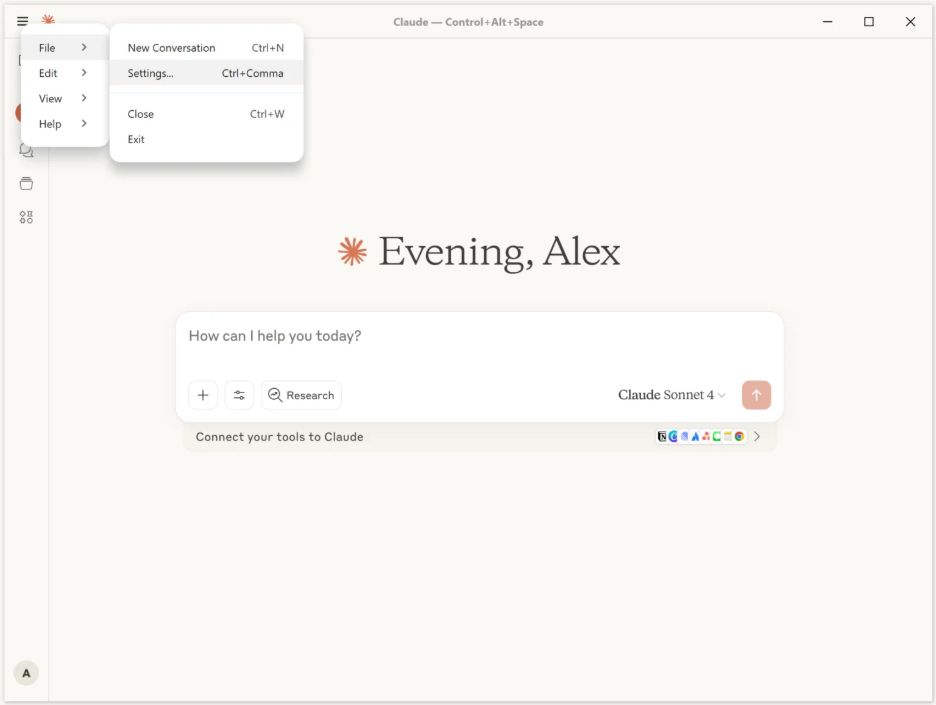
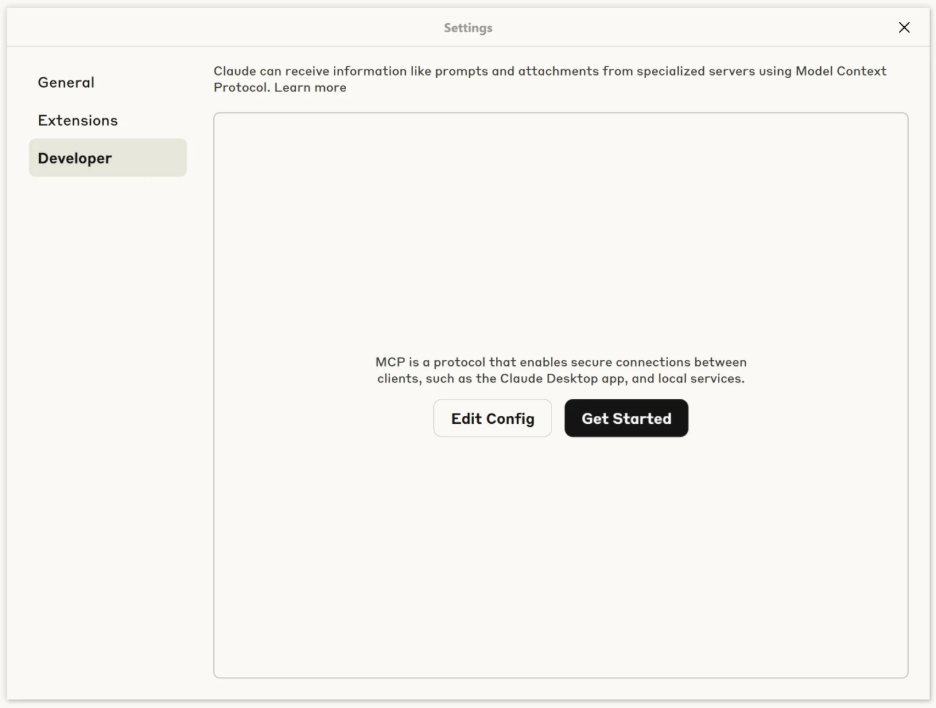
Something like the block below goes in, with your endpoint URL and your own header value in place of the placeholders:
{
  "mcpServers": {
    "google-sheets": {
      "command": "npx",
      "args": [
        "mcp-remote",
        "https://mcp.skyvia.com/XXXXXXXX",
        "--allow-http",
        "--header",
        "Authorization:${AUTH_HEADER}"
      ],
      "env": {
        "AUTH_HEADER": "Basic dXNlcjpwYXNzd29yZA=="
      }
    }
  }
}
The header itself is just Basic plus a space plus a base64 version of username:password. Use printf in a terminal for that, because echo gets it wrong:
printf 'user:password' | base64
# dXNlcjpwYXNzd29yZA==   correct
echo 'user:password' | base64
# dXNlcjpwYXNzd29yZAo=   wrong: echo adds a newline to the string
Save the file and restart Claude Desktop. Claude Code, Cursor and other clients can add a remote MCP server by URL as well. Skyvia’s docs only walk through Claude and Claude Desktop, though, so those are the safer place to start.
Step 4: Run a quick test
Open a fresh chat. Sheet names first. After that, the first five rows of any one sheet, and last, a test row the assistant writes itself. If its answers line up with what Google Sheets shows and the test row turns up in the file, you’re done.
Over in Skyvia, the endpoint’s Log tab is worth a look next. You’ll see every request there with its date, status, bytes transferred, HTTP method, remote IP and URL. Open one and the details name the user and the SQL statements that ran against the source. Nothing in the log after your prompt? Then the assistant never reached the endpoint, so check the URL first (and the header, if the endpoint is protected).
Security: what the AI can reach in your Google account
The biggest difference between the options is the blast radius: how much an assistant could read or change if a prompt goes wrong.
| Option | Scope of access | How you narrow it |
|---|---|---|
| Google’s official server | The signed-in user’s permissions, across the spreadsheets that user can open | OAuth scopes, a dedicated Google account |
| Self-hosted server, OAuth | What your account can open, within the granted scopes | A separate Google account for the server |
| Self-hosted server, service account | Only files shared with the service account’s email | Share single spreadsheets, not folders |
| Skyvia MCP endpoint | One spreadsheet, all of its sheets | Separate endpoints per data set, users, IP ranges |
A Skyvia endpoint with no users is public: anyone with the URL can call it. Add users when the endpoint touches anything sensitive, and keep the URL out of shared docs. Users mean Claude Desktop only, though; for Claude on the web, keep the endpoint public and point it at a dedicated copy of the sheet. IP ranges need care with custom connectors, because Claude connects to a remote MCP server from Anthropic’s cloud, not from your computer. A range limited to your office network blocks those calls.
Prompt injection is the other risk. A cell can hold text written to steer the model, and a model with write tools can act on it. Google’s guide raises this for its own server, and it applies to every option.
Use this checklist before you connect a sheet with company data:
- The assistant reaches only the spreadsheet it needs (a copy or a dedicated file is safer than the master).
- Write access is on only if the job needs it.
- The endpoint has users with strong passwords, or there’s a reason it’s public.
- IP ranges, if any, allow the client’s real origin.
- Someone checks the request log after the first week.
- Credentials get rotated when a teammate leaves or the URL leaks.
Limits and costs to plan for
| Limit | Applies to | Detail |
|---|---|---|
| Developer Preview access | Google’s server | Requires the Google Workspace Developer Preview Program and a Google Cloud project |
| Claude plan | Google’s server in Claude | Pro, Max, Team or Enterprise |
| Custom connectors | Claude Free | One custom connector |
| Sheets API quotas | Self-hosted servers | Reads: 300 a minute per Cloud project, 60 a minute per user. Writes: the same |
| One spreadsheet per connection | Skyvia | Add a connection and endpoint per spreadsheet |
| Monthly traffic | Skyvia Connect | Free: 100 KB, 1 endpoint, 1 connector. Basic: 1 MB. Standard: 100 MB. Professional: 1 GB |
MCP endpoints are part of Skyvia Connect. Free costs nothing. You get one endpoint and 100 KB of traffic a month, plenty for testing against a small sheet.
Paying gets you unlimited endpoints, at $15 a month billed annually ($19 billed monthly) for Basic, $39 ($49 monthly) for Standard or $79 ($99 monthly) for Professional. Since the Log tab records the bytes behind every request, a week of normal use will show you which tier you actually need.
To try it on a real spreadsheet, the Connect Free plan gives you one endpoint, which is all a first test needs.

FAQ for Google Sheets MCP Server

Can Google Sheets work as an API for an AI assistant?
Yes, and an MCP server is exactly how. The assistant gets tools for reading ranges, writing values, setting formulas and inserting rows and columns, so it works on the live spreadsheet and not on some pasted copy.
Do I have to write code to connect Claude to Google Sheets?
No. With Skyvia, you connect Google Sheets, create an MCP endpoint, then add its URL to Claude as a custom connector. Google’s official server needs no code either, but it does need Google Cloud setup. Open-source servers need installing and configuring.
Why can’t Claude on the web connect to my Skyvia endpoint?
First, look at whether the endpoint has user accounts. Public endpoints work as custom connectors in both Claude on the web and Claude Desktop. Once you add users and passwords, though, only Claude Desktop can use it, through the claude_desktop_config.json file. Set IP ranges on it? Keep in mind that custom connectors reach out from Anthropic’s cloud, not from your own computer.
Why can the assistant only see one spreadsheet?
That’s by design: a Skyvia Google Sheets connection points at one spreadsheet, and its sheets appear as tables. For a second spreadsheet you’d create another connection and endpoint, then add that endpoint to your client too.
Will a Google Sheets MCP server keep my sheet updated automatically?
No. The assistant only reads or writes when you ask, and nothing lands in the sheet on a schedule. If you want a sheet that stays filled from a database or CRM, that’s a data integration job, for something like the Skyvia Query add-on for Google Sheets or a Skyvia import.
Is a Google Sheets MCP server free?
It can be. Skyvia Connect’s Free plan gives you one MCP endpoint and 100 KB of traffic a month, and if that runs out, paid plans start at $15 a month billed annually. Open-source servers won’t cost you a download fee, though you’re the one keeping them alive.
What’s the safest way to let AI edit a Google Sheet?
Go as narrow as the job lets you. Give it one spreadsheet (ideally a copy), and leave write access off unless the task can’t work without it. If you’re on Claude Desktop, put users and passwords on the endpoint. Check the request log once the first week is up, and treat cell text as untrusted, because prompt injection can hide in it.