Summary
- Skyvia is the easiest option for no-code teams that want to move SharePoint files into SQL Server quickly and automate recurring syncs.
- Azure Data Factory fits enterprise teams that already work in Azure and need large-scale pipelines, orchestration, and data lake integration.
- SSIS makes the most sense for companies that want to keep the process inside an existing on-premises SQL Server environment.
- Power Automate works well for small, event-driven jobs where a new SharePoint file needs to trigger a simple SQL Server action.
- PowerShell with Microsoft Graph API gives developer teams the most control when they are comfortable handling authentication, retries, parsing, and maintenance in code.
Moving SharePoint files into SQL Server sounds simple until the process becomes part of a real reporting workflow.
A team starts with a few Excel or CSV exports from SharePoint, then someone has to download them, clean the columns, and run another import into SQL Server. It works for a while. Once the files get larger or Power BI depends on them, the manual steps become harder to ignore. Direct Power Query connections to SharePoint can also turn into long refreshes when workbooks grow, or several files have to be parsed at once.
That is why teams often move SQL Server and SharePoint files into a more structured pipeline. Instead of treating SharePoint as the reporting layer, the files are staged in SQL Server first. Power BI, dashboards, and downstream queries can then work against a database rather than repeatedly opening raw Excel or CSV files.
We are the Skyvia team, so there is an obvious bias here. We built a cloud-based data integration platform and naturally see a lot of value in a no-code SharePoint-to-SQL Server pipeline. But Skyvia is not the right fit for every environment. If your network policy requires a fully air-gapped, on-premises ETL process with no dependency on a cloud SaaS platform, SSIS or a local PowerShell setup may make more sense.
In this article, I will compare five ways to connect SharePoint files to SQL Server, including Skyvia, Azure Data Factory, SSIS, Power Automate, and a custom PowerShell approach, with a focus on setup effort, schema changes, authentication, maintenance, and how each method behaves once the pipeline is running.
How Did We Test and Evaluate These SharePoint to SQL Server Integration Tools?
Testing Infrastructure
We spent more than 30 hours setting up and running the five approaches in the same test environment.
The SharePoint source was a Document Library with 50 Excel workbooks and several larger CSV files, including Sales_Export_2026.csv. Together, the files came to roughly 150 MB and about 500,000 rows.
For the destination, we used SQL Server 2022 running on-premises and an Azure SQL Database. The local SQL Server connection went through Skyvia Agent for Skyvia tests and Self-Hosted Integration Runtime for Azure Data Factory.
Concrete Technical Obstacles & Errors Observed
The differences became clearer once we moved beyond small test files.
Our custom PowerShell approach started hitting HTTP 429 responses from Microsoft Graph when several large, multi-tab workbooks were extracted at the same time. That meant adding retry and throttling logic before the script could run reliably.
SSIS had a different problem. Long-running jobs using OData connections could stop when the OAuth 2.0 access token expired and was not refreshed automatically.
We also tested a schema change by adding a Discount_Rate column to one of the Excel files. The existing SSIS destination mapping did not accept the change, so the package had to be updated and deployed again.
Input vs. Output Data Verification
For one of the checks, the source file was Sales_Q3_2026.xlsx, with four fields:
Order_ID

Customer_Name

Order_Amount

Created_Date
We loaded the file into dbo.stg_sharepoint_sales in SQL Server and then checked the resulting column types. The target used BIGINT, NVARCHAR(255), DECIMAL(18,2), and DATETIME2 for those fields.
That gave us a simple way to compare not only whether the rows arrived, but whether the data still had the types we expected once it reached SQL Server.
What Key Criteria Should You Use to Evaluate SharePoint File Sync Solutions?
1. Schema Drift and Excel Parsing
This is one of the first things I would test with Excel files.
Change a column name. Add a new one. Upload a workbook with an extra sheet and see what the tool does.
Some tools keep going, some ignore the change, and some break the job completely. If people regularly edit the SharePoint files by hand, this matters a lot more than it does in a fixed database-to-database pipeline.
2. Sync Frequency and Triggers
This depends mostly on how quickly the SQL data needs to reflect what is happening in SharePoint.
For a finance folder, one load overnight may be enough. A sales or operations folder may need new files picked up during the day. Before choosing a tool, I would check how scheduling works and whether it can react to a new file without someone starting the job manually.
3. Authentication and OAuth Handling
Authentication is easy to ignore when the first connection works.
The problem shows up later, usually when a long-running job loses access or a script needs a new token. With SharePoint Online, I would want the connection to renew authentication without someone going back into the pipeline and fixing credentials by hand.
This becomes more important with custom scripts because the refresh logic is yours to maintain.
4. Network Architecture
The SQL Server location changes what is practical.
Azure SQL is relatively straightforward because the database is already reachable as a cloud service. An SQL Server sitting inside the company network is different. I would not want to expose it publicly just to make the integration work.
That is why I would check how the tool handles local databases before anything else. An agent or gateway that connects outward from the network is usually a much cleaner setup.
5. Cost and Maintenance
I would not compare these tools only by subscription price.
A PowerShell script can look almost free until somebody has to troubleshoot it after a Microsoft API change. SSIS may already be part of the company stack, but packages still need attention. Azure can be cheap for one workload and noticeably more expensive once jobs run more often.
The better question is who owns the pipeline after launch. If every small failure needs an engineer, that cost belongs in the comparison too.
How Do the Top SharePoint to SQL Server Tools Compare Side-by-Side?
The five approaches solve the same basic problem, but the amount of setup, maintenance, and coding is very different.
| Metric / Technical Feature | Skyvia | Azure Data Factory | SSIS + OData / KingswaySoft | Microsoft Power Automate | PowerShell + Graph API |
|---|---|---|---|---|---|
| Best fit | Mid-market teams, no-code users | Enterprise Azure data pipelines | Existing on-premises SQL Server environments | Small Microsoft 365 workflows | Teams comfortable maintaining custom scripts |
| Setup time in our test | ~10–15 min | ~2–4 hrs | ~3–5 hrs | ~20–30 min | ~1–2 days |
| Authentication | OAuth handled through the platform | Managed Azure authentication options | Depends on connector and configuration | Built-in Microsoft 365 authentication | Token handling must be written into the script |
| Largest files in our test | 200 MB+ processed successfully | 1 GB+ workload | Depended heavily on local resources | Became unreliable above 100 MB | Large multi-tab files caused more failures above 50 MB |
| Pricing approach | Subscription based on plan and usage | Usage-based Azure pricing | SQL Server licensing plus connector costs where applicable | Microsoft licensing based on plan | No platform license, but higher development and maintenance time |
| Connecting to on-prem SQL Server | Skyvia Agent | Self-Hosted Integration Runtime | Runs locally with SQL Server | On-premises data gateway | Direct local network access |
| Schema changes | Mapping can be reviewed and adjusted visually | Data Flows can support schema drift | Mapping changes may require package updates | Flow usually needs adjustment when fields change | Script must be updated to handle new or renamed fields |
The biggest difference was not raw transfer speed. It was how much work remained after the first successful run.
Skyvia and Power Automate removed most of the coding. ADF gave us more control but required more Azure setup. SSIS worked naturally with an existing SQL Server environment, while PowerShell gave us the most freedom and the most code to maintain.
Which SharePoint to SQL Server Tool Fits Your Specific Architecture?
Why Is Skyvia Best for No-Code Teams Needing Automated Cloud Sync?
Skyvia gives teams a visual way to move SharePoint file data into SQL Server without building and maintaining custom scripts. You connect the source and destination, choose the files or data you need, map the fields, and set the import to run manually or on a schedule.
For existing SQL Server records, Skyvia also supports operations such as UPDATE and UPSERT, so a recurring job does not have to insert every row as new.
Best for
Teams that want to automate SharePoint-to-SQL Server loads without writing scripts or maintaining a separate ETL infrastructure.
Rating
- G2: 4.8/5 — Skyvia reviews on G2
- Capterra: 4.9/5 — Skyvia reviews on Capterra
Pricing
Skyvia has a free Data Integration plan with up to 10,000 records per month. The basic plan starts at $99/month, or $79/month with annual billing.
Pros
- No coding is required for a standard SharePoint Files-to-SQL Server import.
- Connections, mappings, and schedules are configured through the UI.
- INSERT, UPDATE, DELETE, and UPSERT operations are supported.
- File masks can be used to pick up matching CSV files from a SharePoint folder.
- An on-premises SQL Server can be reached through Skyvia Agent without opening direct inbound access to the database.
Cons
Skyvia is a cloud platform, so it may not fit organizations that require a fully air-gapped or on-premises-only integration environment.
Excel files may also require a different setup than CSV files. Skyvia provides a separate Excel Online connector when workbook data needs to be handled as structured spreadsheet data.

Why Is Azure Data Factory Best for Enterprise Data Lakes and Large-Scale Cloud Pipelines?
Azure Data Factory is a better fit when the SharePoint-to-SQL Server job is only one part of a larger Azure data platform. Pipelines can orchestrate file extraction, staging, transformation, and loading while working with services such as Azure SQL, Blob Storage, Synapse, and other Azure resources.
That flexibility comes with more setup. For SharePoint files, the pipeline may involve HTTP or Microsoft Graph access, a staging layer, and additional transformation steps rather than one simple source-to-target connection.
Best for
Data teams already working in Azure that need to combine SharePoint ingestion with larger ETL or ELT pipelines, data lakes, Azure SQL, or Synapse workloads.
Rating
- G2: 4.6/5 — Azure Data Factory reviews on G2
- Capterra: no reviews yet
Pricing
Azure Data Factory does not have one flat monthly subscription price. It uses consumption-based billing, with charges depending on things such as pipeline activity runs, data movement measured in DIU-hours, and Data Flow compute.
Pros
- Works naturally with Azure SQL, Blob Storage, Synapse, and the wider Azure ecosystem.
- Handles large and complex pipelines without requiring a fixed ETL server.
- Supports scheduling, orchestration, monitoring, and reusable pipeline components.
- Mapping Data Flows provide a visual option for larger transformation jobs.
- Self-Hosted Integration Runtime can connect Azure pipelines to SQL Server inside a private network.
Cons
ADF takes more time to set up than a straightforward no-code import tool. A SharePoint file workflow can involve several Azure components before the data reaches SQL Server.
Cost is also less predictable at a glance. Pipeline runs, data movement, and Data Flow compute are billed separately, so frequent or compute-heavy jobs need some cost monitoring.
Why Is SSIS Best for Legacy On-Premises SQL Server Infrastructure?
SQL Server Integration Services (SSIS) is Microsoft’s ETL platform for building and running data integration packages. It fits naturally into environments where SQL Server and the integration workload already run on company-managed infrastructure.
For SharePoint data, SSIS can use OData-based connections or third-party connectors such as KingswaySoft. Packages are designed with SQL Server Data Tools and can be deployed to the SSIS Catalog for execution and monitoring.
Best for
Teams that already operate SQL Server on-premises and want the ETL process to stay inside their existing Microsoft infrastructure rather than introduce another SaaS integration platform.
Rating
SSIS does not currently have a dedicated rating page that I could verify on either G2 or Capterra.
For reference, the broader Microsoft SQL Server product is rated:
- G2: 4.4/5 — Microsoft SQL Server reviews on G2
- Capterra: 4.6/5 — Microsoft SQL Server reviews on Capterra
Note: these ratings apply to Microsoft SQL Server overall, not specifically to SSIS.
Pricing
SSIS is installed as a SQL Server component rather than sold as a separate SaaS subscription. Production licensing therefore depends on the SQL Server edition and licensing model in use. Developer editions are free for development and testing, while Standard and Enterprise editions require commercial licensing.
Third-party SharePoint connectors such as KingswaySoft may add a separate license cost.
Pros
- Runs on infrastructure your SQL Server team already manages.
- Works well for established on-premises ETL environments.
- Provides graphical package design, transformations, scheduling, logging, and error handling.
- SSISDB gives teams a central place to deploy, execute, and troubleshoot packages.
- Does not require a separate cloud ETL platform to run the integration.
Cons
SSIS takes more work to build and maintain than a managed no-code service. SharePoint authentication can also become awkward when OData or custom connectors are involved.
Mappings are fairly rigid as well. In our test, adding a new column to the SharePoint Excel source meant updating the destination mapping and redeploying the package rather than letting the pipeline absorb the change automatically.
Why Is Power Automate Best for Simple Microsoft 365 Event-Driven Triggers?
Microsoft Power Automate works well when the SharePoint file itself needs to start a simple workflow. A flow can react when a file is created or changed in a document library, retrieve its content, and pass data to another Microsoft service or SQL Server.
That makes it more useful for event-driven jobs than for large ETL pipelines.
Best for
Teams already using Microsoft 365 that need a lightweight workflow around SharePoint files, such as picking up a new file, sending a notification, or writing a relatively small set of rows into SQL Server.
Rating
- G2: 4.4/5 — Microsoft Power Automate reviews on G2
- Capterra: 4.4/5 — Microsoft Power Automate reviews on Capterra
Pricing
Power Automate Premium currently starts at $15 per user/month, paid yearly. Microsoft also offers Process and Hosted Process plans for larger automation scenarios.
One detail matters for this use case: the SQL Server connector is classified as a Premium connector, so a basic Microsoft 365 entitlement may not be enough for a SharePoint-to-SQL Server flow.
Pros
- Native SharePoint triggers can start a flow when a file is created or modified.
- Fits naturally into an existing Microsoft 365 environment.
- The visual flow designer keeps simple automations fairly easy to build.
- An on-premises SQL Server can be reached through Microsoft’s On-premises Data Gateway.
- Good for workflows that combine file events with notifications, approvals, or small database updates.
Cons
Power Automate becomes less comfortable once the job turns into a large data-loading process. Row-by-row actions inside an Apply to each loop add more executions and more processing time as the dataset grows.
We noticed this in the larger file tests. Small jobs were straightforward, while high-row-count files became much slower and more prone to timeouts. I would use Power Automate for the trigger and workflow logic, not as my first choice for moving hundreds of thousands of rows into SQL Server.
Why Is PowerShell + Graph API Best for Developer Teams Needing Custom Scripting Control?
PowerShell with the Microsoft Graph API gives developers direct control over the full SharePoint-to-SQL Server workflow.
Graph can be used to access and download files from SharePoint, while PowerShell or C# handles the processing logic. For Excel files, Open XML can be added where workbook parsing is needed, and SqlBulkCopy provides a faster way to send larger batches into SQL Server.
Unlike the other tools in this comparison, there is no fixed pipeline design. The script can follow whatever rules the project requires.
Best for
Developer teams that need custom extraction, transformation, or loading logic and are comfortable maintaining the code themselves.
Rating
We didn’t include G2 or Capterra ratings for this approach because PowerShell + Microsoft Graph API is not a standalone integration product. It is a custom solution assembled from separate Microsoft technologies.
Using a PowerShell or Microsoft Graph score here would not represent the complete SharePoint-to-SQL Server pipeline, so we think leaving the rating out is more accurate.
Pricing
PowerShell does not require a separate software subscription, and many Microsoft Graph APIs are available as part of existing Microsoft licenses. Some Graph APIs and services are metered separately.
See Microsoft Graph metered APIs and services.
There is still a cost, though. It comes from engineering time: somebody has to build the script, test it, deploy it, and keep it working when the API or source files change.
Pros
- Full control over how SharePoint files are selected, parsed, and transformed.
- No separate third-party ETL subscription is required for the basic setup.
- Custom business rules can be written directly into the pipeline.
- SqlBulkCopy can load large batches into SQL Server efficiently.
- The script can run within infrastructure managed by your own team.
Cons
You own almost everything that happens when the script fails.
Authentication, logging, retries, schema changes, and error recovery all need to be handled in code. Microsoft Graph can also return HTTP 429 responses when requests are throttled, so the script needs to respect Retry-After or use backoff logic before trying again.
This approach gives developers the most freedom of the five options, but it also leaves them with the most maintenance.
How Do You Set Up a SharePoint to SQL Server Pipeline in Skyvia?
For this walkthrough, we will use SharePoint Files as the source and SQL Server as the target. The setup is mostly connection work, one Import task, field mapping, and a schedule.
Step 1: Connect SharePoint Online
Create a SharePoint Files connection in Skyvia and click Sign In with Microsoft. Complete the Microsoft login and approve access when prompted.
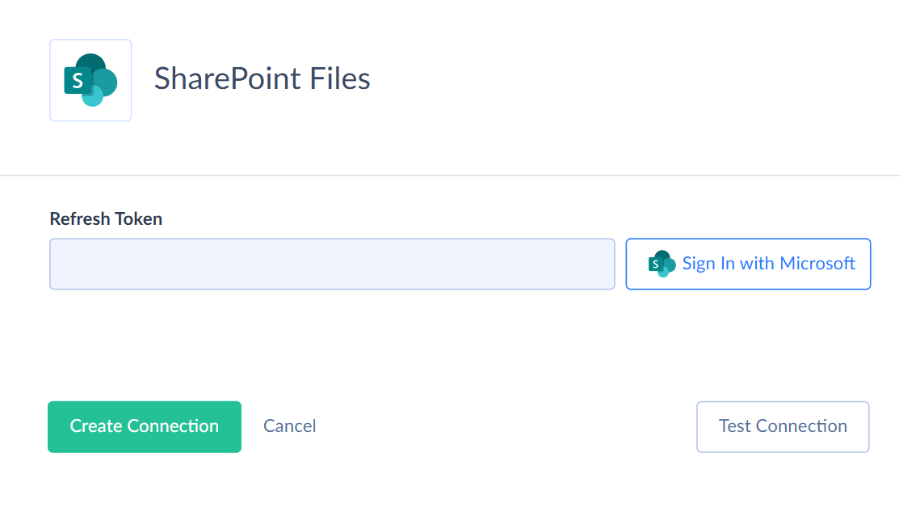
If your organization requires administrator approval for third-party applications, that permission has to be granted on the Microsoft side before the connection will work.
Step 2: Connect the Target SQL Server
Create a second connection for SQL Server and enter the server, database, and login details.
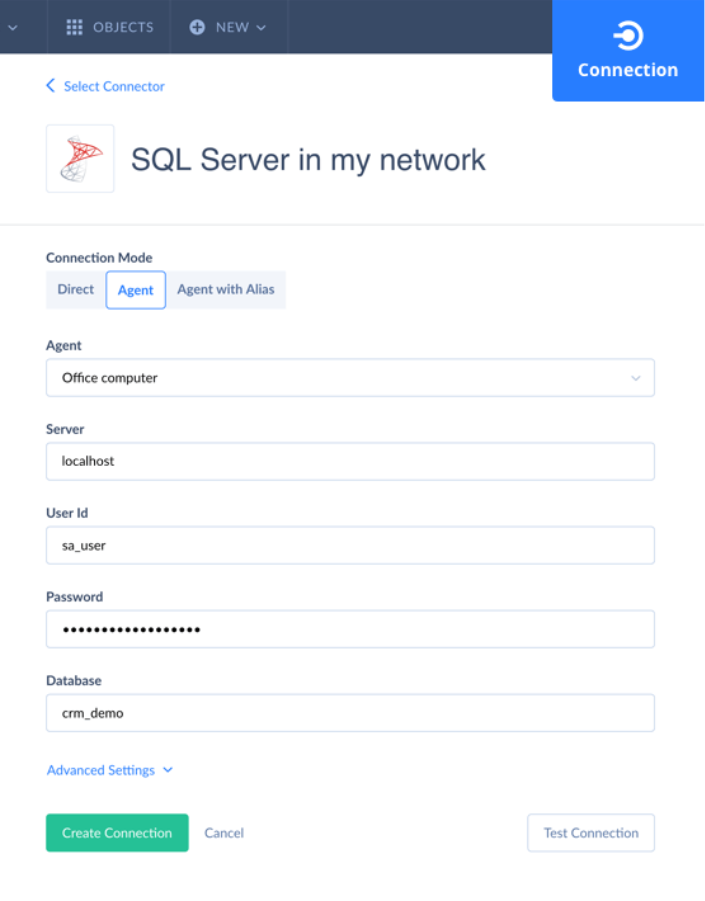
If your database is available for external connections, use a Direct connection. Use the Agent connection if your server is located in the local computer or network. Agent is an application that acts as a secure layer between Skyvia and your database.
Step 3: Create the Import
Create a new Import integration, select the SharePoint Files connection as the source, and choose the SQL Server connection as the target.
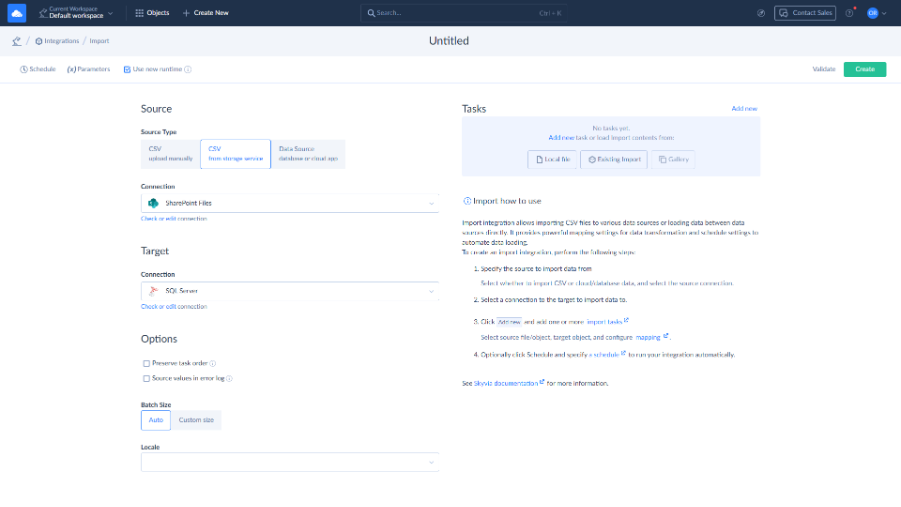
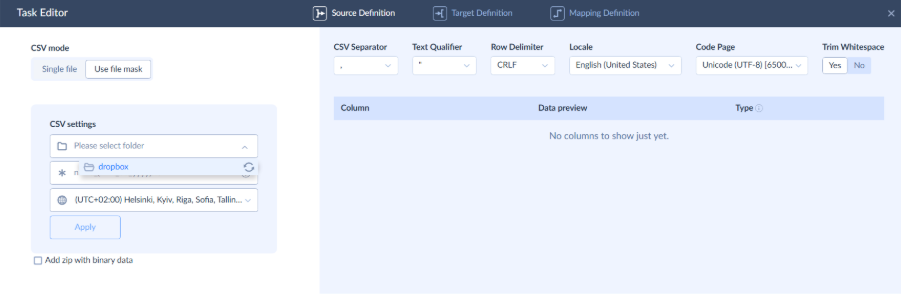
For CSV files, you can select a specific file from SharePoint or use a file mask when filenames change with each delivery. Skyvia documents file-mask support for SharePoint Files when it is used as a CSV source.
Step 4: Map the File Columns to SQL Server
Open the Import task and choose the SQL Server table that should receive the data. The Task Editor separates the setup into Source Definition, Target Definition, and Mapping Definition.
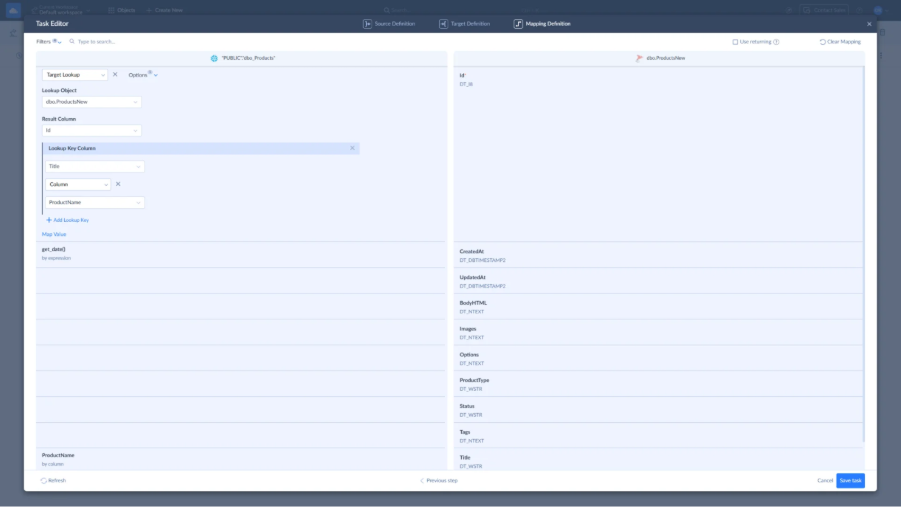
Columns with matching names can be mapped automatically. For the rest, select the corresponding source column manually. If the types do not match, Skyvia supports expression mapping for type conversion.
For recurring loads, choose UPSERT when existing SQL Server rows should be updated instead of inserted again. In that case, map the target primary key so Skyvia can determine whether a row already exists.
Step 5: Schedule and Monitor the Import
Once the task works with a test file, enable the schedule. The package can then run automatically at the frequency allowed by your Skyvia plan.

After each run, check the Monitor or Log view rather than relying only on the final row count. Import history shows successful and failed rows, and failed rows can be downloaded with their error details for troubleshooting.

How Can You Fix Common SharePoint to SQL Server Pipeline Failures?
Most SharePoint-to-SQL Server problems do not show up when you test the pipeline with one clean workbook. They appear later, when files get larger, more users start changing them, or the pipeline has to make many requests to SharePoint at once.
Here are three problems worth planning for from the start.
How Do You Fix Power Query Latency and 3-Hour Refreshes in Power BI?
If a Power BI refresh takes hours, first check whether Power Query is reading Excel workbooks directly from SharePoint.
With this setup, Power BI has to retrieve and process the source files again during refresh. That may be manageable with a few small workbooks, but performance can deteriorate as file sizes and transformation complexity grow. File-based storage such as Excel and SharePoint also has different performance and scalability characteristics from database sources such as SQL Server.
A better architecture is to move the SharePoint processing out of the reporting layer. Use Skyvia, ADF, or another integration tool to load the required SharePoint data into SQL Server on a schedule. Power BI then works with prepared SQL tables instead of repeatedly processing the original workbooks.
From there, choose the Power BI connection mode that fits the reporting requirement. Import Mode usually works well when scheduled refreshes are enough, while DirectQuery is an option when reports need to query fresher data in SQL Server. Skyvia’s guide to storing data for Power BI goes into more detail on file-based storage, SQL Server, Import Mode, and DirectQuery.
How Do You Handle Microsoft Graph API Throttling (HTTP 429 Too Many Requests)?
Custom scripts are where this usually becomes visible. Send too many Graph API requests in a short period and Microsoft may start returning HTTP 429 Too Many Requests.
Root cause: The script is calling SharePoint Online faster than the service allows.
Fix: Do not retry immediately. Respect the delay returned by the API and add backoff logic before sending the request again. Parallel calls also need to be controlled rather than increased just to make the job finish faster.
With a managed integration platform, much of the request handling happens outside your own script, but failed runs should still be checked in the logs.
How Do You Prevent Pipeline Crashes When SharePoint File Columns Change (Schema Drift)?
This one usually starts with a harmless spreadsheet edit.
Someone adds a Region column. Someone else renames Customer ID to CustomerID. A numeric column suddenly contains N/A. The workbook still looks fine to the person editing it, but a pipeline built around the previous structure may no longer know how to load it into SQL Server.
One way to limit the damage is to load the SharePoint data into a staging table first rather than writing straight into production tables. A table such as dbo.stg_sharepoint can use more permissive data types where appropriate, giving you a place to validate and transform incoming values before they reach the final SQL schema.
This staging pattern is common in SQL Server data pipelines. Skyvia’s guide to building an SQL Server data warehouse also walks through preparing a staging area before data moves into its final warehouse structure.
Staging alone does not solve every schema change, though. If someone renames or removes a source column, the pipeline mapping may still need to be updated. Keep mappings explicit, monitor failed runs, and review the integration whenever the workbook structure changes.
The safest pattern for files that business users edit regularly is therefore SharePoint → staging table → validation and transformation → production SQL tables. It gives you an extra layer between a changing workbook and the tables your reports depend on.
What Is the Final Verdict on Exporting SharePoint Files to SQL Server?
There is no single best option here. The right choice depends on where your SQL Server lives, how much code your team wants to own, and how complicated the pipeline needs to become.
Choose Skyvia if you want to get the SharePoint-to-SQL Server pipeline running without writing and maintaining integration code. It is the most straightforward option here for a visual, scheduled cloud workflow.
Choose Azure Data Factory if your data stack already lives in Azure and the SharePoint load is part of a larger pipeline involving Azure SQL, Synapse, Blob Storage, or a data lake.
Choose SSIS if SQL Server is on-premises, and you want the integration to stay inside infrastructure your team already manages. It is especially practical when SSIS is already part of the environment.
Power Automate still has a place for smaller event-driven jobs, such as reacting when a new SharePoint file appears. PowerShell + Graph API goes in the opposite direction: it gives developers far more control, but the authentication, retries, parsing, and maintenance stay with your team.
For most teams, I would make the choice based on who will own the pipeline after it goes live. That usually matters more than which tool has the longest feature list.
FAQ for SharePoint Files into SQL Server

How Do You Securely Load SharePoint Online Files into an On-Premises SQL Server Behind a Firewall?
Use an agent or gateway that makes outbound connections from the local network. Skyvia Agent, ADF Self-Hosted Integration Runtime, and Microsoft’s on-premises gateway can reach SQL Server without exposing it directly to the public internet.
How Do You Import Multi-Tab Excel Workbooks or Unpivoted Sheets from SharePoint into SQL Server?
Use a tool or script that can read workbook sheets and reshape the data before loading it. Multi-tab or unpivoted files often need an extra parsing or transformation step before the rows match the SQL Server table structure.
How Can You Avoid Microsoft Graph API Rate Limits (HTTP 429) When Extracting Large SharePoint Files?
Slow down requests and respect Microsoft Graph’s Retry-After response. Custom scripts should add backoff and limit parallel calls. For larger jobs, avoid restarting the entire load when one batch is throttled.
Why Should You Move SharePoint Files to SQL Server Instead of Connecting Power BI Directly to SharePoint?
SQL Server gives Power BI a structured database source instead of forcing every refresh to reopen and parse SharePoint files. That can reduce refresh overhead and makes the reporting layer easier to query and govern.
What Happens to Your SQL Server Pipeline If Someone Adds a New Column in the SharePoint File?
A fixed mapping may fail, ignore the field, or load it incorrectly. Review the new column, update the mapping or staging table, and test the next run before sending the changed structure into production tables.