In a lot of companies there's still a person who opens an SFTP client first thing, drags over yesterday's orders file and just hopes it's the right one. SFTP automation replaces that routine. A script or tool connects at a set time, moves the files and checks they got there, and it only bothers you when something goes wrong. So the task can't be forgotten, and a mistyped folder path at 8 a.m. stops being a thing.
You've got two main options here. One is a script, Bash plus cron on Linux or WinSCP plus Task Scheduler on Windows; it's free, though somebody has to babysit it. The other is a no-code platform that looks after the connection, the timing and the logs on your behalf.
We'll walk through both, and through the errors that most often break unattended transfers (with a fix for each). Before that, a short reminder of what SFTP does.
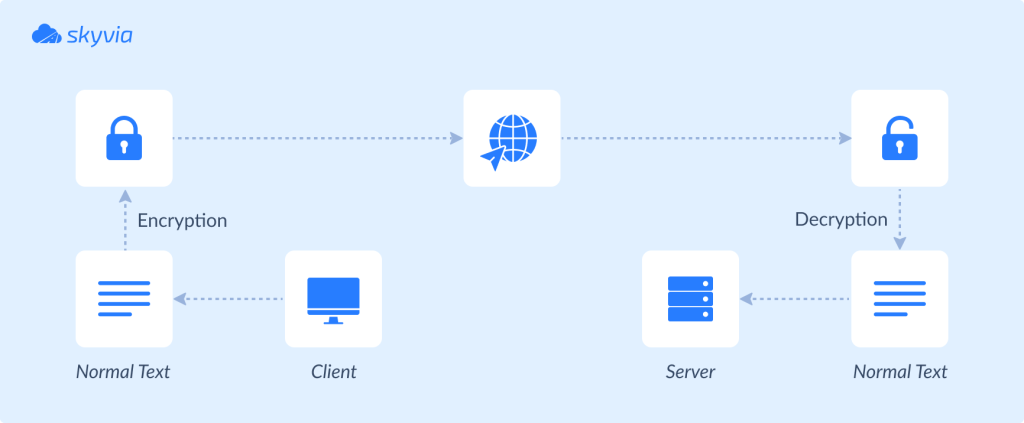
Officially it's the SSH File Transfer Protocol, but lots of people call it the Secure File Transfer Protocol, and both names point to the same thing. Everything goes through an encrypted secure shell (SSH) connection, which means that anyone watching the network can't see the payroll CSV or the commands used to move it. For files like payroll exports or claims data, that's usually the deciding factor.
It does more than encrypt, too. Logging in works with a password or, preferably, an SSH key, and after that you're not limited to copying, since you can also rename, delete and list files. On top of that, the admin can log transfers, an interrupted connection can pick up from where it broke off, and a script can drive the entire session, which brings us to automation.
What is SFTP automation, and why is it important?
Shell scripts or data automation tools streamline file transfer over the SFTP protocol, minimizing human intervention. These workflows help in performing the following functions:
- Automate File Transfers: Securely automate file transfers between systems.
- Schedule Tasks: Schedule file transfers at regular, specified intervals.
- Execute Commands: Rename or delete files and list the directories with the command execution.
- Monitor and Alert: Monitor the status of file transfers and receive alerts after successful or failed transfers.
Automating SFTP transfers is essential for organizations that deal with sensitive data. It ensures files are sent securely, protecting them from unauthorized access or interception. This approach guarantees regulatory compliance and enhances trust with clients and stakeholders reliant on data confidentiality.
- Encryption: SFTP encrypts the files and the commands during transfer. Even if someone intercepts the data, they can only read it with the correct decryption key.
- Authentication: SFTP ensures that only authorized users can access and transfer files using passwords or digital keys. It also verifies the identity of servers to prevent imposters from intercepting data.
- Integrity Verification: SFTP guarantees files arrive exactly as sent. It uses special codes (hashes) to verify that the files have not been altered or corrupted during transmission. This provides confidence that received files are unchanged from their original state.
Apart from the security features, automating SFTP file transfers reduces human error. It helps to optimize resource allocation, which in turn increases their productivity. It also reduces the operational costs. To summarize, SFTP automation enhances efficiency and productivity while safeguarding organizational data integrity and confidentiality.

Challenges of manual SFTP processes
Risk of Human Errors
When handling SFTP transfers manually, mistakes like typing errors, selecting the wrong files, or entering incorrect commands can quickly occur. These errors not only waste time but can also lead to data being sent to the wrong destination or lost altogether.
Time-Consuming Nature
File transfers can also be time-consuming for large volumes of data. Without automation, someone always needs to monitor these tasks while they are in progress. This dependency can become a liability if the team is unavailable or if knowledge gaps exist within the team.
Inefficiencies in Handling Large Data Volumes
As the organization grows, manual processes become challenging to maintain. Handling increased data volumes or more frequent transfers manually can lead to bottlenecks and inefficiencies, hindering organizational growth. This manual effort becomes a significant drain on the resources’ productivity.
While managing SFTP manually may suffice for smaller tasks or occasional transfers, it often becomes challenging with increased business size due to issues with efficiency, security, scalability, and compliance. Adopting automated SFTP solutions resolves these concerns, delivering enhanced reliability, flexibility, security, and operational efficiency.
Benefits of automating SFTP
Increased Efficiency and Productivity
Automating SFTP transfers streamlines tasks that previously needed manual handling, such as executing and monitoring transfers. This saves time and resources, enabling teams to focus on more productive tasks.
Enhanced Data Security
Automated SFTP processes apply robust security measures, including encrypted transmissions and secure authentication methods. By eliminating the need to share credentials, they protect against unauthorized access and potential breaches.
Scalability and Flexibility
Automated SFTP solutions can quickly scale to handle increasing data volumes and transfer frequencies. Schedule multiple automated processes ensures data transfer as the data grows. This allows organizations to adjust to their needs seamlessly without needing significant changes or extra manual work.
Furthermore, automated SFTP transfers can be scheduled around the clock. It allows organizations to schedule data transfers outside regular business hours. This reduces the risk of network overloading and minimizes labor costs associated with manual oversight.
Ways to automate SFTP
There are several ways to automate data transfer to and from SFTP.
Native — scripting and scheduled tasks:
- Write scripts using shell scripting (Unix/Linux) or batch scripting (Windows) to automate SFTP commands for file transfers.
- Use cron jobs (Unix/Linux) or Task Scheduler (Windows) to schedule the execution of these scripts at specified intervals.
Programming:
- Develop automation scripts using programming languages that offer SFTP libraries (e.g., Paramiko for Python, JSch for Java, SSH.NET for PowerShell).
Third-party solutions:
- Utilize specialized MFT software that offers comprehensive features for automating and managing file transfers, including SFTP.
- Use platforms like Zapier, Skyvia, Make, WinSCP, FileZilla, or cloud service APIs (e.g., AWS S3, Azure Blob Storage) to integrate and automate SFTP transfers as part of larger workflows.
We’d focus on the two methods:
- Automation with Skyvia
- Automation with scripts.
Automation with Skyvia
One of the modern solutions that offers automated data transfers is Skyvia. This universal data platform can send data to an SFTP server or extract files from it. You just need to design the pipeline and set a schedule to enjoy the automated integration.
Skyvia offers a comprehensive set of Data Integration features that suit SFTP automation.
- Import data from files stored on the SFTP Server to 200+ supported connectors.
- Export data from the preferred app, database, or data warehouse to the SFTP server.
- Construct compound pipelines and apply complex transformations on data with Data Flow and Control Flow.
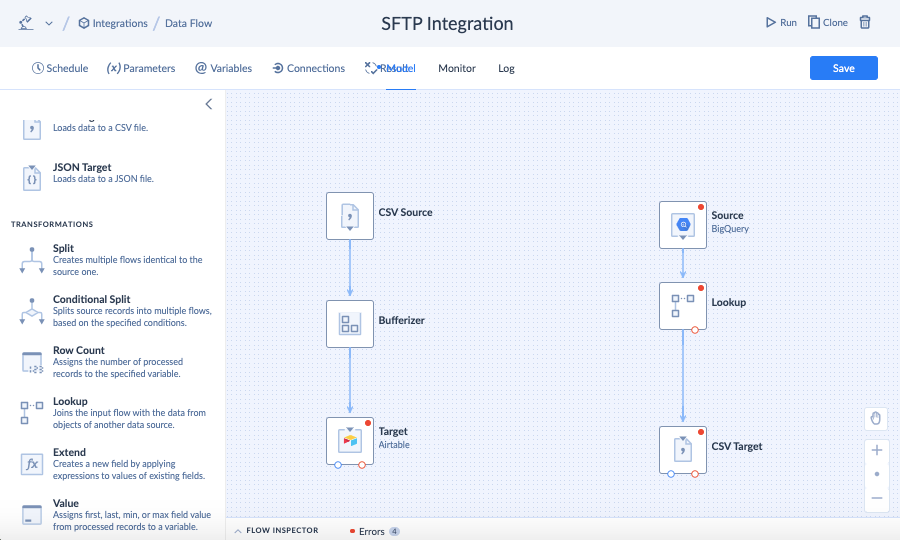
See how to carry out these operations with the example of the Salesforce to SFTP integration:
As you see, Skyvia offers a bunch of options for constructing automation pipelines with no coding. All this can be done within a web browser. What’s more, you can try to set up SFTP automation with Skyvia for free.

Automation with scripts
Create Scripts
Another method is to develop a script that automates the file transfer process. Such scripting languages like Bash and PowerShell are suitable for creating these scripts. Programming languages such as Python can do the trick as well.
It’s necessary to download and import some packages for the selected programming languages for automation. Ensure scripts include error handling and logging for troubleshooting. Run the script once to ensure SFTP connectivity, directory permissions, authentication mechanisms, file transfers, etc, are working as expected.
Here’s a sample bash script for sending data to a remote server. The script assumes that the authentication is already done between the systems by sharing SSH keys. Click here to learn how to configure SSH and SFTP without passwords.
#!/bin/bash

# Configuration
REMOTE_HOST="<Hostname or IP address>"
REMOTE_USER="<username>"
REMOTE_DIR="/path/to/remote/directory"
LOCAL_FILE="/path/to/local/file.txt"
LOG_FILE="/path/to/log/sftp.log"

# Start of SFTP operation
echo "$(date +'%Y-%m-%d %H:%M:%S') - Starting SFTP operation" >> "$LOG_FILE"
echo "$(date +'%Y-%m-%d %H:%M:%S') - Uploading $LOCAL_FILE to $REMOTE_DIR" >> "$LOG_FILE"

{
    echo "cd \"$REMOTE_DIR\""
    echo "put \"$LOCAL_FILE\""
    echo "bye"
} | sftp -oBatchMode=yes -b - "$REMOTE_USER@$REMOTE_HOST" >> "$LOG_FILE" 2>&1

# Check if the SFTP operation was successful
if [ $? -eq 0 ]; then
    echo "$(date +'%Y-%m-%d %H:%M:%S') - File successfully uploaded to $REMOTE_DIR" >> "$LOG_FILE"
else
    echo "$(date +'%Y-%m-%d %H:%M:%S') - Error uploading file to $REMOTE_DIR" >> "$LOG_FILE"
    exit 1
fi

# End of script
echo "$(date +'%Y-%m-%d %H:%M:%S') - SFTP operation completed" >> "$LOG_FILE"
exit 0
Schedule Automated Tasks
After the validation is complete, schedule the automation script. Operating systems provide apps/tools that help in scheduling such scripts. Windows users may consider the Task Scheduler application. The crontab would work on Linux-based systems and macOS.
Monitor and Maintain Processes
Set up systems to monitor how automated SFTP tasks are running. Ensure logs of every file transfer are stored. Create alerts that notify admins if transfers succeed, fail, or need attention. Regularly check logs and update scripts as necessary to handle changes in how files are transferred.
What Breaks Automated SFTP Transfers, and What's the Fix?
Here's what tends to happen. The script behaves when you launch it yourself, then breaks at 2 a.m. under cron, and the reasons turn out to be the same ones every team runs into. We reproduced each of the failures below against a test OpenSSH server before writing them up, so the error text is what you'll actually see:
| What you see | Why it happens | Fix |
|---|---|---|
Host key verification failed. | The job connects to a server whose key isn't in known_hosts yet, and in batch mode nobody is there to confirm it | Connect once by hand, or add -o StrictHostKeyChecking=accept-new, which saves new keys but still refuses a changed one |
Permission denied (publickey). | The job can't find the private key it needs | Pass the key explicitly with -i and an absolute path |
| Works in the terminal, fails in cron | cron sets only a few variables itself (SHELL as /bin/sh, plus HOME and LOGNAME), so anything your login shell normally provides is missing | Use absolute paths for sftp, keys and files, and set what the script needs inside the script |
Invalid command. and the batch stops | A line that isn't an sftp command, such as a log message, ended up in the batch input | Write log lines to your log file, never into the commands piped to sftp |
| The batch stops halfway through | With -b, sftp aborts as soon as a command like get, put, rm or rename fails | Put a dash in front of commands that may fail harmlessly, for example -rm old.csv |
| A partner picks up a half-written file | Their job reads the file while your upload is still running | Upload under a temporary name, then rename it in the same batch |
| The same file is processed twice | Nothing marks a file as done | After the download, move the file into an archive folder with rename |
Here's an upload that applies the last few fixes. It fails loudly (sftp exits with a non-zero code when the batch aborts), and the file only appears under its real name once it's complete:
#!/bin/bash
sftp -i /home/etl/.ssh/id_ed25519 -o BatchMode=yes -b - etl@sftp.example.com <<'EOF'
cd /inbound
put /data/export/orders.csv orders.csv.part
rename orders.csv.part orders.csv
EOF
if [ $? -ne 0 ]; then
  echo "$(date +'%Y-%m-%d %H:%M:%S') SFTP upload failed" >> /var/log/sftp-orders.log
  exit 1
fi
If you'd rather not own any of this, a no-code tool takes the scripting out entirely. In Skyvia, for example, Import picks up files from an SFTP server using date-based file masks, and Export writes CSV files to SFTP on a schedule with file-name templates, so there's no script left to break.
Choosing the right tools and platforms
Traditionally, such tools as WinSCP and FileZilla were used for SFTP file transfer and management. However, their automation capabilities are limited and don’t correspond to the contemporary workloads businesses encounter.
Scripts partially resolve the approach to automation. Such tools as Task Scheduler for Windows and Crontab for Linux or macOS allow for creating scripts and scheduling automation tasks. However, they require a strong knowledge of scripting language or Python and the installation of additional libraries. This obviously requires much of the technical expertise and time.
Skyvia simplifies everything by providing a no-code solution for transferring data between an SFTP Server and a range of other data sources. It also allows you to set up the integration schedule for automated data flows and minimize human intervention in the process. Similarly to other tools for SFTP automation mentioned here, Skyvia is available for free. So, feel free to try it now for setting up SFTP automation.
FAQ for SFTP Automation

How do I set up an automated SFTP file transfer?
The first step is key-based login, because during an unattended SFTP file transfer there’s no one around to enter a password. Once that works, the sftp commands go into a script, or a WinSCP script if you’re on Windows, and you run it yourself one time before cron or Task Scheduler takes over. We’d also keep an eye on the exit code of every run, since a job that quietly fails all week does more damage than having no job.
Can I automate SFTP without writing scripts?
No script is needed if you’d rather use a no-code integration tool or a managed file transfer product to automate SFTP. In Skyvia’s case you add the SFTP connection a single time. From then on you can schedule an Import that fetches files by a date-based file mask, or an Export that leaves a fresh CSV on the server. Schedules, connections and the run history all sit together in one browser tab.
How do I automate SFTP transfers on Windows?
For SFTP automation on Windows, the usual pairing is WinSCP and Task Scheduler. The open, put or get, and exit commands are saved in a text file, winscp.com /ini=nul /log=myscript.log /script=myscript.txt runs that file, and Task Scheduler fires the line at whatever time you choose. And if writing the file sounds tedious? WinSCP’s Transfer Settings, Generate Code dialog can create it from a transfer you’ve already configured by hand.
Why does my SFTP script run fine by hand yet fail in cron?
Chances are the SFTP script relies on something your login shell hands it, and cron simply doesn’t. cron only sets SHELL (as /bin/sh), HOME and LOGNAME by itself. A relative path, an SSH key that just your terminal had loaded or a server key nobody accepted is enough to break the job. Usually it’s fixed by absolute paths, -i pointing at the key file, and one manual connection beforehand.
How do I stop partners from picking up half-uploaded files?
Upload the file as orders.csv.part, say, and as soon as the put completes, rename it to orders.csv in that same sftp batch. A partner job watching for orders.csv then never grabs a file that’s only half there. Downloads have the mirror problem, and moving each processed file into an archive folder keeps tomorrow’s run from loading it twice.
What is the best software for automating SFTP transfers?
The best software for automating SFTP transfers is whatever your team will actually maintain. If your sysadmin is happy in a terminal, OpenSSH’s sftp with cron, or WinSCP on Windows, will cover a lot, and both are free. Once you’re exchanging files with dozens of partners, a managed file transfer server like JSCAPE MFT Server starts paying for itself, while integration platforms such as Skyvia or Workato suit teams whose files need to end up in apps or databases.
How secure is SFTP automation?
The security of SFTP automation comes down to the account and the key it uses. That means a dedicated user with access to its own folders only, an SSH key rather than a password pasted into the script, and host key checking left on (StrictHostKeyChecking=accept-new still turns away a server whose key has changed). It’s worth keeping the transfer logs too, so any file can be traced afterwards.