
Take a retail shop with its orders in SQL Server and a sales team that would rather never leave Google Sheets. On Monday morning somebody exports last week's orders and pastes them into the shared spreadsheet. A day later, the sheet is already behind. Add a pasted range that overwrites a formula, or an order copied in twice, and the weekly total is off before anyone has looked at it.
We'd rather let the copy run itself, and you can, by connecting SQL Server to Google Sheets. The trouble is that Sheets has no SQL Server connector of its own. In practice that gives you four ways to do it, which are a CSV export, an Apps Script that talks to the database over JDBC, a no-code integration platform, and an add-on that queries SQL Server from the spreadsheet itself.
We cover all four with setup steps further down. Our first stop is what Sheets can do by itself and where Apps Script hits a wall, since a couple of those walls knock options out straight away. Then the choice is yours, based on row counts, refresh needs and who can code.
Why Connect SQL Server to Google Sheets?
When businesses connect SQL Server and Google Sheets, a range of powerful improvements across different teams and workflows becomes available to them.
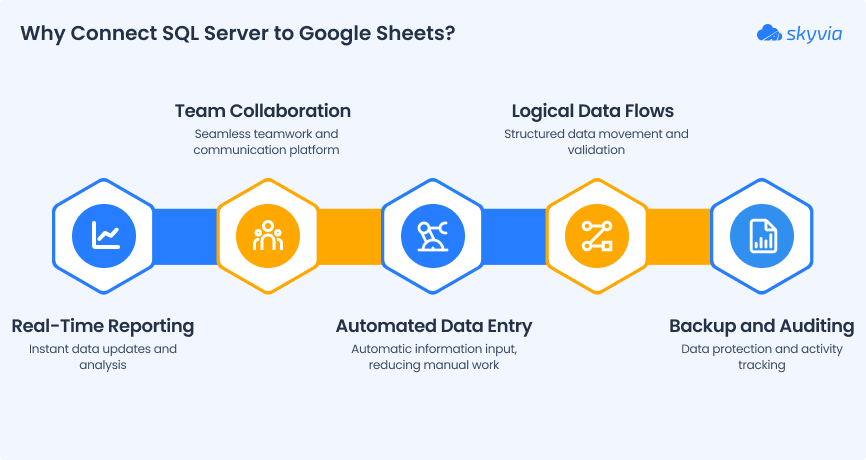
Real-Time Reporting and Analytics
One of the most significant benefits is eliminating manual exports and outdated reports. Businesses are finally working from a single source of truth.
- Sales teams can see live order numbers without waiting for weekly spreadsheets.
- Finance teams can track revenue and cash flow in real time.
- Executives can make faster, better-informed decisions based on the latest numbers.
Free Collaboration Across Teams
Different teams work with live, reliable data with no SQL skills required.
- Marketing teams can get customer lists, product catalogs, or inventory levels straight into Google Sheets without directly accessing the SQL database.
- Support teams can update customer case notes or order statuses in Google Sheets, and a scheduled import writes those changes back to SQL Server.
Automated Data Entry
Field employees like sales reps, service staff, event teams, and others need simple ways to capture information fast. It saves time and provides data accuracy.
- Sales reps can update service records from their phones using a simple spreadsheet, and a scheduled import loads them into the main database.
- Operations teams can set up automatic alerts if stock levels drop below a safe threshold.
Logical Flows and Data Validation
Beyond basic syncing operations, integration can help you implement more complex flows for your data.
- New customer signups can be checked for missing data or errors inside the spreadsheet.
- Updated pricing lists can be verified collaboratively before going live.
Backup and Auditing
Scheduled syncs between SQL Server and Google Sheets can help to track user activity.
- Lightweight backup snapshots for critical datasets.
- Audit trails showing who changed what and when.
Can You Hook Google Sheets Up to SQL Server Without Extra Tools?
Only through code. You won't find SQL Server anywhere in the Sheets menus. Connected Sheets, the database connector Google does build in, is for BigQuery. The one thing Google does provide is the JDBC service in Apps Script. Microsoft SQL Server is on that service's list of supported databases (so are MySQL, Oracle and PostgreSQL).
| What Google offers | Works with SQL Server? | What it does |
|---|---|---|
| Connected Sheets | No | Queries BigQuery from a spreadsheet, on demand or on a schedule |
| QUERY function | No | Runs a query in the Google Visualization API Query Language over cells already in the sheet, not over a database |
| Apps Script JDBC service | Yes | Connects to SQL Server with Jdbc.getConnection, then reads or writes rows with your own code |
Can Sheets run SQL, then? Not against SQL Server. QUERY reads like SQL when you type it, but it works on cells in the spreadsheet and has no way to reach a database.
Apps Script with JDBC can do the job, as long as your setup stays within limits that Google sets and won't lift for you. It pays to check them first:
- Allowlist Google's IP ranges. Because the script runs on Google's servers and not on your computer, the SQL Server firewall needs to let in the IP ranges that Google publishes for JDBC.
- Use port 1025 or higher. The JDBC service can't connect to lower ports. If yours still runs on 1433, the default, you're fine.
- Keep each run under 6 minutes. Anything longer gets cut off by Google. Big tables, then, come over a batch at a time, one batch per run.
- Watch the daily quotas. There's also a daily ceiling on connections: 10,000 for a consumer Google account, with only 100 of them allowed to fail. For Google Workspace accounts those numbers go up to 50,000 and 500.
A server that can't be opened to Google's IP ranges is where this method stops, and where a tool with an on-premises agent (Method 3) earns its place.
Methods for Moving Data from SQL Server to Google Sheets
There are several ways to connect Google Sheets to SQL Server:
- Manual Export from SQL Server database and manual Import to Google Sheets.
- Custom scripting method for developers.
- No-Code/Low-Code Integration Platforms.
- Skyvia Google Sheets Add-on.
We reviewed and compared common methods below.
| Method | Ease of Setup | Flexibility | Maintenance | Best For |
|---|---|---|---|---|
| Manual Export/Import | Easy | Low | High | One-time tasks or simple use cases |
| Custom Scripting | Complex | High | High | Advanced use-cases and complex logic |
| No-Code/Low-Code Platforms | Easy | Moderate | Low | Fast setup of easy or complex use cases |
| Skyvia Google Sheets Add-on | Easy | Moderate | Low | Google Sheets users who need quick sync |
Let’s look at each method in more detail.

Method 1. The Manual Way: CSV Export/Import
You export data from SQL Server using SQL Server Management Studio or another tool into a CSV file, then manually import this file into Google Sheets.
Best For
Small businesses or individuals for one-time tasks where automation isn’t required and no customizations are needed.
Method Pros
- No setup or tools required.
- Simple and accessible for non-technical users.
Method Cons
- No automation and customization support.
- No real-time data — static snapshots only.
Below we show how to export query results from an existing table on SQL Server and Import the exported file into an existing spreadsheet in Google Sheets.
Step 1. Export Data from SQL Server
- Compose a query that selects the required data for export and execute it.
- Right-click the query results and select Save Result As.
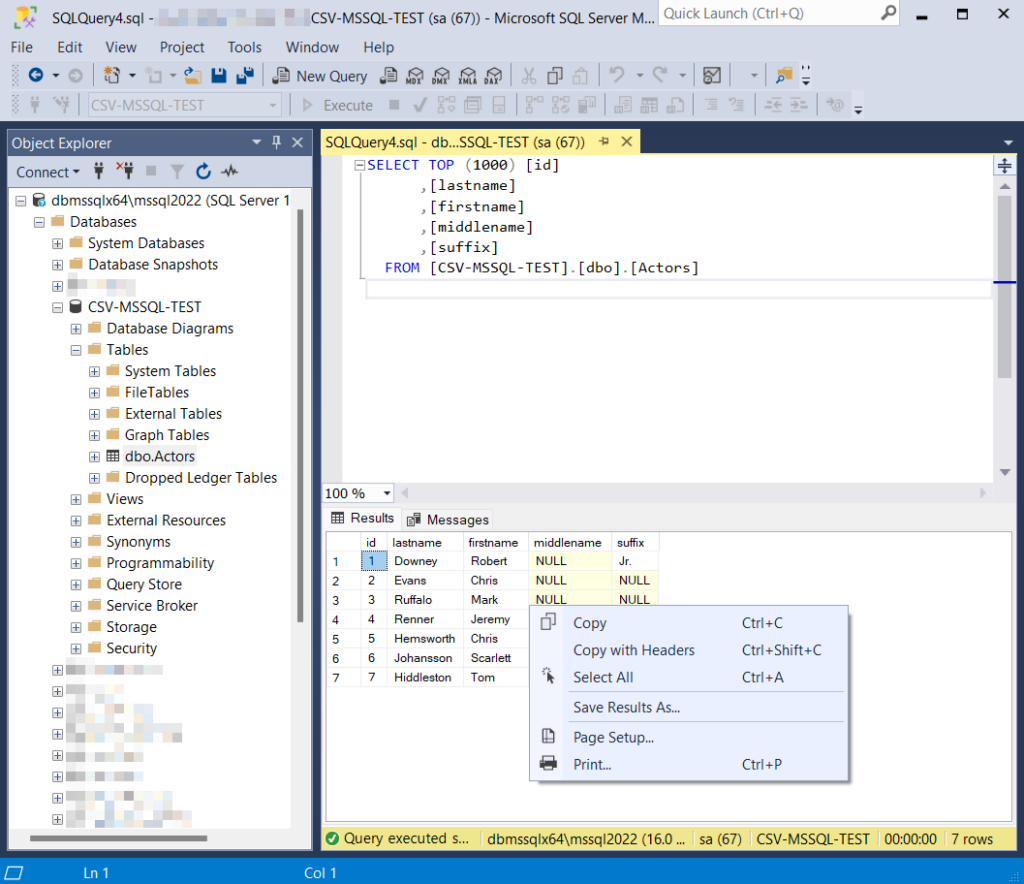
- Specify the file name and click Save.
Step 2. Import a CSV file to Google Sheets
- Go to Google Sheets and click File -> Import.
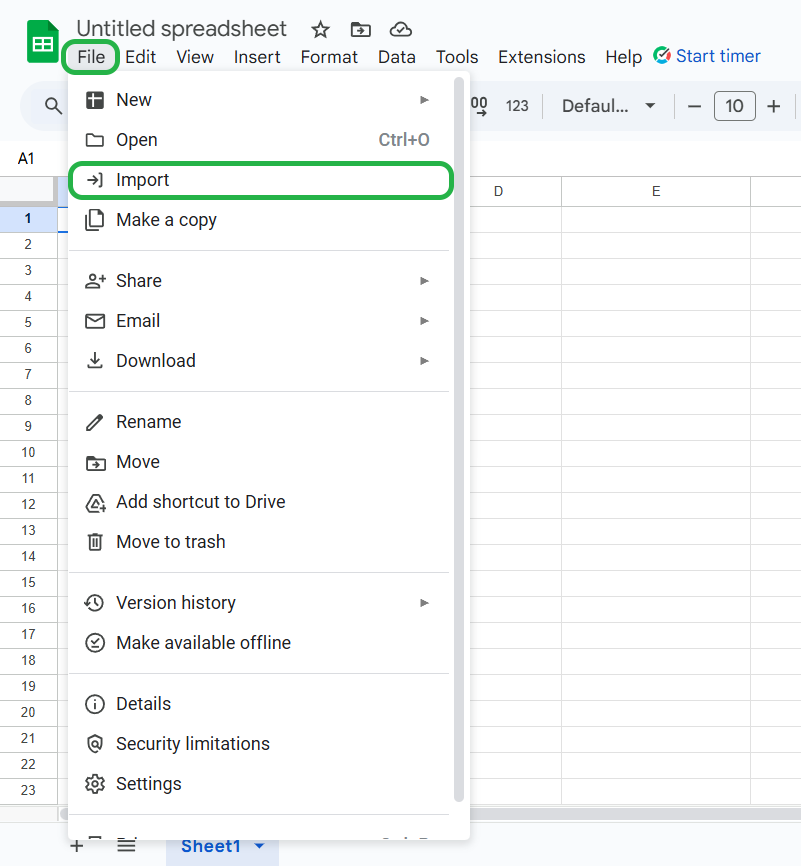
- Select or drag the CSV file.
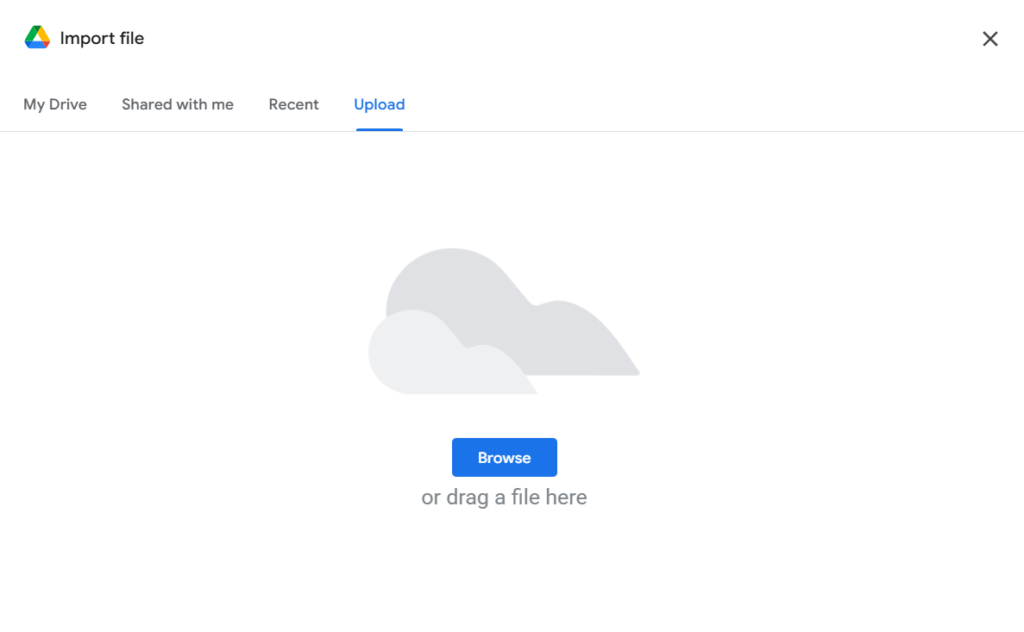
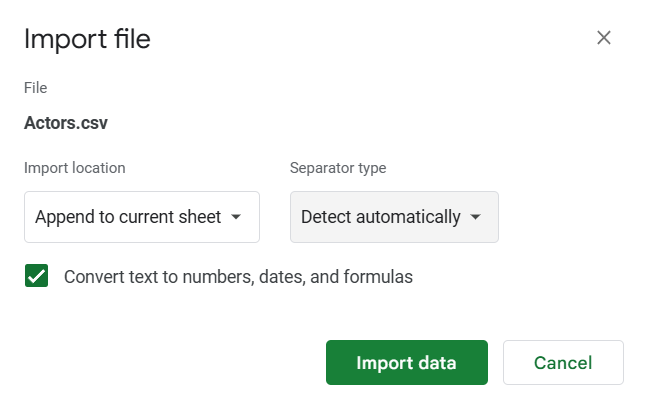
- Select the import location and separator type and click Import data.
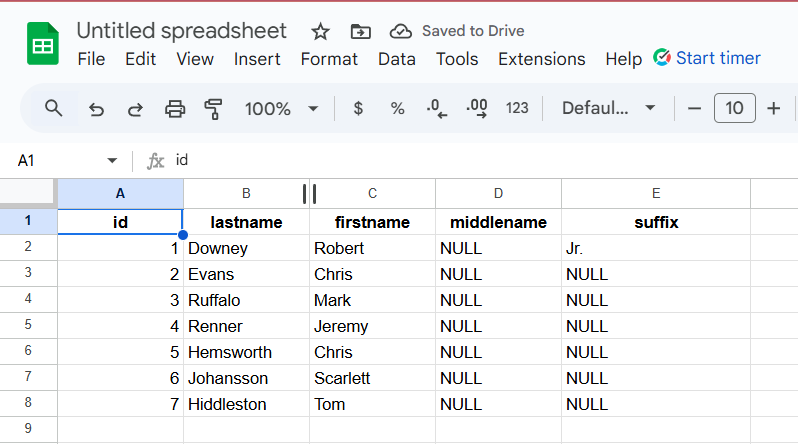
As a result, you get your data imported to Google Sheets manually in a few clicks.
Method 2. The Developer Way: Scripting
You can build a fully custom integration using Google Apps Script to connect to SQL Server via JDBC or REST API. It allows users to build custom apps to query and write data between the services.
Best For
Tech-savvy teams or businesses with complex workflows or advanced logic.
Method Pros
- Total control over the integration
- Highly customizable.
- Can be fully automated.
Method Cons
- Requires strong coding skills.
- Needs ongoing maintenance and ownership.
- Implementation complexity.
Step 1. Prepare Your SQL Server for External Connections
- Enable TCP/IP connections on the SQL Server.
- Make sure your SQL Server accepts remote connections.
- Open the necessary firewall ports.
- Ensure the server is accessible from Google’s IP address range.
Step 2. Create a Google Sheet
- Open Google Sheets.
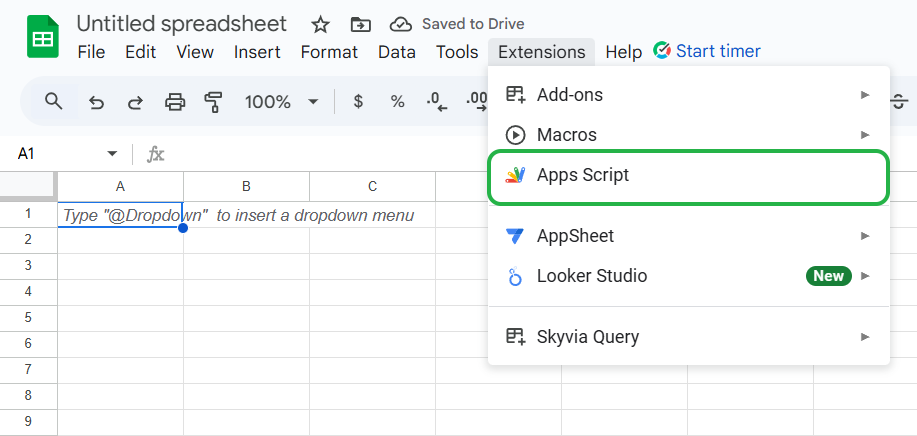
- Go to Extensions → Apps Script.
Step 3. Write Google Apps Script Code
- In the Apps Script editor, write a script using the JDBC service to connect. Use the available functions and methods to manipulate data.
- Run the script and check View → Logs for results.
For example, the script below establishes the connection to SQL Server.
function testSQLConnection() {
  var url = 'jdbc:sqlserver://<host>:1433;databaseName=<db>';
  var user = '<username>';
  var userPwd = '<password>';
  try {
var conn = Jdbc.getConnection(url, user, userPwd);
Logger.log('Connection successful!');
conn.close();
  } catch (err) {
Logger.log('Connection failed: ' + err);
  }
}
To use this script for your case, replace <host>, <db>, <username>, and <password> with your real credentials.
Method 3. No-Code/Low-Code Integration Platforms
Cloud data integration platforms like Skyvia, Zapier, Integrate.io, and others offer user-friendly interfaces and prebuilt connectors to link SQL Server and Google Sheets with no effort.
Best For
Companies of all sizes, from small startups to enterprises, that need frequent syncs for advanced scenarios without coding.
Method Pros
- Fast and easy to set up without coding.
- Flexible scheduling and data transformation options.
- Integration maintenance, and support.
Method Cons
- Costs can grow with usage or scale.
- Less control over advanced logic.
- May have data volume limits.
Let’s look at how to do that using Skyvia, a no-code cloud data platform. In this example, we demonstrate copying data from a Google Sheets table to SQL Server with Replication.
Skyvia requires no installations; only a web browser is needed. You can get a 2-week trial or use a free plan. Register in Skyvia now and enjoy chic solutions for your data-related tasks.

Step 1. Create Connection to Google Sheets
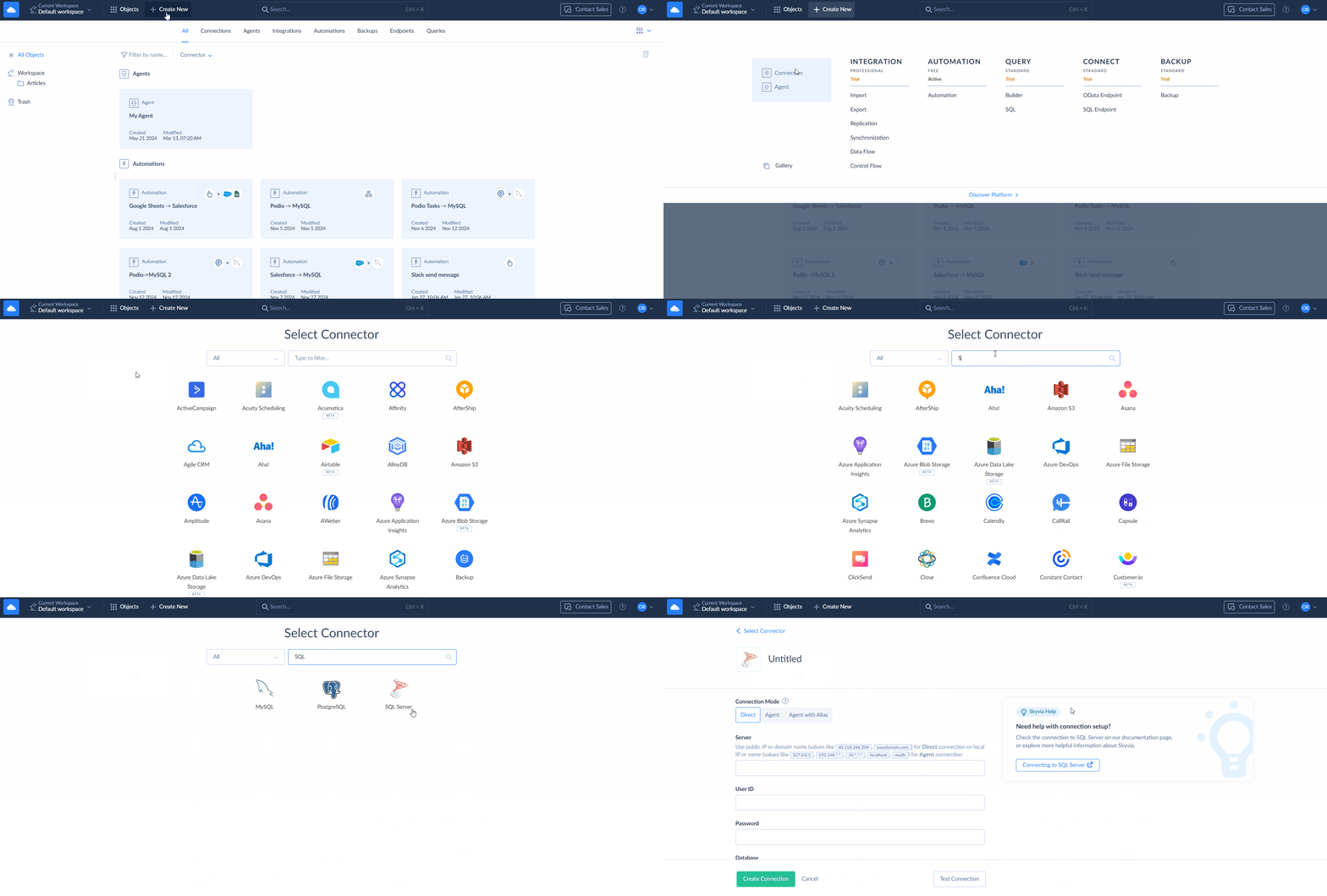
- Go to Skyvia, click +Create New -> Connection.
- Type Google Sheets or select it from the Spreadsheet category.
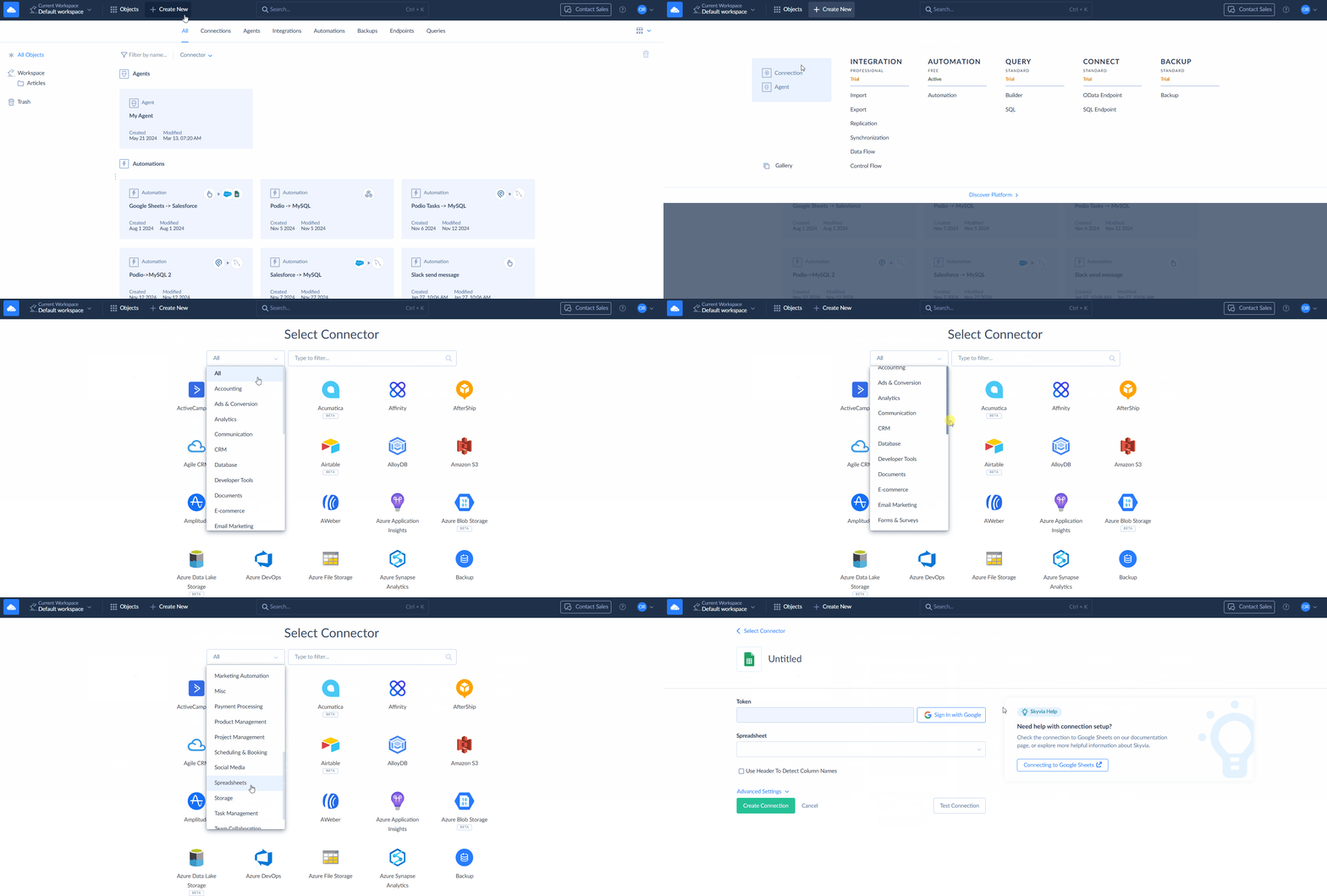
- Sign in with Google, select the desired spreadsheet, and save your connection.
Step 2. Create Connection to SQL Server
If your server is available for external connections, use a direct connection.
If your server is protected from external connections, you need an Agent application to allow Skyvia to connect to a remote SQL Server. Let’s create an Agent Connection.
- Click +Create New -> Agent.
- Download the Agent application and follow the installation instructions on the page.
- Run the install agent.
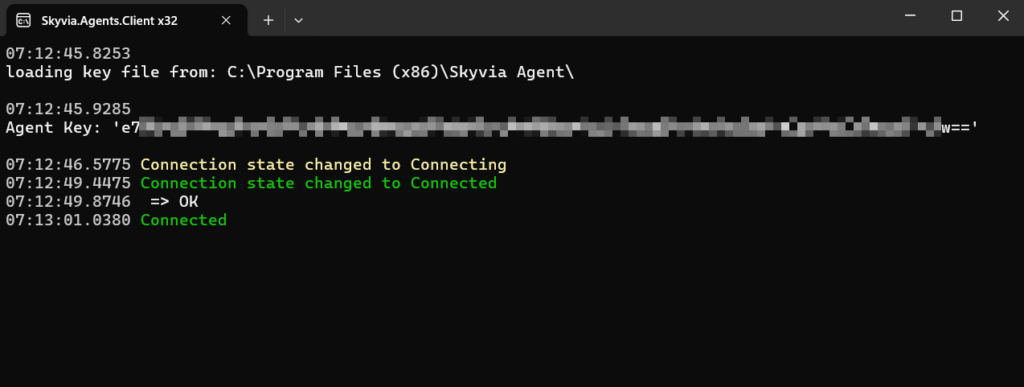
- Create a new connection and select the SQL Server.
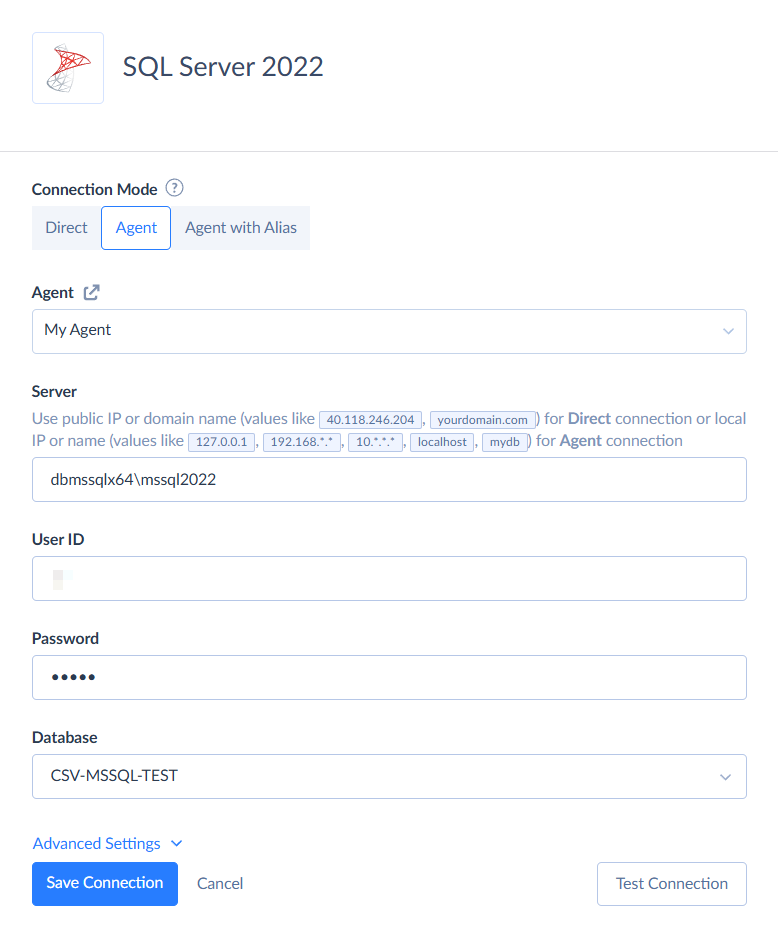
- Set the Agent connection mode and select the agent you created earlier from the dropdown list.
- Enter the server’s name, user ID, password, and database name.
Step 3. Create Integration
- Create a new integration from the menu and select Replication.
- Set the Google Sheets connection as a Source and the SQL Server connection as a Target.
- Select one or more sheets to replicate.
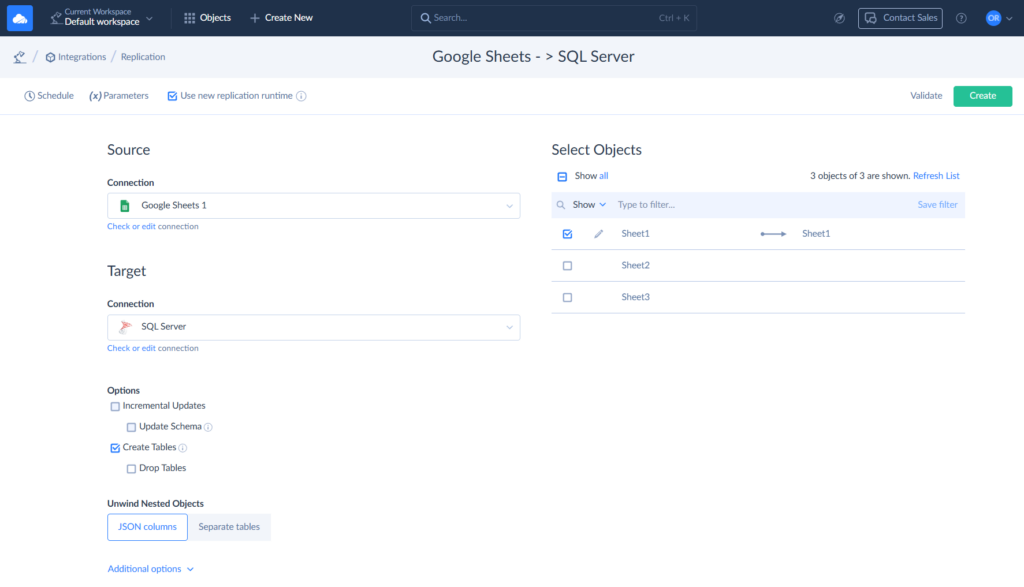
- Click Edit to configure replication settings for a specific sheet. Here you can choose specific columns, set filters, or apply data hashing.
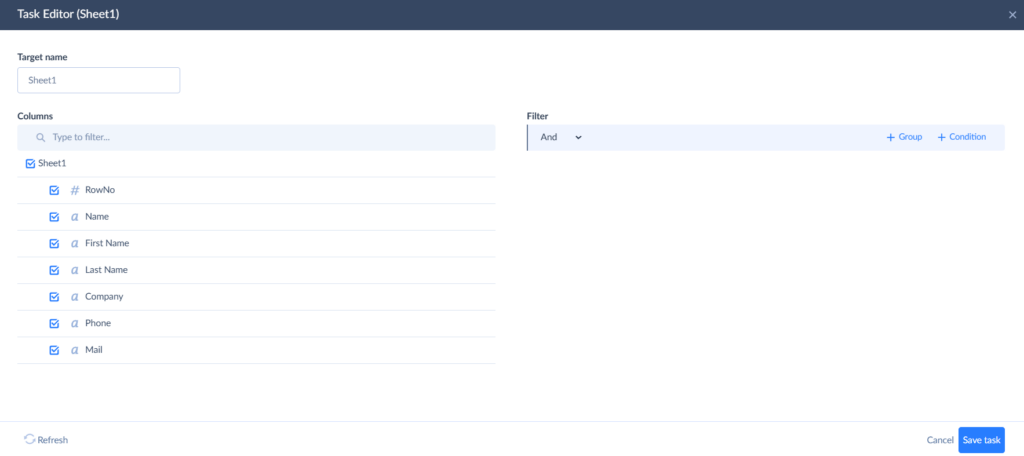
- Save the task and the integration.
Step 4. Run the Integration and check the results
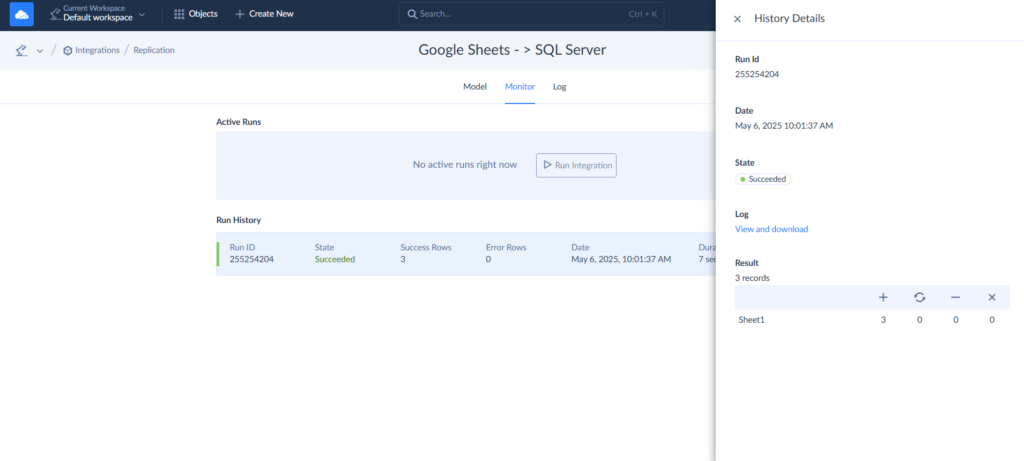
- Set the schedule to run automatically or launch the integration manually. You can set the schedule to run on specific days or weekdays, every few hours or minutes.
- Check the integration results on the Monitor and Logs tabs.
Method 4. Alternative No-Code Option: Skyvia Google Sheets Add-on
Skyvia offers one more opportunity, which is special for Google Sheets users. This method allows users to query and refresh data from SQL Server directly within a spreadsheet. You can compose queries without SQL knowledge, using a visual query builder, use prebuilt queries from the gallery, or write custom queries against your data.
Best For
Users who prefer working inside Google Sheets but need direct access to SQL Server data.
Method Pros
- Works entirely within Google Sheets.
- Various data sources support.
- One-click data refresh.
- Visual query builder.
Method Cons
- Requires initial setup.
- May not support complex use cases.
Note: You need an active Skyvia account and valid connections to Google Sheets and SQL Server. See how to do that above.
Look how easy integration can be. Create your Skyvia account now and start syncing your data today.
To query data using the visual query builder, do the following.
Step 1. Install Skyvia Add-on
- Open Google Sheets and click Extensions -> Add-ons -> Get add-ons.
- Type Skyvia and search for Skyvia Query.
- Click Install -> Continue to launch the add-on installation.
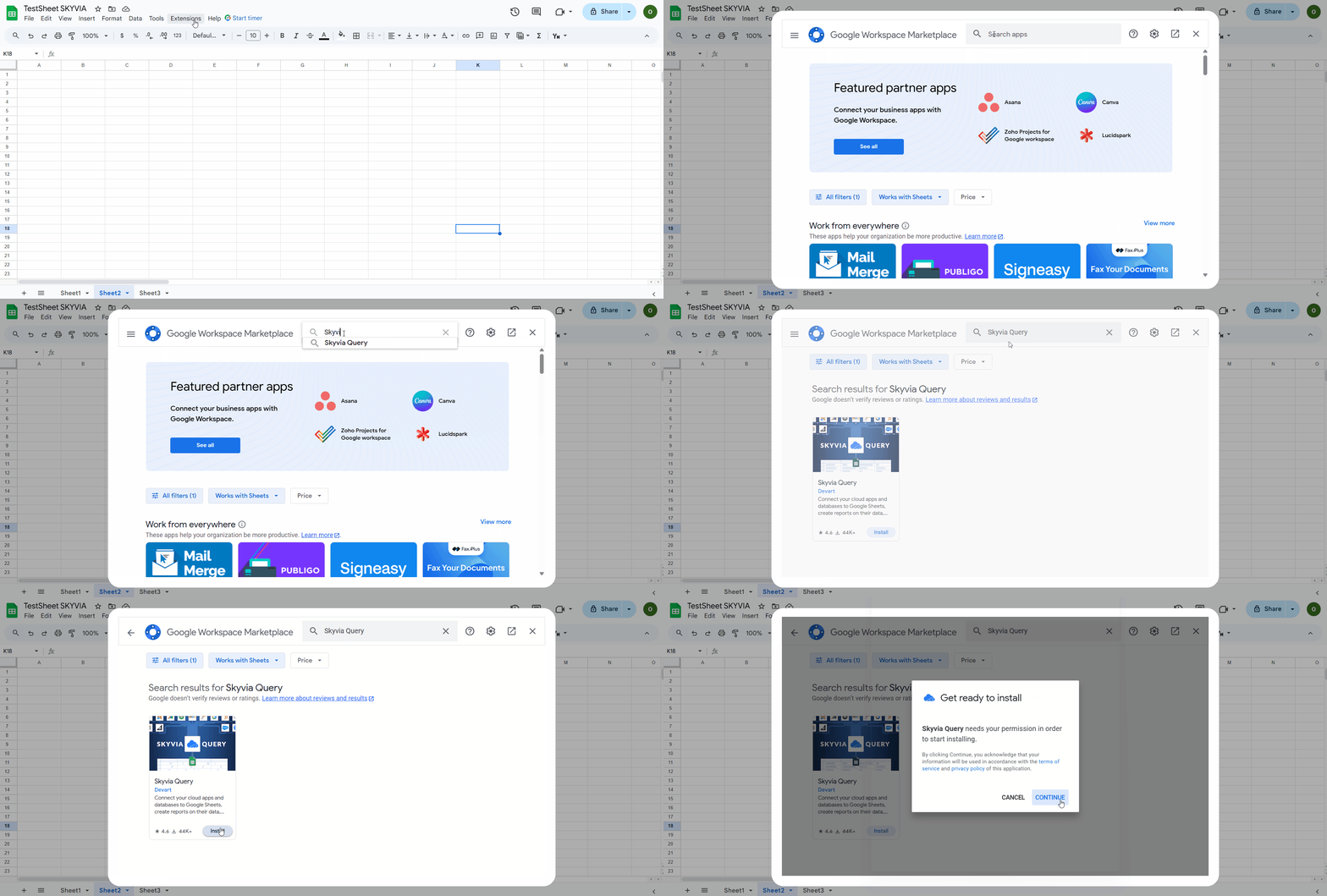
- Sign in with Google and give Skyvia permission to process your data.
- Return to Extensions, click Skyvia Query, and click Login.
- Sign in with Skyvia.
Step 2. Query data using Skyvia Google Sheets Add-on
- Click Extensions -> Skyvia Query -> Query.
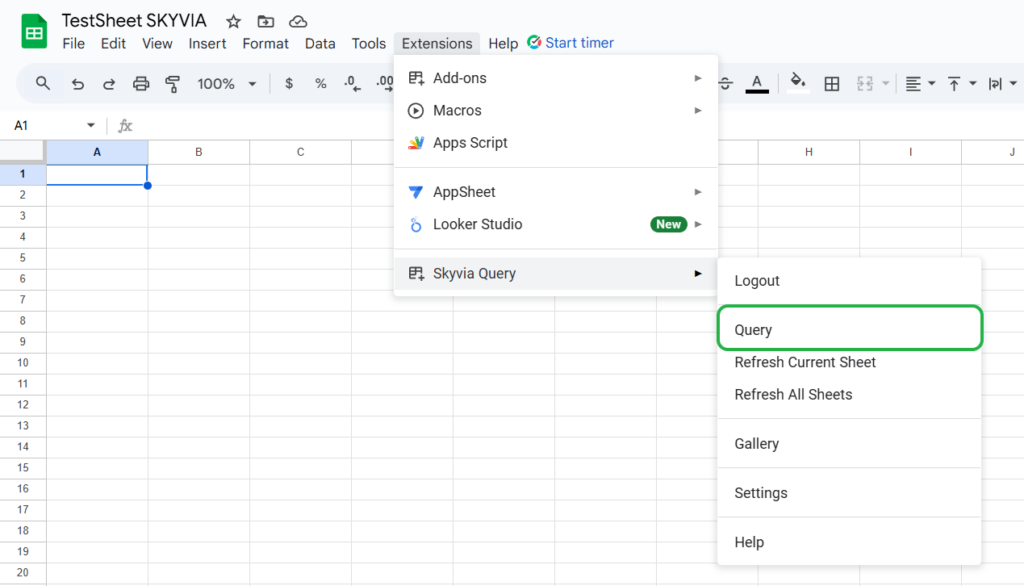
- Select the workspace and choose the source connection.
- Define the object you want to query and set filters if needed.
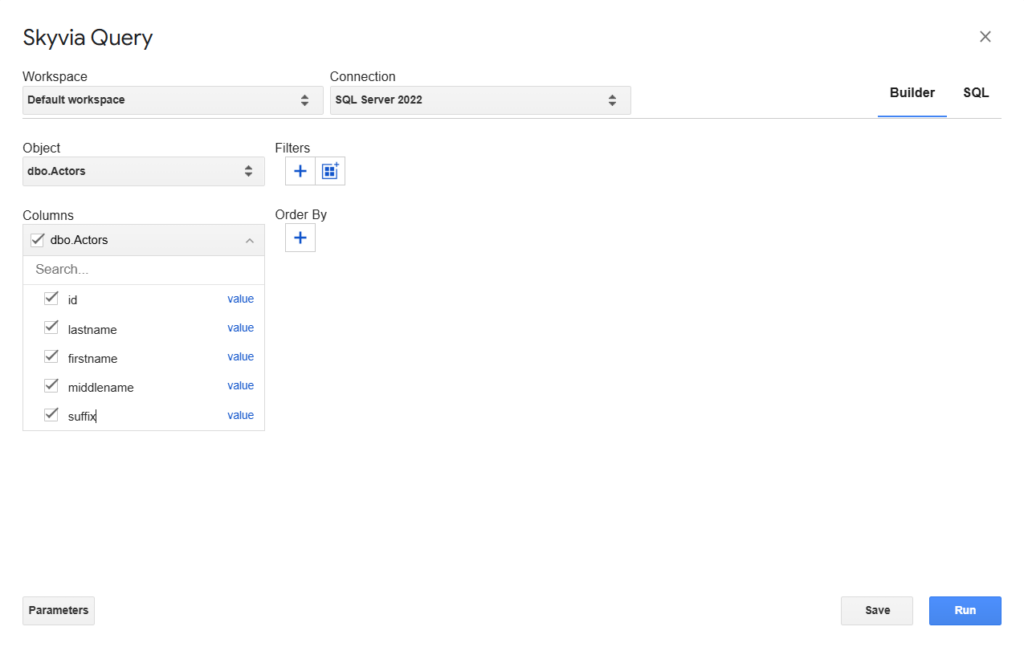
- Click Run. Your query results will be displayed directly in Google Sheets.
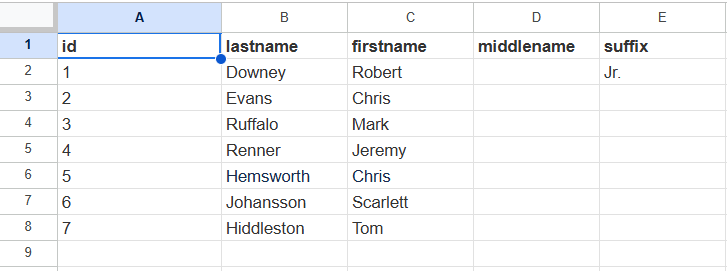
If you need to refresh results, you are not supposed to rebuild your query. You can just refresh it using the add-on menu.
Best Practices and Considerations
A reliable integration between Google Sheets with SQL Server depends on careful planning across several key areas. Let’s break down what you should keep in mind before you dive in.
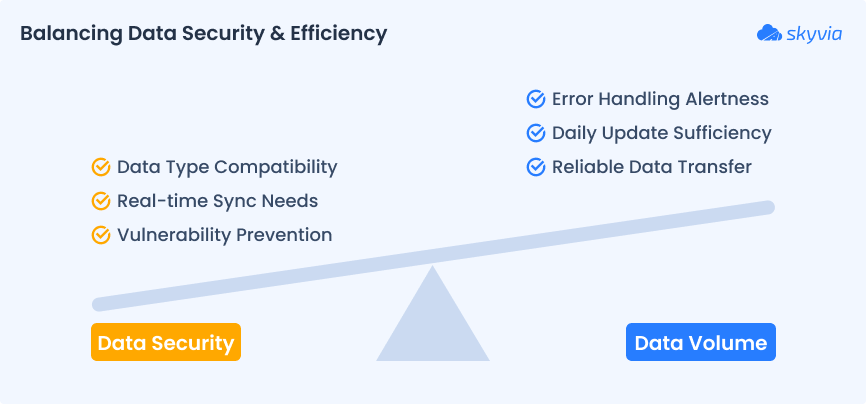
Data Security
Whenever you connect a cloud tool like Google Sheets to a database, security should be top of mind. You’re dealing with sensitive business data, and the last thing you want is to open up vulnerabilities. With third-party platforms like Skyvia, you can breathe a little easier.
They use strong encryption and secure authentication methods and comply with industry standards like GDPR. Still, it’s good practice on your end to limit permissions, use strong passwords or keys, and regularly review access rights.
Data Volume
When choosing a method, always consider how much data you are moving and whether your chosen approach can handle it reliably. Manual CSV exports might work fine for a few hundred rows, but once you’re dealing with large datasets, you need a tool designed for the job.
Data integration platforms and custom scripting methods are particularly strong here. Both methods can handle large data volumes efficiently, moving big chunks of data without choking your system or hitting limits.
Frequency
How often do you really need your data updated? Some businesses can live with daily updates, while others (like sales or inventory teams) might need near real-time syncing.
With custom scripts, you can schedule triggers manually, but no-code platforms let you set flexible, automatic schedules from hourly refreshes to once-per-minute syncs, ensuring the data is always as fresh as your business demands.
Data Mapping
One often-overlooked detail is data type compatibility. Think about matching fields: date formats, number precision, or text encoding. Without careful mapping or transformations, you might end up with broken formulas or corrupted records.
Third-party integration tools offer built-in features to map and transform data between systems, helping ensure accurate alignment. Even if you’re handling this manually or via scripts, take the time to define mappings clearly and test thoroughly before going live.
Error Handling
The key to smooth integration is knowing what happens when something goes wrong. Will you be alerted if a sync fails? How will you trace the issue and correct it?
Data platforms often offer detailed logging and alerting, so you’ll know immediately if something breaks, and you can quickly diagnose the problem. If you’re using scripts or manual methods, make sure to build in error capture, retries, and logging to avoid silent failures that go unnoticed.
Conclusion
Integrating Google Sheets with SQL Server transforms the way your business works with data. From one-time exports to fully automated pipelines, there’s no one-size-fits-all method. The best approach depends on your goals, technical resources, data volume, and how frequently your data changes.
Manual exports might work for small, occasional tasks, while custom scripting offers ultimate flexibility for teams with in-house development power. No-code and low-code platforms fill the middle ground, and tools like Skyvia go a step further, offering a secure, scalable, and user-friendly way to sync your data.
Whichever method you choose, focus on the fundamentals: security, reliability, smart scheduling, and clean data mapping. With careful and accurate integration, your Google Sheets SQL Server integration becomes a core part of your business improvement.
Start exploring your integration options today. Skyvia is a great place to start.

FAQ for Google Sheets to SQL Server

Will an ODBC driver let me load SQL Server data into Google Sheets?
No. There’s nowhere in Google Sheets to plug an ODBC driver in, so the one on your PC can’t feed a spreadsheet. You may run into ODBC tutorials that do the reverse and make Google Sheets show up in SQL Server as a linked server. For SQL Server data going into Sheets, it’s Apps Script JDBC or an integration tool.
How much SQL Server data can one Google Sheets file take?
Mostly it comes down to how wide your table is. The ceiling is 20 million cells or 100MB per spreadsheet. With 20 columns you get around one million rows, and 100 columns only about 200,000. Too big? Our fix is a query with filters or aggregates, or the full table lives in a warehouse and Sheets just gets the summary.
Is it possible to push Google Sheets edits back into SQL Server?
Yes, on a schedule rather than live. Skyvia doesn’t support Synchronization for Google Sheets, so write-back is an Import from Sheets to SQL Server set to update or upsert. Tick Use Header To Detect Column Names so your headers become column names, and expect an extra RowNo column that Skyvia adds with each row’s number.
Which database role should the SQL Server login for Sheets get?
For a one-way feed, db_datareader is enough, because it reads every user table and view and changes nothing. Give the integration its own login rather than an admin account. Writing sheet edits back to SQL Server changes that, so you’d add db_datawriter (which also allows deletes) or just grant INSERT and UPDATE on the tables it touches.
Can the import start from a custom SQL query instead of a table?
Yes, a Skyvia Import will take a SQL query against SQL Server as its source, which means the joins and filters and totals happen in the database and Google Sheets only gets the answer. Your bill notices the difference, because Skyvia Data Integration charges by records written each month and a summary query writes fewer rows than a raw table.