To convert MySQL to SQL Server you move three separate things, the schema, the data and whatever procedural code you have, and each of them tends to need its own tool. Schema and data usually go through Microsoft's free SQL Server Migration Assistant (SSMA) for MySQL. Scripts, ODBC and cloud tools pick up the rest of the work.
Picture a retail company with operations data in MySQL and finance reports in SQL Server. Every week someone exports CSV files, emails them around and imports them again. At some point a person in finance asks the obvious question: why isn't all of this in one database?
We cover four ways to do it here, from manual scripting and SSMA to ODBC-based transfers and cloud ETL tools like Skyvia. You'll see the pros, cons and best fit of each, the data types SSMA converts by default, and the problems to plan for before cutover.
Why Migrate From MySQL to SQL Server?
So why do so many teams decide to move their data from MySQL to SQL Server? Here are a few of the most common reasons that tend to spark that shift.

1. Tighter Integration with the Microsoft Ecosystem. SQL Server fits right in if your organization leans on Azure, builds apps in .NET, or uses Power BI for reporting. It plays nicely with Microsoft’s broader stack, which can streamline everything from identity management to cloud scaling and native analytics.
2. More Advanced Features, Out of the Box. SQL Server brings serious muscle regarding analytics, security, and high availability. Built-in features like row-level security, partitioning, columnstore indexes, and Always On availability groups aren’t just nice. They’re often mission-critical in enterprise environments.
3. Handling More Demanding Workload. At a certain point, performance starts to matter more, whether it’s for complex reporting, concurrent queries, or large transactional loads. SQL Server tends to scale better in high-demand scenarios, with features optimized for enterprise-class performance tuning and resource management.
4. Vendor Consolidation or Internal IT Mandates. Sometimes, the decision isn’t technical at all. It’s strategic. Your IT team might be consolidating platforms for easier support and license management, or you’ve merged with a company already standardized on SQL Server. Either way, aligning tools across teams can simplify long-term operations.
5. End of Life or Support Concerns with MySQL. Support can get sketchy fast if you’re running an older MySQL version, especially community builds. Losing critical patches or compatibility updates is a ticking time bomb for data teams. Migrating to SQL Server ensures continuity with a fully supported platform and long-term roadmap.
Essential Pre-Migration Steps: Planning for Success
Before you think about moving data, let’s talk about planning. A solid migration plan can save you from last-minute surprises, data loss, and weekend-long fire drills. Preparation makes all the difference, whether you’re doing a quick one-off migration or setting up a long-term sync.
Database Assessment
Start with a deep dive into your current MySQL setup. Think of this like surveying a building before remodeling.
- Review your schema. List all tables, views, stored procedures, triggers, and functions. Complex logic in MySQL won’t always translate cleanly to SQL Server, so note anything that could be tricky.
- Watch out for data type mismatches. Not all MySQL types have a direct match in SQL Server. SSMA, for example, maps TINYINT to smallint and TEXT to nvarchar(max) by default; see our MySQL to SQL Server data type table below.
Tip: Keep a reference table of standard mappings handy; it’ll save you time later.
- Size matters. Estimate how much data you’re moving and how fast your network can realistically handle it. A few gigabytes over Wi-Fi? Probably okay. Terabytes over a slow VPN? That needs a rethink.
Define Migration Strategy
Not every migration looks the same. Before you choose your method, get clear on your goals and constraints.
- One-time move or a phased rollout? Or you may need ongoing sync until the complete switch is done. This choice affects the tools you’ll use and how you’ll test.
- What’s your downtime window? Can the system be down for an hour? A weekend? Or not at all? Knowing this upfront helps you rule out some options early.
- Who’s involved? Consider the resources you’ll need: developers, DBAs, infrastructure support, and ensure everyone’s aligned. You don’t want to scramble for permissions or tools mid-migration.
Backup Everything
Yes, everything. And yes, even if it’s “just a test.” Before you touch anything, take a complete, verified backup of your MySQL database. This step is your safety net if something goes sideways. Test restoring it too, just to be safe.
Prepare the Target Environment
Your SQL Server should be ready before the first data packet flies across the wire.
- Ensure you’re running a compatible version of SQL Server.
- Double-check that it has enough storage, memory, and CPU headroom to handle the incoming load.
- Don’t forget permissions. Depending on your method, you’ll need write access, the ability to create objects, and possibly manage linked servers or external data sources.

How to Migrate from MySQL to SQL Server
There’s no single “right” way to migrate. It all depends on your team’s skill set, how much control you need, and how hands-off (or hands-on) you want to be.
Let’s look at the four main approaches we’ll cover in this guide to make things easier.
- Manual Export/Import (Scripting).
- Using SQL Server Migration Assistant (SSMA) for MySQL.
- Migrating MySQL to SQL Server Using ODBC Driver.
- Using Cloud-Based ETL/Migration Tools.
You can think of them as sitting on a scale, from fully manual to completely automated. Each comes with trade-offs, so choosing the right one means matching the tool to your specific business case.
Here’s a quick comparison to help you get a feel for what fits best:
| Method Group | Method | Best For | Skill Level | Customizability | Automation |
|---|---|---|---|---|---|
| Manual | Export/Import with SQL Scripts | Small databases, one-time jobs, full control. | Intermediate+ | Very High | None |
| Native Tool | SQL Server Migration Assistant (SSMA) | Structured migrations with schema + data handling. | Intermediate | Moderate | Partial (semi-automated) |
| ODBS Based | ODBC Driver + Linked Server | One-off transfers or hybrid setups. | Intermediate–Advanced | Moderate | Limited |
| Cloud-Based/ ETL | No-Code Tools (e.g., Skyvia) | Ongoing sync, low-code teams, rapid deployment. | Beginner–Intermediate | Low–Moderate | High (fully automated) |
Method 1: Manual Export/Import (Scripting)
This is the old-school, roll-up-your-sleeves method. You export the schema and data from MySQL as SQL scripts, tweak them as needed, and then run them against SQL Server. It gives you complete control over every step, but it also means more hands-on work.
Best For
- Small to mid-size databases.
- Projects where precision matters more than speed.
- Developers who like knowing exactly what’s going on under the hood.
Pros
- Total control. You see and manage every change to the schema and data types.
- No surprises. You can catch and fix issues before they get into SQL Server.
- Lightweight. No need for extra tools, just your SQL editor and a little patience.
Cons
- Time-consuming. You’ll spend a fair chunk of time massaging those scripts, especially if your schema is complex.
- Error-prone. One small oversight in a script, and the migration hits a wall.
- Manual type mapping. MySQL and SQL Server don’t speak the same dialect. You’ll have to translate column types manually.
Method 2: Using SQL Server Migration Assistant (SSMA) for MySQL
SSMA for MySQL is the go-to tool for those looking to streamline their MySQL to SQL Server migration without getting bogged down in manual scripting. It’s a free utility from Microsoft that automates much of the heavy lifting, making the migration process more efficient and less error-prone.
Best For
- Medium to large databases where manual migration would be cumbersome.
- Teams seeking a guided, semi-automated migration process.
- Situations where identifying and resolving schema incompatibilities upfront is crucial.
Step-by-Step Guide
- Install SSMA for MySQL. Download and install the latest version from Microsoft’s official site. Ensure that the MySQL ODBC driver is also installed on your system.

- Create a Migration Project. Launch SSMA and create a new project. Specify the target SQL Server version and project location.

- Connect to MySQL (Source). Provide the connection details for your MySQL database:
- Provider: Select the appropriate MySQL ODBC driver (e.g., MySQL ODBC 5.1 Driver).
- Mode: Choose Standard mode to enter server details manually.
- Server name: Enter your MySQL server’s hostname or IP address.
- Server port: Typically, this is 3306 for MySQL.
- User name and Password: Provide credentials with at least CONNECT, SHOW, and SELECT privileges.
- SSL: If your MySQL server requires SSL, check this option and configure the necessary certificates.

Note: Once connected, SSMA will display the available schemas.
- Connect to SQL Server (Target). Enter the connection information for your SQL Server instance:
- Server name. Enter your SQL Server instance’s name or IP address.
- Authentication. Choose between Windows Authentication or SQL Server Authentication.
- User name and Password. If using SQL Server Authentication, provide the necessary credentials.
- Database. Select an existing database from the dropdown list, or enter a new name to create a new database on the target server.
- Encrypt connection. Optionally, check this box to encrypt the connection.

Note: If the target database doesn’t exist, SSMA can create it for you.
- Assess MySQL Database Objects. Use the “Create Report” feature to analyze the MySQL schema. SSMA will generate an HTML report that provides conversion statistics, highlights potential issues, and offers recommendations for resolving them.

- Convert Schema. After reviewing the assessment report, convert the MySQL schema to SQL Server format. Address any issues that SSMA flags during this process.

Note: To adjust data type mappings (if necessary), navigate to Tools > Project Settings > Type Mapping. Here, you can customize how MySQL data types are mapped to SQL Server data types.
- Synchronize Schema with SQL Server. Apply the converted schema to the target SQL Server database by synchronizing it through SSMA.

- Migrate Data. Right-click the database or specific object you want to move in the MySQL Metadata Explorer and choose “Migrate Data.” Or head over to the Migrate Data tab.

Note: Check the box next to the database name if you’re migrating everything in one go. To cherry-pick tables, expand the database, then the Tables node, and tick only the ones you want.
- View the Data Migration Report when migration is finished.

Pros
- Automated Schema and Data Migration. SSMA handles schema conversion and data transfer, reducing manual effort.
- Detailed Assessment Reports. Provide insights into potential issues before migration begins.
- Customizable Type Mappings. It provides adjustments to data type conversions to fit specific users’ needs.
Cons
- Learning Curve. It may require some time to learn the tool’s interface and features.
- Not Foolproof. Complex schemas or unsupported features might still need manual intervention.
- Requires Setup. Installation and configuration of prerequisites, like ODBC drivers, are necessary.
Method 3: Migrating MySQL to SQL Server Using ODBC Driver
This method relies on the ODBC (Open Database Connectivity) driver to hook MySQL to the SQL Server. It allows users to pull in data with tools like SQL Server Management Studio (SSMS) or Linked Servers. It’s not a one-click solution, but it gives plenty of flexibility, especially if needed to move specific tables or run queries without diving into a full migration process.
Best For
- One-off or partial data transfers.
- Scenarios where you need to query MySQL data from SQL Server.
- Users comfortable working in SSMS and writing a bit of SQL.
Step-by-Step Guide
1. Install MySQL ODBC Driver
Download and install the MySQL ODBC driver on the machine where SQL Server is installed. You can download the MySQL ODBC driver here.
2. Create a DSN
- Go to Control Panel -> Administrative Tools -> Data Sources (ODBC).
- Navigate to System DSN and click the Add.
- Choose the MySQL ODBC driver from the list and click Finish.
- Enter the server name, database name, username, and password to connect to your MySQL database.
- Click OK to save the DSN.

Pros
- Flexible access. Easily query MySQL data without migrating everything up front.
- No extra tools needed. Just SSMS and the ODBC driver.
- Good for hybrid environments. Works well when you’re integrating systems.
Cons
- Not ideal for full migrations. Better suited for selective transfers or integration.
- Performance can lag, especially with large datasets or complex joins.
- Manual setup. Users must configure DSNs and write the queries.
Method 4: Using Cloud-Based ETL/Migration Tools
If the company prefers to take the load off its team and let the cloud handle the heavy lifting, ETL and migration platforms like Skyvia can be a lifesaver. These tools are built to move data at scale, often with minimal setup and a slick UI that keeps things smooth.
Best For
- Larger, ongoing migrations or syncing setups.
- Teams who’d rather focus on outcomes than wrangling SQL scripts.
- Organizations that are already invested in cloud platforms or SaaS tools.
Step-by-Step Guide
With Skyvia, you can import data from MySQL to SQL Server in three easy steps:
- Create a connection to SQL Server.
- Create a connection to MySQL.
- Create and run import integration.
To proceed with the steps described below, you need a Skyvia account. Obtain it for free here.

Create a Connection to MySQL
To establish a connection to MySQL in Skyvia:
- Go to + Create New > Connection.
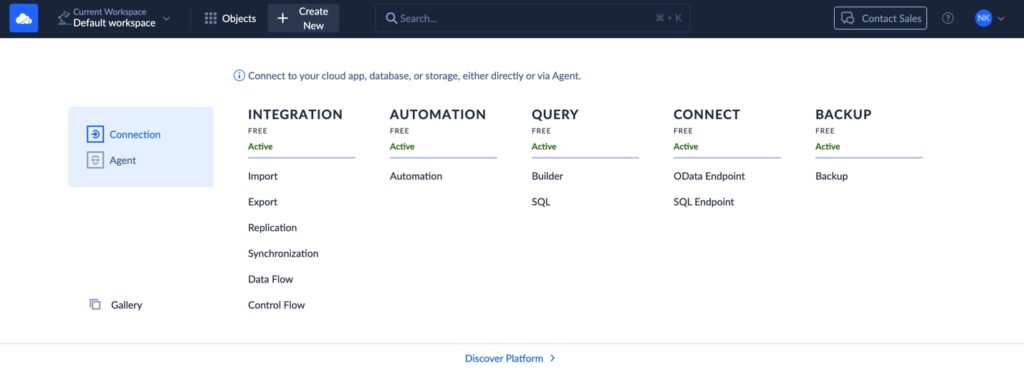
- Choose MySQL.
- Specify the database server hostname, port, user name, password, and database.

- Click Create Connection
Optionally, you can use the SSL and SSH connections to MySQL.
Create a Connection to SQL Server
To connect to SQL Server in Skyvia:
- Go to + Create New > Connection.
- Choose SQL Server.
- Specify the database server hostname, port, user name, password, and database.

- Click Create Connection.
Optionally, you can use the SSL and SSH connections to SQL Server.
Create Import Integration
- Go to + Create New > Integration > Import.
- Choose the Data Source type.
- Select MySQL as the Source and SQL Server as the Target.

- Click Add new to add a new import task. You can add any number of import tasks to your integration.
- Select the table to import data from and click Next.
- Select the table to import data to and click Next.
- Map the fields in Source and Target. Skyvia will try to map fields automatically.
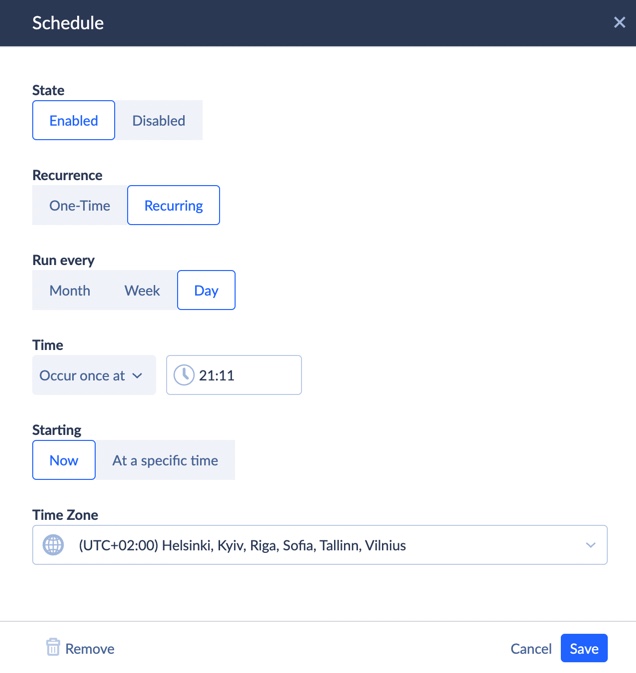
- Save and Run the import integration. Additionally, you can create a schedule for the automated runs of your integration.
- On the Monitoring tab, you can check the progress of your import and view previous import logs and details.
Get More With Skyvia
Importing is just one slice of what Skyvia can do. It unlocks a toolkit built to make managing, syncing, and automating data less challenging.
Here’s the kind of stuff you can do with it:
- Back it all up. Set up automatic backups and restores so cloud data is always safe and recoverable.
- Keep systems in sync. Need MySQL and SQL Server to stay in lockstep? Skyvia can sync them both ways, no sweat.
- Build smarter pipelines. Connect multiple sources, run complex transformations, and route data where needed.
- Automate everything. Trigger actions based on changes, add logic and steps, and build workflows.
- Create live data access points. Turn data into secure OData endpoints for BI tools and apps to connect to your data in real time.
- Replicate for real-time reporting. Pipe data straight into your warehouse for up-to-the-minute dashboards.
- Swap CSVs like a pro. Upload, download, and move CSVs between systems without the usual hassle.
- Stay on top of it all. Get detailed logs, alerts, and error handling to smooth data flow.
- Connect to pretty much anything. With 200+ connectors (Salesforce, MySQL, Google Sheets, etc.), you’ve got options.
And the best part? It’s no-code and cloud-based, so whether you’re an IT pro or just data-curious, you can handle serious workflows from your browser, no installs or downloads.
The flexible pricing starts from $79 for basic integration and ETL scenarios. You may also use the platform for free.

Pros
- Easy to set up. You don’t need to be a DBA to get rolling.
- Great UI/UX. Most platforms are clean, guided, and full of helpful prompts.
- Automation-ready. Built-in scheduling, error handling, and incremental loads.
Cons
- Limited customization. Advanced users might find the customization options limited compared to scripting solutions.
- Less control. You trade some hands-on precision for convenience.
- Platform lock-in. Some tools want you to stay in their ecosystem.
Data Types to Check When You Convert MySQL to SQL Server
Most conversion surprises start with data types. SSMA for MySQL ships with a default mapping for every MySQL type, and it's worth reading before you convert anything, because a few defaults change how your data behaves. The table below shows the common ones, as listed in Microsoft's SSMA documentation.
| MySQL type | SQL Server type (SSMA default) | What to check |
|---|---|---|
| TINYINT | smallint | UNSIGNED TINYINT maps to tinyint instead |
| BOOL, BOOLEAN | bit | MySQL stores these as TINYINT(1), so confirm they don't arrive as smallint |
| INT | int | UNSIGNED INT becomes bigint, since SQL Server's int stops at 2,147,483,647 |
| MEDIUMINT | int | No MEDIUMINT in SQL Server |
| BIGINT, SERIAL | bigint | Check that the converted key column still has IDENTITY |
| FLOAT / DOUBLE | float(24) / float(53) | Approximate types; keep money in DECIMAL |
| DECIMAL(p,s) | decimal(p,s) | Precision carries over |
| VARCHAR(n), n up to 4,000 | nvarchar(n) | Becomes a Unicode type |
| VARCHAR above 4,000, TEXT, LONGTEXT | nvarchar(max) | Can't be part of an index key |
| BLOB, LONGBLOB | varbinary(max) | Large objects move as binary |
| DATETIME | datetime2(0) | Whole seconds; raise the precision if your columns use DATETIME(3) or DATETIME(6) |
| TIMESTAMP | datetime | MySQL stores TIMESTAMP in UTC and converts it per session time zone, so check the time zone of the values you read |
| YEAR | smallint | Stored as a plain number |
| ENUM | nvarchar | No CHECK constraint by default |
Three conversion settings deserve a look under Tools > Project Settings before you run anything. ENUM columns become nvarchar, and SSMA adds a CHECK constraint with the allowed values only in Full mode. The same goes for UNSIGNED columns, which in the default mode don't get a CHECK for non-negative values either. Zero dates are sneakier. When converted code puts 0000-00-00 into a NOT NULL column, SSMA writes GETDATE() there instead (in every mode), which means a dummy date you used as a placeholder becomes the date the code ran.
You'll find the mappings under Tools > Project Settings > Type Mapping, where they can be changed for a whole project or a single table and reset to the SSMA defaults whenever you like. Our advice is to settle them before converting the schema, then run the assessment report one more time to see the effect.
Key Challenges and How to Address Them
No migration is ever totally pain-free, but knowing the usual trouble spots and how to handle them makes a big difference. Here’s a quick rundown of the most common headaches when moving from MySQL to SQL Server and how different tools stack up when handling them.

Data Type Mapping
Data type mismatches are among the first things that’ll trip you up. MySQL and SQL Server don’t always see data eye to eye.
For example:
- ENUM in MySQL? SQL Server doesn’t have it. You’ll usually map it to a string or a lookup table.
- DATETIME? MySQL allows funky values and looser precision than SQL Server will tolerate.
How tools handle it:
- Manual scripting. You’re on your own here. Expect to tweak column types line by line.
- SSMA. Flags incompatible types in its assessment report and suggests conversions.
- ODBC Driver. Think of this as the raw data pipe that just moves bytes. There’s no type validation or mapping help built in, so if a MySQL field doesn’t align nicely with SQL Server’s expectations, you’ll hit errors or get weird data unless you handle the mapping yourself in queries.
- Skyvia. Handles many common conversions behind the scenes, especially with standard data types, but it’s less transparent about every detail, so test results are key.
Schema Object Conversion
Tables and columns are one thing, but when you start talking about stored procedures, triggers, and functions, that’s a different game. MySQL and SQL Server use completely different procedural languages (MySQL SQL/PSM vs. T-SQL), and direct translations are rarely perfect.
How tools handle it:
- Manual scripting. You’ll need to rewrite these manually, especially if they contain control-of-flow logic (IFs, loops, etc.).
- SSMA. It flags what it can’t convert, gives you a heads-up, and lets users copy out the raw MySQL code to start reworking it in T-SQL.
- ODBC Driver. Completely out of scope. It’s not even aware these objects exist.
- Skyvia. Keeps things simple. It focuses on migrating schemas and data, not procedural logic. So, if you’ve got stored procs and triggers, plan to move those separately.
Data Integrity and Validation
Just because the data “migrated” doesn’t mean it landed correctly. You need to confirm:
- Row counts match.
- Key data fields are intact.
- No nulls, duplicates, or corrupted values.
How tools handle it:
- Manual scripting. It’s up to you to write post-migration checks and validation scripts.
- SSMA. No built-in validation, but it gives enough transparency for you to write your own.
- ODBC Driver. No validation at all. It executes your query, and that’s it. You’ll need custom checks to confirm anything.
- Skyvia. Provides clear logs, row-level stats, and error tracking for every import.
Downtime Management
Nobody wants extended downtime. You’ve got two ways to go:
- Complete cutover. Migrate everything at once; switch over.
- Phased. Migrate in stages, sync data as needed, then flip the switch.
How tools handle it:
- Manual scripting. Slow, manual, and more complex to automate, but gives you full control over timing.
- SSMA. Better for test-and-switch cutovers than phased syncs.
- ODBC Driver. It works best for partial loads or ongoing access but is not designed for full migrations or sync scenarios.
- Skyvia. Made for this. You can schedule syncs, automate retries, and minimize downtime.
Conclusion
Migrating from MySQL to SQL Server might sound like a tall order, but it’s totally doable, even smooth with the right tools and a clear plan.
We looked at four solid methods:
- Manual Export/Import gives you full control but is hands-on and stress-free.
- SQL Server Migration Assistant (SSMA) offers a guided path with helpful diagnostics and schema conversion tools.
- ODBC Driver is lightweight and flexible, ideal for targeted data pulls or linking systems. But it’s raw and low-level.
- Skyvia might be a shortcut. It’s cloud-based, no-code, and moves information quickly, reliably, and stresslessly.
Each method is valid, depending on the team’s skills, the complexity of data, and how much downtime you can afford.
If you’re looking to skip the grunt work and avoid getting buried in scripts or config files, Skyvia brings a lot to the table. You get automation, scheduling, built-in validation, and a clean UI from the browser.

FAQ for MySQL to SQL Server

Is SSMA for MySQL free?
Yes. Microsoft calls SQL Server Migration Assistant for MySQL a free tool, and a supported one. The build on Microsoft’s download page right now is 10.6. It reads from MySQL 4.1 and newer, and it can write to SQL Server 2016 or any later edition, Azure SQL Database, or Azure SQL Managed Instance. Before you install, get .NET 8.0 (or newer) and the MySQL Connector/ODBC driver onto that machine.
What SQL Server types does SSMA pick for MySQL columns?
Here’s the short version of the defaults. INT is still int, while UNSIGNED INT gets bumped to bigint and TINYINT to smallint; VARCHAR up to 4,000 characters comes out as nvarchar, TEXT as nvarchar(max), DATETIME as datetime2(0), and ENUM as nvarchar. Don’t like one of them? Tools > Project Settings > Type Mapping is where you fix it, ideally before the schema conversion.
What does SQL Server do with MySQL ENUM columns?
There’s no ENUM type in SQL Server, which is why SSMA for MySQL turns those columns into nvarchar by default. You only get a CHECK constraint holding the column to its original values if the project runs in Full conversion mode. Running in the default mode? In that case you add the constraint yourself (or replace the column with a lookup table and a foreign key).
Does SSMA convert MySQL stored procedures to SQL Server on its own?
Partly. Stored procedures, functions and triggers all get rewritten as T-SQL by SSMA for MySQL, and for each bit it can’t translate you’ll find a note waiting in the Error List pane. Anything that leans on MySQL quirks might need a hand edit, which is why we’d test each converted procedure (yes, every one). ODBC transfers and Skyvia imports won’t help here, since tables and rows are all they move.
Is MySQL just another name for SQL Server?
No. MySQL is the open-source relational database Oracle owns. SQL Server is Microsoft’s, and a separate product altogether. Sure, both understand SQL, but SQL Server speaks T-SQL, a dialect with data types and syntax MySQL doesn’t have. Hand a raw MySQL dump file to SQL Server and it won’t run, which is why the file needs converting first.
Can I keep MySQL and SQL Server in sync while I migrate?
Yes. What you need for that is a scheduled integration; a one-off migration tool does its single run and stops. We’d set up a Skyvia import of the MySQL tables into SQL Server on a schedule, so the two stay close to each other while your apps switch over one by one. Neither SSMA (made for a test run and then a cutover) nor an ODBC linked server (great for live queries) is meant for copying the same data again and again.