Most teams import CSV into Salesforce on a deadline: 2,000 leads from a trade show, a legacy CRM export, a product list someone built in Excel. Getting the rows in takes minutes. Cleaning up after a bad import takes days, because a missed field mapping or the wrong match key leaves duplicate leads and contacts that belong to no account.
Salesforce ships two tools for the job. The Data Import Wizard runs in the browser and takes up to 50,000 records at a time for accounts, contacts, leads, campaign members, solutions, person accounts and custom objects. Data Loader is a desktop app for Windows and macOS that works with every object and, with Bulk API 2.0 switched on, handles CSV files of up to 150 million records.
Below, we cover both of them and Skyvia, a no-code option for imports that have to run on a schedule or pull files from cloud storage. You'll also see how to prepare the file, how to link child records to their parents and what to do about the errors that stop most imports.
Why Bother Importing CSVs to Salesforce?
Manually creating records one by one in Salesforce is a full-time job no one wants. Importing CSVs is the fastest way to get bulk data into Salesforce without frying your brain or your budget.
Here’s why teams rely on CSV imports every day:
- Bulk record creation and updates. Just got back from a trade show with 2,000 new leads? Launching a product catalog with 500 SKUs? CSV imports let you drop all that data into Salesforce in one go instead of copy-pasting your life away.
- Data migration from other systems. Moving off a legacy CRM or pulling customer data from spreadsheets? Importing a CSV is often the smoothest path to bring that historical data into your Salesforce org without starting from scratch.
- Enriching what you already have. Want to add new fields to existing contact or account records? CSV imports make it easy to update and enhance data without causing any issues, as long as you map the fields correctly.
- Keeping data clean and consistent. With scheduled or regular imports, you can sync updates from other systems (like ERPs, spreadsheets, or email lists) and ensure your Salesforce database stays current and consistent.
In short, CSV imports are the glue between your data chaos and a usable CRM. Now, let’s explore the easiest ways to actually get it done right.
Prepping Your CSV File: The Foundation for a Smooth Import
Most import failures don’t happen during the import. They occur before you hit upload. If your CSV isn’t clean and structured right, Salesforce will throw errors faster than you can say “field mismatch.”
Before diving into any tool, take a few minutes to prepare your CSV file. Here’s what matters:
- Correct format. Ensure it’s saved as a .csv (comma-separated values) file. No fancy Excel formulas or tabs. Just plain, clean data.
- Clean it up. Remove duplicates, fix typos, and standardize elements like date formats and phone numbers. Sloppy inputs mean a messy CRM.
- Required fields. Check which Salesforce fields are mandatory for your object (e.g., Lead, Contact, Account). Your CSV needs matching columns, or it’ll break during import.
- Headers matter. Include a header row with column names. They don’t have to be an exact match to Salesforce field names, but they should be mappable. Something like Email instead of customer contact.
- Match data types. If a Salesforce field expects a number, don’t feed it text. If it’s a picklist, make sure the value exists in Salesforce. Otherwise, you’re in for some ugly errors.
- File size and record limits. The Data Import Wizard caps each import at 50,000 records and a 100 MB file. For larger loads, you’ll want to batch or use an integration tool.
- Special characters and encoding. Save your CSV file in UTF-8 to avoid garbled names, accents, or symbols, especially when working with international data.
Tip: Not sure what your fields should look like? Export a few sample records from Salesforce first. That’ll show a clean template to follow and way fewer surprises on import day.

Methods for Import Data from CSV into Salesforce
You’ve got the CSV prepped and ready. Now, the big question: What’s the best way to get it into Salesforce without a migraine?
There’s no one-size-fits-all answer. The right import method depends on:
- How often you perform this task.
- The amount of data you’re working with.
- How hands-on you want (or don’t want) to be.
Some tools are built into Salesforce. Others offer more automation, flexibility, or scalability.
Here’s a quick rundown of the most popular options.
| Method | Best For | Ease of Use | Automation | Pros | Cons |
|---|---|---|---|---|---|
| Data Import Wizard | New users, basic imports. | Very beginner-friendly. Point, click, upload. | Manual only. | Built-in, simple UI, no setup. | Up to 50,000 records per import; no opportunities, cases or products. |
| Data Loader | Power users, larger data volumes. | Desktop app; command line on Windows only, UI is dated. | Scheduled runs via command-line batch mode (Windows only). | Handles big files, more object support. | Requires install, steeper learning curve. |
| Third-Party Tools | Growing teams, recurring imports, advanced use cases. | Varies: some are no-code (e.g., Skyvia), others (like Talend, Apache NiFi, or Hevo) need setup/scripting. | Full automation supported. | Flexible, can integrate multiple sources, scheduling, transformations. | Some tools have a learning curve or require paid plans. |
If you’re just doing a quick one-off import, Salesforce’s built-in tools will get the job done.
However, data integration platforms like Skyvia give a serious upgrade without requiring coding. If you:
- Manage growing data flows.
- Perform regular imports.
- Want to connect Salesforce with other platforms long-term.
Next, let’s break down how each method works so you can choose the one that best fits your team.
Method 1: Salesforce Data Import Wizard
Best for
The Salesforce Data Import Wizard is your go-to if you’re just starting out with Salesforce or if you’re only working with basic data imports like
- Contacts.
- Leads.
- Accounts.
It’s perfect for smaller batches of data, occasional imports, or for teams who aren’t super tech-savvy but still need to get things done.
Step-by-Step Guide
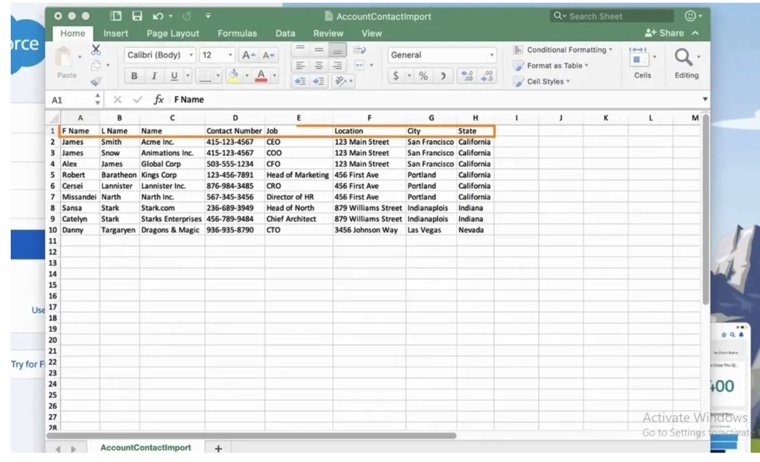
- Ensure your CSV file is clean and ready to go. The columns should match Salesforce field names or be easily mappable.
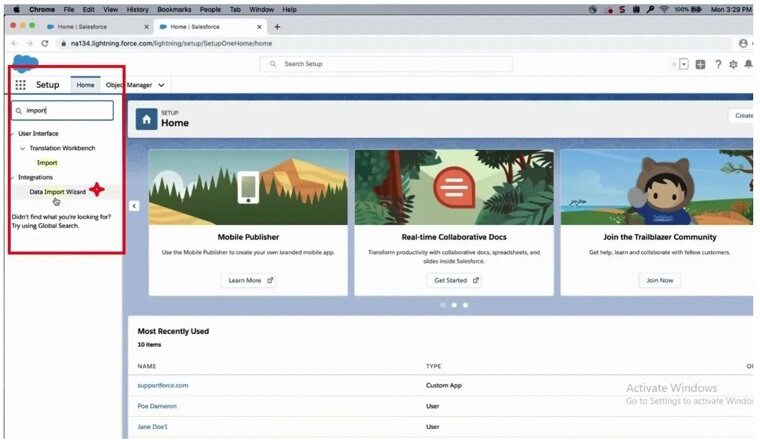
- From your Salesforce dashboard, navigate to Setup and search for Data Import Wizard. Click Launch Wizard to open the tool.
- Select the Salesforce objects you want to import data for. Select the Standard Objects option for Leads, Contacts, or Accounts. Click Custom Objects for another data type.
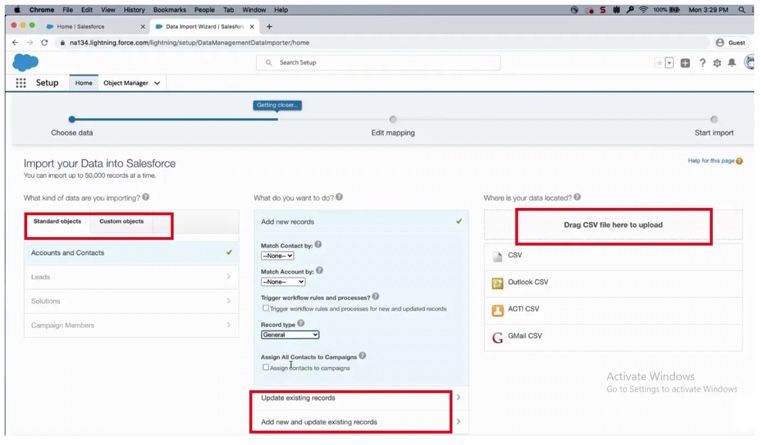
Note: On this step, you can add new and update existing records at the same time and specify matching criteria (like name, which is case-sensitive for custom objects) if needed. The wizard will automatically detect the structure and guide you through the process.
- Ensure each column in your CSV maps correctly to a Salesforce field. You can manually adjust up to 10 mismatches here.
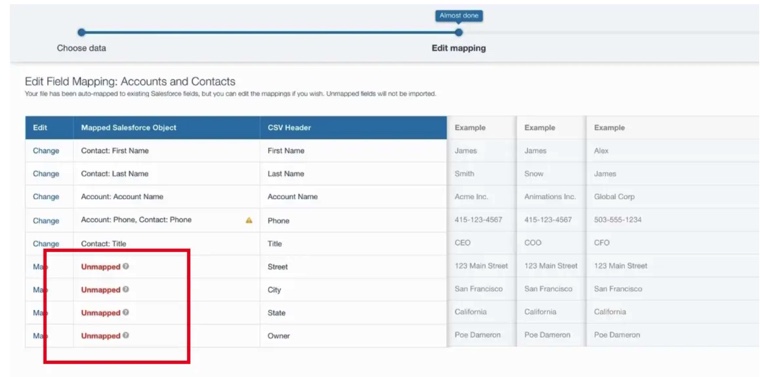
- Once everything looks good, hit Start Import and let the wizard process your file. You’ll get a detailed report on errors or successes once it’s done.
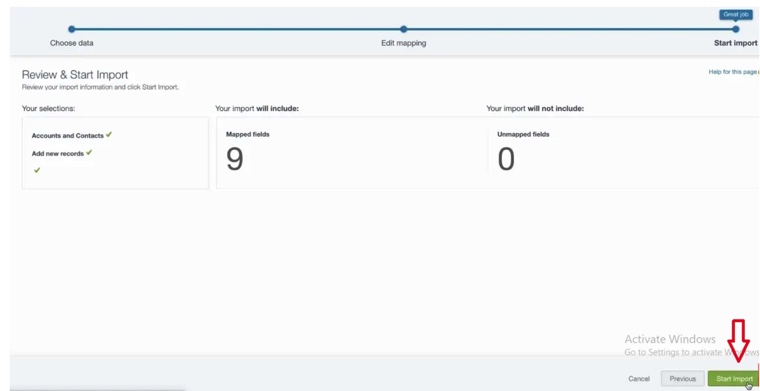
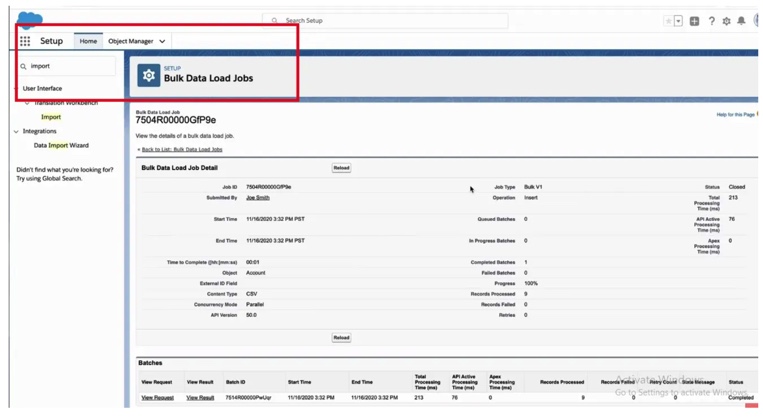
- When the import is running, you can track its status in the following three ways:
- Recent Import Jobs chart on the Data Import Wizard homepage.
- Bulk Data Load Jobs section of the Setup menu (this option isn’t available in the Professional Edition).
- Updates tab (perfect for non-admin users to monitor import progress).
Pros
- Easy to use. The Data Import Wizard is user-friendly. It’s perfect for those who like not complicated tools or coding.
- Built-in. No need for third-party software. It’s already integrated into Salesforce, so you don’t have to worry about external apps or extra costs.
- Quick setup. Setting up an import is fast and intuitive. A great choice for occasional, one-time imports.
- Basic field mapping. Even if you’re not familiar with Salesforce’s internal structure, the field mapping process is simple and guided.
Cons
- No automation. It’s a one-and-done deal. There’s no way to schedule recurring imports or automate the process with this tool.
- Limited error handling. While you do get a report after the import, it’s not as detailed or flexible as some other tools. Troubleshooting can be more manual and time-consuming for large imports.
- File size limits. It takes up to 50,000 records and a 100 MB file per import. Anything bigger has to be split into several files or loaded with Data Loader.
Method 2: Salesforce Data Loader
Best for
If your import job involves larger datasets or requires more customization than the Data Import Wizard can handle, the Salesforce Data Loader is the tool to turn to. It’s a powerful, feature-packed option that gives users full control over their data import process. Whether you’re dealing with millions of records or need to work with custom objects, Data Loader steps up to the challenge.
Step-by-Step Guide
- Download the Salesforce Data Loader from the Salesforce website and install it on your computer. Click here for more details.
- Launch the Data Loader and log in with your Salesforce credentials. You’ll need to connect the tool to your Salesforce instance to get started.
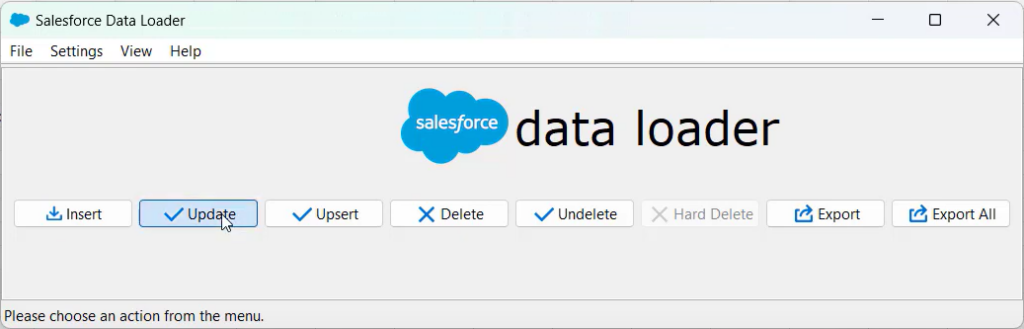
- Select the operation that fits your use case (in this example, inserting contacts).
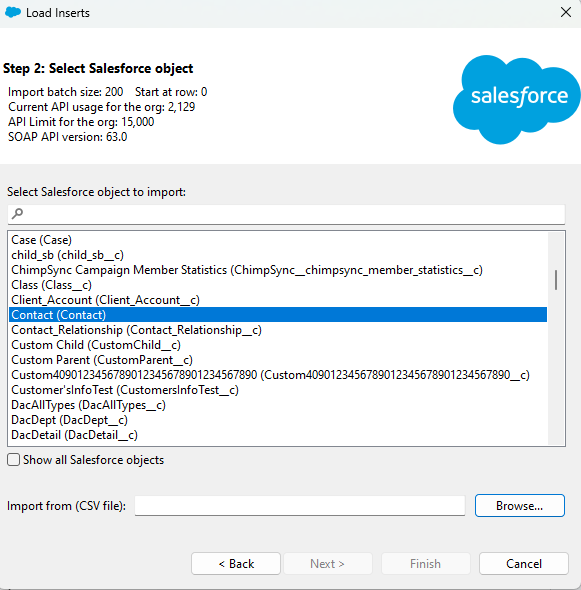
- Choose the CSV file you want to import and map the fields in the CSV to the corresponding Salesforce fields.
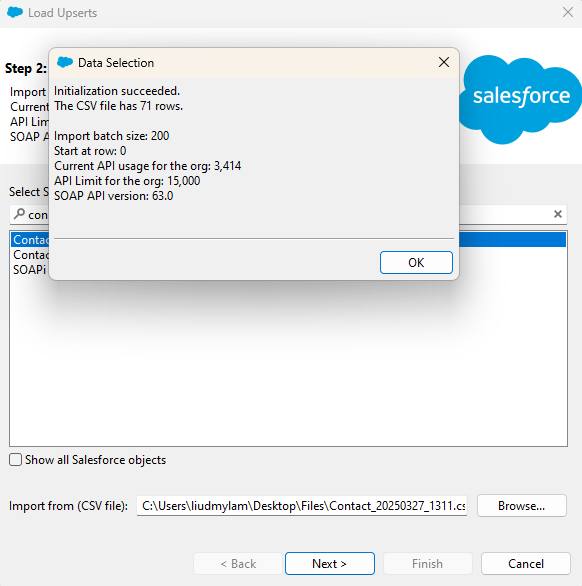
- Once the field mapping is set, hit Next, and the tool will begin processing the data. You’ll be able to monitor the progress and view detailed logs as the import runs.
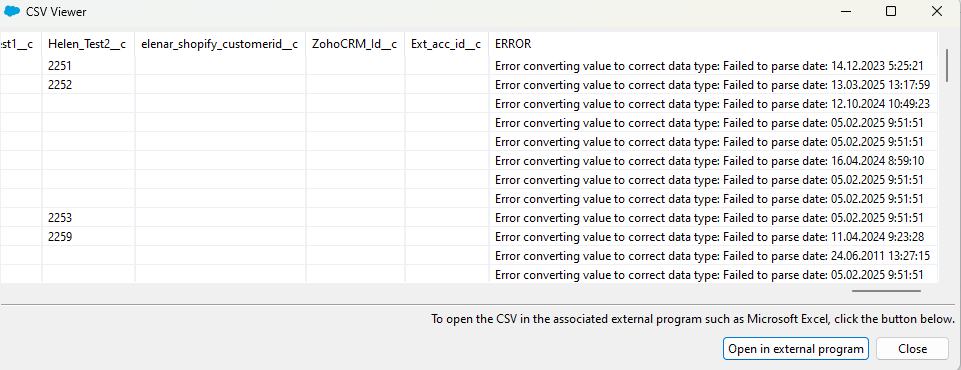
- After the import is completed, you’ll get a report showing how many records were successfully processed and any errors or warnings to fix issues.
Pros
- Handles large datasets. Unlike the Data Import Wizard, the Data Loader can easily handle millions of records and is more suited for bulk data operations.
- Custom object support. Need to import or update custom objects? Data Loader has you covered.
- Advanced features. Offers more control, like upserting data (insert or update based on matching records) or deleting records.
- Flexible automation. On Windows, you can schedule imports or run them via the command-line batch mode, making it easier for recurring tasks.
Cons
- Steeper learning curve. It’s complex enough. New users might find it overwhelming at first.
- Requires installation. The Data Loader isn’t built into Salesforce. You’ll need to download and install it.
- Limited to desktop use. It’s a desktop application, so it’s not as cloud-friendly as other methods and doesn’t work directly from the browser.
- No built-in user interface for error handling. Users must dig into logs to determine where things went wrong.

Method 3: Third-Party Tools
Best for
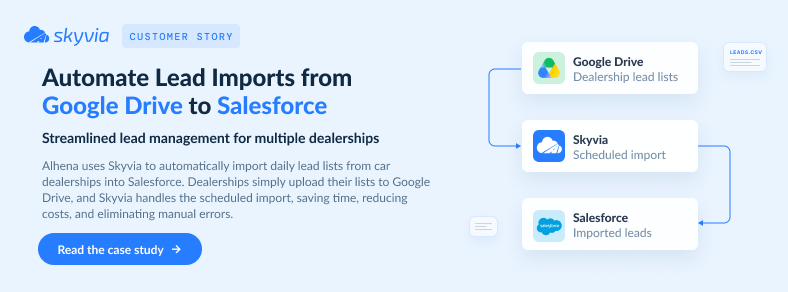
When a company is scaling up and needs a more automated solution for regularly importing, syncing or transforming data, third-party tools like Skyvia are the perfect fit. They shine when you’re not just dealing with simple imports but rather managing ongoing data flows, complex transformations, or integrations across multiple systems.
If you need something with more power, automation, and flexibility than the built-in Salesforce tools can offer, third-party tools are the way to go.
Step-by-Step Guide
For many businesses, importing external CSV files (e.g., contact lists from trade shows, marketing campaigns, or CRM exports) into Salesforce is a regular task. Skyvia allows automating the process. This is especially useful when handling bulk data updates or initial data migrations.
Let’s walk through the steps:
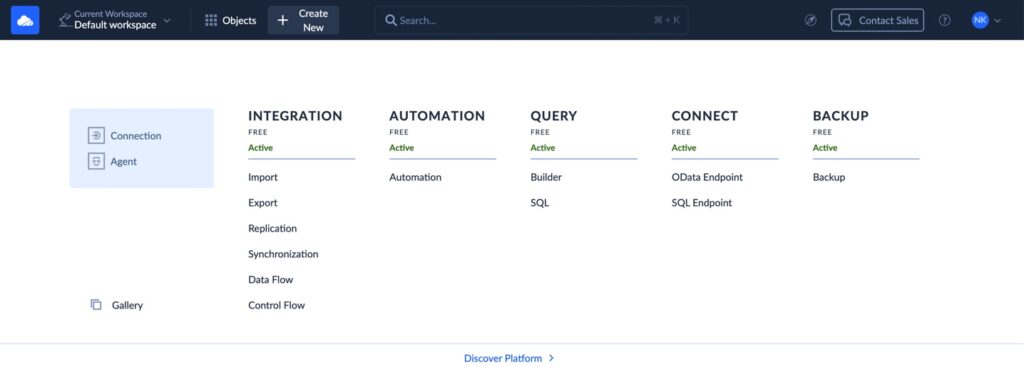
- Log in to your Skyvia account and click + Create New > Connection.
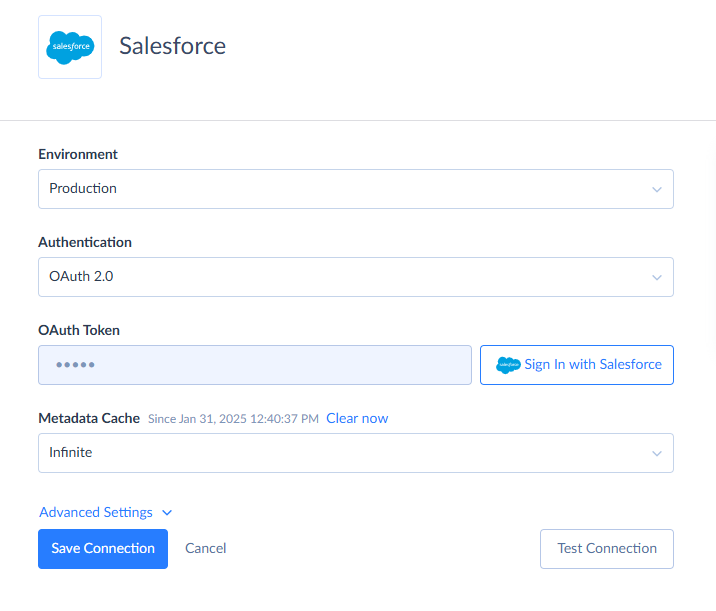
- Choose Salesforce from the list and click Sign in with Salesforce.
- Enter your Salesforce credentials to establish the connection.
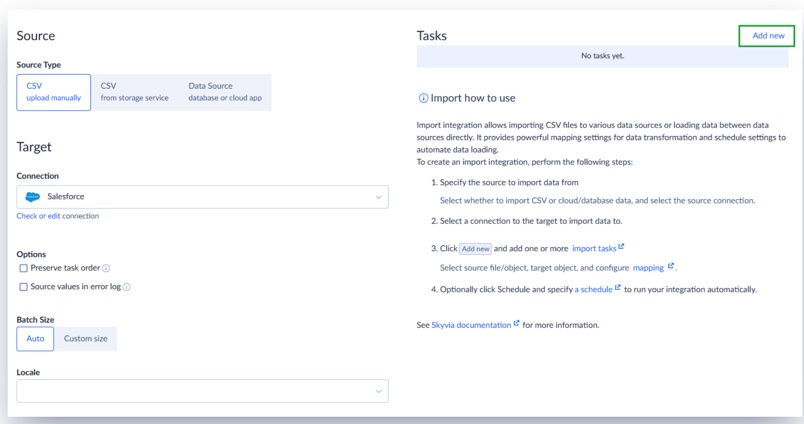
- Click + Create New > Import.
- Select CSV (upload manually) as the data source and choose Salesforce as the target. After it, click Add New.
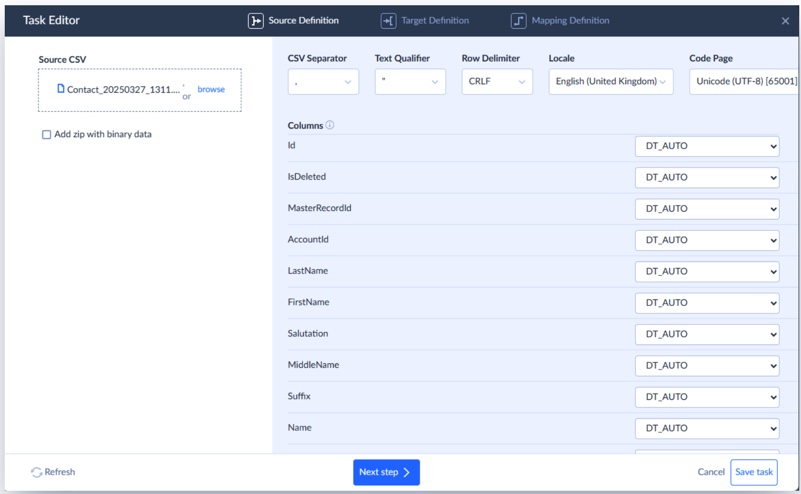
- In the Task Editor, drag and drop your CSV file into the Source area. Double-check the CSV separator for accuracy.
- Select the Contact object and choose the Upsert operation.
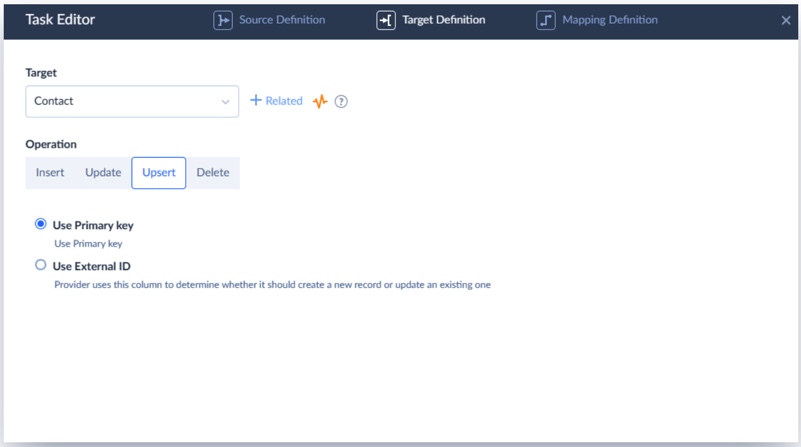
Note: This step ensures only changed records are updated, preventing duplicates
- Skyvia will automatically map fields with matching names between your CSV and Salesforce. For any additional fields, you can manually map them, set constant values, or use expressions for more advanced mapping.
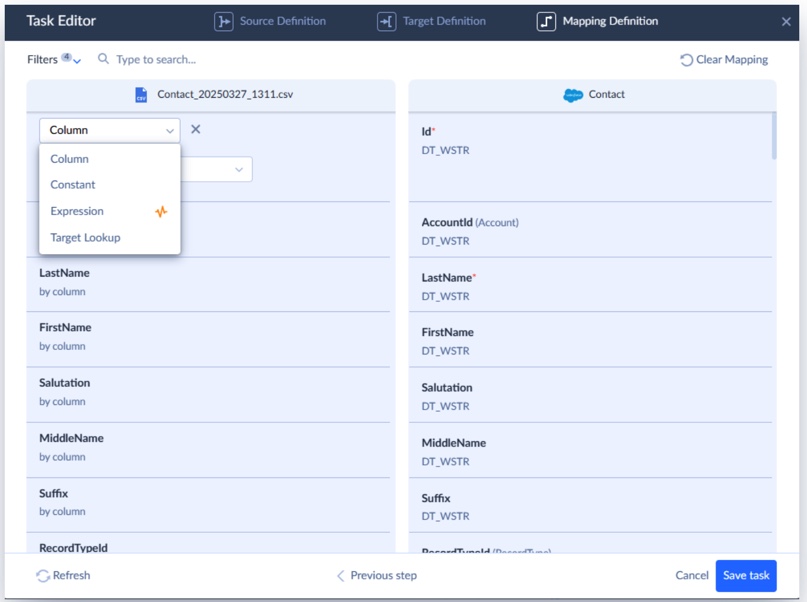
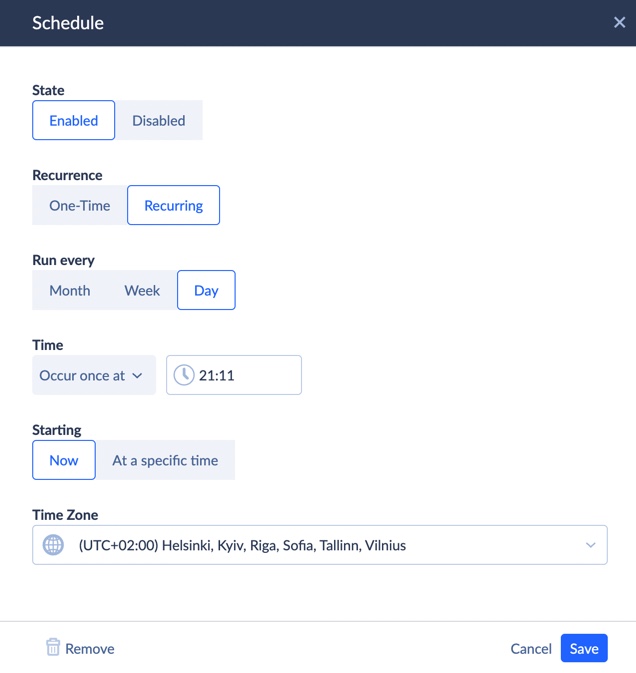
- When everything is mapped, save your task. You can choose to run it immediately by clicking Run, or schedule it for future imports.
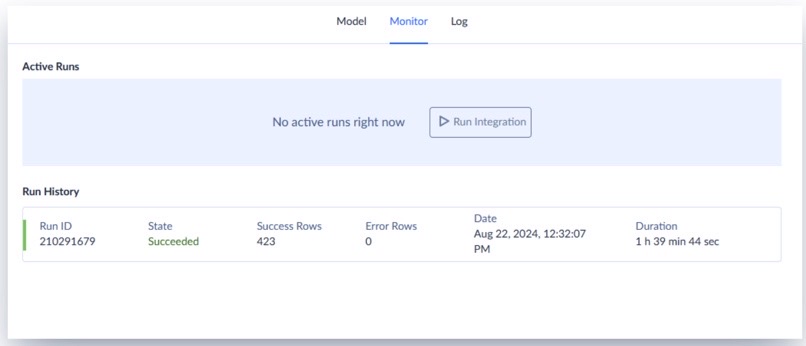
- Review the import results in the Monitor and Log tabs.
Pros
- Full automation. Set it and forget it. Third-party tools enable users to schedule imports, sync data automatically, and transform data without manual intervention each time.
- Advanced features. They fit for integrating multiple data sources, transforming data in real-time, or syncing data between different systems.
- Flexible. Whether it’s CSV, Excel, or connecting Salesforce to HubSpot, Xero, or other apps, third-party systems are versatile.
- No-code solutions. Tools like Skyvia offer drag-and-drop interfaces, so no coding is required to set up data workflows.
Cons
- Learning curve. Some users may feel overwhelmed by the variety of options available.
- Less control. While automation is great, you might lose some of the control and customization available with manual methods or in-depth tools like Data Loader.
- Dependency on third-party platforms. Relying on an external tool means you’re tied to its uptime and service limitations. It’s important to choose a reliable provider.
How to Import Related Records: Link Contacts to Accounts From a CSV
A contact list from a trade show carries company names, not the 18-character Salesforce IDs of the accounts. The AccountId lookup needs one of those IDs, so every import tool has to find the parent record from something else in the row. Get this wrong and contacts land without an account, or a second "Acme Inc" account appears next to the first.
Load the parents first. Accounts go in before their contacts, and a parent custom object before its children, so each lookup has a record to find. Then pick the matching method your tool supports:
| Tool | How it finds the parent | What the CSV needs |
|---|---|---|
| Data Import Wizard: accounts and contacts | Matches business accounts by name and site, Salesforce ID or external ID; creates one account per unique name and site, then links each contact | Account Name (and Account Site) in the same row as the contact |
| Data Import Wizard: custom objects | Matches lookup and master-detail fields on an external ID you choose | A column with the parent's external ID |
| Data Loader | In an upsert, matches the parent on its external ID; otherwise you map the parent's Salesforce ID to the lookup field | The parent's external ID, or its Salesforce ID in the exact case |
| Skyvia Import | External ID mapping for Salesforce lookup fields, or Target Lookup on any parent field, such as Account Name | Any column that identifies the parent |
For raw Bulk API loads, the column header carries the relationship as RelationshipName.IndexedFieldName. A contact file can use ReportsTo.Email to point at the manager's contact record, and a custom object uses the relationship name ending in __r, as in Mother_Of_Child__r.External_ID__c. Only indexed parent fields work there. A custom field counts as indexed once its External ID box is checked.
That makes an External ID field on Account worth creating before the first load. Call it Legacy_ID__c and fill it with the old system's customer number. Clean those values first. Matching on an external ID ignores case unless the field is also set as Unique with case sensitivity, and rows that share one external ID within a single file aren't uploaded at all.
Skyvia's docs walk through both routes in the tutorial on importing contacts for existing accounts.
Common Challenges When Importing CSVs to Salesforce and How to Solve Them
Importing CSV files into Salesforce usually isn’t a hassle. However, roadblocks like duplicates, annoying formatting errors, or encountering Salesforce’s API limits can appear unexpectedly.
Here’s how to tackle each challenge head-on:
1. Duplicate Records: Strategies for Prevention and Cleanup
The challenge:
No one wants to deal with duplicate records. They clutter up your system and lead to inaccurate reporting. This issue is especially common when importing large lists, like new leads from events or marketing campaigns.
How to solve it:
- Use unique IDs to ensure every record is distinct. If your CSV contains an ID (e.g., email or account number), ensure it’s mapped correctly.
- Salesforce Duplicate Rules can be set up to prevent new duplicates when importing data.
- Skyvia’s Upsert feature helps by automatically updating existing records and avoiding duplicates by matching key fields (like email or lead ID). This keeps your data clean without creating new records.
2. Data Formatting Errors (Dates, Picklists, Booleans)
The challenge:
They’re easy to overlook but can cause a lot of headaches when importing. Common problems include incorrect date formats, mismatched picklist values, and boolean fields not being recognized properly.
How to solve it:
- Pre-clean your CSV by checking for formatting issues, especially with dates and values that need to match Salesforce’s picklists or boolean fields.
- If that sounds like a lot of work, tools like Skyvia can handle these transformations on the fly during the import. For instance, it will automatically convert date formats and map picklist values, so you don’t have to manually fix them.
3. Hitting Salesforce API Limits
The challenge:
Salesforce imposes API limits on how many records to import within a specified time frame. If the dataset is large, you might run into these limits, causing errors or delays in the imports.
How to solve it:
- Batch your imports to avoid overwhelming Salesforce’s API. For example, break your import into smaller batches (around 200-500 records) to stay within Salesforce’s limits.
- Skyvia batches data automatically and ensures you never exceed the allowable number of API calls per day.
4. Field Mapping Complexities
The challenge:
Field mapping is one of the trickier parts of importing data, especially when dealing with lookups, relationships, or custom objects. If the relationships aren’t set up correctly, the data might end up in the wrong places or not sync at all.
How to solve it:
- Carefully map the fields to the correct Salesforce object. This is especially important for lookups or relationships where data should be linked to an existing record (e.g., associating a new lead with an existing account).
- Tools like Skyvia make this easier by providing a visual interface to see and map the data accurately. You can even set up automatic transformations for custom objects and relationships, reducing the chance of errors.
5. Large File Timeouts
The challenge:
When importing large files, users may run into timeouts or performance issues, especially if the file size exceeds limits or if trying to import a huge volume of data simultaneously.
How to solve it:
- Use tools specifically designed for bulk data imports. Skyvia, for instance, easily handles large datasets, ensuring that the imports are processed smoothly, even when dealing with hundreds of thousands of records.
- For extra-large files, batch processing is your friend. Breaking up the data into smaller chunks helps avoid timeouts, and Skyvia can automatically manage these batches.
Conclusion
We’ve walked through the three main ways to import CSV data into Salesforce:
- Data Import Wizard.
- Data Loader.
- Third-Party Tools.
Each has its strengths, from simplicity and ease of use to more complex capabilities for handling large datasets.
While Salesforce’s native tools are great for basic imports, they come with limitations. Whether it’s dealing with duplicates, large volumes of data, or the inability to automate recurring imports, these tools can slow you down as your company scales.
For businesses seeking a reliable, automated, and flexible solution, Skyvia is a good choice. It’s a no-code platform that makes data imports seamless and scalable. This solution fits for handling one-time imports or automating the process on an ongoing basis.
Ready to simplify your data imports and focus more on what matters?
Try Skyvia today and see how quickly and easily you can get the data where it needs to go.

FAQ for Import CSV to Salesforce

Data Import Wizard or Data Loader: which one fits my CSV import?
Salesforce’s own advice is to stay with the Data Import Wizard while you’re under 50,000 records, the object is one it supports and the mapping is simple. Once any of that changes (a bigger file, opportunities or cases, a delete or an export, a load that has to repeat on a schedule), Data Loader is the tool.
Which records won’t the Salesforce Data Import Wizard take?
Assets, cases, campaigns, contracts, documents, opportunities and products are all off the table for the Data Import Wizard. What it does take is accounts, contacts, leads, solutions, campaign members, person accounts and custom objects, at up to 50,000 records per import. Salesforce sends you to Data Loader for the rest, since that app covers every standard and custom object.
How large can a CSV file be for a Salesforce import?
In the Data Import Wizard, a CSV file can be up to 100 MB, with at most 50,000 records, 90 fields per record and 400 KB per record. Data Loader goes much further. With Bulk API 2.0 turned on in its settings, it’ll read a CSV of up to 150 million records. There’s still a ceiling per field, though: 32,000 characters.
Why does my CSV import create duplicate records in Salesforce, and how do I stop it?
Match on a key instead of only adding rows. In the Data Import Wizard, choose to add and update records and match contacts by Salesforce ID, name, email or external ID. In Data Loader, run an upsert on an external ID or the record ID. Skyvia Import supports the same upsert against Salesforce.
What format do checkbox and picklist values need in a Salesforce CSV file?
The two tools disagree on checkboxes. The Data Import Wizard reads 1 as checked and 0 as unchecked, and Data Loader takes those plus true, false, yes and no. Multi-select picklist values sit in one cell with semicolons between them. A picklist value that doesn’t exist in the org is a different story. Data Loader fails that record, but the wizard just uses the default value when the picklist is restricted.
Is there a way to undo a CSV import in Salesforce?
Not with one click, since Salesforce has no undo button for an import. An administrator with the Modify All Data permission can remove accounts, contacts, leads or solutions imported by mistake through Mass Delete Records in Setup. That tool doesn’t support custom objects, so wrongly imported custom object records are deleted with Data Loader instead.
Can I schedule CSV imports into Salesforce?
The Data Import Wizard has no scheduling. Data Loader can run nightly loads through its command-line batch mode, which works on Windows only. Skyvia Import can schedule a CSV load from Amazon S3, Google Drive, SFTP or another storage service: once a day on the Free plan, hourly on Standard and every minute on Professional.