Summary
- Manual exports (CSV) work when the task is occasional, the dataset is small, and “good enough for now” is acceptable.
- SSIS with ODBC drivers makes sense in environments where SQL Server already runs the show, and there’s in-house expertise to maintain packages, mappings, and inevitable schema changes.
- Automated cloud integration with Skyvia is a natural fit when Salesforce data needs to arrive in SQL Server on a schedule, without scripts to guard or servers to maintain.
Somebody in finance wants last quarter's pipeline next to the invoices, and a Salesforce report can't do that join. Ask around and many Salesforce to SQL Server projects begin with a request just like that. Sometimes it's history instead (closed deals from five years ago clogging the CRM), or plain worry about having no copy outside Salesforce. Other teams need the opposite direction. An old in-house app (or a whole CRM) gets retired, and somebody has to get its SQL Server tables into Salesforce.
Getting the first run through? Usually fine. The pain comes later, from things nobody planned for, like API limits, objects that won't sit neatly in tables, lookups asking for record IDs that don't exist yet, deleted records, and that custom field an admin added last week.
We'll cover three ways to connect them, each with its own steps: a manual CSV export, SSIS with ODBC drivers, and Skyvia. You'll also find a checklist for getting SQL Server data into Salesforce with its relationships intact, and answers to what teams usually ask before picking one.
Why Integrate Salesforce with SQL Server? (Common Use Cases)
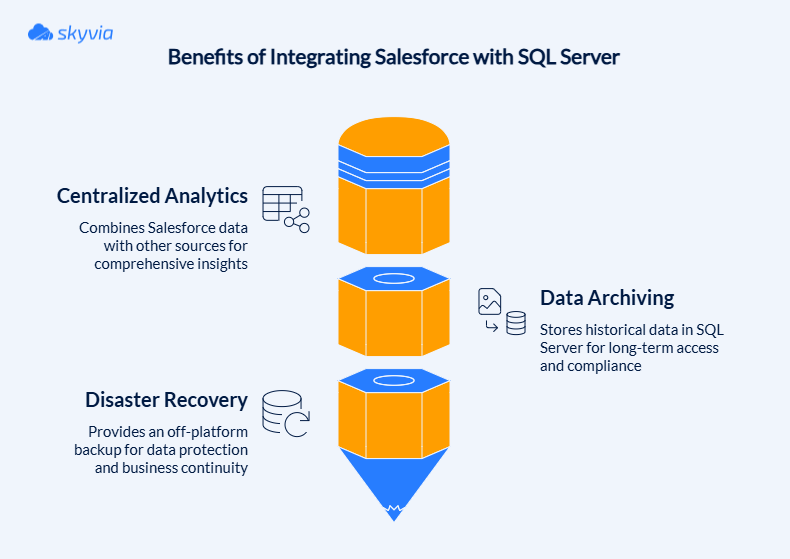
Teams rarely link the two for fun or to maintain the integrity of the architecture; rather, they do so because Salesforce by itself becomes insufficient as data ages, accumulates, or requires questioning rather than display.
The reasons usually fall into three very practical buckets.
Centralized Analytics
Sales metrics don’t mean much when they live on an island. Revenue forecasts need context. Pipeline needs history. Customer data needs to be compared to what actually happened in finance or operations.
Moving Salesforce data into SQL Server lets teams stop exporting CSVs and start asking proper questions. CRM activity can be joined with ERP data, billing records, or multi-year history, and analyzed without worrying about API limits or slowing down Salesforce users. That is where SSRS or Power BI becomes useful, not just decorative.
Data Archiving
Salesforce is optimized for what’s active, not for everything that ever happened.
Closed deals from five years ago, inactive leads, old activities – you’re not a hoarder, they do still matter, just not inside the core CRM. Pushing that data into SQL Server keeps it searchable and compliant while taking pressure off Salesforce storage and performance.
The key difference is intent. Archiving to SQL Server isn’t about “getting rid of data.” It’s about moving it somewhere that’s cheaper, calmer, and better suited for long-term questions, without losing access or control.
Disaster Recovery
Cloud platforms fail in quiet ways. Records get overwritten. Integrations push bad updates. Someone cleans up “unused” data that turns out to be critical a month later.
Replicating Salesforce data into SQL Server creates an off-platform safety net. Not a recycle bin. Not an export someone forgot to run. A real copy of your CRM data that exists outside Salesforce’s control and limits.
For many teams, this isn’t about replacing Salesforce backups – it’s about having a second source of truth that can be queried, restored, or validated when something feels off.
Method 1: Manual Export via CSV (The “Free” Way)
SQL Server has a whole ecosystem of native and third-party tools for importing data from other sources. Let’s start by exploring SQL Server Import and Export Wizards, standard tools for data movement.
SQL Server Import Wizard can extract data from different data sources:
- SQL Server databases
- Oracle
- Flat files like CSV
- PostgreSQL
- MySQL
- Azure Blob Storage.
Importing data directly from Salesforce requires a third-party ADO.NET provider or an ODBC driver. However, there’s a workaround involving a CSV file containing Salesforce data.
There are several Salesforce tools for exporting Salesforce data to CSV files, both in the cloud, like Skyvia Data Loader or Dataloader.io, and locally installed, like the Salesforce Data Loader tool.
Step-by-Step Guide
We’ll explore the data import case using the Data Loader tool.
- In your Salesforce account, go to Setup.
- Under Platform Tools, click Data Management and select Data Loader.
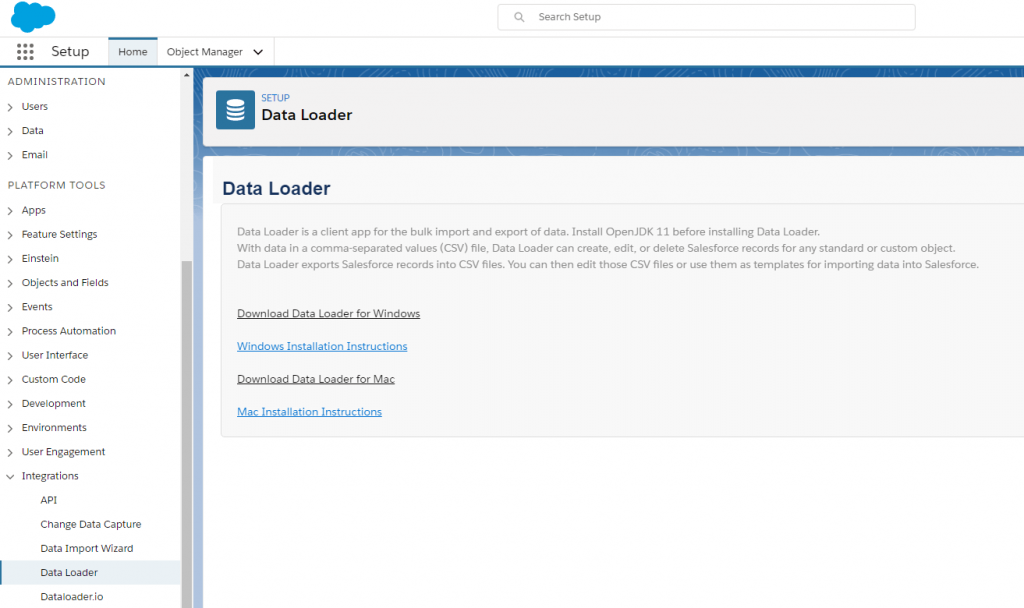
- Download and install an appropriate version of Data Loader.
- In your Salesforce account, select the necessary data objects to be exported into a CSV file.
- Use the SQL Server Import Wizard to upload Salesforce data into SQL Server tables.
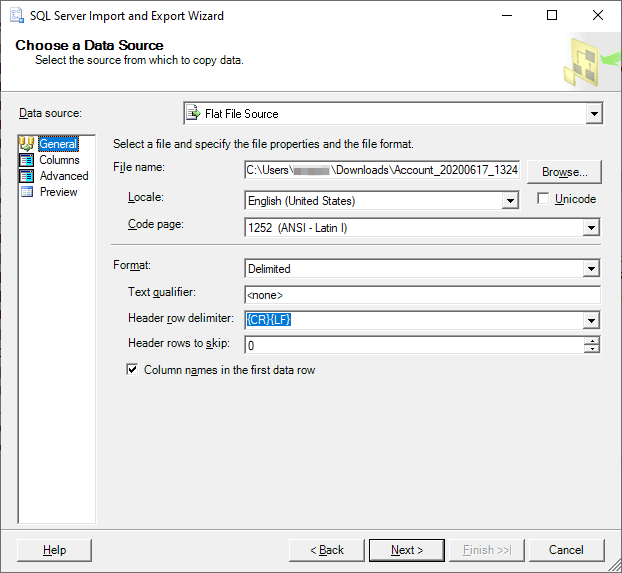
Note: This integration method is unidirectional.
Pros
- Built-in tool, no need for extra downloads and installations.
- Easy to use with Microsoft-typical interfaces.
- Compatible with other SQL databases and flat files.
Cons
- No direct connection to Salesforce.
- No way to compare lost or modified data.
- Data export limitations on data restoration, deduplication, etc.
Method 2: SSIS & ODBC Drivers (The “IT Traditional” Way)
This setup relies on ODBC drivers or SSIS connectors to translate Salesforce’s APIs into something SQL Server can consume. Once everything is wired together, data can be pulled on a schedule, reshaped inside SSIS, and stored locally for reporting or downstream systems. On paper, it’s powerful. In practice, it becomes a small system of its own that needs to be watched.
It’s also very much an “inside the server room” solution. Nothing happens automatically unless someone explicitly designs it that way. Every transformation, every field mapping, every retry logic is something you decide, build, and later remember how it works.
That’s where the trade-offs start to matter.
Pros
- You can control the flow, transformation, and arrival of data in SQL Server using SSIS.
- If SSIS packages, SQL Server Agent jobs, and Visual Studio projects are already part of daily operations, this approach doesn’t introduce a new mental model. It just extends what’s already there.
Cons
- If it’s your first rodeo, building and maintaining SSIS packages will be challenging, as they require solid SQL, scripting, and integration experience.
- Salesforce API changes, authentication updates, or connector upgrades can quietly break packages that used to work fine.
- SSIS mappings don’t adapt when a Salesforce admin adds or modifies a custom field.
- Connecting cloud-based Salesforce to on-prem SQL Server often requires firewall rules, VPNs, certificates, and security reviews, which slow everything down.
- Monitoring failures, handling retries, and debugging broken packages becomes a recurring task.
Method 3: Automated Cloud Integration with Skyvia (The “Modern” Way)
By the time teams reach this method, they usually have the same realization: the problem isn’t Salesforce or SQL Server. It’s everything in between.
Skyvia approaches Salesforce-SQL Server integration from a different angle – remove the infrastructure friction entirely and focus on outcomes: reliable data, predictable syncs, and minimal maintenance.
It offers several products (ways) to integrate Salesforce and SQL Server data:
- Data Integration product for building ETL and ELT pipelines.
- Skyvia Connect (Web API Server), which works in conjunction with the Salesforce Connect through the OData protocol.
Neither method requires coding skills.
Scenario A: Bulk Data Replication (ELT)
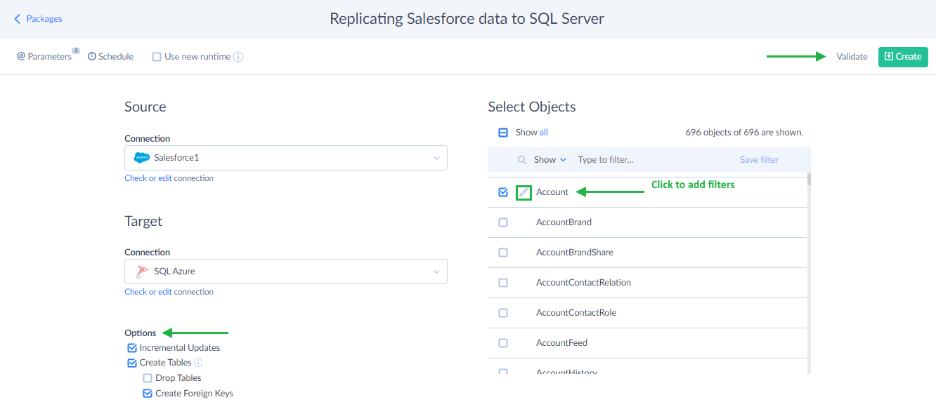
That is the most common starting point: you want Salesforce data in SQL Server for analytics, reporting, or downstream systems.
Skyvia Replication handles this by treating Salesforce as the source of truth and SQL Server as the analytical destination. The moment you select Salesforce objects to replicate, Skyvia inspects their structure and automatically builds the required SQL tables. Columns, data types, relationships – all created for you. No CREATE TABLE scripts. No guessing how Salesforce fields should map.
Once the initial load is complete, Skyvia switches to incremental updates. Instead of reloading entire tables, it tracks changes in Salesforce and applies only the new or modified records. That keeps syncs fast, predictable, and gentle on API limits, even as data volumes grow.
This approach works especially well when SQL Server feeds BI tools, warehouses, or long-term historical storage.
Scenario B: Real-Time Data Access (OData)
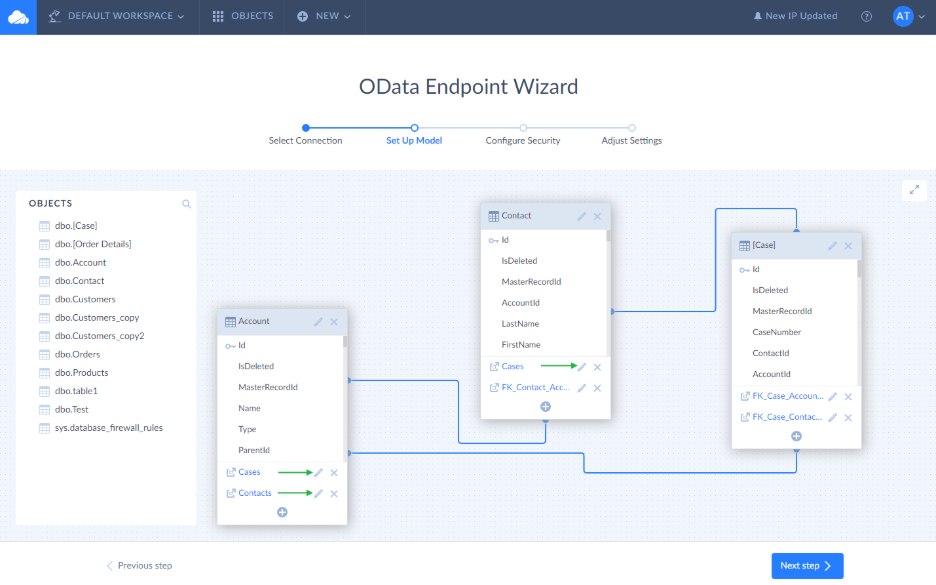
Sometimes, copying data is the wrong move, or simply too much to bother with.
If the goal is simply to see SQL Server data inside Salesforce, for example, reference records, operational data, or external metrics, Skyvia Connect offers a cleaner alternative.
It turns SQL Server into a secure OData endpoint that Salesforce can consume through Salesforce Connect. From Salesforce’s perspective, the data behaves like native objects. From your perspective, the data stays exactly where it is.
There’s no replication, no storage duplication, and no database ports exposed to the internet. Skyvia acts as a secure proxy, handling authentication, access control, and traffic management. You get live visibility into SQL Server data inside Salesforce, without turning reporting into a data migration problem.

Step-by-Step Guide: How to Load SQL Server Data into Salesforce with Skyvia
That is where the contrast with traditional approaches becomes obvious.
Setting up an SSIS package can take days. Setting up Skyvia usually takes minutes. See for yourself.
The example below loads SQL Server tables into Salesforce with an import. For the other direction, Salesforce to SQL Server, the replication from Scenario A uses the same two connections you create in Step 1.
Step 1: Prepare your Connections
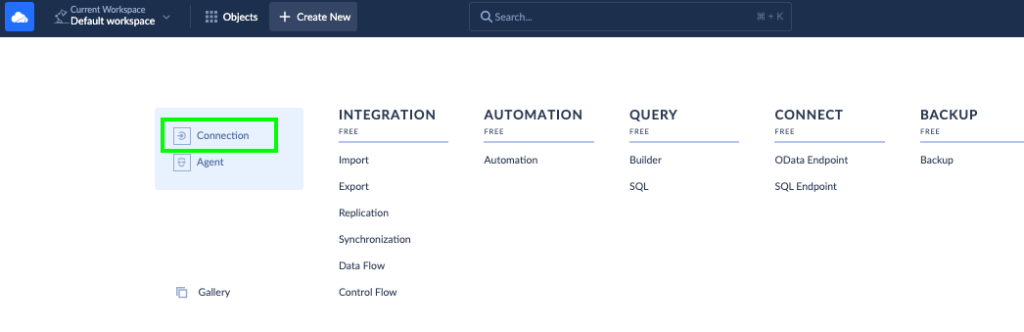
- Click + Create New in the top menu and select Connection in the menu on the left.
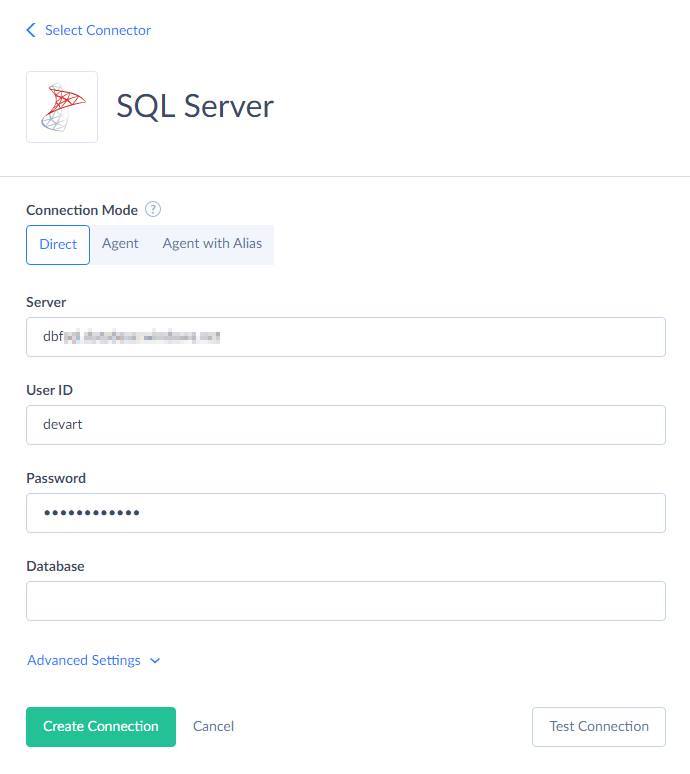
- Choose SQL Server from the available Connectors.
- Select SQL Server Connection Mode (Direct, Agent, or Agent with Alias) and specify other required parameters according to the selected mode.
- Create a new Salesforce connection in Skyvia using the same pattern.
Step 2: Create an import to migrate data
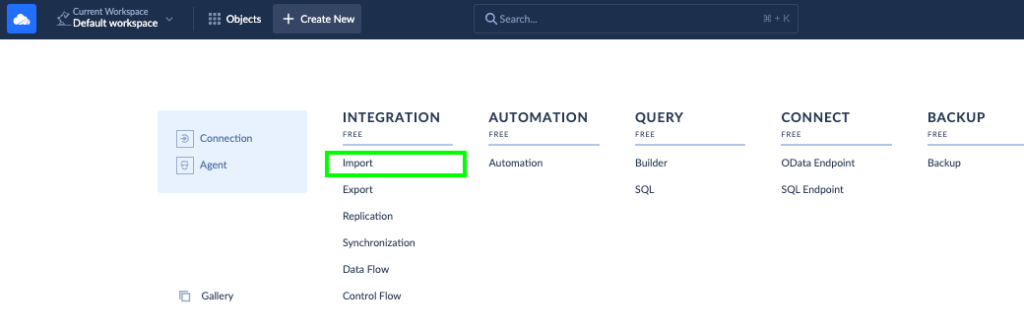
- In the top menu, click +Create New and select Import in the Integration column.
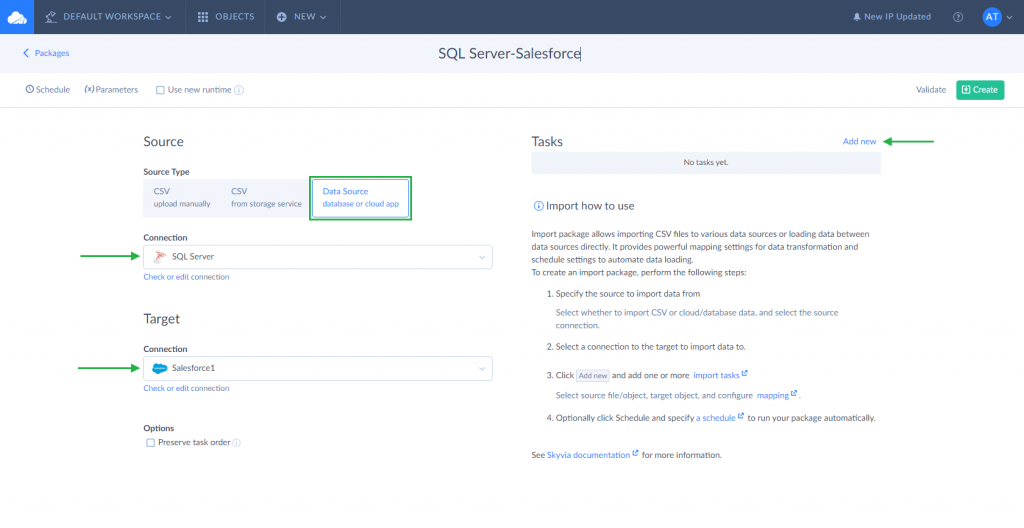
- In the opened editor, select Database or cloud app source type. In the Connection drop-down list, select SQL Server as a source and Salesforce as a target.
- Create a new integration task by clicking Add new.
Note: A task is a unit of an ETL process (data extraction, transformation, and loading). When creating an import, we need to add a task for each SQL Server table.
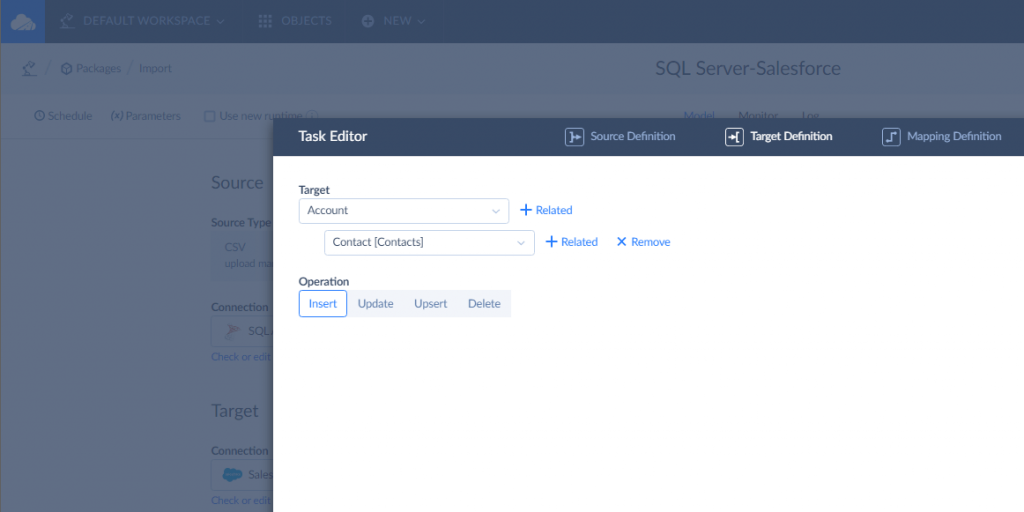
- In the task editor, select data from SQL Server tables, set filters (if needed), and select the DML operation (Skyvia supports not only INSERT for data import but also UPSERT, UPDATE, and DELETE).
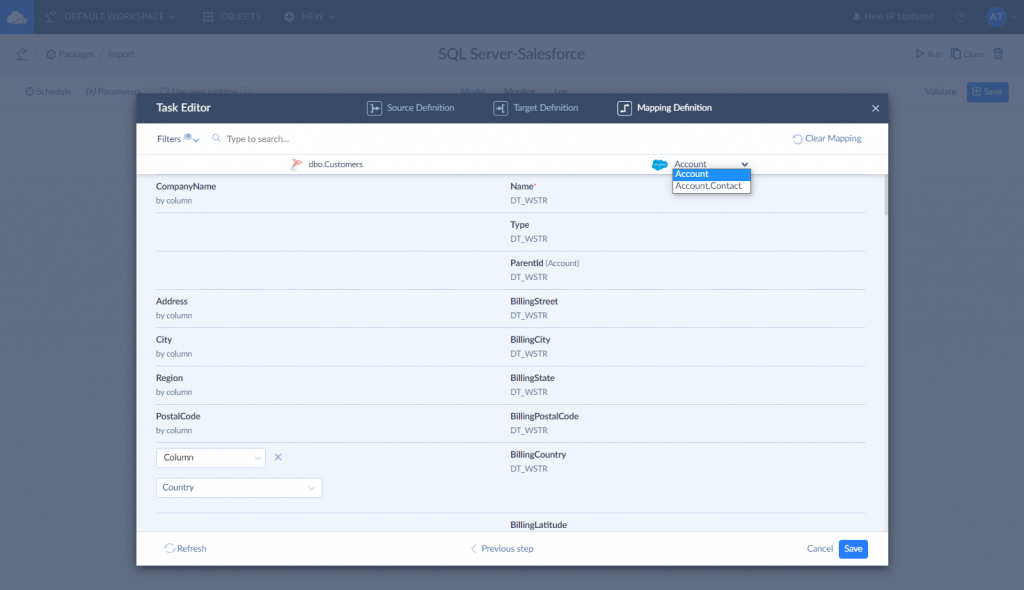
- Configure mapping settings. Skyvia offers numerous mapping types, including Column, Expression, Lookup (Source and Target Lookup), Constant, Relation, External ID, and many others.
- Save the task.
- Finally, click Run to start execution.
Step 3: Schedule recurring data updates
Skyvia lets you schedule the import to run automatically. That might be useful for configuring data loading operations to run periodically or delaying an operation to a later time.
If automated data transfer is needed, click Schedule and set the time preferences for the import task run.
Step 4: Run integration and check the import rules
Click Run to start the integration. You can check the results of the import integration by downloading an Excel file that is available in the Monitor tab.
How to Migrate Data from SQL Server to Salesforce Without Breaking Relationships
Volume is rarely what sinks a migration into Salesforce. Relationships are. Contacts show up with no account, an opportunity points at the wrong customer, and the second run doubles everything. The cause is simple enough: SQL Server ties rows together with its own primary keys, while Salesforce uses record IDs that only exist once a record is created. Here's how we'd bridge that.
- Add an External ID field to each target object. Call it Legacy_SQL_Id__c or whatever you like, give it the External ID attribute and fill it with the SQL Server primary key, because every step after this one matches on it.
- Load parents before children. Accounts go in first. Contacts and Opportunities follow, and the records hanging off them (Cases, say) come last, because a child row can only point at a parent that's already there.
- Map lookups by External ID, not by Salesforce ID. Data Loader can do it, and so can Skyvia: the lookup finds its parent through that parent's External ID, so the foreign keys you already have in SQL Server just work.
- Upsert instead of insert. Matching happens on the External ID: existing records get updated, and the rest get created. A batch that dies halfway through? Run it again, and you won't end up with duplicates.
- Use Bulk API for large tables. Skyvia can load through Bulk API v1 or v2 (v2 is the suggested default), and SOAP API gets slow on big volumes. Watch out on Salesforce Professional and Trial editions, though, where Bulk API is switched off by default.
- Write the Salesforce IDs back. Skyvia's Returning option writes the new records' IDs back into the source table, which you'll be glad of the next time you sync or audit.
- Rehearse in a sandbox. Do the full load there first. Compare record counts per object with SQL Server, then read through the rows that validation rules or required fields threw out, all before production sees any of it.
In Skyvia this is a single import with one task per SQL Server table, and you can schedule it for as long as SQL Server stays the system of record. Scoping, cleanup and cutover are covered in our Salesforce data migration guide.
Comparison: Manual vs. SSIS vs. Skyvia
| Feature | Manual CSV Export | SSIS & ODBC Drivers | Skyvia (Automated Cloud Integration) |
|---|---|---|---|
| Skill Level | Non-technical, manual work | High – DBA/ETL developer | Low to medium – analyst or admin |
| Setup Time | Minutes per export | Days to weeks | Minutes |
| Maintenance | Constant manual effort | Ongoing package and script upkeep | Fully managed, minimal |
| Schema Changes | Manual rework required | Breaks pipelines until fixed | Applied without reloading, once the metadata cache is cleared |
| Incremental Sync | Not supported | Custom logic required | Built-in |
Conclusion
By now, it’s clear there isn’t a single “right” way to connect Salesforce and SQL Server. Each approach exists for a reason.
- Manual exports and CSVs are fine when the job is small, time-boxed, and nobody plans to ask “can we automate this?” next month.
- SSIS and ODBC pipelines earn their place in environments that already run on SQL Server muscle memory, where control and customization matter more than speed of setup.
- Skyvia starts to make sense once integrations stop being experiments and turn into something the business quietly relies on, day after day, even as data volumes grow.
If you’re at the point where data should move on its own and stay out of the way, Skyvia is an easy place to start. It takes minutes to set up, and you’ll know very quickly whether it’s the right fit for how your team actually works.

FAQ for Salesforce to SQL Server

How should I migrate data from SQL Server to Salesforce?
First, give every target object an External ID field and put the SQL Server primary key in it. Then load parent objects like Accounts ahead of Contacts and Opportunities and upsert on that External ID, because that's what lets lookups resolve and keeps reruns from duplicating anything. For a one-off load Data Loader will do, while Skyvia and similar tools add scheduling, Bulk API loads and mapping without code.
Is real-time sync between Salesforce and SQL Server possible?
Not if you mean a scheduled copy. Skyvia replicates Salesforce to SQL Server on a schedule, and on the Professional and Enterprise plans that schedule can be as tight as every minute. Live access is a different story, because Salesforce Connect can read SQL Server through an OData endpoint like Skyvia Connect, so people in Salesforce see the current SQL Server rows as external objects.
What happens in SQL Server after someone adds a custom field in Salesforce?
Nothing, not right away. SSIS carries on with the old mapping, and the field stays out until a person updates the package. Skyvia replication is no different here, since it ignores the new field until you clear the connection's metadata cache and add that field to the replication yourself. Skyvia then applies that schema change in place. Your tables stay, and nothing gets reloaded.
How can cloud Salesforce reach an on-premises SQL Server securely?
Don't open SQL Server to the internet for this. An agent inside your own network does the job better. That's what the Skyvia Agent is for: you install it on a machine with access to both the database and the internet, it sends data to Skyvia encrypted, and since it needs no dedicated external IP or open port, the firewall usually stays as it is.
What happens to deleted Salesforce records in SQL Server?
With a plain CSV export, nothing, because it only lists records that still exist (deleted ones just linger in SQL Server until somebody spots them). Skyvia replication lets you pick: the matching SQL Server rows can be deleted, marked in an is-deleted flag column, or kept for history.
Does Salesforce use SOQL or SQL?
SOQL, short for Salesforce Object Query Language. If you know SQL SELECT, it'll look familiar, though arbitrary joins, wildcards in the field list and calculated expressions are all off the table. Replicate the data to SQL Server and that limit goes away, since plain T-SQL handles it, joins with ERP or billing tables included. There's a longer comparison in our [SOQL vs SQL](https://skyvia.com/blog/soql-vs-sql-best-practices-to-query-salesforce-database/) post.