Before you pick a tool for an AWS RDS Postgres export to S3, ask yourself what you actually want sitting in the bucket: last month's orders as a file, or the whole database? Orders as a file is the easy case, because the aws_s3 extension takes your SELECT, runs it right on the DB instance and drops the result into S3. If you want a CSV on a schedule without SQL functions or IAM roles, Skyvia does it from the browser.
We walk through both of these step by step. Then there are the routes people tend to try next (snapshot export to Parquet, pg_dump streamed to S3, AWS DMS for ongoing changes), and we compare those too. Each one lands in S3 in a different format, and two of them have a catch you only find on the bill or during a restore.
Note: This article assumes that you already have a PostgreSQL instance up and running in AWS RDS and can access the database with rds_superuser permissions using a GUI or CLI tool. Also, you must have your AWS CLI configured correctly.
What is PostgreSQL in Amazon RDS?
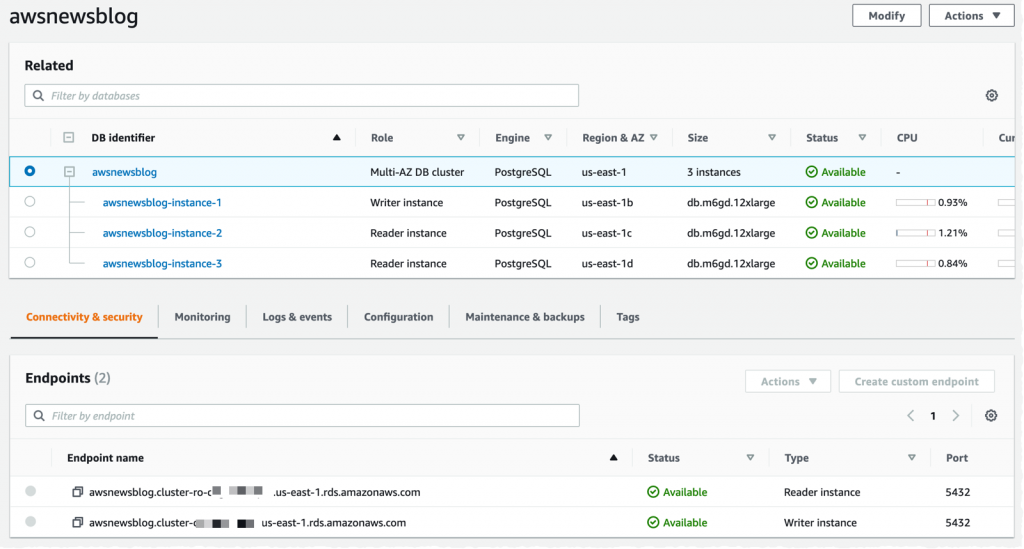
Amazon RDS for PostgreSQL is a fully managed database service from AWS, created for those who prioritize USING a database rather than managing it. With RDS, AWS handles all tasks related to database administration, including backups, patching, monitoring, and scaling.
In fact, it gives you all the power of PostgreSQL – an open-source, feature-rich relational database – and multiplies it with additional cloud perks, including high availability, scalability, security, and seamless integration with other AWS services.
Amazon S3: What is it?
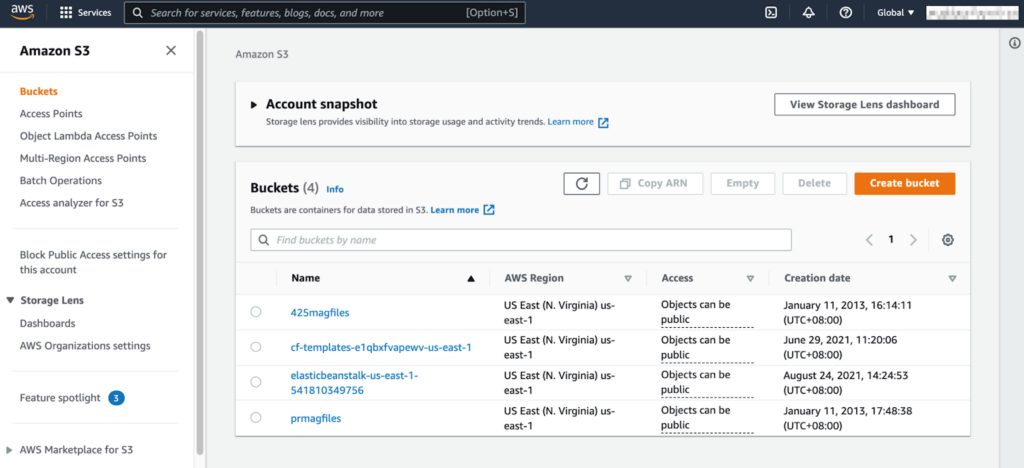
Amazon S3 is a go-to solution for storing anything and everything, from tiny text files to petabytes of data. It’s secure, scalable, and highly durable, with objects replicated across multiple Availability Zones.
Think of it as your cloud-based hard drive – but way better. With its literally depthless storage capacity, pay-as-you-go pricing, and various data accessibility tiers, S3 covers everything a business could need in terms of backups, big data, machine learning, and even website hosting.
Amazon RDS PostgreSQL to Amazon S3 Connection Techniques
When working with AWS S3 and RDS, it’s often necessary to move data between these two services. This is especially common in scenarios such as:
- Data migration: Moving data between systems or environments.
- Backups: Creating secure copies of your data for recovery purposes.
- Analytics: Exporting data for analysis using tools like Amazon Athena or Redshift.
- Archiving old records: Storing infrequently accessed data cost-effectively.
- Machine learning: Providing large datasets for training models.
- Data sharing: Enabling collaboration with external teams or partners.
In the following sections, we’ll explore two methods for exporting data from RDS to S3:
- Manual export: Perform directly from a PostgreSQL instance using the aws_s3 extension.
- Automated export: Use Skyvia for a no-code, scheduled data export.
| Method | Best for | Automation | Cost | Complexity |
|---|---|---|---|---|
| AWS S3 extension | AWS-native, simple exports such as: – Data lake integration; – Moving large datasets to S3 for the purpose of data archiving and backup. | Manual at its core; can be automated with tools like AWS Lambda and Amazon EventBridge. | It’s calculated based on the pay-as-you-go model. | Medium |
| Skyvia | – Regular updates and synchronization; – Data integration tasks that require automation and scheduling; – Complex integration scenarios that involve data relations and splitting. | Fully-automated | Freemium (free tier available); paid plans for advanced features starting from $79/mo. | Low |

Method 1: Exporting data from AWS RDS Postgres to S3 Using Manual Option
Step 1: Enable the AWS S3 Extension
Before exporting data, we need to enable a unique feature in PostgreSQL called aws_s3, which allows us to send data directly to S3.
- Open your PostgreSQL database (you can use a tool like PGAdmin4 or the command line).
- Run this command to install the extension:
CREATE EXTENSION aws_s3 CASCADE;- To confirm that it’s installed, check the list of installed extensions:
SELECT * FROM pg_extension;This should show aws_s3 and aws_commons in the results.
Note: Some versions of RDS may not support this extension. To check, run this command using the AWS CLI:
aws rds describe-db-engine-versions --region us-east-1 --engine postgres --engine-version 14.4Look for the “s3Export” string in the output: if you find it there, your RDS instance supports this feature. If it’s not included in the output, you may need to upgrade your PostgreSQL engine version.
Step 2: Give Permission to Write Data to S3
By default, your RDS database doesn’t have permission to send data to an S3 bucket. You need to create an IAM role that allows RDS to export data.
- Go to the IAM section in the AWS сonsole and create a new IAM policy that grants the S3:PutObject permission. Make sure to adjust the source bucket name accordingly:
{
    "Version": "2012-10-17",
    "Statement": [
        {
            "Sid": "RdsDataExport",
            "Action": [
            "S3:PutObject"
            ],
            "Effect": "Allow",
            "Resource": [
                "arn:aws:s3:::rds-data-export-demo/*"
            ]
        }
    ]
}
- Create a new role in IAM that the RDS instance can assume and attach this policy to the role:
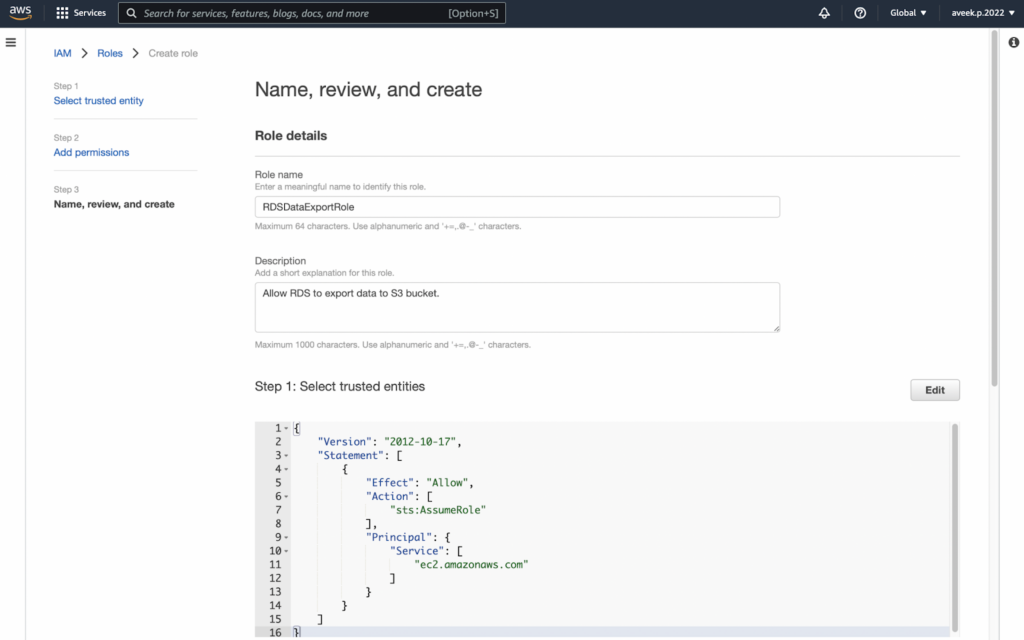
- Link the IAM role to your RDS instance:
- Open the RDS console and select the DB instance to which you will connect.
- In the Connectivity and Security settings, scroll to Manage IAM Roles.
- Select the newly created role and enable it with the s3Export feature.
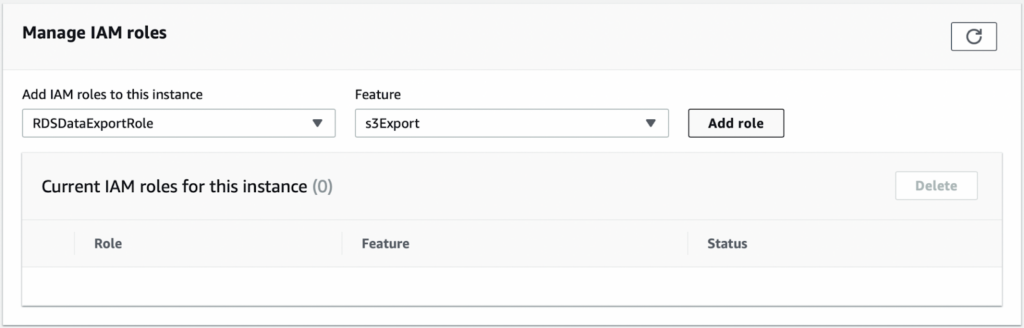
With this done, your RDS instance will have permission to write data into the S3 bucket.
Step 3: Set Up the S3 Export Path
Now that permissions are set, we must tell PostgreSQL where to send the exported data in S3. This is done by defining a URI (Uniform Resource Identifier) that contains:
- Bucket Name → The S3 bucket where the file will be stored.
- Path → A prefix that defines the folder or naming pattern in S3.
- AWS Region → The region where your S3 bucket is located.
To create this URI, use the following SQL command:
SELECT aws_commons.create_s3_uri(
   'rds-data-export-demo',
   'export',
   'us-west-1'
) AS s3_export_uri;
This S3 connection will be provided to the aws_s3.query_export_to_s3 function in the next step, when we actually export data.
Step 4: Export Data to S3
The aws_s3.query_export_to_s3 function expects the following parameters to export the data to an S3 bucket:
- SQL Statement – This is a simple string with the SQL statement to select the data you want to export. For example, if you have a table called customers, you can export all its data with the following SQL statement: SELECT * FROM customers_export.
- S3 URI – The S3 connection that was created in the previous step.
Once all parameters are set, execute the function:
SELECT *
FROM aws_s3.query_export_to_s3(
    'SELECT * FROM customers_export',
    :'s3_export_uri'
);
If everything is set up correctly, the function will create a file in S3 with the contents of what has been selected in the SQL statement.
To view the file in S3, use the AWS CLI to first list the files in the bucket and then download it to the local machine.
aws s3 ls s3://rds-data-export-demo/Step 5: Verify and Troubleshoot
If the export doesn’t work, here are some common things to check:
- Permissions issue: Ensure your IAM Role has S3:PutObject access and is properly attached to the RDS instance.
- Region mismatch: Ensure the S3 bucket and RDS database are in the same AWS region.
- Check AWS logs: If the command fails, check the AWS RDS logs.
Manual method’s advantages
- Full control over data selection and formats: Users can define exactly which data is exported, how it’s formatted, and where it is stored in S3.
- No third-party services involved: Everything is managed entirely within AWS, ensuring stronger security control via IAM roles and policies.
Manual method’s drawbacks
- Admin access: The aws_s3 extension requires administrative or root user privileges to the RDS database instance, which users might not have.
- IAM roles and permissions setup: For the RDS instance to export data to S3, it necessitates correct IAM roles and policies, whose setting might be challenging to some users.
- Automation requires technical skills: You cannot automate export tasks unless you know how to write cron jobs for scheduling exports. Also, the server must always be up and running to execute scheduled tasks.
Method 2: Exporting data from RDS Postgres to S3 Using Automated Option
The manual method described above offers clear advantages, such as complete control over exported data and secure access managed through IAM roles. However, the need for cloud configuration can make it overly complex for general users. In the following section, we’ll explore how Skyvia can facilitate this process, making your export to S3 a breeze.
Skyvia is a leading SaaS platform that offers powerful data integration capabilities. With its user-friendly interface and no-code approach, it’s recognized by G2 Crowd as one of the top ETL tools for ease of use. Skyvia’s accessibility empowers even non-technical users to build robust data pipelines for moving data across various cloud platforms, including Amazon RDS and S3.
Step 1: Sign up to Skyvia
Go to Skyvia and sign up. After signing up, you’ll get a Default Workspace where you can create and manage objects like connections, agents, and integrations – a one-stop shop for everything that can be done within the Skyvia platform.
For this use case, we first need to establish connections to both the PostgreSQL database running on Amazon RDS and the S3 bucket. These connections will then be used to create an integration task that will export data from PostgreSQL to S3.
Step 2: Create Connections
First, let’s create a connection to our RDS instance. To establish a successful connection, you’ll need the following details:
- RDS database public endpoint – the connection string for your database instance, available in the RDS management console under Connectivity and Security. Copy the endpoint and port where PostgreSQL is running.
- Database username – the master username used to access the database.
- Database password – the master password for authentication.
- Default database – the specific database Skyvia will connect to for exporting data to S3.
Note: Make sure the Security Group allows inbound connections to the RDS instance, or the connection may fail.
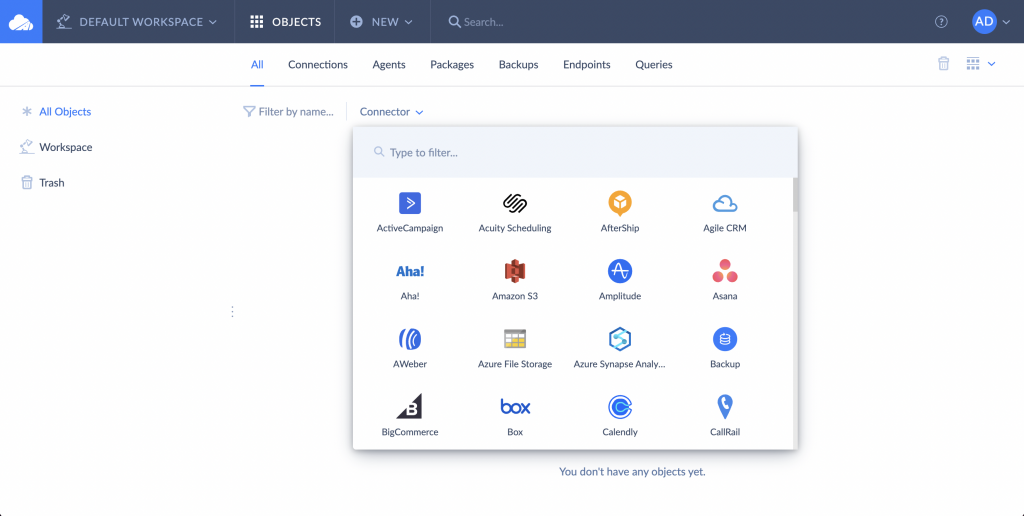
Go to the Connections tab and click +Create New. In the search bar, type PostgreSQL and select the connector.
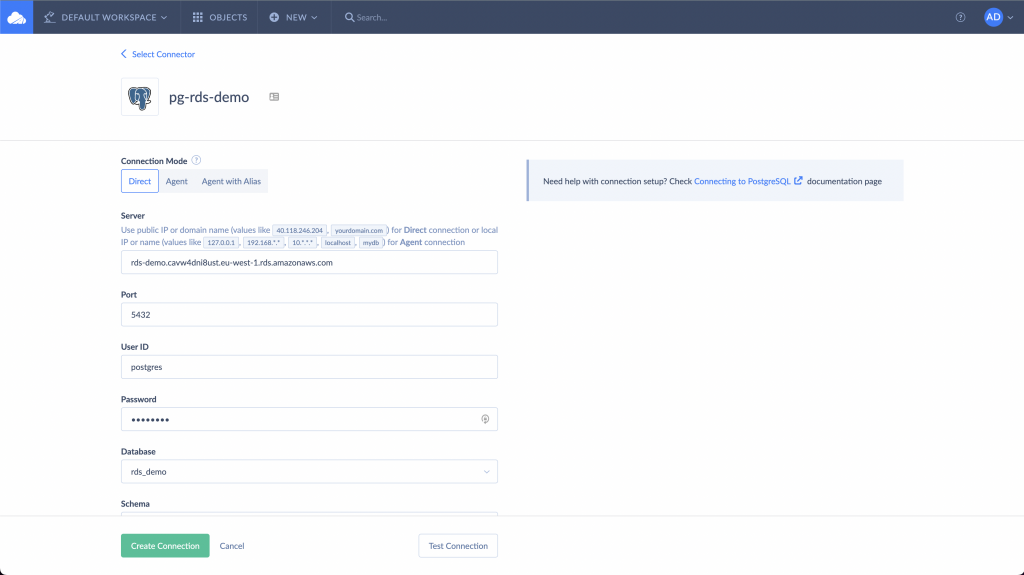
Set Connection Mode to Direct and fill in the required fields:
- Server – Enter the RDS database public endpoint.
- Port – Specify the PostgreSQL instance port.
- User ID – Enter the database username.
- Password – Use the master password for authentication.
- Database – Select the target database from the drop-down list.
Click Test Connection to verify the setup. If the test is successful, click Create Connection to finalize.
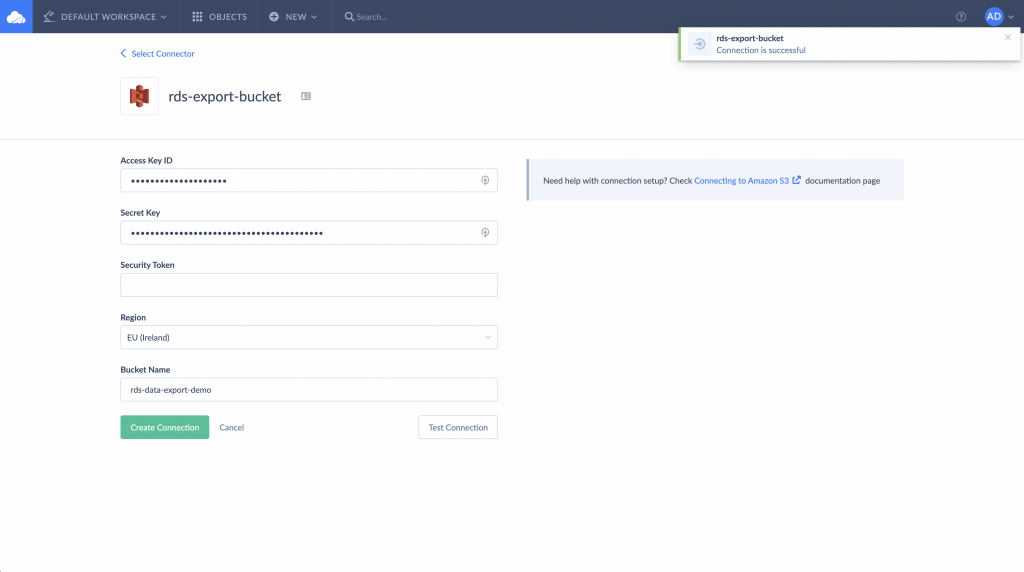
To connect Skyvia to your Amazon S3 bucket, you’ll need an access key ID and secret key from the AWS Management Console. If you don’t have these credentials yet, follow AWS’s official guide to create an access key.
- In Skyvia, go to Connections and click +Create New.
- On the Select Connector page, choose Amazon S3.
- Enter the required details:
- Access Key ID – Your AWS access key ID.
- Secret Key – Your AWS secret key.
- Region – The AWS region where your S3 bucket is located.
- Bucket Name – The S3 bucket where data will be exported.
- Click Test Connection to validate the setup.
- If successful, click Create Connection to finalize.
Step 3: Create an Integration to Export Data
Now that we’ve set up the RDS and S3 connections, we’ll use them to create a Skyvia integration to perform AWS RDS Postgres export to S3.
In Skyvia, click +Create New and select Export. Set up the source and target:
- Source Connection → Select the RDS Postgres connection.
- Target Type → Choose CSV To storage service.
- Target Connection → Select the S3 connection created earlier.
- Folder → Enter a folder name where the exported files will be stored in S3.
Keep the other settings at default and proceed.
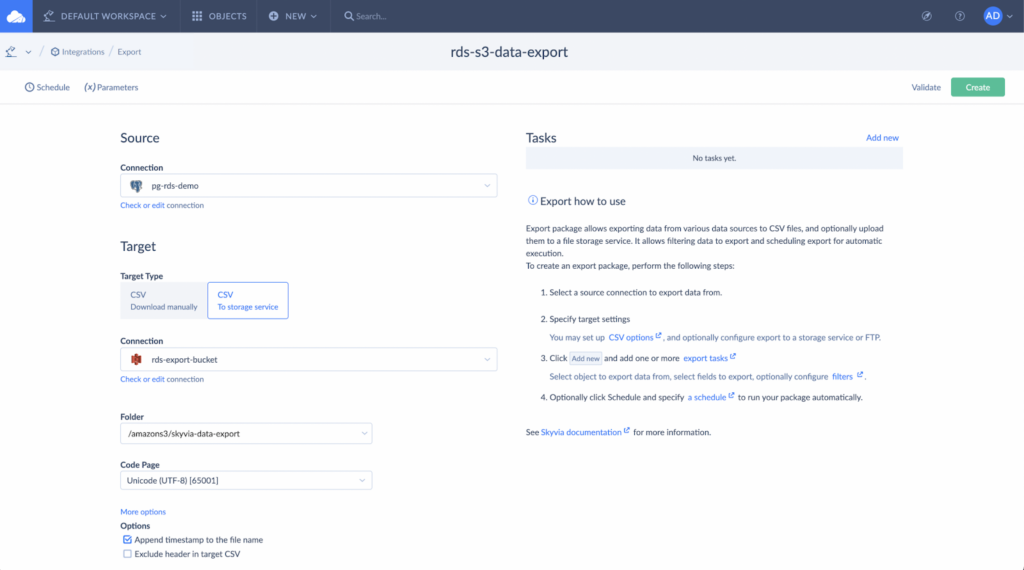
As a next step, create a Task to define the actual data export process. On the right-hand pane, click on Add new for Tasks.
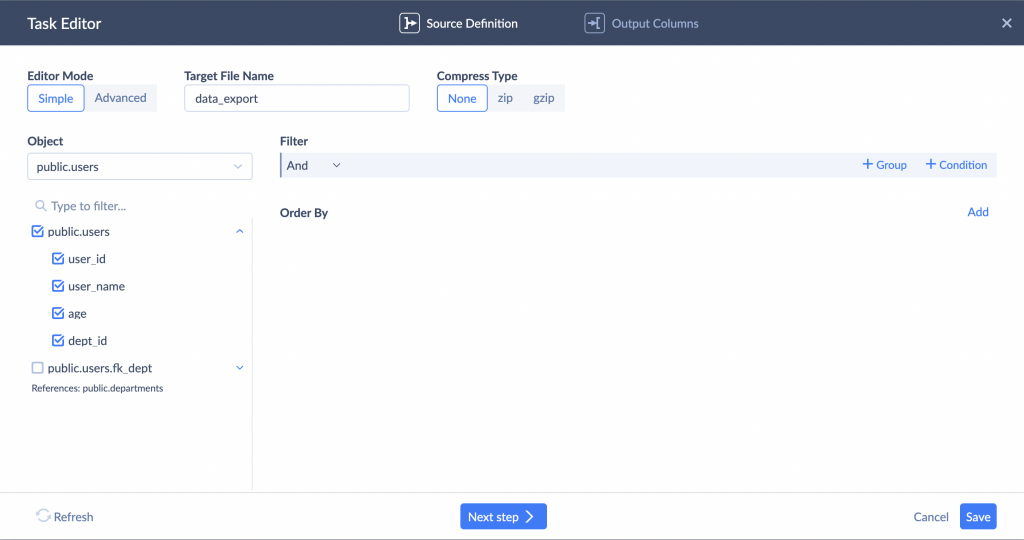
- On the Task Editor page:
- Set the Editor Mode as Simple.
- In the Target File Name enter a name for the exported file.
- For the Compression Type choose zip, gzip, or None based on your preference.
- Within the specified Object select the checkboxes next to the fields that you want to export in the CSV file; unchecked fields will not be included.
- If needed, apply Filters and Order By settings to refine the exported data.
- Click Next Step to map the database fields to the exported file. For simplicity, we’ll leave the field names unchanged and click Save.
- Click Validate and Create to save the integration. Once this is done, click Run to export data from Amazon RDS PostgreSQL to S3.
Step 4: Run and Monitor
Click on the Monitor tab to see the integration status. The initial state is Queued, which is then updated once the execution is completed.
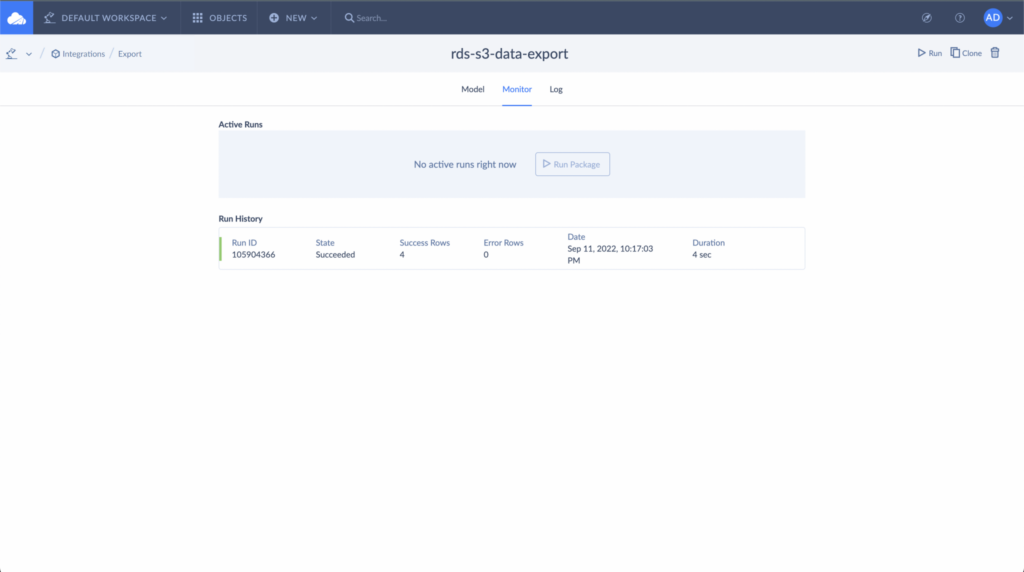
To verify the export, navigate to the S3 bucket in the AWS Management Console and download the file to your local machine. Here, you can open the file in your preferred code editor and view the contents.
With its advanced automation options, Skyvia is an excellent choice for scheduling integrations on a regular basis. To automate export tasks, click Schedule and configure the timing.
You can set it to run daily, on specific weekdays, or at intervals of a few hours or even minutes, achieving near real-time data integration.
Advantages of using Skyvia
- Ease of use: With the Skyvia connector, even non-technical users can create data pipelines and export data from Amazon RDS to S3 buckets.
- No-code approach: Skyvia’s intuitive GUI allows users to easily filter, sort, and select columns for export.
- Scheduling and automation: These options come built-in, enabling automated data exports from Amazon RDS to S3.
- No installation required: Since Skyvia is cloud-based, everything works within the platform without third-party extensions.
- Scalability: Easily handles growing data volumes and adapts to larger workloads as your business needs expand.
Disadvantages of using Skyvia
- Cost considerations: While Skyvia offers affordable pricing, high-volume exports may require higher-tier plans, increasing costs.
- Dependency on an external service: Adding an intermediate service, however reliable, increases the potential risk of failure. Since Skyvia is a third-party platform, you rely on its availability and uptime for scheduled exports.

Other Ways to Run an AWS RDS Postgres Export to S3: Snapshots, pg_dump and DMS
The aws_s3 function and Skyvia both export query results. Three other AWS routes fit different jobs, and what they write into your bucket differs a lot.
| Method | What lands in S3 | Good for | The catch |
|---|---|---|---|
aws_s3.query_export_to_s3 | Text by default, CSV or binary through COPY options; files of about 6 GB with _part2, _part3 and so on | One-off extracts of a table or query | The bucket must be in the same AWS Region as the DB instance; no built-in schedule |
| Snapshot export | Compressed Apache Parquet | Analytics in Amazon Athena or Redshift Spectrum, long-term archives | Billed per GB of the whole snapshot, even if you export one table; can't be restored to a DB instance; temporary and unlogged tables are skipped |
pg_dump piped to aws s3 cp | A custom-format archive (-Fc), compressed by default | Backups you can restore with pg_restore | Runs on a machine that can reach the database; streams over 50 GB need --expected-size |
| AWS DMS with an S3 target | CSV by default, Parquet optional; full load plus change files | Ongoing replication of inserts, updates and deletes | A replication instance to set up, in the same Region as the bucket |
| Skyvia Export | CSV, with optional zip or gzip compression | Recurring exports without code | CSV only; runs once a day on the Free and Basic plans, hourly on Standard, every minute on Professional |
Need a backup you can actually restore later? Go with pg_dump. Since the AWS CLI will happily read from standard input, the dump goes up to the bucket and never touches your local disk:
pg_dump -h mydb.abc123xyz.us-east-1.rds.amazonaws.com -U postgres -Fc salesdb | aws s3 cp - s3://rds-data-export-demo/backups/salesdb.dumpSnapshot export suits a different reader. It writes Parquet that Athena can query in place, but AWS doesn't let you restore that data into RDS. Its pricing also surprises people: a 10 GB table taken from a 100 GB snapshot is billed as 100 GB, and a second export from the same snapshot isn't incremental.
DMS is the choice when S3 has to keep up with the database. Each change file marks rows with I, U or D in the first column, so a downstream job can tell an insert from a delete.
Conclusion
As we’ve seen, exporting data from Amazon RDS to S3 using the native aws_s3 extension offers flexibility and control but comes with its share of challenges. The manual setup can be complex, especially when configuring permissions.
Fortunately, there’s a simpler way. The Skyvia cloud platform removes technical barriers to data integration. With its intuitive, no-code interface, advanced functionality, and affordable pricing, Skyvia is your reliable partner for data operations of any complexity.
FAQ for AWS RDS Postgres to S3

Text, CSV or binary: what format do aws_s3.query_export_to_s3 files use?
By default aws_s3.query_export_to_s3 gives you plain text files. That changes through the options parameter, which accepts the same arguments as PostgreSQL COPY: pass 'format csv' and you get CSV, pass 'format binary' and you get binary, with a custom delimiter if your downstream tool wants one. A big table won't fit in one file, though, because AWS stops each file at about 6 GB and names the next ones _part2, _part3 and so on.
S3 bucket in a different AWS Region? Can RDS PostgreSQL still export there?
Not directly with aws_s3.query_export_to_s3, because for now AWS wants the bucket in the same Region as the DB instance doing the export. Snapshot export has the same rule for the snapshot's Region, though it does accept a bucket in another AWS account through a bucket policy. To get the files into another Region, export to a bucket in the instance's Region first, then copy the objects across with aws s3 cp.
What’s a sensible way to keep RDS PostgreSQL backups in S3?
A backup is only worth something if it restores, which is why we stick with pg_dump in custom format (-Fc), piped through aws s3 cp into the bucket. People do reach for snapshot export to S3 here, but it solves another problem: AWS turns the data into Parquet for Athena or Redshift Spectrum, and there's no path to restore that data into a new or existing RDS DB instance.
How much does exporting an RDS snapshot to S3 cost?
Amazon RDS bills snapshot export per GB of the snapshot's size, not of the data you pick. Exporting one 10 GB table from a 100 GB snapshot is charged as 100 GB, and later exports from the same snapshot aren't incremental. Add S3 storage and PUT requests to the bill, plus AWS KMS when the export is encrypted. The per-GB rate isn't the same everywhere either; it moves with the Region.
Is there a way to run a Postgres to S3 export every night without me?
The aws_s3 extension won't do it for you, as it has no scheduler at all. Someone has to fire the aws_s3.query_export_to_s3 call again each time, and often that someone is a cron job on a server with access to the database. With Skyvia Export you set the schedule in the product itself; the plan decides how frequent it can be, from once a day on Free and Basic to hourly on Standard and every minute on Professional.
Which RDS for PostgreSQL versions support exporting to S3?
According to AWS, every RDS for PostgreSQL version currently on offer can export to Amazon S3. We'd still check the exact engine version you run. Call aws rds describe-db-engine-versions with --engine postgres and your --engine-version, then search what comes back for 's3Export'. No such string? Then the engine needs an upgrade first, before you bother with the aws_s3 extension.