

Summary
- Custom scripts (Python/Airflow) offer complete control and architectural freedom, but you’re coding pipelines, maintaining them perpetually, and managing API quotas.
- Salesforce Data Cloud (BYOL) delivers native, near real-time integration suited for enterprise deployments, but costs reflect that positioning, and the setup involves architectural decisions that require actual thought.
- Skyvia integrates replication, reverse ETL, and data virtualization (OData) through one low-code interface, letting you configure instead of code and skip building pipelines manually.
Your Salesforce knows everything about your customers. Your Snowflake knows everything about your business. And yet, somehow, they’ve never been properly introduced. The result? Two systems sitting on a goldmine of combined insight, while your team exports CSVs, reconciles mismatched records, and makes decisions on yesterday’s numbers.
The fix has a name: Snowflake Salesforce Integration. When these two finally talk to each other, customer context meets enterprise data, and suddenly, you can see the full picture clearly.
There are a few different options, and they’re worth knowing about. But so are their asterisks. This guide covers all of them, so you know exactly what you’re signing up for before you sign up for it.
Table of contents
- Why Connect Salesforce and Snowflake?
- Core Integration Patterns Explained
- Top 3 Methods to Connect Salesforce and Snowflake
- Method 1: Custom Scripts (Python/Airflow)
- Method 2: Salesforce Data Cloud (BYOL / Zero-ETL)
- Method 3: The “All-in-One” Platform (Skyvia)
- Deep Dive: Implementing the Skyvia Solution
- Step-by-Step Guide: Setting Up a Pipeline in 5 Minutes
- Comparison: Custom Script vs. Native BYOL vs. Skyvia
- Conclusion
Why Connect Salesforce and Snowflake?
Snowflake was built to swallow data from everywhere – your ERP, your product logs, your marketing stack, your financial systems – and make sense of it all at once, at scale, without breaking a nail. Drop your Salesforce data in there too, and suddenly you’re not running CRM reports anymore.
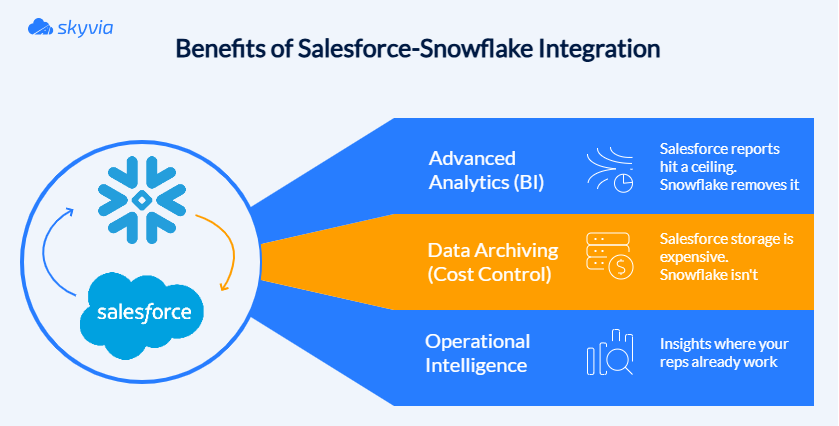
Use Case 1: Advanced Analytics (BI)
Salesforce reports are fine until they start limiting your analytics. Try joining millions of records across years of pipeline history, and your CRM starts politely suggesting you want fewer rows.
Replicate your Salesforce objects into Snowflake, and the limits disappear. Tens of millions of records, complex cross-system joins, predictive models, all of it becomes routine. Your Salesforce data stops hitting ceilings and starts actually meaning something.
Use Case 2: Data Archiving (Cost Control)
Salesforce storage has a way of filling up quietly, and then not so quietly, when the bill arrives. Years of closed Opportunities, old Cases, and archived Activities nobody touches anymore, all sitting in expensive Salesforce storage. You’re paying premium rent for stuff you barely use.
Snowflake is the storage unit – much cheaper, flexible, and still accessible when you actually need something. Moving anything older than two years into Snowflake not only reduces Salesforce storage costs but also keeps Salesforce lean and fast.
Use Case 3: Operational Intelligence
The best integrations don’t just move data. They send it back smarter. Snowflake-Salesforce integration powers customer insights by pulling in your Salesforce data, mixing it with product usage, supporting history, and whatever else lives in your stack, and starting to answer questions Salesforce never could.
Salesforce feeds Snowflake the raw material. Snowflake does the thinking. Salesforce delivers the verdict. It’s less of an integration and more of an upgrade – the kind your reps notice every time they open an Account.
Core Integration Patterns Explained
There’s more than one way to get Salesforce and Snowflake talking. Three patterns have proven their worth – each with a different philosophy on what “connected” means. Move the data. Send it back smarter. Or don’t move it at all.
| Integration Pattern | How Data Moves | Best For | Advantages | Tradeoffs |
|---|---|---|---|---|
| ELT (Replication) | Salesforce data is copied into Snowflake first | Analytics, BI, and historical archiving | Scales easily for millions of records; ideal for warehouse analytics | Creates an additional copy of the data |
| Reverse ETL | Insights from Snowflake are written back into Salesforce | Operational intelligence and CRM workflows | Activates warehouse insights inside Salesforce | Write limits and pipeline management |
| Data Virtualization (OData) | Salesforce queries Snowflake directly | Real-time views of warehouse data | No duplication; always up-to-date | Query latency depends on warehouse performance |
ELT (Replication)
Raw Salesforce data gets shipped to Snowflake first, and transformed after. No overthinking. Once it lands, the real fun begins: SQL, dbt, BI tools, years of historical data, cross-system joins. Your CRM data finally gets to play in the big leagues.
Reverse ETL
Snowflake does the hard thinking, like churn predictions, health scores, expansion signals, next-best-action recommendations, and sends the answers back to Salesforce. Your reps never leave the CRM, but they just suddenly seem a lot more informed.
Data Virtualization (OData)
No copying. No replicating. No storage bill surprises. Salesforce simply peers into Snowflake through a live window whenever it needs something – product usage stats, external datasets, anything too large or too sensitive to duplicate. The data never moves. Salesforce just borrows the view.

Top 3 Methods to Connect Salesforce and Snowflake
Thankfully, we have options for connecting something as grand as Salesforce to something as powerful as Snowflake. Today, there are three options on the menu – for those who want the keys to the kingdom, those who prefer native integrations, and those who prefer to escape the manual construction gauntlet entirely.
Method 1: Custom Scripts (Python/Airflow)
Those who dream in code, this one is for you. Maximum flexibility, maximum room for your creativity, and maximum ownership and maintenance as well.
Best for
- Engineers whose love language is writing code from scratch.
- Highly specialized integration logic.
- Complex or tightly tied to business logic transformations.
- Situations when teams already run workflow orchestration tools like Airflow.
Step-by-Step Guide
Python is the one actually moving the data – querying, processing, pushing. Airflow is the one making sure Python shows up on time and tries again if it fails. One does the job. The other makes sure the job gets done.
A typical pipeline follows four steps.
Step 1: Query Snowflake with Python
The script connects to Snowflake, asks the right question via SQL, and leaves with only the records worth syncing. Most pipelines are smart enough to use incremental logic, grabbing only what’s changed, not the entire history of everything that ever happened. Efficient, targeted, and considerably less dramatic.
import snowflake.connector


conn = Snowflake.connector.connect(

    user='USER’,

    password='PASS’,

    account='ACCOUNT’

)


cur = conn.cursor()


cur.execute("""

SELECT id, churn_score

FROM customer_insights

WHERE updated_at >= CURRENT_DATE - 1

““")


data = cur.fetchall()
Step 2: Transform the data
Next, the script tidies things up before delivery. Sometimes that’s just renaming a few fields. Sometimes it’s running scoring models and pulling in enrichment data from other tables.
Step 3: Push the results into Salesforce
The final push: simple-salesforce delivers the records to Salesforce via API, while upserts quietly prevent the chaos of duplicates. It’s the difference between a clean CRM and one where the same customer exists seven times under slightly different spellings of their own name.
from simple_salesforce import Salesforce


sf = Salesforce(

    username='USER’,

    password='PASS’,

    security_token='TOKEN’

)


for row in data:

    sf.Contact.upsert(

        ‘Id’,

        {'Id': row[0], 'Churn_Score__c': row[1]}

    )
Step 4: Orchestrate the workflow with Airflow
A script without Airflow is a script. A script with Airflow is a pipeline. The DAG spells out the whole sequence: extract, transform, deliver, and Airflow makes sure it happens on time, in order, every single time.
Example DAG:
from airflow import DAG

from airflow.operators.python import PythonOperator

from datetime import datetime


with DAG(

    dag_id="snowflake_to_salesforce_sync",

    start_date=datetime(2024, 1, 1),

    schedule_interval="@hourly",

    catchup=False

) as dag:


    extract = PythonOperator(

        task_id="extract_from_snowflake",

        python_callable=query_snowflake

    )


    push = PythonOperator(

        task_id="push_to_salesforce",

        python_callable=update_salesforce

    )


    extract >> push
Pros
Custom scripts remain popular for a few simple reasons.
- Open-source libraries handle the kind of work that makes laptops cry.
- Engineers can design pipelines exactly the way they want.
- Complex logic can be embedded directly into the code.
- Easily integrates with internal tools and workflows.
Cons
The freedom comes with some sacrifices, though:
- Scripts require updates whenever APIs or schemas change.
- API call limits vary by Salesforce edition and may constrain pipeline schedules, especially for Developer Editions with only 15,000 API calls per day.
- Logging, retries, and alerts need to be implemented manually.
- This method assumes you have developers available to build and maintain the pipeline.
For small or experimental projects, the DIY approach works perfectly well. But as integrations multiply, many teams eventually move toward managed tools that reduce the operational overhead of maintaining scripts themselves.
Method 2: Salesforce Data Cloud (BYOL / Zero-ETL)
If the first method was the DIY route, this one is the native enterprise path.
Salesforce and Snowflake now have an official integration built around Salesforce Data Cloud’s Bring Your Own Lake (BYOL) capability. Instead of exporting data or running ETL pipelines, the two platforms can share datasets directly. Salesforce calls this Zero-ETL data sharing.
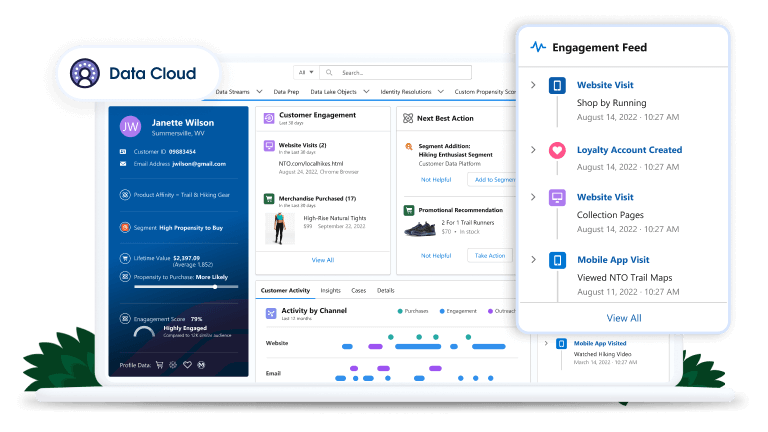
The concept is almost annoyingly simple: Salesforce Data Cloud shares CRM data with Snowflake, Snowflake shares analytical datasets back. Nothing like replication jobs or intricate export schedules in between.
Best for
- Salesforce-centric enterprises that are already using Salesforce Data Cloud.
- Real-time analytics environments where fresh CRM data needs to appear instantly in Snowflake.
- AI and machine learning initiatives that train models on CRM and behavioral data combined.
- Large organizations running cross-cloud analytics between CRM data and external systems.
Step-by-Step Guide
Configuration means both platforms are set up to communicate securely – API credentials, OAuth flows, permissions aligned, regions compatible. All the authentication rituals are necessary before data can move without triggering alerts or angry emails from IT security.
Step 1: Set Up Snowflake Environment
- Start by creating a database, schema, and warehouse where Salesforce data will appear.
CREATE DATABASE salesforce_data; CREATE SCHEMA salesforce_data.public;

CREATE WAREHOUSE salesforce_wh WITH WAREHOUSE_SIZE = 'XSMALL'; - Next, grant permissions so the integration role can access the environment.
GRANT USAGE ON WAREHOUSE salesforce_wh TO ROLE salesforce_role; GRANT CREATE, INSERT, UPDATE ON SCHEMA salesforce_data.public TO ROLE salesforce_role; Step 2: Configure Salesforce Data Cloud
- Enable Data Sharing: In Salesforce Data Cloud, go to Data Shares > Create New, and choose Snowflake as your target.
- Set up Authentication: Ensure that you have Salesforce API access and configure authentication via OAuth or Password for secure integration.
Step 3: Create a Data Share in Salesforce
- Set Up Data Share: Select the objects (e.g., Accounts, Opportunities) you want to share with Snowflake. Choose the necessary fields and configure the data share settings. Use Data Shares to link your data to Snowflake. Example:
CREATE DATA SHARE salesforce_share

ADD ACCOUNT, OPPORTUNITY, CONTACT;
Step 4: Configure Data Access
After the share’s available, Snowflake attaches it as a database via secure sharing, meaning you can query external data like it’s yours without the mess of duplication or sync schedules.
CREATE DATABASE salesforce_share FROM SHARE salesforce_share; At this stage, shared Salesforce data surfaces inside Snowflake as standard tables – query, filter, aggregate however you want, without thinking about the fact that it’s not actually stored there.
Step 5: Activate Bidirectional Sync (Optional)
Salesforce Data Cloud’s BYOL Data Sharing feature allows bidirectional sync, so you can push Salesforce data to Snowflake and bring Snowflake data back into Salesforce. Set up data flows that suit your real-time analytics or AI models.
Step 6: Verify the Integration
Run a simple query in Snowflake to confirm that Salesforce data is visible.
SELECT * FROM salesforce_data.public.account; In Salesforce, verify that shared datasets or derived metrics appear where expected.
Step 7: Monitor and Optimize
- Keep an eye on the pipelines to ensure performance and accuracy.
- Use Salesforce Data Cloud’s governance tools to track and manage data access and ensure compliance.
- Snowflake provides detailed usage statistics and performance metrics that help optimize costs and performance.
Pros
This approach brings several advantages.
- Real-time access to Salesforce data without scheduled pipelines.
- Official Salesforce-Snowflake partnership, meaning the integration is fully supported.
- No ETL infrastructure to maintain.
- Bidirectional sharing between operational CRM data and analytical warehouse models.
- Scales well for enterprise workloads.
- For organizations already running Data Cloud, it can dramatically simplify architecture.
Cons
The native route also comes with a few plot twists.
- Salesforce Data Cloud requires a separate license that may be expensive for smaller organizations.
- Configuring databases, shares, roles, and permissions typically requires experienced admins or data architects.
- Salesforce and Snowflake instances must often reside in compatible regions.
- The Sync Out connector used for pushing data back to Salesforce may introduce delays of several minutes for updates.
Because of these factors, this method tends to appear mostly in large enterprise environments where Data Cloud is already part of the stack.
Method 3: The “All-in-One” Platform (Skyvia)
If the previous two approaches sit at opposite ends of the spectrum – custom code on one side, enterprise-native integration on the other – Skyvia lives comfortably in the middle.
It’s a cloud platform for connecting more than 200 SaaS systems, databases, and warehouses without scripting or wiring up infrastructure that breaks in creative new ways. You’re not writing pipelines line-by-line or navigating enterprise sales processes designed to extract maximum budget. Just a visual configuration where you point, click, test, and are done.
Additionally, Skyvia is an official Snowflake technological partner, meaning the integration is tested, validated, and officially certified by Snowflake.
Skyvia understands that data moves the way people do. Not in straight lines, but doubling back, arriving somewhere only to leave again. Workflows change. The integration stays. Adapts. Waits.
Best for
This approach usually fits organizations that want automation without building infrastructure.
Typical scenarios include:
- Sales and RevOps teams that need Snowflake insights inside Salesforce.
- Analytics teams moving CRM data into a warehouse for BI or machine learning.
- Organizations without dedicated data engineering resources.
- Companies that are integrating many SaaS platforms alongside Salesforce.
Supporting 200+ connectors means Salesforce–Snowflake pipelines typically grow beyond standalone projects. They become foundations for larger integration environments once teams discover that connecting additional systems doesn’t require starting over or learning new tools.
Pros
A handful of capabilities make this approach bend in useful ways.
- No coding required to build or maintain pipelines.
- It holds ETL, ELT, and reverse ETL in the same breath.
- That breath also includes MCP, dbt Core, SQL builder, OData, ODBC, and ADO. NET.
- Incremental synchronization reduces API usage and data transfer costs.
- Automatic schema creation and updates when Salesforce fields change.
- Detailed logging, monitoring, and notifications for integration runs.
- Wide connector gallery for integrating additional systems later.
Cons
No tool fits every situation, and this one has its own boundaries.
- Full functionality requires a paid subscription.
- Extremely specialized pipelines may still require code-first tools.
- Initial configuration can take some time when working with large schemas.
For most CRM analytics scenarios, however, it strikes a comfortable balance between flexibility and simplicity.
Deep Dive: Implementing the Skyvia Solution
It is perhaps easier not to name what Skyvia is, but to watch what it does.
Scenario A: Data Replication (Salesforce → Snowflake)
The most common story. Accounts, Contacts, Opportunities, custom objects nobody remembers creating, leaving one place, arriving in another. Skyvia copies them into Snowflake tables and keeps copying, quietly, after you’ve stopped watching.
Two things make it bearable.
The schema builds itself. Select the objects, and Skyvia constructs the tables – updates them later if the fields change, without being asked.
The second thing: it doesn’t move everything every time. Only what changed. Suppose a Contact updates their email address at 2 am. Only that record will travel. The rest stays where it was.
APIs don’t flood. Compute doesn’t burn. The warehouse stays current through small, constant adjustments that nobody notices until they stop. That means Salesforce API limits stay comfortable, and your Snowflake compute credits aren’t wasted on data that hasn’t moved.
Scenario B: Reverse ETL (Snowflake →Salesforce)
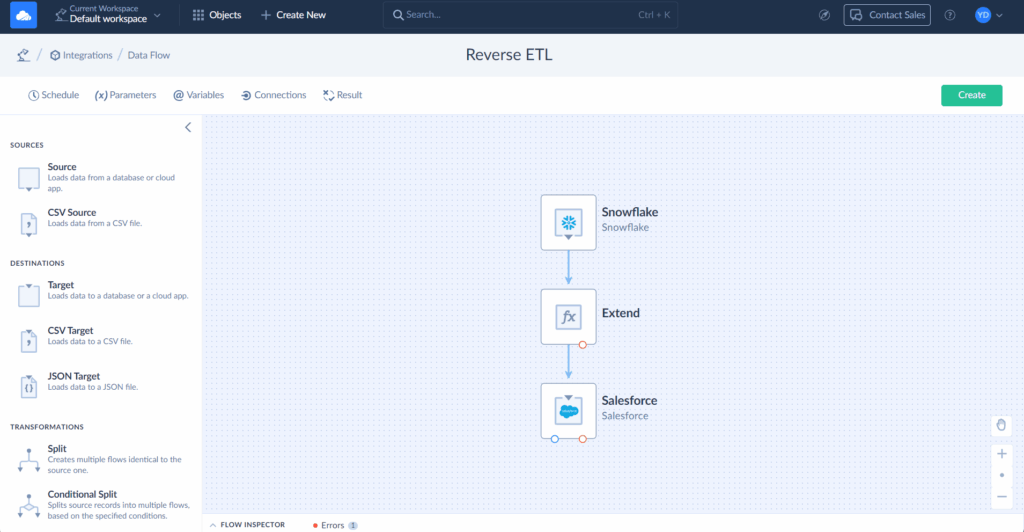
Analytics is only useful if it goes somewhere. Quite often, its mobility is limited. It sits in dashboards nobody opens, in models nobody remembers running. Skyvia can move it in reverse – back into the fields where people actually work. For example:
- A “High Spender” flag based on lifetime order value.
- A Product Usage Score derived from telemetry data.
- A Churn Risk indicator generated by a predictive model.
Skyvia maps Snowflake queries to Salesforce objects, runs upserts, and field updates.
The result is simple but powerful: when a sales rep opens an Account, the insight is already there. The intelligence stopped waiting to be found. Skyvia has already sent it ahead.
Scenario C: Real-Time Data Virtualization (Skyvia Connect)
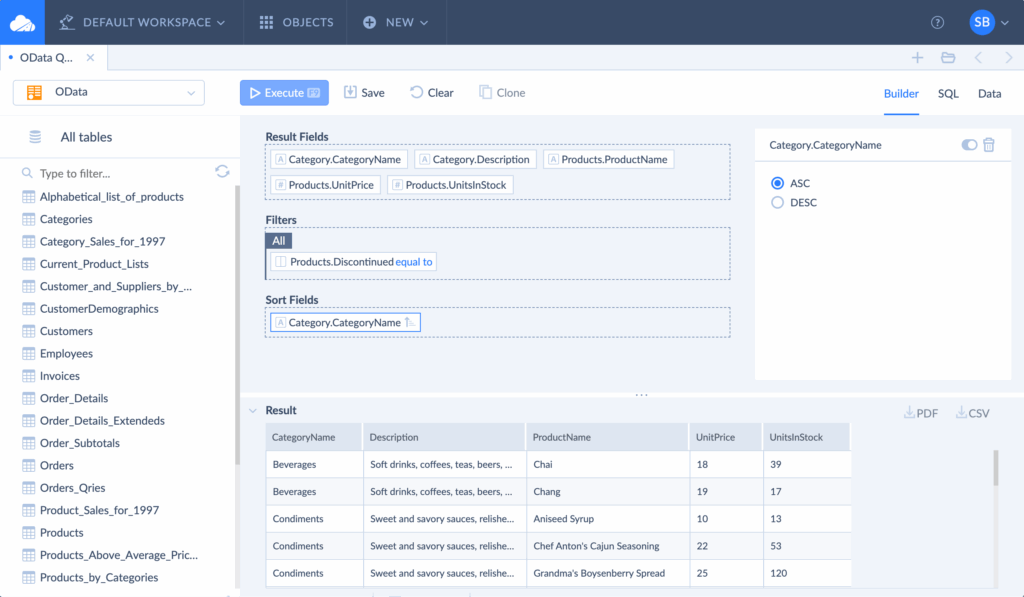
Some things are too large to carry. For example, 10 years of order history sitting in Snowflake. Loading it into Salesforce would not bring it closer, only create a copy that costs more and drifts, gradually, from the original.
Skyvia Connect exposes Snowflake datasets through OData endpoints. Salesforce Connect can then access those datasets as External Objects. The data stays. Only the visibility travels.
Salesforce users can open an Account record and see the full order history pulled live from Snowflake.
Benefits include:
- No additional Salesforce storage costs.
- Real-time access to warehouse data.
- Simplified architecture without replication pipelines.
The CRM becomes a window into the warehouse rather than a second storage system.
Step-by-Step Guide: Setting Up a Pipeline in 5 Minutes
Skyvia keeps the basic workflow refreshingly simple, no matter what integration pattern you plan to use right now.
Most pipelines follow four quick steps.
Step 1: Select the source and destination
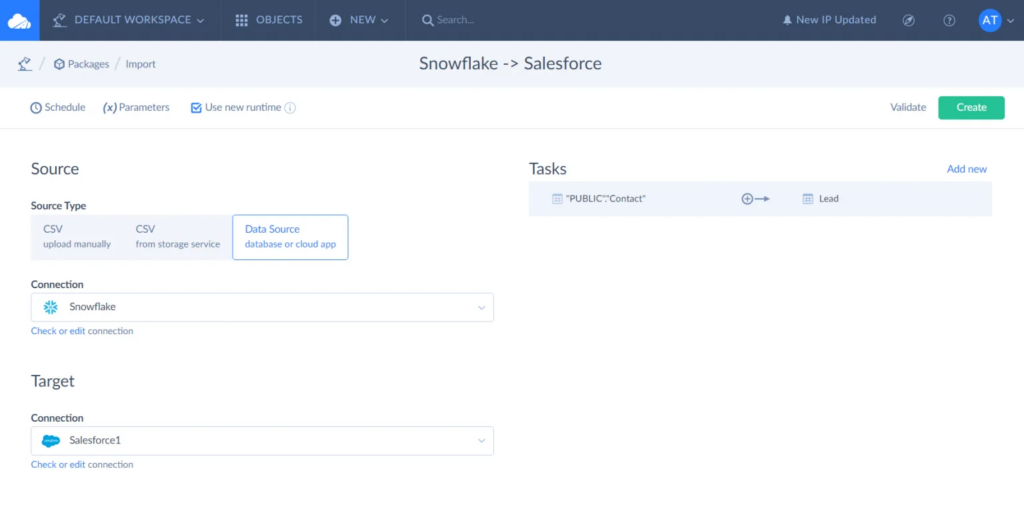
Choose Salesforce as the source and Snowflake as the target, or the other way around for reverse ETL.
Step 2: Choose the objects
Skyvia automatically detects the schema of the selected objects and prepares the necessary mappings. Yet you still have the right to vote here and bend the integration to what you need at the moment.
Step 3: Configure scheduling
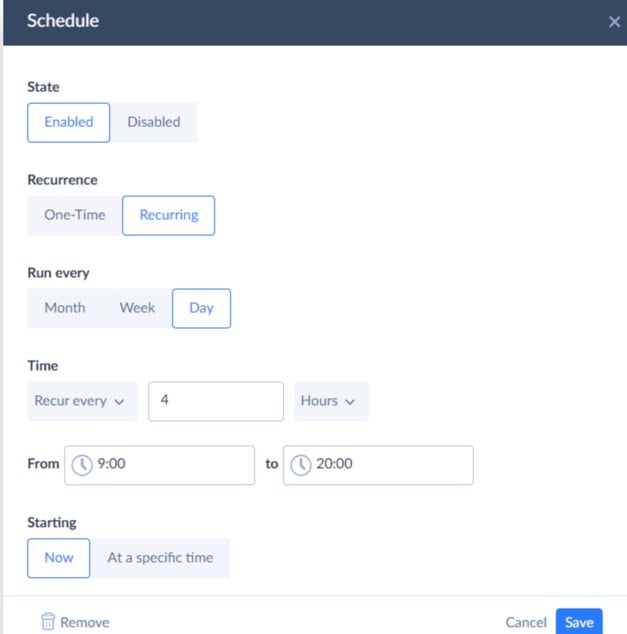
Set the pipeline to run on a schedule ranging from every minute to monthly. Incremental updates ensure only new or modified records are processed.
Step 4: Monitor the integration
Once the pipeline is active, the platform tracks every run. Logs and notifications make it easy to identify issues or confirm successful synchronization.
After that, the pipeline runs quietly in the background while data flows between Salesforce and Snowflake.
Comparison: Custom Script vs. Native BYOL vs. Skyvia
| Feature | Custom Scripts (Python / Airflow) | Native BYOL (Salesforce Data Cloud) | Skyvia |
|---|---|---|---|
| Method Type | Fully custom code | Native enterprise integration | Low-code / no-code integration platform |
| Setup Time | Long – development, testing, and orchestration required | Medium – architecture setup and configuration | Short – configuration-based setup |
| Cost | Infrastructure + engineering time | High (requires Salesforce Data Cloud license) | Subscription-based, predictable |
| Reverse ETL Support | Yes, but requires custom code | Limited (via Sync Out / Data Cloud flows) | ✔ Built-in reverse ETL |
| OData / Data Virtualization | ✖ Not available | Not built-in (requires custom build) | ✔ Available via Skyvia Connect (OData) |
| Maintenance Effort | High – pipelines must be maintained manually | Medium – managed but complex architecture | Low – monitoring and scheduling included |
Conclusion
If you zoom out for a second, the three approaches tell a pretty clear story.
The DIY route with Python or Airflow is perfect if your team enjoys building things from scratch and keeping full control over every moving piece.
Salesforce Data Cloud’s BYOL integration sits on the opposite end of the spectrum. It’s the official enterprise path. If your organization already runs Data Cloud and Snowflake together, this native sharing model can feel very elegant, assuming you’re comfortable with the architecture and the licensing that comes with it.
Then there’s the middle ground.
Skyvia is unique here for covering replication, reverse ETL, and OData virtualization in a single platform. Move data to warehouses for analysis, push calculated fields back to Salesforce for operations, and show live warehouse content inside CRM without copying. All through one interface, without code, external middleware, or enterprise contract negotiations.
Teams gravitate toward methods matching their particular neuroses. But if you’re trying to connect Salesforce and Snowflake this quarter, an all-in-one platform spares you the existential debates.
And if you’re curious what that actually looks like in practice, the easiest way to find out is the obvious one: start a free trial and build your first pipeline today with Skyvia.

F.A.Q. for Snowflake and Salesforce

How do I prevent hitting Salesforce API limits during large data syncs?
Use incremental syncs instead of full loads, batch records via Bulk API, and schedule jobs smartly. Good tools handle this for you, syncing only changes and keeping API usage under control.
What is the difference between Salesforce Replication (ELT) and Reverse ETL?
Replication (ELT) moves raw Salesforce data into Snowflake for analysis. Reverse ETL does the opposite – it takes computed insights from Snowflake and writes them back into Salesforce fields for teams to act on.
Can I use Snowflake to archive historical Salesforce data?
Absolutely. Many teams move old records, like closed Opportunities, into Snowflake to cut storage costs and keep performance clean. The data stays queryable without cluttering Salesforce.
Is the Salesforce to Snowflake integration truly real-time?
Not always. BYOL can get close to real-time for reads, but write-backs often run on short intervals. Most integrations land somewhere between near real-time and scheduled syncs.
Does the integration support Salesforce Custom Objects and Schema Drift?
Yes. Custom objects are supported, and schema drift – when fields are added, renamed, or removed in Salesforce – is handled automatically by tools like Skyvia, which detect changes and update the target schema without requiring manual intervention.