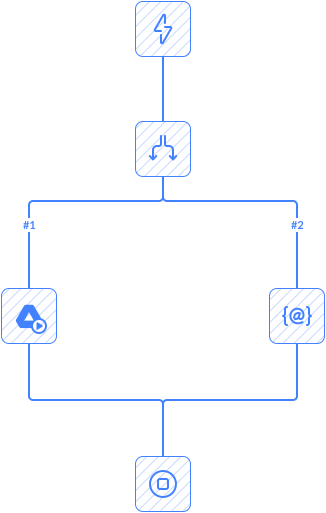
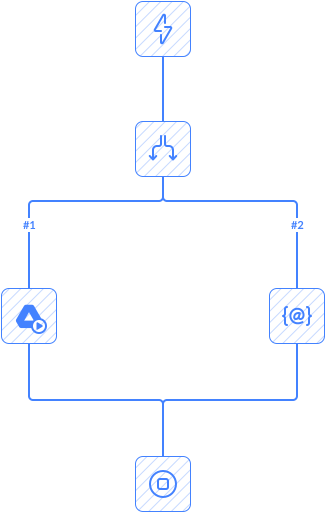
This automation checks for new contacts in HubSpot. When it finds one, it looks for an issue in Jira with the same name and keywords. If no match is found, the automation creates a new issue in Jira using the contact data from HubSpot.
Notes
Issue type depends on Jira project. Make sure it exists in your particular project.
If you have required custom fields in your Jira issues, map them in the action_2 component.
Tips
- You can specify different keywords to avoid duplication in issues. For example, in this template we use the word “Demo” and Contact First Name and Last Name.
Frequently Asked Questions
What triggers this automation?
The automation starts automatically when the configured trigger event occurs in the connected app.
Can I customize the automation workflow?
Yes. You can modify triggers, actions, conditions, mappings, and other workflow settings.
Does this automation run automatically after setup?
Yes. Once enabled, the automation runs automatically based on triggers or schedules.
Can I add more steps or actions to this automation?
Yes. You can extend the workflow with additional actions, conditions, and connected apps.
Do I need coding skills to use automation templates?
No. Skyvia automation templates are configured through a visual interface without coding.