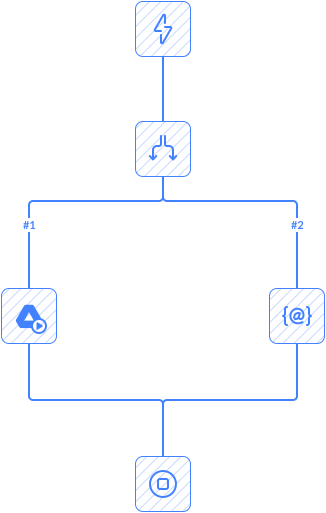
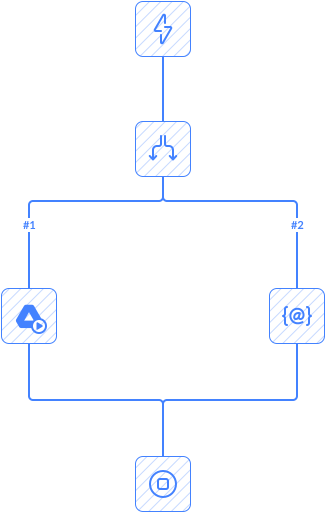
This automation checks for new tickets in HubSpot. When it finds one, it looks for a ticket in Zendesk with the same Subject and Description.
If no match is found, the automation retrieves the contact associated with the HubSpot ticket and looks for a user in Zendesk with the same email address:
- If a match is found, the user is updated with data from HubSpot.
- If no match is found, the automation creates a new user in Zendesk and links it to the ticket.
Notes:
The Email field is used to match contacts in HubSpot with users in Zendesk. If the email changes in HubSpot, the automation will treat the contact as a new user.
When multiple contacts are linked to a ticket in HubSpot, the automation will use the first one to create or update the user in Zendesk.
Frequently Asked Questions
What triggers this automation?
The automation starts automatically when the configured trigger event occurs in the connected app.
Can I customize the automation workflow?
Yes. You can modify triggers, actions, conditions, mappings, and other workflow settings.
Does this automation run automatically after setup?
Yes. Once enabled, the automation runs automatically based on triggers or schedules.
Can I add more steps or actions to this automation?
Yes. You can extend the workflow with additional actions, conditions, and connected apps.
Do I need coding skills to use automation templates?
No. Skyvia automation templates are configured through a visual interface without coding.